

10 Melhores Quadros Kanban Gratuitos em 2026

Melhor seleção de quadros Kanban gratuitos


Um quadro Kanban gratuito é uma ferramenta digital para visualizar o trabalho em cartões e colunas, disponibilizada sem custos através de um plano gratuito ou de um período de avaliação. Se está à procura das melhores ferramentas Kanban gratuitas, provavelmente precisa de uma forma flexível de gerir tarefas, acompanhar o progresso dos projetos e ajudar a sua equipa a manter-se sincronizada — sem ultrapassar o seu orçamento.
Neste guia, ficará a saber quais as ferramentas de quadro Kanban gratuitas que oferecem funcionalidades fiáveis para otimizar o seu fluxo de trabalho, uma experiência de utilização simples e colaboração concebida para equipas de projeto reais. Também verá como cada opção se adapta a diferentes fluxos de trabalho, para poder escolher com confiança a ferramenta mais adequada às necessidades do seu projeto.
Why Trust Our Software Recommendations
Our team has been testing and reviewing software since 2012. As project managers ourselves, we know how difficult—and important—it is to choose the right software.
For this guide, we evaluated tools using hands-on testing and independent research, scoring tools using our selection criteria. We also draw on insights from industry thought leaders and practicing project management experts.
Our reviews reflect our human editorial judgment, not a sales pitch.
Expert reviewers:
Tabela comparativa de quadros Kanban gratuitos
Esta tabela comparativa resume os detalhes de preços das minhas principais escolhas de quadros Kanban gratuitos:
| Tool | Best For | Trial Info | Price | ||
|---|---|---|---|---|---|
| 1 | Best for real-time collaboration | Free plan + 14-day trial available | From €6/user/month | Website | |
| 2 | Best for open-source customization | Free plan available | From €50/year (billed annually) | Website | |
| 3 | Best for agile teams needing backlog support | Free plan available | From 5€/month | Website | |
| 4 | Best for all-in-one CRM and task boards | Free plan + 15-day trial + demo available | From €69/month | Website | |
| 5 | Best for self-hosted visual task management | Free plan available | Free forever plan | Website | |
| 6 | Best with built-in AI task recommendations | Free plan + 14-day free trial + free demo available | From $9/user/month (billed annually) | Website | |
| 7 | Best for customizable workflows and layouts | Free plan + demo available | From $7/user/month (billed annually) | Website | |
| 8 | Best timeline view for task planning | Free plan + trial + demo available | From $10.99/user/month (billed annually) | Website | |
| 9 | Best for multi-view boards on a free plan | Free plan + 14-day trial + demo available | From $10/user/month (billed annually) | Website | |
| 10 | Best for advanced agile project tracking | Free plan + free trial available | From $7.91/user/month | Website |


Avaliações de quadros Kanban gratuitos
Seguem-se os meus resumos detalhados dos quadros Kanban gratuitos que entraram na minha seleção. As minhas avaliações analisam detalhadamente as funcionalidades, os melhores casos de utilização e as integrações de cada ferramenta, para o ajudar a encontrar a opção mais adequada para si.

Best for real-time collaboration
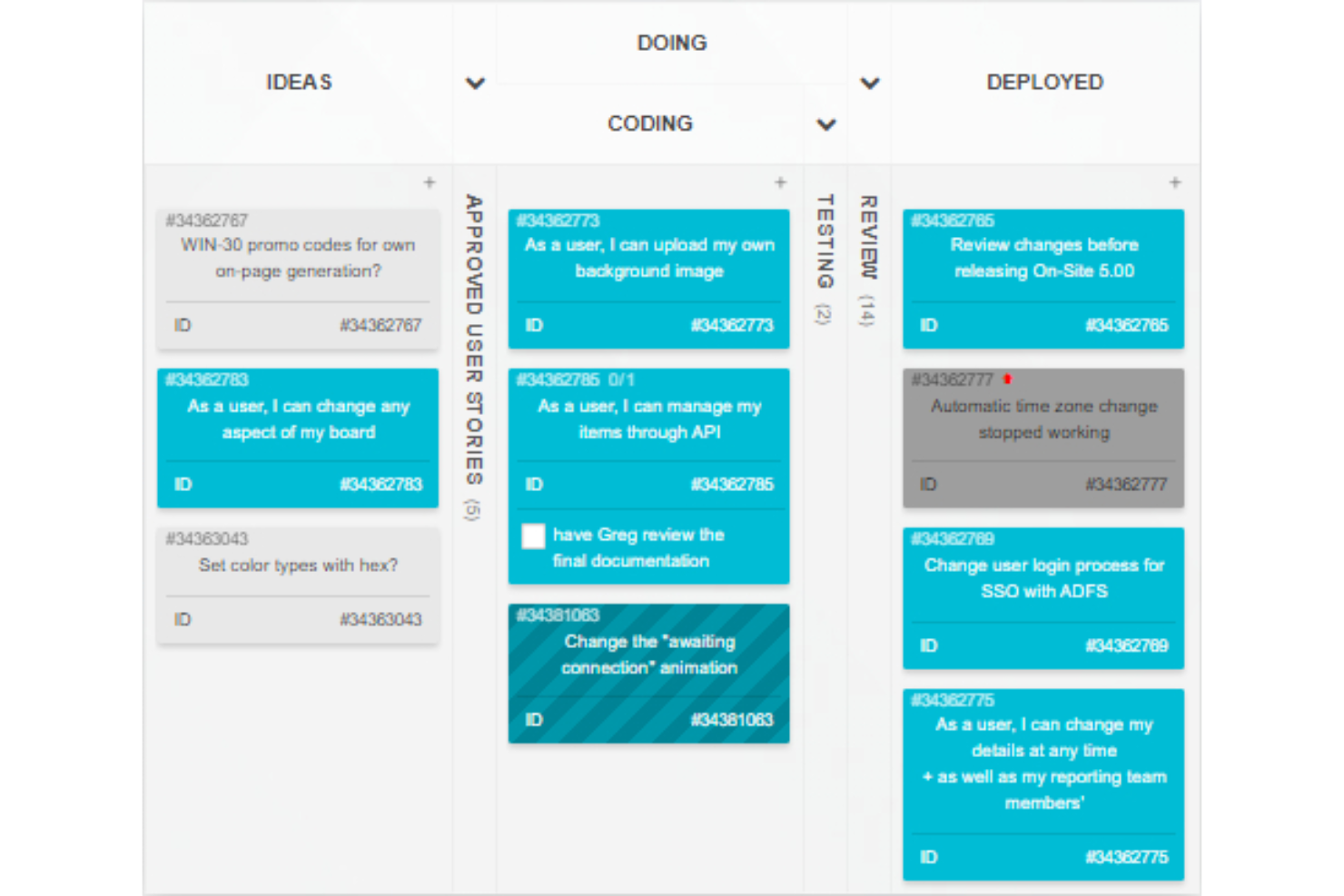
Kanban Tool is an online kanban board platform designed for task visualization, card-based workflows, time tracking, and team activity management in real time.
Who Is Kanban Tool Best For?
Kanban Tool suits distributed teams or small businesses needing visual project management and real-time task updates.
Why I Picked Kanban Tool
I picked Kanban Tool as one of the best because real-time card updates, collaborative commenting, and visual activity indicators keep everyone on the same page during fast-paced project work. I use the swimlanes and card color-coding for progress tracking.
Kanban Tool Key Features
- Time tracking: Track time spent on tasks with built-in timers.
- File attachments: Attach files and documents directly to cards.
- Checklists: Add multiple checklists to each card for detailed task steps.
- Analytics and reporting: View cumulative flow diagrams and other visual project metrics.
Kanban Tool Integrations
Kanban Tool offers native integrations with Zapier, Dropbox, Google Drive, and Box, and provides an API for custom integrations.
What's Free?
Kanban Tool offers a 14-day free trial of all features. There is no mention of a free-forever plan, and all users must select a paid plan after the trial period ends.
Pros and Cons
Pros:
- Swimlanes for managing parallel workflows
- Built-in time tracking per task
- Real-time board and card updates
Cons:
- No mobile app for iOS or Android
- Free plan limits to two boards

WeKan
Best for open-source customization
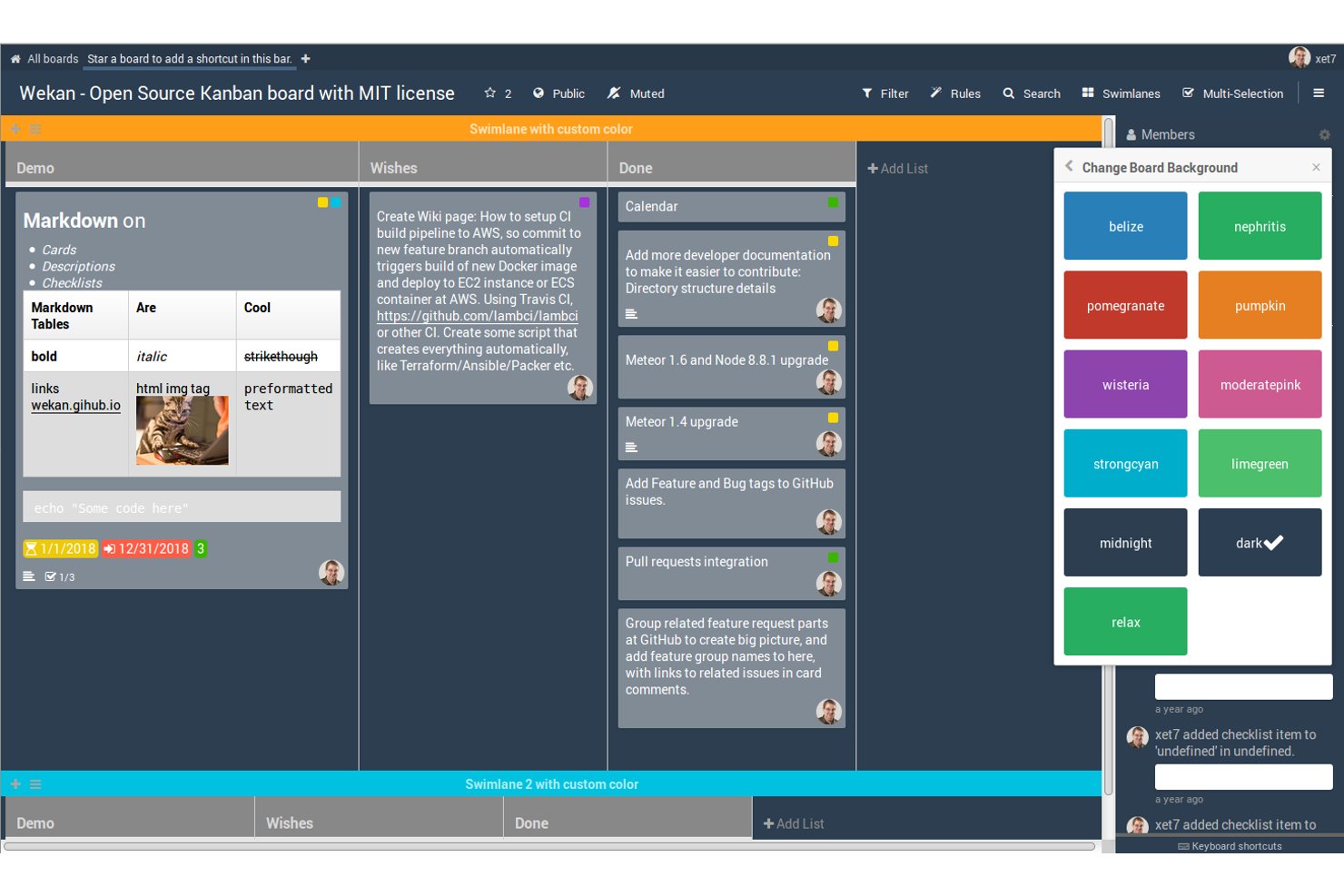
Wekan is an open-source kanban board platform that gives users tools to create, organize, and manage cards and lists for projects or workflows.
Who Is Wekan Best For?
Wekan is a fit for teams and developers seeking a self-hosted kanban solution with control over customization and deployment.
Why I Picked Wekan
I picked Wekan as one of the best because I can fully control and customize my kanban boards using its open-source codebase. I like that I can modify the UI, add custom features, and deploy it on my own infrastructure. This flexibility fits unique project needs.
Wekan Key Features
- Card checklists: Add detailed checklists to cards for subtasks.
- Swimlane support: Visually separate workflows using horizontal swimlanes.
- Card due dates: Assign and track deadlines for individual cards.
- Board member permissions: Set user roles with view, edit, or admin access.
Wekan Integrations
Native integrations are not clearly documented. The tool supports integrations via its REST API for custom workflows.
What's Free?
Wekan is completely free and open-source for unlimited users if you self-host. There are no feature, user, or time restrictions on the open-source version.
Pros and Cons
Pros:
- Custom fields and advanced swimlane options
- Active open-source community for development support
- Self-hosted deployment for full data control
Cons:
- Interface updates are less frequent than competitors
- Fewer features than leading SaaS kanban tools

Taiga
Best for agile teams needing backlog support
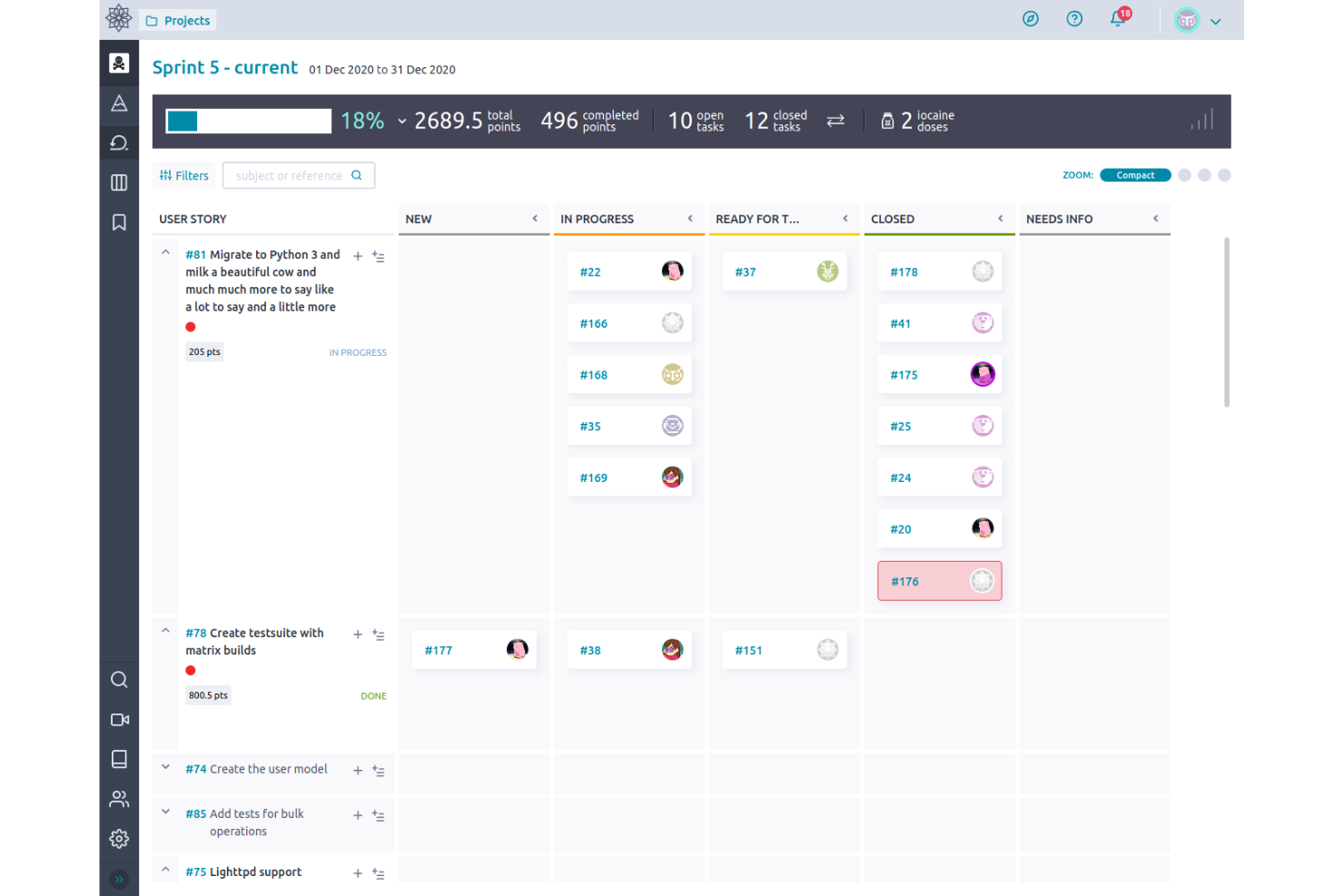
Taiga is an open-source project management tool for agile teams that combines kanban boards, powerful backlog management, sprint planning, and issue tracking in a single workspace.
Who Is Taiga Best For?
Agile product managers and scrum masters at startups or small technology teams looking for flexible kanban workflows and backlog organization.
Why I Picked Taiga
I picked Taiga because I need a kanban tool with strong backlog management. I use user stories, epics, and backlog refinement features to keep priorities clear for agile teams. Taiga’s boards and sprints make managing evolving product backlogs smooth.
Taiga Key Features
- Kanban swimlanes: Organize tasks into multiple horizontal lanes for added structure on your boards.
- Custom workflows: Define and automate unique status progressions for different task types.
- Markdown support: Add markdown formatting to task descriptions, comments, and wiki pages.
- Embedded wiki: Document project knowledge and share resources directly alongside your board.
Taiga Integrations
Taiga offers native integrations with GitHub, GitLab, Bitbucket, and Slack. An API is available for custom integrations.
What's Free?
Taiga offers a free-forever plan that includes unlimited public and private projects, but usage is limited to teams of up to 15 members. Some advanced features may require a paid upgrade.
Pros and Cons
Pros:
- Detailed permissions for project roles
- Built-in wiki and markdown support
- Open-source with kanban and scrum boards
Cons:
- No built-in calendar view
- Reporting options are limited

Bitrix24
Best for all-in-one CRM and task boards
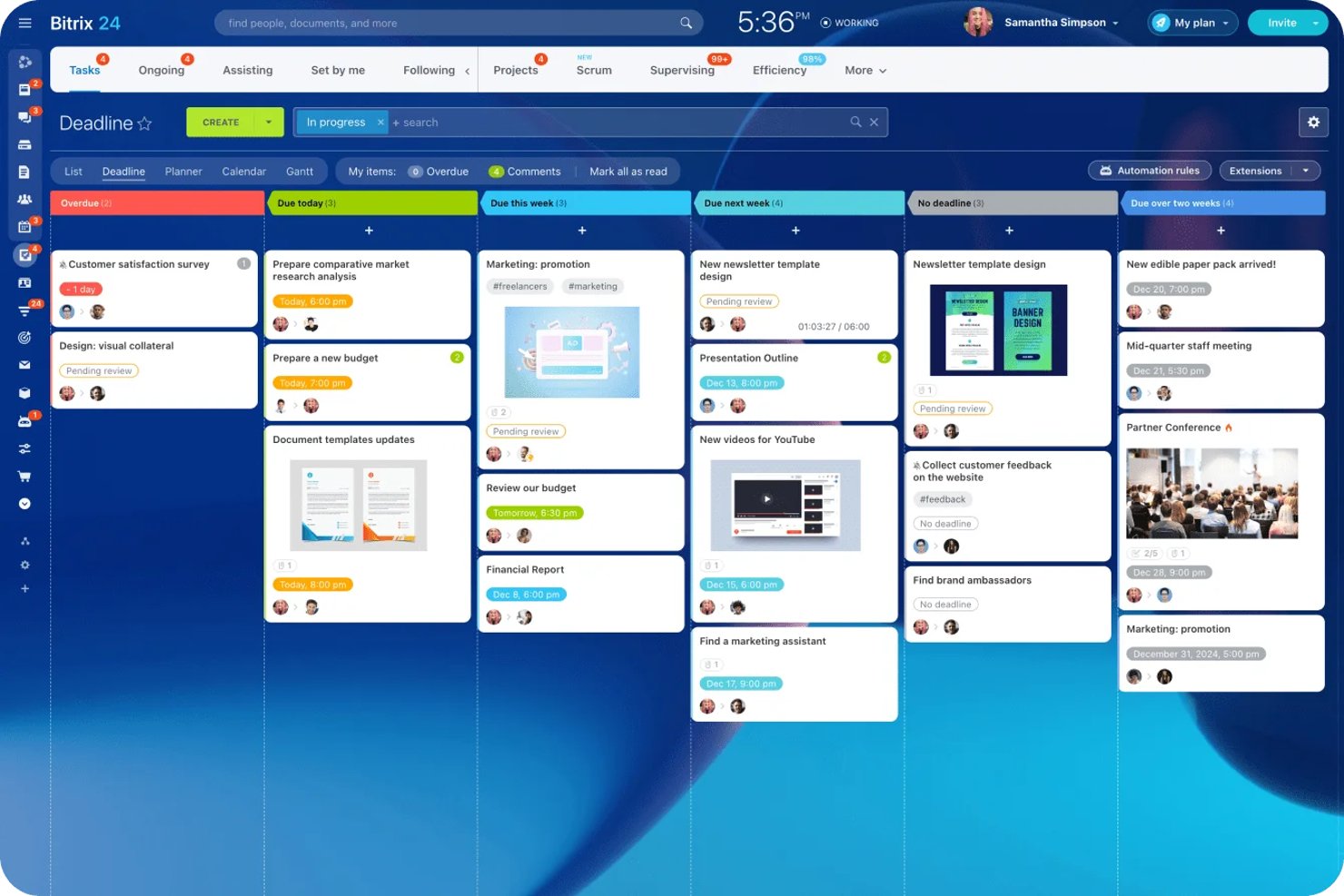
Bitrix24 is a free kanban board solution that unifies task and project management, CRM, chat, video calls, file sharing, automation, and multiple board views within one platform.
Who Is Bitrix24 Best For?
Bitrix24 is a strong choice for small businesses and teams that want to manage tasks, projects, and client relationships on a single, all-in-one platform.
Why I Picked Bitrix24
I picked Bitrix24 as one of the best because it lets my team manage projects, tasks, sales, and client interactions in one place. I like how we can switch between kanban, Gantt, and scrum boards depending on our workflow. Built-in chat, video, and file sharing make collaboration easy as we move tasks or deals through custom kanban stages.
Bitrix24 Key Features
- AI CoPilot integration: Use AI to generate task descriptions, create checklists, and summarize updates directly within cards.
- Project and task templates: Save and reuse templates for common task structures and workflows across boards.
- External collaborator access: Invite clients or freelancers to secure coworking spaces with custom permissions for specific projects.
- Multiple board views: Switch between kanban, Gantt, list, planner, scrum, and calendar views without leaving the platform.
Bitrix24 Integrations
Bitrix24 offers native integrations with WhatsApp, Instagram, Facebook, Telegram, Viber, Google Docs, Microsoft Office, Slack, Skype, QuickBooks, and Xero. It supports marketplace integrations via Bitrix24 Market, connects with Zapier, and provides an open API for custom integrations.
What's Free?
Bitrix24 offers a free-forever plan that supports unlimited users, but has limited storage space and feature access compared to paid plans. The free plan includes core task and project management features, kanban boards, and CRM, but advanced tools, automation, and some integrations are restricted.
Pros and Cons
Pros:
- Team chat and video calls built in
- Built-in AI generates task content and summaries
- Includes kanban, gantt, scrum, calendar views
Cons:
- User limit on free plan is unclear
- Interface is cluttered and overwhelming

Kanboard
Best for self-hosted visual task management
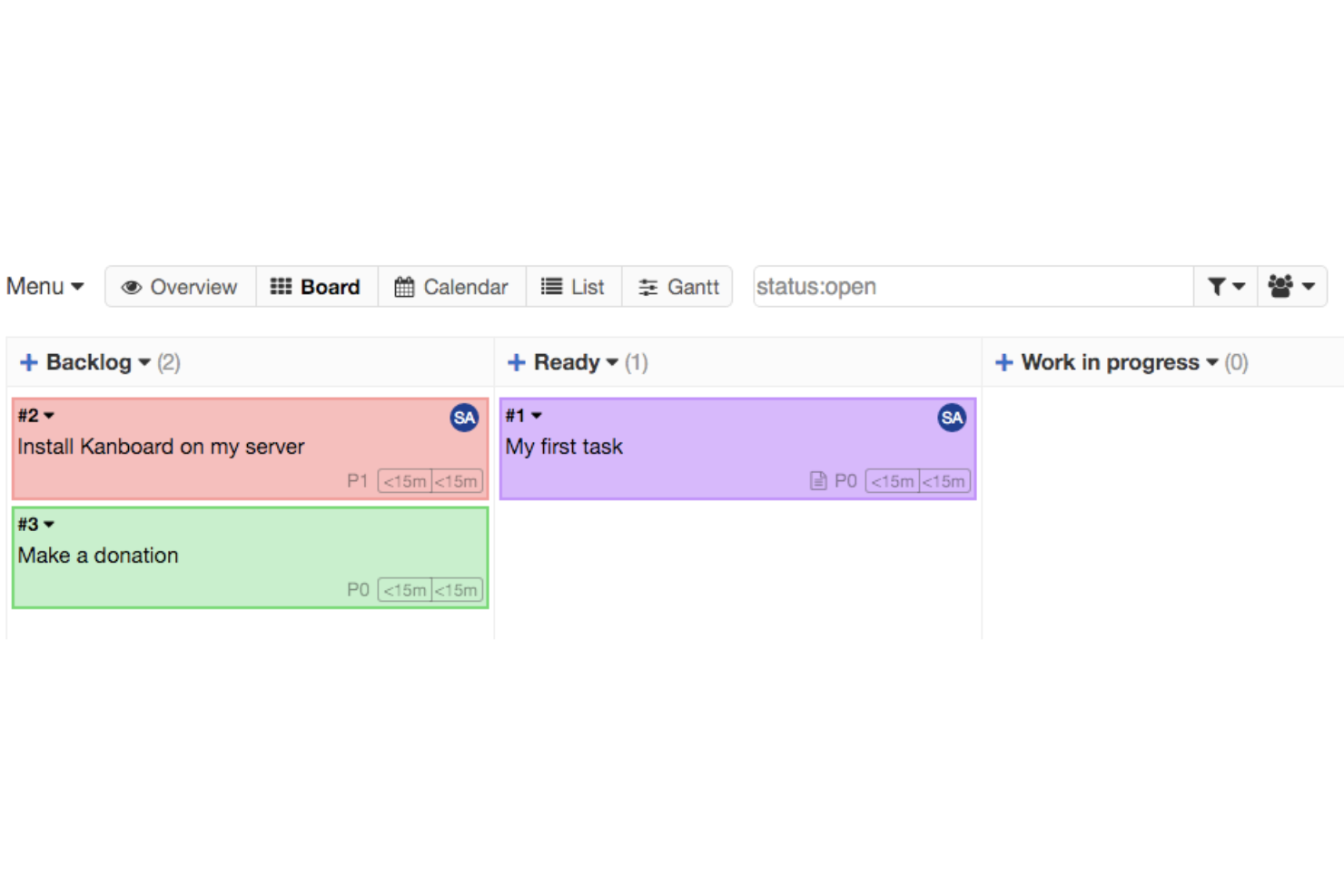
Kanboard is an open-source kanban board solution focused on visual task management, allowing you to create boards, customize workflows, automate processes with integrations, and manage projects entirely on your own infrastructure.
Who Is Kanboard Best For?
Kanboard is a strong fit for IT teams and technical project managers at organizations that want full control over self-hosted, open-source kanban boards.
Why I Picked Kanboard
I picked Kanboard as one of the best because I appreciate how it lets me fully deploy and manage kanban boards on our own infrastructure. I like the deep workflow customization, built-in automations, and ability to add open-source plugins for niche requirements.
Kanboard Key Features
- Subtask management: Break cards into smaller tasks for tracking.
- Swimlane organization: Separate boards into different workstreams or priorities.
- Gantt chart view: Visualize tasks and dependencies on a timeline.
- Markdown support: Format card descriptions and comments using markdown syntax.
Kanboard Integrations
Kanboard offers native integrations with LDAP, RSS feeds, and has an API for custom integrations.
What's Free?
Kanboard is completely free and open-source with no user limits. All core features are available without restrictions for self-hosted use.
Pros and Cons
Pros:
- Extensive workflow automation options
- Self-hosted with complete data control
- Fully open-source with no vendor lock-in
Cons:
- Interface feels dated compared to competitors
- Minimal native integrations with external tools
Best with built-in AI task recommendations
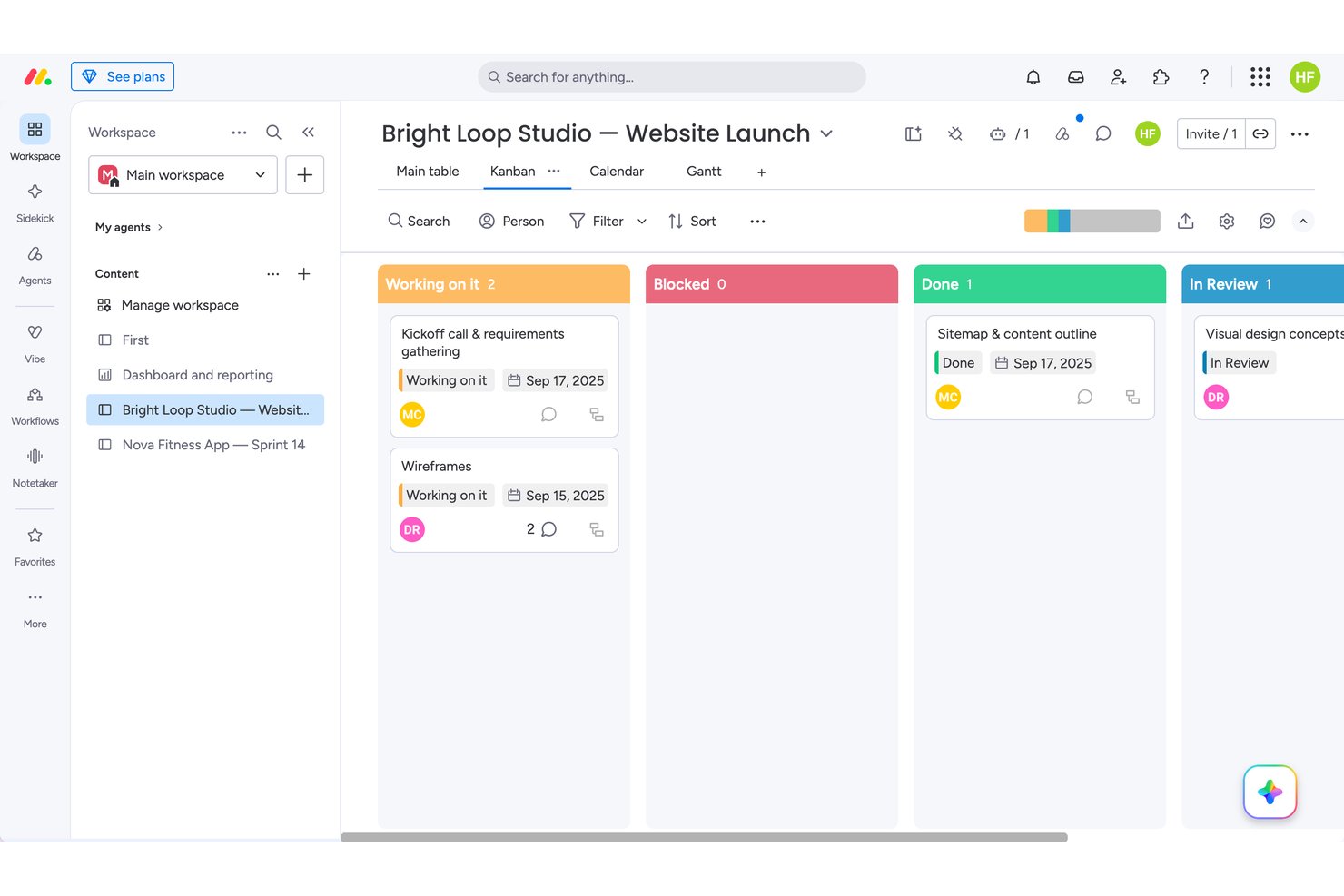
monday.com fits solo users or two-person teams who want visual flexibility over deep collaboration. In testing, I found dependency chains and drag-and-drop synced instantly across Kanban, Calendar, and Gantt views, though WIP limits didn't actually block overflow. That makes it stronger for individual planners than for larger teams, who'll hit the 2-seat cap that rivals like Trello handle more generously on their free tiers.
Why I Picked monday
I picked monday because its automation builder suggests next-step actions and notifications right inside the workflow, closer to true AI-assisted task guidance than most free kanban tools attempt. When I built out a dependency chain across four relationship types, the Gantt view auto-rendered arrows connecting every linked task, something I didn't see elsewhere. Drag-and-drop between Kanban, Calendar, and Table synced instantly with zero refresh lag. WIP limits are configurable, though I noticed they don't actually block overflow when exceeded.
monday Key Features
- Dependency mapping: I linked tasks with four relationship types, including finish-to-start and start-to-start, for real project logic.
- Item activity log: Every field change I made was tracked with a one-click undo option, making mistakes easy to reverse.
- Automation recipes: I built a status-based notification rule from a browsable catalog, though unfilled fields failed silently without an error.
- Custom column editor: I renamed, recolored, and reordered status labels without restructuring any underlying board data.
monday.com Integrations
monday.com offers 850+ marketplace integrations and apps, including Slack, Microsoft Teams, Google Calendar, Google Drive, GitHub, and GitLab. Its open API and SDK support custom integrations, while integration actions require a paid plan.
What's Free?
monday.com offers a free-forever plan with no credit card required, capped at 2 users and 3 boards. I tested real-time drag-and-drop, Kanban, and activity features—everything synced instantly and worked for basic planning, but team collaboration is limited and automation is not available until paid tiers.
Pros and Cons
Pros:
- Activity log offers one-click undo on changes
- Drag-and-drop synced across boards with zero lag
- Dependency chains rendered instantly across Gantt view
Cons:
- Card details spread across separate tabs
- WIP limits don't block or flag overflow
New Product Updates from monday AI Workspace
monday AI Workspace Adds Human Approval Routing
monday AI Workspace adds a human-in-the-loop approval block to AI Workflows, sending approval requests and routing workflow paths based on responses. For more information, visit monday AI Workspace's official site.

ClickUp
Best for customizable workflows and layouts
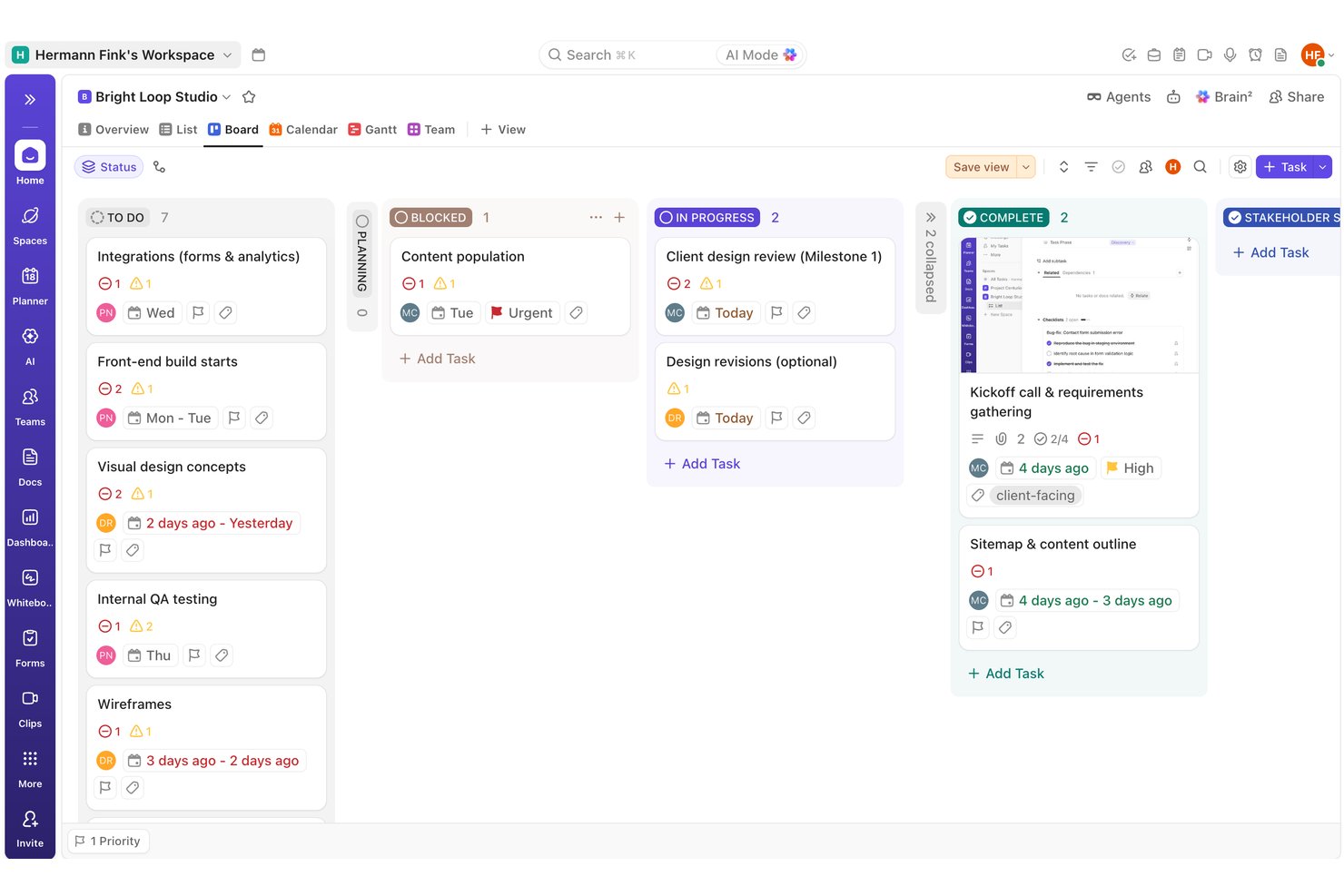
I'd point ClickUp toward teams juggling multiple workflows who want to reshape boards by status, assignee, or priority rather than sticking to one rigid layout. In testing, I built out a full task and dependency structure and found the automation builder fired correctly on the first try, something Trello's free tier can't match.
Why I Picked ClickUp
I picked ClickUp because it lets you rebuild a board around whatever structure your work actually needs. During testing, I set up a dependency chain with multiple blockers per task and watched the warning icons update correctly across both List and Board views without a refresh. I also built an automation rule that shifted priority to Urgent when a status changed to Blocked, and it fired correctly on the first real trigger. That combination of flexible column logic and reliable rule-based automation is hard to find on other free plans.
ClickUp Key Features
- Task dependencies: I linked multiple blockers to a single task and watched warning icons update correctly across List and Board views.
- Quick-add task creation: I built out a dozen tasks in seconds using the type-and-Enter quick-add row, with no extra clicks needed.
- Milestone task type: I flagged key dates using the native diamond-icon milestone type, which stayed visually distinct across every view.
- Comment reactions and mentions: I tested @mentions, file attachments, and emoji reactions on comments, and all worked correctly on the first try.
ClickUp Integrations
ClickUp has native integrations with Slack, Microsoft Teams, GitHub, GitLab, Bitbucket, Google Drive, Dropbox, Google Calendar, Figma, and HubSpot. It also provides a public API and Zapier.
What's Free?
ClickUp offers a free-forever plan with unlimited team members, guests, tasks, and boards—no credit card required. In my own testing, I built out a full board with dependencies, statuses, milestones, and automations, all without hitting user or project limits. The biggest constraints are low storage (just 60MB total for file attachments) and a 60-use cap on custom fields, which I found can restrict richer board setups over time. Most collaboration and workflow features, however, worked as expected with no paywall interruptions for basic use.
Pros and Cons
Pros:
- Automation rule fired correctly on first trigger
- Dependency chains show clear blocker warning icons
- Bulk task creation with type-and-enter quick add
Cons:
- Couldn't locate native WIP limit controls anywhere
- Custom field values didn't render visibly in list view
New Product Updates from ClickUp
ClickUp Adds Meetings Hub, Super Agent Templates, and ZoomInfo Integration
ClickUp adds a searchable Meetings Hub, new ways to clone and template Super Agents, and a ZoomInfo integration through the App Center. These updates improve meeting retrieval, agent reuse, and access to sales intelligence. For more information, visit ClickUp’s official site.
Asana
Best timeline view for task planning
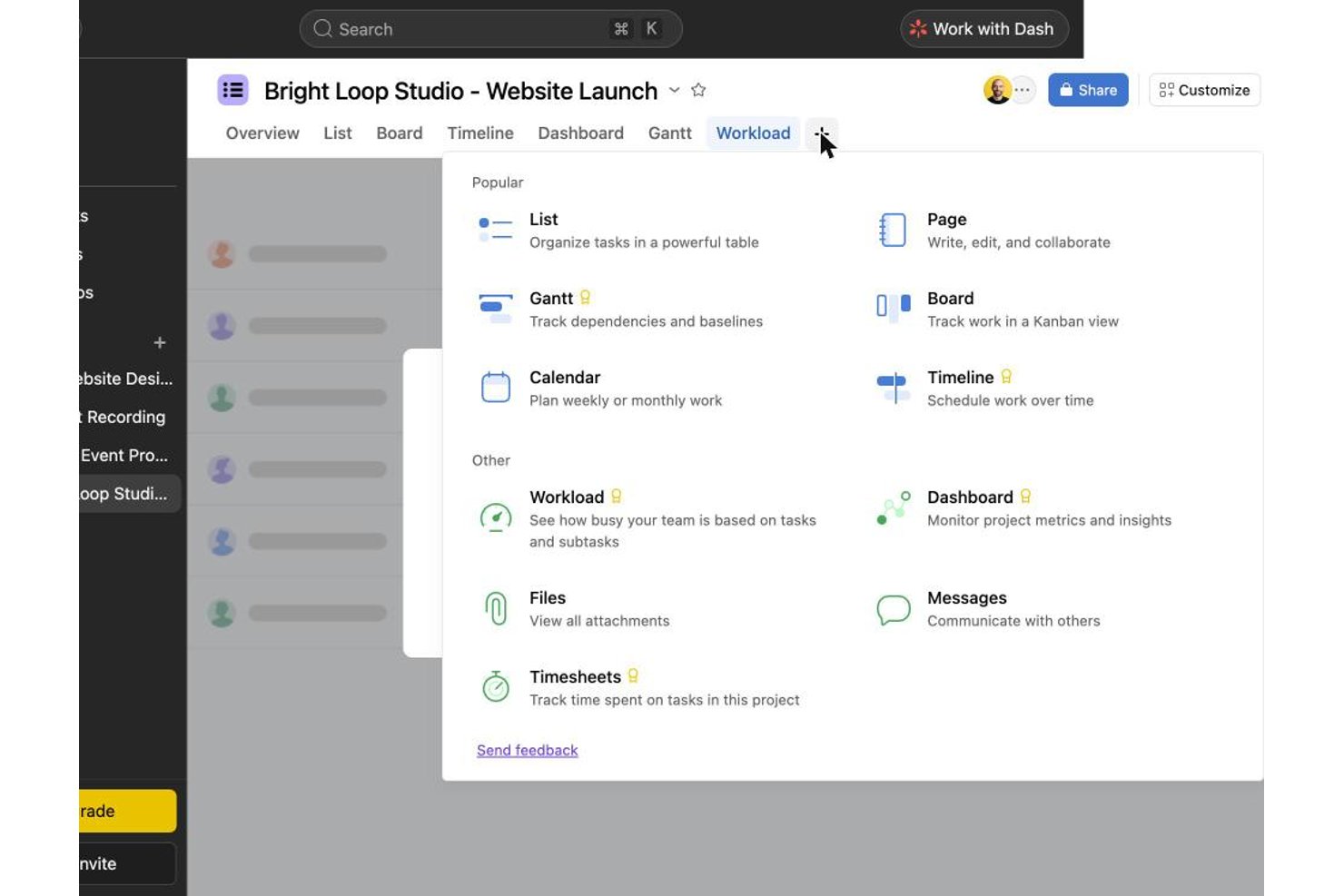
Asana works well for solo users or two-person teams who want a polished task-card experience without juggling multiple tools. In testing, bulk task creation, checklists, and tags felt smoother than in Trello or ClickUp, though drag-and-drop between columns failed on roughly a third of my attempts. It's a stronger fit for individuals than growing teams, since collaboration beyond two free seats requires upgrading.
Why I Picked Asana
I chose Asana because its Timeline view actually delivers on scheduling, even though native start dates and dependencies sit behind a paywall on the free plan. When I tried to map an 11-link dependency chain and two milestones, I had to write date ranges and dependency notes into task descriptions since those fields weren't unlockable. That workaround still produced a usable, readable project plan, which tells me the underlying structure for timeline planning is solid once you upgrade. Switching between Board and List while keeping that same data intact, instantly, is what earns Asana its spot here.
Asana Key Features
- Subtask checklists: Breaking tasks into subtasks gave me a progress counter and a small celebration animation when I checked off the last item.
- Activity log: Every field change I made was timestamped and attributed, making it easy to trace who edited what.
- Board column customization: I added, renamed, and reordered columns to match a workflow, though one reorder attempt didn't register on the first try.
- Comment reactions and @mentions: Tagging teammates and reacting to comments worked smoothly, though attaching files directly inside a comment never visibly completed.
Asana Integrations
Asana offers 200+ integrations, including Slack, Google Drive, Zoom, Microsoft Teams, Jira Cloud, Dropbox, Box, HubSpot, Salesforce, and Power BI. It also provides an open REST API for custom integrations.
What's Free?
Asana offers a free-forever Personal plan with unlimited boards, tasks, and storage, but you’re limited to two users and can’t access Timeline, custom fields, or automations. While I could set up boards, bulk-create tasks, switch between Board, List, and Calendar views, and manage details like checklists and tags without trouble, the paywall blocked start dates, dependencies, and most advanced features—so I relied on workarounds for anything beyond basic kanban.
Pros and Cons
Pros:
- List, board, and calendar views sync instantly
- Activity log timestamps every field change precisely
- Checklist subtasks show satisfying progress animations
Cons:
- Free plan caps collaboration at two users
- Drag-and-drop failed on roughly a third of attempts
Wrike
Best for multi-view boards on a free plan
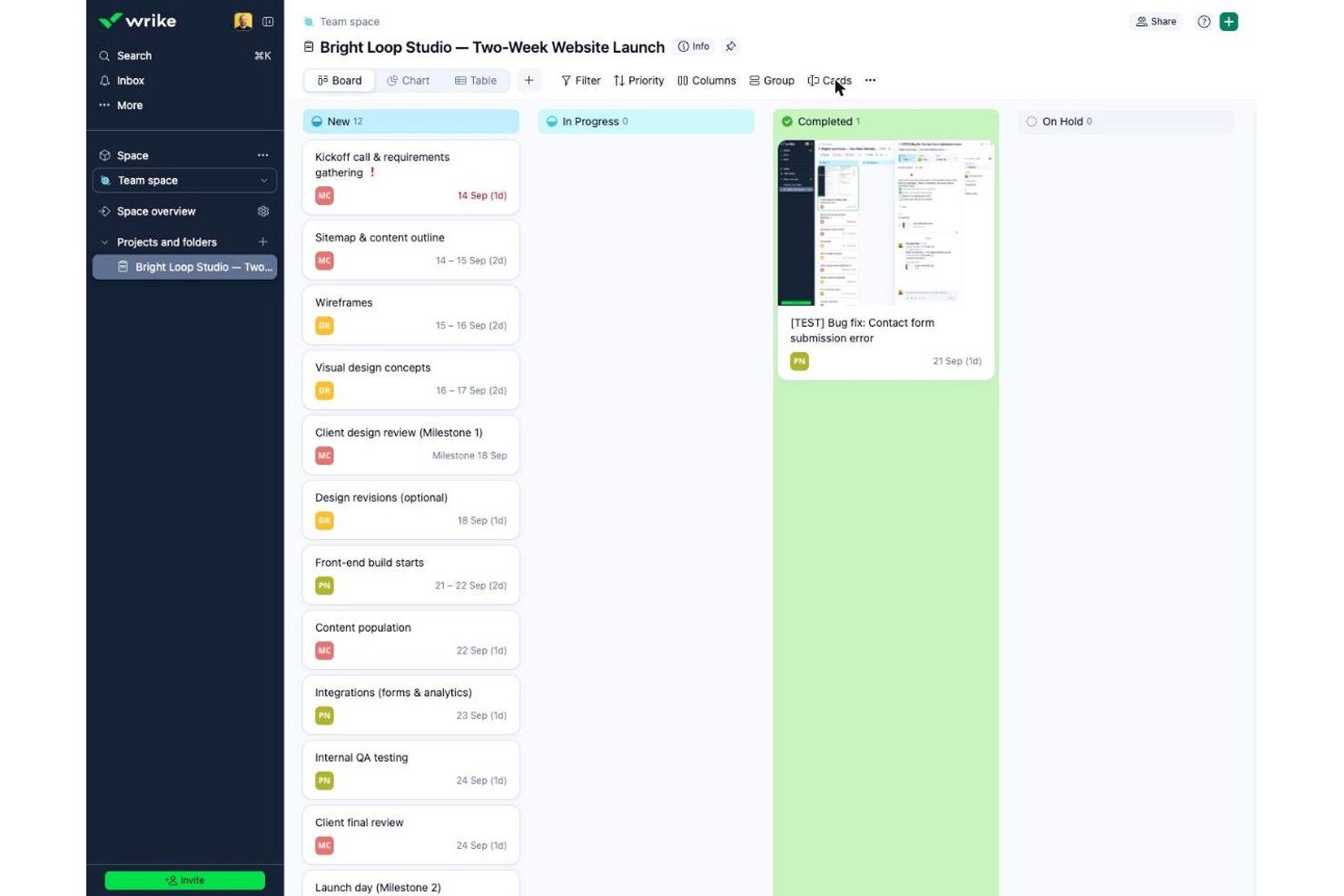
Wrike suits small teams needing unlimited free seats for task-heavy coordination, unlike Asana or monday.com, which cap free users. In testing, bulk task creation and card-level collaboration felt fast and polished, though I couldn't find WIP limits or column customization anywhere in the free interface.
Why I Picked Wrike
Wrike earns its spot for how it handles multiple views on one free plan, letting you flip between Board and Table without losing data. Toggling boards to show projects instead of tasks gave me a portfolio-level read that most free kanban tools reserve for paid tiers. Bulk task creation in Table view felt faster than typing into columns directly, and converting a task to a milestone took one click. I did hit walls trying to add or rename columns, and I never found a native dependency field despite float fields existing behind the scenes.
Wrike Key Features
- Bulk table entry: I created a dozen tasks in minutes by typing names directly into Table view and pressing Enter.
- One-click milestones: Converting a task to a milestone relabeled its date field instantly, with no extra setup.
- Checklist subitems: Adding checklist items to a card gave instant checkbox feedback for tracking small deliverables.
- Mention-aware comments: Commenting on cards prompted a nudge when I forgot to @mention a teammate, keeping updates visible.
Wrike Integrations
Wrike lists about 60 integrations, including Google Workspace, Microsoft 365, Slack, Jira, GitHub, Miro, and Google Sheets. The Free plan includes an Open RESTful API and selected productivity integrations for custom connectivity.
What's Free?
Wrike gives you a free-forever plan with unlimited seats, letting anyone join your workspace at no cost. You get Board and Table views, assignees, file attachments, subtasks, and folder hierarchy, but I couldn’t add or customize columns or set up workflow rules without hitting a paywall. The plan caps storage at 2 GB per account and doesn’t include automation, custom fields, or dashboards. I found task entry and basic collaboration smooth, but key Kanban features like WIP limits and workflow customization aren’t included.
Pros and Cons
Pros:
- Comment nudges keep teammate mentions from slipping through
- Converting tasks into milestones took one click
- Bulk task entry in Table view was very fast
Cons:
- Escape key silently discarded assignee selections
- No visible way to link task dependencies
New Product Updates from Wrike
Wrike Expands Gantt Planning, Approvals, and AI Work Intake
Wrike adds cross-project Gantt dependencies, flexible approval routing, and AI work intake through Wrike MCP. These updates give teams more control over planning, decision-making, and incoming work. For more information, visit Wrike’s official site.

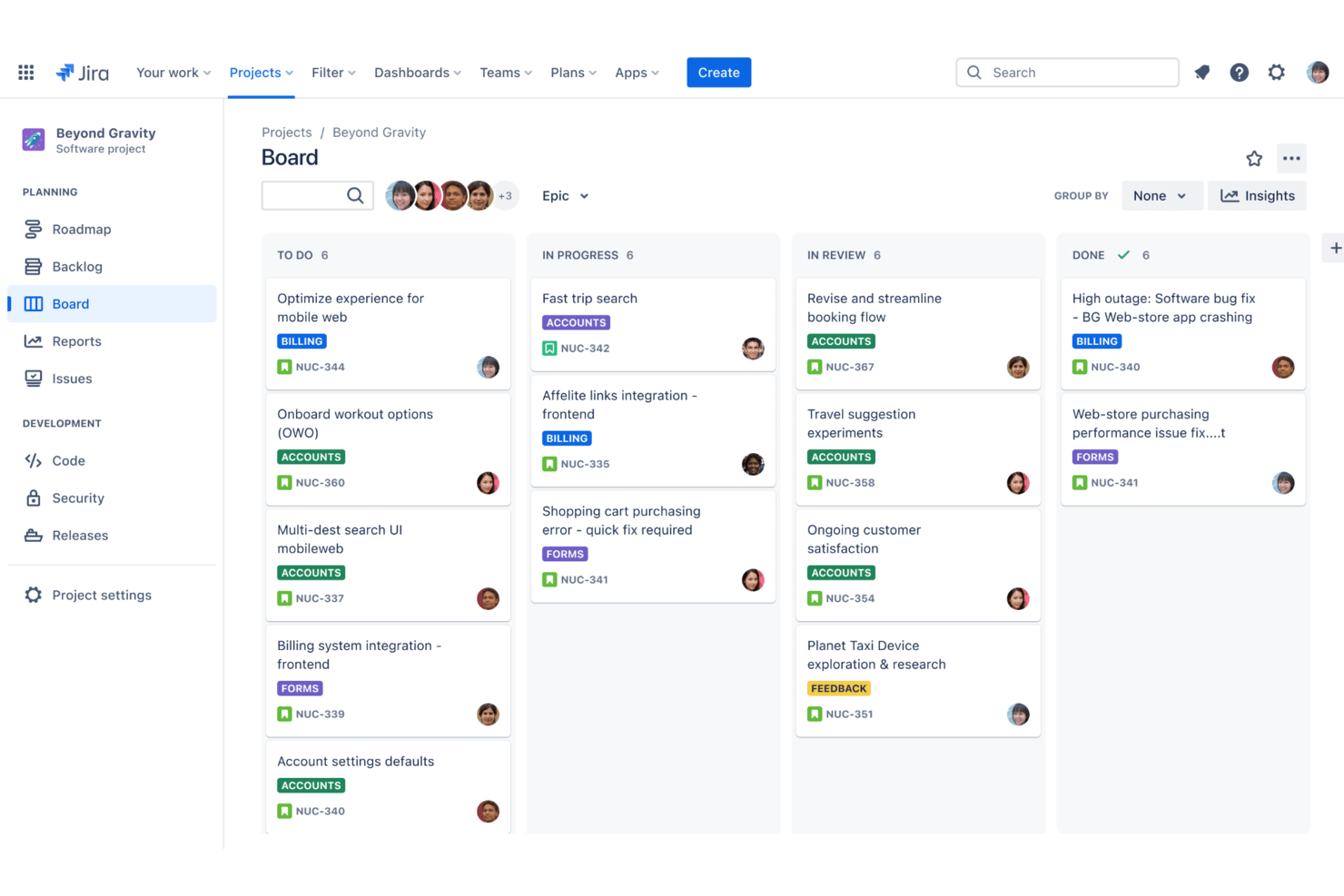
Jira is a project and issue tracking platform for teams that need detailed kanban boards, advanced agile workflows, custom fields, granular permissions, and sprint planning tools.
Who Is Jira Best For?
Jira is a strong fit for software development teams at startups and enterprises who need structured project tracking with agile methodologies.
Why I Picked Jira
I picked Jira as one of the best because I can create highly detailed kanban boards and combine them with advanced agile tools like custom workflows, epics, and sprint automation. Tracking stories and deliverables at multiple levels is seamless for my team.
Jira Key Features
- Backlog management: Prioritize, organize, and plan tasks in a dedicated backlog view.
- Swimlane support: Group cards by assignee, story, or other custom fields.
- Bulk issue editing: Update many tasks at once from the board or backlog.
- Advanced permission controls: Set detailed access and action rights by team, role, or project.
Jira Integrations
Jira offers native integrations with Confluence, Bitbucket, Trello, Slack, GitHub, GitLab, Microsoft Teams, Dropbox, Google Drive, and Salesforce. An API is available for custom integrations.
What's Free?
Jira offers a free-forever plan for up to 10 users. Some advanced features, permissions, and support options are only available on paid plans.
Pros and Cons
Pros:
- Detailed permission settings for boards
- Advanced issue automation and triggers
- Fully configurable kanban workflows
Cons:
- Limited reporting in free plan
- Must enable kanban templates manually
Outros quadros Kanban gratuitos
Eis algumas opções adicionais de quadros Kanban gratuitos que não entraram na minha seleção, mas que ainda vale a pena conhecer:
- Miro
For Kanban on an infinite visual canvas
- Teamhood
For timeline and dependency views
- Freedcamp
For unlimited-user boards on a free plan
- MeisterTask
For intuitive drag-and-drop interface
- Trello
Workflow templates for faster setup
- Pipefy
For workflow process automation
- Nifty
For managing sprints across unlimited members
- Notion
For combining notes and task boards
- Plaky
For unlimited free users on a kanban board
- KanbanFlow
Built-in Pomodoro time tracking


How I Evaluate Free Kanban Boards
First, I define what counts as free. A kanban board must offer a free-forever plan—not a trial—since these tools support ongoing workflows, not one-off projects. From there, I evaluate each tool across two layers: the core functionality it must deliver to make this list, and the differentiators that separate a great option from a merely adequate one.
Core Functionality (Table Stakes For This List)
In addition to my free offer requirements, I also use a scoring system to select tools for my list. Here's how it works:
When I'm selecting tools for my list, I rank each one on a scale from 0 (does not offer the functionality) to 5 (excels in this area) for each core functionality listed below. I then calculate the tool's total score into a percentage, using 75% as a benchmark to help assess its overall fit for the list.
- Kanban Board View: I look at whether the board supports customizable columns and multiple boards, since a fixed To Do/In Progress/Done setup rarely reflects how real teams work.
- Task Cards: I check how much detail you can pack into a card on the free plan—due dates, assignees, and descriptions are the baseline I expect to see without paying.
- Drag-and-Drop: Reliable, real-time card movement matters more than it sounds. I evaluate whether dragging a card across columns actually reflects the update for every team member instantly.
- Team Collaboration: I look at how many users the free plan supports and whether teammates can assign tasks, leave comments, and get notified—core needs for any shared board.
- WIP Limits & Customization: I evaluate whether you can set work-in-progress limits per column, since that's a fundamental part of kanban methodology that many free plans quietly skip.
- Labels, Filters & Search: With boards that grow quickly, I look for multi-criteria filtering and search that helps you find the right card without scrolling through dozens of tasks.
Once I have a list of tools that meet the criteria, I consider what sets each platform apart.
Differentiating Factors (What Sets Vendors Apart)
Here's how I compare and contrast different vendors:
Standout Features
I pay close attention to native automation rules—specifically whether free plans include them at all, since auto-moving cards or auto-assigning on column changes saves real time for teams running recurring workflows. I also evaluate mobile app parity, checking whether the iOS and Android experience actually mirrors the desktop. For distributed teams updating boards between meetings, a stripped-down mobile app is a meaningful limitation. Finally, I look at the templates library to see if it covers practical use cases like sprint planning or bug tracking out of the box.
Beyond Features
Free plan transparency matters more than most people expect. I check whether limits on boards, cards, and storage are disclosed upfront—not buried in fine print after you've built out your workflow. I also look at the upgrade path. If the jump to a paid tier is steep or restructures how your free-plan workflows behave, that's a real risk for growing teams. Finally, data portability is worth evaluating early: knowing you can export your boards as CSV or JSON means you're never fully locked in if your needs change.
Como escolher um quadro Kanban gratuito
É fácil perder-se em listas extensas de funcionalidades e estruturas de preços complexas. Para o ajudar a manter-se concentrado enquanto percorre o seu processo específico de seleção de software, eis uma lista de fatores a ter em conta:
| Fator | O que considerar |
|---|---|
| Escalabilidade | A sua equipa pode adicionar mais utilizadores e quadros à medida que os projetos crescem ou existem limites que atingirá rapidamente no plano gratuito? |
| Integrações | O quadro Kanban gratuito liga-se às suas ferramentas essenciais, como o Slack, o Google Workspace ou o armazenamento de ficheiros, ou terá de pagar pelas integrações? |
| Personalização | Pode alterar colunas, fluxos de trabalho ou etiquetas para corresponder aos processos da sua equipa sem fazer uma atualização? |
| Facilidade de utilização | A sua equipa adotará facilmente a plataforma ou perderá demasiado tempo a explicar ações e definições básicas? |
| Implementação e integração inicial | São disponibilizados guias de integração inicial, modelos ou ferramentas de importação de dados para ajudar a sua equipa a começar rapidamente? |
| Custo | Existem barreiras de pagamento ocultas que bloqueiam ações importantes ou limites de armazenamento/utilizadores que atingirá rapidamente sem pagar? |
| Medidas de segurança | A plataforma disponibiliza autenticação de dois fatores, cópias de segurança regulares e controlos claros das permissões dos utilizadores, mesmo nos planos gratuitos? |
| Disponibilidade do apoio | Se tiver problemas, está incluído algum tipo de apoio no plano gratuito, como chat, documentação ou fóruns da comunidade? |
O que é um quadro Kanban gratuito?
Os quadros Kanban gratuitos são ferramentas digitais que permitem organizar tarefas em cartões móveis dentro de colunas, facilitando o acompanhamento do trabalho e a visualização do progresso sem qualquer custo. Estas plataformas oferecem funcionalidades básicas de gestão de projetos, como atribuição de tarefas, fluxos de trabalho com arrastar e largar e colaboração simples, para que as equipas possam manter-se organizadas, gerir prioridades e promover a transparência — tudo sem custos de licenciamento.
Funcionalidades dos quadros Kanban gratuitos
Vamos analisar as funcionalidades habitualmente encontradas num quadro kanban e quais são normalmente incluídas nos planos gratuitos e pagos.
Funcionalidades habitualmente gratuitas de um quadro kanban
- Cartões de tarefas com arrastar e largar: Mova cartões entre colunas para atualizar o estado, a sequência ou o responsável pela tarefa, ajudando as equipas a visualizar rapidamente o progresso.
- Criação básica de quadros: Crie quadros para diferentes projetos, clientes ou fluxos de trabalho, permitindo-lhe organizar e separar espaços de trabalho conforme necessário.
- Colunas personalizadas: Defina fases do processo, como Por fazer, Em curso e Concluído, para corresponder ao fluxo de trabalho da sua equipa e garantir um entendimento comum.
- Detalhes das tarefas: Adicione descrições, listas de verificação, datas de início e de conclusão, bem como comentários básicos, a cartões individuais para manter as informações essenciais das tarefas num só lugar.
- Atribuição de utilizadores: Atribua cartões a pessoas específicas para garantir a responsabilização e a visibilidade sobre quem está a trabalhar em cada tarefa.
- Colaboração simples: Mencione colegas nos comentários, identifique tarefas e partilhe quadros, facilitando o trabalho conjunto e a discussão contextualizada do trabalho.
- Acompanhamento da atividade: Consulte uma linha temporal das alterações, movimentações e atualizações de cada cartão para saber o que aconteceu e quando.
- Anexos básicos de ficheiros: Carregue documentos, imagens ou ligações para os cartões de tarefas como referência, para que os membros da equipa tenham tudo o que precisam à mão.
- Permissões ao nível do quadro: Conceda acesso de visualização ou edição aos quadros, para que as equipas possam convidar colaboradores e restringir quem pode efetuar alterações.
Funcionalidades habitualmente pagas de um quadro kanban
- Regras de automatização avançadas: Utilize acionadores e ações para automatizar fluxos de trabalho repetitivos, como mover cartões nas datas de conclusão ou atribuir tarefas quando as colunas são alteradas.
- Vistas de Gantt ou de linha temporal: Visualize tarefas em linhas temporais para melhorar o agendamento, a alocação de recursos e a gestão de dependências, para além do quadro kanban padrão.
- Acompanhamento e relatórios de tempo: Registe horas, gere folhas de horas ou relatórios de produtividade e analise o desempenho da equipa para obter informações sobre os projetos e a faturação.
- Quadros e armazenamento ilimitados: Remova os limites relativos ao número de quadros, utilizadores ou carregamentos de ficheiros, dando suporte a projetos maiores e mais complexos.
- Campos personalizados e modelos de cartões: Adicione campos de dados estruturados ou modelos de tarefas reutilizáveis, adaptando os quadros às necessidades específicas do projeto ou da empresa.
- Permissões baseadas em funções: Defina acessos e ações detalhados por função de utilizador, protegendo informações sensíveis dos projetos e controlando quem pode editar ou gerir definições.
- Integração com aplicações de terceiros: Ligue os quadros a ferramentas como o Slack, o Google Drive ou sistemas de CRM para melhorar o fluxo de trabalho entre plataformas e as notificações.
- Suporte prioritário: Tenha acesso a canais de ajuda mais rápidos e personalizados, como telefone, chat em direto ou gestores de conta dedicados.
- Formatação condicional ou filtros: Realce ou filtre cartões com base em critérios específicos (por exemplo, tarefas atrasadas ou utilizadores atribuídos), melhorando a definição de prioridades e a concentração.
- Análises e painéis avançados: Obtenha informações e visualizações mais aprofundadas sobre estrangulamentos do fluxo de trabalho, tempos de execução e tendências de produtividade.
Vantagens de um quadro kanban gratuito
A implementação de um quadro kanban gratuito proporciona várias vantagens para a sua equipa e para a sua empresa. Eis algumas das que pode esperar:
- Sem custos de software: Elimine as taxas de licenciamento para que equipas de qualquer dimensão possam organizar e acompanhar o trabalho sem preocupações orçamentais.
- Clareza visual do fluxo de trabalho: Ajude todos a ver o estado das tarefas e o progresso dos projetos graças a colunas personalizáveis e quadros com funcionalidade de arrastar e largar.
- Colaboração fácil: Permita que as equipas atribuam tarefas, comentem e partilhem quadros, para que todos se mantenham alinhados.
- Integração mais rápida: Permita que novos utilizadores comecem rapidamente com modelos, visitas guiadas ao produto e uma configuração simples do quadro, sem custos.
- Acessível em qualquer lugar: Utilize plataformas baseadas na nuvem para atualizar quadros e tarefas a partir de qualquer lugar, facilitando a coordenação de equipas remotas e híbridas.
- Escalabilidade flexível: Adicione projetos e novos utilizadores dentro dos limites do plano gratuito à medida que as suas necessidades crescem, sem atualizações complexas nem contratos.
- Maior responsabilização: Atribua tarefas e acompanhe o histórico de atividades para saber sempre quem é responsável e o que mudou.
Custos e preços de um quadro kanban
Compreendo que veio a este artigo à procura das melhores opções de quadros kanban disponíveis gratuitamente. No entanto, uma vez que os planos gratuitos oferecem apenas funcionalidades limitadas, é bastante provável que precise de atualizar o seu plano no futuro.
A tabela abaixo resume os planos comuns, os seus preços médios e as funcionalidades típicas incluídas num quadro kanban:
Tabela de comparação de planos para quadros kanban
| Tipo de plano | Preço médio | Funcionalidades comuns |
|---|---|---|
| Plano gratuito | $0 | Criação básica de quadros, cartões de tarefas, atribuição de utilizadores, anexos de ficheiros básicos, ferramentas essenciais de colaboração e armazenamento limitado. |
| Plano pessoal | $5-$10/utilizador/mês | Quadros ilimitados, automatização básica, mais armazenamento, suporte prioritário e fundos personalizados. |
| Plano empresarial | $10-$25/utilizador/mês | Automatização avançada, integração com aplicações de terceiros, permissões de equipa, relatórios e suporte alargado. |
| Plano empresarial de grande dimensão | $25-$40/utilizador/mês | Segurança SSO/SAML, permissões baseadas em funções, registos de auditoria, análise avançada e suporte ao nível empresarial. |
Perguntas frequentes sobre quadros kanban gratuitos
Eis algumas respostas a perguntas comuns sobre quadros kanban gratuitos:
Os quadros kanban gratuitos são seguros para utilizar com dados empresariais?
Sim, a maioria dos quadros kanban gratuitos utiliza encriptação e protocolos de segurança básicos, mas funcionalidades como SSO ou permissões avançadas podem estar restringidas aos planos pagos. Consulte sempre a política de cada ferramenta antes de partilhar informações sensíveis.
Posso fazer a atualização a partir de um plano gratuito de quadro kanban se as minhas necessidades aumentarem?
Sim, a maioria dos fornecedores disponibiliza planos pagos que desbloqueiam mais utilizadores, integrações e funcionalidades avançadas. A atualização é normalmente simples e permite manter os quadros e dados existentes.
Os quadros kanban gratuitos têm limites de utilizadores ou de armazenamento?
Sim, os planos gratuitos incluem frequentemente restrições quanto ao número de utilizadores, quadros, anexos de ficheiros ou espaço de armazenamento. Se atingir estes limites, terá normalmente de atualizar para um plano pago.
Que integrações estão normalmente disponíveis nos quadros kanban gratuitos?
A maioria dos quadros kanban gratuitos disponibiliza integrações básicas com ferramentas comuns, como aplicações de e-mail, calendário ou conversação. As integrações mais avançadas com CRM ou ferramentas de automatização estão normalmente reservadas aos planos pagos.
Posso convidar colaboradores externos ou clientes para um quadro kanban gratuito?
Sim, muitos quadros kanban gratuitos permitem convidar um número limitado de convidados ou utilizadores externos, mas as permissões de acesso podem ser básicas. Reveja os controlos de acesso antes de partilhar informações sensíveis ou de clientes.