

10 melhores ferramentas alternativas ao Jamboard para produtividade em 2026

Lista das melhores alternativas ao Jamboard


O Jamboard, um quadro branco digital desenvolvido pela Google, oferece uma plataforma colaborativa onde as equipas podem visualizar as suas ideias e projetos em tempo real. No entanto, com o software a deixar de estar disponível e a encerrar definitivamente, é importante planear com antecedência e encontrar uma solução alternativa.
Com base nos meus vastos conhecimentos sobre software de gestão de projetos, pesquisei e testei várias alternativas ao Jamboard para ajudar a encontrar o seu próximo software de quadro branco favorito. Com estas informações, poderá fazer a transição com confiança para uma nova solução de quadro branco digital que satisfaça melhor as necessidades de colaboração da sua equipa.
O que é o Jamboard?
O Jamboard é um quadro branco digital e interativo desenvolvido pela Google. Funciona como uma plataforma colaborativa onde as equipas podem criar ideias, desenvolver conceitos e discutir temas visualmente e em tempo real. Entre os utilizadores comuns encontram-se profissionais de empresas e equipas remotas que necessitam de uma tela dinâmica para workshops, aulas ou colaborações em projetos. A ferramenta foi concebida para facilitar o trabalho em grupo, permitindo que os participantes interajam com os conteúdos e entre si, independentemente da sua localização.
Why Trust Our Software Recommendations
Our team has been testing and reviewing software since 2012. As project managers ourselves, we know how difficult—and important—it is to choose the right software.
For this guide, we evaluated tools using hands-on testing and independent research, scoring tools using our selection criteria. We also draw on insights from industry thought leaders and practicing project management experts.
Our reviews reflect our human editorial judgment, not a sales pitch.
Expert reviewers:
Tabela de comparação das alternativas ao Jamboard
Esta tabela de comparação resume os detalhes de preços das minhas principais escolhas de alternativas ao Jamboard:
| Tool | Best For | Trial Info | Price | ||
|---|---|---|---|---|---|
| 1 | Best for UI/UX team collaboration | Free plan available | From $3/user/month | Website | |
| 2 | Best for integrating with existing workflows | Free plan + 30-day trial + free demo available | Pricing upon request | Website | |
| 3 | Best for design team collaboration | Not available | Pricing upon request | Website | |
| 4 | Best for construction and engineering markups | 14-day free trial + demo available | From $260/user/year (billed annually) | Website | |
| 5 | Best for large-scale visual project management | Free plan + 30-day trial available | From €5/user/month | Website | |
| 6 | Best for software developers' visual brainstorming | Free plan available | From $6/month | Website | |
| 7 | Best for hardware-software integrated solutions | Free plan + 30-day free trial + free demo available | From $3,999 one-time | Website | |
| 8 | Best for simple real-time collaboration | Free plan available | From $9/month | Website | |
| 9 | Best for realistic whiteboard drawing feel | Free plan + 14-day trial available | From $5/user/month | Website | |
| 10 | Best for brainstorming in Agile environments | Free plan + 7-day trial + demo available | From $9/user/month (billed annually) | Website |
Análises das melhores alternativas ao Jamboard
Abaixo, encontrará uma análise detalhada e uma visão geral das melhores alternativas ao Jamboard. Estas análises abordam as vantagens e desvantagens de cada ferramenta, examinam as suas principais funcionalidades e destacam os melhores casos de utilização.

FigJam
Best for UI/UX team collaboration
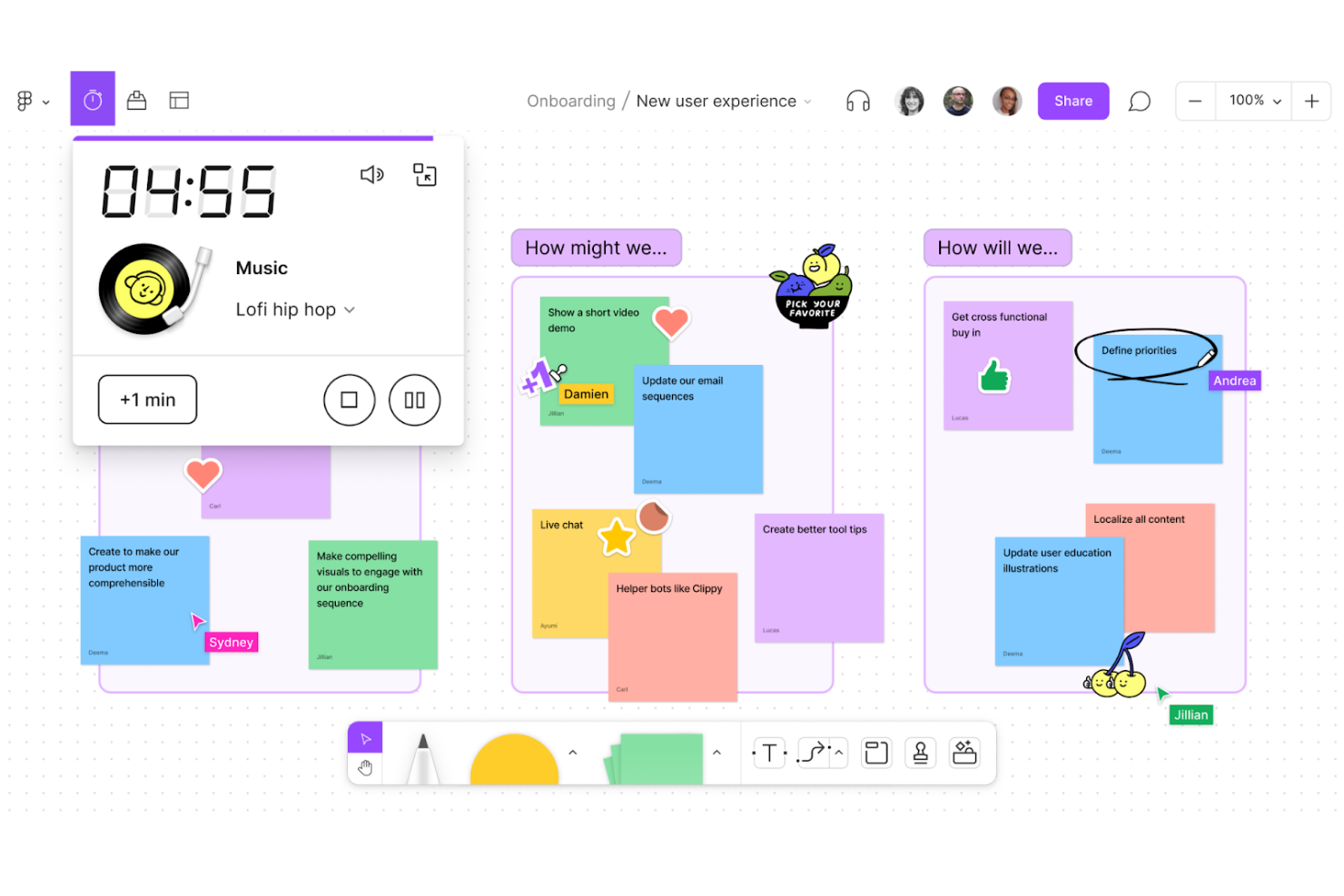
FigJam is a collaborative whiteboard from Figma that combines real-time brainstorming, diagramming, and workshop facilitation tools—including sticky notes, voting, timers, and AI-assisted diagram generation—on an infinite canvas.
Who Is FigJam Best For?
FigJam is a natural fit for product and design teams that already work in Figma and want their brainstorming, planning, and retrospectives to live in the same ecosystem.
Why I Picked FigJam
FigJam earns its spot on my shortlist because it's built from the ground up for the way UI/UX and product teams actually work together. I love that teams can move directly from a FigJam brainstorm or user-flow diagram into a Figma design file, keeping ideation and execution in one ecosystem. The AI-assisted sticky note sorting and board summarization are genuinely useful in sprint retrospectives, where I've seen teams cut through a wall of notes and surface action items in seconds.
FigJam Key Features
- Jamboard importer: Upload Jamboard PDF files directly into FigJam, with each frame landing on the canvas as a separate section.
- Open sessions: Invite external participants to collaborate on a board for up to 24 hours without requiring a Figma login.
- Technical diagramming shapes: Access built-in shape libraries for AWS, Google Cloud Platform, Azure, and Kubernetes to map system architectures.
- Voting sessions: Run structured votes where participant choices stay hidden until the session ends, then reveal results and tallies to the group.
FigJam Integrations
FigJam offers native integrations with Google Workspace, Slack, Zoom, Microsoft Teams, Asana, and Jira, plus ChatGPT, Claude, Microsoft Copilot, and Notion Custom Agents. It also supports Zapier, a REST API, and webhooks for custom integrations.
Pros and Cons
Pros:
- Hidden voting reveals group preferences fairly
- Workshop templates support retrospectives and planning
- Real-time boards keep remote teams aligned
Cons:
- Large canvases can become hard to navigate
- Jamboard frames import as static images

Best for integrating with existing workflows
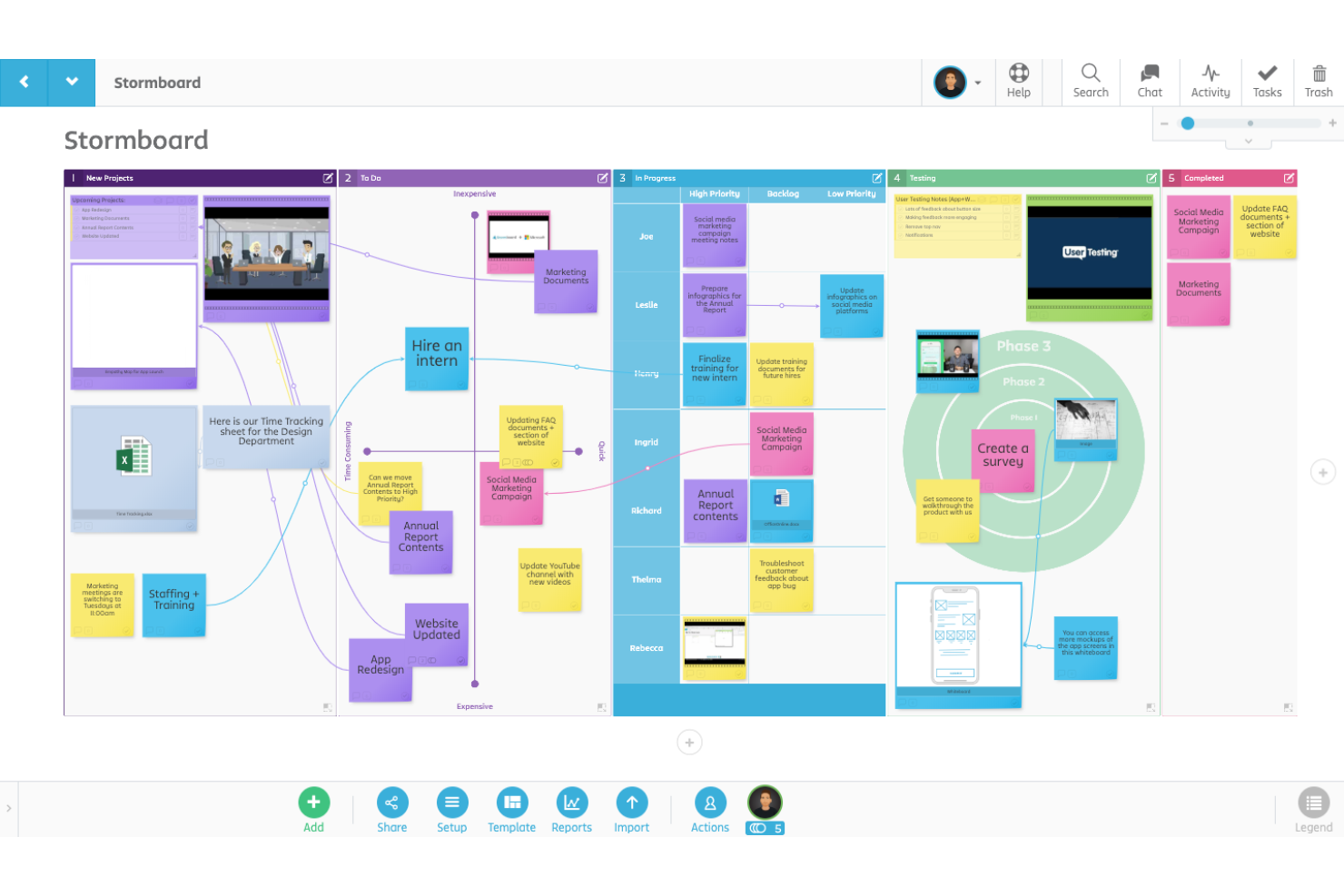
Stormboard is a digital whiteboard and collaborative workspace that combines sticky notes, drawing tools, structured templates, and deep integrations with tools like Jira, Azure DevOps, Microsoft 365, and Slack.
Who Is Stormboard Best For?
Stormboard is a strong fit for teams already embedded in Microsoft or Google ecosystems who need a whiteboard that plugs directly into their existing project management and collaboration stack.
Why I Picked Stormboard
I picked Stormboard as one of the best because it plugs directly into the tools my team already lives in. The Jira integration lets me query backlogs, create Jira issues from sticky notes, and sync story points and sprint data without leaving the board. I also rely on the Agile section types in templates, which sync changes directly with Jira, Rally, and Azure DevOps, keeping planning and execution in the same flow.
Stormboard Key Features
- StormAI idea grouping: Automatically groups sticky notes by theme or sentiment to surface patterns across a board.
- Voting tool: Lets participants vote on sticky notes with a configurable vote count, controlled and monitored by the Storm Administrator.
- Reports and exports: Exports board content into editable Word, PowerPoint, Excel, Google Docs, Slides, and Sheets formats, as well as CSV and PNG.
- Built-in timer: Runs a countdown with a team-visible label and optional sound notification to keep sessions on track.
Stormboard Integrations
Stormboard offers dozens of native integrations, including Google Drive, Microsoft 365, Microsoft Teams, Slack, Zoom, Webex, Jira, Rally, and Azure DevOps. It also provides a RESTful API v1, custom Enterprise integrations, and Zapier.
Pros and Cons
Pros:
- Editable exports carry ideas into reports
- Hundreds of templates structure workshop activities
- Live cursor collaboration supports hybrid workshops
Cons:
- No built-in voice or video conferencing
- Large sessions have reported lag or freezing

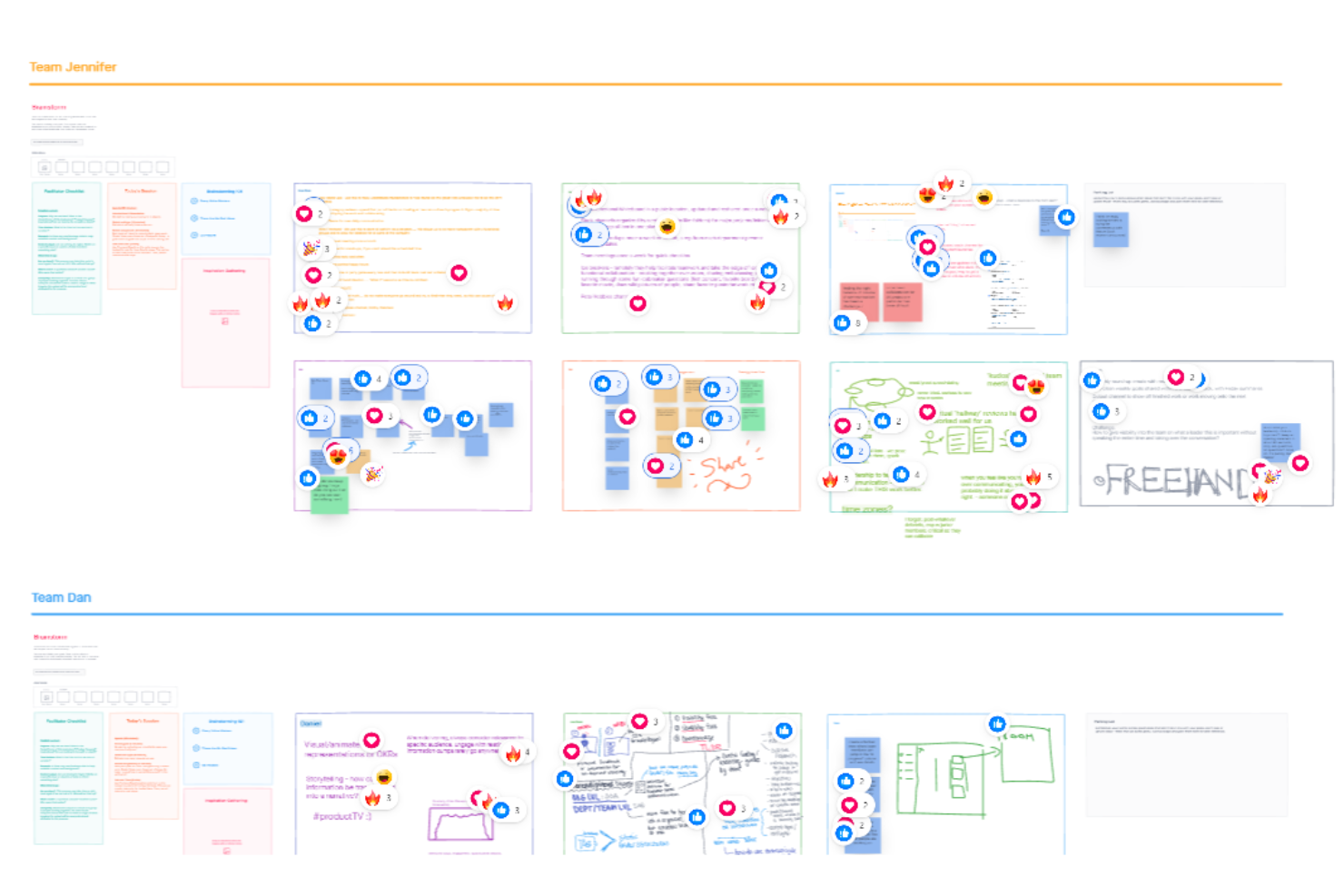
InVision Freehand was a visual collaboration whiteboard that combined freehand sketching, sticky notes, real-time co-editing, and design-tool integrations on an infinite canvas.
Who Is InVision Freehand Best For?
InVision Freehand was built for design teams that needed a shared canvas for visual feedback, sketch reviews, and real-time design collaboration—though it's no longer available as of December 31, 2024.
Why I Picked InVision Freehand
InVision Freehand earns its spot on my shortlist as a historically strong pick for design team collaboration, though I want to be upfront: it shut down on December 31, 2024, and is no longer accessible. At its peak, Freehand let design teams sketch directly over implementation screenshots, sync Sketch and Photoshop work onto a shared canvas, and co-edit in near real-time with participant colors distinguishing each contributor's input.
InVision Freehand Key Features
- Infinite canvas: An unbounded workspace where teams could place sketches, shapes, sticky notes, and diagrams without running out of space.
- Participant color coding: Each collaborator was assigned a distinct color, making it easy to track individual contributions during live sessions.
- Smart widgets: Built-in interactive elements including polls, timers, voting tools, and action buttons for structured collaboration sessions.
- Design-tool sync: Native support for publishing and syncing Sketch and Photoshop work directly onto a shared Freehand canvas for team review.
InVision Freehand Integrations
Freehand historically listed native integrations with Google Drive, Slack, and Trello, but it was discontinued on December 31, 2024, so these integrations are no longer available.
Pros and Cons
Pros:
- Sketches and shapes snapped into place
- Near-real-time co-editing showed contributor colors
- Historically praised screenshot markup
Cons:
- Mobile apps lacked full whiteboard parity
- Discontinued, with access ending December 31, 2024

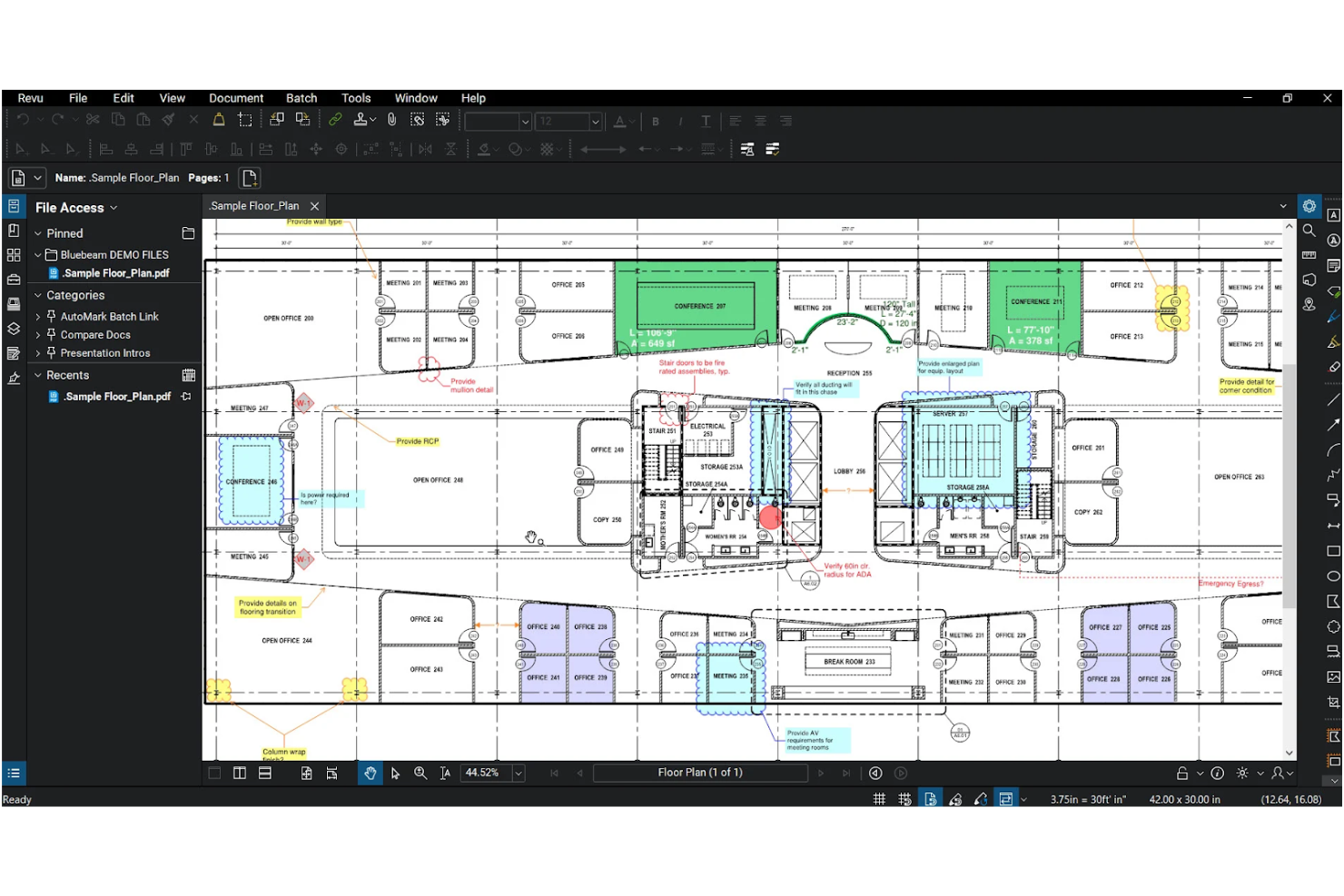
Bluebeam Revu is a PDF markup and drawing-review platform built for AEC workflows, offering annotation tools, real-time collaborative markup sessions, measurement and takeoff features, and document management.
Who Is Bluebeam Revu Best For?
Bluebeam Revu is a strong fit for architecture, engineering, and construction teams that need structured PDF markup and drawing review workflows.
Why I Picked Bluebeam Revu
I've included Bluebeam Revu in my top picks because it's the go-to PDF markup platform for construction and engineering teams who need precise, structured drawing review rather than open-ended whiteboarding. I particularly like Studio Sessions, which let multiple reviewers annotate the same PDF simultaneously, with every markup, comment, and chat message captured in a session record. The overlay and comparison tools for tracking drawing revisions are genuinely hard to replicate elsewhere in a PDF-native environment.
Bluebeam Revu Key Features
- Markups List: View, filter, and sort all annotations and comments across a PDF in a single consolidated panel.
- Drawing comparison and overlay: Compare two versions of a drawing to identify changes between revisions.
- Tool Chest: Save, organize, and share custom reusable markup tool sets with project collaborators.
- Studio Projects: Store, version, and manage project documents in a secure cloud space with check-in/check-out controls.
Bluebeam Revu Integrations
Bluebeam Revu offers integrations with Microsoft Excel, AutoCAD, Revit, SharePoint, OneDrive, Procore, Box, Dropbox, and Egnyte. Studio APIs, webhooks, and Markups APIs support custom integrations, but no whiteboard-specific connections are documented.
Pros and Cons
Pros:
- Drawing overlays track revision changes
- Session records preserve comments and decisions
- Live collaborative PDF markups
Cons:
- No native sticky notes or workshop tools
- PDF pages replace an open canvas

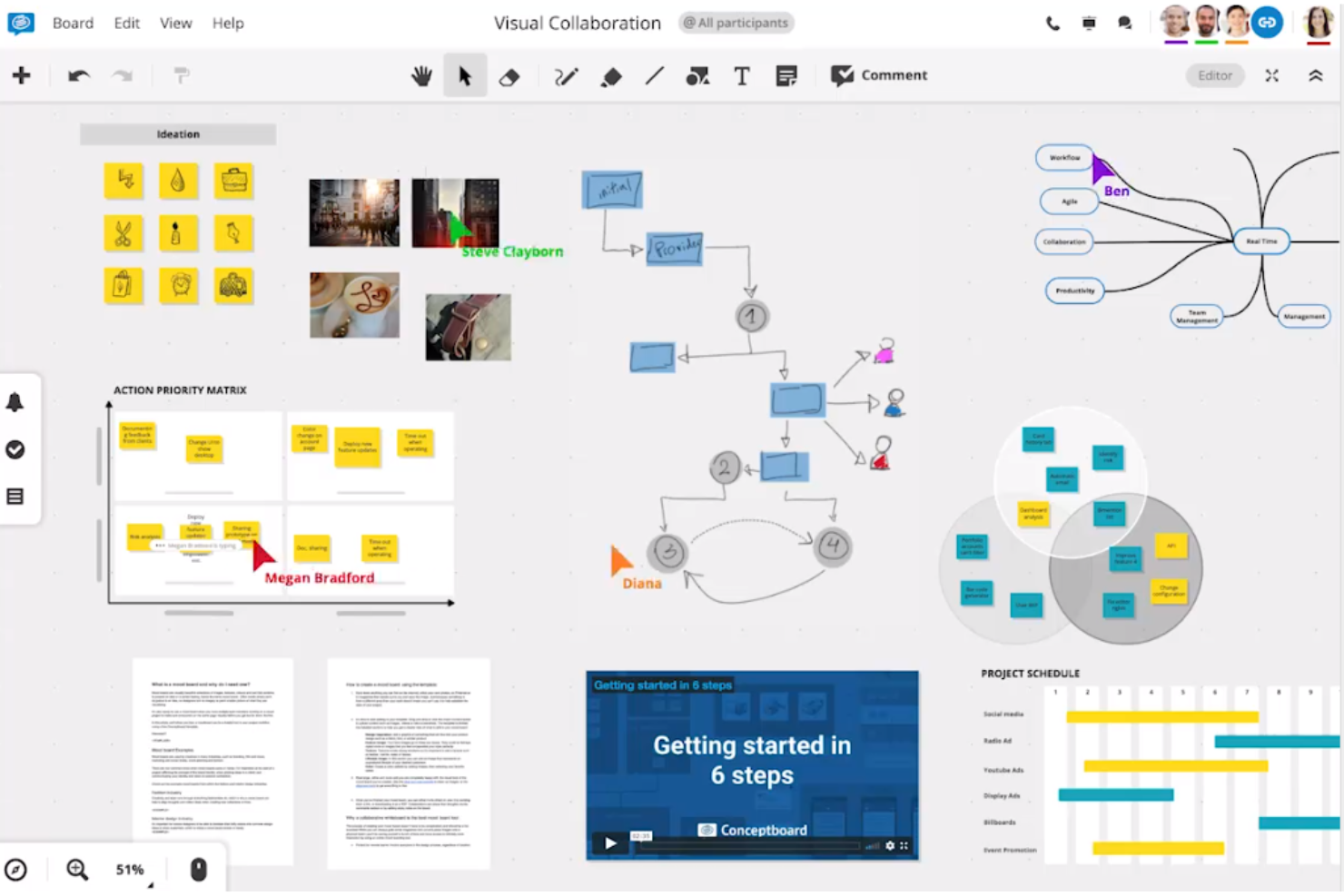
Conceptboard is a browser-based online whiteboard that combines visual collaboration, sticky notes, freehand drawing, templates, and project planning tools with built-in meeting facilitation features like moderation, voting, and timers.
Who Is Conceptboard Best For?
Conceptboard is a strong fit for teams in regulated or security-conscious environments that need a GDPR-compliant, German-hosted whiteboard with built-in project planning and workshop facilitation.
Why I Picked Conceptboard
I've included Conceptboard in my top picks because it's built specifically for large-scale visual project management, which is where most basic whiteboard replacements fall short. I love that you can run Kanban boards, timelines, and Gantt-style planning directly on the canvas alongside sticky notes and freehand content. The built-in moderation, countdown timer, and voting tools mean I can run a full structured workshop without switching to a separate facilitation app.
Conceptboard Key Features
- Real-time cursor and viewport visibility: Participants can see each other's named cursors and active viewport areas on the shared board as they work.
- Built-in video and audio conferencing: Users can start video or audio calls, share their screen, raise hands, and use breakout rooms without leaving the board.
- Bidirectional Jira and Azure task sync: Board tasks can be imported from Jira or Azure and synced in both directions to keep project work up to date.
- Board approval workflow: Team members can formally request and submit reviews on board content before changes are finalized.
Conceptboard Integrations
Conceptboard offers native integrations with Google Drive, Microsoft Teams, OneDrive, Confluence, Webex, Dropbox, Jira, and Azure. It supports embedded files and documents plus two-way Jira and Azure task synchronization.
Pros and Cons
Pros:
- Timers and voting support facilitated workshops
- Tasks, timelines, and Kanban share boards
- Reviewers praise adaptable workshop templates
Cons:
- Board navigation and text editing feel awkward
- Large, content-heavy boards can load slowly

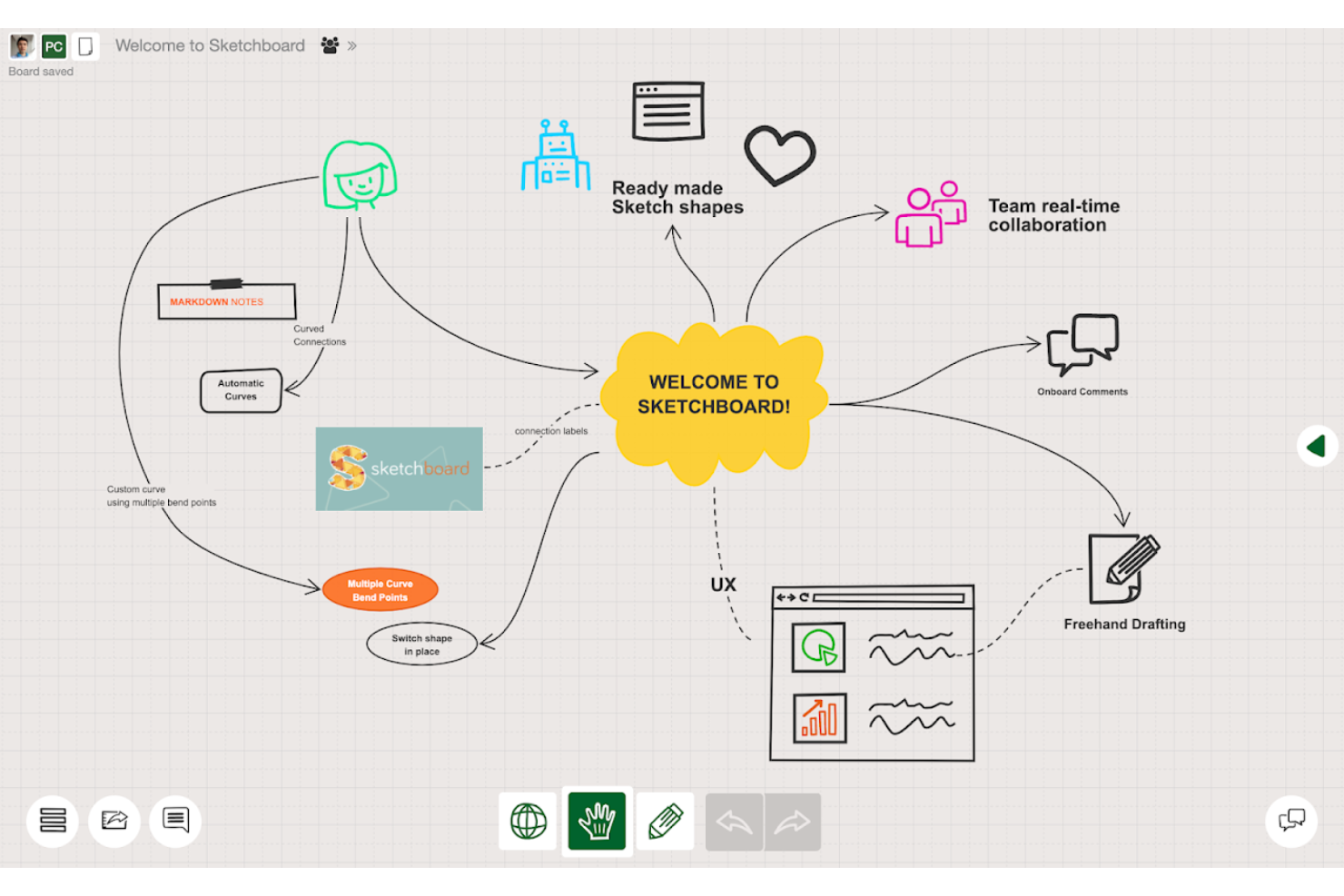
Sketchboard is an online collaborative whiteboard built around sketching, diagramming, and visual ideation, with tools for UML diagrams, flowcharts, mind maps, freehand drawing, and real-time multi-user editing on an infinite canvas.
Who Is Sketchboard Best For?
Sketchboard is a strong fit for software development teams that need a shared space to sketch architecture, map flows, and diagram systems together.
Why I Picked Sketchboard
I picked Sketchboard as one of the best because it's purpose-built for the kind of visual thinking software developers actually do: sketching UML diagrams, mapping system architecture, and building flowcharts with auto-routing connectors that adjust when you move shapes. The 1,000+ shape library includes AWS and Google Cloud shapes, so dev teams can model real infrastructure without improvising. I also like that GitHub export is a native, one-click workflow, which keeps diagrams close to the codebase where they're actually useful.
Sketchboard Key Features
- Real-time cursor tracking: See your teammates' mouse movements and presence indicators live on the shared board as you work together.
- UML diagram support: Build class, sequence, use case, activity, and state diagrams directly on the canvas for software architecture documentation.
- Board versioning: Create named versions of a board to preserve its history and revisit earlier states of your work.
- Presentation mode: Turn board frames into slides and present them to teammates in real time, with synchronized slide navigation for all participants.
Sketchboard Integrations
Sketchboard offers native integrations with Microsoft Teams, Slack, Webex, Google Drive, and GitHub. It also provides an HTTP POST API for creating boards, setting passwords, and adding users.
Pros and Cons
Pros:
- Auto-routing connectors suit system diagrams
- Teams sketch together across locations
- Reviewers value its open-ended canvas
Cons:
- No documented Jamboard import or migration
- Mobile and tablet support remains unclear

Vibe is a hardware-software whiteboard system that pairs a 4K touchscreen display with cloud-based Canvas software for real-time collaborative whiteboarding, annotation, and video conferencing.
Who Is Vibe Best For?
Vibe is a strong fit for hybrid teams and educators who want a physical interactive display that doubles as a cloud-connected collaborative whiteboard.
Why I Picked Vibe
I picked Vibe as one of the best because it's the only option on my list that pairs physical hardware with cloud whiteboarding software in a single system. The Vibe Board S1 is a 4K touchscreen display that runs Canvas natively, so in-room participants can draw and annotate directly on the board while remote teammates edit the same canvas in real time from a browser or tablet. I also love that Vibe explicitly supports Jamboard PDF migration into Canvas, letting you import converted Jams as annotatable layers so past work isn't lost.
Vibe Key Features
- Multi-touch whiteboarding: The Vibe Board S1 supports 20 touchpoints with an 8 ms writing response time for in-room drawing and annotation.
- ChromeOS app ecosystem: The board runs 250+ apps from the Vibe Store, Google Play, and Chrome extensions, including Figma, Miro, and Asana.
- Admin console: IT administrators can remotely manage devices, bulk onboard users, apply policy sets, and control app access across all boards.
- Cross-device canvas access: Team members can view and edit the shared canvas from a web browser or tablet without a Vibe Board.
Vibe Integrations
Vibe supports marketplace integrations through its Vibe Store, with access to 250+ workflow apps, including Google Drive, Dropbox, OneDrive, Zoom, Google Meet, Microsoft Teams, Miro, Figma, Asana, and Slack. No public API is documented.
Pros and Cons
Pros:
- Reviewers praise display and touch responsiveness
- Large touchscreen supports in-room collaboration
- Jamboard PDFs import as annotatable layers
Cons:
- No documented built-in timers or voting
- Phone users can’t edit canvases

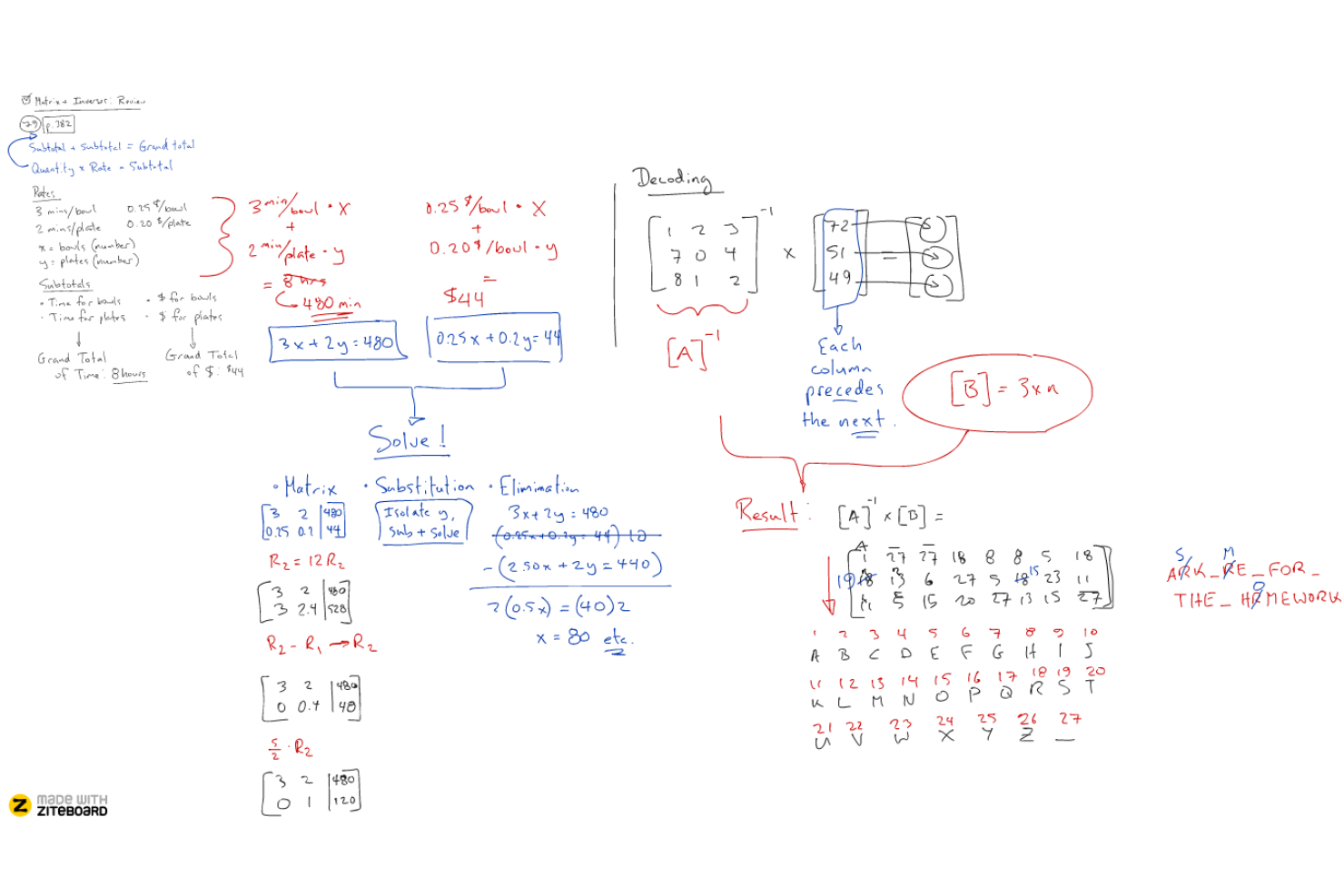
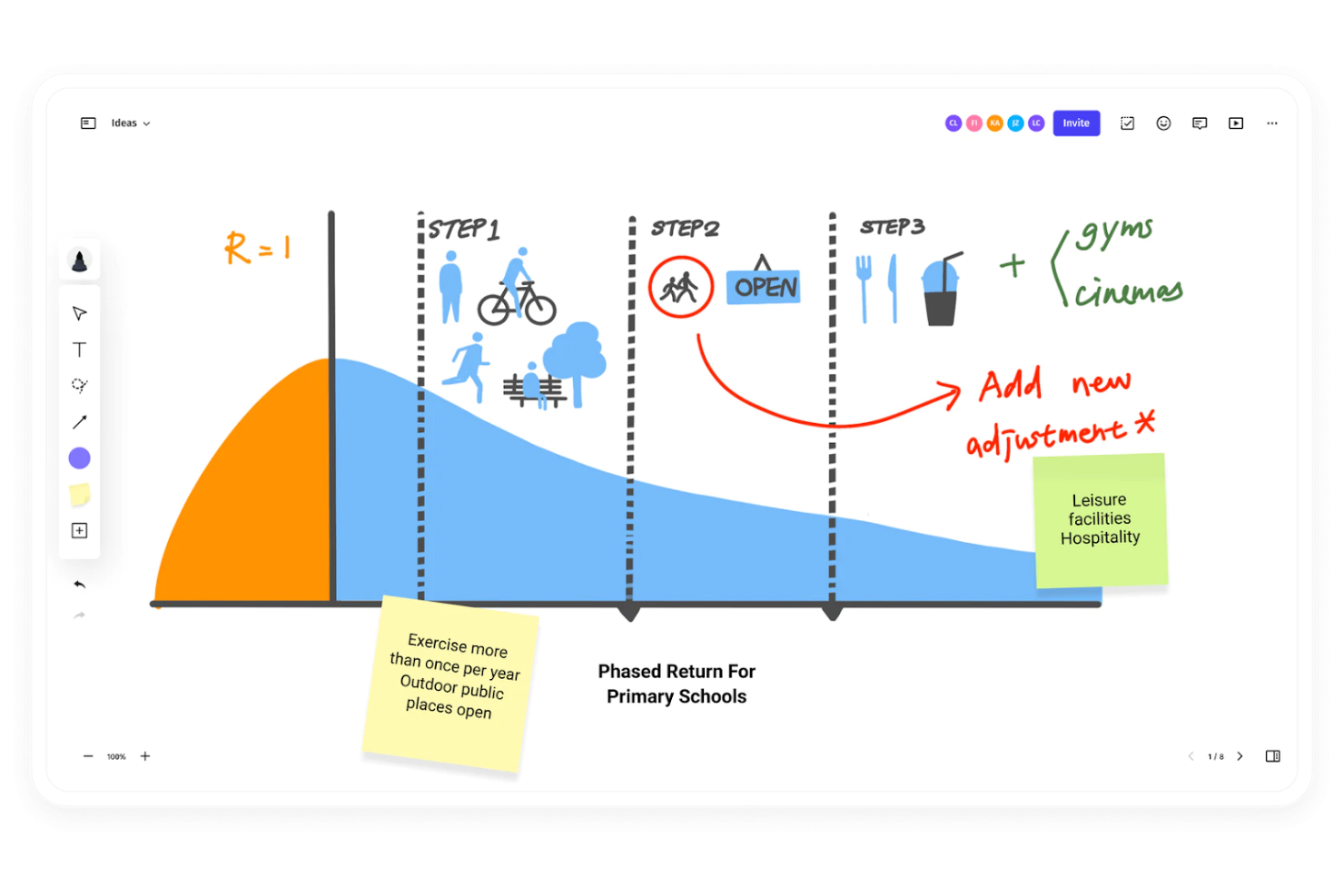
Ziteboard is a browser-based online whiteboard that supports real-time multi-user collaboration through freehand drawing, sticky notes, PDF import, and built-in audio and video chat.
Who Is Ziteboard Best For?
Ziteboard is a great fit for educators, tutors, and trainers who need a lightweight, browser-based whiteboard for live one-on-one sessions.
Why I Picked Ziteboard
I've included Ziteboard in my top picks because it keeps real-time collaboration genuinely simple: you share a link and everyone's on the same canvas instantly, no account required on their end. I especially like the built-in audio and video chat, which means a tutor or trainer can draw, annotate, and talk through ideas on one screen without juggling separate tools. The infinite zoomable canvas with sticky notes and freehand drawing covers what most live sessions actually need.
Ziteboard Key Features
- PDF import: Upload PDF files directly onto the canvas to annotate and discuss content with collaborators in real time.
- Navigation boxes: Link specific areas of the canvas to destination positions, making it easy to move between sections of a large board.
- Password-protected boards: Secure individual whiteboards with a password to control who can access your sessions.
- PNG, SVG, and PDF export: Download your finished board in multiple file formats to save or share work after a session ends.
Ziteboard Integrations
Ziteboard doesn't have any native integrations clearly documented. It connects to Google Drive and Dropbox for file insertion and offers a REST API for custom board-management integrations.
Pros and Cons
Pros:
- Zoomable canvas supports visual lessons
- Exportable boards preserve lesson materials
- Tutors report instant shared-board updates
Cons:
- Built-in video chat stops at one-to-one
- No ready-made workshop or lesson templates

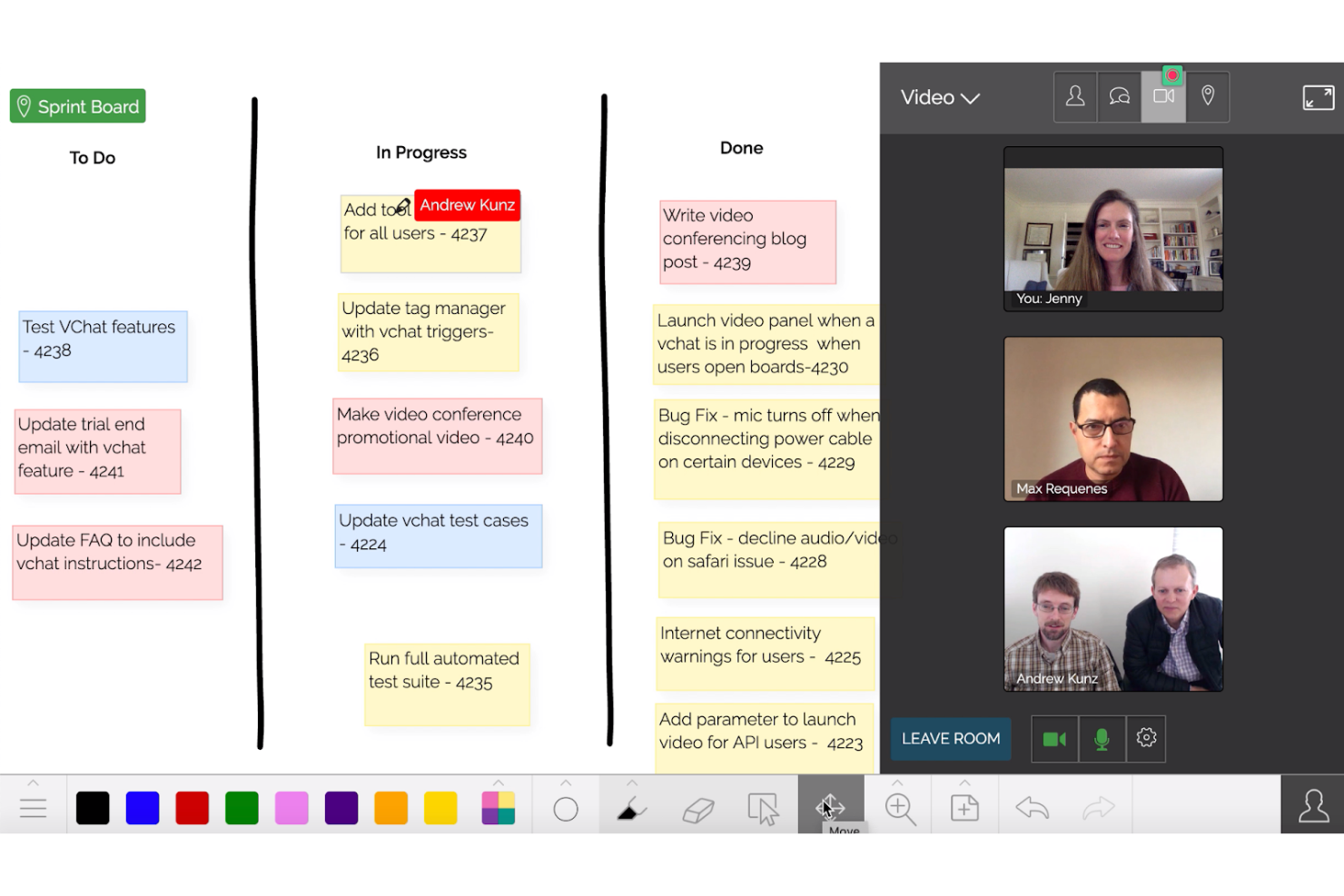
Limnu is an online whiteboard tool with an infinite canvas, real-time multi-user collaboration, built-in video conferencing, and freehand drawing tools designed to replicate the feel of physical markers.
Who Is Limnu Best For?
Limnu is a strong fit for educators, tutors, and small teams who prioritize a natural, marker-on-whiteboard drawing experience over deep integrations or advanced facilitation features.
Why I Picked Limnu
I've included Limnu in my top picks because its drawing tools genuinely replicate the feel of writing with a physical marker, which matters when you're trying to replace Jamboard's tactile whiteboard experience. The infinite canvas has no edge boundaries, so brainstorming sessions never feel cramped. I also like the "Leading" feature, which keeps all participants viewing the same area as the session guide, a detail that makes a real difference in live collaborative work.
Limnu Key Features
- Built-in video conferencing: Host live sessions with up to 8 participants directly inside the whiteboard, without switching to a separate tool.
- Solo draw mode: Lock the board so only one person can draw while others watch updates in real time.
- Document and image annotation: Upload PDFs, PowerPoint files, or images directly onto a board and draw over them.
- Board chat: Send messages, links, and questions to other participants without leaving the whiteboard session.
Limnu Integrations
Limnu offers a WordPress plugin for embedding whiteboards and an API for custom integrations. Slack is described as coming soon, so a native Slack integration isn’t currently confirmed.
Pros and Cons
Pros:
- Reviewers praise zooming and board navigation
- Roomy canvas supports open-ended brainstorming
- Marker-like drawing echoes Jamboard’s tactile feel
Cons:
- Built-in video supports up to eight participants
- Viewport-only exports complicate board migration

Lucidspark
Best for brainstorming in Agile environments
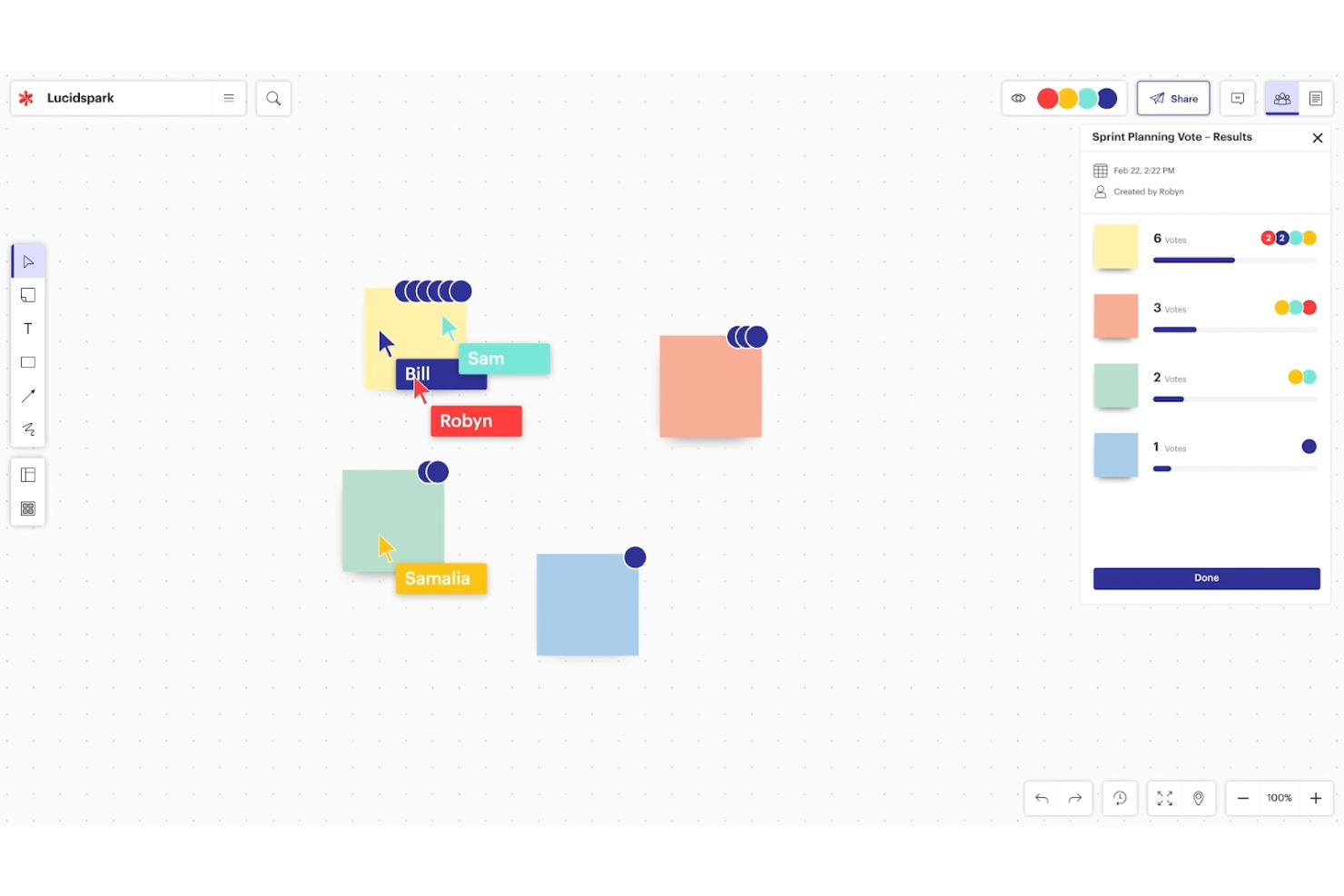
Lucidspark is a virtual whiteboard from Lucid Software that combines an infinite canvas, sticky notes, freehand drawing, AI-assisted mind mapping, facilitation tools, and project planning features like Lucid Cards, Dynamic Tables, and timelines.
Who Is Lucidspark Best For?
Lucidspark is a strong fit for Agile teams that need to move from raw brainstorming to structured planning without switching tools.
Why I Picked Lucidspark
Lucidspark earns its spot on my shortlist because it's built to take Agile teams from messy brainstorm to structured sprint plan without leaving the canvas. I especially like how Lucid Cards let you convert sticky notes directly into trackable tasks, and Dynamic Tables let you organize those ideas into something that actually resembles a backlog. Facilitator Tools like voting and team estimation make it easy to run a real sprint planning session, not just a freeform whiteboard dump.
Lucidspark Key Features
- AI-assisted idea generation: Lucid AI can generate brainstorm boards, expand ideas from text prompts, and sort sticky notes into categories automatically.
- Google Meet integration: Open or create a Lucidspark board directly within a Google Meet session for real-time collaborative whiteboarding.
- Freehand drawing tools: Annotate and sketch directly on the canvas using freehand drawing alongside shapes, containers, and frames.
- Breakout boards: Spin up smaller, focused workspaces within a session for group-level work and discussion.
Lucidspark Integrations
Lucid says Lucidspark has more than 100 custom-built integrations, with marketplace integrations including Google Meet, Jira, Azure DevOps, Google Docs, Confluence, Figma, Asana, Airtable, monday.com, and Miro. It also offers a developer platform for custom integrations.
Pros and Cons
Pros:
- AI sorts sticky notes into categories
- Templates help recreate familiar Jamboard activities
- Facilitator tools support structured workshops
Cons:
- First sessions can feel overwhelming
- Large, complex boards can lag
- Jamboard PDF imports aren’t editable
Outras alternativas ao Jamboard
Segue-se uma lista de alternativas adicionais ao Jamboard que selecionei. Embora não tenham ficado entre as 10 principais, continuam a ser valiosas e merecem uma investigação mais aprofundada.
- GoodDay
For customizable workspaces
- Canva
For integrating design and presentation features
- Wooclap
For interactive learning and audience engagement
- Miro
For extensive collaborative mapping and brainstorming
- Whimsical
For combining diagrams, docs, and boards in one
- Mural
For creative teams needing structured workshops
- Microsoft Whiteboard
For seamless Office 365 integration
- ClickUp
For task management within visual spaces


Análises relacionadas de software de gestão de projetos
Se ainda não encontrou aqui o que procura, consulte estas outras ferramentas relacionadas que testámos e avaliámos:
- Software de gestão de projetos
- Software de gestão de recursos
- Software de automatização de fluxos de trabalho
- Software de controlo de tempo
- Software de gestão de tarefas
- Ferramentas de colaboração
- Criador de gráficos de Gantt
- Ferramentas de produtividade
- Software de acompanhamento de projetos
- Software de calendarização de projetos
How I Evaluate Jamboard Alternatives
I look at Jamboard alternatives in two layers: the baseline every tool must clear—infinite canvas, real-time co-editing, PM templates—and the factors that actually separate the good options.
Core Functionality (Table Stakes For This List)
When I'm selecting tools for my list, I rank each one on a scale from 0 (does not offer the functionality) to 5 (excels in this area) for each core functionality listed below. Then, I calculate the tool's total score into a percentage. Each tool needs to achieve a minimum total score of 65% to be considered for inclusion.
- Infinite Digital Canvas: I check whether the board lets you zoom, pan, and expand freely—important when you're mapping a full release roadmap or multi-sprint timeline.
- Real-Time Collaboration: Live cursors, presence indicators, and simultaneous editing matter when your distributed team is running a brainstorm or retro together.
- Project Management Templates: I look for ready-made layouts like Kanban boards, sprint retrospectives, and roadmap frameworks that save setup time before a workshop.
- Sticky Notes & Visual Tools: The basics—digital sticky notes, pens, shapes, connectors—need to be flexible enough for everything from affinity mapping to dependency diagrams.
- PM Tool Integrations: I evaluate whether the platform connects with tools like Jira, Asana, or Trello so ideas captured on the board flow into your actual backlog.
- Sharing & Export Options: Teams need to share boards via links with permission controls and export to formats like PDF or PNG for stakeholder updates and documentation.
Once I have a list of tools that meet this criteria, I consider what sets each platform apart.
Differentiating Factors (What Sets Vendors Apart)
Here's how I compare and contrast different vendors:
Standout Features
Voting and facilitation tools—dot voting, timers, polls—make a real difference when you're running a retro and need fast consensus on action items. I also look for task conversion, where a sticky note becomes an assignable task with a due date that syncs back to your PM tool. Presentation mode matters too; it lets you walk stakeholders through a sprint review board as a guided sequence rather than a cluttered canvas.
Beyond Features
Since most teams considering Jamboard alternatives already live in Google Workspace, I evaluate how well each tool integrates with Drive, Docs, and Meet. A smooth migration path—including the ability to import existing Jamboard files—saves real onboarding headaches. Pricing structure matters too; I check whether viewer access is free, since project boards often reach stakeholders who only need to observe. Cross-platform accessibility rounds out my evaluation, especially stylus and touchscreen support for hybrid meeting rooms.
Por que procurar uma alternativa ao Jamboard
Os utilizadores procuram frequentemente uma alternativa ao Jamboard porque precisam de funcionalidades mais avançadas, de maior acesso através de dispositivos móveis, de determinadas integrações ou de mais capacidades de colaboração.
E a Google está perfeitamente ciente disso, citando estes incidentes como a principal razão para a sua decisão de encerrar o Jamboard. De acordo com o anúncio da Google, a crescente popularidade e as capacidades de outros softwares de quadro branco levaram-na a mudar de estratégia e a integrar o Google Workspace com estas aplicações de terceiros, em vez de se concentrar na expansão do Jamboard.
Embora os atuais utilizadores do Jamboard possam mudar facilmente para o Workspace e migrar os Jams existentes para aplicações de terceiros, poderá ser mais fácil para si e para a sua equipa encontrar uma solução alternativa. É aí que entram as minhas análises.
Principais funcionalidades das alternativas ao Jamboard
A seleção das alternativas certas ao Jamboard implica compreender as principais funcionalidades que melhoram a colaboração e a produtividade na utilização de quadros brancos digitais. Eis algumas das funcionalidades mais importantes que a alternativa ao Jamboard escolhida deve ter:
- Colaboração em tempo real: Permite que vários utilizadores trabalhem simultaneamente na mesma tela, sendo perfeita para sessões de brainstorming e reuniões de equipa.
- Tela infinita: Disponibiliza espaço amplo para desenvolver ideias sem as limitações dos quadros brancos físicos, sendo ideal para gerir projetos e estruturar planos complexos.
- Ferramentas de anotação e desenho: Essenciais para que os utilizadores possam anotar documentos, criar diagramas e expressar ideias visualmente, apoiando a função de gerir fluxos de trabalho de design.
- Capacidades de integração: Liga-se a outros softwares, como o Slack, o Trello ou o Google Workspace, permitindo que as equipas gerem os seus fluxos de trabalho de forma integrada nos ecossistemas que já utilizam.
- Modelos e recursos pré-criados: Disponibiliza estruturas e designs prontos a utilizar para acelerar o processo de configuração de novos quadros, ajudando as equipas a gerir eficazmente as suas sessões de brainstorming.
- Controlo de acesso e permissões: Garante que as informações sensíveis permanecem seguras e que os utilizadores podem gerir os direitos de acesso, algo essencial para manter as hierarquias da equipa e a privacidade dos dados.
- Opções de exportação e importação: Permite que os utilizadores importem ficheiros externos e guardem o trabalho em vários formatos, apoiando a função de gerir conteúdos em diferentes plataformas.
- Suporte para dispositivos móveis e tablets: Proporciona flexibilidade para que os utilizadores contribuam a partir de qualquer dispositivo, algo essencial para equipas que gerem tarefas em mobilidade.
- Personalização: Permite que as equipas adaptem o espaço de trabalho às suas necessidades específicas, desde as cores de fundo até às predefinições das ferramentas, garantindo que podem gerir o seu ambiente criativo.
- Monitorização da atividade dos utilizadores e análise de dados: Ajuda a acompanhar o envolvimento e a contribuição, sendo crucial para as equipas que precisam de gerir a participação e medir o impacto dos seus esforços colaborativos.
Escolher a alternativa certa ao Jamboard significa encontrar uma solução que não só se adapte às necessidades específicas da sua equipa, mas que também melhore a forma como colaboram e visualizam ideias complexas. Procure uma ferramenta que equilibre estas funcionalidades com uma interface intuitiva, para maximizar a produtividade e a criatividade da sua equipa.