

10 Melhores Criadores de Gráficos de Gantt com IA Analisados em 2026

10 Lista dos melhores criadores de gráficos de Gantt com IA


Os criadores de gráficos de Gantt com IA eliminam o caos do planeamento de projetos. Ajudam a visualizar cronogramas, equilibrar cargas de trabalho e manter-se um passo à frente das prioridades em constante mudança, sem folhas de cálculo intermináveis nem ter de andar à procura de atualizações em várias ferramentas.
Como alguém que passou inúmeras horas a testar software de gestão de projetos, sei como pode ser avassalador tentar manter vários projetos, pessoas e prazos sincronizados. Foi precisamente por isso que preparei este guia — para ajudar a filtrar o ruído e encontrar uma ferramenta que realmente facilite o seu dia.
Neste artigo, apresento-lhe os melhores criadores de gráficos de Gantt com IA disponíveis atualmente, explicando o que torna cada um deles digno da sua atenção. Quer esteja a liderar uma pequena equipa criativa ou a supervisionar projetos à escala empresarial, encontrará opções adequadas ao seu fluxo de trabalho, aos seus objetivos e à sua tranquilidade.
Why Trust Our Software Recommendations
Our team has been testing and reviewing software since 2012. As project managers ourselves, we know how difficult—and important—it is to choose the right software.
For this guide, we evaluated tools using hands-on testing and independent research, scoring tools using our selection criteria. We also draw on insights from industry thought leaders and practicing project management experts.
Our reviews reflect our human editorial judgment, not a sales pitch.
Expert reviewers:
Tabela comparativa de criadores de gráficos de Gantt com IA
Esta tabela comparativa resume os detalhes de preços das minhas principais escolhas de criadores de gráficos de Gantt com IA.
| Tool | Best For | Trial Info | Price | ||
|---|---|---|---|---|---|
| 1 | Best with drag-and-drop timeline editing | 14-day free trial + free demo available | From $7/user/month (billed annually) | Website | |
| 2 | Best for fast implementation and user adoption | Free plan + 14-day free trial + free demo available | From $9/user/month (billed annually) | Website | |
| 3 | Best for customizable project workflows | Free plan + 15-day trial + demo available | From $4/user/month (billed annually) | Website | |
| 4 | Best for automated scheduling | Free trial available | From $19/seat/month (billed annually) | Website | |
| 5 | Best for open-source projects | Free plan available | From $9.99/user/month (billed annually) | Website | |
| 6 | Best for resource management | 7-day free trial | From $7.99/user/month | Website | |
| 7 | Best for simplicity in planning | 14-day free trial | From $9.95/user/month (1 project for free) | Website | |
| 8 | Best for visual AI insights | Free plan available | From $6.58/month | Website | |
| 9 | Best for team collaboration | 30-day free trial + free plan available | From $24/manager/month | Website | |
| 10 | Best for AI task predictions | Free plan available | From $3/month | Website |

Análise dos melhores criadores de gráficos de Gantt com IA
Apresentamos abaixo os meus resumos detalhados do melhor software de gráficos de Gantt com IA que entrou na minha lista. As minhas análises oferecem uma visão detalhada das principais funcionalidades, vantagens e desvantagens, integrações e casos de utilização ideais de cada ferramenta, para o ajudar a encontrar a melhor opção para si.

GanttPRO
Best with drag-and-drop timeline editing
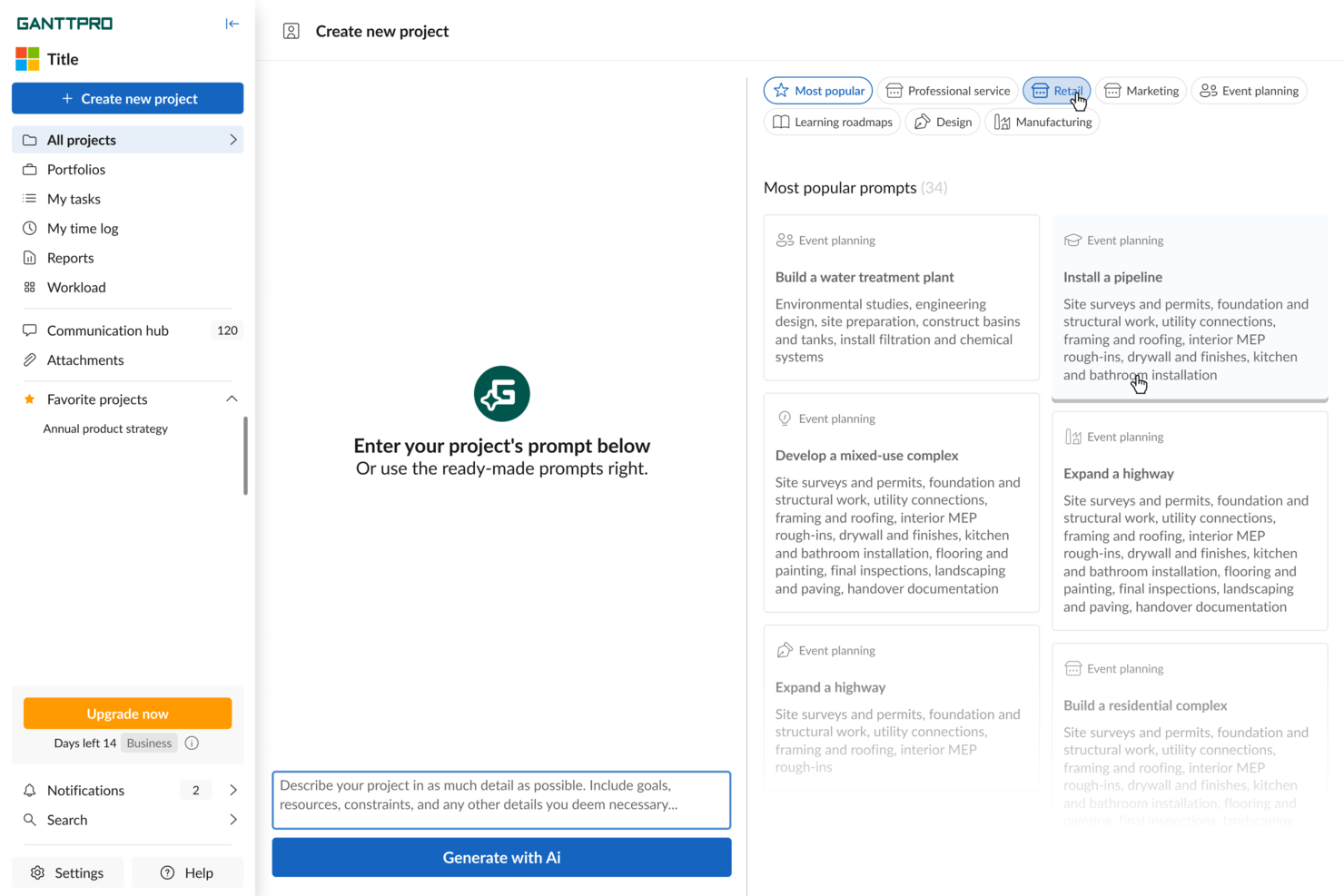
GanttPRO earns a spot for its reliable drag-and-drop timeline editing, which is where I’ve seen most Gantt tools fall short. When I’m mapping project dependencies or shifting large schedules mid-sprint, moving bars and milestones feels natural and responsive.
What I like most is how it lets you adjust entire phases without fuss, so you can handle delays and rescheduling painlessly. For projects with lots of moving parts, this is usually where teams get stuck, but GanttPRO just lets you drag, drop, and keep moving.
GanttPRO’s Best For
- Project managers who need fast timeline changes
- Teams handling resource planning and dependency mapping
GanttPRO’s Not Great For
- Organizations needing deep AI task recommendations
- Users focused on task-level automation or recurring tasks
What sets GanttPRO apart
GanttPRO is built around a visual-first planning style. Unlike Jira, which leans into ticket and backlog management, GanttPRO focuses you on intuitive timeline editing. You adjust dates, dependencies, and phases directly on the chart itself. I find this matches teams that want to plan visually and see project flow at a glance, without lots of buried configuration or menus.
Tradeoffs with GanttPRO
GanttPRO optimizes for fast, visual planning, but you lose some automation and depth you get from tools that focus more on task-level AI and rules. If you need recurring task logic or advanced AI-driven scheduling, you’ll find yourself limited.
Pros and Cons
Pros:
- Baseline tracking shows plan vs. actual
- Supports task dependencies with drag-and-drop editing
- AI generates full project timelines automatically
Cons:
- Collaboration features are behind paywall tiers
- Limited customization of Gantt chart color themes

Best for fast implementation and user adoption
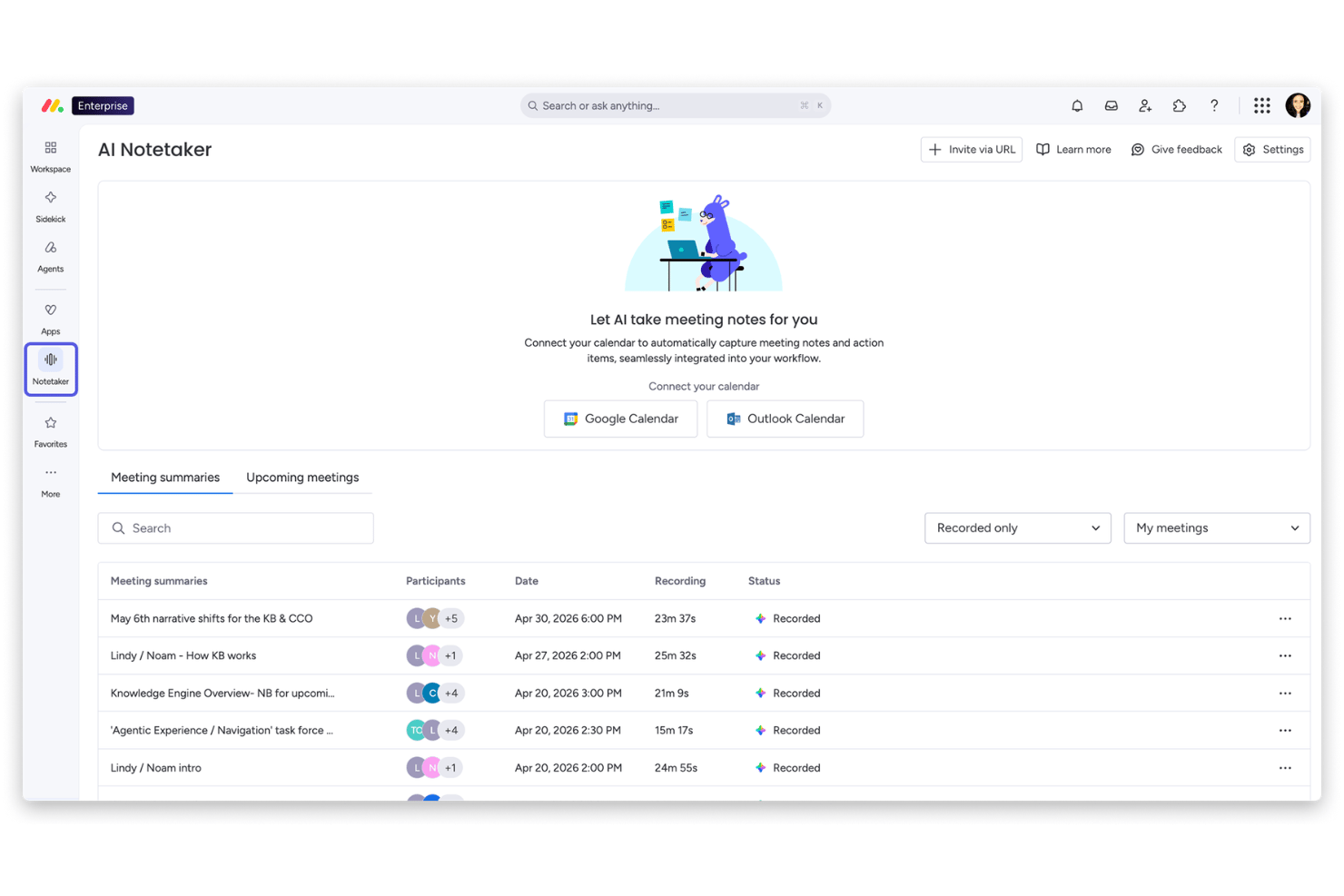
monday AI Workspace is an AI-powered work management platform that combines Gantt chart views, timeline planning, dependency tracking, and AI-driven workflow tools including an AI Sidekick, AI Columns, and an AI workflow builder.
Who Is monday AI Workspace Best For?
It's a strong fit for cross-functional teams in mid-market companies who need a project tracking tool that non-technical users can pick up quickly.
Why I Picked monday AI Workspace
I picked monday AI Workspace as one of the best because its AI Workflow Builder lets teams generate a structured project board from a prompt, which means you can move from a blank canvas to a working Gantt view in minutes. I also like that the Gantt syncs in real time with Kanban, Workload, and Timeline views, so different stakeholders stay oriented without rebuilding anything. The AI Sidekick adds another layer by surfacing risks and summarizing progress directly inside the timeline.
monday AI Workspace Key Features
- AI Columns: Automatically extract, summarize, and structure information from unstructured data within your project boards.
- Workload view: Visualize team capacity and assigned tasks to easily manage resource distribution across projects.
- Document ingestion: Convert meeting notes, emails, or spreadsheets into actionable tasks that feed directly into project timelines.
- Real-time comments and mentions: Collaborate on projects interactively with threaded discussions and user tagging on Gantt charts.
monday AI Workspace Integrations
monday AI Workspace offers native integrations with Slack, Salesforce, HubSpot, Google Workspace, Microsoft Teams, Outlook, Jira, GitHub, Dropbox, and Zoom. It also supports Zapier and provides an API for custom integrations.
Pros and Cons
Pros:
- Risk insights and summaries inside the timeline
- Gantt charts sync with other views instantly
- AI builds project boards from plain text
Cons:
- Baselines and critical path are enterprise only
- Dependencies require manual configuration each time
New Product Updates from monday AI Workspace
monday AI Workspace Adds Human Approval Routing
monday AI Workspace adds a human-in-the-loop approval block to AI Workflows, sending approval requests and routing workflow paths based on responses. For more information, visit monday AI Workspace's official site.

Best for customizable project workflows

Zoho Projects is on my list because its Gantt chart features are deeply customizable and let teams tailor workflows to complex needs. When I test AI-driven task automation here, I see teams use blueprint workflows to adapt project stages and approvals right in the Gantt view.
What stands out for me is how you can trigger dependencies and status updates automatically, which helps on projects where change requests and client reviews keep shifting timelines.
Zoho Projects’ Best For
- Teams that need customizable Gantt workflows
- Organizations managing projects with frequent approval cycles
Zoho Projects’ Not Great For
- Teams wanting a simple, out-of-the-box Gantt tool
- Users needing advanced resource management or portfolio tracking
What sets Zoho Projects apart
Zoho Projects is built around flexible workflow automation and customizable Gantt charts. Unlike more rigid tools like Microsoft Project, Zoho expects you to design your own project stages, blueprint flows, and custom fields as your process evolves. In practice, this fits when you want the Gantt chart to drive your process and adapt as requirements shift mid-project.
Tradeoffs with Zoho Projects
Zoho optimizes for customization and workflow flexibility, but that also means you spend more time up front configuring, which can slow new teams or those who want fast adoption.
Pros and Cons
Pros:
- Integrates seamlessly with Zoho and external applications
- Offers detailed reporting and analytics for project insights
- Provides robust time tracking and billing functionalities
Cons:
- Performance slowdowns when handling large or complex projects
- Some useful features locked behind higher pricing tiers
New Product Updates from Zoho Projects
Zoho Projects Adds CodeX Scripts for Custom Modules
Zoho Projects now supports CodeX Scripts for custom modules, enabling conditional logic and rules for creating, updating, and deleting records. For more information, visit Zoho Projects' official site.
 .

Motion
Best for automated scheduling

Motion earns its spot on my shortlist for its AI-driven scheduling built into Gantt-style planning. I see this working best when teams want their tasks, meetings, and project dependencies automatically scheduled without constant manual tweaking.
What I like is how Motion shifts schedules in real time as plans change, so your Gantt chart is always current even if priorities move around.
Motion’s Best For
- Teams needing automatic task and meeting scheduling
- Project managers who want AI-powered Gantt chart updates
Motion’s Not Great For
- Organizations with rigid, fixed project timelines
- Teams that want advanced custom Gantt chart styling
What sets Motion apart
Motion is built around the idea that schedules should be dynamic, not fixed. Instead of requiring you to constantly move tasks around on a Gantt chart like you would in ClickUp or Smartsheet, Motion uses automation to update project timelines as meetings and priorities shift. In practice, I’ve found this especially helpful when teams want their calendar, tasks, and project chart to stay in sync automatically.
Tradeoffs with Motion
Motion optimizes for automation and schedule flexibility, but that means you lose granular control over Gantt chart layouts and custom dependencies. This can frustrate teams that need highly detailed project visuals or strict task sequencing.
Pros and Cons
Pros:
- Shared calendar integration
- AI assistants for task optimization
- Automated task scheduling
Cons:
- Not ideal for complex projects
- Basic design aesthetics

Best for open-source projects

ProjectLibre earns its spot for being a truly open-source choice if you want direct control over your project data while building Gantt charts. I find this tool fits best when teams want a no-frills, locally hosted alternative to cloud-first platforms. ProjectLibre’s critical path visualization and baseline comparison help you keep a tight handle on shifting deadlines, especially when open access and transparency matter most. I appreciate how it lets you customize workflows for unusual or nonstandard project needs.
ProjectLibre’s Best For
- Open-source teams managing projects on-premises
- Organizations that need customizable Gantt chart workflows
ProjectLibre’s Not Great For
- Teams needing built-in AI-powered planning tools
- Users who prefer modern, cloud-based collaboration
What sets ProjectLibre apart
ProjectLibre is structured for teams that want full control of project plans on their own infrastructure instead of relying on commercial solutions like Microsoft Project or cloud-based tools such as Smartsheet. The workflow feels familiar if you’ve used legacy desktop Gantt tools, and the open-source approach means you can adapt the software to unique needs or integrate with custom scripts. In practice, teams invested in maintaining local data or working behind strict firewalls find it much easier to adopt than web-first apps.
Tradeoffs with ProjectLibre
ProjectLibre optimizes for autonomy and customizability, which means you lose out on built-in real-time collaboration and the AI-powered planning tools now common in modern cloud platforms.
Pros and Cons
Pros:
- Suitable for educational use
- Detailed cost tracking
- Supports task dependencies
Cons:
- Limited customer support
- Outdated user interface

Ingantt
Best for resource management

Ingantt makes my shortlist because its approach to resource management is more detailed and actionable than most AI-driven Gantt tools. I like how you can instantly see resource assignments, track workload, and rebalance staff directly from the Gantt view, which keeps task timelines connected to actual capacity. You’ll get scheduling insights that help spot bottlenecks early and adjust without hunting through scattered reports. This comes in handy when teams work across multiple projects and need to avoid overloading key people.
Ingantt’s Best For
- Project managers who need live resource allocation
- Teams juggling multiple projects and dependencies
Ingantt’s Not Great For
- Teams only needing basic Gantt chart features
- Organizations seeking extensive integrations or automation
What sets Ingantt apart
Ingantt is structured for hands-on resource management right inside your Gantt chart. Unlike simple timeline tools like ClickUp or Trello, it expects you to actively assign and rebalance work as you plan. I find this approach works well when you need to see exactly who is overloaded and make immediate staffing changes from the project view.
This type of workflow lets you connect scheduling with actual team capacity, not just task deadlines.
Tradeoffs with Ingantt
Ingantt optimizes for precise resource matching, but that focus means you give up broader automation and fewer integration options. If you rely on syncing project data with lots of SaaS tools, expect more manual work.
Pros and Cons
Pros:
- Edits update across charts instantly
- Auto-levels team workloads easily
- Detects resource overloads early
Cons:
- Mobile plan priced differently
- Enterprise quote required for upgrade


Tom’s Planner makes my shortlist for how it strips back Gantt chart building to the core mechanics. When I need to create and visualize timelines quickly without managing extra complexity, this is where I land. I like that you can add, move, and modify tasks on a single page—no nested menus or layers to dig through. It’s especially good for teams who want to focus on their plan, not on learning a new tool.
Tom’s Planner’s Best For
- Small teams who want visual project planning
- Project managers needing fast, no-frills Gantt charts
Tom’s Planner’s Not Great For
- Teams needing custom automation or advanced AI features
- Organizations managing complex, multi-layered projects
What sets Tom’s Planner apart
Tom’s Planner is built for people who want to sketch out timelines and dependencies without spending time configuring templates or complex boards. Instead of the multi-layered approach you see in Jira or even Smartsheet, this tool focuses on letting you build a Gantt chart quickly and adjust it in real time. In practice, I see teams using it when they just want to map out a project plan fast without fielding a learning curve.
Tradeoffs with Tom’s Planner
Tom’s Planner optimizes for speed and simplicity, but you lose out on custom automations and advanced scheduling. This can limit what you can coordinate once projects become large or require rigid workflows.
Pros and Cons
Pros:
- Color-coding for tasks
- Quick setup process
- Easy drag-and-drop interface
Cons:
- Not suitable for large teams
- Limited advanced features


Edraw.AI stands out for me because of its unique AI-driven chart generation and analysis. When I tested its visual AI insights, I found that turning raw project data into Gantt charts feels immediate and clear, especially when handling large or changing datasets.
What I appreciate is how it automatically highlights trends or bottlenecks in visual form, making it a solid fit for teams who rely on seeing smart data-driven insights at a glance.
Edraw.AI’s Best For
- Teams needing AI-generated visual Gantt insights
- Users who want instant visual analysis from data
Edraw.AI’s Not Great For
- Projects requiring custom task automation
- Teams needing deep workflow process control
What sets Edraw.AI apart
Edraw.AI is focused on turning project data into visual timelines using AI, letting you instantly see and adjust project plans. Unlike Gantt chart tools like Smartsheet, it expects you to start with data imports or text inputs rather than building everything task by task. This works well when you want the insights and visualizations driven by your own project data, quickly surfaced in chart form.
Tradeoffs with Edraw.AI
Edraw.AI optimizes for automatic visualization, but you lose out on hands-on control over workflow automation and detailed task customizations. If you want step-by-step process refinement or integrated task dependencies, you’ll run into limits.
Pros and Cons
Pros:
- AI-driven formatting suggestions
- Intuitive interface for quick learning
- Wide range of templates available
Cons:
- Advanced features may need a learning curve
- Limited mobile optimization


TeamGantt is on my list because it turns the classic Gantt chart into something you can actually collaborate in, not just look at. When I'm working with teams who need to coordinate handoffs, update deadlines live, and manage priorities together, this is the first place I check.
I’ve found the drag-and-drop scheduling, team-based assignments, and discussion threads right on tasks make true project collaboration way less chaotic. What I like best is how everyone can stay updated in context, not chasing down separate chats or email chains.
TeamGantt’s Best For
- Teams that need to coordinate work directly on a shared Gantt chart
- Project leads managing schedules and dependencies with live team input
TeamGantt’s Not Great For
- Teams that need advanced resource forecasting or workload balancing
- Organizations looking for heavy automation or AI-driven suggestions
What sets TeamGantt apart
TeamGantt puts real-time project collaboration at the center, letting multiple people update timelines, assign tasks, and keep conversations all in one place. While tools like Asana or Trello focus more on tasks or boards, TeamGantt expects you to plan visually first and make decisions directly on the chart together. This works well for groups that want face-to-face-level coordination without endless status meetings.
Tradeoffs with TeamGantt
TeamGantt optimizes for shared planning and live coordination, but you lose out on deeper automation and workload forecasting. For teams needing predictive scheduling or sophisticated resource management, that's a real limitation.
Pros and Cons
Pros:
- Customizable project templates
- Real-time updates for team collaboration
- Easy drag-and-drop scheduling
Cons:
- Can be slow with large projects
- Limited advanced reporting features


GanttChart.ai stands out to me for its ability to predict project task durations and dependencies using AI, which you don’t see in most traditional Gantt makers. I think the auto-adjustment of timelines as tasks change is where this tool really shines, especially when your requirements shift or new blockers emerge.
What I like most is how the AI uses existing project data to suggest more realistic timelines, saving my teams from endless rescheduling. When you need forecasts that adapt as your projects evolve, this tool’s automated adjustments are tough to beat.
GanttChart.ai’s Best For
- Project teams needing dynamic, AI-driven timeline adjustments
- Managers who want predictive scheduling based on real data
GanttChart.ai’s Not Great For
- Teams wanting classic, manual-only Gantt charts
- Projects needing deep integrations with engineering tools
What sets GanttChart.ai apart
GanttChart.ai expects you to approach project planning as a living process, not just a static chart. It pulls past project data and current changes into its scheduling logic, making adjustments and predictions on the fly. Unlike classic tools like Microsoft Project that require every adjustment to be manual, this tool does much of the heavy lifting for you.
In practice, this is good for environments where task durations or dependencies change often and you want less timeline babysitting.
Tradeoffs with GanttChart.ai
GanttChart.ai optimizes for automation and rapid adjustments, but you lose hands-on control over every timeline detail, which can frustrate teams that need highly custom Gantt structures.
Pros and Cons
Pros:
- Clear workload management
- Great for team collaboration
- Simple timeline visualization
Cons:
- Slight learning curve
- Limited reporting options
Outro criador de gráficos de Gantt com IA
Eis algumas opções adicionais de criadores de gráficos de Gantt com IA que não entraram na minha lista, mas que vale a pena conhecer:
- ONES.com
For enterprise solutions
- Miro
For whiteboard-style collaboration and visual brainstorming
- Instagantt
For Trello integration
- Wrike
For cross-team collaboration
- Zenhub
For GitHub integration


How I Evaluate AI Gantt Chart Makers
I look for tools where AI saves real planning hours—say, building a full schedule from a project brief or resequencing tasks when a deadline shifts. I split my evaluation into core functionality every tool needs to qualify and differentiating factors that set one vendor apart.
Core Functionality (Table Stakes For This List)
When I'm selecting tools for my list, I rank each one on a scale from 0 (does not offer the functionality) to 5 (excels in this area) for each core functionality listed below. Then, I calculate the tool's total score into a percentage. Each tool needs to achieve a minimum total score of 65% to be considered for inclusion.
- AI-Powered Chart Generation: I check whether a tool can turn a plain-text project brief or a pasted task list into a structured Gantt chart without manual setup.
- Automated Task Scheduling: Each tool should assign dates and sequence tasks using AI, like auto-building a sprint plan when you drop in a backlog.
- Dependency & Timeline Management: I look for standard Gantt features like drag-and-drop editing, milestones, critical path views, and multiple dependency types.
- Predictive Risk & Delay Insights: The tool's AI should flag risks before they hit—for example, warning that a delayed design review will push a launch date.
- Smart Resource Allocation: I evaluate whether AI can suggest task reassignments based on team capacity, not just show who's overloaded after the fact.
- Collaborative Project Workspace: Teams need real-time co-editing, comment threads on tasks, and sharing controls so stakeholders can view timelines without full access.
Once I have a list of tools that meet this criteria, I consider what sets each platform apart.
Differentiating Factors (What Sets Vendors Apart)
Here's how I compare and contrast different vendors:
Standout Features
Scenario simulation is a big differentiator for me. I want to see if a tool lets you model alternate timelines—like what happens to your launch date if engineering loses a sprint—and compare AI-projected outcomes side by side. Auto-generated status reports also save real hours; the best tools pull live Gantt data and draft stakeholder updates you can send with minimal editing. For PMO leads running multiple workstreams, I look for a portfolio view that tracks cross-project dependencies with AI.
Beyond Features
Integration depth matters a lot here. A Gantt tool that doesn't sync with your existing stack—Jira, Asana, Slack, or whatever your team runs on—creates more manual work than it eliminates. I also evaluate how each vendor handles AI data privacy, especially whether project data fed into prompts is used for model training. For enterprise buyers, I check for SSO, audit logs, and role-based permissions. Finally, onboarding support makes a real difference when teams are adopting AI-driven planning for the first time.
Como escolher um criador de gráficos de Gantt com IA
É fácil ficar preso a longas listas de funcionalidades e estruturas de preços complexas. Para o ajudar a manter o foco enquanto conduz o seu processo específico de seleção de software, eis uma lista de fatores a ter em conta:
| Fator | O que considerar |
| Escalabilidade | A ferramenta acompanhará o crescimento da sua equipa? Verifique se consegue suportar mais utilizadores ou projetos à medida que a sua equipa cresce, sem aumentos significativos de custos. |
| Integrações | Permite ligar-se às suas ferramentas existentes? Certifique-se de que se integra com plataformas como o Slack, o Trello ou o Jira para melhorar os fluxos de trabalho. |
| Personalização | Pode adaptar a ferramenta às suas necessidades? Procure opções para modificar vistas, campos e relatórios de modo a corresponderem ao fluxo de trabalho da sua equipa. |
| Facilidade de utilização | A ferramenta é intuitiva? Uma interface fácil de utilizar reduz o tempo de formação e ajuda a sua equipa a adotar rapidamente o software. |
| Implementação e integração inicial | Com que rapidez pode começar? Avalie a disponibilidade de tutoriais, apoio ao cliente e recursos de configuração para facilitar a transição. |
| Custo | O preço ajusta-se ao seu orçamento? Compare o custo com as funcionalidades oferecidas e verifique se existem taxas ocultas ou atualizações obrigatórias. |
| Medidas de segurança | Quão seguros estão os seus dados? Certifique-se de que a ferramenta oferece encriptação, cópias de segurança regulares e está em conformidade com as normas do setor. |
| Disponibilidade do apoio | Que apoio está disponível? Considere os tempos de resposta, a disponibilidade de chat em direto e se o apoio técnico está incluído no seu plano. |
O que é um criador de gráficos de Gantt com IA?
Um criador de gráficos de Gantt com IA é uma ferramenta que ajuda os gestores de projetos a criar e gerir cronogramas de projetos utilizando inteligência artificial. Estas ferramentas são habitualmente utilizadas por gestores de projetos, líderes de equipas e planeadores para melhorar a organização e a eficiência. As funcionalidades de agendamento automatizado, dependências de tarefas e colaboração em tempo real apoiam uma gestão eficiente de projetos e a coordenação das equipas. De um modo geral, estas ferramentas simplificam o planeamento e a execução de projetos complexos, poupando tempo e reduzindo os erros.
Funcionalidades dos criadores de gráficos de Gantt com IA
Ao selecionar um criador de gráficos de Gantt com IA, procure as seguintes funcionalidades principais:
- Agendamento automatizado: Ajusta automaticamente os cronogramas dos projetos com base nas dependências das tarefas e na disponibilidade da equipa, poupando tempo e reduzindo os erros manuais.
- Dependências de tarefas: Liga as tarefas entre si para que as alterações numa tarefa atualizem automaticamente as tarefas relacionadas, garantindo cronogramas de projetos precisos.
- Colaboração em tempo real: Permite que vários membros da equipa trabalhem simultaneamente no mesmo projeto, melhorando a comunicação e a coordenação.
- Modelos personalizáveis: Utiliza modelos pré-concebidos para configurar rapidamente novos projetos, adaptando-os às necessidades específicas do setor ou da equipa.
- Interface de arrastar e largar: Move facilmente as tarefas no cronograma para ajustar os horários, proporcionando flexibilidade no planeamento do projeto.
- Alocação de recursos: Atribui membros da equipa às tarefas e monitoriza as respetivas cargas de trabalho, ajudando a equilibrar responsabilidades e a evitar o esgotamento.
- Acompanhamento do progresso: Monitoriza a conclusão das tarefas e os marcos do projeto para manter a equipa informada e dentro do prazo.
- Capacidades de integração: Liga-se a outras ferramentas, como o Slack, o Trello ou o Jira, para centralizar a gestão de projetos e apoiar os fluxos de trabalho.
- Segurança dos dados: Garante que os dados do projeto estão protegidos através de encriptação e cópias de segurança regulares, mantendo a confidencialidade e a conformidade.
- Cronograma visual: Utiliza uma representação visual e clara das tarefas e dos cronogramas do projeto para facilitar a compreensão e a gestão de projetos complexos.
Vantagens de um criador de gráficos de Gantt com IA
A implementação de um criador de gráficos de Gantt com IA proporciona várias vantagens para a sua equipa e para a sua empresa. Eis algumas das que pode esperar:
- Maior eficiência: O agendamento automatizado e as dependências de tarefas reduzem os ajustes manuais, poupando tempo e minimizando os erros.
- Colaboração melhorada: As funcionalidades de colaboração em tempo real mantêm a sua equipa ligada e informada, melhorando a comunicação e a coordenação.
- Melhor gestão de recursos: As ferramentas de alocação de recursos ajudam a equilibrar as cargas de trabalho e a evitar o esgotamento, garantindo que a sua equipa se mantém produtiva.
- Visibilidade clara do projeto: Os cronogramas visuais proporcionam uma visão direta do progresso do projeto, facilitando a gestão e a compreensão de tarefas complexas.
- Maior flexibilidade: As interfaces de arrastar e largar permitem ajustar rapidamente os horários, proporcionando adaptabilidade no planeamento do projeto.
- Configuração simplificada do projeto: Os modelos personalizáveis permitem iniciar projetos mais rapidamente, adaptando-os às necessidades específicas do seu setor ou da sua equipa.
- Gestão segura dos dados: As medidas de segurança dos dados protegem as informações do seu projeto, garantindo a confidencialidade e a conformidade com as normas do setor.
Custos e preços das ferramentas de criação de gráficos de Gantt com IA
A seleção de um criador de gráficos de Gantt com IA exige uma compreensão dos vários modelos de preços e planos disponíveis. Os custos variam consoante as funcionalidades, a dimensão da equipa, a integração de clientes, os complementos e outros fatores. A tabela abaixo resume os planos comuns, os respetivos preços médios e as funcionalidades normalmente incluídas nas soluções de criação de gráficos de Gantt com IA:
Tabela de comparação de planos para criadores de gráficos de Gantt com IA
| Tipo de plano | Preço médio | Funcionalidades comuns |
| Plano gratuito | $0 | Criação básica de gráficos de Gantt, número limitado de tarefas e armazenamento mínimo. |
| Plano pessoal | $5-$15/utilizador/mês | Dependências de tarefas, relatórios básicos e integrações limitadas. |
| Plano empresarial | $15-$40/utilizador/mês | Colaboração em tempo real, relatórios avançados e gestão de recursos. |
| Plano empresarial de grande escala | $40-$100/utilizador/mês | Modelos personalizáveis, suporte dedicado e funcionalidades de segurança reforçadas. |
Perguntas frequentes sobre criadores de gráficos de Gantt com IA
Eis algumas respostas a perguntas comuns sobre ferramentas de gráficos de Gantt com IA:
Como é que a IA melhora a criação de gráficos de Gantt?
A IA melhora a criação de gráficos de Gantt ao automatizar o processo de calendarização. Utiliza algoritmos para analisar tarefas e dependências, reduzindo a introdução manual de dados. Isto significa que pode poupar tempo e minimizar erros. A IA também pode ajustar automaticamente os prazos à medida que os detalhes do projeto se alteram.
Posso integrar gráficos de Gantt com outras ferramentas?
Sim, muitos criadores de gráficos de Gantt com IA oferecem integrações com ferramentas populares como o Slack, o Trello e o Jira. Isto ajuda a centralizar os dados do projeto e a melhorar a eficiência do fluxo de trabalho. Antes de escolher uma ferramenta, verifique as respetivas opções de integração na aplicação para garantir que se adapta ao seu conjunto tecnológico existente.
O que devo considerar ao escolher um criador de gráficos de Gantt?
Ao selecionar um criador de gráficos de Gantt, considere fatores como a escalabilidade, a facilidade de utilização e as capacidades de integração para aumentar a retenção. Pense na complexidade do seu projeto e nas tarefas repetitivas que poderiam ser automatizadas para poupar tempo. Certifique-se de que a ferramenta oferece funcionalidades que correspondem ao seu fluxo de trabalho e que pode crescer de acordo com as suas necessidades. Além disso, pesquise e analise o processo de integração inicial dos clientes para garantir uma integração produtiva do software. Estas considerações aumentarão as probabilidades de um processo de integração inicial bem-sucedido, reduzirão o abandono e melhorarão a experiência do cliente.
Como é que os gráficos de Gantt com IA gerem as dependências entre tarefas?
Os gráficos de Gantt com IA gerem as dependências entre tarefas ao atualizarem automaticamente as tarefas relacionadas quando ocorrem alterações. Isto garante que o calendário do projeto se mantém preciso. Pode associar tarefas para refletir dependências do mundo real, ajudando-o a visualizar o fluxo do projeto e a evitar estrangulamentos.
Existem preocupações de segurança relacionadas com as ferramentas de gráficos de Gantt com IA?
A segurança é importante ao utilizar ferramentas de gráficos de Gantt com IA. Procure funcionalidades como a encriptação de dados e cópias de segurança regulares para aumentar a sua confiança numa plataforma. Certifique-se de que a ferramenta cumpre as normas do setor para proteger as informações do seu projeto. Reveja sempre as medidas de segurança disponibilizadas pelo fornecedor.
Os criadores de gráficos de Gantt com IA oferecem acesso móvel?
Muitos criadores de gráficos de Gantt com IA disponibilizam acesso móvel, permitindo-lhe gerir projetos em movimento. Verifique se a ferramenta oferece uma aplicação móvel ou uma versão Web responsiva. Esta flexibilidade pode ser útil para equipas que precisam de aceder aos dados do projeto a qualquer momento e em qualquer lugar.