

De 10 beste verktøyene for teamkommunikasjon – vurdert i 2026

10 Utvalgte verktøy for teamkommunikasjon


Kommunikasjon i et team kan være like utfordrende som å velge de riktige verktøyene for å styrke samarbeidet. Mange organisasjoner synes det er vanskelig å tilby tilstrekkelige ressurser for å forbedre samhandlingen i teamet, noe som fører til misforståelser og redusert effektivitet.
Som prosjektleder med spesialisering innen verktøy for teamkommunikasjon har jeg lagt merke til et økende behov for løsninger som effektivt håndterer disse utfordringene. Ved å bruke min ekspertise har jeg evaluert og gjennomgått flere av de beste kommunikasjonsplattformene for å hjelpe team med å velge de beste alternativene for deres behov.
Enten du ønsker å implementere et nytt kommunikasjonssystem eller forbedre de nåværende verktøyene dine, vil veiledningen min hjelpe deg med å ta informerte beslutninger som styrker samarbeid og produktivitet i teamet.
Hvorfor du kan stole på våre programvareanbefalinger
Teamet vårt har testet og anmeldt programvare siden 2012. Vi er selv prosjektledere, så vi vet hvor vanskelig og hvor viktig det er å velge riktig programvare.
I denne guiden har vi vurdert verktøyene gjennom praktisk testing og uavhengig research og gitt dem poeng ut fra våre utvelgelseskriterier. Vi bygger også på innsikt fra ledende eksperter i bransjen og erfarne prosjektledere.
Anmeldelsene våre bygger på vår egen redaksjonelle vurdering. De er ikke et salgsargument.
Ekspertanmeldere:
Sammenligningstabell for verktøy for teamkommunikasjon
Score legend (out of 5)
- Excellent 4.5–5
- Good 4–4.4
- Average 3–3.9
- Below average 2–2.9
- Poor 1–1.9
| Tool | Starting Price | Website | |||||||
|---|---|---|---|---|---|---|---|---|---|
| Best for intranet-based team messaging and HR tools | — | 3 | 3 | — | 3 | 2 | 4 | £3.75/user/month Free demo available | Website |
| Best for topic-organized async team chat | 3.8 out of 5 | 5 | 4 | 2 | 5 | 3 | 4 | $6.67/user/month Free plan + free demo available | Website |
| Best for affordable cross-platform team messaging | 3.7 out of 5 | 4 | 3 | 3 | 4 | 4 | 4 | $4.50/user/month 30-day free trial + free plan available | Website |
| Best for Zoho-integrated remote team coordination | 3.8 out of 5 | 4 | 3 | 4 | 4 | 3 | 5 | $16.20/month 14-day free trial + free plan + free demo available | Website |
| Best for AI meeting notes and action items | 4.2 out of 5 | 4 | 4 | 4 | 5 | 3 | 5 | $4/user/month Free plan + 1-month free trial available | Website |
| Best for Google Workspace team messaging | 3.5 out of 5 | 4 | 3 | 3 | 4 | 3 | 4 | $4.60/month 14-day free trial available | Website |
| Best for AI-assisted enterprise team messaging | 3.7 out of 5 | 4 | 3 | 4 | 4 | 3 | 4 | $12/user/month 90-day free trial | Website |
| Best for multi-site teams on one phone system | 3.7 out of 5 | 3 | 3 | 4 | 3 | 4 | 5 | £18/user/month 14-day free trial | Website |
| Best for self-hosted secure team messaging | 3.7 out of 5 | 4 | 4 | 2 | 4 | 3 | 5 | Pricing upon request 30-day free trial | Website |
| Best for AI meeting summaries across teams | 3.8 out of 5 | 4 | 4 | 4 | 4 | 3 | 4 | $14.16/month Free plan available | Website |
Anmeldelser av de beste verktøyene for teamkommunikasjon
Denne delen gir en grundig analyse og oversikt over hvert verktøy for teamkommunikasjon. Jeg gjennomgår fordeler og ulemper, funksjoner og de beste bruksområdene for hvert verktøy.

Hub
Best for intranet-based team messaging and HR tools

Hub is an employee intranet platform built for HR and internal comms teams, with tools for news articles, targeted messaging, onscreen alerts, and staff engagement in one place.
Who Is Hub Best For?
Hub is a good fit for mid-size to large organizations where HR and internal comms teams need a centralized digital workplace to connect distributed employees.
Why I Picked Hub
Hub earns its spot on my shortlist because of how far its customization goes without touching a single line of code. I like that you can apply custom branding across the entire workspace, including colors, logos, and page layouts, so the intranet feels like a natural extension of your brand rather than a generic out-of-the-box tool. The no-code CMS also lets HR and comms teams build and restructure pages themselves, with a "3 clicks or less" design philosophy that keeps non-technical admins fully in control. Add content personalization on top of that, and different teams or locations can see a workspace that actually feels tailored to them.
Hub Key Features
- Must-reads: Mark critical news articles as mandatory so users must click to confirm they've read them, with automated reminders for anyone who hasn't.
- Group forums: Create public, private, or hidden group spaces where team members can post updates and collaborate in threaded conversations.
- PWA mobile app: A fully mobile-responsive progressive web app that delivers push notifications to employees on any device without requiring a download.
- Activity feed: A real-time feed showing the latest posts, events, chat threads, and newly added content across the organization.
Hub Integrations
Hub offers native integrations with Microsoft 365 (including SharePoint and Teams), Google Workspace, Slack, Confluence, and BambooHR, as well as out-of-the-box connections with Box and Jira. SSO is supported through Microsoft Entra ID, Google, Office 365, OneLogin, and Okta, and Eventbrite can be connected to display external events alongside Hub's internal calendar. An API is available for custom integrations.
Pros and Cons
Pros:
- Dedicated onboarding and human-led support
- Targeted announcements with read tracking
- Multi-site intranet from one platform
Cons:
- Back-end content editing feels clunky
- No native calendar invite sending
Zulip
Best for topic-organized async team chat
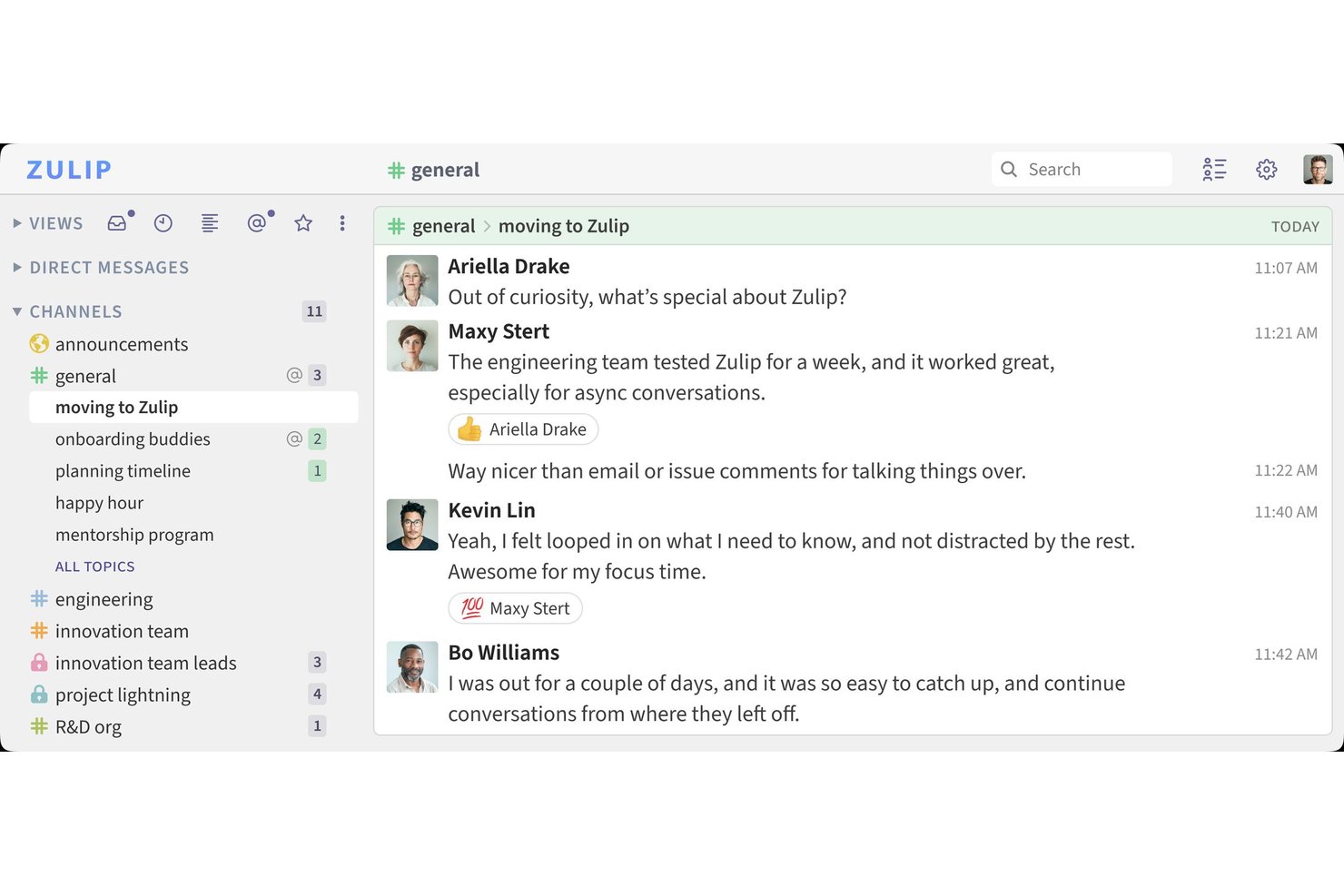
Zulip is a team chat platform that organizes messages into channels and topics, offering persistent message history, file sharing, search, over 130 native integrations, and support for external voice and video call providers.
Who Is Zulip Best For?
Zulip is a strong fit for distributed and remote teams—especially in tech and open-source environments—that need async-first communication with clear conversation structure.
Why I Picked Zulip
I've included Zulip in my top picks because its channel-and-topic model solves a real problem I see in async teams: conversations that collapse into noise. Unlike flat chat tools where everything lands in one stream, Zulip separates each discussion into its own topic within a channel, so a single engineering channel can hold parallel threads on a bug fix, a sprint review, and an onboarding question without any of them bleeding together. I also like that you can mark topics as resolved and move messages between topics when a conversation drifts.
Zulip Key Features
- Guest access controls: Invite external collaborators into specific channels without exposing your full workspace or user list.
- Over 130 native integrations: Connect tools like GitHub, GitLab, Jira, PagerDuty, and Zoom to route notifications directly into relevant topics.
- Message retention policies: Set organization-wide or channel-specific retention periods to automatically manage how long messages are stored.
- Role-based permissions: Assign access controls by user role, custom group, or individual user to manage who can create channels, invite members, or manage bots.
Zulip Integrations
Zulip offers over 130 native integrations, including GitHub, GitLab, Jira, Asana, Google Calendar, Zoom, PagerDuty, and Dropbox. It also supports REST APIs, webhooks, interactive bots, IFTTT, and Zapier for custom connectivity.
Pros and Cons
Pros:
- Granular permissions support controlled guest access
- Search helps recover older project decisions
- Topics keep parallel discussions organized
Cons:
- Mobile experience feels less polished than desktop
- Topic-based chat takes adjustment

Flock
Best for affordable cross-platform team messaging
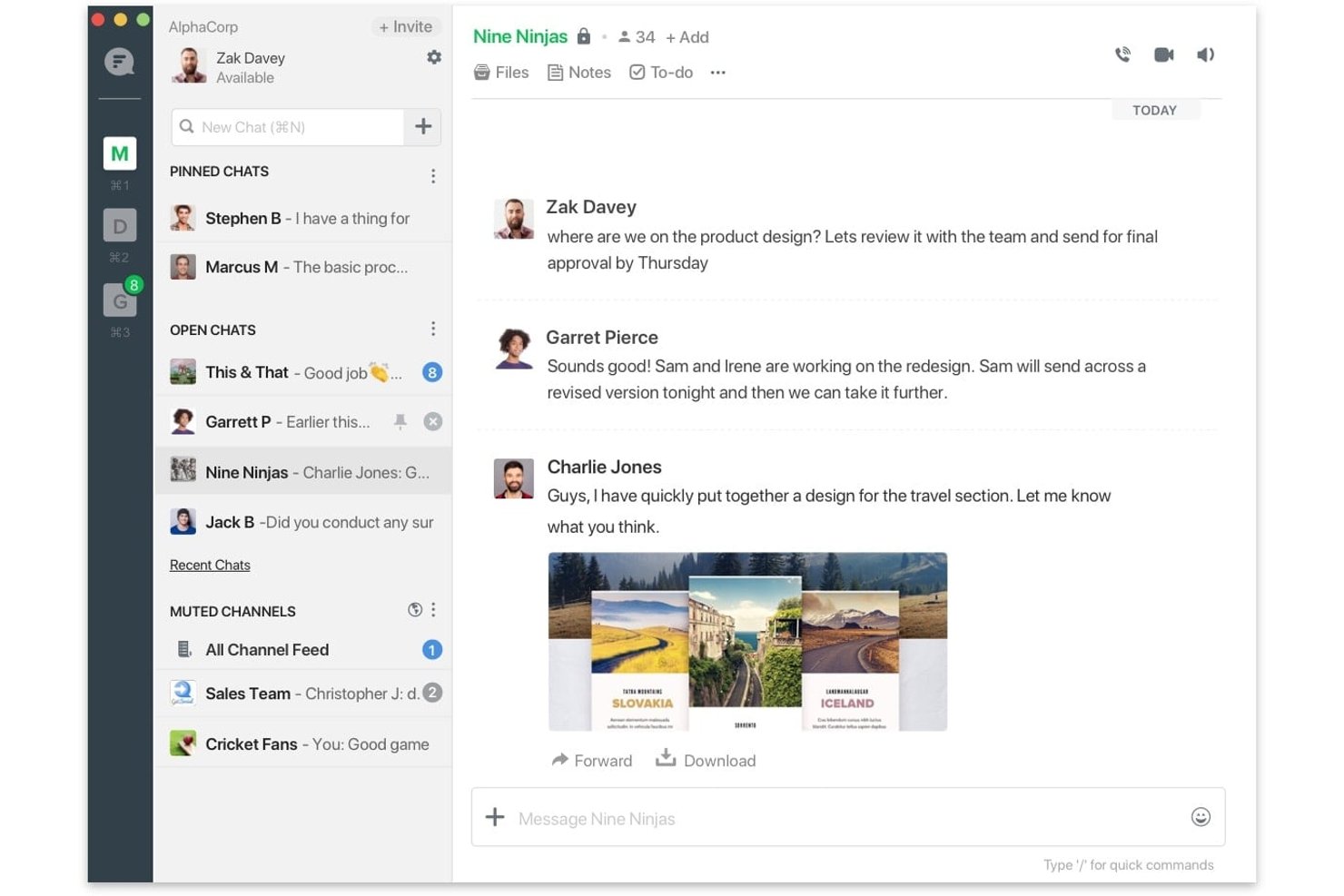
Flock is a team messaging and collaboration platform with channels, direct and group messaging, voice and video calls, file sharing, and process automation across web, desktop, and mobile.
Who Is Flock Best For?
Flock is a strong fit for small to mid-sized teams that need cross-platform messaging without paying Slack-level prices.
Why I Picked Flock
I picked Flock as one of the best because it delivers real team messaging across every major platform, web, desktop, and mobile, at a price point that's genuinely hard to justify skipping. I love that Smart Channels automatically add teammates based on defined criteria, so a distributed engineering team doesn't have to manually manage membership as it grows. Announcement Channels let admins push one-way updates without the noise of back-and-forth replies cluttering the feed.
Flock Key Features
- Guest access controls: Invite external collaborators and limit their visibility to specific chats and channels only.
- Process automation: Build multi-step workflow templates for recurring processes like IT requests or reimbursement approvals.
- Channel mailing lists: Email an entire channel directly, including people outside your Flock team, without leaving the platform.
- Cross-platform availability: Access Flock on web, Windows, macOS, Linux, iOS, Android, and Chrome with synced pinned chats.
Flock Integrations
Flock offers a marketplace with over 60 apps, including native integrations with Google Drive, Google Calendar, and GitHub, plus integrations with Trello, Asana, and Jira. FlockOS and webhooks support custom apps and integrations.
Pros and Cons
Pros:
- Smart Channels automate team membership
- Remote teams stay connected across devices
- Channels keep project discussions organized
Cons:
- Video calls can feel unreliable
- Older-message search can miss results

Best for Zoho-integrated remote team coordination
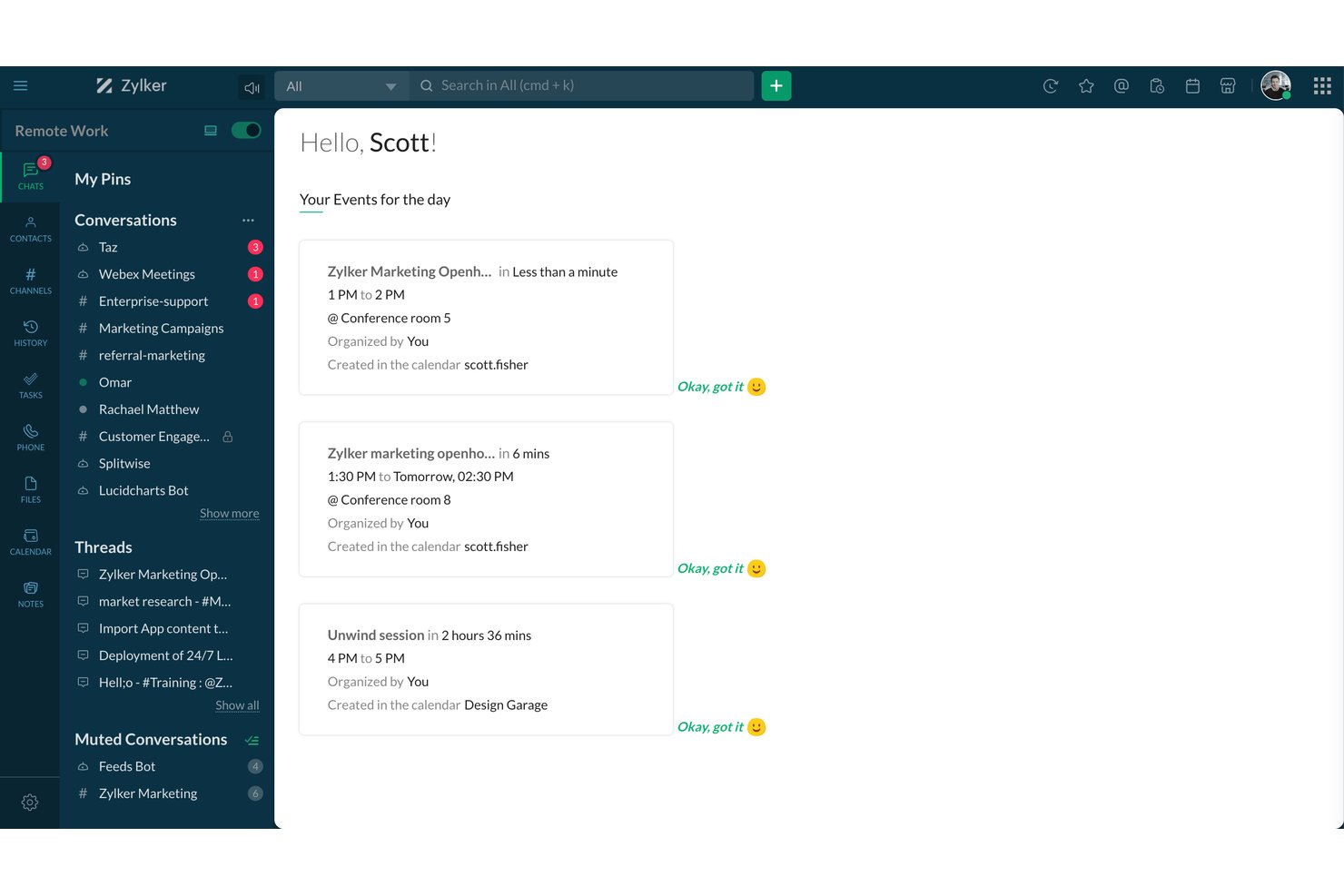
Zoho Cliq is a business messaging and collaboration platform that combines real-time chat, channels, audio and video calling, file sharing, and workflow automation bots within the broader Zoho ecosystem.
Who Is Zoho Cliq Best For?
Zoho Cliq is a natural fit for teams already running on Zoho apps who want their communication hub built into the same ecosystem.
Why I Picked Zoho Cliq
Zoho Cliq earns its spot on my shortlist because it's the only team communication tool that's genuinely built around the Zoho ecosystem, not just bolted onto it. I love how status sync works across Zoho Calendar, Zoho Meeting, and Zoho CRM automatically, so your team's availability reflects what's actually happening without anyone updating it manually. The Zoho Projects channel integration is also a standout: you can link a project directly to a channel, convert messages into tasks or issues, and keep delivery context inside the same conversation thread where decisions were made.
Zoho Cliq Key Features
- On-demand chat summary: Summarizes messages from a selected 3-, 7-, or 30-day window, with filters by sender, on Professional and Enterprise plans.
- Guest user access controls: Admins can enable guest users, set their permissions, and map them to specific channels and contacts.
- Forked messages: Branches a group-chat message into a separate conversation while keeping its original context intact.
- Remote-work check-in dashboard: Lets team members check in and out, set availability statuses, and view team work hours in one place.
Zoho Cliq Integrations
Zoho Cliq offers native integrations with Zoho Projects, Zoho CRM, Zoho Mail, Zoho Books, and Zoho Expense, plus marketplace integrations including Jira Software, GitHub, Google Calendar, and Google Drive. It supports REST APIs, Zoho Flow, viaSocket, and Zapier.
Pros and Cons
Pros:
- Calls pair screen sharing with chat
- Remote check-ins clarify team availability
- Project discussions stay organized in channels
Cons:
- Older messages can be hard to find
- Mobile notifications can arrive late

Best for AI meeting notes and action items
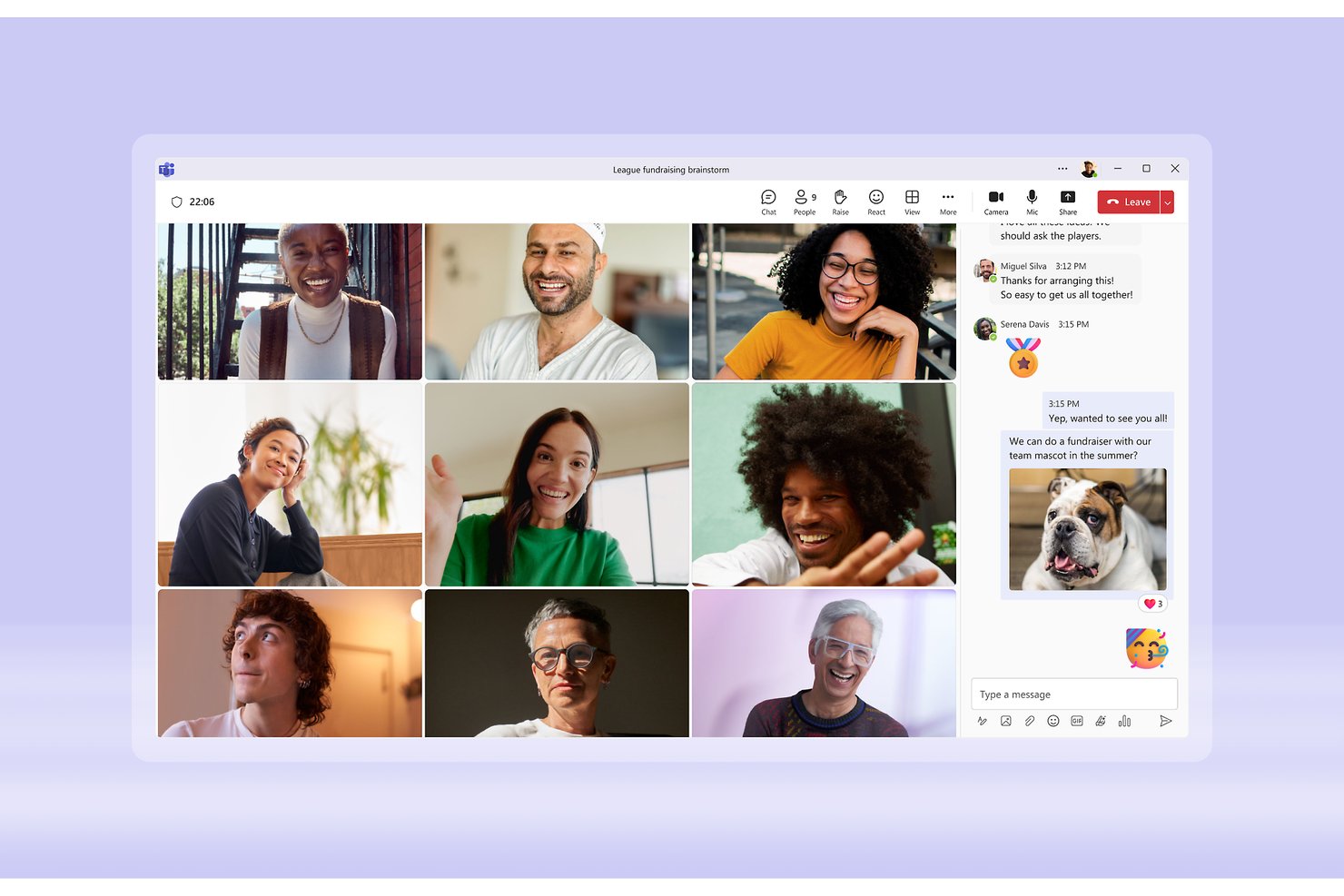
Microsoft Teams is a collaboration and communication platform from Microsoft that brings together chat, channels, video meetings, calling, and file sharing alongside deep integration with the Microsoft 365 ecosystem.
Who Is Microsoft Teams Best For?
Microsoft Teams is a strong fit for organizations already running Microsoft 365 that want chat, meetings, and file collaboration in one place without adding a separate tool.
Why I Picked Microsoft Teams
I've included Microsoft Teams in my top picks because its intelligent recap feature genuinely changes how my team handles meetings: AI-generated notes and recommended tasks surface automatically after each call, so nothing slips through the cracks. I especially like that speaker timeline markers and topic chapters make it easy to jump straight to the part of a recording that matters, without scrubbing through the whole thing. Paired with persistent, organized channels that keep project conversations and shared files in one place, Teams handles the full communication loop from discussion to documented action.
Microsoft Teams Key Features
- Standard, private, and shared channels: Create open team channels, invitation-only private channels, or shared channels that extend access to people outside your organization.
- Guest access controls: Add external collaborators as guests with access to specific teams, channels, files, and chats, managed through Microsoft Entra ID policies.
- Power Automate and Workflows integration: Build automated workflows that post to chats or channels in response to triggers, using the Workflows app or Power Automate.
- 3,750+ marketplace apps: Connect Teams to third-party tools across dev, analytics, and productivity categories directly from the Teams app marketplace.
Microsoft Teams Integrations
Microsoft Teams offers native integrations across the Microsoft ecosystem, including Microsoft 365, Outlook, SharePoint, OneDrive, Word, and Excel. Its marketplace lists 3,751 apps, including Calendly, Cursor, Snowflake Cortex Agents, and Read AI, with Microsoft Graph API and Teams SDKs for custom integrations.
Pros and Cons
Pros:
- Calls sit beside ongoing team chat
- Project channels keep discussions and files together
- AI recaps surface notes and recommended tasks
Cons:
- Calls can drop or lose clarity
- Older messages and files can be hard to find

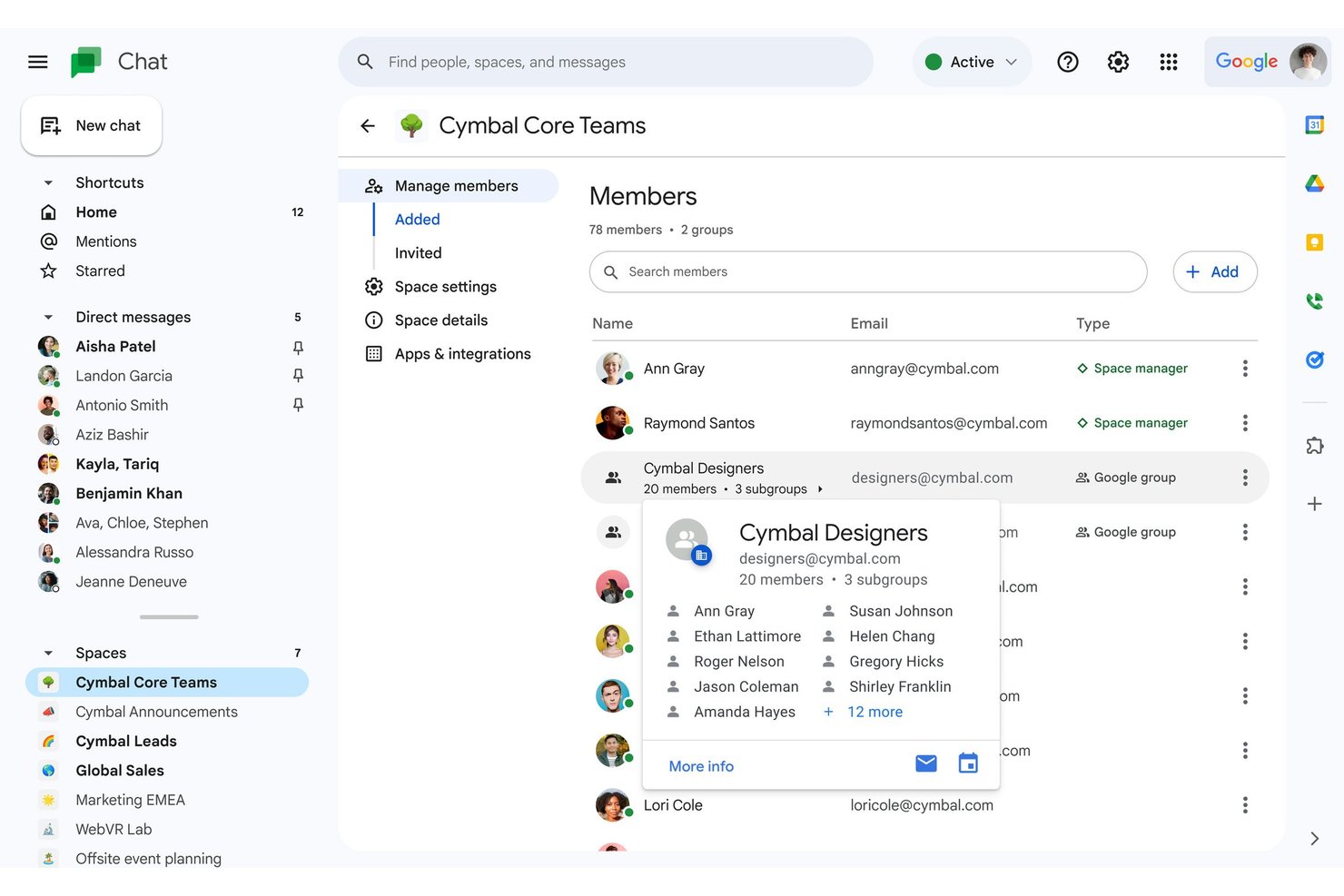
Google Chat is a business messaging platform built into Google Workspace that combines direct messaging, threaded Spaces, file sharing, huddles, and Gemini AI-powered conversation tools.
Who Is Google Chat Best For?
Google Chat is a natural fit for teams already running on Google Workspace who want messaging built into the same ecosystem as Gmail, Drive, and Meet.
Why I Picked Google Chat
Google Chat earns its spot on my shortlist because it's built directly into Google Workspace, making it the most natural messaging layer for teams already living in Gmail, Drive, and Meet. I particularly like how Spaces keep project conversations persistent and organized, with threading that lets my team follow multiple discussions without losing context. Gemini's conversation summaries are a real time-saver when catching up on a busy Space after time away.
Google Chat Key Features
- Gemini AI action items: Gemini automatically identifies action items from conversations so your team can track next steps without manual note-taking.
- Guest access for non-Workspace users: You can invite external collaborators who don't have a Google account to join spaces and huddles via a guest invitation.
- Custom Chat apps via API: Teams can build and deploy custom Chat apps using the Chat API or Apps Script to bring external services directly into conversations.
- Calendar-synced availability status: Google Chat automatically updates a user's availability based on their Google Calendar, showing when someone is in a meeting or out of office.
Google Chat Integrations
Google Chat has native integrations with Google Calendar, Google Drive, Google Meet, and Google Groups, plus hundreds of Marketplace integrations including Asana, GitHub, Workday, Zendesk, and Jenkins. Its Google Chat API, webhooks, and Apps Script support custom integrations inside conversations.
Pros and Cons
Pros:
- Gemini summaries surface missed action items
- Quick huddles make calls easy to start
- Spaces keep project discussions organized
Cons:
- Notifications can be missed or duplicated
- Threads can leave conversations feeling cluttered

Webex
Best for AI-assisted enterprise team messaging
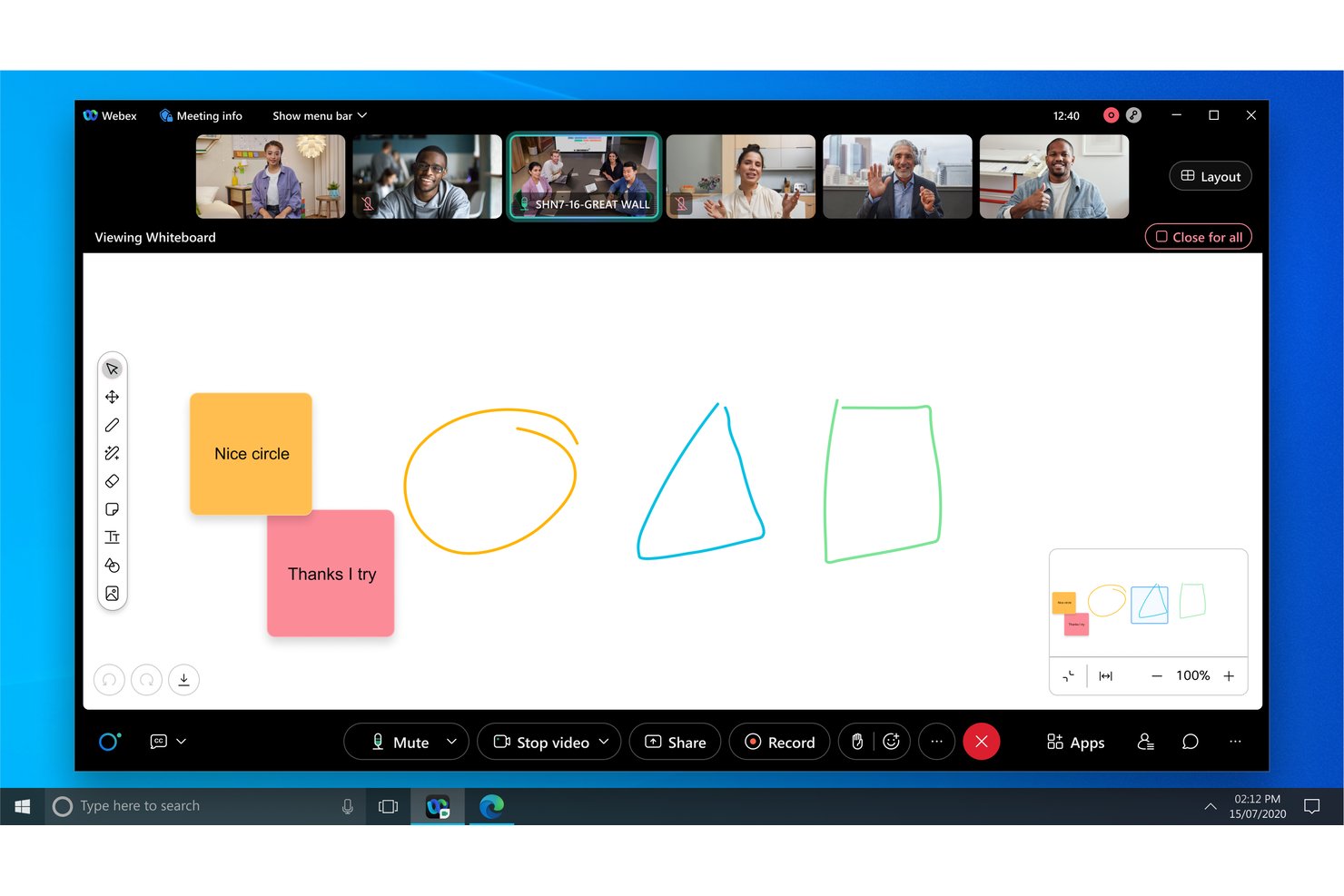
Webex is an enterprise collaboration suite from Cisco that brings together persistent team messaging, voice and video calling, meetings, whiteboarding, and AI-powered conversation tools in one platform.
Who Is Webex Best For?
Webex is a strong fit for enterprise IT and distributed teams that need AI-assisted messaging, built-in voice and video calling, and enterprise-grade security under one Cisco-managed platform.
Why I Picked Webex
I've included Webex in my top picks because it's one of the few team messaging platforms that layers real AI directly into the conversation flow, not just into meetings. The Cisco AI Assistant can surface decisions, blockers, and action items from message threads automatically, which is genuinely useful when your team is spread across time zones. I also like that space summaries let anyone catch up on a missed thread without scrolling through hundreds of messages.
Webex Key Features
- Persistent messaging spaces: Create dedicated spaces for projects, teams, and external partners where messages, files, and co-edited documents stay organized in one place.
- End-to-end encrypted calling: Make business calls through the Webex app or Cisco IP phones with AES-256-GCM media encryption and SRTP protection for audio, video, and screen sharing.
- Control Hub administration: Manage user access, external collaboration policies, retention rules, and compliance settings from a single centralized admin console.
- Guest and external access controls: Configure domain-based allow and block policies to control how external partners, vendors, and customers interact in your team spaces.
Webex Integrations
Webex lists 100+ integrations, including Google Workspace, Microsoft Teams, Slack, Salesforce, Jira, Box, Smartsheet, Calendly, Miro, and Slido. REST APIs, webhooks, and SDKs support custom integrations.
Pros and Cons
Pros:
- Project spaces keep discussions organized
- AI recaps reduce follow-up work
- Clear audio and dependable video
Cons:
- Mobile app can freeze or lag
- Navigation takes time to learn

Best for multi-site teams on one phone system
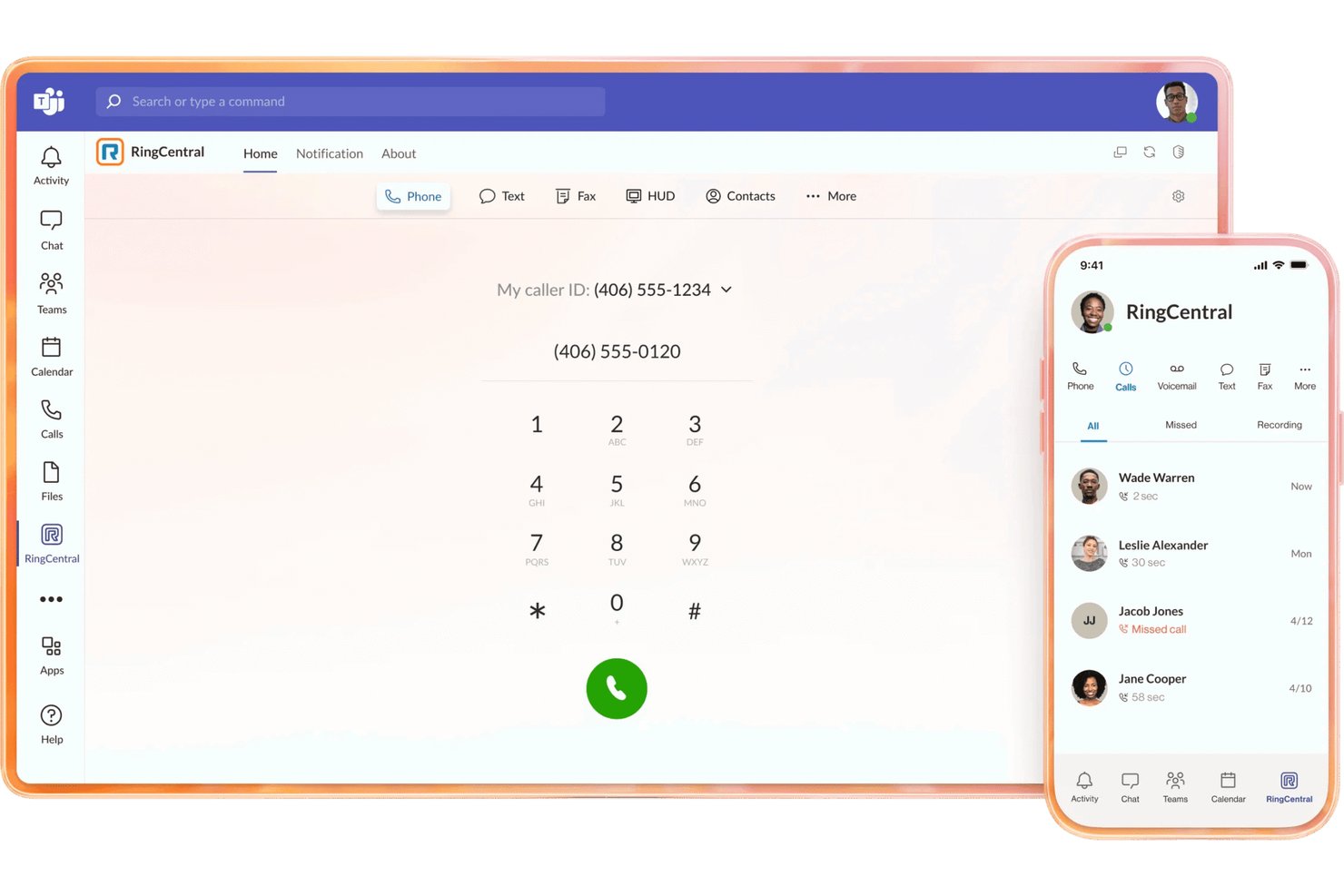
RingCentral's RingEX is a unified communications platform that brings together cloud calling, team messaging, video meetings, business texting, and fax in a single app with centralized multi-location administration.
Who Is RingCentral Best For?
RingCentral RingEX suits organizations managing staff across multiple offices or locations who need calling, messaging, and video unified under one admin console.
Why I Picked RingCentral
I picked RingCentral as one of the best because its centralized multi-location admin console is genuinely built for teams spread across offices, not bolted on as an afterthought. From one dashboard, admins can configure call routing, manage users across sites, and set up call menus with drag-and-drop tools. I also like that the AI Assistant captures live call notes and generates post-meeting summaries with action items, so nothing falls through the cracks when your teams are split across locations.
RingCentral Key Features
- Business texting and fax: Send and receive SMS, MMS, and fax from the same RingEX app you use for calls and team chat.
- Custom call routing: Configure call paths based on business hours, team availability, or custom rules using a drag-and-drop call menu builder.
- AI-generated meeting summaries: Automatically capture live call notes and produce post-meeting recaps that include decisions and action items.
- 500+ pre-built integrations: Connect RingEX to tools like Salesforce, HubSpot, Microsoft Teams, and Google Workspace through a broad integration library.
RingCentral Integrations
RingCentral lists 500+ RingEX integrations and 600+ across its broader ecosystem, including Salesforce, Microsoft Teams, Google Workspace, HubSpot, and AWS. APIs, webhooks, and SDKs support custom integrations.
Pros and Cons
Pros:
- Users praise clear calls across devices
- AI recaps capture meeting decisions and actions
- Centralized controls span multiple office locations
Cons:
- Admins report clunky setup and IVR configuration
- Some users report dropped or missed calls

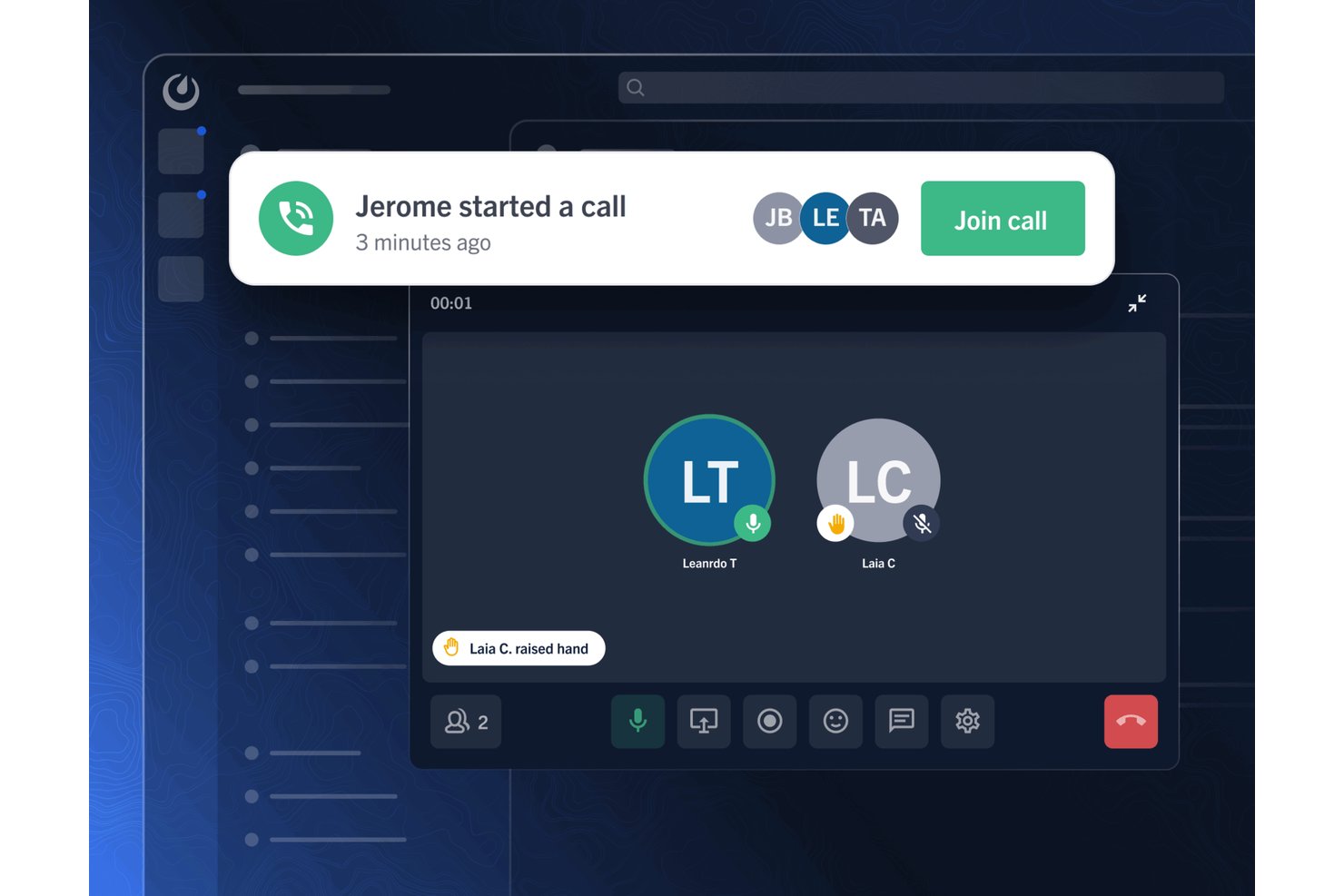
Mattermost is a self-hostable team messaging platform that combines channel-based messaging, threaded discussions, audio calling, workflow automation via Playbooks, and over 700 integrations with developer and enterprise tools.
Who Is Mattermost Best For?
Mattermost is a strong fit for IT and security teams that need full control over where their data lives and how their communication infrastructure is deployed.
Why I Picked Mattermost
I picked Mattermost as one of the best because it's the only platform on this list that lets your team own the entire communication stack, down to the server, the database, and the encryption keys. What I find genuinely compelling is Mattermost Playbooks, which lets teams run structured incident or project workflows with checklists, timelines, and automated triggers without leaving the messaging environment. I also like that air-gapped deployment is a first-class option, not an afterthought, so teams in classified or disconnected environments can still collaborate in real time.
Mattermost Key Features
- Channel-based messaging: Organizes team conversations into public and private channels with threading, emoji reactions, and message priority settings.
- Guest access controls: Invites external collaborators into specific channels via AD/LDAP, SAML 2.0, or email magic links without granting broader workspace access.
- Over 700 integrations: Connects Mattermost to tools like GitHub, Jira, Zoom, ServiceNow, and Google Drive through plugins, webhooks, and slash commands.
- Mattermost Boards: Provides Kanban, calendar, table, and gallery views for planning and tracking work alongside channel conversations.
Mattermost Integrations
Mattermost offers marketplace integrations with over 700 tools, including GitHub, Jira, Microsoft Teams, Zoom, ServiceNow, Google Drive, GitLab, Zendesk, and Confluence. Its REST API, webhooks, slash commands, plugins, and connectors support custom integrations.
Pros and Cons
Pros:
- Reviewers praise sharing large files
- Channels help keep project discussions together
- Self-hosting keeps communications under organizational control
Cons:
- Self-hosting requires technical setup and maintenance
- Video calls remain limited without external services

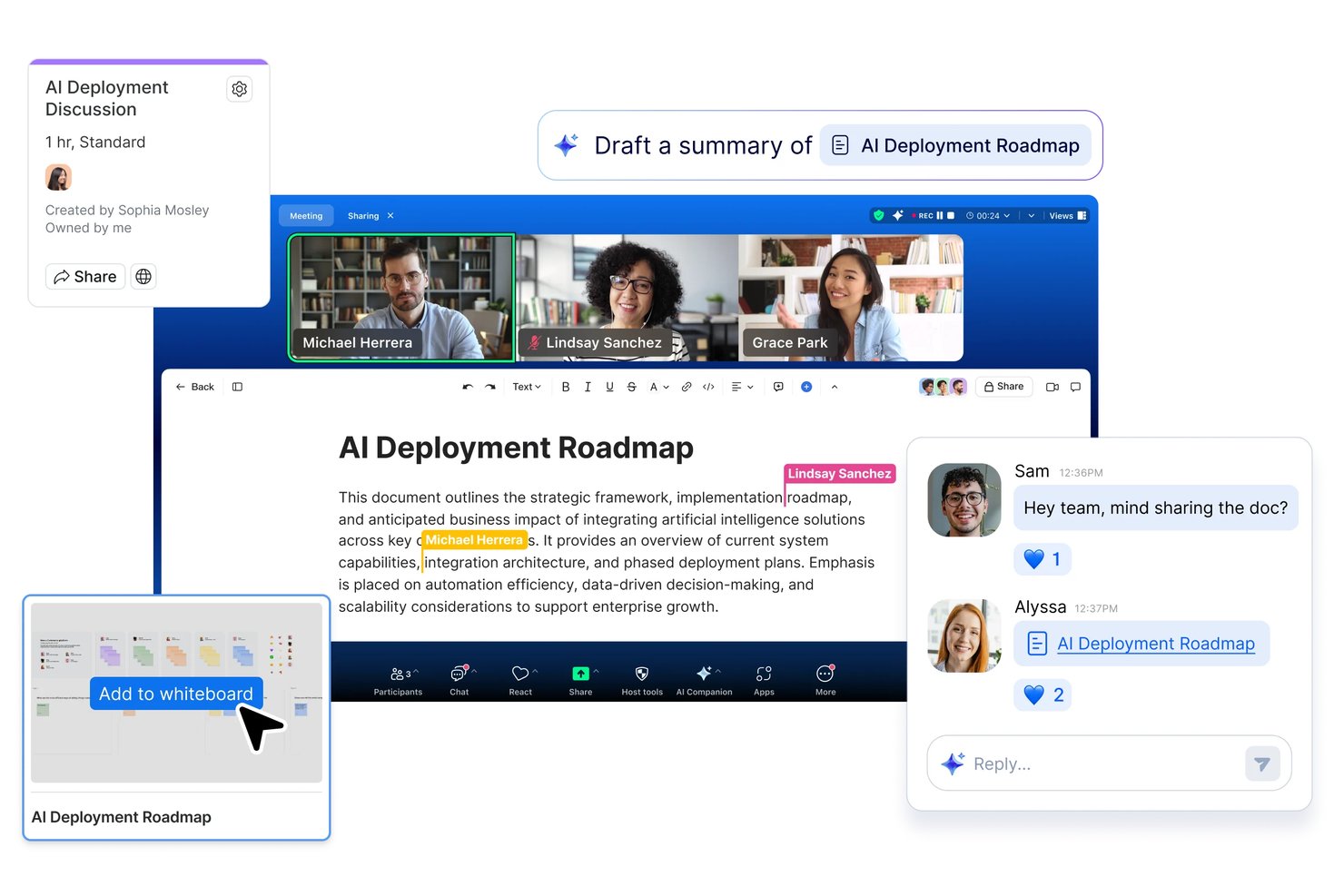
Zoom Workplace is a team communication and collaboration platform that brings together chat, video meetings, phone, mail, calendar, and whiteboard tools in a single app.
Who Is Zoom Workplace Best For?
Zoom Workplace is a strong fit for distributed teams that already live in Zoom meetings and want AI-powered summaries, chat, and scheduling in one place.
Why I Picked Zoom Workplace
I've included Zoom Workplace in my top picks because the AI meeting summary feature genuinely changes how distributed teams handle follow-up. After every call, Zoom automatically generates summaries, extracts action items, and even lets you ask questions about what was discussed, so nothing falls through the cracks between engineering, product, and design. I also like that Chat threads and channel conversations get the same AI treatment, summarizing long message chains so you can catch up without scrolling through hundreds of messages.
Zoom Workplace Key Features
- Unlimited public and private channels: Create as many channels as you need to organize conversations by team, project, or department.
- Global search: Search across messages, files, meetings, whiteboards, and mail from a single experience on desktop and mobile.
- Zoom Marketplace integrations: Connect tools like Jira, Salesforce, Google Workspace, Workday, and Slack directly within Zoom Workplace.
- Automated approval workflows: Set up notifications and approval workflows in Zoom Chat to track and manage team responses without leaving the app.
Zoom Workplace Integrations
Zoom Workplace offers Marketplace integrations with Google Workspace, Microsoft Teams, Slack, Jira, Workday, Salesforce, Google Drive, Microsoft 365, and Figma. Its REST API, webhooks, WebSockets, and GraphQL beta support custom integrations.
Pros and Cons
Pros:
- Chat and meetings keep follow-up together
- Clear audio supports distributed team meetings
- AI meeting summaries capture action items
Cons:
- Free group meetings stop after 40 minutes
- Crowded interface complicates finding settings
Andre verktøy for teamkommunikasjon
Nedenfor finner du en liste over flere verktøy for teamkommunikasjon som jeg valgte ut, men som ikke nådde opp i topplisten. Det er likevel verdt å sjekke dem ut!
- Slack
For AI-powered channel and workflow automation
- Troop Messenger
For end-to-end encrypted communication
- Chanty
For chat-to-task workflow in small teams
- Rocket.Chat
For open-source, customizable communication
- Pumble
For free unlimited messaging history
- Bitrix24
For chat, tasks, and CRM in one workspace
- ClickUp
For chat woven into project work
- Discord
For drop-in voice and free community chat


How I Evaluate Team Communication Tools
I split my evaluation into three parts, giving the most weight to core functions: send persistent real-time messages and organize discussions by project or team. Next, I look for differentiators like AI thread summaries that surface missed decisions. Finally, I consider onboarding, admin support, and pricing as teams scale.
Core Functionality (Table Stakes For This List)
When I'm selecting tools for my list, I score each one on a scale from 0 (does not offer the functionality) to 5 (excels in this area) for each core functionality listed below. I then convert the total into a percentage to help assess each tool's overall fit, with extra weight on any functionalities I’ve deemed essential.
- Real-Time Messaging (Essential): I look for persistent one-to-one and group chats with threads and reactions, so teams can discuss decisions without losing context.
- Channel Organization (Essential): I assess whether teams can create discoverable spaces for projects, departments, and topics, with access controls suited to the conversation.
- Voice and Video: I check for built-in group calls, screen sharing, and practical support for quick decisions when a text exchange falls short.
- File Sharing and Search: I look for shared files and searchable message history, so a project team can find a decision or document later.
- App Integrations: I assess connections to calendars, storage, and project trackers, including how relevant updates appear alongside team conversations.
- Cross-Platform Access: I check whether desktop and mobile apps keep conversation history in sync, so distributed teammates can follow discussions across devices.
Once I have a list of tools that meet the criteria, I consider what sets each platform apart.
Differentiating Factors (What Sets Vendors Apart)
Here's how I compare and contrast different vendors:
Standout Features
I look for AI-powered summaries that recap long threads or meeting transcripts, since a project manager rejoining after a day off shouldn't need to scroll through hundreds of messages to find what was decided. Workflow automation bots also matter—I evaluate whether a tool can run automated standups or approval prompts inside a channel, the way Slack and Microsoft Teams handle bot-driven reminders. Beyond that, I check how guest and client access controls work, because inviting an external stakeholder to a specific channel without exposing internal discussions is a real, recurring need on every client-facing project.
Beyond Features
I evaluate how each tool's pricing model handles team growth—per-user costs add up fast when you're onboarding contractors for a single project phase. Security and compliance posture also matters: I check for SSO support, audit logs, and certifications like SOC 2 or HIPAA that regulated teams need before they can even pilot a tool. Finally, I look at deployment flexibility, since some organizations require on-premise or hybrid hosting that only a few vendors like Mattermost and Rocket.Chat actually offer.
Slik velger du verktøy for teamkommunikasjon
Når du går gjennom din unike prosess for valg av programvare, bør du huske på følgende punkter.
- Brukervennlighet: Kommunikasjonsverktøyet bør være brukervennlig for å sikre høy adopsjonsgrad blant de ansatte. Komplekse verktøy kan føre til lav bruk, noe som opphever fordelene ved å ha verktøyet i utgangspunktet. Et brukervennlig verktøy sørger for at alle avdelinger, fra utvikling til HR, kan bruke det effektivt og dermed maksimere verdien.
- Integrasjoner: Verktøyet bør kunne integreres med andre viktige verktøy organisasjonen bruker daglig. Denne fleksibiliteten og tilpasningsevnen kan forenkle arbeidsflyter og forbedre produktiviteten. Et kommunikasjonsverktøy som integreres med prosjektstyringsprogramvare, CRM-systemer og skylagring, kan for eksempel samle all kommunikasjon på ett sted.
- Sikkerhet: Med den økende trusselen fra nettkriminalitet er sikkerhet en viktig bekymring. Verktøyet bør tilby sikkerhetsfunksjoner som beskytter sensitive bedriftsdata, samtidig som nødvendig ekstern kommunikasjon tillates. Et verktøy som tilbyr ende-til-ende-kryptering, kan for eksempel beskytte mot datainnbrudd.
- Skalerbarhet: Verktøyet bør kunne vokse sammen med organisasjonen uten at det går ut over ytelsen. Dette er spesielt viktig for selskaper i rask vekst eller organisasjoner med varierende teamstørrelser. Et skalerbart verktøy kan håndtere et økende antall brukere og datamengder uten å bli tregere eller kreve betydelige ekstra investeringer.
- Tilpasning: Verktøyet bør kunne tilpasses organisasjonens unike behov og preferanser. Dette omfatter tilpasning av funksjoner, brukergrensesnitt og arbeidsflyter slik at de passer til spesifikke forretningsprosesser. Et tilpasningsbart verktøy kan for eksempel justeres for å støtte ulike kommunikasjonsstiler, prosjektkrav og teamstrukturer.
Trender innen verktøy for teamkommunikasjon
Etter hvert som teknologien utvikler seg, er det viktig å holde seg oppdatert på den nyeste utviklingen. Her er noen viktige trender du bør følge nøye med på, ettersom de kan påvirke organisasjonen din.
- AI-drevne kommunikasjonsverktøy: AI-drevne kommunikasjonsverktøy revolusjonerer samhandlingen i team. Disse verktøyene øker effektiviteten ved å automatisere rutineoppgaver og gi intelligente innsikter. AI kan for eksempel sortere meldinger, noe som reduserer svartiden og øker produktiviteten.
- Mobil først-kommunikasjon: Med fremveksten av fjernarbeid blir mobil først-kommunikasjonsstrategier stadig viktigere. Ansatte foretrekker å bruke mobile enheter til arbeidsrelaterte oppgaver, noe som gjør det nødvendig for bedrifter å ta i bruk mobilvennlige kommunikasjonsverktøy. Denne trenden sikrer at team holder kontakten og er produktive, uavhengig av hvor de befinner seg.
- Forbedret integrasjon med eksisterende plattformer: Integrasjon av kommunikasjonsverktøy med eksisterende plattformer er en voksende trend. Denne integrasjonen forenkler arbeidsflyter og forbedrer produktiviteten ved å gjøre det enkelt å dele data på tvers av ulike systemer. Bedrifter som tar i bruk denne tilnærmingen, rapporterer om betydelige effektivitetsgevinster.
- Fokus på medarbeiderengasjement og tilbakemeldinger: Medarbeiderengasjement og tilbakemeldinger er avgjørende for at team skal lykkes. Verktøy som legger til rette for regelmessige tilbakemeldinger og engasjement, bidrar til bedre arbeidsmoral og produktivitet. Bedrifter som prioriterer disse områdene, opplever høyere medarbeiderbevaring og mer innovasjon.
- Teknologier for oppslukende samarbeid: Oppslukende teknologier, som virtuell virkelighet (VR) og utvidet virkelighet (AR), finner veien inn i verktøy for teamkommunikasjon. Disse teknologiene gir mer engasjerende og interaktive samarbeidsopplevelser, noe som kan styrke kreativiteten og problemløsningen.
Etter hvert som teknologien utvikler seg, blir disse verktøyene mer avanserte og tilbyr forbedret analyse, bedre integrasjon med sosiale medieplattformer og en bedre brukeropplevelse. Bedrifter som utnytter disse trendene i utvikling, vil sannsynligvis oppnå et konkurransefortrinn.
Hva er teamkommunikasjonsverktøy?
Teamkommunikasjonsverktøy er programvareapplikasjoner som er utviklet for å fremme kommunikasjon og samarbeid mellom teammedlemmer. Bedrifter, fjernteam og prosjektgrupper bruker vanligvis disse verktøyene til å dele informasjon, diskutere oppgaver og koordinere aktiviteter.
Hovedformålet med teamkommunikasjonsverktøy er å muliggjøre effektiv og velfungerende kommunikasjon i et team, slik at alle medlemmene er samkjørte og informerte. Typiske brukere omfatter prosjektledere, teamledere og ansatte som må samarbeide om oppgaver og prosjekter.
Komponenter i teamkommunikasjonsverktøy omfatter vanligvis meldingsplattformer, videokonferanser, fildeling og funksjoner for oppgavehåndtering. Disse elementene fungerer sammen for å tilby en løsning for teamkommunikasjon og samarbeid.
Funksjoner i teamkommunikasjonsverktøy
Praktiske teamkommunikasjonsverktøy bidrar til å forenkle kommunikasjonen, styrke samarbeidet og sikre at alle er samkjørte. Her er noen av de viktigste funksjonene du bør se etter i teamkommunikasjonsverktøy.
- Direktemeldinger: Denne funksjonen gjør det mulig for teammedlemmer å kommunisere via intern kommunikasjon i sanntid, noe som er viktig for raske beslutninger og problemløsning.
- Videokonferanser: Videosamtaler muliggjør ansikt-til-ansikt-kommunikasjon via videokonferanser, noe som bidrar til å bygge sterkere relasjoner og sikrer at ikke-verbale signaler ikke går tapt i virtuelle møter.
- Fildeling: Muligheten til å dele dokumenter og filer i kommunikasjonsverktøyet sikrer at alle har tilgang til nødvendige ressurser uten å bytte plattform. Denne funksjonen er nyttig for idémyldring og andre samarbeidsøvelser.
- Oppgavehåndtering: Integrering av funksjoner for oppgavehåndtering hjelper team med å holde oversikt over ansvarsområder og frister, slik at prosjektene holder seg på rett spor.
- Integrasjon med andre verktøy: Enkel integrasjon med annen programvare, for eksempel prosjektstyringsverktøy, samarbeidsverktøy, kalendere og e-post, bidrar til å skape en enhetlig arbeidsflyt og reduserer behovet for å bytte mellom ulike applikasjoner.
- Søk funksjonalitet: En søkefunksjon gjør det mulig for teammedlemmer å raskt finne tidligere samtaler, filer og annen viktig informasjon, noe som sparer tid og forbedrer effektiviteten.
- Varsler og meldinger: Tilpassbare varsler sikrer at teammedlemmene blir oppmerksomme på viktige oppdateringer og kan svare raskt, uten å bli overveldet av unødvendige varsler.
- Brukerroller og tillatelser: Denne funksjonen gjør det mulig for administratorer å kontrollere tilgangen til ulike deler av verktøyet, slik at sensitiv informasjon bare er tilgjengelig for dem som trenger den.
- Mobil tilgang: En mobil kommunikasjonsapp sikrer at teammedlemmer kan holde kontakten og være produktive, selv når de ikke er ved skrivebordet.
- Sikkerhet og samsvar: Robuste sikkerhetsfunksjoner og samsvar med bransjestandarder beskytter sensitiv forretningskommunikasjon og sikrer at organisasjonen oppfyller regulatoriske krav.
Å velge riktig verktøy for teamkommunikasjon med disse funksjonene kan forbedre samarbeidet og produktiviteten i teamet ditt betydelig. Ved å fokusere på disse nøkkelaspektene kan du sørge for at teamet ditt har ressursene det trenger for å kommunisere effektivt og nå målene sine.
Fordeler med verktøy for teamkommunikasjon
I dagens hektiske forretningsmiljø har verktøy for teamkommunikasjon blitt uunnværlige for å legge til rette for samhandling, samarbeid og produktivitet blant teammedlemmer. Nedenfor finner du fem viktige fordeler ved å bruke verktøy for teamkommunikasjon for både brukere og organisasjoner.
- Bedre samarbeid: Verktøy for teamkommunikasjon muliggjør samarbeid i sanntid, slik at teammedlemmer kan jobbe sammen på prosjekter, dele ideer og gi tilbakemeldinger umiddelbart, uavhengig av hvor de befinner seg.
- Økt produktivitet: Ved å samle kommunikasjonen på ett sted og redusere behovet for lange e-posttråder forenkler disse verktøyene arbeidsflytene og hjelper team med å fokusere på oppgavene sine, noe som fører til høyere produktivitet.
- Bedre oversikt: Disse verktøyene gir en tydelig oversikt over all kommunikasjon og alle beslutninger som er tatt, slik at alle er på samme side og risikoen for misforståelser eller manglende informasjon reduseres.
- Bedre prosjektstyring: Med integrerte funksjoner for prosjektstyring hjelper verktøy for teamkommunikasjon med å følge fremdriften, sette tidsfrister og tildele oppgaver. Dette gjør det enklere å styre prosjekter effektivt og overholde tidsfrister.
- Større fleksibilitet: Verktøy for teamkommunikasjon støtter fjernarbeid ved å gjøre det mulig for teammedlemmer å kommunisere og samarbeide hvor som helst, og gir fleksibiliteten som trengs for å tilpasse seg ulike arbeidsforhold og tidssoner.
Investering i verktøy for teamkommunikasjon kan forbedre måten teamet ditt samhandler og samarbeider på betydelig, noe som fører til bedre resultater og et mer sammensveiset arbeidsmiljø. Ved å utnytte disse verktøyene kan organisasjoner sørge for at teamene deres er godt tilkoblet, informert og produktive.
Kostnader og priser for verktøy for teamkommunikasjon
Denne delen gir et detaljert estimat av gjennomsnittlige abonnementer for teamkommunikasjon og tilhørende kostnader. Dataene er hentet fra en analyse av vanlige prisnivåer og funksjonene de tilbyr. Ved å forstå disse prisstrukturene kan brukere bedre vurdere behovene sine og budsjettet når de velger verktøy for teamkommunikasjon.
Sammenligningstabell for abonnementer for teamkommunikasjon
| Abonnementstype | Gjennomsnittlig pris | Vanlige funksjoner |
| Gratisabonnement | $0 | Grunnleggende meldinger, begrenset fildeling, begrensede integrasjoner, grunnleggende sikkerhet |
| Personlig abonnement | $5-$10 per bruker /måned | Forbedrede meldinger, videosamtaler, mer fillagring, integrasjoner, grunnleggende kundestøtte |
| Bedriftsabonnement | $10-$20 per bruker /måned | Avanserte meldinger, videokonferanser, omfattende fillagring, avanserte integrasjoner, prioritert kundestøtte |
| Virksomhetsabonnement | $20+ per bruker /måned | Tilpassede funksjoner, ubegrenset lagring, avansert sikkerhet, dedikert kundestøtte, verktøy for overholdelse av regelverk |
Vanlige spørsmål om kommunikasjonsverktøy for team
Her finner du svar på vanlige spørsmål du kanskje har om kommunikasjonsverktøy for team og hvordan de fungerer.
Hvordan kan jeg integrere kommunikasjonsverktøy for team med annen programvare for prosjektstyring?
De fleste kommunikasjonsverktøy for team tilbyr integrasjoner med populære programmer for prosjektstyring, som Trello, Asana og Jira. Du finner vanligvis disse alternativene i innstillingene eller integrasjonsdelen av verktøyet. Slack lar deg for eksempel koble til Trello ved å legge til Trello-appen i Slack-arbeidsområdet ditt, slik at du kan opprette og administrere Trello-kort direkte fra Slack-kanaler.
Hva er de beste fremgangsmåtene for å administrere varsler i kommunikasjonsverktøy for team?
For å unngå for mange varsler bør du tilpasse varslingsinnstillingene slik at viktige meldinger prioriteres. Mange verktøy lar deg dempe bestemte kanaler eller samtaler, angi perioder med ikke forstyrr, og velge hvilke typer varsler du mottar. I Microsoft Teams kan du for eksempel justere varslingsinnstillingene slik at du bare får varsler om omtaler eller direktemeldinger.
Hvordan kan jeg sikre datasikkerhet og personvern i kommunikasjonsverktøy for team?
Velg verktøy som tilbyr sikkerhetsfunksjoner som ende-til-ende-kryptering, tofaktorautentisering og samsvar med bransjestandarder som GDPR og HIPAA. Oppdater programvaren regelmessig til den nyeste versjonen for å dra nytte av sikkerhetsoppdateringer. I tillegg bør du lære teamet ditt opp i beste praksis for datasikkerhet, som å bruke sterke passord og gjenkjenne phishingforsøk.
Hvilke strategier kan forbedre engasjementet gjennom kommunikasjonsverktøy for team?
Oppmuntre til regelmessige innsjekkinger og bruk funksjoner som avstemninger, reaksjoner og videosamtaler for å gjøre samhandlingen mer dynamisk. Opprett egne kanaler for temaer som ikke er arbeidsrelaterte, for å fremme en følelse av fellesskap. I Slack kan du for eksempel opprette en #random-kanal for uformelle samtaler og aktiviteter som styrker samholdet i teamet.
Hvordan administrerer og arkiverer jeg gamle samtaler og filer i kommunikasjonsverktøy for team?
De fleste verktøy tilbyr arkiveringsalternativer for å holde arbeidsområdet organisert. I Slack kan du arkivere kanaler som ikke lenger er aktive, og i Microsoft Teams kan du bruke oppbevaringsregler til å administrere livssyklusen til meldinger og filer. Gå regelmessig gjennom og rydd opp i gamle data for å opprettholde et effektivt arbeidsområde.
Hva er de vanligste utfordringene når kommunikasjonsverktøy for team skaleres til større team?
Når team vokser, kan det bli utfordrende å opprettholde tydelig og effektiv kommunikasjon. Vanlige problemer omfatter for mye informasjon, fragmenterte samtaler og vanskeligheter med å følge med på viktige oppdateringer. For å håndtere dette bør du etablere tydelige kommunikasjonsprotokoller, bruke trådede samtaler for å holde diskusjonene organiserte og utnytte søkefunksjoner for å finne informasjon raskt.
Hvordan kan jeg måle hvor effektive kommunikasjonsverktøyene for team er?
Følg med på måleverdier som svartider, meldingsvolum og brukerengasjement for å vurdere hvor effektive kommunikasjonsverktøyene dine er. Mange verktøy tilbyr innebygd analyse eller kan integreres med tredjeparts analyseplattformer. Gå regelmessig gjennom disse måleverdiene for å identifisere forbedringsområder og sikre at verktøyene oppfyller teamets behov.