

10 programmer for avviks- og prosjektsporing i 2026

Kortliste over programvare for saks- og prosjektsporing


Programvare for saks- og prosjektsporing fungerer som et robust prosjektstyringsverktøy som hjelper teamet ditt med å registrere, organisere og administrere oppgaver, feil og prosjektfremdrift på ett sted. Hvis du ser etter de beste verktøyene for sakssporing for å holde prosjekter på rett spor, håndtere endrede krav og styrke teamets ansvarlighet, vet du hvor mye som står på spill – oversittede frister, uklart ansvar og spredte oppdateringer kan føre selv de beste teamene på avveie. Denne listen hjelper deg med å sammenligne ledende SaaS-løsninger, forstå hva som skiller dem fra hverandre og velge riktig plattform for å støtte teamets arbeidsflyt og leveringsmål.
Hvorfor du kan stole på våre programvareanbefalinger
Teamet vårt har testet og anmeldt programvare siden 2012. Vi er selv prosjektledere, så vi vet hvor vanskelig og hvor viktig det er å velge riktig programvare.
I denne guiden har vi vurdert verktøyene gjennom praktisk testing og uavhengig research og gitt dem poeng ut fra våre utvelgelseskriterier. Vi bygger også på innsikt fra ledende eksperter i bransjen og erfarne prosjektledere.
Anmeldelsene våre bygger på vår egen redaksjonelle vurdering. De er ikke et salgsargument.
Ekspertanmeldere:
Sammenligningstabell for programvare for saks- og prosjektsporing
Denne sammenligningstabellen oppsummerer prisopplysningene for mine beste utvalgte løsninger for saks- og prosjektsporing:
| Tool | Best For | Trial Info | Price | ||
|---|---|---|---|---|---|
| 1 | Best for visual timeline management | Free plan available | From $10.99/user/month (billed annually) | Website | |
| 2 | Best for fast-paced product teams | Free plan available | From $10/user/month (billed annually) | Website | |
| 3 | Best for agile software development teams | Free plan available | From $8.48/user/month | Website | |
| 4 | Best for advanced issue customization | Free plan available | From $4.50/user/month (billed annually) | Website | |
| 5 | Best for simple kanban board organization | Free plan available | From $5/user/month (billed annually) | Website | |
| 6 | Best for all-in-one workspace consolidation | Free plan available | From $7/user/month (billed annually) | Website | |
| 7 | Best for combining docs and task tracking | Free plan available | From $10/user/month (billed annually) | Website | |
| 8 | Best for detailed bug tracking workflows | Free plan available | Pricing upon request | Website | |
| 9 | Best for open-source project environments | Free plan available | From $7.25/user/month (good for 25 users) | Website | |
| 10 | Best for spreadsheet-style project planning | 30-day free trial | From $12/user/month | Website |

Anmeldelser av programvare for saks- og prosjektsporing
Nedenfor finner du mine detaljerte sammendrag av den beste programvaren for saks- og prosjektsporing som kom med på kortlisten min. Anmeldelsene mine gir en detaljert oversikt over funksjonene, de beste bruksområdene og integrasjonene til hver plattform, slik at du kan finne den beste løsningen for deg.
Asana
Best for visual timeline management
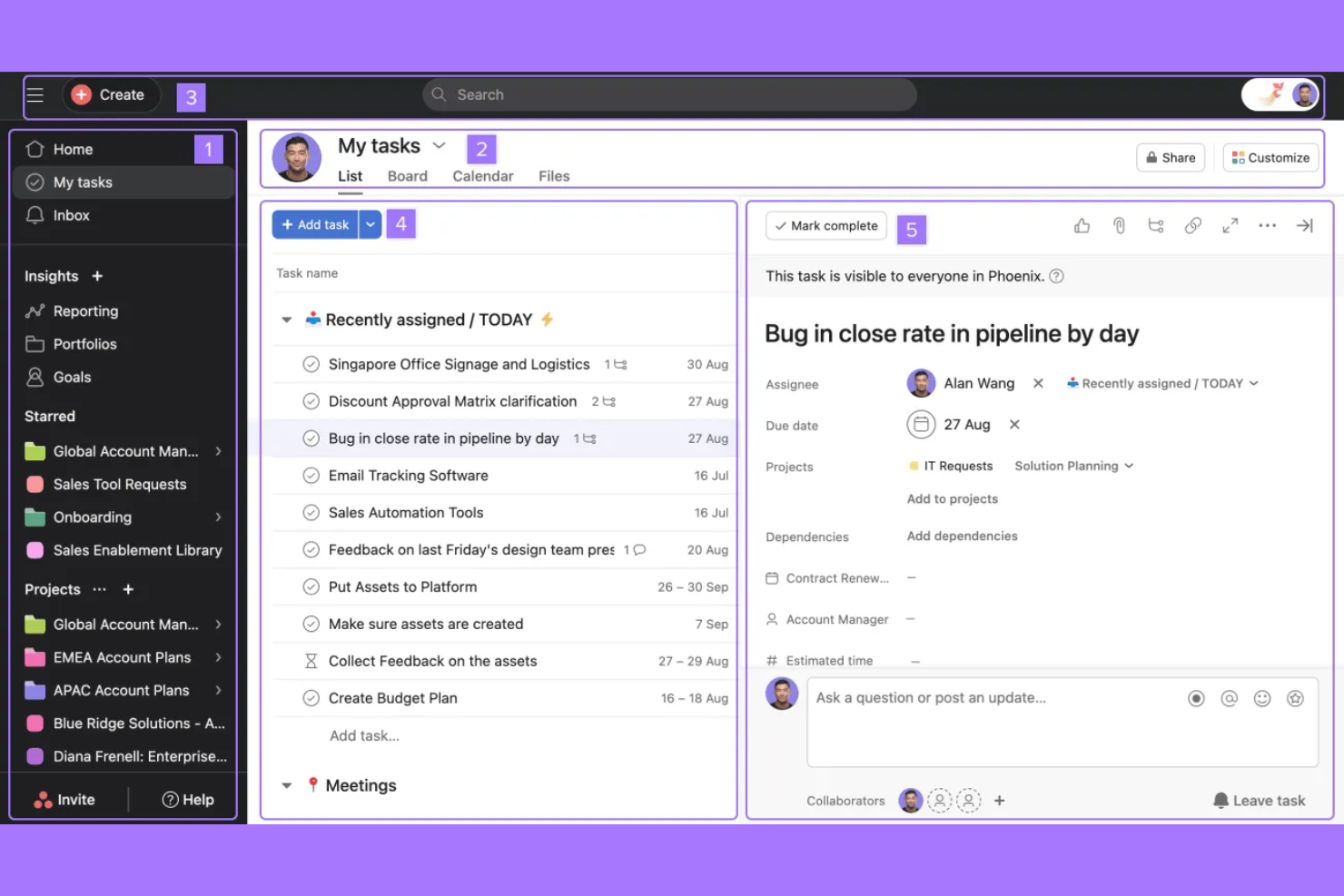
If your team needs a clear, visual way to manage project timelines, Asana offers a flexible solution. It’s especially useful for project managers and cross-functional teams who want to map dependencies and track progress with Gantt-style views. Asana helps teams coordinate complex projects, spot bottlenecks, and keep everyone aligned on deadlines.
Why I Picked Asana
For teams that need to visualize project schedules and dependencies, Asana’s timeline view offers a clear advantage. I picked Asana because its drag-and-drop Gantt-style timelines make it easy to map out tasks, adjust deadlines, and see how work connects across a project. The ability to set dependencies directly on the timeline helps teams anticipate blockers and keep projects on track. If you’re managing complex initiatives with shifting priorities, Asana’s visual timeline management stands out for keeping everyone aligned.
Asana Key Features
In addition to its timeline capabilities, Asana offers several other features that support project tracking:
- Custom Fields: Add specific data points to tasks to capture details unique to your workflow.
- Workload Management: Visualize team capacity and balance assignments to avoid overloading anyone.
- Rules Automation: Set up triggers and actions to automate routine task updates and handoffs.
- Forms: Collect and organize work requests directly into projects using customizable intake forms.
Asana Integrations
Integrations include Slack, Microsoft Teams, Google Drive, Dropbox, Zoom, Salesforce, GitHub, Trello, Zapier, and Adobe Creative Cloud.
Pros and Cons
Pros:
- Easy to track dependencies
- Strong workload management
- Clear project ownership
Cons:
- Clunky subtask navigation
- Custom fields cost extra

Linear
Best for fast-paced product teams
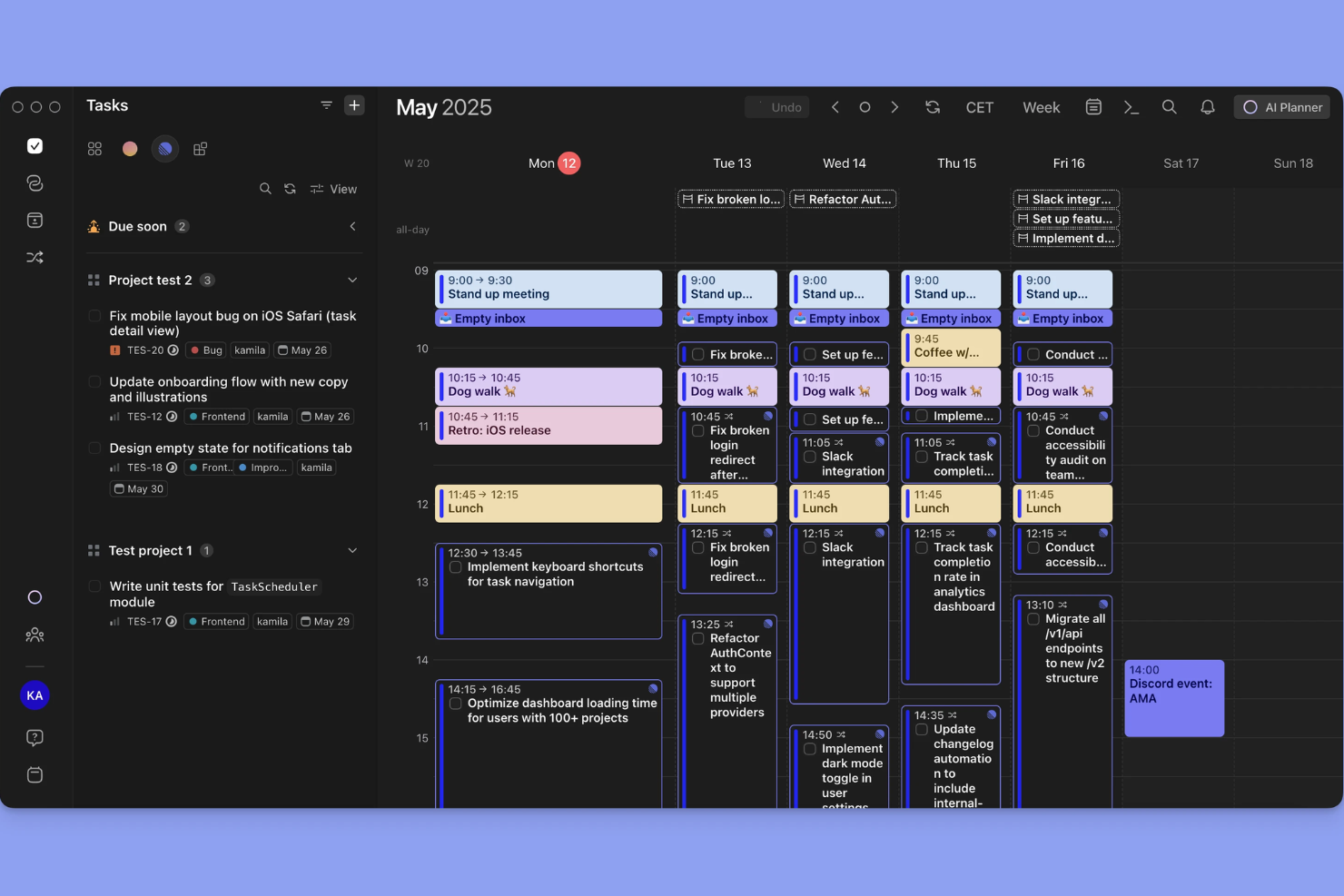
Linear is designed for product teams that need to move quickly and keep work organized without friction. It appeals to startups and tech companies that want lightning-fast issue tracking, keyboard-driven workflows, and real-time collaboration. With its focus on speed and a clean interface, Linear helps teams manage sprints, triage bugs, and ship features without getting bogged down by process.
Why I Picked Linear
When speed and responsiveness are non-negotiable, Linear stands out for fast-paced product teams that need to keep momentum high. I picked Linear because its keyboard-driven commands and instant issue updates let teams capture, assign, and resolve tasks without breaking their workflow. The tool’s real-time sync and lightning-fast search help teams stay aligned and react quickly to shifting priorities. For teams that value velocity and minimal friction in their project tracking, Linear delivers a focused, high-performance experience.
Linear Key Features
Some other features that make Linear useful for project tracking include:
- Custom Workflows: Set up unique states and transitions for issues to match your team’s process.
- Cycle Management: Organize work into cycles to help teams plan and deliver in short, focused bursts.
- Issue Templates: Create reusable templates for common tasks or bug reports to standardize submissions.
- GitHub Integration: Link pull requests and commits directly to issues for better traceability.
Linear Integrations
Integrations include GitHub, Slack, Vercel, Figma, Sentry, Intercom, GitLab, Bitbucket, Zapier, and Discord.
Pros and Cons
Pros:
- Streamlined issue triage
- Perfect for dev teams
- Keyboard shortcut focused
Cons:
- Narrow integration ecosystem
- Basic Gantt chart features
Jira
Best for agile software development teams
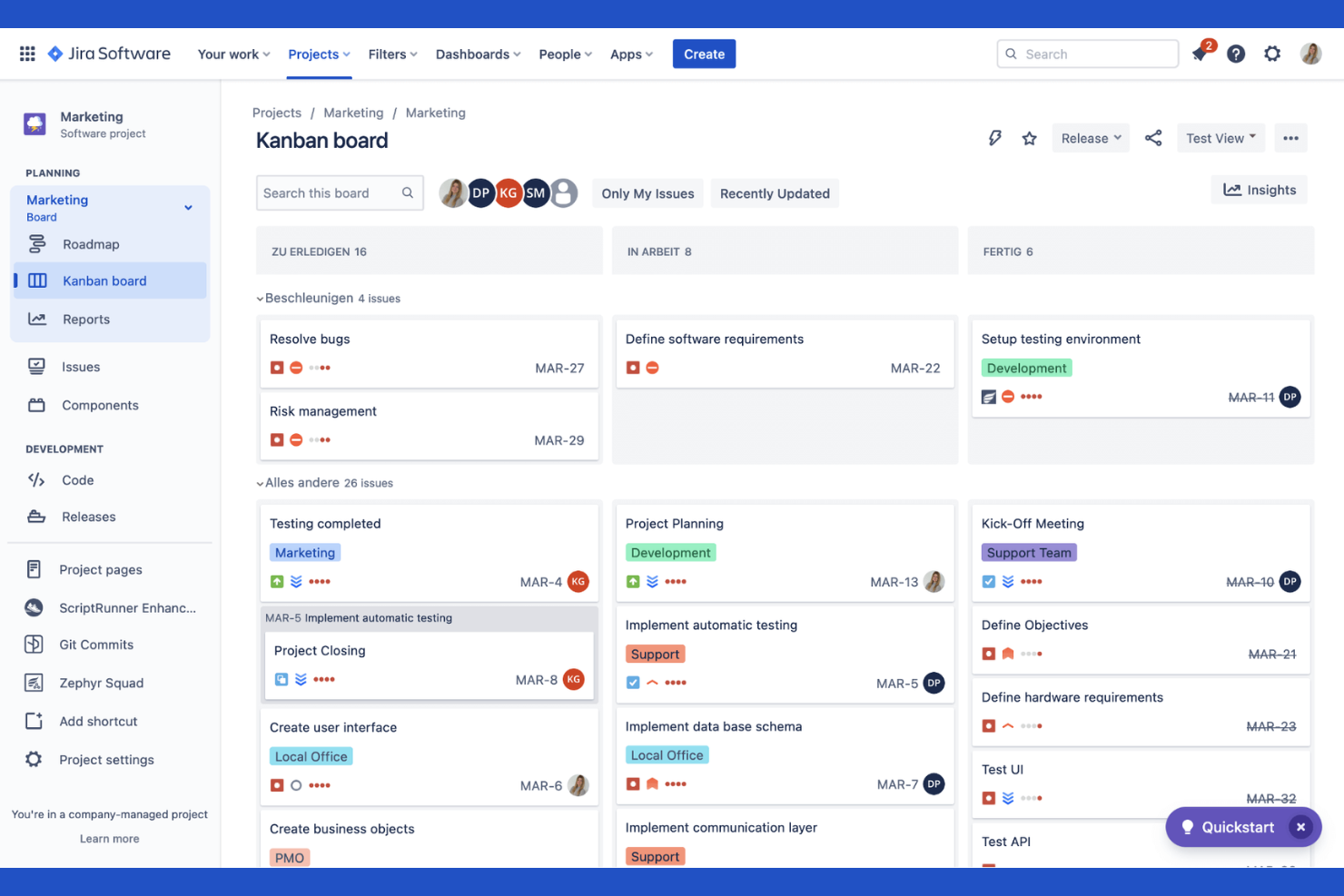
Jira is purpose-built for software development teams that need to manage agile projects and track issues at scale. It’s especially useful for product managers, scrum masters, and engineering leads who want to customize workflows, automate repetitive tasks, and visualize progress with agile boards. Jira’s deep support for sprints, epics, and backlog management makes it a go-to choice for teams practicing Scrum or Kanban.
Why I Picked Jira
For agile software development teams, Jira offers a level of workflow customization and agile board support that’s hard to match. I picked Jira because it lets you create and manage sprints, epics, and user stories with detailed tracking and reporting. The tool’s backlog management and sprint planning features help teams prioritize work and adapt quickly to changing requirements. If you need granular control over agile processes and issue tracking, Jira provides the structure and flexibility to support complex software projects.
Jira Key Features
Some other features that make Jira valuable for project and issue tracking include:
- Custom Issue Types: Create and configure unique issue types to match your team’s workflow.
- Automation Rules: Set up automated actions for repetitive tasks and notifications.
- Advanced Permissions: Control user access and project visibility with detailed permission settings.
- Roadmap Planning: Build and share visual roadmaps to align teams on project timelines.
Jira Integrations
Integrations include Slack, GitHub, Bitbucket, Confluence, Microsoft Teams, Google Drive, Dropbox, Trello, Salesforce, and Zapier.
Pros and Cons
Pros:
- Advanced developer tool sync
- Vast marketplace plugins
- Powerful sprint planning
Cons:
- Requires dedicated admins
- Interface is slow and heavy
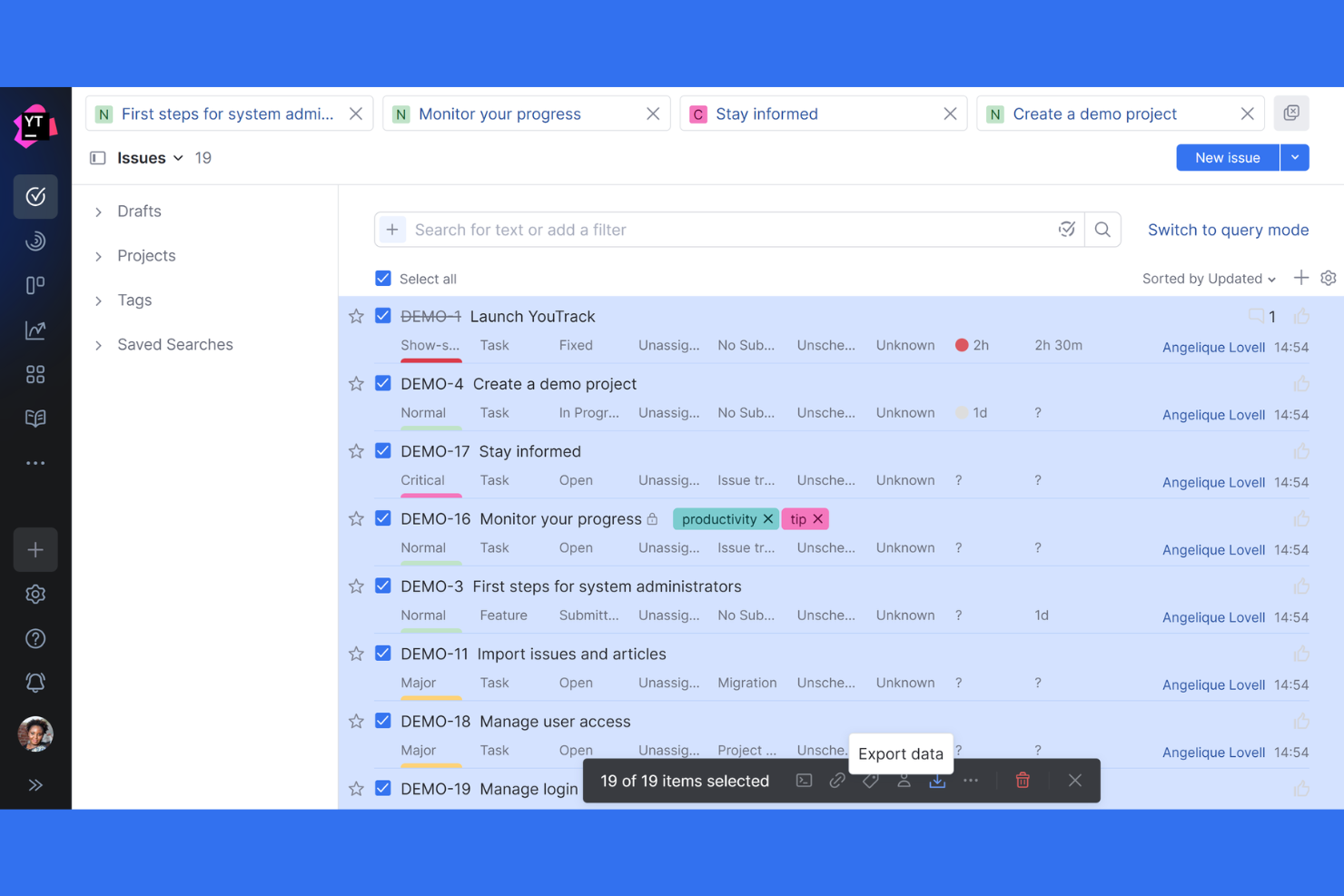
Teams that need deep control over how issues are tracked and managed often turn to YouTrack. This tool is built for software development teams and technical organizations that want to tailor workflows, fields, and automation to fit their exact processes. YouTrack helps you create custom issue types, automate repetitive actions, and adapt tracking to even the most complex project requirements.
Why I Picked YouTrack
What sets YouTrack apart is its ability to let you customize nearly every aspect of issue tracking. I picked YouTrack because it allows teams to define custom fields, workflows, and issue types that match their unique processes. The workflow editor supports advanced automation, so you can create rules and triggers tailored to your team’s needs. If you’re looking for a tool that adapts to your project structure instead of forcing you into a rigid template, YouTrack’s advanced issue customization stands out.
YouTrack Key Features
In addition to its customization options, YouTrack offers several other features that support project and issue tracking:
- Agile Boards: Visualize tasks and progress using Scrum or Kanban boards.
- Time Tracking: Log work hours directly on issues and generate time reports.
- Knowledge Base: Create and organize internal documentation alongside your projects.
- Live Updates: See real-time changes and notifications as issues are updated.
YouTrack Integrations
Integrations include GitHub, GitLab, Bitbucket, Slack, Microsoft Teams, Google Drive, Zapier, Zendesk, HubSpot, and Confluence.
Pros and Cons
Pros:
- Deep JetBrains integration
- Generous free tier for teams
- Excellent search query language
Cons:
- Geared mainly towards devs
- Hard to set up custom workflows
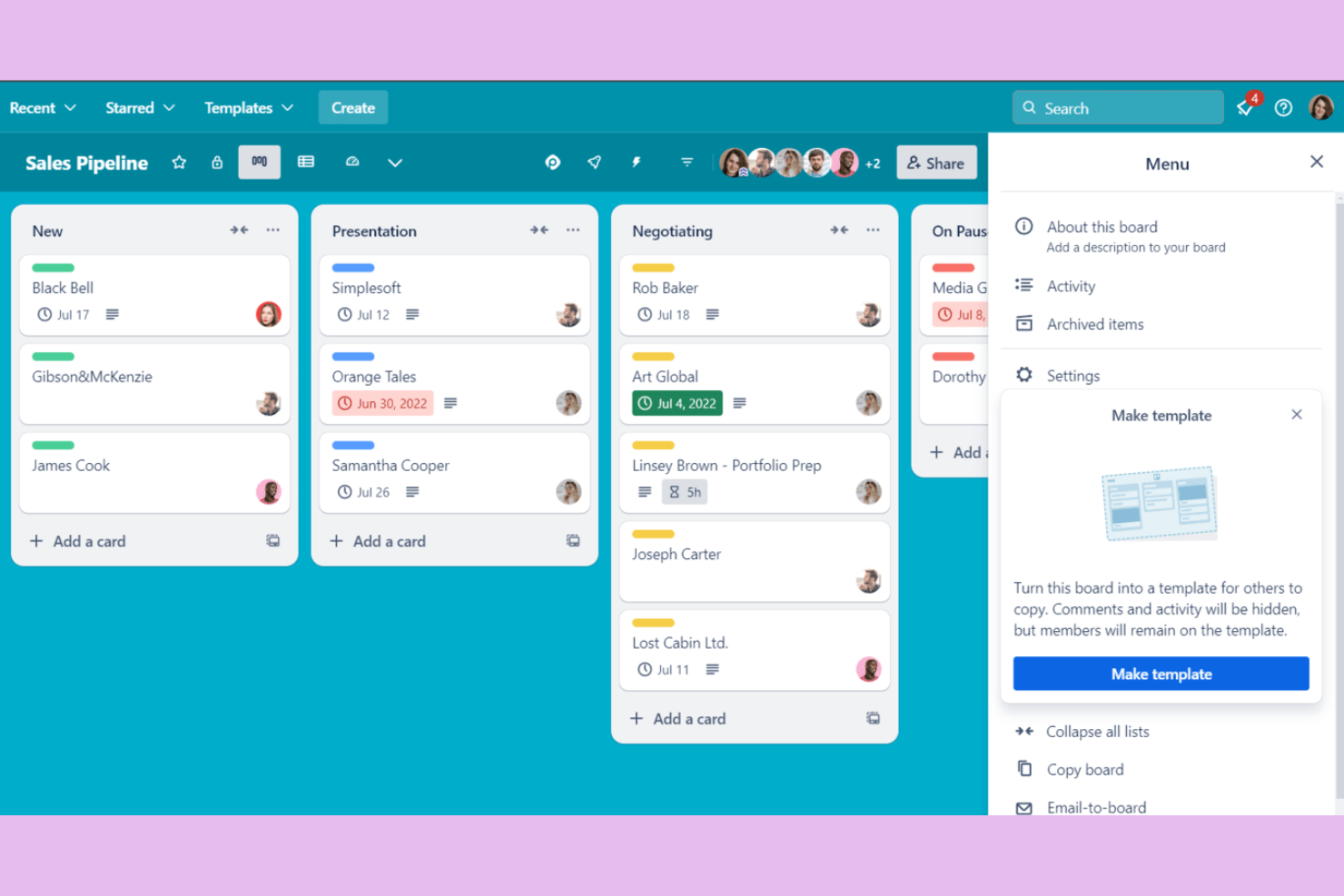
If you want a visual, drag-and-drop approach to tracking work, Trello is a top choice. Trello appeals to teams and individuals who need a straightforward way to organize tasks and projects using kanban boards. Its card-based system makes it easy to map out workflows, prioritize issues, and keep everyone on the same page without extra complexity.
Why I Picked Trello
Trello stands out for teams that want a simple, visual way to organize and track issues. I picked Trello because its kanban board layout lets you create lists for each stage of your workflow and move cards as work progresses. You can add checklists, attachments, and labels to each card, making it easy to track details without clutter. For anyone who needs a straightforward, flexible board to manage project tasks and issues, Trello’s approach keeps things clear and accessible.
Trello Key Features
Some other features that make Trello useful for issue and project tracking include:
- Power-Ups: Add extra functionality like calendar views, voting, or integrations with other tools.
- Butler Automation: Automate repetitive actions on boards with custom rules and triggers.
- Card Templates: Create reusable templates for common tasks or issue types.
- Activity Feed: Track all changes and updates on boards in a single timeline.
Trello Integrations
Integrations include Slack, Google Drive, Dropbox, Microsoft Teams, Jira, GitHub, Evernote, Salesforce, Zapier, and Confluence.
Pros and Cons
Pros:
- Free tier is very capable
- Fast drag and drop sorting
- Great power up ecosystem
Cons:
- No native issue hierarchy
- Weak reporting features

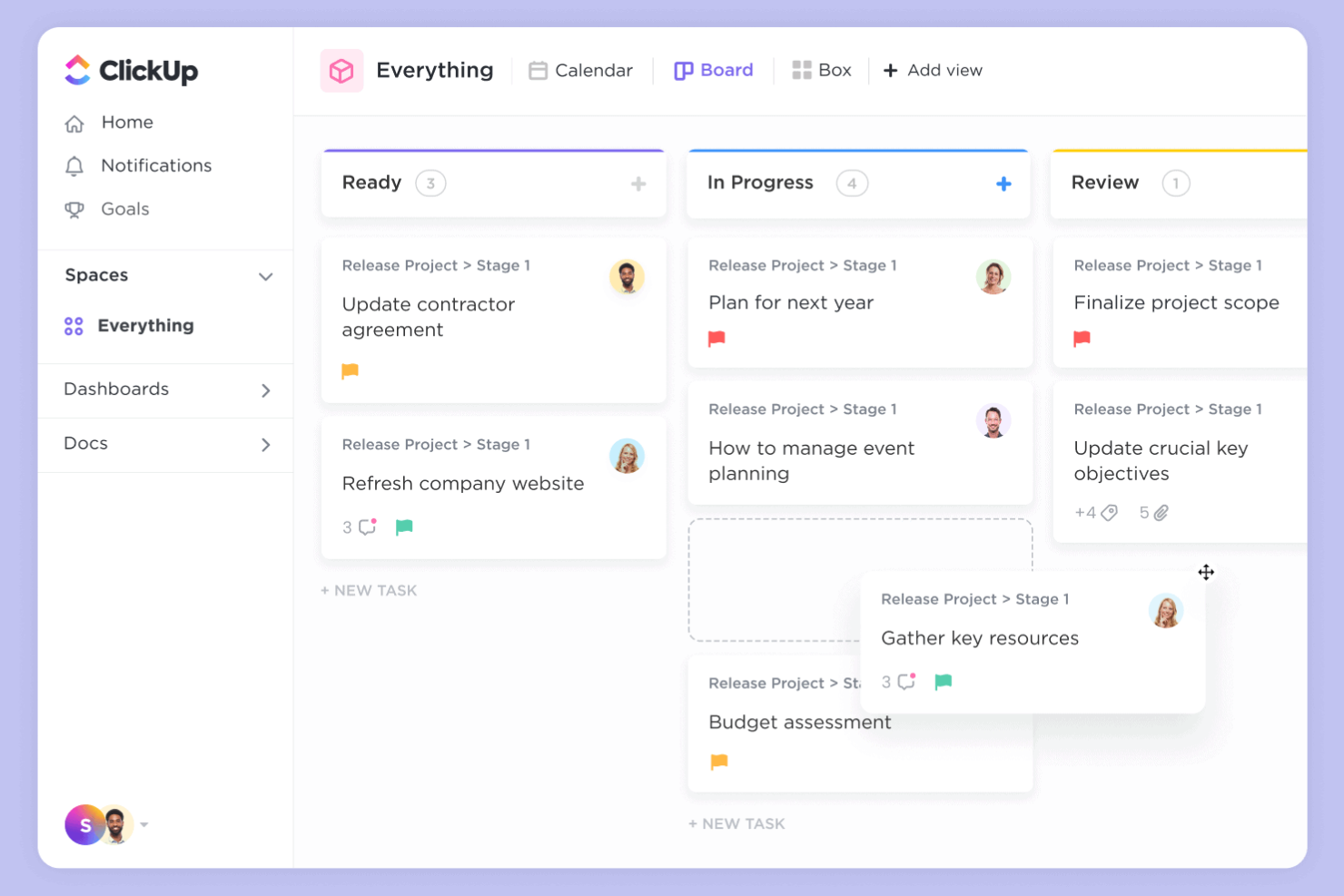
ClickUp brings together tasks, docs, goals, and chat in one unified workspace, making it a strong choice for teams tired of juggling multiple tools. It’s especially useful for tech companies, agencies, and distributed teams that want to centralize project tracking, issue management, and collaboration. ClickUp helps you manage everything from bug tracking to sprint planning without switching platforms.
Why I Picked ClickUp
What sets ClickUp apart is its ability to bring all your project and issue tracking needs into a single, consolidated workspace. I picked ClickUp because it lets you manage tasks, documents, wikis, and even chat without leaving the platform. Its customizable views—like lists, boards, and timelines—help teams track issues and projects in the way that fits their workflow best. For teams looking to reduce tool sprawl and keep everything in one place, ClickUp offers a unified approach that’s hard to match.
ClickUp Key Features
Some other features that make ClickUp valuable for project and issue tracking include:
- Custom Statuses: Create and manage unique status labels for tasks and issues to match your team’s workflow.
- Automations: Set up rule-based automations to handle repetitive actions like assigning tasks or updating statuses.
- Native Time Tracking: Track time spent on tasks directly within the platform for better visibility and reporting.
- Goal Tracking: Set, monitor, and update progress on project goals alongside your tasks and issues.
Clickup Integrations
Integrations include Slack, Google Workspace, GitHub, GitLab, Zoom, HubSpot, Zendesk, and Salesforce.
Pros and Cons
Pros:
- Good native time tracking
- Excellent free tier limits
- Multiple project view options
Cons:
- Complex permissions setup
- Occasional slow load times
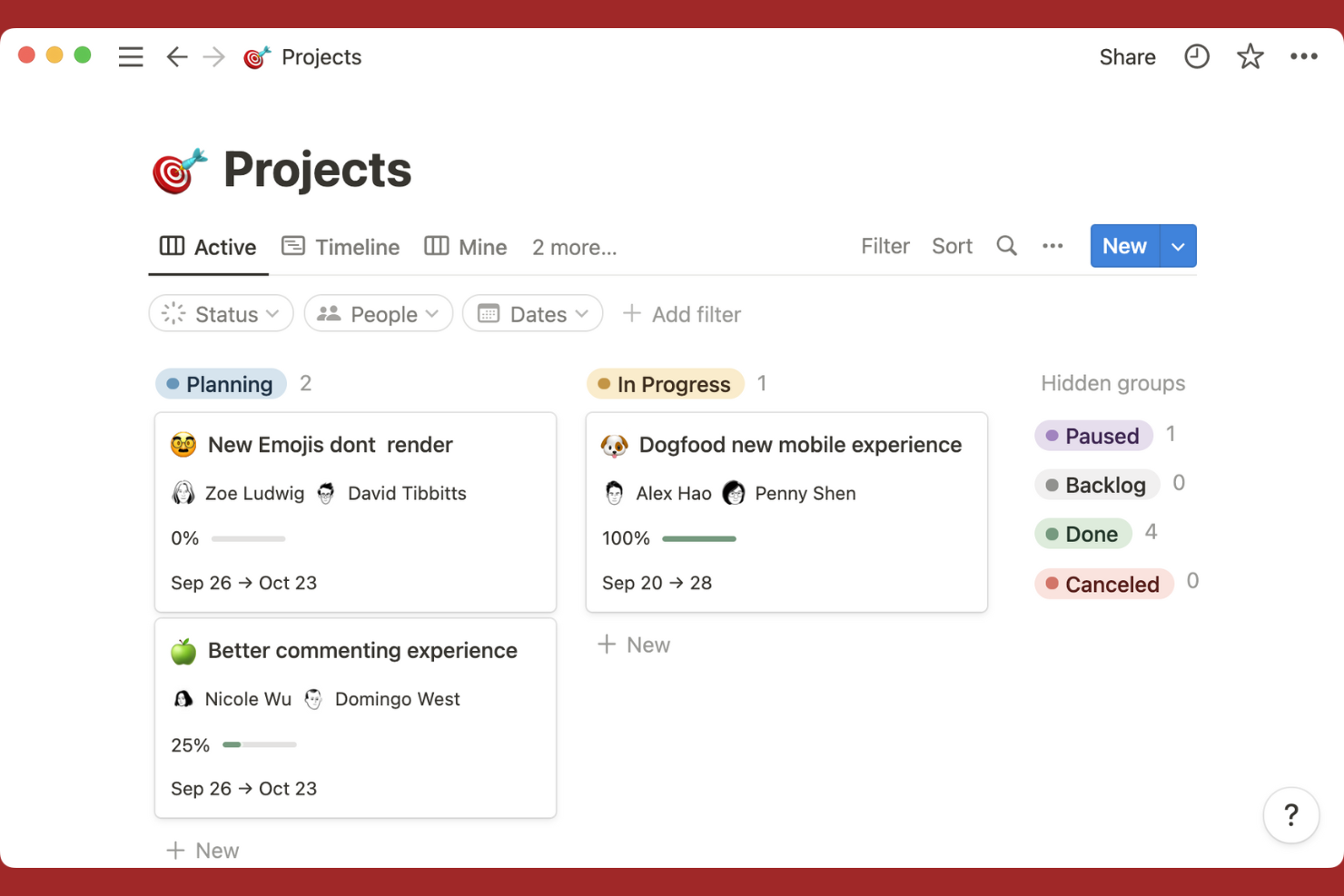
If you’re looking for a tool that merges documentation and task tracking in one place, Notion is worth considering. It’s especially useful for teams that want to link project plans, meeting notes, and issue lists without switching between apps. Notion’s flexible workspace lets you build custom workflows that connect docs, tasks, and databases for a unified project view.
Why I Picked Notion
Notion brings together documentation and task tracking in a way that’s hard to find elsewhere. I picked Notion because it lets you create linked databases, so you can connect tasks, issues, and project docs in a single workspace. The ability to embed checklists, tables, and kanban boards directly within project pages means you can manage issues and reference related documentation side by side. For teams that want to keep all project context, notes, and action items in one place, Notion’s flexible structure is a strong fit.
Notion Key Features
Some other features that make Notion useful for project and issue tracking include:
- Template Gallery: Access a library of pre-built templates for project management, meeting notes, and issue tracking.
- Permissions and Sharing Controls: Set granular access levels for pages, databases, and workspaces.
- Version History: Review and restore previous versions of any page or database.
- Calendar View: Visualize tasks, deadlines, and project milestones on a drag-and-drop calendar.
Notion Integration
Integrations include Slack, Google Drive, Trello, Asana, GitHub, Figma, InVision, Typeform, Jira, and Microsoft Teams.
Pros and Cons
Pros:
- Strong custom template library
- Great for agile note taking
- Clean minimalist interface
Cons:
- Offline mode is unreliable
- Clunky for large issue backlogs

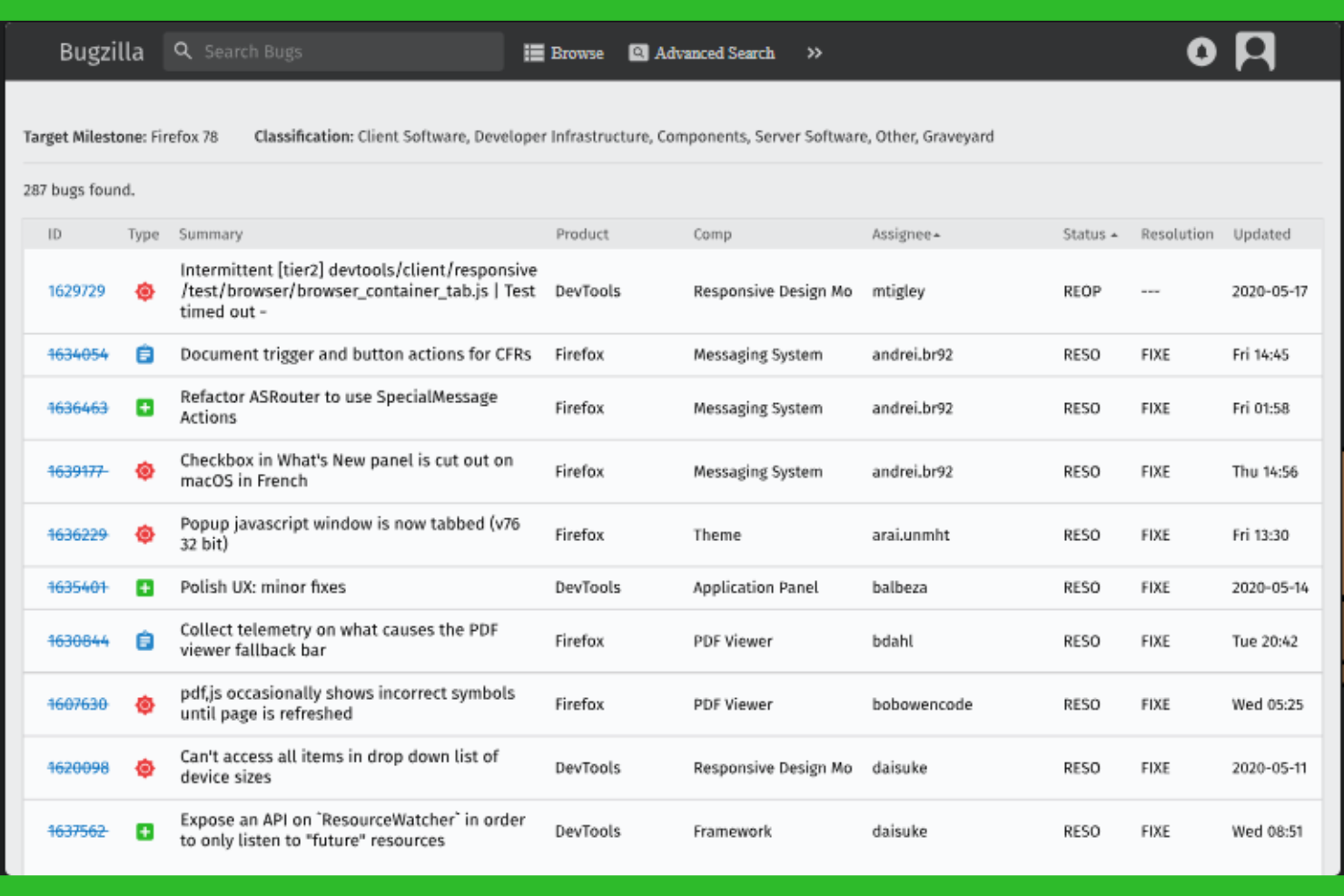
Bugzilla is purpose-built for teams that need granular control over bug tracking and resolution. It’s especially useful for software development groups that manage complex products with layered workflows and detailed reporting needs. If your team requires advanced issue categorization, custom fields, and powerful search capabilities, Bugzilla is designed to support those demands.
Why I Picked Bugzilla
What sets Bugzilla apart is its focus on supporting detailed bug tracking workflows for technical teams. I picked Bugzilla because it lets you define custom fields, statuses, and workflows, so you can mirror even the most complex QA processes. Its advanced search and filtering tools help teams quickly pinpoint, assign, and prioritize issues across large codebases. If your projects demand rigorous bug lifecycle management and traceability, Bugzilla is built to handle those requirements.
Bugzilla Key Features
Some other features that make Bugzilla a strong choice for issue and project tracking include:
- Email Notifications: Automatically send updates to users when bugs are created, updated, or resolved.
- Attachment Handling: Upload and manage files, screenshots, and logs directly within bug reports.
- User Group Management: Control access and permissions by organizing users into groups.
- Dependency Tracking: Link bugs to show relationships and manage resolution order.
Bugzilla Integrations
Integrations include GitHub, Jira, CVS, Subversion, Perforce, Eclipse, Testopia, LDAP, XML-RPC, and WebServices.
Pros and Cons
Pros:
- Deep custom field support
- Very lightweight on servers
- Completely free to use
Cons:
- Complex installation process
- No native mobile application

Open Project gives teams full control over their project tracking with an open-source platform. It’s a strong fit for organizations that need on-premises deployment, strict data privacy, or the ability to customize workflows and features. If you’re looking for a solution that supports agile, classic, or hybrid project management in a transparent and flexible way, Open Project stands out.
Why I Picked Open Project
For teams that prioritize transparency and control, Open Project offers a unique open-source approach to issue and project tracking. I picked Open Project because it lets you host your own instance, giving you full ownership of your data and the flexibility to adapt the platform to your organization’s needs. Its modular design supports agile boards, Gantt charts, and detailed work package tracking, which are especially valuable for teams with complex or evolving workflows. If you need a solution that can be deeply customized and self-managed, Open Project is a strong fit.
Open Project Key Features
Some other features that make Open Project valuable for project and issue tracking include:
- Time Tracking: Log hours directly on tasks and issues for accurate project accounting.
- Wiki Pages: Create and maintain project documentation within the platform.
- Role-Based Permissions: Assign granular access levels to users and groups.
- Custom Fields: Add organization-specific data points to issues and tasks.
Open Project Integrations
Integrations include GitHub, GitLab, Bitbucket, Slack, Jenkins, Redmine, Excel, CSV, LDAP, and REST API.
Pros and Cons
Pros:
- Built in agile boards
- Strong traditional PM tools
- Great self hosting option
Cons:
- Support is community based
- Mobile experience is poor
Smartsheet
Best for spreadsheet-style project planning
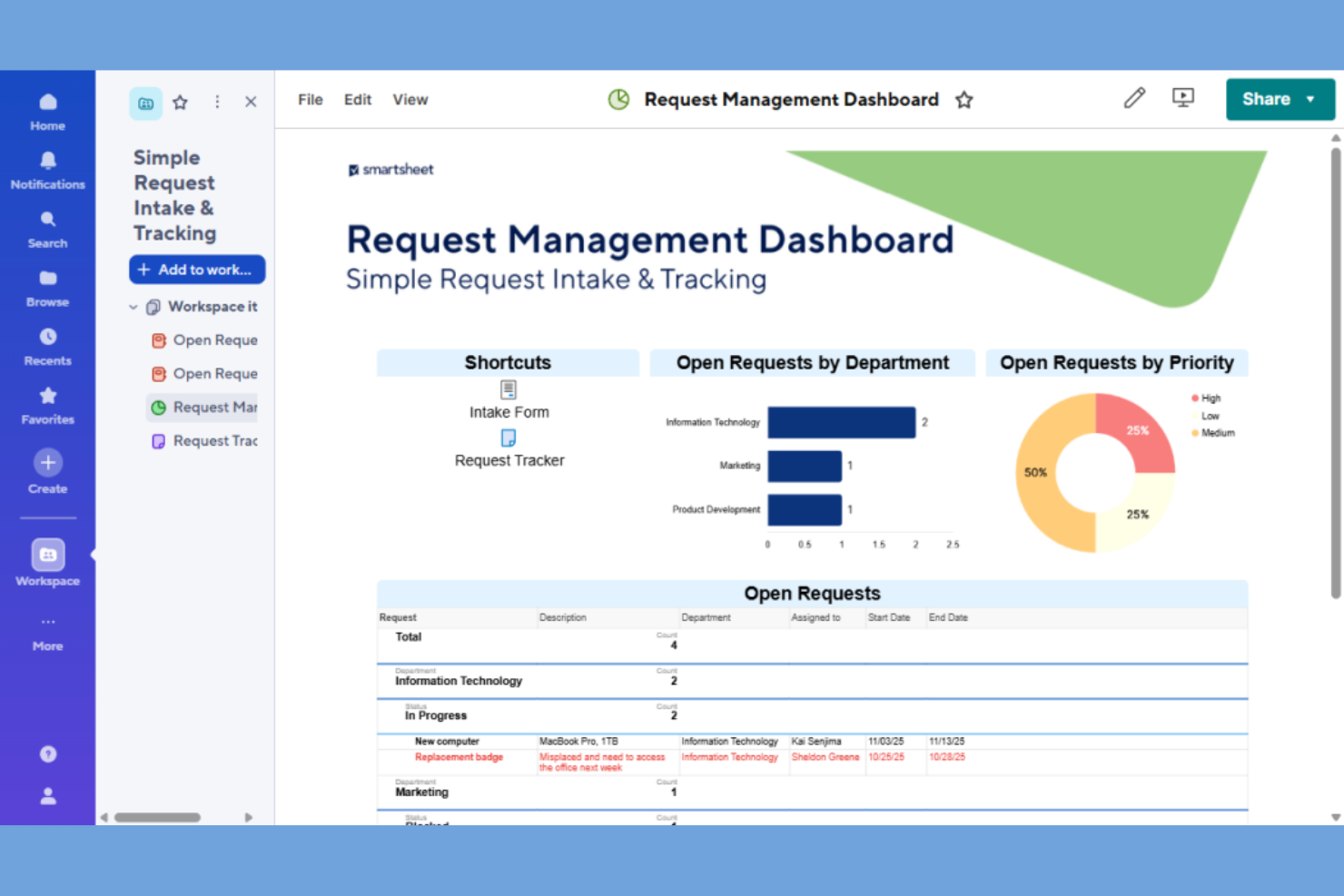
For teams that prefer a familiar spreadsheet interface, Smartsheet offers a project tracking solution that feels instantly accessible. It’s a strong fit for project managers who want to organize issues, tasks, and dependencies in a grid format while layering on automation and reporting. Smartsheet stands out for its ability to blend spreadsheet flexibility with project management structure, making it easy to manage complex workflows and timelines.
Why I Picked Smartsheet
Smartsheet stands out for teams that want the familiarity of spreadsheets combined with project management capabilities. I picked Smartsheet because it lets you track issues, assign tasks, and manage dependencies directly within a grid layout that mirrors traditional spreadsheets. Features like conditional formatting and automated workflows help you highlight priorities and automate repetitive project tasks. For project managers who need to visualize and update project data in a spreadsheet-style view, Smartsheet offers a flexible and structured approach.
Smartsheet Key Features
Some other features that make Smartsheet useful for project and issue tracking include:
- Gantt Chart View: Visualize project timelines and dependencies with interactive Gantt charts.
- Resource Management: Allocate team members and track workload across multiple projects.
- Request Forms: Collect project requests or issue submissions through customizable forms.
- Activity Log: Monitor changes and user actions with a detailed activity history.
Smartsheet Integrations
Integrations include Microsoft Teams, Slack, Google Drive, Dropbox, Salesforce, Jira, DocuSign, Box, Tableau, and Zapier.
Pros and Cons
Pros:
- Deep enterprise security
- Excellent automated alerts
- Strong resource allocation
Cons:
- Expensive add-ons required
- Real time collab can lag
New Product Updates from Smartsheet

Smartsheet Adds Non-Plan User Management in Admin Center
Smartsheet adds a Non plan users tab to the Seat types and true-up page in Admin Center. This lets system admins review non-plan users and add them to the plan or remove them from the organization in one place. For more information, visit Smartsheet’s official site.
Annen programvare for saks- og prosjektsporing
Her er noen flere alternativer for programvare for saks- og prosjektsporing som ikke kom med på kortlisten min, men som likevel er verdt å se nærmere på:
- Wrike
For cross-departmental collaboration
- monday.com
For customizable workflow automation
- Lark
For built-in team chat and collaboration
- Azure DevOps
For integrated CI/CD pipelines


How I Evaluate Issue and Project Tracking Software
I split my evaluation into two layers: the baseline every tool must clear—like tracking bugs through resolution and managing sprint backlogs—and the differentiators that make one tool the right fit.
Core Functionality (Table Stakes For This List)
When I'm selecting tools for my list, I rank each one on a scale from 0 (does not offer the functionality) to 5 (excels in this area) for each core functionality listed below. Then, I calculate the tool's total score into a percentage. Each tool needs to achieve a minimum total score of 75% to be considered for inclusion.
- Issue Tracking & Management: I look at how each tool handles creating, assigning, and moving issues through statuses—things like linking duplicate bug reports, setting severity levels, and tracking resolution history.
- Project & Task Management: Each tool should let you organize work into projects with tasks, subtasks, dependencies, and milestones so you can map out a sprint or plan a full release cycle.
- Workflow Customization: I evaluate whether you can tailor statuses, fields, and issue types per project—for example, a QA team's bug workflow looking very different from a marketing request queue.
- Multiple Project Views: Teams work differently, so I check for Kanban boards, backlogs, Gantt charts, calendars, and list views that let a Scrum team and a waterfall team coexist in the same tool.
- Collaboration & Commenting: I look for threaded comments, @mentions, file attachments, and activity feeds tied directly to issues so context stays where the work happens, not buried in Slack threads.
- Reporting & Dashboards: The tool should surface sprint burndowns, cycle time trends, issue volume by type, and workload distribution through dashboards your team and stakeholders actually use.
Once I have a list of tools that meet this criteria, I consider what sets each platform apart.
Differentiating Factors (What Sets Vendors Apart)
Here's how I compare and contrast different vendors:
Standout Features
Native dev tool integrations matter when your engineering team lives in GitHub or GitLab—I check whether commits and pull requests link back to issues automatically. A solid automation engine also makes a real difference; tools like Jira and Linear let you auto-assign issues or transition statuses based on triggers, saving hours of manual triage each sprint. I also evaluate roadmapping and portfolio views, since leadership often needs a rolled-up view of progress across multiple teams without digging into individual tickets.
Beyond Features
Integration ecosystems vary widely—I evaluate whether each tool connects natively with your existing stack, from Slack and Confluence to Figma and CI/CD pipelines, plus whether open APIs exist for custom builds. Security and compliance also carry real weight; teams handling sensitive data should look for SOC 2 certification, SSO support, and granular role-based permissions. I also consider how well a tool scales, since a platform that works for a 10-person startup can buckle under an enterprise with hundreds of projects and thousands of issues in flight.
Slik velger du programvare for saks- og prosjektsporing
Det er lett å gå seg vill i lange funksjonslister og kompliserte prisstrukturer. For å hjelpe deg med å holde fokus mens du arbeider deg gjennom den unike prosessen med å velge programvare, har vi laget en sjekkliste over faktorer du bør ha i tankene:
| Faktor | Hva du bør vurdere |
|---|---|
| Skalerbarhet | Vil programvaren håndtere at teamet vokser, at dere får flere prosjekter eller at saksmengden øker over tid? Sjekk brukerbegrensninger, prosjektgrenser og ytelse i stor skala. |
| Integrasjoner | Kan den kobles direkte til de eksisterende verktøyene dine (for eksempel GitHub, Slack eller Jira)? Vurder hvordan manglende integrasjoner kan påvirke arbeidsflytene dine eller kreve omveier. |
| Tilpasningsmuligheter | Kan du tilpasse arbeidsflyter, felt og tillatelser slik at de samsvarer med teamets prosesser? Stive systemer kan tvinge deg til å endre arbeidsmetodene dine eller opprette manuelle omveier. |
| Brukervennlighet | Vil teamet ditt ta løsningen i bruk raskt, eller vil grensesnittet gjøre arbeidet tregere? Test om navigasjonen er tydelig, oppsettene logiske og behovet for opplæring minimalt. |
| Implementering og innføring | Hvor lang tid vil det ta å komme i gang? Se etter migreringsverktøy, støtte ved innføring og ressurser som passer teamets tekniske kompetansenivå. |
| Kostnad | Er prisnivåene tilpasset behovene og budsjettet ditt? Vær oppmerksom på skjulte gebyrer, nødvendige tillegg eller minimumskrav til antall brukere som kan øke kostnadene etter hvert som dere skalerer. |
| Sikkerhetstiltak | Tilbyr verktøyet rollebasert tilgang, revisjonslogger og datakryptering? Sørg for at det oppfyller organisasjonens krav til sikkerhet og samsvar. |
| Tilgjengelig støtte | Hvilke supportkanaler tilbys, og når er de tilgjengelige? Vurder om du trenger hjelp døgnet rundt, dedikert kundeansvar eller selvbetjeningsressurser. |
Hva er programvare for saks- og prosjektsporing?
Programvare for sporing av saker og prosjekter er et digitalt verktøy som hjelper team med å loggføre, organisere og overvåke oppgaver, feil eller forespørsler gjennom hele prosjektets livssyklus. Disse plattformene sentraliserer oppdateringer, tildelinger og statusendringer, noe som gjør det enklere å koordinere samarbeid, prioritere saker og opprettholde ansvarlighet. Prosjektledere, utviklere og tverrfunksjonelle team bruker disse systemene (for eksempel de fra Atlassian) for strømlinjeformet oppgavehåndtering, slik at ingenting blir oversett og prosjektene fortsetter å gå fremover.
Funksjoner
Når du velger programvare for sporing av saker og prosjekter, bør du se etter følgende nøkkelfunksjoner:
- Opprettelse og tildeling av saker: Opprett nye saker eller billetter, og tildel dem til bestemte teammedlemmer for å sikre tydelig eierskap og ansvar for hver oppgave eller feil.
- Tilpassbare arbeidsflyter: Tilpass stadiene og statusene for saker slik at de samsvarer med teamets unike prosesser, slik at du kan spore fremdriften på en måte som passer prosjektets behov.
- Innstillinger for prioritet og alvorlighetsgrad: Merk saker etter hvor hastende eller innvirkningsfulle de er, slik at teamene kan fokusere på de mest kritiske oppgavene og fordele ressursene effektivt.
- Kommentering og samarbeid: La teammedlemmer diskutere saker direkte i plattformen, slik at all kommunikasjon og kontekst holdes samlet på ett sted.
- Støtte for vedlegg: Last opp filer, skjermbilder eller logger til saker, slik at det blir enklere å legge frem dokumentasjon, gjenskape feil eller dele relevant dokumentasjon.
- Søk og filtrering: Finn raskt bestemte saker eller billetter ved hjelp av avanserte søkeverktøy og filtre, slik at du kan håndtere store restanser uten å miste oversikten.
- Rapportering og analyse: Generer rapporter om saksstatus, løsningstider og teamets prestasjoner for å støtte datadrevne beslutninger og kontinuerlig forbedring.
- Rollebaserte tillatelser: Kontroller hvem som kan vise, redigere eller lukke saker ved å angi brukerroller og tillatelser, slik at sensitiv informasjon beskyttes og prosessintegriteten opprettholdes.
- Revisjonsspor: Spor alle endringer som gjøres i saker, inkludert redigeringer, statusoppdateringer og kommentarer, for å opprettholde åpenhet og støtte krav til overholdelse.
Fordeler
Implementering av programvare for sporing av saker og prosjekter gir flere fordeler for teamet og virksomheten din. Her er noen av fordelene du kan se frem til:
- Sentralisert oversikt: Hold alle saker, oppdateringer og prosjektdetaljer samlet på ett sted, slik at det blir enklere for alle å holde seg informert og samkjørt.
- Forbedret ansvarlighet: Tildel oppgaver og spor eierskap, slik at teammedlemmene vet nøyaktig hva de er ansvarlige for, og når det skal være ferdig.
- Raskere problemløsning: Bruk funksjoner som prioritetsinnstillinger, kommentarer og vedlegg for raskt å identifisere, diskutere og løse saker etter hvert som de oppstår.
- Datadrevne beslutninger: Benytt rapporterings- og analyseverktøy for å overvåke fremdriften, identifisere flaskehalser og gjøre informerte justeringer i arbeidsflyten.
- Tilpassbare prosesser: Tilpass arbeidsflyter, felt og tillatelser etter teamets unike behov, slik at et bredt spekter av prosjekttyper og metoder støttes.
- Forbedret overholdelse og åpenhet: Oppretthold revisjonsspor og rollebaserte tillatelser for å sikre prosessintegritet og oppfylle regulatoriske eller organisatoriske krav.
- Strømlinjeformet samarbeid: Legg til rette for kommunikasjon og fildeling i sanntid i sakene, slik at behovet for spredte e-poster eller eksterne chattråder reduseres.
Kostnader & priser
Valg av programvare for sporing av saker og prosjekter krever en forståelse av de ulike prismodellene og planene som er tilgjengelige. Kostnadene varierer basert på funksjoner, teamstørrelse, tillegg og mer. Tabellen nedenfor oppsummerer vanlige planer, gjennomsnittsprisene deres og typiske funksjoner som er inkludert i programvareløsninger for sporing av saker og prosjekter:
Sammenligningstabell for planer for programvare for sporing av saker og prosjekter
| Plantype | Gjennomsnittspris | Vanlige funksjoner |
|---|---|---|
| Gratisplan | $0 | Grunnleggende sakssporing, begrenset antall brukere, sentral arbeidsflythåndtering og brukerstøtte fra fellesskapet. |
| Personlig plan | $5–$12/bruker/måned | Tilgang for én bruker, grunnleggende rapportering, filvedlegg og e-postvarsler. |
| Bedriftsplan | $10–$30/bruker/måned | Støtte for flere brukere, avanserte arbeidsflyter, integrasjoner, rapportering og analyse samt rollebaserte tillatelser. |
| Foretaksplan | $20–$50/bruker/måned | Tilpassede arbeidsflyter, forbedret sikkerhet, revisjonslogger, dedikert brukerstøtte og funksjoner for overholdelse. |
Vanlige spørsmål om programvare for problem- og prosjektsporing
Her er noen svar på vanlige spørsmål om programvare for problem- og prosjektsporing:
Hvordan vet jeg om teamet mitt trenger programvare for problem- og prosjektsporing?
Hvis teamet ditt har problemer med å holde oversikt over oppgaver, feil eller forespørsler på tvers av e-post, regneark eller chat, trenger du sannsynligvis programvare for problem- og prosjektsporing. Disse verktøyene bidrar til å samle arbeidet på ett sted, tydeliggjøre ansvarsområder og redusere forvirring etter hvert som prosjektene blir mer komplekse.
Kan programvare for problem- og prosjektsporing integreres med de eksisterende verktøyene mine?
Ja, de fleste programvareløsninger for problem- og prosjektsporing tilbyr integrasjoner med verktøy som Slack, GitHub og prosjektstyringsplattformer. Sjekk hver leverandørs liste over integrasjoner for å sikre kompatibilitet med de nåværende arbeidsflytene dine og unngå manuell dataregistrering.
Hva er forskjellen mellom problemsporing og prosjektsporing?
Problemsporing fokuserer på å loggføre og løse bestemte feil eller forespørsler, mens prosjektsporing omfatter mer overordnet planlegging, fremdrift og ressursstyring. Mange plattformer kombinerer begge deler, slik at du kan administrere oppgaver og problemer innenfor rammen av større prosjekter.
Hvor sikre er dataene mine i programvare for problem- og prosjektsporing?
De fleste anerkjente leverandører tilbyr sikkerhetsfunksjoner som datakryptering, rollebasert tilgang og revisjonslogger. Les alltid gjennom sikkerhetsdokumentasjonen for et verktøy, og bekreft at det oppfyller organisasjonens krav til samsvar og personvern før det tas i bruk.
Er det vanskelig å migrere fra regneark eller et annet verktøy?
Nei, de fleste moderne plattformer tilbyr importverktøy, maler eller støtte ved oppstart for å hjelpe deg med å migrere data fra regneark eller eldre systemer. Beregn noe tid til oppsett for å tilordne felt og teste de nye arbeidsflytene før systemet tas i bruk.