

10 beste programvarer for digital arbeidsplass i 2026

Kortliste over beste programvare for digitale arbeidsplasser


Programvare for digitale arbeidsplasser samler verktøy for kommunikasjon, samarbeid og arbeidsflytstyring i ett digitalt miljø. Hvis du leter etter den beste programvaren for digitale arbeidsplasser, ønsker du sannsynligvis å holde teamet ditt tilkoblet, organisert og produktivt – uansett hvor de jobber. Med så mange plattformer som lover å løse utfordringer knyttet til fjernarbeid, er det vanskelig å vite hvilke som faktisk leverer funksjoner som dokumentdeling, direktemeldinger og prosjektoppfølging. Denne listen hjelper deg med å sammenligne de beste alternativene raskt, forstå hva som skiller dem fra hverandre og finne det riktige alternativet for teamets unike behov i 2026.
Why Trust Our Software Recommendations
Our team has been testing and reviewing software since 2012. As project managers ourselves, we know how difficult—and important—it is to choose the right software.
For this guide, we evaluated tools using hands-on testing and independent research, scoring tools using our selection criteria. We also draw on insights from industry thought leaders and practicing project management experts.
Our reviews reflect our human editorial judgment, not a sales pitch.
Expert reviewers:
Sammenligningstabell for programvare for digitale arbeidsplasser
Denne sammenligningstabellen oppsummerer prisdetaljene for mine beste utvalgte programmer for digitale arbeidsplasser:
| Tool | Best For | Trial Info | Price | ||
|---|---|---|---|---|---|
| 1 | Best for remote device access and support | 30-day free trial | From $24.9/month (billed annually) | Website | |
| 2 | Best for database-driven project tracking | Free plan available; 14-day free trial | From $20/user/month (billed annually) | Website | |
| 3 | Best for real-time document collaboration | 14-day free trial available | From $7/user/month (billed annually) | Website | |
| 4 | Best for task automation features | Free plan available | From $10.99/user/month (billed annually) | Website | |
| 5 | Best with enterprise-grade security controls | 1-month free trial | From $30/user/month (billed annually) | Website | |
| 6 | Best with self-hosted deployment options | Free plan + 30-day free trial available | From $20/admin/month | Website | |
| 7 | Best for customizable workflow management | Free plan available | From $7/user/month (billed annually) | Website | |
| 8 | Best for unified knowledge management | Free plan + free demo available | From $10/user/month (billed annually) | Website | |
| 9 | Best for multilingual team communication | Free plan available | Pricing upon request | Website | |
| 10 | Best for visual brainstorming sessions | Free plan + 14-day free trial available | From $8/user/month (billed annually) | Website |

Anmeldelser av programvare for digitale arbeidsplasser
Nedenfor finner du mine detaljerte sammendrag av programvare for digitale arbeidsplasser som kom med på kortlisten. Anmeldelsene mine gir en detaljert gjennomgang av funksjonene, de beste bruksområdene og integrasjonene til hver plattform, slik at du kan finne det beste alternativet for teamet ditt.

Best for remote device access and support
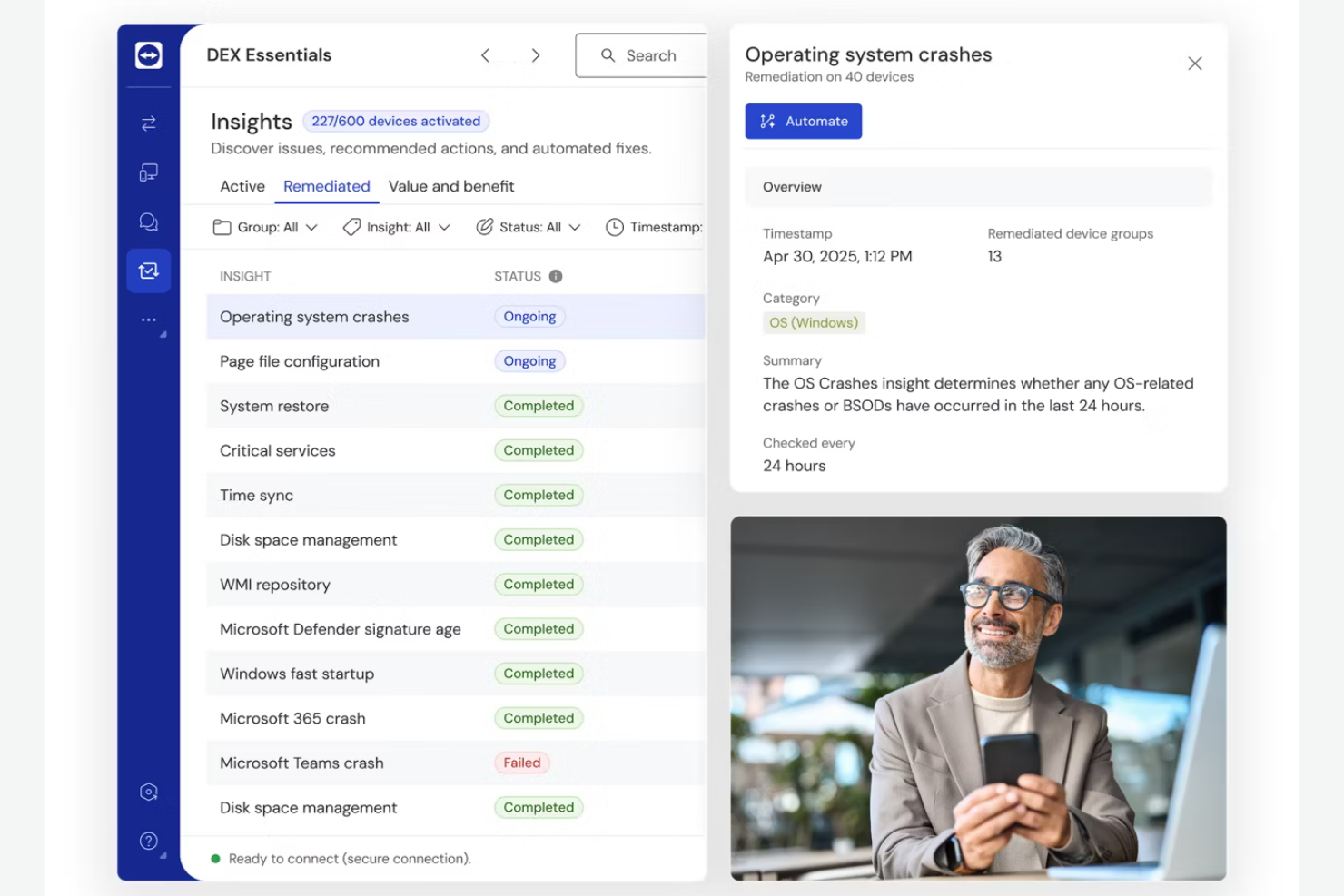
If your team needs to access and support devices remotely, TeamViewer offers secure, cross-platform connectivity for IT professionals and support teams. It’s especially useful for organizations managing distributed endpoints, remote workers, or client devices outside the office network. TeamViewer helps resolve technical issues quickly and maintain business continuity without requiring users to be on-site.
Why I Picked TeamViewer
Remote device access and support are essential for distributed teams, which is why I picked TeamViewer for this list. The platform allows IT staff to connect to and control devices across different operating systems, even when those devices are outside the company network. I appreciate that TeamViewer includes unattended access and secure session recording, which help teams troubleshoot issues without disrupting end users. For organizations supporting remote employees or clients, these features make TeamViewer a practical choice for digital workplace environments.
TeamViewer Key Features
Some other features that make TeamViewer useful for digital workplace teams include:
- File Transfer: Move files securely between connected devices during a remote session.
- Multi-User Support Sessions: Allow multiple support technicians to join and collaborate on the same session.
- Remote Printing: Print documents from a remote device to a local printer without extra setup.
- Mobile Device Access: Connect to and control smartphones and tablets running iOS or Android.
TeamViewer Integrations
Integrations include Microsoft Intune, ServiceNow, Freshworks, Jira, Salesforce, Zendesk, Slack, Microsoft Teams, Zoho, and more.
Pros and Cons
Pros:
- Wake-on-LAN allows remote device startup
- Remote printing works with most local printers
- Supports audit and compliance needs with recordings
Cons:
- No built-in ticketing or case management
- File transfer speed varies with network conditions
Airtable
Best for database-driven project tracking
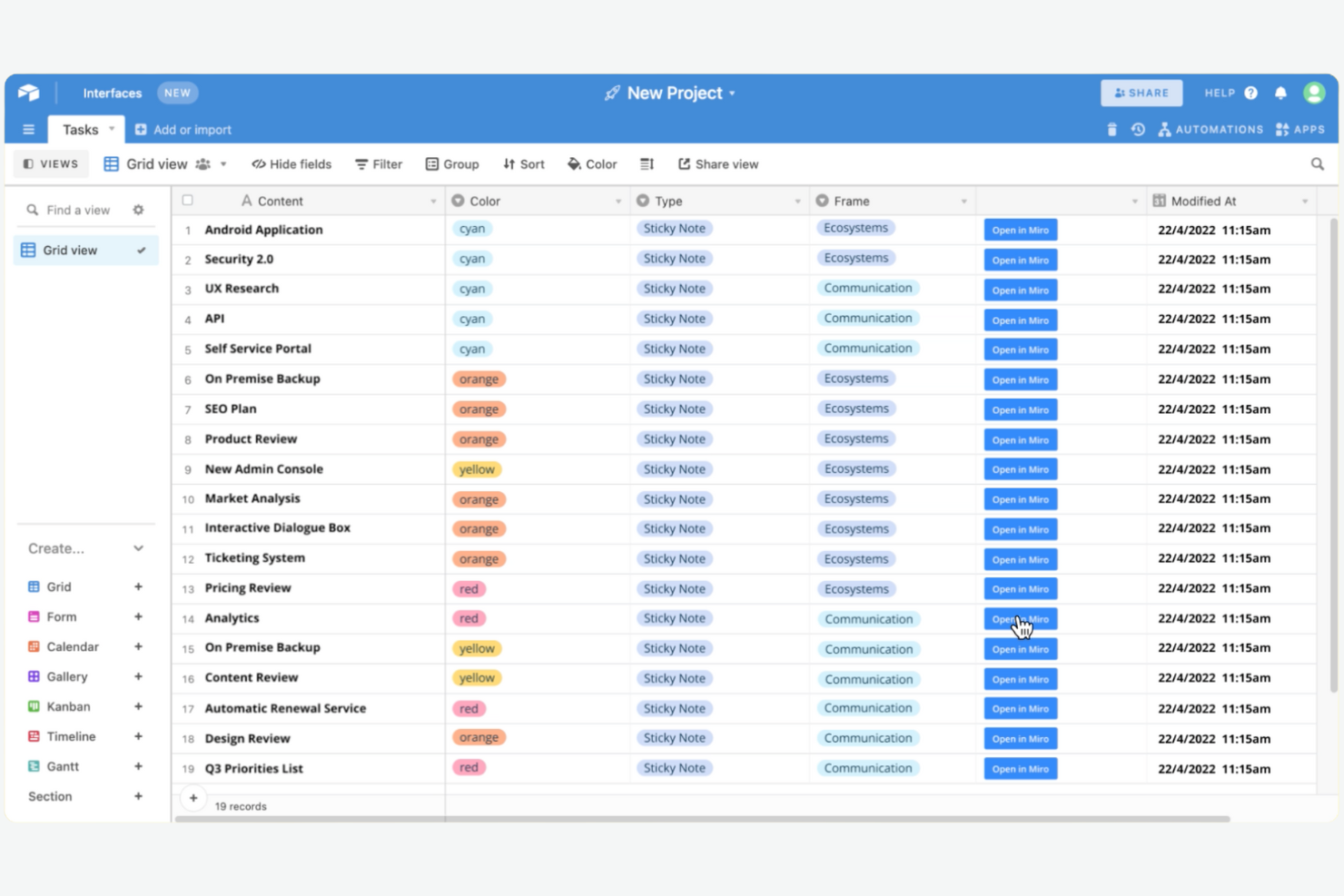
Airtable combines the flexibility of a spreadsheet with the structure of a database, making it a strong fit for teams that need to track complex projects or manage large sets of information. It’s especially useful for product, marketing, and operations teams that want to build custom workflows without writing code. Airtable helps you organize, link, and visualize project data in ways that traditional task trackers can’t match.
Why I Picked Airtable
What sets Airtable apart for digital workplace software is its database-driven approach to project tracking. I picked Airtable because it lets teams design custom tables, link records across projects, and create relational databases without technical expertise. The platform’s flexible views—like Kanban, calendar, and gallery—help you visualize and manage project data in the way that fits your workflow best. This structure is valuable for teams looking to break down information silos when handling multi-dimensional projects.
Airtable Key Features
Some other features that make Airtable useful for digital workplace teams include:
- Automations: Set up triggers and actions to automate repetitive tasks across your bases.
- Form Builder: Collect structured data from teammates or external stakeholders directly into your tables.
- Permission Controls: Assign granular access levels to collaborators for better data security.
- Syncing with External Sources: Connect and sync data from other platforms like Google Calendar or Salesforce.
Airtable Integrations
Integrations include Slack, Google Drive, Salesforce, Jira, Zendesk, Box, Dropbox, GitHub, and more.
Pros and Cons
Pros:
- Permission controls manage collaborator access
- Form builder collects structured input easily
- Multiple view options for visualizing data
Cons:
- No built-in chat or messaging feature
- Revision history limited on lower-tier plans

Best for real-time document collaboration
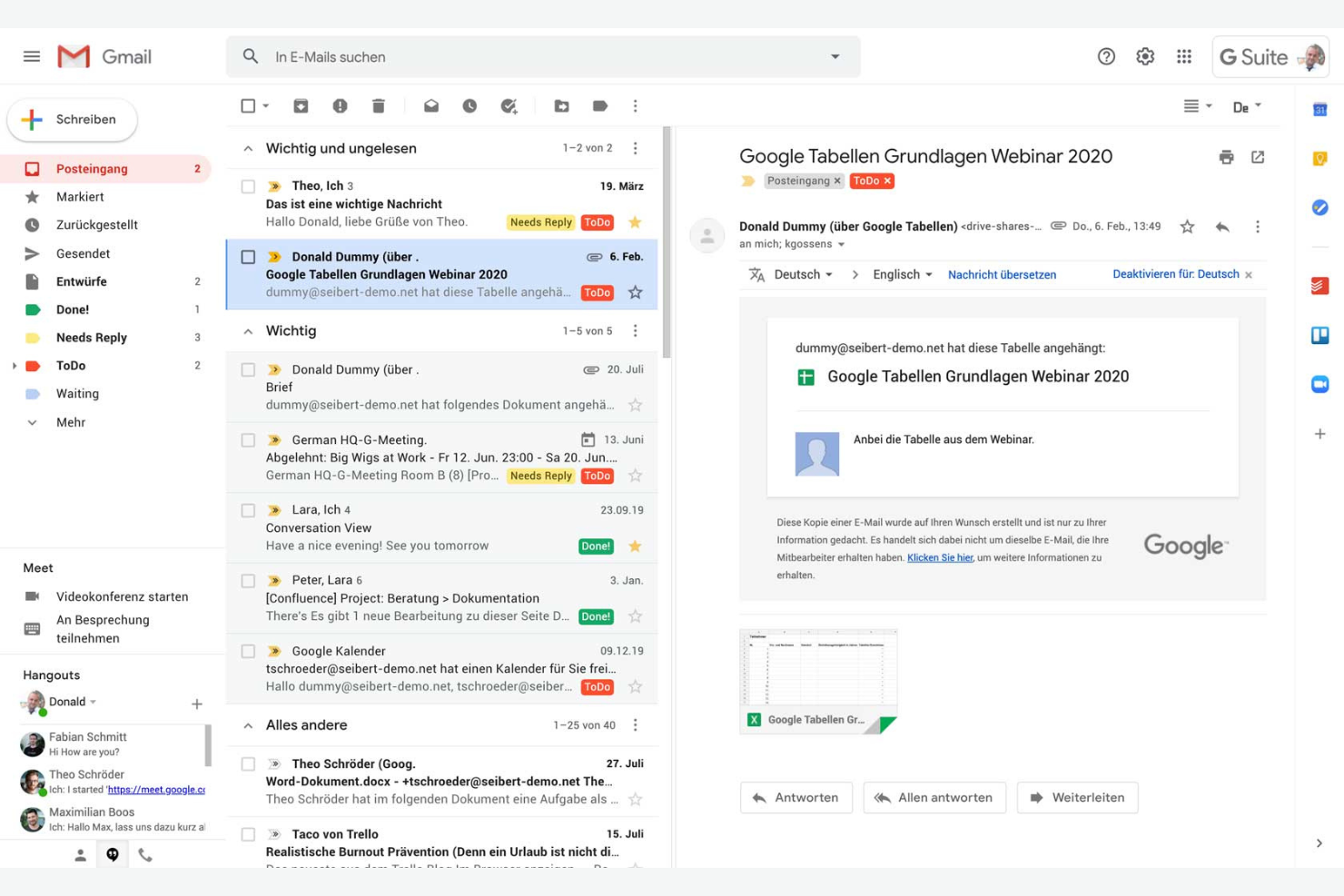
If your team needs to collaborate on documents in real time, Google Workspace is a strong contender. It’s designed for organizations that prioritize editing, sharing, and communication across distributed teams. The platform stands out for its integrated suite of productivity tools that optimize every employee’s productivity, whether they’re working in the office or remotely.
Why I Picked Google Workspace
I chose Google Workspace because its real-time document collaboration tools set it apart in the digital workplace software space. Teams can co-edit Docs, Sheets, and Slides simultaneously, with changes appearing instantly for everyone involved. The built-in commenting and suggestion features make it easy to gather feedback and keep conversations tied directly to the work. For organizations that need to keep projects moving without version confusion or email back-and-forth, these capabilities are hard to match.
Google Workspace Key Features
Some other features in Google Workspace that support digital workplace needs include:
- Shared Drives: Create team-specific drives where files are owned collectively and remain accessible even as team members change.
- Google Meet Integration: Launch video meetings directly from calendar events or chat threads for quick face-to-face collaboration.
- Admin Console: Manage user access, security settings, and device policies from a centralized dashboard.
- AppSheet Automation: Build custom workflow automations and apps without coding, using data from Google Sheets and other Workspace tools.
Google Workspace Integrations
Integrations include Gmail, Google Drive, Google Meet, Google Chat, Google Calendar, Google Docs, Google Sheets, and more.
Pros and Cons
Pros:
- Reliable cloud storage with sharing controls
- Integrates with Google’s productivity apps
- Real-time co-editing across all document types
Cons:
- Limited advanced project management features
- Offline access can be inconsistent
Asana
Best for task automation features
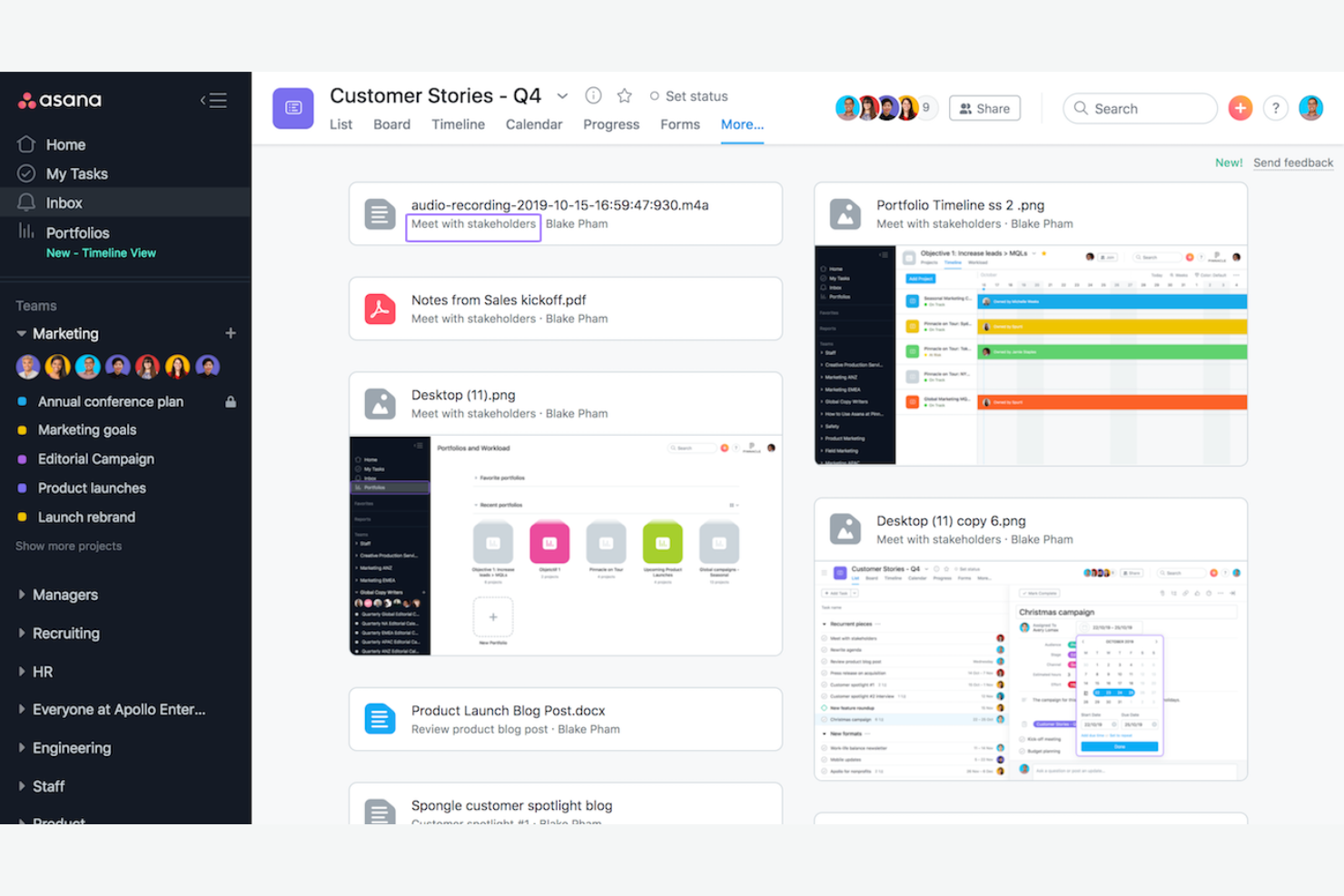
If your team needs to automate repetitive work and keep projects moving, Asana offers a flexible platform built for task management at scale. It’s a strong fit for cross-functional teams in tech, marketing, and operations that want to coordinate tasks, deadlines, and dependencies with minimal manual effort. Asana stands out for its automation features that help reduce busywork and keep everyone aligned.
Why I Picked Asana
For teams looking to automate routine project work, Asana’s task automation features make it a strong choice for digital workplace software. I picked Asana because its Rules engine lets you set up custom triggers and actions to automate task assignments, status updates, and notifications. The platform also supports workflow templates that help standardize processes across teams. These automation tools improve the user experience by reducing manual coordination for the team.
Asana Key Features
Some other features that make Asana useful for digital workplace teams include:
- Timeline View: Visualize project schedules and dependencies with a drag-and-drop Gantt chart interface.
- Workload Management: Monitor team capacity and balance assignments across projects.
- Goals Tracking: Set, track, and connect team or company goals directly to project work.
- Custom Fields: Add specific data points to tasks for better tracking and reporting.
Asana Integrations
Integrations include Slack, Google Drive, Microsoft Teams, Salesforce, Jira, Zoom, Dropbox, GitHub, Outlook, and more.
Pros and Cons
Pros:
- Has advanced search filters
- Built-in workload management
- Goals feature links work to objectives
Cons:
- No built-in document editing tools
- Subtasks lack full project visibility
Best with enterprise-grade security controls

Microsoft 365 Copilot brings together productivity apps, cloud storage, and advanced security features for organizations that need to protect sensitive data. It’s especially well-suited for enterprises and regulated industries where compliance, identity management, and threat protection are top priorities. With unified tools for collaboration and granular admin controls, Microsoft 365 Copilot helps IT teams manage risk while supporting remote and hybrid work.
Why I Picked Microsoft 365 Copilot
Security and compliance are at the core of Microsoft 365 Copilot, which is why I picked it for teams that need enterprise-grade controls in their digital workplace software. The platform offers advanced threat protection, data loss prevention, and encryption across all its apps, helping organizations safeguard sensitive information. I appreciate that Microsoft 365 includes granular access controls and audit logging, so IT teams can manage permissions and monitor activity at scale. For businesses in regulated industries or those handling confidential data, these features make Microsoft 365 Copilot a strong choice.
Microsoft 365 Copilot Key Features
Some other features that make Microsoft 365 Copilot valuable for digital workplace teams include:
- Co-Authoring in Office Apps: Multiple users can edit Word, Excel, and PowerPoint files simultaneously in real time.
- Microsoft Teams Integration: Chat, video meetings, and file sharing are unified in a single workspace.
- SharePoint Online: Create internal sites and manage document libraries for team collaboration.
- Planner and To Do: Organize tasks, assign responsibilities, and track progress across projects.
Microsoft 365 Copilot Integrations
Integrations include Dynamics 365, Salesforce, Adobe Sign, Docusign, Trello, Zoom, ServiceNow, Dropbox, Box, and more.
Pros and Cons
Pros:
- Built-in email encryption for sensitive information
- Integrated with Teams chat and meetings
- Meets strict enterprise compliance needs
Cons:
- Complex licensing structure
- Admin portal navigation can be confusing

Best with self-hosted deployment options
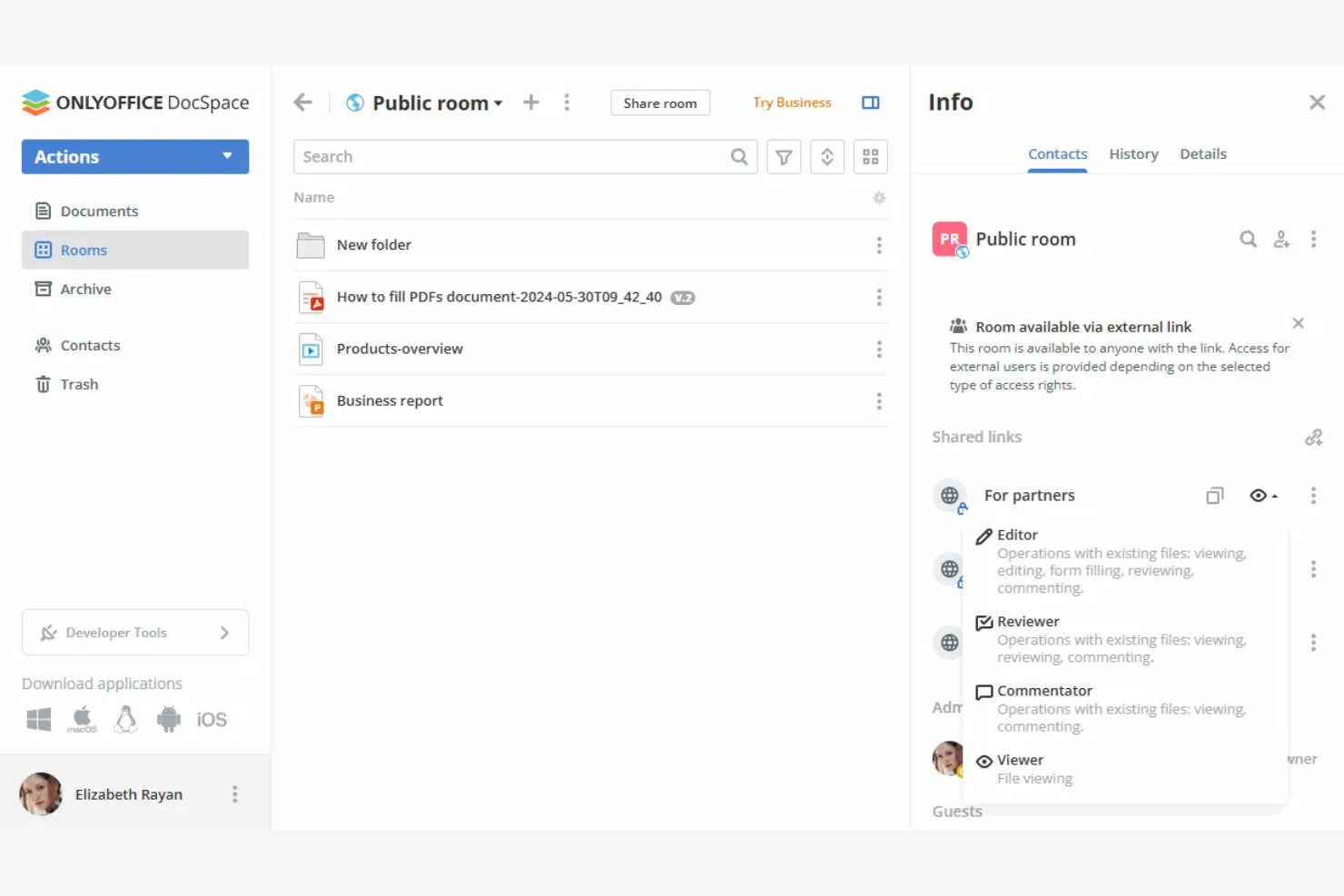
ONLYOFFICE gives organizations full control over their digital workplace with flexible self-hosted deployment options. It’s a strong choice for IT teams, privacy-focused businesses, or regulated industries that need to keep data on-premises. ONLYOFFICE combines document editing, project management, and collaboration tools in a single platform you can host on your own infrastructure.
Why I Picked ONLYOFFICE
For teams that need full control over their data and infrastructure, ONLYOFFICE stands out with its self-hosted deployment options. I picked ONLYOFFICE because it lets organizations install the entire platform on their own servers, which is especially important for businesses with strict compliance or privacy requirements. The platform supports private cloud and on-premises setups, so IT teams can tailor security and access controls to their needs. This level of deployment flexibility is rare among digital workplace tools and makes ONLYOFFICE a strong fit for regulated industries or any business that prioritizes data sovereignty.
ONLYOFFICE Key Features
Some other features that make ONLYOFFICE useful for digital workplace teams include:
- Collaborative Document Editing: Multiple users can work on documents, spreadsheets, and presentations at the same time.
- Project Management Module: Track tasks, set deadlines, and manage project milestones within the platform.
- CRM Integration: Manage contacts, sales, and customer interactions directly from the workspace.
- Calendar and Mail Aggregation: Centralize scheduling and email communications for better team coordination.
ONLYOFFICE Integrations
Integrations include Nextcloud, Moodle, WordPress, Confluence, Jira, Redmine, Box, Dropbox, and more.
Pros and Cons
Pros:
- Native integration with Nextcloud and ownCloud
- Built-in project management and CRM modules
- Supports self-hosted deployment
Cons:
- Limited third-party integrations
- Advanced setup requires IT administration skills

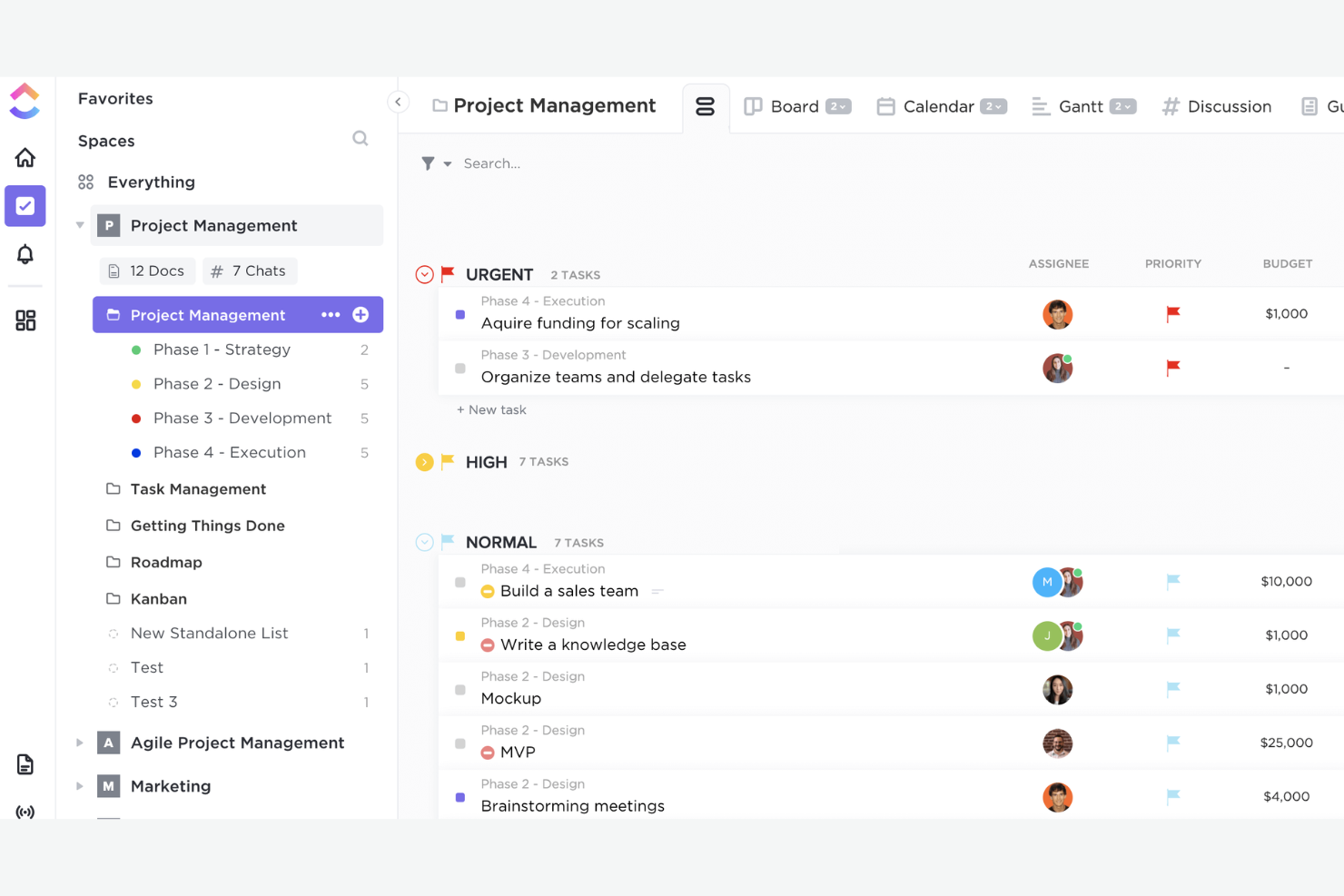
ClickUp gives teams a single platform to design, automate, and manage workflows that fit their exact needs. It’s a strong choice for project managers, operations leads, and cross-functional teams who want to tailor task management, reporting, and collaboration to their own processes. With its flexible structure and deep customization options, ClickUp helps teams handle everything from agile sprints to complex multi-department projects.
Why I Picked ClickUp
Customizable workflow management is where ClickUp really shines for digital workplace software. The platform lets you build custom task statuses, fields, and views so your team can mirror its exact processes, whether you’re running agile sprints or managing client deliverables. I like that you can automate repetitive steps with ClickUp’s automation builder, which helps teams reduce manual work and stay consistent. For teams that need to adapt their workspace as projects evolve, ClickUp’s flexibility makes it a strong fit.
ClickUp Key Features
Some other features that make ClickUp stand out for digital workplace teams include:
- Docs and Wikis: Create, edit, and share internal documentation directly within your workspace.
- Time Tracking: Log time spent on tasks with built-in timers and manual entry options.
- Goal Tracking: Set, track, and visualize progress toward team or project goals.
- Whiteboards: Collaborate visually with digital whiteboards for brainstorming and planning sessions.
ClickUp Integrations
Integrations include Slack, GitHub, GitLab, HubSpot, Everhour, Toggl, Google Drive, Outlook, Figma, and more.
Pros and Cons
Pros:
- Has an automation builder for repetitive tasks
- Organizes projects and teams in a hierarchy
- Custom fields support granular task tracking
Cons:
- Mobile app lacks some desktop features
- Overwhelming notification settings
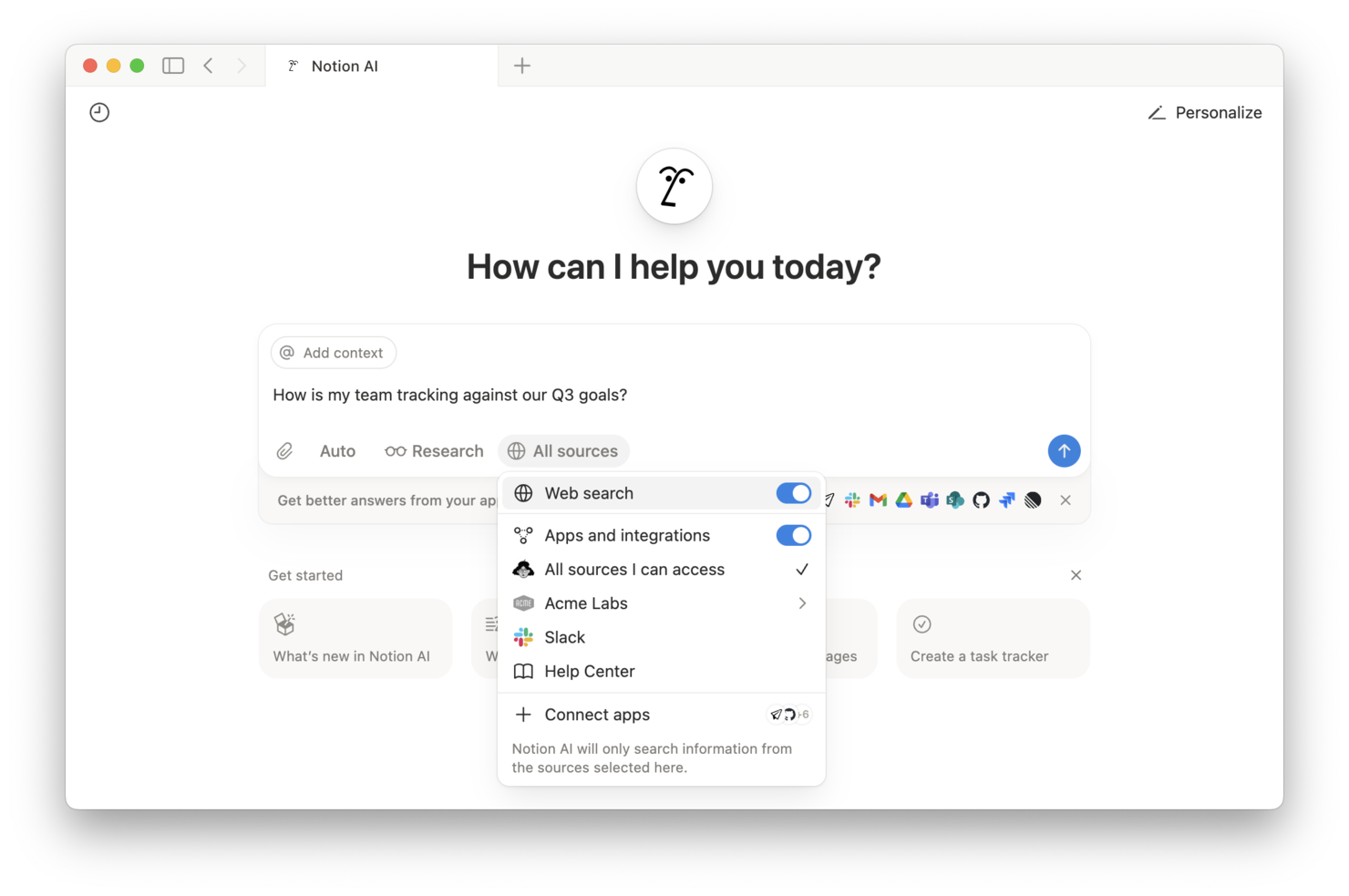
If your team needs a single place to organize documents, projects, and knowledge, Notion brings everything together in one flexible workspace. It’s especially useful for product teams, agencies, and startups that want to centralize wikis, notes, and project plans without juggling multiple apps. Notion’s customizable pages and databases help teams build a unified source of truth that adapts as their needs evolve.
Why I Picked Notion
What sets Notion apart for digital workplace software is its ability to unify knowledge, documentation, and project information in one place. I picked Notion because its flexible page structure lets teams create wikis, SOPs, and knowledge bases that are easy to organize and update as things change. The database feature allows you to link notes, tasks, and resources, so information stays connected and searchable across your workspace. For teams that want a single source of truth without switching between multiple tools, Notion’s unified approach is a strong fit.
Notion Key Features
In addition to its unified workspace for knowledge management, Notion offers several other features that support digital teams:
- Real-Time Collaboration: Multiple users can edit pages and databases at the same time.
- Custom Templates: Build and reuse templates for meeting notes, project trackers, and more.
- Permissions and Sharing: Set granular access controls for pages, databases, and workspaces.
- Embedded Media: Add images, videos, code snippets, and files directly into any page.
Notion Integrations
Integrations include Slack, Jira, GitHub, Asana, Google Drive, Figma, Trello, GitLab, Typeform, and more.
Pros and Cons
Pros:
- Nested pages allow deep documentation hierarchies
- AI assistant generates summaries and action items
- Page version history tracks all content changes
Cons:
- No built-in Gantt chart for project timelines
- Offline access is limited and unreliable

MelpApp is designed for teams that need to communicate across language barriers in real time. It’s a strong fit for global organizations, distributed teams, or any workplace where multilingual collaboration is part of daily operations. MelpApp helps reduce miscommunication by offering instant translation and language support within team chats and meetings.
Why I Picked MelpApp
Multilingual team communication is a challenge for many digital workplaces, which is why I picked MelpApp for this list. The platform offers real-time translation in group chats and meetings, so team members can interact in their preferred language without missing key details. I appreciate that MelpApp also supports voice and text translation, making it easier for teams to collaborate across regions and time zones. For organizations with global or multilingual staff, these features help ensure everyone stays connected and informed.
MelpApp Key Features
Some other features that make MelpApp useful for digital workplace teams include:
- Message Scheduling: Schedule messages to be sent at a specific time for better coordination across time zones.
- Read Receipts: See when team members have read your messages for better communication tracking.
- Role-Based Access Controls: Assign permissions and manage access based on user roles within your organization.
- File Sharing: Share documents, images, and other files directly within chats for quick collaboration.
MelpApp Integrations
Native integrations are not currently listed.
Pros and Cons
Pros:
- Free plan available for small teams
- Supports read receipts
- Provides real-time translation
Cons:
- No built-in video conferencing feature
- No native integrations listed
Miro
Best for visual brainstorming sessions
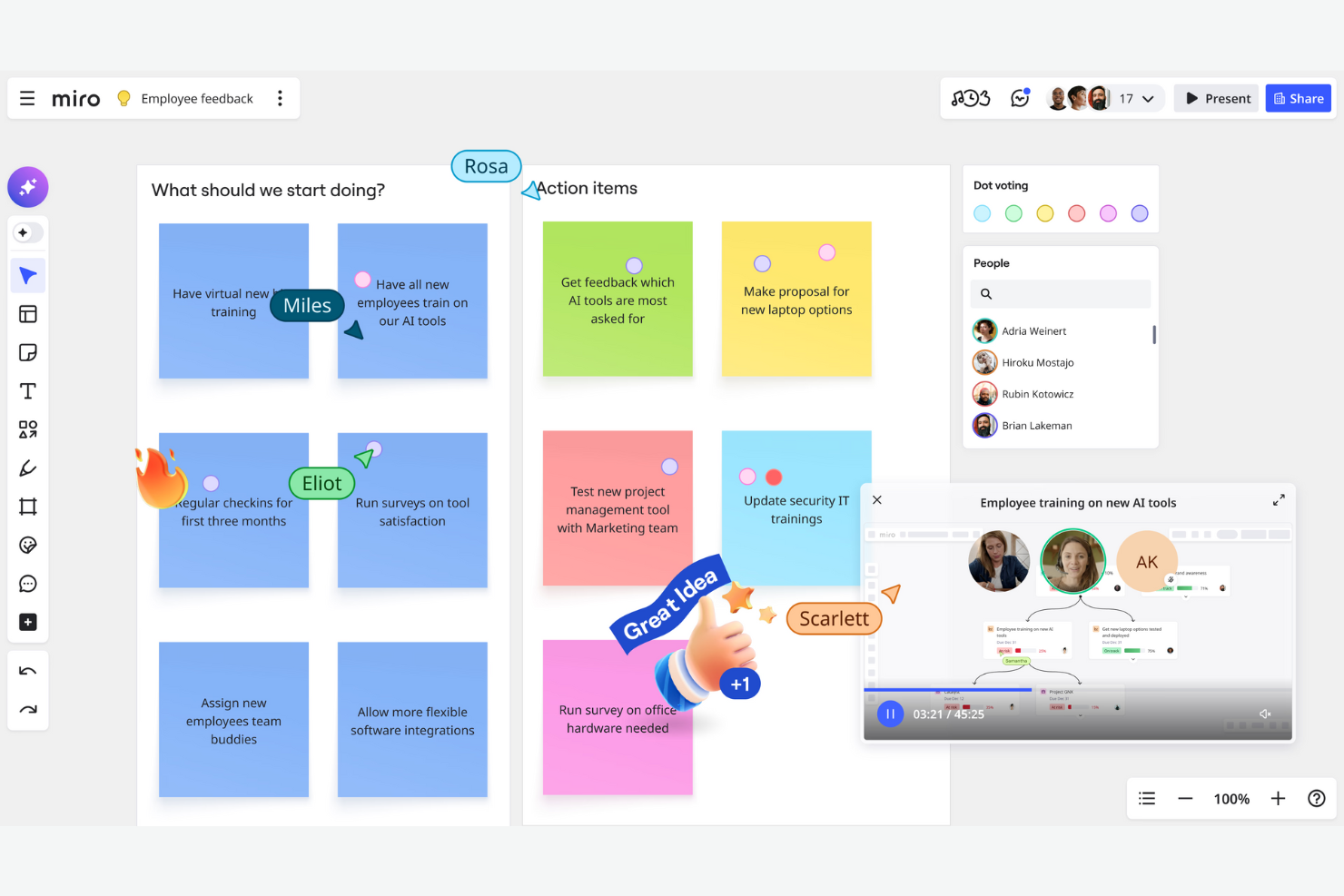
For teams that rely on visual thinking and creative collaboration, Miro offers a flexible online whiteboard platform. It’s especially useful for product managers, designers, and distributed teams who need to map out ideas, workflows, or user journeys together. Miro stands out as an employee experience platform that turns brainstorming sessions into actionable plans with interactive boards.
Why I Picked Miro
When it comes to visual brainstorming sessions, Miro offers a level of flexibility and interactivity that’s hard to match in digital workplace software. The infinite canvas lets teams capture, organize, and connect ideas without running out of space or structure. I appreciate how features like sticky notes, drawing tools, and voting make it easy for everyone to contribute and prioritize ideas in real time. For teams that need to turn creative sessions into actionable outcomes, Miro’s visual approach keeps collaboration both engaging and productive.
Miro Key Features
In addition to its visual brainstorming tools, Miro offers several other features that support digital collaboration:
- Pre-built Templates: Choose from a library of templates for workflows, mind maps, retrospectives, and more to jumpstart your sessions.
- Presentation Mode: Turn any board into a guided presentation with step-by-step navigation for sharing ideas with stakeholders.
- Commenting and Tagging: Add comments and tags directly to board elements to keep feedback organized and easy to track.
- Integration Marketplace: Connect Miro with tools like Jira, Slack, and Asana to keep boards in sync with your team’s workflows.
Miro Integrations
Integrations include Google Workspace, Jira, Confluence, Slack, Asana, GitHub, Azure DevOps, and more.
Pros and Cons
Pros:
- Has a presentation mode for sharing boards
- Real-time collaboration with visual feedback tools
- Supports complex project mapping
Cons:
- Export options are restricted on lower tiers
- Large boards can cause browser slowdowns
New Product Updates from Miro
Miro Adds Japan Data Residency for Enterprise Customers
Miro has introduced Japan data residency for enterprise customers, offering in-region storage for production data, backups, and metadata, plus in-region compute infrastructure. For more information, visit Miro's official site.
Annen programvare for digitale arbeidsplasser
Her er noen flere alternativer for programvare for digitale arbeidsplasser som ikke kom med på kortlisten, men som likevel er verdt å undersøke:
- Slack
For integrated team messaging
- Zoom
For large-scale video meetings
- Wrike
For advanced workflow automation
- Todoist
For personal task organization
- monday AI Workspace
With AI-powered project insights
- Happeo
For integrating intranet with Google Workspace
- Beekeeper
For frontline team communication
- Kadence
For hybrid space coordination
- UKG
For complex workforce scheduling
- Humand
For building digital communities


How I Evaluate Digital Workplace Software
I split my evaluation into two layers: the baseline a tool must clear—unified workspaces, task tracking, and docs—and the differentiators that separate strong contenders from the rest.
Core Functionality (Table Stakes For This List)
When I'm selecting tools for my list, I rank each one on a scale from 0 (does not offer the functionality) to 5 (excels in this area) for each core functionality listed below. Then, I calculate the tool's total score into a percentage. Each tool needs to achieve a minimum total score of 75% to be considered for inclusion.
- Unified Collaboration Hub: I check whether chat, team spaces, and threaded discussions live inside the same environment where projects happen, rather than forcing teams to bounce between separate apps.
- Task & Project Management: Each tool should offer multiple views like Kanban boards, Gantt charts, or timelines so teams can track tasks, dependencies, and milestones in the format that fits their workflow.
- Document & Knowledge Management: I look for native docs, wikis, or knowledge bases that keep project artifacts searchable and colocated—not just basic file attachments bolted onto a chat tool.
- Integrations & Interoperability: The platform should connect with tools teams already rely on, like Jira, Google Workspace, or Microsoft 365, through native integrations, open APIs, or iPaaS connectors.
- Workflow Automation: I evaluate whether the tool lets you automate recurring actions like status updates, approval routing, or task assignments using a no-code builder with conditional logic.
- Access Control & Permissions: Role-based permissions, guest access for external stakeholders, and SSO support all factor in—especially for teams managing sensitive project data across departments.
Once I have a list of tools that meet the criteria, I consider what sets each platform apart.
Differentiating Factors (What Sets Vendors Apart)
Here's how I compare and contrast different vendors:
Standout Features
AI-powered assistants are a big differentiator—tools like Notion AI and Microsoft Copilot can summarize long threads or draft project updates, which saves real time during status reporting. I also evaluate resource and capacity planning features, since knowing who's overloaded across concurrent projects matters more than a basic task list. No-code app builders round things out by letting teams create custom views or intake forms tailored to their workflows without waiting on a developer.
Beyond Features
Enterprise security and compliance matter when your workspace houses sensitive project data. I check for SOC 2 Type II certification, SSO/SAML support, and data residency options—especially for teams operating across regions. Pricing transparency is another factor I weigh heavily. Hidden costs for guest users, storage overages, or AI add-ons can balloon the total cost quickly. I also look at implementation support, since rolling out a digital workplace across departments needs solid onboarding resources, migration tools, and an active community or partner network.
Slik velger du programvare for digitale arbeidsplasser
Det er lett å gå seg vill i lange funksjonslister og kompliserte prismodeller når du prøver å forbedre medarbeideropplevelsen. For å hjelpe deg med å holde fokus mens du går gjennom den unike prosessen med å velge programvare, får du her en sjekkliste over faktorer du bør ha i mente:
| Faktor | Hva du bør vurdere |
|---|---|
| Skalerbarhet | Vil programvaren støtte teamet ditt etter hvert som det vokser? Kontroller brukerbegrensninger, lagringsgrenser og oppgraderinger av abonnementet for fremtidige behov. |
| Integrasjoner | Kan den kobles direkte til de eksisterende verktøyene dine (for eksempel Slack, Google Workspace og Jira)? Mangler her kan føre til manuelle omveier. |
| Tilpasningsmuligheter | Kan du tilpasse arbeidsflyter, tillatelser og oppsett slik at de passer til prosessene dine? Rigide verktøy kan tvinge deg til å endre hvordan teamet ditt arbeider. |
| Brukervennlighet | Vil teamet ditt ta den i bruk raskt? Se etter tydelig navigasjon, minimale opplæringskrav og positive tilbakemeldinger fra lignende organisasjoner. |
| Implementering og innføring | Hvor lang tid vil det ta å komme i gang? Vurder støtte ved migrering, alternativer for dataimport og tilgjengeligheten av ressurser for innføring. |
| Kostnad | Er prisnivåene tydelige og forutsigbare? Ta med alle brukere, lagring og mulige tillegg for å unngå budsjettoverskridelser. |
| Sikkerhetstiltak | Tilbyr plattformen SSO, kryptering og samsvar med standarder som SOC 2 eller GDPR? Vurder risikoen basert på hvor sensitive dataene dine er. |
| Tilgjengelig kundestøtte | Hvilke støttekanaler tilbys, og på hvilke tidspunkter? Hvis teamet ditt arbeider globalt, kan kundestøtte døgnet rundt være avgjørende. |
Hva er programvare for digitale arbeidsplasser?
Programvare for digitale arbeidsplasser er en kategori verktøy som sentraliserer kommunikasjon, samarbeid, dokumenthåndtering og prosjektoppfølging for distribuerte team. Disse plattformene hjelper organisasjoner med å organisere kunnskap, koordinere arbeid og dele ressurser i ett enkelt nettbasert arbeidsmiljø. Ved å samle meldinger, fildeling og arbeidsflytstyring støtter programvare for digitale arbeidsplasser produktivitet og samordning på tvers av avdelinger, steder og tidssoner.
Funksjoner
Her er de viktigste funksjonene all god programvare for digitale arbeidsplasser bør ha:
- Dokumenthåndtering: Lagre, organisere og dele filer på ett sentralisert sted, slik at team kan få tilgang til de nyeste versjonene og samarbeide om dokumenter i sanntid.
- Oppgave- og prosjektoppfølging: Tildel oppgaver, sett tidsfrister og følg fremdriften i prosjekter for å holde alle samkjørte og ansvarlige.
- Teamkommunikasjon: Bruk innebygd chat, diskusjonstråder eller meldingsverktøy for å legge til rette for raske spørsmål, oppdateringer og løpende samtaler.
- Oppretting av kunnskapsbase: Bygg og vedlikehold søkbare wikier eller ressursbiblioteker for å samle institusjonell kunnskap og standardiserte arbeidsprosedyrer.
- Kalenderintegrasjon: Synkroniser med teamkalendere for å planlegge møter, følge opp milepæler og koordinere tidsfrister i plattformen.
- Tillatelser og tilgangskontroll: Angi detaljerte brukerroller og tillatelser for å sikre at sensitiv informasjon bare er tilgjengelig for de riktige personene.
- Automatisering av arbeidsflyter: Automatiser gjentakende prosesser, for eksempel godkjenninger eller varsler, for å redusere manuelt arbeid og fremskynde rutineoppgaver.
- Integrasjoner med tredjepart: Koble til andre viktige verktøy i økosystemet ditt, som e-post, skylagring eller prosjektstyringsplattformer, for å sentralisere arbeidet på tvers av systemer.
Vanlige KI-funksjoner
I tillegg til de vanlige funksjonene i programvare for digitale arbeidsplasser som er nevnt ovenfor, bruker mange plattformer KI for å øke medarbeiderengasjementet med funksjoner som:
- Automatiske møtesammendrag: KI lytter til møteopptak eller leser transkripsjoner og lager korte sammendrag, handlingspunkter og viktige beslutninger som er enkle å slå opp og følge opp.
- Smarte innholdsforslag: KI analyserer aktiviteten i det digitale arbeidsområdet ditt og anbefaler relevante dokumenter, maler eller ressurser basert på konteksten i det aktuelle prosjektet eller den aktuelle samtalen.
- Intelligent søk: KI-drevet søk forstår søk på naturlig språk og viser de mest relevante filene, meldingene eller kunnskapsbaseartiklene, selv når søkeordene ikke samsvarer nøyaktig.
- Prioritering av oppgaver: KI gjennomgår tidsfrister, avhengigheter og arbeidsmengde for å foreslå hvilke oppgaver som bør tas først, slik at team kan konsentrere seg om arbeid med stor effekt.
- Automatisk ruting av arbeidsflyter: KI oppdager mønstre i forespørsler eller godkjenninger og sender oppgaver til riktig person eller team, noe som reduserer flaskehalser og manuelle overleveringer.
Fordeler
Implementering av programvare for digitale arbeidsplasser gir flere fordeler for teamet og virksomheten din. Her er noen av fordelene du kan se frem til:
- Sentralisert kunnskapsdeling: Team kan lagre, organisere og få tilgang til dokumenter og ressurser på ett sted, noe som reduserer tiden som brukes på å lete etter informasjon.
- Bedre samarbeid på tvers av team: Innebygde kommunikasjonsverktøy og delte arbeidsområder hjelper team med å koordinere prosjekter og dele oppdateringer i sanntid.
- Større oversikt over arbeidet: Oppgaveoppfølging og prosjektdashbord gir ledere og teammedlemmer et tydelig bilde av fremdrift, tidsfrister og ansvarsområder.
- Raskere opplæring og kunnskapsoverføring: Nyansatte kan få tilgang til opplæringsmateriell, maler og virksomhetens kunnskapsbaser for å komme raskt inn i arbeidet.
- Forbedret datasikkerhet: Tillatelser og tilgangskontroller sikrer at sensitiv informasjon bare er tilgjengelig for autoriserte brukere.
- Mindre manuelt arbeid: Automatisering av arbeidsflyter og KI-drevne funksjoner håndterer gjentakende oppgaver og frigjør tid til aktiviteter med høyere verdi.
- Skalerbarhet for team i vekst: Fleksibel brukeradministrasjon og integrasjonsmuligheter gjør at plattformen kan vokse i takt med organisasjonens behov.
Kostnader og priser
Valg av løsninger for digitale arbeidsplasser krever en forståelse av de ulike prismodellene og abonnementene som er tilgjengelige. Kostnadene varierer basert på funksjoner, teamstørrelse, tillegg og mer. Tabellen nedenfor oppsummerer vanlige abonnementer, gjennomsnittsprisene deres og typiske funksjoner som er inkludert i løsninger for programvare for digitale arbeidsplasser:
Sammenligningstabell for abonnementer
| Plantype | Gjennomsnittspris | Vanlige funksjoner |
|---|---|---|
| Gratisplan | $0 | Grunnleggende dokumentlagring, begrenset oppgavehåndtering, enkle kommunikasjonsverktøy og grunnleggende integrasjoner. |
| Personlig plan | $5–$15/bruker/måned | Individuelle arbeidsområder, utvidet fillagring, kalendersynkronisering og grunnleggende tilgangskontroller. |
| Bedriftsplan | $15–$30/bruker/måned | Verktøy for teamsamarbeid, avansert prosjektsporing, automatisering av arbeidsflyter, utvidede integrasjoner og administratorkontroller. |
| Plan for store virksomheter | $30–$60/bruker/måned | Tilpassede sikkerhetsinnstillinger, avansert analyse, prioritert brukerstøtte, funksjoner for overholdelse av regelverk og dedikert oppstartshjelp. |
Vanlige spørsmål
Her er noen svar på vanlige spørsmål om programvare for digitale arbeidsplasser:
Hvordan støtter programvare for digitale arbeidsplasser eksterne og hybride team?
Programvare for digitale arbeidsplasser gir eksterne og hybride team et sentralt knutepunkt for kommunikasjon, deling av dokumenter og prosjektsporing. Dette hjelper alle med å holde seg samkjørte, få tilgang til ressurser og samarbeide i sanntid, uavhengig av sted eller tidssone.
For team som deler tiden mellom fjernarbeid og arbeid på kontoret, kan \u003ca href=\u0022https://thedigitalprojectmanager.com/tools/best-hot-desk-booking-software/\u0022\u003eprogramvare for booking av fleksible arbeidsplasser\u003c/a\u003e også bidra til å koordinere hvor de ansatte arbeider når de kommer inn på kontoret.
Kan programvare for digitale arbeidsplasser erstatte e-post for intern kommunikasjon?
Ja, mange team bruker programvare for digitale arbeidsplasser for å redusere intern e-post ved å flytte samtaler til chat, diskusjonstråder eller prosjektkommentarer. Dette holder kommunikasjonen organisert og gjør det enklere å finne relevant informasjon senere.
Hva bør jeg tenke på når jeg bytter til en ny plattform for digitale arbeidsplasser?
Planlegg datamigrering, opplæring av brukere og integrasjon med de eksisterende verktøyene dine. Se etter plattformer som tilbyr importverktøy, ressurser for oppstart og brukerstøtte for å hjelpe teamet med en smidig overgang og minimere avbrudd.
Hvor sikker er programvare for digitale arbeidsplasser når det gjelder sensitive bedriftsdata?
Det meste av programvaren for digitale arbeidsplasser inkluderer kryptering, tilgangskontroller og samsvar med standarder som SOC 2 eller GDPR. Gå alltid gjennom leverandørens sikkerhetsdokumentasjon, og spør om sertifiseringer som samsvarer med organisasjonens krav.
Hvordan vet jeg om et verktøy for digitale arbeidsplasser kan skaleres i takt med organisasjonen min?
Kontroller brukerbegrensninger, lagringsgrenser og tilgjengelige planoppgraderinger. Spør om ytelsen med store team, og se gjennom kundehistorier fra organisasjoner som ligner din i størrelse, for å sikre at plattformen kan vokse i takt med behovene dine.