

2026 İçin Seçilen En İyi 10 Bulut Üretkenlik Yazılımı

Bulut Üretkenlik Yazılımı Kısa Listesi


Bulut üretkenlik yazılımı, ekibinizin her yerden iş birliği yapmasına, görevleri yönetmesine ve dosya paylaşmasına yardımcı olan çevrim içi platformları ifade eder. En iyi bulut üretkenlik yazılımını arıyorsanız muhtemelen projeleri planlandığı şekilde ilerletmek, ekipler genelinde görünürlüğü artırmak ve öncelikler değiştikçe hızlıca uyum sağlamak istiyorsunuzdur. Bu kadar çok seçenek varken doğru araçları seçmek, kaçırılan teslim tarihlerinden sorunsuz teslimata geçişte belirleyici olabilir.
Bu liste, önde gelen çözümleri karşılaştırmanıza, her birini farklı kılan özellikleri anlamanıza ve ekibinizin iş akışına en uygun seçeneği bulmanıza yardımcı olacaktır.
Yazılım Önerilerimize Neden Güvenebilirsiniz?
Ekibimiz 2012’den beri yazılımları test ediyor ve inceliyor. Biz de proje yöneticisi olduğumuz için doğru yazılımı seçmenin ne kadar zor ve önemli olduğunu biliyoruz.
Bu rehber için araçları uygulamalı testler ve bağımsız araştırmalarla değerlendirdik ve seçim kriterlerimize göre puanladık. Ayrıca sektörün fikir önderlerinin ve alanında çalışan proje yönetimi uzmanlarının görüşlerinden de yararlanıyoruz.
İncelemelerimiz bir satış konuşması değil, editör ekibimizin kendi değerlendirmesidir.
Uzman inceleyenler:
Bulut Üretkenlik Yazılımı Karşılaştırma Tablosu
Bu karşılaştırma tablosu, en iyi bulut üretkenlik yazılımı seçimlerimin fiyatlandırma ayrıntılarını özetlemektedir:
| Tool | Starting Price | Website | |
|---|---|---|---|
| Best for secure file sharing and storage | 4.5 out of 5 | $9.99/month Free plan available | Website |
| Best for real-time document collaboration | 4.6 out of 5 | $7/user/month 14-day free trial available | Website |
| Best with integrated office productivity apps | 4.6 out of 5 | $9.99/month Free plan + 1-month free trial available | Website |
| Best for structured project planning | 4.4 out of 5 | $10.99/user/month Free plan + free trial available | Website |
| Best for advanced content governance | 4.3 out of 5 | $7/user/month Free plan + trial + demo available | Website |
| Best for collaborative knowledge documentation | 4.3 out of 5 | $5.78/user/month Free plan + 7-day trial available | Website |
| Best for kanban-style task boards | — | $5/user/month Free plan + free trial + free demo available | Website |
| Best for all-in-one task and goal tracking | — | $12/user/month Free plan + free trial available | Website |
| Best for customizable workspace organization | — | $10/user/month Free plan + 14-day or 30-day free trial available | Website |
| Best for centralized team communication | 4.6 out of 5 | $7.25/user/month Free plan available | Website |
Bulut Üretkenlik Yazılımı İncelemeleri
Aşağıda, kısa listeme giren bulut üretkenlik yazılımlarının ayrıntılı özetlerini bulabilirsiniz. İncelemelerim, sizin için en iyi seçeneği bulmanıza yardımcı olmak amacıyla her platformun özelliklerine, en uygun kullanım alanlarına ve entegrasyonlarına ayrıntılı bir bakış sunmaktadır.

Dropbox
Best for secure file sharing and storage
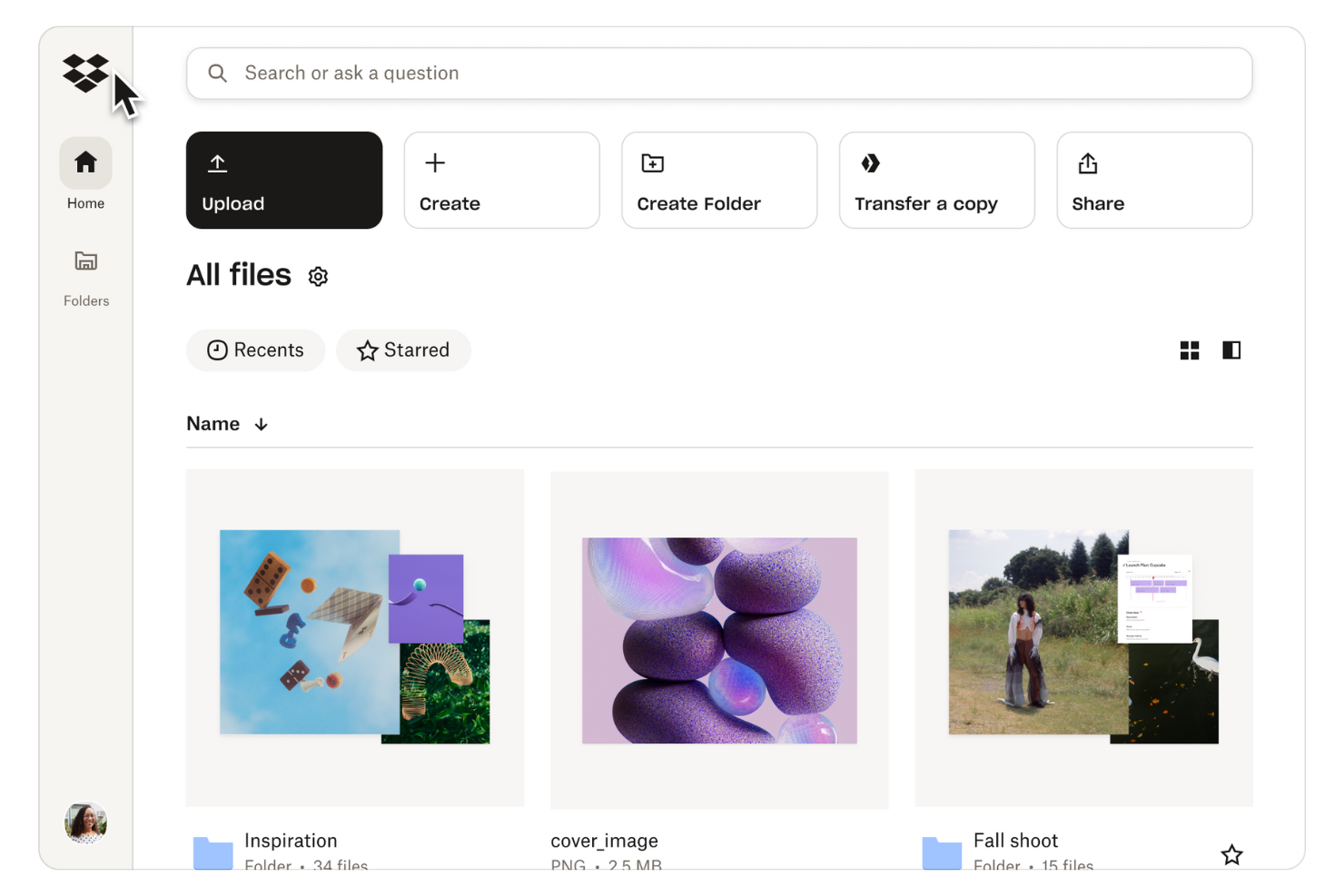
For teams that need secure, centralized file storage and sharing, Dropbox offers a cloud platform built for collaboration and control. It’s especially useful for creative agencies, legal teams, and distributed businesses that handle sensitive documents or large media files. Dropbox’s granular sharing permissions and file recovery features help organizations keep data protected while making it easy to work together from anywhere.
Why I Picked Dropbox
When secure file sharing and storage are top priorities, Dropbox stands out for its strong focus on data protection and access control. I picked Dropbox because it offers granular sharing permissions, allowing you to set view, edit, or download rights for each file or folder. The platform also provides file version history and recovery, so teams can restore previous versions or recover deleted files if needed. For organizations that need to safeguard sensitive information while enabling collaboration, Dropbox’s security features make it a reliable choice.
Dropbox Key Features
Some other Dropbox features that support cloud productivity include:
- Dropbox Paper: Create, edit, and collaborate on documents directly within Dropbox.
- Smart Sync: Access all files and folders from your desktop without taking up local storage space.
- File Requests: Collect files from anyone, even if they don’t have a Dropbox account.
- Team Activity Dashboard: Monitor file sharing, edits, and team activity in one place.
Dropbox Integrations
Integrations include Google Workspace, Microsoft, Adobe, HubSpot, Canva, AWS, Slack, Zoom, and more.
Pros and Cons
Pros:
- Dashboard tracks team activity and sharing
- Has in-app document collaboration
- Supports file version history
Cons:
- Shared links can be hard to track centrally
- No built-in project or task management

Best for real-time document collaboration
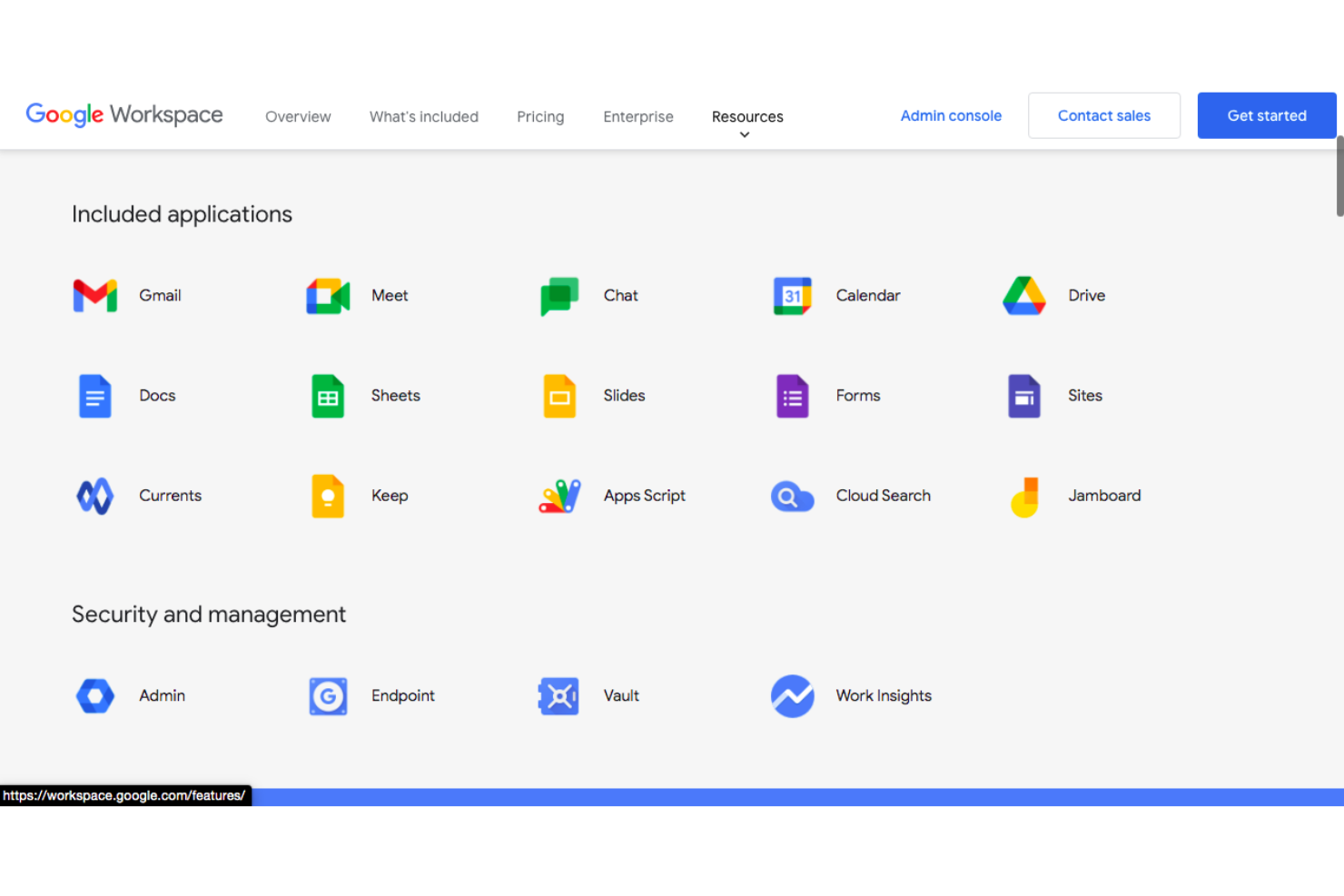
If your team needs to collaborate on documents, spreadsheets, and presentations in real time, Google Workspace is a strong choice. It’s especially useful for distributed teams and organizations that rely on fast, cloud-based editing and sharing. The platform helps reduce version control issues and keeps everyone on the same page, no matter where they’re working.
Why I Picked Google Workspace
I chose Google Workspace for this list because its real-time document collaboration platform stands out among cloud productivity platforms. The ability for multiple users to edit Docs, Sheets, and Slides at the same time makes it easy to keep projects moving without version conflicts. Built-in commenting and suggestion tools help teams communicate directly within files, reducing the need for endless email threads. For teams that need to work together on high-quality content from anywhere, these features make Google Workspace a top contender.
Google Workspace Key Features
Some other features that make Google Workspace a versatile platform for teams include:
- Shared Drives: Create team-specific drives where files are owned collectively and remain accessible even if members leave.
- Google Meet Integration: Schedule and join video meetings directly from your calendar or within documents.
- Calendar Sharing: Share Google calendars across your organization to coordinate meetings and deadlines with ease.
- Admin Console: Manage user access, security settings, and device policies from a centralized dashboard.
Google Workspace Integrations
Integrations include Salesforce, Docsign, Zoom, Asana, Slack, Trello, Smartsheet, Zendesk, Adobe Acrobat, and more.
Pros and Cons
Pros:
- Easy file sharing with granular permissions
- AI-powered features in Docs and Gmail
- Real-time editing across all core apps
Cons:
- Limited advanced spreadsheet functions
- Offline editing can be inconsistent

Best with integrated office productivity apps
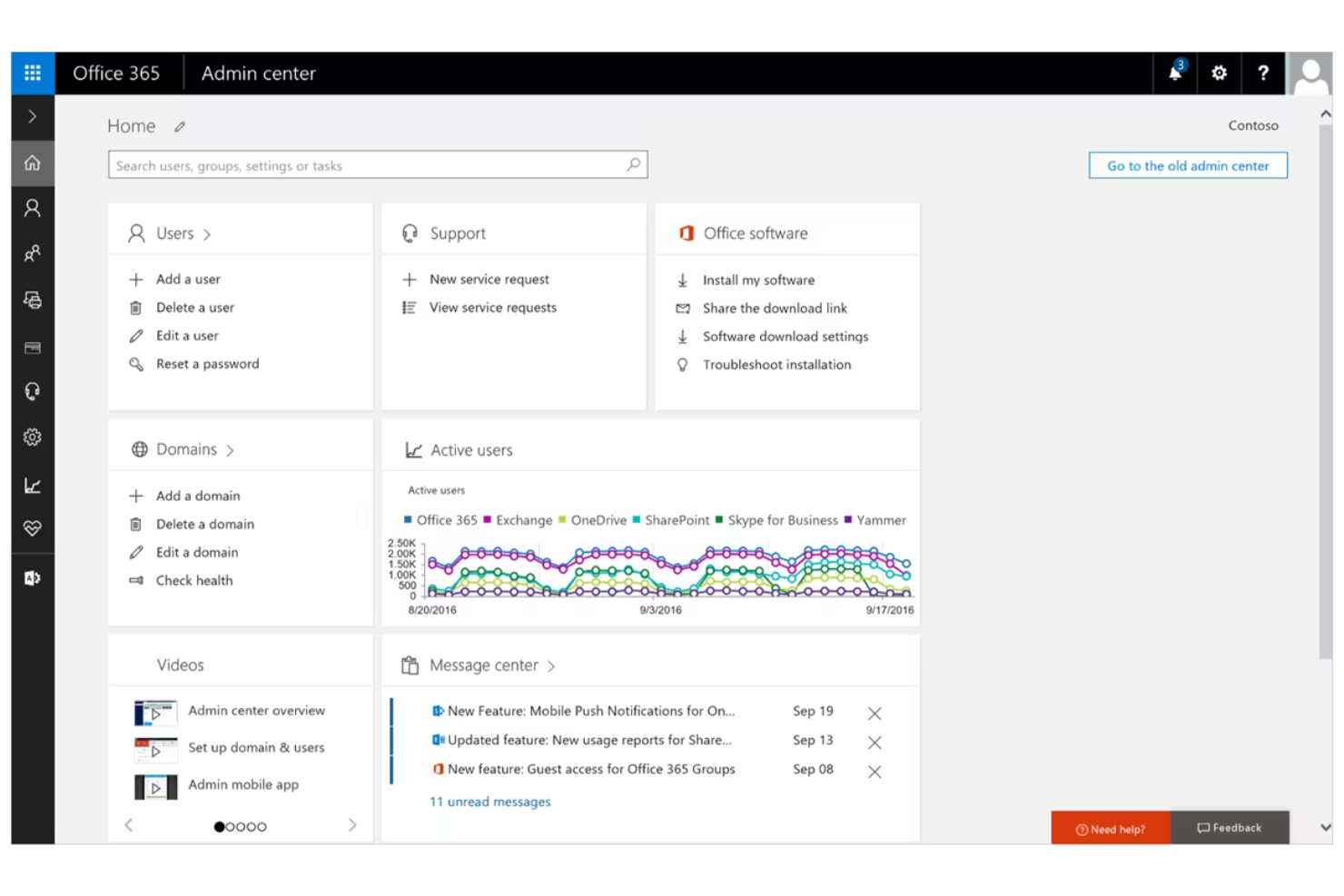
For teams that rely on familiar office apps and need tight integration across email, documents, and collaboration, Microsoft 365 brings everything together in one cloud-based suite. It’s a strong fit for organizations that want desktop and web access to Word, Excel, PowerPoint, and Outlook, along with secure file storage and sharing. The platform helps unify workflows for businesses that need both advanced document editing and communication tools.
Why I Picked Microsoft 365
What sets Microsoft 365 Copilot apart is how it combines all the core office productivity apps—Word, Excel, PowerPoint, and Outlook—into a single, integrated cloud platform. This approach means your team can move between document creation, data analysis, and communication without switching tools or losing context. I picked Microsoft 365 because its apps work together natively, so features like real-time co-authoring and shared calendars are built right in. For organizations that want a unified experience across desktop and cloud, this level of integration is hard to match.
Microsoft 365 Key Features
Some other features that make Microsoft 365 a strong choice for cloud productivity include:
- OneDrive Cloud Storage: Store, sync, and access files securely from any device.
- Microsoft Teams Integration: Chat, meet, and collaborate with your team in a unified workspace.
- Advanced Security Controls: Set up multi-factor authentication and manage data loss prevention policies.
- Planner and To Do Apps: Organize tasks, assign responsibilities, and track progress across projects.
Microsoft 365 Integrations
Integrations include Salesforce, Adobe Acrobat Sign, Zoom, Trello, Asana, ServiceNow, Workday, SAP, and more.
Pros and Cons
Pros:
- Enterprise-grade security features
- Advanced spreadsheet tools in Excel
- Desktop and web apps offer full parity
Cons:
- Occasional compatibility issues in Mac
- Collaboration requires Microsoft accounts
Asana
Best for structured project planning
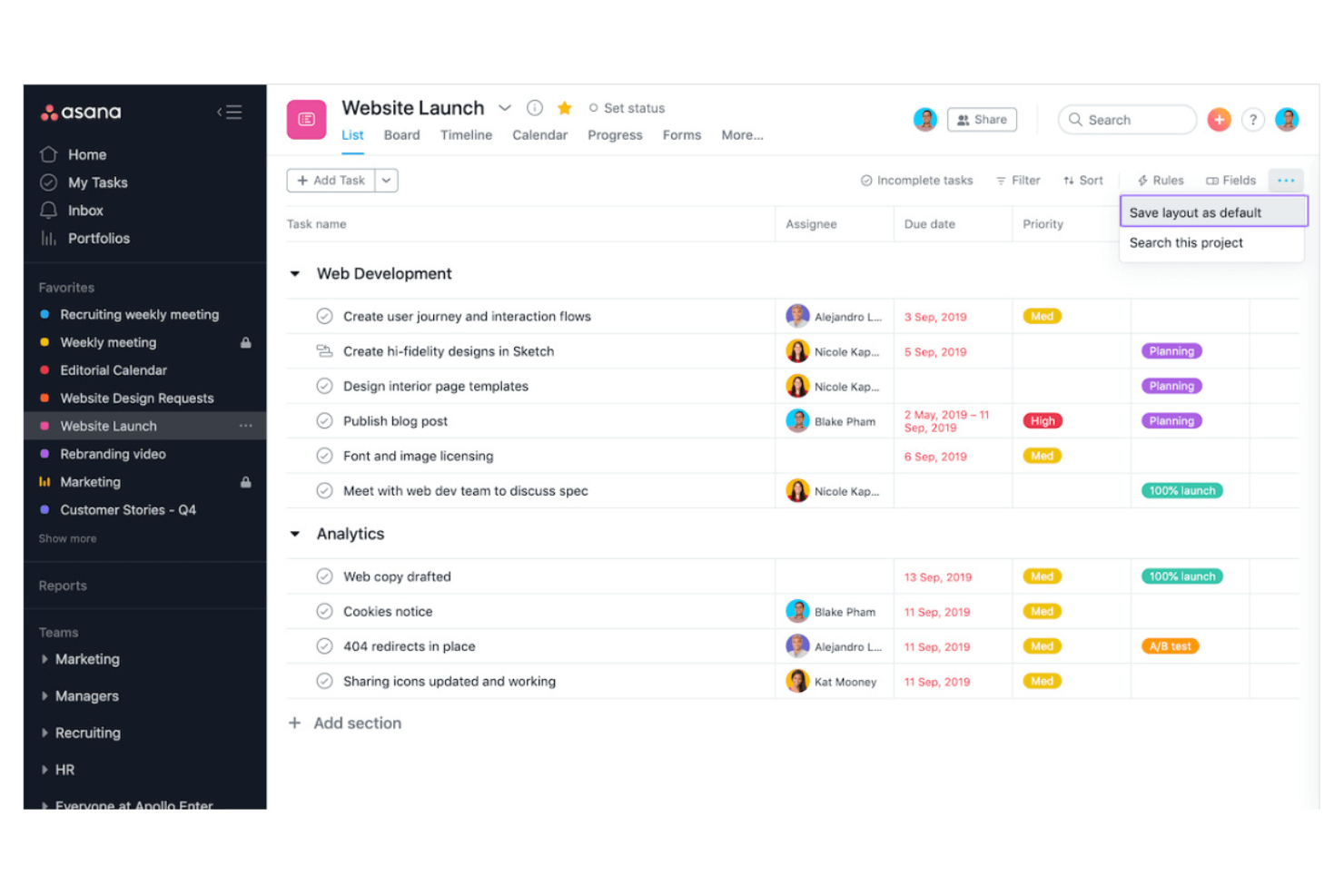
Teams that need a clear structure for managing projects often turn to Asana for its organized approach to planning and tracking work. It’s especially useful for project managers, marketing teams, and operations leads who want to break down goals into actionable tasks and timelines. Asana’s structured layouts and workflow tools help teams coordinate complex projects and keep everyone accountable.
Why I Picked Asana
Asana stands out for its ability to bring structure and clarity to project planning, which is essential for teams managing multiple priorities in the cloud. The platform’s task hierarchy lets you break down projects into sections, tasks, and subtasks, making it easy to organize complex work. I picked Asana because its timeline view and custom fields help teams map out dependencies and track progress with precision. For anyone who needs a reliable way to plan, assign, and monitor structured workflows, Asana offers a focused and organized solution.
Asana Key Features
Some other features that make Asana valuable for cloud productivity include:
- Rules Automation: Automate routine actions like task assignments, status updates, and notifications based on triggers you set.
- Workload Management: Visualize team capacity and balance assignments to avoid overloading anyone.
- Project Templates: Start new projects quickly with pre-built templates for common workflows and industries.
- Milestones Tracking: Mark key points in your project to track progress toward major goals.
Asana Integrations
Integrations include Slack, Google Drive, Microsoft Teams, Jira Cloud, Salesforce, Zoom, Dropbox, Gmail, Outlook, and more.
Pros and Cons
Pros:
- Comment keeps discussions attached to tasks
- Has advanced search filters
- Custom fields capture project-specific data points
Cons:
- Task templates can’t be edited after creation
- Limited reporting options on lower-tier plans

Box
Best for advanced content governance
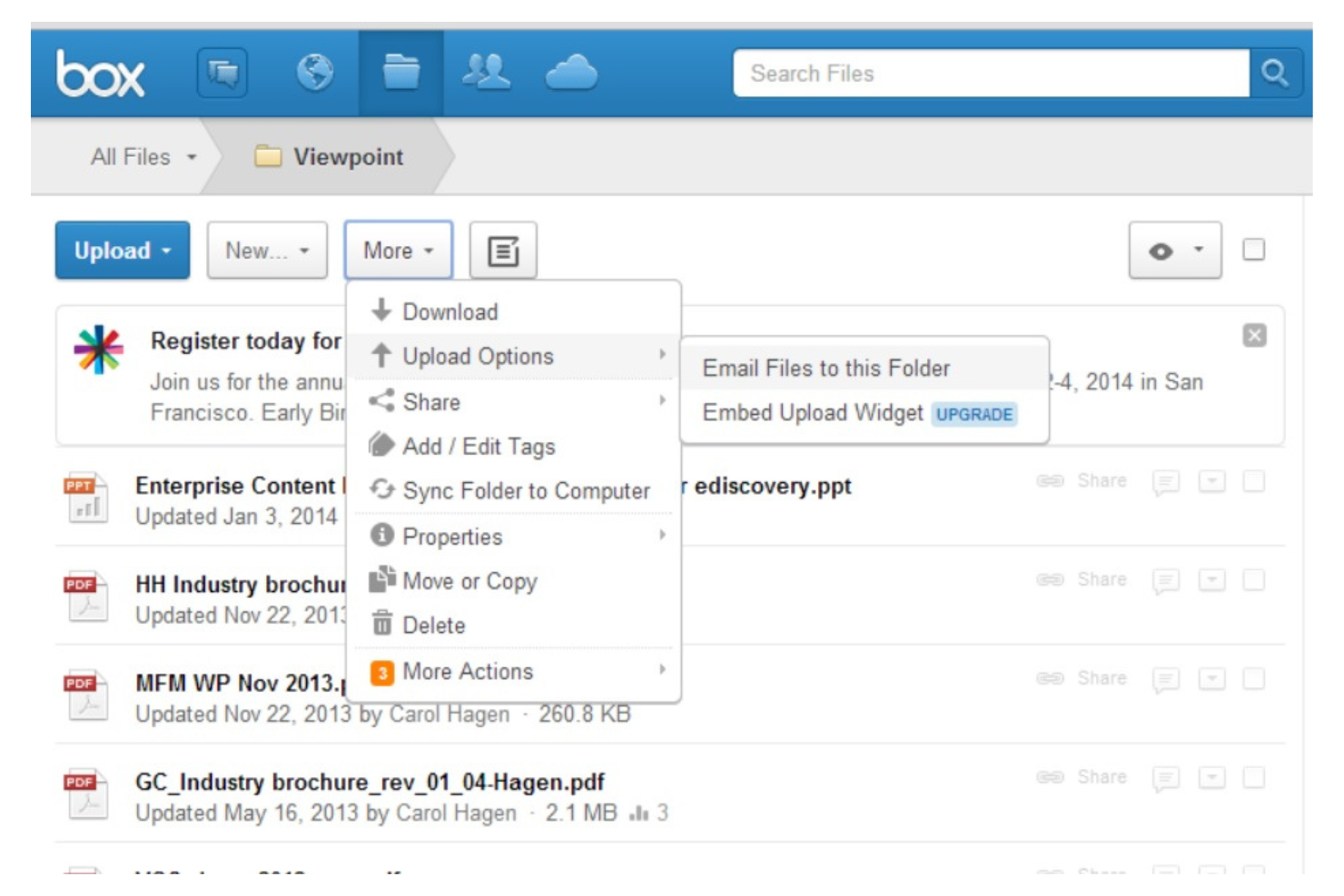
If your organization needs strict control over content access and compliance, Box offers advanced governance tools built for regulated industries and large enterprises. It’s a strong fit for legal, healthcare, and CRM teams that manage sensitive files and require detailed audit trails. Box’s automated retention policies and granular permissions help businesses meet regulatory requirements while keeping collaboration secure and organized.
Why I Picked Box
For teams that need to enforce strict content controls, Box delivers advanced content governance features that go beyond basic file storage. I picked Box because it offers automated retention policies and legal holds, which help organizations manage compliance and reduce risk. The platform’s granular permission settings let you control who can access, edit, or share specific files and folders. These capabilities make Box a strong choice for businesses that need to balance collaboration with regulatory and security requirements.
Box Key Features
Some other Box features that support cloud productivity include:
- Box Notes: Collaborate on documents and meeting notes in real time within the platform.
- Workflow Automation: Build and automate content-centric workflows using Box Relay.
- E-signature Integration: Collect legally binding electronic signatures directly within Box.
- Advanced Search: Locate files quickly with metadata tagging and full-text search capabilities.
Box Integrations
Integrations include Microsoft 365, Google Workspace, Salesforce, Slack, Adobe, Oracle NetSuite, Workday, Okta, and more.
Pros and Cons
Pros:
- Native e-signature integration
- Enables content workflow automation
- Supports complex compliance needs
Cons:
- Workflow automation limited to content
- Complex external collaboration setup
Best for collaborative knowledge documentation
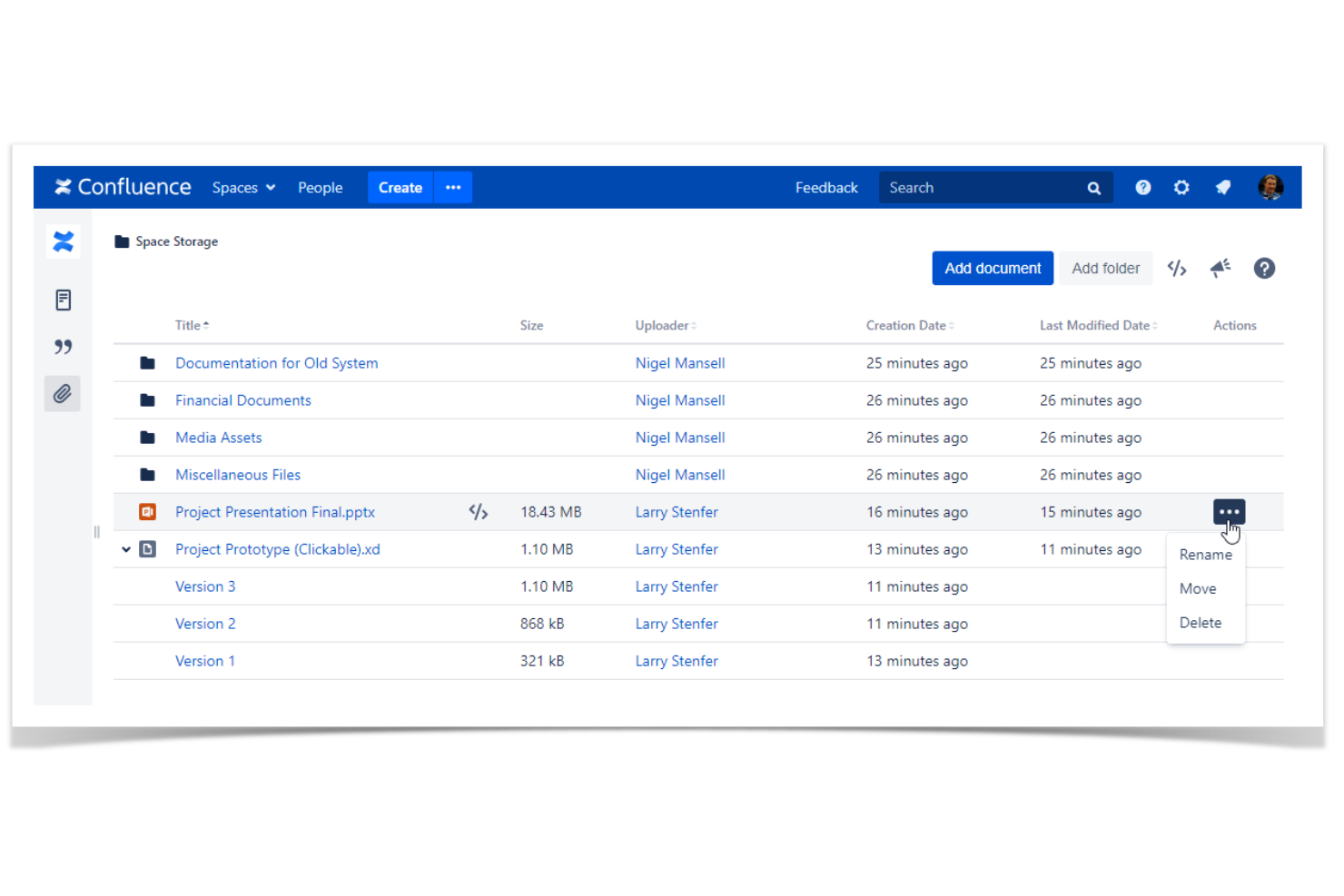
If your team needs a central place to capture, organize, and share knowledge, Confluence by Atlassian is built for collaborative documentation. It’s especially useful for product, engineering, and project teams that want to create living documents, meeting notes, and project plans everyone can update in real time. Confluence stands out for its flexible page structure and deep integration with Jira, making it easy to connect documentation with project work.
Why I Picked Confluence
For teams that need a single source of truth for documentation, Confluence offers a collaborative workspace designed for knowledge sharing. I picked Confluence because its page hierarchy and powerful search make it easy to organize and retrieve information across projects and teams. The inline commenting and collaborative editing features let multiple users contribute to documents at the same time, which is essential for keeping knowledge up to date. These capabilities make Confluence a strong fit for organizations that want to build and maintain living documentation in the cloud.
Confluence Key Features
Some other features that make Confluence valuable for cloud productivity teams include:
- Templates Library: Choose from a wide range of pre-built templates for meeting notes, project plans, and retrospectives.
- Page Permissions: Set granular access controls for spaces, pages, and even individual sections.
- Macros: Add dynamic content like task lists, calendars, and Jira issues directly into pages.
- Version History: Track changes and restore previous versions of any page at any time.
Confluence Integrations
Integrations include Jira, Trello, Microsoft Teams, Google Drive, Google Docs, Figma, Miro, GitHub, Zoom, and more.
Pros and Cons
Pros:
- Inline comments support real-time team feedback
- Permissions control access at page level
- Macros embed Jira issues and dynamic content
Cons:
- Bulk archiving pages requires manual steps
- Exporting to PDF can break page formatting

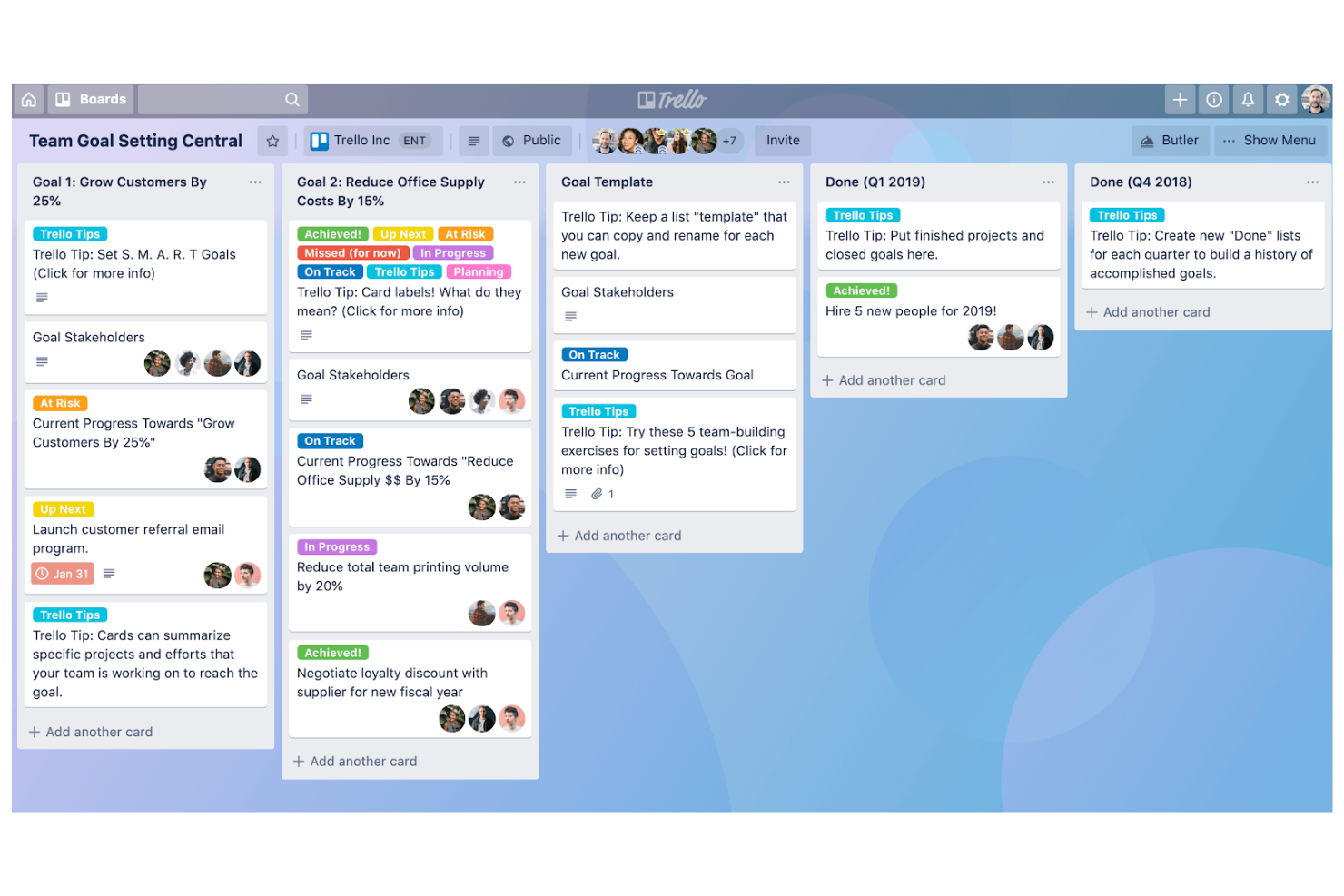
If your team prefers a visual approach to managing tasks, Trello offers a kanban-style board that makes tracking work simple and intuitive. It’s a strong fit for marketing teams, product managers, and small businesses that need to organize projects, campaigns, or workflows in a flexible, card-based format. Trello’s drag-and-drop boards and customizable lists help teams quickly adapt to changing priorities and keep everyone aligned.
Why I Picked Trello
When teams need a straightforward way to visualize and manage tasks, Trello’s kanban-style boards offer a clear advantage. The drag-and-drop cards let you move work through stages, making it easy to see progress at a glance. I picked Trello because its board and list structure support flexible workflows, whether you’re tracking sprints, content calendars, or onboarding checklists. For anyone looking for a visual, adaptable approach to cloud-based task management, Trello’s kanban boards are a practical choice.
Trello Key Features
Some other features that make Trello useful for cloud productivity include:
- Butler Automation: Automate repetitive actions on boards with rule-based triggers and custom buttons.
- Card Checklists: Break down tasks into smaller steps directly within each card.
- Power-Ups Marketplace: Add extra functionality like calendar views, voting, or integrations with other tools.
- Attachment Support: Upload files and documents directly to cards for easy reference.
Trello Integrations
Integrations include Slack, Jira Cloud, Miro, Google Drive, Dropbox, Microsoft Teams, Confluence, GitHub, Evernote, and more.
Pros and Cons
Pros:
- Has a drag-and-drop interface
- Card checklists organize subtasks within tasks
- Power-Ups add features like calendar and voting
Cons:
- Lacks native video conferencing tool
- No native Gantt or timeline view

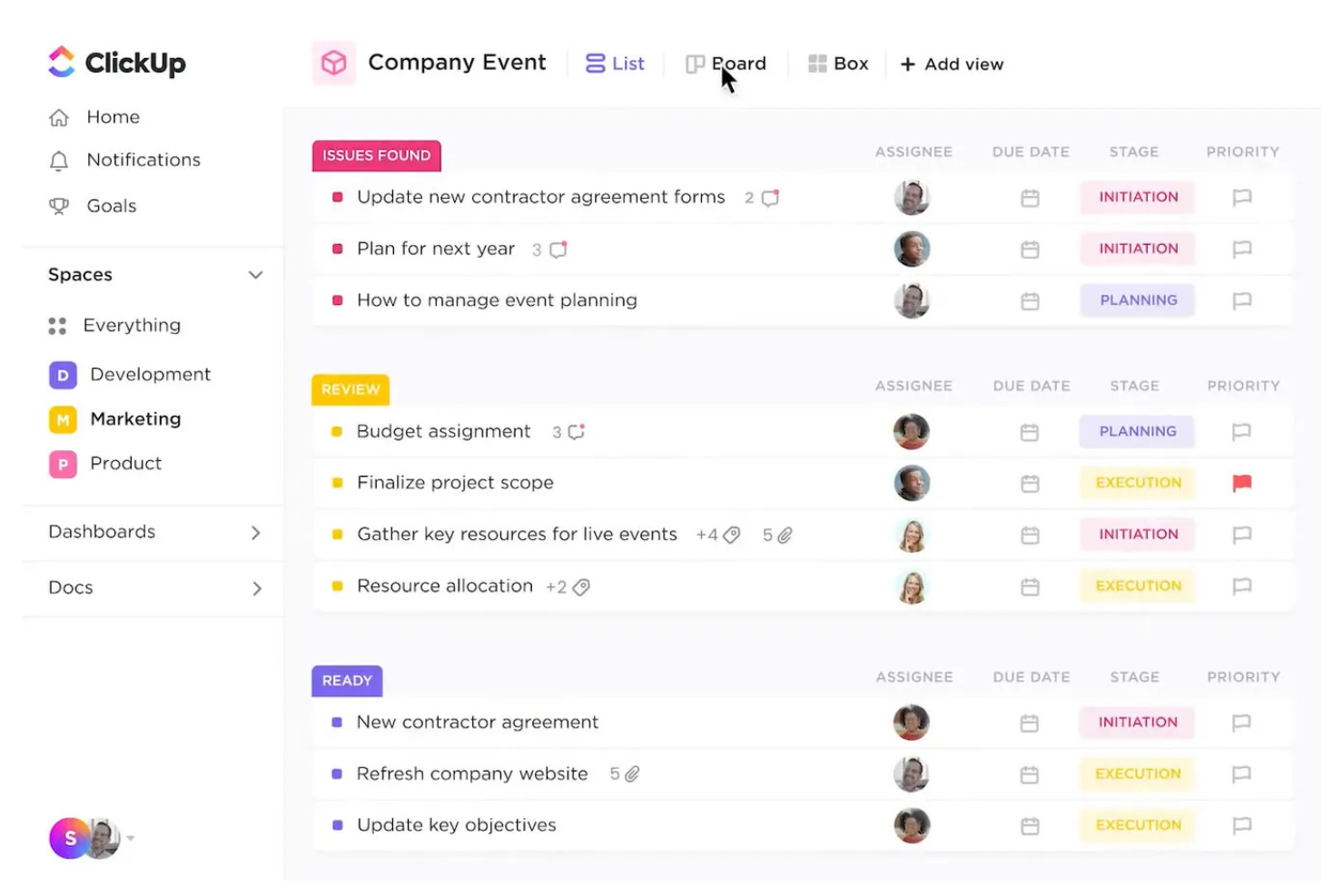
ClickUp brings together tasks, docs, goals, and dashboards in one platform, making it a strong choice for teams that want to manage everything in a single workspace. It’s especially useful for project managers and cross-functional teams who need to track progress, prioritize tasks, and align on goals without switching between multiple tools. ClickUp’s flexible structure helps teams organize work their way, whether they’re running agile sprints or managing ongoing projects.
Why I Picked ClickUp
ClickUp stands out for teams that want to manage tasks, goals, and project details all in one place. Its all-in-one approach means you can track tasks, set and monitor goals, and visualize progress with dashboards—without jumping between different apps. I picked ClickUp because it lets you connect tasks directly to goals, so you always see how daily work ties to bigger objectives. For teams looking for a unified workspace that covers both granular task management and high-level goal tracking, ClickUp offers a flexible solution.
ClickUp Key Features
Some other features that make ClickUp useful for cloud productivity include:
- Custom Views: Choose from list, board, calendar, and Gantt chart views to organize and visualize work.
- Built-In Docs: Create, edit, and share documents directly within your workspace.
- Automations: Set up automated workflows for recurring tasks, status changes, and notifications.
- Time Tracking: Log time spent on tasks with built-in timers and manual entry options.
ClickUp Integrations
Integrations include Slack, GitHub, GitLab, HubSpot, Everhour, Toggl, Harvest, Google Drive, Outlook, and more.
Pros and Cons
Pros:
- Multiple view options fit different workflows
- Goal tracking links objectives to daily work
- Hierarchical structure organizes tasks by priority
Cons:
- Guest permissions lack granular control options
- Mobile app performance lags behind desktop

Notion gives teams a flexible ecosystem to build their own workspace for notes, docs, databases, and project tracking. It’s a strong fit for organizations that want to design custom workflows or centralize knowledge without being locked into rigid templates. Notion helps teams connect tasks, documents, and wikis in one place, making it easier to adapt to changing project needs.
Why I Picked Notion
What sets Notion apart is how deeply you can customize your workspace to fit your team’s unique processes. You can build databases, link pages, and create custom dashboards that reflect exactly how your projects and documentation need to be organized. I picked Notion because it lets you design everything from simple to complex workflows, so you’re not limited by rigid structures. For teams that want to shape their own workspace and adapt as they grow, Notion offers a level of flexibility that’s hard to match in cloud productivity software.
Notion Key Features
Some other features that make Notion useful for cloud productivity include:
- AI-Powered Writing Assistant: Generate summaries, rewrite content, and automate note-taking with built-in AI tools.
- Real-Time Collaboration: Multiple users can edit pages and databases at the same time with live updates.
- Version History: Track changes and restore previous versions of any page or database.
- Template Gallery: Access a wide range of pre-built templates for project management, meeting notes, and documentation.
Notion Integrations
Integrations include Asana, Figma, GitHub, Google Drive, Jira, Miro, Slack, Trello, Typeform, and more.
Pros and Cons
Pros:
- Page linking connects related docs and projects
- AI assistant generates summaries and rewrites text
- Database views support kanban, calendar, and list
Cons:
- Permission settings can be confusing for teams
- Offline access is limited

Slack
Best for centralized team communication
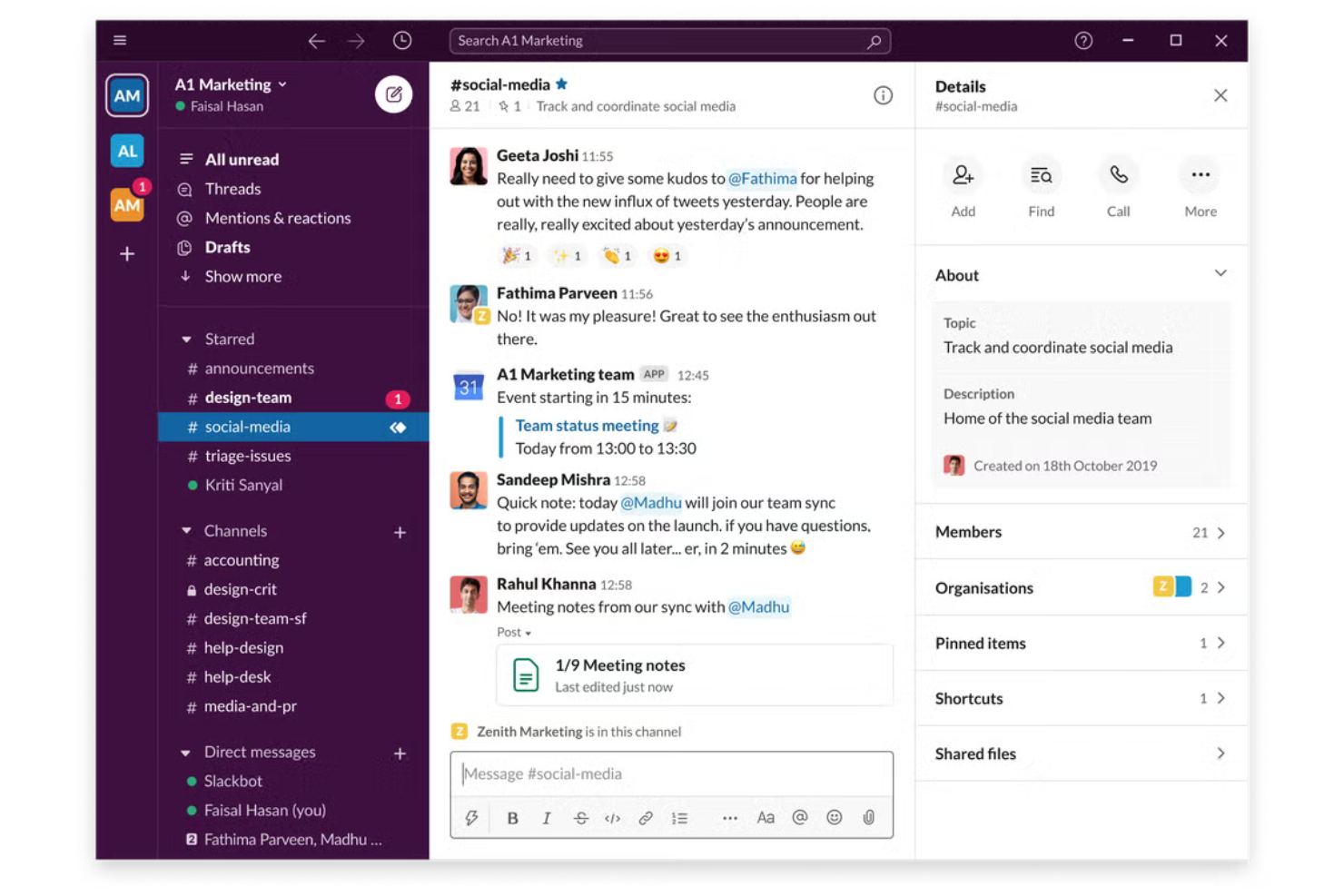
If your team needs a single place for all work conversations, Slack brings channels, direct messaging, and app integrations together in one platform. It’s especially useful for distributed teams or fast-moving organizations that need to keep discussions organized and searchable. Slack helps reduce email overload and makes it easier to track decisions, files, and updates in real time.
Why I Picked Slack
Centralizing team communication is where Slack really shines, making it a strong choice for cloud productivity solution. With channels, you can organize conversations by project, topic, or team, so information stays easy to find, and context is never lost. I picked Slack because its searchable message history and file-sharing features help teams keep track of decisions and resources without relying on scattered emails. For organizations that need to keep everyone in sync, Slack’s real-time messaging and notifications make collaboration much more manageable.
Slack Key Features
In addition to its core communication tools, Slack offers several other features that support productivity and collaboration:
- Workflow Builder: Automate routine tasks and processes with no-code custom workflows directly inside Slack.
- Huddles: Start quick, audio-based conversations for spontaneous discussions or troubleshooting.
- App Directory: Connect with thousands of third-party apps like Google Drive, Asana, and Zoom.
- Enterprise Key Management: Control and manage encryption keys for added data security.
Slack Integrations
Integrations include Asana, Box, ChatGPT, Claude, GitHub, Google Drive, Notion, Outlook Calendar, Salesforce, and more.
Pros and Cons
Pros:
- Huddles enable quick, informal audio chats
- Searchable message history
- Channels keep project discussions organized
Cons:
- Threaded replies can be hard to track
- Message retention limits on free plan
Diğer Bulut Üretkenlik Yazılımları
İşte kısa listeme giremeyen ancak yine de göz atmaya değer bazı ek bulut üretkenlik yazılımı seçenekleri:
- monday AI Workspace
With AI-powered project planning
- Smartsheet
For managing complex workflows
- Wrike
For cross-team collaboration tracking
- Todoist
For personal task organization
- Axero
For creating internal knowledge hubs
- Zimbra
For open-source email and scheduling
- Coda
For building custom workspaces
- Reclaim
For automated calendar optimization
- LucidLink
For real-time remote file access


How I Evaluate Cloud Productivity Software
I evaluate cloud productivity tools in two layers: baseline requirements—cloud-native access, task management, live collaboration—and the differentiators that make one tool the right fit.
Core Functionality (Table Stakes For This List)
When I'm selecting tools for my list, I rank each one on a scale from 0 (does not offer the functionality) to 5 (excels in this area) for each core functionality listed below. Then, I calculate the tool's total score into a percentage. Each tool needs to achieve a minimum total score of 75% to be considered for inclusion.
- Cloud-Based Access & Availability: I check whether the platform runs natively in a browser with full-featured mobile apps, so a PM can reassign a task from a phone between meetings.
- Task & Project Management: Each tool should support task assignment, due dates, dependencies, and milestones—enough structure to run a multi-phase product launch.
- Real-Time Collaboration: I look for live co-editing, @mentions, and threaded comments that let a distributed team hash out a sprint plan without switching to email.
- File Sharing & Cloud Storage: Teams need to attach briefs, share specs, and retrieve past versions, so I evaluate storage depth, version history, and permission controls.
- Workflow & Productivity Views: I consider how many views a tool offers—Kanban, Gantt, calendar, timeline—and whether teams can toggle between them to match Agile or Waterfall needs.
- Third-Party Integrations: The tool should connect with the apps teams already rely on, like Slack, Google Workspace, or Jira, through native integrations or an open API.
Once I have a list of tools that meet this criteria, I consider what sets each platform apart.
Differentiating Factors (What Sets Vendors Apart)
Here's how I compare and contrast different vendors:
Standout Features
Resource and workload management is a big differentiator—I look for visual capacity planning that shows who's overloaded before a sprint starts, not after deadlines slip. AI-powered automation also carries weight, especially when a tool can auto-generate status summaries or suggest task assignments based on team availability. Goal and OKR alignment rounds things out by connecting daily tasks to strategic objectives, which gives program managers the portfolio-level visibility leadership actually asks for.
Beyond Features
Security is high on my list—I check for SOC 2 Type II certification, SSO support, and granular role-based permissions, since enterprise PMOs often need audit logs before procurement will sign off. Methodology flexibility is another factor I evaluate closely. A tool that forces pure Kanban won't serve a team running hybrid Waterfall-Agile delivery. I also consider pricing scalability, particularly whether a platform lets you add contractors or external stakeholders without jumping to a higher tier mid-project.
Bulut Üretkenlik Yazılımı Nasıl Seçilir?
Uzun özellik listeleri ve karmaşık fiyatlandırma yapıları arasında kaybolmak kolaydır. Kendinize özgü yazılım seçimi süreciniz boyunca odağınızı korumanıza yardımcı olmak için göz önünde bulundurmanız gereken faktörleri içeren bir kontrol listesi hazırladık:
| Faktör | Göz önünde bulundurulması gerekenler |
|---|---|
| Ölçeklenebilirlik | Yazılım, ekibiniz büyüdükçe onu destekleyecek mi? Kullanıcı sınırlarını, depolama kotalarını ve plan yükseltme seçeneklerini kontrol edin. |
| Entegrasyonlar | Mevcut araçlarınıza (ör. Slack, Jira, Google Workspace) yerel olarak bağlanabiliyor mu? Eksik entegrasyonlar manuel iş yükü oluşturabilir. |
| Özelleştirilebilirlik | İş akışlarını, izinleri ve şablonları süreçlerinize uyacak şekilde uyarlayabiliyor musunuz, yoksa katı yapılara mı bağımlısınız? |
| Kullanım kolaylığı | Ekibiniz yazılımı hızlıca benimseyecek mi? Açık bir gezinme yapısı, minimum eğitim ihtiyacı ve sezgisel arayüzler arayın. |
| Uygulama ve başlangıç süreci | Kurulum ne kadar sürecek ve hangi kaynaklar gerekli olacak? Kullanıma alma sırasında veri aktarımını, eğitimi ve desteği göz önünde bulundurun. |
| Maliyet | Kullanımınız arttıkça fiyatlandırma kademeleri şeffaf ve öngörülebilir mi? Gizli ücretlere veya maliyetli eklentilere dikkat edin. |
| Güvenlik önlemleri | Araç; şifreleme, SSO ve SOC 2 veya GDPR gibi standartlarla uyumluluk sunuyor mu? Riski, verilerinizin hassasiyetine göre değerlendirin. |
| Destek erişilebilirliği | Hangi destek kanalları sunuluyor ve bunlar bölgenizde ve saat diliminizde kullanılabilir mi? Hızlı ve güvenilir yardım, sorunlar sırasında çok önemli olabilir. |
Bulut Üretkenlik Yazılımı Nedir?
Bulut üretkenlik yazılımı, ekiplerin herhangi bir konumdan çevrim içi olarak işler oluşturmasına, düzenlemesine, paylaşmasına ve yönetmesine yardımcı olan dijital araçları ifade eder. Bu platformlar genellikle güvenli ve merkezi bir ortamda belge üzerinde iş birliğini, dosya depolamayı, görev takibini ve iletişimi destekler. Bulutta çalışmaları sayesinde cihazlar arasında gerçek zamanlı güncellemeler ve erişim olanağı sunarak dağınık ekiplerin uyumlu ve üretken kalmasını kolaylaştırırlar.
Bulut Verimlilik Yazılımının Özellikleri
Bulut verimlilik yazılımı seçerken aşağıdaki temel özelliklere dikkat edin:
- Belge iş birliği: Birden fazla kullanıcı belgeleri gerçek zamanlı olarak oluşturabilir, düzenleyebilir ve yorumlayabilir. Bu da görüşlerin toplanmasını ve içeriğin güncel tutulmasını kolaylaştırır.
- Bulut dosya depolama: Dosyaları güvenli bir şekilde herhangi bir cihazdan depolayın, düzenleyin ve bunlara erişin; böylece ekibiniz önemli belgelerin her zaman en güncel sürümüne sahip olur.
- Görev ve proje takibi: Herkesin sorumluluklarını yerine getirmesini ve uyum içinde çalışmasını sağlamak için görevleri atayın, son tarihler belirleyin ve ilerlemeyi paylaşılan çalışma alanlarında izleyin.
- İzin denetimleri: Hassas bilgileri korumak ve uyumluluk gereksinimlerini desteklemek için belirli dosyaları ve çalışma alanlarını kimlerin görüntüleyebileceğini, düzenleyebileceğini veya paylaşabileceğini yönetin.
- Sürüm geçmişi: Kullanıcıların düzenlemeleri incelemesine, önceki sürümleri geri yüklemesine ve net bir denetim izi tutmasına olanak tanımak için belgelerdeki ve dosyalardaki değişiklikleri izleyin.
- Takvim entegrasyonu: Zamanlamayı ve görünürlüğü iyileştirmek için proje kilometre taşlarını, toplantıları ve son tarihleri ekip takvimleriyle senkronize edin.
- Arama işlevi: Anahtar kelime veya filtre tabanlı arama araçlarını kullanarak tüm çalışma alanınızda belgeleri, görevleri veya konuşmaları hızla bulun.
- Bildirimler ve uyarılar: Bilgi sahibi olmak ve hızlı yanıt verebilmek için değişiklikler, yorumlar veya yaklaşan son tarihler hakkında güncellemeler alın.
- Mobil erişim: Masa başınızdan uzaktayken işleri yönetmek ve iş birliği yapmak için özel mobil uygulamaları veya duyarlı web arayüzlerini kullanın.
Bulut Verimlilik Yazılımının Faydaları
Bulut verimlilik yazılımını uygulamak ekibiniz ve işletmeniz için çeşitli faydalar sağlar. Yararlanabileceğiniz birkaç fayda şunlardır:
- Gerçek zamanlı iş birliği: Ekipler belgeler ve projeler üzerinde aynı anda birlikte çalışabilir; bu da gecikmeleri ve sürüm karmaşasını azaltır.
- Merkezi bilgi: Tüm dosyalar, görevler ve iletişimler erişilebilir tek bir konumda saklanır; bu da işleri bulmayı ve yönetmeyi kolaylaştırır.
- Uzaktan çalışmaya erişim: Ekip üyeleri araçlara ve verilere herhangi bir cihazdan veya konumdan erişebilir; bu da dağınık ve hibrit çalışma modellerini destekler.
- Geliştirilmiş sorumluluk bilinci: Görev takibi, izin denetimleri ve sürüm geçmişi sorumlulukların netleştirilmesine ve değişikliklerin açık bir kaydının tutulmasına yardımcı olur.
- Ölçeklenebilir iş akışları: Bulut tabanlı platformlar ekibinizle birlikte büyüyebilir ve ihtiyaçlarınız geliştikçe kullanıcı, depolama alanı veya özellik eklemenize olanak tanır.
- Gelişmiş güvenlik: Yerleşik izin ayarları ve uyumluluk özellikleri hassas bilgilerin korunmasına ve mevzuat gereksinimlerinin desteklenmesine yardımcı olur.
- Merkezi işe alıştırma: Önceden hazırlanmış şablonlar, eğitim kaynakları ve sezgisel arayüzler yeni kullanıcıların hızla sürece uyum sağlamasına yardımcı olur.
Bulut Verimlilik Yazılımının Maliyetleri ve Fiyatlandırması
Bulut verimlilik yazılımı seçmek, mevcut çeşitli fiyatlandırma modellerinin ve planların anlaşılmasını gerektirir. Maliyetler özelliklere, ekip büyüklüğüne, eklentilere ve diğer unsurlara göre değişir. Aşağıdaki tabloda bulut verimlilik yazılımı çözümlerinde yaygın olarak sunulan planlar, bunların ortalama fiyatları ve genellikle dahil edilen özellikler özetlenmektedir:
Bulut Verimlilik Yazılımı İçin Plan Karşılaştırma Tablosu
| Plan Türü | Ortalama Fiyat | Yaygın Özellikler |
|---|---|---|
| Ücretsiz Plan | $0 | Temel belge iş birliği, sınırlı depolama, basit görev takibi ve temel destek. |
| Kişisel Plan | $5–$10/kullanıcı/ay | Bireysel dosya depolama, takvim entegrasyonu, mobil erişim ve kişisel görev yönetimi. |
| İşletme Planı | $12–$25/kullanıcı/ay | Ekip çalışma alanları, gelişmiş izin denetimleri, diğer araçlarla entegrasyonlar ve öncelikli destek. |
| Kurumsal Plan | $30–$50/kullanıcı/ay | Sınırsız depolama, gelişmiş güvenlik, uyumluluk özellikleri, özel işe alıştırma ve özel destek. |
Bulut Üretkenlik Yazılımı SSS'leri
Bulut üretkenlik yazılımı hakkında sık sorulan soruların bazı yanıtları:
Bulut üretkenlik yazılımı ne kadar güvenlidir?
Çoğu bulut üretkenlik yazılımı, verilerinizi korumak için şifreleme, erişim denetimleri ve SOC 2 veya GDPR gibi uyumluluk sertifikaları kullanır. Karar vermeden önce her zaman bir sağlayıcının güvenlik belgelerini inceleyin ve olaylara müdahale sürecini sorun.
Mevcut dosyalarımı ve verilerimi bulut üretkenlik yazılımına taşıyabilir miyim?
Evet, çoğu platform dosyalar, belgeler ve kullanıcı verileri için içe aktarma araçları veya geçiş desteği sunar. Mevcut biçimlerinizle uyumluluğu kontrol edin ve büyük ölçekli geçişler için herhangi bir sınırlama veya ek ücret olup olmadığını sorun.
İnternet bağlantım kesilirse ne olur?
Birçok bulut üretkenlik aracı, belge düzenleme veya dosya görüntüleme gibi temel özellikler için çevrimdışı erişim sunar. Çevrimdışıyken yapılan değişiklikler, bağlantınız yeniden kurulduğunda genellikle otomatik olarak senkronize edilir, ancak bazı gelişmiş özellikler tekrar çevrimiçi olana kadar kullanılamayabilir.
Kullanıcı erişimini ve izinlerini nasıl yönetirim?
Çoğu çözüm, belge, klasör veya çalışma alanı düzeyinde ayrıntılı izinler belirlemenize olanak tanır. İçeriği kimlerin görüntüleyebileceğini, düzenleyebileceğini veya paylaşabileceğini kontrol edebilir ve merkezi kullanıcı yönetimi için genellikle tek oturum açma (SSO) ile entegre olabilirsiniz.
Abonelik ücretinin dışında gizli maliyetler var mı?
Bazı sağlayıcılar gelişmiş özellikler, ek depolama alanı, üst düzey destek veya entegrasyonlar için ekstra ücret alır. Kullanımınız arttıkça sürprizlerle karşılaşmamak için fiyatlandırma sayfasını dikkatlice inceleyin ve ayrıntılı bir teklif isteyin.