

Os 10 melhores softwares de produtividade na nuvem selecionados para 2026

Seleção de software de produtividade na nuvem


O software de produtividade na nuvem refere-se a plataformas online que ajudam a sua equipa a colaborar, gerir tarefas e partilhar ficheiros a partir de qualquer lugar. Se está à procura do melhor software de produtividade na nuvem, é provável que queira manter os projetos no caminho certo, melhorar a visibilidade entre equipas e adaptar-se rapidamente à mudança de prioridades. Com tantas opções disponíveis, escolher as ferramentas certas pode fazer a diferença entre prazos falhados e uma entrega sem problemas.
Esta lista irá ajudá-lo a comparar as principais soluções, compreender o que distingue cada uma e encontrar a opção mais adequada ao fluxo de trabalho da sua equipa.
Why Trust Our Software Recommendations
Our team has been testing and reviewing software since 2012. As project managers ourselves, we know how difficult—and important—it is to choose the right software.
For this guide, we evaluated tools using hands-on testing and independent research, scoring tools using our selection criteria. We also draw on insights from industry thought leaders and practicing project management experts.
Our reviews reflect our human editorial judgment, not a sales pitch.
Expert reviewers:
Tabela de comparação de software de produtividade na nuvem
Esta tabela de comparação resume os detalhes de preços das minhas principais escolhas de software de produtividade na nuvem:
| Tool | Best For | Trial Info | Price | ||
|---|---|---|---|---|---|
| 1 | Best for secure file sharing and storage | Free plan available | From $9.99/month | Website | |
| 2 | Best for real-time document collaboration | 14-day free trial available | From $7/user/month (billed annually) | Website | |
| 3 | Best with integrated office productivity apps | Free plan available | Pricing upon request | Website | |
| 4 | Best for structured project planning | Free plan + trial + demo available | From $10.99/user/month (billed annually) | Website | |
| 5 | Best for advanced content governance | 14-day free trial | From CAD$21/user/month (billed annually) | Website | |
| 6 | Best for collaborative knowledge documentation | Free plan + 7-day trial available | From $5.78/user/month | Website | |
| 7 | Best for kanban-style task boards | Free plan + free trial available | From $5/user/month (billed annually) | Website | |
| 8 | Best for all-in-one task and goal tracking | Free plan available | From $7/user/month (billed annually) | Website | |
| 9 | Best for customizable workspace organization | Free plan + trial available | From $10/user/month | Website | |
| 10 | Best for centralized team communication | Free plan available | From $7.25/user/month (billed annually) | Website |
Análises de software de produtividade na nuvem
Apresentamos abaixo os meus resumos detalhados do software de produtividade na nuvem que integrou a minha seleção. As minhas análises oferecem uma visão detalhada das funcionalidades, dos melhores casos de utilização e das integrações de cada plataforma, para o ajudar a encontrar a melhor opção para si.

Dropbox
Best for secure file sharing and storage

For teams that need secure, centralized file storage and sharing, Dropbox offers a cloud platform built for collaboration and control. It’s especially useful for creative agencies, legal teams, and distributed businesses that handle sensitive documents or large media files. Dropbox’s granular sharing permissions and file recovery features help organizations keep data protected while making it easy to work together from anywhere.
Why I Picked Dropbox
When secure file sharing and storage are top priorities, Dropbox stands out for its strong focus on data protection and access control. I picked Dropbox because it offers granular sharing permissions, allowing you to set view, edit, or download rights for each file or folder. The platform also provides file version history and recovery, so teams can restore previous versions or recover deleted files if needed. For organizations that need to safeguard sensitive information while enabling collaboration, Dropbox’s security features make it a reliable choice.
Dropbox Key Features
Some other Dropbox features that support cloud productivity include:
- Dropbox Paper: Create, edit, and collaborate on documents directly within Dropbox.
- Smart Sync: Access all files and folders from your desktop without taking up local storage space.
- File Requests: Collect files from anyone, even if they don’t have a Dropbox account.
- Team Activity Dashboard: Monitor file sharing, edits, and team activity in one place.
Dropbox Integrations
Integrations include Google Workspace, Microsoft, Adobe, HubSpot, Canva, AWS, Slack, Zoom, and more.
Pros and Cons
Pros:
- Dashboard tracks team activity and sharing
- Has in-app document collaboration
- Supports file version history
Cons:
- Shared links can be hard to track centrally
- No built-in project or task management

Best for real-time document collaboration
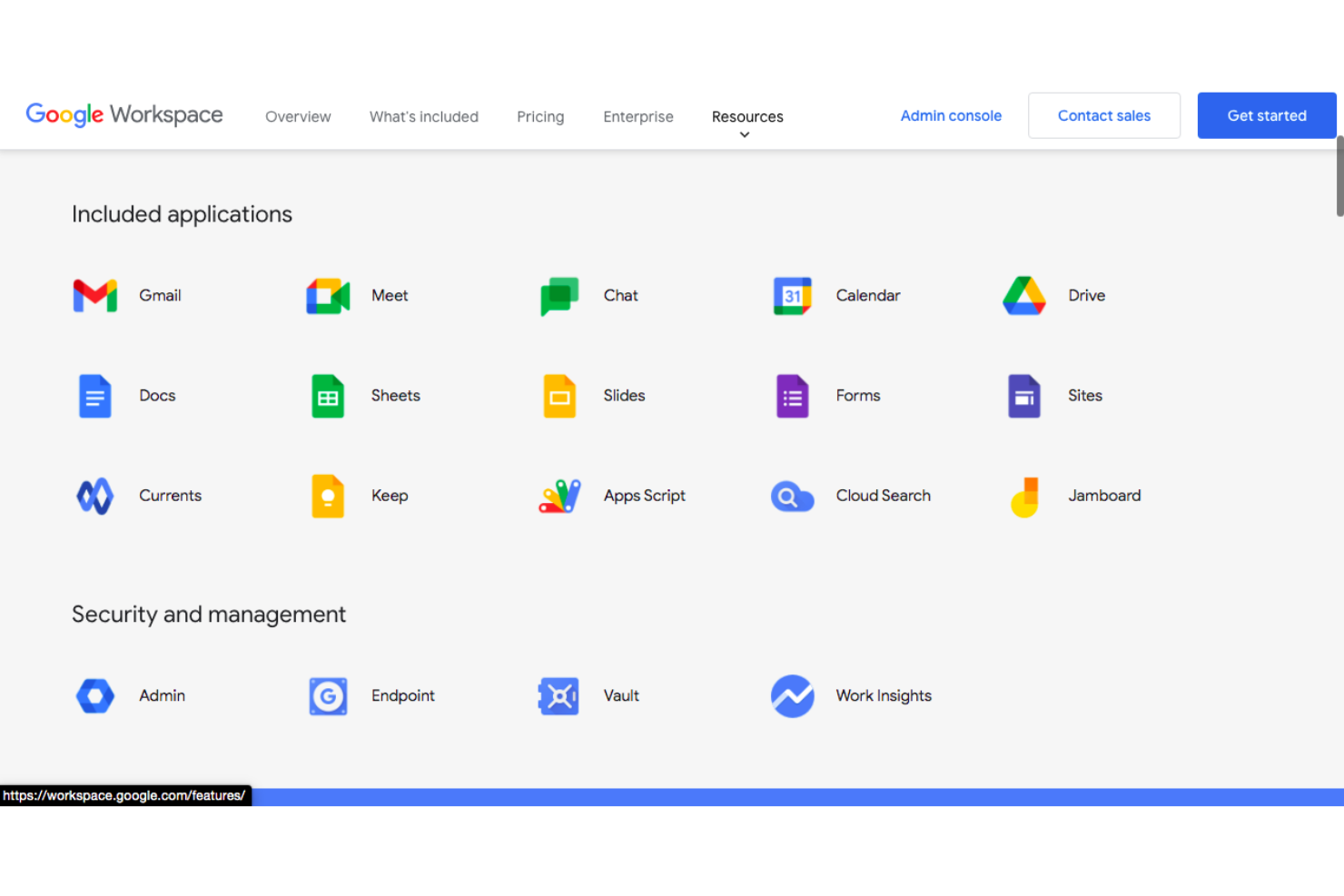
If your team needs to collaborate on documents, spreadsheets, and presentations in real time, Google Workspace is a strong choice. It’s especially useful for distributed teams and organizations that rely on fast, cloud-based editing and sharing. The platform helps reduce version control issues and keeps everyone on the same page, no matter where they’re working.
Why I Picked Google Workspace
I chose Google Workspace for this list because its real-time document collaboration platform stands out among cloud productivity platforms. The ability for multiple users to edit Docs, Sheets, and Slides at the same time makes it easy to keep projects moving without version conflicts. Built-in commenting and suggestion tools help teams communicate directly within files, reducing the need for endless email threads. For teams that need to work together on high-quality content from anywhere, these features make Google Workspace a top contender.
Google Workspace Key Features
Some other features that make Google Workspace a versatile platform for teams include:
- Shared Drives: Create team-specific drives where files are owned collectively and remain accessible even if members leave.
- Google Meet Integration: Schedule and join video meetings directly from your calendar or within documents.
- Calendar Sharing: Share Google calendars across your organization to coordinate meetings and deadlines with ease.
- Admin Console: Manage user access, security settings, and device policies from a centralized dashboard.
Google Workspace Integrations
Integrations include Salesforce, Docsign, Zoom, Asana, Slack, Trello, Smartsheet, Zendesk, Adobe Acrobat, and more.
Pros and Cons
Pros:
- Easy file sharing with granular permissions
- AI-powered features in Docs and Gmail
- Real-time editing across all core apps
Cons:
- Limited advanced spreadsheet functions
- Offline editing can be inconsistent

Best with integrated office productivity apps
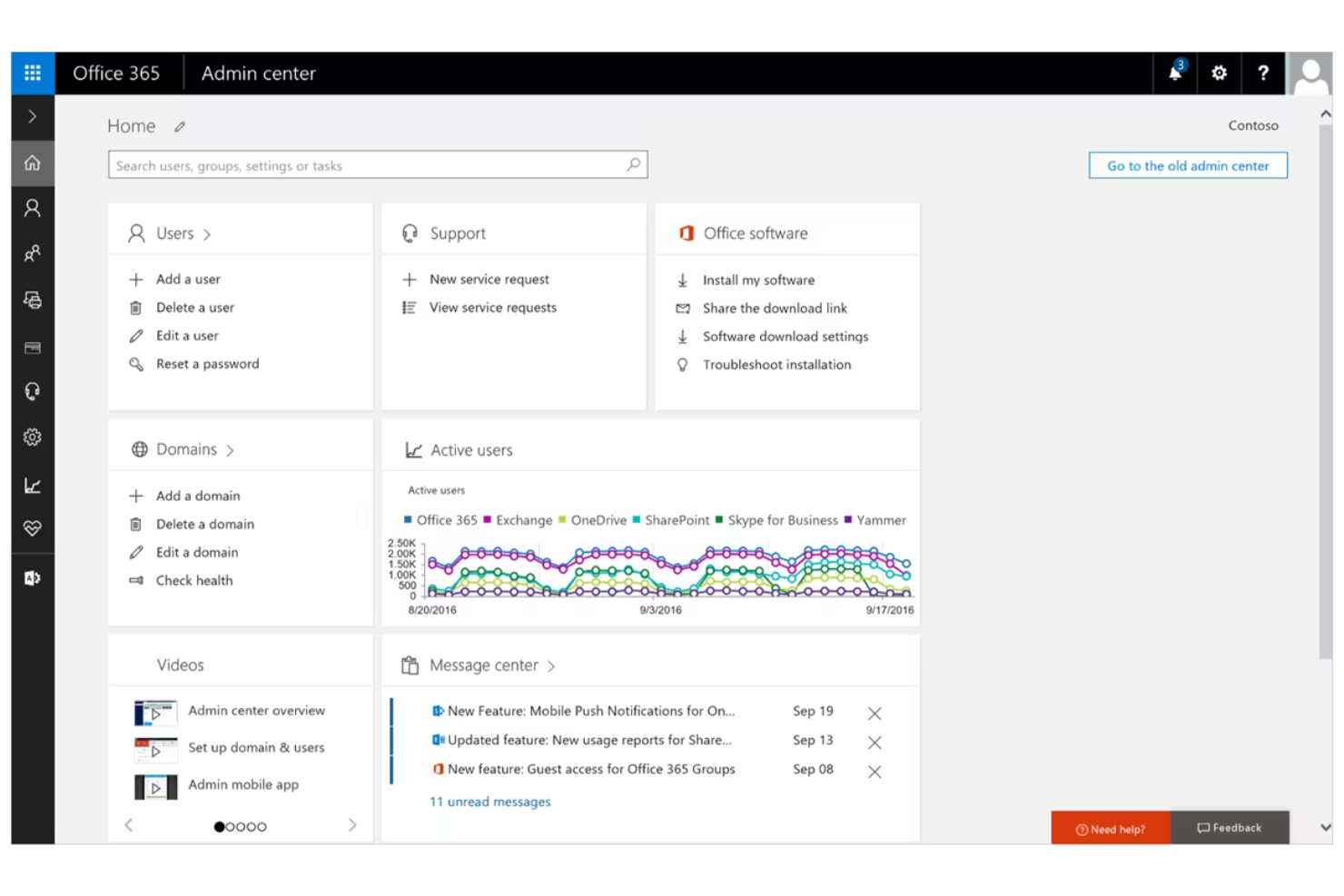
For teams that rely on familiar office apps and need tight integration across email, documents, and collaboration, Microsoft 365 brings everything together in one cloud-based suite. It’s a strong fit for organizations that want desktop and web access to Word, Excel, PowerPoint, and Outlook, along with secure file storage and sharing. The platform helps unify workflows for businesses that need both advanced document editing and communication tools.
Why I Picked Microsoft 365
What sets Microsoft 365 Copilot apart is how it combines all the core office productivity apps—Word, Excel, PowerPoint, and Outlook—into a single, integrated cloud platform. This approach means your team can move between document creation, data analysis, and communication without switching tools or losing context. I picked Microsoft 365 because its apps work together natively, so features like real-time co-authoring and shared calendars are built right in. For organizations that want a unified experience across desktop and cloud, this level of integration is hard to match.
Microsoft 365 Key Features
Some other features that make Microsoft 365 a strong choice for cloud productivity include:
- OneDrive Cloud Storage: Store, sync, and access files securely from any device.
- Microsoft Teams Integration: Chat, meet, and collaborate with your team in a unified workspace.
- Advanced Security Controls: Set up multi-factor authentication and manage data loss prevention policies.
- Planner and To Do Apps: Organize tasks, assign responsibilities, and track progress across projects.
Microsoft 365 Integrations
Integrations include Salesforce, Adobe Acrobat Sign, Zoom, Trello, Asana, ServiceNow, Workday, SAP, and more.
Pros and Cons
Pros:
- Enterprise-grade security features
- Advanced spreadsheet tools in Excel
- Desktop and web apps offer full parity
Cons:
- Occasional compatibility issues in Mac
- Collaboration requires Microsoft accounts
Asana
Best for structured project planning
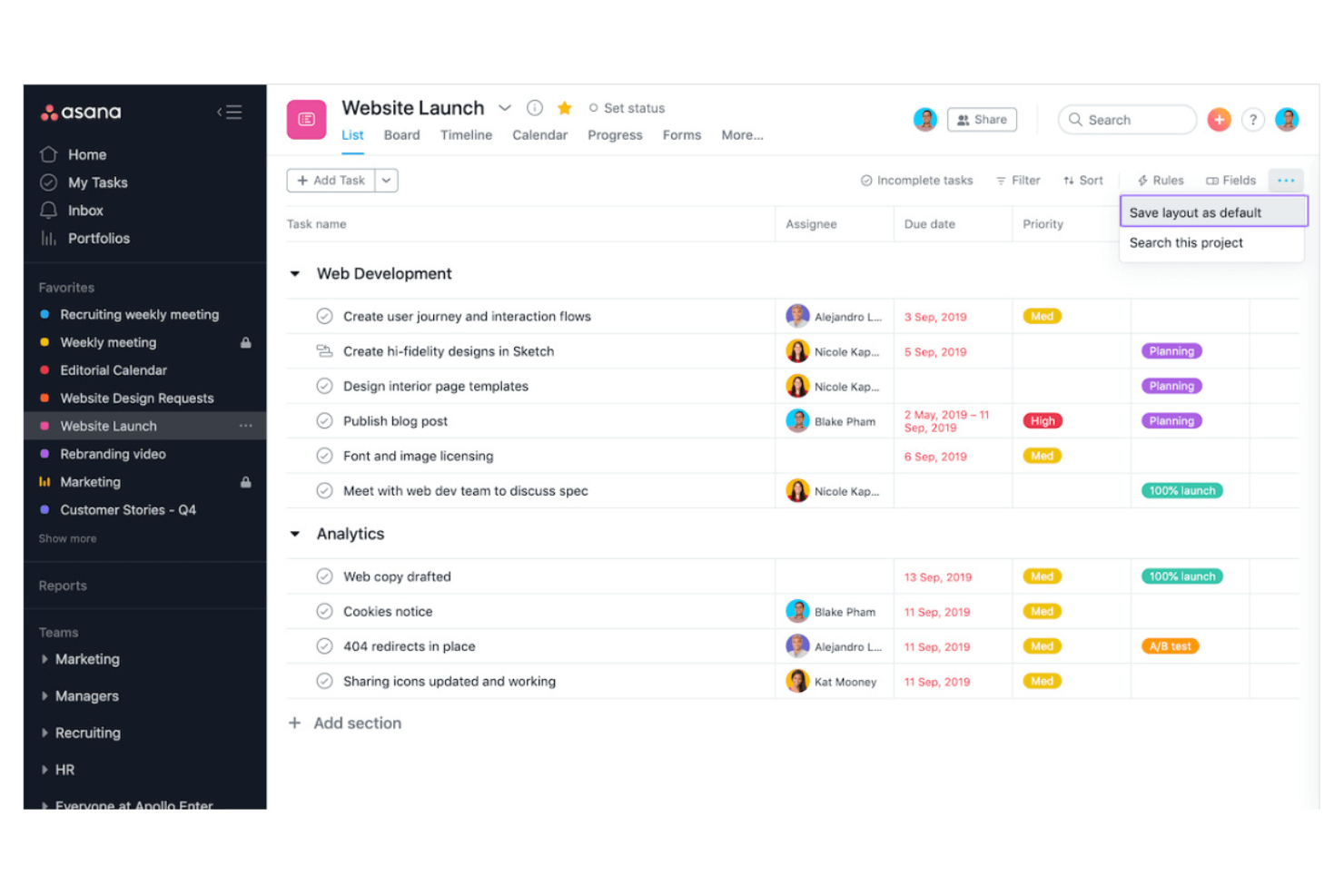
Teams that need a clear structure for managing projects often turn to Asana for its organized approach to planning and tracking work. It’s especially useful for project managers, marketing teams, and operations leads who want to break down goals into actionable tasks and timelines. Asana’s structured layouts and workflow tools help teams coordinate complex projects and keep everyone accountable.
Why I Picked Asana
Asana stands out for its ability to bring structure and clarity to project planning, which is essential for teams managing multiple priorities in the cloud. The platform’s task hierarchy lets you break down projects into sections, tasks, and subtasks, making it easy to organize complex work. I picked Asana because its timeline view and custom fields help teams map out dependencies and track progress with precision. For anyone who needs a reliable way to plan, assign, and monitor structured workflows, Asana offers a focused and organized solution.
Asana Key Features
Some other features that make Asana valuable for cloud productivity include:
- Rules Automation: Automate routine actions like task assignments, status updates, and notifications based on triggers you set.
- Workload Management: Visualize team capacity and balance assignments to avoid overloading anyone.
- Project Templates: Start new projects quickly with pre-built templates for common workflows and industries.
- Milestones Tracking: Mark key points in your project to track progress toward major goals.
Asana Integrations
Integrations include Slack, Google Drive, Microsoft Teams, Jira Cloud, Salesforce, Zoom, Dropbox, Gmail, Outlook, and more.
Pros and Cons
Pros:
- Comment keeps discussions attached to tasks
- Has advanced search filters
- Custom fields capture project-specific data points
Cons:
- Task templates can’t be edited after creation
- Limited reporting options on lower-tier plans

Box
Best for advanced content governance
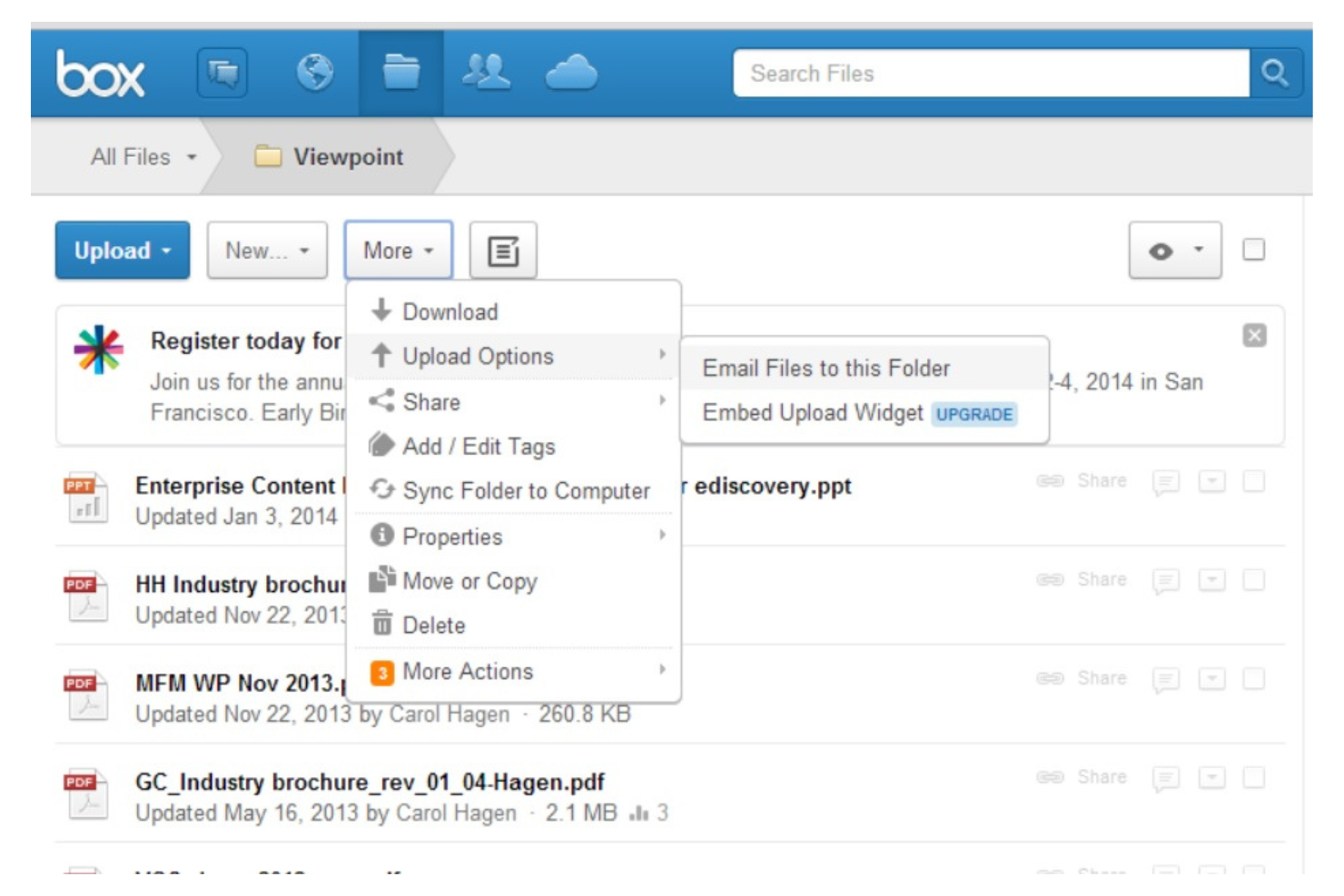
If your organization needs strict control over content access and compliance, Box offers advanced governance tools built for regulated industries and large enterprises. It’s a strong fit for legal, healthcare, and CRM teams that manage sensitive files and require detailed audit trails. Box’s automated retention policies and granular permissions help businesses meet regulatory requirements while keeping collaboration secure and organized.
Why I Picked Box
For teams that need to enforce strict content controls, Box delivers advanced content governance features that go beyond basic file storage. I picked Box because it offers automated retention policies and legal holds, which help organizations manage compliance and reduce risk. The platform’s granular permission settings let you control who can access, edit, or share specific files and folders. These capabilities make Box a strong choice for businesses that need to balance collaboration with regulatory and security requirements.
Box Key Features
Some other Box features that support cloud productivity include:
- Box Notes: Collaborate on documents and meeting notes in real time within the platform.
- Workflow Automation: Build and automate content-centric workflows using Box Relay.
- E-signature Integration: Collect legally binding electronic signatures directly within Box.
- Advanced Search: Locate files quickly with metadata tagging and full-text search capabilities.
Box Integrations
Integrations include Microsoft 365, Google Workspace, Salesforce, Slack, Adobe, Oracle NetSuite, Workday, Okta, and more.
Pros and Cons
Pros:
- Native e-signature integration
- Enables content workflow automation
- Supports complex compliance needs
Cons:
- Workflow automation limited to content
- Complex external collaboration setup
Best for collaborative knowledge documentation
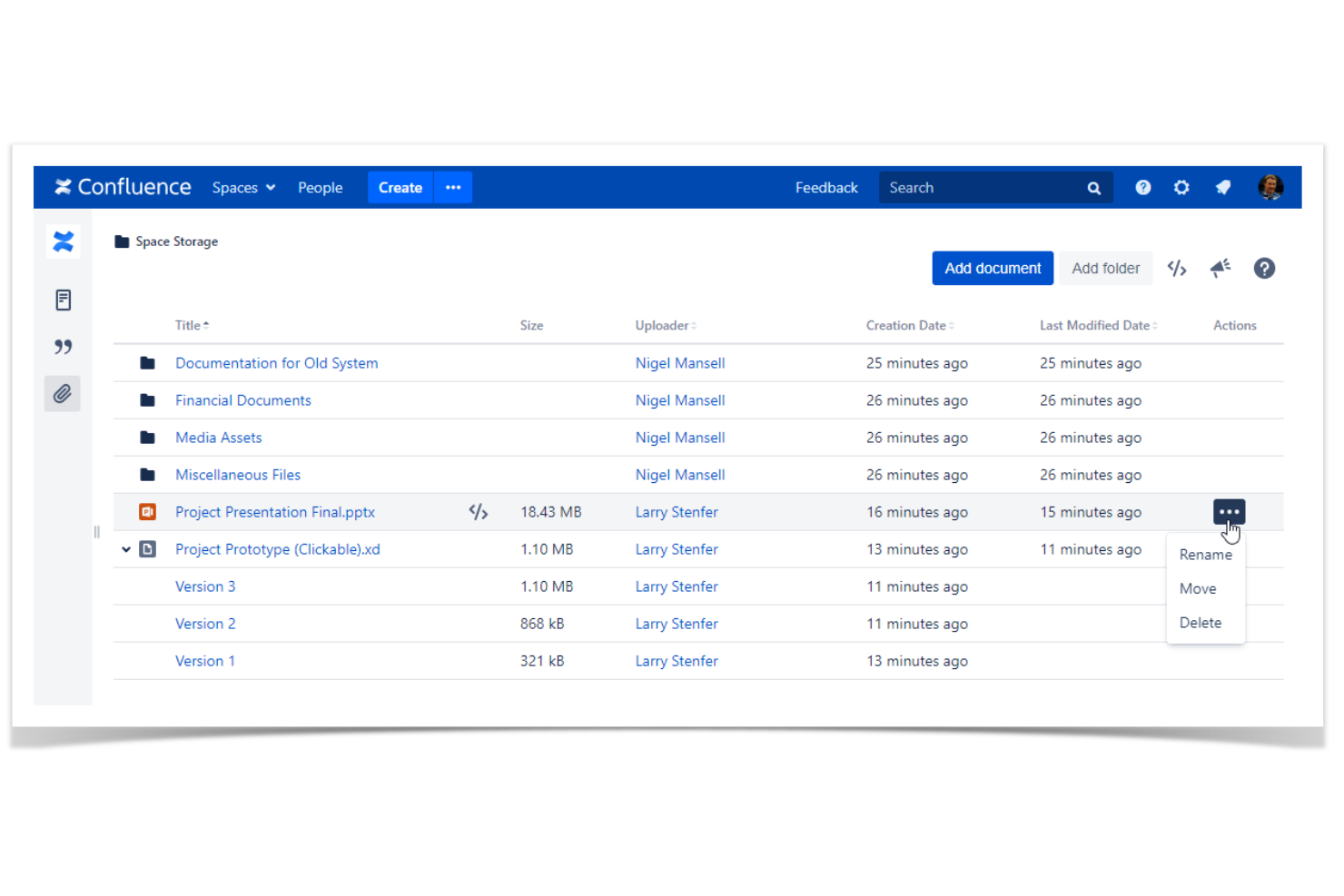
If your team needs a central place to capture, organize, and share knowledge, Confluence by Atlassian is built for collaborative documentation. It’s especially useful for product, engineering, and project teams that want to create living documents, meeting notes, and project plans everyone can update in real time. Confluence stands out for its flexible page structure and deep integration with Jira, making it easy to connect documentation with project work.
Why I Picked Confluence
For teams that need a single source of truth for documentation, Confluence offers a collaborative workspace designed for knowledge sharing. I picked Confluence because its page hierarchy and powerful search make it easy to organize and retrieve information across projects and teams. The inline commenting and collaborative editing features let multiple users contribute to documents at the same time, which is essential for keeping knowledge up to date. These capabilities make Confluence a strong fit for organizations that want to build and maintain living documentation in the cloud.
Confluence Key Features
Some other features that make Confluence valuable for cloud productivity teams include:
- Templates Library: Choose from a wide range of pre-built templates for meeting notes, project plans, and retrospectives.
- Page Permissions: Set granular access controls for spaces, pages, and even individual sections.
- Macros: Add dynamic content like task lists, calendars, and Jira issues directly into pages.
- Version History: Track changes and restore previous versions of any page at any time.
Confluence Integrations
Integrations include Jira, Trello, Microsoft Teams, Google Drive, Google Docs, Figma, Miro, GitHub, Zoom, and more.
Pros and Cons
Pros:
- Inline comments support real-time team feedback
- Permissions control access at page level
- Macros embed Jira issues and dynamic content
Cons:
- Bulk archiving pages requires manual steps
- Exporting to PDF can break page formatting

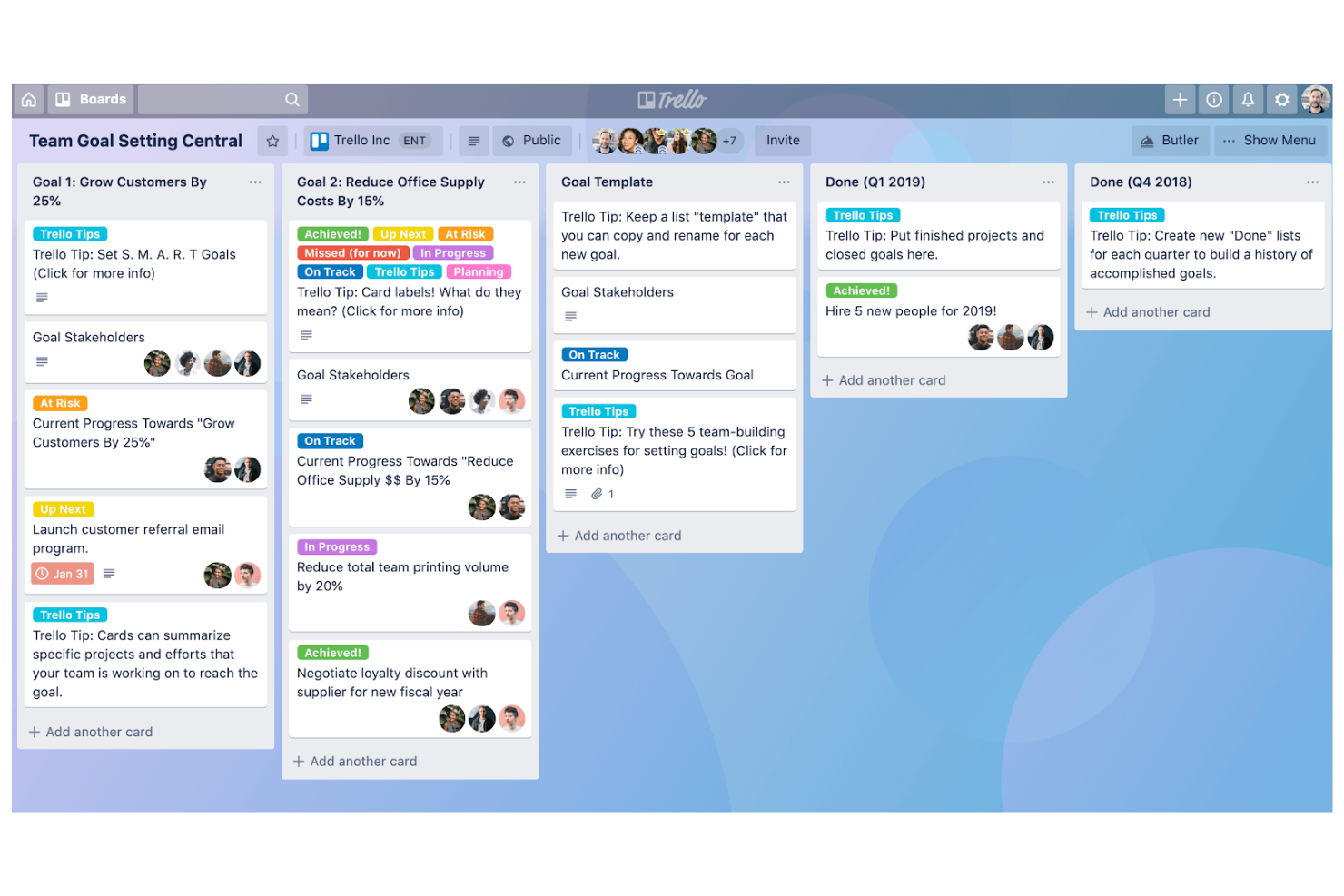
If your team prefers a visual approach to managing tasks, Trello offers a kanban-style board that makes tracking work simple and intuitive. It’s a strong fit for marketing teams, product managers, and small businesses that need to organize projects, campaigns, or workflows in a flexible, card-based format. Trello’s drag-and-drop boards and customizable lists help teams quickly adapt to changing priorities and keep everyone aligned.
Why I Picked Trello
When teams need a straightforward way to visualize and manage tasks, Trello’s kanban-style boards offer a clear advantage. The drag-and-drop cards let you move work through stages, making it easy to see progress at a glance. I picked Trello because its board and list structure support flexible workflows, whether you’re tracking sprints, content calendars, or onboarding checklists. For anyone looking for a visual, adaptable approach to cloud-based task management, Trello’s kanban boards are a practical choice.
Trello Key Features
Some other features that make Trello useful for cloud productivity include:
- Butler Automation: Automate repetitive actions on boards with rule-based triggers and custom buttons.
- Card Checklists: Break down tasks into smaller steps directly within each card.
- Power-Ups Marketplace: Add extra functionality like calendar views, voting, or integrations with other tools.
- Attachment Support: Upload files and documents directly to cards for easy reference.
Trello Integrations
Integrations include Slack, Jira Cloud, Miro, Google Drive, Dropbox, Microsoft Teams, Confluence, GitHub, Evernote, and more.
Pros and Cons
Pros:
- Has a drag-and-drop interface
- Card checklists organize subtasks within tasks
- Power-Ups add features like calendar and voting
Cons:
- Lacks native video conferencing tool
- No native Gantt or timeline view

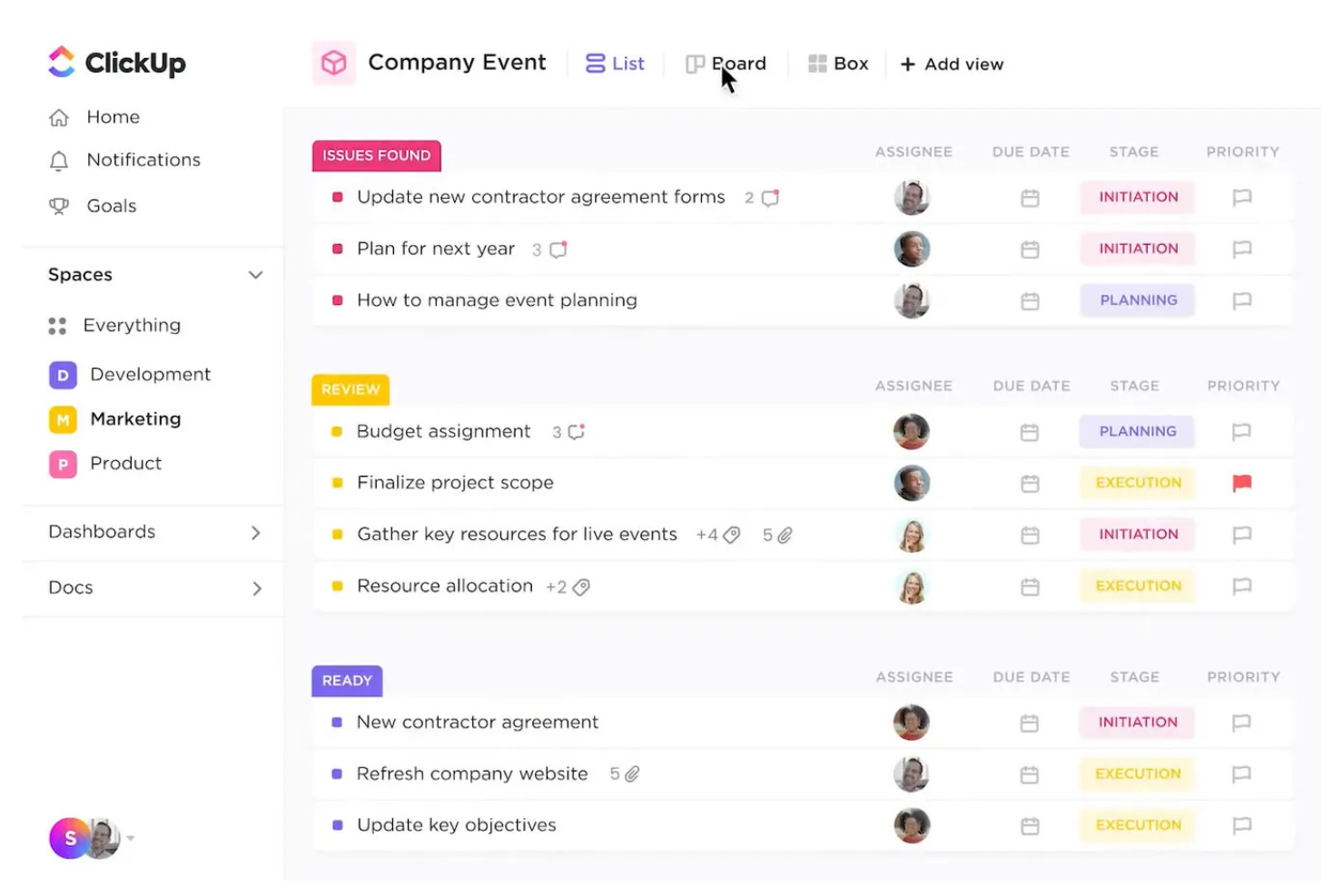
ClickUp brings together tasks, docs, goals, and dashboards in one platform, making it a strong choice for teams that want to manage everything in a single workspace. It’s especially useful for project managers and cross-functional teams who need to track progress, prioritize tasks, and align on goals without switching between multiple tools. ClickUp’s flexible structure helps teams organize work their way, whether they’re running agile sprints or managing ongoing projects.
Why I Picked ClickUp
ClickUp stands out for teams that want to manage tasks, goals, and project details all in one place. Its all-in-one approach means you can track tasks, set and monitor goals, and visualize progress with dashboards—without jumping between different apps. I picked ClickUp because it lets you connect tasks directly to goals, so you always see how daily work ties to bigger objectives. For teams looking for a unified workspace that covers both granular task management and high-level goal tracking, ClickUp offers a flexible solution.
ClickUp Key Features
Some other features that make ClickUp useful for cloud productivity include:
- Custom Views: Choose from list, board, calendar, and Gantt chart views to organize and visualize work.
- Built-In Docs: Create, edit, and share documents directly within your workspace.
- Automations: Set up automated workflows for recurring tasks, status changes, and notifications.
- Time Tracking: Log time spent on tasks with built-in timers and manual entry options.
ClickUp Integrations
Integrations include Slack, GitHub, GitLab, HubSpot, Everhour, Toggl, Harvest, Google Drive, Outlook, and more.
Pros and Cons
Pros:
- Multiple view options fit different workflows
- Goal tracking links objectives to daily work
- Hierarchical structure organizes tasks by priority
Cons:
- Guest permissions lack granular control options
- Mobile app performance lags behind desktop

Notion gives teams a flexible ecosystem to build their own workspace for notes, docs, databases, and project tracking. It’s a strong fit for organizations that want to design custom workflows or centralize knowledge without being locked into rigid templates. Notion helps teams connect tasks, documents, and wikis in one place, making it easier to adapt to changing project needs.
Why I Picked Notion
What sets Notion apart is how deeply you can customize your workspace to fit your team’s unique processes. You can build databases, link pages, and create custom dashboards that reflect exactly how your projects and documentation need to be organized. I picked Notion because it lets you design everything from simple to complex workflows, so you’re not limited by rigid structures. For teams that want to shape their own workspace and adapt as they grow, Notion offers a level of flexibility that’s hard to match in cloud productivity software.
Notion Key Features
Some other features that make Notion useful for cloud productivity include:
- AI-Powered Writing Assistant: Generate summaries, rewrite content, and automate note-taking with built-in AI tools.
- Real-Time Collaboration: Multiple users can edit pages and databases at the same time with live updates.
- Version History: Track changes and restore previous versions of any page or database.
- Template Gallery: Access a wide range of pre-built templates for project management, meeting notes, and documentation.
Notion Integrations
Integrations include Asana, Figma, GitHub, Google Drive, Jira, Miro, Slack, Trello, Typeform, and more.
Pros and Cons
Pros:
- Page linking connects related docs and projects
- AI assistant generates summaries and rewrites text
- Database views support kanban, calendar, and list
Cons:
- Permission settings can be confusing for teams
- Offline access is limited

Slack
Best for centralized team communication
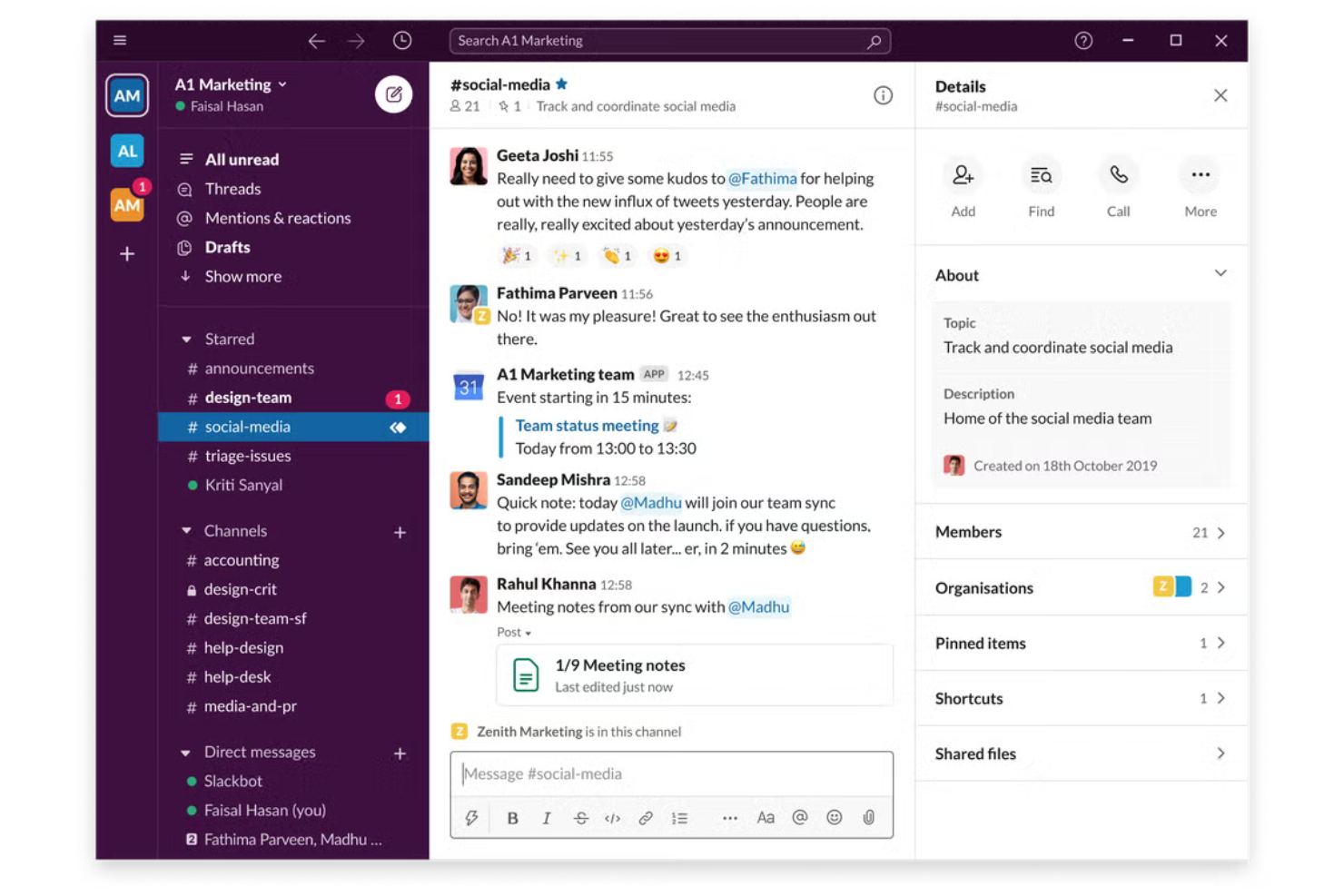
If your team needs a single place for all work conversations, Slack brings channels, direct messaging, and app integrations together in one platform. It’s especially useful for distributed teams or fast-moving organizations that need to keep discussions organized and searchable. Slack helps reduce email overload and makes it easier to track decisions, files, and updates in real time.
Why I Picked Slack
Centralizing team communication is where Slack really shines, making it a strong choice for cloud productivity solution. With channels, you can organize conversations by project, topic, or team, so information stays easy to find, and context is never lost. I picked Slack because its searchable message history and file-sharing features help teams keep track of decisions and resources without relying on scattered emails. For organizations that need to keep everyone in sync, Slack’s real-time messaging and notifications make collaboration much more manageable.
Slack Key Features
In addition to its core communication tools, Slack offers several other features that support productivity and collaboration:
- Workflow Builder: Automate routine tasks and processes with no-code custom workflows directly inside Slack.
- Huddles: Start quick, audio-based conversations for spontaneous discussions or troubleshooting.
- App Directory: Connect with thousands of third-party apps like Google Drive, Asana, and Zoom.
- Enterprise Key Management: Control and manage encryption keys for added data security.
Slack Integrations
Integrations include Asana, Box, ChatGPT, Claude, GitHub, Google Drive, Notion, Outlook Calendar, Salesforce, and more.
Pros and Cons
Pros:
- Huddles enable quick, informal audio chats
- Searchable message history
- Channels keep project discussions organized
Cons:
- Threaded replies can be hard to track
- Message retention limits on free plan
Outro software de produtividade na nuvem
Eis algumas opções adicionais de software de produtividade na nuvem que não integraram a minha seleção, mas que vale a pena conhecer:
- monday AI Workspace
With AI-powered project planning
- Smartsheet
For managing complex workflows
- Wrike
For cross-team collaboration tracking
- Todoist
For personal task organization
- Axero
For creating internal knowledge hubs
- Zimbra
For open-source email and scheduling
- Coda
For building custom workspaces
- Reclaim
For automated calendar optimization
- LucidLink
For real-time remote file access


How I Evaluate Cloud Productivity Software
I evaluate cloud productivity tools in two layers: baseline requirements—cloud-native access, task management, live collaboration—and the differentiators that make one tool the right fit.
Core Functionality (Table Stakes For This List)
When I'm selecting tools for my list, I rank each one on a scale from 0 (does not offer the functionality) to 5 (excels in this area) for each core functionality listed below. Then, I calculate the tool's total score into a percentage. Each tool needs to achieve a minimum total score of 75% to be considered for inclusion.
- Cloud-Based Access & Availability: I check whether the platform runs natively in a browser with full-featured mobile apps, so a PM can reassign a task from a phone between meetings.
- Task & Project Management: Each tool should support task assignment, due dates, dependencies, and milestones—enough structure to run a multi-phase product launch.
- Real-Time Collaboration: I look for live co-editing, @mentions, and threaded comments that let a distributed team hash out a sprint plan without switching to email.
- File Sharing & Cloud Storage: Teams need to attach briefs, share specs, and retrieve past versions, so I evaluate storage depth, version history, and permission controls.
- Workflow & Productivity Views: I consider how many views a tool offers—Kanban, Gantt, calendar, timeline—and whether teams can toggle between them to match Agile or Waterfall needs.
- Third-Party Integrations: The tool should connect with the apps teams already rely on, like Slack, Google Workspace, or Jira, through native integrations or an open API.
Once I have a list of tools that meet this criteria, I consider what sets each platform apart.
Differentiating Factors (What Sets Vendors Apart)
Here's how I compare and contrast different vendors:
Standout Features
Resource and workload management is a big differentiator—I look for visual capacity planning that shows who's overloaded before a sprint starts, not after deadlines slip. AI-powered automation also carries weight, especially when a tool can auto-generate status summaries or suggest task assignments based on team availability. Goal and OKR alignment rounds things out by connecting daily tasks to strategic objectives, which gives program managers the portfolio-level visibility leadership actually asks for.
Beyond Features
Security is high on my list—I check for SOC 2 Type II certification, SSO support, and granular role-based permissions, since enterprise PMOs often need audit logs before procurement will sign off. Methodology flexibility is another factor I evaluate closely. A tool that forces pure Kanban won't serve a team running hybrid Waterfall-Agile delivery. I also consider pricing scalability, particularly whether a platform lets you add contractors or external stakeholders without jumping to a higher tier mid-project.
Como escolher software de produtividade na nuvem
É fácil ficar preso a longas listas de funcionalidades e estruturas de preços complexas. Para o ajudar a manter o foco enquanto avalia o seu processo específico de seleção de software, eis uma lista de verificação dos fatores a ter em conta:
| Fator | O que deve considerar |
|---|---|
| Escalabilidade | O software irá acompanhar o crescimento da sua equipa? Verifique os limites de utilizadores, os limites de armazenamento e as opções de atualização dos planos. |
| Integrações | Estabelece ligação nativa às ferramentas que já utiliza (por exemplo, Slack, Jira e Google Workspace)? A falta de integrações pode criar trabalho manual. |
| Personalização | Pode adaptar os fluxos de trabalho, as permissões e os modelos aos seus processos ou fica limitado a estruturas rígidas? |
| Facilidade de utilização | A sua equipa irá adotá-lo rapidamente? Procure uma navegação clara, necessidades mínimas de formação e interfaces intuitivas. |
| Implementação e integração inicial | Quanto tempo demorará a configuração e de que recursos necessitará? Tenha em conta a migração de dados, a formação e o suporte durante a implementação. |
| Custo | Os escalões de preços são transparentes e previsíveis à medida que a utilização aumenta? Esteja atento a taxas ocultas ou a complementos dispendiosos. |
| Medidas de segurança | A ferramenta disponibiliza encriptação, início de sessão único e conformidade com normas como SOC 2 ou RGPD? Avalie o risco com base na sensibilidade dos seus dados. |
| Disponibilidade do suporte | Que canais de suporte são disponibilizados e estão disponíveis na sua região e fuso horário? Uma assistência rápida e fiável pode ser crucial durante a resolução de problemas. |
O que é software de produtividade na nuvem?
O software de produtividade na nuvem refere-se a ferramentas digitais que ajudam as equipas a criar, organizar, partilhar e gerir trabalho online a partir de qualquer localização. Estas plataformas permitem normalmente a colaboração em documentos, o armazenamento de ficheiros, o acompanhamento de tarefas e a comunicação num ambiente seguro e centralizado. Ao funcionarem na nuvem, permitem atualizações em tempo real e acesso através de vários dispositivos, facilitando o alinhamento e a produtividade das equipas distribuídas.
Funcionalidades do software de produtividade na nuvem
Ao selecionar software de produtividade na nuvem, esteja atento às seguintes funcionalidades essenciais:
- Colaboração em documentos: Vários utilizadores podem criar, editar e comentar documentos em tempo real, facilitando a recolha de contributos e mantendo o conteúdo atualizado.
- Armazenamento de ficheiros na nuvem: Armazene, organize e aceda a ficheiros em segurança a partir de qualquer dispositivo, garantindo que a sua equipa tem sempre a versão mais recente dos documentos importantes.
- Acompanhamento de tarefas e projetos: Atribua tarefas, defina prazos e acompanhe o progresso em espaços de trabalho partilhados para manter todos responsáveis e alinhados.
- Controlos de permissões: Gira quem pode visualizar, editar ou partilhar ficheiros e espaços de trabalho específicos, protegendo informações sensíveis e apoiando as necessidades de conformidade.
- Histórico de versões: Acompanhe as alterações efetuadas em documentos e ficheiros, permitindo aos utilizadores rever edições, restaurar versões anteriores e manter um registo de auditoria claro.
- Integração com o calendário: Sincronize marcos de projetos, reuniões e prazos com os calendários da equipa para melhorar o planeamento e a visibilidade.
- Funcionalidade de pesquisa: Localize rapidamente documentos, tarefas ou conversas em todo o seu espaço de trabalho utilizando ferramentas de pesquisa por palavras-chave ou filtros.
- Notificações e alertas: Receba atualizações sobre alterações, comentários ou prazos próximos para se manter informado e poder responder atempadamente.
- Acesso móvel: Utilize aplicações móveis dedicadas ou interfaces Web adaptáveis para gerir o trabalho e colaborar quando estiver longe da sua secretária.
Vantagens do software de produtividade na nuvem
A implementação de software de produtividade na nuvem proporciona várias vantagens à sua equipa e à sua empresa. Eis algumas das que pode esperar:
- Colaboração em tempo real: As equipas podem trabalhar em conjunto em documentos e projetos em simultâneo, reduzindo atrasos e confusões entre versões.
- Informação centralizada: Todos os ficheiros, tarefas e comunicações são armazenados num único local acessível, facilitando a localização e a gestão do trabalho.
- Acessibilidade para o trabalho remoto: Os membros da equipa podem aceder a ferramentas e dados a partir de qualquer dispositivo ou local, apoiando modelos de trabalho distribuído e híbrido.
- Maior responsabilização: O acompanhamento de tarefas, os controlos de permissões e o histórico de versões ajudam a clarificar responsabilidades e a manter um registo claro das alterações.
- Fluxos de trabalho escaláveis: As plataformas baseadas na nuvem podem crescer com a sua equipa, permitindo adicionar utilizadores, armazenamento ou funcionalidades à medida que as suas necessidades evoluem.
- Segurança reforçada: As definições de permissões integradas e as funcionalidades de conformidade ajudam a proteger informações sensíveis e a cumprir os requisitos regulamentares.
- Integração centralizada de novos utilizadores: Os modelos pré-configurados, os recursos de formação e as interfaces intuitivas ajudam os novos utilizadores a familiarizarem-se rapidamente.
Custos e preços do software de produtividade na nuvem
A seleção de software de produtividade na nuvem exige uma compreensão dos vários modelos de preços e planos disponíveis. Os custos variam consoante as funcionalidades, o tamanho da equipa, os complementos e outros fatores. A tabela abaixo resume os planos comuns, os seus preços médios e as funcionalidades normalmente incluídas nas soluções de software de produtividade na nuvem:
Tabela de comparação de planos de software de produtividade na nuvem
| Tipo de plano | Preço médio | Funcionalidades comuns |
|---|---|---|
| Plano gratuito | $0 | Colaboração básica em documentos, armazenamento limitado, acompanhamento simples de tarefas e suporte básico. |
| Plano pessoal | $5–$10/utilizador/mês | Armazenamento individual de ficheiros, integração com o calendário, acesso móvel e gestão pessoal de tarefas. |
| Plano empresarial | $12–$25/utilizador/mês | Espaços de trabalho de equipa, controlos de permissões avançados, integrações com outras ferramentas e suporte prioritário. |
| Plano empresarial avançado | $30–$50/utilizador/mês | Armazenamento ilimitado, segurança avançada, funcionalidades de conformidade, integração personalizada de novos utilizadores e suporte dedicado. |
Perguntas frequentes sobre software de produtividade na nuvem
Eis algumas respostas a perguntas comuns sobre software de produtividade na nuvem:
Quão seguro é o software de produtividade na nuvem?
A maioria dos softwares de produtividade na nuvem utiliza encriptação, controlos de acesso e certificações de conformidade, como SOC 2 ou GDPR, para proteger os seus dados. Reveja sempre a documentação de segurança do fornecedor e informe-se sobre o respetivo processo de resposta a incidentes antes de tomar uma decisão.
Posso migrar os meus ficheiros e dados existentes para um software de produtividade na nuvem?
Sim, a maioria das plataformas disponibiliza ferramentas de importação ou apoio à migração de ficheiros, documentos e dados de utilizadores. Verifique a compatibilidade com os formatos que utiliza atualmente e informe-se sobre eventuais limitações ou custos adicionais para migrações de grande dimensão.
O que acontece se a minha ligação à Internet falhar?
Muitas ferramentas de produtividade na nuvem oferecem acesso offline a funcionalidades essenciais, como a edição de documentos ou a visualização de ficheiros. As alterações efetuadas offline são normalmente sincronizadas automaticamente assim que a ligação for restabelecida, mas algumas funcionalidades avançadas podem não estar disponíveis até voltar a estar online.
Como posso gerir o acesso e as permissões dos utilizadores?
A maioria das soluções permite definir permissões granulares ao nível do documento, da pasta ou do espaço de trabalho. Pode controlar quem pode ver, editar ou partilhar conteúdos e, muitas vezes, integrar o início de sessão único (SSO) para uma gestão centralizada dos utilizadores.
Existem custos ocultos para além da taxa de subscrição?
Alguns fornecedores cobram valores adicionais por funcionalidades avançadas, armazenamento adicional, suporte premium ou integrações. Reveja cuidadosamente a página de preços e solicite um orçamento detalhado para evitar surpresas à medida que a sua utilização aumenta.