

10 Aplicações Gratuitas de Produtividade para 2026

Lista de aplicações gratuitas de produtividade


As aplicações gratuitas de produtividade são ferramentas de software que ajudam a organizar tarefas, gerir projetos, reduzir a procrastinação e aumentar a concentração — sem exigir um pagamento inicial. Se está à procura das melhores aplicações gratuitas de produtividade, é provável que queira melhorar a forma como você e a sua equipa trabalham sem aumentar o orçamento, quer seja um utilizador individual ou uma pequena empresa. Muitas ferramentas modernas incluem também funcionalidades de IA, integrações com ferramentas como o ChatGPT e uma versão gratuita que permite testar as funcionalidades essenciais antes de fazer uma atualização. Com tantas opções a oferecer planos ou períodos de avaliação gratuitos, é difícil saber quais são as ferramentas que disponibilizam realmente as funcionalidades de que precisa. Esta lista vai ajudá-lo a comparar rapidamente as principais aplicações gratuitas de produtividade para 2026, para que encontre a opção mais adequada ao seu fluxo de trabalho e comece hoje a trabalhar de forma mais inteligente.
Why Trust Our Software Recommendations
Our team has been testing and reviewing software since 2012. As project managers ourselves, we know how difficult—and important—it is to choose the right software.
For this guide, we evaluated tools using hands-on testing and independent research, scoring tools using our selection criteria. We also draw on insights from industry thought leaders and practicing project management experts.
Our reviews reflect our human editorial judgment, not a sales pitch.
Expert reviewers:
Tabela de comparação de aplicações gratuitas de produtividade
Esta tabela de comparação resume os detalhes de preços das minhas principais escolhas de aplicações gratuitas de produtividade:
| Tool | Best For | Trial Info | Price | ||
|---|---|---|---|---|---|
| 1 | Best for visual project board customization | Free plan available | From $3.99/user/month (billed annually) | Website | |
| 2 | Best for focus-enhancing background audio | Free trial available | From $14.99/month | Website | |
| 3 | Best for managing complex task hierarchies | Free plan available | From $5/user/month (billed annually) | Website | |
| 4 | Best for Microsoft 365 ecosystem users | Free-forever plan available | Free to use | Website | |
| 5 | Best for combining notes and databases | Free plan + 30-day trial available | From $10/user/month | Website | |
| 6 | Best for built-in habit tracking features | Free plan available | From $49.99/year (billed annually) | Website | |
| 7 | Best for risk and issue management tools | Not available | Pricing upon request | Website | |
| 8 | Best for workflow automation with integrations | Free plan available | From $10.99/user/month (billed annually) | Website | |
| 9 | Best for daily planning with calendar integration | 14-day free trial | From $17/user/month (billed annually) | Website | |
| 10 | Best for gamifying daily task completion | Free plan available | From $9/month (+$3 per additional member) | Website |
Análises de aplicações gratuitas de produtividade
Seguem-se os meus resumos detalhados das aplicações gratuitas de produtividade que entraram na minha seleção. As minhas análises apresentam uma visão detalhada das funcionalidades, dos melhores casos de utilização e das integrações de cada ferramenta, para o ajudar a encontrar a melhor opção para si. As minhas análises apresentam uma visão detalhada das funcionalidades, dos melhores casos de utilização e das integrações de cada ferramenta, para o ajudar a encontrar a melhor opção para si.

Plaky
Best for visual project board customization

If you want a free productivity app that lets you customize project boards visually, Plaky is worth considering. This tool is designed for teams that need flexible board layouts and detailed field customization to match their workflows. Plaky helps project managers and team leads organize, track, and adapt projects with a visual approach that’s easy to tailor for different industries.
Why I Picked Plaky
What sets Plaky apart for me among free productivity apps is how much control it gives you over customizing project boards. You can create boards with unique fields, color-coded labels, and custom views that match your team’s workflow, which is especially useful if you manage projects that don’t fit a standard template. I also like that you can adjust board layouts and add as many columns or data types as you need, so you’re not boxed in by rigid structures. For project managers who want a visual, flexible way to organize and track work, Plaky’s board customization features make it a strong choice.
Plaky Key Features
Some other features in Plaky that help teams manage productivity include:
- Task Assignment: Assign tasks to specific team members and set deadlines for each item.
- Commenting and Mentions: Add comments and tag teammates directly on tasks to keep communication organized.
- File Attachments: Upload and attach files to tasks so all related documents stay in one place.
- Activity Log: Track all changes and updates on boards with a detailed activity history.
Plaky Integrations
Integrations include Clockify, Pumble, and more.
What's Free?
Plaky offers a free-forever plan with unlimited users, boards, and tasks. The free plan does not include native integrations or advanced reporting features.
Pros and Cons
Pros:
- Activity logs track project changes
- Task assignments manage team accountability
- Custom fields tailor board workflows
Cons:
- Only Kanban board visualization
- No time tracking or workload tools

Brain.fm
Best for focus-enhancing background audio
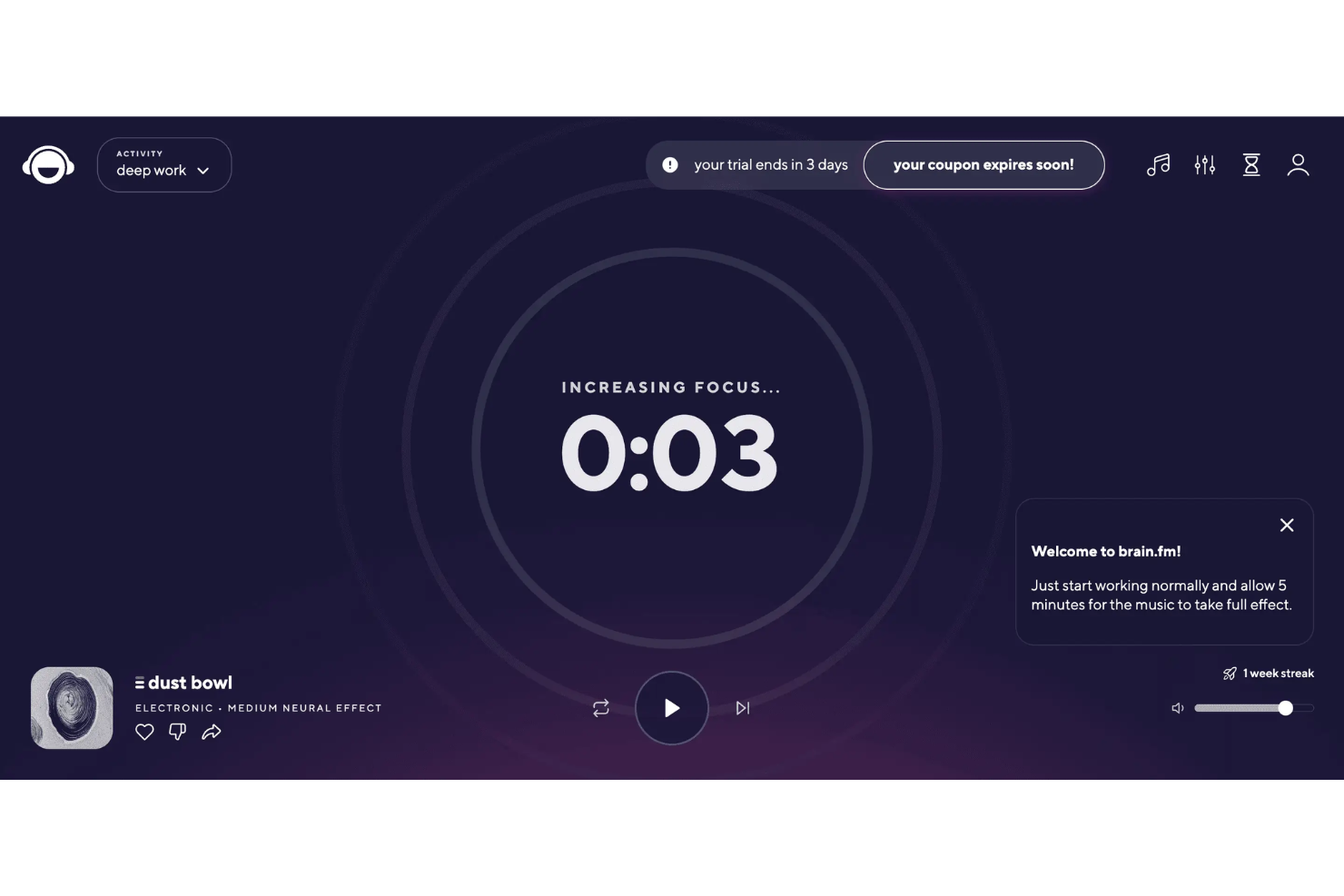
If you’re looking for a way to boost focus while working, Brain.fm offers science-backed background audio designed to help you concentrate. This tool is a good fit for professionals, students, or anyone who needs to minimize distractions and stay on task. Brain.fm stands out by using specially engineered music that aims to support productivity, relaxation, or sleep, depending on your needs.
Why I Picked Brain.fm
What makes Brain.fm a strong choice for free productivity apps is its unique approach to focus-enhancing background audio. The platform uses AI-generated music that’s specifically designed to support deep work, which is something I haven’t seen in most other productivity tools. You can choose from different focus modes, like “Deep Work” or “Light Work,” to match the intensity of your task. For anyone who struggles with distractions or needs help maintaining concentration, Brain.fm’s science-backed audio features offer a practical way to create a more productive work environment.
Brain.fm Key Features
Some other features in Brain.fm that help users get more out of their workday include:
- Offline Listening: Download sessions to use Brain.fm’s audio without an internet connection.
- Session Length Customization: Set the duration of your audio session to match your planned work period.
- Mobile and Desktop Apps: Access Brain.fm on both mobile devices and desktop computers for flexibility.
- Timer and Pomodoro Mode: Use built-in timers and Pomodoro settings to structure your focus sessions.
Brain.fm Integrations
Native integrations are not currently listed.
What's Free?
Brain.fm offers a limited free trial that gives you access to its full feature set for a short period. After the trial ends, continued use requires a paid subscription, and there is no free-forever plan.
Pros and Cons
Pros:
- Science-backed music for productivity
- Pomodoro timer structures work sessions
- Audio sessions designed for focus
Cons:
- Cannot upload custom audio
- No productivity tool integrations
Todoist
Best for managing complex task hierarchies
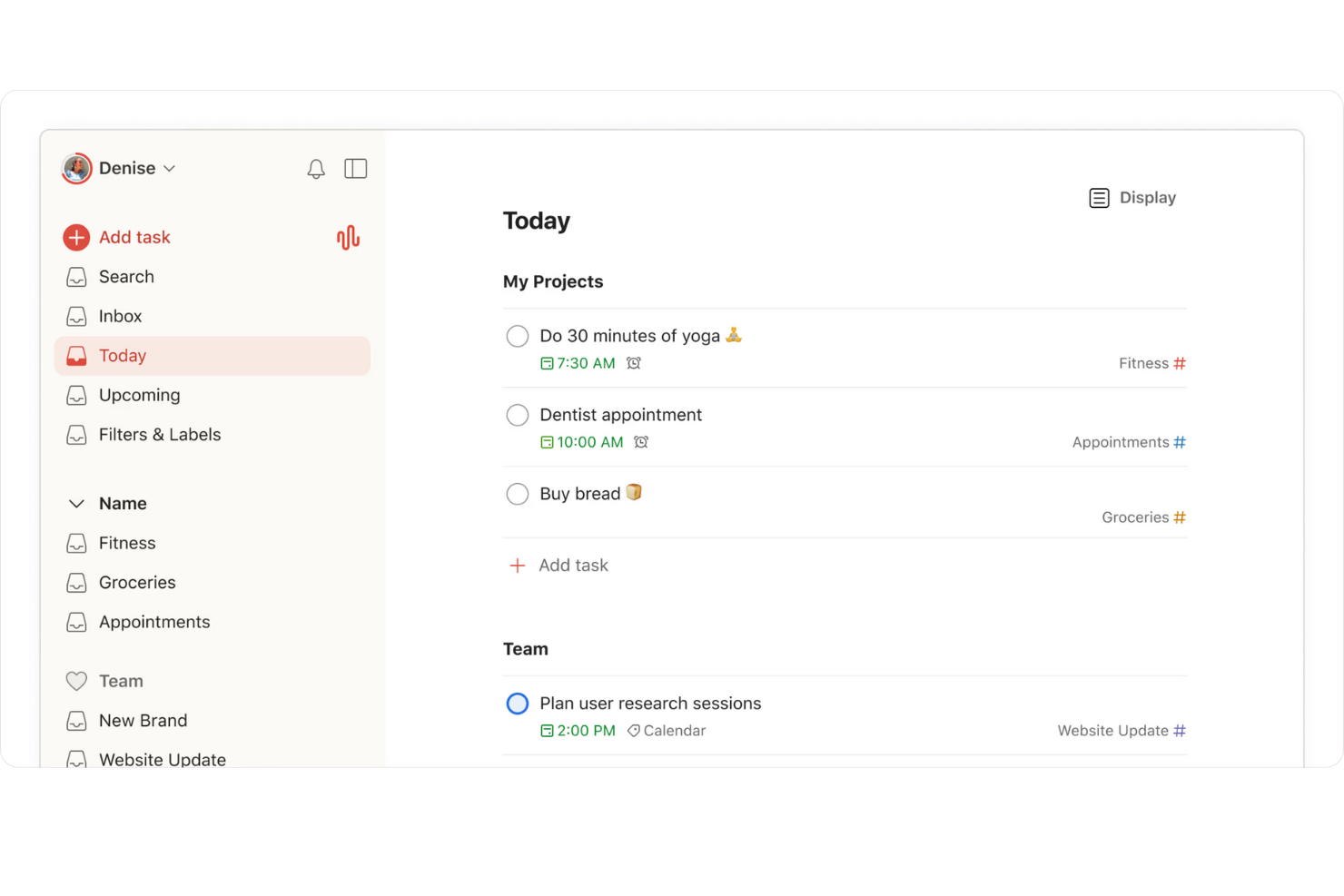
If you need a way to organize complex projects with many moving parts, Todoist is worth a look. This tool is designed for anyone who manages layered task lists, from project managers to freelancers juggling multiple clients. Its flexible hierarchy system helps you break down big goals into actionable steps and keep everything visible in one place.
Why I Picked Todoist
Todoist stands out for its ability to handle complex task hierarchies, which is something many free productivity apps struggle with. I picked it because you can nest tasks within projects, create multiple sub-tasks, and use labels to organize work at several levels. The section and sub-section structure lets you break down even the most complicated projects into manageable pieces. This makes Todoist a strong choice if you need to keep track of dependencies or want a clear overview of multi-step workflows.
Todoist Key Features
Some other features in Todoist that are useful for productivity and organization include:
- Recurring due dates: Set tasks to repeat on a custom schedule so you never miss regular responsibilities.
- Priority levels: Assign priority flags to tasks to help you focus on what matters most each day.
- Productivity visualizations: View progress trends and completed tasks with built-in charts and activity logs.
- Collaboration tools: Share projects, assign tasks, and comment with team members directly inside the app.
Todoist Integrations
Integrations include Google Calendar, Slack, Gmail, Outlook, Zapier, Dropbox, Google Drive, Trello, and more.
What’s Free?
Todoist offers a free-forever plan. Free users can create up to five active projects, collaborate with up to five people per project, and access basic task management features, but advanced features like reminders, labels, and filters are restricted to paid plans.
Pros and Cons
Pros:
- Activity logs track productivity
- Recurring due dates on free tier
- Nested subtasks organize projects
Cons:
- File uploads restricted on free plan
- Reminders require paid upgrade

Best for Microsoft 365 ecosystem users
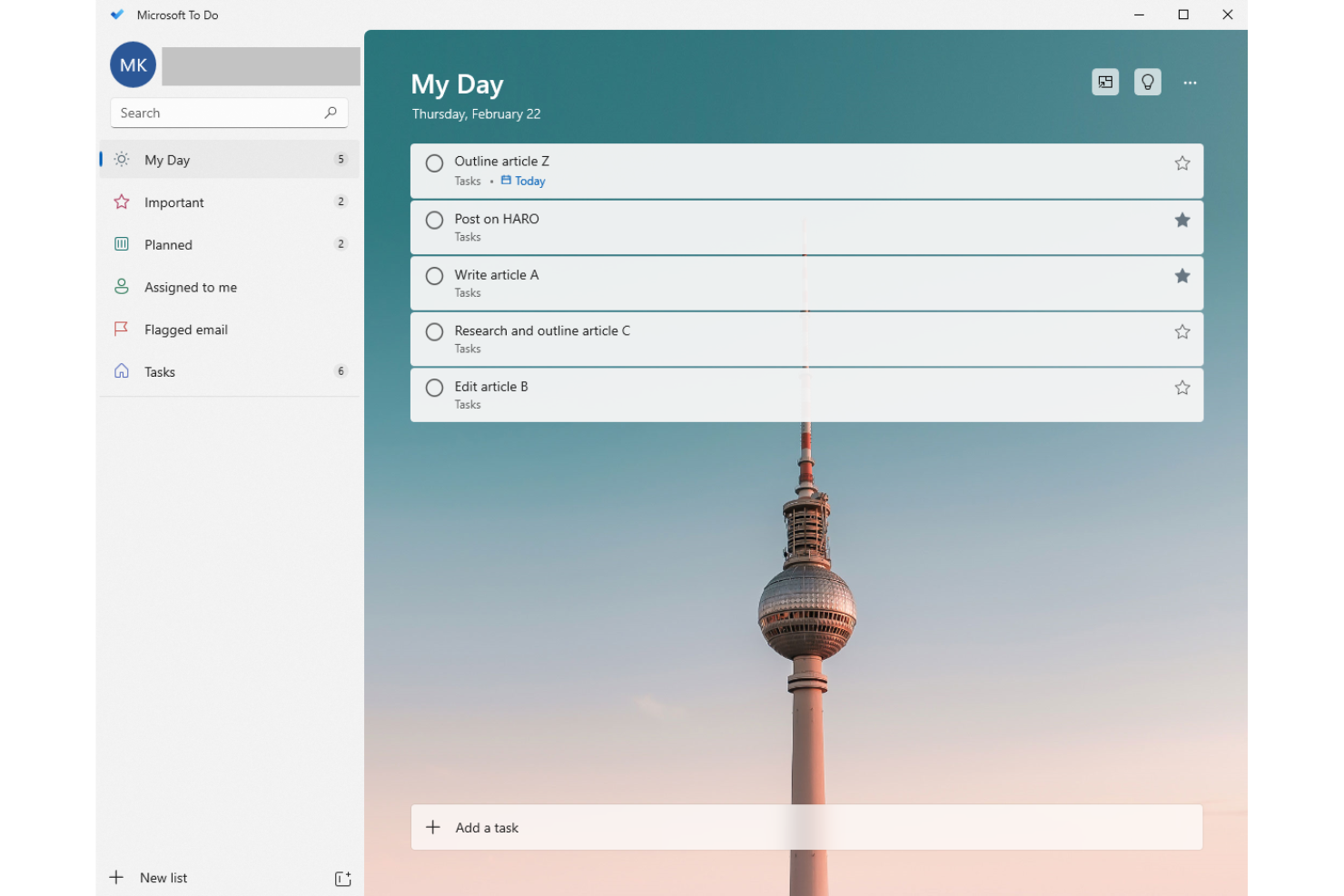
If your team already uses Microsoft 365, Microsoft To Do fits right into your workflow. This task management app is designed for users who want to organize personal and professional tasks within the Microsoft ecosystem. It helps you keep track of daily priorities, share lists, and sync tasks across Outlook and other Microsoft apps.
Why I Picked Microsoft To Do
What makes Microsoft To Do a strong choice for free productivity apps is how seamlessly it fits into the Microsoft 365 ecosystem. If your team already relies on Outlook, Teams, or other Microsoft tools, you can sync tasks and lists directly across these platforms without extra setup. I like that you can flag emails in Outlook and have them appear as actionable tasks in To Do, which helps keep everything connected. For anyone looking to manage tasks within a familiar Microsoft environment, this integration is a clear advantage.
Microsoft To Do Key Features
Some other features in Microsoft To Do that help teams manage productivity include:
- My Day planning tool: Start each day with a clean slate and add tasks you want to focus on.
- Task reminders: Set one-time or recurring reminders to help you stay on top of deadlines.
- Subtasks and notes: Break down larger tasks into smaller steps and add notes for extra context.
- List sharing: Share task lists with colleagues or family members for collaborative planning.
Microsoft To Do Integrations
Native integrations are not currently listed.
What's Free?
Microsoft To Do offers a free-forever plan with unlimited tasks, lists, and users. All core features are available for free, but advanced integrations are limited to the Microsoft 365 ecosystem.
Pros and Cons
Pros:
- Mobile, web, and desktop apps
- List sharing supports simple collaboration
- Reminders and recurring tasks included
Cons:
- Subtasks limited to simple checklists
- No Gantt charts or advanced projects

Notion
Best for combining notes and databases
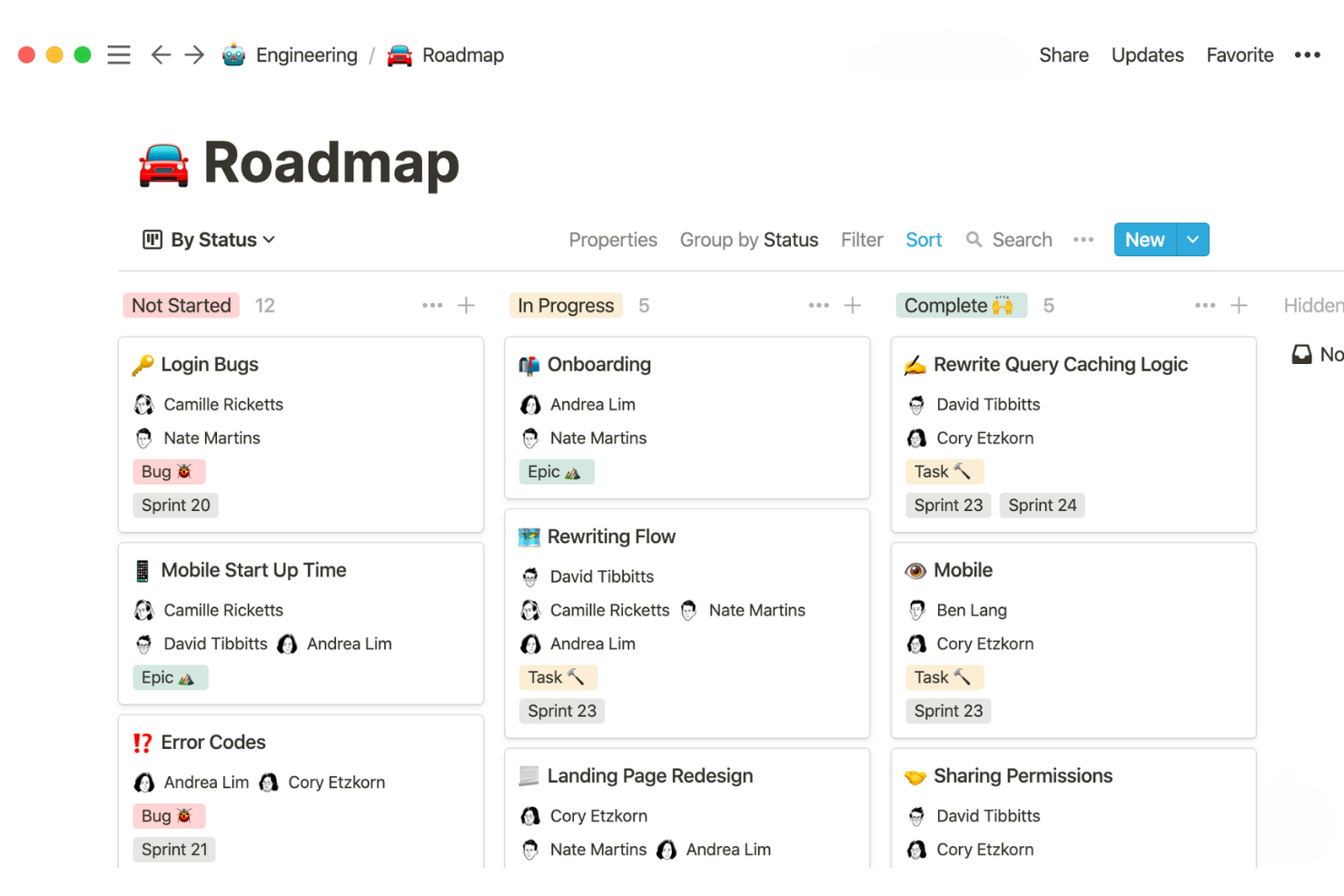
If you need a workspace that blends note-taking with structured data, Notion is worth considering. This tool appeals to project managers, product teams, and anyone who wants to link meeting notes, tasks, and databases in one place. Notion helps you organize scattered information and build custom workflows that go beyond basic lists or documents.
Why I Picked Notion
Notion stands out because it lets you combine free-form notes with structured databases in a single workspace. I picked it for this list since you can create linked tables, kanban boards, and wikis right alongside your meeting notes or project documentation. This flexibility means you can build custom dashboards or track project deliverables without switching between separate tools. If you want a free productivity app that adapts to both unstructured brainstorming and organized data management, Notion is a strong choice.
Notion Key Features
Some other features in Notion that help teams stay organized and productive include:
- Template Gallery: Access a library of pre-built templates for project management, meeting notes, and personal productivity.
- Page Sharing and Permissions: Control who can view, comment, or edit each page or database within your workspace.
- Version History: Review and restore previous versions of any page to track changes or recover lost content.
- Web Clipper: Save articles, web pages, and research directly into Notion from your browser.
Notion Integrations
Integrations include Slack, Google Drive, GitHub, Figma, Jira, Asana, Zoom, Typeform, Miro, and an API for custom integrations.
What's Free?
Notion offers a free-forever plan for individuals with unlimited pages, blocks, and up to 10 guests. The free plan limits file uploads to 5MB per file and restricts some advanced features like version history and admin controls.
Pros and Cons
Pros:
- Wide range of workflow templates
- Real-time collaboration with multiple users
- Free plan allows unlimited pages
Cons:
- No built-in time tracking or reminders
- No native calendar sync

TickTick
Best for built-in habit tracking features
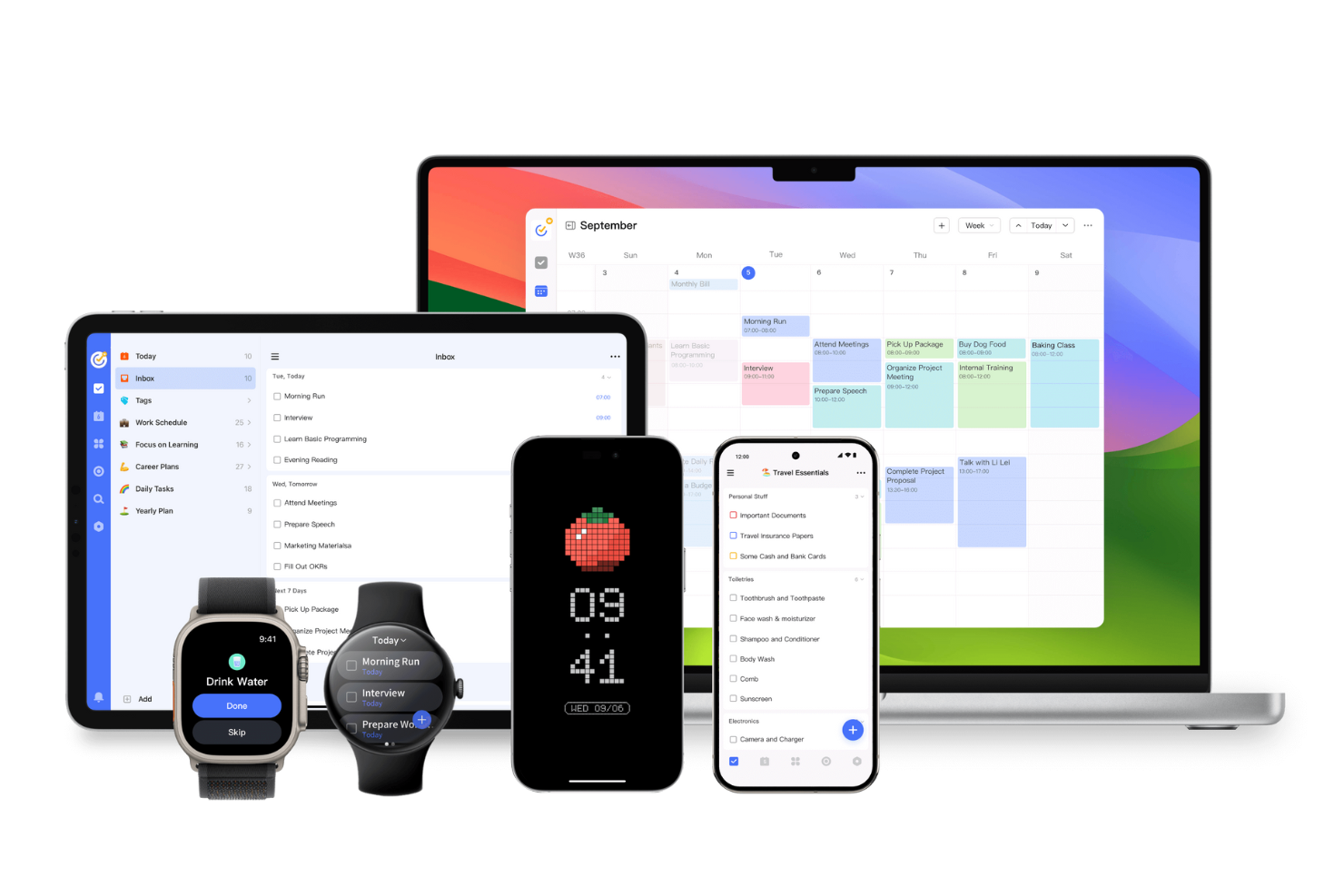
If you want a free productivity app that goes beyond basic task lists, TickTick brings built-in habit tracking into your daily workflow. This tool is a good fit for individuals and teams who want to manage tasks while also building positive routines. With its focus on both productivity and personal development, TickTick helps you keep projects and habits in one place.
Why I Picked TickTick
What sets TickTick apart in the free productivity app space is its built-in habit tracking, which you rarely find alongside standard task management features. I picked TickTick because it lets you create recurring habits right next to your to-dos, so you can track daily routines and project tasks in one place. The habit tracker includes visual streaks and progress charts, making it easy to see how consistent you’ve been over time. For anyone who wants to build better habits while staying on top of work, TickTick brings both together in a single, unified app.
TickTick Key Features
Some other features in TickTick that help teams and individuals manage productivity include:
- Calendar view: See all your tasks and deadlines in a visual calendar layout.
- Priority levels: Assign priority flags to tasks to help organize your workload.
- Pomodoro timer: Use a built-in timer to break work into focused intervals.
- Attachment support: Add files and images directly to tasks for extra context.
TickTick Integrations
Integrations include Amazon Alexa, Slack, Outlook, Gmail, Zapier, and more.
What's Free?
TickTick offers a free-forever plan with basic task management, habit tracking, and calendar features. The free plan limits you to 9 lists, 99 tasks per list, and 19 subtasks per task, and some advanced features require a paid upgrade.
Pros and Cons
Pros:
- Task attachments add files and images
- Calendar view shows upcoming deadlines
- Habit tracker monitors routines and tasks
Cons:
- No team chat or collaboration
- Subtasks require paid upgrade
nTask
Best for risk and issue management tools
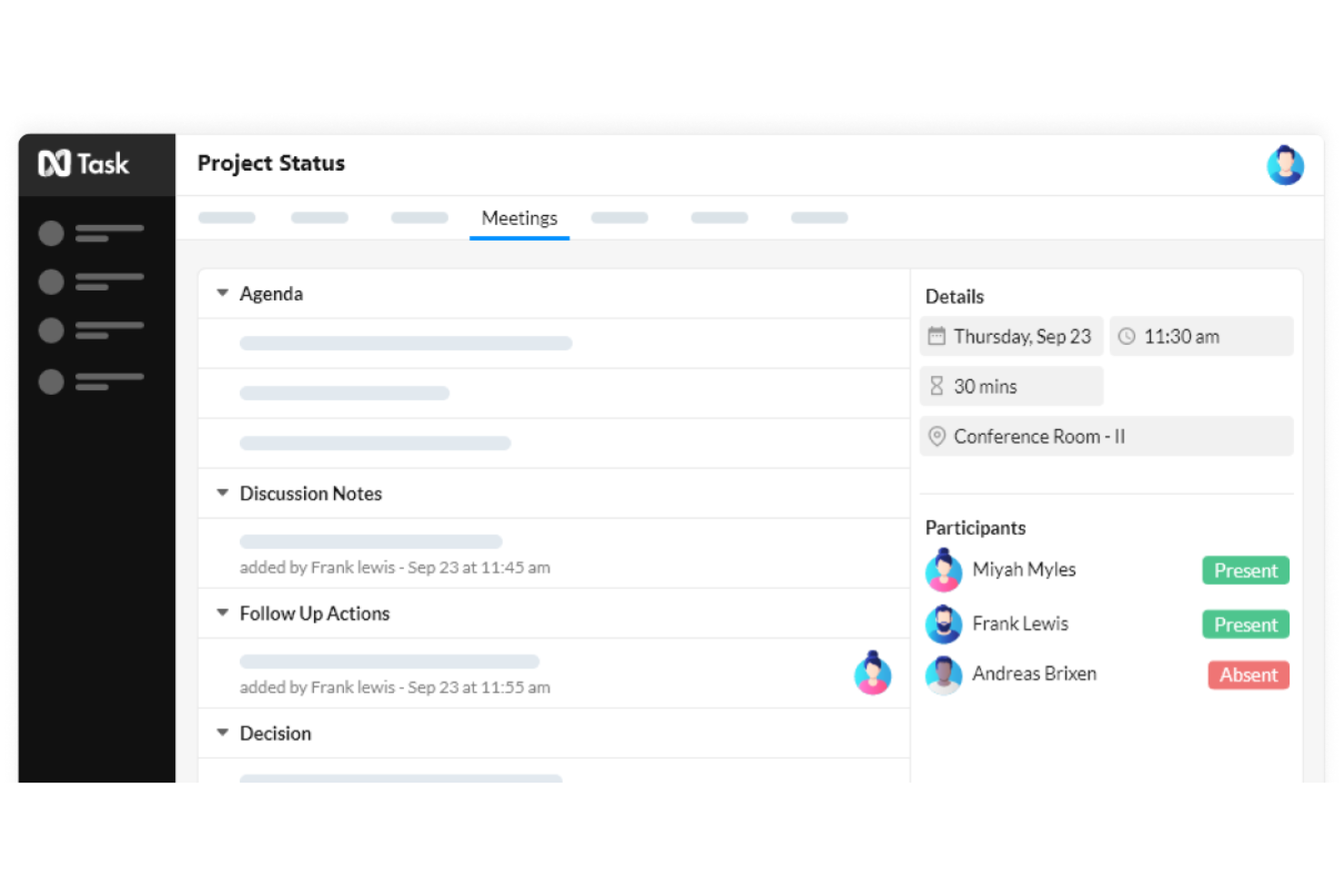
If you need a free productivity app with built-in risk and issue management, nTask is worth a look. This tool is designed for project managers and teams who want to track risks, issues, and tasks in one workspace. nTask helps you identify, document, and monitor project risks alongside your daily work, making it easier to keep projects on track.
Why I Picked nTask
What makes nTask stand out among free productivity apps is its dedicated risk and issue management tools, which you rarely find in this category. I picked nTask because it lets you log, categorize, and track project risks and issues directly within your workspace, so you don’t need a separate tool for this critical part of project delivery. The risk register and issue log features help you document details, assign owners, and monitor status changes as your project progresses. For project managers who need more than just task lists, nTask brings risk and issue tracking into your daily workflow.
nTask Key Features
Some other features in nTask that help teams manage productivity include:
- Task Dependencies: Set relationships between tasks to control workflow order and timing.
- Time Tracking: Track time spent on tasks with built-in timers and manual entry.
- Meeting Management: Schedule, organize, and document meetings directly within the platform.
- Gantt Charts: Visualize project timelines and task progress with interactive Gantt charts.
nTask Integrations
Integrations include Google Calendar, Google Meet, Outlook, Microsoft Teams, and more.
What's Free?
nTask offers a free-forever plan for up to 5 users with basic task management, issue tracking, and meeting management features. The free plan limits file attachments to 100MB per workspace and does not include advanced features like Gantt charts, Kanban boards, or native integrations.
Pros and Cons
Pros:
- Time tracking monitors project hours
- Meeting tools manage agendas and follow-ups
- Gantt charts visualize timelines
Cons:
- Recurring tasks require paid upgrade
- Kanban boards require paid plan
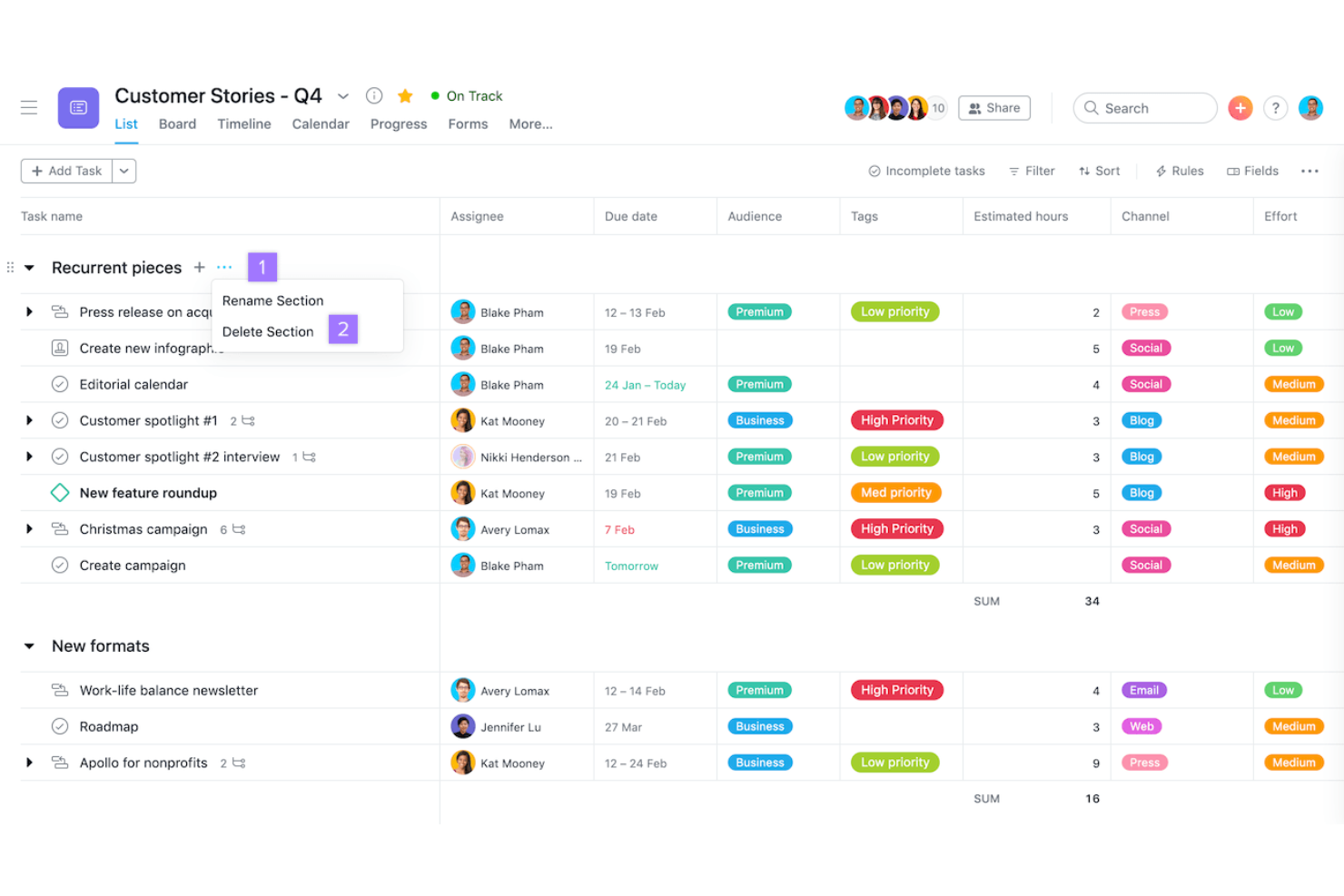
If you’re looking for a free productivity app that excels at automating workflows, Asana is worth a look. This tool is especially useful for teams that need to connect tasks across multiple apps and automate repetitive project steps. Asana helps project managers and cross-functional teams coordinate work, reduce manual updates, and keep projects moving with built-in automation features.
Why I Picked Asana
What makes Asana a strong choice for free productivity apps is how it lets you automate routine workflows and connect your project boards with other tools you already use. I picked Asana because its automation builder allows you to set up custom rules that trigger actions—like moving tasks, assigning work, or sending notifications—without manual effort. I also appreciate that you can integrate Asana with a wide range of apps, so updates and information flow automatically between platforms. For project managers who want to reduce repetitive work and keep projects in sync across tools, Asana’s automation and integration features are especially valuable.
Asana Key Features
Some other features in Asana that help teams manage productivity include:
- Timeline View: Visualize project schedules and dependencies with a drag-and-drop Gantt chart.
- Task Dependencies: Mark tasks as dependent on others to clarify sequencing and avoid blockers.
- Custom Fields: Add custom data fields to tasks for tracking project-specific information.
- Project Templates: Use pre-built templates to quickly launch new projects with best-practice workflows.
Asana Integrations
Integrations include Slack, Google Drive, Microsoft Teams, Zoom, Dropbox, Salesforce, Jira Cloud, Adobe Creative Cloud, Gmail, and Outlook.
What's Free?
Asana offers a free-forever plan for up to 15 users. The free plan includes unlimited tasks, projects, and messages, but limits access to advanced features like timeline view, reporting, and some integrations.
Pros and Cons
Pros:
- Task assignments manage accountability
- Multiple views include list and calendar
- Automation rules support basic workflows
Cons:
- Guest access is limited
- Timeline view is not in free plan

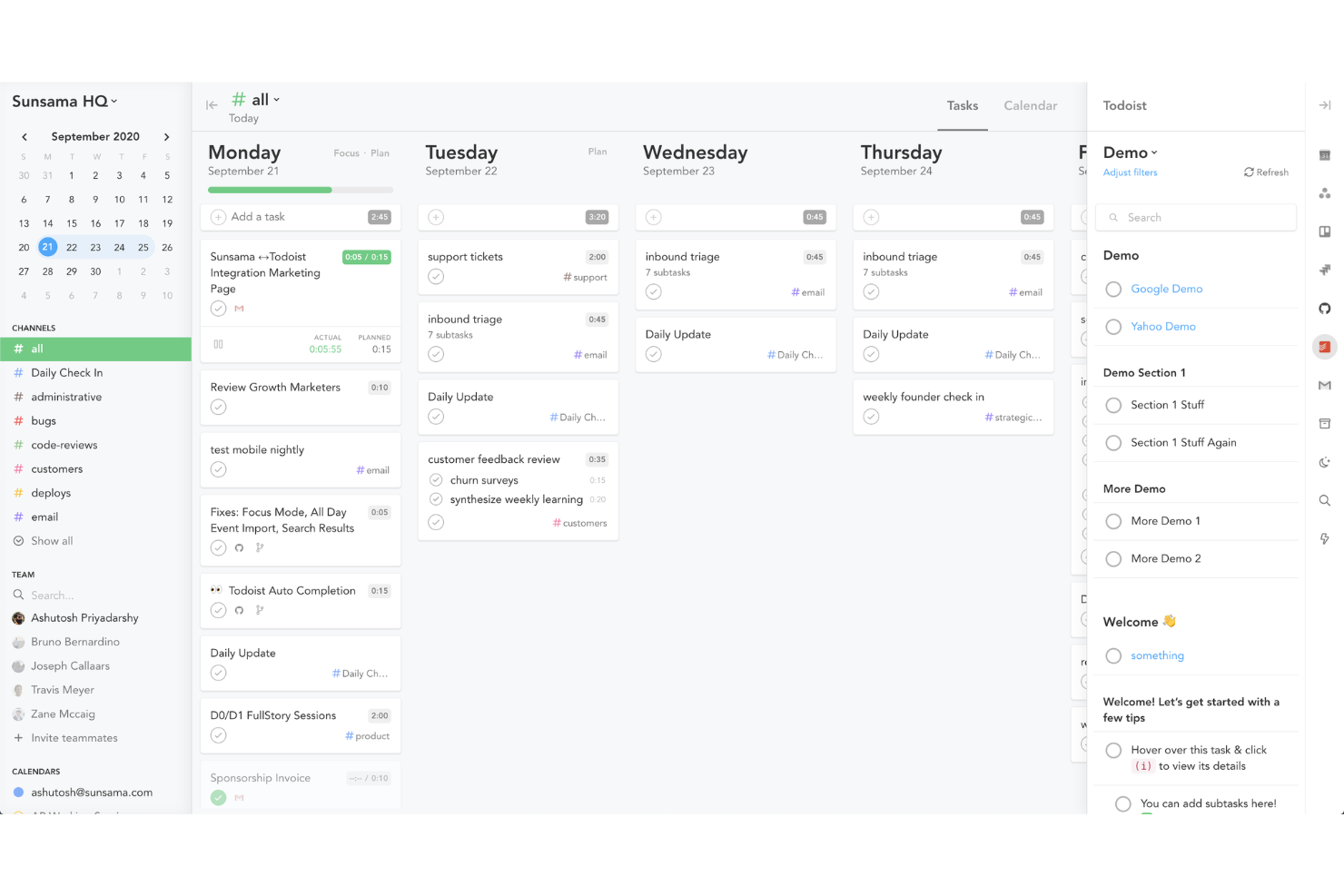
If you want a daily planner that brings your tasks and calendar together, Sunsama is worth a look. This tool appeals to professionals who need to organize their day by pulling in tasks from multiple sources and aligning them with their schedule. Sunsama helps you plan realistic workloads and stay focused by integrating your to-dos directly with your calendar.
Why I Picked Sunsama
What drew me to Sunsama is how it connects daily planning directly with your calendar, making it easy to see your tasks and meetings in one place. You can drag and drop tasks onto your schedule, which helps you realistically plan your day and avoid overcommitting. I also like that Sunsama pulls in tasks from other tools, so you can organize everything from email follow-ups to project work alongside your calendar events. For anyone who wants a daily planning tool that actually syncs with how they work, Sunsama’s calendar integration stands out.
Sunsama Key Features
Some other features in Sunsama that help teams and individuals manage their workday include:
- Focus Mode: This feature lets you work through your daily tasks one at a time, minimizing distractions.
- Task Channel Organization: You can group tasks by channels or categories to keep different workstreams organized.
- Daily Review and Planning Prompts: Sunsama guides you through a daily review and planning process to help you reflect and prioritize.
- Email Task Import: You can turn emails from Gmail or Outlook directly into actionable tasks within your daily plan.
Sunsama Integrations
Integrations include Asana, ClickUp, GitHub, Notion, Google Calendar, Jira, Google Tasks, monday.com, Slack, Microsoft Teams, and more.
What's Free?
Sunsama offers a 14-day free trial with full access to all features. After the trial, continued use requires a paid subscription, and there is no free-forever plan available.
Pros and Cons
Pros:
- Converts emails into tasks
- Guided daily planning prompts
- Imports tasks from major tools
Cons:
- No team collaboration on trial
- Task analytics require paid plan

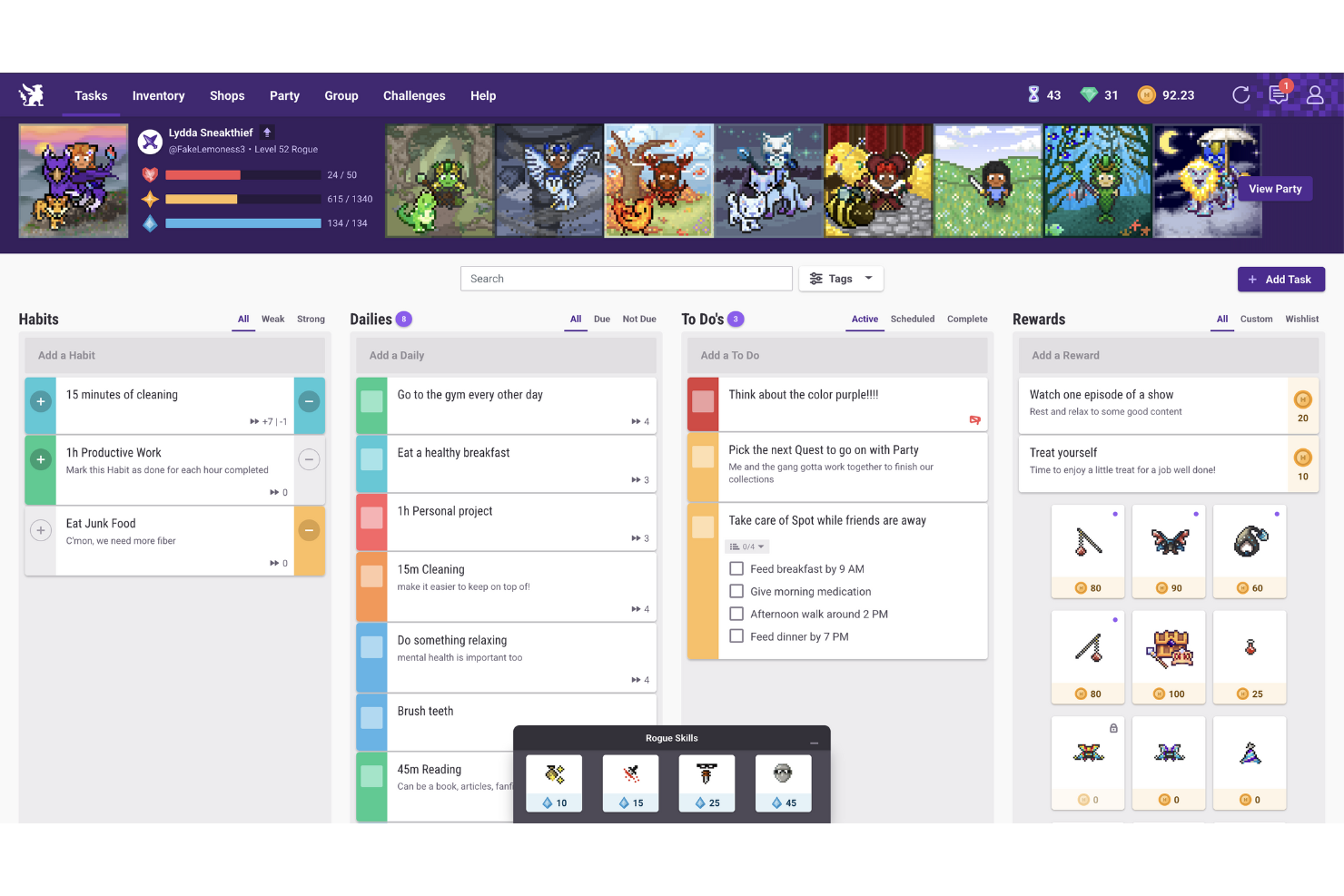
If you want to turn daily task management into a game, Habitica offers a unique approach. This app is designed for individuals and teams who find motivation in rewards, challenges, and levelling up. Habitica helps you build better habits and stay productive by making task completion feel like a role-playing game.
Why I Picked Habitica
What sets Habitica apart from other free productivity apps is how it transforms daily task completion into a game-like experience. I picked Habitica because it uses features like avatars, experience points, and in-app rewards to motivate users to check off tasks and build positive habits. The app also lets you join parties and participate in group challenges, which adds a social and collaborative element to staying productive. For anyone who wants to make habit tracking and task management more engaging, Habitica’s gamification approach is a strong fit.
Habitica Key Features
Some other features in Habitica that help users manage productivity include:
- Daily, Habit, and To-Do Lists: Organize tasks into separate categories for recurring habits, daily routines, and one-time to-dos.
- Customizable Task Difficulty: Set difficulty levels for each task to adjust the challenge and rewards.
- Mobile and Web Access: Use Habitica on both mobile devices and web browsers for flexible task management.
- Open Source Community Plugins: Extend functionality with community-created plugins and add-ons.
Habitica Integrations
Native integrations are not currently listed.
What's Free?
Habitica offers a free-forever plan with access to unlimited tasks, habits, and to-dos. Some advanced features, cosmetic items, and group management options require a paid subscription, but there are no user or time restrictions on the free plan.
Pros and Cons
Pros:
- Custom avatars and rewards personalize productivity
- Community challenges encourage accountability
- Gamified system motivates daily tasks
Cons:
- Progress tracking focuses on gamification
- Task organization limited versus task apps
Outras aplicações gratuitas de produtividade
Eis algumas opções adicionais de aplicações gratuitas de produtividade que não entraram na minha seleção, mas que vale a pena conhecer:


How I Evaluate Free Productivity Apps
I split my evaluation into two layers—core requirements like a genuinely free multi-user plan, and differentiators that separate the tools worth using from the ones that hit a wall fast.
Core Functionality (Table Stakes For This List)
When I'm selecting tools for my list, I rank each one on a scale from 0 (does not offer the functionality) to 5 (excels in this area) for each core functionality listed below. Then, I calculate the tool's total score into a percentage. Each tool needs to achieve a minimum total score of 65% to be considered for inclusion.
- Free Plan Availability: I check whether the tool offers a truly free tier with ongoing access, not just a 14-day trial that locks you out mid-sprint.
- Task & Project Management: Assigning tasks with due dates and statuses is table stakes, but I also look for subtasks and dependencies for managing real delivery workflows.
- Time Tracking: I evaluate time tracking capabilities, including timers, to ensure teams can accurately log work, monitor productivity, and track project progress in one centralized workspace.
- Multiple Project Views: Different workflows need different lenses. I look for at least two views like Kanban boards, calendars, or timelines to support varied planning styles.
- Notifications & Reminders: Missed deadlines often trace back to poor alerts. I check for in-app and email notifications that keep assignees aware of upcoming due dates.
- Third-Party Integrations: Most PMs live across multiple tools, so I evaluate native connections with platforms like Google Workspace, Slack, and common developer tools.
Once I have a list of tools that meet this criteria, I consider what sets each platform apart.
Differentiating Factors (What Sets Vendors Apart)
Here's how I compare and contrast different vendors:
Standout Features
Built-in automation is a major differentiator. I look for tools that let you set rules like auto-assigning tasks when a status changes or triggering reminders before a sprint deadline. Time tracking matters too, especially for freelance PMs who need to log hours against specific projects without adding a separate app. I also evaluate template libraries—a strong set of pre-built templates for sprints, launches, or onboarding workflows saves real setup time when you're spinning up new projects weekly.
Beyond Features
Free plan generosity varies widely. I evaluate how many users, projects, and storage each tool allows before gating features behind a paywall—because a three-person cap can stall a growing team fast. The upgrade path matters just as much. I check whether scaling from a free plan to a paid tier is smooth or forces a painful data migration. Onboarding speed is another factor I weigh. Tools with in-app walkthroughs and quickstart templates get new team members productive in hours, not days.
Como escolher aplicações gratuitas de produtividade
É fácil ficar perdido entre listas extensas de funcionalidades e estruturas de preços complexas. Para o ajudar a manter-se concentrado enquanto analisa o seu processo específico de seleção de aplicações, segue-se uma lista de verificação dos fatores a ter em conta:
| Fator | O que deve considerar |
|---|---|
| Escalabilidade | A aplicação vai acompanhar o crescimento da sua equipa ou existem limites relacionados com utilizadores ou tarefas que podem impedir uma futura expansão? |
| Integrações | A aplicação liga-se nativamente às ferramentas que já utiliza (como o Slack, o Google Calendar ou o Trello) ou vai precisar de soluções alternativas? |
| Personalização | Pode adaptar categorias de tarefas, fluxos de trabalho e notificações aos processos da sua equipa ou fica limitado a modelos rígidos? |
| Facilidade de utilização | Com que rapidez podem os novos utilizadores começar e a interface reduz os obstáculos à gestão diária de tarefas? Se possível, faça um teste com um grupo pequeno. |
| Implementação e integração inicial | Que recursos estão disponíveis para ajudar a sua equipa a começar a trabalhar — como tutoriais, modelos ou apoio em direto? Tenha em conta o tempo e o esforço necessários para a adoção. |
| Custo | Existem custos ocultos, pedidos de atualização ou limites de utilização que o possam obrigar a pagar mais cedo do que esperava? Consulte as condições detalhadas do plano gratuito. |
| Medidas de segurança | A aplicação oferece proteções básicas, como encriptação de dados, permissões de utilizador e atualizações regulares? Verifique se está em conformidade com as normas de segurança da sua organização. |
| Disponibilidade do apoio | Se tiver problemas, existe ajuda atempada através de chat, e-mail ou fóruns ou ficará à espera de respostas? Consulte o horário do apoio e os tempos de resposta. |
O que são aplicações gratuitas de produtividade?
As aplicações de produtividade gratuitas são ferramentas de software que ajudam indivíduos ou equipas a organizar tarefas, gerir projetos e acompanhar o progresso sem exigir pagamento. Estas aplicações oferecem normalmente funcionalidades essenciais, como listas de tarefas, lembretes e ferramentas de colaboração, sem qualquer custo. Foram concebidas para apoiar uma melhor gestão do tempo, melhorar a visibilidade dos fluxos de trabalho e permitir que os utilizadores se mantenham a par das suas responsabilidades, tornando-as opções acessíveis para quem tem orçamentos limitados.
Funcionalidades das aplicações de produtividade gratuitas
Vamos analisar as funcionalidades habitualmente encontradas nas aplicações de produtividade e quais são normalmente incluídas nos planos gratuitos e nos planos pagos.
Funcionalidades normalmente gratuitas das aplicações de produtividade
- Gestão de tarefas: Criar, editar e organizar tarefas ou afazeres, ajudando os utilizadores a acompanhar o que precisa de ser feito diariamente.
- Datas de conclusão e lembretes: Definir prazos e receber notificações para garantir que as tarefas importantes são concluídas atempadamente.
- Colaboração básica: Partilhar tarefas ou listas com outras pessoas, permitindo um trabalho de equipa simples e a partilha de responsabilidades.
- Listas de verificação: Dividir tarefas maiores em passos mais pequenos e concretos que podem ser assinalados à medida que são concluídos.
- Organização básica de projetos: Agrupar tarefas por projeto, categoria ou etiqueta para manter o trabalho organizado e fácil de encontrar.
- Acesso móvel e Web: Utilizar a aplicação em vários dispositivos, para que as tarefas e atualizações estejam sempre disponíveis, esteja no escritório ou em movimento.
- Acompanhamento simples do progresso: Consultar as tarefas concluídas e pendentes para monitorizar a produtividade diária ou semanal.
- Anexos de ficheiros limitados: Adicionar documentos ou imagens às tarefas, normalmente com restrições relativamente ao tamanho dos ficheiros ou ao armazenamento.
Funcionalidades normalmente pagas das aplicações de produtividade
- Integrações avançadas: Ligar a outro software, como calendários, ferramentas de comunicação ou armazenamento na nuvem, para obter um fluxo de trabalho mais unificado.
- Automatização personalizada: Configurar regras ou acionadores que automatizam ações repetitivas, como mover tarefas ou enviar lembretes.
- Registo do tempo: Monitorizar o tempo dedicado a tarefas ou projetos, apoiando um melhor planeamento e elaboração de relatórios.
- Relatórios e análises avançados: Aceder a informações detalhadas sobre tendências de produtividade, desempenho da equipa e progresso dos projetos.
- Permissões baseadas em funções: Controlar quem pode consultar, editar ou gerir tarefas e projetos específicos, para maior segurança e supervisão.
- Suporte prioritário: Obter tempos de resposta mais rápidos e assistência dedicada das equipas de apoio ao cliente.
- Armazenamento ampliado: Carregar ficheiros maiores ou armazenar mais documentos na aplicação, apoiando projetos mais complexos.
- Imagem de marca personalizada: Adicionar o logótipo e as cores da sua organização à interface da aplicação para obter um aspeto mais profissional.
- Modelos de fluxo de trabalho: Aceder a modelos reutilizáveis para processos comuns ou criá-los, poupando tempo na configuração de projetos recorrentes.
- Ferramentas de colaboração avançadas: Utilizar funcionalidades como conversas em tempo real, comentários ou videochamadas diretamente na aplicação para melhorar o trabalho de equipa.
Vantagens das aplicações de produtividade gratuitas
A implementação de aplicações de produtividade gratuitas proporciona várias vantagens à sua equipa e à sua empresa. Eis algumas das que pode esperar:
- Poupança de custos: Aceder a funcionalidades essenciais de gestão de tarefas e colaboração sem aumentar o orçamento destinado ao software.
- Melhor organização: Utilizar listas de tarefas, lembretes e agrupamento de projetos para manter o trabalho estruturado e fácil de gerir.
- Maior responsabilização: Atribuir tarefas e partilhar o progresso com os membros da equipa, facilitando o acompanhamento das responsabilidades.
- Integração mais rápida: Começar rapidamente com interfaces intuitivas, modelos e ferramentas básicas de colaboração que exigem pouca formação.
- Flexibilidade e acessibilidade: Gerir tarefas a partir de qualquer lugar através do acesso móvel e Web, apoiando equipas distribuídas ou remotas.
- Experimentação de baixo risco: Experimentar diferentes fluxos de trabalho e funcionalidades sem compromisso financeiro, ajudando a encontrar a opção certa antes de fazer uma atualização.
- Maior envolvimento da equipa: Utilizar elementos de gamificação ou funcionalidades sociais para incentivar a participação e manter o ritmo nas tarefas diárias.
Custos e preços das aplicações de produtividade
Compreendo que chegou a este artigo à procura das melhores opções de aplicações de produtividade disponíveis gratuitamente. No entanto, uma vez que os planos gratuitos oferecem apenas funcionalidades limitadas, é bastante provável que precise de atualizar o seu plano no futuro.
A tabela abaixo resume os planos mais comuns, os respetivos preços médios e as funcionalidades normalmente incluídas nas aplicações de produtividade:
Tabela de comparação de planos para aplicações de produtividade
| Tipo de plano | Preço médio | Funcionalidades comuns |
|---|---|---|
| Plano gratuito | $0 | Gestão básica de tarefas, colaboração simples, anexos de ficheiros limitados, acesso através de dispositivos móveis e da Web e lembretes básicos. |
| Plano pessoal | $5–$10/utilizador/mês | Todas as funcionalidades gratuitas, integrações com calendários, tarefas recorrentes, mais espaço de armazenamento e opções básicas de personalização. |
| Plano empresarial | $10–$25/utilizador/mês | Todas as funcionalidades do plano pessoal, integrações avançadas, automatização de fluxos de trabalho, ferramentas de gestão de equipas e capacidades de elaboração de relatórios. |
| Plano empresarial avançado | $25–$40/utilizador/mês | Todas as funcionalidades do plano empresarial, segurança avançada, funções e permissões personalizadas, suporte prioritário e opções de conformidade. |
Perguntas frequentes sobre aplicações de produtividade gratuitas
Eis algumas respostas a perguntas comuns sobre aplicações de produtividade gratuitas:
As aplicações de produtividade gratuitas são suficientemente seguras para utilização empresarial?
Sim, a maioria das aplicações de produtividade gratuitas oferece funcionalidades básicas de segurança, como encriptação de dados e autenticação de utilizadores. No entanto, os controlos de segurança avançados e as opções de conformidade estão normalmente reservados aos planos pagos. Por isso, consulte a política de privacidade e a documentação de segurança de cada aplicação antes de a utilizar com dados empresariais sensíveis.
Posso passar de um plano gratuito para um plano pago mais tarde?
Sim, praticamente todas as aplicações de produtividade permitem começar com um plano gratuito e passar para um plano pago à medida que as suas necessidades aumentam. A atualização normalmente desbloqueia funcionalidades mais avançadas, limites de armazenamento superiores e opções de suporte melhoradas, sem exigir a migração dos seus dados.
Quais são as principais limitações das aplicações de produtividade gratuitas?
As aplicações de produtividade gratuitas limitam frequentemente o número de utilizadores, projetos ou espaço de armazenamento que pode utilizar. Também poderá encontrar restrições relativamente a integrações, automatização e elaboração de relatórios avançados. Estas limitações podem afetar equipas maiores ou fluxos de trabalho mais complexos. Por isso, avalie as suas necessidades antes de se comprometer.
As aplicações de produtividade gratuitas funcionam em computadores e dispositivos móveis?
Sim, a maioria das aplicações de produtividade gratuitas oferece versões para a Web e para dispositivos móveis, permitindo-lhe gerir tarefas e colaborar a partir de qualquer lugar. No entanto, algumas funcionalidades ou integrações podem ser limitadas em dispositivos móveis. Por isso, consulte a documentação da aplicação para obter mais informações.
Como escolher a aplicação de produtividade gratuita certa para a minha equipa?
Comece por identificar as necessidades essenciais da sua equipa, como a gestão de tarefas, a colaboração ou a integração com outras ferramentas. Compare a facilidade de utilização, a escalabilidade e as opções de suporte e teste algumas aplicações com a sua equipa para perceber qual se adapta melhor ao seu fluxo de trabalho.