

10 Alternativas ao Box para Partilha de Ficheiros Empresariais em 2026

Lista de alternativas ao Box


Uma alternativa sólida ao Box oferece à sua equipa partilha segura de ficheiros, colaboração flexível e gestão fiável de conteúdos — sem o prender ao ecossistema do Box. Se já não quiser utilizar o Box, é provável que esteja a ponderar as necessidades de segurança dos dados, integração e fluxos de trabalho em relação ao custo, à facilidade de utilização ou aos requisitos de conformidade.
A solução certa deve adequar-se à estrutura da sua organização, ser compatível com as suas ferramentas preferidas e adaptar-se à evolução das suas necessidades. Nesta lista, baseada nas principais avaliações de utilizadores no Capterra, encontrará uma variedade de alternativas ao Box para 2026, cada uma com funcionalidades distintas para o ajudar a gerir documentos, controlar o acesso e manter os seus projetos em andamento.
O que é o Box?
O Box é uma plataforma de gestão de conteúdos baseada na nuvem e uma solução de gestão de ativos digitais que permite às equipas armazenar, partilhar e colaborar em ficheiros de forma segura a partir de qualquer lugar. Oferece gestão centralizada de documentos, controlos de acesso granulares e integração com ferramentas de produtividade populares.
As organizações utilizam o Box para gerir fluxos de trabalho, manter a conformidade e apoiar equipas distribuídas. As suas funcionalidades foram concebidas para grandes empresas e negócios que necessitam de armazenamento seguro de ficheiros, controlo de versões e colaboração entre departamentos ou parceiros externos.
Resumo das melhores alternativas ao Box
Esta tabela de comparação resume os detalhes de preços das minhas principais escolhas de alternativas ao Box:
| Tool | Best For | Trial Info | Price | ||
|---|---|---|---|---|---|
| 1 | Best for collaborative Google Docs editing | Free plan + 14-day free trial available | From CAD $9.20/user/month (billed annually) | Website | |
| 2 | Best for zero-knowledge encrypted file sharing | 14-day free trial | From $19/user/month (billed annually) | Website | |
| 3 | Best for records-driven workflow automation | Free demo available | From $73/user/month (billed annually) | Website | |
| 4 | Best for cross-device sync and link sharing | Free plan available | From $9.99/month | Website | |
| 5 | Best for existing Microsoft 365 file workflows | 30-day free trial | From $7/user/month (billed annually) | Website | |
| 6 | Best for open-source file sharing control | 1-hour free trial | From 71.29€/user/year (billed annually) | Website | |
| 7 | Best for metadata-driven document governance | Free demo available | From $65/user/month | Website | |
| 8 | Best for Microsoft 365 intranet and content hubs | Free trial available | From $7/user/month (billed annually) | Website | |
| 9 | Best for small business team organization | Free plan available | From CAD $3/user/month (billed annually) | Website | |
| 10 | Best for AEC and life sciences governance | Free demo + 15-day free trial available | From $22/user/month (billed annually) | Website |
Why Trust Our Software Recommendations
Our team has been testing and reviewing software since 2012. As project managers ourselves, we know how difficult—and important—it is to choose the right software.
For this guide, we evaluated tools using hands-on testing and independent research, scoring tools using our selection criteria. We also draw on insights from industry thought leaders and practicing project management experts.
Our reviews reflect our human editorial judgment, not a sales pitch.
Expert reviewers:
Avaliações das alternativas ao Box
Seguem-se os meus resumos detalhados das alternativas ao Box que entraram na minha lista. As minhas avaliações apresentam uma análise detalhada das funcionalidades, dos melhores casos de utilização e das integrações de cada plataforma, para o ajudar a encontrar a melhor opção para si.

Best for collaborative Google Docs editing
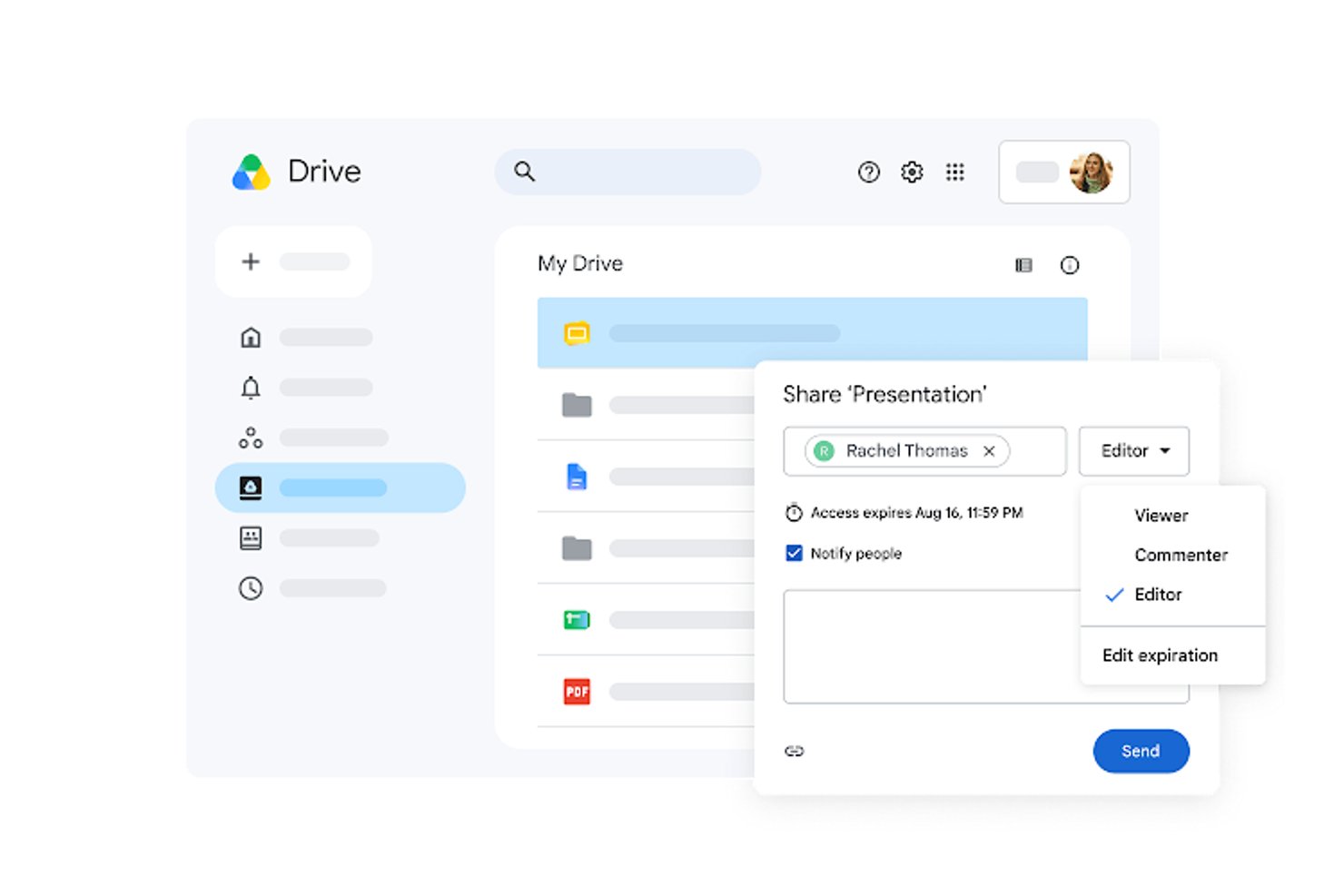
Google Drive gives teams replacing Box cloud file storage alongside Google Workspace tools, helping product and engineering groups keep project documents and shared assets organized in one accessible place.
Who Is Google Drive Best For?
Google Drive suits project managers and cross-functional teams that need to co-edit project plans, specs, and meeting notes in Google Docs.
Why I Picked Google Drive
I picked Google Drive as a Box alternative because it’s Best for collaborative Google Docs editing. I use Docs’ simultaneous editing and comments to resolve feedback on project specs in one file, while version history helps my team review earlier drafts. Drive keeps related project assets alongside those working documents.
Google Drive Key Features
- Shared drives: Store team files in spaces owned by the organization rather than individual accounts.
- Access controls: Set viewer, commenter, or editor permissions for files and folders.
- Offline access: Mark supported files for access when you’re not connected to the internet.
- Drive for desktop: Sync Drive files with your computer and access them through its file system.
Google Drive Integrations
Google Drive works natively with Google Docs, Sheets, and Slides for creating and storing files; third-party apps are available through Google Workspace Marketplace, and the Drive API supports custom integrations.
Pros and Cons
Pros:
- Version history helps review earlier drafts
- Shared drives keep files team-owned
- Co-edit Docs specs with live comments
Cons:
- Permissions grow confusing across many folders
- Shared folders become cluttered at scale

Tresorit
Best for zero-knowledge encrypted file sharing
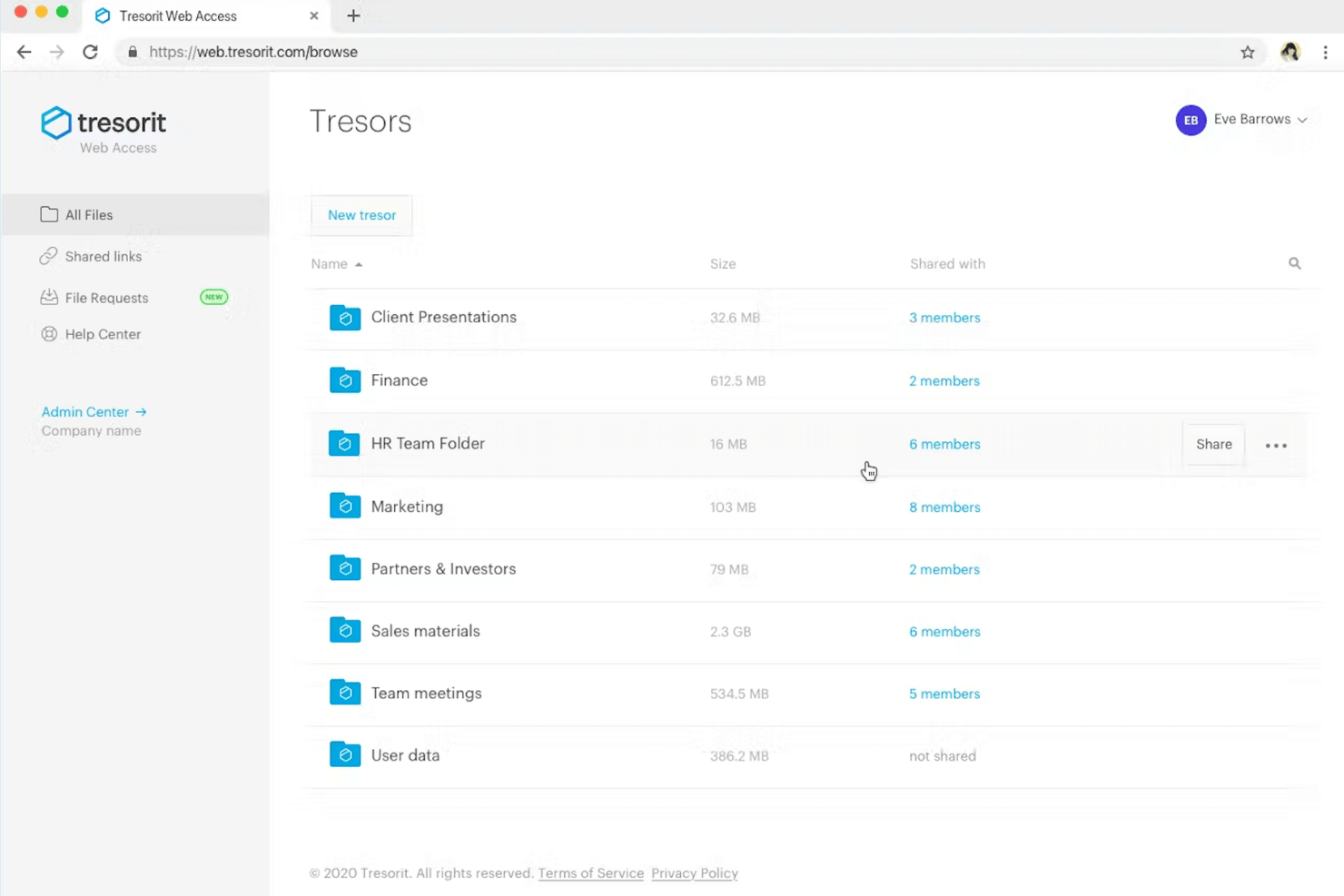
Tresorit is a file-sharing and collaboration platform for businesses that need to exchange sensitive documents, manage access for teams and external partners, and keep distributed work organized.
Who Is Tresorit Best For?
Tresorit suits privacy-conscious teams that need to share confidential files securely with colleagues and external partners.
Why I Picked Tresorit
I picked Tresorit as a Box alternative for zero-knowledge encrypted file sharing. Its end-to-end encryption means Tresorit can’t read the files your team stores or shares. I like that you can share files through protected links, set access permissions, and revoke access when a partner’s work is complete.
Tresorit Key Features
- File requests: Collect files from external collaborators through upload requests.
- File sync: Sync files across devices and shared folders.
- Version history: Restore earlier versions of files after changes.
- Activity logs: Review file events and export activity reports.
Tresorit Integrations
Tresorit documents integrations with Microsoft Outlook, Teams, Entra ID, Sentinel, Gmail, Okta, Google Workspace, and Active Directory. It also offers an API and an S3-compatible API for custom connections, with Zapier support.
Pros and Cons
Pros:
- Cross-platform sync supports distributed teams
- Sharing links support passwords and expiry
- Zero-knowledge encryption protects sensitive files
Cons:
- Large-file syncing can be slow
- No real-time document co-editing

Best for records-driven workflow automation
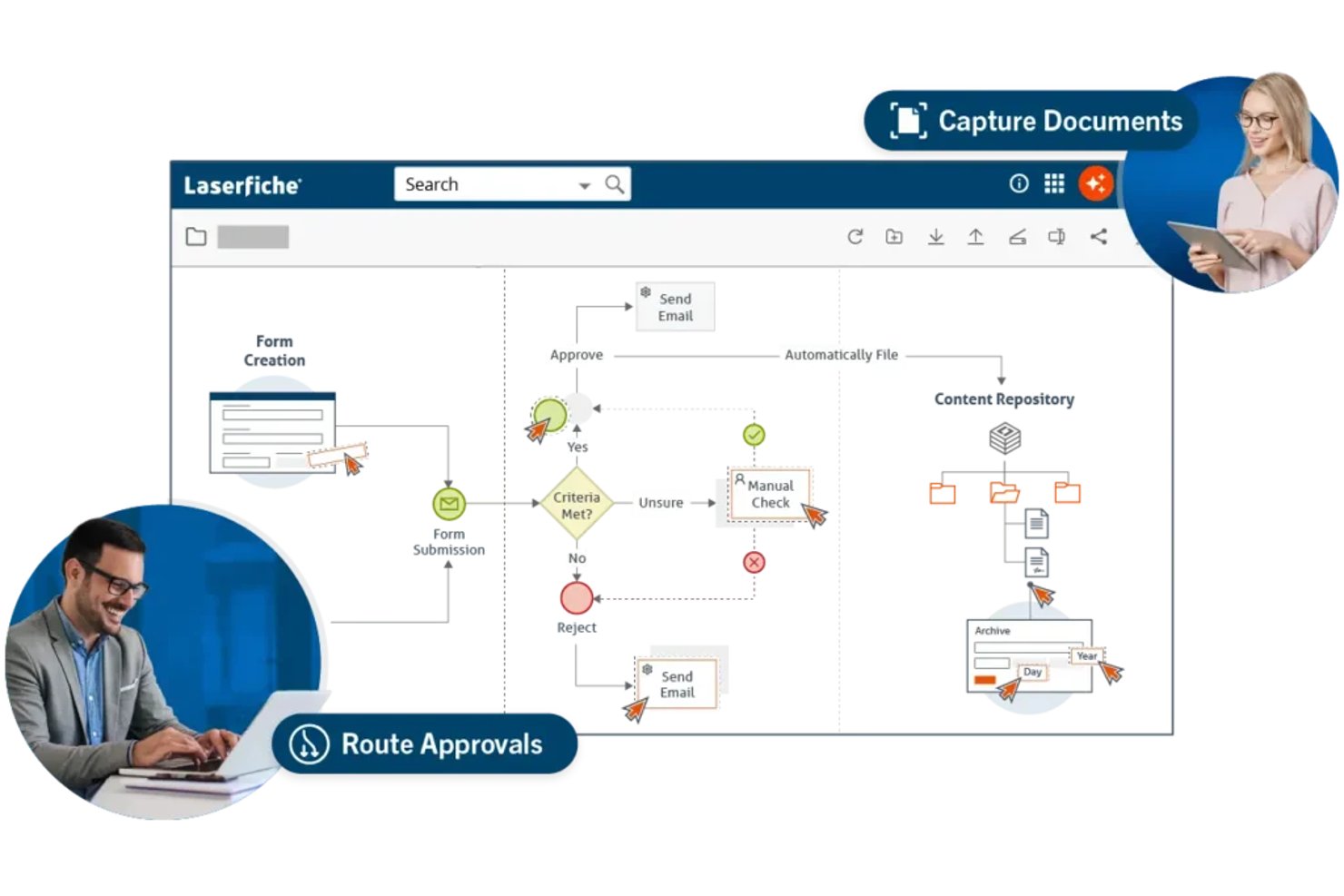
Laserfiche is a cloud content management platform for document-heavy organizations that need to organize files, manage access, and help teams find reliable information across departments.
Who Is Laserfiche Best For?
Laserfiche suits IT and operations teams in regulated or records-intensive organizations that need document governance and automated approval workflows.
Why I Picked Laserfiche
I picked Laserfiche as a Box alternative for its records-driven workflow automation. Retention schedules can alert staff when records need archiving or disposal, while workflows route digital forms for approval and track sign-off. I like how these features connect document handling to records governance.
Laserfiche Key Features
- Document repository: Store and organize files in a centralized digital repository.
- Metadata fields: Add descriptive information to documents for organization and retrieval.
- Full-text search: Search document contents and metadata to locate files.
- Granular permissions: Set user access rights for repository content.
Laserfiche Integrations
Laserfiche has native integrations across Microsoft 365, including Teams, Outlook, and Office apps, plus prebuilt connectors for DocuSign, SAP, Esri ArcGIS, Salesforce, Ellucian, Adobe Sign, and OneSpan. It also supports custom integrations through its REST API and offers a Boomi connector.
Pros and Cons
Pros:
- Metadata and full-text search aid retrieval
- Approval workflows track form sign-offs
- Retention schedules support records lifecycle management
Cons:
- Some users report slow performance
- Initial setup can require specialist effort

Dropbox
Best for cross-device sync and link sharing

Dropbox is a cloud storage and file-sharing platform for product, design, and engineering teams that need to organize project files, collaborate on documents, and share deliverables with internal and external partners.
Who Is Dropbox Best For?
Dropbox suits distributed teams that need project files available across devices and easy-to-share links for collaborators.
Why I Picked Dropbox
I picked Dropbox because “Best for cross-device sync and link sharing” matches how I handle project files. Its desktop sync keeps current folders available across devices, and shared links let me send design exports or release documents to external reviewers without email attachments. I can set link access for the people who need to review them.
Dropbox Key Features
- Version history: Restore earlier file versions or recover deleted files within your plan’s retention period.
- Dropbox Transfer: Package and send large files separately from your shared folders.
- File requests: Collect files from people who can upload through a request link.
- Dropbox Paper: Create and edit collaborative documents with comments and task assignments.
Dropbox Integrations
Dropbox’s official integrations include Google Workspace, Microsoft 365, Slack, Zoom, Jira, Asana, Trello, Adobe, Canva, HubSpot, and Zapier. The Dropbox API supports custom integrations with files, sharing, search, and other capabilities.
Pros and Cons
Pros:
- Block-level updates reduce repeat upload time
- Share large deliverables through access-controlled links
- Reliable cross-device sync keeps folders current
Cons:
- Admin controls trail Box’s enterprise depth
- Large-file syncing can lag

OneDrive
Best for existing Microsoft 365 file workflows

For project teams, OneDrive provides cloud storage and file sharing to organize work documents, share files, and coordinate collaboration across Microsoft 365, making it Best for existing Microsoft 365 file workflows.
Who Is OneDrive Best For?
OneDrive suits organizations standardized on Microsoft 365 that need project files to fit within their existing productivity environment.
Why I Picked OneDrive
I picked OneDrive as a Box alternative because it’s Best for existing Microsoft 365 file workflows. Project files shared in Teams live in SharePoint, while personal work files sync through OneDrive. I like that teammates can coauthor Office documents and restore earlier versions from version history.
OneDrive Key Features
- Files On-Demand: Browse cloud files in File Explorer or Finder without storing every file locally.
- File sync: Sync selected files and folders between OneDrive and your computer.
- Sharing permissions: Choose whether shared recipients can view or edit files.
- Recycle bin: Recover deleted files from the OneDrive recycle bin.
OneDrive Integrations
OneDrive has native integrations across Microsoft 365, including Microsoft Teams, SharePoint, and Word, Excel, and PowerPoint for file access and collaboration. Microsoft Graph provides an API for custom integrations.
Pros and Cons
Pros:
- Version history restores earlier file edits
- Files On-Demand saves local storage
- Office document coauthoring reduces version confusion
Cons:
- OneDrive and SharePoint permissions confuse teams
- Large shared libraries can trigger sync conflicts

Best for open-source file sharing control
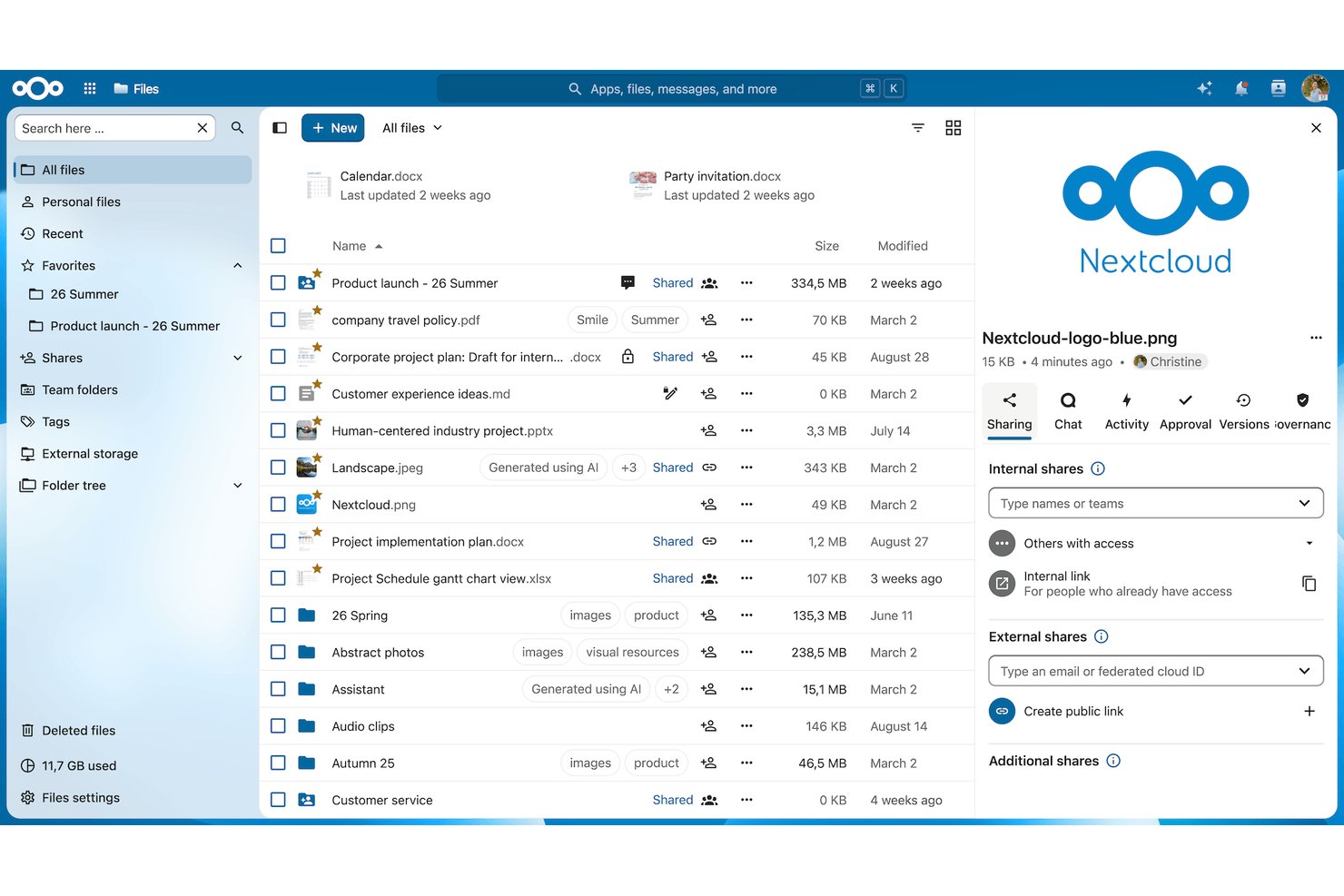
For teams replacing Box, Nextcloud offers file sharing and collaboration tools that help organizations sync documents, coordinate work, and manage where their data is stored.
Who Is Nextcloud Best For?
Nextcloud suits IT teams that want to manage file sharing on their own infrastructure with open-source software.
Why I Picked Nextcloud
I picked Nextcloud for open-source file sharing control when an organization needs documents on infrastructure it manages. Its self-hosted deployment keeps storage under your team’s control, while file-sharing permissions and password-protected links help govern access to project files. That’s useful when you need to share deliverables with external partners without giving them unrestricted access.
Nextcloud Key Features
- File versioning: Compare file versions and restore an earlier copy.
- File locking: Lock files to prevent conflicting edits.
- Office integration: Edit and co-edit documents through connected office suites.
- Sync clients: Sync files across desktop and mobile apps.
Nextcloud Integrations
Nextcloud documents integrations with Outlook and Microsoft Teams through Sendent, plus Microsoft Exchange or Microsoft 365 calendar and contact sync, SharePoint, and Active Directory; its App Store also lists apps for Dropbox, OneDrive, Slack, Jira, and GitHub. Nextcloud provides OCS and WebDAV APIs for custom integrations.
Pros and Cons
Pros:
- Share files with granular access controls
- Restore earlier versions after mistaken edits
- Keep files on infrastructure your team controls
Cons:
- Large-file transfers can slow on modest servers
- Server setup demands hands-on technical administration

M-Files
Best for metadata-driven document governance
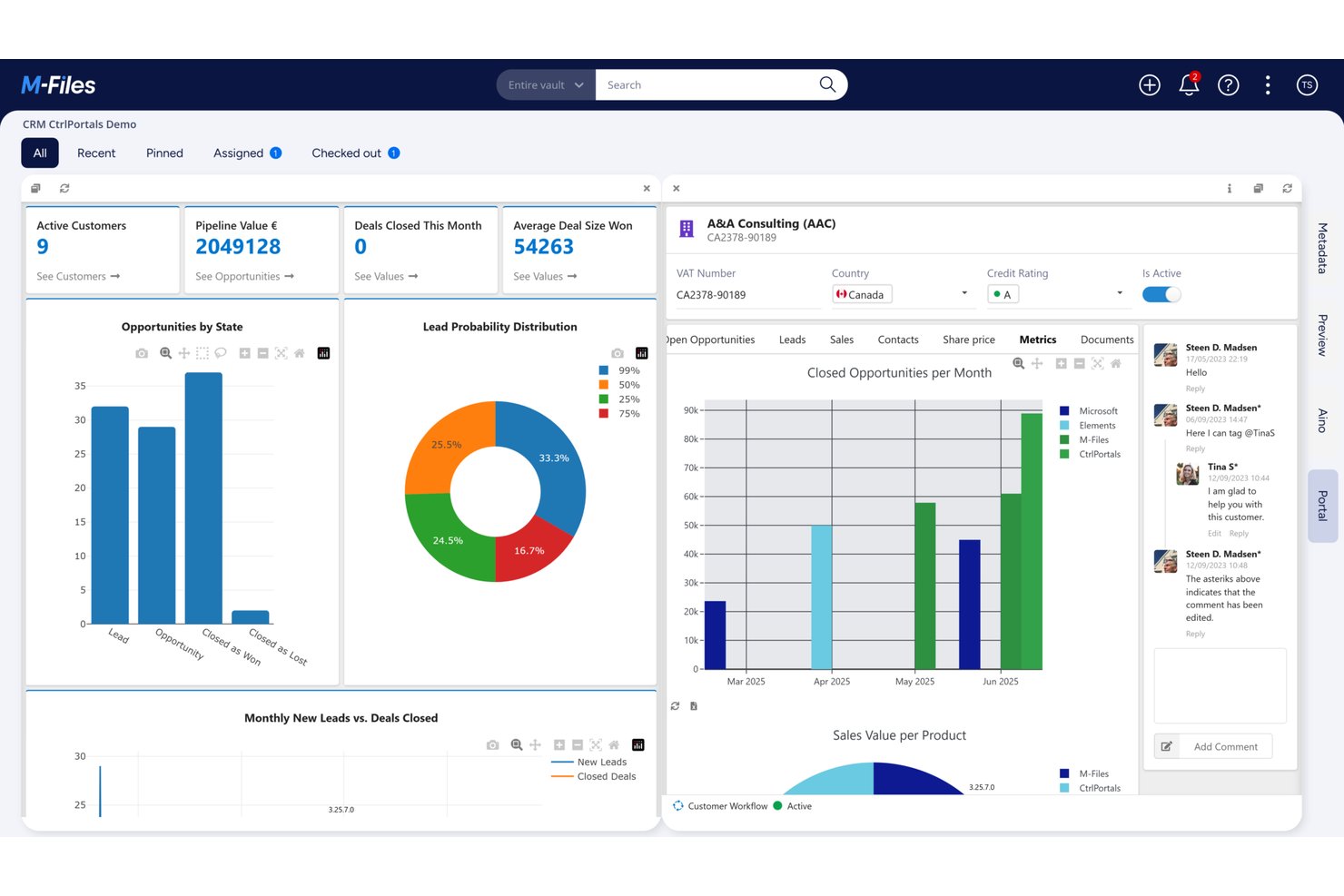
M-Files is a document management platform for project, operations, and compliance teams that need to control records, manage approvals, and reduce version confusion across business workflows.
Who Is M-Files Best For?
M-Files suits IT and information-governance teams that need to classify and control documents across complex workflows.
Why I Picked M-Files
I picked M-Files as a Box alternative for its “Best for metadata-driven document governance” focus. I like how teams can find documents through metadata-based views instead of relying on folder paths. Approval workflows can route project specifications or compliance records for review while keeping versions and status visible.
M-Files Key Features
- Mobile and offline access : Open documents and work with information from mobile devices, even offline.
- Third-party integrations : Connect document workflows with tools such as Microsoft 365, Salesforce, and SAP.
- Role-based access controls : Set document permissions based on users’ roles.
- Electronic signatures : Request signatures on documents through the Adobe Acrobat Sign integration.
M-Files Integrations
M-Files offers integrations with Microsoft 365, including Teams, Outlook, and Office apps, as well as Salesforce, SAP, Google Workspace, Adobe Acrobat Sign, and DocuSign. It also provides APIs and web services for custom integrations.
Pros and Cons
Pros:
- Approval workflows keep document status visible
- Version history supports audit-ready records
- Metadata search works beyond folder paths
Cons:
- Large vaults can experience slowdowns
- Metadata and permissions take careful setup

Best for Microsoft 365 intranet and content hubs
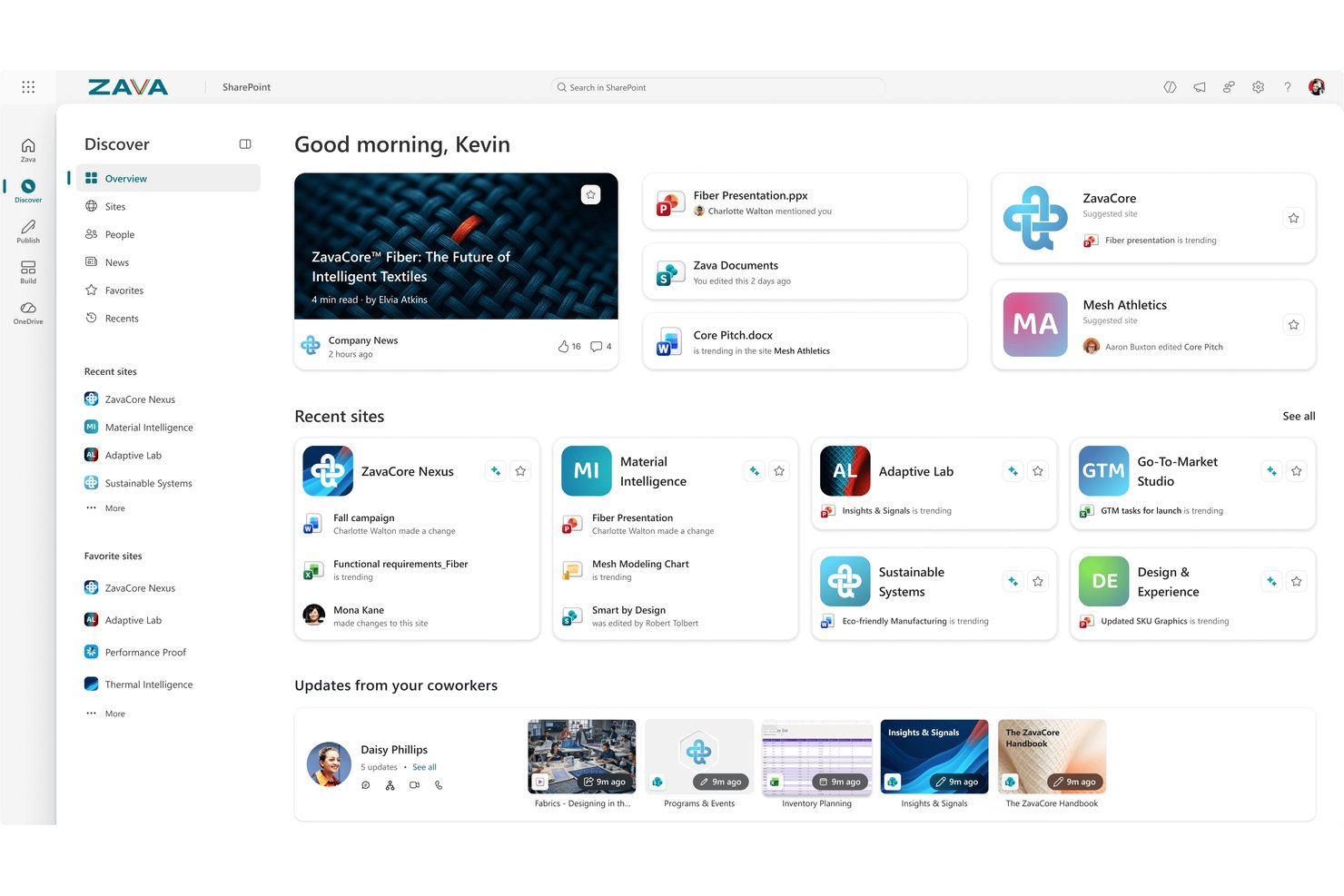
Microsoft SharePoint is a cloud content management platform for teams that need to organize files, share project information, and keep internal resources accessible across Microsoft 365.
Who Is Microsoft SharePoint Best For?
Microsoft SharePoint suits IT, communications, and operations teams that need an employee intranet and organized content hubs within Microsoft 365.
Why I Picked Microsoft SharePoint
I picked Microsoft SharePoint as a Box alternative for its “Best for Microsoft 365 intranet and content hubs” fit. I use communication sites to publish project updates and team sites with document libraries to organize plans and approved files. Version history helps me trace changes when requirements shift.
Microsoft SharePoint Key Features
- Metadata columns: Add fields to classify and filter content by project, owner, or status.
- SharePoint lists: Track structured information such as issues, decisions, or project requests.
- Page templates: Create consistent pages for recurring project or department updates.
- Permission settings: Set access for individuals or groups at the site, folder, or item level.
Microsoft SharePoint Integrations
SharePoint has native integrations across the Microsoft ecosystem, including Microsoft 365, Microsoft Teams, OneDrive, Power Automate, and Power Apps. Microsoft Graph provides APIs for custom integrations.
Pros and Cons
Pros:
- Metadata columns classify files beyond folder hierarchies
- Publishes project updates through customizable pages
- Centralizes project files with version history
Cons:
- Search and sync slow across large libraries
- Site permissions take planning to maintain

Best for small business team organization
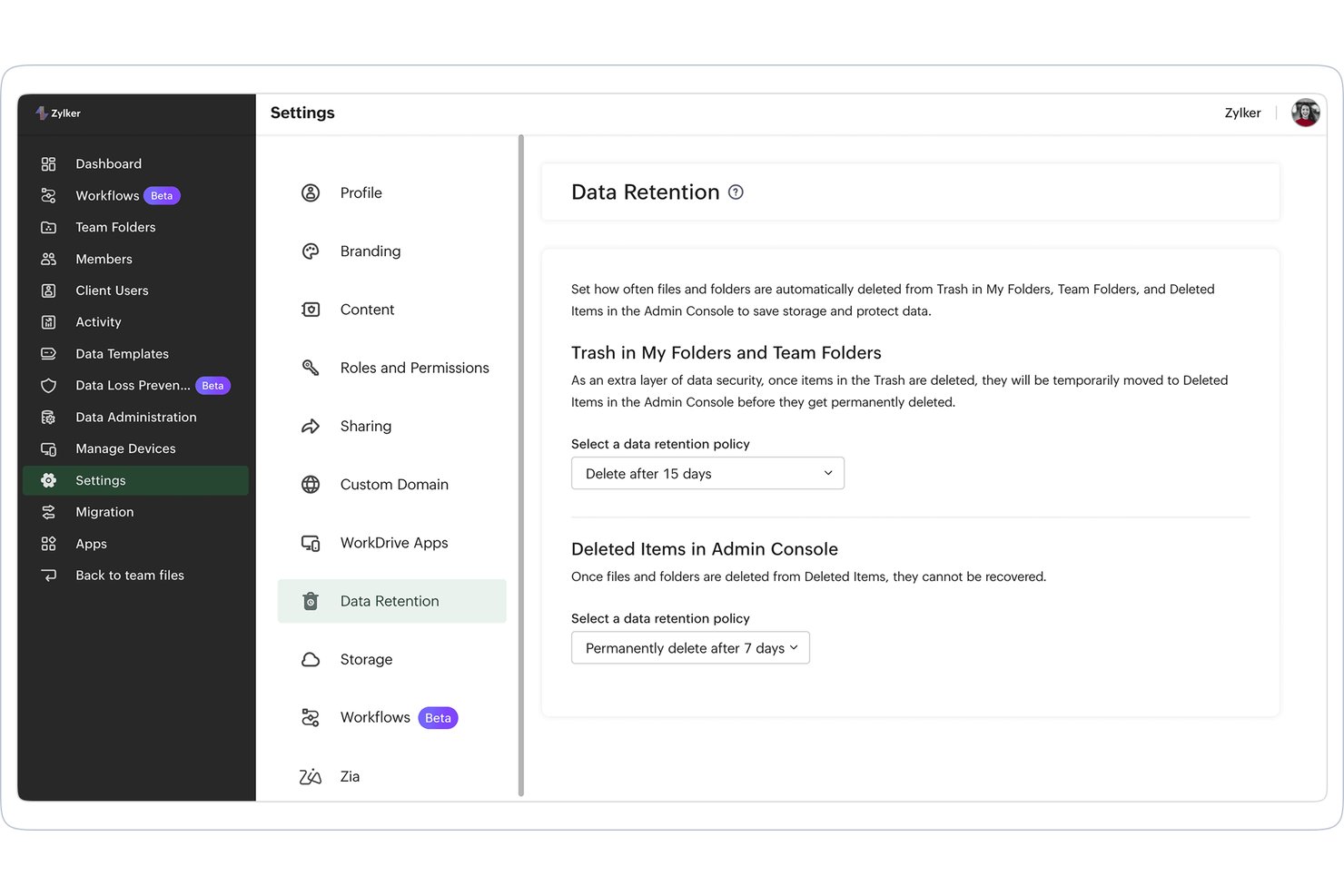
Zoho WorkDrive gives small business teams a shared cloud workspace to store, share, and collaborate on files, reducing scattered documents and access confusion across projects.
Who Is Zoho WorkDrive Best For?
Zoho WorkDrive suits small businesses that need a shared, organized way to manage team files across departments.
Why I Picked Zoho WorkDrive
I picked Zoho WorkDrive as a Box alternative because it’s built for small business team organization. Team Folders give departments and projects shared spaces for files, while folder permissions let you control who can view or edit them. I also like that version history helps my team restore earlier drafts when shared documents change.
Zoho WorkDrive Key Features
- Desktop sync: WorkDrive Sync backs up and syncs files for desktop access.
- Password-protected share links: Add a password and expiration date to external links.
- OTP authentication: Require a one-time password to access externally shared links.
- Zoho Office Suite: Create and edit documents, spreadsheets, and presentations with Writer, Sheet, and Show.
Zoho WorkDrive Integrations
Zoho WorkDrive integrates with Zoho CRM and Zoho Mail, and offers add-ins for Microsoft Office, Outlook, and Gmail. It also supports Zapier and provides APIs for custom integrations.
Pros and Cons
Pros:
- Built-in office tools support document collaboration
- Version history supports draft recovery
- Team Folders keep client files separated
Cons:
- External links can confuse recipients
- Desktop sync can run slowly

Egnyte
Best for AEC and life sciences governance
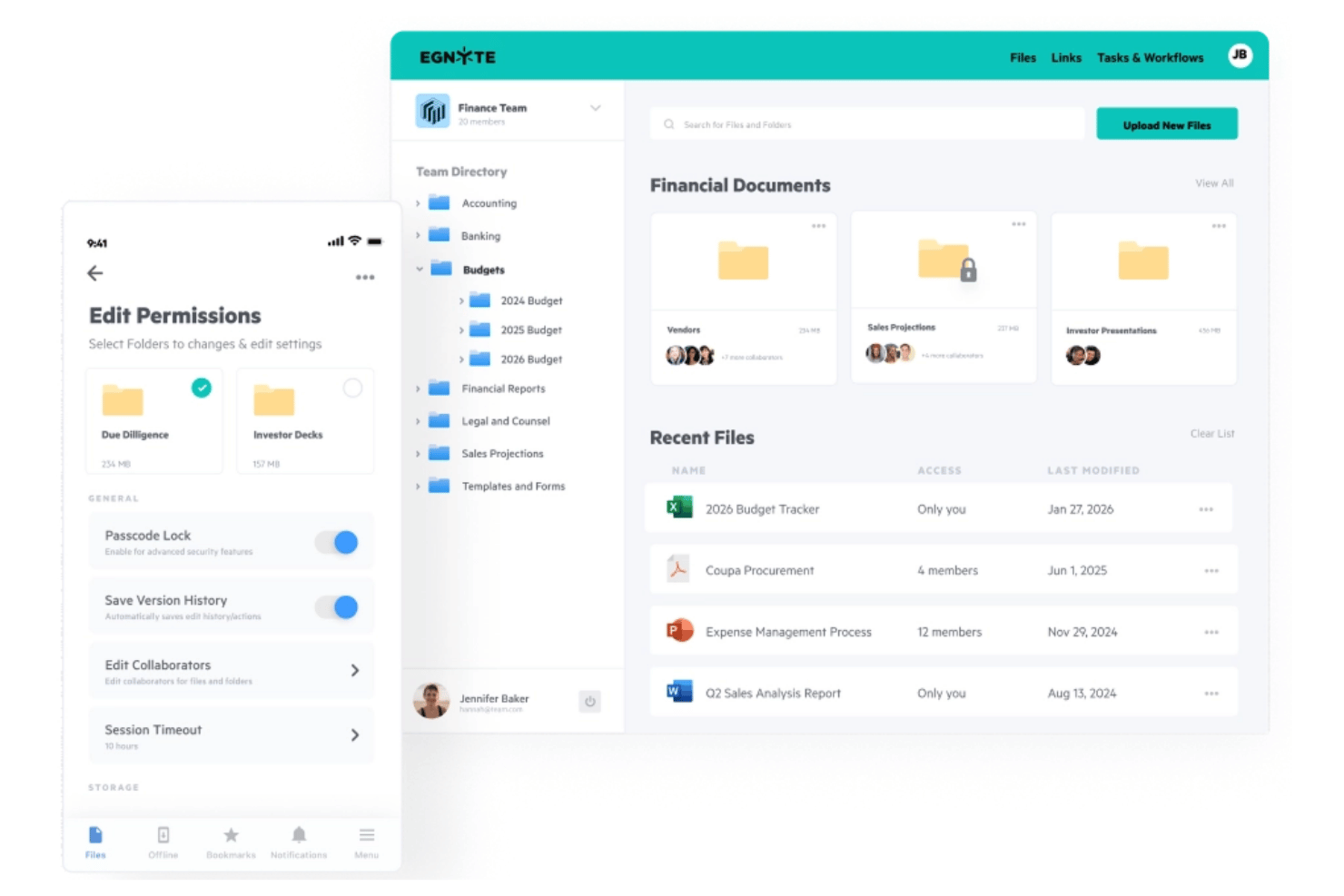
Egnyte is a cloud content management platform that helps distributed teams organize project files, control access, and manage documentation across complex workflows.
Who Is Egnyte Best For?
Egnyte suits AEC and life sciences teams that need governed access to project files and technical documentation.
Why I Picked Egnyte
I picked Egnyte for its fit with the USP, Best for AEC and life sciences governance. AEC teams can govern large BIM and CAD files with role-based permissions, while life sciences teams can track controlled-document reviews, approvals, and audit trails. That helps keep consultant access scoped and regulated records traceable.
Egnyte Key Features
- Desktop app: Browse Egnyte files through Windows File Explorer or Mac Finder.
- Microsoft 365 co-editing: Edit Office documents with collaborators and save changes to Egnyte.
- File version history: View earlier file versions and restore one as current.
- Mobile apps: Access and manage Egnyte files from iOS and Android devices.
Egnyte Integrations
Egnyte documents integrations with Autodesk Forma, Procore, Bluebeam, Benchling, ChemAxon, TetraScience, and Science Exchange, plus Microsoft 365 and Google Workspace. It also provides an API for custom integrations.
Pros and Cons
Pros:
- Field access supports secure external file sharing
- Version history restores deleted project information
- Granular folder permissions suit regulated project files
Cons:
- Bulk permission changes are difficult
- Large uploads can sync slowly
Outras alternativas ao Box
Eis algumas opções adicionais de alternativas ao Box que não entraram na minha lista, mas que ainda vale a pena conhecer:
- Microsoft OneDrive
With Microsoft 365 integration
- Progress ShareFile
For compliance-driven client file exchange
- monday AI Workspace
For AI-powered project file organization
- Clinked
For white-label client portal file sharing
- FileCloud
For self-hosted deployment flexibility
- LucidLink
For large-file streaming across remote teams


How I Evaluate Box Alternatives
I split my evaluation into three parts. First, core functionality—tools must securely store files and control sharing permissions, since these carry the most weight. Then I look for standout features like workflow automation builders or branded client portals. Finally, I consider migration support and pricing transparency.
Core Functionality (Table Stakes For This List)
When I'm selecting tools for my list, I score each one on a scale from 0 (does not offer the functionality) to 5 (excels in this area) for each core functionality listed below. I then convert the total into a percentage to help assess each tool's overall fit, with extra weight on any functionalities I’ve deemed essential.
- Secure Cloud Storage (Essential): I assess whether teams can store and access project files securely across devices, with encryption and reliable availability.
- File Sharing & Permissions (Essential): I look for internal and external sharing controls that let you set access levels for clients, partners, and project teams.
- Version Control: I check whether teams can review file history and restore an earlier version after a project document changes.
- Third-Party Integrations: I consider how well the platform connects document workflows to the productivity, communication, and project tools your team already uses.
- Collaborative Editing: I evaluate whether teammates can edit, annotate, or comment on files together during reviews and handoffs.
- Admin & Compliance Controls: I look for user management, audit logs, and governance settings that help administrators oversee access to shared content.
Once I have a list of tools that meet the criteria, I consider what sets each platform apart.
Differentiating Factors (What Sets Vendors Apart)
Here's how I compare and contrast different vendors:
Standout Features
I look for workflow automation builders that let teams route files for approval when a project hits a specific milestone—no manual follow-up needed. Branded client portals also matter; I check whether external stakeholders can upload and approve deliverables inside a secure, white-labeled workspace instead of trading email attachments. For teams with field staff or on-site coordinators, I evaluate offline sync and mobile editing so work doesn't stall between site visits.
Beyond Features
I check whether vendors charge extra for external collaborator seats, since project teams regularly loop in clients and contractors who need limited access. Pricing that penalizes guest users adds up fast across multiple engagements. I also evaluate ecosystem lock-in—some platforms tie storage, editing, and integrations tightly to one vendor's suite, which limits your flexibility if your PM or communication stack changes. Data portability and open API access matter when a future switch is on the table.
Porquê procurar uma alternativa ao Box?
Embora o Box seja uma boa escolha como plataforma de gestão de conteúdos, existem várias razões pelas quais alguns utilizadores procuram soluções alternativas. Poderá estar à procura de uma alternativa ao Box porque…
- Precisa de funcionalidades mais avançadas para portais de clientes
- O seu setor exige controlos de conformidade mais rigorosos
- Pretende encriptação de ponta a ponta para todos os ficheiros
- Precisa de uma melhor integração com ferramentas específicas do seu setor
- A sua equipa considera as definições de permissões do Box demasiado complexas
- Necessita que os dados estejam alojados num país específico
Se alguma destas situações se aplica a si, veio ao lugar certo. A minha lista inclui várias opções de plataformas de gestão de conteúdos mais adequadas a equipas que enfrentam estes desafios com o Box e procuram soluções alternativas.
Principais funcionalidades do Box
Eis algumas das principais funcionalidades do Box, para o ajudar a comparar o que as soluções alternativas oferecem:
- Controlos granulares de permissões de utilizadores e grupos
- Colaboração em documentos em tempo real com o Box Notes
- Criação automatizada de fluxos de trabalho com o Box Relay
- Capacidades nativas de assinatura eletrónica com o Box Sign disponível como complemento
- Integração com Microsoft 365 e Google Workspace
- Histórico detalhado de versões dos ficheiros e acompanhamento da atividade
- Segurança avançada de conteúdos, proteção por palavra-passe e ferramentas de marca de água
- Consola de administração centralizada para gestão de utilizadores
- Aplicações móveis para iOS e Android
- API abrangente para integrações personalizadas