

10 beste programmer for personlig dokumentbehandling i 2026

Kortliste over programvare for personlig dokumenthåndtering


Et personlig dokumenthåndteringssystem (DMS) hjelper deg med å organisere, lagre og finne igjen personlige filer og dokumenter i én sikker digital lagringsløsning. Hvis du leter etter en måte å holde oversikt over alt fra kontrakter og kvitteringer til personlige notater og viktige dokumenter i flere filformater, vet du hvor raskt filer kan bli borte eller uorganiserte – særlig når du bruker flere enheter eller håndterer en blanding av personlige prosesser og forretningsprosesser. Denne listen hjelper deg med å sammenligne de beste verktøyene for papirløs dokumenthåndtering i 2026, slik at du kan finne løsningen som passer best for arbeidsflyten, sikkerhetsbehovene og samarbeidsstilen din.
Hvorfor du kan stole på våre programvareanbefalinger
Teamet vårt har testet og anmeldt programvare siden 2012. Vi er selv prosjektledere, så vi vet hvor vanskelig og hvor viktig det er å velge riktig programvare.
I denne guiden har vi vurdert verktøyene gjennom praktisk testing og uavhengig research og gitt dem poeng ut fra våre utvelgelseskriterier. Vi bygger også på innsikt fra ledende eksperter i bransjen og erfarne prosjektledere.
Anmeldelsene våre bygger på vår egen redaksjonelle vurdering. De er ikke et salgsargument.
Ekspertanmeldere:
Sammenligningstabell for programvare for personlig dokumenthåndtering
Denne sammenligningstabellen oppsummerer prisdetaljer for mine beste utvalgte programmer for personlig dokumenthåndtering.
| Tool | Best For | Trial Info | Price | ||
|---|---|---|---|---|---|
| 1 | Best for real-time team collaboration | Free plan + 14-day free trial available | From CAD $9.20/user/month (billed annually) | Website | |
| 2 | Best for file version history tracking | Free plan available | From $9.99/month | Website | |
| 3 | Best for Microsoft 365 integration | 30-day free trial | From $7/user/month (billed annually) | Website | |
| 4 | Best for multilingual document indexing | Free demo available | Pricing upon request | Website | |
| 5 | Best for advanced PDF editing tools | 7-day free trial | From $19.99/user/month (billed annually) | Website | |
| 6 | Best for secure external file sharing | 14-day free trial | From CAD$21/user/month (billed annually) | Website | |
| 7 | Best for workflow automation features | 14-day free trial + free demo available | Pricing upon request | Website | |
| 8 | Best for granular access permissions | Free plan available | From $52/month | Website | |
| 9 | Best for open-source customization options | Free demo available | Pricing upon request | Website | |
| 10 | Best for compliance management support | Free demo available | Pricing upon request | Website |
Anmeldelser av programvare for personlig dokumenthåndtering
Nedenfor finner du mine detaljerte sammendrag av programmene for personlig dokumenthåndtering som kom med på kortlisten min. Anmeldelsene mine gir en grundig gjennomgang av funksjonene, de beste bruksområdene og integrasjonene for hvert program, slik at du kan finne det beste alternativet for deg.

Best for real-time team collaboration
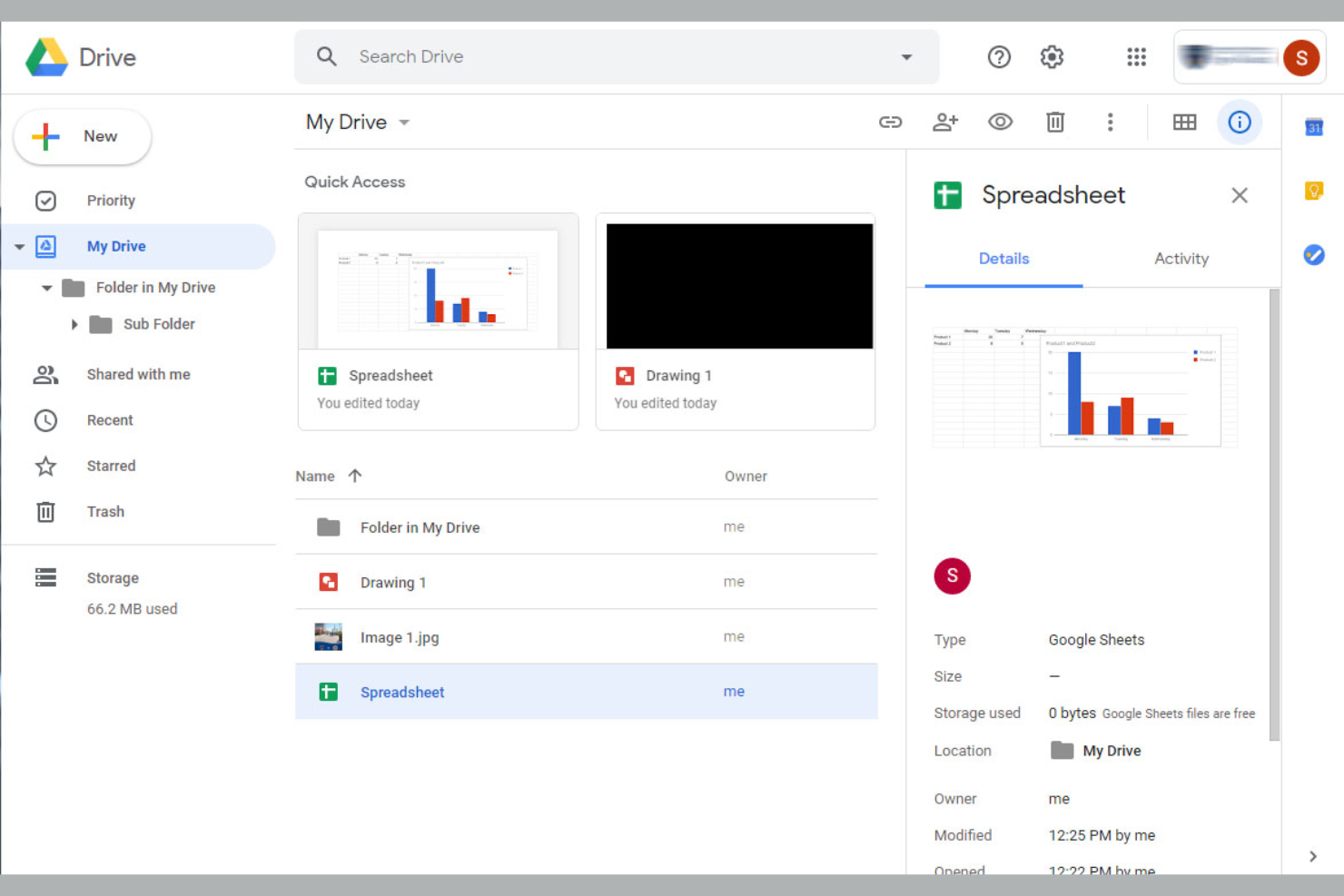
For anyone who needs to collaborate on documents in real time, Google Drive offers a cloud-based solution that keeps teams connected and organized. It’s especially useful for distributed teams, freelancers, or anyone who needs to share, edit, and comment on files without version confusion. Google Drive’s live editing and sharing features help you keep projects moving, even when everyone’s working from different locations.
Why I Picked Google Drive
When it comes to managing documents with real-time team collaboration, Google Drive stands out for its live editing and commenting capabilities. You can work on the same document with others at the same time, see changes as they happen, and leave feedback directly in the file. I like that Google Drive automatically saves every change, so you never have to worry about losing progress or dealing with conflicting versions. For anyone who needs to keep projects moving with input from multiple people, these collaboration features make Google Drive a strong choice.
Google Drive Key Features
Some other features that make Google Drive useful for personal document management include:
- File Version History: Access and restore previous versions of any file stored in Drive.
- Advanced Search Filters: Find documents quickly using filters for file type, owner, and keywords.
- Offline Access: View and edit files without an internet connection.
- Shared Drives: Organize files and folders for teams or projects in dedicated shared spaces.
Google Drive Integrations
Integrations include Gmail, Google Docs, Google Sheets, Google Slides, Google Forms, Google Calendar, Google Meet, Google Chat, Google Keep, and AppSheet.
Pros and Cons
Pros:
- Scans from phone app
- Free built-in tools
- Easy to share photos
Cons:
- Shared storage quota
- Confusing file sync

Dropbox
Best for file version history tracking
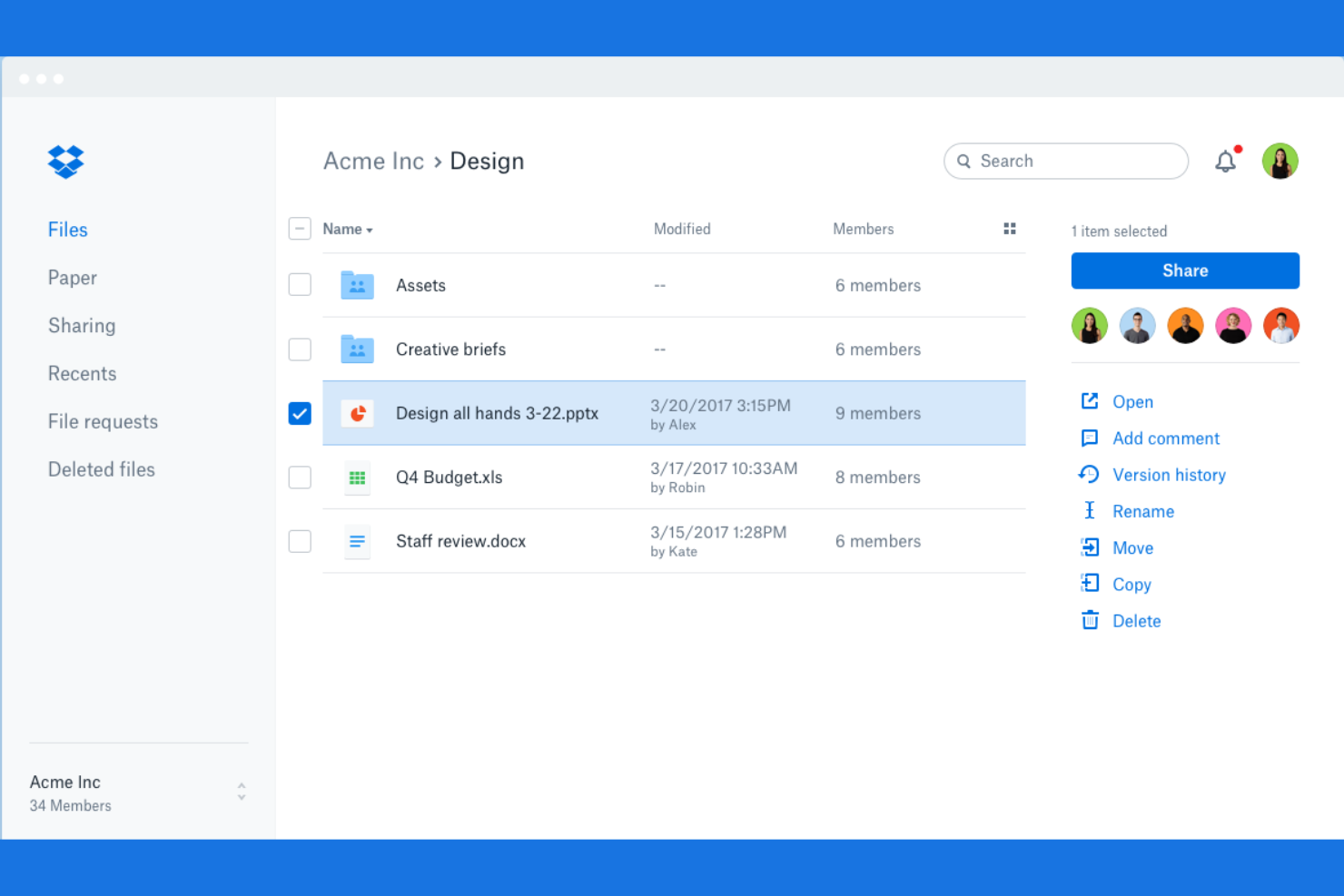
If you need to keep track of every change made to your files, Dropbox is designed with version history at its core. It’s a strong fit for professionals who manage evolving documents, creative assets, or collaborative projects where reverting to earlier versions is essential. Dropbox’s approach to file recovery and detailed change tracking helps you avoid accidental loss and maintain control over your document history.
Why I Picked Dropbox
For anyone who needs reliable file version history, Dropbox offers detailed tracking and recovery options that set it apart. You can view, restore, or download previous versions of files, which is especially useful if you’re managing documents that change frequently or need to recover from accidental edits. I appreciate that Dropbox keeps a clear record of changes, making it easy to audit document updates or roll back to earlier drafts. This focus on version control makes Dropbox a strong choice for personal document management where tracking file history is a priority.
Dropbox Key Features
Some other Dropbox features that support personal document management include:
- Selective Sync: Choose which folders sync to your device to save local storage space.
- File Requests: Collect files from others directly into your Dropbox, even if they don’t have an account.
- Document Scanning: Scan physical documents using the mobile app and save them as PDFs.
- Shared Links with Permissions: Set view, edit, or expiration controls on shared file links.
Dropbox Integrations
Integrations include Zoom, Slack, Microsoft 365, Trello, and Salesforce.
Pros and Cons
Pros:
- Simple home layout
- Works on all devices
- Great file recovery
Cons:
- Weak privacy stance
- Confusing web layout

OneDrive
Best for Microsoft 365 integration
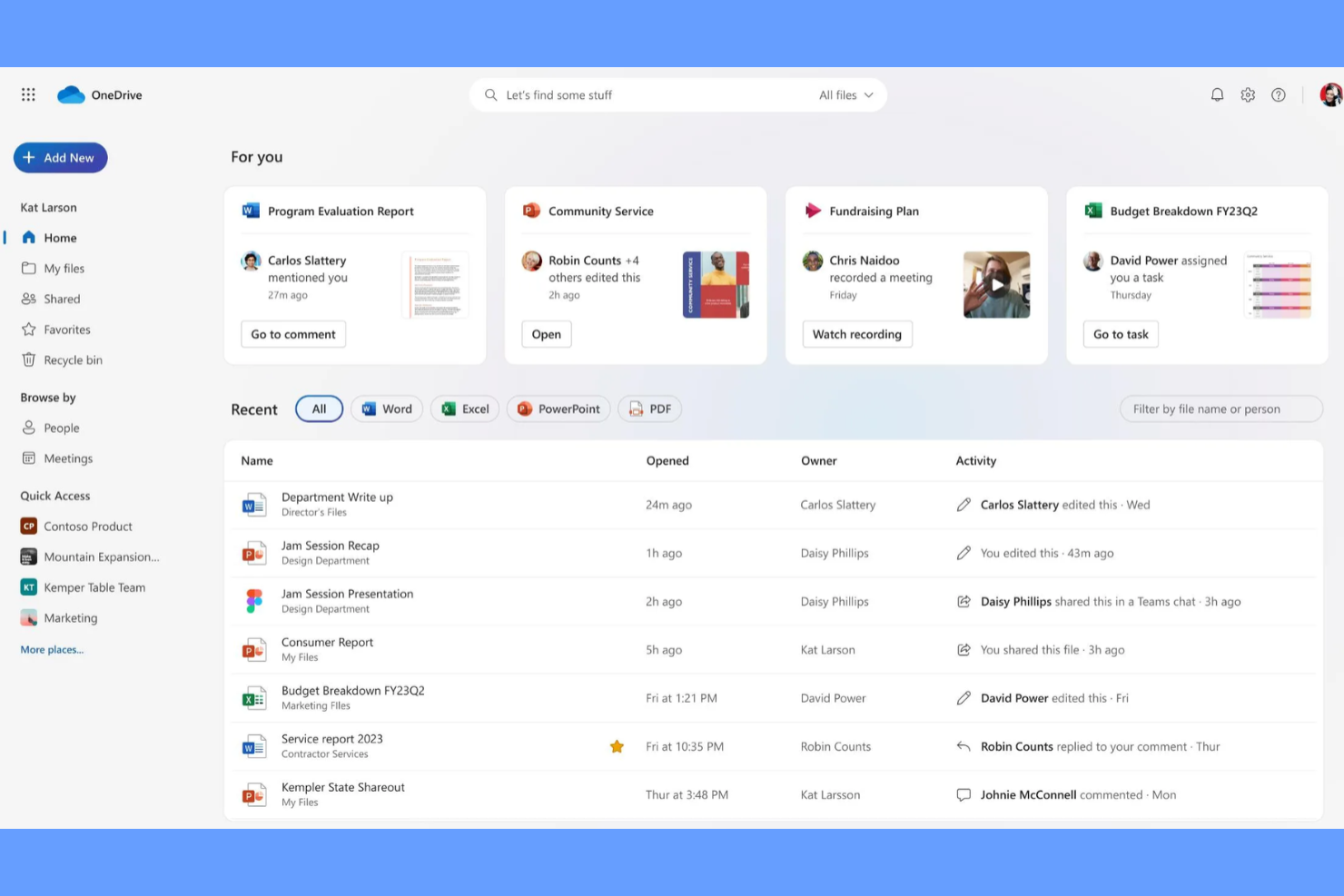
If you rely on Microsoft 365 apps for your daily work, OneDrive offers a tightly integrated way to manage and access your documents. It’s especially useful for professionals who want to keep files in sync across devices and collaborate directly within familiar Microsoft tools. OneDrive’s seamless connection to Word, Excel, and Teams makes it a natural fit for anyone already invested in the Microsoft ecosystem.
Why I Picked OneDrive
OneDrive stands out for anyone who works heavily within the Microsoft 365 environment and wants their document management to feel like a natural extension of those tools. You can open, edit, and collaborate on Word, Excel, and PowerPoint files directly from OneDrive, without needing to download or re-upload documents. I like that file sharing and permissions are managed using the same controls as the rest of Microsoft 365, which keeps everything consistent and secure. For anyone who wants document management that’s deeply woven into their existing Microsoft workflows, OneDrive is a logical choice.
OneDrive Key Features
Some other features that make OneDrive useful for personal document management include:
- Personal Vault: Store sensitive files in a protected area with extra security measures.
- Automatic Photo and Video Backup: Back up photos and videos from your mobile device directly to OneDrive.
- Offline Access: Access selected files and folders even when you’re not connected to the internet.
- File Restore: Restore your entire OneDrive to a previous point in time in case of accidental deletion or ransomware.
OneDrive Integrations
Integrations include Word, Excel, PowerPoint, Outlook, OneNote, Microsoft Teams, Microsoft Copilot, and Microsoft Forms.
Pros and Cons
Pros:
- Easy to use offline
- Personal Vault safe
- Good photo backup
Cons:
- Slow upload speeds
- Aggressive pop-ups

Best for multilingual document indexing
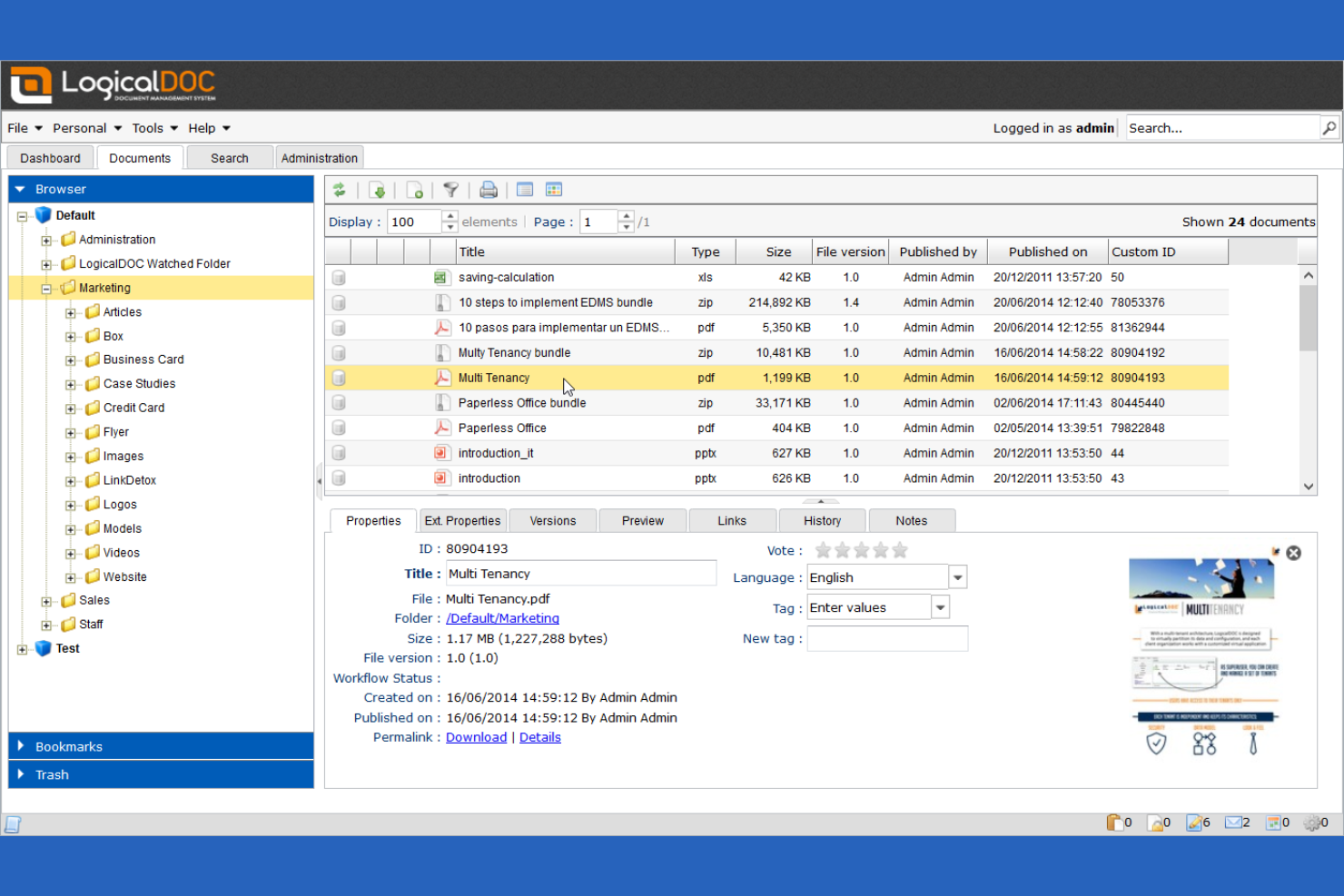
If you need to manage documents in multiple languages, LogicalDOC offers advanced multilingual indexing and search capabilities. This tool is a strong fit for professionals or teams working across international markets or handling documents in several languages. LogicalDOC helps you organize, tag, and retrieve files regardless of language, making it easier to keep global content accessible and searchable.
Why I Picked LogicalDOC
For anyone who needs to manage documents in several languages, LogicalDOC’s multilingual indexing is a clear advantage. I picked LogicalDOC because it automatically recognizes and indexes documents in dozens of languages, making it easy to search and retrieve files no matter what language they’re in. The platform also supports multilingual metadata and tagging, so you can organize your files using terms that make sense for your workflow. If you’re working in a global context or regularly handle documents in more than one language, these features make LogicalDOC a strong fit.
LogicalDOC Key Features
Some other features that make LogicalDOC useful for personal document management include:
- Workflow Automation: Create custom workflows to automate document review and approval processes.
- Document Versioning: Track changes and maintain a full history of document edits.
- Role-Based Access Control: Assign permissions based on user roles to manage document security.
- Full-Text Search: Search the entire content of documents, not just file names or metadata.
LogicalDOC Integrations
Integrations include Microsoft 365, Salesforce, Google Drive, DocuSign, and Acumatica.
Pros and Cons
Pros:
- Cross-platform access
- Highly customizable
- Tracks document edits
Cons:
- Too complex for home
- Needs server hardware

Best for advanced PDF editing tools
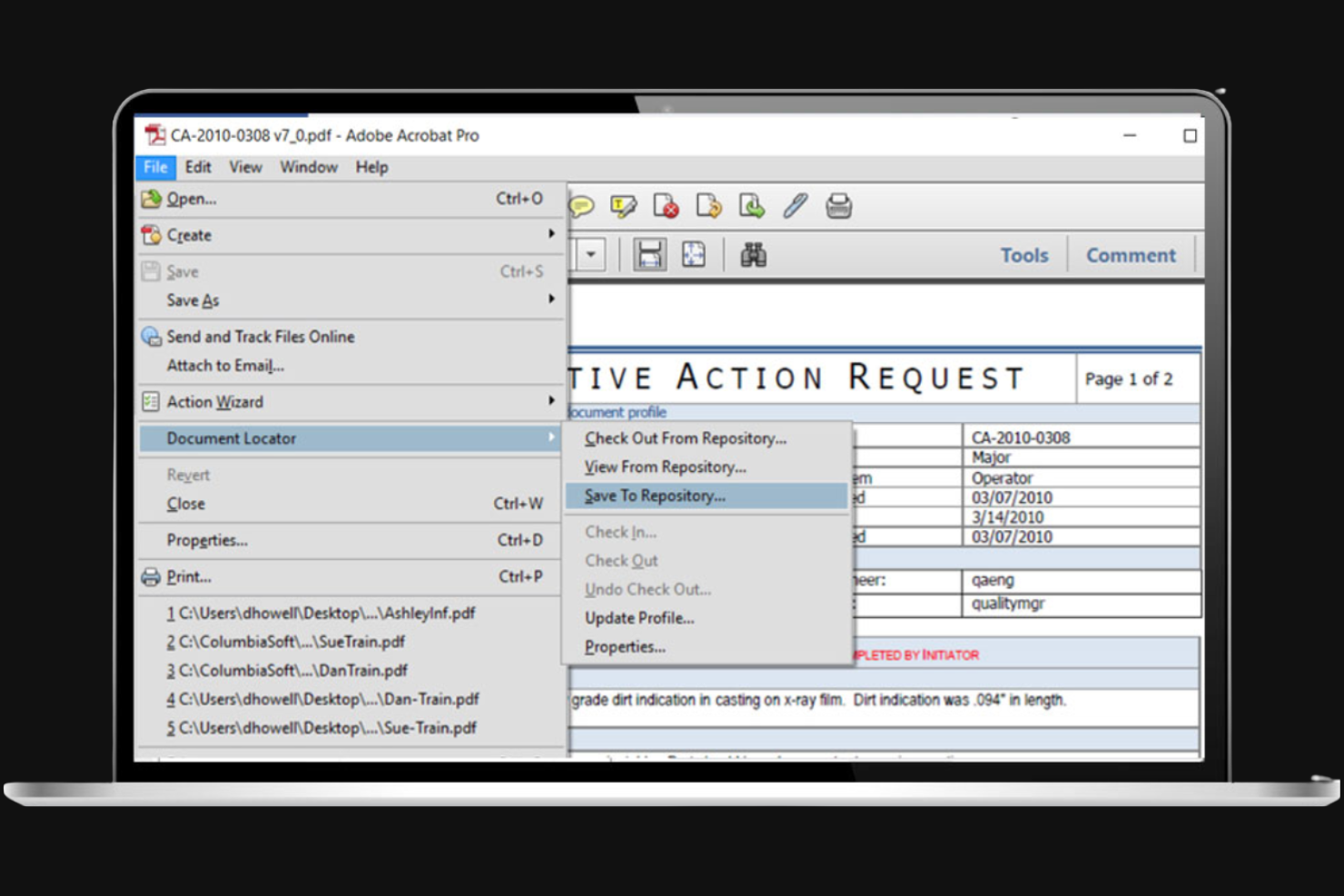
If you need advanced control over PDFs, Adobe Acrobat is a top choice for editing, organizing, and securing documents. It’s especially useful for professionals who regularly work with contracts, forms, or reports that require precise formatting and annotation. Adobe Acrobat’s editing tools let you modify text, images, and layouts directly within your PDFs, making it much more than just a viewer.
Why I Picked Adobe Acrobat
What sets Adobe Acrobat apart for personal document management is its advanced PDF editing toolkit. You can edit text and images directly within a PDF, which is essential for anyone who needs to update contracts, forms, or reports without converting files back and forth. I appreciate that Acrobat also supports features like redaction and digital signatures, making it a strong choice for handling sensitive or official documents. If you need more than just basic PDF viewing and want full editing control, Acrobat is built for that level of work.
Adobe Acrobat Key Features
Some other features that make Adobe Acrobat useful for personal document management include:
- OCR (Optical Character Recognition): Convert scanned documents and images into searchable and editable PDFs.
- PDF File Merging and Splitting: Combine multiple files into one PDF or split a PDF into separate documents.
- Cloud Storage Integration: Access and manage your PDFs from Adobe Document Cloud and other connected storage services.
- Commenting and Annotation Tools: Add notes, highlights, and markups directly to PDF files.
Adobe Acrobat Integrations
Integrations include Microsoft 365, Google Drive, Dropbox, Box, OneDrive, SharePoint, Salesforce, Workday, ServiceNow, and Microsoft Teams.
Pros and Cons
Pros:
- Merges family docs
- Reliable offline use
- Scans paper to PDF
Cons:
- Annoying upsell popups
- Constant app updates

Box
Best for secure external file sharing
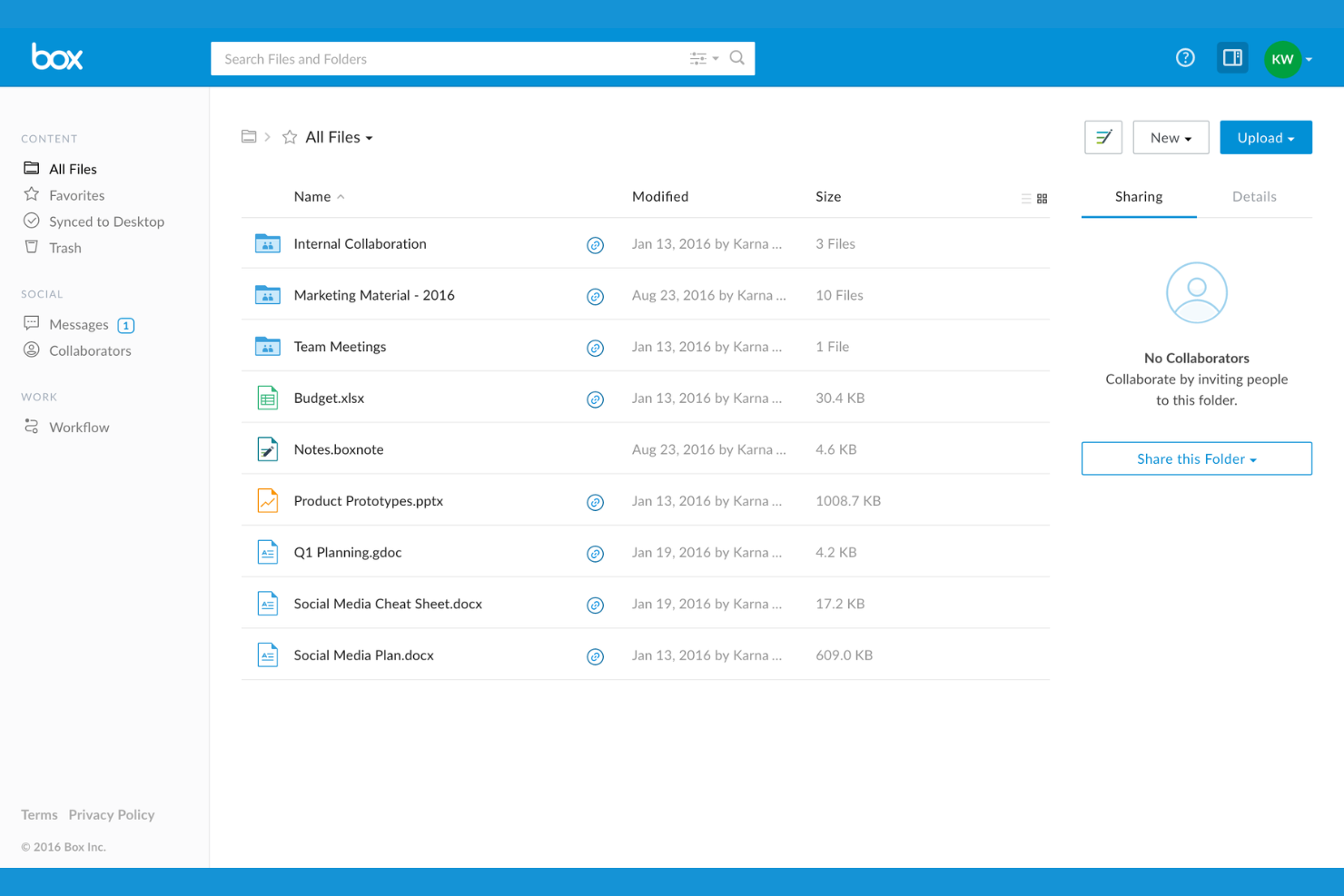
If you need to share sensitive files outside your organization, Box offers advanced security controls for external collaboration. It’s a strong fit for professionals and teams who regularly exchange confidential documents with clients, vendors, or partners. Box combines granular sharing permissions with audit trails to help you manage and track every file you send.
Why I Picked Box
When secure external file sharing is a top priority, Box offers features that go beyond basic document storage. I picked Box because it lets you set detailed sharing permissions, so you can control exactly who can view, edit, or download each file. The platform also provides secure links with expiration dates and password protection, which is especially useful for sending sensitive documents outside your organization. For anyone who needs to track document access and maintain compliance, Box’s audit logs and activity tracking add an extra layer of confidence.
Box Key Features
Some other features that make Box useful for personal document management include:
- Document Scanning: Capture and upload physical documents directly from your mobile device.
- eSignature Integration: Sign documents electronically without leaving the platform.
- Automated Workflows: Set up rules to automate document routing and approvals.
- File Version History: Access and restore previous versions of any file stored in Box.
Box Integrations
Integrations include Microsoft 365, Google Workspace, Adobe, Salesforce, Slack, Oracle NetSuite, Okta, Broadcom, Splunk, and Palo Alto Networks.
Pros and Cons
Pros:
- Fast search speeds
- Good mobile access
- Simple folder setup
Cons:
- Lacks photo tools
- Pricing is very high
Revver
Best for workflow automation features
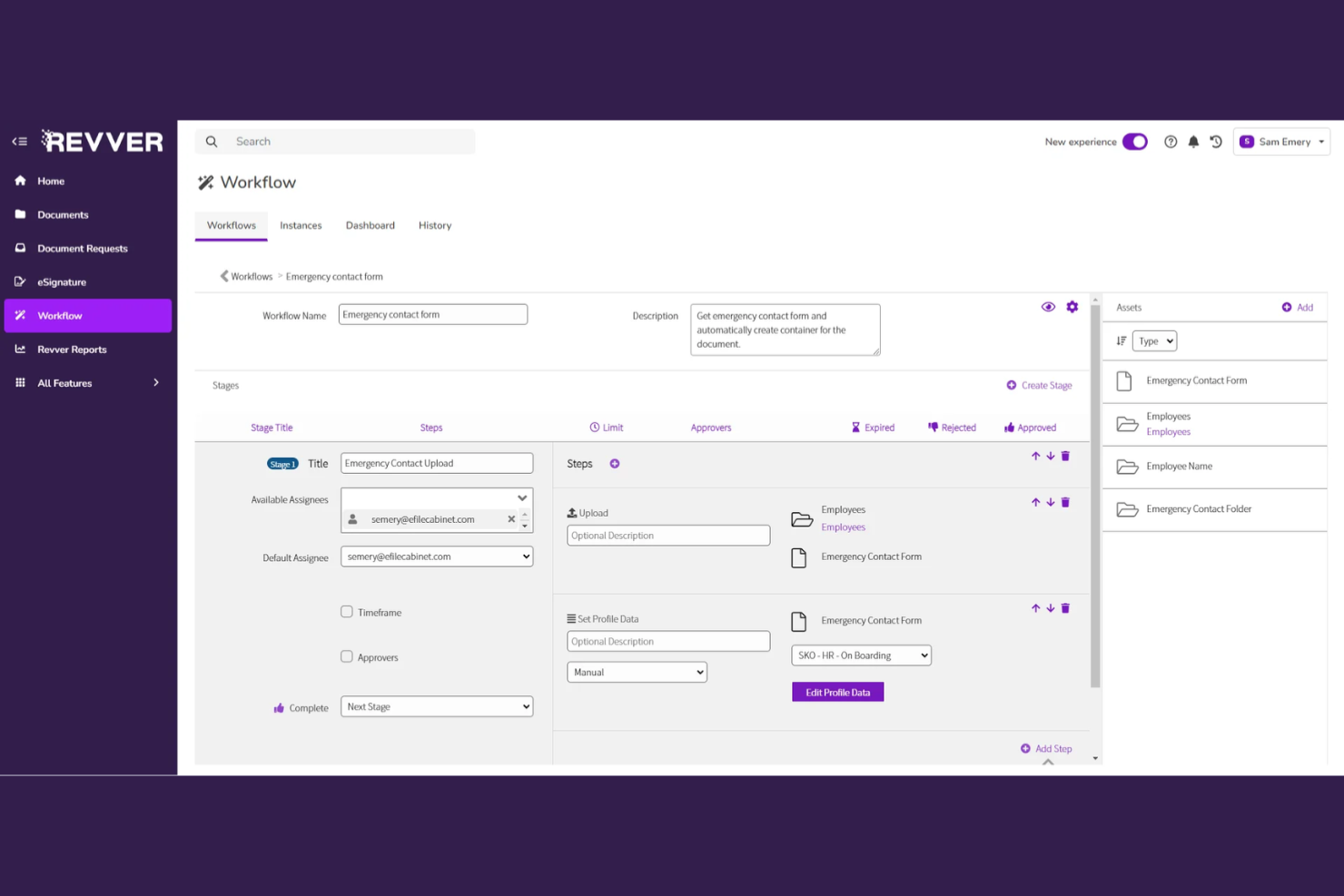
Revver stands out for anyone who wants to automate document-heavy workflows without building custom solutions from scratch. This platform is a strong fit for professionals and small teams who need to route, review, and approve documents with minimal manual effort. Revver’s automation features help you reduce repetitive tasks and keep your document processes moving smoothly.
Why I Picked Revver
When I looked for a tool that truly prioritizes workflow automation, Revver immediately caught my attention. Its document routing engine lets you set up automated approval chains and notifications, so you don’t have to manually chase down sign-offs or status updates. You can also build custom workflows that trigger actions based on document status or metadata, which is especially useful for managing personal or team document processes. For anyone who wants to automate repetitive document tasks and keep everything moving without constant oversight, Revver offers a focused set of automation features.
Revver Key Features
In addition to its workflow automation capabilities, Revver offers several other features worth noting:
- Document Version Control: Track, compare, and restore previous versions of documents.
- Granular Permission Settings: Assign user and group permissions for document access and actions.
- Full-Text Search: Search across all documents using keywords or phrases.
- Audit Logging: Monitor and record all document activity for compliance and transparency.
Revver Integrations
Integrations include Microsoft 365, Google Drive, Salesforce, NetSuite, and QuickBooks.
Pros and Cons
Pros:
- Clean user interface
- Tracks file history
- Fast search tools
Cons:
- Focuses on businesses
- Hidden pricing plans

Folderit
Best for granular access permissions
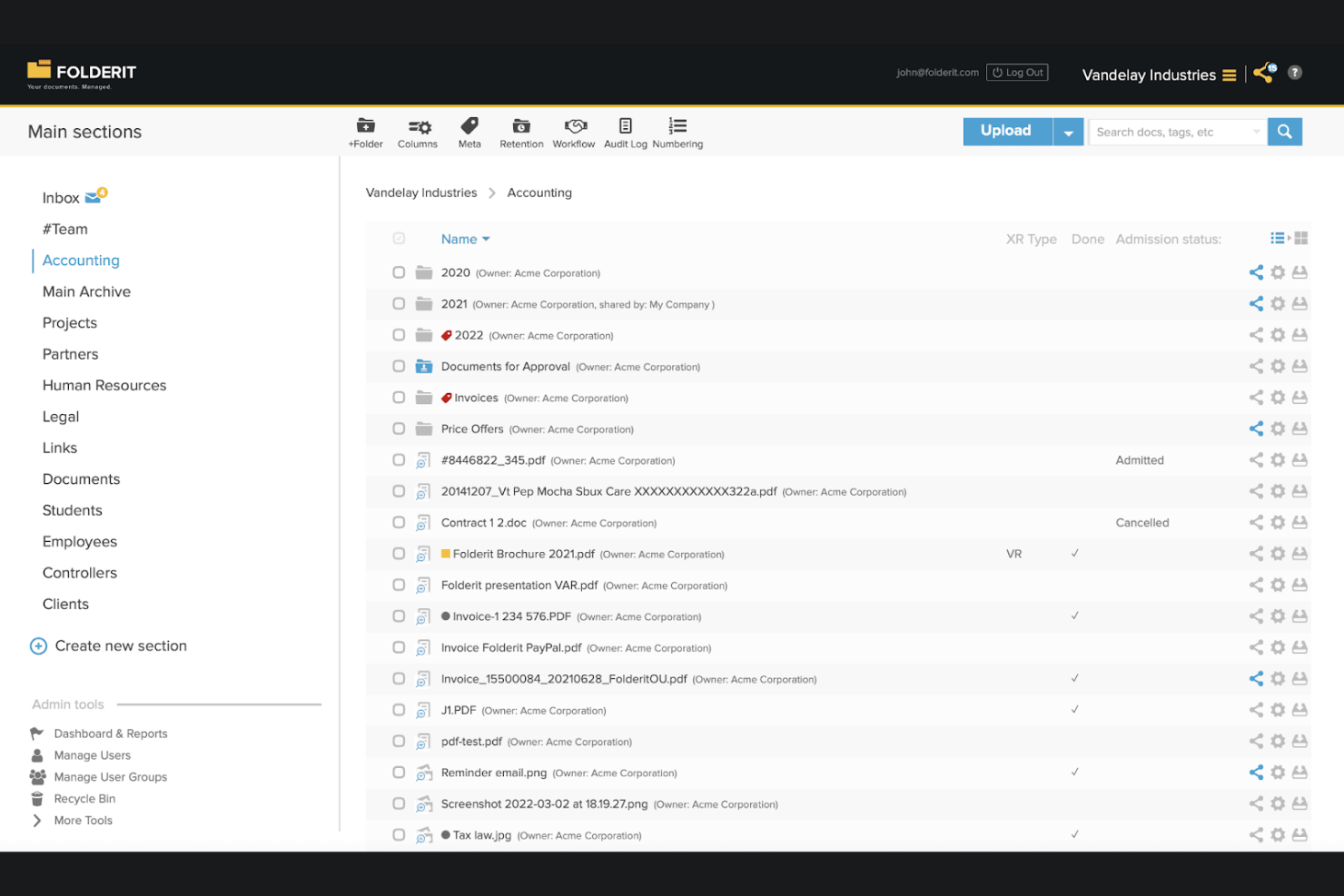
Folderit is designed for individuals and small teams who need precise control over document access and sharing. If you’re managing sensitive files or collaborating with multiple stakeholders, Folderit’s granular permission settings let you decide exactly who can view, edit, or approve each document. This makes it especially useful for consultants, legal professionals, or anyone handling confidential information.
Why I Picked Folderit
When you need to control exactly who can access your documents, Folderit’s granular permission system stands out. I picked Folderit because it lets you assign view, edit, and approval rights at the folder or even individual file level. You can also set up multi-level approval workflows, which is helpful if you’re managing documents that require sign-off from different people. For anyone who needs to keep sensitive files secure while still collaborating, these permission controls make Folderit a strong fit.
Folderit Key Features
In addition to its detailed permission controls, Folderit offers several other features for managing documents:
- Automated Document Retention: Set rules to automatically archive or delete files after a specified period.
- Version Control: Keep track of every change made to a document and restore previous versions if needed.
- Metadata Tagging: Add custom tags and metadata fields to organize and search for documents more efficiently.
- Audit Trail: Monitor all user activity and document actions with a detailed audit log.
Folderit Integrations
Integrations include Microsoft 365, DocuSign, Okta, Microsoft Entra ID (Azure AD), and Google Workspace.
Pros and Cons
Pros:
- Good for home records
- Easy folder structure
- Cloud access anywhere
Cons:
- Permissions overkill
- Aimed at businesses


If you want full control over your document management setup, OpenDocMan is an open-source platform designed for customization. This tool is a strong fit for tech-savvy individuals or small teams who want to tailor workflows, permissions, and storage to their exact needs. OpenDocMan helps you build a document management system that matches your unique requirements without being locked into a vendor’s limitations.
Why I Picked OpenDocMan
What sets OpenDocMan apart is its open-source foundation, which gives you the freedom to customize nearly every aspect of your document management system. I picked OpenDocMan because you can modify source code, create custom plugins, and adapt workflows to fit your exact needs. The platform also lets you define granular access controls and tailor document approval processes, making it a strong choice for anyone who wants a solution that grows and changes with their requirements. If you’re comfortable with a bit of technical setup, OpenDocMan offers flexibility that’s hard to match in personal document management software.
OpenDocMan Key Features
Some other features that make OpenDocMan useful for personal document management include:
- Automated Document Expiry: Set expiration dates for documents to manage retention policies.
- File Check-In/Check-Out: Lock documents while editing to prevent version conflicts.
- Custom Metadata Fields: Add and configure metadata fields to organize and search documents.
- Audit Trail: Track all user actions and document changes for accountability.
OpenDocMan Integrations
Integrations include MySQL, Apache, LDAP, Active Directory, and SMTP.
Pros and Cons
Pros:
- Works on any browser
- Highly customizable
- Good file expiration
Cons:
- No official support
- Outdated interface

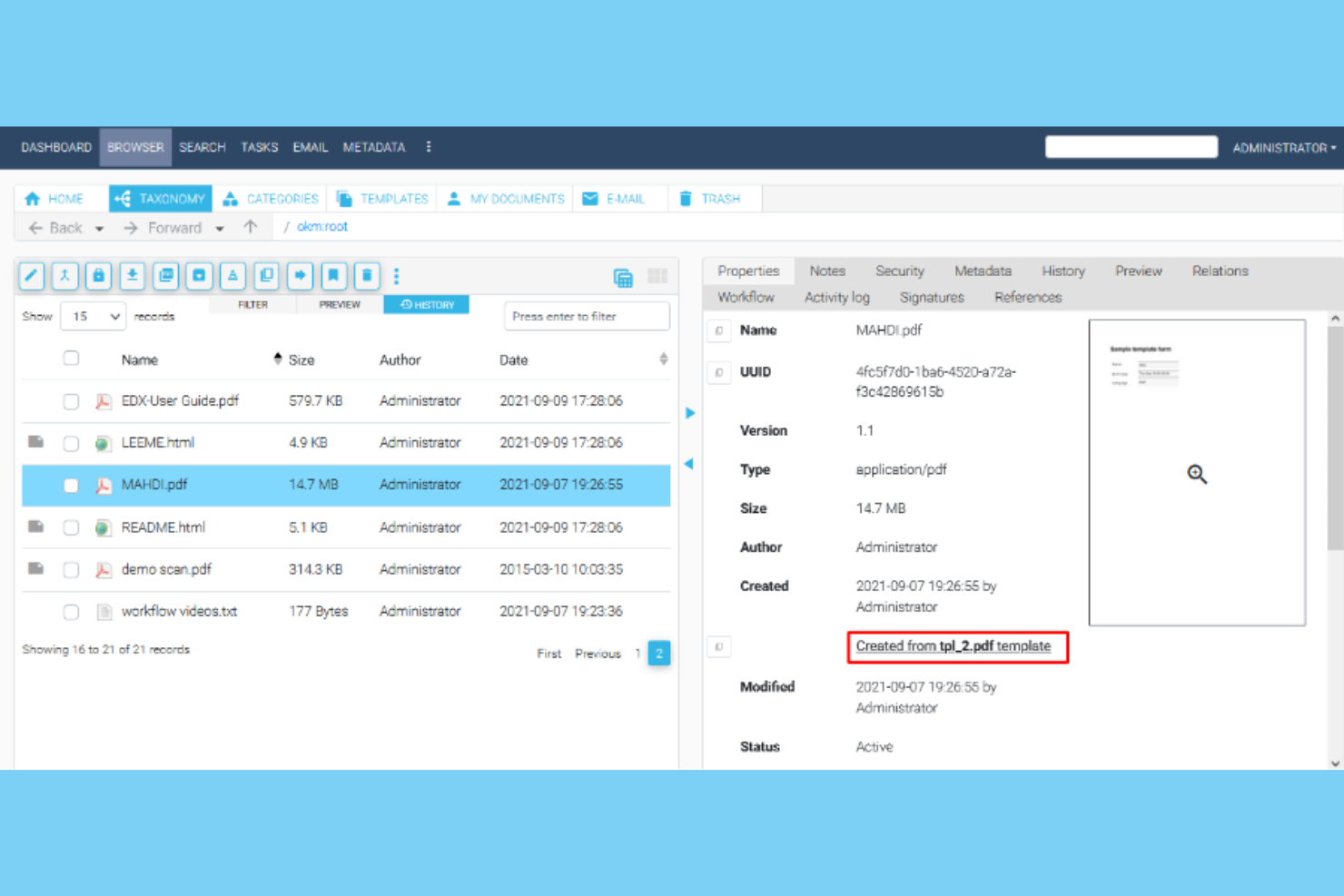
OpenKM is designed for users who need strict compliance and audit controls in their document management. It’s a strong fit for professionals in regulated industries who want to track document access, changes, and approvals. With features for policy enforcement and detailed reporting, OpenKM helps you maintain oversight and meet compliance requirements.
Why I Picked OpenKM
When compliance management is a top priority, OpenKM offers features that go beyond basic document storage. The platform includes audit trails that log every document action, so you can always see who accessed or modified a file. I appreciate its policy management tools, which let you enforce document retention and approval workflows to meet regulatory standards. For anyone who needs to demonstrate compliance and maintain strict control over document processes, OpenKM is a strong choice.
OpenKM Key Features
Some other features that make OpenKM useful for personal document management include:
- Document Version Control: Track and manage multiple versions of a document over time.
- Optical Character Recognition (OCR): Convert scanned documents and images into searchable text.
- Email Integration: Archive and manage emails directly within the document management system.
- Custom Metadata Fields: Add and organize documents using user-defined metadata for easier retrieval.
OpenKM Integrations
Integrations include Kofax, Abby Flexicapture, Cognitive Forms, Flexibar, Canon IW DS, Active Directory, LDAP, Microsoft Office, SSO, and CAS.
Pros and Cons
Pros:
- Reads text in images
- Good file tagging
- Tracks version history
Cons:
- Hard personal setup
- UI looks very old
Annen programvare for personlig dokumenthåndtering
Her er noen flere alternativer for personlig dokumenthåndtering som ikke kom med på kortlisten min, men som likevel er verdt å sjekke ut:
- Mayan EDMS
For self-hosted deployment flexibility
- FileCenter
For automated document scanning workflows
- SmartVault
For integrated e-signature support
- Nextcloud
For private cloud file hosting
- Sortifyd
For organizing household records


How I Evaluate Personal Document Management Software
When I evaluate tools for personal document storage and version-tracking, I split my review into baseline acceptance criteria and the differentiators that set the best options apart.
Core Functionality (Table Stakes For This List)
When I'm selecting tools for my list, I rank each one on a scale from 0 (does not offer the functionality) to 5 (excels in this area) for each core functionality listed below. Then, I calculate the tool's total score into a percentage. Each tool needs to achieve a minimum total score of 65% to be considered for inclusion.
- Centralized Document Storage: I check whether you can upload and store all common project file types—PDFs, spreadsheets, slide decks, images—in a single personal repository.
- File Organization & Tagging: A good tool lets you build folder hierarchies and apply custom tags so you can sort files by client, project phase, or deliverable type.
- Full-Text Search & Retrieval: I evaluate whether search goes beyond filenames to scan document contents, so you can find a specific clause buried in a 40-page contract.
- Version Control & History: Each tool should track document revisions with timestamps, making it easy to restore a previous SOW draft or compare changes across iterations.
- Secure Access & Permissions: I look for encryption, two-factor authentication, and granular sharing controls—especially for consultants handling NDAs or sensitive client data.
- Cross-Device Sync & Access: Whether you're reviewing a project charter on your laptop or pulling up specs on your phone at a client site, the tool should sync reliably across devices.
Once I have a list of tools that meet the criteria, I consider what sets each platform apart.
Differentiating Factors (What Sets Vendors Apart)
Here's how I compare and contrast different vendors:
Standout Features
Optical character recognition (OCR) capabilities matter when you're working with scanned contracts or photographed whiteboard notes—I look for tools that convert those into searchable text. Annotation and markup tools are equally useful, letting you highlight key sections of a deliverable or leave comments on a PDF without switching apps. I also evaluate whether a platform offers AI-powered summarization, which helps when you need to quickly pull action items from a lengthy meeting transcript or project brief.
Beyond Features
I check whether a tool connects natively to platforms like Jira, Asana, or Monday.com so you can link documents directly to tasks. Pricing is another key factor, especially for freelancers and independent PMs who need a personal-tier plan rather than enterprise-only licensing. I also evaluate external sharing controls, since consultants often need to send deliverables to clients through secure links with expiration dates or download restrictions.
Slik velger du programvare for personlig dokumenthåndtering
Det er lett å gå seg vill i lange funksjonslister og kompliserte prisstrukturer. For å hjelpe deg med å holde fokus mens du går gjennom den unike prosessen med å velge programvare, får du her en sjekkliste over faktorer du bør ha i bakhodet:
| Faktor | Hva du bør vurdere |
|---|---|
| Skalerbarhet | Vil programvaren håndtere den økende dokumentmengden og brukerbasen din over tid uten ekstra kostnader eller treghet? |
| Integrasjoner | Kan verktøyet kobles direkte til de eksisterende appene dine (for eksempel e-post, skylagring eller plattformer for elektroniske signaturer)? |
| Tilpasningsmuligheter | Kan du tilpasse mappestrukturer, tilgangskontroller og arbeidsflyter slik at de samsvarer med dine personlige preferanser eller teamets preferanser? |
| Brukervennlighet | Er grensesnittet intuitivt for alle brukere, eller må du bruke tid på opplæring og feilsøking? |
| Implementering og innføring | Hvor lang tid vil det ta å flytte dokumentene dine og få alle i gang? Finnes det verktøy eller støtte for dette? |
| Kostnad | Er prisnivåene tydelige og forutsigbare? Vær oppmerksom på lagringsgrenser, brukerbegrensninger eller ekstra kostnader for avanserte funksjoner. |
| Sikkerhetstiltak | Tilbyr plattformen kryptering, detaljerte tillatelser og revisjonsspor for å beskytte sensitive filer? |
| Etterlevelseskrav | Vil programvaren hjelpe deg med å oppfylle juridiske krav eller bransjespesifikke standarder (for eksempel GDPR eller HIPAA) som gjelder for dokumentene dine? |
Funksjoner i programvare for personlig dokumenthåndtering
Når du velger programvare for personlig dokumenthåndtering, bør du se etter følgende viktige funksjoner:
- Dokumentlagring: Lagre og organiser digitale filer på en sikker måte på ett sentralt sted, slik at det er enkelt å få tilgang til dokumenter fra alle enheter.
- Mappeorganisering: Opprett, navngi og ordne mapper eller kategorier for å holde dokumentene sortert og enkle å finne.
- Avansert søk: Finn filer raskt ved hjelp av nøkkelord, filtyper, datoer eller innhold i dokumentene.
- Versjonskontroll: Spor endringer i dokumenter over tid, gjenopprett tidligere versjoner og unngå forvirring som følge av dupliserte eller utdaterte filer.
- Fildeling: Send dokumenter til andre med tilpassbare tillatelser, for eksempel tilgang kun for visning eller redigering.
- Tilgangskontroller: Angi brukerspesifikke tillatelser for å begrense hvem som kan vise, redigere eller dele bestemte filer eller mapper.
- Revisjonsspor: Overvåk dokumentaktivitet, inkludert hvem som har åpnet, redigert eller delt filer, for økt åpenhet og sikkerhet.
- Mobil tilgang: Bruk dedikerte mobilapper eller responsive nettgrensesnitt til å administrere og vise dokumenter på smarttelefoner og nettbrett.
- Dokumentskanning: Digitaliser papirdokumenter direkte i systemet ved hjelp av en mobilenhet eller skanner, slik at de blir søkbare og enkle å lagre.
Kostnader og priser for personlig dokumenthåndteringsprogramvare
Ved valg av programvare for personlig dokumenthåndtering er det nødvendig å forstå de ulike prismodellene og abonnementene som er tilgjengelige. Kostnadene varierer basert på funksjoner, teamstørrelse, tillegg og mer. Tabellen nedenfor oppsummerer vanlige abonnementer, gjennomsnittsprisene deres og typiske funksjoner som er inkludert i løsninger for personlig dokumenthåndtering:
Sammenligningstabell for abonnementer for personlig dokumenthåndteringsprogramvare
| Abonnementstype | Gjennomsnittspris | Vanlige funksjoner |
|---|---|---|
| Gratisabonnement | $0 | Grunnleggende dokumentlagring, begrenset deling, enkel mappeorganisering og grunnleggende søk. |
| Personlig abonnement | $7-$20/bruker/måned | Økt lagringsplass, avansert søk, mobil tilgang, versjonskontroll og grunnleggende kundestøtte. |
| Bedriftsabonnement | $18-$35/bruker/måned | Teamsamarbeid, forbedret sikkerhet, revisjonsspor, integrasjonsmuligheter og prioritert kundestøtte. |
| Abonnement for store virksomheter | $45-$95/bruker/måned | Avansert samsvar, tilpassede arbeidsflyter, detaljerte tillatelser, dedikert oppstart og administratorkontroller. |
Vanlige spørsmål om personlig dokumenthåndteringsprogramvare
Her er noen svar på vanlige spørsmål om personlig dokumenthåndteringsprogramvare:
Kan jeg bruke programvare for personlig dokumenthåndtering til både arbeidsfiler og personlige filer?
Ja, de fleste løsninger for personlig dokumenthåndtering lar deg organisere, skille og sikre både arbeidsfiler og personlige filer. Se etter verktøy som støtter flere mapper, brukerprofiler eller merking, slik at dokumentene dine holdes organiserte og tilgjengelige.
Hvor sikker er programvare for personlig dokumenthåndtering?
Sikkerheten varierer fra leverandør til leverandør, men de fleste løsninger tilbyr kryptering, tilgangskontroller og revisjonsspor. Gå alltid gjennom plattformens sikkerhetssertifiseringer og innstillinger for å sikre at sensitive dokumenter er beskyttet i henhold til behovene dine.
Hva skjer hvis jeg overskrider lagringsgrensen?
Hvis du overskrider lagringsgrensen, kan du bli ute av stand til å laste opp nye filer før du sletter eksisterende filer eller oppgraderer abonnementet. Noen plattformer tilbyr varsler eller midlertidige frister, men det er viktig å følge med på bruken for å unngå avbrudd.
Kan jeg få tilgang til dokumentene mine uten nett?
Noen løsninger for personlig dokumenthåndtering tilbyr tilgang uten nett ved å synkronisere utvalgte filer til enheten din. Sjekk om plattformen støtter frakoblet modus, og hvordan den aktiveres, særlig hvis du må kunne arbeide uten en konstant internettforbindelse.
Er det enkelt å flytte eksisterende dokumenter til et nytt system?
De fleste plattformer tilbyr importverktøy, opplastinger med dra-og-slipp eller støtte for migrering for å hjelpe deg med å overføre filer. Før du bytter, bør du undersøke hvilke migreringsalternativer som er tilgjengelige, og vurdere å kontakte kundestøtte for veiledning om store eller komplekse dokumentbiblioteker.