

10 migliori alternative a SmartDraw per creare diagrammi nel 2026

Le migliori alternative a SmartDraw: selezione


Le migliori alternative a SmartDraw offrono diagrammi intuitivi, modelli di flussi di lavoro flessibili e funzionalità di collaborazione più avanzate rispetto a SmartDraw. Se stai cercando alternative a SmartDraw, probabilmente desideri una soluzione più facile da usare. Potresti anche volere una maggiore semplicità d'uso, strumenti moderni per la collaborazione e supporto per flussi di lavoro in continua evoluzione.
Molte opzioni offrono un approccio completo alla pianificazione visiva. Consentono ai team di creare diagrammi, mappe dei processi e prototipi in un unico spazio di lavoro. Che tu abbia bisogno di una piattaforma interamente basata sul web o di uno strumento con una generosa versione gratuita, sono disponibili numerose opzioni. L'alternativa giusta può aiutare il tuo team a rimanere allineato. Può inoltre migliorare la comunicazione e aiutare i team ad adattarsi ai requisiti dei progetti in evoluzione.
Che cos'è SmartDraw?
SmartDraw è un software per diagrammi di flusso di lavoro che consente di creare diagrammi di flusso, organigrammi, diagrammi di rete e altre mappe visive dei processi. Offre una libreria di modelli e forme che aiutano i team a creare diagrammi rapidamente. La piattaforma supporta anche integrazioni con strumenti come Microsoft Office e Google Workspace. I responsabili di progetto, i team IT e gli analisti aziendali utilizzano SmartDraw per visualizzare processi complessi. Lo usano inoltre per comunicare i flussi di lavoro e semplificare la collaborazione nelle diverse fasi dei progetti.
Tabella di confronto delle alternative a SmartDraw
Questa tabella di confronto riassume i dettagli sui prezzi delle mie migliori alternative a SmartDraw:
| Tool | Best For | Trial Info | Price | ||
|---|---|---|---|---|---|
| 1 | Ideale per la collaborazione visiva in tempo reale | Piano gratuito disponibile | Da $3/utente/mese | Website | |
| 2 | Ideale per mockup rapidi e visivamente puliti | Piano gratuito disponibile | Da $10/editor/mese (fatturazione annuale) | Website | |
| 3 | Ideale per diagrammi visuali guidati da database | Piano gratuito disponibile | Da $5/utente/mese (fatturato annualmente) | Website | |
| 4 | Ideale per workshop di brainstorming di team | Piano gratuito + demo gratuita disponibile | Da $9.99/utente/mese (fatturazione annuale) | Website | |
| 5 | Ideale per la diagrammazione gratuita e illimitata | Gratuito | Gratuito | Website | |
| 6 | Ideale per condividere diagrammi dal vivo nel cloud | Prova gratuita di 14 giorni + piano gratuito disponibile | Da $5/utente/mese (fatturato annualmente) | Website | |
| 7 | Ideale per la compatibilità con l’ecosistema Microsoft 365 | Prova gratuita di 30 giorni disponibile | Da CAD$6.80/mese (fatturazione annuale) | Website | |
| 8 | Ideale per team remoti cross-funzionali | Piano gratuito disponibile | Da $8/membro/mese (fatturazione annuale) | Website | |
| 9 | Ideale per integrazioni di livello enterprise | Prova gratuita + piano gratuito disponibile | Da $9/mese | Website | |
| 10 | Ideale per sessioni di whiteboard digitale | Piano gratuito disponibile | Da $9/utente/mese (fatturato annualmente) | Website |

Perché fidarsi dei nostri consigli sui software
Il nostro team testa e recensisce software dal 2012. In quanto project manager noi stessi, sappiamo quanto sia difficile — e importante — scegliere il software giusto.
Per questa guida, abbiamo valutato gli strumenti attraverso test pratici e ricerche indipendenti, assegnando un punteggio agli strumenti in base ai nostri criteri di selezione. Ci basiamo inoltre sulle competenze di leader di pensiero del settore e di professionisti attivi nella gestione dei progetti.
Le nostre recensioni riflettono il nostro giudizio editoriale umano, non un discorso di vendita.
Revisori esperti:
Recensioni delle migliori alternative a SmartDraw
Di seguito trovi i miei riepiloghi dettagliati delle migliori alternative a SmartDraw incluse nella mia selezione. Le mie recensioni offrono una panoramica approfondita delle funzionalità, dei casi d’uso migliori e delle integrazioni di ciascun software per diagrammi di flusso di lavoro, per aiutarti a trovare quello più adatto a te.

FigJam
Ideale per la collaborazione visiva in tempo reale
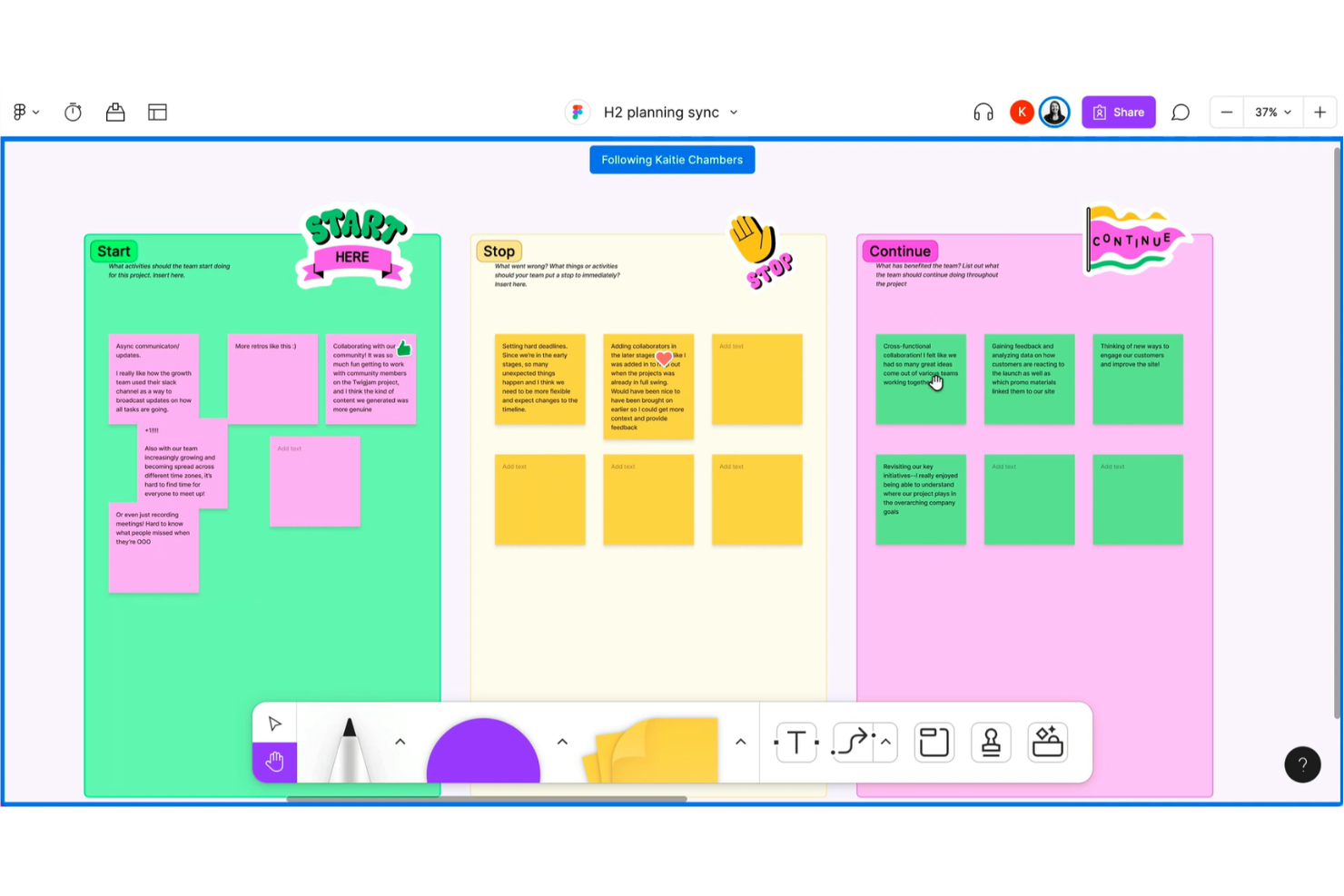
FigJam propone un approccio alla creazione di diagrammi tramite una lavagna digitale, permettendo ai team di disegnare rapidamente, mappare flussi di lavoro e organizzare idee in modo visivo. Product manager, designer e team cross-funzionali troveranno il suo canvas collaborativo ideale per sessioni di brainstorming e per trasformare concetti in diagrammi chiari e azionabili.
Per chi è indicato FigJam?
FigJam è perfetto per team distribuiti che hanno bisogno di fare brainstorming e mappare processi insieme in tempo reale.
Perché FigJam è una valida alternativa a SmartDraw
Ho scelto FigJam perché la collaborazione in tempo reale è parte integrante di tutta l’esperienza, non una funzione aggiunta successivamente. Il mio team utilizza il tracciamento dei cursori in tempo reale e la modifica simultanea di FigJam per mappare i flussi di lavoro durante le sessioni live, riducendo il continuo scambio che rallenta la creazione asincrona dei diagrammi. Apprezzo anche i post-it e le funzionalità di votazione, che ci permettono di condurre brainstorming strutturati e dare priorità alle idee direttamente sul canvas. In pratica, questo significa che possiamo far evolvere idee grezze in un diagramma condiviso del flusso di lavoro in una sola riunione.
Funzionalità principali di FigJam
- Connettori a scatto sulla griglia: Collega forme per costruire user flow, mappe di processo e diagrammi di sistema con connettori che si allineano automaticamente alla griglia.
- Modalità Spotlight: Guida i partecipanti alla riunione a concentrarsi su contenuti specifici del canvas durante le sessioni facilitate dal vivo.
- Libreria di template: Accedi a oltre 300 modelli pronti per flussi di lavoro come flowchart, retrospettive, revisioni di roadmap e pianificazioni di progetto.
- Generazione di diagrammi con IA: Crea diagrammi a partire da brainstorming, piani di progetto o basi di codice utilizzando un semplice prompt testuale.
Integrazioni di FigJam
FigJam offre integrazioni native con Figma, Jira, Google Workspace, Slack e Microsoft Teams, Zapier, e fornisce un'API per integrazioni personalizzate.
Pros and Cons
Pros:
- Supporto in tempo reale per cursori multipli e annotazioni
- Strumenti integrati per votazione e facilitazione di icebreaker
- Generazione automatica di diagrammi tramite IA a partire dal testo
Cons:
- Manca di controlli di precisione per diagrammi tecnici
- Opzioni di esportazione limitate per flussi di lavoro complessi

Ideale per mockup rapidi e visivamente puliti

Whimsical si distingue per i team che vogliono creare rapidamente diagrammi di flusso, wireframe e mappe mentali rifiniti in un ambiente collaborativo. I product manager e i designer lo utilizzano per organizzare visivamente le idee e semplificare la pianificazione dei progetti in un'interfaccia priva di distrazioni.
Per chi è ideale Whimsical?
Product manager e team di design che hanno bisogno di creare rapidamente mockup e diagrammi puliti e collaborativi.
Perché Whimsical è una valida alternativa a SmartDraw
Ho scelto Whimsical perché la distanza tra 'idea grezza' e 'mockup condivisibile' è praticamente inesistente. I suoi componenti wireframe trascinabili includono proprietà regolabili e cornici dispositivo configurabili per browser, telefoni e tablet, così il mio team può delineare un user flow e presentarlo agli stakeholder senza cambiare strumento. Apprezzo anche Whimsical AI, che utilizza Claude per generare diagrammi e flowchart a partire da un prompt—ideale quando ho bisogno di visualizzare rapidamente un processo senza costruirlo da zero. Le forme predittive e le scorciatoie da tastiera nell'editor dei diagrammi di flusso mi permettono di restare concentrato sulla progettazione e non sulla formattazione.
Caratteristiche principali di Whimsical
- Editor di mappe mentali: Costruisci e organizza idee in mappe mentali strutturate con layout automatici e rami spostabili.
- Board a canvas infinito: Crea diagrammi, wireframe e lavagne su un unico canvas a spazio illimitato.
- Commenti in thread: Lascia commenti contestuali direttamente sugli elementi dei diagrammi per mantenere tutti i feedback in un unico punto.
- Cronologia delle versioni: Visualizza e ripristina stati precedenti della board per tenere traccia di come si è evoluto un diagramma nel tempo.
Integrazioni di Whimsical
Whimsical offre integrazioni native con Slack, Google Drive, Atlassian Jira e Confluence. È disponibile un'API per integrazioni personalizzate.
Pros and Cons
Pros:
- Collaborazione in tempo reale senza ritardi di aggiornamento della pagina
- Stile visivo pulito ideale per presentazioni agli stakeholder
- Passaggio rapido tra diagramma, wireframe e mappa mentale
Cons:
- Controllo limitato sulle opzioni di formattazione del testo
- Nessuna possibilità di modifica offline disponibile

Creately
Ideale per diagrammi visuali guidati da database

Creately è una piattaforma di diagrammi che unisce elementi visuali e dati strutturati su una tela infinita. L'ho trovata utile per i team che desiderano collegare diagrammi direttamente a documenti di progetto, database e flussi di processo per mappe visuali più ricche e sempre aggiornate.
Per chi è più indicato Creately?
Creately è particolarmente adatto per responsabili delle operazioni e team di prodotto in aziende di medie dimensioni che necessitano di diagrammi unificati collegati direttamente a dati di progetto o di processo in tempo reale.
Perché Creately è una valida alternativa a SmartDraw
Ho scelto Creately perché tratta i diagrammi come documenti viventi, non semplici esportazioni statiche. La funzione di database visuale consente di collegare direttamente campi di dati strutturati alle forme—così un nodo di processo può contenere informazioni su responsabile, stato e priorità senza lasciare la tela. Uso anche i pannelli dati collegati di Creately per sincronizzare gli elementi del diagramma con i record di progetto: questo significa che quando qualcosa cambia in un flusso di lavoro, il visual viene aggiornato di conseguenza. Per i team che gestiscono processi complessi con più responsabili, questa connessione tra diagramma e dati è qualcosa che SmartDraw semplicemente non offre.
Funzionalità principali di Creately
- Oltre 8.000 modelli: Accedi a una libreria di modelli professionali che coprono diversi settori per iniziare rapidamente qualsiasi tipo di diagramma.
- Modalità presentazione: Crea slide direttamente dagli elementi della tela e presentale senza uscire dallo spazio di lavoro.
- Sessioni di voto: Avvia votazioni temporizzate, anonime o pubbliche su qualsiasi elemento della tela per prendere decisioni durante le sessioni di team dal vivo.
- Ricerca testuale completa: Cerca tra tutti i contenuti di ogni workspace istantaneamente e naviga visualmente tra i risultati sulla tela.
Integrazioni di Creately
Creately offre integrazioni native con Google Drive, Slack, Microsoft Teams, Confluence, Jira e Trello. Si collega anche con Zapier e offre una API per integrazioni personalizzate.
Pros and Cons
Pros:
- I diagrammi supportano campi dati personalizzati per ogni forma
- Tela infinita per flussi di lavoro ampi e interconnessi
- Modifica multiutente in tempo reale con cronologia delle versioni
Cons:
- Funzionalità limitate di automazione avanzata dei diagrammi
- Ritardi occasionali nella sincronizzazione con le fonti dati collegate


Mural è uno spazio di lavoro digitale creato per i team che hanno bisogno di mappare idee, processi e flussi di lavoro in modo visivo. Se conduci spesso sessioni collaborative o workshop, troverai le bacheche interattive di Mural e i suoi strumenti di facilitazione progettati per coinvolgere i partecipanti e accelerare il raggiungimento del consenso.
Per chi è ideale Mural?
Mural è una scelta eccellente per team distribuiti di prodotto, design o strategia che effettuano frequenti workshop o sessioni di pianificazione collaborativa.
Perché Mural è una valida alternativa a SmartDraw
Ho scelto Mural proprio per come gestisce la facilitazione dei workshop dal vivo—qualcosa che SmartDraw non offre. La modalità privata di Mural consente ad ogni partecipante di aggiungere idee contemporaneamente senza vedere l'input degli altri, eliminando la mentalità di gruppo dalle sessioni di brainstorming prima ancora che inizino. Utilizzo anche la funzione di raggruppamento automatico con intelligenza artificiale per organizzare immediatamente i post-it per tema dopo la fase di ideazione, riducendo da 20 minuti a pochi secondi quello che prima era un lavoro manuale. Per i team che organizzano regolarmente retrospettive, pianificazione di sprint o workshop di scoperta, questa combinazione rende Mural uno strumento sostanzialmente diverso rispetto alle soluzioni tradizionali di diagrammazione.
Funzionalità principali di Mural
- Canvas infinito: Lavora su una tela espandibile che si adatta a qualsiasi dimensione di progetto senza limiti fissi.
- Pubblicazione di template personalizzati: Salva e pubblica i tuoi modelli di workshop o processi per riutilizzarli in tutto lo spazio di lavoro.
- Super lock: Limita lo spostamento degli oggetti ai soli facilitatori, mantenendo intatti diagrammi e layout durante le sessioni dal vivo.
- Permessi flessibili: Imposta accessi solo in visualizzazione, modifica o livello facilitatore per ogni partecipante di un mural.
Integrazioni di Mural
Mural offre integrazioni native con Microsoft Teams, Google Drive, Jira, Zapier, Slack, Dropbox, OneDrive, Box, Adobe Creative Cloud e Webex. È disponibile un'API per integrazioni personalizzate.
Pros and Cons
Pros:
- Collaborazione visiva in tempo reale per sessioni di brainstorming
- Modalità privata per generazione di idee imparziale
- Raggruppamento automatico dei post-it tramite intelligenza artificiale
Cons:
- Opzioni di esportazione diagrammi limitate alla personalizzazione
- Funzionalità avanzate disponibili solo nei piani superiori


Per i team che desiderano uno strumento di diagrammi basato su browser con flessibilità, draw.io consente una rapida mappatura dei processi, creazione di diagrammi di flusso e visualizzazione dei sistemi. Ingegneri, analisti aziendali e project manager lo utilizzano per visualizzare flussi di lavoro e documentare progetti in modo semplice.
Per chi è meglio draw.io?
Draw.io è perfetto per ingegneri software, project manager e team IT che vogliono una piattaforma di diagrammazione flessibile e senza codice che funziona interamente nel browser.
Perché draw.io è una valida alternativa a SmartDraw
Ho scelto draw.io perché è veramente illimitato e gratuito: nessun limite al numero di utenti, nessun periodo di prova e nessun paywall che blocchi le funzioni fondamentali di diagrammazione. Il mio team lo utilizza per mappare architetture di sistema e flussi di processo direttamente dal browser, il che significa che non c’è nulla da installare e nessuna questione di licenze da affrontare prima di iniziare. Apprezzo particolarmente il formato file basato su XML, che mi consente di salvare i diagrammi su Google Drive o Confluence e riaprirli senza preoccuparmi della compatibilità dei file. In pratica, significa che il mio team può creare un diagramma di flusso dettagliato in pochi minuti e condividerlo con chiunque, indipendentemente dal fatto che abbia o meno un account.
Funzionalità principali di draw.io
- Librerie di forme: Accesso a centinaia di forme categorizzate per diagrammi UML, BPMN, di rete ed ERD già pronti.
- Collaborazione in tempo reale: Modifica collaborativa dei diagrammi simultaneamente, con cursori condivisi e aggiornamenti live fra i membri del team.
- Esportazione in più formati: Esporta i diagrammi in SVG, PNG o PDF, oppure incorporali direttamente in HTML.
- Archiviazione con controllo di versione: Salva i diagrammi come file XML direttamente su Google Drive, OneDrive o repository GitHub.
Integrazioni di draw.io
Draw.io offre integrazioni native con Google Drive, OneDrive, GitHub, Confluence e Jira. È disponibile un'API per integrazioni personalizzate.
Pros and Cons
Pros:
- Dimensione dei diagrammi e numero di pagine illimitati
- Creazione rapida di diagrammi con drag-and-drop
- Esporta direttamente in più formati di file
Cons:
- Opzioni limitate per lo stile avanzato delle forme
- Nessuna chat in tempo reale durante le sessioni collaborative


Cacoo è uno strumento di diagrammazione online pensato per i team che hanno bisogno di creare, modificare e condividere diagrammi insieme in tempo reale. Penso che product manager, designer e team IT che fanno affidamento sulla collaborazione visiva per mappare processi o sistemi lo troveranno particolarmente utile per il lavoro distribuito.
Per chi è più adatto Cacoo?
Team remoti nei settori tech, marketing o prodotto che hanno bisogno di co-creare, revisionare e condividere diagrammi in uno spazio di lavoro cloud-based.
Perché Cacoo è una valida alternativa a SmartDraw
Ho scelto Cacoo perché condividere diagrammi dal vivo con gli stakeholder esterni è davvero più semplice qui rispetto alla maggior parte degli altri strumenti. La condivisione protetta da password mi consente di inviare un link attivo a un cliente o stakeholder esterno senza doverlo ammettere all'intero spazio di lavoro. Faccio inoltre affidamento sulla modalità Segui, che replica il cursore di un collega durante una revisione in modo che tutti restino concentrati sulla stessa parte del diagramma senza bisogno di coordinare verbalmente. Per i team che gestiscono infrastrutture o basi di codice, l'importazione AWS e la funzione da codice a grafico convertono configurazioni esistenti direttamente in diagrammi modificabili, eliminando la necessità di ridisegnare manualmente che invece SmartDraw richiede.
Funzionalità principali di Cacoo
- Tabelle e grafici dinamici: crea grafici e tabelle che si aggiornano automaticamente quando cambiano i dati sottostanti.
- Videochiamate e chat nella board: avvia una videochiamata o una chat testuale direttamente dalla tua tela senza passare a un altro strumento.
- Kanban board: gestisci le attività utilizzando schede Kanban direttamente accanto ai tuoi diagrammi e piani.
- Modalità presentazione: trasforma qualsiasi diagramma in una presentazione guidata senza mai uscire dalla tela.
Integrazioni Cacoo
Cacoo offre integrazioni native con Google Drive, Slack, Confluence, Dropbox, Box, Microsoft Teams e Typetalk e si collega anche con Zapier. È disponibile un'API per integrazioni personalizzate.
Pros and Cons
Pros:
- Modifica in tempo reale sui diagrammi da parte di più utenti
- Video chat integrata durante le sessioni di diagrammazione
- Board dedicate per una collaborazione di team mirata
Cons:
- Accesso offline ai diagrammi limitato
- Libreria di modelli più piccola rispetto ad alcuni concorrenti


Microsoft Visio è una piattaforma per la creazione di diagrammi e la visualizzazione dei flussi di lavoro progettata per i team che già lavorano all'interno della suite Microsoft 365. Secondo me, è adatta alle organizzazioni che necessitano di mappe di processo precise, diagrammi di flusso e organigrammi costruiti con strumenti in stile Microsoft familiare.
Per chi è più indicato Microsoft Visio?
Microsoft Visio è pensato per i responsabili IT e gli analisti aziendali di organizzazioni standardizzate su Microsoft 365.
Perché Microsoft Visio è una valida alternativa a SmartDraw
Ho scelto Microsoft Visio per la sua perfetta integrazione in un ambiente Microsoft 365. Il mio team può incorporare direttamente i diagrammi Visio nei canali di Teams, nelle pagine di SharePoint e nei documenti Word senza bisogno di esportazioni o conversioni. Mi affido inoltre ai diagrammi collegati ai dati di Visio, che connettono le forme direttamente alle fonti dati di Excel, in modo che le mappe di processo si aggiornino automaticamente quando cambiano i dati sottostanti. Per le organizzazioni già operative su Microsoft 365, questo livello di connettività nativa elimina le difficoltà di dover mantenere i diagrammi separati dai sistemi già utilizzati dal team.
Funzionalità principali di Microsoft Visio
- Modelli di diagrammi: Accedi a centinaia di modelli predefiniti per diagrammi di flusso, diagrammi di rete, BPMN e organigrammi.
- Diagrammi di flusso trasversali: Crea diagrammi a corsie per mappare processi che coinvolgono più reparti o ruoli.
- Librerie di forme: Utilizza set di forme specifici per settore, inclusi UML, reti e forme ingegneristiche.
- Co-authoring: Più utenti possono modificare lo stesso diagramma Visio contemporaneamente nella versione web.
Integrazioni di Microsoft Visio
Microsoft Visio offre integrazioni native in tutto l'ecosistema Microsoft, compresi Microsoft 365 e Azure. Puoi collegarlo a fonti dati come Microsoft Access, SharePoint, SQL Server, Exchange Server e Microsoft Entra ID. È disponibile anche un'API per integrazioni personalizzate.
Pros and Cons
Pros:
- Modifica diretta dei diagrammi all'interno di Microsoft Teams
- Convalida dei diagrammi e controllo degli standard di livello enterprise
- Supporta la modellazione di processi avanzati con notazione BPMN
Cons:
- La versione web manca di alcune funzionalità della versione desktop
- Struttura di licenze complessa per le diverse edizioni
Miro
Ideale per team remoti cross-funzionali

Miro è una piattaforma collaborativa di whiteboard online per i team che necessitano di uno strumento flessibile per la creazione di diagrammi e brainstorming in tempo reale. Lo considero ideale per product manager, scrum master e team distribuiti che devono mappare flussi di lavoro o generare idee sui progetti insieme.
A chi è più adatto Miro?
Miro si adatta ai team distribuiti che devono collaborare visivamente su flussi di lavoro, diagrammi, pianificazione o retrospettive tra funzioni e reparti diversi.
Perché Miro è una valida alternativa a SmartDraw
Ho scelto Miro per i team remoti cross-funzionali perché considera la creazione di diagrammi come un'attività collaborativa dal vivo invece che come un compito individuale. Il mio team utilizza la canvas infinita di Miro per condurre sessioni di mappatura dei processi in tempo reale in cui ingegneri, designer e product manager partecipano tutti contemporaneamente—senza la necessità di passare versioni diverse. Apprezzo in particolare gli strumenti di facilitazione integrati come timer, votazione e tracciamento del cursore, che mantengono le sessioni distribuite strutturate e focalizzate sull'obiettivo. In pratica, ciò significa che la mia squadra può svolgere workshop completi di mappatura del flusso di lavoro in modalità asincrona o dal vivo senza mai cambiare strumento.
Funzionalità principali di Miro
- Modelli di diagrammi: Scegli tra centinaia di modelli predefiniti per diagrammi di flusso, mappe mentali, diagrammi a corsie e mappe di processo.
- Diagrammazione intelligente: Usa le librerie di forme di Miro e le funzioni di auto-collegamento per creare rapidamente diagrammi strutturati sulla canvas.
- Note adesive e tag: Aggiungi note adesive colorate e tag direttamente ai diagrammi per mettere in evidenza decisioni o segnalare domande aperte.
- Modalità presentazione: Illustra agli stakeholder una board in una vista guidata tipo slide senza uscire dalla canvas di Miro.
Integrazioni di Miro
Miro offre oltre 100 integrazioni native, tra cui Jira, Asana, Trello, Slack, Microsoft Teams, Google Drive, Zoom, Notion, Confluence, Dropbox e Zapier. È disponibile anche un'API per integrazioni personalizzate.
Pros and Cons
Pros:
- Canvas infinita per supportare flussi di lavoro estesi
- Collaborazione multi-utente dal vivo con cursori visivi
- Strumenti di facilitazione integrati per sessioni da remoto
Cons:
- A volte le esportazioni delle board alterano la formattazione
- Validazione dei diagrammi limitata per la conformità dei processi
New Product Updates from Miro
Miro Adds Japan Data Residency for Enterprise Customers
Miro has introduced Japan data residency for enterprise customers, offering in-region storage for production data, backups, and metadata, plus in-region compute infrastructure. For more information, visit Miro's official site.

Ideale per integrazioni di livello enterprise

Lucidchart è uno spazio di lavoro visivo progettato per i team che devono creare diagrammi di flussi di lavoro complessi e comunicare cambiamenti di processo su larga scala. Lo trovo particolarmente utile per organizzazioni di grandi dimensioni o per team trasversali che gestiscono progetti dinamici o regolamentati.
Per chi è più indicato Lucidchart?
Lucidchart si adatta ai team aziendali che gestiscono la mappatura di processi complessi, in particolare in settori regolamentati o con elevate esigenze di conformità.
Perché Lucidchart è una valida alternativa a SmartDraw
Ho scelto Lucidchart perché il livello di integrazione che offre è davvero difficile da eguagliare. Il mio team collega Lucidchart direttamente a Salesforce, Google Workspace, Microsoft 365 e Jira, in modo che i diagrammi rimangano sincronizzati con i dati in tempo reale invece di diventare istantanee statiche. Uso inoltre la funzione di collegamento dati di Lucidchart, che importa dati strutturati da fonti esterne e aggiorna automaticamente forme ed etichette sul canvas. Per i team aziendali che gestiscono flussi di lavoro su più piattaforme, questo tipo di connettività in tempo reale elimina molte operazioni manuali di aggiornamento che rallentano la documentazione.
Funzionalità principali di Lucidchart
- Modelli di diagramma: Scegli tra centinaia di modelli predefiniti che coprono flowchart, organigrammi, diagrammi di rete ed ERD.
- Collaborazione in tempo reale: Più membri del team possono modificare e commentare lo stesso diagramma simultaneamente.
- Cronologia delle revisioni: Accedi a una cronologia completa delle versioni per rivedere, confrontare e ripristinare stati precedenti del diagramma.
- Contenitori intelligenti: Raggruppa forme in contenitori dinamici che adattano automaticamente la disposizione quando i contenuti cambiano.
Integrazioni di Lucidchart
Lucidchart offre integrazioni native con Salesforce, Jira, Confluence, Microsoft 365, Arboq e fornisce un'API per integrazioni personalizzate.
Pros and Cons
Pros:
- Modifica collaborativa in tempo reale per i team
- Ampia scelta di modelli e forme per diagrammi
Cons:
- Cronologia delle revisioni per il controllo delle versioni
- Supporto offline limitato
- I diagrammi di grandi dimensioni possono rallentare le prestazioni

Lucidspark
Ideale per sessioni di whiteboard digitale

Lucidspark è una tela digitale per team che vogliono fare brainstorming, creare diagrammi e facilitare sessioni di gruppo in tempo reale. Ritengo che i project manager e i team remoti apprezzeranno i suoi strumenti interattivi per catturare e organizzare idee in flussi di lavoro strutturati.
Per chi è meglio Lucidspark?
Team di prodotto e di progetto distribuiti che hanno bisogno di fare brainstorming, organizzare e perfezionare i flussi di lavoro insieme su una tela visiva interattiva.
Perché Lucidspark è una buona alternativa a SmartDraw
Ho scelto Lucidspark appositamente per i team che necessitano di uno spazio strutturato per condurre sessioni collaborative, non solo una tela vuota. Le sue Breakout Boards permettono di suddividere un gruppo numeroso in sessioni di lavoro più piccole, per poi riunire tutti e sintetizzare i risultati: non ho trovato questa funzionalità gestita così bene in altri strumenti. Mi affido anche alle sue Attività Visive per cose come la votazione in tempo reale e l'invio anonimo di idee, che facilitano la raccolta di contributi autentici dai membri più silenziosi del team durante le retrospettive o le sessioni di prioritizzazione. Al termine di una sessione, le Lucid Cards permettono al mio team di convertire post-it e idee direttamente in attività tracciate su Jira o Asana senza dover reinserire nulla.
Funzionalità principali di Lucidspark
- Modalità presentazione: accompagna gli stakeholder all'interno di una board in una visualizzazione guidata simile a delle diapositive, senza lasciare la tela.
- Mappe mentali dinamiche: crea e ristruttura automaticamente mappe mentali mentre aggiungi o riordini rami in tempo reale.
- Controlli del facilitatore: gestisci l'accesso e la concentrazione dei partecipanti durante le sessioni dal vivo, incluso il blocco della visualizzazione sul tuo cursore.
- Cornici e percorsi: organizza le sezioni della tua board in cornici definite e imposta un percorso di navigazione attraverso di esse.
Integrazioni Lucidspark
Lucidspark offre integrazioni native con Atlassian Jira, Confluence, Slack, Microsoft Teams, Google Drive, Microsoft 365, Asana e Smartsheet, e si connette con Zapier. È disponibile un'API per integrazioni personalizzate.
Pros and Cons
Pros:
- Note adesive e votazioni in tempo reale durante le sessioni
- Le Breakout Boards consentono la collaborazione dei sottogruppi
- Esportazione semplice dei diagrammi in formati esterni
Cons:
- I modelli di diagrammi sono meno numerosi rispetto a SmartDraw
- Accesso offline limitato per modifica o visualizzazione
Altre alternative a SmartDraw
Ecco alcune opzioni aggiuntive alternative a SmartDraw che non sono entrate nella mia selezione, ma che vale comunque la pena valutare:
- Visual Paradigm
Ideale per la visualizzazione agile delle user story map
- ConceptDraw Diagram
Ideale per opzioni di esportazione di diagrammi professionali
- SketchWow
Ideale per la creazione di diagrammi in stile cartone animato


Come valuto le alternative a SmartDraw
Valuto le alternative a SmartDraw su due livelli: i requisiti fondamentali, come l'importazione da Visio, i diagrammi organizzativi collegati ai dati e la modifica collaborativa, e gli elementi distintivi che rendono una soluzione più adatta.
Funzionalità principali (requisiti fondamentali per questo elenco)
Quando seleziono gli strumenti per il mio elenco, assegno a ciascuno un punteggio su una scala da 0 (non offre la funzionalità) a 5 (eccelle in quest'area) per ogni funzionalità principale elencata di seguito. Quindi calcolo il punteggio totale dello strumento sotto forma di percentuale. Ogni strumento deve raggiungere un punteggio totale minimo del 75% per essere preso in considerazione.
- Libreria di modelli per diagrammi: verifico la presenza di modelli per diagrammi di flusso, UML, BPMN, diagrammi di rete, organigrammi e planimetrie, non solo di una manciata di forme generiche.
- Area di lavoro con trascinamento: qui sono importanti i connettori intelligenti, l'allineamento automatico e l'aggancio alla griglia. Creare un diagramma BPMN con corsie non dovrebbe significare instradare manualmente ogni freccia.
- Collaborazione in tempo reale: cerco la modifica condivisa in tempo reale con commenti e indicatori di presenza, così i team distribuiti possono esaminare insieme le mappe dei processi invece di scambiarsi esportazioni statiche.
- Diagrammi collegati ai dati: gli strumenti dovrebbero generare o aggiornare gli organigrammi e le mappe di rete a partire da importazioni CSV, Excel o database, invece di richiedere l'inserimento manuale di ogni forma.
- Formati di importazione/esportazione: la prima cosa che valuto è l'importazione e l'esportazione da Visio (VSDX). Il supporto per PNG, SVG, PDF e JPEG completa l'interoperabilità con gli strumenti esistenti.
- Integrazioni con gli strumenti di lavoro: incorporare diagrammi nelle pagine Confluence, collegarli ai ticket Jira o condividerli nei canali Slack e Teams sono i punti di integrazione che valuto.
- Cronologia delle versioni e autorizzazioni: i team aziendali hanno bisogno di ripristino, accesso basato sui ruoli e registri di audit. Cerco controlli granulari che supportino la governance negli ambienti regolamentati.
- Accesso multipiattaforma: un'app web è il requisito di base. Le app desktop per Windows e macOS, oltre all'accesso da dispositivi mobili, determinano se i team remoti e sul campo possono utilizzare pienamente lo strumento.
Dopo aver ottenuto un elenco di strumenti che soddisfano questi criteri, considero ciò che distingue ogni piattaforma.
Fattori distintivi (ciò che differenzia i fornitori)
Ecco come confronto i diversi fornitori:
Funzionalità distintive
La creazione di diagrammi assistita dall'IA è un elemento di grande differenziazione. Alcuni strumenti generano un diagramma di flusso o un organigramma a partire da un prompt testuale o da dati incollati, facendo risparmiare molto tempo quando si documenta un processo di approvazione composto da più fasi. Cerco anche funzionalità di lavagna digitale che consentano ai team di fare brainstorming durante la pianificazione degli sprint e poi convertire le note adesive in diagrammi strutturati sulla stessa area di lavoro. Anche la modalità di presentazione è importante. Guidare gli stakeholder attraverso una mappa dei processi, diapositiva dopo diapositiva, senza esportarla in PowerPoint, mantiene la fonte autorevole in un unico luogo.
Oltre le funzionalità
La struttura dei prezzi è una delle prime cose che valuto. Alcuni fornitori applicano un costo per editor e consentono ai visualizzatori di accedere gratuitamente, mentre altri includono le postazioni nei piani per team: il modello giusto dipende dal numero di stakeholder che devono avere accesso rispetto a quanti ne creano effettivamente i diagrammi. Anche la sicurezza e la conformità hanno un peso considerevole quando sono coinvolti team aziendali. Verifico la conformità SOC 2, il supporto SSO e i controlli di accesso basati sui ruoli, soprattutto per i team che gestiscono documentazione sensibile relativa all'architettura o all'infrastruttura. Anche la scalabilità è importante: valuto se uno strumento gestisce diagrammi grandi e composti da più pagine senza problemi di prestazioni con la crescita dei team.
Perché cercare un'alternativa a SmartDraw?
Sebbene SmartDraw sia una buona scelta per i software di diagrammi di flusso di lavoro, esistono diversi motivi per cui alcuni utenti cercano soluzioni alternative. Potresti cercare alternative a SmartDraw perché…
- Hai bisogno della modifica in tempo reale da parte di più utenti
- Vuoi una maggiore varietà di formati di esportazione
- Il tuo team si affida alla chat video integrata nell'app per collaborare
- Lavori principalmente su dispositivi mobili o tablet
- Incontri limitazioni nella profondità della libreria di modelli
- La tua azienda richiede controlli degli accessi più rigorosi
Se ti riconosci in una di queste situazioni, sei nel posto giusto. Il mio elenco include diverse opzioni di software per diagrammi di flusso di lavoro più adatte ai team che affrontano queste difficoltà con SmartDraw e cercano soluzioni alternative.
Funzionalità principali di SmartDraw
Ecco alcune delle funzionalità principali di SmartDraw, per aiutarti a confrontare ciò che offrono le soluzioni alternative:
- Modelli di diagrammi: SmartDraw offre centinaia di modelli di diagrammi integrati per diagrammi di flusso, mappe mentali, diagrammi di rete, organigrammi e altro ancora, consentendo di iniziare rapidamente a creare flussi di lavoro senza dover progettare tutto da zero.
- Formattazione automatica: Lo strumento allinea automaticamente forme e connettori durante la creazione, rendendo semplice mantenere i diagrammi ordinati, chiari e dall'aspetto professionale senza continue regolazioni manuali.
- Importazione ed esportazione di Visio: SmartDraw consente di importare ed esportare file di Microsoft Visio, permettendo di collaborare con team o clienti che utilizzano Visio ed evitando il vincolo verso un unico fornitore.
- Strumenti di collaborazione: È possibile condividere i diagrammi tramite link o e-mail e consentire ad altri di commentarli o modificarli, contribuendo a mantenere rapidi e organizzati i cicli di feedback e revisione nei team distribuiti.
- Opzioni cloud e desktop: SmartDraw funziona sia come applicazione basata sul browser sia come programma desktop scaricabile, consentendo agli utenti di scegliere l'ambiente più adatto alle proprie esigenze o ai requisiti di sicurezza.
- Generazione automatica di diagrammi: Gli utenti possono generare automaticamente diagrammi a partire da fonti di dati come i fogli di calcolo, accelerando la creazione di organigrammi, mappe dei processi o altre rappresentazioni visive basate sui dati.
- Integrazione con documenti e presentazioni: SmartDraw si integra direttamente con Microsoft Word, PowerPoint e Google Workspace, consentendo di inserire i diagrammi nella documentazione o nelle presentazioni con il minimo sforzo.
- Planimetrie e diagrammi tecnici: Lo strumento supporta modelli e simboli specializzati per diagrammi architettonici o tecnici, consentendo di creare layout che vanno oltre i semplici flussi di lavoro.
- Librerie di simboli personalizzate: È possibile creare, organizzare e riutilizzare le proprie raccolte di simboli e forme, supportando esigenze di creazione di diagrammi specifiche del settore o del marchio.
- Accesso singolo (SSO): SmartDraw supporta l'SSO per gli utenti aziendali, contribuendo a gestire l'accesso degli utenti e la sicurezza dei dati su larga scala.