

10 programas de seguimiento de incidencias y proyectos para 2026

Lista de preselección de software de seguimiento de incidencias y proyectos


El software de seguimiento de incidencias y proyectos funciona como una sólida herramienta de gestión de proyectos que ayuda a tu equipo a registrar, organizar y gestionar tareas, errores y el progreso de los proyectos en un solo lugar. Si buscas las mejores herramientas de seguimiento de incidencias para mantener los proyectos encaminados, gestionar los requisitos cambiantes y mejorar la responsabilidad del equipo, sabes cuánto está en juego: los plazos incumplidos, la falta de claridad sobre los responsables y las actualizaciones dispersas pueden descarrilar incluso a los mejores equipos. Esta lista te ayudará a comparar las principales soluciones SaaS, comprender qué diferencia a cada una y elegir la plataforma adecuada para respaldar el flujo de trabajo y los objetivos de entrega de tu equipo.
Por qué confiar en nuestras recomendaciones de software
Nuestro equipo lleva probando y evaluando software desde 2012. Como gestores de proyectos, sabemos lo difícil —y lo importante— que es elegir el software adecuado.
Para esta guía, evaluamos las herramientas mediante pruebas prácticas e investigación independiente, puntuando las herramientas según nuestros criterios de selección. También nos basamos en la experiencia de líderes de opinión del sector y de profesionales en activo de la gestión de proyectos.
Nuestras reseñas reflejan nuestro criterio editorial humano, no un discurso de ventas.
Revisores expertos:
Resumen del mejor software de seguimiento de incidencias y proyectos
Esta tabla comparativa resume los detalles de precios de mi selección del mejor software de seguimiento de incidencias y proyectos para ayudarte a encontrar el más adecuado para tu presupuesto y las necesidades de tu empresa.
| Tool | Best For | Trial Info | Price | ||
|---|---|---|---|---|---|
| 1 | Ideal para la gestión visual de cronogramas | Plan gratuito + demo gratis disponible | Desde $10.99/usuario/mes (facturado anualmente) | Website | |
| 2 | Ideal para equipos de producto con ritmo acelerado | Disponibilidad de plan gratuito | Desde $10/usuario/mes (facturación anual) | Website | |
| 3 | Ideal para equipos de desarrollo de software ágiles | Prueba gratuita de 7 días | Desde $7.91/usuario/mes | Website | |
| 4 | Ideal para la personalización avanzada de incidencias | Plan gratuito disponible | Desde $4.5/usuario/mes (pagado anualmente) | Website | |
| 5 | Ideal para organización sencilla con tableros kanban | Plan gratuito disponible | Desde $5/usuario/mes (facturado anualmente) | Website | |
| 6 | Mejor para la consolidación todo en uno del espacio de trabajo | Plan gratuito + demo gratuita disponible | Desde $7/usuario/mes (facturación anual) | Website | |
| 7 | Ideal para combinar documentos y gestión de tareas | Plan gratuito + demo gratuita disponible | Desde $10/miembro/mes (facturado anualmente) | Website | |
| 8 | Ideal para flujos de trabajo de seguimiento de errores detallados | No disponible | Gratis para usar | Website | |
| 9 | Ideal para entornos de proyectos de código abierto | Plan gratuito disponible | Desde $7.25/usuario/mes (apto para 25 usuarios) | Website | |
| 10 | La mejor para una planificación de proyectos al estilo hoja de cálculo | Prueba gratuita + demo gratuita disponible | Desde $9/miembro/mes (facturado anualmente) | Website |

Reseñas de software de seguimiento de incidencias y proyectos
A continuación encontrarás mis resúmenes detallados del mejor software de seguimiento de incidencias y proyectos que llegó a mi lista de preselección. Mis reseñas ofrecen un análisis detallado de las funciones, los casos de uso más adecuados y las integraciones de cada plataforma para ayudarte a encontrar la mejor opción para ti.
Asana
Ideal para la gestión visual de cronogramas

Si tu equipo necesita una forma clara y visual de gestionar los cronogramas de los proyectos, Asana ofrece una solución flexible. Es especialmente útil para los gestores de proyectos y equipos multifuncionales que desean mapear dependencias y seguir el progreso mediante vistas tipo diagrama de Gantt. Asana ayuda a los equipos a coordinar proyectos complejos, detectar cuellos de botella y mantener a todos alineados con los plazos.
Por qué elegí Asana
Para equipos que necesitan visualizar los calendarios y dependencias de proyectos, la vista cronológica de Asana ofrece una clara ventaja. Elegí Asana porque sus cronogramas de estilo Gantt con función de arrastrar y soltar permiten estructurar tareas, ajustar fechas límite y ver cómo se conecta el trabajo en el proyecto. La posibilidad de definir dependencias directamente en el cronograma ayuda a los equipos a anticipar obstáculos y mantener los proyectos encauzados. Si gestionas iniciativas complejas con prioridades cambiantes, la gestión visual de cronogramas de Asana destaca por mantener a todos alineados.
Funciones clave de Asana
Además de sus capacidades de cronograma, Asana ofrece varias otras funciones que facilitan el seguimiento de proyectos:
- Campos personalizados: Añade datos específicos a las tareas para adaptar detalles únicos a tu flujo de trabajo.
- Gestión de carga de trabajo: Visualiza la capacidad del equipo y equilibra asignaciones para evitar sobrecargas.
- Automatización mediante reglas: Configura desencadenantes y acciones para automatizar actualizaciones rutinarias de tareas y traspasos.
- Formularios: Recoge y organiza solicitudes de trabajo directamente en proyectos mediante formularios de entrada personalizables.
Integraciones de Asana
Las integraciones incluyen Slack, Microsoft Teams, Google Drive, Dropbox, Zoom, Salesforce, GitHub, Trello, Zapier y Adobe Creative Cloud.
Pros and Cons
Pros:
- Claridad en la asignación de responsabilidades
- Sólida gestión de carga de trabajo
- Fácil para seguir dependencias
Cons:
- Los campos personalizados tienen coste adicional
- Navegación engorrosa en subtareas

Linear
Ideal para equipos de producto con ritmo acelerado
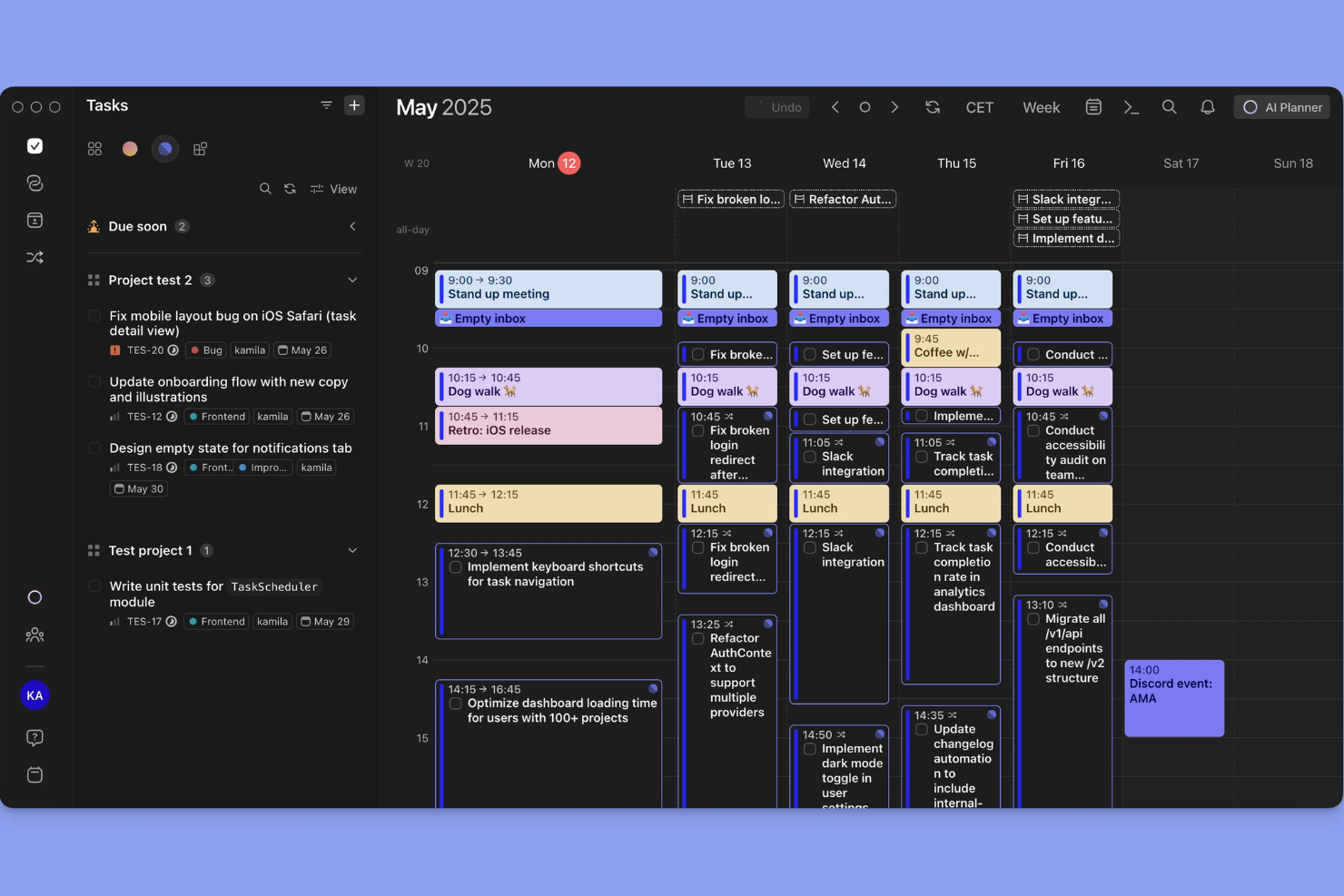
Linear está diseñado para equipos de producto que necesitan avanzar rápidamente y mantener el trabajo organizado sin fricciones. Resulta atractivo para startups y empresas tecnológicas que buscan un seguimiento de incidencias ultrarrápido, flujos de trabajo controlados por teclado y colaboración en tiempo real. Con su enfoque en la velocidad y una interfaz limpia, Linear ayuda a los equipos a gestionar sprints, clasificar errores y lanzar funcionalidades sin verse limitados por procesos engorrosos.
Por qué elegí Linear
Cuando la velocidad y la capacidad de respuesta son irrenunciables, Linear destaca para equipos de producto de ritmo acelerado que necesitan mantener una alta motivación. Elegí Linear porque sus comandos manejados por teclado y las actualizaciones instantáneas de incidencias permiten a los equipos capturar, asignar y resolver tareas sin interrumpir su flujo de trabajo. La sincronización en tiempo real y su búsqueda ultrarrápida ayudan a los equipos a mantenerse alineados y reaccionar rápidamente ante prioridades cambiantes. Para equipos que valoran la velocidad y la mínima fricción en el seguimiento de proyectos, Linear ofrece una experiencia centrada y de alto rendimiento.
Funciones clave de Linear
Otras funciones que hacen de Linear una herramienta útil para el seguimiento de proyectos incluyen:
- Flujos de trabajo personalizados: Configura estados y transiciones únicos para las incidencias según el proceso de tu equipo.
- Gestión de ciclos: Organiza el trabajo en ciclos para facilitar la planificación y entrega en periodos cortos y enfocados.
- Plantillas de incidencias: Crea plantillas reutilizables para tareas comunes o reportes de errores y así estandarizar los envíos.
- Integración con GitHub: Enlaza solicitudes de extracción y commits directamente a las incidencias para una mejor trazabilidad.
Integraciones de Linear
Las integraciones incluyen GitHub, Slack, Vercel, Figma, Sentry, Intercom, GitLab, Bitbucket, Zapier y Discord.
Pros and Cons
Pros:
- Enfoque en atajos de teclado
- Perfecto para equipos de desarrollo
- Clasificación de incidencias eficiente
Cons:
- Funciones básicas de diagrama de Gantt
- Ecosistema de integraciones limitado

Jira
Ideal para equipos de desarrollo de software ágiles
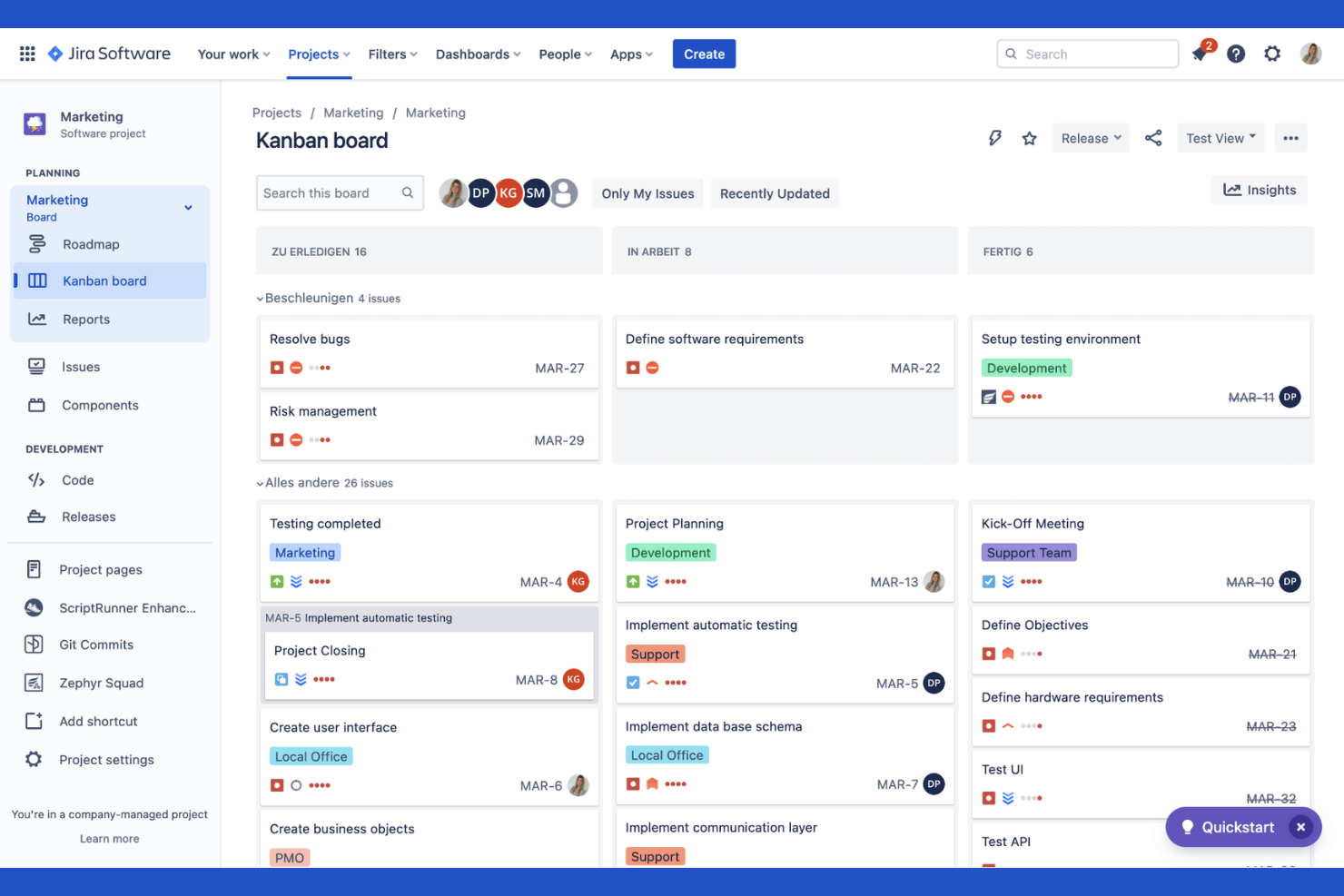
Jira está diseñado específicamente para equipos de desarrollo de software que necesitan gestionar proyectos ágiles y hacer seguimiento de incidencias a gran escala. Es especialmente útil para gestores de producto, scrum masters y responsables de ingeniería que desean personalizar flujos de trabajo, automatizar tareas repetitivas y visualizar el progreso con tableros ágiles. El sólido soporte de Jira para sprints, épicas y gestión de la lista de tareas pendientes lo convierte en la elección preferida para equipos que practican Scrum o Kanban.
Por qué elegí Jira
Para los equipos de desarrollo de software ágiles, Jira ofrece un nivel de personalización de flujos de trabajo y soporte para tableros ágiles difícil de igualar. Elegí Jira porque permite crear y gestionar sprints, épicas e historias de usuario con un seguimiento y reportes detallados. Las funciones de gestión de la lista de tareas pendientes y planificación de sprints ayudan a los equipos a priorizar el trabajo y adaptarse rápidamente a los cambios en los requerimientos. Si necesitas un control minucioso sobre los procesos ágiles y el seguimiento de incidencias, Jira brinda la estructura y flexibilidad necesarias para respaldar proyectos de software complejos.
Principales funcionalidades de Jira
Otras funciones que hacen valioso a Jira para la gestión de proyectos e incidencias incluyen:
- Tipos de incidencias personalizadas: Crea y configura tipos de incidencias únicos para adaptarlos al flujo de trabajo de tu equipo.
- Reglas de automatización: Configura acciones automáticas para tareas y notificaciones repetitivas.
- Permisos avanzados: Controla el acceso de los usuarios y la visibilidad de los proyectos con configuraciones de permisos detalladas.
- Planificación de hojas de ruta: Crea y comparte hojas de ruta visuales para alinear a los equipos con los plazos del proyecto.
Integraciones de Jira
Entre las integraciones se encuentran Slack, GitHub, Bitbucket, Confluence, Microsoft Teams, Google Drive, Dropbox, Trello, Salesforce y Zapier.
Pros and Cons
Pros:
- Potente planificación de sprints
- Gran cantidad de plugins en el marketplace
- Sincronización avanzada con herramientas para desarrolladores
Cons:
- La interfaz es lenta y poco ágil
- Requiere administradores dedicados

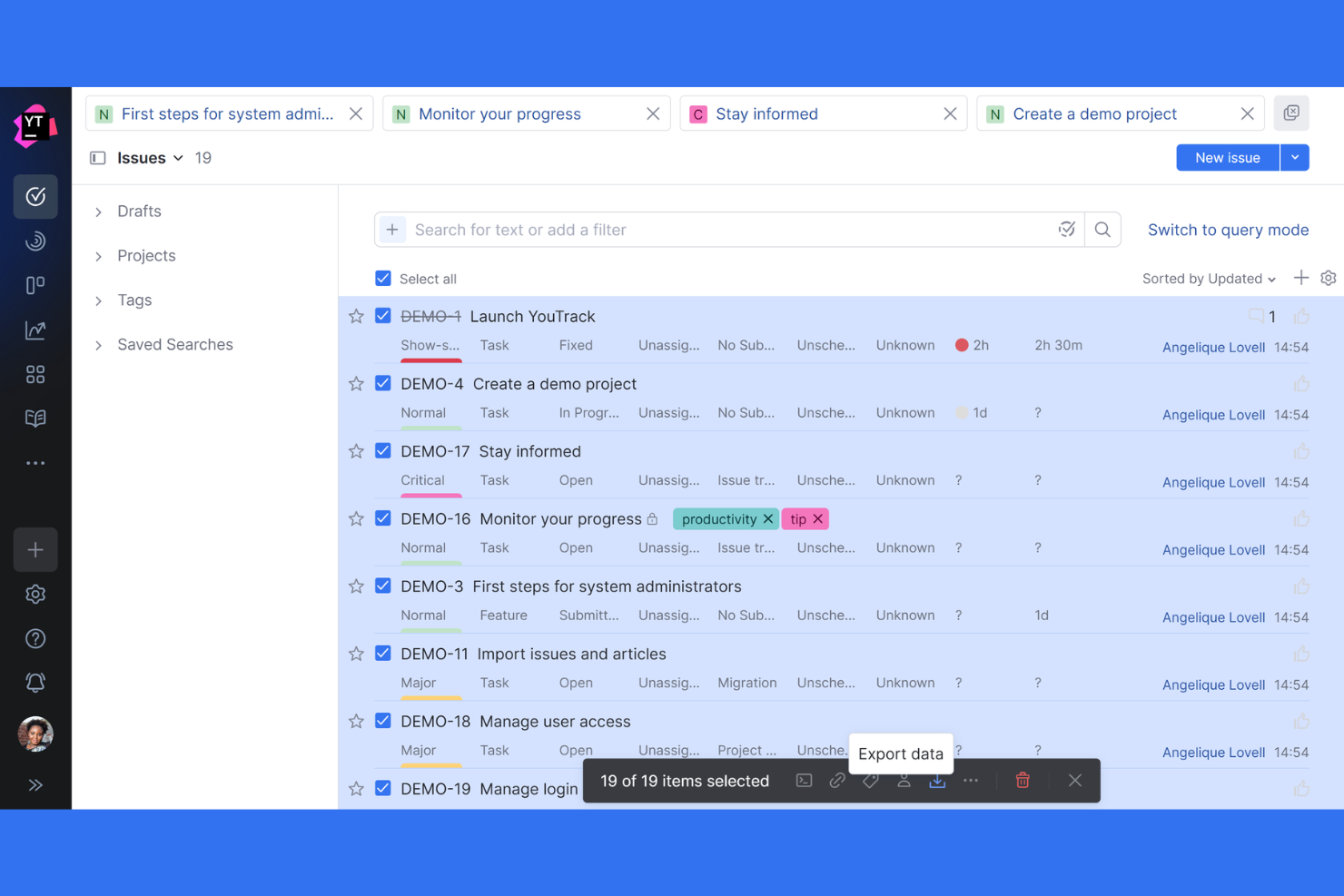
Los equipos que necesitan un control profundo sobre cómo se rastrean y gestionan los problemas suelen recurrir a YouTrack. Esta herramienta está diseñada para equipos de desarrollo de software y organizaciones técnicas que desean personalizar flujos de trabajo, campos y automatizaciones para adaptarse exactamente a sus procesos. YouTrack te ayuda a crear tipos de incidencias personalizados, automatizar acciones repetitivas y adaptar el seguimiento incluso a los requisitos de proyecto más complejos.
Por qué elegí YouTrack
Lo que distingue a YouTrack es su capacidad para permitirte personalizar prácticamente todos los aspectos del seguimiento de incidencias. Elegí YouTrack porque permite a los equipos definir campos personalizados, flujos de trabajo y tipos de incidencias que se ajustan a sus procesos únicos. El editor de flujos de trabajo permite automatizaciones avanzadas, por lo que puedes crear reglas y activadores adaptados a las necesidades de tu equipo. Si buscas una herramienta que se adapte a la estructura de tu proyecto en lugar de obligarte a usar una plantilla rígida, la personalización avanzada de incidencias de YouTrack destaca por encima del resto.
Características clave de YouTrack
Además de sus opciones de personalización, YouTrack ofrece varias otras funciones que apoyan la gestión de proyectos y el seguimiento de incidencias:
- Tableros ágiles: Visualiza las tareas y el progreso utilizando tableros Scrum o Kanban.
- Control de tiempo: Registra horas de trabajo directamente en las incidencias y genera informes de tiempo.
- Base de conocimientos: Crea y organiza documentación interna junto a tus proyectos.
- Actualizaciones en vivo: Observa cambios y notificaciones en tiempo real a medida que se actualizan las incidencias.
Integraciones de YouTrack
Integraciones incluyen GitHub, GitLab, Bitbucket, Slack, Microsoft Teams, Google Drive, Zapier, Zendesk, HubSpot y Confluence.
Pros and Cons
Pros:
- Excelente lenguaje de consultas para búsquedas
- Generosa oferta gratuita para equipos
- Integración profunda con JetBrains
Cons:
- Difícil de configurar flujos de trabajo personalizados
- Enfocado principalmente en desarrolladores

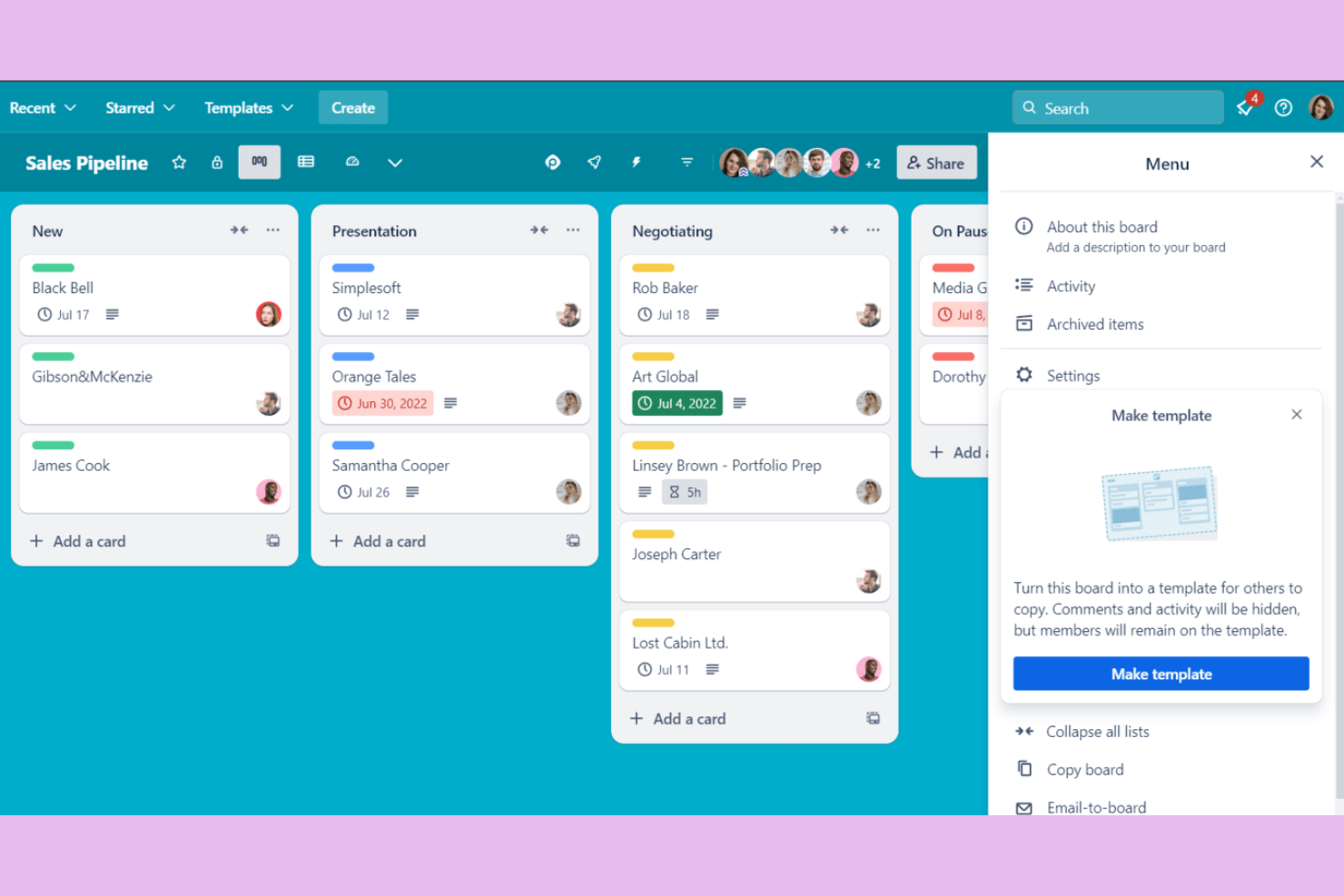
Si buscas un enfoque visual y de arrastrar y soltar para hacer seguimiento del trabajo, Trello es una de las mejores opciones. Trello atrae a equipos e individuos que necesitan una forma sencilla de organizar tareas y proyectos usando tableros kanban. Su sistema basado en tarjetas facilita mapear flujos de trabajo, priorizar problemas y mantener a todos alineados sin complicaciones adicionales.
Por qué elegí Trello
Trello destaca para equipos que quieren una forma simple y visual de organizar y hacer seguimiento de los problemas. Elegí Trello porque su diseño de tablero kanban te permite crear listas para cada etapa del flujo de trabajo y mover tarjetas a medida que avanza el trabajo. Puedes añadir listas de verificación, archivos adjuntos y etiquetas a cada tarjeta, lo que facilita el seguimiento de los detalles sin saturar la vista. Para quienes necesitan un tablero sencillo y flexible para gestionar tareas y problemas de proyectos, el enfoque de Trello mantiene todo claro y accesible.
Características clave de Trello
Otras funciones que hacen a Trello útil para el seguimiento de incidencias y proyectos incluyen:
- Power-Ups: Añade funcionalidades extras como vistas de calendario, votaciones o integraciones con otras herramientas.
- Butler Automation: Automatiza acciones repetitivas en los tableros con reglas y disparadores personalizados.
- Plantillas de tarjetas: Crea plantillas reutilizables para tareas frecuentes o tipos de incidencias comunes.
- Feed de actividad: Haz seguimiento de todos los cambios y actualizaciones en los tableros en una sola cronología.
Integraciones de Trello
Las integraciones incluyen Slack, Google Drive, Dropbox, Microsoft Teams, Jira, GitHub, Evernote, Salesforce, Zapier y Confluence.
Pros and Cons
Pros:
- Gran ecosistema de complementos
- Clasificación rápida de arrastrar y soltar
- La versión gratuita es muy completa
Cons:
- Funciones de informes insuficientes
- No hay jerarquía nativa de incidencias


ClickUp reúne tareas, documentos, objetivos y chat en un solo espacio de trabajo unificado, lo que lo convierte en una excelente opción para equipos cansados de gestionar múltiples herramientas. Es especialmente útil para empresas tecnológicas, agencias y equipos distribuidos que quieren centralizar el seguimiento de proyectos, la gestión de incidencias y la colaboración. ClickUp te ayuda a gestionar todo, desde el seguimiento de errores hasta la planificación de sprints, sin necesidad de cambiar de plataforma.
Por qué elegí ClickUp
Lo que diferencia a ClickUp es su capacidad para reunir todas las necesidades de seguimiento de proyectos e incidencias en un solo espacio de trabajo consolidado. Elegí ClickUp porque permite gestionar tareas, documentos, wikis e incluso chat sin salir de la plataforma. Sus vistas personalizables —como listas, tableros y cronogramas— ayudan a los equipos a realizar el seguimiento de incidencias y proyectos de la manera que mejor se adapte a su flujo de trabajo. Para equipos que buscan reducir la proliferación de herramientas y mantenerlo todo en un mismo lugar, ClickUp ofrece un enfoque unificado difícil de igualar.
Funciones clave de ClickUp
Otras características que hacen a ClickUp valioso para el seguimiento de proyectos e incidencias incluyen:
- Estados personalizados: Crea y gestiona etiquetas de estado únicas para tareas e incidencias según el flujo de trabajo de tu equipo.
- Automatizaciones: Configura automatizaciones basadas en reglas para gestionar acciones repetitivas como asignar tareas o actualizar estados.
- Seguimiento de tiempo nativo: Controla el tiempo dedicado a las tareas directamente desde la plataforma para una mejor visibilidad e informes.
- Seguimiento de objetivos: Define, supervisa y actualiza el progreso de objetivos del proyecto junto con tus tareas e incidencias.
Integraciones de ClickUp
Las integraciones incluyen Slack, Google Workspace, GitHub, GitLab, Zoom, HubSpot, Zendesk y Salesforce.
Pros and Cons
Pros:
- Múltiples opciones de visualización de proyectos
- Excelentes límites en la versión gratuita
- Buen seguimiento de tiempo nativo
Cons:
- Tiempos de carga lentos ocasionalmente
- Configuración de permisos compleja


Si buscas una herramienta que combine la documentación y el seguimiento de tareas en un solo lugar, Notion merece tu atención. Es especialmente útil para equipos que quieren vincular planes de proyecto, notas de reuniones y listas de incidencias sin tener que cambiar entre distintas aplicaciones. El espacio de trabajo flexible de Notion te permite crear flujos de trabajo personalizados que conectan documentos, tareas y bases de datos, ofreciendo una visión unificada del proyecto.
Por qué elegí Notion
Notion reúne documentación y seguimiento de tareas de una manera difícil de encontrar en otras plataformas. Elegí Notion porque permite crear bases de datos enlazadas, para que puedas conectar tareas, incidencias y documentos del proyecto en un mismo espacio de trabajo. La posibilidad de insertar listas de verificación, tablas y tableros Kanban directamente dentro de las páginas de los proyectos permite gestionar incidencias y consultar la documentación relacionada lado a lado. Para equipos que buscan mantener todo el contexto del proyecto, notas y tareas en un solo lugar, la estructura flexible de Notion es una excelente opción.
Funciones clave de Notion
Otras funciones que hacen de Notion una herramienta útil para la gestión de proyectos e incidencias incluyen:
- Galería de plantillas: Accede a una biblioteca de plantillas prediseñadas para gestión de proyectos, notas de reuniones y seguimiento de incidencias.
- Controles de permisos y de compartición: Establece niveles de acceso detallados para páginas, bases de datos y espacios de trabajo.
- Historial de versiones: Revisa y restaura versiones anteriores de cualquier página o base de datos.
- Vista de calendario: Visualiza tareas, fechas límite y hitos del proyecto en un calendario con función de arrastrar y soltar.
Integración con Notion
Las integraciones incluyen Slack, Google Drive, Trello, Asana, GitHub, Figma, InVision, Typeform, Jira y Microsoft Teams.
Pros and Cons
Pros:
- Interfaz limpia y minimalista
- Ideal para tomar notas en entornos ágiles
- Sólida biblioteca de plantillas personalizables
Cons:
- Torpe para grandes volúmenes de incidencias
- El modo offline es poco fiable

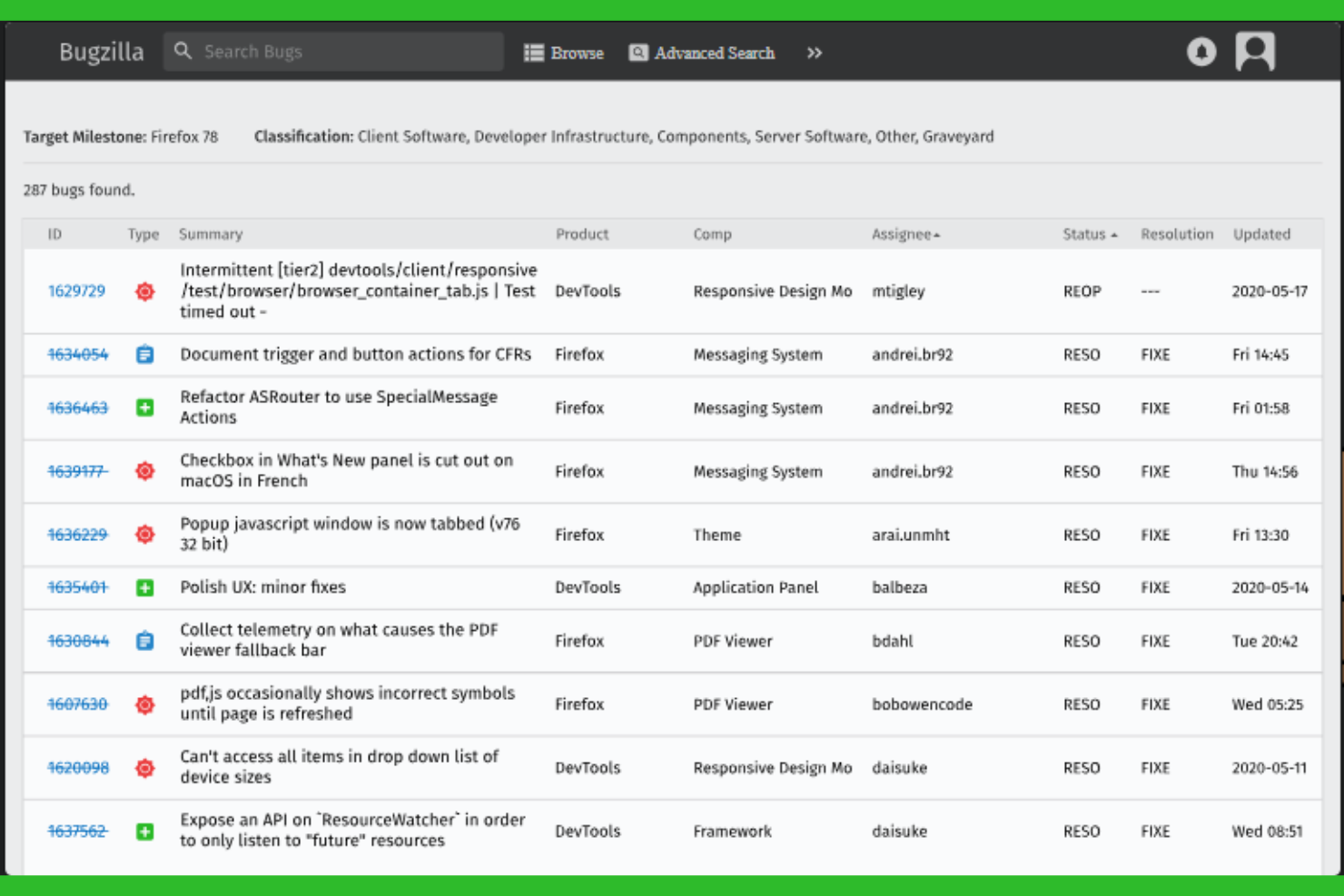
Bugzilla está diseñado específicamente para equipos que necesitan un control granular sobre el seguimiento y la resolución de errores. Es especialmente útil para grupos de desarrollo de software que gestionan productos complejos con flujos de trabajo por capas y necesitan informes detallados. Si tu equipo requiere una categorización avanzada de incidencias, campos personalizados y potentes capacidades de búsqueda, Bugzilla está preparado para cubrir esas exigencias.
Por qué elegí Bugzilla
Lo que diferencia a Bugzilla es su enfoque en ofrecer flujos de trabajo detallados de seguimiento de errores para equipos técnicos. Elegí Bugzilla porque te permite definir campos personalizados, estados y flujos de trabajo para reflejar incluso los procesos de aseguramiento de calidad más complejos. Sus avanzadas herramientas de búsqueda y filtrado ayudan a los equipos a localizar, asignar y priorizar rápidamente los problemas en grandes bases de código. Si tus proyectos requieren una gestión rigurosa del ciclo de vida de los errores y su trazabilidad, Bugzilla está hecho para cubrir esas necesidades.
Funciones clave de Bugzilla
Otras funciones que hacen de Bugzilla una excelente opción para el seguimiento de incidencias y proyectos incluyen:
- Notificaciones por correo electrónico: Envía actualizaciones automáticas a los usuarios cuando se crean, actualizan o resuelven errores.
- Gestión de adjuntos: Sube y administra archivos, capturas de pantalla y registros directamente en los informes de errores.
- Gestión de grupos de usuarios: Controla el acceso y los permisos organizando a los usuarios en grupos.
- Seguimiento de dependencias: Vincula errores para mostrar relaciones y gestionar el orden de resolución.
Integraciones de Bugzilla
Las integraciones incluyen GitHub, Jira, CVS, Subversion, Perforce, Eclipse, Testopia, LDAP, XML-RPC y WebServices.
Pros and Cons
Pros:
- Completamente gratuito
- Muy ligero para los servidores
- Gran soporte de campos personalizados
Cons:
- Sin aplicación móvil nativa
- Proceso de instalación complejo
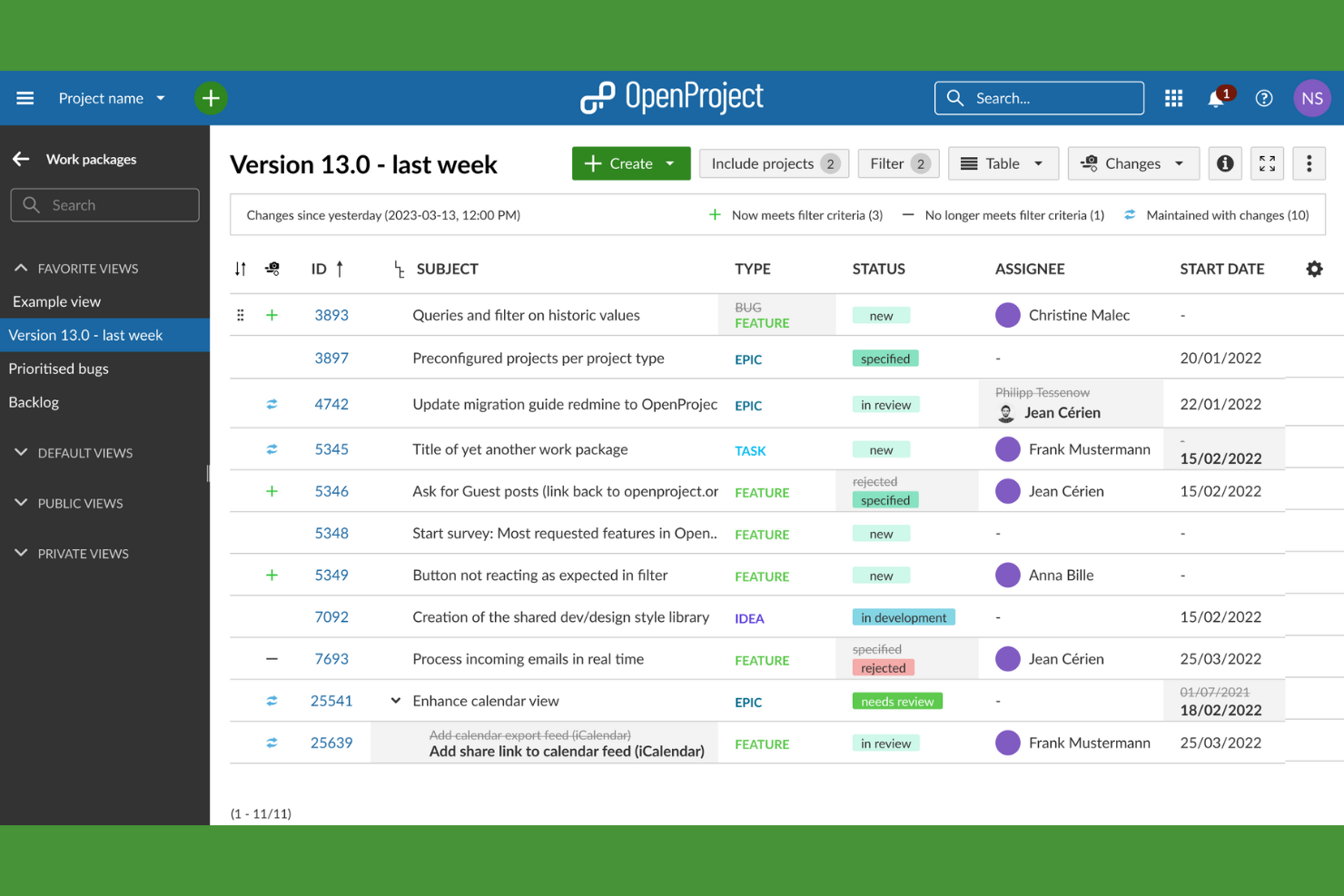
Open Project brinda a los equipos control total sobre el seguimiento de sus proyectos con una plataforma de código abierto. Es una excelente opción para organizaciones que necesitan una implementación en instalaciones propias, privacidad de datos estricta o la capacidad de personalizar flujos de trabajo y funciones. Si buscas una solución que respalde la gestión de proyectos ágil, clásica o híbrida de forma transparente y flexible, Open Project destaca.
Por qué elegí Open Project
Para los equipos que priorizan la transparencia y el control, Open Project ofrece un enfoque de código abierto único para el seguimiento de problemas y proyectos. Elegí Open Project porque permite alojar tu propia instancia, brindando total propiedad sobre tus datos y la flexibilidad de adaptar la plataforma a las necesidades de tu organización. Su diseño modular permite tableros ágiles, diagramas de Gantt y un seguimiento detallado de los paquetes de trabajo, lo cual es especialmente valioso para equipos con flujos de trabajo complejos o en evolución. Si necesitas una solución que se pueda personalizar y gestionar internamente a profundidad, Open Project es una excelente opción.
Funciones clave de Open Project
Otras funcionalidades que hacen a Open Project valioso para el seguimiento de proyectos e incidencias incluyen:
- Seguimiento de tiempo: Registra horas directamente en tareas e incidencias para una gestión precisa del proyecto.
- Páginas wiki: Crea y mantiene la documentación del proyecto dentro de la plataforma.
- Permisos basados en roles: Asigna niveles de acceso granulares a usuarios y grupos.
- Campos personalizados: Agrega datos específicos de la organización a incidencias y tareas.
Integraciones de Open Project
Las integraciones incluyen GitHub, GitLab, Bitbucket, Slack, Jenkins, Redmine, Excel, CSV, LDAP y REST API.
Pros and Cons
Pros:
- Excelente opción para autoalojamiento
- Potentes herramientas tradicionales de gestión de proyectos
- Tableros ágiles integrados
Cons:
- La experiencia móvil es deficiente
- El soporte es comunitario

Smartsheet
La mejor para una planificación de proyectos al estilo hoja de cálculo
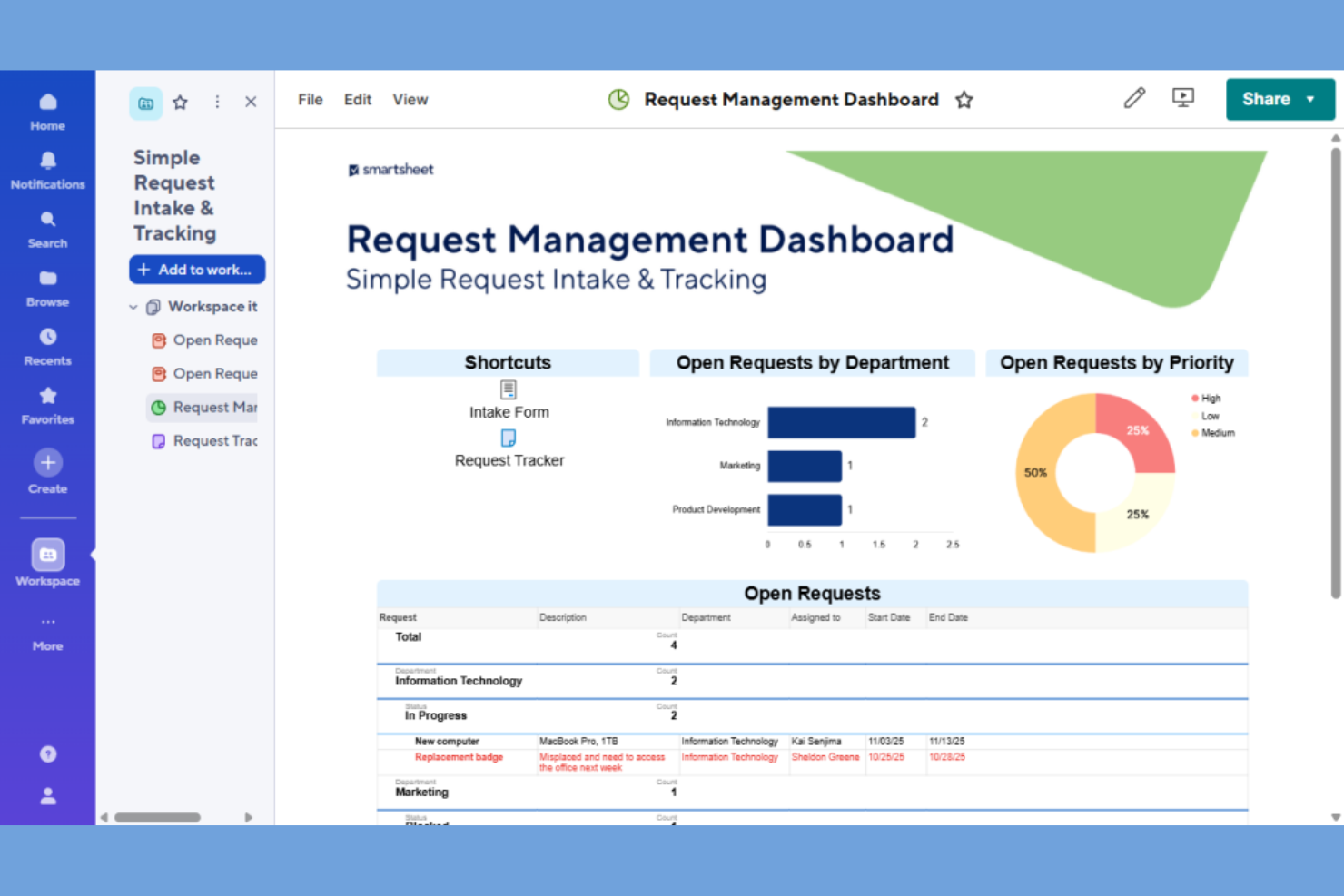
Para equipos que prefieren una interfaz de hoja de cálculo familiar, Smartsheet ofrece una solución de seguimiento de proyectos que resulta inmediatamente accesible. Es una excelente opción para gestores de proyectos que desean organizar incidencias, tareas y dependencias en un formato de cuadrícula mientras añaden automatización e informes. Smartsheet destaca por su capacidad para combinar la flexibilidad de las hojas de cálculo con la estructura de la gestión de proyectos, facilitando el manejo de flujos de trabajo complejos y cronogramas.
Por qué elegí Smartsheet
Smartsheet es ideal para equipos que buscan la familiaridad de las hojas de cálculo combinada con capacidades de gestión de proyectos. Elegí Smartsheet porque te permite hacer seguimiento de incidencias, asignar tareas y gestionar dependencias directamente en un diseño de cuadrícula que imita las hojas de cálculo tradicionales. Funcionalidades como el formato condicional y los flujos de trabajo automatizados te ayudan a resaltar prioridades y automatizar tareas repetitivas de los proyectos. Para gestores de proyectos que necesitan visualizar y actualizar información en una vista tipo hoja de cálculo, Smartsheet ofrece un enfoque flexible y estructurado.
Características clave de Smartsheet
Otras características que hacen útil a Smartsheet para el seguimiento de proyectos e incidencias incluyen:
- Vista de Diagrama de Gantt: Visualiza los cronogramas de proyectos y dependencias con diagramas de Gantt interactivos.
- Gestión de recursos: Asigna miembros del equipo y controla la carga de trabajo entre varios proyectos.
- Formularios de solicitud: Recoge solicitudes de proyectos o incidencias a través de formularios personalizables.
- Registro de actividad: Supervisa los cambios y las acciones de los usuarios con un historial detallado.
Integraciones de Smartsheet
Las integraciones incluyen Microsoft Teams, Slack, Google Drive, Dropbox, Salesforce, Jira, DocuSign, Box, Tableau y Zapier.
Pros and Cons
Pros:
- Potente asignación de recursos
- Excelentes alertas automáticas
- Seguridad empresarial avanzada
Cons:
- La colaboración en tiempo real puede ser lenta
- Se requieren complementos costosos
New Product Updates from Smartsheet
Smartsheet Introduces Custom Privacy Notices for Forms
Smartsheet introduces custom privacy notices that admins can apply across all organizational forms. This helps teams communicate data practices consistently. For more information, visit Smartsheet’s official site.
Otros programas de seguimiento de incidencias y proyectos
Estas son algunas opciones adicionales de software de seguimiento de incidencias y proyectos que no llegaron a mi lista de preselección, pero que aun así merece la pena consultar:
- Wrike
Ideal para la colaboración entre departamentos
- monday.com
Ideal para automatización de flujos de trabajo personalizables


Cómo evalúo el software de seguimiento de incidentes y proyectos
Divido mi evaluación en dos capas: la base que toda herramienta debe cumplir—como seguir errores hasta su resolución y gestionar los backlogs de sprint—y los diferenciadores que hacen que una herramienta sea la adecuada.
Funcionalidad básica (requisitos mínimos para esta lista)
Cuando selecciono herramientas para mi lista, califico cada una en una escala del 0 (no ofrece la funcionalidad) al 5 (sobresale en esta área) para cada funcionalidad básica que se detalla a continuación. Luego, calculo la puntuación total de la herramienta en porcentaje. Cada herramienta debe lograr una puntuación total mínima del 75% para ser considerada.
- Seguimiento y gestión de incidentes: Analizo cómo cada herramienta gestiona la creación, asignación y el avance de los incidentes a través de los estados—aspectos como vincular reportes de bugs duplicados, establecer niveles de severidad y seguir el historial de resolución.
- Gestión de proyectos y tareas: Cada herramienta debe permitir organizar el trabajo en proyectos con tareas, subtareas, dependencias y hitos para definir un sprint o planificar un ciclo completo de lanzamiento.
- Personalización de flujos de trabajo: Evalúo si se pueden personalizar los estados, campos y tipos de incidentes por proyecto—por ejemplo, que el flujo de trabajo de QA se vea muy diferente al de una cola de solicitudes de marketing.
- Múltiples vistas de proyectos: Los equipos trabajan de manera diferente, así que verifico la existencia de tableros Kanban, backlogs, diagramas de Gantt, calendarios y vistas de lista que permitan la convivencia de un equipo Scrum y uno de cascada en la misma herramienta.
- Colaboración y comentarios: Busco comentarios en hilos, menciones @, adjuntos y feeds de actividad vinculados directamente a los incidentes para que el contexto permanezca donde se realiza el trabajo, y no se pierda en hilos de Slack.
- Reportes y tableros: La herramienta debe mostrar gráficos de avance de sprint, tendencias de tiempo de ciclo, volumen de incidentes por tipo y distribución de carga de trabajo mediante tableros realmente útiles para tu equipo y las partes interesadas.
Una vez tengo una lista de herramientas que cumplen estos criterios, considero qué hace destacar a cada plataforma.
Factores diferenciadores (qué distingue a los proveedores)
Así es como comparo y contrasto diferentes proveedores:
Características destacadas
Las integraciones nativas con herramientas de desarrollo son clave cuando tu equipo de ingeniería trabaja en GitHub o GitLab—verifico si los commits y las solicitudes de extracción se vinculan automáticamente con los incidentes. Un motor de automatización sólido también marca la diferencia; herramientas como Jira y Linear permiten asignar incidentes o cambiar estados automáticamente según desencadenantes, ahorrando horas de gestión manual en cada sprint. También evalúo las vistas de hoja de ruta y portafolio, ya que la dirección suele necesitar una visión global del progreso de varios equipos sin tener que explorar cada ticket individual.
Más allá de las características
Los ecosistemas de integraciones varían mucho—evalúo si cada herramienta se conecta de forma nativa con tu stack existente, desde Slack y Confluence hasta Figma y pipelines CI/CD, y si existen APIs abiertas para desarrollos personalizados. Seguridad y cumplimiento también tienen peso real; los equipos que manejan datos sensibles deberían buscar certificación SOC 2, soporte para SSO y permisos granulares basados en roles. Considero, además, qué tan bien escala la herramienta, ya que una plataforma que funciona para una startup de 10 personas puede colapsar en una empresa grande con cientos de proyectos y miles de incidentes en curso.
Cómo elegir un software de seguimiento de incidencias y proyectos
Es fácil perderse entre largas listas de funciones y estructuras de precios complejas. Para ayudarte a mantener la concentración mientras avanzas en tu proceso único de selección de software, aquí tienes una lista de factores que debes tener en cuenta:
| Factor | Qué debes tener en cuenta |
|---|---|
| Escalabilidad | ¿El software podrá gestionar el crecimiento de tu equipo, un mayor número de proyectos o un volumen más elevado de tickets con el tiempo? Comprueba los límites de usuarios, los topes de proyectos y el rendimiento a gran escala. |
| Integraciones | ¿Se conecta de forma nativa con tus herramientas actuales (como GitHub, Slack o Jira)? Considera cómo las carencias de integración podrían afectar a tus flujos de trabajo o exigir soluciones alternativas. |
| Personalización | ¿Puedes adaptar los flujos de trabajo, los campos y los permisos para que coincidan con los procesos de tu equipo? Los sistemas rígidos pueden obligarte a modificar tus métodos o crear soluciones alternativas manuales. |
| Facilidad de uso | ¿Tu equipo lo adoptará rápidamente o la interfaz ralentizará su trabajo? Comprueba que la navegación sea clara, los diseños lógicos y las necesidades de formación mínimas. |
| Implementación e incorporación | ¿Cuánto tiempo llevará ponerlo en funcionamiento? Busca herramientas de migración, asistencia para la incorporación y recursos que se ajusten al nivel de comodidad técnica de tu equipo. |
| Coste | ¿Los niveles de precios se ajustan a tus necesidades y presupuesto? Presta atención a las tarifas ocultas, los complementos obligatorios o los mínimos de usuarios que podrían aumentar los costes a medida que creces. |
| Medidas de seguridad | ¿La herramienta ofrece acceso basado en roles, registros de auditoría y cifrado de datos? Asegúrate de que cumple las normas de seguridad y cumplimiento de tu organización. |
| Disponibilidad de asistencia | ¿Qué canales de asistencia se ofrecen y durante qué horario? Considera si necesitarás ayuda las 24 horas del día, los 7 días de la semana, gestión de cuentas específica o recursos de autoservicio. |
¿Qué es el software de seguimiento de incidencias y proyectos?
El software de seguimiento de incidencias y proyectos es una herramienta digital que ayuda a los equipos a registrar, organizar y supervisar tareas, errores o solicitudes durante todo el ciclo de vida de un proyecto. Estas plataformas centralizan las actualizaciones, las asignaciones y los cambios de estado, lo que facilita la coordinación del trabajo en equipo, la priorización de incidencias y el mantenimiento de la responsabilidad. Los gestores de proyectos, desarrolladores y equipos multifuncionales utilizan estos sistemas (como los de Atlassian) para optimizar la gestión de tareas, garantizar que nada quede pendiente y mantener los proyectos en marcha.
Características
Al seleccionar un software de seguimiento de incidencias y proyectos, presta atención a las siguientes características clave:
- Creación y asignación de incidencias: Crea nuevas incidencias o tickets y asígnalos a miembros específicos del equipo, garantizando una responsabilidad y una rendición de cuentas claras para cada tarea o error.
- Flujos de trabajo personalizables: Adapta las etapas y los estados de las incidencias para que coincidan con los procesos únicos de tu equipo, de modo que puedas realizar un seguimiento del progreso de una forma adecuada a las necesidades de tu proyecto.
- Configuración de prioridad y gravedad: Marca las incidencias según su urgencia o impacto para ayudar a los equipos a centrarse en las tareas más críticas y asignar los recursos de forma eficaz.
- Comentarios y colaboración: Permite que los miembros del equipo debatan las incidencias directamente dentro de la plataforma, manteniendo toda la comunicación y el contexto en un solo lugar.
- Compatibilidad con archivos adjuntos: Sube archivos, capturas de pantalla o registros a las incidencias para facilitar la aportación de pruebas, la reproducción de errores o el intercambio de documentación relevante.
- Búsqueda y filtrado: Localiza rápidamente incidencias o tickets específicos mediante herramientas de búsqueda avanzada y filtros, para que puedas gestionar grandes listas de tareas pendientes sin perder el control.
- Informes y análisis: Genera informes sobre el estado de las incidencias, los tiempos de resolución y el rendimiento del equipo para respaldar la toma de decisiones basada en datos y la mejora continua.
- Permisos basados en roles: Controla quién puede ver, editar o cerrar incidencias mediante la configuración de roles y permisos de usuario, protegiendo la información confidencial y manteniendo la integridad de los procesos.
- Registros de auditoría: Realiza un seguimiento de todos los cambios efectuados en las incidencias, incluidas las ediciones, las actualizaciones de estado y los comentarios, para mantener la transparencia y respaldar las necesidades de cumplimiento normativo.
Beneficios
La implementación de un software de seguimiento de incidencias y proyectos proporciona varios beneficios para tu equipo y tu empresa. Estos son algunos de los que puedes esperar:
- Visibilidad centralizada: Mantén todas las incidencias, actualizaciones y detalles del proyecto en un solo lugar, para que a todos les resulte más fácil estar informados y alineados.
- Mayor responsabilidad: Asigna tareas y realiza un seguimiento de los responsables, para que los miembros del equipo sepan exactamente de qué se encargan y cuándo deben entregarlo.
- Resolución más rápida de problemas: Utiliza funciones como la configuración de prioridades, los comentarios y los archivos adjuntos para identificar, debatir y resolver rápidamente las incidencias a medida que surgen.
- Toma de decisiones basada en datos: Aprovecha las herramientas de informes y análisis para supervisar el progreso, identificar cuellos de botella y realizar ajustes fundamentados en tu flujo de trabajo.
- Procesos personalizables: Adapta los flujos de trabajo, los campos y los permisos a las necesidades únicas de tu equipo, dando soporte a una amplia variedad de tipos de proyectos y metodologías.
- Mayor cumplimiento y transparencia: Mantén registros de auditoría y permisos basados en roles para garantizar la integridad de los procesos y cumplir los requisitos normativos u organizativos.
- Colaboración optimizada: Permite la comunicación en tiempo real y el intercambio de archivos dentro de las incidencias, reduciendo la necesidad de correos electrónicos dispersos o conversaciones externas en chats.
Costes & precios
Seleccionar un software de seguimiento de incidencias y proyectos requiere comprender los distintos modelos de precios y planes disponibles. Los costes varían según las características, el tamaño del equipo, los complementos y otros factores. La tabla siguiente resume los planes habituales, sus precios medios y las funciones que suelen incluir las soluciones de software de seguimiento de incidencias y proyectos:
Tabla comparativa de planes de software de seguimiento de incidencias y proyectos
| Tipo de plan | Precio medio | Funciones habituales |
|---|---|---|
| Plan gratuito | $0 | Seguimiento básico de incidencias, usuarios limitados, gestión básica de flujos de trabajo y asistencia de la comunidad. |
| Plan personal | $5–$12/usuario/mes | Acceso para un solo usuario, informes básicos, archivos adjuntos y notificaciones por correo electrónico. |
| Plan empresarial | $10–$30/usuario/mes | Compatibilidad con varios usuarios, flujos de trabajo avanzados, integraciones, informes y análisis, y permisos basados en roles. |
| Plan corporativo | $20–$50/usuario/mes | Flujos de trabajo personalizados, seguridad mejorada, registros de auditoría, asistencia especializada y funciones de cumplimiento normativo. |
Preguntas frecuentes sobre el software de seguimiento de problemas y proyectos
Aquí tienes algunas respuestas a preguntas frecuentes sobre el software de seguimiento de problemas y proyectos:
¿Cómo sé si mi equipo necesita un software de seguimiento de problemas y proyectos?
Si tu equipo tiene dificultades para hacer un seguimiento de las tareas, los errores o las solicitudes repartidos entre correos electrónicos, hojas de cálculo o chats, probablemente necesite un software de seguimiento de problemas y proyectos. Estas herramientas ayudan a centralizar el trabajo, aclarar las responsabilidades y reducir la confusión a medida que los proyectos se vuelven más complejos.
¿Puede el software de seguimiento de problemas y proyectos integrarse con mis herramientas actuales?
Sí, la mayoría de los programas de seguimiento de problemas y proyectos ofrecen integraciones con herramientas como Slack, GitHub y plataformas de gestión de proyectos. Consulta la lista de integraciones de cada proveedor para asegurarte de que sea compatible con tus flujos de trabajo actuales y evitar la introducción manual de datos.
¿Cuál es la diferencia entre el seguimiento de problemas y el seguimiento de proyectos?
El seguimiento de problemas se centra en registrar y resolver errores o solicitudes específicos, mientras que el seguimiento de proyectos abarca la planificación general, el progreso y la gestión de recursos. Muchas plataformas combinan ambos, lo que permite gestionar tareas y problemas en el contexto de proyectos más amplios.
¿Qué tan seguros están mis datos en un software de seguimiento de problemas y proyectos?
La mayoría de los proveedores acreditados ofrecen funciones de seguridad como cifrado de datos, acceso basado en roles y registros de auditoría. Revisa siempre la documentación de seguridad de la herramienta y confirma que cumple con los requisitos de conformidad y privacidad de tu organización antes de adoptarla.
¿Es difícil migrar desde hojas de cálculo u otra herramienta?
No, la mayoría de las plataformas modernas ofrecen herramientas de importación, plantillas o asistencia durante la incorporación para ayudarte a migrar los datos desde hojas de cálculo o sistemas antiguos. Reserva algo de tiempo para configurar la asignación de campos y probar tus nuevos flujos de trabajo antes de ponerlos en marcha.