

Os 10 Melhores Softwares de Comparação de Documentos Analisados em 2026

Lista restrita do melhor software de comparação de documentos


O software de comparação de documentos é a forma mais fácil de acompanhar alterações em contratos, propostas ou documentos técnicos; manter a precisão e a consistência entre ficheiros; reduzir o risco de erros; e diminuir o tempo gasto a rever manualmente as edições.
Testei e analisei várias ferramentas para apresentar uma visão clara e imparcial das melhores soluções disponíveis, para que possa escolher a opção certa para os seus projetos e para a sua equipa. Com base na minha experiência enquanto gestor de projetos com este tipo de ferramenta, vou abordar as principais funcionalidades e vantagens de cada ferramenta.
Why Trust Our Software Recommendations
Our team has been testing and reviewing software since 2012. As project managers ourselves, we know how difficult—and important—it is to choose the right software.
For this guide, we evaluated tools using hands-on testing and independent research, scoring tools using our selection criteria. We also draw on insights from industry thought leaders and practicing project management experts.
Our reviews reflect our human editorial judgment, not a sales pitch.
Expert reviewers:
Tabela comparativa de software de comparação de documentos
Esta tabela comparativa resume os detalhes de preços das minhas principais escolhas de software de comparação de documentos:
| Tool | Best For | Trial Info | Price | ||
|---|---|---|---|---|---|
| 1 | Best for creative teams | 30-day free trial + free plan + free demo available | From $199/month | Website | |
| 2 | Best with AI-powered document insights | 7-day free trial | From $19.99/user/month (billed annually) | Website | |
| 3 | Best for PDF document comparison | Free trial available | From $7/month (billed annually) | Website | |
| 4 | Best for code file comparison | 30-day free trial | From $7.50/user/month (billed annually) | Website | |
| 5 | Best for project management integration | Free trial available | From $7user//month (billed annually) | Website | |
| 6 | Best for Word document accuracy | Free demo available | Pricing upon request | Website | |
| 7 | Best for cross-platform use | Free trial available | From $35/user (one-time fee) | Website | |
| 8 | Best for contract management | Free demo available | Pricing upon request | Website | |
| 9 | Best for legal professionals | 30-day free trial | From $129/month (one time fee), then $29 (billed annually) | Website | |
| 10 | Best for fast processing speedPricing upon request | Free trial available | Pricing upon request | Website |
Análise do melhor software de comparação de documentos
Eis os meus resumos detalhados do melhor software de comparação de documentos. Abordei as principais funcionalidades, vantagens e desvantagens, integrações e casos de utilização ideais de cada ferramenta.

Best for creative teams

Filestage earns a spot on this list because of how specific its review and approval process is for creative teams working with documents, images, and videos. When you have multiple stakeholders leaving feedback on visual materials, its side-by-side version comparison, commenting, and tracked changes make approvals straightforward.
What I like is that you can see who suggested what in context, with visuals and markup, which saves a lot of time when finalizing creative projects.
Filestage’s Best For
- Creative teams managing marketing, video, design, or document reviews
- Agencies handling multi-stakeholder, visual asset approval processes
Filestage’s Not Great For
- Teams comparing mostly text-based legal or technical documents
- Organizations needing granular, automated document merging or diff tools
What Sets Filestage Apart
Filestage is built to keep visual feedback and document reviews structured and simple, not fractured across email or chat. Unlike Google Workspace or Slack, it assumes you need a single place for marking up videos, images, and documents with colleagues and clients. In practice, this works well when you’re juggling creative deliverables and need everyone’s feedback in one, clearly tracked place.
Tradeoffs with Filestage
Filestage optimizes for centralized, visual reviewing, but it sacrifices advanced document comparison. If you need detailed text diff or merging, it falls short.
Pros and Cons
Pros:
- Time-stamped video comments
- Supports version control
- Easy annotation on design files
Cons:
- Initial setup can be complex
- Requires internet for full functionality

Best with AI-powered document insights
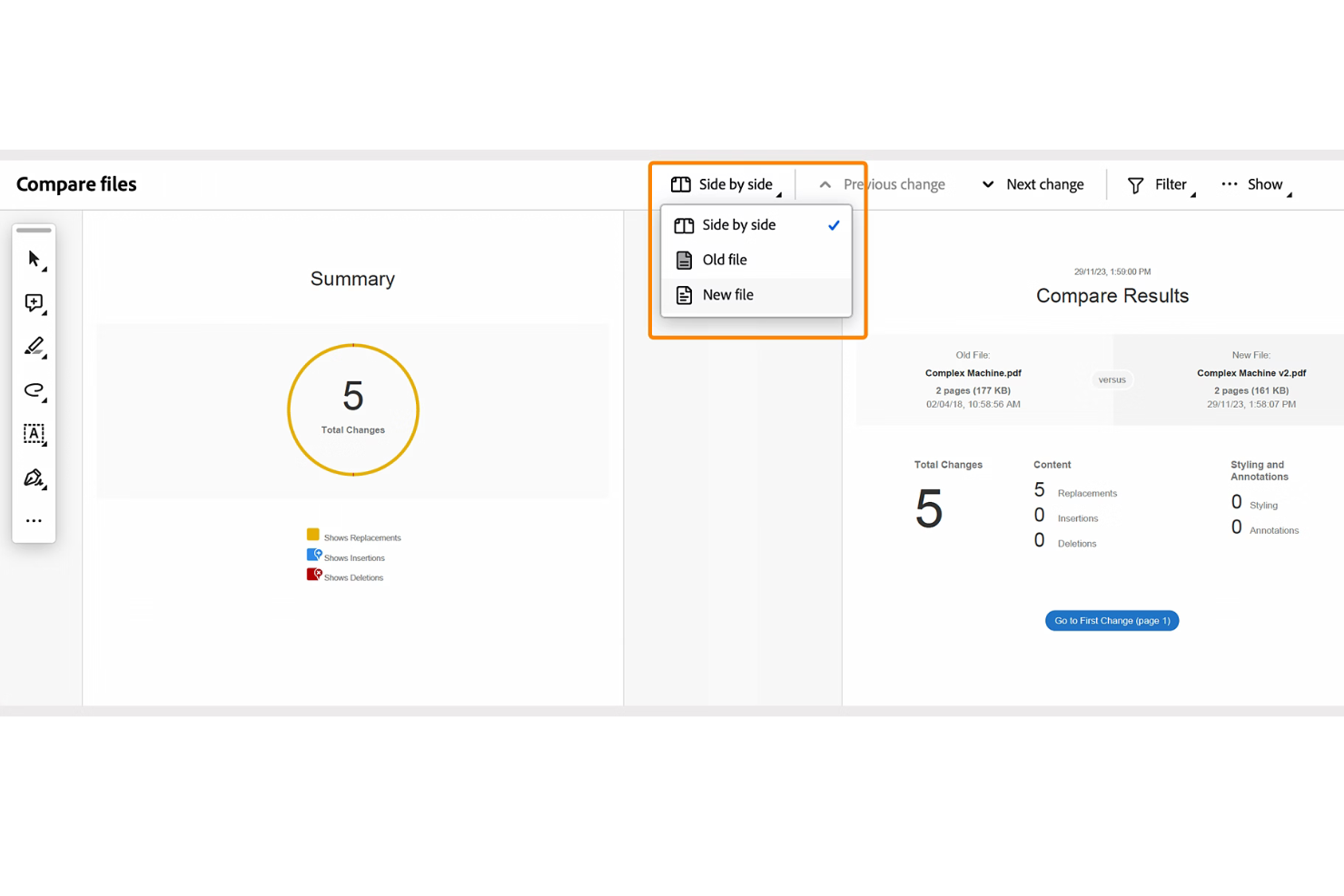
Adobe Acrobat stands out for me because of its AI tool, Acrobat AI Assistant, which analyzes, summarizes, and surfaces insights directly inside your PDFs. I see legal, finance, and contract teams relying on its precise comparison visualizations when accuracy actually matters. What I appreciate most is how you can ask questions across entire documents and instantly get answers, not just redlines or changes.
Adobe Acrobat’s Best For
- Legal, contract, and finance teams verifying document changes
- Organizations that need AI-driven insights and comparisons
Adobe Acrobat’s Not Great For
- Teams looking for lightweight, fast-only comparison tools
- Groups who don’t need advanced document analysis or AI
What sets Adobe Acrobat apart
Adobe Acrobat stands out because it blends document comparison with AI-powered analysis so you can pull insights directly from the files you work with. Unlike lightweight diff tools or Google Docs, Acrobat assumes you need more than just redlines—it expects you’ll question, summarize, and interact with your documents. In practice, you use Acrobat when accuracy and a deeper read of the content matter more than speed.
Tradeoffs with Adobe Acrobat
Acrobat is built for document insight and accuracy, so you end up with added steps and resource demands compared to tools focused only on side-by-side diffing.
Pros and Cons
Pros:
- Includes advanced redaction and security tools
- Offers batch comparison for multiple files
- Integrates with Microsoft 365 and Google Workspace
Cons:
- Can be resource-intensive on older devices
- AI-powered insights require enterprise subscription

Soda PDF
Best for PDF document comparison

Soda PDF makes my shortlist because its document comparison tool is unusually precise for handling complex PDF revisions. I reach for Soda PDF when you’re dealing with contracts, legal docs, or technical specs where miss even a small change can matter. What stands out for me is how it highlights insertions, deletions, and text modifications side by side in a visual report. I like how quickly you can flip through differences, which cuts a lot of back-and-forth for document-heavy teams.
Soda PDF’s Best For
- Legal teams comparing contracts or regulatory PDFs
- Teams reviewing technical documents with complex formatting
Soda PDF’s Not Great For
- Comparing file types other than PDFs
- Collaboration workflows with multiple document editors
What Sets Soda PDF Apart
Soda PDF expects you to review, markup, and compare finished, formatted documents—especially when precision matters. Unlike Google Docs, which works best with text-heavy drafts and in-progress collaboration, Soda PDF zeroes in on published PDF files where layout and graphical elements can change. I see it work well when the final form of the document matters just as much as the words inside.
Tradeoffs with Soda PDF
By optimizing for PDF accuracy and presentation, Soda PDF limits collaboration and editing tools, so you’ll need another system for drafting or team-based document changes.
Pros and Cons
Pros:
- Supports batch conversions
- Includes AI tools for translation
- Works offline and online
Cons:
- May have a learning curve for new users
- Limited advanced editing tools

Best for code file comparison

UltraEdit earns its spot because it does file comparison at a level few editors touch. When I need to review differences in sprawling codebases, its side-by-side, syntax-aware compare view saves me hours grokking changes. What I like is how quickly I can parse differences in massive files without choking performance. You’ll see the most value when project source files change fast and merge conflicts are a real concern.
UltraEdit’s Best For
- Developers comparing large or complex code files
- Teams who need fast, syntax-aware file comparison
UltraEdit’s Not Great For
- Non-technical users reviewing standard document revisions
- Comparing formatted documents like Word or PDF files
What sets UltraEdit apart
UltraEdit approaches code comparison with the perspective of a seasoned text editor instead of a dedicated diff tool like Beyond Compare or Meld. You work directly in your files, with syntax highlighting that helps spot changes in real code, not just document text. This works well when you're juggling large codebases and need to quickly spot tweaks, inserts, or deletions inside big source files.
Tradeoffs with UltraEdit
UltraEdit optimizes for technical users working with raw text, so reviewing PDFs or rich text formats is clunky. For side-by-side document review in anything but code or plain text, you lose accuracy and formatting context.
Pros and Cons
Pros:
- Offers column mode editing
- Handles large files efficiently
- Supports many programming languages
Cons:
- Limited collaboration features
- May overwhelm new users


Nifty PM earns a spot here because it brings project management and document workflows together in a way I don’t see from most competitors. When I’m working with teams who live in their project dashboards, having built-in document versioning and real-time collaboration makes it easy to compare files, track updates, and keep everything audit-ready.
I like how you don’t have to leave Nifty to spot document changes or manage reviews, which really helps when you’re juggling fast-moving projects or cross-functional reviews.
Nifty PM’s Best For
- Project teams that want documents and tasks in one hub
- Organizations needing document comparison inside project management
Nifty PM’s Not Great For
- Legal or compliance teams needing detailed redlining
- Teams wanting industry-specific document comparison features
What sets Nifty PM apart
Nifty PM puts document collaboration right next to your projects, tasks, and timelines. Unlike Google Workspace, where files and project work often live in different places, Nifty assumes you want everything tied together. In practice, this works well for teams who already manage high volumes of project-based documents and want to see file changes in context with project activity.
Tradeoffs with Nifty PM
Nifty PM optimizes for project and document unification, but you give up advanced comparison tools—like detailed version diffing or compliance-focused markup—that specialized software offers.
Pros and Cons
Pros:
- Integrates with various project tools
- Easy document collaboration
- Built-in chat for team communication
Cons:
- Learning curve for new users
- Limited offline functionality

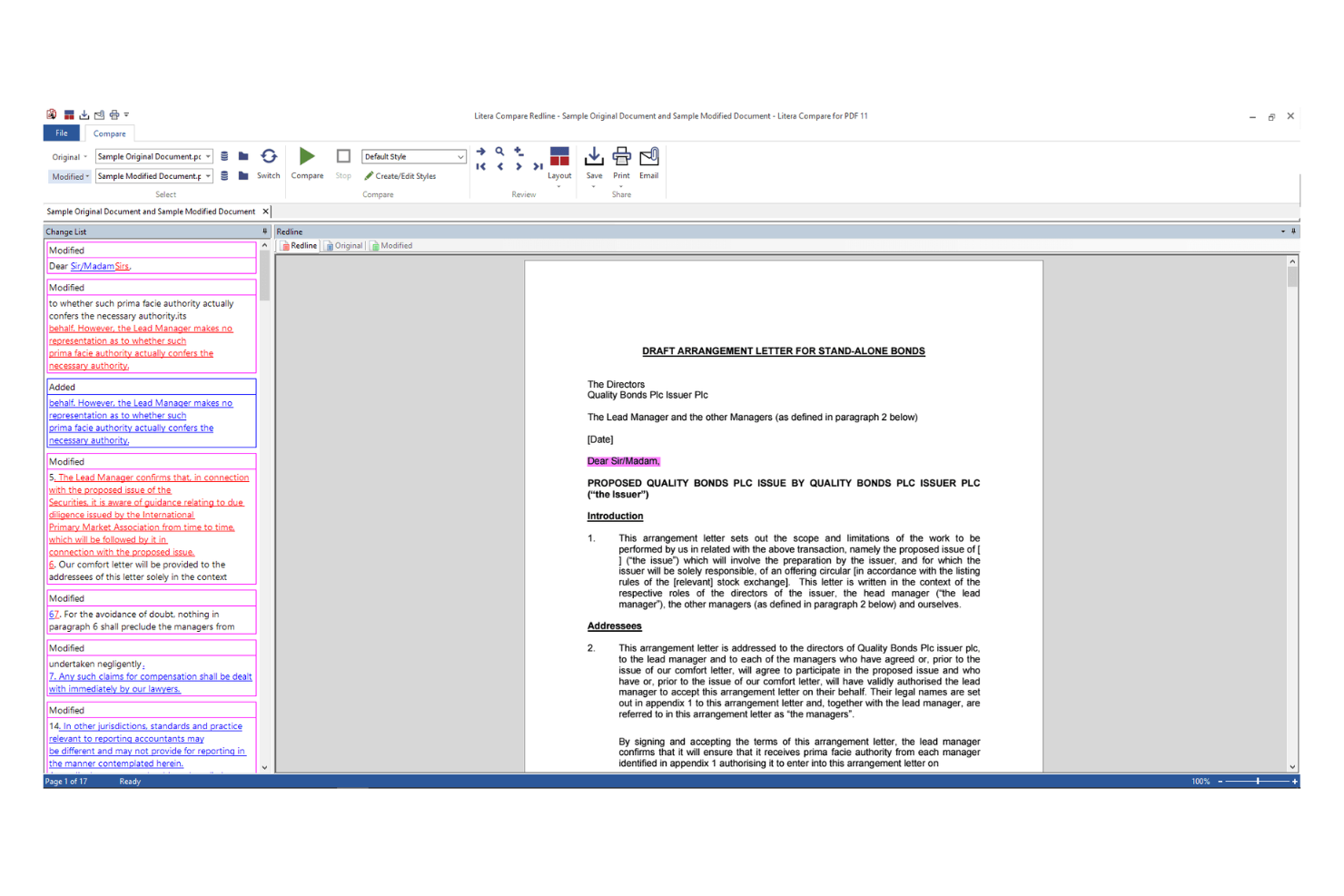
Litera Compare lands on my document comparison shortlist because of its unmatched accuracy in tracking changes within Word documents. When I see legal teams or firms handling high-stakes agreements, Litera Compare is the tool I trust for catching even the smallest edits and redlines. What I like most is how it highlights insertions, deletions, and formatting differences without clutter. It’s a staple when document precision is non-negotiable.
Litera Compare’s Best For
- Legal teams needing precise Word document comparison
- Professionals reviewing contracts or regulatory agreements
Litera Compare’s Not Great For
- Users comparing non-Word formats or PDFs
- Teams seeking simple or informal document change tracking
What sets Litera Compare apart
Litera Compare is built for anyone who needs precise, detailed tracking of changes in Microsoft Word documents. In practice, it focuses on clarity and thoroughness, surfacing even the smallest formatting or text edits. Unlike Adobe Acrobat or Google Docs, this tool expects you to work natively with the .docx format and approach comparison as a review step, not as part of a collaborative editing workflow.
Tradeoffs with Litera Compare
Litera Compare optimizes for in-depth review of Word files, but you lose flexibility with other file formats, so teams relying on multi-format or real-time editing will find it limiting.
Pros and Cons
Pros:
- Supports batch comparison
- Offers redline and track changes views
- Accurate comparison of complex tables
Cons:
- Limited customization options
- Pricing details are not transparent


Beyond Compare is worth highlighting for teams who need to compare files and folders across different operating systems. I picked it because you get the same feature set and interface whether you’re on Windows, macOS, or Linux, and it’s rare to find document comparison tools with that level of cross-platform consistency.
I really appreciate its robust side-by-side text comparison and how well it lets you merge changes line by line, especially when you’re collaborating across teams using mixed environments.
Beyond Compare’s Best For
- Teams working across Windows, macOS, and Linux
- Developers or editors comparing and merging text files
Beyond Compare’s Not Great For
- Non-technical users needing guided, document-only comparison
- Those needing advanced legal or PDF comparison features
What sets Beyond Compare apart
Beyond Compare stands out by making comparison work native on Windows, macOS, and Linux, treating every environment as first-class. Unlike text-focused tools like WinMerge, it expects you to use side-by-side comparisons not just for code, but for whole directories, and even images or data files. This works well when your team uses a mix of operating systems and you want a single workflow for merging and syncing files.
Tradeoffs with Beyond Compare
Because it optimizes for multi-format and cross-platform comparisons, you lose specialized features for PDF or legal document review, which you would find in document-centric solutions.
Pros and Cons
Pros:
- Intuitive side-by-side layout
- Built-in FTP support
- Offers session management
Cons:
- Lacks mobile app support
- Can be resource-intensive


Conga makes my list for contract management because it handles document versioning, redlining, and automated clause tracking in one workflow. I like how you can compare complex legal documents side by side, track every change, and generate audit-ready reports. Teams that manage high volumes of contracts benefit from the granular comparison tools, especially when compliance is critical.
Conga’s Best For
- Legal and procurement teams managing large contract volumes
- Organizations needing detailed audit trails on document changes
Conga’s Not Great For
- Teams needing straightforward short-form document comparisons
- Small businesses with minimal contract complexity
What Sets Conga Apart
Conga is shaped around handling high volumes of complex, sensitive contracts. Unlike basic comparison utilities in Google Workspace or Word, it expects you to keep precise tabs on every version, approval, and edit. I find it focuses on meeting strict audit and compliance requirements. This works well for legal or procurement teams that need to track accountability and status in one place.
Tradeoffs with Conga
Conga optimizes for control and accountability, but the learning curve and administrative setup become a burden if your review needs are simple.
Pros and Cons
Pros:
- Offers detailed audit trails
- Provides real-time change tracking
- Automates contract workflows
Cons:
- May need technical support for integration
- Requires training for new users


Araxis Merge stands out for legal professionals because it handles text and binary file comparisons in a side-by-side, visual format. I like that audit trails and detailed change reports support review cycles and documentation requirements. What puts it at the top for me is how easily you can compare contracts or disclosure documents and export clean, annotated output for compliance or negotiation review.
Araxis Merge’s Best For
- Legal professionals comparing contracts or regulatory documents
- Anyone needing granular, side-by-side file comparison and reporting
Araxis Merge’s Not Great For
- Teams wanting real-time multi-user collaboration
- Casual users who need basic document difference checks
What sets Araxis Merge apart
Araxis Merge is built for scenarios where precision and auditability matter more than collaboration or speed. Unlike Google Docs or Microsoft Word’s compare features, Merge focuses on showing the smallest differences and gives you a fine-grained, side-by-side view. I tend to recommend it when compliance, legal review, or regulatory filings need detailed documentation of changes. This works best when you have a formal review process and the stakes are high.
Tradeoffs with Araxis Merge
Merge optimizes for accurate, detailed comparison, but you lose out on collaborative editing and real-time comments. If teams work together on drafts or need instant input, this approach can slow things down.
Pros and Cons
Pros:
- Allows command line automation
- Offers color-coded difference highlighting
- Supports three-way file comparison
Cons:
- Interface can feel outdated
- May require technical knowledge to use


PDF Guru stands out to me for its speed, especially when handling high-volume or large document comparisons. I like how it can process files almost instantly, even with tricky formatting or layout differences. For teams working with tight deadlines or who need results fast, this is the tool I pick when other software leaves you waiting or timing out.
PDF Guru's Best For
- High-volume or batch document comparison with quick turnaround
- Legal teams or publishers working under aggressive deadlines
PDF Guru's Not Great For
- Users who need detailed change visualization features
- Teams wanting integrations with document management platforms
What sets PDF Guru apart
PDF Guru is built for people who need document comparisons completed fast, even when handling dozens or hundreds of files at a time. Unlike something like ABBYY FineReader, it’s less about digging into annotation or markup tools, and more about getting fast results for bulk review. In practice, this is great when you’re on a deadline and just need to spot the differences quickly.
Tradeoffs with PDF Guru
PDF Guru optimizes for processing speed, but you give up in-depth difference visualization. You don’t get detailed comparison reports like specialized review platforms provide.
Pros and Cons
Pros:
- Easy to use with a simple interface
- Comprehensive features for various PDF needs
- Fast processing and conversion
Cons:
- Lacks offline capabilities
- No specific advanced tools for professionals
Outro software de comparação de documentos
Eis algumas opções adicionais de software de comparação de documentos que não foram incluídas na minha lista restrita, mas que vale a pena consultar se não encontrou o que procurava acima:
- Draftable
For side-by-side comparison
- Verify
For regulatory compliance
- Document360
For evolving documentation
- MediaValet
For digital asset proofing
- altaFlow
For data-driven document accuracy
- ClickUp
For project management teams
- Diffchecker
For simple interface use
- Copyleaks
For detecting plagiarism
- ExamDiff
For quick text comparisons


How I Evaluate Document Comparison Software
When a PM is reconciling scope revisions or auditing contract redlines, I split my evaluation into core requirements every tool must meet and differentiators that separate the best options.
Core Functionality (Table Stakes For This List)
When I'm selecting tools for my list, I rank each one on a scale from 0 (does not offer the functionality) to 5 (excels in this area) for each core functionality listed below. Then, I calculate the tool's total score into a percentage. Each tool needs to achieve a minimum total score of 65% to be considered for inclusion.
- Side-by-Side Document Comparison: I check whether two document versions can be viewed in parallel with synchronized scrolling, which matters when reviewing a revised statement of work against the original.
- Change Detection & Highlighting: Every tool I evaluate should automatically surface insertions, deletions, and edits with clear visual markers so PMs can spot scope changes fast.
- Multi-Format File Support: I look for coverage across Word, PDF, Excel, and PowerPoint at minimum, since project documentation rarely lives in a single format.
- Redline & Markup Export: The ability to generate and share a redlined report is key—especially when circulating contract revisions to legal, procurement, or external vendors for sign-off.
- Version History & Audit Trail: I evaluate whether the tool logs past comparisons with timestamps and user attribution, which helps during retrospectives or compliance audits.
- Collaboration & Sharing: Sharing comparison results with stakeholders who need to weigh in matters, so I look for comment threads, role-based access, and shareable review links.
Once I have a list of tools that meet this criteria, I consider what sets each platform apart.
Differentiating Factors (What Sets Vendors Apart)
Here's how I compare and contrast different vendors:
Standout Features
AI-powered summarization is a major differentiator. Tools that flag material scope changes or high-risk edits save PMs from reading every redline manually. I also evaluate OCR capabilities, since teams often deal with scanned blueprints or signed PDFs that need comparison against digital originals. Batch comparison matters when you're reviewing multiple vendor proposals against a master RFP simultaneously. Native cloud storage sync with platforms like SharePoint or Google Drive removes the manual upload step entirely.
Beyond Features
Integration with your existing PM stack is a top priority. A tool that connects with Jira, Smartsheet, or Microsoft 365 fits into real workflows instead of creating another silo. Security also weighs heavily—I check for SOC 2 and encryption standards, especially when teams compare sensitive contracts or vendor agreements. Deployment flexibility matters too; some enterprise PMOs require on-premise hosting, while distributed teams benefit from cloud-native access.
Como escolher software de comparação de documentos
É fácil ficar atolado em listas extensas de funcionalidades e estruturas de preços complexas. Para o ajudar a manter o foco enquanto analisa o seu processo específico de seleção de software, eis uma lista de verificação dos fatores a ter em conta:
| Fator | O que considerar |
|---|---|
| Escalabilidade | Certifique-se de que o software consegue acompanhar o crescimento da sua equipa e gerir mais documentos e utilizadores à medida que a sua empresa cresce, sem comprometer o desempenho. |
| Integrações | Procure compatibilidade com as ferramentas que a sua equipa já utiliza, como sistemas de gestão de projetos ou soluções de armazenamento na nuvem, para simplificar o seu fluxo de trabalho |
| Personalização | Verifique se a ferramenta permite adaptar as definições e funcionalidades às necessidades específicas da sua equipa. |
| Facilidade de utilização | Escolha uma ferramenta com uma interface intuitiva que exija formação mínima, para que a sua equipa possa começar a utilizá-la eficazmente de imediato. |
| Orçamento | Considere o custo total, incluindo eventuais taxas ocultas. Procure planos de preços flexíveis que se adequem às suas limitações financeiras |
| Medidas de segurança | Verifique se o software possui medidas de segurança robustas, como encriptação e conformidade com os regulamentos de proteção de dados, para proteger informações sensíveis. |
| Serviços de apoio | Avalie a disponibilidade e a qualidade do apoio ao cliente, incluindo suporte por chat em direto, e-mail e telefone, para garantir que obtém ajuda quando necessário. |
| Desempenho | Avalie a rapidez com que o software processa as comparações e gere ficheiros grandes, uma vez que um desempenho lento pode prejudicar a produtividade. |
O que é o software de comparação de documentos?
O software de comparação de documentos é uma ferramenta que identifica diferenças entre versões de um documento e realça as alterações para facilitar a edição e a revisão. Estas ferramentas são habitualmente utilizadas por profissionais jurídicos, editores e gestores de projetos que precisam de manter a exatidão e a consistência dos documentos.
Funcionalidades como a análise baseada em IA, a colaboração na nuvem e as ferramentas de comparação visual ajudam a detetar alterações subtis, apoiam a colaboração entre equipas e mantêm a exatidão. Estas ferramentas permitem poupar tempo e reduzir erros, proporcionando uma visão clara das alterações aos documentos.
Funcionalidades do software de comparação de documentos
Ao selecionar um software de comparação de documentos, procure as seguintes funcionalidades principais:
- Modo de comparação: permite visualizar duas versões de um documento lado a lado, facilitando a identificação de diferenças.
- Controlo de versões: permite gerir e acompanhar as alterações em várias versões de um documento, evitando confusões.
- Capacidades de integração: suporta a integração com outros softwares e ferramentas para otimizar os fluxos de trabalho e melhorar a produtividade.
- Realce de diferenças: realça automaticamente as alterações entre documentos para poupar tempo e reduzir o esforço manual.
- Ferramentas de colaboração: permite que vários utilizadores trabalhem e revejam documentos em simultâneo, facilitando a colaboração entre equipas.
- Funcionalidades de segurança: protege informações sensíveis através de encriptação e mecanismos de controlo de acesso.
- Definições personalizáveis: oferece flexibilidade para ajustar as definições de acordo com necessidades específicas, melhorando a experiência do utilizador.
- Interface intuitiva: disponibiliza uma interface intuitiva e fácil de navegar, reduzindo a curva de aprendizagem para novos utilizadores.
- Gestão de documentos: inclui funcionalidades para organizar, armazenar e recuperar documentos de forma eficiente, bem como ferramentas para sincronizar ficheiros.
- Relatórios e análise: oferece informações sobre as alterações e a utilização dos documentos através de relatórios detalhados e análises.
Benefícios do software de comparação de documentos
A implementação de um software de comparação de documentos proporciona vários benefícios à sua equipa e à sua empresa. Eis alguns dos que pode esperar:
- Maior exatidão: a análise baseada em IA permite detetar até as mais pequenas alterações e reduz o risco de erros.
- Melhor colaboração: as funcionalidades baseadas na nuvem permitem que os membros da equipa trabalhem em conjunto nos documentos em tempo real, melhorando o trabalho de equipa e a produtividade.
- Poupança de tempo: os relatórios automatizados e as ferramentas de pesquisa avançada ajudam a identificar e resolver rapidamente as alterações aos documentos, permitindo poupar tempo valioso.
- Conformidade regulamentar: as funcionalidades de acompanhamento da conformidade ajudam a garantir que os documentos cumprem as normas do setor e minimizam o risco de problemas jurídicos.
- Melhor gestão de documentos: o acompanhamento do histórico de versões mantém um registo detalhado das alterações e facilita a gestão e a revisão das revisões dos documentos.
- Clareza visual: as ferramentas de comparação visual ajudam a garantir que as imagens e os gráficos dos documentos estão corretos, o que é crucial para as indústrias criativas.
Custos e preços do software de comparação de documentos
A seleção de um software de comparação de documentos requer uma compreensão dos vários modelos de preços e planos disponíveis. Os custos variam consoante as funcionalidades, o tamanho da equipa, os complementos, entre outros fatores. A tabela abaixo resume os planos comuns, os respetivos preços médios e as funcionalidades normalmente incluídas nas soluções de software de comparação de documentos:
| Tipo de plano | Preço médio | Funcionalidades comuns |
|---|---|---|
| Plano gratuito | $0 | Comparação básica de texto, formatos de ficheiro limitados e atualizações manuais |
| Plano pessoal | $5 - $25/utilizador/ mês | Comparação de texto e imagens, relatórios básicos e armazenamento limitado na nuvem |
| Plano empresarial | $30 - $75/utilizador/mês | Ferramentas de comparação avançadas, funcionalidades de colaboração e atualizações em tempo real |
| Plano empresarial de grande escala | $80 - $150/utilizador/mês | Modelos personalizáveis, acompanhamento da conformidade, suporte dedicado e funcionalidades de segurança avançadas |
Perguntas frequentes sobre software de comparação de documentos
Eis algumas respostas a perguntas comuns sobre software de comparação de documentos:
Qual é a forma mais rápida de comparar dois documentos para encontrar diferenças?
Para comparar rapidamente dois documentos, utilize uma ferramenta de comparação de documentos que permita carregar ambos os ficheiros e analisá-los lado a lado. Este método realça as diferenças, para que possa identificar facilmente as alterações. Muitas ferramentas oferecem análise em tempo real, pelo que pode ver os resultados quase instantaneamente.
Qual é o objetivo de comparar as características dos documentos?
A comparação das características dos documentos ajuda a identificar as alterações efetuadas entre diferentes versões, permitindo manter a consistência e a precisão. Isto é crucial se precisar de acompanhar edições, como acontece com equipas jurídicas e editores. A comparação de documentos permite detetar alterações de formatação e gramaticais.
Existe software para comparar dois documentos?
Sim, existem várias opções de software disponíveis para comparar dois documentos. Estas ferramentas podem realçar alterações no texto, nas imagens e na formatação. Foram concebidas para tornar simples o processo de identificação de diferenças e poupar tempo e esforço nas comparações manuais.
Como escolher o software de comparação de documentos adequado?
Escolha um software de comparação de documentos com base nas suas necessidades específicas, como os tipos de documentos com que trabalha e o nível de detalhe de que necessita. Tenha em consideração fatores como a facilidade de utilização, as capacidades de integração e os serviços de apoio. Teste algumas opções para encontrar a que melhor se adapta às suas necessidades.
O software de comparação de documentos consegue processar imagens e gráficos?
Sim, muitas ferramentas de comparação de documentos conseguem processar imagens e gráficos. Realçam as alterações não só no texto, mas também nos elementos visuais. Esta funcionalidade é especialmente útil para equipas que trabalham com documentos complexos que incluem dados gráficos.