

Os 10 melhores softwares de automatização de documentos analisados em 2026

Lista dos melhores programas de automatização de documentos


Gerir um projeto implica lidar com inúmeros documentos e é provável que esteja cansado de realizar tarefas repetitivas e introduzir dados manualmente. É aí que entra o software de automatização de documentos.
Com base na minha experiência, estas ferramentas permitem-lhe poupar tempo, reduzir erros e ajudar a sua equipa a concentrar-se no que realmente importa. Testei e analisei várias opções de software para encontrar as melhores para si.
Neste artigo, partilharei as minhas análises imparciais das principais soluções de automatização de documentos. Descobrirá os seus pontos fortes, pontos fracos e o que torna cada uma delas única.
Why Trust Our Software Recommendations
Our team has been testing and reviewing software since 2012. As project managers ourselves, we know how difficult—and important—it is to choose the right software.
For this guide, we evaluated tools using hands-on testing and independent research, scoring tools using our selection criteria. We also draw on insights from industry thought leaders and practicing project management experts.
Our reviews reflect our human editorial judgment, not a sales pitch.
Expert reviewers:
Tabela comparativa de software de automatização de documentos
Esta tabela comparativa resume os detalhes de preços das minhas principais escolhas de software de automatização de documentos:
| Tool | Best For | Trial Info | Price | ||
|---|---|---|---|---|---|
| 1 | Best for screen recording-based documentation | 10-day free trial + free demo available | From $40/month (billed annually) | Website | |
| 2 | Best for end-to-end document automation | Free demo available | From $399/month (billed annually) | Website | |
| 3 | Best for non-complex workflows | Free trial + demo available | Pricing upon request | Website | |
| 4 | Best for reducing document errors | Free demo available | Pricing upon request | Website | |
| 5 | Best for multilingual document workflows | Free demo available | Pricing upon request | Website | |
| 6 | Best for OCR capabilities | Free trial available + free demo | Pricing upon request | Website | |
| 7 | Best for app integrations | Free plan available; 14-day free trial | From $19.99/month (billed annually) | Website | |
| 8 | Best for small business automation | 14-day free trial + free demo available | From $11/user/month (billed annually) | Website | |
| 9 | Best with AI-powered document insights | 7-day free trial | From $19.99/user/month (billed annually) | Website | |
| 10 | Best for compliance management | Free demo available | From $65/user/month | Website |

Análises dos melhores programas de automatização de documentos
Seguem-se os meus resumos detalhados das minhas escolhas para os melhores programas de automatização de documentos. As minhas análises oferecem uma visão detalhada das principais funcionalidades, vantagens & desvantagens, integrações e casos de utilização ideais de cada ferramenta, para o ajudar a encontrar a melhor opção para si.


TruPeer earns a spot here because it’s uniquely set up for teams that want to document workflows or training with direct, visual context. When you need to show and not just tell, screen recording is a game changer.
I like that you can turn screen captures into step-by-step guides so teammates or clients see every detail, not just descriptions. This works best when you’re standardizing complex processes or onboarding users who need to see each click.
TruPeer’s Best For
- Teams documenting workflows using visual, step-by-step guides
- Onboarding or training where screen demonstrations add clarity
TruPeer’s Not Great For
- Automating high-volume, text-based document generation
- Legal or compliance-heavy use cases needing audit trails
What sets TruPeer apart
TruPeer is different because it makes documentation a visual-first process, focusing on capturing real workflows as they happen. Instead of typing step-by-step instructions like you would in Google Docs or Confluence, you record your screen and turn those exact actions into explainer guides. This approach is a good match if you need clarity for onboarding or for technical handoff, especially when written instructions leave room for misinterpretation.
Tradeoffs with TruPeer
TruPeer optimizes for visual clarity, but that means you lose automation for creating high-volume, template-driven text documents, so routine paperwork remains manual.
Pros and Cons
Pros:
- Works well for training, support, and process documentation
- Easy to update content without re-recording everything
- Saves time on manual documentation and editing
Cons:
- Not ideal if you only need text-based docs
- Limited control compared to fully manual documentation tools

altaFlow
Best for end-to-end document automation

altaFlow makes my shortlist because of its true end-to-end automation for document workflows. When I see teams that need to design, route, eSign, and store documents within a single system, this platform handles every stage without extra tools. I like that you can build advanced workflows using drag-and-drop bots, letting you automate approvals, data capture, and notifications in a way most platforms just can’t match.
What sets altaFlow apart is how it combines document creation, workflow logic, and integration with eSignature—all built into one environment. This works especially well for organizations managing high volumes of repeatable document processes, like HR onboarding or client contract approval.
altaFlow’s Best For
- Organizations automating end-to-end document workflows
- Teams needing integrated eSignature, approvals, and data capture
altaFlow’s Not Great For
- Simple document generation without workflow automation
- Users needing advanced analytics or reporting features
What sets altaFlow apart
altaFlow approaches document automation differently from options like Google Workspace or DocuSign. It’s built for teams that want to automate the entire process, from generation through approvals and signatures, without juggling multiple tools. In practice, you design workflows visually and orchestrate each stage, making it work well when you need to standardize and move high volumes of documents.
Tradeoffs with altaFlow
altaFlow optimizes for detailed process automation, but setup takes time and upfront planning. As a result, quick document edits or ad-hoc changes are slower and less convenient than with basic editors.
Pros and Cons
Pros:
- No-code builder supports custom workflows
- Integrates with popular CRMs and business apps
- Strong document generation and contract lifecycle tools
Cons:
- Limited customization compared to enterprise-grade platforms
- Initial setup can feel complex

Best for non-complex workflows

Document360 is one of my top picks for teams dealing with straightforward document automation. When I see teams who need to set up or update knowledge bases, SOPs, or FAQs without complicated branching workflows, this is the tool I recommend.
What I appreciate most is how quickly you can publish structured documentation with category management and version tracking, all without the usual process overhead.
Document360’s Best For
- Building non-technical knowledge bases or FAQs
- Teams with clear, linear documentation needs
Document360’s Not Great For
- Automating complex, multi-step document workflows
- Organizations needing advanced workflow customization
What sets Document360 apart
Document360 builds around a no-fuss documentation model where publishing and maintaining reference material is central. Unlike big platforms like Confluence that expect lots of integrations and layers, Document360 aims for fast setup and clear navigation. I find this suits teams that value ready-to-use knowledge bases or SOP libraries rather than collaborative documentation projects.
Tradeoffs with Document360
By keeping things straightforward, Document360 limits your ability to design or automate complex document workflows. If you want branching approvals or dynamic document creation, you need a more specialized platform.
Pros and Cons
Pros:
- Provides robust version control with audit trails
- Offers powerful reporting and analytics
- Smart file management features
Cons:
- Most integrations are only available on higher-tier plans
- Can be pricey for teams on a budget
New Product Updates from Document360

Document360 Adds AI Version Summaries and Centralized Engage Controls
Document360 adds Eddy AI summaries for article version changes and a centralized Engage dashboard for guides and videos. These updates help teams review content changes faster and manage interactive assets from one place. For more information, visit Document360’s official site.
 .

Best for reducing document errors

Mitratech Hotdocs earns a spot on my list for its strong track record in reducing document errors, especially in legal and compliance-heavy contexts. I like that you can turn even the most complex document templates into automated workflows using conditional logic and guided interviews.
Hotdocs comes through when you have hundreds of contracts, agreements, or disclosures that need to be perfectly consistent, every time. The platform’s scenario-based automation means teams avoid manual mistakes and version drift without relying on extra layers of review.
Hotdocs’s Best For
- Legal, finance, or compliance teams needing consistent document output
- Organizations automating complex, rules-driven contracts or forms
Hotdocs’s Not Great For
- Teams seeking basic, fill-in-the-blank templates
- Small businesses with minimal document automation needs
What sets Hotdocs apart
Hotdocs makes document automation much more about structured rules than simple templates. Instead of focusing on quick fill-outs like you get with Google Docs or DocuSign, Hotdocs expects you to design interviews and logic that drive exactly how documents are built. This works well when your process relies on consistent compliance and every piece of language matters.
Tradeoffs with Hotdocs
Hotdocs optimizes for precision and control, but that comes with setup complexity that slows down smaller teams who just want fast template editing.
Pros and Cons
Pros:
- Robust integration capabilities with legal and business tools
- Flexible deployment options (cloud, desktop, hybrid)
- Centralized template management for better compliance
Cons:
- Steep learning curve for beginners
- Limited advanced features in the basic version
Doxis
Best for multilingual document workflows

Doxis is an enterprise document automation platform that uses AI for capture, classification, workflow routing, and audit-proof archiving across SAP, Microsoft 365, and other connected business systems.
Who is Doxis Best For?
Doxis suits enterprise teams in industries such as finance, manufacturing, and the public sector that need to automate document-heavy processes at scale.
Why I Picked Doxis
I picked Doxis as one of the best for multilingual document workflows because of how it handles cross-border collaboration at the platform level. The Doxis iRoom lets you invite external users and work across teams in 13 languages, which matters when you're coordinating document processes across regional offices or international suppliers. On top of that, Doxis AI.dp uses natural language processing to extract and classify document data across languages, so your automation workflows don't break down when content arrives in different languages.
Doxis Key Features
- Doxis Business Studio: A no-code app builder for configuring document workflows, release processes, and automation rules without developer support.
- Automated invoice processing: Captures, extracts, and routes incoming invoices through a configurable purchase-to-pay workflow, featuring approval escalation.
- Audit-proof archiving: Stores documents with automated retention policies and tamper-proof logs to meet compliance requirements.
- Enterprise search: Allows users to find information across document content, metadata, and connected systems from a single query interface.
Doxis Integrations
Doxis offers certified native integrations with SAP, Salesforce, and the Microsoft ecosystem, including Microsoft 365, SharePoint, Outlook, and Teams. It also integrates with ServiceNow and Workday. A REST API supports custom integrations, along with add-ins for Microsoft Office and the Doxis SmartBridge connector for SAP and Salesforce. Zapier support is not clearly documented.
Pros and Cons
Pros:
- AI extraction leverages custom-trained machine learning models
- Addresses the unique automation needs of different departments
- Handles the entire document lifecycle within a single platform
Cons:
- Certain features are still lacking despite initial sales assurances
- Complex customizations often need coordination with support

TrailHQ
Best for OCR capabilities

Nanonets works especially well for organizations that need reliable OCR and data extraction from scanned documents, invoices, or forms. When I tested its OCR model builder and saw how quickly it adapts to new document layouts, I realized how much time it saves teams with variable paperwork. I appreciate that you can customize extraction logic and automate complex document workflows without a lot of pre-formatting.
Nanonets’ Best For
- Teams processing high volumes of scanned invoices or forms
- Organizations needing customizable OCR data extraction workflows
Nanonets’ Not Great For
- Businesses dealing mostly with digital-native documents
- Teams that require deep document editing or collaboration features
What sets Nanonets apart
Nanonets is built around training custom OCR models so you can automate document processing even when formats vary. Unlike something like ABBYY FlexiCapture which assumes predefined templates, Nanonets expects you to teach the model what to look for as new document types appear. In practice, I see this working well for companies that deal with a lot of paperwork that changes over time, especially when standard OCR tools start breaking.
Tradeoffs with Nanonets
Nanonets optimizes for handling many changing document types, but you lose built-in document collaboration and editing tools, so teams focused on back-and-forth markup or annotation need another solution.
Pros and Cons
Pros:
- High accuracy rate
- Strong customer support
- No-code platform
Cons:
- Limited customization options
- Learning curve for new users

Zapier
Best for app integrations

Zapier makes the cut for document automation because it connects hundreds of platforms where documents live, trigger, and generate. When I need to move data between cloud document editors, e-signatures, or storage systems, Zapier’s workflows (“Zaps”) save tons of time.
What I like is how you can automate things like PDF generation from form fills or push signed contract PDFs from sign-off tools straight into team drives, without manual steps. This works best when you’ve got scattered tools and need documents to flow between them without missing a beat.
Zapier’s Best For
- Automating document flows between multiple disconnected cloud platforms
- Teams needing no-code automation for cross-tool document triggers
Zapier’s Not Great For
- Complex document assembly with heavy template logic
- Companies needing tight, in-app document editing or approval workflows
What sets Zapier apart
Zapier takes a different approach from suites like Google Workspace by focusing on linking together many specialized tools instead of keeping all work in one ecosystem. You build workflows that push documents, data, or files automatically between apps instead of managing each step by hand. This works well for teams that keep running into limitations with native integrations or need documents to automatically move across silos.
Tradeoffs with Zapier
Zapier optimizes for automation across lots of tools, but that means you give up tight controls and deep customization found in purpose-built document management systems. If you need granular editing or approval steps inside the flow, it often feels patched together.
Pros and Cons
Pros:
- Easy to set up
- Reduces manual data entry
- Connects a wide range of apps
Cons:
- Limited functionality without paid plan
- Requires ongoing management

Cflow
Best for small business automation
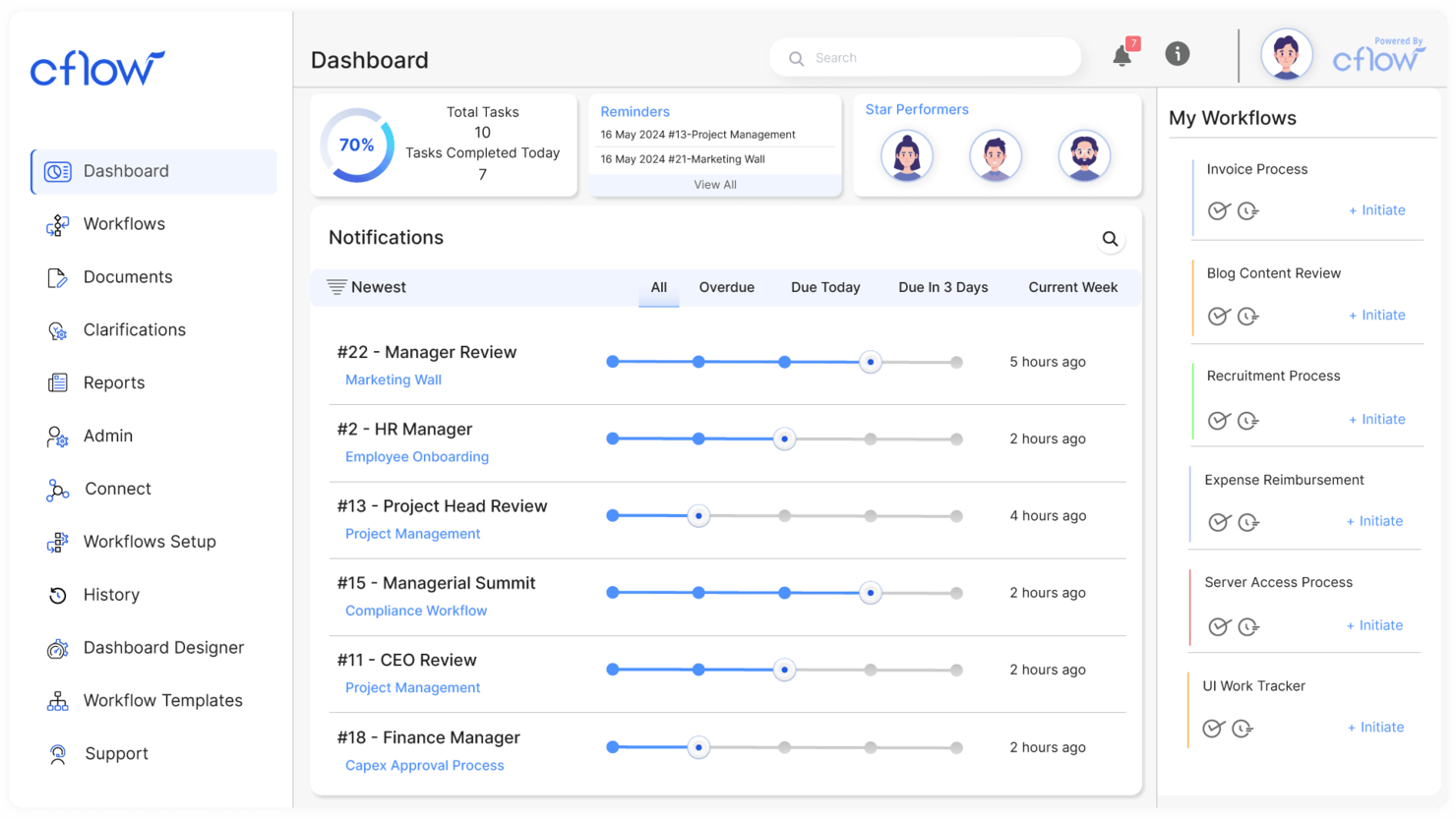
Cflow makes the cut because it’s designed for small businesses that need to replace manual document processes with automated workflows. When I see teams struggling with paper-driven approval cycles and scattered docs, this is often where I send them.
What I appreciate is how you can set up conditional routing, document templates, and digital signatures without IT support. It handles document-heavy tasks like onboarding and purchase requests with simple, visual workflow design.
Cflow’s Best For
- Small businesses automating document approvals and routing
- Teams that need no-code workflow design for documents
Cflow’s Not Great For
- Enterprises with highly complex, custom document integrations
- Organizations needing advanced analytics or compliance tracking
What sets Cflow apart
Cflow builds its workflow automation around step-by-step document processes, assuming you want to visually map and automate each approval or handoff. I see small businesses getting value here because it gives them template-driven design rather than the blank-canvas approach you find in tools like Google Workspace or monday.com. Cflow expects you to define who touches each document and when, making accountability really clear.
Tradeoffs with Cflow
Cflow optimizes for simplicity and easy automation, but that limits how much you can customize complex logic or data integrations. For advanced reporting or highly specific compliance needs, it can come up short.
Pros and Cons
Pros:
- Quick setup process
- User-friendly interface
- Suitable for small teams
Cons:
- Not ideal for large enterprises
- Limited advanced features

Best with AI-powered document insights
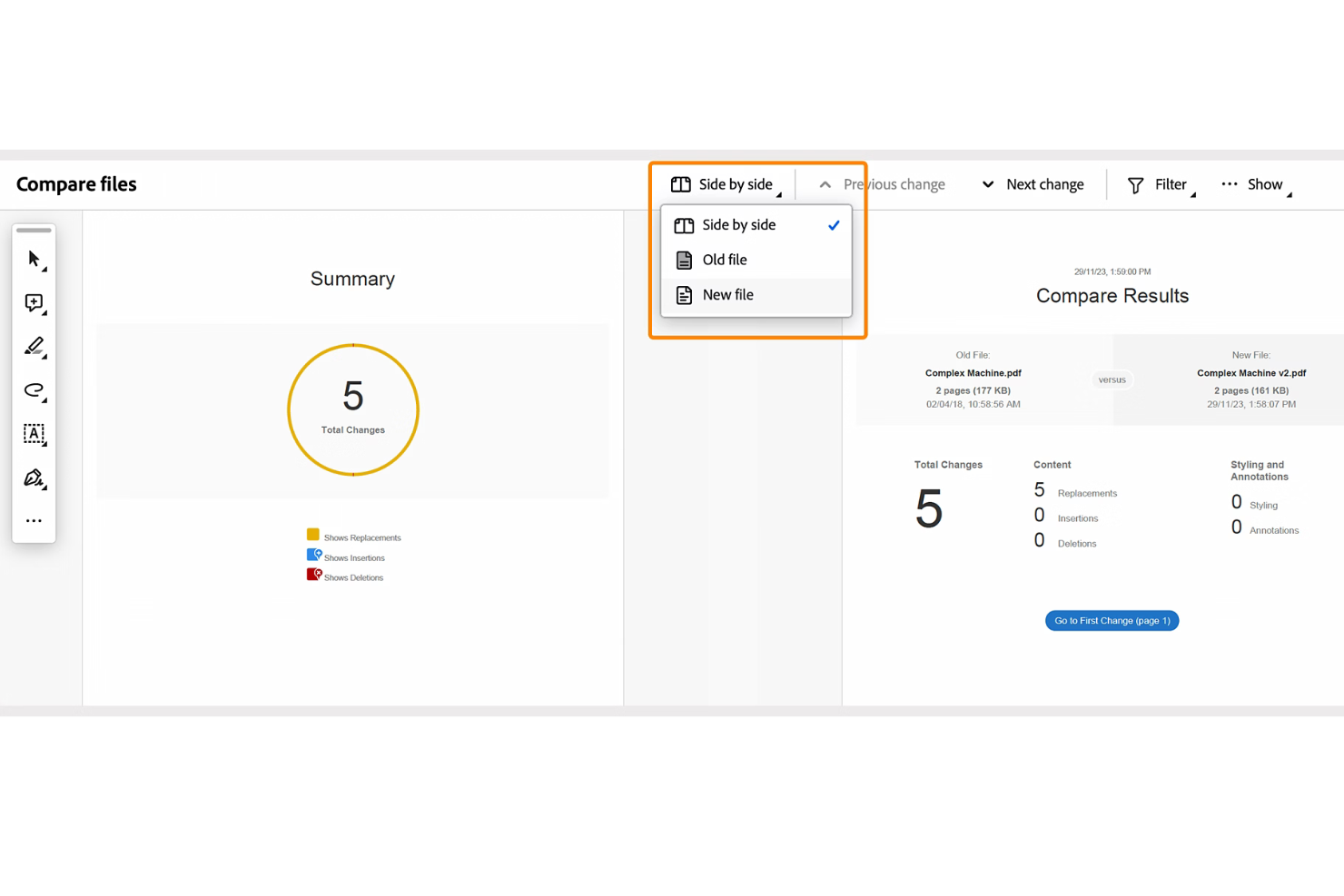
Adobe Acrobat makes the cut because it brings AI-powered document insights to large-scale document automation. I see teams using it to quickly extract key data, summarize long contracts, and organize complex PDF libraries using AI. I like how the built-in Liquid Mode and generative summaries make handling high-volume or legally dense documents much less of a slog.
What stands out is how Acrobat lets you automate classification, redaction, and search across massive archives—especially when compliance matters.
Adobe Acrobat’s Best For
- Legal, compliance, and finance teams needing AI-powered document insights
- Organizations automating PDF processing, summarization, or redaction at scale
Adobe Acrobat’s Not Great For
- Teams that need contract generation or e-signature workflow tools
- Small groups handling only basic or occasional PDF edits
What sets Adobe Acrobat apart
Acrobat approaches document automation through precise control of PDFs and deep AI-driven insights, rather than wide-ranging workflow automation like DocuSign or monday.com. I see teams reaching for Acrobat when they need to organize, classify, and manipulate large volumes of documents, especially for compliance or audits.
The focus here is on extracting meaning and structure from complex PDFs, not on broader project flows.
Tradeoffs with Adobe Acrobat
Acrobat optimizes for document intelligence and control over PDFs, but falls short if you want to automate full contract lifecycles or integrate with comprehensive e-signature workflows. You end up layering another tool if your process depends on native document creation or collaboration.
Pros and Cons
Pros:
- Offers granular permission controls for documents
- Enables secure digital signatures and tracking
- Handles multilingual OCR and text extraction
Cons:
- API access is restricted to enterprise subscriptions
- Collaboration tools lack real-time editing

M-Files
Best for compliance management
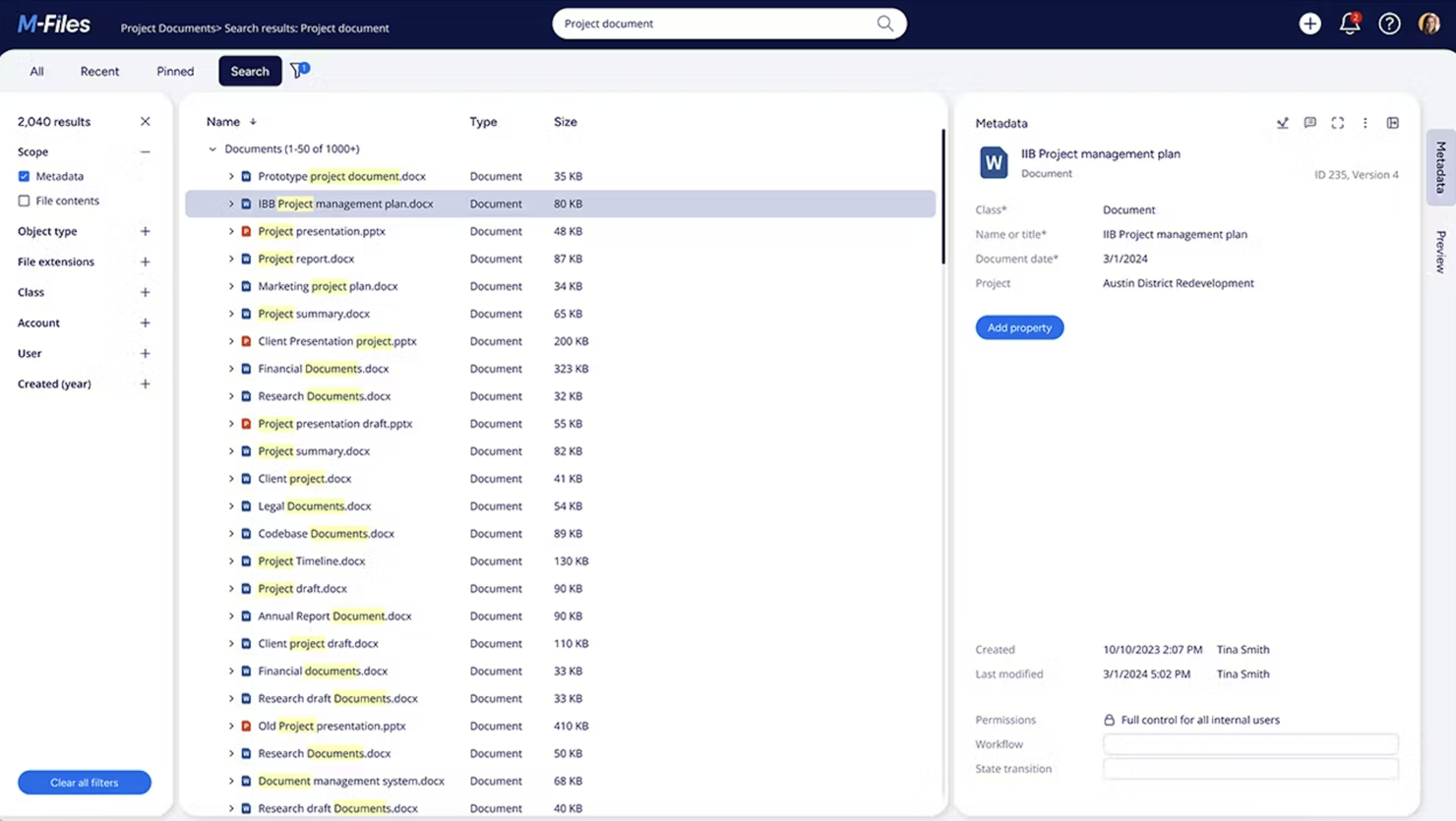
M-Files earns a spot on my list because of how tightly compliance is integrated with document automation. I’ve seen organizations use its metadata-driven structure to enforce document control across high-stakes industries like finance or pharma. What I appreciate most is the way M-Files lets you build automated workflows that link records management, audit trails, and versioning directly to compliance requirements—no workarounds or bolt-ons needed.
M-Files’ Best For
- Organizations with strict regulatory and audit requirements
- Teams automating compliance-driven document workflows
M-Files’ Not Great For
- Small teams with simple document handling needs
- Teams wanting extensive document collaboration features
What sets M-Files apart
M-Files approaches document automation by treating every file as a managed object with metadata, not just a filename and folder location. Unlike Google Drive, which relies on file paths and open sharing, M-Files expects you to classify documents by type, status, and compliance needs. In practice, I often see regulated industries use M-Files to ensure that every document follows a set process and access is tightly controlled.
Tradeoffs with M-Files
M-Files optimizes for tight control, so flexibility around ad hoc sharing and collaborative editing is limited. If your workflow relies on fast, informal sharing or simultaneous edits, you’ll likely hit friction.
Pros and Cons
Pros:
- Provides detailed audit trails
- Automated document workflows
- Metadata-driven organization
Cons:
- May need regular updates
- Requires training for new users
Outros programas de automatização de documentos
Eis algumas opções adicionais de software de automatização de documentos que não entraram na minha lista de seleção, mas que ainda vale a pena conhecer:
- Square 9
For enterprise document management
- Rossum
For invoice processing
- Formstack
For form generation
- PandaDoc
For sales teams
- Inkit
For print and mail automation
- Docupilot
For template-based documents
- DocuPipe
With AI-powered document standardization
- Doxis AI.dp.
For handling diverse document types
- HotDocs
For legal document creation
- Revver
For secure document storage


How I Evaluate Document Automation Software
I split my evaluation into baseline criteria—things like template logic, data merging, and approval workflows—and differentiators that separate the best tools from the rest.
Core Functionality (Table Stakes For This List)
When I'm selecting tools for my list, I rank each one on a scale from 0 (does not offer the functionality) to 5 (excels in this area) for each core functionality listed below. Then, I calculate the tool's total score into a percentage. Each tool needs to achieve a minimum total score of 65% to be considered for inclusion.
- Template Library & Builder: I look for platforms where you can build, organize, and reuse templates with dynamic merge fields—like a SOW template that auto-fills client name, deliverables, and timelines.
- Conditional Logic & Rules: The best tools let you set if/then rules so a single template adapts per scenario, such as including different payment terms based on project type.
- Data Integration & Merging: I evaluate how well each tool pulls live data from PM platforms, CRMs, or spreadsheets to populate documents without manual copy-pasting between systems.
- Workflow & Approval Automation: Multi-step routing matters here—I check whether you can set up sequential or parallel approvals, like having a project lead review before a client signs off.
- E-Signature & Delivery: Whether native or through integrations with tools like DocuSign or Adobe Sign, I look for signature capture, signer role assignment, and delivery tracking in one flow.
- Document Output & Format Control: Exported documents need to look polished and consistent. I evaluate format options (PDF, DOCX), branding controls, and version tracking across revisions.
Once I have a list of tools that meet this criteria, I consider what sets each platform apart.
Differentiating Factors (What Sets Vendors Apart)
Here's how I compare and contrast different vendors:
Standout Features
AI-assisted drafting is a big differentiator—tools that generate a first-pass SOW or summarize a change order from project notes save real time during peak delivery cycles. I also evaluate collaborative redlining, since project teams often negotiate scope or terms with clients directly inside a document. Analytics round out my comparison: dashboards tracking approval bottlenecks and document cycle times help PMOs spot process gaps before they delay a milestone.
Beyond Features
Integration depth matters here—I check whether a tool connects natively with PM platforms like Jira, Asana, or Smartsheet, not just CRMs. Security is another key lens, especially for teams handling client contracts; I look for SOC 2 compliance, role-based access controls, and SSO support. Implementation effort also factors in. A PMO rolling out document automation across multiple teams needs guided onboarding and template migration support, not just a knowledge base.
Como escolher um programa de automatização de documentos
É fácil perder-se em listas extensas de funcionalidades e estruturas de preços complexas. Para o ajudar a manter-se concentrado enquanto percorre o seu processo específico de seleção de software, eis uma lista de fatores a ter em conta:
| Fator | O que considerar |
|---|---|
| Escalabilidade | Certifique-se de que o software pode crescer com a sua empresa. Verifique se consegue lidar com um aumento do volume de documentos e com utilizadores adicionais sem comprometer o desempenho. |
| Integrações | Procure ferramentas que se liguem aos seus sistemas existentes, como CRM, ERP ou soluções de armazenamento na nuvem. Isto simplificará os fluxos de trabalho e reduzirá a introdução manual de dados por parte da sua equipa. |
| Personalização | Escolha um software que lhe permita adaptar modelos e fluxos de trabalho às necessidades específicas da sua empresa. Esta flexibilidade pode poupar tempo e melhorar a eficiência. |
| Facilidade de utilização | Opte por interfaces intuitivas que exijam um mínimo de formação. Certifique-se de que os membros da equipa conseguem adaptar-se rapidamente ao sistema, de modo a reduzir o tempo de inatividade e maximizar a produtividade. |
| Orçamento | Avalie os custos totais, incluindo taxas de subscrição, custos de configuração e possíveis suplementos. Certifique-se de que a solução se enquadra nas suas limitações financeiras e, simultaneamente, satisfaz as suas necessidades. |
| Medidas de segurança | Dê prioridade a software que ofereça funcionalidades de segurança robustas. Procure encriptação de dados, controlos de acesso e conformidade com normas como o RGPD, para proteger as suas informações sensíveis. |
| Suporte | Tenha em consideração o nível de apoio ao cliente disponível. Verifique se existe assistência 24 horas por dia, 7 dias por semana, se estão disponíveis materiais de formação e se a equipa de suporte responde rapidamente para ajudar a sua equipa a ter sucesso. |
Tendências no software de automatização de documentos
Na minha investigação, consultei inúmeras atualizações de produtos, comunicados de imprensa e registos de lançamentos de diferentes fornecedores de software de automatização de documentos. Eis algumas das tendências emergentes que estou a acompanhar:
- Informações orientadas por IA: Os fornecedores estão a disponibilizar funcionalidades de IA capazes de analisar dados de documentos e fornecer informações acionáveis. Isto ajuda a identificar padrões e a otimizar processos. Algumas ferramentas também disponibilizam análises preditivas para prever tendências e melhorar a tomada de decisões.
- Integração de cadeia de blocos: As ferramentas estão a utilizar a tecnologia de cadeia de blocos para melhorar a segurança e a autenticidade dos documentos. Esta tendência é particularmente relevante para setores como o financeiro e o jurídico, onde a integridade dos documentos é crucial.
- Reconhecimento de voz: A gestão de documentos ativada por voz está a ganhar força. Esta funcionalidade permite gerir e obter documentos sem utilizar as mãos, o que melhora a acessibilidade e a eficiência, especialmente em ambientes de trabalho movimentados.
- Colaboração: Cada vez mais ferramentas permitem a edição e a colaboração em tempo real em documentos. Esta tendência apoia o trabalho remoto, permitindo que a sua equipa trabalhe em conjunto independentemente da localização.
- Funcionalidades ecológicas: Existe uma preocupação crescente com a redução da utilização de papel. Os fornecedores estão a introduzir funcionalidades que promovem as assinaturas digitais e a documentação eletrónica, o que é excelente se a sua empresa quiser reduzir o impacto ambiental.
O que é o software de automatização de documentos?
Ao contrário do software de geração de documentos, o software de automatização de documentos é uma ferramenta que simplifica todo o processo de criação, gestão e processamento de documentos através de regras e fluxos de trabalho predefinidos. Estas ferramentas são normalmente utilizadas por profissionais dos setores jurídico, financeiro e empresarial para poupar tempo e reduzir erros.
Funcionalidades como informações orientadas por IA, colaboração em tempo real e opções ecológicas contribuem para a eficiência, a colaboração e a sustentabilidade. De um modo geral, estas ferramentas proporcionam um valor significativo ao melhorar a produtividade e manter a precisão no tratamento de documentos.
Funcionalidades do software de automatização de documentos
Ao selecionar um software de automatização de documentos, procure as seguintes funcionalidades essenciais:
- Informações orientadas por IA: Esta funcionalidade analisa os dados dos documentos para fornecer informações acionáveis e ajudar a otimizar processos e a tomar decisões fundamentadas.
- Colaboração: Permite que vários utilizadores editem e colaborem em documentos em simultâneo, melhorando o trabalho de equipa e a produtividade.
- Fluxos de trabalho automatizados: Simplificam o processamento de documentos ao automatizar tarefas repetitivas e reduzir a intervenção manual e os erros.
- Modelos personalizáveis: Permitem adaptar os modelos de documentos às necessidades específicas da empresa, poupando tempo e mantendo a consistência.
- Organização orientada por metadados: Organiza os documentos com base em metadados, permitindo uma obtenção mais rápida e precisa.
- Registos de auditoria: Acompanham o histórico dos documentos para manter a responsabilização e a conformidade, o que é essencial para setores regulamentados.
- Medidas de segurança: Disponibilizam funcionalidades como a encriptação de dados e controlos de acesso para proteger informações sensíveis e manter a conformidade com normas como o RGPD.
Benefícios do software de automatização de documentos
A implementação de um software de automatização de documentos proporciona vários benefícios para a sua equipa e para a sua empresa. Eis alguns dos benefícios que pode esperar:
- Maior eficiência: A automatização dos fluxos de trabalho de documentos reduz as tarefas manuais, poupando tempo e permitindo que a sua equipa se concentre em trabalhos mais importantes.
- Maior precisão: Funcionalidades como informações orientadas por IA e extração automatizada de dados minimizam os erros, garantindo que os seus documentos são precisos e fiáveis.
- Melhor colaboração: As ferramentas de colaboração em tempo real permitem que a sua equipa trabalhe eficazmente em conjunto, independentemente da sua localização.
- Poupança de custos: A redução da utilização de papel e do trabalho manual diminui as despesas, tornando as suas operações mais económicas.
- Maior segurança: Com funcionalidades como a cadeia de blocos e medidas de segurança, os seus documentos ficam protegidos contra acessos não autorizados e violações de dados.
- Impacto ambiental: As opções ecológicas promovem processos digitais, permitindo reduzir a sua pegada de carbono e apoiar os objetivos de sustentabilidade.
- Melhor conformidade: Os registos de auditoria e a organização orientada por metadados ajudam a manter a conformidade com os regulamentos e as normas do setor, reduzindo os riscos jurídicos.
Custos e preços do software de automatização de documentos
A seleção de um software de automatização de documentos exige uma compreensão dos vários modelos de preços e planos disponíveis. Os custos variam consoante as funcionalidades, o tamanho da equipa, os complementos, entre outros fatores. A tabela abaixo resume os planos mais comuns, os respetivos preços médios e as funcionalidades normalmente incluídas nas soluções de software de automatização de documentos:
Tabela de comparação de planos para software de automatização de documentos
| Tipo de plano | Preço médio | Funcionalidades comuns |
|---|---|---|
| Plano gratuito | $0 | Criação básica de documentos, armazenamento limitado e apoio da comunidade |
| Plano pessoal | $5-$25/utilizador/mês | Modelos de documentos, integrações básicas e apoio por e-mail |
| Plano empresarial | $30-$60/utilizador/mês | Fluxos de trabalho avançados, funcionalidades de segurança melhoradas e apoio prioritário |
| Plano empresarial de grande dimensão | $70-$120/utilizador/mês | Soluções personalizáveis, gestão de conta dedicada e ferramentas abrangentes de conformidade |
Perguntas frequentes sobre software de automatização de documentos
Eis algumas respostas a perguntas comuns sobre software de automatização de documentos:
Como posso automatizar os processos de documentação?
A automatização do processo de documentação envolve várias etapas. Comece por melhorar a qualidade dos documentos com técnicas de pré-processamento, como a redução de ruído. Utilize a classificação para separar páginas e identificar conteúdo. Utilize ferramentas de extração para recolher dados com precisão e, em seguida, valide os dados através de regras e inteligência artificial para garantir que estão corretos.
Que dados são utilizados na automatização de documentos?
A automatização de documentos obtém dados de várias fontes e insere-os em modelos de documentos. Estes modelos podem incluir texto, tabelas, gráficos e imagens. Os dados utilizados dependem da finalidade do documento e das informações necessárias para o completar.
O que faz um especialista em automatização de documentos?
Um especialista em automatização de documentos implementa e gere \u003ca href=\u0022https://thedigitalprojectmanager.com/tools/intelligent-process-automation-software/\u0022\u003eferramentas de automatização de processos\u003c/a\u003e. Concebe, planeia e implementa estas ferramentas, fornece formação e trata da manutenção e das atualizações. A sua função garante que os processos documentais são eficientes e respondem às necessidades da organização.
Como pode a automatização de documentos melhorar a conformidade?
A automatização de documentos melhora a conformidade ao garantir que os seus documentos cumprem as normas regulamentares. Os fluxos de trabalho automatizados reduzem o erro humano e os registos de auditoria fornecem um histórico das alterações aos documentos. Isto ajuda a sua equipa a manter a responsabilização e a cumprir os requisitos legais.
Como afeta a automatização de documentos a produtividade?
A automatização de documentos aumenta a produtividade ao reduzir as tarefas manuais e os erros. Permite que a sua equipa se concentre em atividades de maior valor e utilize o tempo e os recursos de forma mais eficiente. Os fluxos de trabalho automatizados também aceleram o processamento e as aprovações de documentos.
Que setores beneficiam mais da automatização de documentos?
Setores como o financeiro, o jurídico e a saúde beneficiam muito da automatização de documentos. Estes setores lidam com grandes volumes de documentos e exigem elevada precisão e conformidade. A automatização ajuda a gerir estas exigências de forma eficiente e segura.