

As 10 melhores aplicações de tomada de notas para aumentar a produtividade em 2026

10 Lista restrita das melhores aplicações de tomada de notas


As melhores aplicações de tomada de notas permitem-lhe registar rapidamente ideias, organizar informações e encontrar facilmente aquilo de que precisa mais tarde, o que ajuda a simplificar o seu fluxo de trabalho e evita atrasos causados pela falta de clareza relativamente a decisões e itens de ação. Sem a ferramenta certa, irá deparar-se com problemas como funções e responsabilidades pouco claras nos seus projetos, prazos não cumpridos e falhas de comunicação.
Utilizei a minha experiência em gestão de projetos e mais de 3 anos a testar software para analisar dezenas de ferramentas e selecionar a minha lista das melhores aplicações de tomada de notas. Cada uma das minhas recomendações irá ajudá-lo a tirar melhores notas em reuniões, acompanhar decisões e itens de ação nos seus projetos e manter as tarefas em andamento e a produtividade elevada.
Why Trust Our Software Recommendations
Our team has been testing and reviewing software since 2012. As project managers ourselves, we know how difficult—and important—it is to choose the right software.
For this guide, we evaluated tools using hands-on testing and independent research, scoring tools using our selection criteria. We also draw on insights from industry thought leaders and practicing project management experts.
Our reviews reflect our human editorial judgment, not a sales pitch.
Expert reviewers:
Tabela comparativa de aplicações de tomada de notas
Esta tabela comparativa resume os detalhes de preços das minhas principais escolhas de aplicações de tomada de notas:
| Tool | Best For | Trial Info | Price | ||
|---|---|---|---|---|---|
| 1 | Best for notes that update work tools | Free plan available | From $15/user/month | Website | |
| 2 | Best for IT-managed team notes | Free plan + 7-day free trial available | From $10/user/month | Website | |
| 3 | Best for classroom notes and student work | Free plan available | Pricing upon request | Website | |
| 4 | Best for self-managed team documentation | Free plan + 7-day trial available | From $5.78/user/month | Website | |
| 5 | Best for IT-governed documentation | Free plan + trial available | From $10/user/month | Website | |
| 6 | Best for pairing audio with handwritten notes | Free plan available | Pricing upon request | Website | |
| 7 | Best for notes you control outside the app | Free plan available | From $4/user/month (billed annually) | Website | |
| 8 | Best for syncing note tasks to calendars | Free plan + 14-day free trial available | From $5.84/user/month (billed annually) | Website | |
| 9 | Best for sharing team knowledge with clients | Free plan available | From $8/user/month | Website | |
| 10 | Best for choosing where notes are stored | 14-day free trial | From 2.99€/month | Website |
Análises das melhores aplicações de tomada de notas
Eis uma breve descrição de cada aplicação de tomada de notas, para mostrar o caso de utilização mais adequado de cada ferramenta, algumas funcionalidades dignas de nota e os respetivos prós e contras. Incluí também capturas de ecrã para lhe dar uma visão geral da interface de utilizador.
Coda
Best for notes that update work tools
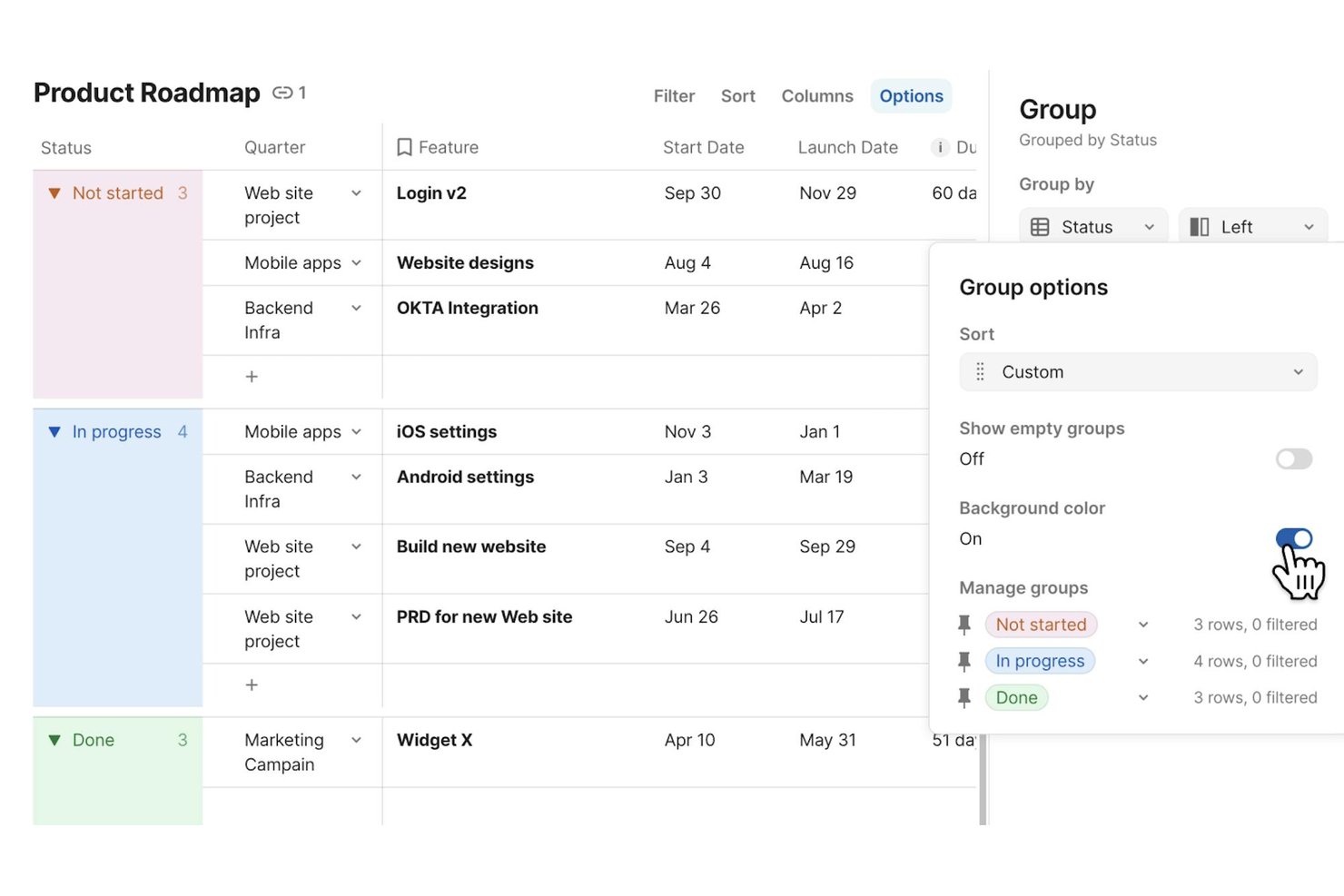
Superhuman Docs (formerly Coda) is a collaborative workspace that combines rich-text documents, tables, databases, and workflow automations into a single environment where teams can write, organize, and connect notes directly to their existing tools.
Who Is Superhuman Docs Best For?
Superhuman Docs is a strong fit for cross-functional teams that need their project notes and documentation to stay in sync with tools like Jira, Asana, and Slack.
Why I Picked Superhuman Docs
Superhuman Docs earns its spot on my shortlist because it treats notes as live, connected objects rather than static text. I love that you can sync Jira issues directly into a doc, edit ticket fields from your notes, and push those changes back to Jira automatically—keeping project context in one place. Docs AI also lets you describe a tracker or dashboard in plain language and build it on top of real table data, so your meeting notes can actually drive work.
Superhuman Docs Key Features
- Real-time collaboration: Multiple teammates can edit the same doc simultaneously, with comments and supported across pages and tables.
- Cross-doc tables: Pull data from other docs into a single view, keeping related information connected without duplicating it.
- Docs MCP server: Connect supported AI tools like Claude or ChatGPT to read, analyze, and write directly into your Docs workspace.
- Version history: Docs automatically track changes over time, with unlimited history available on Business and Enterprise plans.
Coda Integrations
Coda offers 800+ integrations, including Jira, Asana, Slack, Google Calendar, Salesforce, GitHub, Figma, and Zoom. Its Docs MCP server connects ChatGPT, Claude, and Cursor for reading, analyzing, and updating documents.
Pros and Cons
Pros:
- Meeting notes generate summaries and action items
- Teams co-edit shared notes in real time
- Notes connect directly to structured project data
Cons:
- Large, dense docs can feel slow
- Mobile apps omit database and formula editing

Evernote
Best for IT-managed team notes
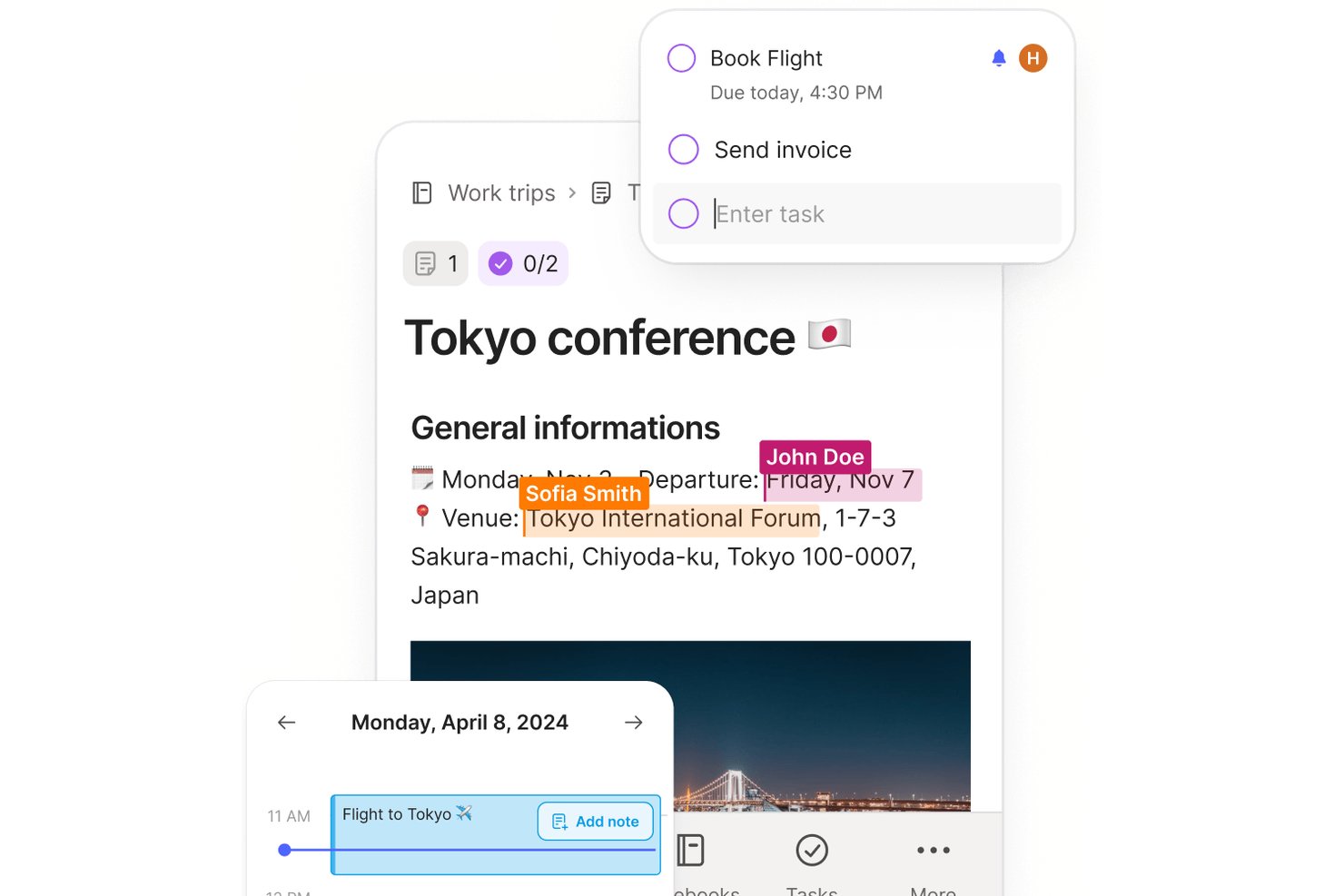
Evernote is a note-taking app that combines note capture, document scanning, web clipping, AI meeting transcription, task management, and team collaboration across a shared workspace.
Who Is Evernote Best For?
Evernote fits teams that need IT-managed shared workspaces, with Enterprise controls like SSO, audit logs, and centralized admin oversight.
Why I Picked Evernote
I've included Evernote in my top picks because it's one of the few note-taking apps built with IT oversight at its core. The Enterprise plan gives admins a centralized console to view and manage every space, notebook, and note, regardless of individual share permissions, and pairs that with SSO, audit logs, and AES-256 encryption. I also like that AI Meeting Notes can record, transcribe in 50+ languages, and summarize sessions, keeping your team's knowledge captured without extra tools.
Evernote Key Features
- Web Clipper: Save full web pages, articles, and PDFs directly to your notes via a browser extension, without ads.
- Document scanning: Capture physical documents and handwritten notes using your device's camera and store them in Evernote.
- Calendar integration: Connect Google Calendar or Microsoft Outlook to link notes directly to upcoming events and meetings.
- Advanced search: Search across note text, PDFs, image text, handwriting, and audio and video transcripts using filters and Boolean operators.
Evernote Integrations
Evernote offers integrations with Google Calendar, Google Drive, Gmail, Slack, Microsoft Outlook Email, Outlook Calendar, and Microsoft Teams. It also provides a Thrift API and MCP server for compatible AI tools.
Pros and Cons
Pros:
- Shared spaces help teams coordinate documentation
- Web clipping keeps source pages with notes
- Search finds text inside scanned attachments
Cons:
- Growing notebooks can make navigation feel crowded
- Sync delays can surface during shared editing
Best for classroom notes and student work
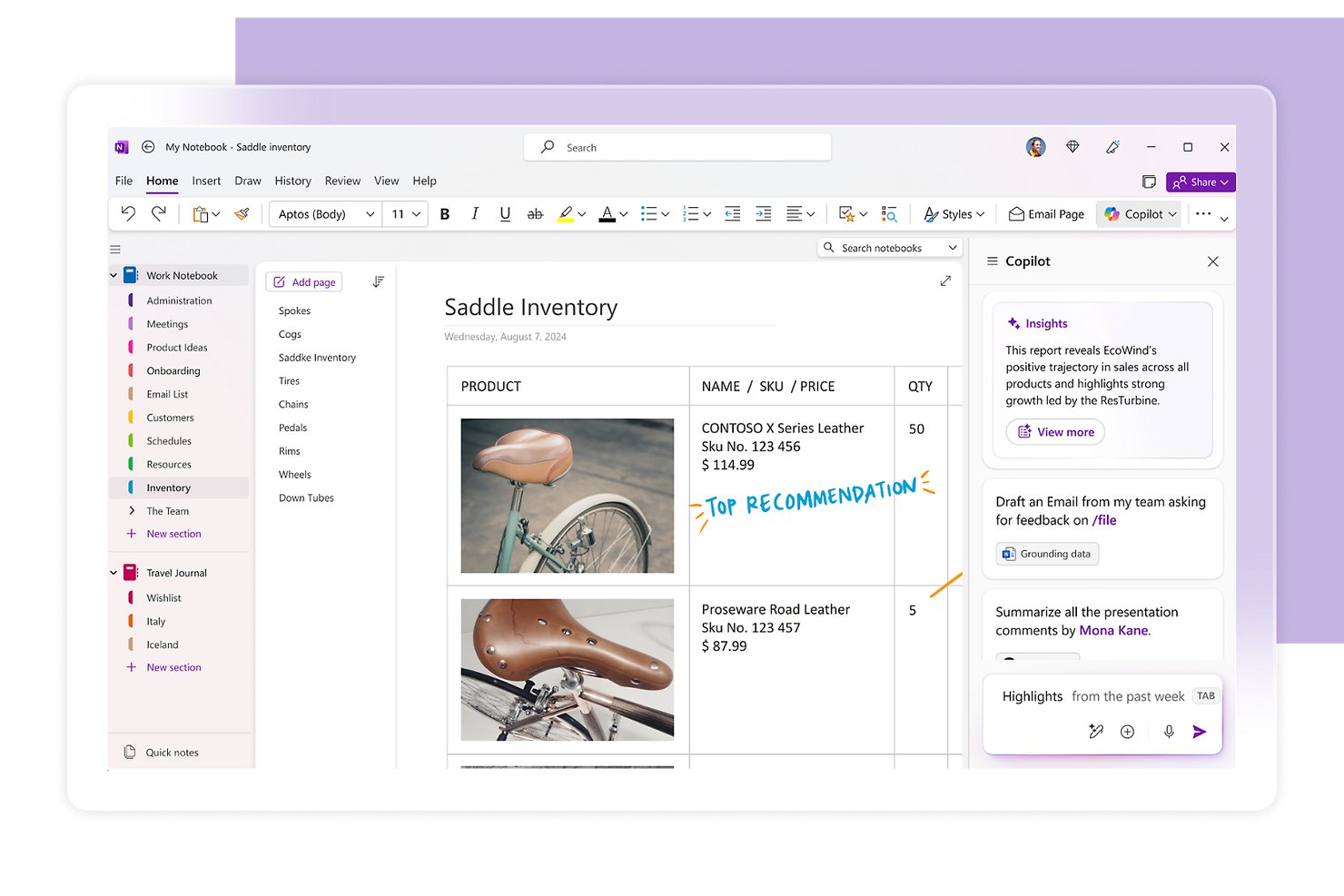
Microsoft OneNote is a digital note-taking app that lets you capture text, handwriting, images, audio, and files on a freeform canvas, organized across notebooks, sections, and pages.
Who Is Microsoft OneNote Best For?
OneNote is a strong fit for students, educators, and individual knowledge workers who are already embedded in the Microsoft 365 ecosystem.
Why I Picked Microsoft OneNote
I picked Microsoft OneNote as one of the best because it's purpose-built for classroom-style note capture, with Class Notebook giving each student their own private workspace alongside a shared content library and collaboration space. I also love how the open canvas lets you drop in handwritten annotations, audio recordings, and webpage snapshots all on one page, which mirrors how notes actually get taken in a lecture or study session. Search even works across handwriting and images, so finding a sketched diagram from weeks ago takes seconds.
Microsoft OneNote Key Features
- Copilot AI assistance: Copilot can summarize sections, generate task lists, rewrite notes, and draft content like meeting agendas directly within your notebook.
- Full-text and handwriting search: Search scans typed notes, handwritten content, and images across all your notebooks to surface older notes quickly.
- File attachments and printouts: Insert files as attachments or embed their contents directly on the page as a printout, with Excel files also offering an inline chart option.
- Microsoft Graph API: A REST-based API lets you build custom integrations that read and write notebooks, sections, and pages programmatically.
Microsoft OneNote Integrations
OneNote supports marketplace integrations with cloudHQ and Feedly, plus Zapier. Its Microsoft Graph OneNote API provides custom access to notebooks, sections, and pages.
Pros and Cons
Pros:
- Classroom notebooks separate student workspaces
- Search finds typed, handwritten, and image text
- Freeform pages combine text, sketches, and media
Cons:
- Large notebooks become harder to navigate
- Sync delays can hide collaborators’ latest changes
Best for self-managed team documentation
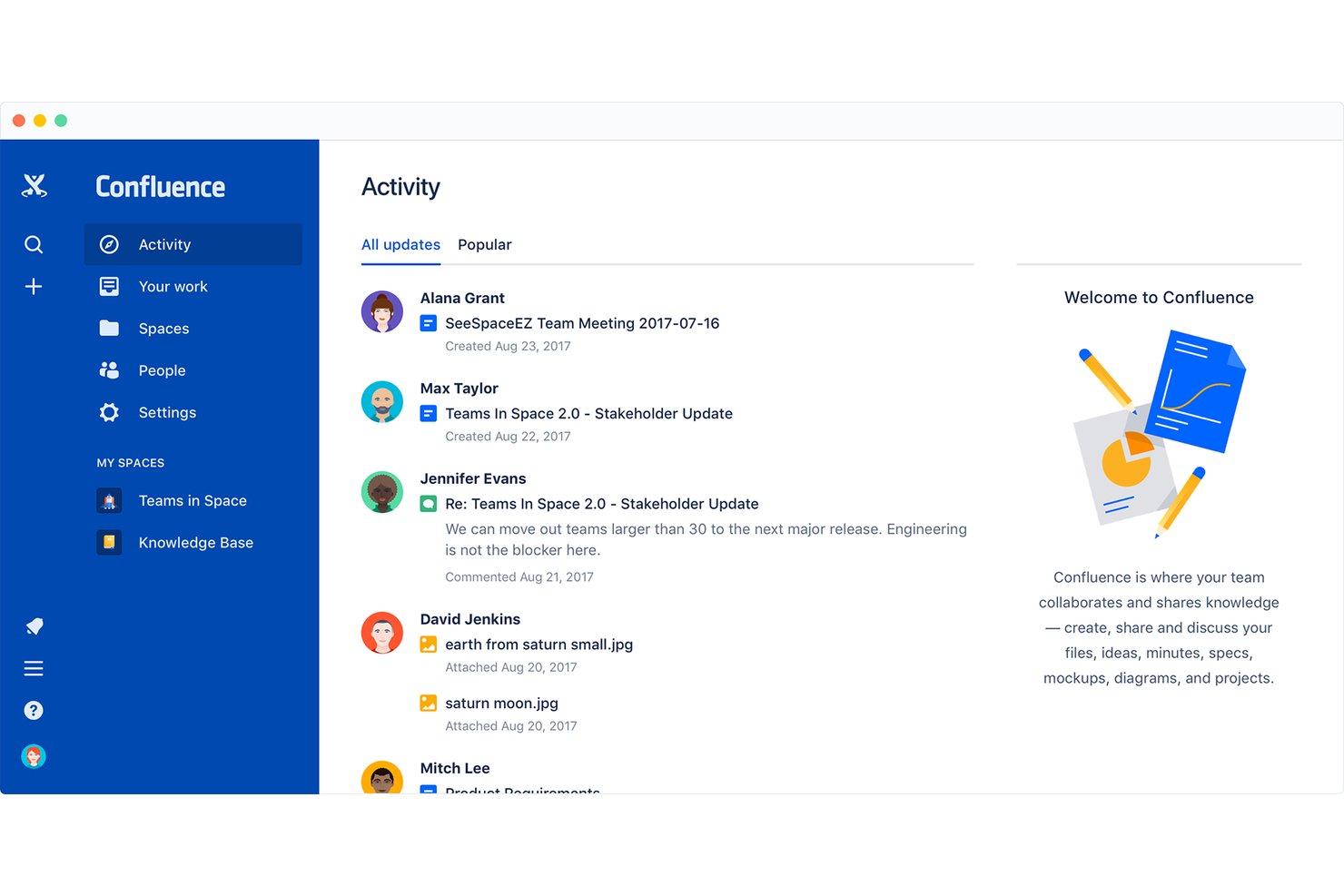
Confluence is a team knowledge management and documentation platform from Atlassian that combines collaborative page editing, structured wikis, whiteboards, databases, and AI-powered search into a shared workspace.
Who Is Confluence Best For?
Confluence is a strong fit for tech and engineering teams that need a shared, structured space to manage documentation alongside their development workflows.
Why I Picked Confluence
I've included Confluence in my top picks because it's built around the idea that your team's knowledge should live in one managed, structured space rather than scattered across docs and threads. I particularly like how spaces and page hierarchies let engineering and product teams maintain self-organized documentation, with real-time co-editing and granular permissions keeping everything controlled without requiring admin intervention at every step. Confluence's whiteboard-to-Jira pipeline is also genuinely useful: teams can brainstorm on a canvas and convert stickies directly into tracked work items.
Confluence Key Features
- Page versioning: Review the full change history of any page, compare earlier versions side by side, and restore a previous version when needed.
- Rovo AI search: Query connected knowledge sources across your workspace to surface contextual answers without manually searching through pages and tools.
- Automation rules: Use pre-built rule templates or a no-code rule builder to automate recurring content tasks and workflow steps.
- Database views: Organize Confluence pages and Jira items into table, card, or board views with filters, sorting, and custom fields to suit different audiences.
Confluence Integrations
Confluence offers native integrations with Jira, Jira Service Management, and Trello. It connects with Figma, Google Docs, and YouTube through whiteboards, supports Slack and Microsoft Excel as slide-content sources, and provides REST API v2, GraphQL, and app properties APIs.
Pros and Cons
Pros:
- Meeting templates capture decisions and owners
- Live co-editing supports team note updates
- Shared pages keep project notes together
Cons:
- Tables and code blocks need formatting cleanup
- Search can surface outdated pages
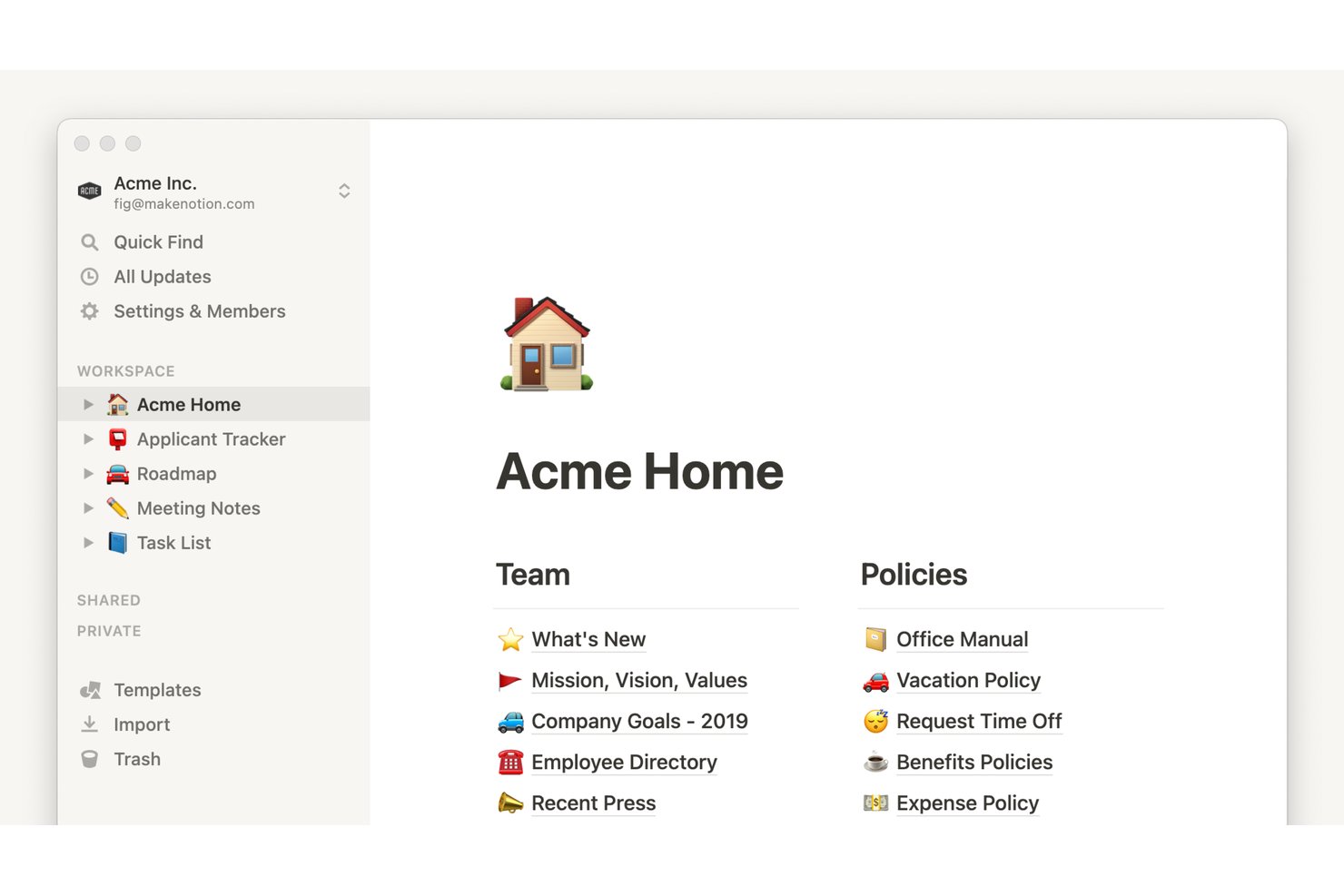
Notion is a block-based workspace that combines note-taking, document creation, and database management with AI-powered meeting transcription, cross-app integrations, and enterprise-grade access controls.
Who Is Notion Best For?
Notion fits teams that need IT-controlled documentation across distributed environments, where access permissions, audit logs, and compliance controls matter as much as the notes themselves.
Why I Picked Notion
Notion earns its spot on my shortlist because it's built for teams where IT actually needs to govern what gets documented and who can access it. I'm talking SAML SSO, SCIM provisioning, audit logs, data residency, and DLP/SIEM connections—all the controls that turn a shared workspace into something an IT team can actually manage. On top of that, Business plan users get granular database permissions and page verification, so teams can mark trusted content and lock down who edits what.
Notion Key Features
- Block-based editor: Build pages using modular content blocks—text, images, code, embeds, and more—arranged and reordered with drag-and-drop.
- Database views: Visualize the same data as a board, calendar, timeline, or chart without duplicating any information.
- AI Meeting Notes: Transcribe and summarize meetings from Zoom, Google Meet, and Microsoft Teams directly in your workspace, including generated action items.
- Backlinks: Automatically create two-way connections between pages whenever you one page from another.
Notion Integrations
Notion has native integrations with Zoom, Google Meet, and Microsoft Teams, plus marketplace integrations for Slack, Google Drive, GitHub, Jira, Asana, and Salesforce. Its public API, webhooks, Workers, SDK, CLI, and MCP support custom integrations.
Pros and Cons
Pros:
- Turn meeting audio into searchable summaries
- Collaborate on shared notes in real time
- Connect notes through backlinks and databases
Cons:
- Offline access remains limited across devices
- Quick scratchpad capture takes extra steps

Best for pairing audio with handwritten notes
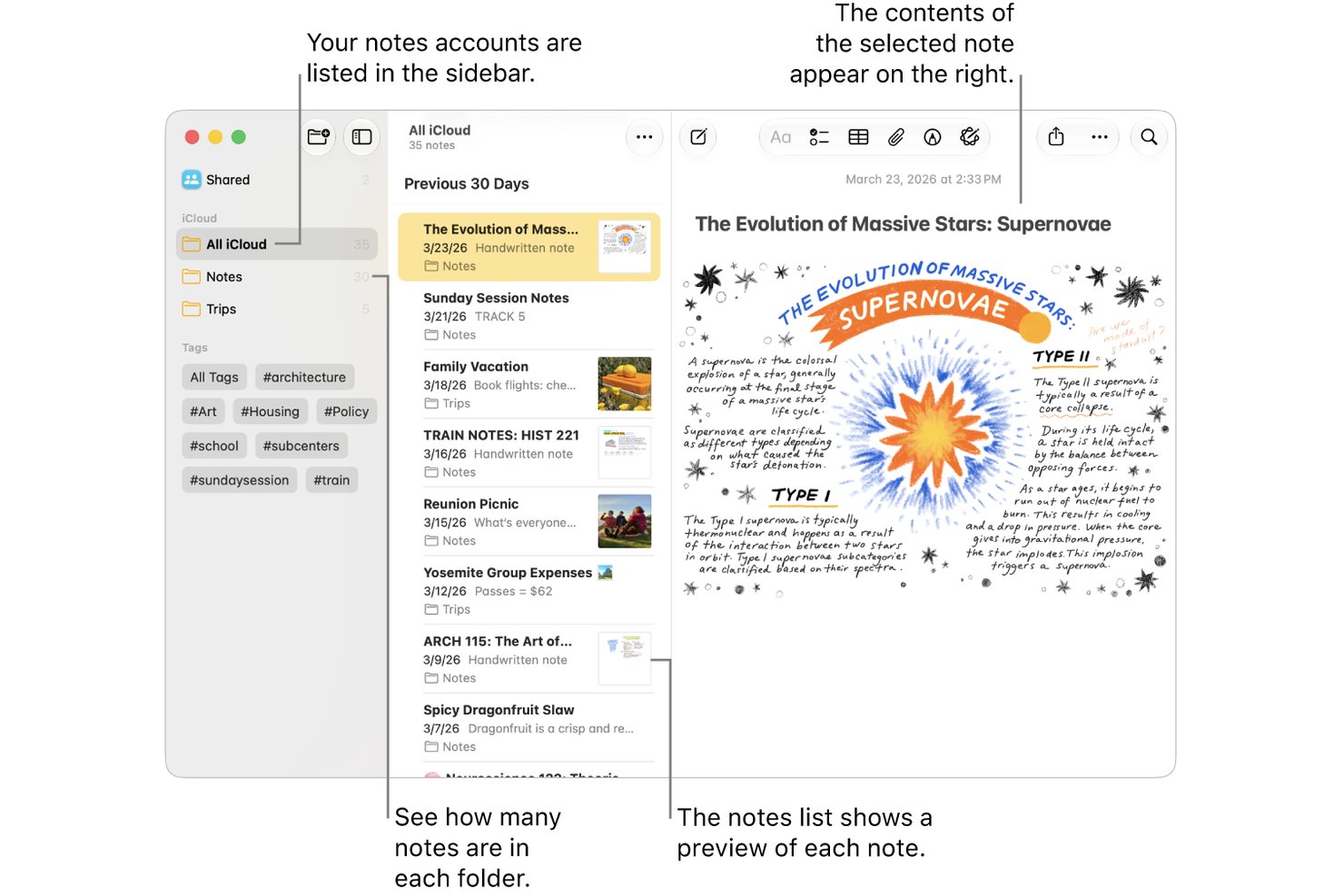
Apple Notes is a free note-taking app built into Apple devices that lets you capture typed notes, handwritten sketches, scanned documents, and audio recordings, with iCloud sync across iPhone, iPad, and Mac.
Who Is Apple Notes Best For?
Apple Notes is a natural fit for individuals and small teams already working within the Apple ecosystem who need a free, always-available tool for quick capture and lightweight collaboration.
Why I Picked Apple Notes
Apple Notes earns its spot on my shortlist because it's the only tool I've used that lets you record audio and pair it directly with handwritten sketches in the same note. I especially like the audio transcription feature: record a meeting, get a searchable transcript, and keep your hand-drawn diagram right alongside it. Apple Intelligence can also summarize that transcript automatically, which saves real time when reviewing a dense session.
Apple Notes Key Features
- Quick Note capture: Start a note instantly from Control Center, Apple Pencil, or a keyboard shortcut without opening the app.
- Smart Folders: Automatically filter and organize notes using criteria like tags, creation date, mentions, and checklists.
- Collaborative sharing: Share notes or entire folders with up to 100 people, set view or edit permissions, and track collaborators' changes in an activity view.
- Multi-modal search: Search across typed text, handwritten notes, scanned documents, and image content from a single search bar.
Apple Notes Integrations
Apple Notes has native integrations with iCloud and Siri for syncing and voice-based note capture. No third-party productivity integrations or public API are documented.
Pros and Cons
Pros:
- Quick Notes captures ideas without opening the app
- Search finds handwriting and scanned text
- Audio recordings sit beside handwritten sketches
Cons:
- Windows users rely on weaker browser access
- Text layout controls remain limited

Obsidian
Best for notes you control outside the app
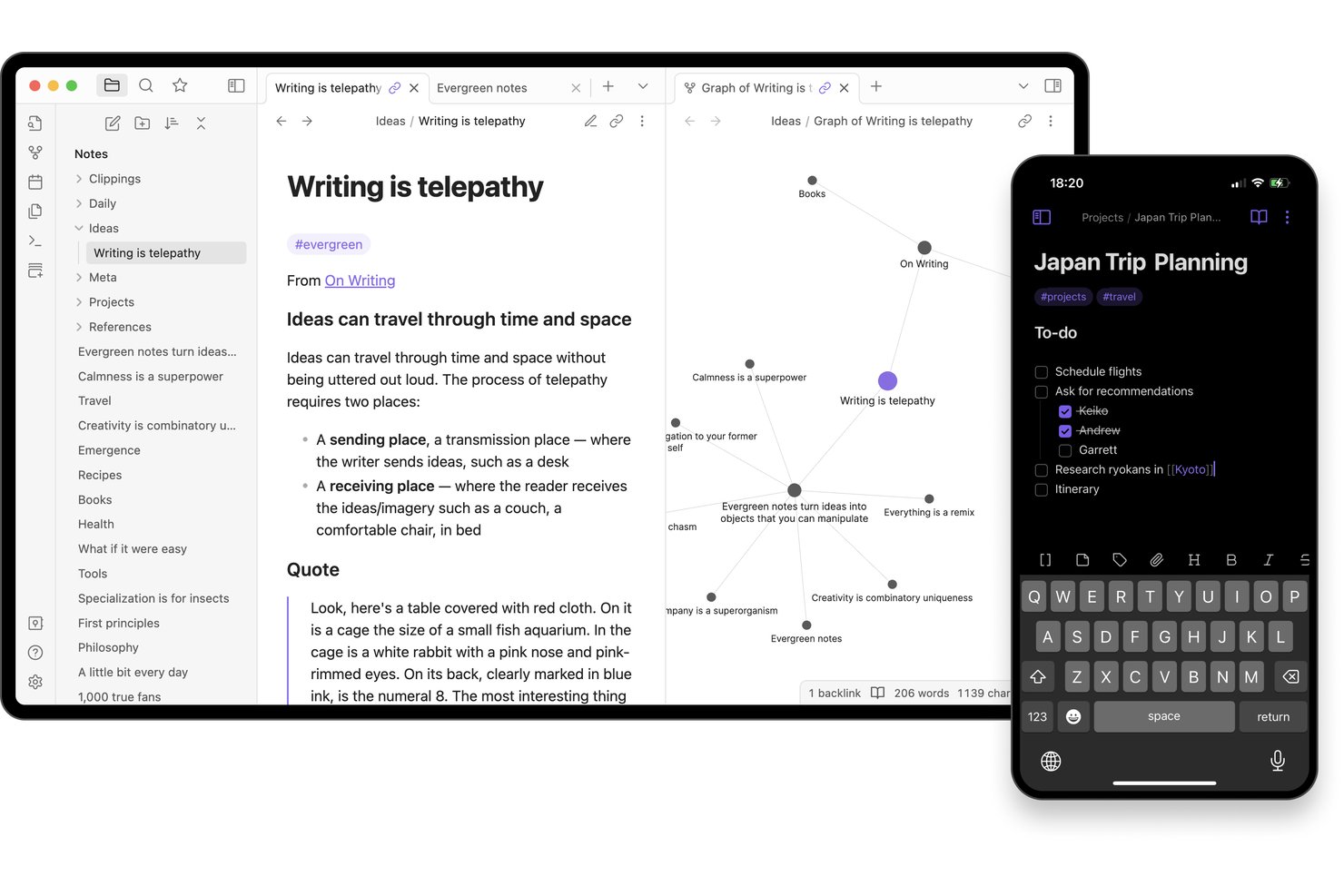
Obsidian is a local-first note-taking app that stores your notes as plain-text Markdown files on your device, with bi-directional linking, a graph view, tags, Canvas, and a community plugin library for building a personal knowledge base.
Who Is Obsidian Best For?
Obsidian is a strong fit for individual knowledge workers, researchers, and students who want to build a personal knowledge base from notes they fully own and control.
Why I Picked Obsidian
Obsidian earns its spot on my shortlist because your notes live as plain-text Markdown files on your device, meaning you can open, search, and edit them in any text editor without ever touching the app. I especially like how bi-directional linking and the graph view let you trace connections between ideas across a vault, which is genuinely useful when you're pulling together research or mapping out a project. The Web Clipper adds to that by letting you highlight and save web content directly into your local files using custom templates.
Obsidian Key Features
- Canvas workspace: Arrange notes, images, PDFs, videos, and audio on an infinite visual canvas for brainstorming, diagramming, or mapping out research.
- Advanced search operators: Query notes by filename, path, tag, property, section, block, or task using Boolean expressions, regular expressions, and negation to find anything across your vault.
- Community plugin library: Browse and install from thousands of community-built plugins—including Kanban boards, Dataview queries, and task trackers—to shape Obsidian around your workflow.
- Web Clipper: Save web pages, metadata, and highlighted content directly into your local vault as Markdown files using customizable templates and browser shortcuts.
Obsidian Integrations
Obsidian supports marketplace integrations with Apple Notes, OneNote, Evernote, Notion, Google Keep, and Google Drive through community plugins. Its open API and TypeScript plugin API support custom integrations.
Pros and Cons
Pros:
- Advanced search finds details across a vault
- Backlinks and graph connect scattered research
- Notes remain portable as plain-text files
Cons:
- Quick capture can demand setup and syntax
- Shared notes lack live co-editing

Best for syncing note tasks to calendars
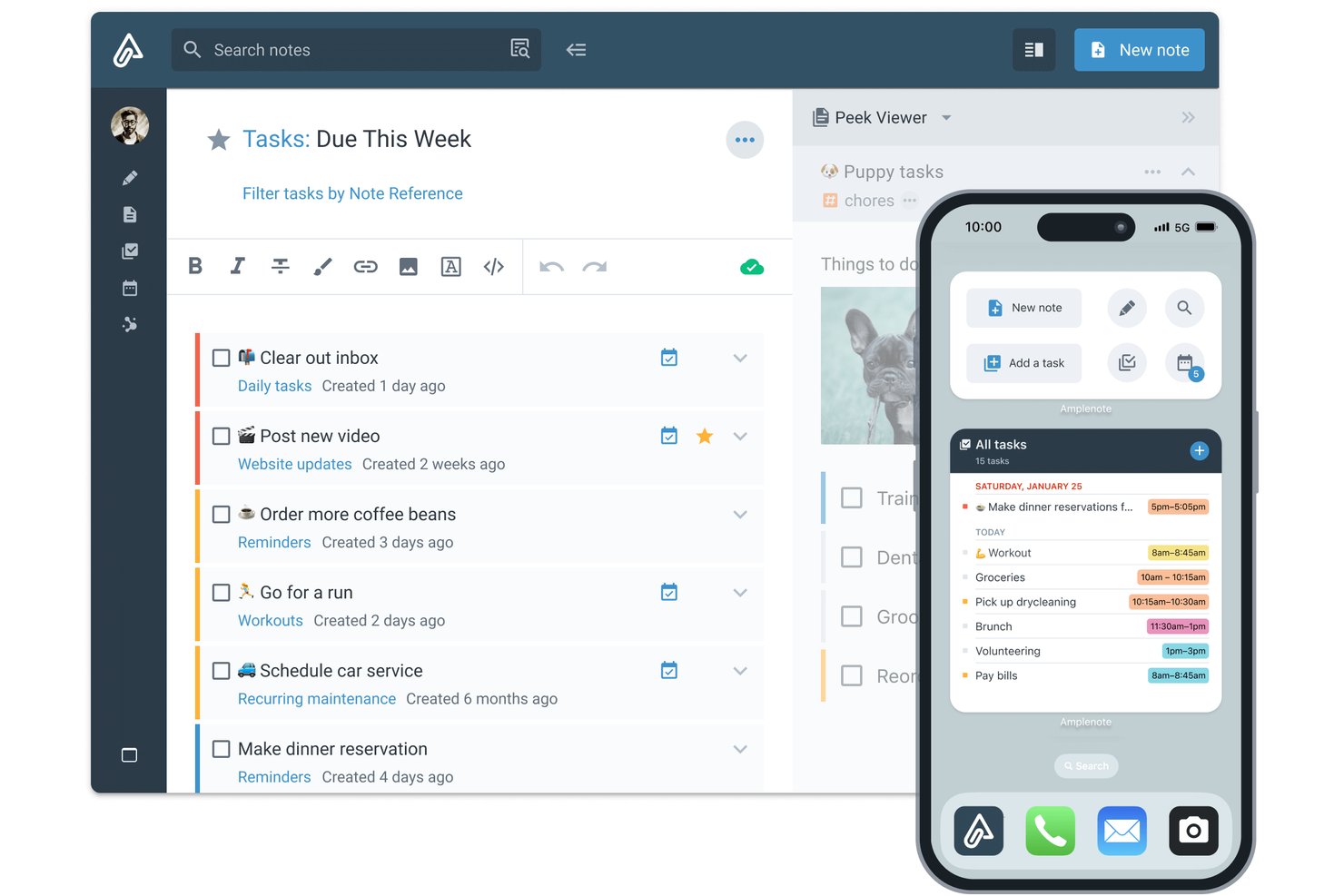
Amplenote is a note-taking app that combines quick idea capture, bidirectional linked notes, task management, and calendar scheduling in one workspace.
Who Is Amplenote Best For?
Amplenote suits individual knowledge workers and researchers who want to capture ideas, manage tasks, and schedule work from a single app.
Why I Picked Amplenote
Amplenote earns its spot on my shortlist because it genuinely closes the gap between capturing ideas and acting on them. I love how tasks created inside notes sync two ways with Google Calendar and Outlook, so a deadline I add to a meeting note shows up on my calendar without any manual copying. Amplenote's task scoring also automatically ranks what to tackle next based on priority and due date, which keeps my day grounded in what actually matters.
Amplenote Key Features
- Bidirectional linking: Connect notes to each other so you can navigate between related ideas and see every note that references the one you're reading.
- Jots quick capture: Use a dedicated Jots mode to drop ideas, tasks, or links instantly before deciding where they belong.
- Full-text and OCR search: Search across all note text, including text recognized from images uploaded to your notes.
- Shared tags: Share entire groups of notes with collaborators by granting read-only or edit access through a shared tag.
Amplenote Integrations
Amplenote offers native integrations with Google Calendar and Microsoft Outlook, plus marketplace integrations for Readwise and Zotero. Its REST API and Plugin API support custom integrations.
Pros and Cons
Pros:
- Search retrieves text from image uploads
- Backlinks connect research across notes
- Jots capture ideas before organizing them
Cons:
- Mobile capture takes extra steps for photos
- Note lists can feel jumbled without folders

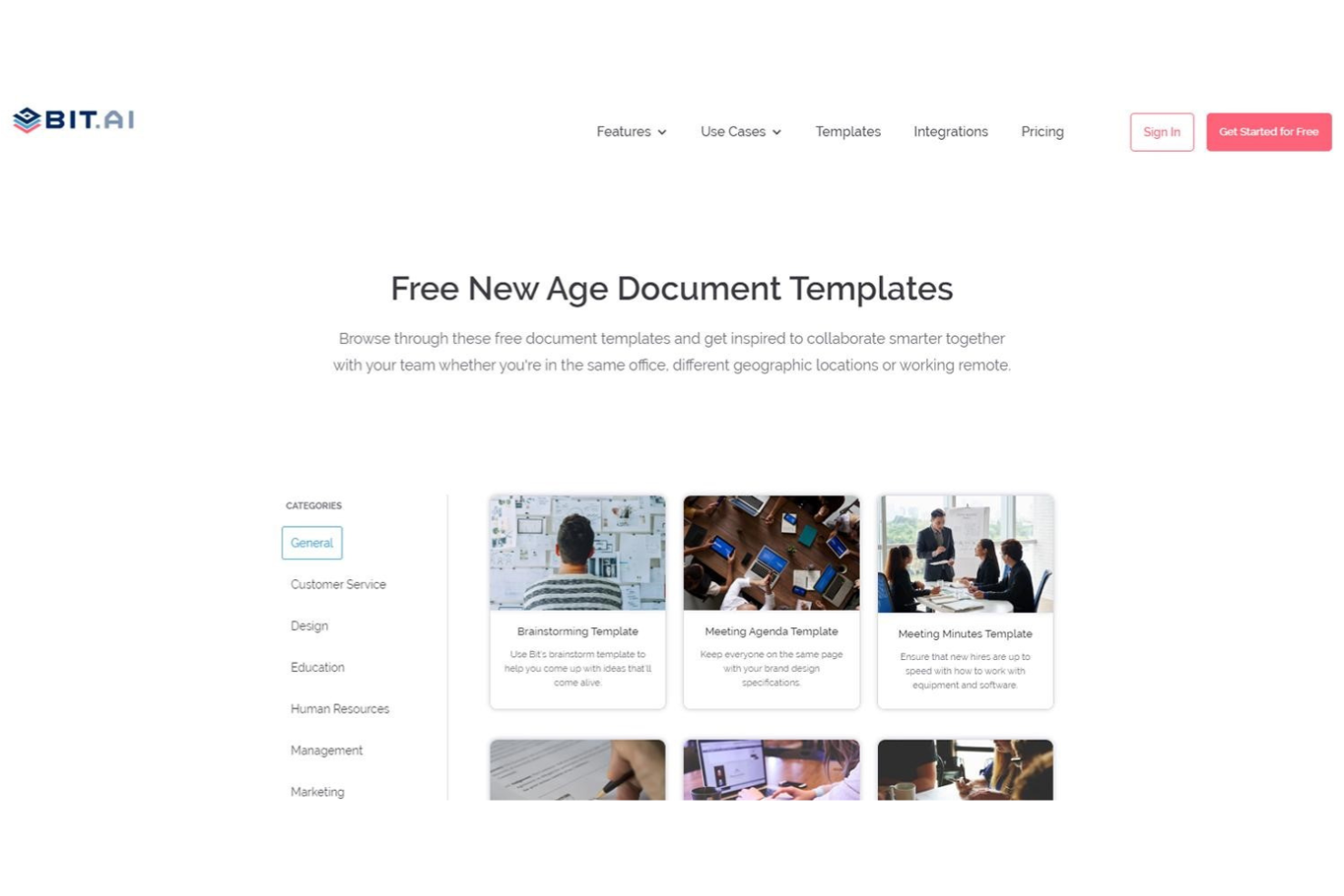
Bit.ai is a cloud-based document and wiki platform that combines rich media embedding, real-time co-editing, structured knowledge management, and client-facing sharing tools.
Who Is Bit.ai Best For?
Bit.ai is a strong fit for teams that regularly share documents, wikis, or project knowledge with clients or external stakeholders.
Why I Picked Bit.ai
I've included Bit.ai in my top picks because it's purpose-built for teams that share documentation with external stakeholders. Client portals let you create invite-only workspaces where guests get permission-controlled access, and trackable links show exactly who viewed a document, how long they spent, and which pages they read. You can even add a lead-capture form to a shared wiki to collect contact details without any back-and-forth.
Bit.ai Key Features
- Real-time co-editing: Multiple collaborators can edit the same document simultaneously, including working in the same section at the same time.
- Smart Search: Search across workspaces, folders, documents, and digital assets, with results that take you directly to the matching location inside a document.
- Wiki builder: Turn documents into navigable wikis by adding and arranging subpages in a structured hierarchy with anchor links between sections.
- Rich media embedding: Embed PDFs, videos, spreadsheets, Figma designs, and content from over 100 integrations directly inside a document.
Bit.ai Integrations
Bit.ai offers 100+ integrations, including Google Docs, Google Sheets, Airtable, Trello, Google Calendar, Miro, Lucidchart, Figma, and Loom, primarily through embedded links and content. API availability for custom integrations isn’t documented.
Pros and Cons
Pros:
- Live co-editing keeps meeting notes current
- Shared wikis organize notes for client handoffs
- Embeds keep research and project notes contextual
Cons:
- Older notes take more effort to retrieve
- Mobile browser editing feels clunky off desktop

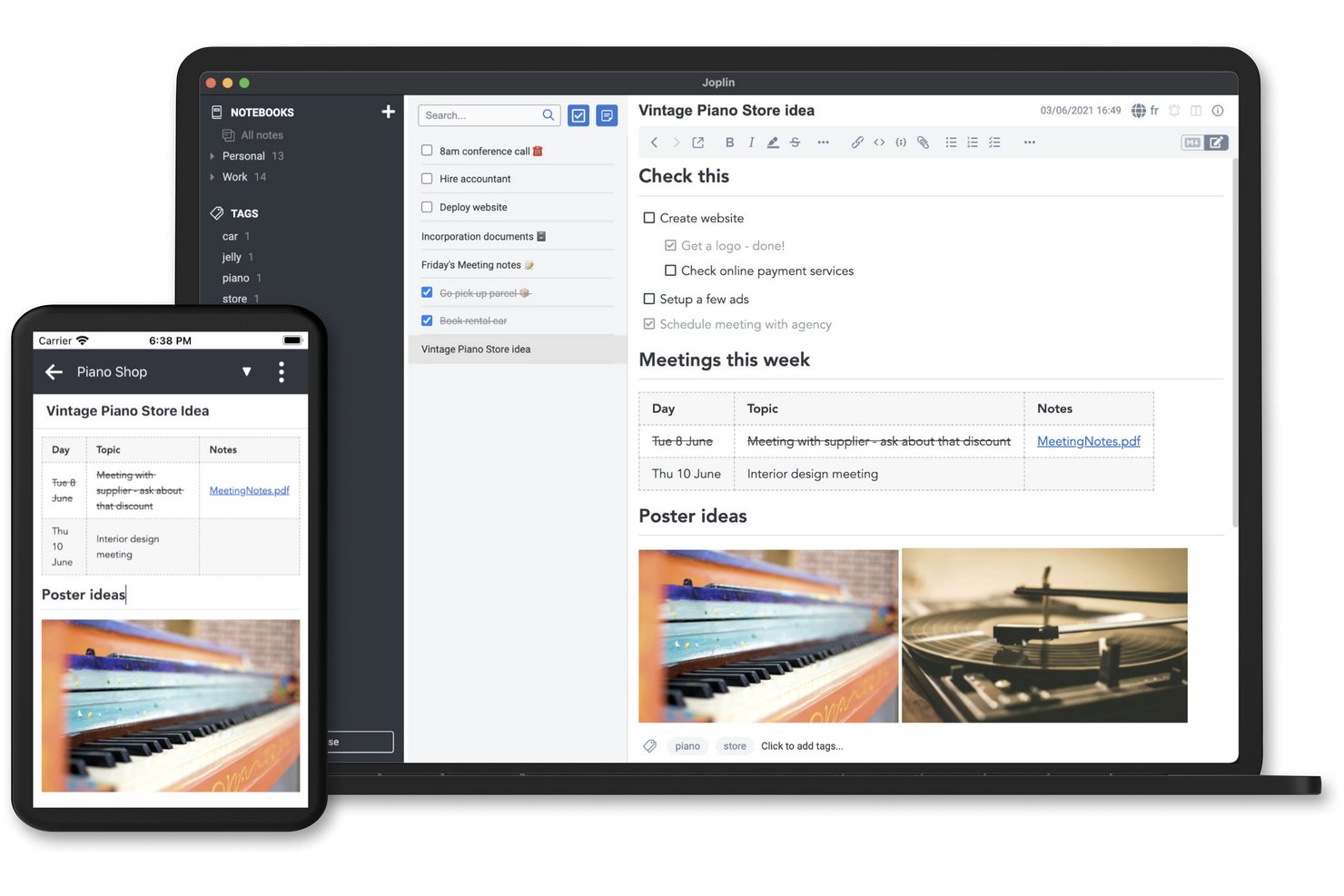
Joplin is an open-source note-taking app that supports Markdown and rich-text editing, notebook organization, cross-device sync, web clipping, and a plugin ecosystem for extending its functionality.
Who Is Joplin Best For?
Joplin is a strong fit for privacy-minded individuals and small teams who want full control over where their notes are stored and synced.
Why I Picked Joplin
I picked Joplin as one of the best because it's the only note-taking app that gives you genuine control over where your data lives. You can sync to Joplin Cloud, Dropbox, OneDrive, Nextcloud, S3, or WebDAV, and the app stores notes locally on your device by default without sending anything to external services without your say-so. End-to-end encryption is built in, and because Joplin is open source, you can self-host the entire backend through Joplin Server Business if that's what your setup requires.
Joplin Key Features
- Web clipper: A browser extension for Chrome and Firefox that saves full web pages, selections, or screenshots directly into your notebooks.
- FTS4-powered search: Full-text search with filters for phrases, tags, notebooks, dates, attachment types, and source URLs to pinpoint notes fast.
- Plugin ecosystem: A built-in plugin repository lets you install integrations with tools like Todoist, Jira, Readwise, and Zotero to extend Joplin's core functionality.
- Whiteboard canvas: An infinite, zoomable surface where you can arrange text cards, images, PDFs, and note references, stored and synced like any other note.
Joplin Integrations
Joplin offers marketplace integrations with Todoist, Readwise, Zotero, Jira, Google Docs, Anki, and n8n. Its REST Data API supports custom integrations with notes, notebooks, tags, searches, and change events.
Pros and Cons
Pros:
- Save web pages directly as notes
- Organize detailed notes in notebooks
- Choose where notes are stored
Cons:
- Scanned PDFs aren’t searchable by default
- Sync reliability varies between users
Outras opções de aplicações de tomada de notas
Eis mais algumas opções que não entraram na minha lista das melhores aplicações de tomada de notas, mas que ainda assim vale a pena conhecer.
- Miro
For turning workshop ideas into shared docs
- Milanote
For creative inspiration and planning
- Zoho Notebook
For keeping notes with Zoho CRM records
- Otter.ai
For asking AI about your meeting history
- Guru
For turning team chats into reviewed docs
- Google Keep
For turning quick notes into Google Docs
- Mem
For using notes with AI assistants
- Clover
For presenting ideas from note canvases
- Goodnotes
For audio-linked handwritten notes
- Notability
For turning lecture notes into study aids


How I Evaluate Note Taking Apps
My evaluation has two layers: baseline criteria a tool must clear—like capturing meeting notes and syncing across devices—and differentiators that distinguish the top picks.
Core Functionality (Table Stakes For This List)
When I'm selecting tools for my list, I rank each one on a scale from 0 (does not offer the functionality) to 5 (excels in this area) for each core functionality listed below. Then, I calculate the tool's total score into a percentage. Each tool needs to achieve a minimum total score of 65% to be considered for inclusion.
- Rich Note Creation: I look for flexible editors that handle formatted text, images, file attachments, and embeds—the kind of depth you need when documenting project requirements or sprint goals.
- Organization & Structure: A flat list of notes falls apart fast. I evaluate whether tools offer folders, tags, nested pages, or cross-linking to keep project documentation logically grouped.
- Search & Retrieval: Finding last quarter's stakeholder feedback shouldn't take five minutes. I check for full-text search with filtering by tags, dates, or notebooks.
- Task & Action Item Support: Meeting notes without follow-through are wasted effort. I look for in-note checklists, assignees, or due dates that connect decisions to deliverables.
- Real-Time Collaboration & Sharing: Project teams need to co-edit documents like meeting agendas and retrospective boards together. I evaluate sharing permissions, live co-editing, and commenting features.
- Cross-Device Sync: I check that notes sync reliably across desktop, mobile, and web so you can capture client feedback on-site and access it from your laptop later without missing a beat.
Once I have a list of tools that meet the criteria, I consider what sets each platform apart.
Differentiating Factors (What Sets Vendors Apart)
Here's how I compare and contrast different vendors:
Standout Features
AI-powered features like automatic summarization and action item extraction can turn a 30-minute standup recording into a structured recap in seconds. I also look for built-in meeting transcription, since pairing it with AI makes post-meeting documentation nearly hands-free. Pre-built templates for sprint retrospectives, status reports, and project briefs matter too—they save time and keep documentation consistent across your team without starting from scratch every time.
Beyond Features
Integration with tools like Jira, Asana, Slack, and Zoom is a big deal—I check whether a note taking app connects to the project management and communication platforms your team already uses daily. Data portability also matters. I look for export options like Markdown, PDF, or HTML so you're not locked in if priorities shift. For teams handling sensitive project data or client information, I evaluate security credentials like SOC 2 compliance, encryption standards, and admin-level permission controls.
Como escolher aplicações de tomada de notas
É fácil perder-se em listas extensas de funcionalidades e estruturas de preços complexas. Para o ajudar a manter-se concentrado enquanto percorre o seu processo específico de seleção de software, eis uma lista de verificação dos fatores a ter em conta:
| Fator | O que considerar |
|---|---|
| Escalabilidade | A ferramenta irá suportar equipas de projeto em crescimento e a colaboração entre diferentes áreas ao longo do tempo? Procure permissões flexíveis, notas ilimitadas e armazenamento escalável. |
| Integrações | Estabelece ligação às ferramentas que a sua equipa já utiliza, como gestores de tarefas, calendários ou o Slack? Menos integrações significam mais atualizações manuais e perda de tempo. |
| Personalização | Pode organizar as notas de acordo com a forma como a sua equipa trabalha — por projeto, tarefa ou cronologia? Evite sistemas rígidos que o obriguem a seguir um único fluxo de trabalho. |
| Facilidade de utilização | Os novos utilizadores conseguem começar a utilizá-la rapidamente sem um manual? Se forem necessários mais de 15 minutos para se sentirem à vontade, a adoção poderá ser prejudicada. |
| Implementação e integração inicial | Quanto tempo demora a configuração? Existem modelos, ferramentas de importação ou orientações passo a passo para ajudar a sua equipa a começar rapidamente e sem dificuldades? |
| Custo | Como evoluem os preços por utilizador ou por armazenamento? Tenha cuidado com as taxas por utilizador que aumentam rapidamente ou com custos ocultos de funcionalidades adicionais. |
| Medidas de segurança | É compatível com encriptação, controlos de acesso e cópias de segurança dos dados? Se as suas notas incluírem informações sensíveis sobre projetos, não faça cedências neste aspeto. |
| Disponibilidade do suporte | É fácil obter ajuda quando algo deixa de funcionar? Procure ferramentas com chat em direto ou respostas rápidas por e-mail, sobretudo se não tiver apoio de uma equipa interna de TI. |
O que são aplicações de tomada de notas?
As aplicações de tomada de notas são ferramentas digitais que permitem escrever, organizar e consultar as suas notas ou ideias no telemóvel ou computador. Os gestores de projetos, profissionais ocupados e membros de equipas que gerem várias tarefas utilizam estas aplicações para acompanhar listas, lembretes, tarefas, itens de ação e detalhes importantes num único local.
Pode adicionar etiquetas, pesquisar ou sincronizar notas para nunca perder uma ideia, esteja à sua secretária ou em movimento. As aplicações de tomada de notas são uma ajuda de memória útil para realizar várias tarefas e acompanhar numerosas responsabilidades ou tarefas em movimento.
Funcionalidades
Eis as principais funcionalidades que qualquer excelente software de aplicação de tomada de notas deve ter:
- edição de texto avançada: Permite formatar notas com títulos, listas, ligações e destaques para melhorar a legibilidade e a estrutura.
- Funcionalidade de pesquisa: Permite encontrar rapidamente notas, palavras-chave ou etiquetas específicas sem percorrer listas extensas.
- Etiquetagem e organização: Ajuda a agrupar, filtrar e consultar notas utilizando pastas, etiquetas ou rótulos.
- Sincronização entre dispositivos: Garante que as suas notas estão sempre atualizadas e acessíveis no computador, telemóvel e na Web.
- Acesso offline: Permite ver e editar notas sem ligação à Internet, o que é útil durante viagens ou interrupções do serviço.
- Ferramentas de colaboração: Permite partilhar e editar notas em conjunto com outras pessoas em tempo real ou de forma assíncrona.
- Gravação de áudio: Permite captar notas de voz durante reuniões ou sessões de geração de ideias.
- Captura de conteúdo da Web: Permite guardar artigos, páginas ou capturas de ecrã da Web diretamente no seu sistema de notas.
- Biblioteca de modelos: Disponibiliza formatos de notas pré-criados para ajudar a uniformizar notas de reuniões, listas de verificação e planos de projetos.
- Opções de exportação de dados: Permite fazer cópias de segurança ou migrar as suas notas em formatos comuns, como PDF, DOCX ou texto simples.
Vantagens
A implementação de aplicações de tomada de notas proporciona várias vantagens à sua equipa e à sua empresa. Eis algumas das que pode esperar:
- Captação mais rápida de informação: As equipas podem anotar rapidamente ideias, notas de reuniões ou atualizações de projetos sem terem de procurar em e-mails ou documentos.
- Melhor organização: Funcionalidades como etiquetas, pastas e pesquisa ajudam a manter tudo fácil de encontrar quando precisar.
- Colaboração melhorada: As notas partilhadas e a edição em tempo real permitem que os membros da equipa se mantenham alinhados sem mensagens ou reuniões adicionais.
- Documentação mais consistente: Os modelos e formatos de notas estruturados ajudam a garantir que não se perdem informações importantes.
- Acesso a partir de qualquer lugar: A sincronização na nuvem significa que as notas estão disponíveis no telemóvel, computador portátil ou tablet sempre que precisar delas.
- Menos tarefas esquecidas: As listas de verificação e os lembretes integrados nas notas ajudam a acompanhar os itens de ação no local onde são registados.
- Transferência de conhecimentos mais fácil: Manter as notas num único sistema ajuda os novos membros da equipa a familiarizarem-se com o trabalho sem terem de procurar informações dispersas.
Custos e preços
A seleção de aplicações de tomada de notas requer uma compreensão dos vários modelos de preços e planos disponíveis. Os custos variam consoante as funcionalidades, o tamanho da equipa, os complementos, entre outros fatores. A tabela abaixo resume os planos comuns, os respetivos preços médios e as funcionalidades normalmente incluídas nas soluções de aplicações de tomada de notas:
Tabela de comparação de planos para aplicações de tomada de notas
| Tipo de plano | Preço médio | Funcionalidades comuns |
|---|---|---|
| Plano gratuito | $0 | Notas de texto básicas, armazenamento limitado, dispositivos limitados e pesquisa básica. |
| Plano pessoal | $5–$10/utilizador/mês | Notas ilimitadas, sincronização entre dispositivos, organização básica e acesso offline. |
| Plano empresarial | $10–$25/utilizador/mês | Espaços de trabalho partilhados, controlos de administrador, integrações com ferramentas e funcionalidades de colaboração. |
| Plano empresarial avançado | $25–$40/utilizador/mês | Segurança avançada, funções personalizadas, suporte para conformidade e apoio dedicado à conta. |
Perguntas frequentes
Para ajudar a escolher a aplicação de tomada de notas certa para si, apresentamos algumas respostas a perguntas frequentes.
Quais são as principais funcionalidades a procurar ao avaliar aplicações de tomada de notas?
Procure uma ferramenta de tomada de notas que seja fácil de utilizar e que possa ser acedida em qualquer lugar a partir de todos os seus dispositivos. Uma boa aplicação também lhe permitirá adicionar imagens ou outros conteúdos multimédia e deverá incluir opções para partilhar as suas notas.
Também deverá ter flexibilidade para organizar as notas à sua maneira, seja através de pastas ou etiquetas. As melhores aplicações permitir-lhe-ão também introduzir notas de voz ou usar um estilete para criar notas manuscritas.
Quais são as melhores aplicações para tomar notas em dispositivos iPad ou iPhone?
Se pretende tomar notas no seu iPad ou iPhone, precisará de uma aplicação iOS. Felizmente, há muitas por onde escolher na loja de aplicações. Algumas das ferramentas mais populares incluem o Notability, o Evernote, o GoodNotes 5 e o Nebo. No entanto, muitas pessoas consideram que têm tudo o que precisam com o Apple Notes, a aplicação incluída gratuitamente em todos os dispositivos Apple.
Quais são as melhores aplicações para tomar notas em dispositivos Android?
Os utilizadores de Android têm muitas opções quando se trata de escolher uma aplicação para tomar notas. Entre as opções populares encontram-se o OneNote, o Standard Notes, o Simplenote e o Nimbus Notes. Em alternativa, pode optar por poupar dinheiro utilizando o Google Keep, a aplicação para tomar notas disponibilizada gratuitamente com todas as contas Google.
Como é que as aplicações para tomar notas ajudam a melhorar a produtividade?
As aplicações para tomar notas são excelentes para captar todas as boas ideias que lhe ocorrem. É fácil tirar o telemóvel, tablet ou outro dispositivo para anotar os seus pensamentos.
Uma boa aplicação ajudá-lo-á a organizar eficazmente as suas informações, permitirá definir lembretes e integrar-se facilmente com outras aplicações que utiliza. Em suma, uma excelente aplicação para tomar notas pode contribuir muito para o tornar mais eficiente e produtivo.