

10 melhores softwares de gestão de tarefas para particulares em 2026

Melhor software de gestão de tarefas para indivíduos — lista resumida


O software de gestão de tarefas para indivíduos permite-lhe organizar tarefas, definir lembretes e acompanhar o progresso dos seus projetos pessoais — tudo num só lugar. Se procura ferramentas que o ajudem a estabelecer prioridades, manter-se concentrado e gerir tudo, desde prazos de trabalho a hábitos diários, não está sozinho. Com tantas opções a prometerem mais produtividade e menos stress, pode ser difícil perceber o que funciona realmente. Neste guia, vou analisar o melhor software de gestão de tarefas para indivíduos, para que possa comparar rapidamente as funcionalidades, encontrar a solução que melhor se adapta ao seu fluxo de trabalho e ter mais controlo sobre o seu tempo em 2026.
Why Trust Our Software Recommendations
Our team has been testing and reviewing software since 2012. As project managers ourselves, we know how difficult—and important—it is to choose the right software.
For this guide, we evaluated tools using hands-on testing and independent research, scoring tools using our selection criteria. We also draw on insights from industry thought leaders and practicing project management experts.
Our reviews reflect our human editorial judgment, not a sales pitch.
Expert reviewers:
Tabela de comparação: resumo do software de gestão de tarefas para indivíduos
Esta tabela de comparação resume os detalhes dos preços do meu melhor software de gestão de tarefas para indivíduos:
| Tool | Best For | Trial Info | Price | ||
|---|---|---|---|---|---|
| 1 | Best for task inbox for fast universal capture | 7-day free trial | From $19/user/month | Website | |
| 2 | Best for Kanban boards for solo workflows | Free plan + free trial available | From $5/user/month (billed annually) | Website | |
| 3 | Best for all-in-one docs and task workspace | Free plan + free trial + free demo available | From $10/user/month (billed annually) | Website | |
| 4 | Best for custom perspectives for workflows | 14-day free trial | From $4.99/month | Website | |
| 5 | Best for smooth integration with Google Calendar | Free-forever plan available | Free to use | Website | |
| 6 | Best for Outlook and Office 365 syncing | Free-forever plan available | Free to use | Website | |
| 7 | Best for natural language task entry | Free plan available | From $5/user/month (billed annually) | Website | |
| 8 | Best for built-in habit tracking integration | Free plan available | From $49.99/year (billed annually) | Website | |
| 9 | Best for personal cross-device reminders | Free plan + free demo available | From $4.99/user/month (billed annually) | Website | |
| 10 | Best for macOS native design and performance | 15-day free trial (Mac only) | From $9.99 | Website |
Análises do melhor software de gestão de tarefas para indivíduos
Apresento abaixo os meus resumos detalhados do melhor software de gestão de tarefas para indivíduos que entrou na minha lista resumida. As minhas análises oferecem uma visão detalhada das funcionalidades, dos melhores casos de utilização e das integrações de cada ferramenta, para o ajudar a encontrar a melhor opção para si.

Akiflow
Best for task inbox for fast universal capture
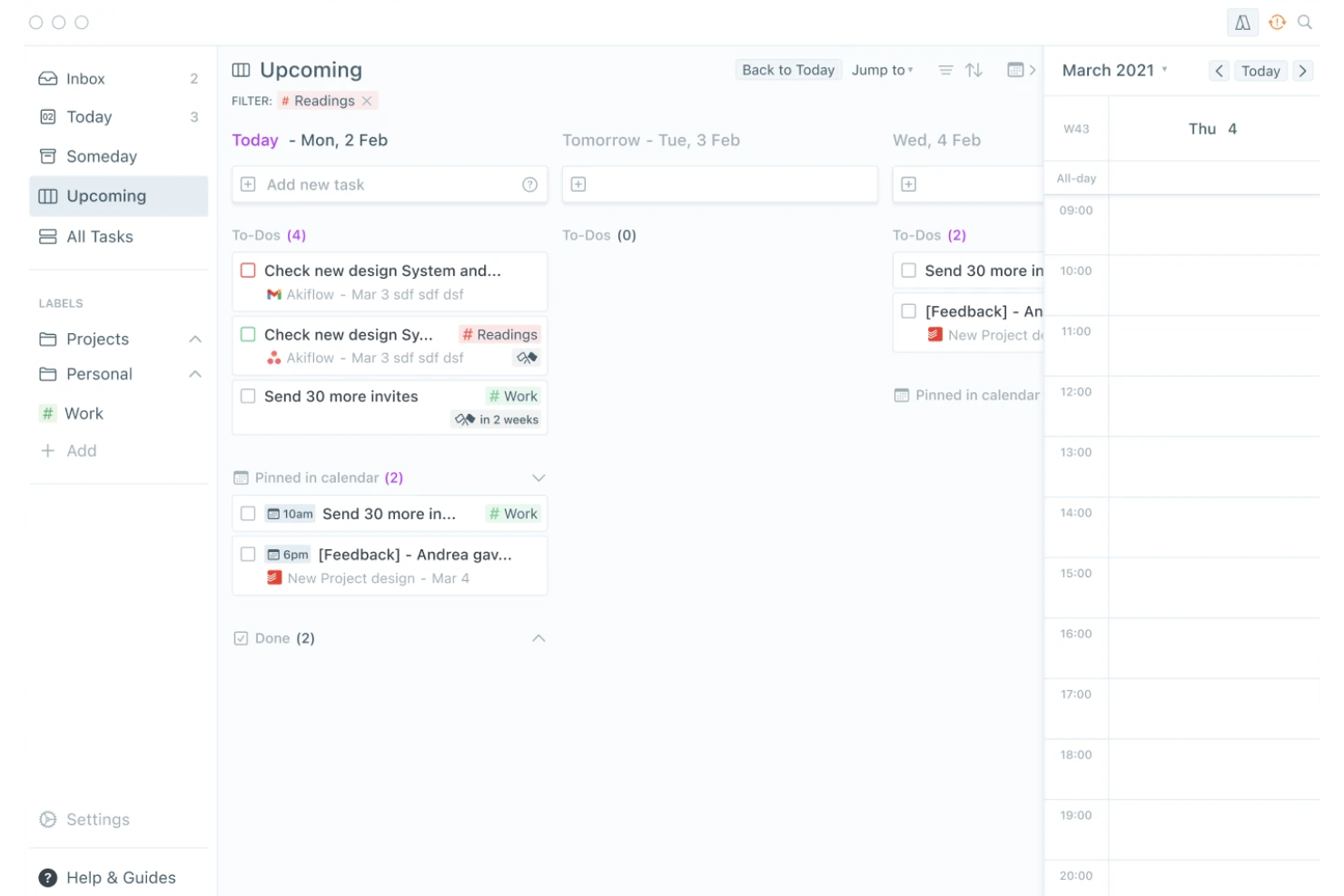
Akiflow is a personal task management app that combines a universal task inbox, time blocking, and calendar integration into a single daily planning interface.
Who Is Akiflow Best For?
Akiflow suits solo consultants and freelance professionals who manage tasks across multiple tools and need a single place to capture and schedule their day.
Why I Picked Akiflow
Akiflow earns its spot on my shortlist because the universal task inbox genuinely solves one of the messiest parts of solo work: tasks scattered across Slack, email, Notion, and five other tools. I love how the Command Bar lets me capture a task using natural language, like "Client call Friday at 2pm for 1 hour," and have it land directly on my calendar. In practice, that means I spend almost no time deciding where a task goes or how to schedule it.
Akiflow Key Features
- Custom recurring tasks: Set up tasks on daily, weekly, monthly, or fully custom repeat schedules.
- Unified calendar integration: Syncs Google and Outlook calendars for one central planning space.
- Focus timer and rituals: Use built-in timers and guided daily shutdowns to structure your workday.
- Cross-platform sync: Access tasks on Mac, Windows, iOS, Android, and web with real-time updates.
Akiflow Integrations
Akiflow offers native integrations with Google Calendar, Outlook, Gmail, Slack, Notion, Todoist, ClickUp, Linear, Microsoft Teams, and Zoom, and it connects with Zapier.
Pros and Cons
Pros:
- Natural language input for rapid task entry
- Smooth calendar integration with time blocking
- Quick universal inbox capture across platforms
Cons:
- Lacks a permanent free plan
- No Kanban or board visualization
Trello
Best for Kanban boards for solo workflows
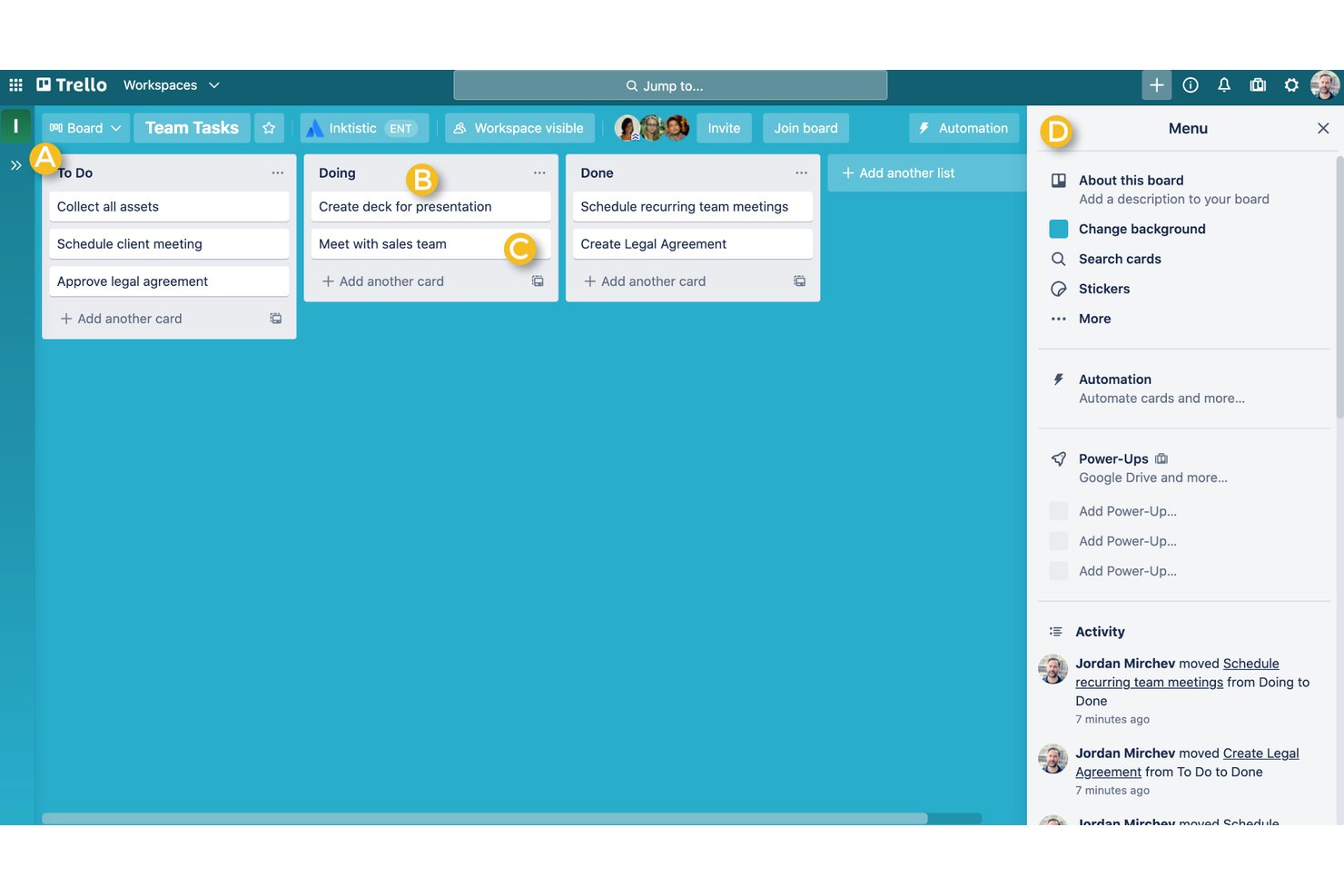
Trello is a visual task management tool built around Kanban boards, cards, and lists, with support for multiple views, built-in automation, and task capture from email and messaging apps.
Who Is Trello Best For?
Trello is a strong fit for freelancers and solo consultants who want a low-overhead, visual way to track tasks across multiple client projects.
Why I Picked Trello
Trello earns its spot on my shortlist because its Kanban board is the cleanest I've used for a solo workflow. I keep one board per client, use color-coded labels to flag priority, and pull tasks straight from email into the Inbox before sorting them into the right list. When my workload gets messy, the built-in Eisenhower Matrix template is something I keep coming back to for a fast reset.
Trello Key Features
- Advanced checklists: Break down tasks into subtasks with individual assignees and due dates.
- Power-Ups gallery: Extend boards with calendar sync, card aging, and 200+ app integrations.
- Butler automation: Create custom rules for recurring tasks, card movement, and notifications.
- AI card tools: Use AI to generate content, edit descriptions, and brainstorm directly within cards.
Trello Integrations
Trello offers native integrations through its Power-Ups gallery, including Slack, Google Drive, Figma, Jira, Google Calendar, and Zapier. An API is available for custom integrations.
Pros and Cons
Pros:
- Quick Capture pulls tasks from email and chat
- Unlimited cards for solo and client boards
- Kanban board is highly visual and flexible
Cons:
- Offline functionality is limited on mobile devices
- Recurring tasks need custom automation setup
Notion
Best for all-in-one docs and task workspace
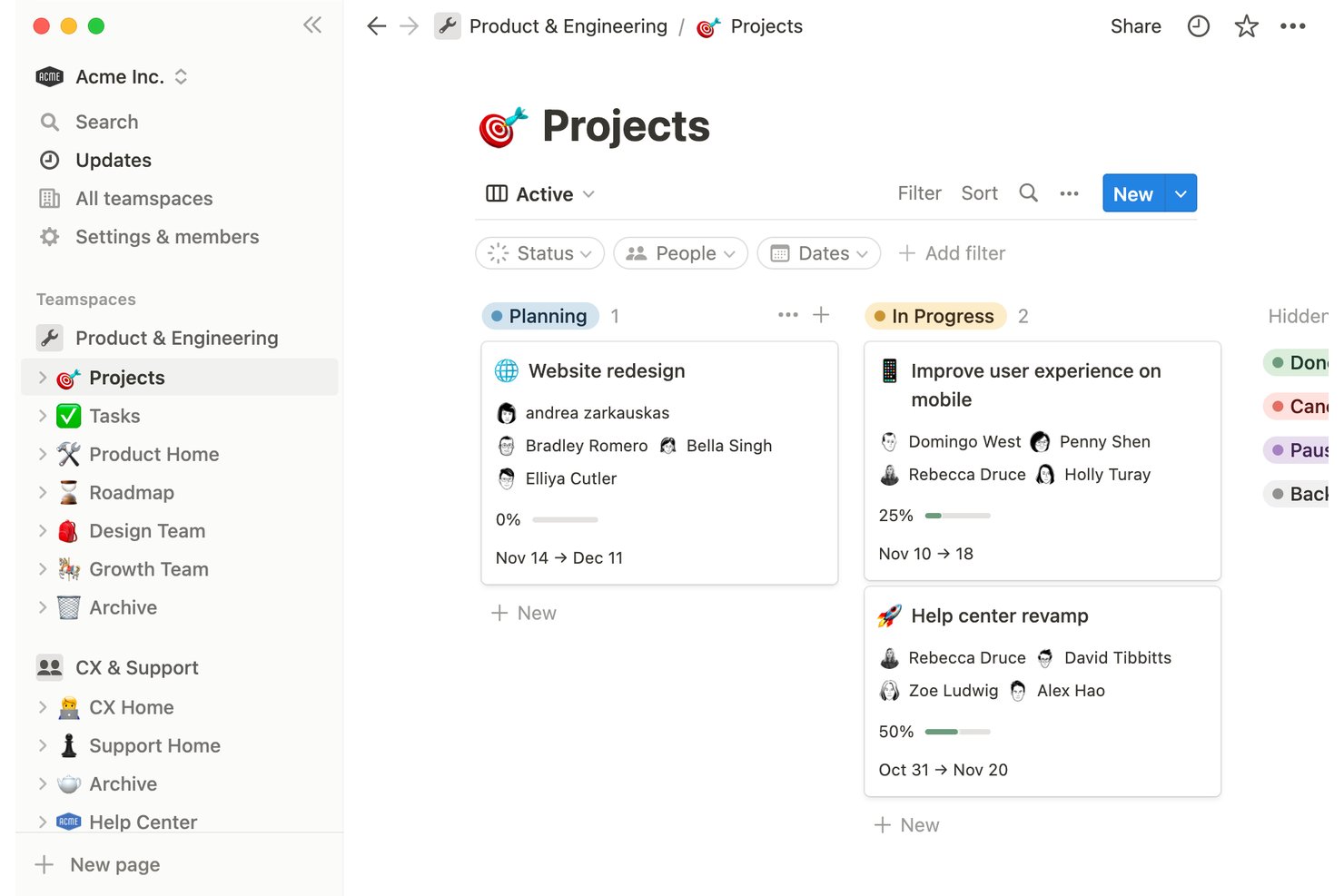
Notion is a block-based personal workspace that combines task management, notes, and databases into a single customizable environment for individuals managing projects, habits, and ideas.
Who Is Notion Best For?
Notion is a strong fit for freelancers and independent professionals who want to manage tasks, notes, and client projects in one place rather than across multiple apps.
Why I Picked Notion
I picked Notion as one of the best because no other tool on this list lets you build a task system from scratch using flexible database blocks. I can set up a board view for active client deliverables, switch to a calendar to track deadlines, and keep project notes on the same page, all without leaving the workspace. Recurring tasks with custom cadences and multi-select priority tags mean I can handle both ongoing client work and one-off to-dos in a single database.
Notion Key Features
- Multiple task views: Switch between list, board, gallery, timeline, and calendar displays for flexible project management.
- Template gallery: Access dozens of free, ready-made personal and project templates to jumpstart organization.
- Custom properties: Add fields for priority, tags, client names, and dates to any task or database.
- Offline access: Mark important pages and databases available for use without an internet connection on mobile or desktop.
Notion Integrations
Notion offers native integrations with Slack, Google Drive, GitHub, Jira, and more. It also connects with Zapier and provides an API for custom integrations.
Pros and Cons
Pros:
- Flexible tagging and prioritization for solo projects
- Allows unlimited custom task views and templates
- Combines notes, tasks, and databases together
Cons:
- Can feel slow with large databases
- Reminders and alerts are limited

Best for custom perspectives for workflows
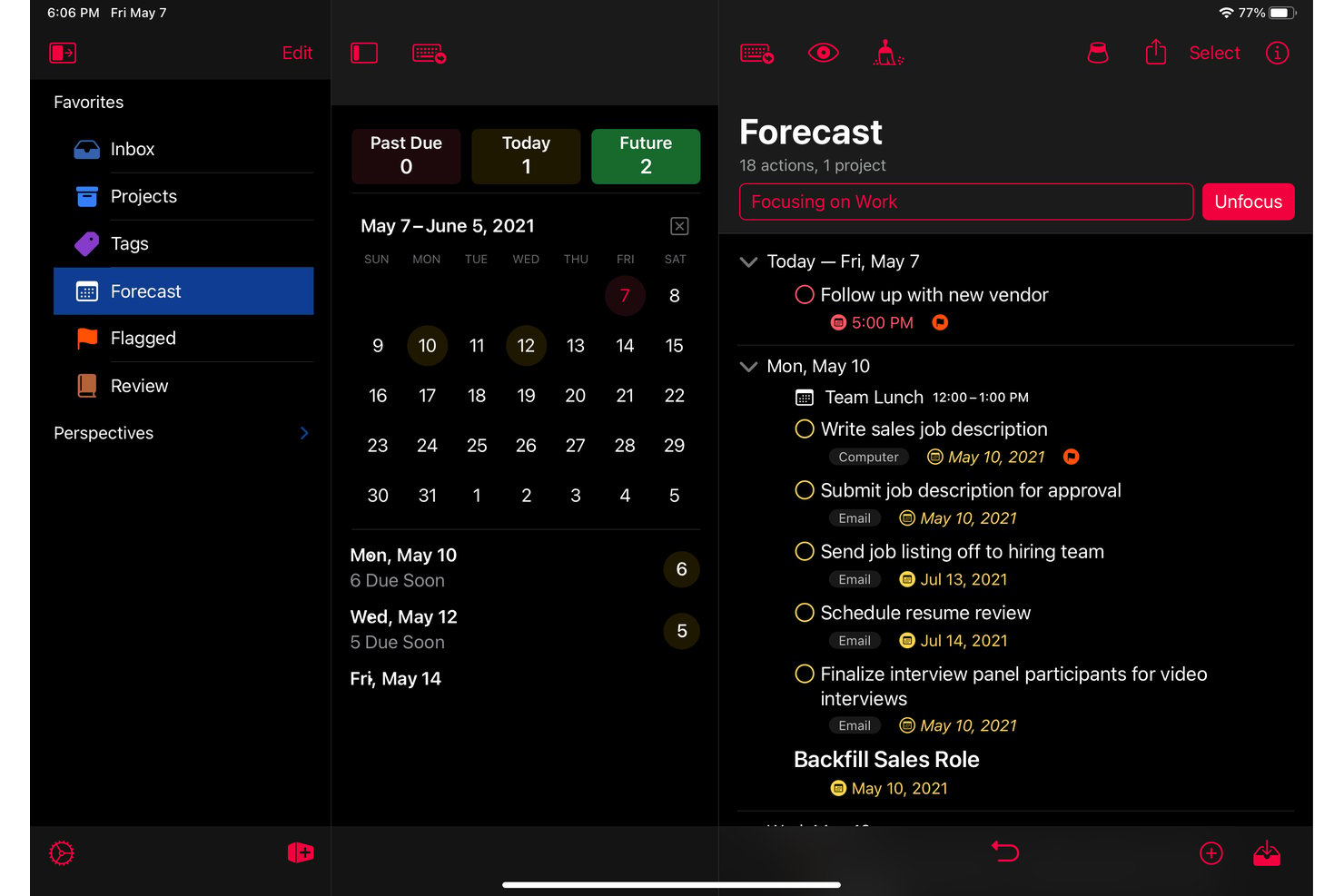
OmniFocus is an Apple-native personal task management app built around GTD methodology, with structured project organization, custom perspectives, tagging, defer and due dates, and a forecast view that combines tasks with calendar events.
Who Is OmniFocus Best For?
OmniFocus is a strong fit for solo professionals on Apple devices who manage complex, multi-project workloads and want a structured, GTD-based system for personal task management.
Why I Picked OmniFocus
OmniFocus earns its spot on my shortlist because the custom perspectives feature lets me build saved views that filter tasks by any combination of tag, project, status, and defer date. I use a "Client Deliverables Due This Week" perspective that pulls flagged tasks across all active projects into one focused list. The Forecast view then layers those tasks directly alongside my calendar, so I can see workload against availability without switching apps.
OmniFocus Key Features
- Forecast view: Combines tasks and calendar events in a single timeline for daily planning.
- End-to-end encrypted sync: Keeps tasks updated and secure across Mac, iPhone, iPad, Apple Watch, and Vision Pro.
- Review mode: Prompts structured reviews of ongoing projects and tasks on a chosen schedule.
- Batch editing: Lets users update, tag, or reschedule multiple tasks at once from any device.
OmniFocus Integrations
OmniFocus offers native integrations with Apple Calendar, Siri, and Apple Shortcuts. The tool syncs across all Apple devices, and an API is available for custom integrations.
Pros and Cons
Pros:
- Review mode for structured project check-ins
- Deep project organization with folders and tags
- Custom perspectives for workflow personalization
Cons:
- Steep initial learning for custom setups
- No native Windows or Android app

Best for smooth integration with Google Calendar
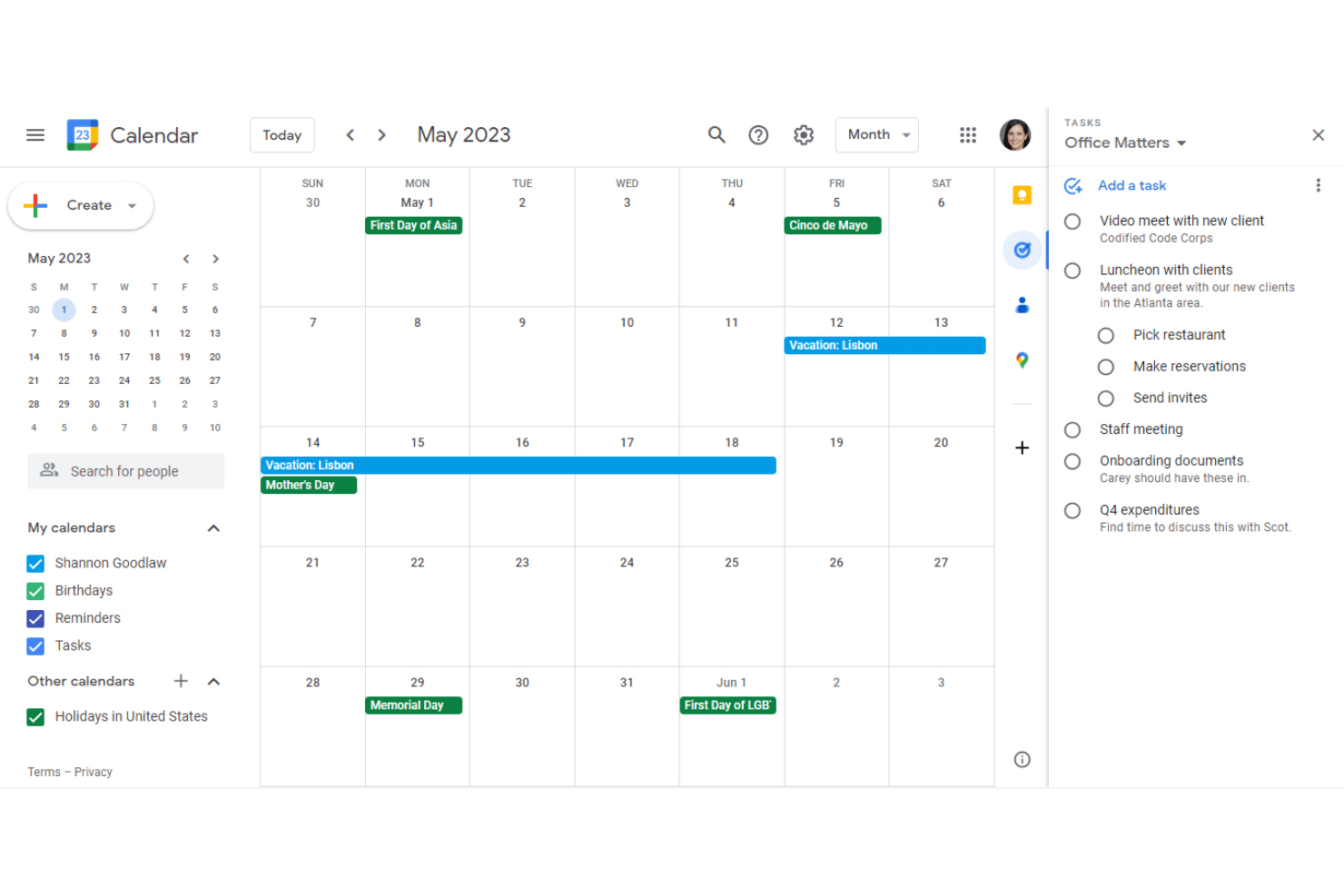
Google Tasks is a free personal task manager that lives natively inside Gmail, Google Calendar, and Google Docs, supporting to-do lists, subtasks, recurring tasks, due dates, and real-time cross-device sync.
Who Is Google Tasks Best For?
Google Tasks is a natural fit for solo professionals who already rely on Google Workspace daily and want task management without switching between apps.
Why I Picked Google Tasks
Google Tasks earns its spot on my shortlist because of how tightly it connects to Google Calendar. When I add a due date and time to a task, it shows up directly on my calendar alongside scheduled events, so nothing gets buried in a separate app. I also use the time-blocking feature to carve out focused work slots for specific tasks, which automatically mutes notifications and can decline conflicting meeting requests during that window.
Google Tasks Key Features
- Subtasks support: Break down larger tasks into manageable steps within any list.
- Multiple lists: Organize tasks by project, client, or context with separate lists for each area of work.
- Email-to-task creation: Turn Gmail messages into actionable tasks directly from your inbox for fast follow-up.
- Cross-device sync: Access and manage your task lists instantly across web and mobile devices.
Google Tasks Integrations
Google Tasks has native integrations across the Google ecosystem, including Gmail, Google Calendar, Google Chat, Google Docs, Google Drive, and the Gemini app. An API is available for custom integrations.
Pros and Cons
Pros:
- Task lists sync instantly across devices
- Quick add from Gmail or Google Chat
- Shows tasks alongside Google Calendar events
Cons:
- Cannot attach files to tasks
- Lacks board and timeline task views

Best for Outlook and Office 365 syncing
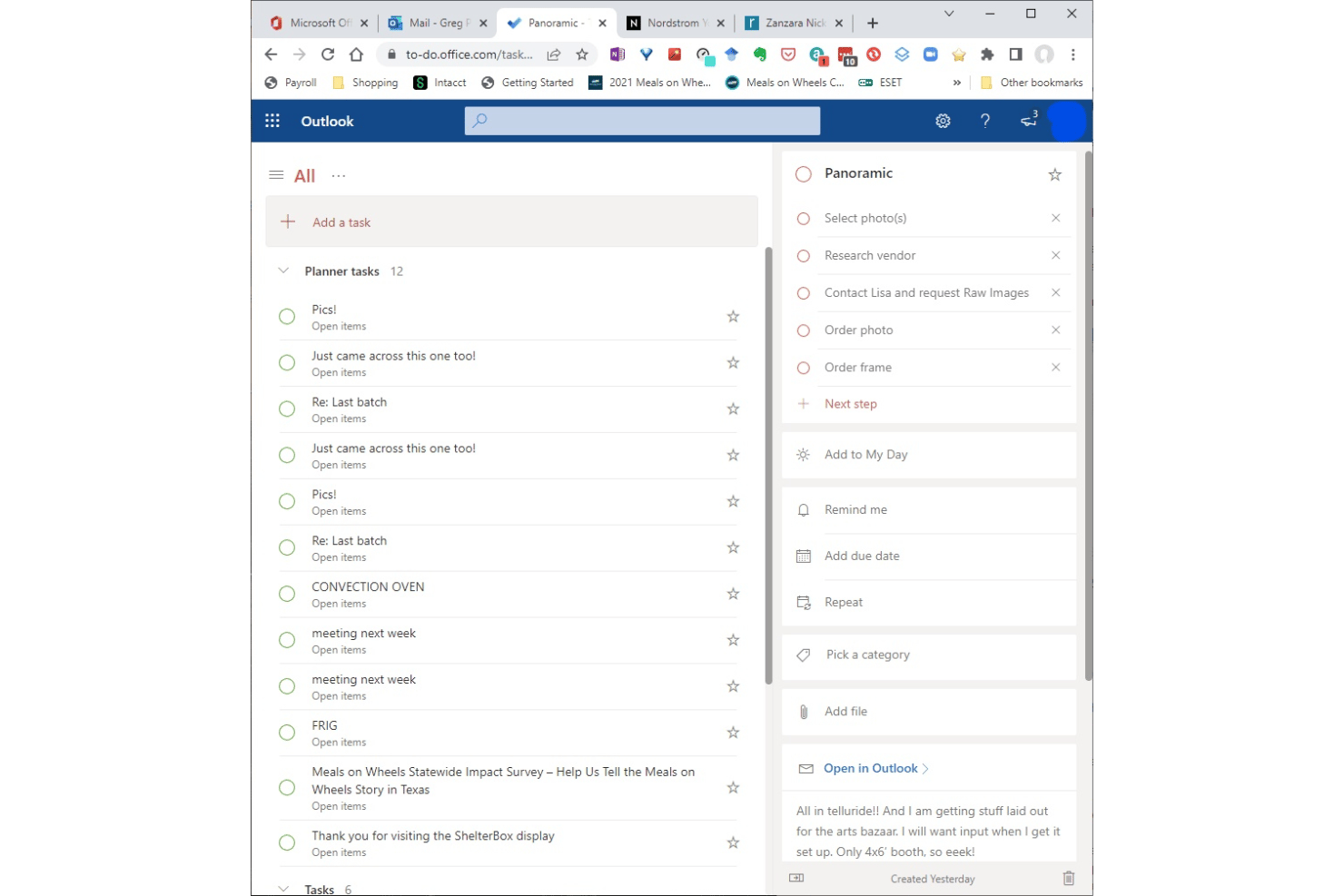
Microsoft To Do is a free personal task management app from Microsoft that lets individuals capture tasks, set due dates and reminders, build recurring to-do lists, and organize daily priorities across desktop and mobile devices.
Who Is Microsoft To Do Best For?
It's a strong fit for solo professionals and freelancers who already work within the Microsoft 365 ecosystem and want a lightweight task tool that connects directly to Outlook.
Why I Picked Microsoft To Do
I picked Microsoft To Do as one of the best because of how tightly it connects with Outlook. Flagged emails in Outlook automatically surface as tasks in To Do, which means my inbox doubles as a task capture tool with zero manual entry. The My Day view then lets me pull from that running queue and build a focused daily list across all my active client work.
Microsoft To Do Key Features
- Recurring tasks: Set custom repeat intervals for tasks to handle routines and ongoing responsibilities.
- Subtask support ("steps"): Break to-dos into smaller action items within each main task for detailed planning.
- Multi-list organization: Create and manage separate lists for each client, project, or context.
- Cross-device sync: Access and manage all tasks from Windows, macOS, iOS, Android, and the web with real-time updates.
Microsoft To Do Integrations
Microsoft To Do has native integrations across the Microsoft ecosystem, including Microsoft 365, Outlook, Teams, and Planner. An API is available for custom integrations.
Pros and Cons
Pros:
- Fast cross-device sync for all platforms
- Built-in daily focus list with My Day
- Excellent Outlook task and email syncing
Cons:
- Limited options for organizing with tags
- No calendar, board, or timeline views
Todoist
Best for natural language task entry
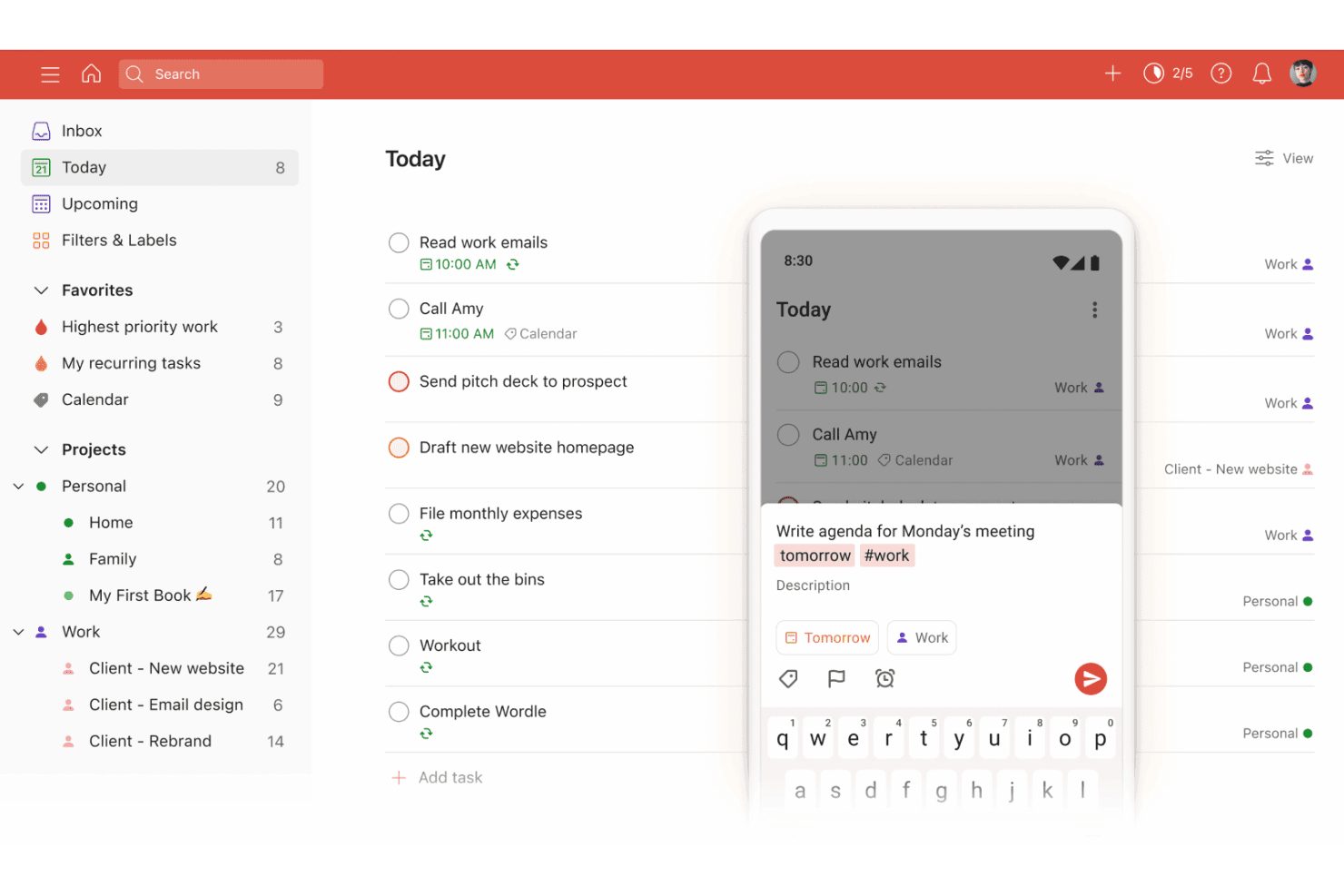
Todoist is a personal task management app that combines natural language task entry, AI-assisted capture, recurring schedules, and cross-platform sync into a single lightweight workspace.
Who Is Todoist Best For?
Todoist is a strong fit for freelancers and solo professionals managing multiple client projects who need a personal task system that works across every device.
Why I Picked Todoist
Todoist earns its spot on my shortlist because the natural language task entry is genuinely the fastest I've used. Typing "submit invoice every first Monday" instantly creates a correctly scheduled recurring task, with no dropdowns or extra clicks required. I also use Ramble, the voice capture feature, to talk through a backlog of ideas and have Todoist parse them directly into organized, actionable tasks.
Todoist Key Features
- Multiple project support: Manage up to 300 personal projects at once with color-coding and custom organization.
- Custom filter views: Create and save up to 150 unique task filters to quickly surface relevant tasks by context or tag.
- Cross-platform sync: Access your task list instantly on web, desktop, mobile apps, and browser extensions, all updated in real time.
- Recurring task rules: Set complex recurring schedules, such as tasks every third Thursday or custom intervals for ongoing routines.
Todoist Integrations
Todoist offers integrations with Google Calendar, Slack, Outlook Calendar, Dropbox, Trello, and Alexa. It also connects with automation platforms like Zapier and provides a REST API, official SDKs, and webhooks for custom integrations
Pros and Cons
Pros:
- Cross-platform sync includes offline access
- Recurring tasks handle complex schedules
- Natural language input speeds up task entry
Cons:
- Project and label limits on free plan
- No timeline or Gantt view option

TickTick
Best for built-in habit tracking integration
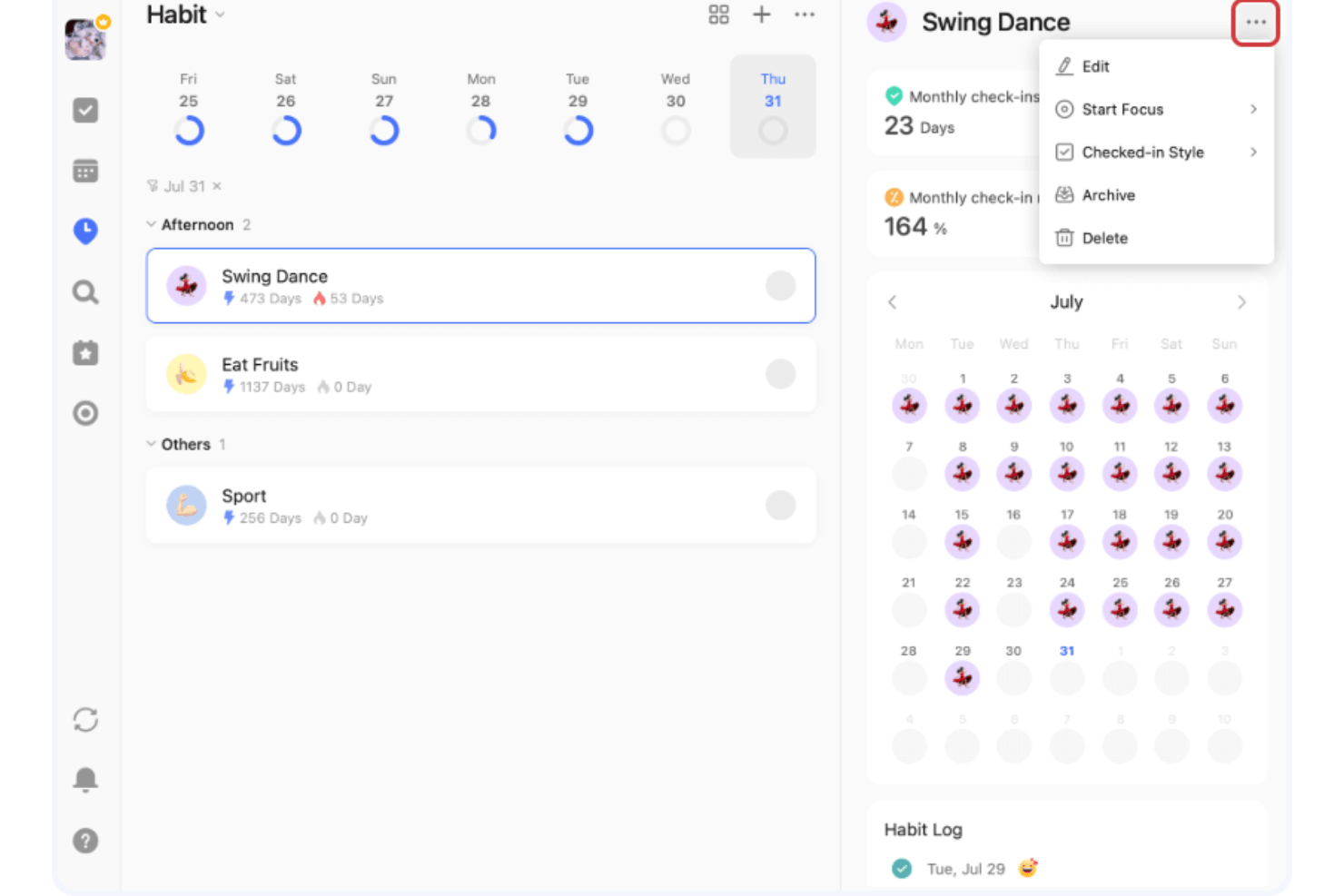
TickTick is a personal task management app that combines to-do lists, habit tracking, a Pomodoro timer, and calendar views in a single cross-platform tool.
Who Is TickTick Best For?
TickTick is a strong fit for freelancers and independent professionals who manage personal productivity alongside client deliverables.
Why I Picked TickTick
TickTick earns its spot as one of the best on my shortlist because no other task management app I've used bundles habit tracking this natively alongside task lists. The Habit Tracker includes a rich habit library, flexible scheduling, and detailed completion statistics, so I can track a daily client check-in routine right next to my project deadlines. I also like the built-in Pomodoro timer with estimated Pomos per task, which lets me attach focused work sessions directly to specific deliverables.
TickTick Key Features
- Multiple task views: Switch between list, Kanban board, timeline, and calendar layouts to organize work visually.
- Natural language processing: Add tasks using everyday speech with autofill dates, times, and reminders.
- Cross-device sync: Access and update tasks seamlessly on web, desktop, mobile, and smartwatches.
- Custom smart lists and filters: Create personalized lists and saved searches using tags, priorities, and other task properties.
TickTick Integrations
TickTick offers native integrations with Google Calendar, Notion, Siri, and Weibo, supports third-party calendar subscriptions, and connects with Zapier.
Pros and Cons
Pros:
- Fast natural language processing for tasks
- Multiple customizable task views available
- Habit tracker built directly into the app
Cons:
- No built-in collaboration or team workflows
- Advanced recurring task rules are limited

Any.do
Best for personal cross-device reminders
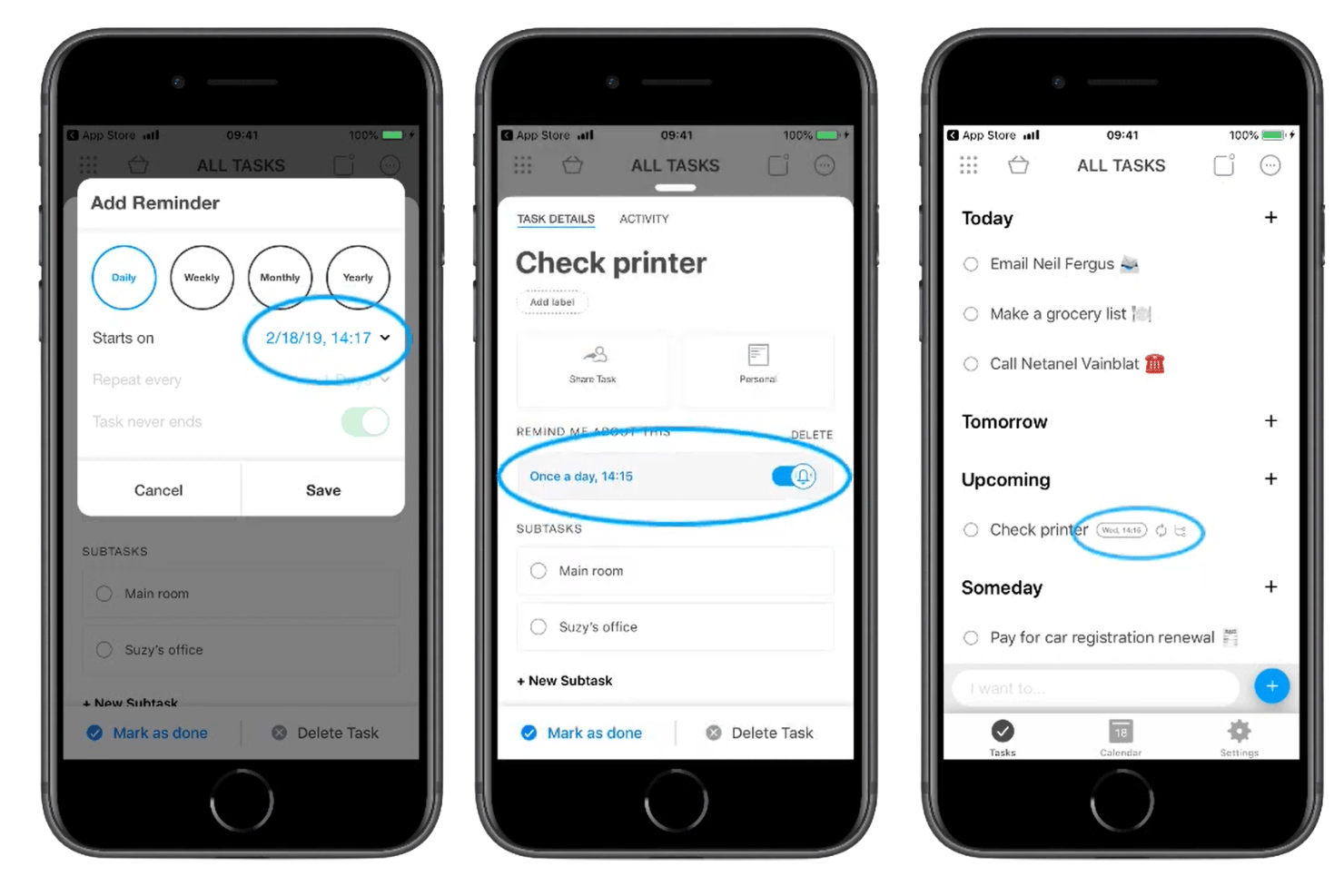
Any.do is a personal task management app that combines to-do lists, a daily planner, location-based reminders, and calendar sync across mobile, desktop, and wearable devices.
Who Is Any.do Best For?
Any.do suits solo professionals and independent contractors who need lightweight task management across personal and client workstreams without collaboration overhead.
Why I Picked Any.do
Any.do earns its spot as one of the best on my shortlist because no other personal task app matches its reminder depth. I love that you can set location-based reminders that fire when you arrive at or leave a specific place, alongside fully customizable recurring reminders. The WhatsApp integration (Premium) is also genuinely unique: you can forward a message directly to Any.do and it becomes a task with a reminder attached.
Any.do Key Features
- Color tags and labels: Organize and sort tasks by project, priority, or context using customizable colors.
- Multi-platform sync: Access and update tasks across web, desktop, mobile, and even wearable devices any time.
- Daily planner (My Day): Start each day by organizing and prioritizing tasks with a dedicated daily planning tool.
- Grocery and shopping lists: Create specialized lists that automatically group items by category and support sharing.
Any.do Integrations
Any.do offers native integrations with Google Calendar, iCloud, Outlook, Gmail, WhatsApp, Alexa, Slack, and more. It also connects with Zapier.
Pros and Cons
Pros:
- Works across mobile, desktop, and wearables
- My Day daily planning view
- Location-based and recurring reminders
Cons:
- Limited reporting or analytics features
- Kanban and calendar views require Premium

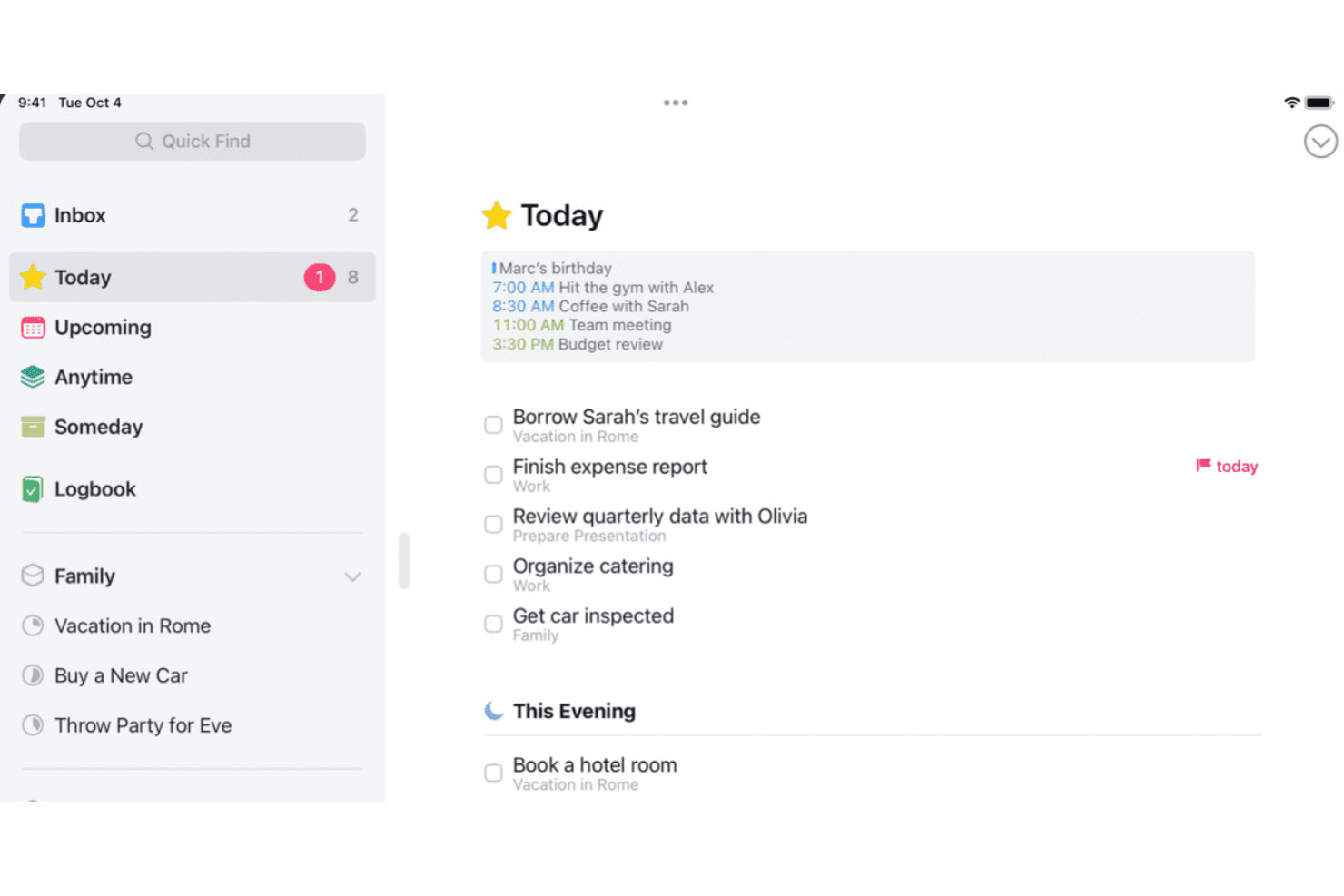
Things is an Apple-native personal task manager that lets you capture to-dos, organize them into projects and areas, set deadlines and reminders, and plan your day across Mac, iPhone, iPad, and Apple Watch.
Who Is Things Best For?
Things is a strong fit for freelancers, solo consultants, and self-employed creatives who work entirely within the Apple ecosystem and want a GTD-friendly system for managing personal workloads.
Why I Picked Things
Things earns its spot as one of the best on my shortlist because it's built exclusively for Apple hardware, and that focus shows in every interaction. I love how the Today list splits morning tasks from This Evening items, reflecting how Apple users naturally structure their day. Jump Start's natural language input lets me type 'Sat' to schedule for Saturday, and Things Cloud's Fastlane sync pushes reminders across Mac, iPhone, and Apple Watch with no lag.
Things Key Features
- Project and area organization: Group tasks within projects and organize multiple projects under larger areas for clean personal work structuring.
- Tag-based filtering: Assign custom tags to tasks and filter lists by tag to quickly drill down to context-specific to-dos.
- Mail to Things integration: Turn emails into action items by forwarding them straight into your task list from any email client.
- Checklists within tasks: Break tasks into smaller steps using checklists embedded directly inside any to-do.
Things Integrations
Things offers native integrations with Apple Calendar, Mail to Things for email capture, and provides a URL scheme and AppleScript support on Mac for advanced automation.
Pros and Cons
Pros:
- Inbox, Today, and Upcoming lists enable clarity
- Magic Plus button allows fast task organization
- Apple-native interface across Mac, iPhone, iPad
Cons:
- Cannot set explicit priority levels
- No Kanban or board view options
Outro software de gestão de tarefas para indivíduos
Eis algumas opções adicionais de software de gestão de tarefas para indivíduos que não entraram na minha lista resumida, mas que continuam a merecer atenção:
- Amazing Marvin
For customizable productivity frameworks
- Sunsama
For daily planning with calendar integration
- MeisterTask
For vibrant visual boards and timeline views
- ClickUp
For tailored workflows with custom task views
- Motion
For auto-scheduling tasks into your calendar
- GQueues
For Google Workspace integration
- Remember The Milk
For list creation using powerful filters
- Nozbe
For productivity with quick task input
- Habitica
For gamifying tasks and habit achievement
- Apple Reminders
For deep Siri and Apple ecosystem integration


How I Evaluate Task Management Software for Individuals
I split my evaluation into two layers: the core functionality a freelancer juggling multiple clients actually needs, and the differentiators that make one tool the right fit.
Core Functionality (Table Stakes For This List)
When I'm selecting tools for my list, I rank each one on a scale from 0 (does not offer the functionality) to 5 (excels in this area) for each core functionality listed below. Then, I calculate the tool's total score into a percentage. Each tool needs to achieve a minimum total score of 65% to be considered for inclusion.
- Personal Task Capture: I look for how fast you can go from idea to task. Tools like Todoist and TickTick let you type a sentence and auto-parse dates, priorities, and labels.
- Multiple Task Views: A good tool offers lists, boards, and calendars so you can switch views depending on whether you're planning a week or triaging a backlog.
- Reminders & Due Dates: I evaluate whether reminders go beyond basic email pings. Push notifications, snooze options, and location-based alerts matter for staying on track.
- Recurring Tasks: Freelancers juggling monthly invoicing or weekly client check-ins need flexible recurrence rules, not just daily or weekly presets.
- Task Prioritization: I check for tags, labels, priority flags, and smart filters that let you surface urgent work across multiple client projects at a glance.
- Cross-Device Sync: The tool should sync across web, desktop, and mobile apps so you can capture a task on your phone and act on it from your laptop minutes later.
Once I have a list of tools that meet the criteria, I consider what sets each platform apart.
Differentiating Factors (What Sets Vendors Apart)
Here's how I compare and contrast different vendors:
Standout Features
Natural language input saves real time when you're capturing tasks on the fly. Typing "send proposal Friday at 2pm" and having dates auto-populate beats manual entry every time. I also look for focus modes and time-blocking features, like built-in Pomodoro timers or calendar integration that reserves blocks for deep work. Quick capture matters too; global hotkeys, browser extensions, and home-screen widgets let you log a task in seconds without switching apps.
Beyond Features
Pricing matters a lot when you're self-funded. I check whether the free tier is genuinely usable or if task limits and reminder restrictions push you toward a paid plan too quickly. Ecosystem integrations are another big differentiator; syncing with Google Calendar, Outlook, or voice assistants like Siri makes capture and scheduling feel native. I also evaluate methodology flexibility. Tools that support GTD, Kanban, or Eisenhower-style workflows give you room to build a system that matches how you actually think and work.
Como escolher software de gestão de tarefas para indivíduos
É fácil ficar perdido em listas longas de funcionalidades e estruturas de preços complexas. Para o ajudar a manter-se concentrado enquanto percorre o seu processo único de seleção de software, apresentamos uma lista de verificação dos fatores a ter em conta:
| Fator | O que deve considerar |
|---|---|
| Escalabilidade | Esta ferramenta continuará a adaptar-se ao seu fluxo de trabalho se a sua carteira de clientes duplicar ou se a sua carga de trabalho aumentar? Procure soluções com organização flexível e sem limites rígidos de tarefas. |
| Integrações | A ferramenta liga-se ao seu calendário, e-mail, aplicações de notas ou assistentes de voz que já utiliza? Verifique se existe sincronização nativa, e não apenas soluções alternativas ou importações pouco práticas. |
| Personalização | Pode adaptar etiquetas, filtros e esquemas à forma como estrutura os seus projetos? Algumas ferramentas são adequadas a métodos rigorosos; outras permitem combinar diferentes sistemas. |
| Facilidade de utilização | Com que rapidez pode começar a ser produtivo sem ter de procurar em menus? Avalie se a interface é intuitiva para o seu estilo de trabalho e de pensamento. |
| Implementação e integração inicial | A configuração e a migração são suficientemente simples para começar a utilizar a aplicação hoje? Tenha atenção a passos ocultos, modelos obrigatórios ou curvas de aprendizagem acentuadas que possam atrasar o seu trabalho. |
| Custo | O plano gratuito é suficiente para a sua utilização individual ou depara-se rapidamente com pedidos de atualização? Não se esqueça de comparar os ciclos de renovação, e não apenas os preços dos períodos de teste. |
| Medidas de segurança | Como é que a plataforma gere os dados dos seus clientes e as suas notas pessoais? Procure políticas claras, opções de exportação e controlos de privacidade adequados a informações sensíveis. |
| Disponibilidade do apoio | A documentação de ajuda está atualizada e pode aceder a apoio humano se tiver algum problema? Respostas rápidas por e-mail ou bons fóruns podem ser uma grande vantagem para utilizadores individuais. |
O que é o software de gestão de tarefas para indivíduos?
O software de gestão de tarefas para indivíduos é uma ferramenta digital concebida para ajudar profissionais individuais a organizar, definir prioridades e acompanhar tarefas e projetos pessoais. Estas plataformas oferecem funcionalidades como lembretes, tarefas recorrentes e várias opções de visualização, para que possa gerir prazos, hábitos e objetivos — tudo isto sem a complexidade da colaboração em equipa.
Funcionalidades do software de gestão de tarefas para particulares
Ao selecionar software de gestão de tarefas para particulares, procure as seguintes funcionalidades essenciais:
- Registo de tarefas pessoais: Adicione e organize rapidamente tarefas com detalhes como datas de vencimento, notas e níveis de prioridade, para que nada fique esquecido.
- Múltiplas vistas de tarefas: Alterne entre listas, quadros ou vistas de calendário para planear a sua semana, acompanhar o progresso ou ver tudo de relance.
- Lembretes e notificações: Defina alertas e prazos para tarefas importantes, garantindo que nunca perde acompanhamentos ou entregas críticas.
- Tarefas recorrentes: Agende tarefas para se repetirem em intervalos personalizados, ajudando a automatizar rotinas como faturação, elaboração de relatórios ou acompanhamentos regulares de clientes.
- Priorização de tarefas: Assinale, etiquete ou categorize itens por urgência, projeto ou contexto, para saber sempre onde deve concentrar os seus esforços a seguir.
- Sincronização entre dispositivos: Mantenha as suas tarefas atualizadas na Web, no telemóvel e no computador, para poder trabalhar sem interrupções a partir de qualquer lugar.
- Ferramentas de registo rápido: Utilize widgets, atalhos de teclado ou funcionalidades de conversão de e-mails em tarefas para registar instantaneamente tarefas quando surgem ideias ou enquanto faz a triagem do trabalho recebido.
- Filtros personalizados e listas inteligentes: Crie vistas personalizadas que apresentem apenas as tarefas nas quais pretende concentrar-se, com base no projeto, no período ou no contexto.
- Privacidade e controlo de dados: Garanta que as suas notas pessoais e os dados dos clientes estão protegidos através de controlos de privacidade robustos e opções claras de exportação.
- Acompanhamento de hábitos e objetivos: Monitorize o progresso de comportamentos recorrentes ou de objetivos a longo prazo, apoiando tanto projetos profissionais como o crescimento pessoal.
Vantagens do software de gestão de tarefas para particulares
A implementação de software de gestão de tarefas para particulares proporciona várias vantagens para a sua equipa e a sua empresa. Eis algumas das que pode esperar:
- Maior concentração: Os lembretes personalizados e as ferramentas inteligentes de priorização ajudam-no a concentrar-se no que é mais importante em cada dia.
- Melhor organização: As vistas flexíveis de tarefas e as opções de filtragem permitem-lhe estruturar o trabalho de formas que correspondem aos seus projetos e ao seu estilo pessoal.
- Responsabilização fiável: Os lembretes automatizados e o acompanhamento de prazos ajudam-no a cumprir as entregas e a reduzir compromissos não cumpridos.
- Rotinas mais eficientes: As funcionalidades de tarefas recorrentes e de hábitos poupam tempo ao automatizarem os seus fluxos de trabalho e reduzirem o trabalho administrativo repetitivo.
- Trabalho sem interrupções em qualquer lugar: A sincronização entre dispositivos garante que os seus itens de ação estão sempre acessíveis, quer esteja na sua secretária quer esteja em movimento.
- Maior clareza: O registo rápido e os detalhes completos das tarefas ajudam-no a transformar ideias em ações antes que se esqueça delas.
- Dados protegidos: Os controlos de privacidade robustos e as opções de exportação permitem-lhe gerir com confiança informações sensíveis de clientes e pessoais.
Custos e preços do software de gestão de tarefas para particulares
A seleção de software de gestão de tarefas para particulares requer uma compreensão dos vários modelos de preços e planos disponíveis. Os custos variam consoante as funcionalidades, a dimensão da equipa, os complementos e outros fatores. A tabela abaixo resume os planos comuns, os respetivos preços médios e as funcionalidades habitualmente incluídas nas soluções de software de gestão de tarefas para particulares:
Tabela de comparação de planos de software de gestão de tarefas para particulares
| Tipo de plano | Preço médio | Funcionalidades comuns |
|---|---|---|
| Plano gratuito | $0 | Registo básico de tarefas, listas ou quadros, lembretes limitados, sincronização entre dispositivos e assistência básica. |
| Plano pessoal | $5–$10/utilizador/mês | Tarefas ilimitadas, lembretes avançados, vistas personalizadas, tarefas recorrentes, integrações e anexos de ficheiros simples. |
| Plano empresarial | $10–$25/utilizador/mês | Colaboração em equipa, projetos partilhados, ferramentas de elaboração de relatórios, assistência prioritária e integrações adicionais. |
| Plano empresarial de grande dimensão | $25+/utilizador/mês | Segurança avançada, controlos de administração, opções de exportação de dados, funcionalidades de conformidade, integração personalizada e ANS. |
Perguntas frequentes sobre software de gestão de tarefas para indivíduos
Eis algumas respostas a perguntas comuns sobre software de gestão de tarefas para indivíduos:
Posso utilizar software de gestão de tarefas tanto para projetos profissionais como pessoais?
Sim. A maioria das ferramentas de gestão de projetos permite criar espaços de trabalho ou listas separados, para que possa gerir prazos profissionais, recados pessoais e objetivos de longo prazo num único lugar. Muitas também permitem atribuir tarefas a si próprio ou a outras pessoas e acompanhar as tarefas concluídas em diferentes projetos.
Quão seguros estão os meus dados nestas plataformas?
A maioria dos fornecedores utiliza encriptação e oferece controlos de privacidade, mas é importante consultar a documentação de segurança e os termos de cada ferramenta, especialmente se estiver a acompanhar informações sensíveis de clientes ou financeiras. Se trabalhar com uma equipa, verifique como os membros da equipa acedem aos dados partilhados e que apoio ao cliente está disponível para questões de segurança.
Tenho de pagar pelas funcionalidades básicas?
Não. Muitas aplicações de produtividade oferecem planos gratuitos generosos com funcionalidades essenciais, como registo de tarefas, lembretes e sincronização entre dispositivos. As funcionalidades avançadas, como automatizações baseadas em AI, gráficos de Gantt, campos personalizados e dependências do fluxo de trabalho, exigem frequentemente um plano pago.
É difícil mudar de uma ferramenta de gestão de tarefas para outra?
A maioria das plataformas disponibiliza opções de exportação CSV ou JSON, pelo que normalmente pode migrar os seus dados. Ainda assim, poderá ser necessário ajustar etiquetas, tarefas recorrentes ou campos personalizados depois de importar os dados para o novo sistema.
Que integrações estão normalmente disponíveis?
As integrações comuns incluem o Google Calendar, o Outlook, aplicações de tomada de notas e assistentes de voz, facilitando a sincronização de tarefas e o registo de itens de ação a partir do seu fluxo de trabalho atual. Muitas ferramentas também se ligam a plataformas de desenvolvimento ágil e apresentam informações através de painéis personalizáveis.