

10 beste gratis Kanban-borden in 2026

Beste gratis Kanban-borden op een rij


Een gratis Kanban-bord is een digitaal hulpmiddel om werk op kaarten en in kolommen te visualiseren, dat zonder kosten wordt aangeboden via een gratis abonnement of proefperiode. Als je op zoek bent naar de beste gratis Kanban-hulpmiddelen, heb je waarschijnlijk een flexibele manier nodig om taken te beheren, de voortgang van projecten bij te houden en je team op één lijn te houden—zonder je budget te overschrijden.
In deze gids ontdek je welke gratis Kanban-bordhulpmiddelen daadwerkelijk betrouwbare functies bieden om je werkproces te optimaliseren, een eenvoudige gebruikerservaring bieden en samenwerking mogelijk maken die is afgestemd op echte projectteams. Je ziet ook hoe elke keuze bij verschillende werkprocessen past, zodat je vol vertrouwen een hulpmiddel kunt kiezen dat aansluit bij de behoeften van je project.
Waarom u onze softwareaanbevelingen kunt vertrouwen
Ons team test en beoordeelt software sinds 2012. Als projectmanagers weten we zelf hoe moeilijk — en belangrijk — het is om de juiste software te kiezen.
Voor deze gids hebben we tools geëvalueerd met behulp van praktijktests en onafhankelijk onderzoek, waarbij we tools beoordeelden aan de hand van onze selectiecriteria. We putten ook uit inzichten van vooraanstaande experts uit de branche en praktiserende projectmanagementprofessionals.
Onze reviews weerspiegelen ons menselijke redactionele oordeel, geen verkooppraatje.
Deskundige beoordelaars:
Vergelijkingstabel voor gratis Kanban-borden
Deze vergelijkingstabel vat de prijsgegevens samen van mijn beste keuzes voor gratis Kanban-borden:
| Tool | Best For | Trial Info | Price | ||
|---|---|---|---|---|---|
| 1 | Het beste voor realtime samenwerking | Gratis abonnement beschikbaar | Vanaf $6/gebruiker/maand | Website | |
| 2 | Het beste voor aanpassingen met open source | Gratis abonnement beschikbaar | Gratis en open source | Website | |
| 3 | Het meest geschikt voor agile teams die backlogondersteuning nodig hebben | Gratis abonnement beschikbaar | Vanaf €5/maand | Website | |
| 4 | Het beste voor alles-in-één CRM- en taakborden | Gratis abonnement beschikbaar | Vanaf €69/maand | Website | |
| 5 | Het beste voor zelfgehost visueel taakbeheer | Gratis abonnement beschikbaar | Voor altijd gratis abonnement | Website | |
| 6 | Beste met ingebouwde AI-taakaanbevelingen | Gratis abonnement beschikbaar | Vanaf $12/gebruiker/maand (jaarlijks gefactureerd) | Website | |
| 7 | Ideaal voor aanpasbare workflows en indelingen | Gratis abonnement beschikbaar | Vanaf $7/gebruiker/maand (jaarlijks gefactureerd) | Website | |
| 8 | Beste tijdlijnweergave voor taakplanning | Gratis abonnement beschikbaar | Vanaf $10.99/gebruiker/maand (jaarlijks gefactureerd) | Website | |
| 9 | Het beste voor borden met meerdere weergaven in een gratis abonnement | Gratis abonnement beschikbaar | Vanaf $10/gebruiker/maand (jaarlijks gefactureerd) | Website | |
| 10 | Het beste voor geavanceerde agile projecttracking | Gratis abonnement beschikbaar | Vanaf $7.91/gebruiker/maand | Website |


Beoordelingen van gratis Kanban-borden
Hieronder staan mijn uitgebreide samenvattingen van de gratis Kanban-borden die op mijn shortlist zijn beland. Mijn beoordelingen bieden een gedetailleerd overzicht van de functies, beste gebruiksscenario’s en integraties van elke tool, zodat je de beste optie voor jou kunt vinden.

Het beste voor realtime samenwerking
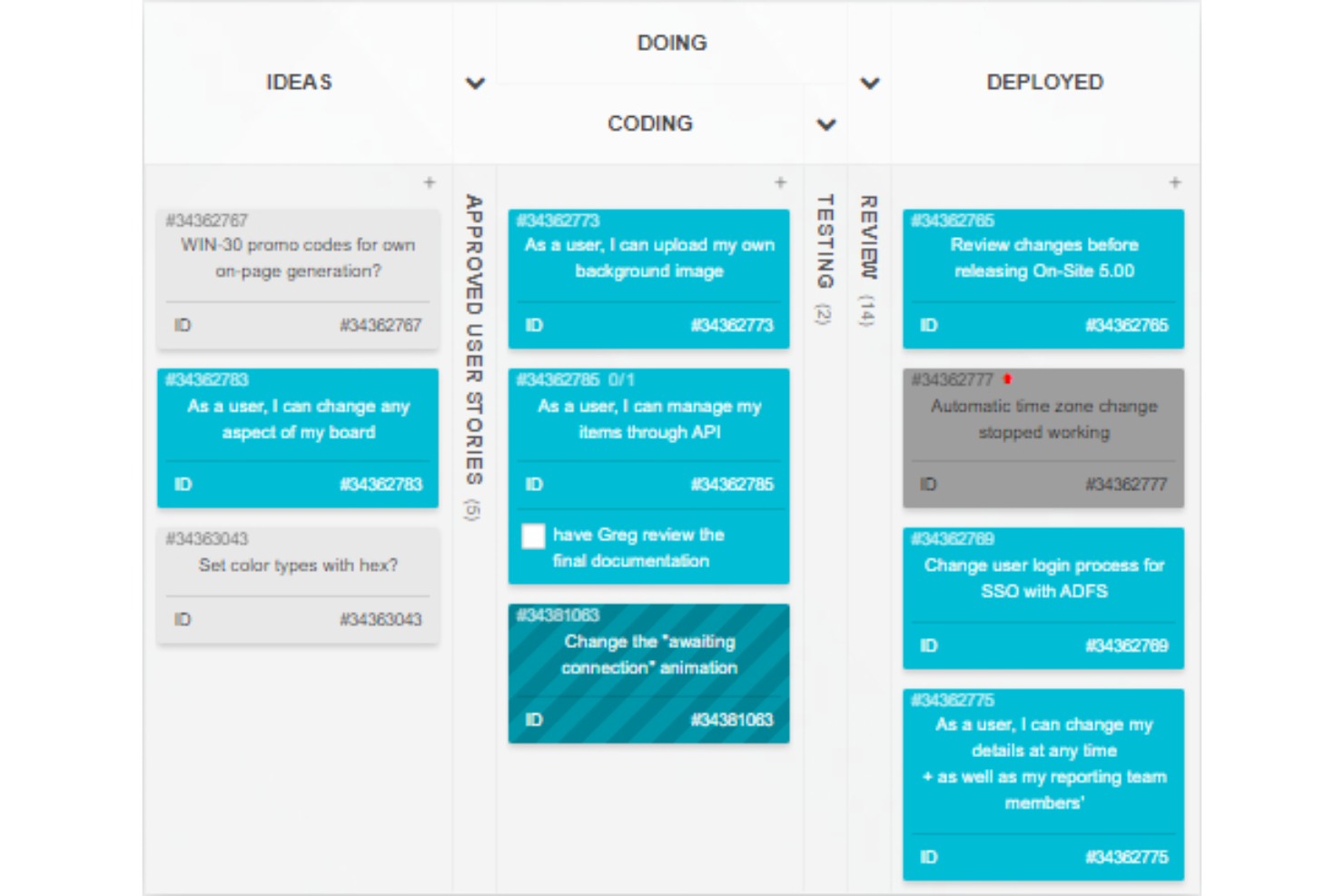
Kanban Tool is een online kanbanbordplatform dat is ontworpen voor taakvisualisatie, workflows op basis van kaarten, tijdregistratie en realtimebeheer van teamactiviteiten.
Voor wie is Kanban Tool het meest geschikt?
Kanban Tool is geschikt voor gedistribueerde teams of kleine bedrijven die behoefte hebben aan visueel projectbeheer en realtime taakupdates.
Waarom ik voor Kanban Tool heb gekozen
Ik heb Kanban Tool gekozen als een van de beste opties, omdat realtime kaartupdates, gezamenlijk reageren en visuele activiteitsindicatoren ervoor zorgen dat iedereen tijdens snel projectwerk op één lijn blijft. Ik gebruik de swimlanes en kleurcodering van kaarten om de voortgang bij te houden.
Belangrijkste functies van Kanban Tool
- Tijdregistratie: Houd de aan taken bestede tijd bij met ingebouwde timers.
- Bestandsbijlagen: Voeg bestanden en documenten rechtstreeks aan kaarten toe.
- Checklists: Voeg meerdere checklists toe aan elke kaart voor gedetailleerde taakstappen.
- Analyses en rapportage: Bekijk cumulatieve stroomdiagrammen en andere visuele projectstatistieken.
Integraties van Kanban Tool
Kanban Tool biedt native integraties met Zapier, Dropbox, Google Drive en Box, en biedt een API voor aangepaste integraties.
Wat is gratis?
Kanban Tool biedt een gratis proefperiode van 14 dagen voor alle functies. Er wordt geen gratis abonnement voor altijd vermeld en alle gebruikers moeten na afloop van de proefperiode een betaald abonnement kiezen.
Pros and Cons
Pros:
- Realtime updates van borden en kaarten
- Ingebouwde tijdregistratie per taak
- Swimlanes voor het beheren van parallelle workflows
Cons:
- Gratis abonnement beperkt tot twee borden
- Geen mobiele app voor iOS of Android

WeKan
Het beste voor aanpassingen met open source
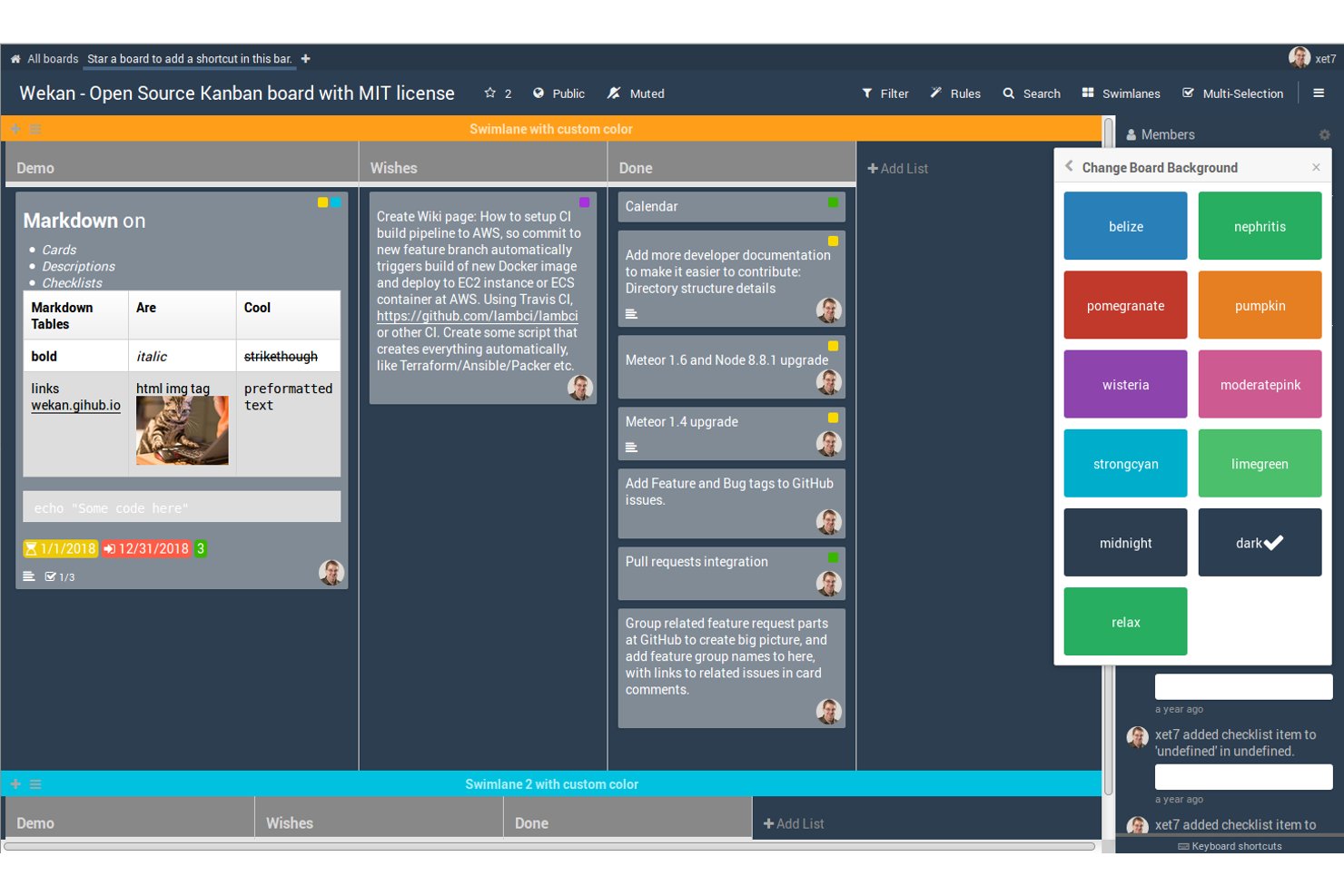
Wekan is een open-source kanbanbordplatform dat gebruikers tools biedt om kaarten en lijsten voor projecten of workflows te maken, te organiseren en te beheren.
Voor wie is Wekan het meest geschikt?
Wekan is geschikt voor teams en ontwikkelaars die op zoek zijn naar een zelfgehoste kanbanoplossing met controle over aanpassingen en implementatie.
Waarom ik voor Wekan heb gekozen
Ik heb Wekan gekozen als een van de beste opties omdat ik mijn kanbanborden volledig kan beheren en aanpassen met behulp van de open-sourcecodebasis. Ik vind het prettig dat ik de gebruikersinterface kan wijzigen, aangepaste functies kan toevoegen en het op mijn eigen infrastructuur kan implementeren. Deze flexibiliteit sluit aan bij unieke projectbehoeften.
Belangrijkste functies van Wekan
- Controlelijsten voor kaarten: Voeg gedetailleerde controlelijsten toe aan kaarten voor subtaken.
- Ondersteuning voor zwembanen: Scheid workflows visueel met behulp van horizontale zwembanen.
- Vervaldatums voor kaarten: Wijs deadlines toe aan afzonderlijke kaarten en houd deze bij.
- Machtigingen voor bordleden: Stel gebruikersrollen in met kijk-, bewerkings- of beheertoegang.
Integraties van Wekan
Native integraties zijn niet duidelijk gedocumenteerd. De tool ondersteunt integraties via de REST API voor aangepaste workflows.
Wat is gratis?
Wekan is volledig gratis en open source voor een onbeperkt aantal gebruikers als je het zelf host. Er zijn geen beperkingen voor functies, gebruikers of gebruiksduur in de open-sourceversie.
Pros and Cons
Pros:
- Zelfgehoste implementatie voor volledige controle over gegevens
- Actieve open-sourcecommunity voor ontwikkelingsondersteuning
- Aangepaste velden en geavanceerde opties voor zwembanen
Cons:
- Minder functies dan toonaangevende SaaS-kanbantools
- Interface-updates verschijnen minder vaak dan bij concurrenten

Taiga
Het meest geschikt voor agile teams die backlogondersteuning nodig hebben
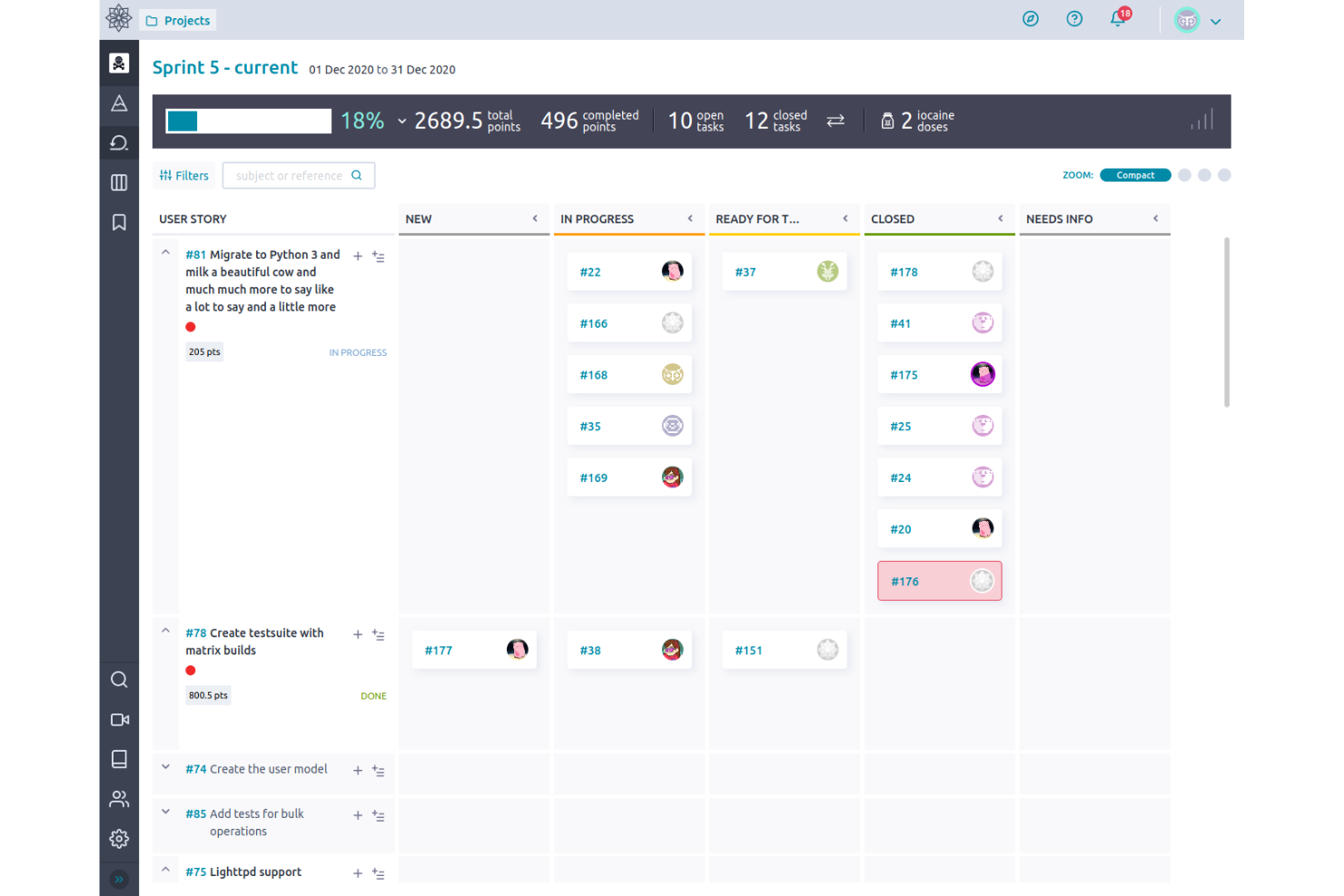
Taiga is een opensourceprojectmanagementtool voor agile teams die kanbanborden, krachtig backlogbeheer, sprintplanning en probleemopvolging combineert in één werkruimte.
Voor wie is Taiga het meest geschikt?
Agile productmanagers en scrummasters bij startups of kleine technologieteams die op zoek zijn naar flexibele kanbanwerkstromen en een overzichtelijke backlogorganisatie.
Waarom ik voor Taiga heb gekozen
Ik heb voor Taiga gekozen omdat ik een kanbantool met krachtig backlogbeheer nodig heb. Ik gebruik gebruikersverhalen, grote thema's en functies voor backlogverfijning om prioriteiten voor agile teams duidelijk te houden. Met de borden en sprints van Taiga is het beheren van zich ontwikkelende productbacklogs eenvoudig.
Belangrijkste functies van Taiga
- Kanban-zwembanen: Organiseer taken in meerdere horizontale banen voor extra structuur op je borden.
- Aangepaste werkstromen: Definieer en automatiseer unieke statusovergangen voor verschillende taaktypen.
- Ondersteuning voor Markdown: Voeg Markdown-opmaak toe aan taakbeschrijvingen, opmerkingen en wikipagina's.
- Ingebouwde wiki: Documenteer projectkennis en deel bronnen rechtstreeks naast je bord.
Integraties van Taiga
Taiga biedt standaardintegraties met GitHub, GitLab, Bitbucket en Slack. Er is een API beschikbaar voor aangepaste integraties.
Wat is gratis?
Taiga biedt een gratis abonnement zonder tijdslimiet met onbeperkte openbare en privéprojecten, maar het gebruik is beperkt tot teams van maximaal 15 leden. Voor sommige geavanceerde functies is mogelijk een betaalde upgrade nodig.
Pros and Cons
Pros:
- Opensource met kanban- en scrumborden
- Ingebouwde wiki en ondersteuning voor Markdown
- Uitgebreide rechten voor projectrollen
Cons:
- Beperkte rapportagemogelijkheden
- Geen ingebouwde kalenderweergave

Bitrix24
Het beste voor alles-in-één CRM- en taakborden
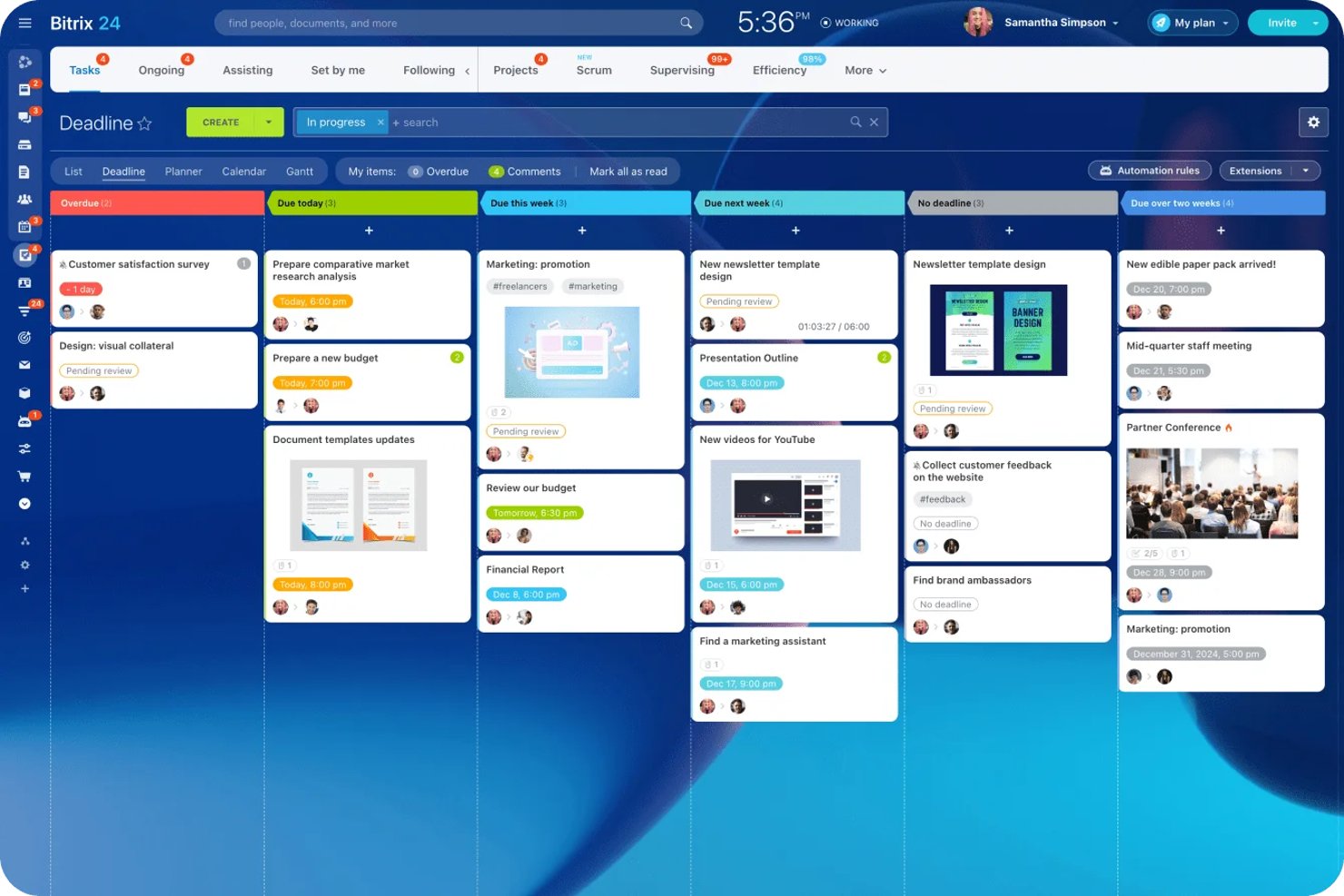
Bitrix24 is een gratis kanbanbordoplossing die taak- en projectbeheer, CRM, chat, videogesprekken, het delen van bestanden, automatisering en meerdere bordweergaven binnen één platform verenigt.
Voor wie is Bitrix24 het meest geschikt?
Bitrix24 is een sterke keuze voor kleine bedrijven en teams die taken, projecten en klantrelaties op één alles-in-éénplatform willen beheren.
Waarom ik voor Bitrix24 heb gekozen
Ik heb Bitrix24 gekozen als een van de beste opties omdat mijn team hiermee projecten, taken, verkoop en klantinteracties op één plek kan beheren. Ik vind het prettig dat we kunnen wisselen tussen kanban-, Gantt- en scrum-borden, afhankelijk van onze workflow. Ingebouwde chat, video en het delen van bestanden maken samenwerking eenvoudig terwijl we taken of deals door aangepaste kanbanfasen verplaatsen.
Belangrijkste functies van Bitrix24
- Integratie met AI CoPilot: Gebruik AI om taakbeschrijvingen te genereren, checklists te maken en updates rechtstreeks in kaarten samen te vatten.
- Project- en taaksjablonen: Sla sjablonen voor veelgebruikte taakstructuren en workflows op en gebruik ze opnieuw op verschillende borden.
- Toegang voor externe samenwerkers: Nodig klanten of freelancers uit voor beveiligde samenwerkingsruimten met aangepaste machtigingen voor specifieke projecten.
- Meerdere bordweergaven: Wissel tussen kanban-, Gantt-, lijst-, planner-, scrum- en kalenderweergaven zonder het platform te verlaten.
Bitrix24-integraties
Bitrix24 biedt standaardintegraties met WhatsApp, Instagram, Facebook, Telegram, Viber, Google Docs, Microsoft Office, Slack, Skype, QuickBooks en Xero. Het ondersteunt marktplaatsintegraties via Bitrix24 Market, maakt verbinding met Zapier en biedt een open API voor aangepaste integraties.
Wat is er gratis?
Bitrix24 biedt een gratis abonnement voor onbeperkte tijd dat onbeperkte gebruikers ondersteunt, maar in vergelijking met betaalde abonnementen beperkte opslagruimte en toegang tot functies heeft. Het gratis abonnement omvat de belangrijkste functies voor taak- en projectbeheer, kanbanborden en CRM, maar geavanceerde tools, automatisering en sommige integraties zijn beperkt.
Pros and Cons
Pros:
- Omvat kanban-, Gantt-, scrum- en kalenderweergaven
- Ingebouwde AI genereert taakinhoud en samenvattingen
- Teamchat en videogesprekken ingebouwd
Cons:
- De interface is rommelig en overweldigend
- De gebruikerslimiet van het gratis abonnement is onduidelijk

Kanboard
Het beste voor zelfgehost visueel taakbeheer
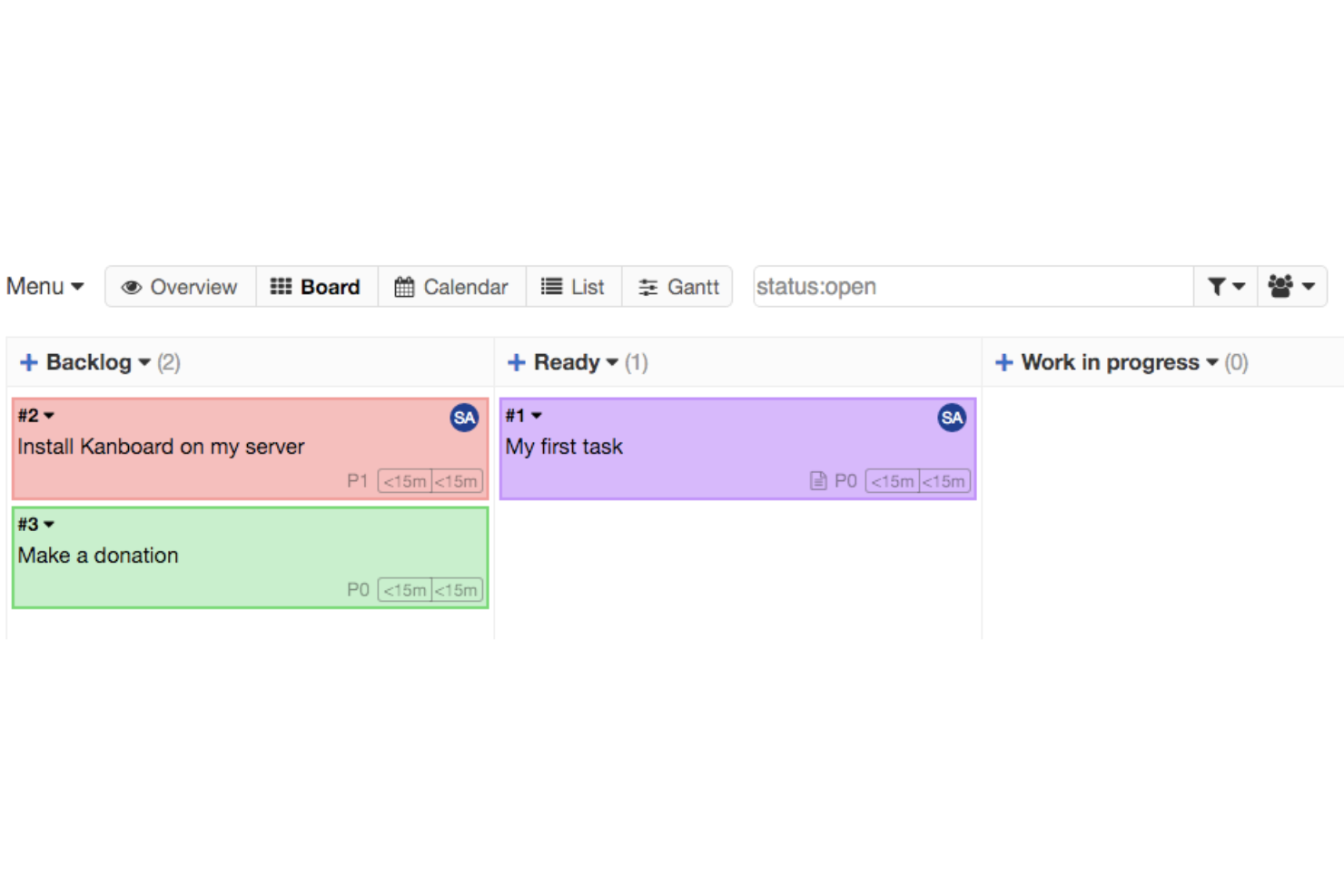
Kanboard is een open-source kanbanbordoplossing gericht op visueel taakbeheer, waarmee je borden kunt maken, workflows kunt aanpassen, processen met integraties kunt automatiseren en projecten volledig op je eigen infrastructuur kunt beheren.
Voor wie is Kanboard het meest geschikt?
Kanboard is zeer geschikt voor IT-teams en technische projectmanagers bij organisaties die volledige controle willen over zelfgehoste, open-source kanbanborden.
Waarom ik voor Kanboard heb gekozen
Ik heb Kanboard gekozen als een van de beste opties omdat ik waardeer dat ik kanbanborden volledig op onze eigen infrastructuur kan implementeren en beheren. Ik vind de uitgebreide aanpassingsmogelijkheden voor workflows, de ingebouwde automatiseringen en de mogelijkheid om open-sourceplug-ins toe te voegen voor specifieke vereisten prettig.
Belangrijkste functies van Kanboard
- Beheer van subtaken: Deel kaarten op in kleinere taken om deze bij te houden.
- Organisatie met werkstroken: Deel borden op in verschillende werkstromen of prioriteiten.
- Gantt-diagramweergave: Visualiseer taken en afhankelijkheden op een tijdlijn.
- Ondersteuning voor Markdown: Maak beschrijvingen en opmerkingen van kaarten op met behulp van de Markdown-syntaxis.
Integraties van Kanboard
Kanboard biedt ingebouwde integraties met LDAP en RSS-feeds en beschikt over een API voor aangepaste integraties.
Wat is gratis?
Kanboard is volledig gratis en open source, zonder gebruikerslimieten. Alle kernfuncties zijn zonder beperkingen beschikbaar voor zelfgehost gebruik.
Pros and Cons
Pros:
- Volledig open source zonder afhankelijkheid van een leverancier
- Zelfgehost met volledige controle over gegevens
- Uitgebreide opties voor workflowautomatisering
Cons:
- Beperkte ingebouwde integraties met externe tools
- De interface voelt verouderd aan in vergelijking met concurrenten
Beste met ingebouwde AI-taakaanbevelingen
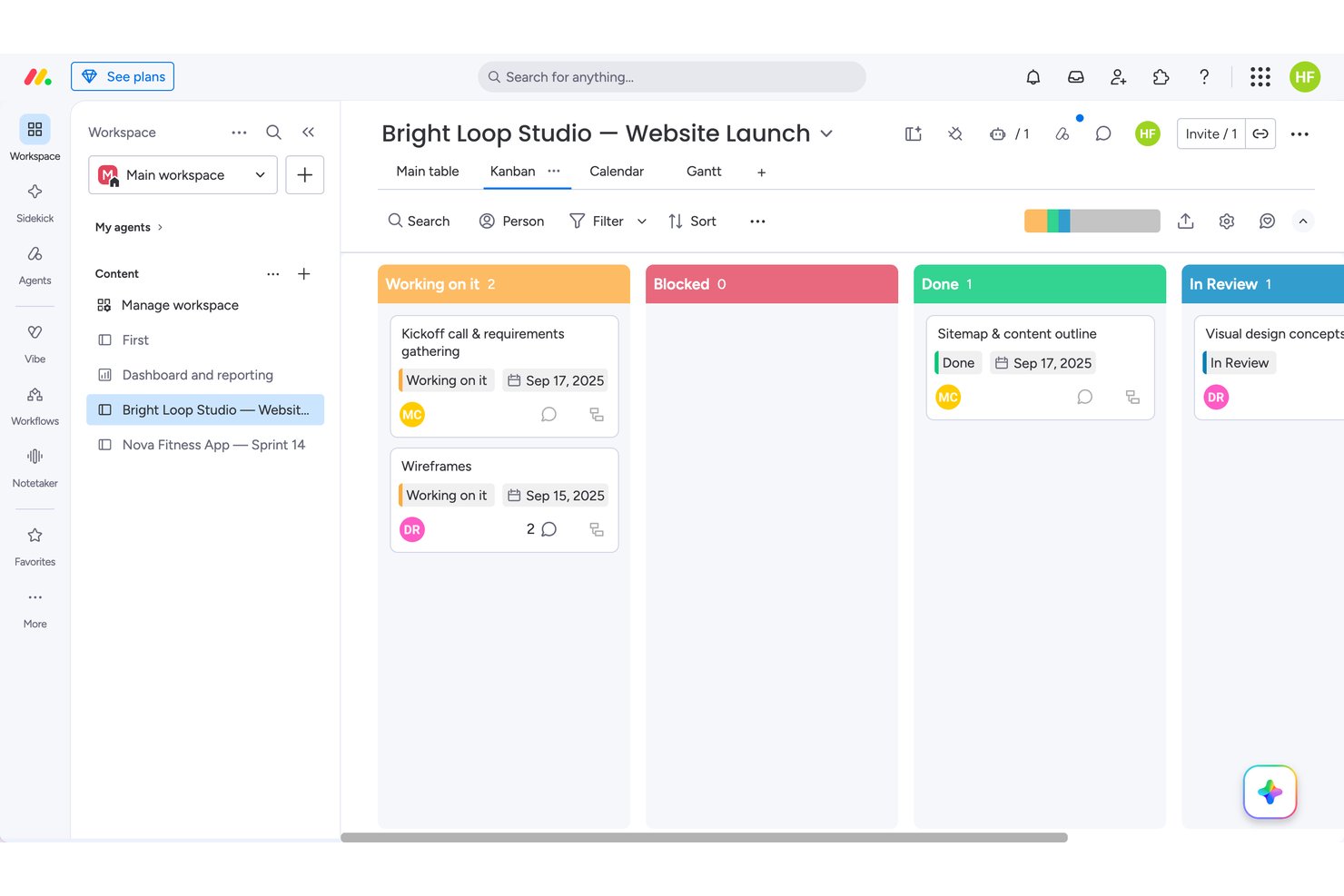
monday.com is geschikt voor individuele gebruikers of teams van twee personen die visuele flexibiliteit belangrijker vinden dan diepgaande samenwerking. Tijdens het testen ontdekte ik dat afhankelijkheidsketens en slepen-en-neerzetten direct werden gesynchroniseerd tussen de Kanban-, Agenda- en Gantt-weergaven, hoewel WIP-limieten overloop niet daadwerkelijk blokkeerden. Daardoor is het sterker voor individuele planners dan voor grotere teams, die tegen de limiet van 2 gebruikers aanlopen die rivalen zoals Trello genereuzer hanteren in hun gratis abonnementen.
Waarom ik monday koos
Ik koos monday omdat de automatiseringsbouwer direct in de workflow acties en meldingen voor de volgende stap voorstelt, wat dichter in de buurt komt van echte AI-ondersteunde taakbegeleiding dan de meeste gratis Kanban-tools proberen te bieden. Toen ik een afhankelijkheidsketen met vier relatietypen opbouwde, gaf de Gantt-weergave automatisch pijlen weer die elke gekoppelde taak verbonden, iets wat ik elders niet zag. Slepen-en-neerzetten tussen Kanban, Agenda en Tabel werd direct gesynchroniseerd, zonder enige vertraging bij het vernieuwen. WIP-limieten kunnen worden geconfigureerd, hoewel ik merkte dat ze overloop niet daadwerkelijk blokkeren wanneer ze worden overschreden.
Belangrijkste functies van monday
- Afhankelijkheden in kaart brengen: Ik koppelde taken met vier relatietypen, waaronder einde-naar-begin en begin-naar-begin, voor echte projectlogica.
- Activiteitenlogboek voor items: Elke veldwijziging die ik aanbracht werd bijgehouden, met een optie om met één klik ongedaan te maken, waardoor fouten eenvoudig konden worden hersteld.
- Automatiseringsrecepten: Ik bouwde een meldingsregel op basis van de status uit een doorzoekbare catalogus, hoewel niet-ingevulde velden stilzwijgend faalden zonder foutmelding.
- Editor voor aangepaste kolommen: Ik hernoemde, wijzigde de kleur en herschikte statuslabels zonder onderliggende bordgegevens opnieuw te structureren.
Integraties van monday.com
monday.com biedt meer dan 850 integraties en apps uit de marktplaats, waaronder Slack, Microsoft Teams, Google Agenda, Google Drive, GitHub en GitLab. De open API en SDK ondersteunen aangepaste integraties, terwijl integratieacties een betaald abonnement vereisen.
Wat is gratis?
monday.com biedt een gratis abonnement voor altijd waarvoor geen creditcard nodig is, met een limiet van 2 gebruikers en 3 borden. Ik testte slepen-en-neerzetten in realtime, Kanban- en activiteitenfuncties—alles werd direct gesynchroniseerd en werkte voor basisplanning, maar teamsamenwerking is beperkt en automatisering is pas beschikbaar bij betaalde abonnementen.
Pros and Cons
Pros:
- Afhankelijkheidsketens werden direct weergegeven in de Gantt-weergave
- Slepen-en-neerzetten werd zonder enige vertraging tussen borden gesynchroniseerd
- Activiteitenlogboek biedt met één klik ongedaan maken van wijzigingen
Cons:
- WIP-limieten blokkeren of markeren overloop niet
- Kaartdetails zijn verspreid over afzonderlijke tabbladen
New Product Updates from monday AI Workspace
monday AI Workspace Adds Human Approval Routing
monday AI Workspace adds a human-in-the-loop approval block to AI Workflows, sending approval requests and routing workflow paths based on responses. For more information, visit monday AI Workspace's official site.

ClickUp
Ideaal voor aanpasbare workflows en indelingen
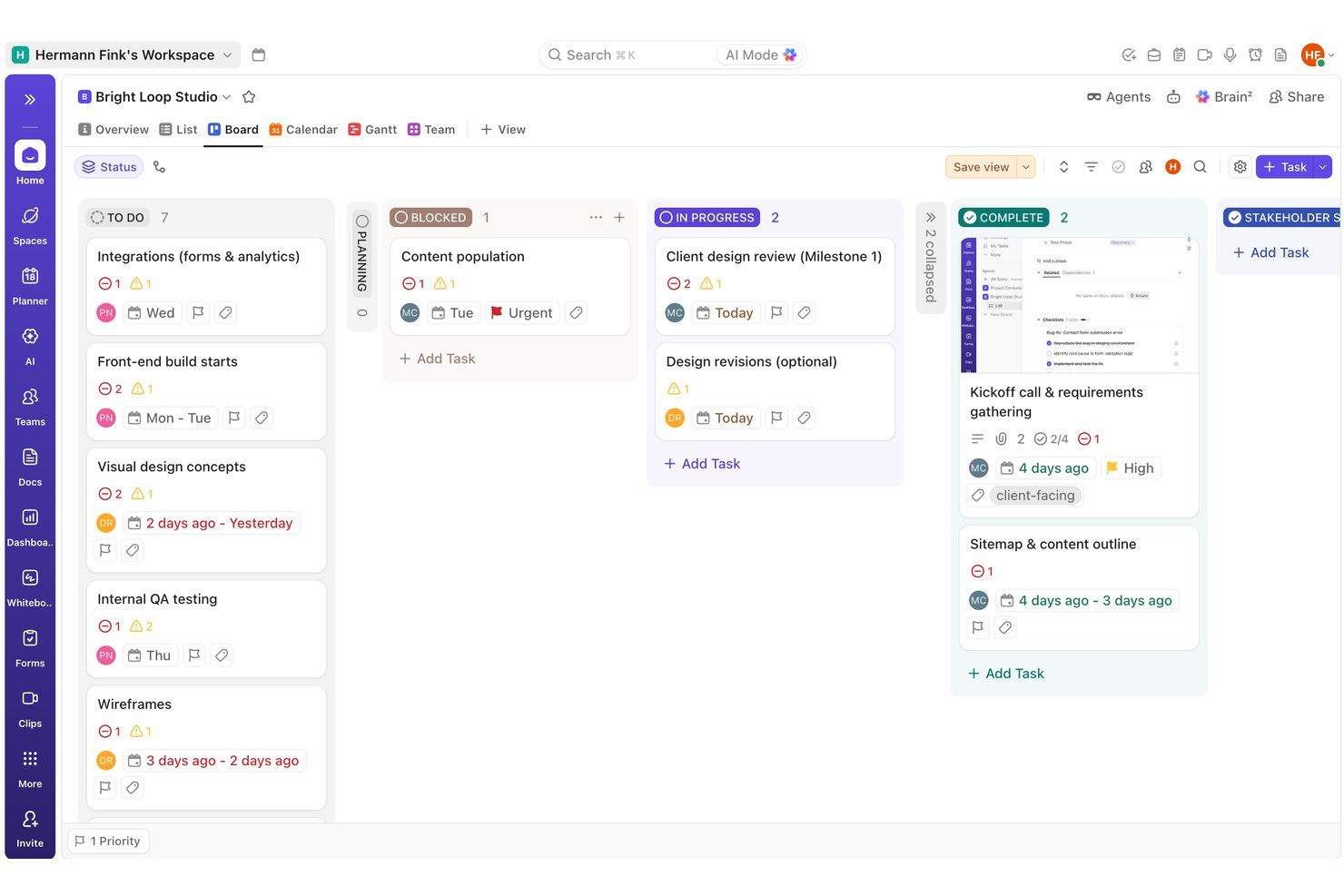
Ik zou ClickUp aanraden aan teams die meerdere workflows combineren en hun borden willen aanpassen op status, toegewezen persoon of prioriteit, in plaats van vast te houden aan één rigide indeling. Tijdens het testen bouwde ik een volledige structuur met taken en afhankelijkheden op en ontdekte ik dat de automatiseringsbouwer meteen bij de eerste poging correct werd uitgevoerd, iets wat het gratis abonnement van Trello niet kan evenaren.
Waarom ik voor ClickUp koos
Ik koos voor ClickUp omdat je hiermee een bord kunt opbouwen rond de structuur die je werk daadwerkelijk nodig heeft. Tijdens het testen stelde ik een afhankelijkheidsketen in met meerdere blokkeringen per taak en zag ik dat de waarschuwingspictogrammen correct werden bijgewerkt in zowel de lijst- als de bordweergave, zonder dat ik hoefde te vernieuwen. Ik bouwde ook een automatiseringsregel die de prioriteit op Urgent zette wanneer een status veranderde in Geblokkeerd, en deze werd correct uitgevoerd bij de eerste echte trigger. Die combinatie van flexibele kolomlogica en betrouwbare regelgebaseerde automatisering is moeilijk te vinden bij andere gratis abonnementen.
Belangrijkste functies van ClickUp
- Taakafhankelijkheden: Ik koppelde meerdere blokkeringen aan één taak en zag dat de waarschuwingspictogrammen correct werden bijgewerkt in zowel de lijst- als de bordweergave.
- Snelle taakaanmaak: Ik maakte in enkele seconden een tiental taken aan met behulp van de rij voor snel toevoegen door te typen en op Enter te drukken, zonder extra klikken.
- Type mijlpaaltaak: Ik markeerde belangrijke datums met het ingebouwde mijlpaaltype met ruitpictogram, dat in elke weergave visueel herkenbaar bleef.
- Commentaarreacties en vermeldingen: Ik testte @mentions, bestandsbijlagen en emoji-reacties op opmerkingen, en alles werkte meteen bij de eerste poging correct.
ClickUp-integraties
ClickUp heeft ingebouwde integraties met Slack, Microsoft Teams, GitHub, GitLab, Bitbucket, Google Drive, Dropbox, Google Calendar, Figma en HubSpot. Het biedt ook een openbare API en Zapier.
Wat is gratis?
ClickUp biedt een gratis abonnement dat altijd beschikbaar blijft, met onbeperkte teamleden, gasten, taken en borden—zonder creditcard vereist. Tijdens mijn eigen tests bouwde ik een volledig bord op met afhankelijkheden, statussen, mijlpalen en automatiseringen, zonder gebruikers- of projectlimieten te bereiken. De grootste beperkingen zijn de beperkte opslagruimte (in totaal slechts 60 MB voor bestandsbijlagen) en een limiet van 60 keer voor aangepaste velden, waarvan ik merkte dat deze uitgebreidere bordindelingen na verloop van tijd kunnen beperken. De meeste functies voor samenwerking en workflows werkten echter zoals verwacht, zonder onderbrekingen door betaalmuren bij basisgebruik.
Pros and Cons
Pros:
- Taken in bulk aanmaken met snel toevoegen door te typen en op Enter te drukken
- Afhankelijkheidsketens tonen duidelijke waarschuwingspictogrammen voor blokkeringen
- Automatiseringsregel werd correct uitgevoerd bij de eerste trigger
Cons:
- Waarden van aangepaste velden werden niet zichtbaar weergegeven in de lijstweergave
- Kon nergens ingebouwde WIP-limietinstellingen vinden
New Product Updates from ClickUp
ClickUp Adds Meetings Hub, Super Agent Templates, and ZoomInfo Integration
ClickUp adds a searchable Meetings Hub, new ways to clone and template Super Agents, and a ZoomInfo integration through the App Center. These updates improve meeting retrieval, agent reuse, and access to sales intelligence. For more information, visit ClickUp’s official site.
Asana
Beste tijdlijnweergave voor taakplanning
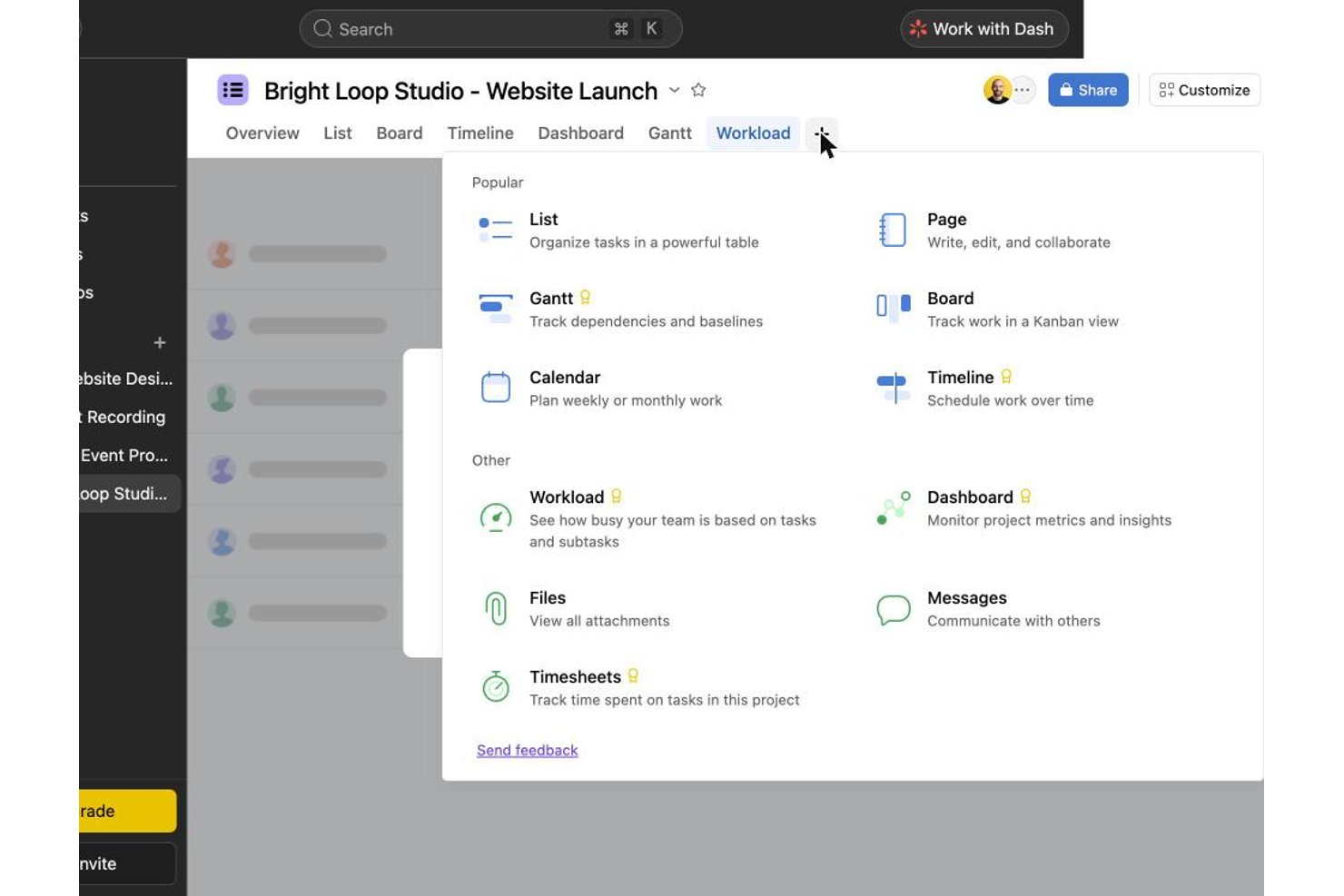
Asana werkt goed voor individuele gebruikers of teams van twee personen die een gepolijste ervaring met taakkaarten willen zonder meerdere tools te hoeven gebruiken. Tijdens het testen voelden het in bulk aanmaken van taken, checklists en tags soepeler aan dan in Trello of ClickUp, hoewel het slepen en neerzetten tussen kolommen bij ongeveer een derde van mijn pogingen mislukte. Asana is geschikter voor individuen dan voor groeiende teams, omdat voor samenwerking met meer dan twee gratis gebruikers een upgrade vereist is.
Waarom ik Asana heb gekozen
Ik koos Asana omdat de tijdlijnweergave daadwerkelijk voldoet voor planning, ook al zijn ingebouwde startdatums en afhankelijkheden op het gratis abonnement achter een betaalmuur verborgen. Toen ik probeerde een afhankelijkheidsketen met 11 koppelingen en twee mijlpalen in kaart te brengen, moest ik datumbereiken en notities over afhankelijkheden in taakbeschrijvingen schrijven, omdat die velden niet konden worden ontgrendeld. Die omweg leverde nog steeds een bruikbaar, overzichtelijk projectplan op, wat mij vertelt dat de onderliggende structuur voor tijdlijnplanning solide is zodra je een upgrade uitvoert. Het onmiddellijk schakelen tussen Bord en Lijst, waarbij dezelfde gegevens intact blijven, bezorgt Asana hier zijn plek.
Belangrijkste functies van Asana
- Checklists voor subtaken: Door taken op te splitsen in subtaken kreeg ik een voortgangsteller en een kleine feestelijke animatie toen ik het laatste item afvinkte.
- Activiteitenlogboek: Elke veldwijziging die ik aanbracht kreeg een tijdstempel en werd aan een gebruiker toegewezen, waardoor het eenvoudig was na te gaan wie wat had bewerkt.
- Aanpassing van bordkolommen: Ik voegde kolommen toe, hernoemde ze en wijzigde hun volgorde om deze aan een workflow aan te passen, hoewel een poging om de volgorde te wijzigen niet bij de eerste poging werd geregistreerd.
- Reacties op opmerkingen en @-vermeldingen: Het taggen van teamgenoten en reageren op opmerkingen werkte soepel, hoewel het rechtstreeks toevoegen van bestanden binnen een opmerking nooit zichtbaar werd voltooid.
Asana-integraties
Asana biedt meer dan 200 integraties, waaronder Slack, Google Drive, Zoom, Microsoft Teams, Jira Cloud, Dropbox, Box, HubSpot, Salesforce en Power BI. Het biedt ook een open REST API voor aangepaste integraties.
Wat is gratis?
Asana biedt een gratis Persoonlijk abonnement dat onbeperkt beschikbaar blijft, met onbeperkte borden, taken en opslag, maar je bent beperkt tot twee gebruikers en hebt geen toegang tot Tijdlijn, aangepaste velden of automatiseringen. Hoewel ik zonder problemen borden kon instellen, in bulk taken kon aanmaken, kon schakelen tussen de weergaven Bord, Lijst en Kalender en details zoals checklists en tags kon beheren, blokkeerde de betaalmuur startdatums, afhankelijkheden en de meeste geavanceerde functies — dus voor alles boven basis-kanban was ik aangewezen op omwegen.
Pros and Cons
Pros:
- Subtaken met checklists tonen bevredigende voortgangsanimaties
- Het activiteitenlogboek voorziet elke veldwijziging nauwkeurig van een tijdstempel
- Lijst-, bord- en kalenderweergaven worden direct gesynchroniseerd
Cons:
- Slepen en neerzetten mislukte bij ongeveer een derde van de pogingen
- Het gratis abonnement beperkt samenwerking tot twee gebruikers
Wrike
Het beste voor borden met meerdere weergaven in een gratis abonnement
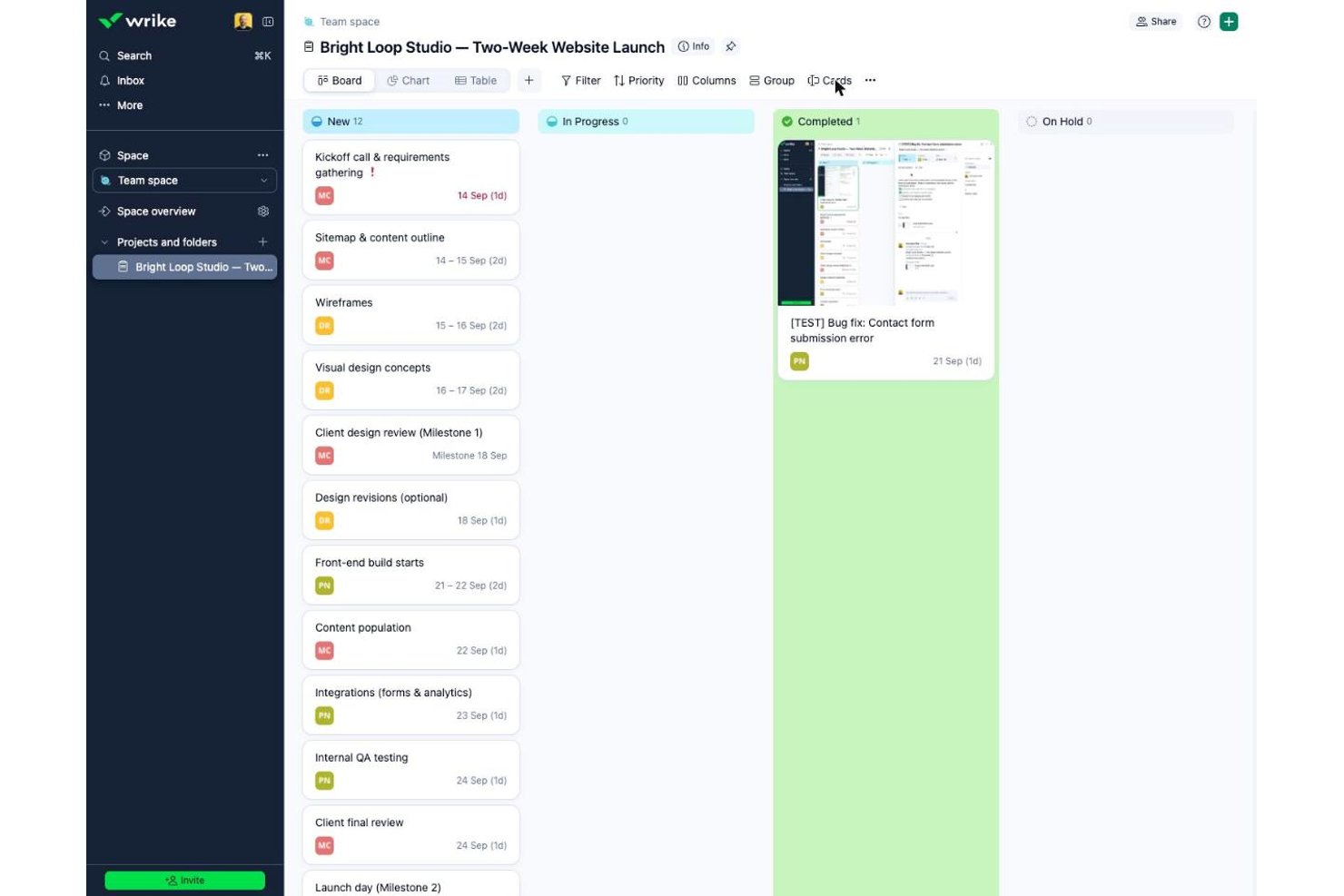
Wrike is geschikt voor kleine teams die onbeperkt gratis gebruikers nodig hebben voor taakintensieve coördinatie, in tegenstelling tot Asana of monday.com, die het aantal gratis gebruikers beperken. Tijdens het testen voelden het in grote aantallen aanmaken van taken en de samenwerking op kaartniveau snel en verfijnd aan, hoewel ik nergens in de gratis interface WIP-limieten of aanpassing van kolommen kon vinden.
Waarom ik voor Wrike koos
Wrike verdient zijn plek vanwege de manier waarop het meerdere weergaven in één gratis abonnement ondersteunt, zodat je tussen Bord en Tabel kunt schakelen zonder gegevens te verliezen. Door borden zo in te stellen dat ze projecten in plaats van taken tonen, kreeg ik inzicht op portfolioniveau dat de meeste gratis kanban-tools pas in betaalde abonnementen bieden. Het in grote aantallen aanmaken van taken in de Tabelweergave voelde sneller dan rechtstreeks in kolommen typen, en een taak omzetten naar een mijlpaal kostte één klik. Ik liep wel tegen beperkingen aan toen ik kolommen probeerde toe te voegen of te hernoemen, en ik vond geen ingebouwd veld voor afhankelijkheden, ondanks dat er op de achtergrond wel zwevende velden bestaan.
Belangrijkste functies van Wrike
- Invoer van grote aantallen in tabellen: Ik maakte in enkele minuten een dozijn taken aan door namen rechtstreeks in de Tabelweergave te typen en op Enter te drukken.
- Mijlpalen met één klik: Een taak omzetten naar een mijlpaal wijzigde het datumveld direct, zonder extra configuratie.
- Checklist-subitems: Door checklistitems aan een kaart toe te voegen, kreeg ik direct feedback met selectievakjes voor het bijhouden van kleine opleveringen.
- Op vermeldingen afgestemde opmerkingen: Bij het plaatsen van een opmerking op een kaart kreeg ik een herinnering wanneer ik vergat een teamgenoot te vermelden met @, zodat updates zichtbaar blijven.
Wrike-integraties
Wrike vermeldt ongeveer 60 integraties, waaronder Google Workspace, Microsoft 365, Slack, Jira, GitHub, Miro en Google Sheets. Het gratis abonnement bevat een open RESTful API en geselecteerde productiviteitsintegraties voor aangepaste verbindingen.
Wat is gratis?
Wrike biedt een gratis abonnement dat altijd beschikbaar blijft en onbeperkt veel gebruikers ondersteunt, zodat iedereen zonder kosten aan je werkruimte kan deelnemen. Je krijgt Bord- en Tabelweergaven, toegewezen personen, bestandsbijlagen, subtaken en een mappenhiërarchie, maar ik kon geen kolommen toevoegen of aanpassen en geen workflowregels instellen zonder tegen een betaalmuur aan te lopen. Het abonnement beperkt de opslag tot 2 GB per account en bevat geen automatisering, aangepaste velden of dashboards. Ik vond het invoeren van taken en de basisfuncties voor samenwerking soepel werken, maar belangrijke kanbanfuncties zoals WIP-limieten en aanpassing van workflows zijn niet inbegrepen.
Pros and Cons
Pros:
- Taken in grote aantallen invoeren in de Tabelweergave ging zeer snel
- Taken omzetten naar mijlpalen kostte één klik
- Herinneringen bij opmerkingen voorkomen dat vermeldingen van teamgenoten worden vergeten
Cons:
- Geen zichtbare manier om taakafhankelijkheden te koppelen
- De Esc-toets verwijderde selecties van toegewezen personen stilzwijgend
New Product Updates from Wrike

Wrike Redesigns AI Agent Builder
Wrike redesigns its AI Agent Builder with a side-by-side setup, Scopes, sentence-style triggers and actions, and clearer filters. These changes make it easier to configure, test, and manage agent behavior. For more information, visit Wrike’s official site.

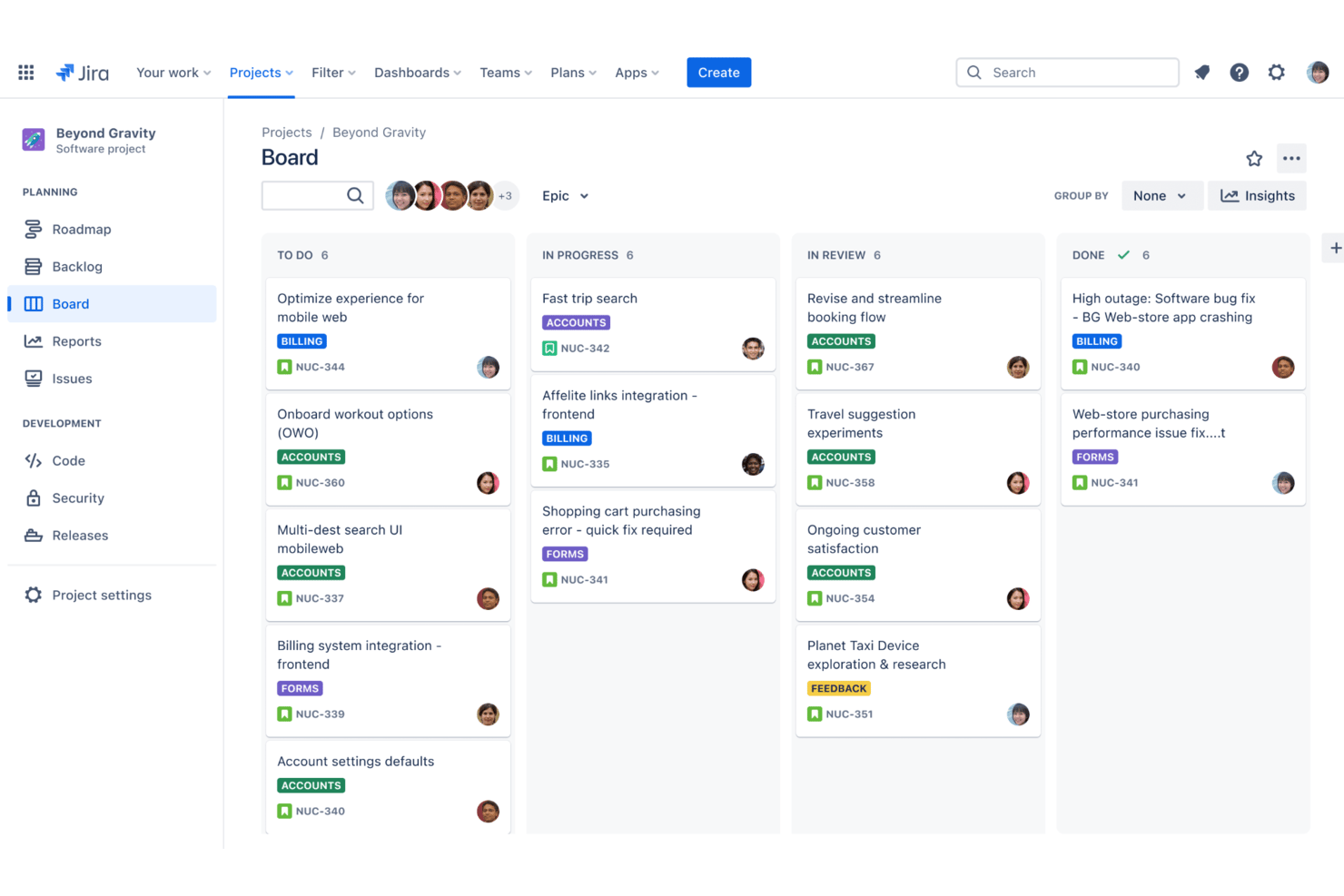
Jira is een platform voor project- en issuebeheer voor teams die behoefte hebben aan gedetailleerde kanbanborden, geavanceerde agile werkstromen, aangepaste velden, gedetailleerde machtigingen en tools voor sprintplanning.
Voor wie is Jira het meest geschikt?
Jira is zeer geschikt voor softwareontwikkelingsteams bij startups en ondernemingen die behoefte hebben aan gestructureerde projecttracking met agile methodologieën.
Waarom ik Jira heb gekozen
Ik heb Jira gekozen als een van de beste opties omdat ik zeer gedetailleerde kanbanborden kan maken en deze kan combineren met geavanceerde agile tools zoals aangepaste werkstromen, epics en sprintautomatisering. Het volgen van gebruikersverhalen en opleveringen op meerdere niveaus verloopt naadloos voor mijn team.
Belangrijkste functies van Jira
- Backlogbeheer: Prioriteer, organiseer en plan taken in een speciale backlogweergave.
- Ondersteuning voor zwembanen: Groepeer kaarten op toegewezen persoon, gebruikersverhaal of andere aangepaste velden.
- Bulkbewerking van issues: Werk meerdere taken tegelijk bij vanaf het bord of de backlog.
- Geavanceerde machtigingscontroles: Stel gedetailleerde toegangs- en actierechten in per team, rol of project.
Jira-integraties
Jira biedt native integraties met Confluence, Bitbucket, Trello, Slack, GitHub, GitLab, Microsoft Teams, Dropbox, Google Drive en Salesforce. Er is een API beschikbaar voor aangepaste integraties.
Wat is gratis?
Jira biedt een gratis abonnement voor maximaal 10 gebruikers dat onbeperkt beschikbaar blijft. Sommige geavanceerde functies, machtigingen en ondersteuningsopties zijn alleen beschikbaar bij betaalde abonnementen.
Pros and Cons
Pros:
- Volledig configureerbare kanbanwerkstromen
- Geavanceerde issueautomatisering en activeringen
- Gedetailleerde machtigingsinstellingen voor borden
Cons:
- Kanbansjablonen moeten handmatig worden ingeschakeld
- Beperkte rapportage in het gratis abonnement
Andere gratis Kanban-borden
Hier zijn enkele aanvullende gratis Kanban-bordopties die mijn shortlist niet hebben gehaald, maar die toch de moeite waard zijn om te bekijken:
- Miro
Het beste voor Kanban op een oneindig visueel canvas
- Teamhood
Het beste voor tijdlijn- en afhankelijkheidsweergaven
- Freedcamp
E voor borden met een onbeperkt aantal gebruikers in een gratis abonnement
- Nifty
E voor het beheren van sprints met een onbeperkt aantal leden
- Plaky
Ideaal voor onbeperkt veel gratis gebruikers op een kanbanbord


Hoe ik gratis Kanbanborden beoordeel
Ik deel mijn beoordeling op in basiscriteria—een echte bordweergave, een daadwerkelijk gratis abonnement en kaarten met slepen-en-neerzetten—en onderscheidende factoren zoals automatisering, limieten van het gratis abonnement en de diepgang van integraties.
Kernfunctionaliteit (basisvereisten voor deze lijst)
Bij het selecteren van tools voor mijn lijst geef ik elke tool voor elke hieronder genoemde kernfunctionaliteit een beoordeling op een schaal van 0 (biedt de functionaliteit niet) tot 5 (blink uit op dit gebied). Vervolgens zet ik de totaalscore van de tool om in een percentage. Elke tool moet een minimale totaalscore van 65% behalen om in aanmerking te komen voor opname.
- Kanbanbordweergave: Ik controleer of de tool een echt visueel bord met aanpasbare kolommen biedt—zoals een sprintbord met de fasen Werkvoorraad, In uitvoering, Beoordeling en Klaar—in plaats van alleen een takenlijst.
- Echt gratis abonnement: Het gratis niveau van elke tool moet doorlopend gebruik van de belangrijkste Kanbanfuncties zonder tijdslimiet ondersteunen. Daarom kijk ik nauwkeurig of het om een echt gratis abonnement of om een vermomde proefperiode gaat.
- Beheer van taken en kaarten: Kaarten moeten belangrijke gegevens ondersteunen, zoals toegewezen personen, vervaldatums, labels en beschrijvingen. Ik beoordeel of je een echte werklast kunt beheren—zoals het bijhouden van bugfixes met checklists en bestandsbijlagen—rechtstreeks vanuit de kaart.
- Verplaatsen met slepen en neerzetten: Een kaart van de ene kolom naar de volgende verplaatsen moet direct en responsief aanvoelen. Ik let op soepele realtime-updates wanneer kaarten tijdens dagelijkse bijeenkomsten of het opschonen van de werkvoorraad tussen fasen worden gesleept.
- Samenwerking met meerdere gebruikers: Met het gratis abonnement moet je team borden kunnen delen, taken kunnen toewijzen en opmerkingen kunnen plaatsen. Ik beoordeel hoeveel samenwerkers worden ondersteund en of functies zoals vermeldingen en activiteitenlogboeken zijn inbegrepen.
- Aanpassing van workflows: Ik let op de mogelijkheid om kolommen toe te voegen, te hernoemen en opnieuw te ordenen zodat ze aansluiten bij het daadwerkelijke proces van je team—plus WIP-limieten om het aantal kaarten per kolom te beperken, wat centraal staat in de manier waarop Kanban hoort te werken.
Zodra ik een lijst heb met tools die aan deze criteria voldoen, kijk ik wat elk platform onderscheidt.
Onderscheidende factoren (wat aanbieders van elkaar onderscheidt)
Zo vergelijk ik verschillende aanbieders met elkaar:
Opvallende functies
Automatisering is een belangrijke onderscheidende factor. Ik zoek naar tools waarmee je regels kunt maken—zoals een kaart automatisch naar Beoordeling verplaatsen wanneer een checklist is voltooid—zodat je bord tijdens sprintcycli actueel blijft zonder handmatige updates. Rapportage is ook belangrijk: grafieken van cyclustijden en cumulatieve-stroomdiagrammen helpen agile teams om knelpunten vroegtijdig te signaleren. Naast het bord zelf beoordeel ik of een tool alternatieve weergaven biedt, zoals kalenders of tijdlijnen voor de planning van de productroutekaart.
Meer dan functies
De royaalheid van het gratis abonnement is het eerste wat ik beoordeel—hoeveel gebruikers, borden en kaarten een tool toestaat voordat je naar een betaald niveau wordt geduwd, bepaalt of de tool geschikt is voor een startup met vijf personen of alleen voor één gebruiker. Ik kijk ook naar het upgradepad, want een team dat het gratis abonnement ontgroeit, zou niet naar een volledig nieuw platform hoeven te migreren. De breedte van de integraties is eveneens belangrijk: ik controleer of het gratis niveau verbinding kan maken met tools zoals GitHub, Slack of Google Drive, omdat een Kanbanbord dat buiten je technologiestack staat meer wrijving veroorzaakt dan het oplost.
Een gratis Kanban-bord kiezen
Het is gemakkelijk om te verdwalen in lange functielijsten en complexe prijsstructuren. Om je te helpen gefocust te blijven terwijl je je unieke softwareselectieproces doorloopt, vind je hier een controlelijst met factoren om rekening mee te houden:
| Factor | Waar je rekening mee moet houden |
|---|---|
| Schaalbaarheid | Kan je team meer gebruikers en borden toevoegen naarmate projecten groeien, of zijn er limieten die je op het gratis abonnement al snel bereikt? |
| Integraties | Kan het gratis Kanban-bord verbinding maken met je essentiële hulpmiddelen, zoals Slack, Google Workspace of bestandsopslag, of zijn integraties alleen beschikbaar tegen betaling? |
| Aanpasbaarheid | Kun je kolommen, werkprocessen of labels aanpassen aan de processen van je team zonder te upgraden? |
| Gebruiksgemak | Neemt je team het platform gemakkelijk in gebruik, of besteed je te veel tijd aan het uitleggen van basishandelingen en instellingen? |
| Implementatie en onboarding | Zijn er inwerkgidsen, sjablonen of hulpmiddelen voor gegevensimport beschikbaar om je team snel op weg te helpen? |
| Kosten | Zijn er verborgen betaalmuren die belangrijke handelingen blokkeren, of opslag- en gebruikerslimieten die je zonder te betalen al snel ontgroeit? |
| Beveiligingsmaatregelen | Biedt het platform tweefactorauthenticatie, regelmatige back-ups en duidelijke controles voor gebruikersrechten, zelfs bij gratis abonnementen? |
| Beschikbaarheid van ondersteuning | Als je problemen ondervindt, is er dan ondersteuning inbegrepen bij het gratis abonnement, zoals chat, documentatie of communityforums? |
Wat is een gratis Kanban-bord?
Gratis Kanban-borden zijn digitale hulpmiddelen waarmee je taken kunt organiseren op verplaatsbare kaarten binnen kolommen. Zo kun je werk eenvoudig volgen en de voortgang visualiseren zonder kosten. Deze platforms bieden basisfuncties voor projectbeheer, zoals taaktoewijzing, werkprocessen met slepen en neerzetten en eenvoudige samenwerking, zodat teams georganiseerd blijven, prioriteiten kunnen beheren en transparantie kunnen bevorderen—allemaal zonder licentiekosten.
Functies van gratis Kanban-borden
Laten we de functies doornemen die vaak in een kanbanbord te vinden zijn en welke daarvan doorgaans in gratis versus betaalde abonnementen zijn inbegrepen.
Functies van kanbanborden die doorgaans gratis zijn
- Taakkaarten verslepen: Verplaats kaarten tussen kolommen om de status, volgorde of eigenaar van een taak bij te werken, zodat teams de voortgang snel visueel kunnen zien.
- Eenvoudige borden aanmaken: Stel borden in voor verschillende projecten, klanten of werkstromen, zodat je werkruimten naar behoefte kunt organiseren en scheiden.
- Aangepaste kolommen: Definieer procesfasen zoals Te doen, In uitvoering en Gereed om aan te sluiten op de workflow van je team en te zorgen voor een gedeeld begrip.
- Taakdetails: Voeg beschrijvingen, checklists, begin- en vervaldatums en eenvoudige opmerkingen toe aan afzonderlijke kaarten, zodat belangrijke taakinformatie op één plek staat.
- Gebruikers toewijzen: Wijs kaarten toe aan specifieke personen voor meer verantwoordelijkheid en inzicht in wie aan elke taak werkt.
- Eenvoudige samenwerking: Noem teamgenoten in opmerkingen, label taken en deel borden, zodat het eenvoudiger wordt om samen te werken en werk in de juiste context te bespreken.
- Activiteiten bijhouden: Bekijk een tijdlijn met wijzigingen, verplaatsingen en updates op elke kaart, zodat je weet wat er is gebeurd en wanneer.
- Eenvoudige bestandsbijlagen: Upload documenten, afbeeldingen of links naar taakkaarten ter referentie, zodat teamleden alles wat ze nodig hebben bij de hand hebben.
- Machtigingen op bordniveau: Geef toegang om borden te bekijken of te bewerken, zodat teams samenwerkingspartners kunnen uitnodigen en tegelijkertijd kunnen beperken wie wijzigingen mag aanbrengen.
Functies van kanbanborden die doorgaans betaald zijn
- Geavanceerde automatiseringsregels: Gebruik triggers en acties om repetitieve workflows te automatiseren, zoals het verplaatsen van kaarten op vervaldatums of het toewijzen van taken wanneer kolommen veranderen.
- Gantt- of tijdlijnweergaven: Visualiseer taken op tijdlijnen voor betere planning, toewijzing van middelen en beheer van afhankelijkheden, naast het standaardkanbanbord.
- Tijdregistratie en rapportage: Registreer uren, genereer urenstaten of productiviteitsrapporten en analyseer teamprestaties voor projectinzichten en facturatie.
- Onbeperkte borden en opslag: Verwijder limieten voor het aantal borden, gebruikers of bestandsuploads, zodat grotere en complexere projecten worden ondersteund.
- Aangepaste velden en kaartsjablonen: Voeg gestructureerde gegevensvelden of herbruikbare taaksjablonen toe en pas borden aan specifieke project- of bedrijfsbehoeften aan.
- Machtigingen op basis van rollen: Stel gedetailleerde toegang en acties per gebruikersrol in om gevoelige projectinformatie te beschermen en te bepalen wie instellingen mag bewerken of beheren.
- Integratie met apps van derden: Verbind borden met tools zoals Slack, Google Drive of CRM-systemen voor betere platformonafhankelijke workflows en meldingen.
- Prioriteitsondersteuning: Krijg toegang tot snellere, persoonlijkere ondersteuningskanalen zoals telefoon, livechat of speciale accountmanagers.
- Voorwaardelijke opmaak of filters: Markeer of filter kaarten op basis van specifieke criteria (bijv. achterstallige taken, toegewezen gebruikers) om prioritering en focus te verbeteren.
- Geavanceerde analyses en dashboards: Krijg diepere inzichten en visualisaties in knelpunten in workflows, doorlooptijden en productiviteitstrends.
Voordelen van een gratis kanbanbord
Het implementeren van een gratis kanbanbord biedt verschillende voordelen voor je team en je bedrijf. Hier zijn enkele voordelen waar je naar kunt uitkijken:
- Geen softwarekosten: Elimineer licentiekosten, zodat teams van elke omvang werk kunnen organiseren en bijhouden zonder zich zorgen te maken over het budget.
- Visuele duidelijkheid van workflows: Help iedereen de taakstatus en projectvoortgang te zien dankzij aanpasbare kolommen en borden waarop je kaarten kunt verslepen.
- Eenvoudige samenwerking: Stel teams in staat taken toe te wijzen, opmerkingen te plaatsen en borden te delen, zodat iedereen op één lijn blijft.
- Snellere introductie: Zorg dat nieuwe gebruikers snel aan de slag kunnen met sjablonen, productrondleidingen en een eenvoudige configuratie van borden, zonder kosten.
- Overal toegankelijk: Gebruik cloudgebaseerde platforms om borden en taken overal bij te werken, waardoor de coördinatie van externe en hybride teams eenvoudiger wordt.
- Flexibel opschalen: Voeg projecten en nieuwe gebruikers toe binnen de limieten van het gratis abonnement naarmate je behoeften groeien, zonder ingewikkelde upgrades of contracten.
- Verbeterde verantwoordelijkheid: Wijs taken toe en houd de activiteitengeschiedenis bij, zodat je altijd weet wie verantwoordelijk is en wat er is veranderd.
Kosten en prijzen van een kanbanbord
Ik begrijp dat je naar dit artikel bent gekomen op zoek naar de beste kanbanbordopties die gratis beschikbaar zijn. Omdat gratis abonnementen echter slechts beperkte functies bieden, is de kans groot dat je je abonnement in de toekomst moet upgraden.
Onderstaande tabel geeft een overzicht van veelgebruikte abonnementen, hun gemiddelde prijzen en de typische functies die in een kanbanbord zijn inbegrepen:
Tabel met vergelijking van abonnementen voor kanbanbord
| Abonnementstype | Gemiddelde prijs | Veelvoorkomende functies |
|---|---|---|
| Gratis abonnement | $0 | Basisaanmaak van borden, taakkaarten, toewijzing aan gebruikers, basisbijlagen, essentiële samenwerkingstools en beperkte opslagruimte. |
| Persoonlijk abonnement | $5-$10/gebruiker/maand | Onbeperkte borden, basisautomatisering, meer opslagruimte, prioriteitsondersteuning en aangepaste achtergronden. |
| Zakelijk abonnement | $10-$25/gebruiker/maand | Geavanceerde automatisering, integratie met toepassingen van derden, teammachtigingen, rapportage en uitgebreide ondersteuning. |
| Bedrijfsabonnement | $25-$40/gebruiker/maand | SSO/SAML-beveiliging, op rollen gebaseerde machtigingen, auditlogboeken, geavanceerde analyses en ondersteuning op ondernemingsniveau. |
Veelgestelde vragen over gratis kanbanborden
Hier vindt u antwoorden op enkele veelgestelde vragen over gratis kanbanborden:
Zijn gratis kanbanborden veilig voor zakelijk gebruik?
Ja, de meeste gratis kanbanborden gebruiken versleuteling en basisbeveiligingsprotocollen, maar functies zoals SSO of geavanceerde machtigingen zijn mogelijk beperkt tot betaalde abonnementen. Bekijk altijd het beleid van elke tool voordat u gevoelige informatie deelt.
Kan ik een gratis kanbanbordabonnement upgraden als mijn behoeften toenemen?
Ja, de meeste aanbieders bieden betaalde abonnementen waarmee meer gebruikers, integraties en geavanceerde functies beschikbaar komen. Upgraden is meestal eenvoudig en stelt u in staat uw bestaande borden en gegevens te behouden.
Hebben gratis kanbanborden beperkingen voor gebruikers of opslagruimte?
Ja, gratis abonnementen bevatten vaak beperkingen voor het aantal gebruikers, borden, bestandsbijlagen of de beschikbare opslagruimte. Als u tegen deze limieten aanloopt, moet u meestal upgraden naar een betaald abonnement.
Welke integraties zijn doorgaans beschikbaar in gratis kanbanborden?
De meeste gratis kanbanborden bieden basisintegraties met veelgebruikte tools zoals e-mail-, agenda- of chatapps. Geavanceerdere integraties met CRM-systemen of automatiseringstools zijn doorgaans voorbehouden aan betaalde abonnementen.
Kan ik externe samenwerkingspartners of klanten uitnodigen voor een gratis kanbanbord?
Ja, bij veel gratis kanbanborden kunnen beperkt gasten of externe gebruikers worden uitgenodigd, maar de toegangsrechten kunnen basaal zijn. Controleer de toegangsbeheerinstellingen voordat u gevoelige informatie of klantgegevens deelt.