

10 beste programvarer for dokumentautomatisering vurdert i 2026

Beste programvare for dokumentautomatisering – kortliste


Å lede et prosjekt betyr å holde styr på utallige dokumenter, og du er sannsynligvis lei av å håndtere repetitive oppgaver og manuell dataregistrering. Det er her programvare for dokumentautomatisering kommer inn.
Etter min erfaring sparer disse verktøyene deg for tid, reduserer feil og hjelper teamet ditt med å fokusere på det som virkelig betyr noe. Jeg har testet og vurdert ulike programvarealternativer for å finne de beste for deg.
I denne artikkelen deler jeg mine objektive vurderinger av de beste løsningene for dokumentautomatisering. Du får vite mer om styrkene og svakhetene deres, samt hva som gjør hver enkelt unik.
Why Trust Our Software Recommendations
Our team has been testing and reviewing software since 2012. As project managers ourselves, we know how difficult—and important—it is to choose the right software.
For this guide, we evaluated tools using hands-on testing and independent research, scoring tools using our selection criteria. We also draw on insights from industry thought leaders and practicing project management experts.
Our reviews reflect our human editorial judgment, not a sales pitch.
Expert reviewers:
Sammenligningstabell for programvare for dokumentautomatisering
Denne sammenligningstabellen oppsummerer prisdetaljene for mine beste utvalgte programmer for dokumentautomatisering:
| Tool | Best For | Trial Info | Price | ||
|---|---|---|---|---|---|
| 1 | Best for end-to-end document automation | Free demo available | From $399/month (billed annually) | Website | |
| 2 | Best for non-complex workflows | Free demo available | Pricing upon request | Website | |
| 3 | Best for multilingual document workflows | Free demo available | Pricing upon request | Website | |
| 4 | Best for OCR capabilities | Free trial available + free demo | Pricing upon request | Website | |
| 5 | Best for app integrations | 14-day free trial and free plan available | From $19.99/month (billed annually) | Website | |
| 6 | Best for small business automation | 14-day free trial + free demo available | From $11/user/month (billed annually) | Website | |
| 7 | Best with AI-powered document insights | 7-day free trial | From $19.99/user/month (billed annually) | Website | |
| 8 | Best for compliance management | Free demo available | From $65/user/month | Website | |
| 9 | Best for enterprise document management | Free demo available | From $50/user/month | Website | |
| 10 | Best for invoice processing | 14-day free trial + free demo available | From $18,000/year | Website |

Vurderinger av den beste programvaren for dokumentautomatisering
Nedenfor finner du mine detaljerte sammendrag av mine utvalgte programmer for dokumentautomatisering. Vurderingene mine gir en detaljert oversikt over de viktigste funksjonene, fordelene og ulempene, integrasjonene og ideelle bruksområdene for hvert verktøy, slik at du kan finne det beste alternativet for deg.
altaFlow
Best for end-to-end document automation

altaFlow makes my shortlist because of its true end-to-end automation for document workflows. When I see teams that need to design, route, eSign, and store documents within a single system, this platform handles every stage without extra tools. I like that you can build advanced workflows using drag-and-drop bots, letting you automate approvals, data capture, and notifications in a way most platforms just can’t match.
What sets altaFlow apart is how it combines document creation, workflow logic, and integration with eSignature—all built into one environment. This works especially well for organizations managing high volumes of repeatable document processes, like HR onboarding or client contract approval.
altaFlow’s Best For
- Organizations automating end-to-end document workflows
- Teams needing integrated eSignature, approvals, and data capture
altaFlow’s Not Great For
- Simple document generation without workflow automation
- Users needing advanced analytics or reporting features
What sets altaFlow apart
altaFlow approaches document automation differently from options like Google Workspace or DocuSign. It’s built for teams that want to automate the entire process, from generation through approvals and signatures, without juggling multiple tools. In practice, you design workflows visually and orchestrate each stage, making it work well when you need to standardize and move high volumes of documents.
Tradeoffs with altaFlow
altaFlow optimizes for detailed process automation, but setup takes time and upfront planning. As a result, quick document edits or ad-hoc changes are slower and less convenient than with basic editors.
Pros and Cons
Pros:
- No-code builder supports custom workflows
- Integrates with popular CRMs and business apps
- Strong document generation and contract lifecycle tools
Cons:
- Limited customization compared to enterprise-grade platforms
- Initial setup can feel complex

Best for non-complex workflows

Document360 is one of my top picks for teams dealing with straightforward document automation. When I see teams who need to set up or update knowledge bases, SOPs, or FAQs without complicated branching workflows, this is the tool I recommend.
What I appreciate most is how quickly you can publish structured documentation with category management and version tracking, all without the usual process overhead.
Document360’s Best For
- Building non-technical knowledge bases or FAQs
- Teams with clear, linear documentation needs
Document360’s Not Great For
- Automating complex, multi-step document workflows
- Organizations needing advanced workflow customization
What sets Document360 apart
Document360 builds around a no-fuss documentation model where publishing and maintaining reference material is central. Unlike big platforms like Confluence that expect lots of integrations and layers, Document360 aims for fast setup and clear navigation. I find this suits teams that value ready-to-use knowledge bases or SOP libraries rather than collaborative documentation projects.
Tradeoffs with Document360
By keeping things straightforward, Document360 limits your ability to design or automate complex document workflows. If you want branching approvals or dynamic document creation, you need a more specialized platform.
Pros and Cons
Pros:
- Provides robust version control with audit trails
- Offers powerful reporting and analytics
- Smart file management features
Cons:
- Most integrations are only available on higher-tier plans
- Can be pricey for teams on a budget
New Product Updates from Document360

Document360 Adds Bulk Mirroring, Eddy AI Citations, and Unified SSO
Document360 adds bulk article mirroring, citations in Eddy AI chatbot responses, and a unified Enterprise SSO setup. These updates improve content reuse, answer verification, and access management. For more information, visit Document360’s official site.
 .
.
Doxis
Best for multilingual document workflows

Doxis is an enterprise document automation platform that uses AI for capture, classification, workflow routing, and audit-proof archiving across SAP, Microsoft 365, and other connected business systems.
Who is Doxis Best For?
Doxis suits enterprise teams in industries such as finance, manufacturing, and the public sector that need to automate document-heavy processes at scale.
Why I Picked Doxis
I picked Doxis as one of the best for multilingual document workflows because of how it handles cross-border collaboration at the platform level. The Doxis iRoom lets you invite external users and work across teams in 13 languages, which matters when you're coordinating document processes across regional offices or international suppliers. On top of that, Doxis AI.dp uses natural language processing to extract and classify document data across languages, so your automation workflows don't break down when content arrives in different languages.
Doxis Key Features
- Doxis Business Studio: A no-code app builder for configuring document workflows, release processes, and automation rules without developer support.
- Automated invoice processing: Captures, extracts, and routes incoming invoices through a configurable purchase-to-pay workflow, featuring approval escalation.
- Audit-proof archiving: Stores documents with automated retention policies and tamper-proof logs to meet compliance requirements.
- Enterprise search: Allows users to find information across document content, metadata, and connected systems from a single query interface.
Doxis Integrations
Doxis offers certified native integrations with SAP, Salesforce, and the Microsoft ecosystem, including Microsoft 365, SharePoint, Outlook, and Teams. It also integrates with ServiceNow and Workday. A REST API supports custom integrations, along with add-ins for Microsoft Office and the Doxis SmartBridge connector for SAP and Salesforce. Zapier support is not clearly documented.
Pros and Cons
Pros:
- AI extraction leverages custom-trained machine learning models
- Addresses the unique automation needs of different departments
- Handles the entire document lifecycle within a single platform
Cons:
- Certain features are still lacking despite initial sales assurances
- Complex customizations often need coordination with support

TrailHQ
Best for OCR capabilities

Nanonets works especially well for organizations that need reliable OCR and data extraction from scanned documents, invoices, or forms. When I tested its OCR model builder and saw how quickly it adapts to new document layouts, I realized how much time it saves teams with variable paperwork. I appreciate that you can customize extraction logic and automate complex document workflows without a lot of pre-formatting.
Nanonets’ Best For
- Teams processing high volumes of scanned invoices or forms
- Organizations needing customizable OCR data extraction workflows
Nanonets’ Not Great For
- Businesses dealing mostly with digital-native documents
- Teams that require deep document editing or collaboration features
What sets Nanonets apart
Nanonets is built around training custom OCR models so you can automate document processing even when formats vary. Unlike something like ABBYY FlexiCapture which assumes predefined templates, Nanonets expects you to teach the model what to look for as new document types appear. In practice, I see this working well for companies that deal with a lot of paperwork that changes over time, especially when standard OCR tools start breaking.
Tradeoffs with Nanonets
Nanonets optimizes for handling many changing document types, but you lose built-in document collaboration and editing tools, so teams focused on back-and-forth markup or annotation need another solution.
Pros and Cons
Pros:
- High accuracy rate
- Strong customer support
- No-code platform
Cons:
- Limited customization options
- Learning curve for new users

Zapier
Best for app integrations

Zapier makes the cut for document automation because it connects hundreds of platforms where documents live, trigger, and generate. When I need to move data between cloud document editors, e-signatures, or storage systems, Zapier’s workflows (“Zaps”) save tons of time.
What I like is how you can automate things like PDF generation from form fills or push signed contract PDFs from sign-off tools straight into team drives, without manual steps. This works best when you’ve got scattered tools and need documents to flow between them without missing a beat.
Zapier’s Best For
- Automating document flows between multiple disconnected cloud platforms
- Teams needing no-code automation for cross-tool document triggers
Zapier’s Not Great For
- Complex document assembly with heavy template logic
- Companies needing tight, in-app document editing or approval workflows
What sets Zapier apart
Zapier takes a different approach from suites like Google Workspace by focusing on linking together many specialized tools instead of keeping all work in one ecosystem. You build workflows that push documents, data, or files automatically between apps instead of managing each step by hand. This works well for teams that keep running into limitations with native integrations or need documents to automatically move across silos.
Tradeoffs with Zapier
Zapier optimizes for automation across lots of tools, but that means you give up tight controls and deep customization found in purpose-built document management systems. If you need granular editing or approval steps inside the flow, it often feels patched together.
Pros and Cons
Pros:
- Easy to set up
- Reduces manual data entry
- Connects a wide range of apps
Cons:
- Limited functionality without paid plan
- Requires ongoing management
Cflow
Best for small business automation
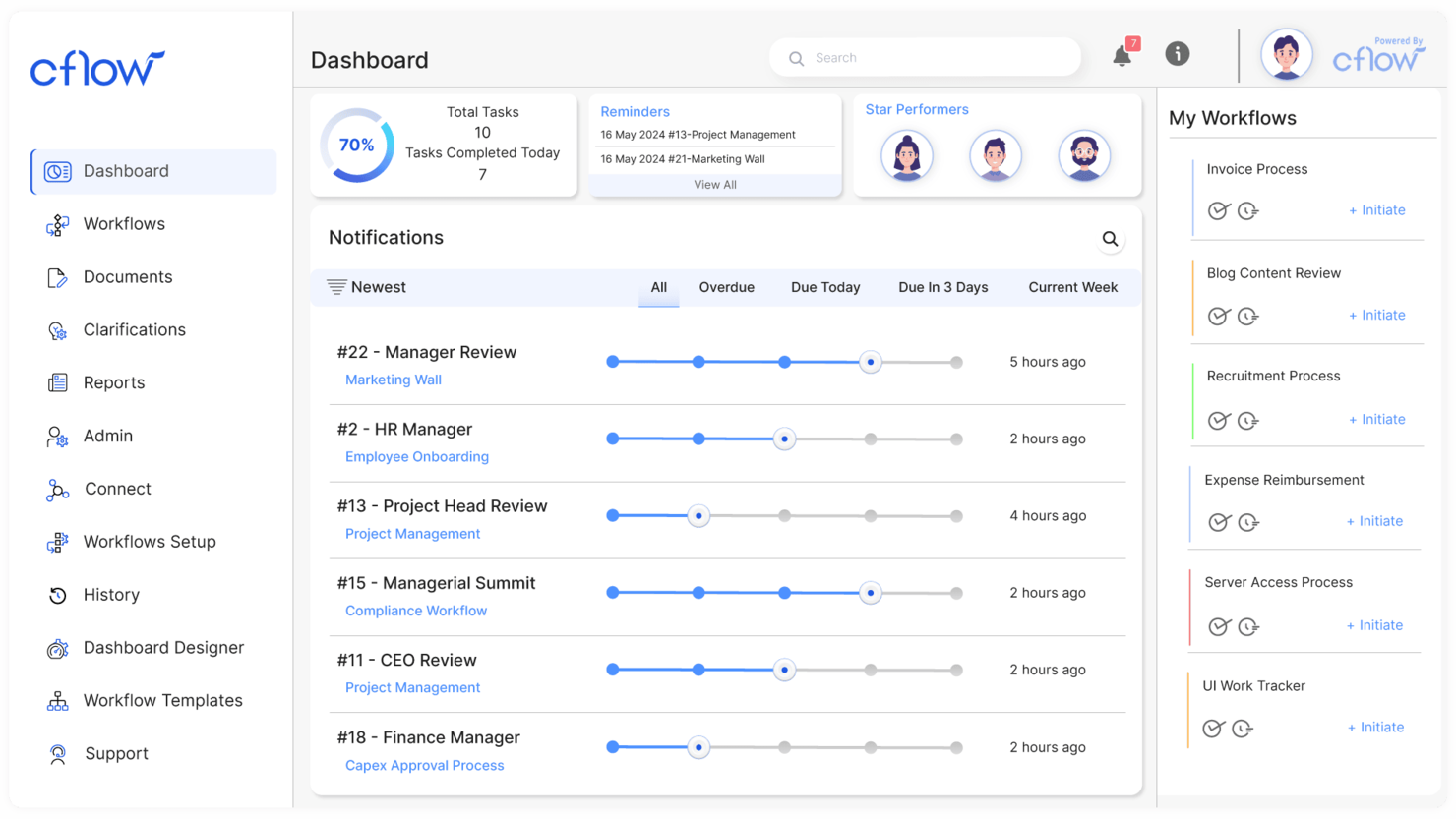
Cflow makes the cut because it’s designed for small businesses that need to replace manual document processes with automated workflows. When I see teams struggling with paper-driven approval cycles and scattered docs, this is often where I send them.
What I appreciate is how you can set up conditional routing, document templates, and digital signatures without IT support. It handles document-heavy tasks like onboarding and purchase requests with simple, visual workflow design.
Cflow’s Best For
- Small businesses automating document approvals and routing
- Teams that need no-code workflow design for documents
Cflow’s Not Great For
- Enterprises with highly complex, custom document integrations
- Organizations needing advanced analytics or compliance tracking
What sets Cflow apart
Cflow builds its workflow automation around step-by-step document processes, assuming you want to visually map and automate each approval or handoff. I see small businesses getting value here because it gives them template-driven design rather than the blank-canvas approach you find in tools like Google Workspace or monday.com. Cflow expects you to define who touches each document and when, making accountability really clear.
Tradeoffs with Cflow
Cflow optimizes for simplicity and easy automation, but that limits how much you can customize complex logic or data integrations. For advanced reporting or highly specific compliance needs, it can come up short.
Pros and Cons
Pros:
- Quick setup process
- User-friendly interface
- Suitable for small teams
Cons:
- Not ideal for large enterprises
- Limited advanced features

Best with AI-powered document insights
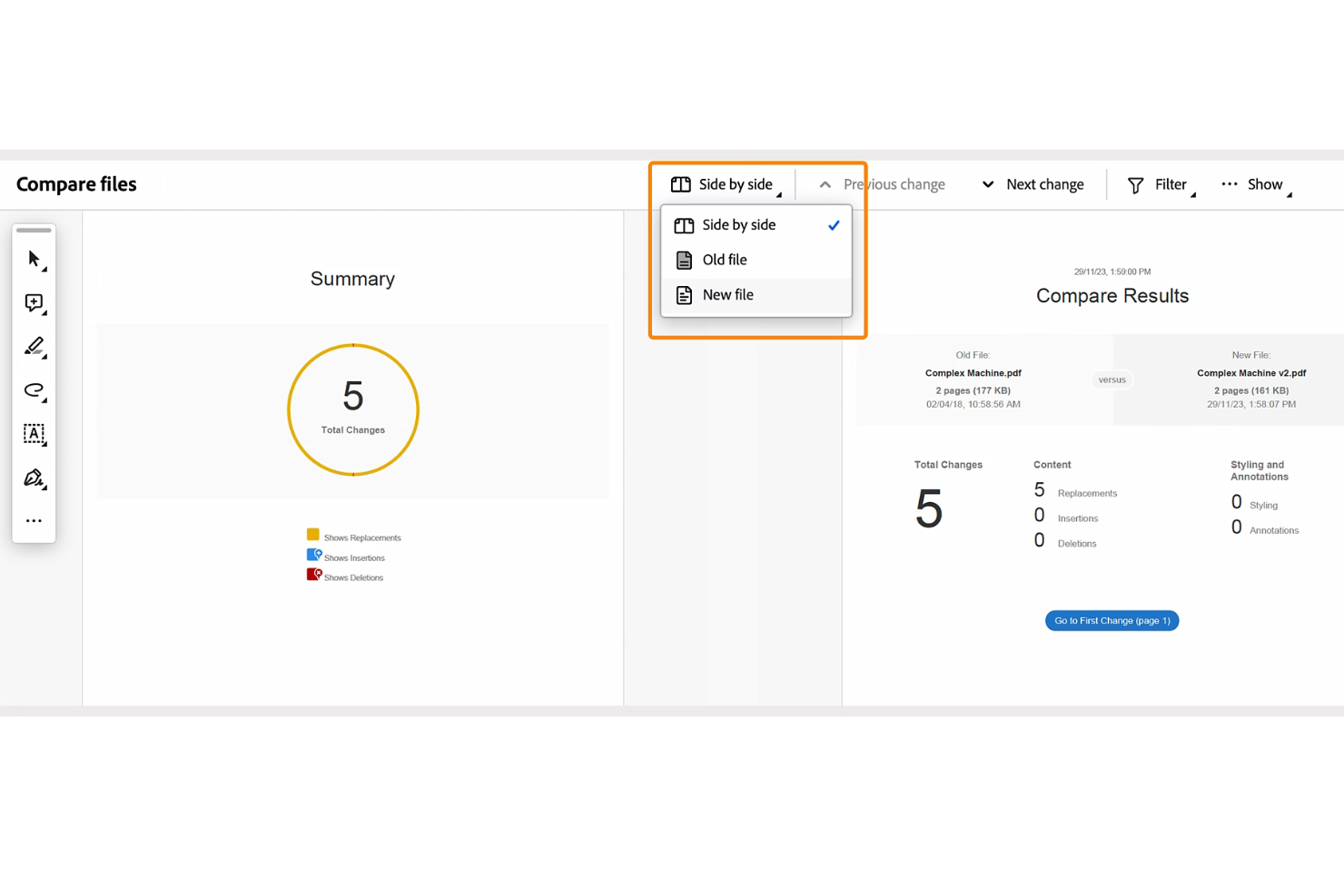
Adobe Acrobat makes the cut because it brings AI-powered document insights to large-scale document automation. I see teams using it to quickly extract key data, summarize long contracts, and organize complex PDF libraries using AI. I like how the built-in Liquid Mode and generative summaries make handling high-volume or legally dense documents much less of a slog.
What stands out is how Acrobat lets you automate classification, redaction, and search across massive archives—especially when compliance matters.
Adobe Acrobat’s Best For
- Legal, compliance, and finance teams needing AI-powered document insights
- Organizations automating PDF processing, summarization, or redaction at scale
Adobe Acrobat’s Not Great For
- Teams that need contract generation or e-signature workflow tools
- Small groups handling only basic or occasional PDF edits
What sets Adobe Acrobat apart
Acrobat approaches document automation through precise control of PDFs and deep AI-driven insights, rather than wide-ranging workflow automation like DocuSign or monday.com. I see teams reaching for Acrobat when they need to organize, classify, and manipulate large volumes of documents, especially for compliance or audits.
The focus here is on extracting meaning and structure from complex PDFs, not on broader project flows.
Tradeoffs with Adobe Acrobat
Acrobat optimizes for document intelligence and control over PDFs, but falls short if you want to automate full contract lifecycles or integrate with comprehensive e-signature workflows. You end up layering another tool if your process depends on native document creation or collaboration.
Pros and Cons
Pros:
- Offers granular permission controls for documents
- Enables secure digital signatures and tracking
- Handles multilingual OCR and text extraction
Cons:
- API access is restricted to enterprise subscriptions
- Collaboration tools lack real-time editing

M-Files
Best for compliance management
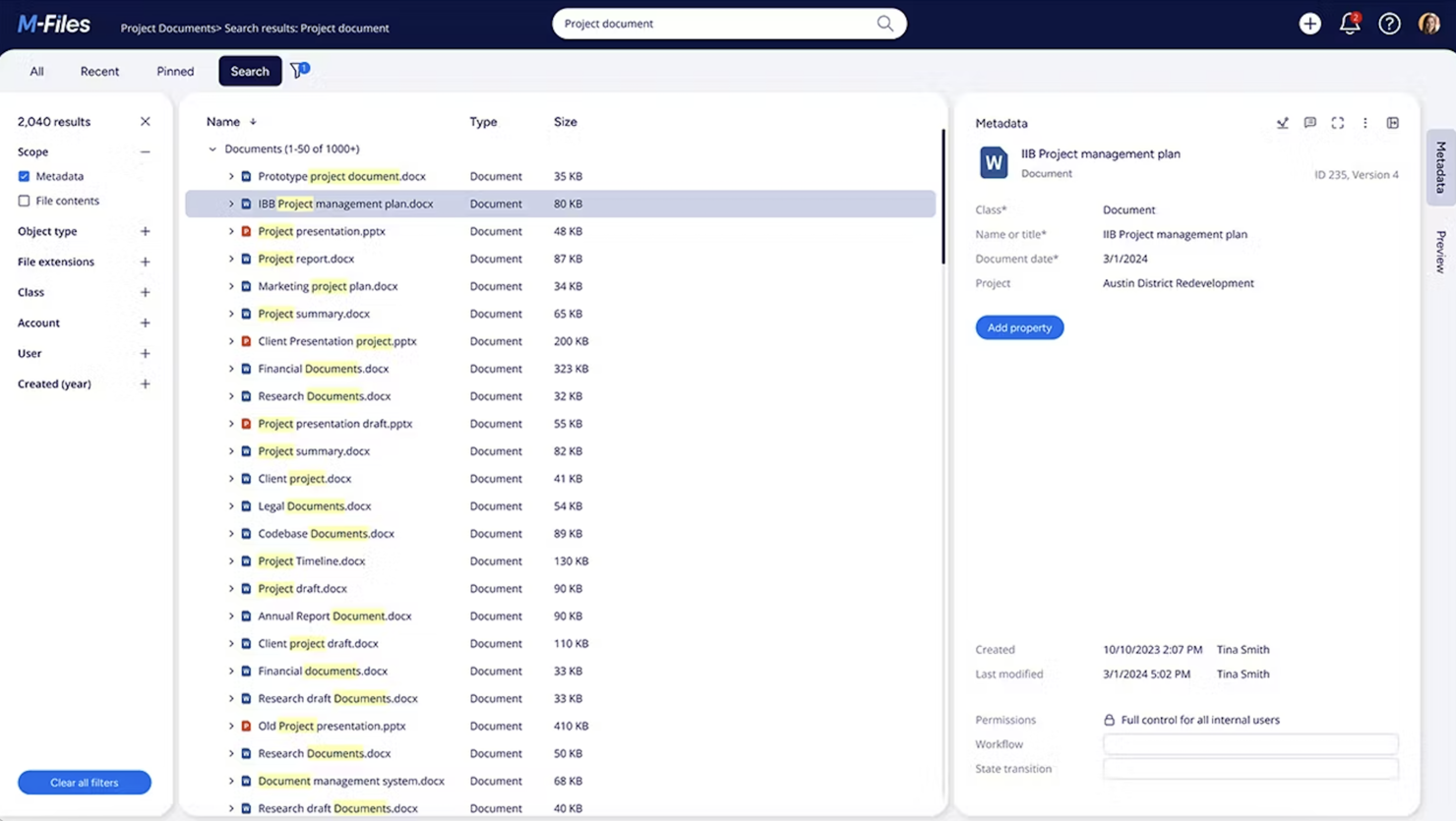
M-Files earns a spot on my list because of how tightly compliance is integrated with document automation. I’ve seen organizations use its metadata-driven structure to enforce document control across high-stakes industries like finance or pharma. What I appreciate most is the way M-Files lets you build automated workflows that link records management, audit trails, and versioning directly to compliance requirements—no workarounds or bolt-ons needed.
M-Files’ Best For
- Organizations with strict regulatory and audit requirements
- Teams automating compliance-driven document workflows
M-Files’ Not Great For
- Small teams with simple document handling needs
- Teams wanting extensive document collaboration features
What sets M-Files apart
M-Files approaches document automation by treating every file as a managed object with metadata, not just a filename and folder location. Unlike Google Drive, which relies on file paths and open sharing, M-Files expects you to classify documents by type, status, and compliance needs. In practice, I often see regulated industries use M-Files to ensure that every document follows a set process and access is tightly controlled.
Tradeoffs with M-Files
M-Files optimizes for tight control, so flexibility around ad hoc sharing and collaborative editing is limited. If your workflow relies on fast, informal sharing or simultaneous edits, you’ll likely hit friction.
Pros and Cons
Pros:
- Provides detailed audit trails
- Automated document workflows
- Metadata-driven organization
Cons:
- May need regular updates
- Requires training for new users

Square 9
Best for enterprise document management
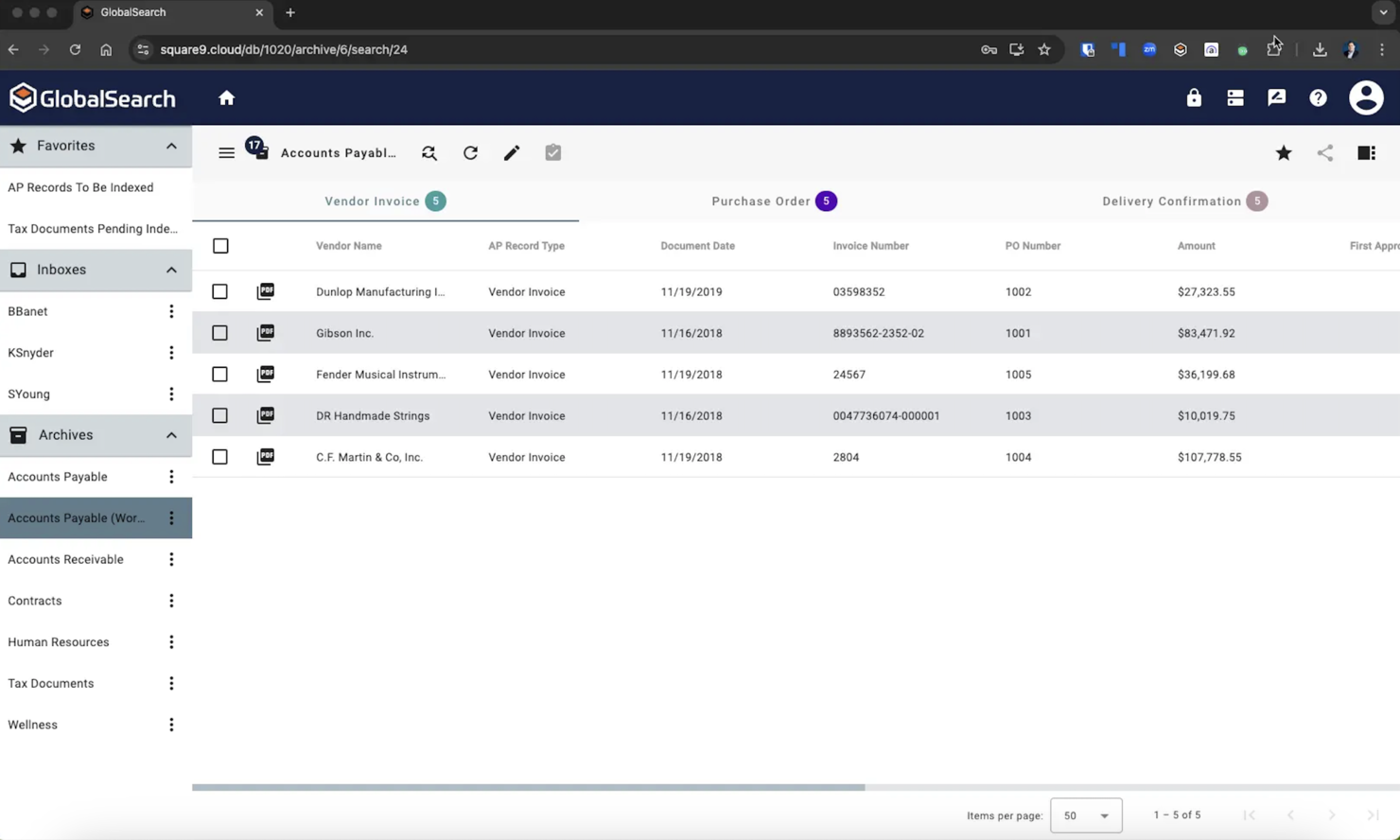
Square 9 earns its spot as my go-to for enterprise document management when teams need highly configurable automation and compliance features. I’m consistently impressed by its workflow designer, which lets you build multi-step routing, approvals, and document creation tailored to internal rules or audits.
What I appreciate most is how well Square 9 handles capture and indexing at scale, which is crucial for organizations dealing with complex records and strict document retention policies.
Square 9’s Best For
- Enterprises with complex multi-step document workflows
- Organizations with strict compliance or audit requirements
Square 9’s Not Great For
- Small businesses needing basic document automation
- Teams looking for simple, out-of-the-box templates
What sets Square 9 apart
Square 9 centers its design around configurable workflows and compliance-driven automation, more so than document editors like Google Workspace. In practice, it expects you to map out detailed routing and approval steps before you automate. This tends to work best for organizations where strict version control and audit trails are non-negotiable.
Unlike simpler cloud-based tools, it’s built for scale and control over document lifecycles across departments and locations.
Tradeoffs with Square 9
Square 9 optimizes for custom automation and compliance, but that complexity can slow down teams who just want to automate basic documents. You trade fast setup for configuration depth and rigorous process.
Pros and Cons
Pros:
- Automates complex workflows
- Suitable for large organizations
- Secure document storage
Cons:
- Limited customization options
- May need regular updates

Rossum
Best for invoice processing

Rossum makes my list because it automates invoice processing without long template setups or rule-building. I recommend it when teams spend too much time correcting extraction errors or fixing complex document layouts. What I like here is the AI-powered capture that keeps learning from your corrections, plus approval workflows you can customize for your review process.
Rossum’s Best For
- Companies processing large volumes of complex invoices
- Teams wanting AI-driven document data capture and review
Rossum’s Not Great For
- Organizations needing full document lifecycle management
- Teams with highly specialized, non-financial document needs
What sets Rossum apart
Rossum approaches document automation around AI that learns from your corrections, so you spend less time managing fixed templates and rules. Unlike document management systems like M-Files or even something like DocuWare, it assumes your primary battle is with diverse, fast-changing document layouts, especially for invoices. This tends to work best when you want to automate capturing and reviewing data from unpredictable document formats.
Tradeoffs with Rossum
Rossum optimizes for high-volume, data capture tasks, which means you give up broader document lifecycle management. You’ll need another platform if you care about archiving, retention, or deep search features.
Pros and Cons
Pros:
- Reduces manual data entry
- Multi-format document support
- Handles high invoice volumes
Cons:
- Higher cost for small businesses
- May need training for complex tasks
Annen programvare for dokumentautomatisering
Her er noen flere alternativer innen programvare for dokumentautomatisering som ikke kom med på kortlisten min, men som likevel er verdt å se nærmere på:
- Formstack
For form generation
- Mitratech Hotdocs
For reducing document errors
- PandaDoc
For sales teams
- Inkit
For print and mail automation
- Docupilot
For template-based documents
- DocuPipe
With AI-powered document standardization
- Doxis AI.dp.
For handling diverse document types
- HotDocs
For legal document creation
- Trupeer
For screen recording-based documentation
- Revver
For secure document storage


How I Evaluate Document Automation Software
I split my evaluation into baseline criteria—things like template logic, data merging, and approval workflows—and differentiators that separate the best tools from the rest.
Core Functionality (Table Stakes For This List)
When I'm selecting tools for my list, I rank each one on a scale from 0 (does not offer the functionality) to 5 (excels in this area) for each core functionality listed below. Then, I calculate the tool's total score into a percentage. Each tool needs to achieve a minimum total score of 65% to be considered for inclusion.
- Template Library & Builder: I look for platforms where you can build, organize, and reuse templates with dynamic merge fields—like a SOW template that auto-fills client name, deliverables, and timelines.
- Conditional Logic & Rules: The best tools let you set if/then rules so a single template adapts per scenario, such as including different payment terms based on project type.
- Data Integration & Merging: I evaluate how well each tool pulls live data from PM platforms, CRMs, or spreadsheets to populate documents without manual copy-pasting between systems.
- Workflow & Approval Automation: Multi-step routing matters here—I check whether you can set up sequential or parallel approvals, like having a project lead review before a client signs off.
- E-Signature & Delivery: Whether native or through integrations with tools like DocuSign or Adobe Sign, I look for signature capture, signer role assignment, and delivery tracking in one flow.
- Document Output & Format Control: Exported documents need to look polished and consistent. I evaluate format options (PDF, DOCX), branding controls, and version tracking across revisions.
Once I have a list of tools that meet this criteria, I consider what sets each platform apart.
Differentiating Factors (What Sets Vendors Apart)
Here's how I compare and contrast different vendors:
Standout Features
AI-assisted drafting is a big differentiator—tools that generate a first-pass SOW or summarize a change order from project notes save real time during peak delivery cycles. I also evaluate collaborative redlining, since project teams often negotiate scope or terms with clients directly inside a document. Analytics round out my comparison: dashboards tracking approval bottlenecks and document cycle times help PMOs spot process gaps before they delay a milestone.
Beyond Features
Integration depth matters here—I check whether a tool connects natively with PM platforms like Jira, Asana, or Smartsheet, not just CRMs. Security is another key lens, especially for teams handling client contracts; I look for SOC 2 compliance, role-based access controls, and SSO support. Implementation effort also factors in. A PMO rolling out document automation across multiple teams needs guided onboarding and template migration support, not just a knowledge base.
Slik velger du programvare for dokumentautomatisering
Det er lett å gå seg vill i lange funksjonslister og komplekse prismodeller. For å hjelpe deg med å holde fokus mens du går gjennom den unike utvelgelsesprosessen din, får du her en sjekkliste over faktorer du bør ha i bakhodet:
| Faktor | Hva du bør vurdere |
|---|---|
| Skalerbarhet | Forsikre deg om at programvaren kan vokse sammen med virksomheten din. Sjekk om den kan håndtere økte dokumentmengder og flere brukere uten at det går ut over ytelsen. |
| Integrasjoner | Se etter verktøy som kan kobles til eksisterende systemer som CRM, ERP eller skylagringsløsninger. Dette effektiviserer arbeidsflyten og reduserer manuell dataregistrering for teamet ditt. |
| Tilpasningsmuligheter | Velg programvare som lar deg tilpasse maler og arbeidsflyter etter virksomhetens spesifikke behov. Denne fleksibiliteten kan spare tid og forbedre effektiviteten. |
| Brukervennlighet | Velg intuitive grensesnitt som krever minimalt med opplæring. Sørg for at teammedlemmene raskt kan ta systemet i bruk for å redusere nedetid og maksimere produktiviteten. |
| Budsjett | Vurder de totale kostnadene, inkludert abonnementsavgifter, oppsettskostnader og eventuelle tillegg. Sørg for at løsningen holder seg innenfor de økonomiske rammene dine samtidig som den dekker behovene dine. |
| Sikkerhetstiltak | Prioriter programvare som tilbyr robuste sikkerhetsfunksjoner. Se etter datakryptering, tilgangskontroller og samsvar med standarder som GDPR for å beskytte sensitiv informasjon. |
| Støtte | Vurder nivået på kundestøtten som er tilgjengelig. Sjekk om det tilbys hjelp døgnet rundt, om det finnes opplæringsmateriell, og hvor raskt supportteamet svarer for å hjelpe teamet ditt med å lykkes. |
Trender innen programvare for dokumentautomatisering
I undersøkelsene mine hentet jeg inn utallige produktoppdateringer, pressemeldinger og lanseringslogger fra ulike leverandører av programvare for dokumentautomatisering. Her er noen av trendene som er i ferd med å vokse frem, og som jeg følger med på:
- KI-drevet innsikt: Leverandører tilbyr KI-funksjoner som kan analysere dokumentdata og gi handlingsrettet innsikt. Dette hjelper deg med å identifisere mønstre og optimalisere prosesser. Noen verktøy tilbyr også prediktiv analyse for å forutsi trender og forbedre beslutningstakingen.
- Blokkjedeintegrasjon: Verktøy bruker blokkjedeteknologi for å forbedre dokumentsikkerhet og autentisitet. Denne trenden er særlig relevant for bransjer som finans og juridiske tjenester, der dokumentintegritet er avgjørende.
- Talegjenkjenning: Stemmekontrollert dokumenthåndtering blir stadig mer utbredt. Denne funksjonen lar deg håndtere og hente frem dokumenter uten å bruke hendene, noe som forbedrer tilgjengeligheten og effektiviteten, særlig i travle arbeidsmiljøer.
- Samarbeid: Flere verktøy tilbyr redigering og samarbeid om dokumenter i sanntid. Denne trenden støtter fjernarbeid ved å la teamet ditt jobbe sammen uavhengig av hvor dere befinner dere.
- Miljøvennlige funksjoner: Det er et økende fokus på å redusere papirbruken. Leverandører introduserer funksjoner som fremmer digitale signaturer og elektronisk dokumentasjon, noe som er nyttig hvis virksomheten din ønsker å redusere miljøpåvirkningen.
Hva er programvare for dokumentautomatisering?
Programvare for dokumentautomatisering er, i motsetning til programvare for dokumentgenerering, et verktøy som effektiviserer hele prosessen med å opprette, administrere og behandle dokumenter ved hjelp av forhåndsdefinerte regler og arbeidsflyter. Disse verktøyene brukes ofte av fagfolk innen juridiske tjenester, finans og næringsliv for å spare tid og redusere feil.
Funksjoner som KI-drevet innsikt, samarbeid i sanntid og miljøvennlige alternativer bidrar til effektivitet, samarbeid og bærekraft. Alt i alt gir disse verktøyene betydelig verdi ved å forbedre produktiviteten og opprettholde nøyaktigheten i dokumenthåndteringen.
Funksjoner i programvare for dokumentautomatisering
Når du velger programvare for dokumentautomatisering, bør du se etter følgende viktige funksjoner:
- KI-drevet innsikt: Denne funksjonen analyserer dokumentdata for å gi handlingsrettet innsikt og hjelpe deg med å optimalisere prosesser og ta informerte beslutninger.
- Samarbeid: Gjør det mulig for flere brukere å redigere og samarbeide om dokumenter samtidig, slik at teamarbeid og produktivitet forbedres.
- Automatiserte arbeidsflyter: Effektiviserer dokumentbehandlingen ved å automatisere repetitive oppgaver og redusere manuell inngripen og feil.
- Tilpassbare maler: Gir mulighet til å tilpasse dokumentmaler til spesifikke forretningsbehov, noe som sparer tid og opprettholder enhetlighet.
- Metadatadrevet organisering: Organiserer dokumenter basert på metadata, noe som gir raskere og mer nøyaktig gjenfinning.
- Revisjonsspor: Sporer dokumenthistorikken for å opprettholde ansvarlighet og etterlevelse, noe som er avgjørende for regulerte bransjer.
- Sikkerhetstiltak: Tilbyr funksjoner som datakryptering og tilgangskontroller for å beskytte sensitiv informasjon og opprettholde samsvar med standarder som GDPR.
Fordeler med programvare for dokumentautomatisering
Implementering av programvare for dokumentautomatisering gir flere fordeler for teamet og virksomheten din. Her er noen av fordelene du kan se frem til:
- Økt effektivitet: Automatisering av dokumentarbeidsflyter reduserer manuelle oppgaver, noe som sparer tid og lar teamet ditt fokusere på viktigere arbeid.
- Forbedret nøyaktighet: Funksjoner som KI-drevet innsikt og automatisert datauttrekking minimerer feil og sørger for at dokumentene dine er nøyaktige og pålitelige.
- Bedre samarbeid: Samarbeidsverktøy i sanntid lar teamet ditt jobbe effektivt sammen, uansett hvor de befinner seg.
- Kostnadsbesparelser: Redusert papirbruk og mindre manuelt arbeid kutter utgiftene, slik at driften blir mer kostnadseffektiv.
- Bedre sikkerhet: Med funksjoner som blokkjede og sikkerhetstiltak er dokumentene dine beskyttet mot uautorisert tilgang og datainnbrudd.
- Miljøpåvirkning: Miljøvennlige alternativer fremmer digitale prosesser, slik at du kan redusere karbonavtrykket ditt og støtte bærekraftsmål.
- Bedre etterlevelse: Revisjonsspor og metadatadrevet organisering bidrar til å opprettholde samsvar med bransjereguleringer og standarder og reduserer juridisk risiko.
Kostnader og priser for programvare for dokumentautomatisering
Å velge programvare for dokumentautomatisering krever en forståelse av de ulike prismodellene og abonnementene som er tilgjengelige. Kostnadene varierer basert på funksjoner, teamstørrelse, tillegg og mer. Tabellen nedenfor oppsummerer vanlige abonnementer, gjennomsnittsprisene deres og typiske funksjoner som inngår i løsninger for programvare for dokumentautomatisering:
Tabell for sammenligning av planer for programvare for dokumentautomatisering
| Plantype | Gjennomsnittlig pris | Vanlige funksjoner |
|---|---|---|
| Gratisplan | $0 | Grunnleggende dokumentoppretting, begrenset lagringsplass og brukerstøtte fra fellesskapet |
| Privatplan | $5-$25/bruker/måned | Dokumentmaler, grunnleggende integrasjoner og brukerstøtte via e-post |
| Bedriftsplan | $30-$60/bruker/måned | Avanserte arbeidsflyter, bedre sikkerhetsfunksjoner og prioritert brukerstøtte |
| Storbedriftsplan | $70-$120/bruker/måned | Tilpassbare løsninger, dedikert kontoadministrasjon og omfattende verktøy for overholdelse av regelverk |
Vanlige spørsmål om programvare for dokumentautomatisering
Her er noen svar på vanlige spørsmål om programvare for dokumentautomatisering:
Hvordan automatiserer jeg dokumentasjonsprosesser?
Automatisering av dokumentasjonsprosessen innebærer flere trinn. Begynn med å forbedre dokumentkvaliteten ved hjelp av forbehandlingsteknikker som støyreduksjon. Bruk klassifisering til å skille sider og identifisere innhold. Bruk uttrekksverktøy til å hente ut data nøyaktig, og valider deretter dataene ved hjelp av regler og kunstig intelligens for å sikre at de er korrekte.
Hvilke data brukes i dokumentautomatisering?
Dokumentautomatisering henter data fra ulike kilder og setter dem inn i dokumentmaler. Disse malene kan inneholde tekst, tabeller, diagrammer og bilder. Hvilke data som brukes, avhenger av dokumentets formål og informasjonen som kreves for å fullføre det.
Hva gjør en spesialist på dokumentautomatisering?
En spesialist på dokumentautomatisering implementerer og administrerer verktøy for prosessautomatisering. De utformer, planlegger og distribuerer disse verktøyene, gir opplæring og håndterer vedlikehold og oppgraderinger. Rollen deres sikrer at dokumentprosessene er effektive og oppfyller organisasjonens behov.
Hvordan kan dokumentautomatisering forbedre overholdelsen av regelverk?
Dokumentautomatisering forbedrer overholdelsen av regelverk ved å sikre at dokumentene dine oppfyller regulatoriske standarder. Automatiserte arbeidsflyter reduserer menneskelige feil, og revisjonsspor gir en historikk over endringer i dokumentene. Dette hjelper teamet ditt med å opprettholde ansvarlighet og overholde juridiske krav.
Hvordan påvirker dokumentautomatisering produktiviteten?
Dokumentautomatisering øker produktiviteten ved å redusere manuelle oppgaver og feil. Det gjør det mulig for teamet ditt å fokusere på aktiviteter med høyere verdi og bruke tid og ressurser mer effektivt. Automatiserte arbeidsflyter fremskynder også behandling og godkjenning av dokumenter.
Hvilke bransjer har størst nytte av dokumentautomatisering?
Bransjer som finans, juss og helse har stor nytte av dokumentautomatisering. Disse sektorene håndterer store mengder dokumenter og krever høy nøyaktighet og etterlevelse av regelverk. Automatisering bidrar til å håndtere disse kravene effektivt og sikkert.