

10 beste plattformer for innholdssamarbeid i 2026

Kortliste over plattformer for innholdssamarbeid


En plattform for innholdssamarbeid er programvare som lar teamet ditt opprette, redigere og dele dokumenter eller filer sammen i sanntid. Hvis du leter etter den beste plattformen for innholdssamarbeid, opplever du sannsynligvis spredte tilbakemeldinger, utfordringer med versjonskontroll eller langsomme godkjenninger som forsinker prosjektene dine. Den rette plattformen kan hjelpe deg med å holde alle oppdatert, administrere tillatelser og koble sammen arbeidet på tvers av verktøyene teamet ditt allerede bruker. I denne listen finner du en tydelig sammenligning av de beste alternativene for 2026 – slik at du kan velge plattformen som passer arbeidsflyten, sikkerhetsbehovene og samarbeidsstilen din.
Why Trust Our Software Recommendations
Our team has been testing and reviewing software since 2012. As project managers ourselves, we know how difficult—and important—it is to choose the right software.
For this guide, we evaluated tools using hands-on testing and independent research, scoring tools using our selection criteria. We also draw on insights from industry thought leaders and practicing project management experts.
Our reviews reflect our human editorial judgment, not a sales pitch.
Expert reviewers:
Sammenligningstabell for plattformer for innholdssamarbeid
Tabellen nedenfor sammenligner prisdetaljer for mine beste utvalgte plattformer for innholdssamarbeid.
| Tool | Best For | Trial Info | Price | ||
|---|---|---|---|---|---|
| 1 | Best for compliance-driven document collaboration | Free demo available | Pricing upon request | Website | |
| 2 | Best for knowledge sharing in teams | 14-day free trial | Pricing upon request | Website | |
| 3 | Best for building collaborative docs | Free plan available | From $12/user/month (billed annually) | Website | |
| 4 | Best for large file collaboration | Free trial + free plan available | From $9.99/user/month (billed annually) | Website | |
| 5 | Best for integrated document editing | 14-day free trial available | From $7/user/month (billed annually) | Website | |
| 6 | Best for on-premises data control | 1-hour free trial | From 71.29€/user/year (billed annually) | Website | |
| 7 | Best for advanced workflow automation | 14-day free trial | From CAD$21/user/month (billed annually) | Website | |
| 8 | Best for secure file governance | Free demo + 15-day free trial available | From $22/user/month (billed annually) | Website | |
| 9 | Best for automated meeting scheduling | Free plan available | From $10/seat/month | Website | |
| 10 | Best for all-in-one team workspaces | Free plan + 15-day free trial + free demo available | From $49/organization/month (billed annually) | Website |
Anmeldelser av plattformer for innholdssamarbeid
Nedenfor finner du mine detaljerte sammendrag av plattformene for innholdssamarbeid som kom med på kortlisten min. Anmeldelsene mine gir en detaljert gjennomgang av funksjonene, de beste bruksområdene og integrasjonene til hver plattform, slik at du kan finne den beste for teamet ditt.
Doxis
Best for compliance-driven document collaboration
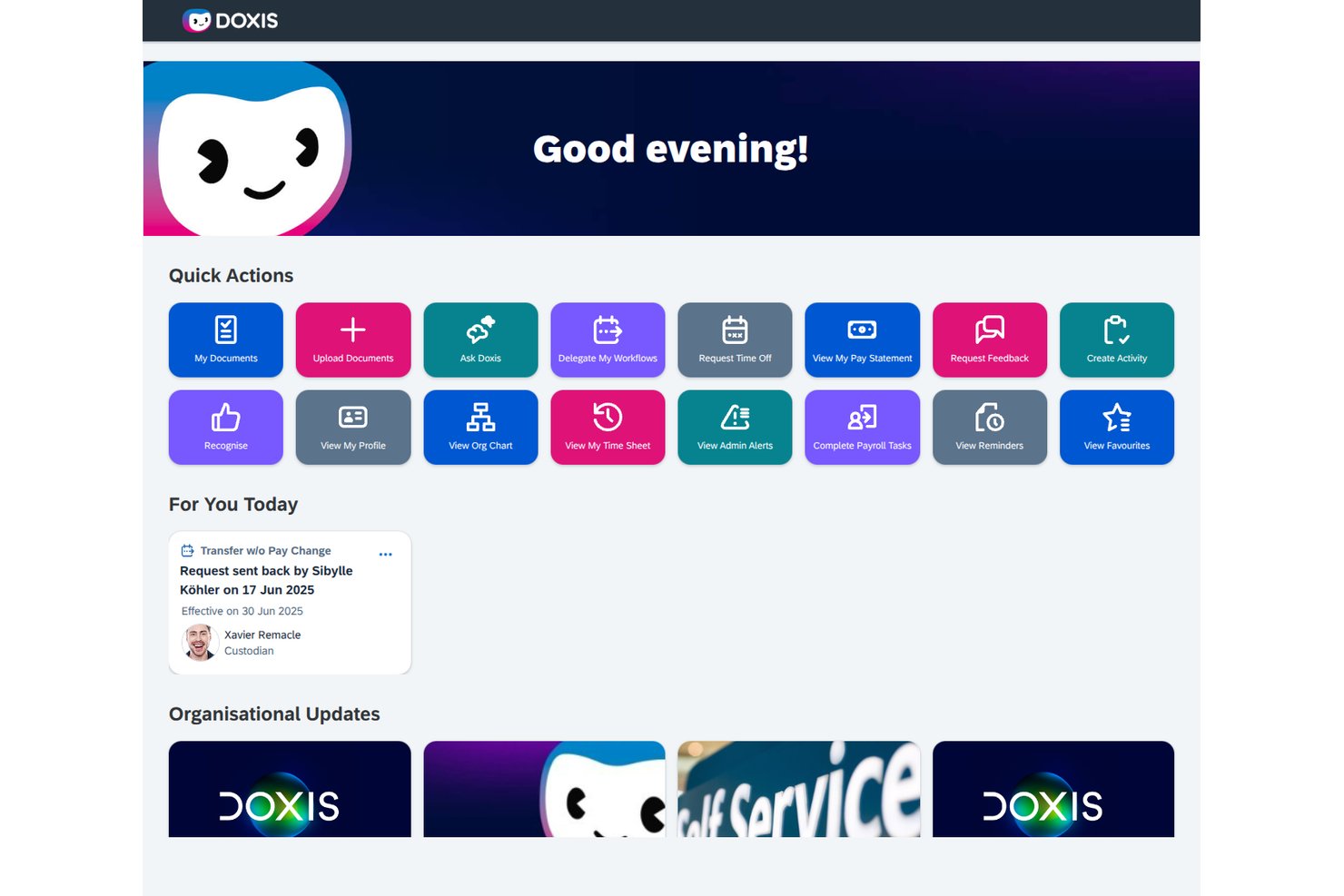
Doxis is an enterprise content management platform that combines centralized document storage, AI-powered search, governed external collaboration via virtual project rooms, and deep Microsoft 365 and SAP integrations.
Who Is Doxis Best For?
Doxis is a strong fit for compliance and legal teams in large enterprises that need governed document workflows, audit-ready records management, and controlled external collaboration.
Why I Picked Doxis
I picked Doxis as one of the best because it handles compliance-driven document collaboration in a way that most general-purpose tools simply don't approach. Its iRoom feature lets you spin up time-limited virtual project rooms where external partners get permission-scoped access without needing a Doxis account, which is exactly what you need for M&A due diligence or supplier audits. Every change, task, and decision in those rooms is recorded for GDPR and QM compliance automatically.
Doxis Key Features
- AI-powered document classification: Doxis AI.dp automatically classifies incoming documents and extracts metadata like dates, contract partners, and customer names.
- Ask Doxi natural-language search: A built-in AI assistant that answers questions in plain language, summarizes documents, and links back to source files.
- Retention schedules and legal holds: Automated retention policies, legal hold workflows, and audit-proof archiving keep records compliant with regulatory requirements.
- Microsoft 365 SmartBridge: Connects Outlook, Teams, SharePoint, and Office directly to Doxis, letting users file, search, and check out documents without leaving Microsoft apps.
Doxis Integrations
Doxis offers native integrations across Microsoft 365, including Outlook, Teams, SharePoint, and Office, plus certified SAP interfaces and connectors for Dynamics 365, Salesforce, ServiceNow, and Workday. Its API-first architecture supports custom integrations.
Pros and Cons
Pros:
- AI search links answers to source files
- Time-limited rooms control external access
- Audit trails support regulated project handoffs
Cons:
- One reviewer reported prolonged cloud outages
- Office check-out replaces live co-authoring

BoostHQ
Best for knowledge sharing in teams
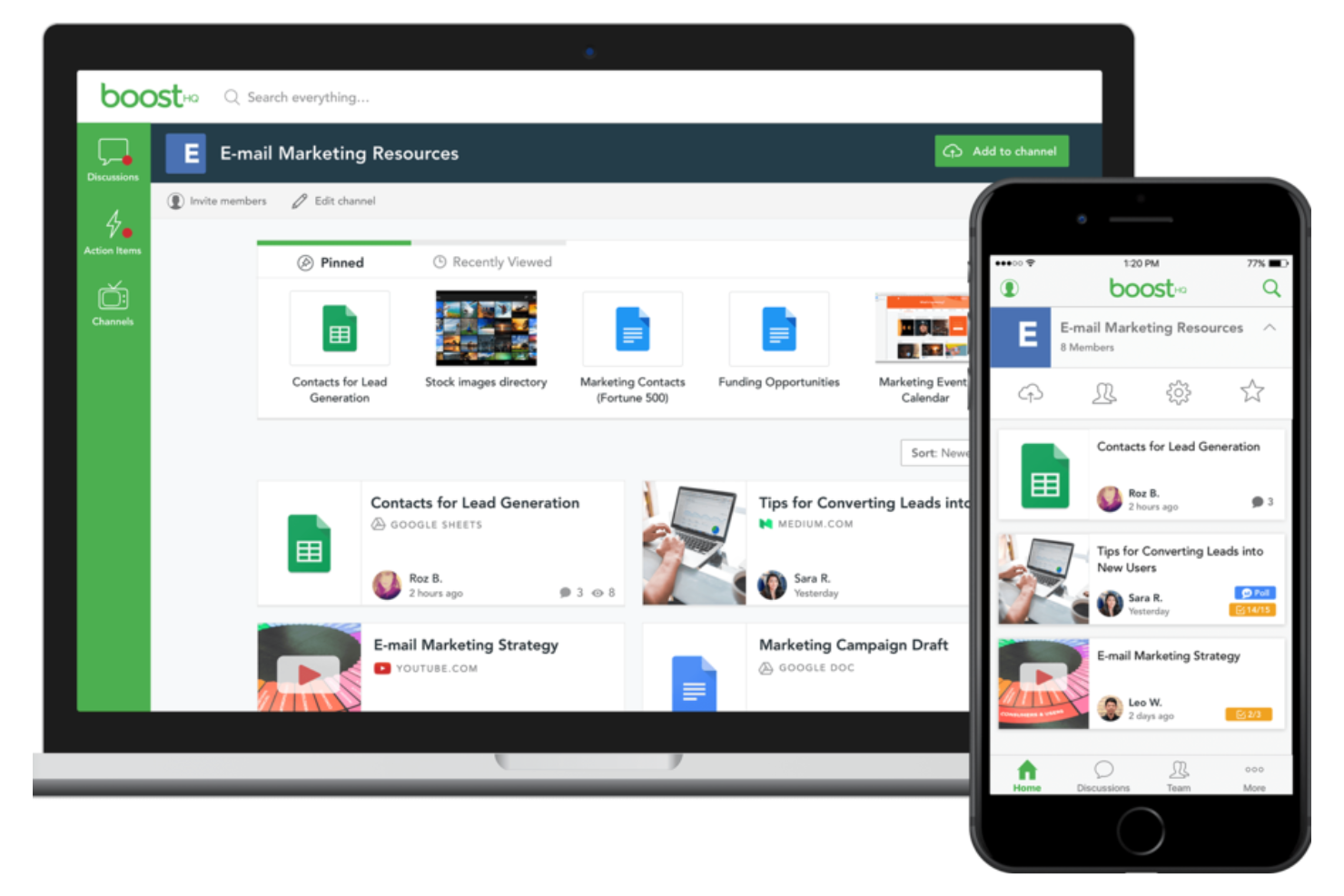
BoostHQ is designed for teams that want to capture, organize, and share internal knowledge in one place. It’s especially useful for organizations that need to centralize best practices, training materials, and resources for easy access. With features for content curation and discussion, BoostHQ helps teams keep valuable information discoverable and up to date.
Why I Picked BoostHQ
For teams focused on capturing and sharing knowledge, BoostHQ stands out as a dedicated platform for organizing internal expertise. I picked it because it lets users create topic-based channels where content, resources, and discussions are grouped in a user-friendly way for easy discovery. The ability to curate articles, files, and videos in a structured way helps teams build a living knowledge base. If your team values ongoing learning and wants to keep best practices accessible, BoostHQ is built for that purpose.
BoostHQ Key Features
Some other features that make BoostHQ useful for content collaboration include:
- Content approval workflows: Set up review and approval steps before content is published to the team.
- User analytics: Track engagement and see which resources are most viewed or interacted with.
- Commenting and feedback: Allow team members to discuss and provide input directly on shared content.
- Tagging system: Organize resources with tags for easier searching and filtering.
BoostHQ Integrations
Native integrations are not currently listed by BoostHQ.
Pros and Cons
Pros:
- Built-in analytics track content engagement
- Peer feedback supports collaborative content improvement
- Channels organize resources by topic or team
Cons:
- Search can miss older or archived resources
- Limited document editing within the platform
Coda
Best for building collaborative docs
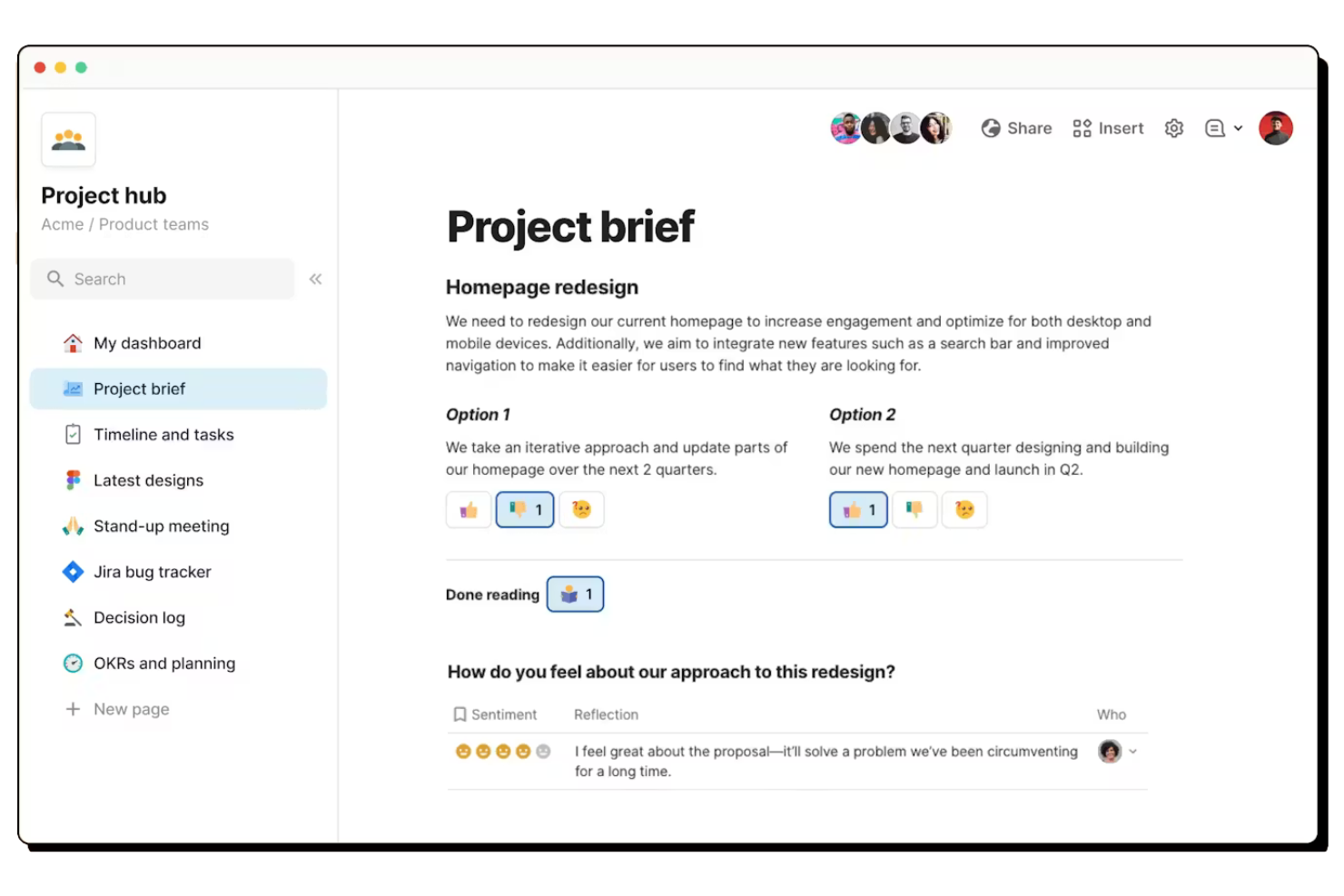
Coda lets you build interactive docs that combine text, tables, and workflows in a single space. It’s a strong choice for product teams, project managers, and startups that want to create custom collaboration hubs without coding. With flexible building blocks and integrations, Coda helps teams turn documents into living, collaborative workspaces tailored to their processes.
Why I Picked Coda
Unlike traditional document tools, Coda lets you build collaborative docs that function more like apps than static files. I picked it because you can embed interactive tables, buttons, and automations directly into your documents, making them dynamic and actionable. The ability to create custom workflows and dashboards within a doc means teams can centralize project tracking, meeting notes, and task management in one place. This flexibility makes Coda a strong fit for teams that want to design their own collaborative workspaces without relying on multiple disconnected tools.
Coda Key Features
Some other features that make Coda useful for content collaboration include:
- Page permissions: Set granular access controls for different sections within a doc.
- Commenting and reactions: Add feedback or questions directly on any part of a document.
- Template gallery: Start with pre-built templates for meeting notes, project trackers, and more.
- Pack integrations: Connect your docs to tools like Slack, Jira, and Google Calendar using Coda Packs.
Coda Integrations
Integrations include Slack, Google Calendar, Jira, Figma, GitHub, Salesforce, Zoom, Gmail, Intercom, and more.
Pros and Cons
Pros:
- Nested pages for complex project organization
- Interactive elements like buttons and automations
- Combines docs, spreadsheets, and databases
Cons:
- No built-in chat or messaging tool
- Limited export options for complex docs

Dropbox
Best for large file collaboration
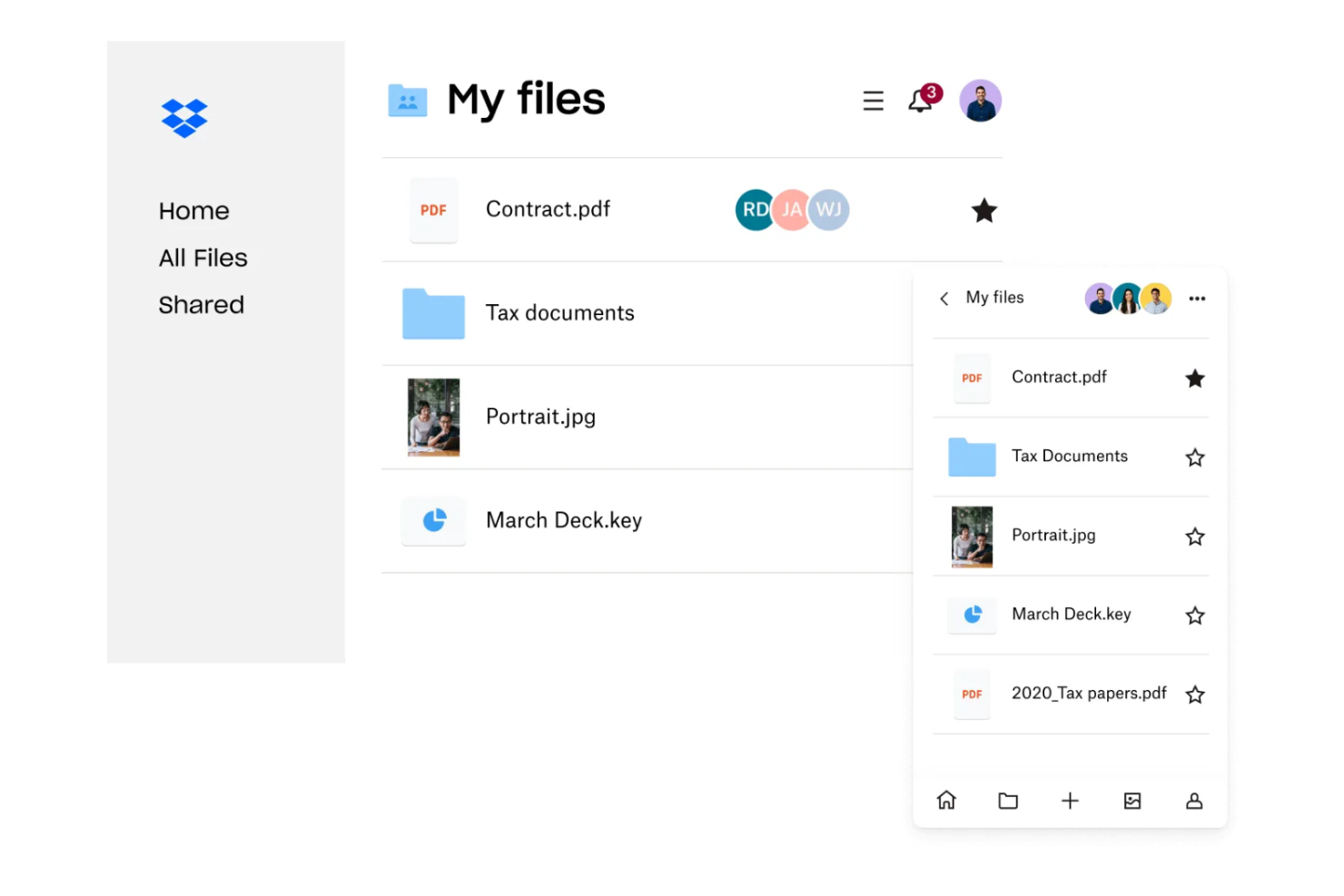
If your team regularly works with large files or media assets, Dropbox offers a platform built for fast, reliable file sharing and collaboration. Creative agencies, engineering teams, and distributed organizations use Dropbox to manage end-to-end syncing and commenting on files that are too big for most other platforms. Its file versioning and granular sharing controls help teams keep projects moving without worrying about file size limits or lost changes.
Why I Picked Dropbox
When teams need to collaborate on large files—like videos, design assets, or engineering documents—Dropbox handles the challenge better than most platforms. I picked Dropbox because it supports uploads and downloads of files up to several terabytes, with smart sync options that let you access files without taking up local storage. Its file preview and commenting features allow teams to review and discuss content directly in the browser, even for high-resolution media. For anyone who regularly works with oversized files and needs reliable sharing and feedback, Dropbox is purpose-built for that workflow.
Dropbox Key Features
Some other features that make Dropbox useful for content collaboration include:
- File request tool: Collect files from anyone, even if they don’t have a Dropbox account.
- Team folders: Create shared spaces with customizable access for different groups or projects.
- Document scanning: Use the mobile app to scan and upload documents directly to your Dropbox.
- Activity feed: View recent file changes, comments, and team activity in a single timeline.
Dropbox Integrations
Integrations include Google Workspace, Microsoft, Adobe, HubSpot, Autodesk, Canva, AWS, and more.
Pros and Cons
Pros:
- Version history for easy file recovery
- Real-time commenting on shared documents
- Handles uploads of files up to terabytes
Cons:
- Admin controls lack advanced audit features
- No built-in task or project management

Best for integrated document editing
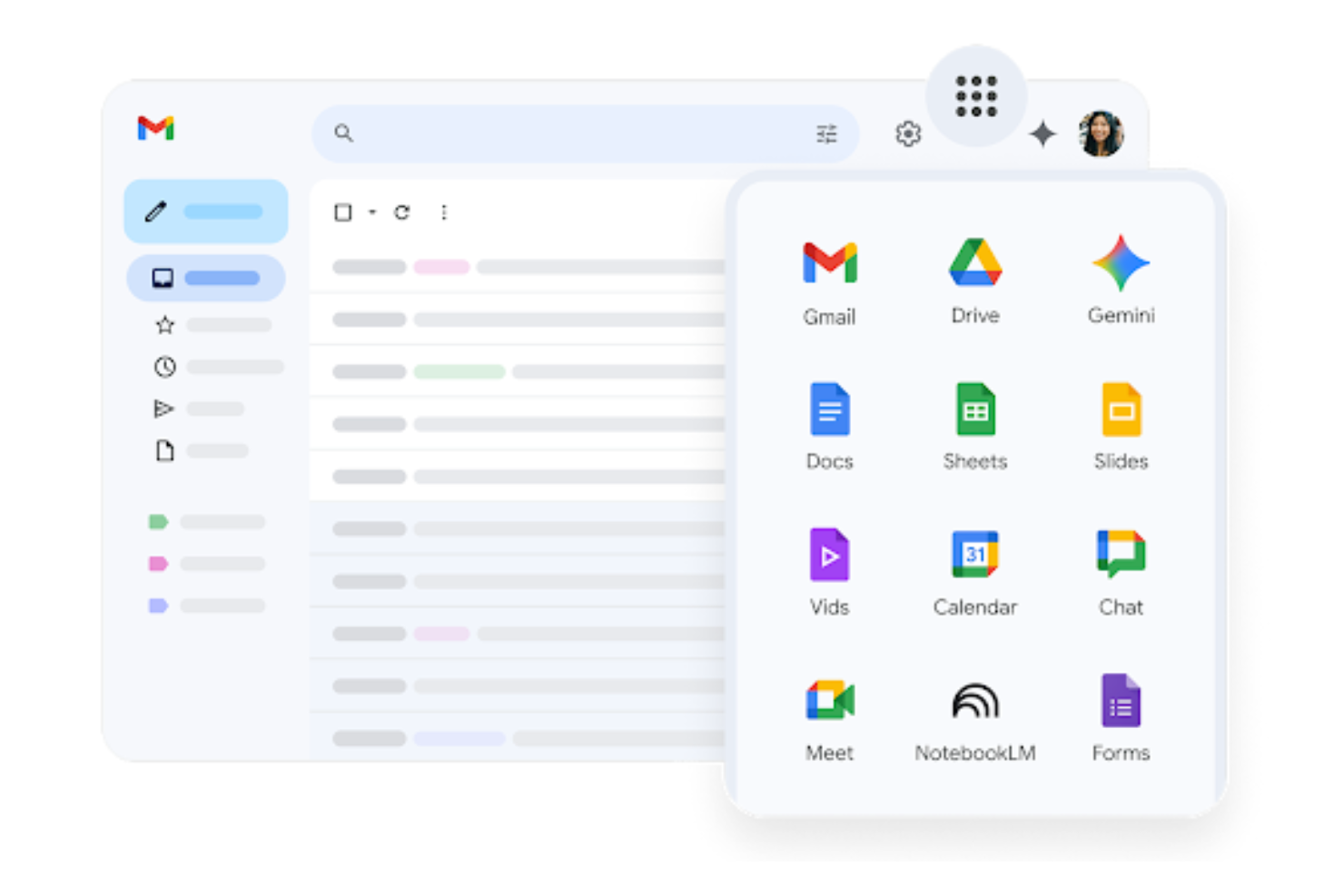
If your team needs to collaborate on documents, spreadsheets, and presentations in real time, Google Workspace brings all those tools together in one platform. It’s a strong fit for distributed teams, agencies, and organizations that rely on shared editing and instant feedback. With integrated commenting, version history, and live co-authoring, Google Workspace helps teams keep content up to date and accessible from anywhere.
Why I Picked Google Workspace
For teams that need integrated document editing, Google Workspace offers a unified environment where you can create, edit, and comment on files together in real time. I picked it because Google Docs, Sheets, and Slides all support live co-authoring, so everyone can see changes as they happen and provide instant feedback. Built-in version history lets you track edits and restore previous versions without leaving the document. This level of integration makes Google Workspace a strong choice for teams that need to keep content current and collaborative.
Google Workspace Key Features
Some other features that make Google Workspace valuable for online collaboration include:
- Shared Drives: Organize and store team files in a central location accessible to all members.
- Smart Compose and grammar suggestions: Get real-time writing assistance in Docs, Gmail, and other apps.
- Calendar integration: Schedule meetings and attach relevant documents directly to calendar events.
- Access permissions management: Control who can view, comment, or edit files at both the document and folder level.
Google Workspace Integrations
Integrations include Canva, Salesforce, Confluence, GitHub, Slack, Loom, and more.
Pros and Cons
Pros:
- Version history tracks all document changes
- Commenting and suggestion modes for feedback
- Real-time co-editing in Docs, Sheets, and Slides
Cons:
- Formatting can break when exporting to Word
- Limited offline editing capabilities

Best for on-premises data control
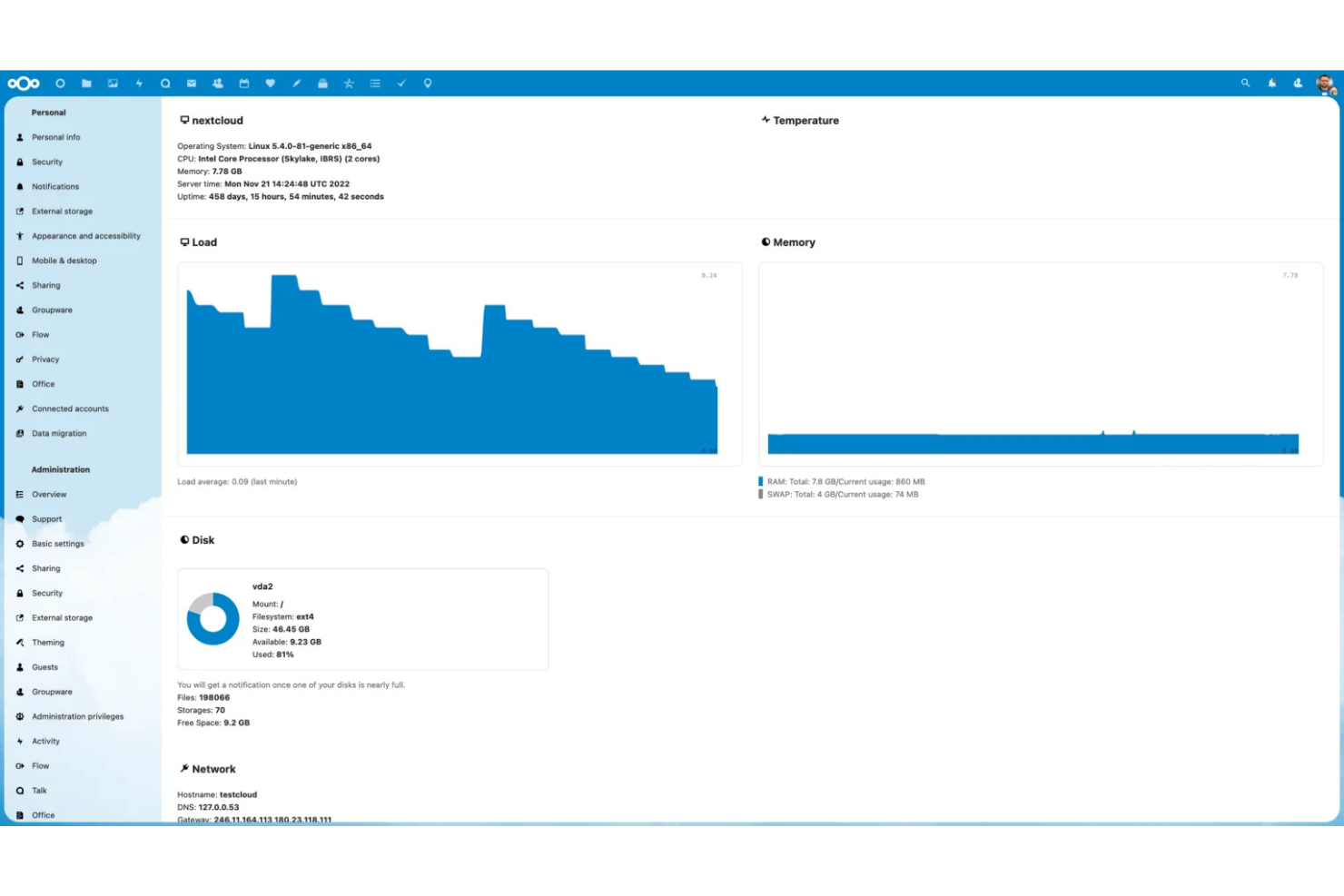
If your team needs full control over data and privacy, Nextcloud offers a self-hosted content collaboration platform built for on-premises deployment. It’s a strong fit for organizations in regulated industries or any business with strict compliance requirements. Nextcloud helps you manage document sharing, editing, and communication without relying on third-party cloud providers.
Why I Picked Nextcloud
Nextcloud stands out for teams that need to keep all their data on-premises rather than in cloud storage, which is essential for organizations with strict data residency or compliance requirements. Its private cloud setup supports real-time document editing, file sharing, and team chat—all hosted on your own infrastructure. This approach helps you meet internal security policies while still enabling modern content collaboration.
Nextcloud Key Features
Some other features in Nextcloud that support content collaboration include:
- Collabora Online integration: Edit documents, spreadsheets, and presentations directly in your browser with full compatibility for Microsoft Office formats.
- Granular permission controls: Set detailed access rights for files and folders to manage who can view, edit, or share content.
- Activity stream: Track changes, comments, and file activity across your workspace for better visibility into team actions.
- Integrated calendar and contacts: Coordinate meetings and manage shared contacts within the same platform as your files and documents.
Nextcloud Integrations
Integrations include OnlyOffice, OneDrive, Roundcube, iTop, and an open API for custom integrations.
Pros and Cons
Pros:
- Extensive user permission and access controls
- Built-in chat and video conferencing tools
- Full data ownership with on-premises hosting
Cons:
- Limited automation compared to cloud-first platforms
- Requires in-house server maintenance and updates

Box
Best for advanced workflow automation
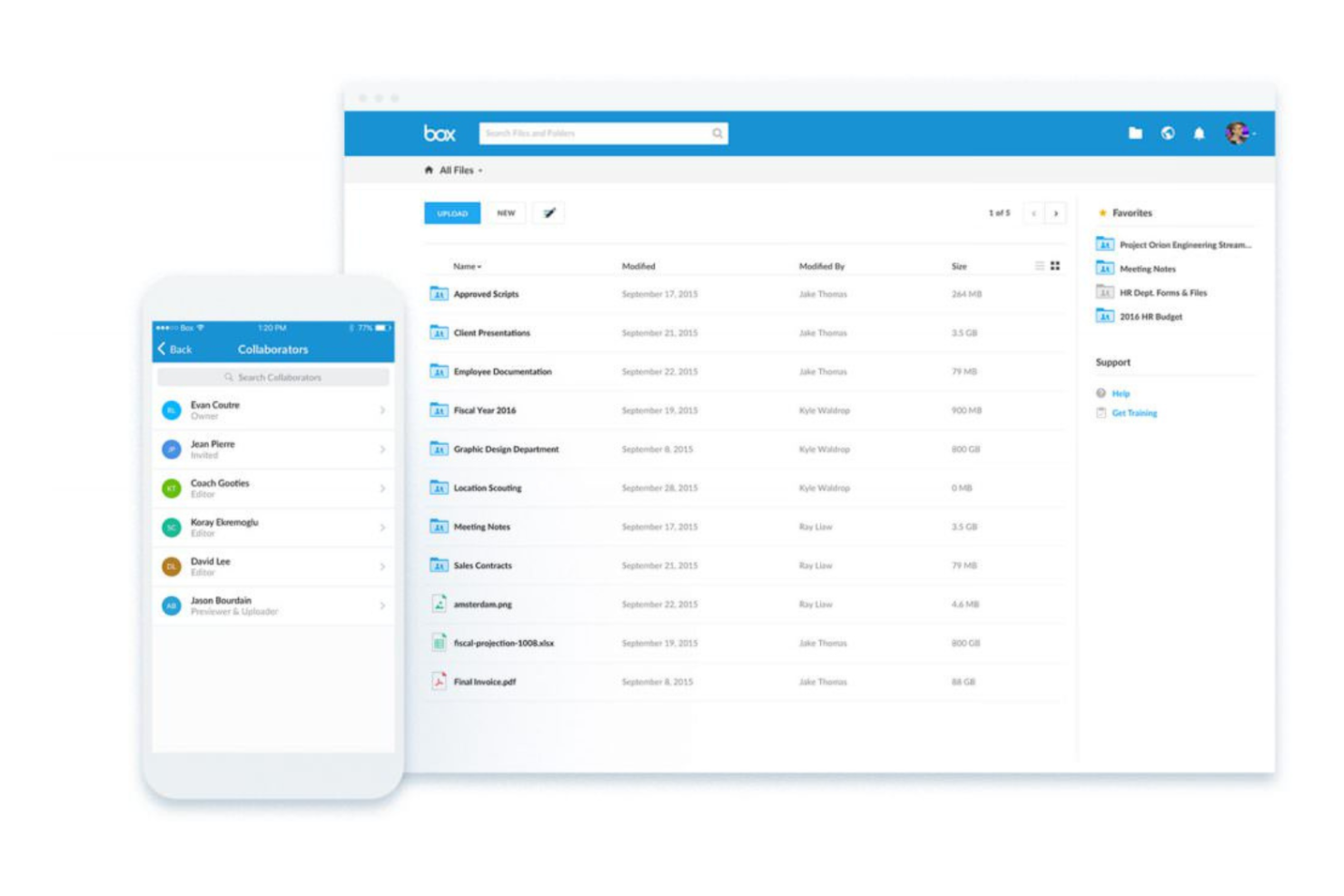
Box is designed for teams that need to automate complex content workflows while keeping everything secure and organized. It’s especially useful for enterprises and regulated industries that manage high volumes of documents and require advanced approval processes. With Box, you can build custom workflows, automate repetitive tasks, and maintain strict control over document access and compliance.
Why I Picked Box
When I need a content collaboration platform that can handle advanced workflow automation, Box is always top of mind. Its workflow builder lets you automate document routing, approvals, and notifications without writing code, which is a major advantage for teams managing complex processes. I appreciate how Box Relay allows you to design multi-step, automated workflows that keep projects moving and ensure compliance. These automation features help teams reduce manual work and maintain control over sensitive content throughout its lifecycle.
Box Key Features
Some other features in Box that support content collaboration include:
- Granular access controls: Set detailed permissions for users, groups, and external collaborators on files and folders.
- Box Notes: Create, edit, and share notes in real time for meeting agendas, project plans, and brainstorming sessions.
- Version history: Track and restore previous versions of documents to maintain a clear audit trail.
- eSignature integration: Collect legally binding electronic signatures directly within the platform using Box Sign.
Box Integrations
Integrations include Microsoft 365, Google Workspace, Slack, Zoom, Salesforce, Okta, ServiceNow, and an open API for custom integrations.
Pros and Cons
Pros:
- Extensive compliance certifications for regulated industries
- Real-time co-authoring with Box Notes
- Granular file permissions for sensitive content
Cons:
- External collaboration requires extra configuration
- Limited offline access for files and folders

Egnyte
Best for secure file governance
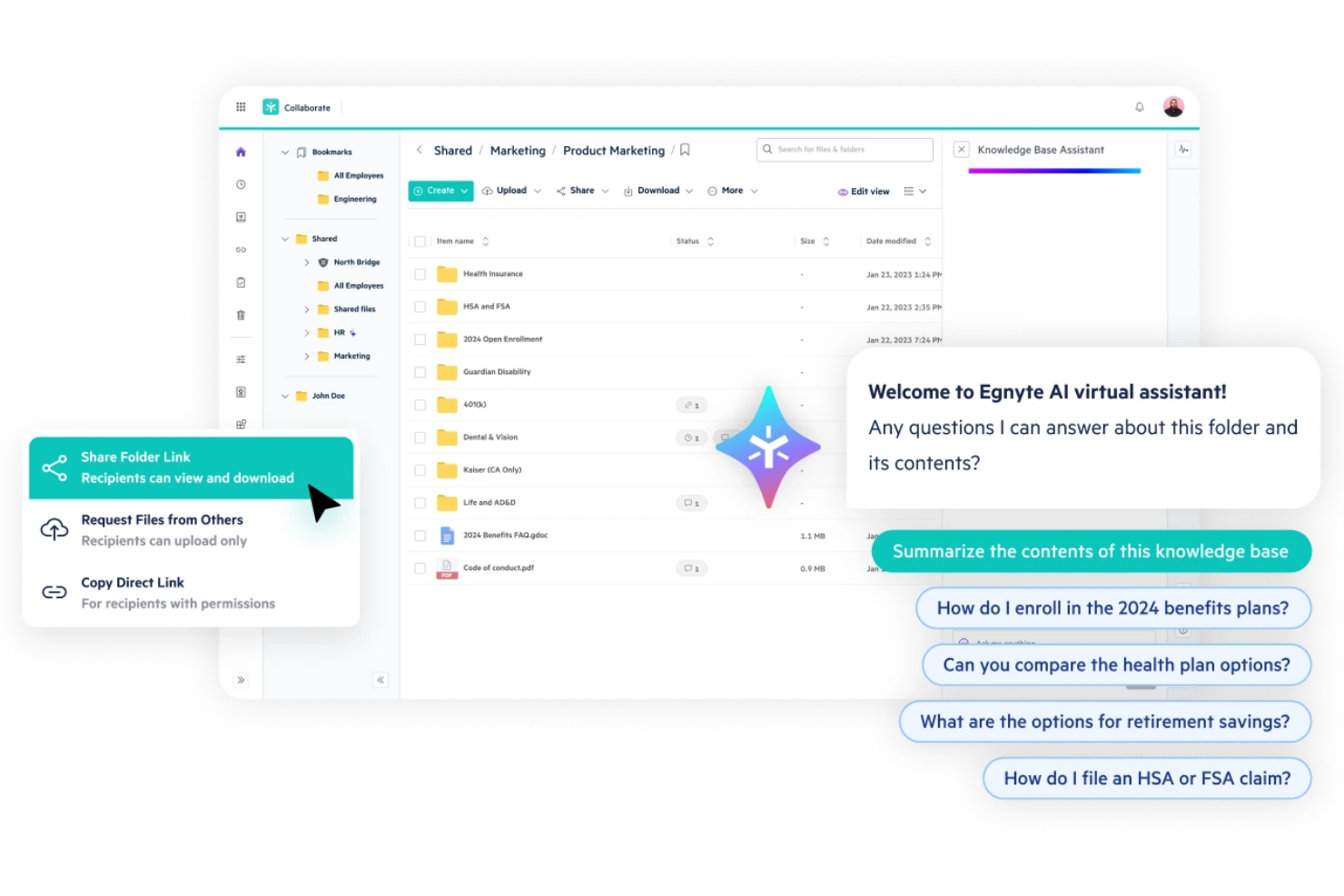
For marketing teams that need to balance collaboration with strict data security, Egnyte offers a platform focused on secure file sharing and governance. IT leaders, compliance managers, and organizations in regulated industries use Egnyte to control access, monitor file activity, and automate data protection policies. Its unified approach helps businesses collaborate on sensitive content without sacrificing oversight or compliance.
Why I Picked Egnyte
Security and governance are top priorities for many organizations handling sensitive or regulated data, which is why I picked Egnyte for this list. Egnyte stands out for its granular permission controls that let you manage who can access, edit, or share files at a detailed level. Its built-in data loss prevention and real-time threat detection features help teams spot and address risks before they become issues. For anyone who needs to collaborate on content while maintaining strict oversight and compliance, Egnyte offers a focused solution.
Egnyte Key Features
Some other features that make Egnyte valuable for content collaboration include:
- Co-editing with Microsoft 365 and Google Workspace: Collaborate on documents in real time using familiar productivity tools.
- File link sharing with expiration controls: Share files securely with customizable expiration dates and access restrictions.
- Mobile app with offline access: Access, edit, and upload files with metadata from mobile devices, even without an internet connection.
- Automated file synchronization: Keep files updated across cloud and on-premises storage locations automatically.
Egnyte Integrations
Integrations include Google Workspace, Microsoft 365, Salesforce, Slack, AWS, Microsoft Azure, and more.
Pros and Cons
Pros:
- Secure external file sharing with expiration
- Detailed audit logs for compliance tracking
- Real-time co-editing in Office and Google
Cons:
- Syncing large folders can slow performance
- Limited document editing within the platform

Reclaim
Best for automated meeting scheduling
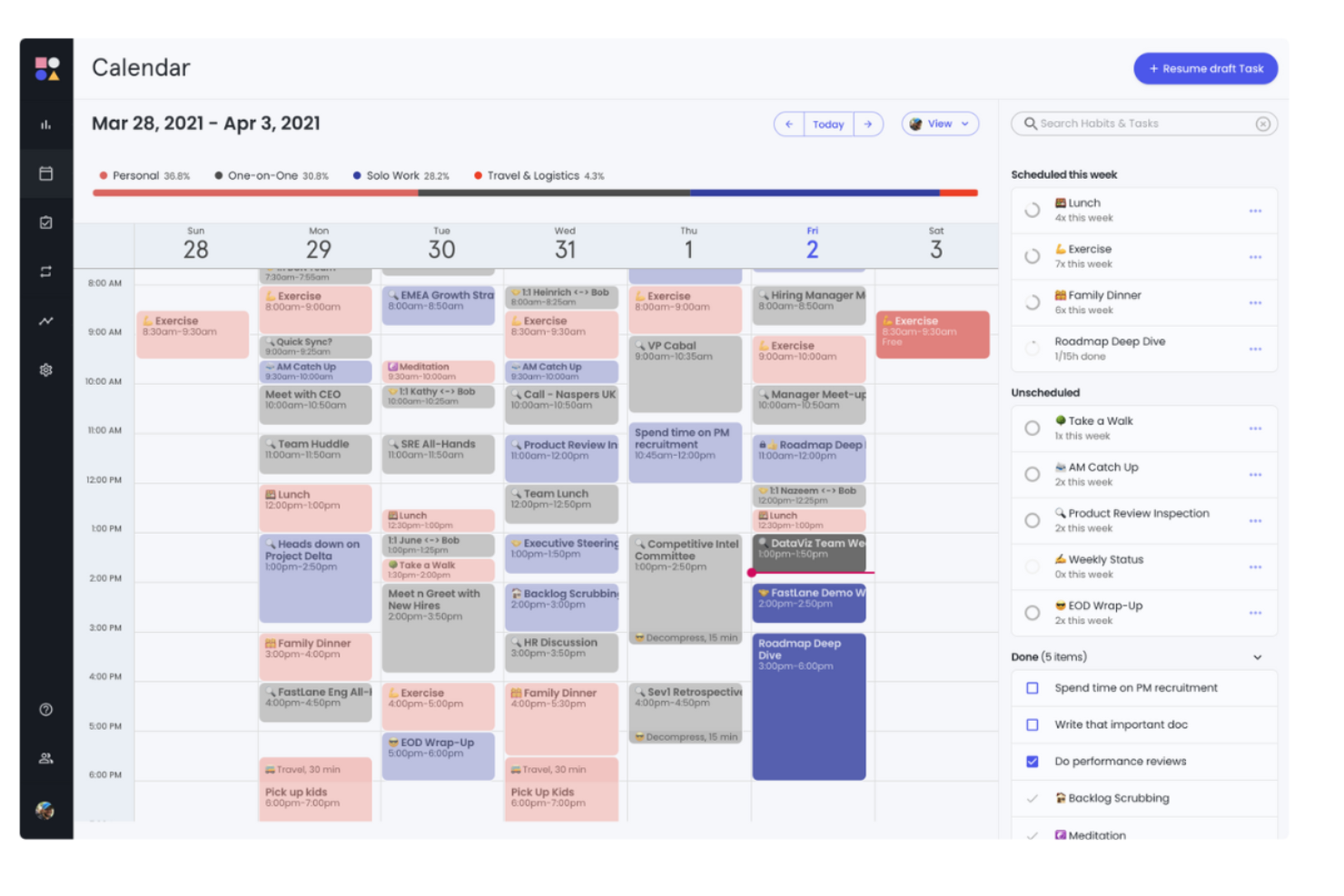
Reclaim.ai uses AI to automate meeting scheduling and protect focus time, making it a strong fit for project managers and teams with packed calendars. It’s especially useful for fast-paced tech environments where shifting priorities and back-to-back meetings can disrupt productivity. By automatically finding the best times for meetings, tasks, and breaks, Reclaim.ai helps teams collaborate without constant manual calendar wrangling.
Why I Picked Reclaim.ai
Automated meeting scheduling is where Reclaim.ai really stands out for content collaboration. I picked it because it uses AI to dynamically find the best times for meetings, tasks, and even breaks, so teams can stay focused without endless back-and-forth. The tool automatically blocks out time for deep work and syncs across multiple calendars, which helps prevent double-booking and last-minute conflicts. For project managers juggling shifting priorities, these features make it much easier to keep collaboration on track and protect everyone’s time.
Reclaim.ai Key Features
Some other features that make Reclaim.ai useful for content collaboration include:
- Smart meeting buffers: Automatically adds buffer time before and after meetings to reduce context switching.
- Task syncing with project management tools: Connects with platforms like Asana and Todoist to keep tasks and schedules aligned.
- Personal and team routines: Lets you set recurring habits or routines that are protected on your calendar.
- Analytics dashboard: Provides insights into how time is spent across meetings, tasks, and focus work.
Reclaim.ai Integrations
Integrations include Google Calendar, Outlook Calendar, Slack, Asana, ClickUp, Todoist, Jira, Linear, Google Tasks, and more.
Pros and Cons
Pros:
- Supports both Google and Outlook calendars
- Analytics show collaboration and meeting trends
- Syncs tasks from multiple project tools
Cons:
- Limited support for file sharing
- No built-in document collaboration features
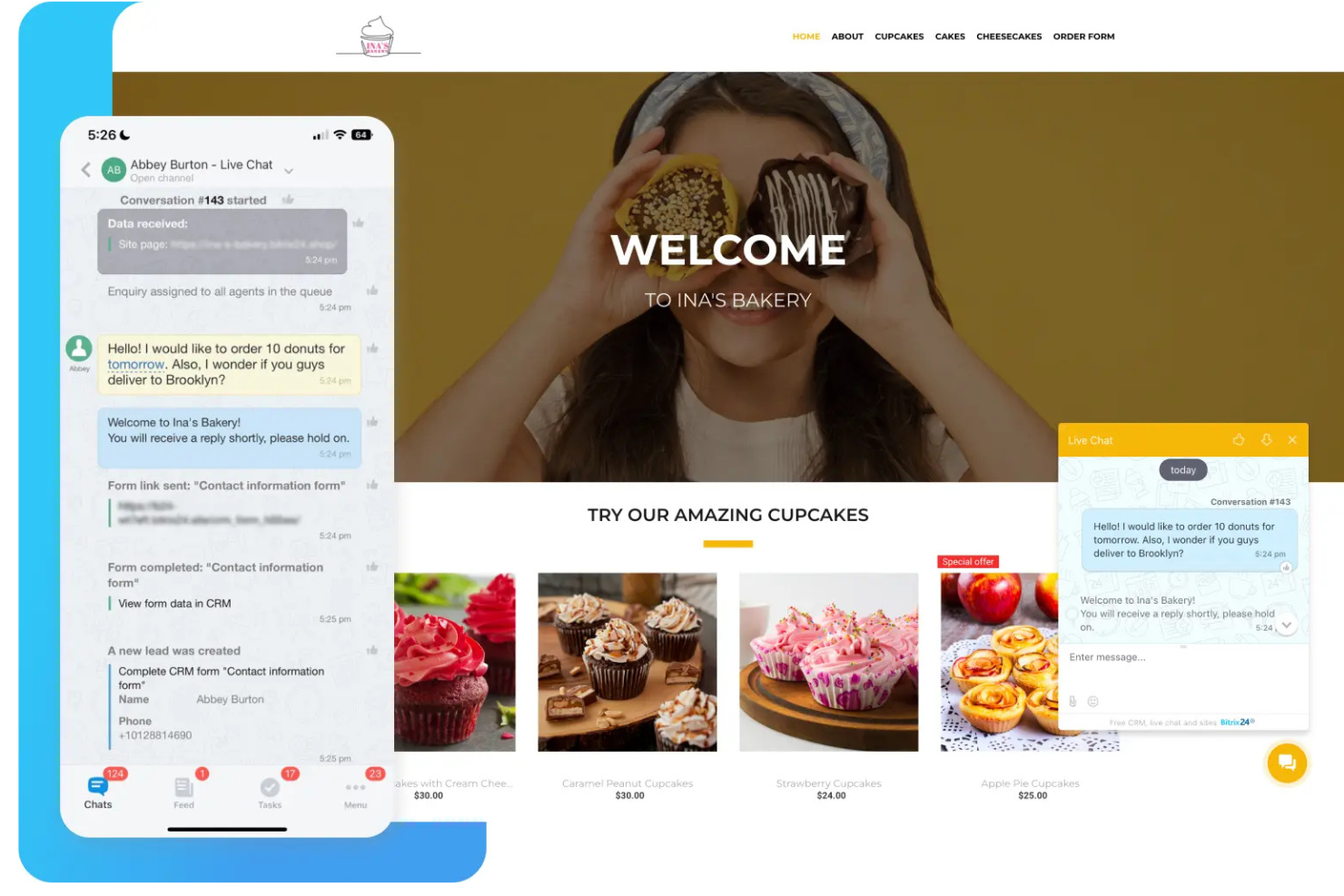
If your team needs a single platform to manage projects, documents, and communication, Bitrix24 brings everything together in one workspace. It’s a strong fit for small to midsize businesses that want to optimize their workflow with built-in chat, video calls, task management, and document sharing. Bitrix24 helps teams centralize collaboration, making it easier to keep projects and conversations organized.
Why I Picked Bitrix24
What sets Bitrix24 apart for content collaboration is its all-in-one approach to team workspaces. I picked it because it combines document management, project tracking, and real-time communication in a single platform, which helps teams avoid tool sprawl. The built-in chat, video conferencing, and shared calendars make it easy to keep everyone connected and aligned on project goals. For teams that want to centralize their work and reduce context switching, Bitrix24 offers a unified space to manage both content and collaboration.
Bitrix24 Key Features
Some other features in Bitrix24 that support content collaboration include:
- Document co-editing: Multiple users can edit documents at the same time within the platform.
- Task dependencies: Set relationships between tasks to manage project sequencing and deadlines.
- Knowledge base: Create and organize internal wikis or knowledge articles for your team.
- Time tracking: Log hours directly on tasks and projects to monitor team workload.
Bitrix24 Integrations
Integrations include Microsoft Teams, Google Analytics, Slack, Miro, Stripe, and an open API for custom integrations.
Pros and Cons
Pros:
- Unlimited users on the free plan
- Built-in CRM for content-driven workflows
- Combines chat, tasks, and document sharing
Cons:
- Occasional sync delays with external drives
- File storage limits on lower-tier plans
Andre plattformer for innholdssamarbeid
Her er noen flere alternativer for plattformer for innholdssamarbeid som ikke kom med på kortlisten min, men som likevel er verdt å se nærmere på:
- Axero Solutions
For customizable intranet hubs
- Zoom Workplace
For meetings with live document co-editing
- Slack
For real-time team messaging
- Smartsheet
For spreadsheet-style project tracking
- Microsoft Loop
For dynamic component-based teamwork


How I Evaluate Content Collaboration Platforms
I split my evaluation into two layers: the baseline a tool must clear—real-time editing, version control, approval workflows—and the differentiators that make it the right fit for project teams.
Core Functionality (Table Stakes For This List)
When I'm selecting tools for my list, I rank each one on a scale from 0 (does not offer the functionality) to 5 (excels in this area) for each core functionality listed below. Then, I calculate the tool's total score into a percentage. Each tool needs to achieve a minimum total score of 65% to be considered for inclusion.
- Centralized File Repository: I check whether the platform organizes project files into a searchable, structured hierarchy—not just a basic file dump where teams lose track of deliverables.
- Real-Time Co-Authoring: Multiple contributors should be able to edit the same document simultaneously, with live cursors and auto-sync so no one overwrites a teammate's work.
- Version Control & History: I look for automatic versioning with full revision history, so a project coordinator can compare or roll back changes when a client reverses feedback mid-cycle.
- Review & Approval Workflows: Structured feedback loops matter here—threaded comments, annotations, and defined approval stages that keep deliverable sign-offs from stalling in email threads.
- Granular Permissions & Sharing: I evaluate how well each tool handles role-based access and external sharing, especially for teams that need to give clients or contractors scoped visibility into specific folders.
- Project Management Integrations: The platform should connect to tools like Jira, Asana, or Monday so content stays linked to tasks and milestones rather than living in a silo.
Once I have a list of tools that meet this criteria, I consider what sets each platform apart.
Differentiating Factors (What Sets Vendors Apart)
Here's how I compare and contrast different vendors:
Standout Features
AI-powered features are a growing differentiator—I look for tools that can summarize long documents or extract action items, which saves project leads real time during status updates. Proofing and annotation tools also matter, especially for teams reviewing video or design files where frame-accurate feedback replaces vague email threads. Client portals give agencies and consultancies a branded space for external stakeholders to review and approve deliverables without granting full platform access.
Beyond Features
Ecosystem depth is one of the first things I evaluate—a content collaboration platform that doesn't connect well with your existing PM and communication tools creates more silos than it solves. Pricing structure matters too, particularly how vendors handle external collaborators. Some charge per guest seat, which gets expensive fast when you're sharing deliverables with multiple client teams. I also check for security certifications like SOC 2 and data residency options, since project teams in regulated industries need those guardrails before procurement will sign off.
Slik velger du en plattform for innholdssamarbeid
Det er lett å gå seg vill i lange funksjonslister og komplekse prismodeller. For å hjelpe deg med å holde fokus mens du arbeider deg gjennom den unike prosessen med å velge programvare, får du her en sjekkliste over faktorer du bør ha i bakhodet:
| Faktor | Hva bør du vurdere? |
|---|---|
| Skalerbarhet | Vil plattformen støtte teamet ditt etter hvert som det vokser? Sjekk brukergrenser, lagringsbegrensninger og mulighetene for å oppgradere abonnementet. |
| Integrasjoner | Kan den kobles direkte til de viktigste verktøyene dine (f.eks. Slack, Google Workspace og Jira)? Unngå plattformer som krever omveier for daglige arbeidsflyter. |
| Tilpasningsmuligheter | Kan du tilpasse arbeidsområder, tillatelser og arbeidsflyter etter teamets behov? Rigide verktøy kan gjøre det vanskeligere å ta løsningen i bruk. |
| Brukervennlighet | Vil teamet ditt ta den raskt i bruk? Se etter tydelig navigasjon, minimalt behov for opplæring og intuitive grensesnitt. |
| Implementering og innføring | Hvor lang tid vil det ta å komme i gang? Vurder støtte ved migrering, opplæringsressurser og tilgjengelig hjelp med innføringen. |
| Kostnad | Er prisnivåene transparente og forutsigbare etter hvert som bruken øker? Vær oppmerksom på skjulte gebyrer eller kostbare tillegg. |
| Sikkerhetstiltak | Tilbyr plattformen kryptering, SSO og detaljerte tilgangskontroller? Sørg for at den oppfyller organisasjonens sikkerhetsstandarder. |
| Tilgjengelig brukerstøtte | Hvilke supportkanaler tilbys, og når er de tilgjengelige? Vurder om du trenger direkte hjelp eller ressurser for selvbetjening. |
Hva er plattformer for innholdssamarbeid?
En plattform for innholdssamarbeid er et digitalt arbeidsområde der team kan dele, redigere og administrere dokumenter, oppgaver og tilbakemeldinger i sanntid. Disse plattformene sentraliserer prosjektfiler, sporer endringer og støtter kommunikasjon, noe som gjør det enklere for distribuerte team å samarbeide. De bidrar til å opprettholde versjonskontroll, effektivisere godkjenninger og holde alle oppdatert om prosjektets fremdrift og leveranser.
Funksjoner
Når du velger en plattform for innholdssamarbeid, bør du se etter følgende viktige funksjoner:
- Redigering i sanntid: Flere brukere kan arbeide med det samme dokumentet eller den samme filen samtidig, og endringene blir umiddelbart synlige for alle.
- Versjonshistorikk: Plattformen sporer og lagrer tidligere versjoner av filer, slik at brukerne kan gjennomgå eller gjenopprette tidligere redigeringer etter behov.
- Tildeling av oppgaver: Tildel oppgaver til teammedlemmer, angi tidsfrister og følg fremdriften i det samme arbeidsområdet.
- Kommentering og tilbakemeldinger: Brukere kan legge igjen kommentarer direkte i dokumenter eller på oppgaver, noe som gjør det enkelt å diskutere endringer og avklare spørsmål.
- Fildeling: Last opp, organiser og del filer på en sikker måte med enkeltpersoner eller grupper, og bestem hvem som kan se eller redigere hvert element.
- Rettighetsadministrasjon: Angi detaljerte tilgangskontroller for å bestemme hvem som kan se, redigere eller dele bestemt innhold på plattformen.
- Kalenderintegrasjon: Synkroniser prosjektfrister, møter og milepæler med teamkalendere for å holde alle i rute.
- Varsler og påminnelser: Motta oppdateringer om endringer, kommentarer eller kommende tidsfrister, slik at du holder deg informert og kan reagere raskt.
- Mobiltilgang: Bruk dedikerte mobilapper eller responsive nettgrensesnitt for å samarbeide og administrere innhold fra alle enheter.
- Søkefunksjonalitet: Finn raskt dokumenter, oppgaver eller samtaler ved hjelp av kraftige søkeverktøy som filtrerer etter nøkkelord, dato eller bruker.
Fordeler
Implementering av en plattform for innholdssamarbeid gir flere fordeler for teamet og virksomheten din. Her er noen av fordelene du kan se frem til:
- Sentralisert informasjon: Alle prosjektfiler, tilbakemeldinger og diskusjoner lagres på ett tilgjengelig sted, noe som reduserer tiden som brukes på å lete etter dokumenter.
- Bedre teamarbeid: Funksjoner for redigering i sanntid og kommentering hjelper team med å samarbeide mer effektivt, selv når de er fordelt på ulike steder.
- Raskere prosjektleveranser: Tildeling av oppgaver, oppfølging av tidsfrister og kalenderintegrasjon holder alle samkjørte og prosjektene i fremdrift.
- Bedre versjonskontroll: Innebygd versjonshistorikk og rettighetsadministrasjon forhindrer forvirring rundt dokumentendringer og uautoriserte redigeringer.
- Større ansvarlighet: Oppfølging av oppgaver og aktivitetslogger gjør det tydelig hvem som er ansvarlig for hver leveranse, og hvilken fremdrift som er oppnådd.
- Bedre kommunikasjon: Integrerte varsler og verktøy for tilbakemeldinger sørger for at alle holder seg informert om oppdateringer, spørsmål og beslutninger.
- Fleksibel tilgang: Mobilapper og nettgrensesnitt lar teammedlemmer samarbeide og administrere innhold fra hvor som helst, og støtter hybrid- og fjernarbeid.
Kostnader og priser
Valg av programvare for innholdssamarbeid krever en forståelse av de ulike prismodellene og abonnementene som er tilgjengelige. Kostnadene varierer basert på funksjoner, teamstørrelse, tillegg og mer. Tabellen nedenfor oppsummerer vanlige abonnementer, gjennomsnittsprisene deres og typiske funksjoner som er inkludert i løsninger for plattformer for innholdssamarbeid:
Sammenligningstabell for abonnementer på plattform for innholdssamarbeid
| Abonnementstype | Gjennomsnittspris | Vanlige funksjoner |
|---|---|---|
| Gratisabonnement | $0 | Grunnleggende fildeling, begrenset lagringsplass, enkel oppgaveadministrasjon og grunnleggende samarbeidsverktøy. |
| Personlig abonnement | $5–$10/user/month | Økt lagringsplass, redigering i sanntid, versjonshistorikk og grunnleggende integrasjoner. |
| Bedriftsabonnement | $12–$25/user/month | Avanserte rettighetskontroller, teamarbeidsområder, kalenderintegrasjon, rapportering og prioritert brukerstøtte. |
| Virksomhetsabonnement | $30–$50/user/month | Tilpasset sikkerhet, SSO, avansert analyse, ubegrenset lagringsplass, dedikert kontoadministrasjon og funksjoner for overholdelse av regelverk. |
Vanlige spørsmål om plattformer for innholdssamarbeid
Her er noen svar på vanlige spørsmål om plattformen for innholdssamarbeid:
Hvordan støtter plattformer for innholdssamarbeid eksterne eller distribuerte team?
Plattformer for innholdssamarbeid gir eksterne team et felles arbeidsområde for filer, oppgaver og tilbakemeldinger. Samtidig redigering, kommentarer og varsler i sanntid hjelper alle med å holde seg samkjørte, uavhengig av sted eller tidssone. Dette reduserer e-postutveksling og gjør prosjektinformasjonen tilgjengelig for alle teammedlemmer.
Kan plattformer for innholdssamarbeid integreres med verktøy for prosjektstyring eller kommunikasjon?
Ja, de fleste plattformer for innholdssamarbeid tilbyr integrasjoner med verktøy for prosjektstyring, chatteapper og kalendere. Dette lar deg koble sammen arbeidsflytene dine, automatisere oppdateringer og unngå dobbeltarbeid. Kontroller om plattformen støtter innebygde integrasjoner med verktøyene teamet ditt allerede bruker.
Hvilke sikkerhetsfunksjoner bør jeg se etter i en plattform for innholdssamarbeid?
Se etter kryptering under overføring og ved lagring, detaljerte tilgangskontroller og støtte for enkel pålogging (SSO). Hvis organisasjonen din har krav til samsvar, bør du se etter sertifiseringer som SOC 2 eller ISO 27001. Sørg for at du kan kontrollere hvem som får tilgang til sensitive filer, og følge med på aktivitetslogger.
Hvordan håndterer disse plattformene versjonskontroll og dokumenthistorikk?
De fleste plattformer lagrer automatisk tidligere versjoner av filer og sporer endringer over tid. Du kan gå gjennom, sammenligne eller gjenopprette tidligere versjoner ved behov. Dette bidrar til å forhindre utilsiktet datatap og gjør det enkelt å se hvem som gjorde bestemte endringer.
Hva bør jeg vurdere når jeg migrerer til en ny plattform for innholdssamarbeid?
Planlegg datamigrering, introduksjon av brukere og oppsett av integrasjoner. Kontroller om plattformen tilbyr importverktøy, opplæringsressurser og støtte under overgangen. Involver viktige interessenter tidlig for å sikre at arbeidsflyter og tillatelser konfigureres riktig fra starten av.