

I 10 migliori software per il luogo di lavoro digitale del 2026

Selezione dei migliori software per l'ambiente di lavoro digitale


Il software per l'ambiente di lavoro digitale riunisce strumenti per la comunicazione, la collaborazione e la gestione dei flussi di lavoro in un unico ambiente digitale. Se stai cercando il miglior software per l'ambiente di lavoro digitale, probabilmente vuoi mantenere il tuo team connesso, organizzato e produttivo, indipendentemente da dove lavori. Con così tante piattaforme che promettono di risolvere le difficoltà del lavoro da remoto, è difficile sapere quali offrano davvero funzionalità come la condivisione dei documenti, la messaggistica in tempo reale e il monitoraggio dei progetti. Questo elenco ti aiuterà a confrontare rapidamente le migliori opzioni, a capire cosa distingue ciascuna soluzione e a trovare quella più adatta alle esigenze specifiche del tuo team nel 2026.
Perché fidarsi dei nostri consigli sui software
Il nostro team testa e recensisce software dal 2012. In quanto project manager noi stessi, sappiamo quanto sia difficile — e importante — scegliere il software giusto.
Per questa guida, abbiamo valutato gli strumenti attraverso test pratici e ricerche indipendenti, assegnando un punteggio agli strumenti in base ai nostri criteri di selezione. Ci basiamo inoltre sulle competenze di leader di pensiero del settore e di professionisti attivi nella gestione dei progetti.
Le nostre recensioni riflettono il nostro giudizio editoriale umano, non un discorso di vendita.
Revisori esperti:
Tabella di confronto dei software per l'ambiente di lavoro digitale
Questa tabella di confronto riassume i dettagli sui prezzi delle mie migliori selezioni di software per l’ambiente di lavoro digitale:
| Tool | Best For | Trial Info | Price | ||
|---|---|---|---|---|---|
| 1 | Ideale per accesso e supporto remoto ai dispositivi | Prova gratuita di 30 giorni disponibile | Da $24.90/utente/mese (fatturazione annuale) | Website | |
| 2 | Ideale per il monitoraggio di progetti basato su database | Disponibile piano gratuito | Da $20/utente/mese (fatturazione annuale) | Website | |
| 3 | Ideale per la collaborazione in tempo reale sui documenti | Prova gratuita di 14 giorni disponibile | Da $7/utente/mese (fatturazione annuale) | Website | |
| 4 | Ideale per funzionalità di automazione delle attività | Piano gratuito + demo gratuita disponibile | Da $10.99/utente/mese (fatturazione annuale) | Website | |
| 5 | Il migliore con controlli di sicurezza di livello aziendale | Demo gratuita disponibile | Da $18/mese (fatturato annualmente) | Website | |
| 6 | Ideale per opzioni di deployment self-hosted | Piano gratuito + prova gratuita di 30 giorni disponibile | Da $20/admin/mese | Website | |
| 7 | Ideale per la gestione personalizzabile dei flussi di lavoro | Piano gratuito disponibile | Da $7/utente/mese (fatturazione annuale) | Website | |
| 8 | Ideale per la gestione unificata delle conoscenze | Piano gratuito + demo gratuita disponibile | Da $10/membro/mese (fatturato annualmente) | Website | |
| 9 | Ideale per la comunicazione tra team multilingue | Piano gratuito disponibile | Prezzi su richiesta | Website | |
| 10 | Ideale per sessioni di brainstorming visivo | Piano gratuito disponibile | Da $8/membro/mese (fatturato annualmente) | Website |

Recensioni dei software per l'ambiente di lavoro digitale
Di seguito trovi i miei riepiloghi dettagliati dei software per l’ambiente di lavoro digitale inclusi nella mia selezione. Le mie recensioni offrono un’analisi approfondita delle funzionalità, dei migliori casi d’uso e delle integrazioni di ciascuna piattaforma, per aiutarti a trovare quella più adatta al tuo team.

Ideale per accesso e supporto remoto ai dispositivi
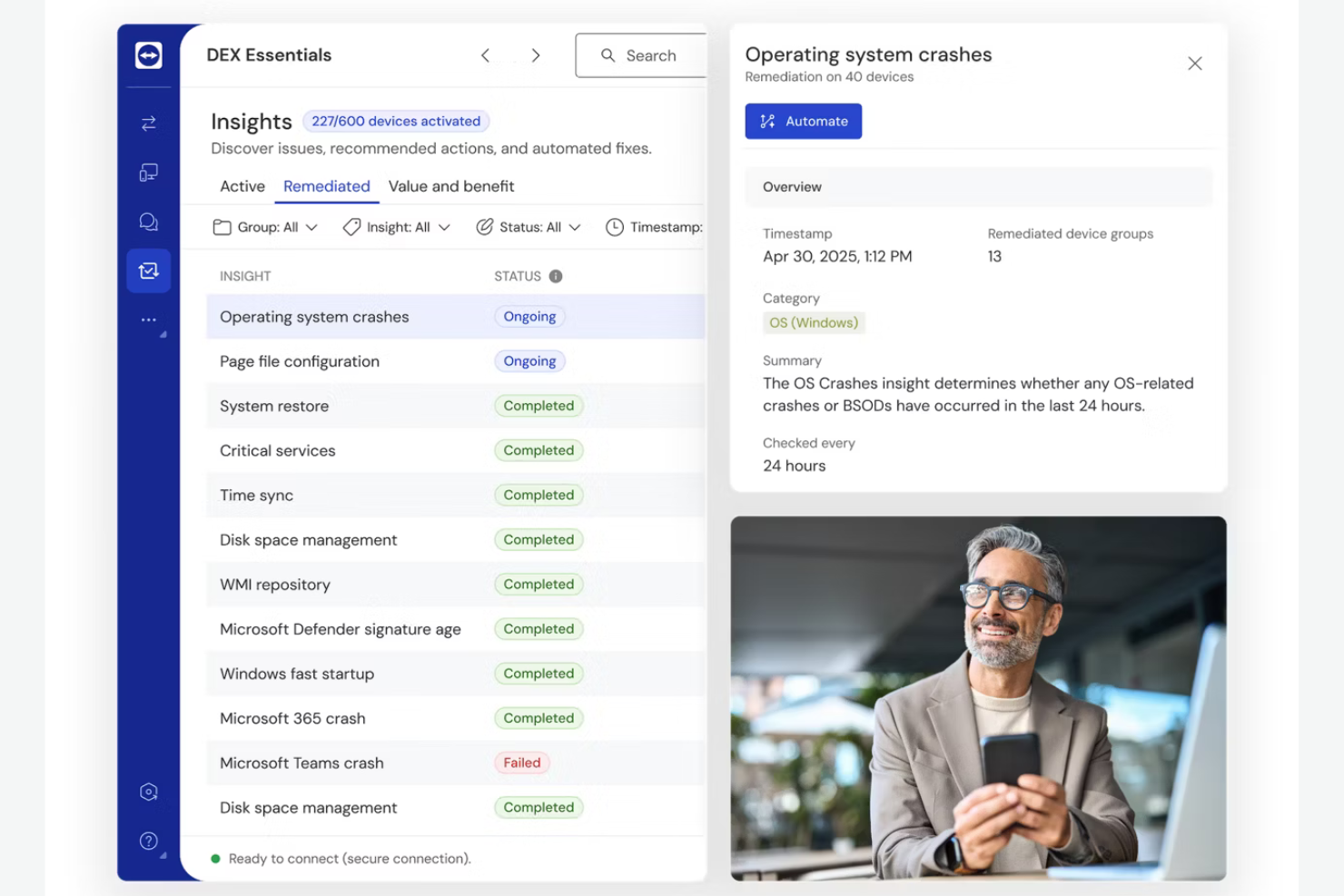
Se il tuo team ha bisogno di accedere e supportare dispositivi da remoto, TeamViewer offre una connettività sicura e multipiattaforma per professionisti IT e team di assistenza. È particolarmente utile per le organizzazioni che gestiscono endpoint distribuiti, lavoratori da remoto o dispositivi dei clienti fuori dalla rete aziendale. TeamViewer aiuta a risolvere rapidamente i problemi tecnici e a mantenere la continuità operativa senza richiedere la presenza in loco degli utenti.
Perché ho scelto TeamViewer
L'accesso e il supporto remoto ai dispositivi sono fondamentali per i team distribuiti, motivo per cui ho inserito TeamViewer in questa lista. La piattaforma consente al personale IT di connettersi e controllare dispositivi con diversi sistemi operativi, anche quando questi si trovano fuori dalla rete aziendale. Apprezzo il fatto che TeamViewer offra accesso non presidiato e registrazione sicura delle sessioni, funzionalità che aiutano i team a risolvere problemi senza interrompere gli utenti finali. Per le organizzazioni che supportano dipendenti o clienti remoti, queste caratteristiche rendono TeamViewer una scelta pratica per gli ambienti di lavoro digitali.
Caratteristiche principali di TeamViewer
Altre funzionalità che rendono TeamViewer utile per i team del digital workplace includono:
- Trasferimento file: Sposta file in modo sicuro tra dispositivi connessi durante una sessione remota.
- Sessioni di supporto multiutente: Consenti a più tecnici di assistenza di partecipare e collaborare alla stessa sessione.
- Stampa remota: Stampa documenti da un dispositivo remoto su una stampante locale senza configurazioni aggiuntive.
- Accesso da dispositivi mobili: Connettiti e controlla smartphone e tablet con iOS o Android.
Integrazioni di TeamViewer
Le integrazioni includono Microsoft Intune, ServiceNow, Freshworks, Jira, Salesforce, Zendesk, Slack, Microsoft Teams, Zoho e altri.
Pros and Cons
Pros:
- Supporta le esigenze di audit e conformità con le registrazioni
- La stampa remota funziona con la maggior parte delle stampanti locali
- Wake-on-LAN consente l'avvio remoto dei dispositivi
Cons:
- La velocità di trasferimento file varia in base alle condizioni di rete
- Nessun sistema di ticketing o gestione dei casi integrato

Airtable
Ideale per il monitoraggio di progetti basato su database
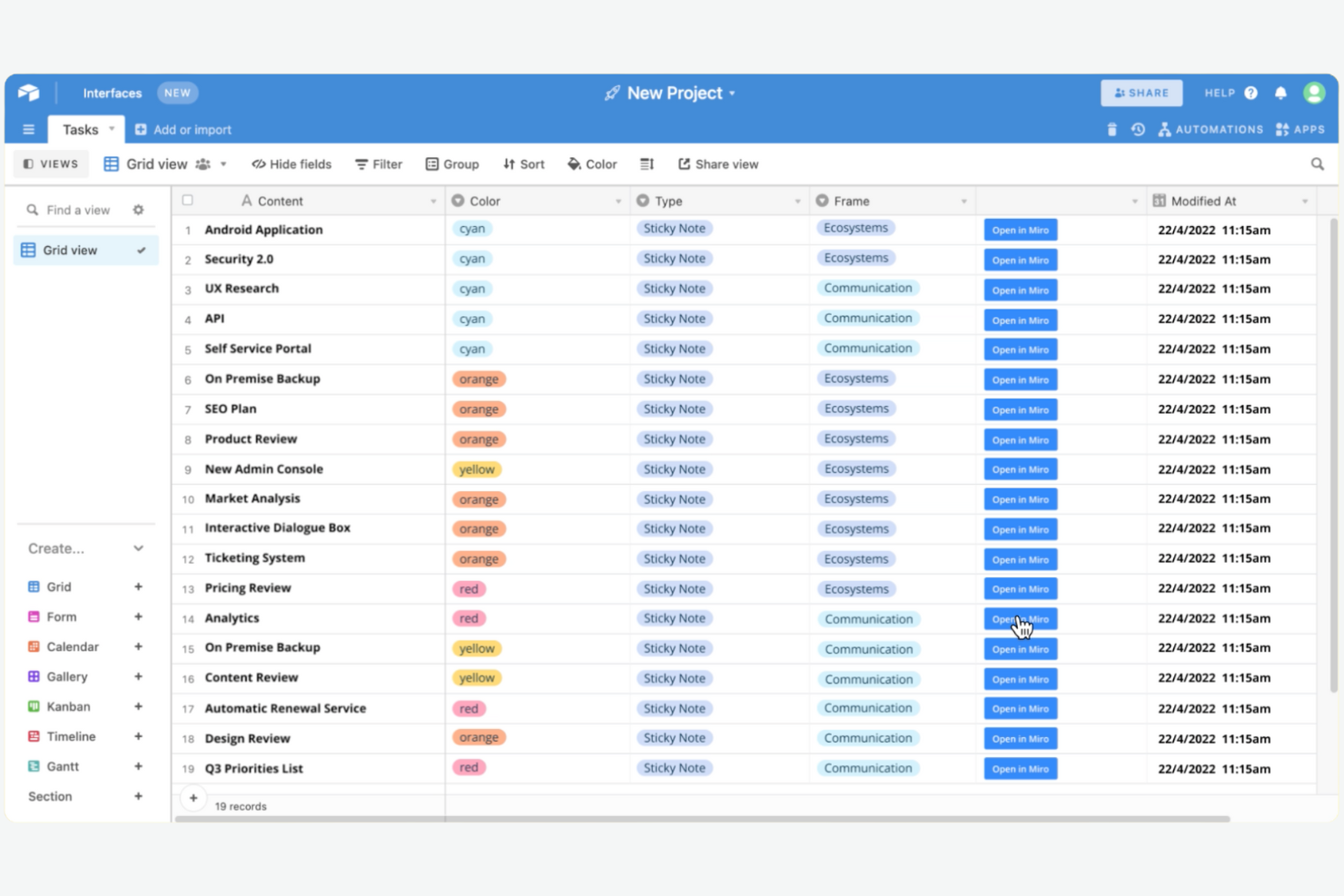
Airtable unisce la flessibilità di un foglio di calcolo con la struttura di un database, diventando così una soluzione ideale per i team che hanno bisogno di monitorare progetti complessi o gestire grandi quantità di informazioni. È particolarmente utile per i team di prodotto, marketing e operations che vogliono creare flussi di lavoro personalizzati senza scrivere codice. Airtable ti aiuta a organizzare, collegare e visualizzare i dati di progetto in modi che i tradizionali tracker di attività non possono offrire.
Perché ho scelto Airtable
Ciò che distingue Airtable tra i software per il digital workplace è il suo approccio al monitoraggio dei progetti basato sui database. Ho scelto Airtable perché consente ai team di progettare tabelle personalizzate, collegare record tra progetti diversi e creare database relazionali senza competenze tecniche. Le viste flessibili della piattaforma—come Kanban, calendario e galleria—aiutano a visualizzare e gestire i dati di progetto nel modo più adatto al proprio flusso di lavoro. Questa struttura è preziosa per i team che vogliono eliminare i silos informativi durante la gestione di progetti multidimensionali.
Funzionalità principali di Airtable
Altre funzionalità che rendono Airtable utile per i team digitali includono:
- Automazioni: Configura trigger e azioni per automatizzare attività ripetitive nei tuoi database.
- Generatore di moduli: Raccogli dati strutturati dai colleghi o da stakeholder esterni direttamente nelle tue tabelle.
- Controlli dei permessi: Assegna livelli di accesso specifici ai collaboratori per una maggiore sicurezza dei dati.
- Sincronizzazione con fonti esterne: Connetti e sincronizza dati da altre piattaforme come Google Calendar o Salesforce.
Integrazioni di Airtable
Le integrazioni includono Slack, Google Drive, Salesforce, Jira, Zendesk, Box, Dropbox, GitHub e molte altre.
Pros and Cons
Pros:
- Opzioni di visualizzazione multiple per visualizzare i dati
- Il generatore di moduli raccoglie facilmente input strutturati
- I controlli dei permessi gestiscono l'accesso dei collaboratori
Cons:
- Cronologia delle revisioni limitata nei piani base
- Nessuna funzione di chat o messaggistica integrata

Ideale per la collaborazione in tempo reale sui documenti

Se il tuo team ha bisogno di collaborare sui documenti in tempo reale, Google Workspace è un'opzione molto valida. È progettato per organizzazioni che danno priorità all'editing, alla condivisione e alla comunicazione tra team distribuiti. La piattaforma si distingue per la sua suite integrata di strumenti di produttività che ottimizzano il rendimento di ogni dipendente, sia in ufficio che in remoto.
Perché ho scelto Google Workspace
Ho scelto Google Workspace perché i suoi strumenti di collaborazione sui documenti in tempo reale lo rendono unico nel panorama dei software per il digital workplace. I team possono co-modificare Documenti, Fogli e Presentazioni simultaneamente, con i cambiamenti che appaiono istantaneamente a tutti gli utenti coinvolti. Le funzionalità integrate di commenti e suggerimenti rendono facile raccogliere feedback e mantenere le conversazioni direttamente collegate al lavoro. Per le organizzazioni che devono portare avanti i progetti senza confusione di versioni o continui scambi di email, queste capacità sono difficili da eguagliare.
Caratteristiche principali di Google Workspace
Altre funzionalità di Google Workspace che supportano le esigenze del digital workplace includono:
- Drive condivisi: crea drive specifici per il team dove i file sono di proprietà collettiva e rimangono accessibili anche quando cambiano i membri del team.
- Integrazione con Google Meet: avvia videochiamate direttamente dagli eventi in calendario o dalle chat per una collaborazione rapida faccia a faccia.
- Console di amministrazione: gestisci l'accesso degli utenti, le impostazioni di sicurezza e le policy dei dispositivi da una dashboard centralizzata.
- Automazione con AppSheet: crea automazioni di workflow e app personalizzate senza programmare, utilizzando i dati da Google Sheets e altri strumenti Workspace.
Integrazioni di Google Workspace
Le integrazioni includono Gmail, Google Drive, Google Meet, Google Chat, Google Calendar, Google Docs, Google Sheets e altro ancora.
Pros and Cons
Pros:
- Co-editing in tempo reale su tutti i tipi di documenti
- Si integra con le app di produttività Google
- Archiviazione cloud affidabile con controlli di condivisione
Cons:
- L'accesso offline può essere incostante
- Funzionalità avanzate di project management limitate
Asana
Ideale per funzionalità di automazione delle attività

Se il tuo team ha bisogno di automatizzare lavori ripetitivi e mantenere i progetti in movimento, Asana offre una piattaforma flessibile progettata per la gestione delle attività su larga scala. È particolarmente adatta a team trasversali nei settori tecnologico, marketing e operativo che desiderano coordinare incarichi, scadenze e dipendenze con il minimo sforzo manuale. Asana si distingue per le sue funzionalità di automazione che aiutano a ridurre le attività ripetitive e tengono tutti allineati.
Perché ho scelto Asana
Per i team che desiderano automatizzare il lavoro di progetto di routine, le funzionalità di automazione delle attività di Asana rappresentano una scelta solida per i software di digital workplace. Ho scelto Asana perché il suo motore Rules permette di impostare trigger e azioni personalizzati per automatizzare l'assegnazione delle attività, l'aggiornamento dello stato e le notifiche. La piattaforma supporta anche modelli di flusso di lavoro che aiutano a standardizzare i processi tra i diversi team. Questi strumenti di automazione migliorano l'esperienza dell'utente riducendo la necessità di coordinamento manuale per il team.
Funzionalità principali di Asana
Altre funzionalità che rendono Asana utile per i team digital workplace includono:
- Vista Timeline: Visualizza le tempistiche dei progetti e le dipendenze con un'interfaccia Gantt drag-and-drop.
- Gestione del carico di lavoro: Monitora la capacità del team e bilancia gli incarichi tra i progetti.
- Monitoraggio degli obiettivi: Imposta, monitora e collega gli obiettivi del team o aziendali direttamente al lavoro sui progetti.
- Campi personalizzati: Aggiungi punti dati specifici alle attività per un migliore monitoraggio e reporting.
Integrazioni Asana
Le integrazioni includono Slack, Google Drive, Microsoft Teams, Salesforce, Jira, Zoom, Dropbox, GitHub, Outlook e altre ancora.
Pros and Cons
Pros:
- La funzione obiettivi collega il lavoro agli obiettivi
- Gestione del carico di lavoro integrata
- Dispone di filtri avanzati per la ricerca
Cons:
- Le sotto-attività non hanno piena visibilità nel progetto
- Non include strumenti di modifica dei documenti

Il migliore con controlli di sicurezza di livello aziendale

Microsoft 365 Copilot riunisce app di produttività, archiviazione cloud e funzionalità avanzate di sicurezza per le organizzazioni che devono proteggere dati sensibili. È particolarmente adatto per aziende e settori regolamentati dove conformità, gestione dell'identità e protezione dalle minacce sono priorità assolute. Con strumenti unificati per la collaborazione e controlli amministrativi dettagliati, Microsoft 365 Copilot aiuta i team IT a gestire i rischi supportando il lavoro da remoto e ibrido.
Perché ho scelto Microsoft 365 Copilot
Sicurezza e conformità sono al centro di Microsoft 365 Copilot, motivo per cui l'ho scelto per i team che necessitano di controlli di livello aziendale nei loro software per ambienti di lavoro digitali. La piattaforma offre protezione avanzata contro le minacce, prevenzione della perdita di dati e crittografia in tutte le sue app, aiutando le organizzazioni a salvaguardare le informazioni sensibili. Apprezzo che Microsoft 365 includa controlli di accesso granulari e registrazione delle attività, così i team IT possono gestire i permessi e monitorare le attività su larga scala. Per le aziende dei settori regolamentati o per chi gestisce dati riservati, queste caratteristiche rendono Microsoft 365 Copilot una scelta solida.
Funzionalità principali di Microsoft 365 Copilot
Altre funzionalità che rendono Microsoft 365 Copilot prezioso per i team di lavoro digitale includono:
- Co-Authoring nelle app Office: Più utenti possono modificare simultaneamente file Word, Excel e PowerPoint in tempo reale.
- Integrazione con Microsoft Teams: Chat, videoriunioni e condivisione di file sono unificati in uno spazio di lavoro unico.
- SharePoint Online: Crea siti interni e gestisci raccolte documentali per la collaborazione di team.
- Planner e To Do: Organizza le attività, assegna le responsabilità e monitora l’avanzamento dei progetti.
Integrazioni di Microsoft 365 Copilot
Le integrazioni includono Dynamics 365, Salesforce, Adobe Sign, Docusign, Trello, Zoom, ServiceNow, Dropbox, Box e altri ancora.
Pros and Cons
Pros:
- Soddisfa i requisiti di conformità più rigorosi delle aziende
- Integrazione con chat e riunioni Teams
- Crittografia email integrata per informazioni sensibili
Cons:
- La navigazione nel portale amministrativo può risultare confusa
- Struttura di licenze complessa

Ideale per opzioni di deployment self-hosted

ONLYOFFICE offre alle organizzazioni il pieno controllo sul proprio ambiente digitale con opzioni di distribuzione flessibili e self-hosted. È una scelta ideale per i team IT, le aziende attente alla privacy o i settori regolamentati che necessitano di mantenere i dati on-premises. ONLYOFFICE combina strumenti di editing documenti, gestione progetti e collaborazione in un'unica piattaforma che puoi ospitare sulla tua infrastruttura.
Perché ho scelto ONLYOFFICE
Per i team che necessitano del pieno controllo sui dati e sulle infrastrutture, ONLYOFFICE si distingue grazie alle sue opzioni di deployment self-hosted. Ho scelto ONLYOFFICE perché consente alle organizzazioni di installare l'intera piattaforma sui propri server, soluzione particolarmente importante per le aziende con esigenze di conformità o privacy molto rigorose. La piattaforma supporta sia configurazioni cloud private sia installazioni on-premises, così i team IT possono personalizzare la sicurezza e i controlli di accesso secondo le proprie esigenze. Questa flessibilità di distribuzione è rara tra le piattaforme per l'ambiente digitale di lavoro e rende ONLYOFFICE particolarmente adatto ai settori regolamentati o a qualsiasi azienda che attribuisce la massima priorità alla sovranità dei dati.
Caratteristiche principali di ONLYOFFICE
Altre funzionalità che rendono ONLYOFFICE utile ai team che lavorano in ambienti digitali includono:
- Editing collaborativo dei documenti: Più utenti possono lavorare contemporaneamente su documenti, fogli di calcolo e presentazioni.
- Modulo di gestione progetti: Gestione delle attività, scadenze e tracciamento delle milestone direttamente dalla piattaforma.
- Integrazione con CRM: Gestione di contatti, vendite e interazioni con i clienti direttamente dallo spazio di lavoro.
- Aggregazione di calendario e posta: Centralizza la programmazione e le comunicazioni e-mail per una migliore coordinazione del team.
Integrazioni di ONLYOFFICE
Le integrazioni includono Nextcloud, Moodle, WordPress, Confluence, Jira, Redmine, Box, Dropbox e altro ancora.
Pros and Cons
Pros:
- Supporta il deployment self-hosted
- Moduli integrati di gestione progetti e CRM
- Integrazione nativa con Nextcloud e ownCloud
Cons:
- La configurazione avanzata richiede competenze IT
- Integrazioni con terze parti limitate


ClickUp offre ai team un'unica piattaforma per progettare, automatizzare e gestire flussi di lavoro su misura per le loro esigenze specifiche. È una scelta valida per project manager, responsabili delle operazioni e team trasversali che vogliono personalizzare la gestione delle attività, i report e la collaborazione secondo i propri processi. Grazie alla sua struttura flessibile e alle ampie opzioni di personalizzazione, ClickUp aiuta i team a gestire tutto, dagli sprint agili a progetti complessi che coinvolgono più dipartimenti.
Perché ho scelto ClickUp
La gestione personalizzabile dei flussi di lavoro è il vero punto di forza di ClickUp come software per il digital workplace. La piattaforma permette di creare stati attività, campi e viste personalizzati, in modo che il team possa replicare esattamente i propri processi, sia che utilizziate gli sprint agili sia che gestiate le consegne ai clienti. Apprezzo il fatto che sia possibile automatizzare le attività ripetitive grazie al generatore di automazioni di ClickUp, che aiuta i team a ridurre il lavoro manuale e a mantenere la coerenza. Per i team che hanno bisogno di adattare lo spazio di lavoro al variare dei progetti, la flessibilità di ClickUp lo rende una soluzione perfetta.
Funzionalità chiave di ClickUp
Altre funzionalità che rendono ClickUp una piattaforma di riferimento per i team digitali includono:
- Documenti e Wiki: crea, modifica e condividi la documentazione interna direttamente dal workspace.
- Monitoraggio del tempo: registra il tempo dedicato alle attività tramite timer integrati e inserimento manuale.
- Monitoraggio degli obiettivi: imposta, monitora e visualizza i progressi verso gli obiettivi del team o dei progetti.
- Lavagne: collabora in modo visivo con lavagne digitali per sessioni di brainstorming e pianificazione.
Integrazioni ClickUp
Le integrazioni includono Slack, GitHub, GitLab, HubSpot, Everhour, Toggl, Google Drive, Outlook, Figma e altro ancora.
Pros and Cons
Pros:
- I campi personalizzati supportano il monitoraggio granulare delle attività
- Organizza progetti e team in una gerarchia
- Dispone di un generatore di automazioni per le attività ripetitive
Cons:
- Le impostazioni delle notifiche possono risultare eccessive
- L'app mobile manca di alcune funzionalità della versione desktop

Se il tuo team ha bisogno di un unico posto dove organizzare documenti, progetti e conoscenze, Notion riunisce tutto in un unico workspace flessibile. È particolarmente utile per i team di prodotto, le agenzie e le startup che vogliono centralizzare wiki, note e piani di progetto senza dover gestire più app. Le pagine e i database personalizzabili di Notion aiutano i team a costruire una fonte unica di verità che si adatta all’evoluzione delle loro esigenze.
Perché ho scelto Notion
Ciò che distingue Notion tra i software per digital workplace è la sua capacità di unificare conoscenza, documentazione e informazioni di progetto in un unico punto. Ho scelto Notion perché la sua struttura flessibile delle pagine permette ai team di creare wiki, SOP e knowledge base facili da organizzare e aggiornare con il cambiare delle esigenze. La funzione database permette di collegare note, attività e risorse, così le informazioni restano connesse e facilmente ricercabili in tutto il workspace. Per i team che desiderano una sola fonte di verità senza passare da uno strumento all’altro, l’approccio unificato di Notion è la scelta ideale.
Caratteristiche principali di Notion
Oltre a offrire un workspace unificato per la gestione delle conoscenze, Notion include molte altre funzionalità a supporto dei team digitali:
- Collaborazione in tempo reale: Più utenti possono modificare pagine e database contemporaneamente.
- Template personalizzati: Crea e riutilizza template per note riunioni, tracker di progetti e altro ancora.
- Permessi e condivisione: Imposta controlli di accesso granulari per pagine, database e workspace.
- Media integrati: Inserisci immagini, video, frammenti di codice e file direttamente in qualsiasi pagina.
Integrazioni Notion
Le integrazioni includono Slack, Jira, GitHub, Asana, Google Drive, Figma, Trello, GitLab, Typeform e molte altre.
Pros and Cons
Pros:
- La cronologia delle versioni delle pagine traccia tutte le modifiche ai contenuti
- L’assistente AI genera riepiloghi e promemoria d’azione
- Le pagine nidificate consentono gerarchie di documentazione profonde
Cons:
- L’accesso offline è limitato e poco affidabile
- Nessun diagramma di Gantt integrato per le tempistiche di progetto

MelpApp è pensato per i team che devono comunicare superando le barriere linguistiche in tempo reale. È una soluzione ideale per organizzazioni globali, team distribuiti o qualsiasi ambiente di lavoro in cui la collaborazione multilingue fa parte delle operazioni quotidiane. MelpApp aiuta a ridurre le incomprensioni offrendo traduzione istantanea e supporto linguistico nelle chat di gruppo e nelle riunioni di team.
Perché ho scelto MelpApp
La comunicazione di team multilingue è una sfida per molti ambienti di lavoro digitali, motivo per cui ho scelto MelpApp per questa lista. La piattaforma offre traduzione in tempo reale nelle chat di gruppo e nelle riunioni, così i membri del team possono interagire nella loro lingua preferita senza perdere dettagli importanti. Apprezzo anche il fatto che MelpApp supporti sia la traduzione vocale sia quella testuale, facilitando la collaborazione tra team che operano in regioni e fusi orari diversi. Per le organizzazioni con personale globale o multilingue, queste funzionalità aiutano a mantenere tutti connessi e aggiornati.
Funzionalità principali di MelpApp
Altre funzionalità che rendono MelpApp utile per i team che lavorano in ambienti digitali includono:
- Programmazione dei messaggi: Programma l’invio dei messaggi in un momento specifico per una migliore coordinazione tra i vari fusi orari.
- Conferme di lettura: Verifica quando i membri del team hanno letto i tuoi messaggi per monitorare meglio la comunicazione.
- Controlli di accesso basati sui ruoli: Assegna permessi e gestisci l’accesso in base ai ruoli utente all’interno della tua organizzazione.
- Condivisione di file: Condividi documenti, immagini e altri file direttamente nelle chat per una collaborazione rapida.
Integrazioni MelpApp
Le integrazioni native al momento non sono elencate.
Pros and Cons
Pros:
- Fornisce traduzione in tempo reale
- Supporta le conferme di lettura
- Piano gratuito disponibile per piccoli team
Cons:
- Nessuna integrazione nativa elencata
- Nessuna funzione di videoconferenza integrata

Miro
Ideale per sessioni di brainstorming visivo

Per i team che si affidano al pensiero visivo e alla collaborazione creativa, Miro offre una piattaforma di whiteboard online flessibile. È particolarmente utile per product manager, designer e team distribuiti che hanno bisogno di mappare insieme idee, flussi di lavoro o percorsi utente. Miro si distingue come una piattaforma pensata per offrire la migliore esperienza ai dipendenti, trasformando le sessioni di brainstorming in piani concreti grazie a board interattive.
Perché ho scelto Miro
Quando si tratta di sessioni di brainstorming visivo, Miro offre un livello di flessibilità e interattività difficile da eguagliare tra i software per il digital workplace. La tela infinita permette ai team di raccogliere, organizzare e collegare idee senza limiti di spazio o struttura. Apprezzo molto come funzionalità come i post-it, gli strumenti di disegno e il voto facilitino la partecipazione e la definizione delle priorità delle idee in tempo reale. Per i team che devono trasformare le sessioni creative in risultati concreti, l’approccio visuale di Miro rende la collaborazione sia coinvolgente che produttiva.
Funzionalità principali di Miro
Oltre ai suoi strumenti per il brainstorming visivo, Miro offre numerose altre funzionalità che supportano la collaborazione digitale:
- Template predefiniti: Scegli tra una libreria di template per flussi di lavoro, mappe mentali, retrospettive e altro ancora per dare subito il via alle tue sessioni.
- Modalità presentazione: Trasforma qualsiasi board in una presentazione guidata con navigazione passo-passo per condividere idee con gli stakeholder.
- Commenti e tag: Aggiungi commenti e tag direttamente agli elementi sulla board per mantenere il feedback organizzato e facile da monitorare.
- Marketplace delle integrazioni: Collega Miro a strumenti come Jira, Slack e Asana per mantenere le board sincronizzate con i flussi di lavoro del tuo team.
Integrazioni di Miro
Le integrazioni includono Google Workspace, Jira, Confluence, Slack, Asana, GitHub, Azure DevOps e molte altre.
Pros and Cons
Pros:
- Supporta la mappatura di progetti complessi
- Collaborazione in tempo reale con strumenti di feedback visivo
- Dispone di una modalità presentazione per condividere le board
Cons:
- Le board di grandi dimensioni possono rallentare il browser
- Le opzioni di esportazione sono limitate nei piani base
New Product Updates from Miro
Miro Adds Japan Data Residency for Enterprise Customers
Miro has introduced Japan data residency for enterprise customers, offering in-region storage for production data, backups, and metadata, plus in-region compute infrastructure. For more information, visit Miro's official site.
Altri software per l'ambiente di lavoro digitale
Ecco alcune opzioni aggiuntive di software per l’ambiente di lavoro digitale che non sono state incluse nella mia selezione, ma che vale comunque la pena prendere in considerazione:
- Slack
Ideale per la messaggistica di squadra integrata
- Zoom
Ideale per riunioni video su larga scala
- monday AI Workspace
La scelta migliore per gli approfondimenti sui progetti basati sull'AI
- Humand
Ideale per la creazione di comunità digitali


Come Valuto il Software per il Digital Workplace
Suddivido la mia valutazione in due livelli: la base che uno strumento deve raggiungere—ambienti di lavoro unificati, tracciamento delle attività e gestione dei documenti—e i fattori differenzianti che separano i migliori dal resto.
Funzionalità di Base (Requisiti Fondamentali per Questa Lista)
Quando seleziono gli strumenti per la mia lista, valuto ciascuno su una scala da 0 (non offre la funzionalità) a 5 (eccelle in questa area) per ogni funzionalità di base elencata di seguito. Poi, calcolo il punteggio totale dello strumento in percentuale. Ogni strumento deve raggiungere un punteggio totale minimo del 75% per essere preso in considerazione.
- Hub di Collaborazione Unificato: Verifico che chat, spazi di team e discussioni a thread siano all'interno dello stesso ambiente in cui si svolgono i progetti, senza costringere i team a passare da un'app all'altra.
- Gestione di Attività e Progetti: Ogni strumento dovrebbe offrire viste multiple come bacheche Kanban, diagrammi di Gantt o cronologie, così che i team possano tracciare le attività, le dipendenze e le scadenze nel formato più adatto al loro flusso di lavoro.
- Gestione di Documenti e Conoscenza: Cerco la presenza di documenti nativi, wiki o archivi di conoscenza che mantengano gli artefatti di progetto ricercabili e collocati insieme—non solo semplici allegati a una chat.
- Integrazioni e Interoperabilità: La piattaforma deve connettersi con strumenti già utilizzati dal team, come Jira, Google Workspace o Microsoft 365, tramite integrazioni native, API aperte o connettori iPaaS.
- Automazione dei Flussi di Lavoro: Valuto se lo strumento permette di automatizzare azioni ricorrenti come aggiornamenti di stato, flussi di approvazione o assegnazione delle attività utilizzando un builder no-code con logica condizionale.
- Controllo Accessi e Permessi: Permessi basati sui ruoli, accesso ospite per stakeholder esterni e supporto SSO sono tutti elementi fondamentali—soprattutto per team che gestiscono dati sensibili tra diversi reparti.
Dopo aver selezionato gli strumenti che rispettano questi criteri, considero ciò che distingue ogni piattaforma.
Fattori Differenzianti (Cosa Distingue i Fornitori)
Ecco come confronto e metto a confronto i diversi fornitori:
Funzionalità Uniche
Gli assistenti potenziati dall'IA sono una grande differenza—strumenti come Notion AI e Microsoft Copilot possono riassumere lunghe conversazioni o redigere aggiornamenti di progetto, risparmiando tempo reale durante i report di stato. Valuto anche le funzionalità di pianificazione delle risorse e della capacità, dato che sapere chi è sovraccarico su progetti simultanei è più importante di una semplice lista di attività. I builder di app no-code completano l'offerta, permettendo ai team di creare viste personalizzate o moduli di raccolta dati su misura per i loro flussi di lavoro senza attendere uno sviluppatore.
Oltre le Funzionalità
Sicurezza e conformità a livello enterprise sono fondamentali quando il proprio spazio di lavoro ospita dati di progetto sensibili. Verifico la certificazione SOC 2 Type II, il supporto SSO/SAML e le opzioni di residenza dei dati—specialmente per team che operano in diverse regioni. Anche la trasparenza dei prezzi è un fattore che considero molto. Costi nascosti per utenti ospiti, eccedenze di spazio di archiviazione o componenti AI possono far lievitare rapidamente il costo totale. Analizzo inoltre il supporto all’implementazione, dal momento che adottare un digital workplace su più reparti richiede risorse di onboarding solide, strumenti di migrazione e una community o rete di partner attiva.
Come scegliere il software per l'ambiente di lavoro digitale
Quando cerchi di migliorare l'esperienza dei dipendenti, è facile perdersi in lunghi elenchi di funzionalità e strutture tariffarie complesse. Per aiutarti a rimanere concentrato mentre affronti il tuo processo di selezione del software, ecco una lista di fattori da tenere presenti:
| Fattore | Cosa considerare |
|---|---|
| Scalabilità | Il software supporterà il tuo team man mano che cresce? Controlla i limiti degli utenti, i limiti di archiviazione e gli aggiornamenti dei piani per le esigenze future. |
| Integrazioni | Si connette nativamente agli strumenti che già utilizzi (ad esempio Slack, Google Workspace, Jira)? Le lacune in questo ambito possono creare soluzioni manuali alternative. |
| Personalizzazione | Puoi adattare flussi di lavoro, autorizzazioni e layout ai tuoi processi? Gli strumenti rigidi potrebbero costringerti a cambiare il modo in cui lavora il tuo team. |
| Facilità d'uso | Il tuo team lo adotterà rapidamente? Cerca una navigazione chiara, requisiti di formazione minimi e feedback positivi da organizzazioni simili. |
| Implementazione e avvio | Quanto tempo occorrerà per essere operativi? Considera il supporto alla migrazione, le opzioni di importazione dei dati e la disponibilità di risorse per l'avvio. |
| Costo | I livelli di prezzo sono trasparenti e prevedibili? Tieni conto di tutti gli utenti, dello spazio di archiviazione e dei potenziali componenti aggiuntivi per evitare sorprese sul budget. |
| Misure di sicurezza | La piattaforma offre SSO, crittografia e conformità a standard come SOC 2 o GDPR? Valuta il rischio in base alla sensibilità dei tuoi dati. |
| Disponibilità dell'assistenza | Quali canali di assistenza sono disponibili e in quali orari? Se il tuo team lavora a livello globale, l'assistenza 24 ore su 24, 7 giorni su 7 potrebbe essere essenziale. |
Che cos'è il software per l'ambiente di lavoro digitale?
Il software per l'ambiente di lavoro digitale è una categoria di strumenti che centralizza la comunicazione, la collaborazione, la gestione dei documenti e il monitoraggio dei progetti per i team distribuiti. Queste piattaforme aiutano le organizzazioni a organizzare le conoscenze, coordinare il lavoro e condividere le risorse in un unico ambiente di lavoro online. Riunendo messaggistica, condivisione dei file e gestione dei flussi di lavoro, il software per l'ambiente di lavoro digitale supporta la produttività e l'allineamento tra reparti, sedi e fusi orari.
Funzionalità
Ecco le funzionalità principali che qualsiasi ottimo software per l'ambiente di lavoro digitale dovrebbe avere:
- Gestione dei documenti: archivia, organizza e condividi i file in una posizione centralizzata, così che i team possano accedere alle versioni più recenti e collaborare sui documenti in tempo reale.
- Monitoraggio di attività e progetti: assegna le attività, imposta le scadenze e monitora i progressi dei progetti per mantenere tutti allineati e responsabili.
- Comunicazione del team: utilizza chat integrate, discussioni in thread o strumenti di messaggistica per facilitare domande rapide, aggiornamenti e conversazioni continue.
- Creazione di basi di conoscenza: crea e mantieni wiki ricercabili o raccolte di risorse per acquisire le conoscenze istituzionali e le procedure operative standard.
- Integrazione del calendario: sincronizza i calendari del team per programmare riunioni, monitorare le tappe fondamentali e coordinare le scadenze all'interno della piattaforma.
- Autorizzazioni e controllo degli accessi: imposta ruoli e autorizzazioni granulari per garantire che le informazioni sensibili siano accessibili solo alle persone giuste.
- Automazione dei flussi di lavoro: automatizza i processi ripetitivi, come approvazioni o notifiche, per ridurre il lavoro manuale e velocizzare le attività di routine.
- Integrazioni di terze parti: collega altri strumenti essenziali del tuo ecosistema, come e-mail, archiviazione cloud o piattaforme di gestione dei progetti, per centralizzare il lavoro tra i sistemi.
Funzionalità comuni dell'IA
Oltre alle funzionalità standard del software per l'ambiente di lavoro digitale elencate sopra, molte piattaforme utilizzano l'IA per favorire il coinvolgimento dei dipendenti con funzionalità come:
- Riepiloghi automatici delle riunioni: l'IA ascolta le registrazioni delle riunioni o legge le trascrizioni e genera riepiloghi concisi, elementi d'azione e decisioni chiave per una facile consultazione e un rapido follow-up.
- Suggerimenti intelligenti sui contenuti: l'IA analizza l'attività nel tuo spazio di lavoro digitale e consiglia documenti, modelli o risorse pertinenti in base al progetto attuale o al contesto della conversazione.
- Ricerca intelligente: la ricerca basata sull'IA comprende le query in linguaggio naturale e mostra i file, i messaggi o gli articoli della base di conoscenza più pertinenti, anche quando le parole chiave non corrispondono esattamente.
- Definizione delle priorità delle attività: l'IA esamina le scadenze, le dipendenze e il carico di lavoro per suggerire quali attività affrontare per prime, aiutando i team a concentrarsi sul lavoro ad alto impatto.
- Instradamento automatico dei flussi di lavoro: l'IA rileva schemi nelle richieste o nelle approvazioni e indirizza le attività alla persona o al team corretto, riducendo i colli di bottiglia e i passaggi manuali.
Vantaggi
L'implementazione di un software per l'ambiente di lavoro digitale offre diversi vantaggi al tuo team e alla tua azienda. Eccone alcuni che puoi aspettarti:
- Condivisione centralizzata delle conoscenze: i team possono archiviare, organizzare e consultare documenti e risorse in un unico luogo, riducendo il tempo dedicato alla ricerca delle informazioni.
- Migliore collaborazione tra team: gli strumenti di comunicazione integrati e gli spazi di lavoro condivisi aiutano i team a coordinare i progetti e condividere gli aggiornamenti in tempo reale.
- Maggiore visibilità sul lavoro: il monitoraggio delle attività e i pannelli di controllo dei progetti offrono a manager e membri del team una visione chiara dei progressi, delle scadenze e delle responsabilità.
- Inserimento e trasferimento delle conoscenze più rapidi: i nuovi assunti possono accedere a materiali di formazione, modelli e basi di conoscenza aziendali per diventare rapidamente operativi.
- Maggiore sicurezza dei dati: le autorizzazioni e i controlli degli accessi garantiscono che le informazioni sensibili siano disponibili solo agli utenti autorizzati.
- Riduzione del lavoro manuale: l'automazione dei flussi di lavoro e le funzionalità basate sull'IA gestiscono le attività ripetitive, liberando tempo per attività di maggiore valore.
- Scalabilità per i team in crescita: la gestione flessibile degli utenti e le opzioni di integrazione consentono alla piattaforma di crescere insieme alle esigenze della tua organizzazione.
Costi e prezzi
La selezione di soluzioni per l'ambiente di lavoro digitale richiede la comprensione dei vari modelli e piani tariffari disponibili. I costi variano in base alle funzionalità, alle dimensioni del team, agli extra e ad altri fattori. La tabella seguente riepiloga i piani più comuni, i relativi prezzi medi e le funzionalità tipicamente incluse nelle soluzioni software per l'ambiente di lavoro digitale:
Tabella di confronto dei piani
| Tipo di piano | Prezzo medio | Caratteristiche comuni |
|---|---|---|
| Piano gratuito | $0 | Archiviazione di base dei documenti, gestione limitata delle attività, semplici strumenti di comunicazione e integrazioni di base. |
| Piano personale | $5–$15/utente/mese | Spazi di lavoro individuali, archiviazione file avanzata, sincronizzazione del calendario e controlli di base delle autorizzazioni. |
| Piano aziendale | $15–$30/utente/mese | Strumenti di collaborazione per i team, monitoraggio avanzato dei progetti, automazione dei flussi di lavoro, integrazioni ampliate e controlli amministrativi. |
| Piano per grandi aziende | $30–$60/utente/mese | Impostazioni di sicurezza personalizzate, analisi avanzate, assistenza prioritaria, funzionalità di conformità e inserimento dedicato. |
Domande frequenti
Ecco alcune risposte alle domande comuni sul software per ambienti di lavoro digitali:
In che modo il software per ambienti di lavoro digitali supporta i team da remoto e ibridi?
Il software per ambienti di lavoro digitali offre ai team da remoto e ibridi un punto centrale per la comunicazione, la condivisione dei documenti e il monitoraggio dei progetti. Questo aiuta tutti a rimanere allineati, ad accedere alle risorse e a collaborare in tempo reale, indipendentemente dalla posizione o dal fuso orario.
Per i team che dividono il proprio tempo tra il lavoro da remoto e quello in ufficio, il software per la prenotazione delle postazioni flessibili può inoltre aiutare a coordinare il luogo di lavoro dei dipendenti quando si recano in ufficio.
Il software per ambienti di lavoro digitali può sostituire l'email per la comunicazione interna?
Sì, molti team utilizzano il software per ambienti di lavoro digitali per ridurre le email interne, spostando le conversazioni nelle chat, nelle discussioni o nei commenti ai progetti. In questo modo la comunicazione rimane organizzata ed è più facile trovare in seguito le informazioni pertinenti.
Cosa devo considerare quando eseguo la migrazione a una nuova piattaforma per ambienti di lavoro digitali?
Pianifica la migrazione dei dati, la formazione degli utenti e l’integrazione con gli strumenti esistenti. Cerca piattaforme che offrano strumenti di importazione, risorse per l’inserimento e assistenza per aiutare il tuo team a effettuare la transizione senza problemi e a ridurre al minimo le interruzioni.
Quanto è sicuro il software per ambienti di lavoro digitali per i dati aziendali sensibili?
La maggior parte dei software per ambienti di lavoro digitali include crittografia, controlli degli accessi e conformità a standard come SOC 2 o GDPR. Esamina sempre la documentazione sulla sicurezza del fornitore e chiedi informazioni sulle certificazioni corrispondenti ai requisiti della tua organizzazione.
Come posso sapere se uno strumento per ambienti di lavoro digitali crescerà insieme alla mia organizzazione?
Verifica i limiti per gli utenti, i limiti di archiviazione e gli aggiornamenti di piano disponibili. Chiedi informazioni sulle prestazioni con team numerosi ed esamina le esperienze dei clienti di organizzazioni simili alla tua per assicurarti che la piattaforma possa crescere in base alle tue esigenze.