

Os 10 melhores softwares de gestão documental para pequenas empresas em 2026

10 Melhor seleção de software de gestão documental para pequenas empresas


O software de gestão documental para pequenas empresas ajuda as equipas a organizar, armazenar e aceder a ficheiros importantes num único local, eliminando o caos de pastas dispersas, anexos de e-mail intermináveis e versões inconsistentes. Com a ferramenta certa, pode simplificar os seus fluxos de trabalho, garantir a conformidade e poupar tempo na procura dos documentos de que necessita.
Testei e analisei várias ferramentas de gestão documental tendo em mente equipas pequenas, com foco na acessibilidade, facilidade de utilização e funcionalidades essenciais, como permissões, acesso à nuvem e capacidade de pesquisa. Quer esteja apenas a começar ou a crescer rapidamente, esta lista ajudá-lo-á a encontrar uma solução que se adeque ao seu orçamento e às suas necessidades.
Why Trust Our Software Recommendations
Our team has been testing and reviewing software since 2012. As project managers ourselves, we know how difficult—and important—it is to choose the right software.
For this guide, we evaluated tools using hands-on testing and independent research, scoring tools using our selection criteria. We also draw on insights from industry thought leaders and practicing project management experts.
Our reviews reflect our human editorial judgment, not a sales pitch.
Expert reviewers:
Tabela comparativa de software de gestão documental para pequenas empresas
A tabela abaixo compara os detalhes de preços das minhas principais escolhas de software de gestão documental para pequenas empresas.
| Tool | Best For | Trial Info | Price | ||
|---|---|---|---|---|---|
| 1 | Best for easy collaboration | Free plan + 14-day free trial available | From CAD $9.20/user/month (billed annually) | Website | |
| 2 | Best for open source flexibility | Free demo available | Pricing upon request | Website | |
| 3 | Best for document workflows | Free demo available | Pricing upon request | Website | |
| 4 | Best for enterprise security | 14-day free trial | From CAD$21/user/month (billed annually) | Website | |
| 5 | Best for metadata management | Free demo available | From $65/user/month | Website | |
| 6 | Best for team collaboration | Free plan available | From CAD $3/user/month (billed annually) | Website | |
| 7 | Best for small teams | Free plan available | From $52/month | Website | |
| 8 | Best for document automation | Free plan + 14-day free trial + free demo available | From $19/user/month | Website | |
| 9 | Best for simple sharing | Free plan available | From $9.99/person/month (billed annually) | Website | |
| 10 | Best for office integration | Free plan available | From $1.99/month | Website |
Análises do melhor software de gestão documental para pequenas empresas
Apresentamos abaixo os meus resumos detalhados do melhor software de gestão documental para pequenas empresas que integrou a minha seleção. As minhas análises apresentam uma análise detalhada das principais funcionalidades, vantagens e desvantagens, integrações e casos de utilização ideais de cada ferramenta, para o ajudar a encontrar a melhor opção para si.

Best for easy collaboration

Google Drive earns its spot because teams usually need to share and edit documents together without delays. When I work with small businesses, easy permission controls and the ability to comment in real time make a huge difference. I like how you can start a doc during a meeting, loop people in, and have feedback instantly—all in your browser.
If you want files, spreadsheets, and presentations organized and accessible for everyone, this is the first place I'd send you.
Google Drive’s Best For
- Small teams that need quick, cloud-based file sharing
- Businesses focused on collaborative editing and feedback
Google Drive’s Not Great For
- Organizations needing strict document retention policies
- Businesses with highly regulated industry compliance needs
What sets Google Drive apart
Google Drive is organized around letting you start work fast and involve others instantly. Unlike Dropbox, which prioritizes document storage and backup, Google Drive expects you to draft, edit, and review in a shared space, with live comments and easy file links. In practice, this works best for groups who care more about speed and collaboration than hierarchy or strict file control.
Tradeoffs with Google Drive
Google Drive optimizes for quick access and shared editing, but you lose advanced document controls, so work can get messy if you need rigorous oversight.
Pros and Cons
Pros:
- PDF annotation tools
- AI-powered search capabilities
- Customizable access permissions
- Seamless Google apps integration
- Easy real-time collaboration
Cons:
- No task management features
- Limited offline capabilities
- Requires internet connection
- Occasional syncing issues
- Limited storage options

Best for open source flexibility

LogicalDOC makes my shortlist because it delivers true open source flexibility for document management. I recommend it when you want granular control over deployment or customization, especially if your team has specific needs around workflow automation or on-premise hosting.
I like that LogicalDOC supports custom scripting for automation and granular permissions, which isn’t something you get with most small business DMS platforms.
LogicalDOC’s Best For
- IT admins or technical teams needing open source customization
- Organizations with specific requirements for workflow or integration
LogicalDOC’s Not Great For
- Non-technical users looking for simple, out-of-the-box tools
- Teams needing polished mobile apps or frequent UI updates
What sets LogicalDOC apart
LogicalDOC is built with open access and modularity in mind, making it a good choice when you want to own your deployment and tweak configurations. Unlike Google Workspace or Dropbox, it’s designed for control at the file system and process level. In practice, this works best when you prioritize customization or compliance and have resources for ongoing system management.
Tradeoffs with LogicalDOC
LogicalDOC optimizes for flexibility and control, but that often means more setup time and heavier maintenance for your internal IT team.
Pros and Cons
Pros:
- Version control features
- Automated workflows
- Advanced search options
- Open-source flexibility
- Highly customizable
Cons:
- High resource requirements
- Steep learning curve
- Limited user support
- Complex initial setup
- Requires technical expertise

DocuWare
Best for document workflows

DocuWare is on my shortlist because its document workflow automation stands out in small business environments. I see teams use DocuWare to route, review, and approve documents without constant manual nudges. The configurable workflow builder lets you map steps like invoice approvals or employee onboarding exactly how your business runs. I like how you can set custom triggers and notifications—DocuWare genuinely takes repetitive steps off your plate.
DocuWare’s Best For
- Businesses automating invoice, contract, or HR document workflows
- Teams needing reliable, rule-based review and approval processes
DocuWare’s Not Great For
- Teams that just need basic document storage
- Businesses with advanced records retention or legal archiving needs
What sets DocuWare apart
DocuWare is built around mapping out consistent, rule-driven document lifecycles. Unlike Google Workspace, which is mostly about file storage and sharing, DocuWare expects you to design workflows for every step: submission, review, sign-off, and archiving. This fits best when documents need to move through the same checks and approvals each time, without relying on ad hoc team habits.
Tradeoffs with DocuWare
DocuWare optimizes for structured, automated routing, but you lose some of the quick flexibility you get with freeform storage tools. For ad hoc uploads and casual document collaboration, the workflow design can feel like unnecessary overhead.
Pros and Cons
Pros:
- Automated document processes
- Supports electronic signatures
- Mobile app for document management
- Intelligent document indexing
- Customizable workflow templates
Cons:
- Complex customization options
- High initial setup cost
- Limited offline capabilities
- Requires technical setup
- Steep learning curve

Box
Best for enterprise security

Box is on this list because its approach to enterprise-grade security sets it apart from typical document management platforms. When I see teams with sensitive documents or compliance requirements, Box's granular permissions and audit trails handle that need. I like the way Box automates security classifications and integrates with legal holds, especially for regulated industries.
You get full control over file access and detailed activity logs, so you're not left guessing about data exposure.
Box's Best For
- Teams with strict data security or compliance needs
- Businesses handling sensitive client or legal documents
Box's Not Great For
- Small teams who don’t need advanced security features
- Companies wanting heavy workflow automation or customization
What sets Box apart
Box is built around securing and controlling every file and action, rather than just storing and sharing documents the way Google Drive does. I see it cater well to teams that need to lock down access, set granular rules for who can see or edit files, and know exactly who touched what, when. Unlike Dropbox or Google Workspace, it handles compliance and security configurations up front, which fits environments where audit trails matter more than quick collaboration.
Tradeoffs with Box
Box prioritizes enterprise-level security, but you give up a more flexible approach to workflow automation and lightweight collaboration. This means teams needing to customize their processes or automate document-driven work may feel limited.
Pros and Cons
Pros:
- External file requests
- Automated workflow options
- Detailed activity tracking
- Custom permission settings
- Strong encryption features
Cons:
- No built-in task management
- Occasional performance issues
- Limited offline access
- Requires training for new users
- Complex user interface

M-Files
Best for metadata management

M-Files is on my list because its metadata-driven approach changes how you manage and find documents. I recommend it when you’re tired of navigating messy folder structures and need to tag, organize, and retrieve files based on content, not just file names. What I appreciate is how you can search by project, client, or document type, which actually speeds up audits or information requests. It’s especially useful for small businesses that juggle a lot of different document types and compliance requirements.
M-Files’ Best For
- Businesses needing to organize documents by metadata tags
- Firms with complex compliance or audit documentation needs
M-Files’ Not Great For
- Teams that want simple, folder-based document storage
- Companies with low document search or retrieval complexity
What sets M-Files apart
M-Files organizes documents by what they are, not where they are stored. Instead of navigating nested folders like in Google Drive or Dropbox, you use metadata to tag and find files based on context—project, client, document type. This approach fits situations where you often revisit or repurpose the same content for different uses and need to locate the right file fast.
Tradeoffs with M-Files
M-Files optimizes for metadata-driven organization, but you lose the simplicity and familiarity of folder-based navigation. For teams used to traditional file structures, adjusting workflows and retraining staff becomes a necessary hurdle.
Pros and Cons
Pros:
- Strong version control
- Advanced search functionality
- Automated metadata workflows
- Precise document retrieval
- Custom metadata fields
Cons:
- Metadata management can be overwhelming
- Limited offline access
- High initial learning curve
- Requires training for users
- Complex setup process

Best for team collaboration
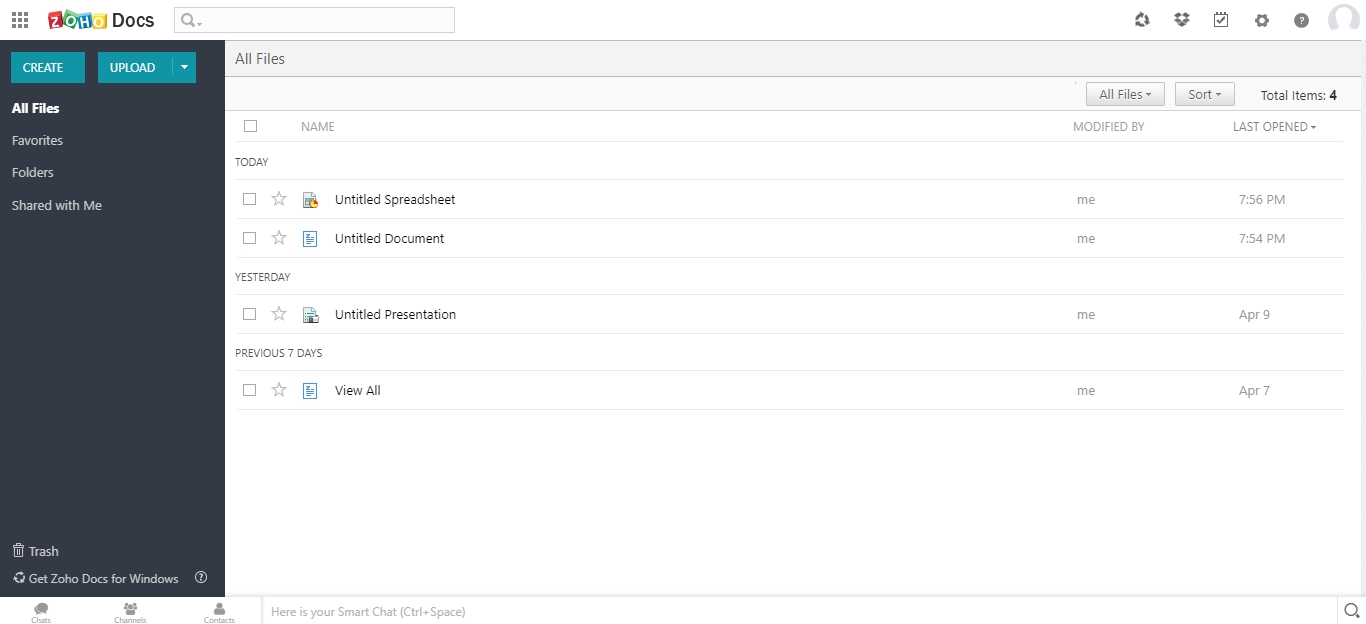
Zoho WorkDrive is on my shortlist because it’s designed for true team-centric document management. I see small teams using its Team Folders to organize, co-author, and update files in real time, which helps prevent version confusion during project work.
What I like about WorkDrive is its built-in granular permissions and unified file activity tracking. You get continuous visibility into who’s doing what, making it easier to keep work moving without bottlenecks.
Zoho WorkDrive’s Best For
- Small teams needing shared file storage and co-authoring
- Businesses that require granular access control and audit tracking
Zoho WorkDrive’s Not Great For
- Companies needing advanced workflow automation
- Teams focused on industry-specific document compliance
What sets Zoho WorkDrive apart
Zoho WorkDrive structures collaboration around shared team folders with fine-grained permissions rather than personal storage or loose file sharing, like Google Drive. In practice, this makes file management feel much more deliberate, especially for teams handling lots of client or project-specific documents.
Unlike Dropbox, which is often about quick syncing and sharing, WorkDrive encourages teams to centralize everything and tie access to roles and responsibilities. You see this work best when businesses want to keep control without lots of admin overhead.
Tradeoffs with Zoho WorkDrive
WorkDrive optimizes for organized collaboration, but limits your ability to automate complex multi-step document workflows. If your work depends on advanced automation or triggers tied to documents, you’ll likely need an outside tool.
Pros and Cons
Pros:
- Flexible permission settings
- Comprehensive version history
- Offline access capability
- Detailed activity dashboards
- Shared workspaces for projects
Cons:
- Learning curve for new users
- Basic task management features
- Requires internet for full functionality
- Occasional sync issues
- Limited third-party integrations

Folderit
Best for small teams

Folderit made my list because it’s geared toward small teams who need secure sharing and organized document control without extra complexity. I’ve set up automatic approval workflows and multi-level permissions for teams with basic compliance needs, which keeps everything simple but accountable.
What I appreciate most is how Folderit lets you automate document retention rules and assign unique access per folder or group, making it a lot easier for small businesses to manage who’s seeing and changing what.
Folderit's Best For
- Small businesses needing simple, secure document control
- Teams managing approval workflows and compliance basics
Folderit's Not Great For
- Complex organizations with advanced automation needs
- Companies that require deep integration with external systems
What sets Folderit apart
Folderit centers around simple, permission-based document management that’s accessible even for teams without IT experience. Instead of the complexity you’ll find in something like Google Workspace or SharePoint, Folderit uses a straightforward folder hierarchy and easy-to-set approval workflows. I see it work best for businesses with clear roles and low need for process customization.
Tradeoffs with Folderit
Folderit optimizes for simplicity and directness, but teams lose out on advanced automation or deep integration options. That limits how far you can scale when requirements—or system connections—get more complex.
Pros and Cons
Pros:
- Designed for small teams
- Simple approval workflows
- Detailed audit trails
- Custom metadata options
- Easy to set up
Cons:
- Requires internet access
- Minimal customization
- No mobile app
- Basic feature set
- Limited scalability
PandaDoc
Best for document automation
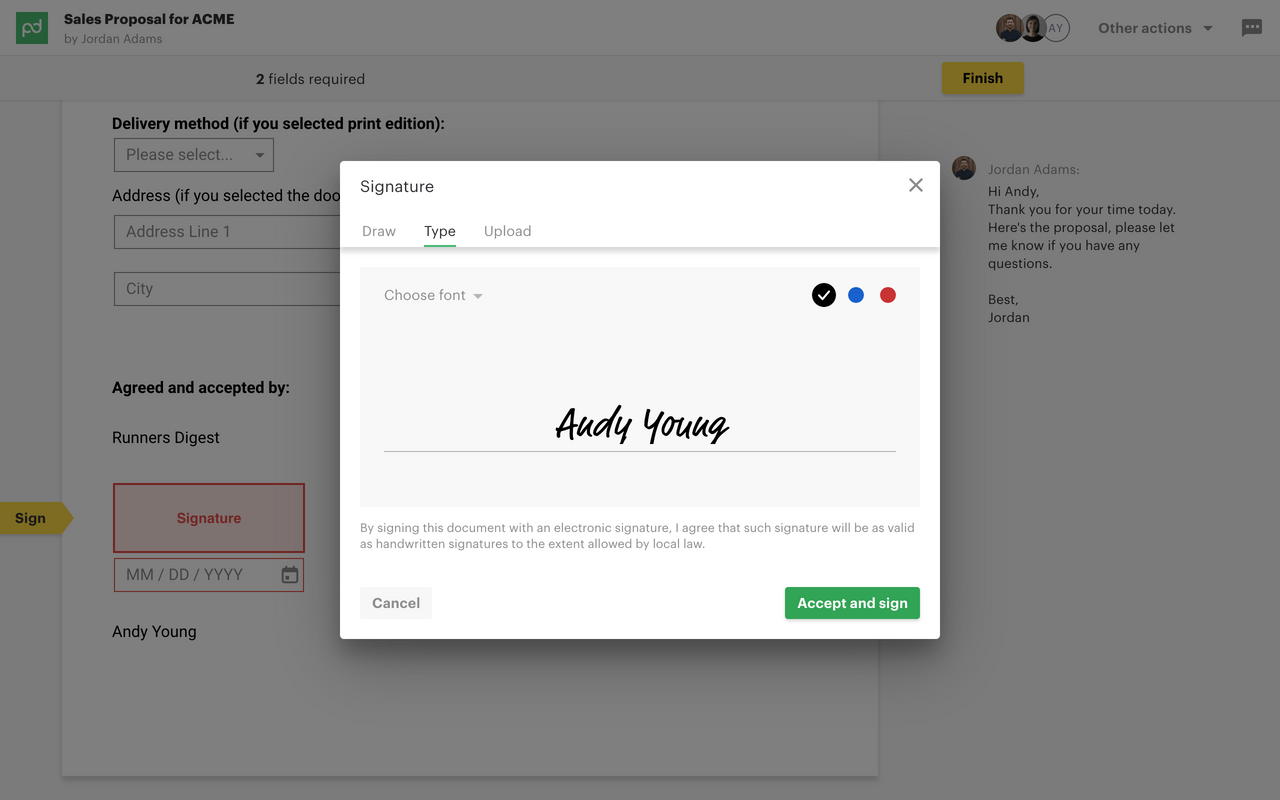
PandaDoc is here for document-heavy teams who need more than just storage. I like how you can automate contracts, proposals, and approvals with customizable templates and native e-signature. This is where PandaDoc stands out—workflow automation makes handling docs at scale practical for small businesses.
What impresses me is how easy it is to build end-to-end document flows, making collaboration for sales or HR teams fast and repeatable.
PandaDoc’s Best For
- Teams handling lots of contracts, proposals, or quotes
- Small businesses that need automated document workflows
PandaDoc’s Not Great For
- Teams looking mainly for advanced document storage or search
- Companies with heavily regulated document compliance needs
What sets PandaDoc apart
PandaDoc takes a process-first approach, with everything built around document creation, approval, and tracking in repeatable workflows. Unlike traditional cloud storage or file management tools like Google Workspace, it works best for groups that rely on sending, signing, and moving documents through steps. In practice, I see sales and operations teams getting the most value from this format.
Tradeoffs with PandaDoc
PandaDoc optimizes for document automation, but that means file storage, tagging, and advanced search options can feel limited if you treat it like a typical document repository.
Pros and Cons
Pros:
- Detailed analytics dashboard
- Built-in electronic signatures
- Real-time document tracking
- Customizable templates
- Efficient document automation
Cons:
- Occasional performance lags
- Basic customization options
- Requires internet for full use
- Learning curve for advanced features
- Limited offline functionality


Dropbox Business makes my shortlist because it removes friction from sharing files and folders, especially for small teams that need to move quickly. I see a lot of organizations adopt Dropbox when they hit a point where email attachments and drives are slowing collaboration.
What stands out for me is its link-based file sharing and granular permission controls. I like that you can send a large folder to a client or collaborator by sharing a single link, without ever worrying about email limits or who has what software.
Dropbox Business’s Best For
- Small businesses that prioritize quick, secure file sharing
- Teams collaborating with external partners or agencies
Dropbox Business’s Not Great For
- Companies needing complex document approval workflows
- Businesses with strict records retention or compliance needs
What sets Dropbox Business apart
Dropbox Business is built around making file sharing and basic collaboration as direct as possible, without piling on workflow requirements. Unlike Google Workspace, which mixes documents, chat, and editing in a single interface, Dropbox starts from the idea that files and folders are the main unit of work. In practice, this approach keeps things simple for small teams who move documents around a lot but don’t need deep integration into other business tools.
Tradeoffs with Dropbox Business
Dropbox optimizes for fast sharing and minimal process, but you give up built-in document lifecycle management. If your team needs things like formal approvals or retention policies, you’ll find those missing or basic.
Pros and Cons
Pros:
- Collect files from non-users
- File recovery options
- Secure file permissions
- Smart Sync space saving
- Easy file sharing
Cons:
- Basic collaboration tools only
- No task management features
- Requires internet connection
- Occasional sync delays
- Limited customization options


I picked Microsoft OneDrive because it’s the most seamless way to manage documents if you already use Word, Excel, and the rest of Microsoft 365. I see small businesses benefit most from how changes sync instantly across teams and devices, so files always reflect the latest edits. What I like is the file sharing, version history, and granular permissions directly in folders, all without leaving the tools you already use.
OneDrive’s Best For
- Small businesses using Microsoft 365 for daily work
- Teams that need real-time document co-editing
OneDrive’s Not Great For
- Companies avoiding Microsoft products
- Document workflows needing built-in e-signature or advanced automation
What sets OneDrive apart
OneDrive focuses on making document management feel like a natural extension of Microsoft 365 apps, not a separate system. Unlike Google Drive, which builds around browser-based collaboration, OneDrive puts files and folders right inside your desktop file explorer and Office apps. In practice, this works best when your workflow revolves around Word, Excel, and shared drives.
Tradeoffs with OneDrive
OneDrive optimizes for tight Microsoft 365 integration, but you lose advanced document process automation found in specialty DMS tools, so complex workflows can be harder to build.
Pros and Cons
Pros:
- Customizable document libraries
- Supports remote work
- Comprehensive version control
- Advanced permission settings
- Strong office suite integration
Cons:
- Limited offline access
- Requires Microsoft ecosystem
- Occasional sync delays
- Steep learning curve
- Complex setup process
Outro software de gestão documental para pequenas empresas
Eis algumas opções adicionais de software de gestão documental para pequenas empresas que não integraram a minha seleção, mas que vale a pena conhecer:
- ONLYOFFICE
For office suite integration
- Evernote Teams
For team note-taking
- Rubex by eFileCabinet
For compliance management
- Citrix ShareFile
For secure file sharing


How I Evaluate Small Business Document Management Software
I look at these tools in two layers: whether they handle the basics like versioned project files and permission-based sharing, then what sets the top picks apart for small teams.
Core Functionality (Table Stakes For This List)
When I'm selecting tools for my list, I rank each one on a scale from 0 (does not offer the functionality) to 5 (excels in this area) for each core functionality listed below. Then, I calculate the tool's total score into a percentage. Each tool needs to achieve a minimum total score of 65% to be considered for inclusion.
- Centralized Document Storage: I check whether the tool organizes files into structured workspaces or libraries tied to projects, not just a flat file dump where SOWs and meeting notes get buried together.
- Version Control & History: Every tool I evaluate should track document revisions automatically so your team can roll back a client proposal or contract to a prior version without file-naming chaos.
- Granular Access Permissions: I look for role-based or user-level controls that let you restrict a subcontractor to one project folder while giving your project lead full edit access across the workspace.
- Document Search & Metadata: Strong search goes beyond filenames. I evaluate whether a tool supports full-text search, tagging, and metadata filters so you can surface a specific change order from hundreds of project files.
- Collaboration & Sharing: The tool should support internal comments, external sharing links, and review or approval workflows. I check whether stakeholders outside your organization can review deliverables without needing a paid seat.
- Audit Trails & Integrations: Activity logs that show who accessed or modified a file matter for accountability. I also look at native integrations with tools like Google Workspace, Microsoft 365, Slack, and popular project management platforms.
Once I have a list of tools that meet this criteria, I consider what sets each platform apart.
Differentiating Factors (What Sets Vendors Apart)
Here's how I compare and contrast different vendors:
Standout Features
Client portals are a big differentiator. When clients can review and approve deliverables through a branded portal without needing their own license, it removes friction that slows project sign-offs. I also look for built-in e-signature support, since sending a SOW for signing inside the same platform where it's stored saves a round trip to a separate tool. For teams with field staff, mobile document capture matters too—being able to scan a signed form or site photo directly into the right project folder keeps files from living in someone's camera roll.
Beyond Features
Pricing structure matters for small teams, so I evaluate whether a tool offers a usable free or low-cost plan that doesn't gate core features like version control behind enterprise tiers. Implementation speed is another priority—I check for migration support that pulls existing files from Google Drive or Dropbox, since a five-person team rarely has bandwidth for a multi-week rollout. How well each platform connects to the project management tools your team already runs on, whether that's Asana, Trello, or Monday.com, also shapes how much real value you'll get day to day.
Como escolher software de gestão documental para pequenas empresas
É fácil perder-se em longas listas de funcionalidades e estruturas de preços complexas. Para o ajudar a manter o foco enquanto analisa o seu processo específico de seleção de software, eis uma lista de fatores a ter em conta:
| Fator | O que deve considerar |
|---|---|
| Escalabilidade | O software consegue acompanhar o crescimento da sua empresa? Verifique se a ferramenta disponibiliza planos escalonados que lhe permitam adicionar mais utilizadores e armazenamento conforme necessário, sem uma reformulação completa. |
| Integrações | É compatível com as ferramentas que já utiliza? Confirme se oferece integrações com o seu CRM, e-mail e outro software essencial, para evitar silos de dados. |
| Personalização | Pode adaptá-lo aos seus fluxos de trabalho? Procure opções para personalizar painéis, campos e modelos de documentos, de modo a adaptá-los aos seus processos específicos. |
| Facilidade de utilização | É fácil de utilizar pela sua equipa? Evite ferramentas com curvas de aprendizagem acentuadas. Opte por interfaces intuitivas que minimizem o tempo de formação e simplifiquem as operações diárias. |
| Implementação e integração inicial | A transição é simples? Avalie a disponibilidade de recursos de formação, como tutoriais e seminários online, para garantir uma configuração rápida e fácil para a sua equipa. |
| Custo | Está dentro do seu orçamento? Compare os planos de preços, incluindo eventuais taxas ocultas ou descontos anuais, para garantir que se adequam às suas limitações financeiras. |
| Medidas de segurança | Os seus documentos estão protegidos? Verifique se a ferramenta inclui encriptação, controlos de acesso e atualizações de segurança regulares para proteger informações sensíveis. |
| Requisitos de conformidade | Cumpre as normas do setor? Certifique-se de que o software cumpre os regulamentos relevantes para o seu setor, como o RGPD ou a HIPAA, para evitar problemas jurídicos. |
O que é o software de gestão documental para pequenas empresas?
O software de gestão documental para pequenas empresas é uma ferramenta que ajuda as empresas a organizar, armazenar e partilhar documentos digitalmente. É normalmente utilizado por profissionais como gestores de escritório, pessoal administrativo e equipas de projeto para aumentar a eficiência e reduzir a desorganização causada pelo papel. Funcionalidades como o controlo de versões, as permissões de acesso e as capacidades de pesquisa ajudam a organizar ficheiros e a garantir a segurança dos dados. No geral, estas ferramentas poupam tempo e melhoram a colaboração, facilitando o tratamento de documentos.
Funcionalidades do software de gestão documental para pequenas empresas
Ao selecionar software de gestão documental para pequenas empresas, tenha em atenção as seguintes funcionalidades essenciais:
- Armazenamento de documentos: Armazena documentos digitais de forma segura numa localização centralizada, facilitando o acesso e a gestão.
- Partilha de ficheiros: Permite aos utilizadores partilhar documentos com membros da equipa e parceiros externos, promovendo a colaboração.
- Controlo de versões: Regista as alterações efetuadas aos documentos e mantém um histórico de edições, garantindo que todos trabalham com a versão mais recente.
- Permissões de acesso: Permite aos administradores controlar quem pode visualizar, editar ou partilhar documentos, proporcionando uma camada adicional de segurança.
- Capacidades de pesquisa: Disponibiliza funções de pesquisa avançadas para localizar rapidamente documentos com base em palavras-chave ou metadados, poupando tempo.
- Automatização de fluxos de trabalho: Automatiza tarefas repetitivas, como aprovações e notificações, aumentando a eficiência e reduzindo o trabalho manual.
- Assinaturas eletrónicas: Facilita a aprovação rápida e segura de documentos sem necessidade de assinaturas físicas.
- Campos de metadados personalizados: Permite aos utilizadores categorizar e etiquetar documentos com atributos específicos, melhorando a organização e a recuperação.
- Acesso móvel: Permite aceder a documentos a partir de dispositivos móveis, possibilitando trabalhar em qualquer lugar.
- Registos de auditoria: Mantém um registo de todas as interações com os documentos para efeitos de responsabilização e conformidade.
Vantagens do software de gestão documental para pequenas empresas
A implementação de software de gestão documental para pequenas empresas proporciona várias vantagens para a sua equipa e para a sua empresa. Eis algumas das vantagens que pode esperar:
- Maior eficiência: Automatiza tarefas rotineiras, como aprovações de documentos e notificações, libertando tempo para trabalhos mais importantes.
- Melhor colaboração: Facilita a partilha e a edição simultânea de documentos, permitindo que os membros da equipa trabalhem em conjunto de forma mais eficaz.
- Segurança reforçada: Disponibiliza permissões de acesso e registos de auditoria para proteger informações sensíveis e acompanhar as interações com os documentos.
- Melhor organização: Utiliza campos de metadados personalizados e capacidades de pesquisa para manter os documentos organizados e fáceis de encontrar.
- Poupança de custos: Reduz a necessidade de armazenamento físico e de papel, diminuindo os custos operacionais da sua empresa.
- Flexibilidade: Permite o acesso móvel aos documentos, possibilitando que a sua equipa trabalhe a partir de qualquer lugar e se mantenha produtiva.
- Apoio à conformidade: Ajuda a cumprir os regulamentos do setor através de funcionalidades como o controlo de versões e registos de auditoria detalhados, reduzindo o risco de incumprimento.
Custos e preços do software de gestão documental para pequenas empresas
A seleção de software de gestão documental para pequenas empresas exige uma compreensão dos vários modelos de preços e planos disponíveis. Os custos variam consoante as funcionalidades, o tamanho da equipa, os complementos e outros fatores. A tabela abaixo resume os planos comuns, os respetivos preços médios e as funcionalidades normalmente incluídas nas soluções de software de gestão documental para pequenas empresas:
Tabela comparativa de planos de software de gestão documental para pequenas empresas
| Tipo de plano | Preço médio | Funcionalidades comuns |
| Plano gratuito | $0 | Armazenamento básico, partilha simples e integrações limitadas. |
| Plano pessoal | $5-$15/utilizador/mês | Mais espaço de armazenamento, ferramentas básicas de colaboração e permissões de acesso. |
| Plano empresarial | $15-$30/utilizador/mês | Colaboração avançada, automatização de fluxos de trabalho e medidas de segurança reforçadas. |
| Plano empresarial avançado | $30-$60/utilizador/mês | Integrações personalizadas, análises abrangentes e apoio prioritário ao cliente. |
Perguntas frequentes sobre software de gestão documental para pequenas empresas
Eis algumas respostas a perguntas frequentes sobre software de gestão documental para pequenas empresas:
Como é que o software de gestão documental melhora a segurança?
O software de gestão documental melhora a segurança ao fornecer controlos de acesso que permitem decidir quem pode visualizar ou editar documentos. Inclui também encriptação para proteger os dados durante a transmissão e o armazenamento. Os registos de auditoria acompanham todas as atividades, permitindo monitorizar o acesso e as alterações aos documentos para fins de conformidade.
O que devo considerar ao integrar com sistemas existentes?
Ao integrar o software de gestão documental com sistemas existentes, verifique se é compatível com as ferramentas que utiliza atualmente, como plataformas de CRM ou de correio eletrónico. Considere a facilidade de integração e se é necessário efetuar um desenvolvimento personalizado. Certifique-se de que não irá perturbar os seus fluxos de trabalho atuais nem exigir alterações significativas.
O software de gestão documental pode apoiar o trabalho remoto?
Sim, o software de gestão documental apoia o trabalho remoto ao fornecer acesso aos documentos através da nuvem a partir de qualquer localização. Permite que a sua equipa colabore em tempo real e partilhe ficheiros de forma segura. Procure funcionalidades como o acesso através de dispositivos móveis e o acesso sem ligação à Internet para aumentar a flexibilidade do trabalho remoto.
Como posso garantir a conformidade com os regulamentos do setor?
Garanta a conformidade selecionando software compatível com normas como o RGPD ou a HIPAA. Verifique se inclui funcionalidades como registos de auditoria e armazenamento seguro de dados. As atualizações e certificações regulares também podem indicar um compromisso com a manutenção da conformidade com regulamentos em constante evolução.
Que tipos de documentos posso gerir com este software?
Pode gerir vários tipos de documentos, incluindo PDFs, ficheiros Word, folhas de cálculo e imagens. Alguns softwares também são compatíveis com ficheiros especializados, como desenhos CAD. Verifique se o software disponibiliza modelos ou ferramentas para trabalhar com formatos de documentos específicos relevantes para a sua atividade.
Como avalio a escalabilidade do software de gestão documental?
Avalie a escalabilidade verificando se o software disponibiliza planos por níveis que acompanham o crescimento da sua empresa. Verifique se permite adicionar utilizadores e espaço de armazenamento sem grandes interrupções. Procure soluções baseadas na nuvem que proporcionem flexibilidade e recursos para acompanhar as suas necessidades crescentes.