

10 softwares de gestão de tarefas offline para 2026

Lista Restrita de Software de Gestão de Tarefas sem Ligação à Internet


O software de gestão de tarefas sem ligação à Internet permite-lhe organizar, acompanhar e atualizar tarefas sem precisar de uma ligação à Internet. Se procura ferramentas que mantenham os seus projetos em andamento mesmo quando está offline — quer esteja a viajar, a trabalhar remotamente ou a lidar com uma ligação Wi-Fi instável — precisa de opções que não o deixem sem solução. Esta lista irá ajudá-lo a comparar os melhores softwares de gestão de tarefas sem ligação à Internet para 2026, para que possa encontrar a opção mais adequada ao seu fluxo de trabalho, manter a sua equipa alinhada e evitar interrupções, independentemente do local onde trabalha.
Why Trust Our Software Recommendations
Our team has been testing and reviewing software since 2012. As project managers ourselves, we know how difficult—and important—it is to choose the right software.
For this guide, we evaluated tools using hands-on testing and independent research, scoring tools using our selection criteria. We also draw on insights from industry thought leaders and practicing project management experts.
Our reviews reflect our human editorial judgment, not a sales pitch.
Expert reviewers:
Tabela Comparativa de Software de Gestão de Tarefas sem Ligação à Internet
Esta tabela comparativa resume os detalhes de preços das minhas principais escolhas de software de gestão de tarefas sem ligação à Internet.
| Tool | Best For | Trial Info | Price | ||
|---|---|---|---|---|---|
| 1 | Best for no-code field task dispatch offline | Free trial + free demo available | From $20/user/month (billed annually) | Website | |
| 2 | Best for cross-platform syncing without internet | Free plan available | From $5/user/month (billed annually) | Website | |
| 3 | Best for integration with Microsoft 365 apps | Free-forever plan available | Free to use | Website | |
| 4 | Best for offline calendar and reminders | Free plan available | From $49.99/year (billed annually) | Website | |
| 5 | Best with markdown-based task linking | Free plan available | From $4/user/month (billed annually) | Website | |
| 6 | Best with offline voice input for tasks | Free plan + free demo available | From $4.99/user/month (billed annually) | Website | |
| 7 | Best for team collaboration in offline mode | Free plan + free demo available | From $9/user/month (billed annually) | Website | |
| 8 | Best with built-in time tracking tools | Free plan available | Free to use | Website | |
| 9 | Offline Task Management Software | Free plan available | Free to use | Website | |
| 10 | Best for customizable task hierarchies | Free, open-source | Free to use | Website |
Avaliações de Software de Gestão de Tarefas sem Ligação à Internet
Seguem-se os meus resumos detalhados dos softwares de gestão de tarefas sem ligação à Internet que entraram na minha lista restrita. As minhas avaliações apresentam uma análise detalhada das funcionalidades, capacidades sem ligação à Internet e melhores casos de utilização de cada ferramenta, para o ajudar a encontrar a opção mais adequada para si.

Appenate
Best for no-code field task dispatch offline
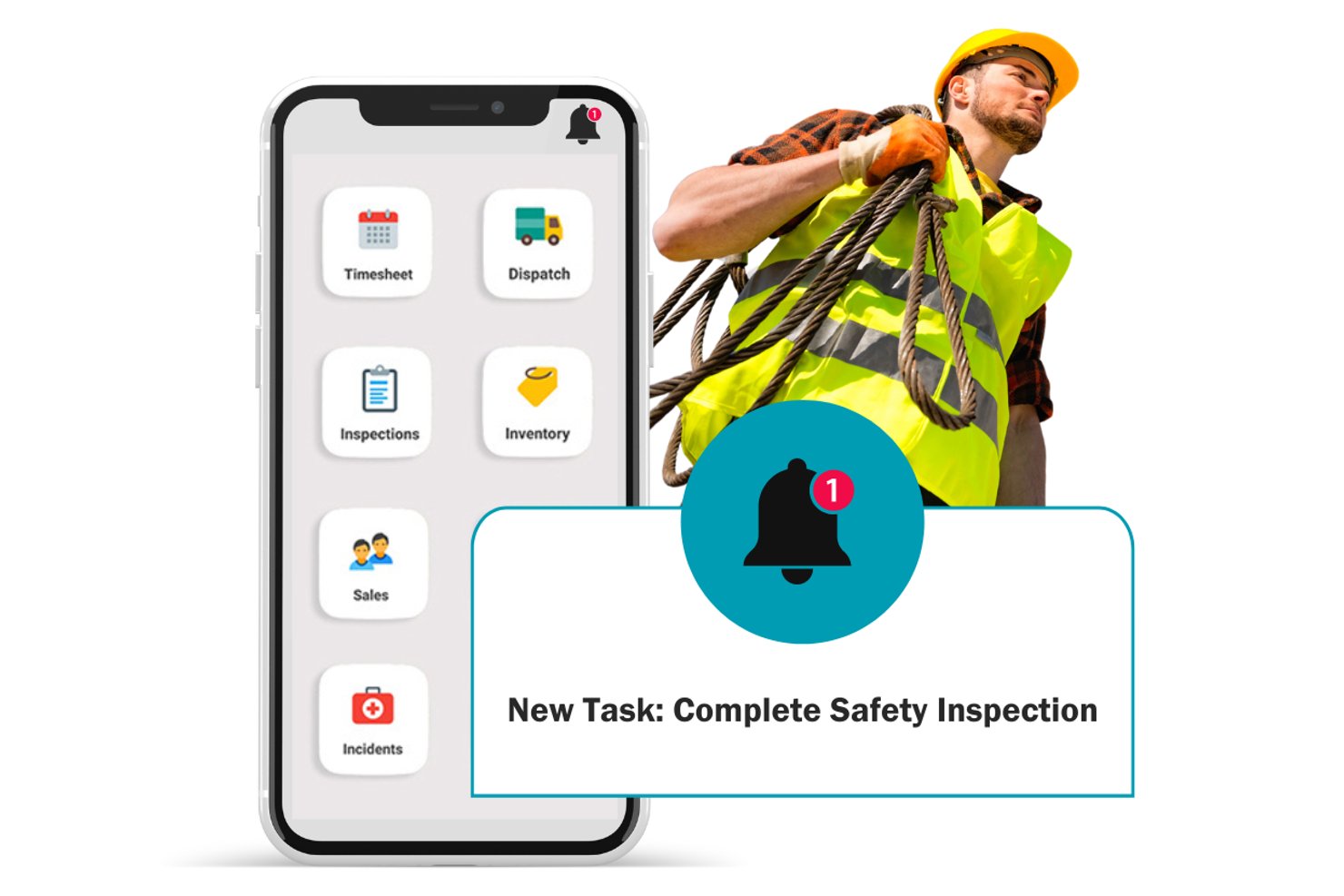
Appenate is a no-code mobile app builder with offline-first form collection, job dispatch, and field task management across iOS, Android, and Windows.
Who Is Appenate Best For?
Appenate is a strong fit for field teams that need to collect data, dispatch jobs, and complete tasks in areas with little or no connectivity.
Why I Picked Appenate
I picked Appenate as one of the best because it's built offline-first from the ground up, which matters when your field team is dispatching and completing tasks in areas with no signal. I love that the Tasking module lets you assign jobs with location targets, step-by-step briefs, and recurring schedules, then automatically syncs everything once connectivity returns. Barcode and NFC scanning work fully offline too, so a technician can look up asset records against thousands of items without ever needing a connection.
Appenate Key Features
- GPS-tagged task completion: Each task captures where it was assigned and where it was actually completed, so you have a location record tied to every job.
- Barcode and NFC scanning: Scan barcodes, QR codes, and NFC tags to pull up asset records offline against lookup lists of up to 50,000 items.
- Calendar and map views: View active and upcoming tasks in either a calendar or a map layout to manage scheduling and field coverage at a glance.
- Custom form outputs: Generate completed task records as formatted PDF, Word, or Excel files directly from the app.
Appenate Integrations
Appenate offers native integrations with SharePoint, OneDrive for Business, Excel Online, Google Sheets, SQL Server, Salesforce, NetSuite, Xero, ArcGIS, and Amazon S3. It also provides a REST API for custom integrations and supports Zapier.
Pros and Cons
Pros:
- GPS, barcode, and OCR support
- Automatic syncing after connectivity returns
- Offline-first field task dispatch
Cons:
- Requires workflow configuration before deployment
- Limited priorities, subtasks, and dependencies

Todoist
Best for cross-platform syncing without internet
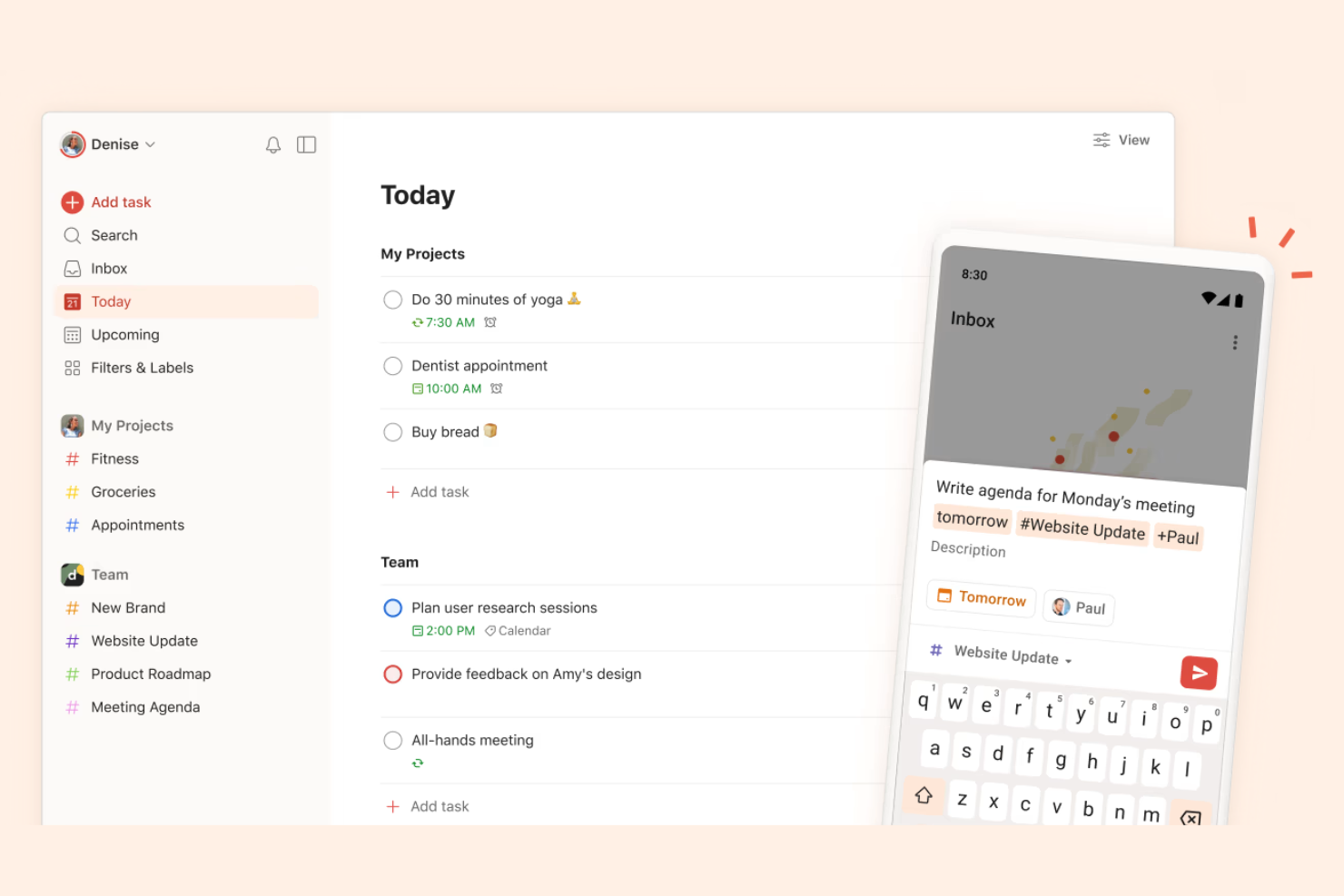
If you need a task manager that keeps your lists updated across devices even when you’re offline, Todoist is worth a look. This tool suits professionals and teams who move between laptops, tablets, and phones but can’t always count on a stable internet connection. Its cross-platform syncing and offline access help you stay organized and productive wherever you work.
Why I Picked Todoist
I chose Todoist because its offline functionality is paired with reliable cross-platform syncing, which is essential for users who switch between devices. When you update tasks on your phone, tablet, or desktop without internet, Todoist stores those changes locally and syncs them automatically once you’re back online. I appreciate that you can access and edit your entire task list offline, so you’re never locked out of your workflow. This makes Todoist a strong choice for anyone who needs uninterrupted task management across multiple devices.
Todoist Key Features
Some other features in Todoist make it a flexible option for offline task management:
- Task Prioritization: Assign priority levels to tasks so you can focus on what matters most, even when working offline.
- Recurring Due Dates: Set up repeating tasks with custom schedules to keep regular responsibilities on track.
- Project Sections: Organize tasks into sections within projects for clearer structure and easier navigation.
- Offline Comments: Add comments to tasks while offline, which sync with your team or devices once you reconnect.
Todoist Integrations
Integrations include Google Calendar, Outlook, Trello, Slack, Jira, Microsoft Teams, Task Assist, Safari, Gmail, Zapier, and more.
Pros and Cons
Pros:
- Supports offline task creation and editing
- Allows offline access to all task lists
- Syncs tasks across devices after reconnecting
Cons:
- Limited offline reporting and analytics
- Offline changes may cause sync conflicts

Best for integration with Microsoft 365 apps
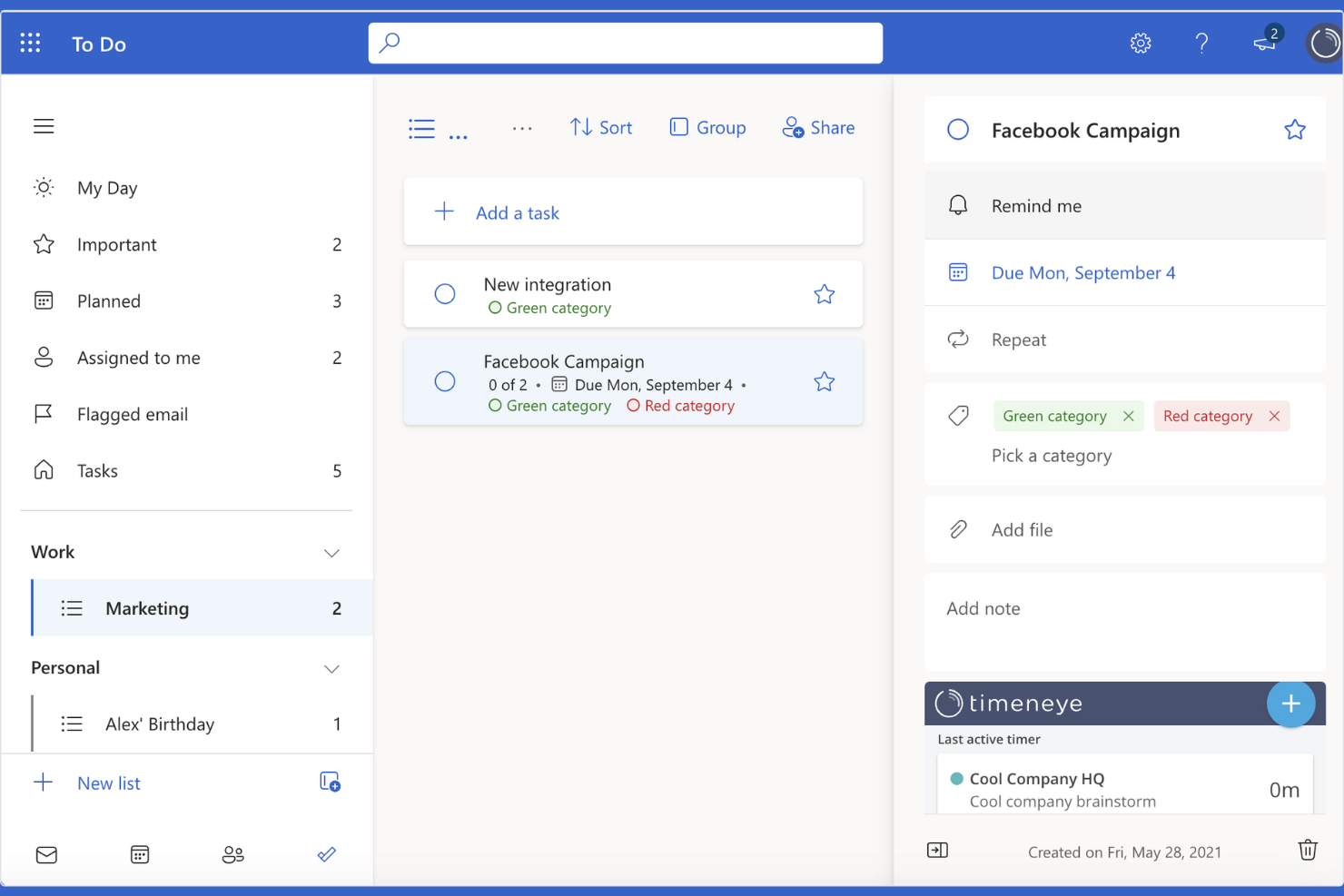
Microsoft To Do is designed for teams and professionals who rely on Microsoft 365 apps and want their task management to fit smoothly into that ecosystem. It’s especially useful for businesses that need to sync tasks across Outlook, Teams, and other Microsoft tools, even when working offline. As a to-do list app, it helps users keep personal and shared tasks organized within the familiar Microsoft environment, with connections to tools like Excel for broader workflow support.
Why I Picked Microsoft To Do
When you need task management that fits right into your Microsoft 365 workflow, Microsoft To Do is a natural choice. Its deep connection with Outlook lets you turn emails into actionable tasks and keep everything synced, even when you’re offline. I appreciate how you can access and update your lists from the desktop app without an internet connection, which is helpful for users who travel or work in low-connectivity environments. The ability to share lists and assign tasks within your organization also makes it practical for teams already using Microsoft 365.
Microsoft To Do Key Features
Some other features that make Microsoft To Do useful for offline task management include:
- Subtasks: Break larger tasks into smaller, manageable steps within any list.
- Due Dates and Reminders: Set deadlines and receive notifications for upcoming tasks.
- Color-Coded Lists: Organize tasks visually by assigning different colors to each list.
- File Attachments: Add files and documents directly to tasks for easy reference.
Microsoft To Do Integrations
Integrations include Outlook, Microsoft Teams, OneNote, Microsoft 365, and OneDrive.
Pros and Cons
Pros:
- Supports recurring tasks without internet
- Desktop app allows offline access to lists
- Syncs tasks with Outlook automatically offline
Cons:
- No offline calendar integration available
- Lacks offline file attachment support

TickTick
Best for offline calendar and reminders
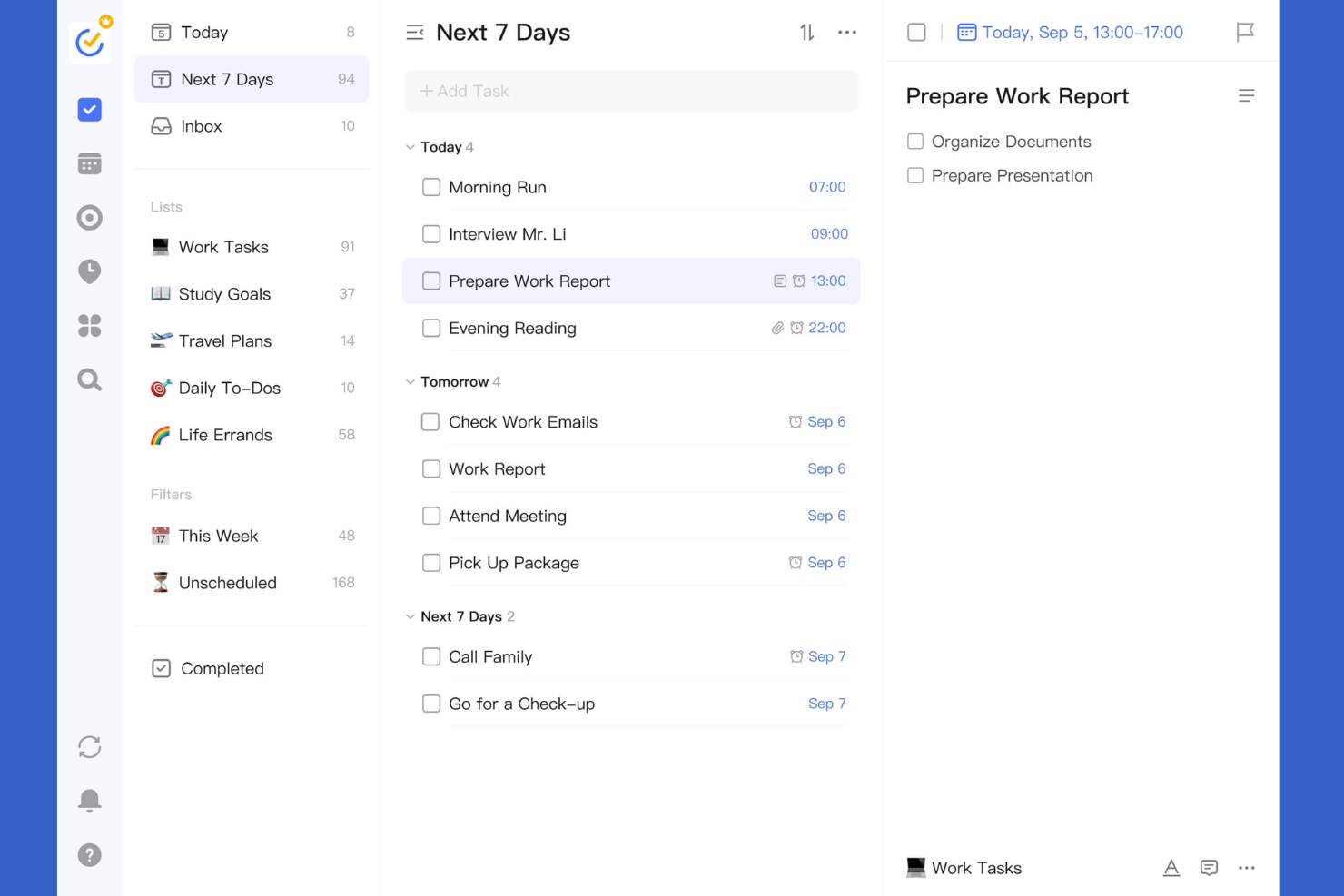
TickTick stands out for teams and individuals who need reliable offline access to both calendar and reminder features. It’s a strong fit for professionals who juggle complex schedules and want to manage tasks, events, and deadlines without always being connected. The app’s offline calendar, recurring reminders, and cross-device sync help users stay organized even when internet access is limited.
Why I Picked TickTick
For anyone who needs offline access to both calendar and reminders, TickTick offers a unique combination that’s hard to find elsewhere. Its offline calendar lets you view, edit, and schedule events without an internet connection, which is especially useful for users who travel or work in areas with spotty connectivity. I like that you can set recurring reminders and manage your daily agenda even when you’re offline, so nothing slips through the cracks. The ability to sync changes automatically once you’re back online makes TickTick a practical choice for dependable offline task management.
TickTick Key Features
Some other features that make TickTick useful for offline task management include:
- Task Prioritization: Assign priority levels to tasks to help organize your workload.
- Pomodoro Timer: Use a built-in timer to break work into focused intervals.
- Habit Tracker: Track daily habits alongside your tasks within the same app.
- List Sharing: Share task lists with others for collaborative planning.
TickTick Integrations
Integrations include Gmail, Spark, Amazon Alexa, Apple Shortcuts, Outlook, Slack, Chatmind, and more.
Pros and Cons
Pros:
- Habit tracker logs progress offline
- Pomodoro timer works fully offline
- Reminders trigger without internet connection
Cons:
- Calendar sync may lag after reconnecting
- No offline access to attachments

Obsidian
Best with markdown-based task linking
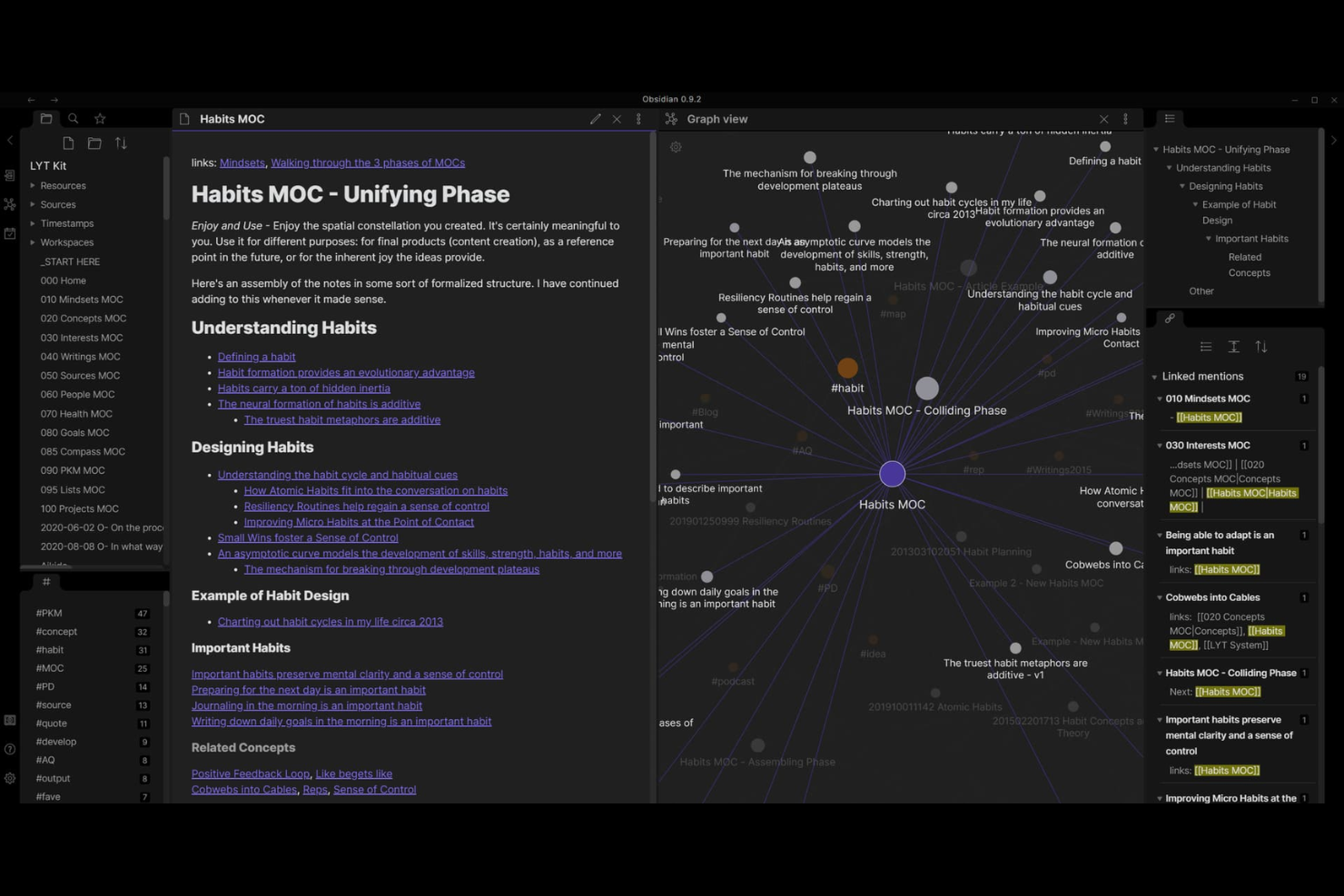
Obsidian is a markdown-based knowledge management app that’s ideal for users who want to link tasks, notes, and ideas offline. It appeals to researchers, writers, and technical professionals who need to organize complex information and connect tasks across documents. Its local-first approach and powerful linking features make it a strong choice for anyone managing projects or workflows without relying on cloud access.
Why I Picked Obsidian
For anyone who wants to manage tasks offline and connect them across notes, Obsidian’s markdown-based linking stands out. You can create tasks directly within any note and use backlinks or tags to connect related items, making it easy to track dependencies and context without internet access. I like that you can visualize relationships between tasks and notes using the graph view, which helps keep complex projects organized. Obsidian’s offline-first design and flexible linking features make it a strong fit for users who want to manage tasks and knowledge in one place.
Obsidian Key Features
In addition to its markdown-based task linking, I also found these features useful for offline task management:
- Local-First Storage: All notes and tasks are saved directly to your device, so you retain full control over your data.
- Customizable Plugins: Extend functionality with a wide range of community and core plugins, including calendar and kanban boards.
- Daily Notes: Quickly capture tasks and ideas in automatically generated daily note files.
- Multi-Device Sync (Optional): Sync your vaults across devices using Obsidian Sync or third-party solutions, while still supporting offline access.
Obsidian Integrations
Native integrations are not currently listed.
Pros and Cons
Pros:
- Plugins add kanban and calendar features
- Markdown syntax supports flexible task formatting
- Local vaults keep all data offline
Cons:
- No native recurring task support
- No built-in task reminders offline

Any.do
Best with offline voice input for tasks
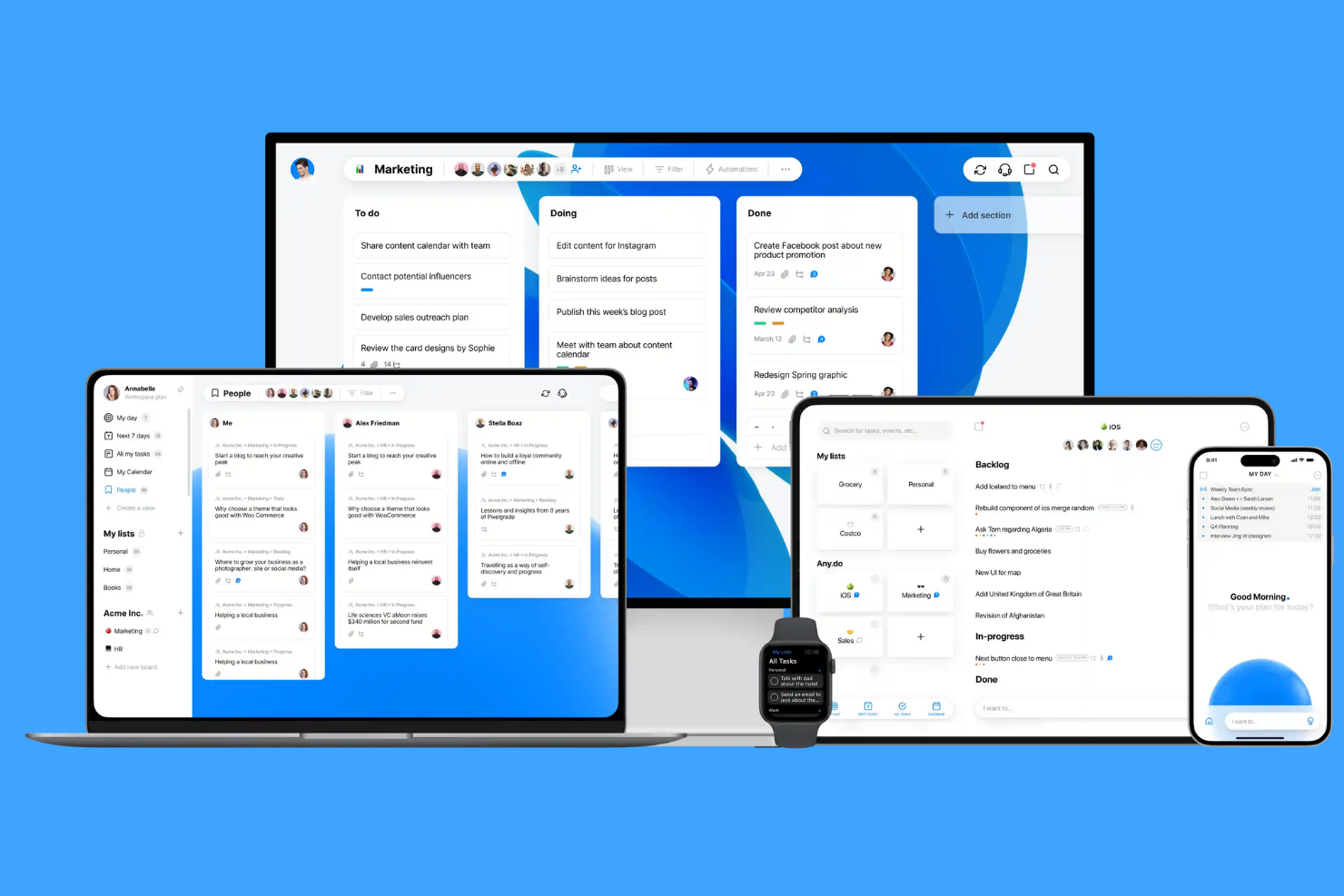
Any.do stands out for users who want to capture tasks quickly using offline voice input. It’s a strong fit for busy professionals, field workers, or anyone who needs to add tasks hands-free when internet access is unreliable. The app’s offline voice capture and task syncing help you keep your to-do list updated wherever you are.
Why I Picked Any.do
Unlike many task managers, Any.do lets you add tasks using voice input even when you’re offline. This feature is especially useful for people who need to capture ideas or reminders on the go, without relying on a data connection. I picked Any.do because its offline voice capture is reliable and works smoothly with its task list, letting you organize and review tasks later when you’re back online. For anyone who values hands-free task entry in areas with spotty internet, this tool stands out.
Any.do Key Features
Some other features that make Any.do useful for offline task management include:
- Task List Widgets: Add and view tasks directly from your device’s home screen.
- Subtasks: Break down larger tasks into smaller, actionable steps.
- Offline Task Editing: Edit and organize your to-do list without an internet connection.
- Recurring Tasks: Set up tasks to repeat on a custom schedule.
Any.do Integrations
Integrations include Slack, Microsoft Teams, Zoom, Google Meet, WhatsApp, Gmail, Google Calendar, Zapier, and more.
Pros and Cons
Pros:
- Offline editing syncs when reconnected
- Task list widgets work without internet
- Offline voice input for task creation
Cons:
- Offline recurring task setup is limited
- Some integrations require internet connection

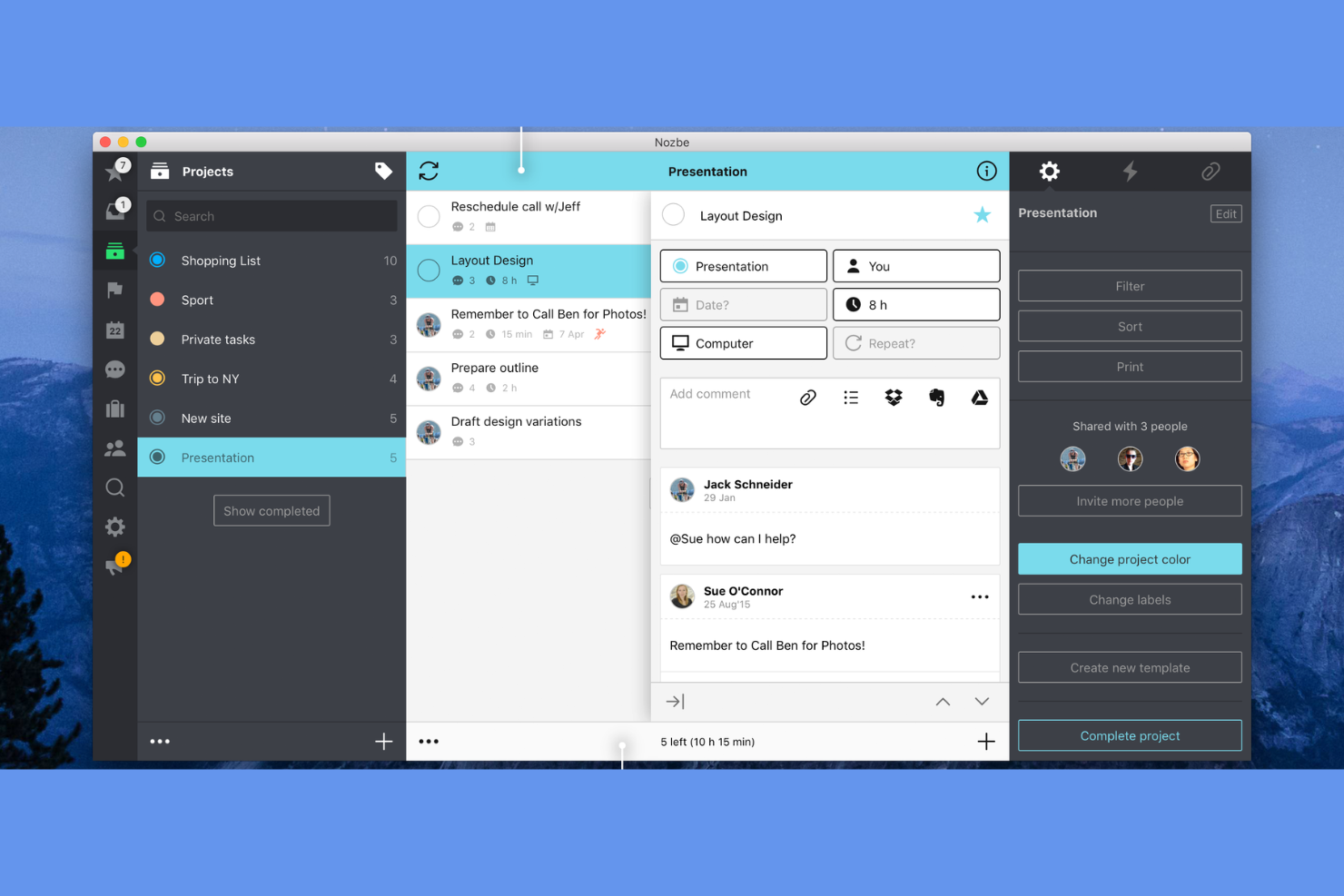
Nozbe stands out for teams that need to collaborate on tasks and projects, even when internet access is unreliable or unavailable. It’s designed for distributed teams, small businesses, and professionals who want to keep projects moving forward with offline syncing and shared task lists. The app’s offline-first approach helps teams stay coordinated and productive without being tied to a constant connection.
Why I Picked Nozbe
Unlike many task management tools, Nozbe is built with offline team collaboration in mind, making it a strong choice for distributed teams that can’t always rely on a stable internet connection. You can assign tasks, comment, and update project details while offline, and everything syncs automatically once you’re back online. I appreciate how Nozbe’s shared project spaces and real-time updates help teams stay aligned, even when working remotely or travelling. For teams that need to keep projects moving regardless of connectivity, Nozbe’s offline collaboration features are a clear advantage.
Nozbe Key Features
Some other features that make Nozbe useful for offline task management include:
- Multi-Platform Support: Access your tasks and projects on Windows, macOS, Android, and iOS devices.
- Task Templates: Create reusable templates for recurring projects or workflows.
- Priority and Tagging System: Organize and filter tasks using custom priorities and tags.
- File Attachments: Attach documents, images, or other files directly to tasks for easy reference.
Nozbe Integrations
Integrations include Google Calendar, Outlook Calendar, Slack, Dropbox, OneDrive, Evernote, and more.
Pros and Cons
Pros:
- Built-in templates for recurring offline workflows
- Cross-platform support for desktop and mobile
- Shared project spaces for team collaboration offline
Cons:
- Subtasks lack advanced nesting options
- No Linux desktop application available

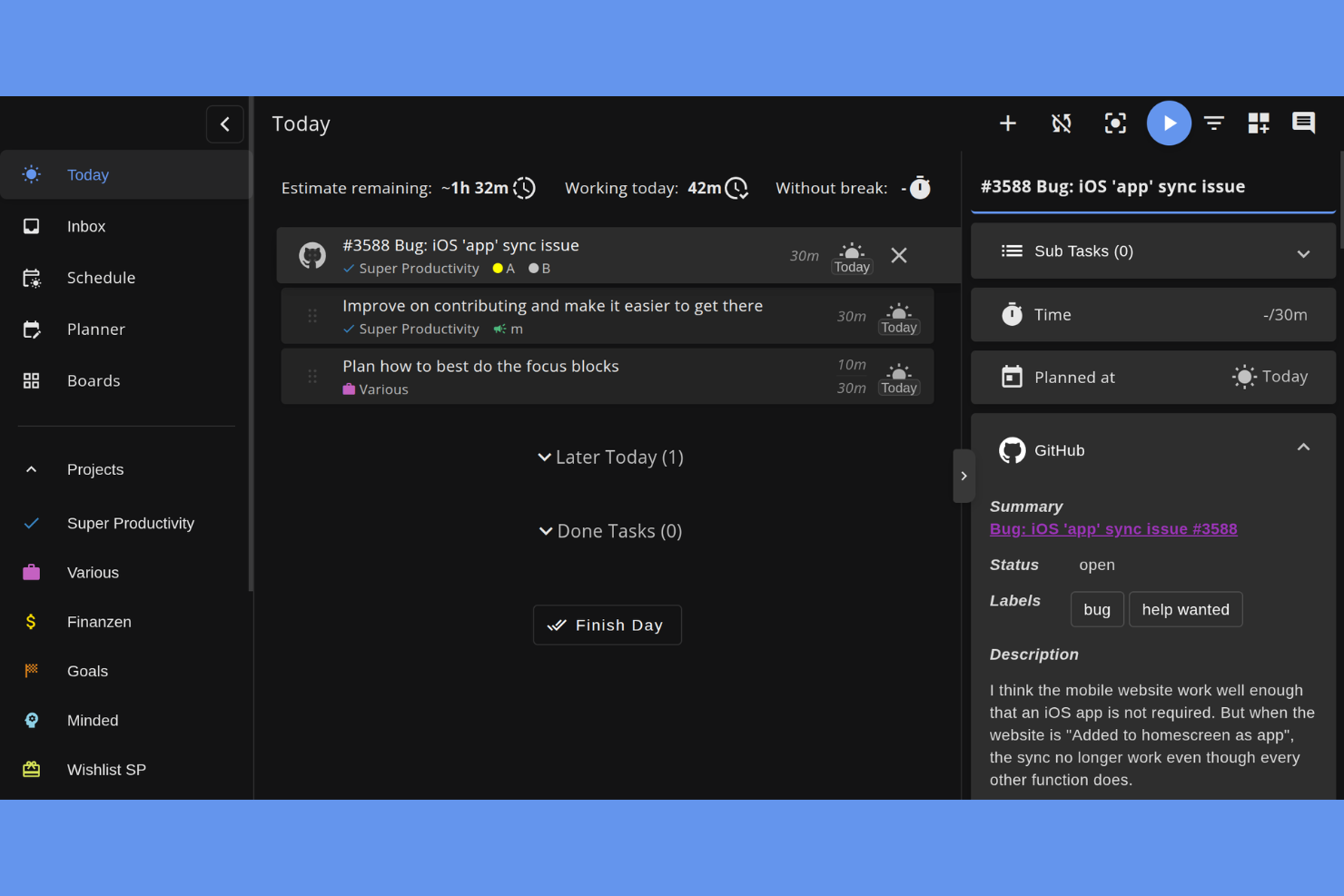
Super Productivity stands out for anyone who wants offline task management with built-in time tracking. This app is a strong fit for freelancers, developers, and project managers who need to track work hours alongside their to-dos without relying on internet access. Its integrated timer and offline-first design help you manage both tasks and time in one place, even when you’re disconnected.
Why I Picked Super Productivity
What drew me to Super Productivity is its focus on time tracking that works fully offline, which is rare among task management tools. You can start, pause, and stop timers for individual tasks without needing an internet connection, so your time logs are always up to date. I like that the app automatically links tracked time to your tasks, making it easy to review how you’re spending your work hours. This combination of offline task management and built-in time tracking makes Super Productivity a strong choice for anyone who needs both features in one place.
Super Productivity Key Features
In addition to its offline time tracking, there are several other features that make Super Productivity useful for managing tasks without internet access:
- Task Hierarchies: Organize tasks into subtasks and projects for better structure and clarity.
- Daily Planning View: Review and adjust your daily agenda in a dedicated planning interface.
- Attachment Support: Add files and links to tasks for easy reference, even when offline.
- Built-In Pomodoro Timer: Use a Pomodoro timer to break work into focused intervals directly within the app.
Super Productivity Integrations
Integrations include GitHub, GitLab, Jira, Gitea, Forgejo, CalDAV, Google Calendar, and support for custom plugins and REST API.
Pros and Cons
Pros:
- Supports offline file attachments to tasks
- Task data is stored locally without syncing
- Built-in Pomodoro timer works offline
Cons:
- Offline mode does not support collaboration
- No offline notifications or reminders

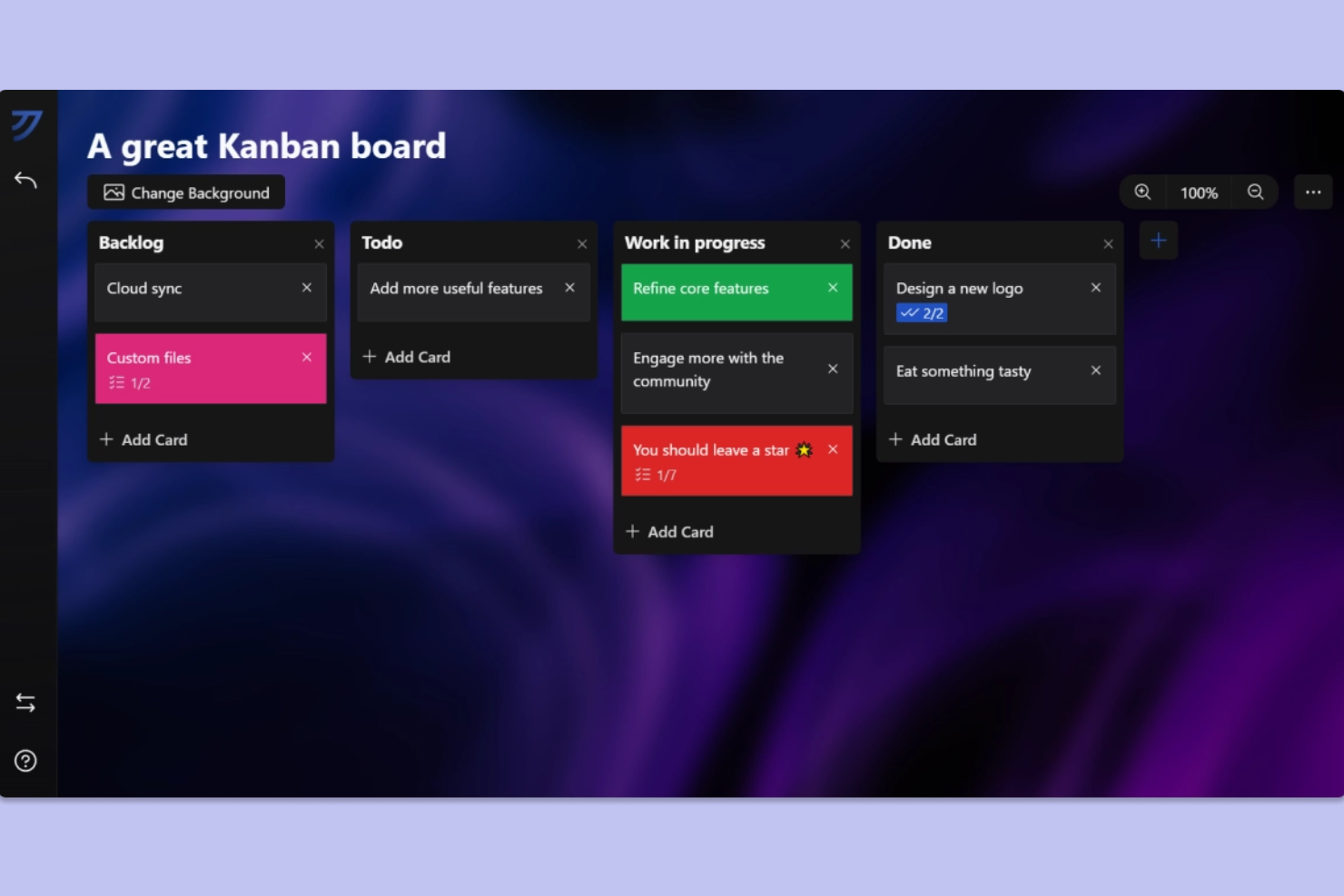
Kanri is designed for teams and individuals who want a Kanban-style workflow that works fully offline. It’s especially useful for project managers and professionals who need to visualize and update tasks without relying on internet access. With its local-first approach, Kanri helps users manage projects and track progress even in environments with limited or no connectivity.
Why I Picked Kanri
Unlike many task management tools that require constant connectivity, Kanri is built to support Kanban workflows entirely offline. Its local-first architecture means you can create, move, and update cards on your boards without an internet connection, which is ideal for users who work in remote or restricted environments. I appreciate that Kanri automatically syncs your changes once you’re back online, so you don’t have to worry about losing progress. This focus on offline Kanban functionality makes Kanri a strong choice for anyone who needs reliable project tracking without relying on the cloud.
Kanri Key Features
Some other features that make Kanri useful for offline task management include:
- Customizable Board Templates: Set up boards with custom columns and workflows to match your team’s process.
- Drag-and-Drop Card Movement: Move tasks between columns using a simple drag-and-drop interface.
- Task Color Coding: Assign colors to cards for quick visual categorization.
- Markdown Support: Format card descriptions and comments using Markdown for clearer communication.
Kanri Integrations
Native integrations are not currently listed.
Pros and Cons
Pros:
- Drag-and-drop task movement offline
- Local data storage ensures privacy
- Kanban boards work fully offline
Cons:
- No built-in calendar view
- Lacks recurring task automation

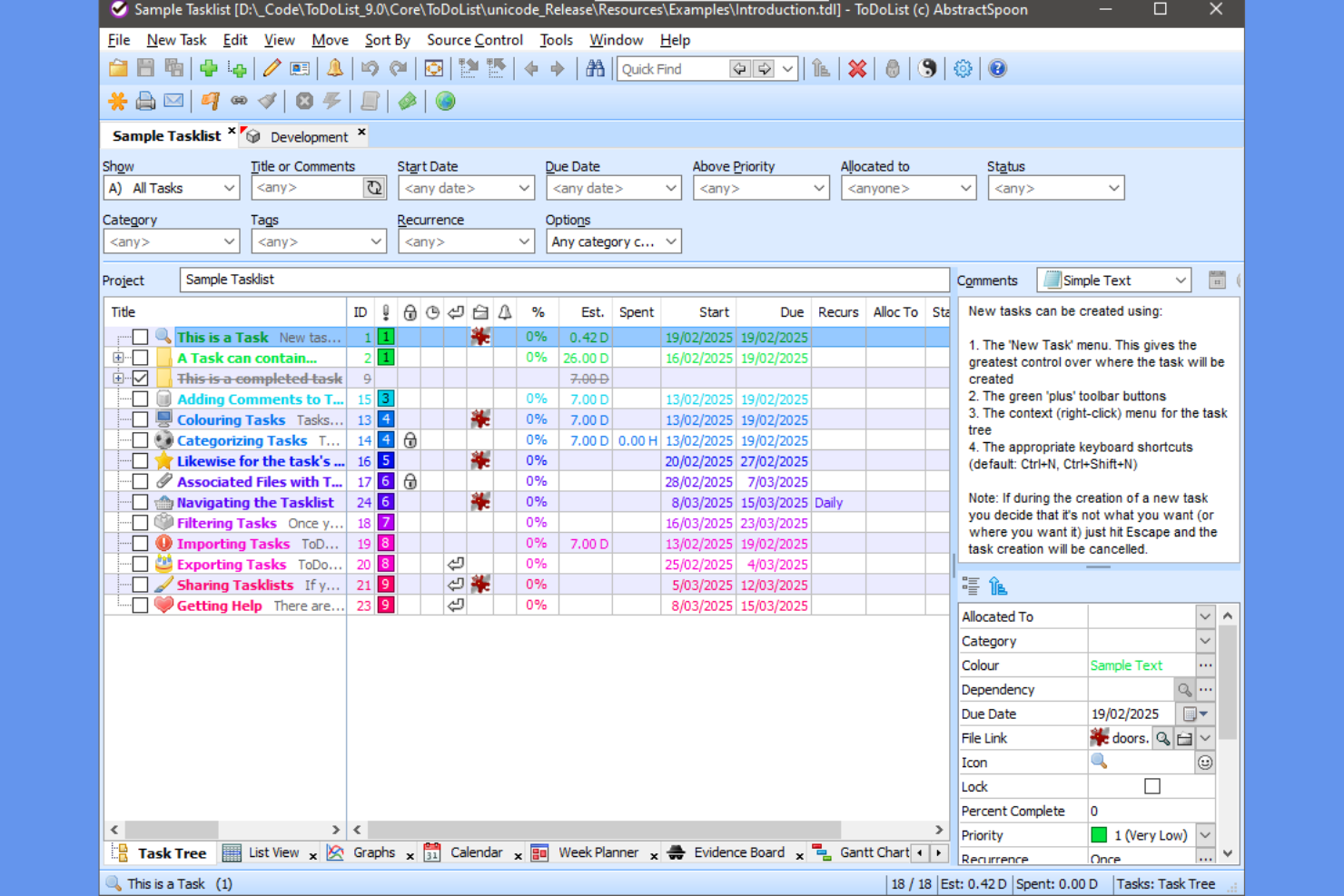
AbstractSpoon ToDoList is a Windows-based task manager designed for users who need deep customization and control over their task structures. It’s especially useful for project managers, consultants, and anyone handling complex projects that require detailed task hierarchies and dependencies. The tool’s offline functionality and flexible task tree system make it a strong choice for those who want to organize projects without relying on cloud services.
Why I Picked AbstractSpoon ToDoList
What sets AbstractSpoon ToDoList apart is its ability to let you build highly customizable task hierarchies, all while working completely offline. You can create unlimited levels of subtasks, set dependencies, and organize projects in a way that matches your workflow. I appreciate how you can tailor fields, columns, and views to fit different project needs, which is especially useful for complex or evolving projects. For anyone who wants granular control over task structure without relying on cloud storage, ToDoList offers a unique offline solution.
AbstractSpoon ToDoList Key Features
Some other features that make AbstractSpoon ToDoList stand out for offline project management include:
- Portable Application Option: Run the tool from a USB drive without installation.
- Customizable Task Attributes: Add custom fields to tasks for tracking unique project data.
- Recurring Task Support: Set up tasks to repeat on custom schedules.
- Gantt Chart Visualization: View project timelines and task dependencies in a Gantt chart format.
AbstractSpoon ToDoList Integrations
Native integrations are not currently listed.
Pros and Cons
Pros:
- Custom fields for tracking unique project data
- Portable app runs from USB without installation
- Unlimited task hierarchy depth for complex projects
Cons:
- Manual backup required for data protection
- Windows-only with no native Mac version
Outro Software de Gestão de Tarefas sem Ligação à Internet
Eis algumas opções adicionais de software de gestão de tarefas sem ligação à Internet que não entraram na minha lista restrita, mas que ainda vale a pena conhecer:
- MyLifeOrganized
For advanced task automation offline
- Things
With intuitive Mac and iOS workflows
- Asana
For structured task planning with visual workflows
- AppFlowy
For local-first data privacy


How I Evaluate Offline Task Management Software
When a field supervisor loses signal mid-project, I want to know a tool won't fail them—so I evaluate on two layers: baseline offline functionality and the differentiators that set options apart.
Core Functionality (Table Stakes For This List)
When I'm selecting tools for my list, I rank each one on a scale from 0 (does not offer the functionality) to 5 (excels in this area) for each core functionality listed below. Then, I calculate the tool's total score into a percentage. Each tool needs to achieve a minimum total score of 65% to be considered for inclusion.
- Offline Task Access: I check whether you can view, create, and edit tasks with no internet—like updating a punch list from a basement job site with zero signal.
- Local Data Storage: Each tool should persist data on-device so nothing disappears if you close the app mid-commute or your laptop dies before reconnecting.
- Automatic Sync: I look for tools that push offline changes to the cloud the moment connectivity returns, without requiring you to hit a manual sync button.
- Core Task Features Offline: Due dates, priorities, assignments, and status updates all need to function offline—not just a read-only snapshot of your task board.
- Cross-Device Offline Support: I evaluate whether offline mode works across desktop, mobile, and tablet so a site supervisor on a phone gets the same experience as someone on a laptop.
- Sync Conflict Resolution: When two people edit the same task offline, I look at how the tool handles the merge—whether it flags conflicts, auto-resolves, or silently overwrites.
Once I have a list of tools that meet the criteria, I consider what sets each platform apart.
Differentiating Factors (What Sets Vendors Apart)
Here's how I compare and contrast different vendors:
Standout Features
Offline time tracking matters when consultants need to log billable hours at a client site with spotty Wi-Fi. I also look for offline file attachments—being able to pull up a blueprint or spec sheet without re-downloading it saves real time on-site. Collaboration notes that queue locally and deliver once you're back online keep distributed teams moving without creating communication gaps between field and office.
Beyond Features
Local data security is a top concern—when project data lives on a field worker's phone or tablet, I check for on-device encryption and app-level authentication like biometric locks. The integration ecosystem also matters. A tool that syncs with your existing stack (Slack, Google Drive, Outlook calendars) once online reduces duplicate data entry. I also evaluate whether a vendor offers a free tier that includes full offline access, so your team can properly test it before committing.
Como Escolher um Software de Gestão de Tarefas sem Ligação à Internet
É fácil perder-se em listas extensas de funcionalidades e estruturas de preços complexas. Para o ajudar a manter-se concentrado enquanto trabalha no seu processo específico de seleção de software, apresentamos uma lista de fatores a ter em conta:
| Fator | O que deve considerar |
|---|---|
| Escalabilidade | A ferramenta irá suportar o tamanho da sua equipa e o crescimento futuro? Considere se consegue lidar com mais utilizadores ou projetos à medida que as suas necessidades aumentam. |
| Integrações | Estabelece ligação nativa às suas ferramentas atuais (e-mail, calendários, plataformas de gestão de projetos)? Procure integrações diretas, não apenas opções de API ou Zapier. |
| Personalização | Pode adaptar categorias de tarefas, etiquetas ou fluxos de trabalho para corresponder aos processos da sua equipa? Procure opções flexíveis de organização e definições para utilização sem ligação à Internet. |
| Facilidade de utilização | A interface é simples para todos os utilizadores? Teste-a com um grupo pequeno para verificar se alguém tem dificuldades com o acesso sem ligação à Internet ou com a navegação. |
| Implementação e integração inicial | Quanto tempo será necessário para a sua equipa começar a trabalhar? Avalie a disponibilidade de ferramentas de migração, recursos de formação e apoio durante a implementação. |
| Custo | Os níveis de preços são claros e previsíveis? Esteja atento a taxas ocultas, limitações das funcionalidades sem ligação à Internet ou atualizações obrigatórias para obter funcionalidades básicas. |
| Medidas de segurança | Como são protegidos os seus dados utilizados sem ligação à Internet? Procure encriptação local, segurança ao nível do dispositivo e políticas claras sobre a sincronização e o armazenamento de dados. |
| Disponibilidade do apoio | Consegue contactar o apoio quando precisa de ajuda? Verifique se existe apoio por chat em direto, e-mail ou telefone, especialmente se a sua equipa trabalhar em diferentes fusos horários. |
O que é um Software de Gestão de Tarefas sem Ligação à Internet?
O software de gestão de tarefas offline é um tipo de aplicação de gestão de tarefas que permite criar, organizar e atualizar tarefas pessoais e de equipa sem precisar de uma ligação à Internet. Estas ferramentas armazenam os seus dados localmente e sincronizam as alterações assim que volta a estar online, ajudando-o a concluir tarefas e a manter a produtividade em qualquer ambiente. Muitas soluções combinam funcionalidades de ferramentas de gestão de projetos e de colaboração, oferecendo acompanhamento de tarefas, planeamento de projetos e gestão do tempo num espaço de trabalho completo. Com elementos como painéis e suporte para gerir entregáveis, ajudam pequenas equipas e indivíduos a otimizar os fluxos de trabalho e a adaptar-se às suas necessidades específicas.
Funcionalidades
Ao selecionar software de gestão de tarefas offline, procure as seguintes funcionalidades principais:
- Criação de tarefas offline: Adicione novas tarefas e tarefas por fazer mesmo quando não tem uma ligação à Internet, garantindo que nada fica esquecido durante os períodos de inatividade.
- Armazenamento local de dados: Armazene todos os dados das tarefas diretamente no seu dispositivo, para poder aceder às informações e atualizá-las sem depender de serviços na nuvem.
- Sincronização automática: Atualize e sincronize automaticamente as suas tarefas entre dispositivos assim que voltar a ligar-se à Internet, mantendo tudo atualizado.
- Organização de tarefas: Agrupe tarefas em listas, projetos ou pastas para manter o seu trabalho estruturado e fácil de consultar, mesmo offline.
- Lembretes e notificações: Defina alertas para prazos ou tarefas importantes que sejam acionados localmente, para nunca perder um compromisso quando estiver offline.
- Tarefas recorrentes: Agende tarefas para que se repitam em intervalos definidos, permitindo gerir responsabilidades contínuas sem ter de as introduzir manualmente de novo.
- Subtarefas: Divida tarefas maiores em passos mais pequenos e concretos, para obter maior clareza e acompanhar melhor o progresso, independentemente da ligação.
- Pesquisa e filtros: Encontre rapidamente tarefas específicas ou ordene as suas listas utilizando ferramentas de pesquisa e filtragem que funcionam sem acesso à Internet.
- Permissões de utilizador: Controle quem pode ver ou editar tarefas em dispositivos partilhados, apoiando uma colaboração segura em ambientes offline.
- Exportação e cópia de segurança: Guarde ou exporte os dados das suas tarefas para criar uma cópia de segurança ou partilhá-los, ficando mais tranquilo caso precise de restaurar as informações posteriormente.
Vantagens
A implementação de software de gestão de tarefas offline proporciona várias vantagens para a sua equipa e a sua empresa. Eis algumas que pode esperar:
- Acesso ininterrupto: Trabalhe em tarefas e projetos a qualquer momento, mesmo em áreas com uma ligação à Internet pouco fiável ou inexistente, graças ao armazenamento local de dados e à edição offline.
- Lembretes fiáveis: Receba notificações e alertas sobre prazos ou tarefas importantes, independentemente do estado da sua ligação, para que nada fique esquecido.
- Produtividade consistente: Registe ideias, atualize o progresso e organize o trabalho sem esperar por uma ligação de rede, mantendo um ritmo de trabalho constante.
- Segurança dos dados: Mantenha as informações sensíveis armazenadas localmente no seu dispositivo, reduzindo a exposição a riscos de segurança associados à nuvem e apoiando os requisitos de privacidade.
- Sincronização automática: Desfrute de atualizações uniformes entre dispositivos assim que voltar a estar online, garantindo que as suas listas de tarefas e os dados dos projetos se mantêm atuais em todos os locais onde trabalha.
- Colaboração flexível: Permita que os membros da equipa contribuam para as tarefas ou as revejam em dispositivos partilhados em ambientes offline, apoiando situações de trabalho no terreno ou em viagem.
- Menor dependência de serviços na nuvem: Mantenha todas as funcionalidades de gestão de tarefas sem depender de servidores de terceiros, minimizando as interrupções provocadas por indisponibilidades do serviço.
Custos e preços
A seleção de software de gestão de tarefas offline exige uma compreensão dos vários modelos de preços e planos disponíveis. Os custos variam consoante as funcionalidades, o tamanho da equipa, os complementos, entre outros fatores. A tabela abaixo resume os planos comuns, os seus preços médios e as funcionalidades normalmente incluídas nas soluções de software de gestão de tarefas offline:
Tabela de comparação de planos para software de gestão de tarefas offline
| Tipo de plano | Preço médio | Funcionalidades comuns |
|---|---|---|
| Tipo de plano | Preço médio | Funcionalidades comuns |
| Plano gratuito | $0 | Criação básica de tarefas sem ligação à Internet, listas limitadas, suporte para um único dispositivo e lembretes básicos. |
| Plano pessoal | $4–$8/utilizador/mês | Sincronização entre vários dispositivos, edição sem ligação à Internet, tarefas recorrentes, subtarefas e suporte prioritário. |
| Plano empresarial | $8–$15/utilizador/mês | Colaboração em equipa, projetos partilhados, funcionalidades avançadas sem ligação à Internet, controlos de administrador e integrações. |
| Plano empresarial avançado | $15–$35/utilizador/mês | Integração inicial personalizada, segurança reforçada, permissões avançadas, suporte dedicado e ferramentas de conformidade. |