

10 beste alternativer til Google Dokumenter for samarbeid i 2026

Kortliste over de beste alternativene til Google Dokumenter


Et godt alternativ til Google Dokumenter tilbyr nettbasert dokumentredigering, samarbeid i sanntid og pålitelig filkompatibilitet uten å låse deg til Googles økosystem. Hvis du leter etter alternativer til Google Dokumenter, ser du sannsynligvis etter verktøy som passer teamets arbeidsflyt, støtter personvern- eller samsvarsbehov eller tilbyr funksjoner Google Dokumenter ikke har.
Med så mange tilgjengelige alternativer er det vanskelig å vite hvilke plattformer som faktisk leverer når det gjelder samarbeid, integrasjon og fleksibilitet. Denne listen hjelper deg med å sammenligne de beste alternativene til Google Dokumenter i 2026, slik at du kan finne den riktige nettbaserte kontorpakken for prosjektene og teamene dine.
Hva er Google Dokumenter?
Google Dokumenter er en skybasert kontorpakke som fungerer som en moderne tekstbehandlingsplattform, og som lar brukere opprette, redigere og dele dokumenter på nettet. Som nettleserbasert tekstbehandler støtter den samarbeid i sanntid, versjonshistorikk og tilgang fra alle enheter med internettilkobling. Team bruker Google Dokumenter til å samarbeide om tekstdokumenter, spore endringer, legge igjen kommentarer og administrere delt innhold uten å installere programvare på datamaskinen.
Integrasjonen med andre Google Workspace-apper gjør den til et av de mest brukte alt-i-ett-verktøyene for samarbeid i distribuerte team. For mange organisasjoner bidrar Google Dokumenter til å effektivisere arbeidsflyter for dokumentoppretting og tilbakemeldinger på tvers av avdelinger, spesielt når det brukes sammen med verktøy som Regneark og Presentasjoner.
Sammenligningstabell for alternativer til Google Dokumenter
Denne sammenligningstabellen oppsummerer prisdetaljer for mine beste utvalgte alternativer til Google Dokumenter:
| Tool | Best For | Trial Info | Price | ||
|---|---|---|---|---|---|
| 1 | Best for AI-assisted collaborative editing in real-time | Free plan available | From $8/month | Website | |
| 2 | Best for combining notes and databases | Free plan available | From $10/user/month (billed annually) | Website | |
| 3 | Best for task and document linking | Free plan available | From $9/user/month (billed annually) | Website | |
| 4 | Best for private cloud document hosting | 1-hour free trial | From 71.29€/user/year (billed annually) | Website | |
| 5 | Best for compatibility with Microsoft file formats | Free plan available | From $2.49/user/month (billed annually) | Website | |
| 6 | Best for real-time team collaboration | 30-day free trial + free plan available | From $6/user/month (billed annually) | Website | |
| 7 | Best for mobile-first document access | 7-day free trial + free plan available | From $4.19/month (billed annually) | Website | |
| 8 | Best for open-source document editing | Free plan available | Pricing upon request | Website | |
| 9 | Best with integrated project management tools | Free plan + 30-day free trial available | From $20/admin/month | Website | |
| 10 | Best for offline document creation | Free plan available | Free and open-source | Website |

Why Trust Our Software Recommendations
Our team has been testing and reviewing software since 2012. As project managers ourselves, we know how difficult—and important—it is to choose the right software.
For this guide, we evaluated tools using hands-on testing and independent research, scoring tools using our selection criteria. We also draw on insights from industry thought leaders and practicing project management experts.
Our reviews reflect our human editorial judgment, not a sales pitch.
Expert reviewers:
Anmeldelser av de beste alternativene til Google Dokumenter
Nedenfor finner du mine detaljerte sammendrag av alternativene til Google Dokumenter som kom med på kortlisten. Anmeldelsene mine gir en detaljert gjennomgang av funksjonene, de beste bruksområdene og integrasjonene til hver plattform, slik at du kan finne den beste løsningen for deg.

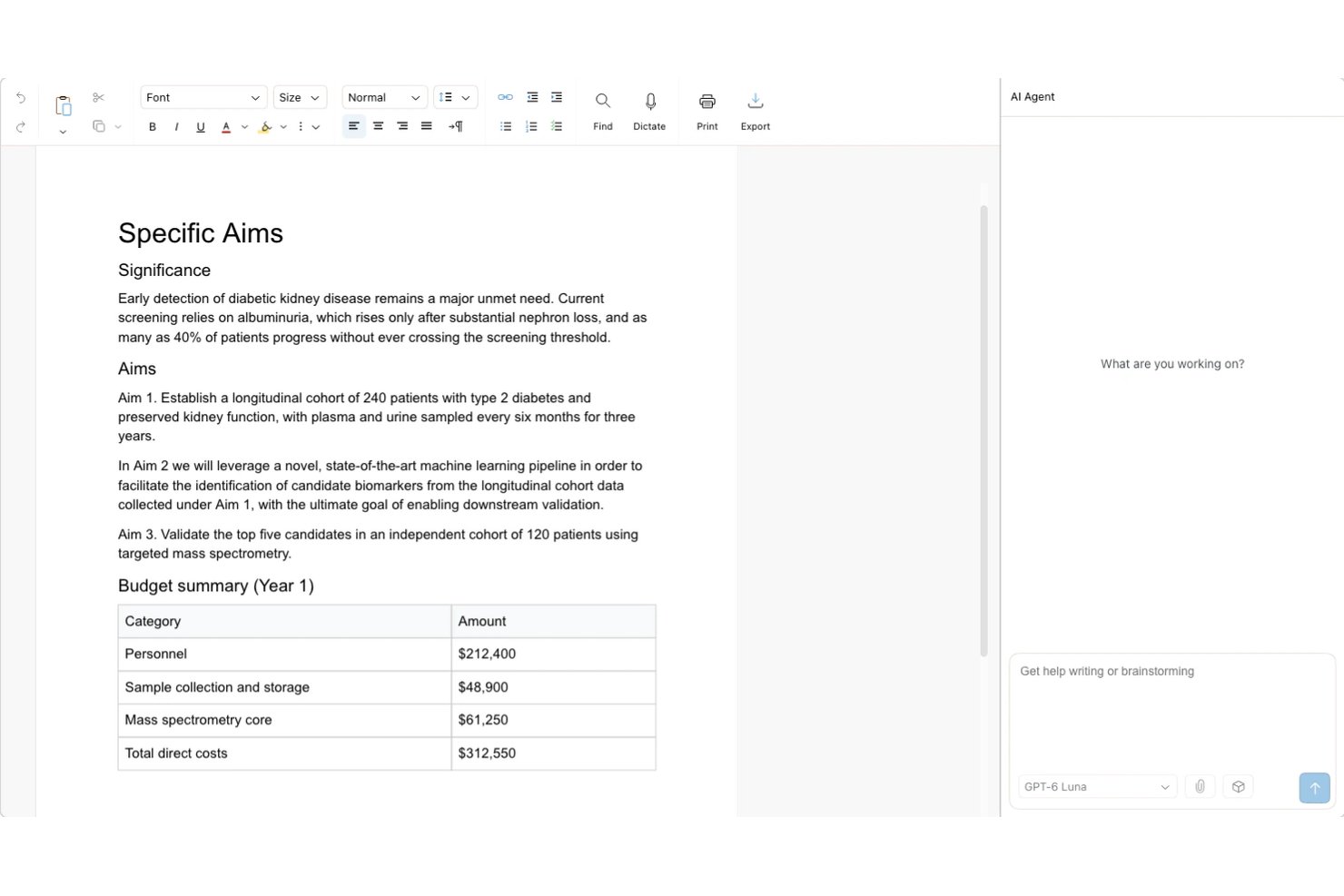
Revise is a browser-based word processor that brings AI-assisted editing and real-time collaboration together for teams who want tracked, reviewable AI changes alongside live co-authoring, rich formatting, and high-fidelity DOCX workflows.
Who Is Revise Best For?
Revise is a strong fit for distributed teams who need to review and refine AI-generated edits without losing control of the final document.
Why Revise Is a Good Google Docs Alternative
I picked Revise as one of the best because it solves a real problem: AI edits that overwrite your work before you've approved them. Every change the AI agent proposes appears as a tracked change, green for additions and red for deletions, so my team can accept or reject each one individually. I also appreciate that the built-in model picker lets us switch between OpenAI, Anthropic, Google, xAI, and Meta models mid-project without leaving the editor.
Revise Key Features
- Live presence: Colored cursors, selections, and collaborator avatars show who’s in the document.
- Sharing roles: Set access to Editor, Suggester, or Viewer, including for people with a public link.
- Revision history: Replay saved versions and compare selected points in the timeline.
- Document formatting: Add tables, images, headers, footers, columns, footnotes, and page numbers.
Revise Integrations
Revise supports MCP connections with Claude, ChatGPT, Codex, Hermes, OpenClaw, and other MCP clients. MCP access is free on every Revise plan, requires a Revise account, and uses the AI app’s subscription; hourly rate limits apply.
Pros and Cons
Pros:
- No account needed to collaborate via public link
- Switch between multiple AI models mid-project
- AI edits appear as reviewable tracked changes
Cons:
- Offline access limited to previously opened documents
- No one-click restore from version history
Notion
Best for combining notes and databases
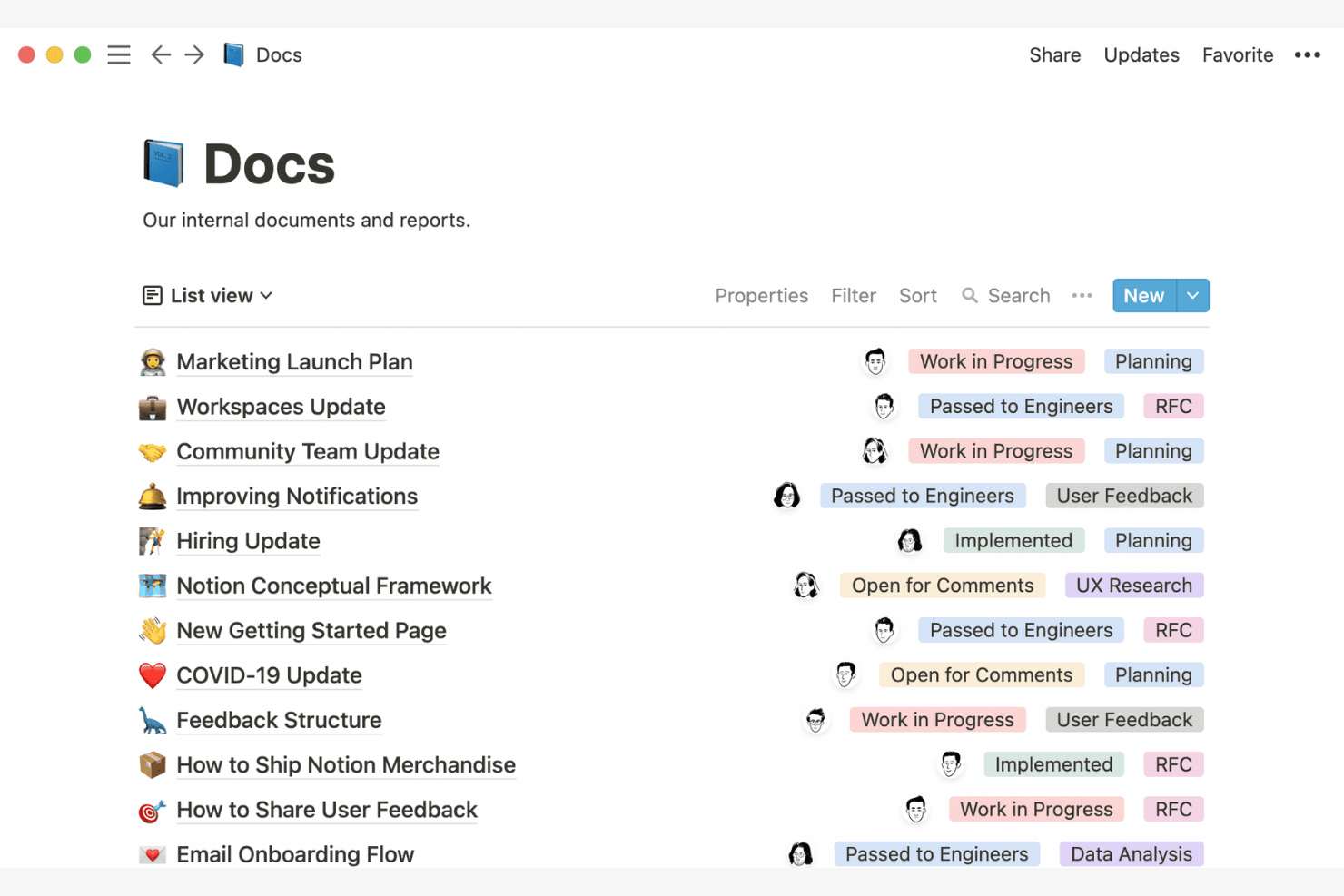
Notion gives teams a way to blend note-taking, documentation, and databases in a single workspace. It’s especially useful for product managers, operations leads, and anyone who needs to organize structured and unstructured information side by side. Unlike Google Docs, Notion lets you build custom tables, link notes to project trackers, and create dashboards that bring all your work together.
Why Notion Is a Good Google Docs Alternative
If you need to manage both notes and structured data in one place, Notion offers a unique approach that goes beyond traditional document editors. I picked Notion because you can create databases, link them to your notes, and build custom views for tracking projects or resources. This flexibility lets your team organize everything from meeting notes to product roadmaps without jumping between tools. For anyone who wants to combine documentation with dynamic tables and lists, Notion stands out as a strong Google Docs alternative.
Notion Key Features
Some other features in Notion help teams manage and collaborate on content more flexibly:
- Drag-and-drop page organization: Move pages and sections around to quickly restructure your workspace.
- Real-time collaborative editing: Multiple users can edit the same page at once and see changes live.
- Rich media embedding: Add images, videos, code snippets, and files directly into any page.
- Customizable templates: Start new projects or documents with pre-built templates for wikis, meeting notes, and more.
Notion Integrations
Integrations include Slack, Jira, GitHub, Asana, Google Drive, Figma, Trello, GitLab, Webex, and Typeform.
Pros and Cons
Pros:
- Great for team wikis, meeting notes, and lightweight project docs
- Flexible organization with templates and linked pages
- Combines docs with databases for structured knowledge management
Cons:
- Exporting to PDF or Word can break layouts and hierarchy
- Advanced document formatting is limited

ClickUp
Best for task and document linking
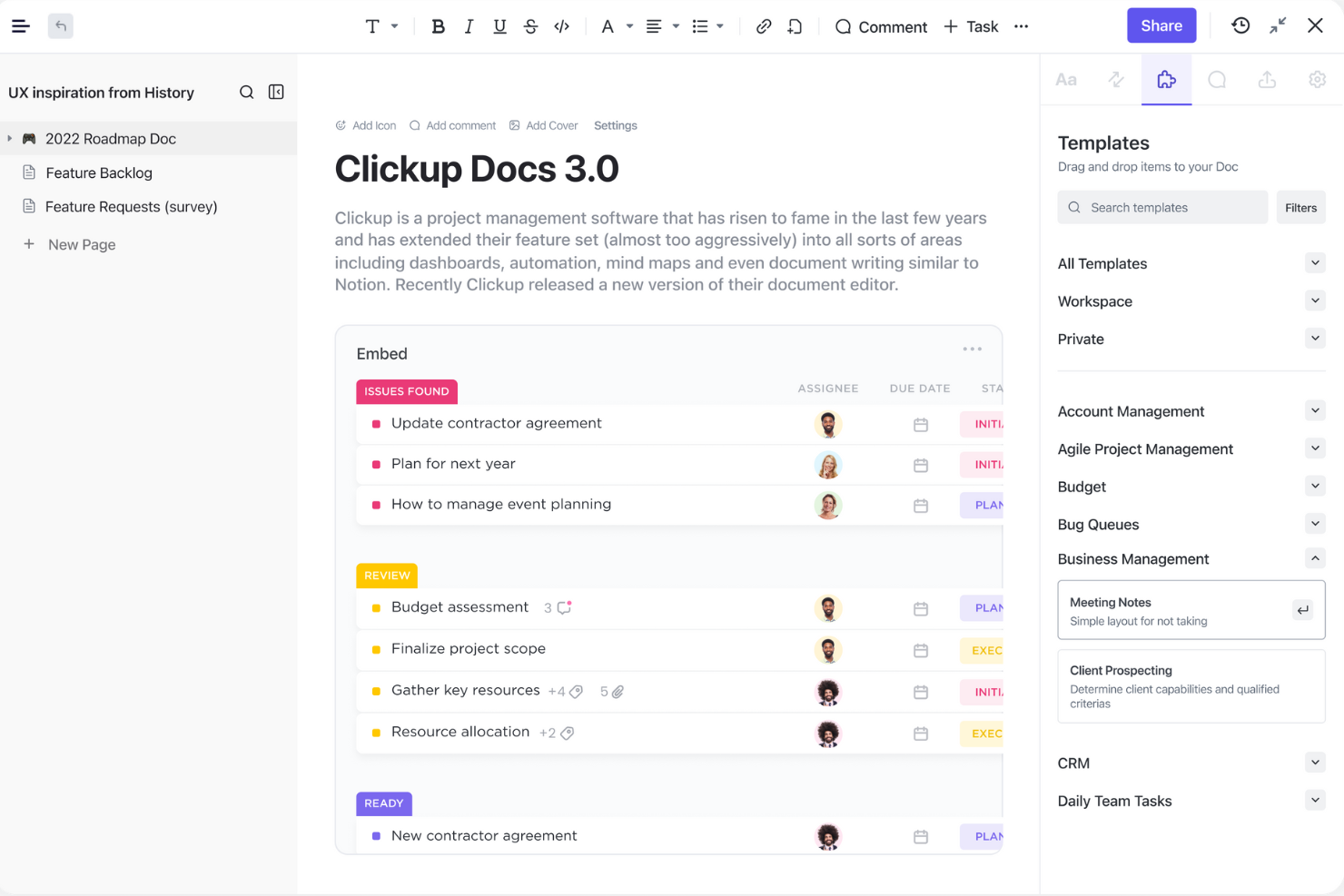
If your team needs to connect documents directly to tasks and workflows, ClickUp offers a unified workspace that brings docs and project management together. It’s a strong fit for product, engineering, and cross-functional teams that want to keep project context and documentation tightly linked. Unlike Google Docs, ClickUp lets you embed tasks, track progress, and reference work items right inside your documents.
Why ClickUp Is a Good Google Docs Alternative
ClickUp stands out for teams that want to keep documents and tasks tightly connected in one workspace. I picked ClickUp because you can link docs directly to tasks, embed live task lists inside documents, and reference project items without switching tools. This setup helps your team keep documentation, project updates, and action items in sync as work progresses. For anyone who needs more than just standalone documents, ClickUp’s approach to task and document linking offers a clear advantage over Google Docs.
ClickUp Key Features
Some other features in ClickUp help teams manage documents and projects more efficiently:
- Rich text editing: Format documents with headings, tables, checklists, and code blocks.
- Commenting and annotation: Add comments and tag teammates directly within any doc.
- Document sharing controls: Set permissions for viewing, editing, or commenting on docs.
- Doc templates: Use and customize templates for meeting notes, project plans, and more.
ClickUp Integrations
ClickUp offers over 1,000 native integrations with popular tools such as Slack, GitHub, Google Drive, and Zoom.
Pros and Cons
Pros:
- Docs live inside an all-in-one workspace for teams already using ClickUp
- Strong collaboration with comments mentions and permissions
- Links docs directly to tasks and workflows for project context
Cons:
- Exports can lose structure especially for long or complex docs
- Formatting and layout controls are less advanced than Google Docs
New Product Updates from ClickUp
ClickUp Adds Meetings Hub, Super Agent Templates, and ZoomInfo Integration
ClickUp adds a searchable Meetings Hub, new ways to clone and template Super Agents, and a ZoomInfo integration through the App Center. These updates improve meeting retrieval, agent reuse, and access to sales intelligence. For more information, visit ClickUp’s official site.

Best for private cloud document hosting

If your team needs full control over document storage and privacy, Nextcloud offers a private cloud platform you can host yourself. It’s a strong fit for organizations with strict data security requirements or those in regulated industries. Nextcloud stands out by letting you manage documents, collaboration, and sharing entirely on your own infrastructure, unlike most cloud-based office suites.
Why Nextcloud Is a Good Google Docs Alternative
Unlike most cloud office suites, Nextcloud gives you the option to host your own private document environment. I picked Nextcloud because it lets you control where your data lives and who can access it, which is essential for teams with strict privacy or compliance needs. The platform supports collaborative editing, file sharing, and user management—all on infrastructure you manage yourself. This makes Nextcloud a strong choice for organizations that can’t rely on public cloud services for sensitive documents.
Nextcloud Key Features
Some other features in Nextcloud make it a flexible platform for document collaboration:
- Integrated calendar and contacts: Manage events and address books alongside your files and documents.
- End-to-end encryption: Protect sensitive files with encryption that only you and your collaborators can access.
- Version control: Track changes and restore previous versions of documents as needed.
- Collaboration apps marketplace: Extend functionality with add-ons for chat, video calls, and workflow automation.
Nextcloud Integrations
Integrations include OnlyOffice, Nextcloud Office, Nextcloud Assistant, Giphy, draw.io, Discord, Edusign, XtalaDraw, Sentry, Slack, YouTube, OneDrive, Google services, GitLab, Dropbox, Jira, Reddit, GitHub, and more.
Pros and Cons
Pros:
- Provides extensive user and group access controls for admins
- Integrates file sharing, calendar, and contacts in one platform
- Supports collaborative editing with OnlyOffice or Collabora Online
- Offers end-to-end encryption for sensitive document storage
- Lets you host documents on your own private cloud server
Cons:
- Collaboration quality depends on the editor stack you pair with it
- Requires technical setup and ongoing server maintenance

Best for compatibility with Microsoft file formats
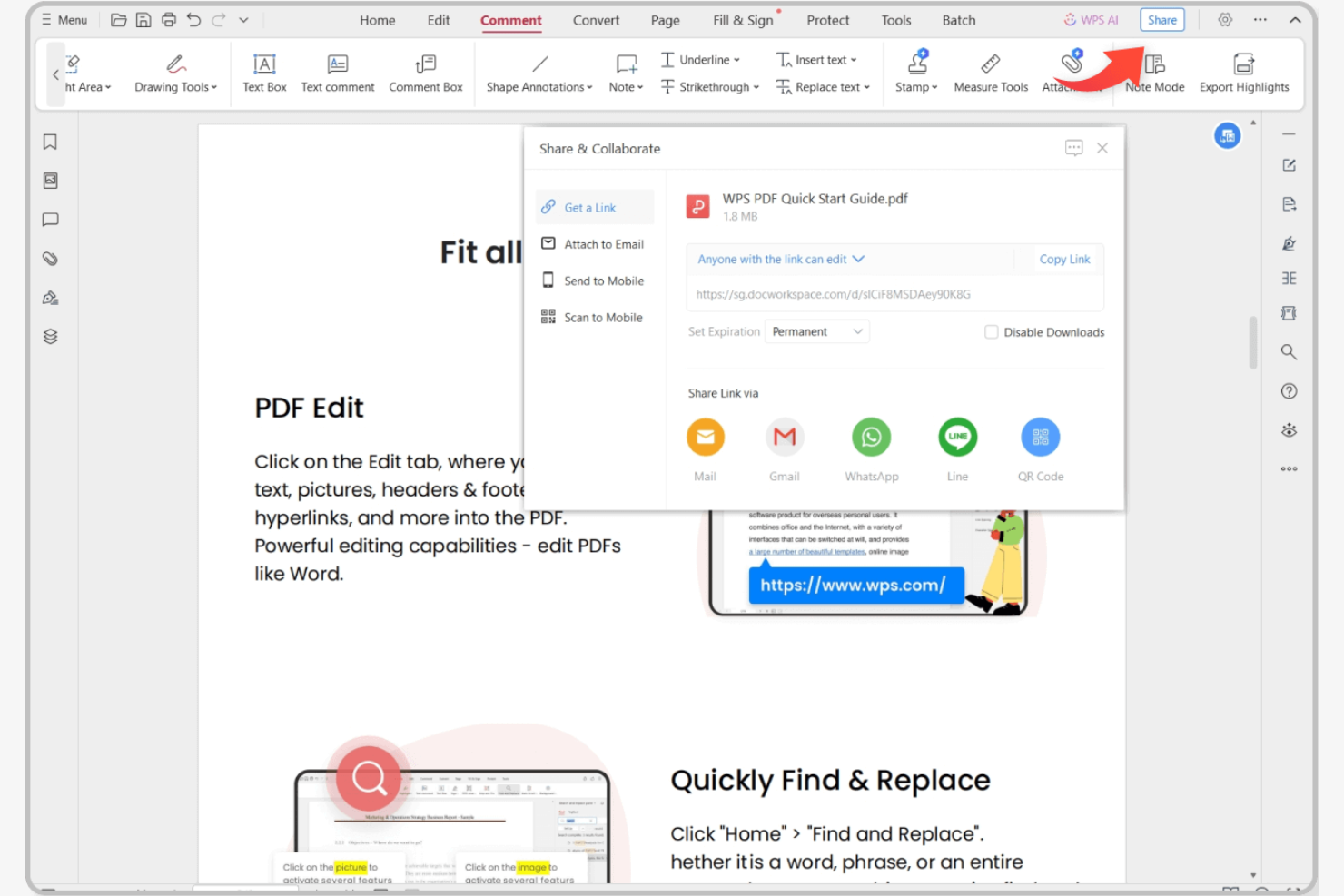
If you’re looking for an online office suite that handles Microsoft file formats without hiccups, WPS Office is worth a close look. It’s designed for professionals and teams who regularly exchange Word, Excel, and PowerPoint files with clients or colleagues using Microsoft Office. Unlike Google Docs, WPS Office preserves advanced formatting and features in Microsoft files, reducing compatibility headaches during collaboration.
Why WPS Office Is a Good Google Docs Alternative
When you need flawless compatibility with Microsoft file formats, WPS Office stands out from other online office suites. I picked WPS Office because it opens, edits, and saves DOCX, XLSX, and PPTX files while preserving advanced formatting, macros, and embedded objects. The suite also includes a built-in PDF editor, which is helpful for teams that work with a mix of document types. If your workflow depends on exchanging files with Microsoft Office users, WPS Office helps you avoid the formatting issues that often come up with Google Docs.
WPS Office Key Features
Some other features in WPS Office help teams manage documents and workflows more efficiently:
- Tabbed document interface: Open and switch between multiple documents in a single window.
- Cloud storage integration: Connect to services like Dropbox, Google Drive, and OneDrive for direct file access.
- Document templates library: Access a wide range of pre-built templates for reports, resumes, and presentations.
- Cross-platform support: Use WPS Office on Windows, macOS, Linux, Android, and iOS devices.
WPS Office Integrations
Native integrations are not currently listed by WPS Office.
Pros and Cons
Pros:
- Works across many operating systems with offline support
- Built-in PDF editor plus large template library
- Strong compatibility with Microsoft Word, Excel, and PowerPoint formats
Cons:
- Free version includes ads that can distract while editing
- Real-time collaboration is more limited than Google Docs

Best for real-time team collaboration
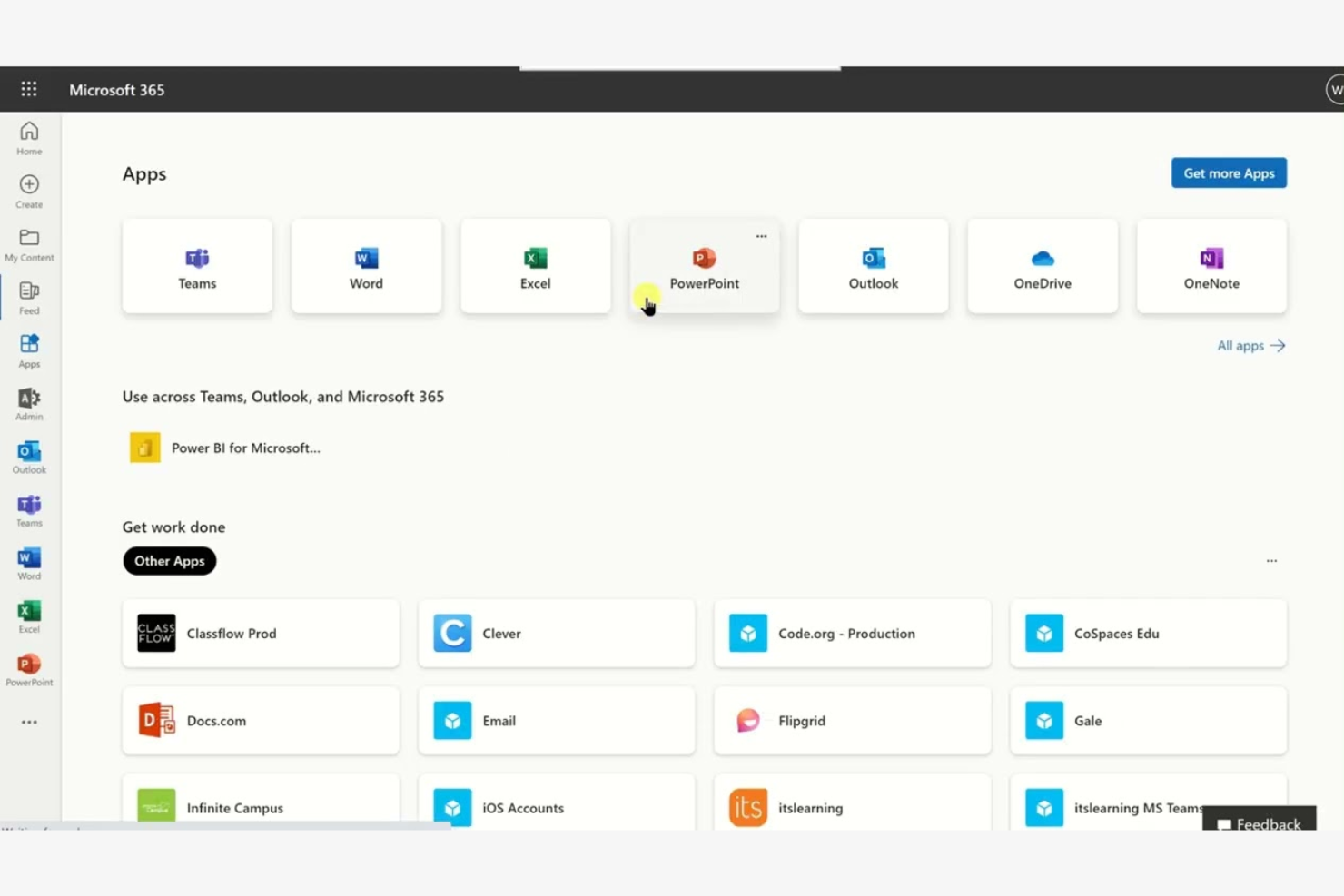
Microsoft 365 offers a suite of online office tools designed for teams that need advanced collaboration and document management. It’s a strong fit for businesses that rely on real-time co-authoring, deep integration with Microsoft Teams, and compatibility with complex file formats. If your projects demand strict version control and simplified workflow across Word, Excel, and PowerPoint, Microsoft 365 stands out from Google Docs.
Why Microsoft Is a Good Google Docs Alternative
For teams that need real-time collaboration, Microsoft 365 offers co-authoring in Word, Excel, and PowerPoint with instant updates across devices. I picked Microsoft because its document editing tools let multiple users work together on the same file while tracking changes and comments in detail. The integration with Microsoft Teams means you can chat, meet, and share files without leaving your workspace. These features make it a strong choice for organizations that prioritize live teamwork and document accuracy.
Microsoft Key Features
Some other features in Microsoft 365 make it a flexible choice for teams managing documents online:
- Advanced permission controls: Set granular access levels for files and folders to manage who can view, edit, or share documents.
- Automated version history: Restore previous versions of documents and track changes over time without manual backups.
- Built-in accessibility tools: Use features like Immersive Reader and voice dictation to support diverse work styles and needs.
- Offline editing mode: Work on documents without an internet connection and sync changes automatically when you’re back online.
Microsoft Integrations
Integrations include Microsoft Teams, OneDrive, SharePoint, Outlook, Power BI, Dynamics 365, Yammer, Planner, Forms, and Power Automate.
Pros and Cons
Pros:
- Advanced permission settings allow granular control over document access
- Deep integration with Microsoft Teams supports in-document chat and meetings
- Real-time co-authoring works across Word, Excel, and PowerPoint files
Cons:
- Some advanced features are only available in higher-tier plans
- Requires a Microsoft account and subscription for full functionality
Best for mobile-first document access
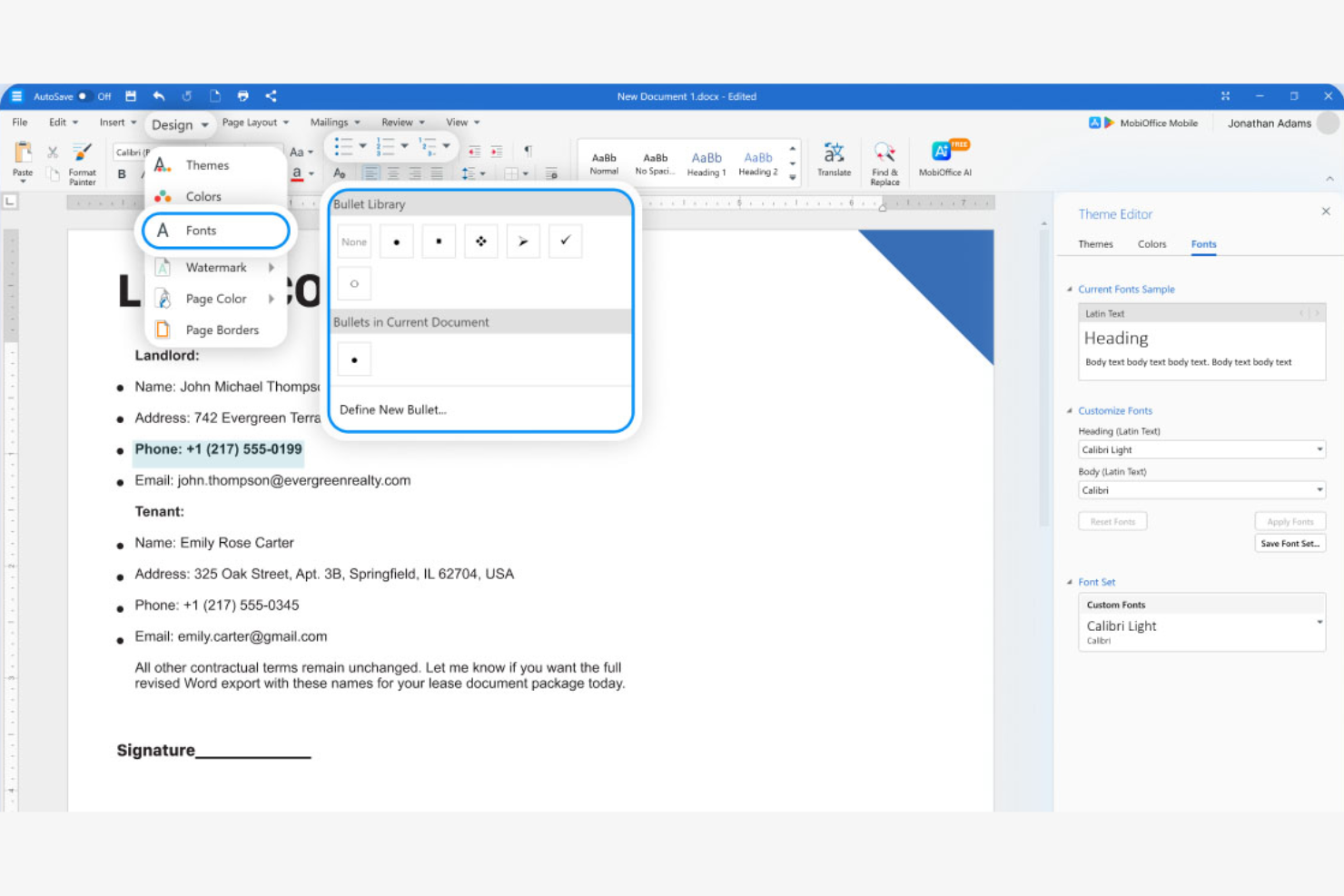
If your team needs to work with documents on the go, MobiSystems delivers a mobile-first office suite designed for smartphones and tablets. It’s a strong fit for field teams, remote workers, and anyone who relies on mobile devices for document editing and access. Unlike Google Docs, MobiSystems offers robust offline functionality and native mobile apps that support advanced editing features across Android and iOS.
Why MobiSystems Is a Good Google Docs Alternative
Unlike most office suites that focus on desktop or browser-based editing, MobiSystems is built specifically for mobile-first document access. I picked it because its OfficeSuite app offers full-featured document, spreadsheet, and presentation editing directly on Android and iOS devices. The platform also supports offline editing, so you can work with files even when you don’t have an internet connection. This makes MobiSystems a strong choice for teams that need reliable document access and editing while away from a desk.
MobiSystems Key Features
Some other features in MobiSystems help teams manage documents and collaborate across devices:
- PDF editing tools: Edit, annotate, and convert PDF files directly within the app.
- Cloud storage integration: Connect to Google Drive, Dropbox, OneDrive, and MobiDrive for file access and backup.
- Document encryption: Protect sensitive files with password and encryption options.
- Cross-platform compatibility: Access and edit documents on Windows, Android, and iOS devices.
MobiSystems Integrations
Native integrations are not currently listed by MobiSystems.
Pros and Cons
Pros:
- Works across Android, iOS, and Windows for on-the-go teams
- Built-in PDF tools for editing, annotation, and conversion
- Mobile-first editing with strong offline access
Cons:
- Smaller integration ecosystem for business workflows
- Limited real-time collaboration compared to Google Docs
Best for open-source document editing

If you’re looking for a fully open-source alternative to Google Docs, LibreOffice stands out. It’s a strong fit for organizations and professionals who need complete control over their documents and data, without relying on cloud-based platforms. LibreOffice appeals to teams that value privacy, offline access, and compatibility with a wide range of file formats.
Why LibreOffice Is a Good Google Docs Alternative
Unlike most online office suites, LibreOffice gives you full access to its source code and complete control over your documents. I picked LibreOffice because it lets you edit and store files locally, which is ideal for teams with strict privacy or data residency requirements. Its support for a wide range of file formats, including Microsoft Office and legacy document types, makes it easy to work with diverse content. These open-source features set LibreOffice apart for users who want transparency and flexibility in their document editing tools.
LibreOffice Key Features
Some other features in LibreOffice make it a versatile choice for document editing:
- Built-in PDF export: Create PDF files directly from any document without needing extra software.
- Customizable toolbars and menus: Adjust the interface to match your workflow and preferences.
- Extensive template library: Access a wide range of pre-built templates for documents, spreadsheets, and presentations.
- Macro recording and scripting: Automate repetitive tasks using built-in macro tools and scripting languages.
LibreOffice Integrations
Integrations include Kasm Workspaces, Intrexx, Ultima Linux, NemoVote, TimeSpreader, BuildViewVU, Sprint Boards, File Manager Pro, Scribens, Twake, Devart ODBC Drivers, CSVpad, Agent S, FileRun, Zotero, LibreOffice Draw, and more.
Pros and Cons
Pros:
- Broad format support plus PDF export and macro scripting
- Strong offline editing and local file control for privacy
- Free open-source suite with no licensing fees
Cons:
- Formatting can shift when working with complex Microsoft files
- No native real-time co-editing like Google Docs

Best with integrated project management tools
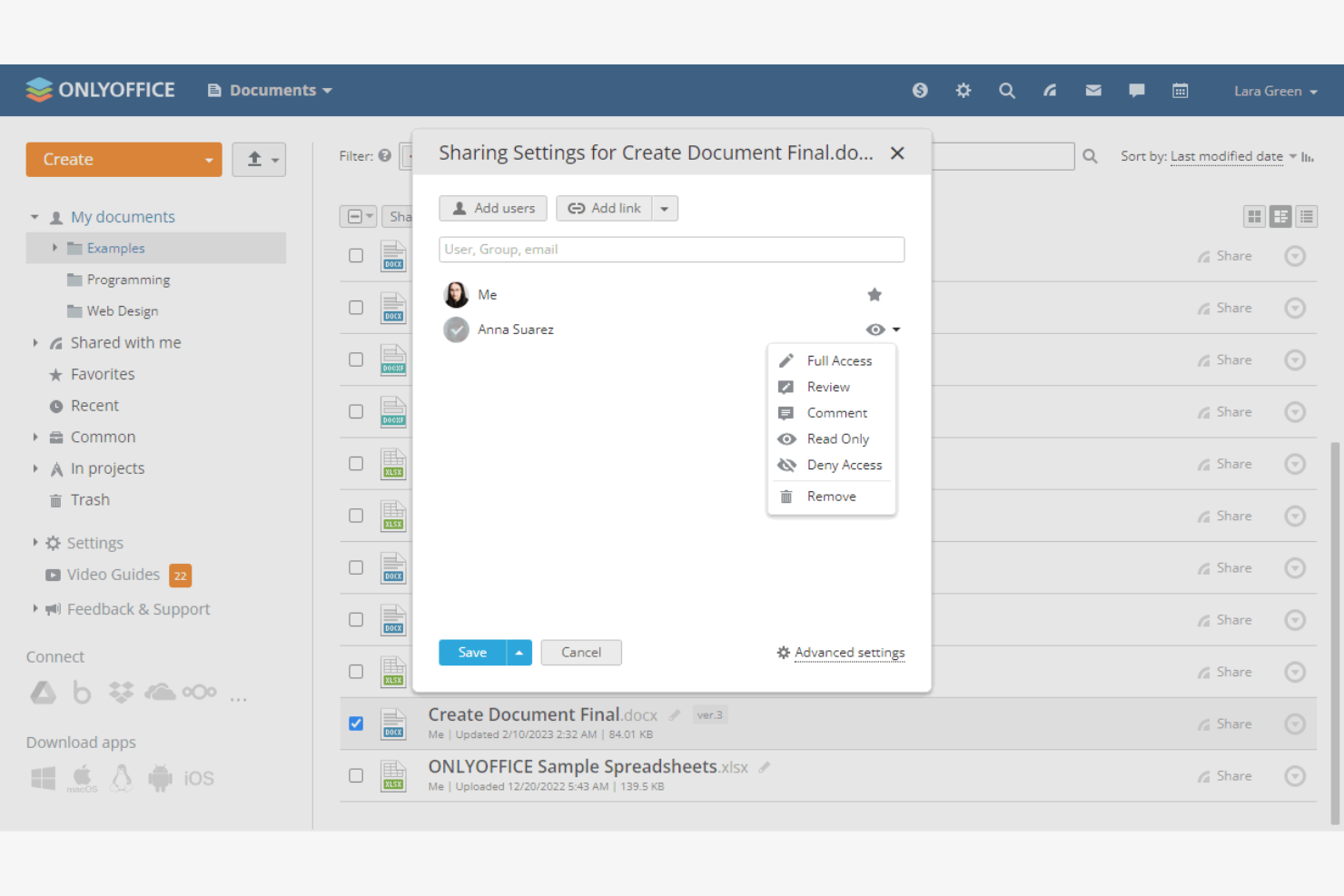
Teams that want document editing and project management in one place often turn to ONLYOFFICE. This platform is designed for businesses and project-driven teams that need to manage documents, tasks, and collaboration from a single dashboard. ONLYOFFICE stands out by combining familiar office suite tools with integrated project tracking and team communication features.
Why ONLYOFFICE Is a Good Google Docs Alternative
For teams that want more than just document editing, ONLYOFFICE brings project management tools directly into its online office suite. I picked ONLYOFFICE because it lets you create, assign, and track tasks alongside your documents, so you can manage projects and content in one place. The platform includes features like Gantt charts and milestone tracking, which help teams coordinate work without switching between separate apps. This integrated approach makes ONLYOFFICE a strong choice for businesses that need both collaboration and project oversight.
ONLYOFFICE Key Features
Some other features in ONLYOFFICE make it a flexible choice for teams:
- Document co-editing: Multiple users can edit documents at the same time with real-time updates.
- Built-in chat and comments: Communicate and leave feedback directly within documents and projects.
- Customizable access permissions: Set detailed user roles and permissions for documents and folders.
- Mail and calendar modules: Manage email and schedule events without leaving the platform.
ONLYOFFICE Integrations
Integrations include Trello, Odoo, Moodle, Monday, Pipedrive, Alfresco, Box, Confluence, Dropbox, DZZ Office, Jira, Nextcloud, SharePoint, SuiteCRM, Trello, WordPress, Zapier, Zoom, and more.
Pros and Cons
Pros:
- On-premises deployment option for strict data policies
- Supports real-time co-editing with role-based access permissions
- Combines document editing with built-in project management modules
Cons:
- Mobile apps have fewer features than desktop and web
- Third-party integration ecosystem is smaller than Google Workspace
Best for offline document creation
For teams that need a fully offline office suite, Apache OpenOffice offers a downloadable solution with no internet required. It’s a strong fit for organizations with strict data privacy policies or those working in low-connectivity environments. Unlike Google Docs, OpenOffice lets you create, edit, and store documents entirely on your local devices.
Why Apache OpenOffice Is a Good Google Docs Alternative
If you need to work without an internet connection, Apache OpenOffice stands out as a reliable choice. I picked it because it lets you create and edit documents, spreadsheets, and presentations entirely offline, which is something Google Docs can’t do natively. OpenOffice also supports saving files directly to your local drive, so you keep full control over your data. This makes it a strong fit for teams with strict privacy requirements or those in remote locations.
Apache OpenOffice Key Features
Some other features in Apache OpenOffice make it a versatile office suite:
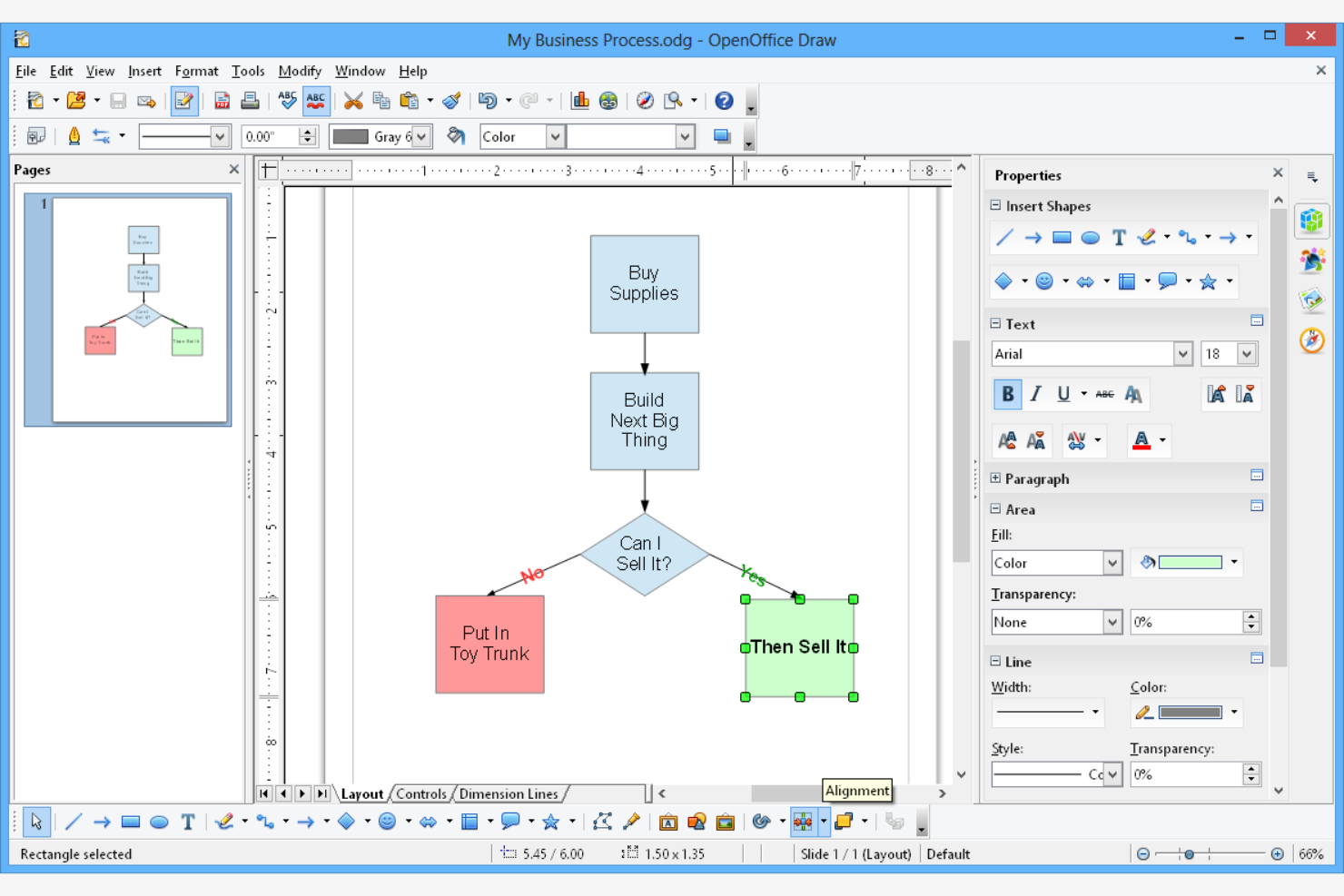
- Draw module: Create diagrams, flowcharts, and vector graphics directly within the suite.
- Math formula editor: Build and edit complex mathematical equations for technical documents.
- PDF export: Save any document, spreadsheet, or presentation as a PDF file without extra plugins.
- Multi-format compatibility: Open and save files in Microsoft Office, OpenDocument, and other common formats.
Apache OpenOffice Integrations
Native integrations are not currently listed by Apache OpenOffice.
Pros and Cons
Pros:
- Includes Draw and Math tools for diagrams and formulas
- Free open-source suite with PDF export included
- Offline-first document creation with no cloud dependency
Cons:
- Modern file compatibility and feature updates lag behind competitors
- No real-time collaboration or built-in syncing
Andre alternativer til Google Dokumenter
Her er noen flere alternativer til Google Dokumenter som ikke kom med på kortlisten min, men som likevel er verdt å sjekke ut:
- Polaris Office
For cross-device file syncing
- Visual Paradigm
For visual workflow documentation
- Zoho
For built-in business app integrations
- Evernote
For personal knowledge capture and organization
- Confluence
For structured team knowledge management
- Miro
For collaborative whiteboarding
- Coda
For turning documents into interactive apps
- Quip
For document and spreadsheet collaboration inside Salesforce
- Dropbox Paper
For lightweight collaborative brainstorming
- FreeOffice
For lightweight system requirements


How I Evaluate Google Docs Alternatives
I split my evaluation into baseline criteria—like real-time co-editing, task integration, and version history—and differentiators that separate a doc tool from a true project documentation hub.
Core Functionality (Table Stakes For This List)
When I'm selecting tools for my list, I rank each one on a scale from 0 (does not offer the functionality) to 5 (excels in this area) for each core functionality listed below. Then, I calculate the tool's total score into a percentage. Each tool needs to achieve a minimum total score of 65% to be considered for inclusion.
- Real-Time Collaborative Editing: I check whether multiple team members can co-author a project brief or status report simultaneously with live cursors, inline comments, and suggestions.
- Rich Document Creation: The editor should support formatted headings, tables, embedded media, and content blocks for structured docs like SOWs and sprint plans.
- Task & Project Integration: I look for native connections between docs and tasks, boards, or timelines so a project charter links directly to its deliverables.
- Version History & Permissions: Every doc revision should be trackable and restorable, with role-based sharing that lets you control access for internal teams and external clients.
- Cloud Storage & Sync: I evaluate whether docs autosave, sync across devices, and offer offline access for distributed teams working across time zones.
- Export & Format Compatibility: Tools should import and export standard formats like DOCX, PDF, and Markdown so project docs stay compatible with stakeholder workflows.
Once I have a list of tools that meet this criteria, I consider what sets each platform apart.
Differentiating Factors (What Sets Vendors Apart)
Here's how I compare and contrast different vendors:
Standout Features
I look for built-in wiki and knowledge base features that let you nest project docs, link pages, and build a searchable hub your team actually references. AI writing tools also stand out—auto-generating a sprint retro summary or drafting a status update from task data saves real time. Project-specific templates for SOWs, RAID logs, and kickoff agendas matter too, especially when paired with automations that populate recurring docs across workstreams.
Beyond Features
Integration depth matters—I check whether the tool connects natively to PM platforms like Jira, Asana, or monday.com, because a doc tool that sits outside your delivery stack creates friction. Pricing structures vary widely too. I evaluate whether guest seats and external collaborator access come included or cost extra, since most project teams loop in clients and vendors regularly. Migration support from Google Docs or Confluence is another factor I weigh, because a painful switchover can stall adoption across the team.
Hvorfor se etter et alternativ til Google Dokumenter?
Selv om Google Dokumenter er en god nettbasert tekstbehandlingsløsning, finnes det flere grunner til at noen brukere ser etter alternative plattformer. Det kan hende du ser etter et alternativ til Google Dokumenter fordi …
- Du trenger bedre kompatibilitet med Microsoft Office-filformater
- Teamet ditt trenger avanserte verktøy for PDF-redigering og merknader
- Du arbeider i områder der Google-tjenester er begrenset
- Du trenger frakoblet redigering uten å være avhengig av nettleserutvidelser
- Organisasjonen din har strenge krav til personvern eller lokal drift
- Du ønsker mer kontroll over dokumentformatering, layout eller støtte for Markdown
- Du er bekymret for læringskurven for ikke-tekniske brukere
- Du foretrekker et annet brukervennlig grensesnitt eller en annen arbeidsflyt
Hvis noe av dette høres kjent ut, har du kommet til rett sted. Alternativene på denne listen omfatter nettbaserte tekstbehandlings- og samarbeidsplattformer utviklet for team som trenger større fleksibilitet, bedre kontroll over formateringen eller en annen tilnærming til dokumenthåndtering.
Viktige funksjoner i Google Dokumenter
Her er noen av de viktigste funksjonene i Google Docs som kan hjelpe deg med å sammenligne det med andre alt-i-ett-verktøy for samarbeid og tekstbehandlingsplattformer:
- Samarbeidsredigering i sanntid med flere brukere
- Automatisk lagring i skyen på Google Disk
- Versjonslogg og sporing av dokumentendringer
- Innebygde verktøy for kommentarer og forslag
- Integrasjon med Google Workspace-apper som Regneark og Presentasjoner
- Frakoblet redigeringsmodus for arbeid uten internettilgang
- Omfattende innstillinger for deling og tilgangstillatelser
- Taleskriving og tilgjengelighetsfunksjoner