

Recensione dei 10 migliori software di collaborazione per piccole imprese 2026

Elenco dei migliori software di collaborazione per piccole imprese


Scegliere il software di collaborazione giusto per la tua piccola impresa è difficile, vista la quantità di opzioni disponibili. Vuoi migliorare la comunicazione, gestire le attività e aumentare la produttività, ma devi capire quale strumento si adatta meglio alle tue esigenze. Ci penso io!
Basandomi sui miei anni di esperienza nella gestione di progetti digitali e nell'utilizzo di diversi strumenti di collaborazione, ti aiuterò a trovare le opzioni migliori. Questi strumenti facilitano la comunicazione del team, la gestione delle attività e la condivisione dei file. Ti aiutano a mantenere l'ordine, rispettare le scadenze e ridurre i problemi di comunicazione.
Perché fidarsi dei nostri consigli sui software
Il nostro team testa e recensisce software dal 2012. In quanto project manager noi stessi, sappiamo quanto sia difficile — e importante — scegliere il software giusto.
Per questa guida, abbiamo valutato gli strumenti attraverso test pratici e ricerche indipendenti, assegnando un punteggio agli strumenti in base ai nostri criteri di selezione. Ci basiamo inoltre sulle competenze di leader di pensiero del settore e di professionisti attivi nella gestione dei progetti.
Le nostre recensioni riflettono il nostro giudizio editoriale umano, non un discorso di vendita.
Revisori esperti:
Tabella comparativa dei software di collaborazione per piccole imprese
| Tool | Best For | Trial Info | Price | ||
|---|---|---|---|---|---|
| 1 | Ideale per la collaborazione tra team tramite casella di posta condivisa | È disponibile una prova gratuita di 30 giorni | A partire da $14/utente/mese (fatturato annualmente) | Website | |
| 2 | Ideale per gerarchie di attività nidificate nei piccoli team | Piano gratuito disponibile | A partire da $10.95/utente/mese | Website | |
| 3 | Ideale per strumenti di produttività completi | Prova gratuita di 14 giorni disponibile | A partire da $7/utente/mese (fatturazione annuale) | Website | |
| 4 | Ideale per collaborazione di team e gestione delle attività | Prova gratuita di 14 giorni + demo gratuita disponibile | Da $45/mese (fatturato annualmente) | Website | |
| 5 | Ideale per la collaborazione integrata con Office 365 | Piano gratuito disponibile | A partire da $4/utente/mese (fatturazione annuale) | Website | |
| 6 | Ideale per videoconferenze integrate | Prova gratuita di 14 giorni | Da $9/utente/mese (fatturato annualmente) | Website | |
| 7 | Ideale per la gestione visiva delle attività | Piano gratuito disponibile | A partire da $5/utente/mese (fatturazione annuale) | Website | |
| 8 | Ideale per la collaborazione su una tela infinita | Piano gratuito disponibile | Da $8/membro/mese (fatturato annualmente) | Website | |
| 9 | Ideale per la comunicazione del team e le integrazioni | Piano gratuito disponibile | Da $7.25/utente/mese (fatturati annualmente) | Website | |
| 10 | Ideale per una gestione progetti altamente personalizzabile | Prova gratuita di 15 giorni + piano gratuito + demo gratuita disponibile | A partire da $4/utente/mese (fatturazione annuale) | Website |

Recensioni dei migliori software di collaborazione per piccole imprese
Questa sezione fornisce un’analisi approfondita e una panoramica di vari software di collaborazione per piccole imprese. Esamineremo i pro e i contro di ogni strumento, le sue funzionalità e i casi d’uso più adatti.
Missive
Ideale per la collaborazione tra team tramite casella di posta condivisa
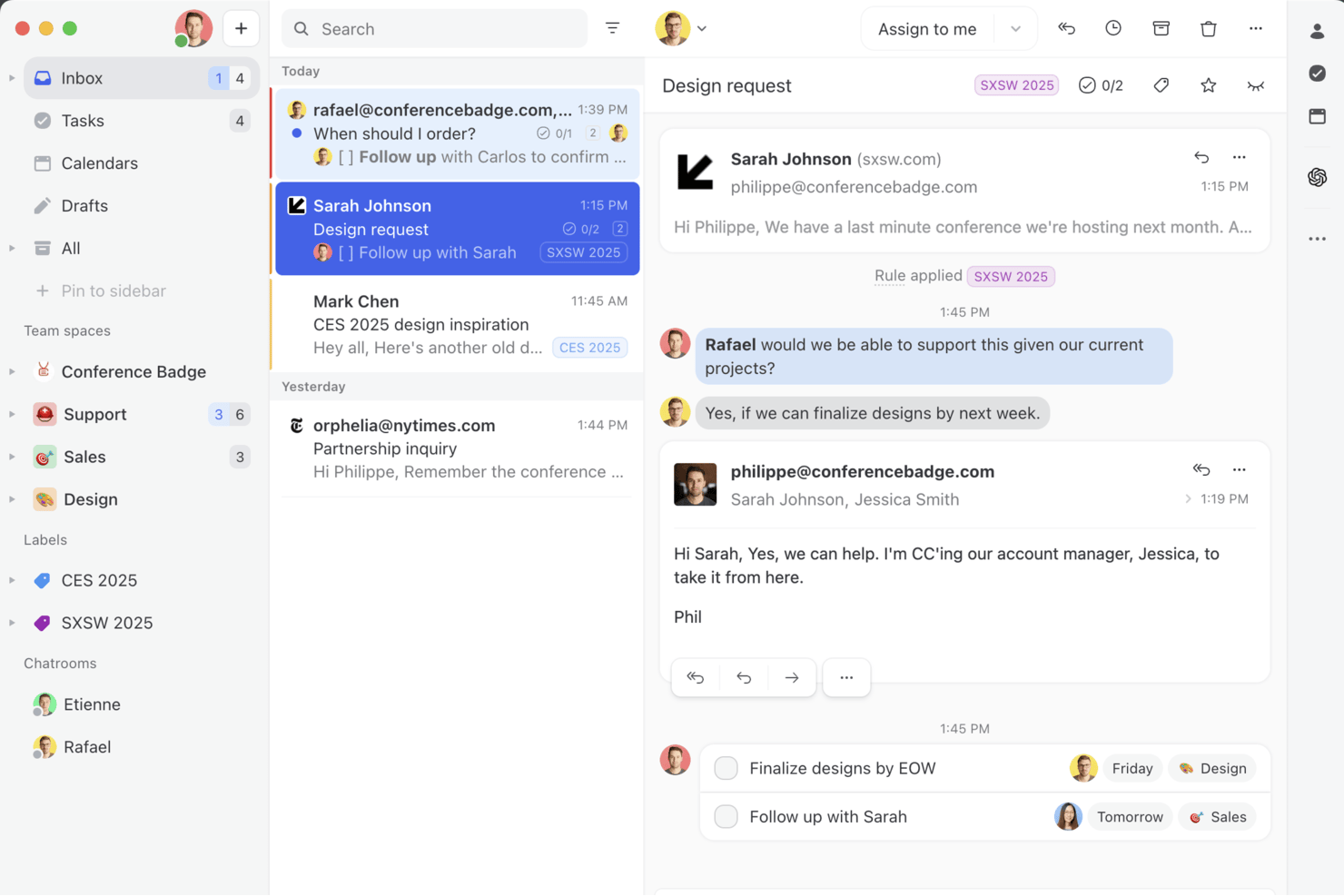
Missive è una piattaforma per caselle di posta condivise e collaborazione tra team che combina canali di posta elettronica, SMS e messaggistica social con chat interna, stesura collaborativa delle email, gestione delle attività e regole di automazione senza codice.
Per chi è più adatta Missive?
Missive è particolarmente adatta a piccoli team e agenzie che gestiscono grandi volumi di comunicazioni con i clienti tramite email, SMS e canali social da una casella di posta condivisa.
Perché ho scelto Missive
Missive si è guadagnata un posto nella mia rosa di finaliste perché risolve un problema che la maggior parte degli strumenti di collaborazione ignora: il caos delle email di team. Adoro il modo in cui i thread interni permettono al mio team di discutere e preparare insieme una risposta all'interno di un'email prima che venga inviata al cliente, eliminando la consueta confusione tra 'rispondi a tutti o Slack?'. Le caselle di posta condivise con assegnazione automatica a rotazione garantiscono che nessun messaggio sfugga, anche su canali come WhatsApp e Instagram.
Funzionalità principali di Missive
- Casella di posta omnicanale: riunisce email, SMS, WhatsApp, Facebook Messenger e messaggi diretti di Instagram in un unico spazio di lavoro condiviso.
- Regole di automazione senza codice: consente ai team di creare fino a 1.000 flussi di lavoro automatizzati per l'assegnazione automatica, le risposte automatiche, l'applicazione di etichette e l'instradamento delle conversazioni.
- Accesso per ospiti: invita collaboratori esterni a conversazioni specifiche su tutti i piani senza richiedere un posto a pagamento.
- Supporto per più organizzazioni: consente a un unico account Missive di collegarsi e passare da un'organizzazione all'altra, una funzione utile per le agenzie che gestiscono diversi clienti.
- Server MCP di Missive: collega strumenti di IA esterni, come Claude o ChatGPT, per consultare le discussioni di collaborazione, controllare i calendari e preparare bozze di risposta, mantenendo obbligatoria la revisione del team prima dell'invio.
Integrazioni di Missive
Missive offre oltre 25 integrazioni, tra cui Google Workspace, Microsoft 365, HubSpot, Salesforce, Asana, ClickUp, Google Drive, Dropbox, WhatsApp e Instagram. Supporta inoltre un'API per connessioni personalizzate, Zapier e il suo nuovo Server MCP nei piani Productive e Business (richiede l'attivazione da parte di un amministratore).
Pros and Cons
Pros:
- I thread interni consentono una vera stesura collaborativa delle email
- L'accesso per ospiti è incluso in tutti i livelli di piano
- La casella di posta omnicanale combina email e messaggistica
Cons:
- Mancano strumenti nativi per la modifica collaborativa dei documenti
- L'app mobile non dispone di tutte le funzionalità della versione desktop
New Product Updates from Missive
Missive Adds Conversation Pins
Missive now lets you pin key links, decisions, and notes inside a conversation, keeping them accessible in a dedicated Pins section in the Details sidebar. For more information, visit Missive's official site.
 .
.
Quire
Ideale per gerarchie di attività nidificate nei piccoli team
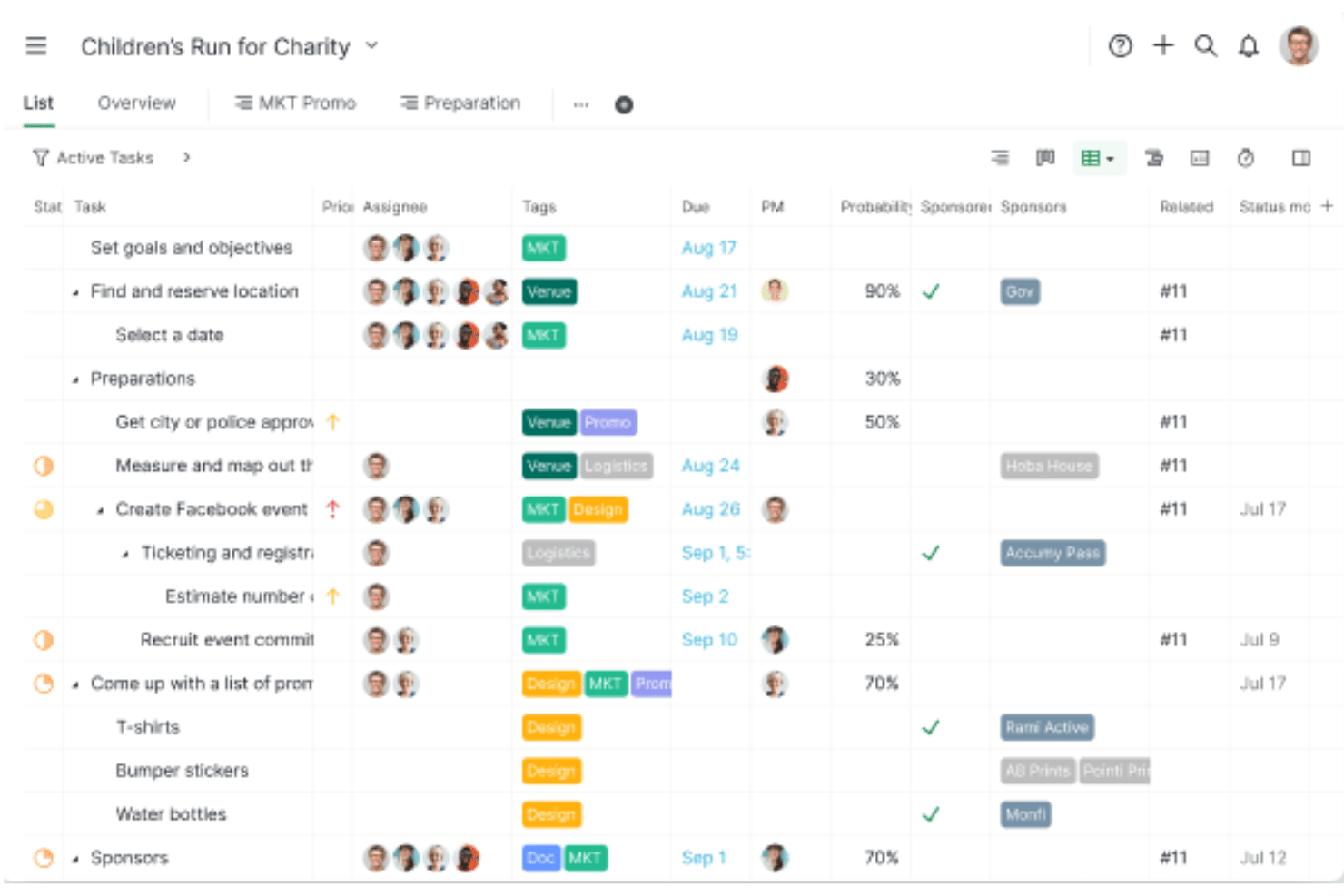
Quire è uno strumento di gestione di progetti e attività costruito attorno a una gerarchia infinita di attività nidificate, che offre viste sincronizzate nei formati elenco, Kanban, Gantt, calendario e tabella, oltre a una chat contestuale integrata e al monitoraggio nativo del tempo.
A chi è più adatto Quire?
Quire è adatto a piccoli team e aziende guidate dai fondatori che hanno bisogno di suddividere progetti complessi in alberi dettagliati di sottoattività senza pagare per strumenti progettati per organici aziendali.
Perché ho scelto Quire
Quire si è guadagnato un posto nella mia lista ristretta grazie al modo in cui gestisce la profondità delle attività. Adoro il fatto che sia possibile nidificare le sottoattività all'infinito, così, quando un progetto come il lancio di un prodotto inizia a diventare complesso, posso suddividerlo senza perdere il filo. In combinazione con le viste sincronizzate Kanban, Gantt e ad albero, la stessa struttura delle attività rimane visibile indipendentemente da come il mio team preferisce lavorare. La funzione Peekaboo integrata mi consente di nascondere le attività che non sono ancora eseguibili, mantenendo l'elenco concentrato senza eliminare nulla.
Funzionalità principali di Quire
- Monitoraggio nativo del tempo: Un cronometro e un timer Pomodoro integrati consentono di registrare il tempo direttamente sulle singole attività senza utilizzare uno strumento separato.
- Cartelle intelligenti: Aggregano le attività di più progetti in un'unica vista, offrendo visibilità tra i progetti senza duplicare il lavoro.
- Flussi di approvazione: Le attività possono passare attraverso le fasi di approvazione, rifiuto o richiesta di modifiche, mantenendo i processi di approvazione all'interno dello strumento.
- Monitoraggio delle milestone: Consente di impostare e monitorare i punti di controllo del progetto, colmando il divario tra il lavoro quotidiano sulle attività e i risultati finali di alto livello.
Integrazioni di Quire
Quire offre integrazioni con Google Calendar, Slack, Microsoft Teams, Google Drive, Dropbox, OneDrive, GitHub, Gmail e Outlook. Supporta inoltre un'API aperta, webhook, un server MCP per client di intelligenza artificiale e Zapier.
Pros and Cons
Pros:
- Gerarchia illimitata di attività nidificate per progetti complessi
- La chat in tempo reale mantiene le discussioni focalizzate sul progetto
- Molteplici viste di progetto sincronizzate disponibili per tutti
Cons:
- I collaboratori esterni vengono conteggiati nei posti riservati ai membri a pagamento
- Nessuna funzionalità nativa di lavagna o brainstorming visivo
New Product Updates from Quire
Quire Adds Custom Field Locking and Comment Reaction API Support
Quire adds custom field locking and API support for reading and setting emoji reactions on comments. These updates give teams more control over field data and expand comment interaction options for developers. For more information, visit Quire’s official site.
 .
.
Ideale per strumenti di produttività completi

Google Workspace entra nella mia selezione perché riunisce strumenti di produttività che supportano davvero la collaborazione nelle piccole imprese: tutto, dai drive condivisi a Documenti, Fogli e chat di gruppo, si integra in modo naturale. Consiglio Google Workspace quando vedo team che hanno bisogno di passare rapidamente e in modo affidabile tra email, videochiamate e modifica dal vivo con colleghi o clienti.
Quello che apprezzo di più è la possibilità di co-modificare i documenti in tempo reale e commentare su più file senza doversi preoccupare di sincronizzazione o controllo delle versioni. Quando ho lavorato con team distribuiti, la piattaforma si è davvero contraddistinta perché permette a tutti di contribuire in modo equo—particolarmente utile per le aziende che vogliono comunicazione istantanea e condivisione documenti tutto in un unico posto.
Per chi è migliore Google Workspace
- Piccole imprese che necessitano di documenti, email e riunioni strettamente integrati in un'unica piattaforma
- Team distribuiti che collaborano quotidianamente su file condivisi, presentazioni e videochiamate rapide
Per chi non è ideale Google Workspace
- Team che necessitano di funzionalità avanzate di gestione progetti, dipendenze tra attività o tracciamento delle scadenze
- Organizzazioni con severi requisiti di privacy o residenza dei dati oltre a quelli previsti dalla configurazione standard di Google
Cosa distingue Google Workspace
Quello che mi colpisce di Google Workspace è il modo in cui presuppone che la collaborazione debba avvenire tramite documenti condivisi e strumenti di comunicazione, e non con bacheche di attività isolate. Diversamente da Microsoft 365, che cerca di coprire sia la produttività classica che il monitoraggio dei progetti, Google punta tutto su file cloud-native che più persone possono modificare contemporaneamente senza intoppi.
È chiaro che la piattaforma si aspetta che il lavoro avvenga in modo organico: i team sono sempre nello stesso spazio, acquisendo contesto tramite Gmail, Calendar, Documenti e Meet man mano che procedono. L'attenzione è rivolta alla co-modifica dal vivo, al feedback immediato e alla rapida condivisione di informazioni, piuttosto che a workflow rigidi o livelli di processo pesanti.
Compromessi con Google Workspace
Google Workspace è ottimizzato per tutti coloro che lavorano nel cloud su file e conversazioni condivisi, ma ciò significa che manca di una struttura integrata per tracciare deliverable o scadenze di progetto. I team tendono a compensare creando soluzioni alternative, che possono diventare caotiche se si ha bisogno di responsabilità o controllo su progetti complessi.
Pros and Cons
Pros:
- Ampia gamma di applicazioni
- Collaborazione in tempo reale
- Funzionalità di sicurezza avanzate
Cons:
- Richiede accesso a Internet
- Può essere complesso da configurare

ProofHub
Ideale per collaborazione di team e gestione delle attività

ProofHub è nella mia lista perché vedo costantemente piccoli team usarlo come spazio di lavoro digitale per gestire progetti e conversazioni insieme. Consiglio ProofHub quando i team incontrano difficoltà usando diversi strumenti per comunicazione, tracciamento delle attività e condivisione dei file, e hanno bisogno di un unico posto che riunisca tutto.
Quello che apprezzo di più è come ProofHub combina bacheche delle attività, thread di discussione e strumenti di feedback direttamente accanto alla revisione dei documenti. Penso che brilli quando vuoi eliminare conversazioni frammentate e avere progetti, aggiornamenti e collaborazione fianco a fianco—soprattutto quando tutto il team ha bisogno di un contesto costante su ciò su cui ognuno sta lavorando.
Ideale per
- Piccole imprese che vogliono gestione dei progetti, discussioni e revisione tutto in un unico posto
- Team creativi che necessitano di feedback, condivisione file e coordinamento delle attività per la collaborazione quotidiana
Meno adatto per
- Aziende che necessitano di automazione molto personalizzabile o reportistica molto avanzata
- Grandi organizzazioni che cercano una gestione complessa delle risorse o integrazioni con molti sistemi esterni
Cosa rende ProofHub diverso
Quello che mi colpisce di ProofHub è come tratta la collaborazione come qualcosa di completamente integrato, non frammentato. Non hai le attività in un posto e le conversazioni in un altro—tutto viene condiviso direttamente da uno spazio di lavoro centrale. A differenza di strumenti come Asana, che si concentrano prima sulle attività e aggiungono la comunicazione in modo limitato, ProofHub si aspetta che tu mantenga discussioni, feedback e materiali di lavoro affiancati e visibili a tutti. Questo approccio somiglia più a una stanza di progetto digitale che a una tipica gestione dei progetti.
Compromessi di ProofHub
Poiché ProofHub mette così tanta enfasi sugli spazi di lavoro condivisi, si sacrifica un po' la profondità nell'automazione dei flussi di lavoro e nella reportistica. I team che dipendono da flussi di lavoro personalizzati avanzati o da analisi dettagliate potrebbero sentirsi limitati, dato che la piattaforma mantiene tutto volutamente semplice per tenere tutti aggiornati allo stesso modo.
Pros and Cons
Pros:
- Prezzo fisso
- Funzionalità complete
- Nessuna tariffa per utente
Cons:
- Spazio di archiviazione limitato nei piani base
- Nessun piano gratuito

Ideale per la collaborazione integrata con Office 365
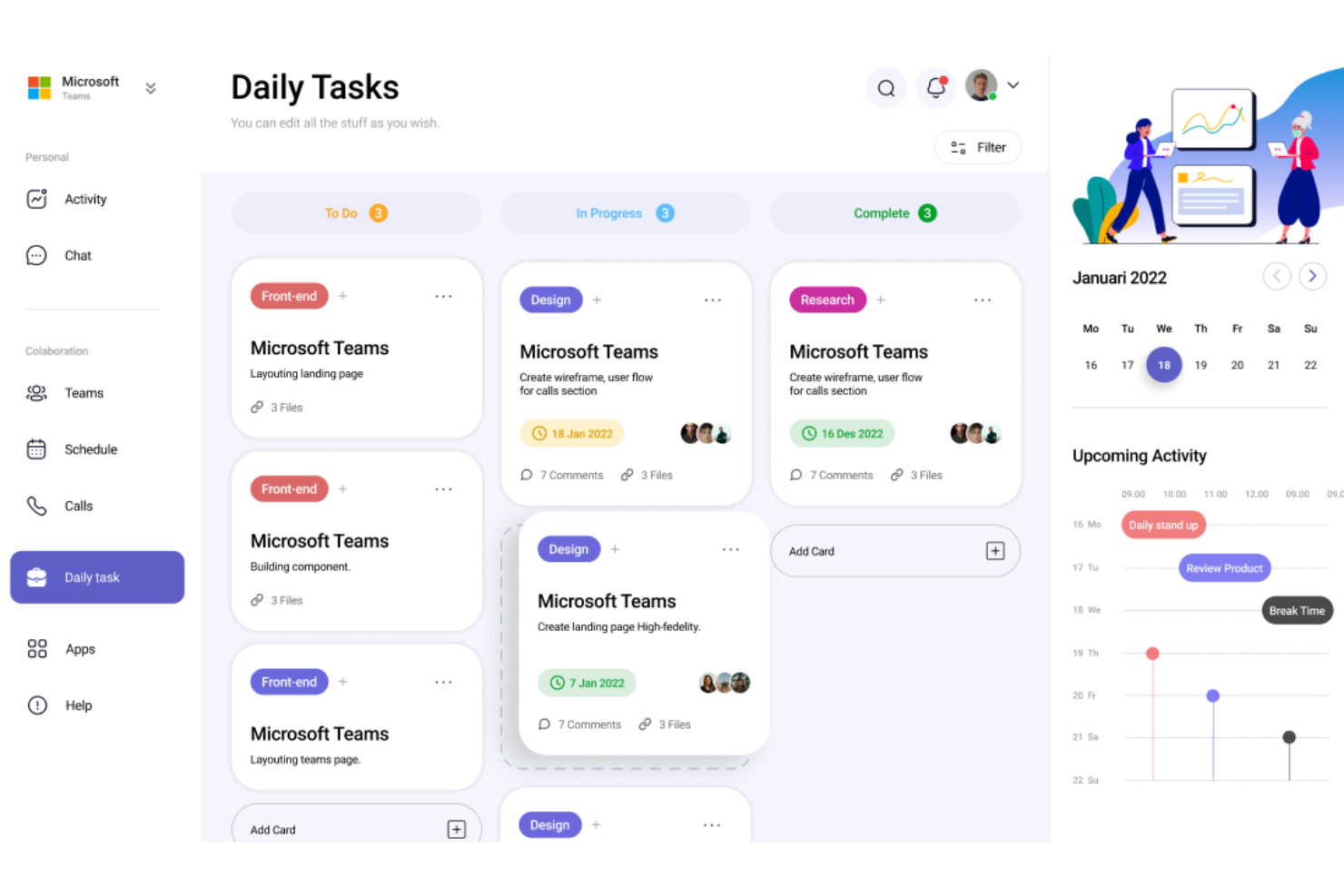
Microsoft Teams merita il suo posto qui perché penso sia la scelta più logica se la tua azienda già utilizza le app di Office 365. Vedo piccoli team che fanno affidamento su Word, Excel e Outlook ottenere reali vantaggi nella collaborazione, dato che tutto si collega in modo nativo.
Apprezzo il fatto che tu possa avviare riunioni, co-modificare file e integrare documenti di OneNote o SharePoint—tutto all'interno della chat. Questo approccio da 'workspace tutto-in-uno' significa che non devi passare continuamente da uno strumento all'altro, e il salto di produttività diventa evidente quando sei immerso nel lavoro di progetto.
Microsoft Teams è ideale per
- Aziende che già utilizzano le app di Office 365 e cercano un'integrazione profonda e nativa
- Team che hanno bisogno di chat in tempo reale, riunioni e co-modifica di file in un unico luogo
Microsoft Teams non è ideale per
- Piccole aziende che non usano strumenti Microsoft o vogliono evitare il lock-in di un fornitore
- Team che cercano una gestione avanzata delle attività o tracciamento progetti in stile Kanban
Cosa distingue Microsoft Teams
Quello che trovo unico di Microsoft Teams è il modo in cui tratta chat, riunioni e condivisione dei file come un'esperienza unificata all'interno dell'ambiente Office 365. Si aspetta che i team restino ancorati agli strumenti Microsoft, così la collaborazione avviene direttamente attorno a documenti Word, Excel e PowerPoint condivisi senza cambiare piattaforma.
Rispetto a Slack, che punta su conversazioni aperte, Teams presume che tu voglia discussioni a thread strettamente collegate a calendari, file e spazi riunione persistenti. La piattaforma è progettata affinché il lavoro ruoti attorno alla collaborazione sui documenti e ai momenti di confronto programmati, e non solo sulla chat estemporanea.
Compromessi con Microsoft Teams
Teams dà il massimo nell'integrazione stretta con Office 365, ma ciò che spesso ne risente è la flessibilità al di fuori di quell'ecosistema. Quando il team necessita di pianificazione avanzata, project management semplificato, oppure integra app non Microsoft, l'esperienza può risultare limitante.
Pros and Cons
Pros:
- Integrazione con Office 365
- Videoconferenze robuste
- Strumenti completi per la collaborazione
Cons:
- Configurazione complessa
- Richiede abbonamento Office 365

Redbooth
Ideale per videoconferenze integrate

Redbooth si distingue per me perché le sue riunioni video integrate sono strettamente collegate alla gestione di task e progetti. Trovo questo particolarmente utile quando piccoli team hanno bisogno di avviare conversazioni faccia a faccia senza dover cambiare strumenti o gestire account video esterni. Ciò che apprezzo di più è come le videochiamate siano collegate direttamente agli spazi di lavoro, così i team possono risolvere rapidamente gli ostacoli, discutere aggiornamenti e tornare al loro lavoro senza interruzioni. Ho visto Redbooth funzionare al meglio in scenari in cui collaborazione e discussioni in tempo reale devono avvenire fianco a fianco, come durante la pianificazione di sprint o check-in urgenti con i clienti.
Ideale per
- Piccole aziende che desiderano gestione progetti e riunioni video in un unico strumento
- Team che effettuano frequenti check-in video estemporanei collegati alle attività
Non adatto a
- Gruppi che necessitano di automazione dei flussi di lavoro complessi o autorizzazioni dettagliate
- Grandi aziende che richiedono reportistica altamente personalizzata o integrazioni avanzate
Cosa distingue Redbooth
Ciò che salta subito all'occhio di Redbooth è come le riunioni video siano inserite al centro del flusso di lavoro, non come semplice aggiunta o integrazione. Diversamente da strumenti come Asana, che mantengono la collaborazione principalmente testuale, Redbooth invita i team a risolvere le questioni faccia a faccia senza mai uscire dal loro ambiente di progetto.
Anziché organizzare tutto attorno a lunghi thread e scie di commenti, Redbooth presume che i team utilizzino le videochiamate come punto di riferimento predefinito per risolvere blocchi e sincronizzarsi. Questo crea un ritmo diverso—conversazioni dal vivo frequenti invece di aggiornamenti a distanza di tempo.
Compromessi con Redbooth
Redbooth è ottimizzato per i team che vogliono una comunicazione immediata e diretta integrata nei progetti, ma questo approccio lascia meno spazio per automazioni avanzate e tracciamento dettagliato. Ciò che accade di solito è che i team guadagnano velocità nella collaborazione ma finiscono per superare lo strumento se le loro esigenze si spostano verso analisi di progetto granulari o maggiore controllo dei processi.
Pros and Cons
Pros:
- Spazi di lavoro personalizzabili permettono una gestione progetti su misura
- Molteplici viste di progetto
- Le dipendenze tra le attività e i sotto-task aiutano a suddividere progetti complessi
Cons:
- Storage limitato nei piani base
- Potrebbe offrire analisi più avanzate


Trello entra nella mia shortlist perché eccelle nella gestione visiva delle attività per piccoli team che gestiscono molteplici elementi in movimento. Quando vedo un'azienda utilizzare post-it, fogli di calcolo o infiniti thread di email, spesso consiglio di passare alle bacheche, alle liste e alle schede di Trello.
Quello che apprezzo davvero è come le bacheche Kanban drag-and-drop portino rapidamente la chiarezza e la semplicità di cui i progetti hanno bisogno. È la flessibilità di queste bacheche visive che permette ai vari collaboratori di organizzare e monitorare le attività in modo efficace, vedendo letteralmente il lavoro spostarsi dall'idea al completato.
Trello è Ideale Per
- Piccole imprese che hanno bisogno di bacheche visive per organizzare la collaborazione del team
- Team che gestiscono flussi di lavoro che beneficiano di un approccio Kanban flessibile basato su schede
Trello Non È Ideale Per
- Team di progetto che richiedono dipendenze tra attività avanzate o report dettagliati
- Organizzazioni che hanno bisogno di flussi di lavoro strutturati e orientati ai processi con approvazioni rigide
Cosa Distingue Trello
Trello considera il lavoro come una serie di blocchi visivi che puoi spostare, impilare e riordinare man mano che i progetti si evolvono. Dove Jira richiede di definire tipi di attività complessi, flussi di lavoro e report dettagliati fin dall’inizio, Trello si aspetta che la collaborazione avvenga tramite aggiornamenti rapidi e visivi—trascinando schede, aggiungendo checklist e usando automazioni per mantenere tutto in movimento.
A differenza di piattaforme come Asana che puntano molto su attività, sottoattività e dipendenze, Trello presume che la maggior parte dei team abbia solo bisogno di uno spazio flessibile per organizzare e dare priorità con il minimo processo. Trovo che Trello dia il meglio di sé quando i team sono a proprio agio nel lasciare che le bacheche si adattino organicamente man mano che cambiano i progetti e gli stili di collaborazione.
Compromessi con Trello
Trello ottimizza per flessibilità e semplicità, ma quando i team crescono o i progetti diventano più dettagliati, la struttura e la responsabilità tendono a venir meno rapidamente. Quello che succede di solito è che le bacheche diventano disordinate, rendendo difficile mantenere revisioni coerenti o monitorare progressi dettagliati senza aggiungere componenti aggiuntivi o passare a una piattaforma più strutturata.
Pros and Cons
Pros:
- Interfaccia visiva intuitiva
- Gestione delle attività flessibile
- Ampie integrazioni
Cons:
- Funzionalità avanzate limitate
- Può essere dispersivo per progetti di grandi dimensioni

Miro
Ideale per la collaborazione su una tela infinita
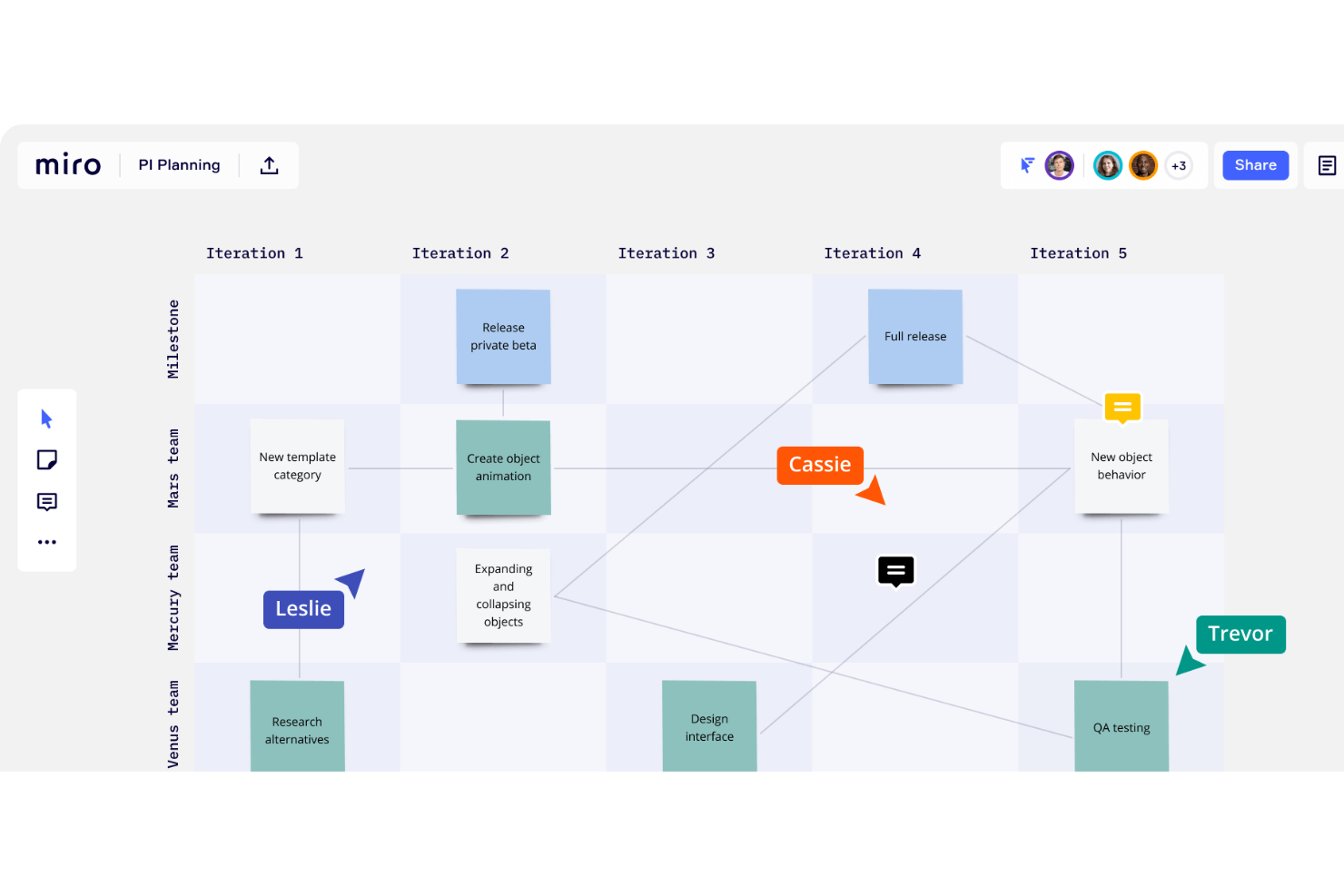
Miro entra nella mia shortlist perché vedo spesso piccoli team scoprire nuovi modi per fare brainstorming e mappare progetti insieme non appena iniziano a usarlo. Quando serve un unico spazio dove inserire note adesive, diagrammi e feedback del team in tempo reale, niente altro sembra così aperto.
Apprezzo il modo in cui la tela infinita permette ai team di collegare visivamente pensieri o costruire mappe mentali condivise senza preoccuparsi dello spazio. Questa configurazione è particolarmente utile durante le sessioni di pianificazione o i retrospettivi sprint, dove puoi vedere ogni idea, voto e decisione evolversi davanti ai tuoi occhi.
Migliori utilizzi di Miro
- Team di design, prodotto e strategia che necessitano di collaborazione visiva su una lavagna condivisa
- Piccoli gruppi che gestiscono brainstorming dal vivo, wireframing o workshop retrospettivi
Situazioni in cui Miro non è ideale
- Team che desiderano un tracciamento strutturato delle attività o funzionalità tradizionali di project management
- Gruppi che hanno bisogno di permessi dettagliati o regole di workflow rigide
Cosa rende Miro unico
Quello che mi colpisce di Miro è come permette ai team di pensare visivamente fin dal primo utilizzo. A differenza di uno strumento come Asana, che mette struttura e task in primo piano, Miro presuppone che la cosa più importante sia dare spazio visivo a ogni idea.
Valutando altri strumenti come Lucidchart, trovo che Miro non ti limiti a flowchart o diagrammi tradizionali. Invece, hai una lavagna infinita che incoraggia la mappatura libera, note adesive, disegni e collaborazione tutto su un'unica tela digitale.
Compromessi con Miro
Dato che Miro è ottimizzato per la massima flessibilità ed esplorazione visiva, non c'è una struttura integrata che colleghi direttamente le discussioni ad azioni o deliverable. Quello che di solito accade è che i team fanno workshop eccellenti ma poi necessitano di un altro strumento per gestire i compiti successivi o il lavoro continuativo di progetto.
Pros and Cons
Pros:
- Template personalizzabili per le esigenze particolari del team
- Collaborazione in tempo reale e asincrona
- Offre una lavagna bianca infinita
Cons:
- Non ideale per i team che non richiedono collaborazione visiva
- Funzionalità di sicurezza avanzate, come SSO, sono disponibili solo nei piani di fascia più alta
New Product Updates from Miro
Miro Adds Japan Data Residency for Enterprise Customers
Miro has introduced Japan data residency for enterprise customers, offering in-region storage for production data, backups, and metadata, plus in-region compute infrastructure. For more information, visit Miro's official site.

Slack
Ideale per la comunicazione del team e le integrazioni
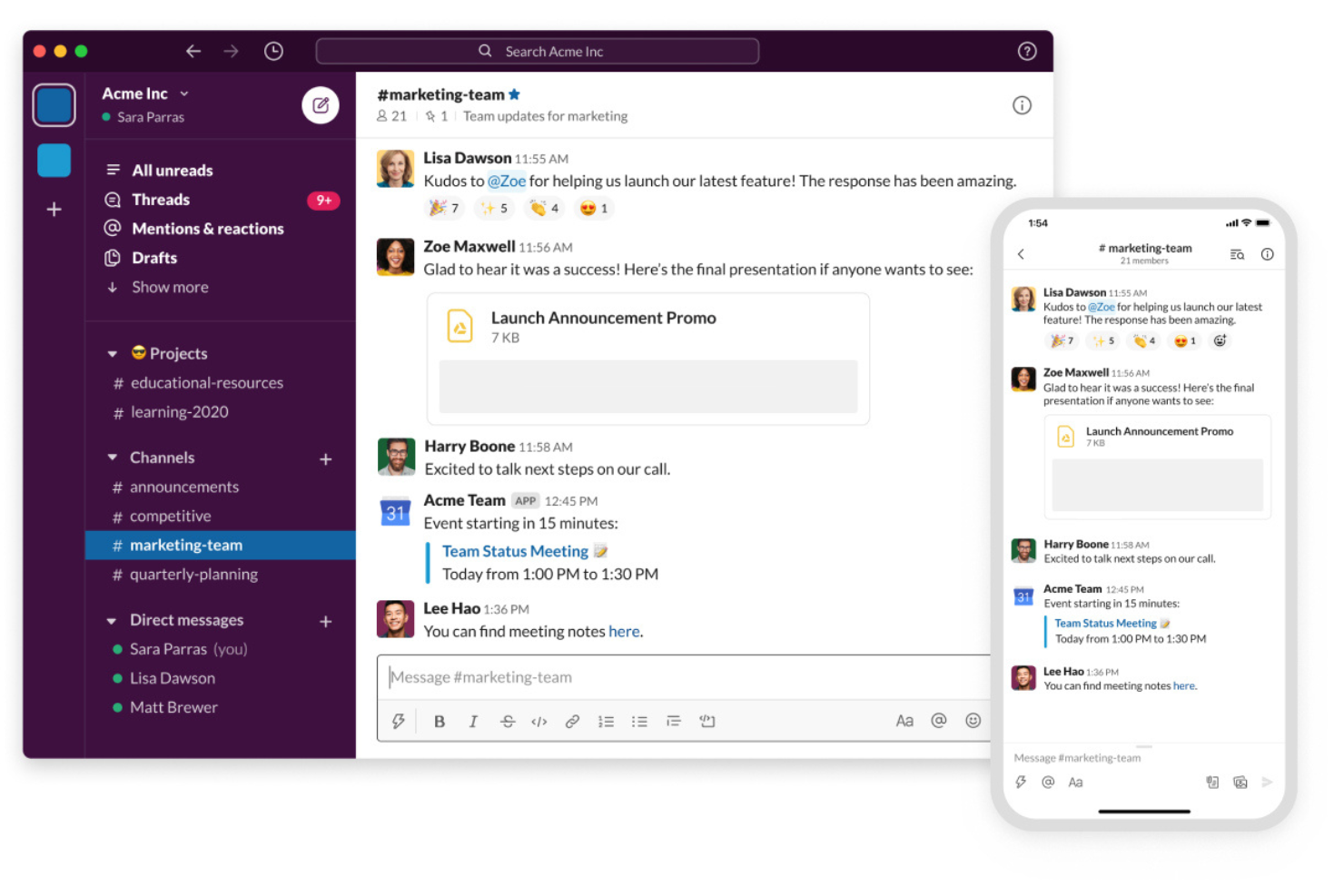
Slack entra nella mia selezione perché è diventata la soluzione di riferimento per tenere i team connessi in tempo reale, soprattutto quando i progetti coinvolgono sedi e discipline diverse. Mi piace consigliarla quando i thread di email di gruppo o i messaggi sparsi rendono difficile tenere il polso della situazione giorno per giorno.
Ciò che mi colpisce: è facile creare canali per argomenti specifici, integrare nuovi membri nel team e collegare app come Google Drive o Asana direttamente dove le conversazioni già avvengono. Vedo costantemente piccole aziende usare le conversazioni a thread e le @menzioni per risolvere ostacoli e prendere decisioni molto più velocemente rispetto ai thread via email.
Slack è l’ideale per
- Piccole imprese che danno valore a discussioni di team rapide e trasparenti nei canali
- Team che fanno affidamento sulle integrazioni con app di terze parti per aggiornamenti e notifiche sui progetti
Slack non è ideale per
- Team che necessitano di gestione formale delle attività o funzionalità di project planning in un’unica piattaforma
- Aziende che richiedono controlli di processo rigorosi o flussi di approvazione altamente strutturati
Cosa rende Slack diverso
Ciò che spicca di Slack è l’approccio che pone la conversazione come elemento centrale della collaborazione, invece di focalizzarsi su attività o file. Invece di competere con ClickUp o Asana sulla struttura dei progetti, Slack si aspetta che i team si organizzino attorno a discussioni trasparenti nei canali, decisioni rapide e integrazioni con app collegate che confluiscono nella chat in tempo reale.
È diverso da piattaforme più orientate ai processi come Microsoft Teams, che organizzano i canali attorno a strutture di progetto e documenti già esistenti. Slack punta tutto sull’immediatezza e sulla centralità delle conversazioni disperse, facendolo sembrare più un ufficio digitale che una semplice dashboard.
Compromessi di Slack
Slack è ottimizzato per comunicazioni aperte e rapidità, il che significa che decisioni e aggiornamenti importanti possono essere facilmente sepolti in canali rumorosi. Quello che osservo è che, a meno che i team non trovino modi per evidenziare o documentare i risultati, il contesto e la responsabilità possono andare persi con l’aumentare del volume dei messaggi.
Pros and Cons
Pros:
- Integrazioni estese
- Interfaccia intuitiva
- Funzionalità di messaggistica avanzate
Cons:
- Può risultare costoso
- Piano gratuito limitato

Ideale per una gestione progetti altamente personalizzabile

Zoho Projects si distingue nella mia selezione perché le sue opzioni di personalizzazione sono più profonde rispetto alla maggior parte degli strumenti di project management che ho utilizzato con team di piccole imprese. Tendo a consigliarlo quando il vostro team supera i template preimpostati e ha bisogno di un maggiore controllo sulla struttura dei compiti e sulle automazioni dei flussi di lavoro.
Ciò che apprezzo di più è la possibilità di adattare campi delle attività, regole di workflow e dipendenze in base al modo effettivo in cui lavora il vostro team. Lo strumento blueprint integrato offre un controllo dettagliato fase per fase sugli stadi del processo, cosa che ho visto facilitare di molto la gestione di progetti complessi e interfunzionali, mantenendoli coordinati.
Zoho Projects è ideale per
- Piccole imprese che hanno bisogno di personalizzare ogni dettaglio e ogni fase del flusso di lavoro del progetto
- Team che gestiscono progetti guidati dai processi attraverso più reparti o clienti
Zoho Projects non è adatto a
- Team che preferiscono soluzioni di progetto semplici e subito pronte all’uso
- Gruppi che raramente modificano i flussi di lavoro o necessitano di una struttura minima dei processi
Cosa rende unico Zoho Projects
Ciò che trovo esclusivo di Zoho Projects è la profondità con cui consente ai team di definire le proprie strutture di lavoro — fino ai campi personalizzati, tipi di attività e automazioni multilivello dei workflow. Dove uno strumento come Asana si aspetta che tu ti adatti ai suoi modelli predefiniti di attività e progetto, Zoho Projects ti concede maggiore libertà di rispecchiare i processi reali, soprattutto quando le esigenze aziendali cambiano.
Incoraggia i team a formalizzare e costruire processi ripetibili usando i workflow blueprint. Questo lo rende particolarmente adatto alle aziende che danno valore alla precisione dei processi o devono imporre passaggi di progetto unici che non sono possibili su piattaforme più rigide.
Compromessi di Zoho Projects
Ottimizzando per personalizzazione e precisione dei processi, Zoho Projects prevede che i team dedichino tempo a configurare ogni dettaglio. Quello che di solito accade è che la configurazione iniziale richieda più sforzo, il che può rallentare i team che desiderano semplicemente avviare rapidamente un progetto.
Pros and Cons
Pros:
- Ampie possibilità di personalizzazione
- Prezzi convenienti
- Interfaccia intuitiva
Cons:
- Navigazione delle impostazioni complessa
- Integrazioni limitate
New Product Updates from Zoho Projects
Zoho Projects Adds CodeX Scripts for Custom Modules
Zoho Projects now supports CodeX Scripts for custom modules, enabling conditional logic and rules for creating, updating, and deleting records. For more information, visit Zoho Projects' official site.
 .
.Altri software di collaborazione per piccole imprese da prendere in considerazione
Di seguito è riportato un elenco di altri software di collaborazione per piccole imprese che abbiamo selezionato, ma che non sono entrati nell’elenco principale. Vale sicuramente la pena consultarli.
- Asana
Ideale per la gestione di progetti orientata agli obiettivi
- Basecamp
Ideale per una gestione progetti semplice
- JIRA
Ideale per lo sviluppo software agile
- LiquidPlanner
Ottimo per la programmazione predittiva


Come valuto il software di collaborazione per piccole imprese
Analizzo questi strumenti su due livelli: se coprono le esigenze di base che una piccola squadra necessita per sostituire email e archivi sparsi, e poi i fattori differenzianti che rendono uno strumento più adatto rispetto a un altro.
Funzionalità di base (Requisiti minimi per questa lista)
Quando seleziono gli strumenti per la mia lista, li valuto su una scala da 0 (non offre la funzionalità) a 5 (eccelle in quest'area) per ciascuna delle funzionalità di base elencate di seguito. Poi calcolo il punteggio totale dello strumento in percentuale. Ogni strumento deve ottenere un punteggio minimo totale del 65% per essere considerato per l'inclusione.
- Messaggistica in tempo reale: Controllo se lo strumento offre canali, thread e messaggi diretti così che i team possano discutere i dettagli dei progetti senza dover passare da email a chat separate.
- Gestione di attività e progetti: Ogni strumento dovrebbe permetterti di creare attività, assegnare responsabili, impostare scadenze e visualizzare il lavoro in almeno un formato strutturato come una board, una lista o un calendario.
- Condivisione file e co-editing: Analizzo come ogni piattaforma gestisce la collaborazione sui documenti—se puoi condividere file, visualizzarli in anteprima, commentare o modificarli insieme senza dover scaricare e ricaricare.
- Spazi di lavoro condivisi: I team hanno bisogno di un modo per organizzare conversazioni, attività e file in base a progetti o reparti specifici, quindi valuto come ogni strumento struttura e definisce i suoi spazi di lavoro.
- Collaborazione esterna/ospiti: Per agenzie e consulenti che condividono risultati con i clienti, verifico se gli ospiti possono accedere a progetti selezionati senza richiedere una licenza completa a pagamento.
- Prezzi e scalabilità adatti alle PMI: Valuto se ogni strumento offre un piano gratuito o soluzioni per utente accessibili che hanno senso per team sotto le 50 persone, con registrazione self-service e nessuna barriera riservata alle grandi aziende.
Una volta che ho una lista di strumenti che soddisfano questi criteri, considero cosa distingue ciascuna piattaforma.
Fattori differenzianti (Cosa distingue i fornitori)
Ecco come confronto i diversi fornitori:
Caratteristiche distintive
Le automazioni no-code sono un grande elemento differenziante—verifico se uno strumento consente l'assegnazione automatica di attività quando cambia lo stato o di inviare notifiche quando una scadenza si sposta, risparmiando così al team snello il controllo manuale continuo. Anche la rilevazione delle ore abbinata a viste del carico di lavoro è importante, soprattutto per agenzie che devono fatturare ai clienti e bilanciare la capacità senza aggiungere un altro strumento. Valuto anche i portali clienti e i flussi di revisione, poiché i team orientati ai servizi traggono vantaggio dal condividere risultati e raccogliere approvazioni sulla stessa piattaforma.
Oltre le funzionalità
L’ecosistema di integrazione è una delle prime cose che controllo—i piccoli team si affidano a Google Workspace, Microsoft 365 o Slack insieme al loro strumento di collaborazione, e una scarsa integrazione porta a lavori duplicati. Anche la rapidità di onboarding è molto importante. Cerco modelli precompilati, strumenti di importazione da software come Trello o fogli di calcolo ed assistenza integrata, affinché un team possa essere produttivo già dalla prima settimana. Infine, valuto le app mobile, perché titolari e coordinatori remoti distribuiti devono poter approvare attività, rispondere ai thread e revisionare file dal proprio telefono senza perdere funzionalità.
Come scegliere un software di collaborazione per piccole imprese
Mentre affronti il tuo personale e unico processo di selezione del software, tieni a mente i seguenti punti:
- Facilità d'uso: uno strumento intuitivo è fondamentale per offrire un'esperienza senza stress. Consente agli utenti di raggiungere rapidamente ed efficacemente i propri obiettivi, indipendentemente dalla quantità di risorse utilizzate o dall'attività svolta. Uno strumento di qualità per la collaborazione tra team remoti consentirà al tuo team di migliorare la comunicazione e aumentare la produttività. Inoltre, questi programmi aiutano a eliminare le distrazioni e a responsabilizzare le persone riguardo al proprio lavoro. Ad esempio, Slack è un'app ideale per la comunicazione istantanea, che consente agli utenti di inviare messaggi individuali o creare gruppi con più persone. La sua funzione di chat mantiene tutti aggiornati e riduce le email che altrimenti potrebbero rallentare i progressi del lavoro.
- Integrazioni: esistono integrazioni che possono facilitare la collaborazione tra team in modo più efficace. Aiutano a eliminare i silos di dati, a mantenere i team allineati sugli obiettivi aziendali e a rafforzare le relazioni con i clienti, consentendo ai dipendenti di concentrarsi sul lavoro strategico che produce risultati tangibili per l'azienda. Quando si scelgono strumenti di collaborazione per team remoti, è essenziale considerare le varie integrazioni disponibili e il modo in cui possono influenzare il processo di selezione. Ad esempio, l'integrazione con Google Drive rende semplici la condivisione, l'archiviazione e l'accesso ai file; inoltre, invia notifiche email quando qualcuno commenta un file di tua proprietà o ti menziona in un commento, semplificando la risposta direttamente tramite email senza dover aprire personalmente il file.
- Scalabilità: la scalabilità è la capacità di un sistema tecnologico di gestire carichi di lavoro maggiori senza dover ricorrere a importanti riprogettazioni o riconfigurazioni. È un principio fondamentale utilizzato dagli architetti tecnologici e dai dirigenti aziendali nella creazione dei propri stack e della propria infrastruttura IT. È essenziale scegliere strumenti di collaborazione che possano crescere insieme alla tua azienda. In questo modo, il tuo team avrà accesso a tutte le informazioni necessarie in modo rapido ed efficiente, consentendo di svolgere efficacemente il proprio lavoro. Ad esempio, Basecamp è uno strumento intuitivo di collaborazione per team remoti che consente di suddividere i progetti in un numero qualsiasi di sottoprogetti con utenti illimitati; inoltre, le sue viste Elenco, Bacheca e Grafico permettono di organizzare al meglio documenti e progetti in base alle esigenze del tuo flusso di lavoro.
- Sicurezza: la sicurezza delle informazioni è una preoccupazione primaria per qualsiasi azienda e gli strumenti di collaborazione presentano ulteriori rischi che le organizzazioni devono considerare. Queste piattaforme potrebbero essere vulnerabili a malware, ransomware e altre minacce capaci di compromettere dati sensibili e causare perdite di produttività. Quando si scelgono strumenti di collaborazione in tempo reale, la sicurezza dovrebbe essere la priorità assoluta. Uno strumento sicuro dovrebbe disporre di funzionalità come la crittografia delle email, che garantisce che solo il destinatario possa accedere ai dati sensibili; inoltre, dovrebbe avere una funzione di backup automatico che consenta di ripristinare rapidamente i file nel caso in cui qualcosa vada storto. Ad esempio, è essenziale scegliere uno strumento con certificazione ISO 27001; ciò garantisce che le sue misure di sicurezza siano state esaminate e certificate da una terza parte accreditata a livello internazionale.
- Costo: quando si scelgono strumenti di collaborazione per team remoti, è necessario considerare il costo. Questo aspetto è particolarmente rilevante per le aziende più piccole che desiderano implementare queste soluzioni. Quando si seleziona uno strumento per il proprio team, il costo non dovrebbe essere l'unico fattore da considerare. È inoltre necessario valutare altre caratteristiche, come la facilità d'uso, le integrazioni e la sicurezza. Ad esempio, Dropbox può essere utilizzato da team di qualsiasi dimensione per sincronizzare e condividere i propri file con gli altri membri del team. Questo li rende più organizzati e agili, consolidando i file fisici e i contenuti archiviati nel cloud in un'unica posizione centrale. Inoltre, la piattaforma Dropbox consente loro di collaborare con gli altri membri del team senza mai dover uscire dall'app Dropbox.
Tendenze dei software di collaborazione per piccole imprese
Le piccole imprese fanno sempre più affidamento sui software di collaborazione per rimanere competitive. Ecco alcune tendenze chiave che stanno plasmando il panorama attuale.
- Automazione basata sull'IA: l'IA automatizza le attività di routine, liberando tempo per il lavoro più strategico. Questa tendenza è importante perché aumenta la produttività e riduce gli errori umani. Le piccole imprese possono ora concentrarsi sulla crescita invece che sulle attività ripetitive.
- Piattaforme di comunicazione integrate: le piattaforme di comunicazione unificata stanno unendo chat, email e videoconferenze. Questa integrazione semplifica la comunicazione e riduce la necessità di utilizzare più strumenti. È fondamentale per mantenere flussi di lavoro efficienti.
- Sicurezza dei dati avanzata: le funzionalità di sicurezza dei dati stanno diventando più solide. Questa tendenza è fondamentale perché protegge le informazioni aziendali sensibili dalle minacce informatiche. Le piccole imprese possono operare con maggiore tranquillità.
- Soluzioni progettate prima di tutto per i dispositivi mobili: gli strumenti di collaborazione sono sempre più ottimizzati per l'uso da dispositivi mobili. Questa tendenza è significativa perché supporta il lavoro a distanza e la produttività in mobilità. Le piccole imprese possono rimanere connesse sempre e ovunque.
- Flussi di lavoro personalizzabili: i software offrono sempre più opzioni di personalizzazione per i flussi di lavoro. Questa tendenza è interessante perché consente alle aziende di adattare gli strumenti alle proprie esigenze specifiche. Migliora l'esperienza utente complessiva.
Queste tendenze stanno plasmando il futuro dei software di collaborazione per piccole imprese.
Che cos'è un software di collaborazione per piccole imprese?
Software di collaborazione per piccole imprese è uno strumento che aiuta i team a comunicare, condividere file e gestire le attività per raggiungere gli obiettivi aziendali. Viene comunemente utilizzato da titolari di piccole imprese, responsabili e membri del team per migliorare la comunicazione, coordinare le attività e garantire che tutti siano allineati sugli obiettivi dei progetti.
I migliori strumenti di collaborazione online includono generalmente piattaforme di messaggistica, funzionalità di condivisione dei file, strumenti di gestione delle attività e talvolta funzionalità di videoconferenza. Questi elementi lavorano insieme per facilitare una comunicazione efficiente, semplificare l'assegnazione delle attività e fornire una posizione centralizzata per tutte le informazioni relative ai progetti.
Funzionalità del software di collaborazione per piccole imprese
Il software di collaborazione per piccole imprese è essenziale per migliorare il lavoro di squadra, la comunicazione e la produttività all'interno di un'organizzazione. Ecco alcune delle funzionalità di collaborazione più importanti da ricercare in un software di collaborazione per piccole imprese:
- Social network: La comunicazione interna è organizzata in canali suddivisi per argomento, consentendo ai dipendenti di visualizzare le discussioni pertinenti senza dover esaminare conversazioni non correlate. Questa funzionalità aiuta a semplificare la comunicazione e garantisce che i membri del team possano trovare facilmente le informazioni di cui hanno bisogno.
- Gestione dei documenti: La gestione dei documenti basata sul cloud consente ai membri del team di redigere, modificare e condividere documenti collettivamente. Questa funzionalità è fondamentale per mantenere il controllo delle versioni e garantire che tutti abbiano accesso alle informazioni più recenti.
- Potente motore di ricerca: Un solido motore di ricerca consente ai dipendenti di trovare rapidamente documenti pubblici o conversazioni precedenti. Questa funzionalità riduce il tempo dedicato alla ricerca delle informazioni e aiuta a mantenere lo slancio del progetto.
- Gestione delle attività: Strumenti efficaci di gestione delle attività aiutano a monitorare l'avanzamento dei progetti, assegnare le attività e impostare le scadenze. Questa funzionalità garantisce che i progetti rimangano in linea con i piani e che i membri del team siano consapevoli delle proprie responsabilità.
- Interfaccia utente fluida su qualsiasi dispositivo: È essenziale disporre di un'interfaccia intuitiva che funzioni sia su computer desktop sia su dispositivi mobili. Questa funzionalità garantisce che i dipendenti possano collaborare efficacemente, indipendentemente dalla loro posizione o dal dispositivo utilizzato.
- Misure di sicurezza: Solide funzionalità di sicurezza, tra cui crittografia dei dati, autenticazione degli utenti e controlli degli accessi, sono fondamentali per proteggere le informazioni aziendali sensibili. Questa funzionalità aiuta a prevenire le violazioni dei dati e garantisce che solo il personale autorizzato possa accedere ai dati critici.
- Comunicazione in tempo reale: Gli strumenti per la comunicazione in tempo reale, come la messaggistica istantanea e le videoconferenze, sono essenziali per prendere decisioni e risolvere problemi rapidamente. Questa funzionalità aiuta i team a rimanere connessi e a collaborare in modo più efficace.
- Funzionalità di integrazione: La possibilità di integrarsi con altri strumenti software, come e-mail, calendari, sistemi CRM e strumenti di gestione dei progetti, è fondamentale. Questa funzionalità garantisce che il software di collaborazione possa lavorare con i sistemi esistenti, migliorando la produttività complessiva.
- Opzioni di personalizzazione: Le opzioni di personalizzazione consentono alle aziende di adattare il software ai propri flussi di lavoro e alle proprie esigenze specifiche. Questa funzionalità garantisce che lo strumento possa adattarsi ai requisiti unici dell'organizzazione.
- Funzionalità di collaborazione tramite chiamate/video: Videochiamate, condivisione dello schermo, chat di team dal vivo e altri modi semplici per gestire da remoto gli elenchi di attività. Questa funzionalità garantisce che i team possano connettersi in modo significativo, anche quando si trovano a distanza.
Scegliere il software di collaborazione giusto per la propria piccola impresa può avere un impatto significativo sulla produttività del team e sul successo complessivo dell'azienda.
Vantaggi del software di collaborazione per piccole imprese
Nell'attuale ambiente aziendale caratterizzato da ritmi frenetici, le piccole imprese devono rimanere agili ed efficienti per restare competitive. Ecco cinque vantaggi principali dell'utilizzo di un software di collaborazione per piccole imprese:
- Comunicazione migliorata: Il software di collaborazione offre diversi canali di comunicazione, come messaggistica istantanea, videoconferenze e bacheche di discussione, garantendo che i membri del team possano condividere informazioni e idee facilmente e rapidamente.
- Migliore gestione dei progetti: Questi strumenti spesso includono funzionalità di gestione dei progetti come assegnazione delle attività, monitoraggio dei progressi e promemoria delle scadenze, aiutando i team a rimanere organizzati e rispettare il programma.
- Maggiore produttività: Centralizzando tutti gli strumenti e le informazioni necessarie in un'unica piattaforma, il software di collaborazione riduce il tempo trascorso a passare da un'applicazione all'altra, consentendo ai dipendenti di concentrarsi maggiormente sulle proprie attività.
- Migliore gestione dei documenti: Grazie a funzionalità come il controllo delle versioni, l'archiviazione cloud e la modifica in tempo reale, il software di collaborazione garantisce che tutti i membri del team abbiano accesso ai documenti più recenti e possano lavorarci contemporaneamente senza confusione.
- Maggiore sicurezza: Molti strumenti di collaborazione offrono solide funzionalità di sicurezza, come crittografia dei dati, autenticazione degli utenti e controlli degli accessi, proteggendo le informazioni aziendali sensibili dagli accessi non autorizzati.
Sfruttando questi strumenti, le aziende possono migliorare le proprie operazioni e posizionarsi meglio per la crescita e il successo.
Costi e prezzi dei software di collaborazione per piccole imprese
Questa sezione fornisce una stima dei piani e dei costi medi dei software di collaborazione per piccole imprese. I dati si basano su diverse fonti e riflettono le funzionalità comuni dei piani a pagamento.
| Tipo di piano | Prezzo medio | Funzionalità comuni |
| Versione gratuita | $0 | Strumenti di progettazione di base, spazio di archiviazione limitato, funzionalità di comunicazione di base |
| Piano personale | $5 - $10 per utente/mese | Spazio di archiviazione aggiuntivo, strumenti di progettazione avanzati, gestione di base dei progetti |
| Piano aziendale | $10 - $20 per utente/mese | Gestione avanzata dei progetti, strumenti di collaborazione del gruppo, integrazioni con altre applicazioni |
| Piano per grandi aziende | $20 - $50 per utente/mese | Funzionalità di sicurezza avanzate, assistenza dedicata, spazio di archiviazione illimitato, integrazioni personalizzate |
Domande frequenti sui software di collaborazione per piccole imprese
Come posso integrare il software di collaborazione con gli altri strumenti utilizzati dalla mia azienda?
La maggior parte degli strumenti di collaborazione online offre integrazioni con strumenti diffusi come Google Workspace, Microsoft Office 365, Slack e sistemi CRM come Salesforce. Verifica le opzioni di integrazione del software nelle impostazioni oppure consulta la documentazione dell’assistenza. Se le integrazioni native non sono disponibili, servizi di terze parti come Zapier possono aiutare a collegare strumenti diversi.
Quali funzionalità di sicurezza devo cercare in un software di collaborazione?
Cerca funzionalità come la crittografia end-to-end, l’autenticazione a due fattori e la conformità a standard come il GDPR o l’HIPAA. Inoltre, assicurati che il software fornisca controlli degli accessi basati sui ruoli, registri di controllo e aggiornamenti di sicurezza regolari per proteggere i dati della tua azienda.
Il software di collaborazione può supportare ambienti di lavoro da remoto e ibridi?
Sì, la maggior parte dei software di collaborazione moderni è progettata per supportare ambienti di lavoro da remoto e ibridi. Funzionalità come le videoconferenze, la modifica dei documenti in tempo reale e l’accesso tramite app mobile garantiscono che i membri del team possano collaborare efficacemente indipendentemente dalla loro posizione.
Come posso gestire le autorizzazioni degli utenti e i livelli di accesso nel software di collaborazione?
Le autorizzazioni degli utenti e i livelli di accesso possono generalmente essere gestiti tramite le impostazioni di amministrazione del software. Puoi assegnare ruoli come amministratore, editor o visualizzatore per controllare ciò che ogni utente può fare all’interno della piattaforma. Esamina e aggiorna regolarmente queste autorizzazioni per mantenere sicurezza ed efficienza.
Quali sono i costi associati all'utilizzo di un software di collaborazione per le piccole imprese?
I costi possono variare notevolmente a seconda del software e del numero di utenti. Molti fornitori offrono piani tariffari a livelli, a partire da opzioni gratuite o a basso costo per i piccoli team, con prezzi crescenti per le organizzazioni più grandi. Assicurati di considerare eventuali costi aggiuntivi per le funzionalità premium, le integrazioni o l’assistenza clienti.
Come posso misurare l'efficacia del software di collaborazione nella mia azienda?
Monitora gli indicatori chiave di prestazione (KPI), come i tassi di completamento dei progetti, il tempo dedicato alle attività e i livelli di coinvolgimento degli utenti. Molti strumenti di collaborazione offrono funzionalità integrate di analisi e reportistica per aiutarti a monitorare queste metriche. Anche i feedback regolari dei membri del team possono fornire informazioni sull’impatto del software sulla produttività e sulla collaborazione.
Quali sono le difficoltà più comuni nell'implementazione di un software di collaborazione e come possono essere affrontate?
Le difficoltà più comuni includono la resistenza degli utenti, i problemi di migrazione dei dati e le difficoltà di integrazione. Affrontale fornendo una formazione approfondita, garantendo un processo fluido di trasferimento dei dati e testando le integrazioni prima della distribuzione completa. Raccogli regolarmente i feedback e apporta le modifiche necessarie per migliorare l’adozione e la soddisfazione degli utenti.
Come posso assicurarmi che il mio team adotti efficacemente il nuovo software di collaborazione?
Un’adozione efficace può essere raggiunta attraverso sessioni di formazione complete, una comunicazione chiara sui vantaggi e un’assistenza continua. Incoraggia i membri del team a esplorare le funzionalità del software e offri loro regolarmente l’opportunità di condividere esperienze e suggerimenti. Riconosci e premia i primi utilizzatori per motivare gli altri.