

I 10 migliori software di produttività cloud selezionati per il 2026

Selezione di software di produttività cloud


Il software di produttività cloud si riferisce alle piattaforme online che aiutano il tuo team a collaborare, gestire le attività e condividere file da qualsiasi luogo. Se stai cercando il miglior software di produttività cloud, probabilmente vuoi mantenere i progetti in linea con i piani, migliorare la visibilità tra i team e adattarti rapidamente al variare delle priorità. Con così tante opzioni disponibili, scegliere gli strumenti giusti può fare la differenza tra scadenze mancate e una consegna senza intoppi.
Questo elenco ti aiuterà a confrontare le soluzioni principali, capire cosa distingue ciascuna di esse e trovare quella più adatta al flusso di lavoro del tuo team.
Perché fidarsi dei nostri consigli sui software
Il nostro team testa e recensisce software dal 2012. In quanto project manager noi stessi, sappiamo quanto sia difficile — e importante — scegliere il software giusto.
Per questa guida, abbiamo valutato gli strumenti attraverso test pratici e ricerche indipendenti, assegnando un punteggio agli strumenti in base ai nostri criteri di selezione. Ci basiamo inoltre sulle competenze di leader di pensiero del settore e di professionisti attivi nella gestione dei progetti.
Le nostre recensioni riflettono il nostro giudizio editoriale umano, non un discorso di vendita.
Revisori esperti:
Tabella comparativa dei software di produttività cloud
Questa tabella comparativa riassume i dettagli sui prezzi delle mie migliori selezioni di software di produttività cloud:
| Tool | Best For | Trial Info | Price | ||
|---|---|---|---|---|---|
| 1 | Ideale per la condivisione e l'archiviazione sicura dei file | Prova gratuita + piano gratuito disponibile | Da $9.99/utente/mese (fatturato annualmente) | Website | |
| 2 | Ideale per la collaborazione in tempo reale sui documenti | Prova gratuita di 14 giorni disponibile | Da $7/utente/mese (fatturazione annuale) | Website | |
| 3 | Ideale con app di produttività per ufficio integrate | Prova gratuita di 30 giorni disponibile | Da $6/utente/mese (fatturati annualmente) | Website | |
| 4 | Ideale per la pianificazione strutturata dei progetti | Piano gratuito + demo gratuita disponibile | Da $10.99/utente/mese (fatturato annualmente) | Website | |
| 5 | Ideale per una governance avanzata dei contenuti | Prova gratuita di 14 giorni + piano gratuito + demo gratuita disponibile | Da $5/utente/mese (fatturazione annuale) | Website | |
| 6 | Ideale per la documentazione collaborativa della conoscenza | Prova gratuita di 7 giorni + piano gratuito disponibile | Da $5.42/utente/mese | Website | |
| 7 | Ideale per bacheche attività in stile kanban | Piano gratuito disponibile | Da $5/utente/mese (fatturato annualmente) | Website | |
| 8 | Ideale per il monitoraggio integrato di attività e obiettivi | Piano gratuito disponibile | Da $7/utente/mese (fatturato annualmente) | Website | |
| 9 | Ideale per l'organizzazione personalizzabile dello spazio di lavoro | Piano gratuito + demo gratis disponibile | Da $10/membro/mese (fatturazione annuale) | Website | |
| 10 | Ideale per la comunicazione centralizzata del team | Piano gratuito + demo gratuita disponibile | A partire da $7.25/utente/mese (con fatturazione annuale) | Website |
Recensioni dei software di produttività cloud
Di seguito sono riportati i miei riepiloghi dettagliati dei software di produttività cloud inclusi nella mia selezione. Le mie recensioni offrono uno sguardo approfondito sulle funzionalità, sui casi d’uso migliori e sulle integrazioni di ciascuna piattaforma, per aiutarti a trovare quella più adatta alle tue esigenze.

Dropbox
Ideale per la condivisione e l'archiviazione sicura dei file
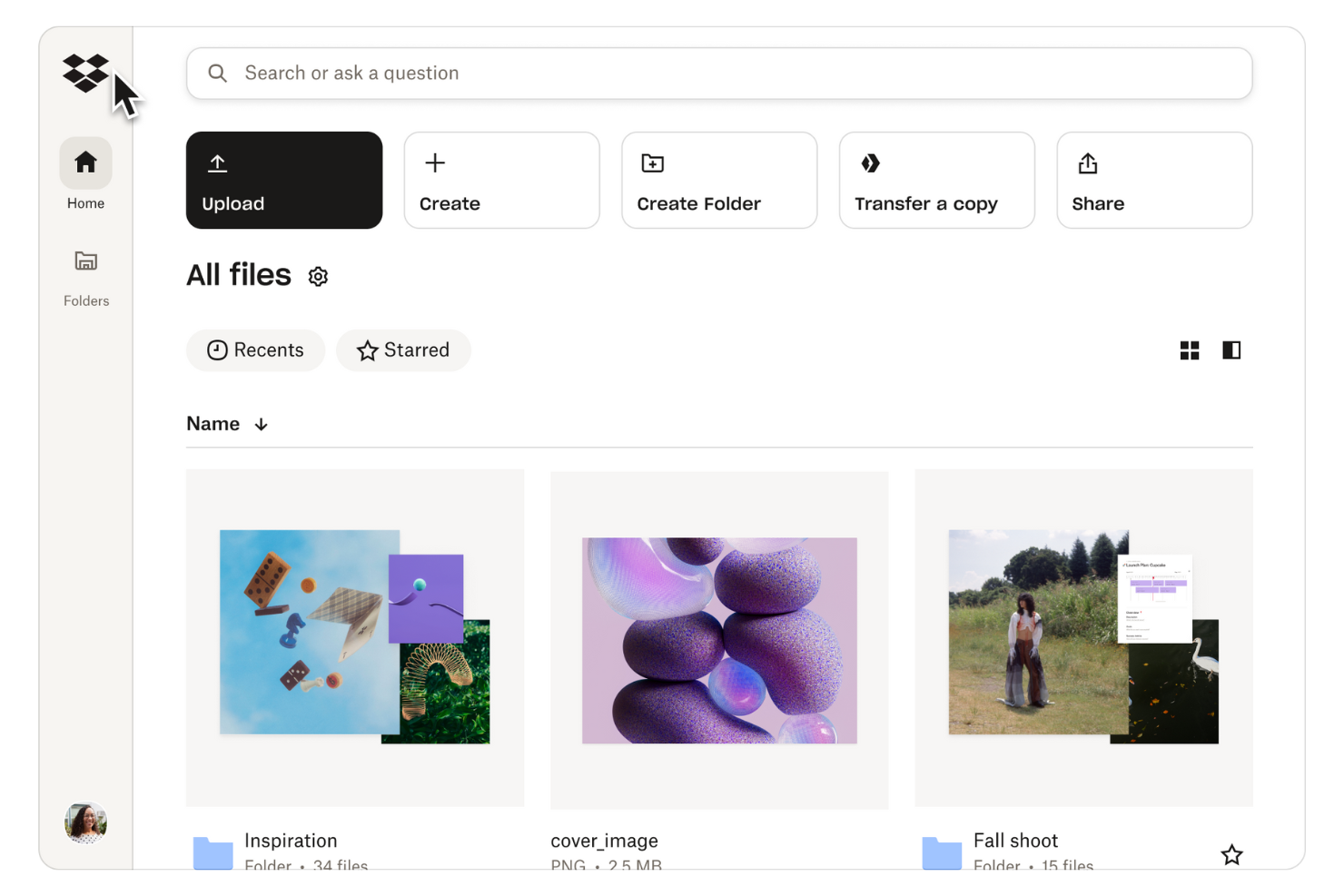
Per i team che necessitano di uno spazio di archiviazione e condivisione dei file sicuro e centralizzato, Dropbox offre una piattaforma cloud progettata per la collaborazione e il controllo. È particolarmente utile per agenzie creative, studi legali e aziende distribuite che gestiscono documenti sensibili o file multimediali di grandi dimensioni. Le autorizzazioni di condivisione granulari e le funzionalità di recupero file di Dropbox aiutano le organizzazioni a mantenere i dati protetti, facilitando al contempo il lavoro di squadra da qualsiasi luogo.
Perché ho scelto Dropbox
Quando la condivisione e l'archiviazione sicura dei file sono prioritarie, Dropbox si distingue per la sua forte attenzione alla protezione dei dati e al controllo degli accessi. Ho scelto Dropbox perché offre autorizzazioni di condivisione granulari che permettono di impostare i diritti di visualizzazione, modifica o download per ciascun file o cartella. La piattaforma fornisce inoltre una cronologia delle versioni dei file e il recupero degli stessi, così i team possono ripristinare versioni precedenti o recuperare file eliminati se necessario. Per le organizzazioni che devono proteggere informazioni sensibili consentendo allo stesso tempo la collaborazione, le funzionalità di sicurezza di Dropbox lo rendono una scelta affidabile.
Funzionalità principali di Dropbox
Altre funzionalità di Dropbox che supportano la produttività cloud includono:
- Dropbox Paper: Crea, modifica e collabora sui documenti direttamente all'interno di Dropbox.
- Smart Sync: Accedi a tutti i file e le cartelle dal desktop senza occupare spazio di archiviazione locale.
- Richieste di file: Raccogli file da chiunque, anche se non ha un account Dropbox.
- Dashboard attività del team: Monitora la condivisione dei file, le modifiche e l'attività del team in un'unica posizione.
Integrazioni di Dropbox
Le integrazioni includono Google Workspace, Microsoft, Adobe, HubSpot, Canva, AWS, Slack, Zoom e altre ancora.
Pros and Cons
Pros:
- Supporta la cronologia delle versioni dei file
- Collabora ai documenti direttamente nell'app
- Il dashboard traccia l'attività del team e le condivisioni
Cons:
- Non dispone di gestione dei progetti o delle attività integrata
- I link condivisi possono essere difficili da tracciare centralmente

Ideale per la collaborazione in tempo reale sui documenti

Se il tuo team ha bisogno di collaborare su documenti, fogli di calcolo e presentazioni in tempo reale, Google Workspace è una scelta solida. È particolarmente utile per team distribuiti e organizzazioni che si affidano a una modifica e una condivisione rapide in cloud. La piattaforma aiuta a ridurre i problemi di controllo delle versioni e mantiene tutti aggiornati, ovunque lavorino.
Perché ho scelto Google Workspace
Ho scelto Google Workspace per questa lista perché la sua piattaforma di collaborazione in tempo reale su documenti si distingue tra le piattaforme cloud di produttività. La possibilità per più utenti di modificare contemporaneamente Documenti, Fogli e Presentazioni facilita l'avanzamento dei progetti senza conflitti di versione. Gli strumenti integrati di commento e suggerimento aiutano i team a comunicare direttamente all'interno dei file, riducendo la necessità di infiniti scambi di email. Per i team che devono lavorare insieme su contenuti di alta qualità da qualsiasi luogo, queste funzionalità rendono Google Workspace una delle migliori soluzioni.
Funzionalità principali di Google Workspace
Altre funzionalità che rendono Google Workspace una piattaforma versatile per i team includono:
- Drive condivisi: Crea unità disco specifiche per il team in cui i file sono di proprietà collettiva e restano accessibili anche se i membri vanno via.
- Integrazione con Google Meet: Pianifica e partecipa a riunioni video direttamente dal calendario o all'interno dei documenti.
- Condivisione del calendario: Condividi i calendari Google in tutta l'organizzazione per coordinare facilmente riunioni e scadenze.
- Console di amministrazione: Gestisci l'accesso degli utenti, le impostazioni di sicurezza e le politiche dei dispositivi da un'unica dashboard centralizzata.
Integrazioni Google Workspace
Le integrazioni includono Salesforce, DocuSign, Zoom, Asana, Slack, Trello, Smartsheet, Zendesk, Adobe Acrobat e altro.
Pros and Cons
Pros:
- Modifica in tempo reale in tutte le app principali
- Funzionalità basate su AI in Documenti e Gmail
- Condivisione file facile con permessi dettagliati
Cons:
- La modifica offline può essere incostante
- Funzioni avanzate di foglio di calcolo limitate

Ideale con app di produttività per ufficio integrate

Per i team che si affidano alle app da ufficio più conosciute e necessitano di una stretta integrazione tra email, documenti e collaborazione, Microsoft 365 riunisce tutto in un'unica suite basata sul cloud. È particolarmente indicato per le organizzazioni che desiderano accedere sia da desktop sia tramite web a Word, Excel, PowerPoint e Outlook, oltre a uno spazio di archiviazione sicuro per file e condivisione. La piattaforma aiuta a unificare i flussi di lavoro per le aziende che necessitano sia di strumenti avanzati per la modifica dei documenti sia di strumenti di comunicazione.
Perché ho scelto Microsoft 365
Ciò che distingue Microsoft 365 Copilot è il modo in cui combina tutte le principali app di produttività da ufficio—Word, Excel, PowerPoint e Outlook—in un'unica piattaforma cloud integrata. Questo approccio consente al tuo team di passare dalla creazione di documenti, all'analisi dei dati, alla comunicazione, senza dover cambiare strumento o perdere il contesto. Ho scelto Microsoft 365 perché le sue app funzionano insieme in modo nativo, quindi funzionalità come la co-creazione in tempo reale o i calendari condivisi sono già integrati. Per le organizzazioni che desiderano un'esperienza unificata sia in locale sia su cloud, questo livello d'integrazione è difficile da eguagliare.
Caratteristiche principali di Microsoft 365
Altre caratteristiche che rendono Microsoft 365 una scelta valida per la produttività in cloud includono:
- Archiviazione cloud OneDrive: Archivia, sincronizza e accedi ai file in modo sicuro da qualsiasi dispositivo.
- Integrazione con Microsoft Teams: Chatta, organizza riunioni e collabora con il tuo team in uno spazio di lavoro unificato.
- Controlli avanzati di sicurezza: Configura l'autenticazione a più fattori e gestisci le policy di prevenzione della perdita dei dati.
- App Planner e To Do: Organizza attività, assegna responsabilità e monitora l'avanzamento dei progetti.
Integrazioni di Microsoft 365
Le integrazioni includono Salesforce, Adobe Acrobat Sign, Zoom, Trello, Asana, ServiceNow, Workday, SAP e altri ancora.
Pros and Cons
Pros:
- App desktop e web con parità di funzionalità
- Strumenti avanzati per i fogli di calcolo in Excel
- Funzionalità di sicurezza di livello aziendale
Cons:
- La collaborazione richiede account Microsoft
- Problemi occasionali di compatibilità su Mac
Asana
Ideale per la pianificazione strutturata dei progetti

I team che necessitano di una struttura chiara per la gestione dei progetti spesso si affidano ad Asana per il suo approccio organizzato alla pianificazione e al monitoraggio del lavoro. È particolarmente utile per project manager, team di marketing e responsabili delle operazioni che desiderano suddividere gli obiettivi in attività e tempistiche concrete. I layout strutturati e gli strumenti di workflow di Asana aiutano i team a coordinare progetti complessi e a mantenere tutti responsabili.
Perché ho scelto Asana
Asana si distingue per la sua capacità di portare struttura e chiarezza nella pianificazione dei progetti, qualità essenziale per i team che devono gestire molteplici priorità nel cloud. La gerarchia delle attività della piattaforma consente di suddividere i progetti in sezioni, attività e sottoattività, facilitando l'organizzazione di lavori complessi. Ho scelto Asana perché la visualizzazione della sequenza temporale e i campi personalizzati aiutano i team a mappare le dipendenze e monitorare i progressi con precisione. Per chiunque abbia bisogno di un modo affidabile per pianificare, assegnare e tenere sotto controllo flussi di lavoro strutturati, Asana offre una soluzione focalizzata e organizzata.
Caratteristiche principali di Asana
Altre funzionalità che rendono Asana prezioso per la produttività nel cloud includono:
- Automazione delle regole: Automatizza azioni di routine come l'assegnazione di attività, aggiornamenti di stato e notifiche in base a trigger impostati.
- Gestione del carico di lavoro: Visualizza la capacità del team e bilancia le assegnazioni per evitare sovraccarichi.
- Modelli di progetto: Avvia nuovi progetti rapidamente con modelli predefiniti per flussi di lavoro e settori comuni.
- Monitoraggio delle milestone: Segna punti chiave nel tuo progetto per monitorare i progressi verso gli obiettivi principali.
Integrazioni di Asana
Le integrazioni includono Slack, Google Drive, Microsoft Teams, Jira Cloud, Salesforce, Zoom, Dropbox, Gmail, Outlook e molto altro.
Pros and Cons
Pros:
- I campi personalizzati raccolgono dati specifici del progetto
- Dispone di filtri di ricerca avanzati
- I commenti mantengono le discussioni collegate alle attività
Cons:
- Opzioni di reportistica limitate nei piani di livello inferiore
- I modelli di attività non possono essere modificati dopo la creazione

Box
Ideale per una governance avanzata dei contenuti

Se la tua organizzazione necessita di un controllo rigoroso sull'accesso ai contenuti e sulla conformità, Box offre strumenti avanzati di governance progettati per settori regolamentati e grandi aziende. È particolarmente adatto per team legali, sanitari e CRM che gestiscono file sensibili e richiedono tracciamenti dettagliati delle attività. Le policy di conservazione automatica e le autorizzazioni granulari di Box aiutano le aziende a soddisfare i requisiti normativi, mantenendo la collaborazione sicura e organizzata.
Perché ho scelto Box
Per i team che devono applicare controlli stringenti sui contenuti, Box offre funzionalità avanzate di governance che vanno oltre la semplice archiviazione dei file. Ho scelto Box perché propone policy di conservazione automatica e blocchi legali, che aiutano le organizzazioni a gestire la conformità e ridurre i rischi. Le impostazioni di autorizzazione granulari della piattaforma consentono di controllare chi può accedere, modificare o condividere file e cartelle specifici. Queste capacità rendono Box una scelta solida per le aziende che devono bilanciare collaborazione, requisiti normativi e sicurezza.
Funzionalità Chiave di Box
Altre funzionalità di Box che supportano la produttività nel cloud includono:
- Box Notes: Collabora su documenti e appunti delle riunioni in tempo reale all'interno della piattaforma.
- Automazione dei workflow: Crea e automatizza flussi di lavoro incentrati sui contenuti usando Box Relay.
- Integrazione per firme elettroniche: Raccogli firme elettroniche legalmente vincolanti direttamente all'interno di Box.
- Ricerca avanzata: Trova rapidamente i file con la catalogazione dei metadati e la ricerca full-text.
Integrazioni Box
Le integrazioni includono Microsoft 365, Google Workspace, Salesforce, Slack, Adobe, Oracle NetSuite, Workday, Okta e altro.
Pros and Cons
Pros:
- Supporta esigenze di conformità complesse
- Automazione del workflow dei contenuti
- Integrazione nativa per la firma elettronica
Cons:
- Impostazione complessa della collaborazione esterna
- Automazione dei workflow limitata ai contenuti

Ideale per la documentazione collaborativa della conoscenza

Se il tuo team ha bisogno di un luogo centrale per raccogliere, organizzare e condividere conoscenze, Confluence di Atlassian è pensato per la documentazione collaborativa. È particolarmente utile per team di prodotto, ingegneria e progetto che desiderano creare documenti dinamici, note delle riunioni e piani di progetto che tutti possono aggiornare in tempo reale. Confluence si distingue per la sua struttura flessibile delle pagine e la profonda integrazione con Jira, rendendo semplice collegare la documentazione al lavoro di progetto.
Perché ho scelto Confluence
Per i team che hanno bisogno di una fonte unica di verità per la documentazione, Confluence offre uno spazio di lavoro collaborativo progettato per la condivisione della conoscenza. Ho scelto Confluence perché la sua gerarchia delle pagine e la potente funzione di ricerca rendono semplice organizzare e recuperare informazioni tra progetti e team. I commenti in linea e le funzioni di modifica collaborativa permettono a più utenti di contribuire ai documenti contemporaneamente, il che è essenziale per mantenere aggiornata la conoscenza. Queste capacità rendono Confluence una soluzione ideale per le organizzazioni che desiderano creare e mantenere documentazione dinamica nel cloud.
Funzionalità principali di Confluence
Altre funzionalità che rendono Confluence prezioso per i team che lavorano in cloud includono:
- Libreria di modelli: Scegli tra un'ampia gamma di modelli predefiniti per note riunioni, piani di progetto e retrospettive.
- Permessi sulle pagine: Imposta controlli di accesso dettagliati per spazi, pagine e persino singole sezioni.
- Macro: Aggiungi contenuti dinamici come elenchi di attività, calendari e issue di Jira direttamente nelle pagine.
- Cronologia delle versioni: Tieni traccia delle modifiche e ripristina versioni precedenti di qualsiasi pagina in qualsiasi momento.
Integrazioni di Confluence
Le integrazioni comprendono Jira, Trello, Microsoft Teams, Google Drive, Google Docs, Figma, Miro, GitHub, Zoom e altri.
Pros and Cons
Pros:
- Le macro integrano issue Jira e contenuti dinamici
- I permessi controllano l'accesso a livello di pagina
- I commenti in linea supportano feedback del team in tempo reale
Cons:
- L'esportazione in PDF può compromettere la formattazione delle pagine
- La gestione in blocco delle pagine richiede passaggi manuali


Se il tuo team preferisce un approccio visivo per gestire le attività, Trello offre una bacheca in stile kanban che rende il monitoraggio del lavoro semplice e intuitivo. È una soluzione ideale per i team di marketing, i product manager e le piccole imprese che devono organizzare progetti, campagne o flussi di lavoro in un formato flessibile basato su schede. Le bacheche drag-and-drop di Trello e le liste personalizzabili aiutano i team ad adattarsi rapidamente alle priorità che cambiano e a mantenere tutti allineati.
Perché ho scelto Trello
Quando i team hanno bisogno di un modo semplice per visualizzare e gestire le attività, le bacheche in stile kanban di Trello offrono un chiaro vantaggio. Le schede drag-and-drop consentono di spostare il lavoro attraverso le varie fasi, rendendo facile vedere i progressi a colpo d'occhio. Ho scelto Trello perché la sua struttura a bacheca e liste supporta flussi di lavoro flessibili, sia che si stiano monitorando sprint, calendari editoriali o checklist di onboarding. Per chi desidera un approccio visivo e adattabile alla gestione delle attività in cloud, le bacheche kanban di Trello sono una scelta pratica.
Caratteristiche principali di Trello
Altre funzionalità che rendono Trello utile per la produttività cloud includono:
- Automazione Butler: Automatizza azioni ripetitive sulle bacheche con trigger basati su regole e pulsanti personalizzati.
- Checklist nelle schede: Suddividi le attività in passaggi più piccoli direttamente all'interno di ogni scheda.
- Power-Ups Marketplace: Aggiungi funzionalità extra come visualizzazioni calendario, votazioni o integrazioni con altri strumenti.
- Supporto per allegati: Carica file e documenti direttamente nelle schede per un facile riferimento.
Integrazioni di Trello
Le integrazioni includono Slack, Jira Cloud, Miro, Google Drive, Dropbox, Microsoft Teams, Confluence, GitHub, Evernote e altro ancora.
Pros and Cons
Pros:
- I Power-Ups aggiungono funzioni come calendario e votazione
- Le checklist nelle schede organizzano i sotto-attività all'interno delle attività
- Interfaccia drag-and-drop
Cons:
- Non dispone di una vista Gantt o timeline nativa
- Manca uno strumento nativo per videoconferenze


ClickUp riunisce attività, documenti, obiettivi e dashboard in un'unica piattaforma, rendendolo una scelta solida per i team che desiderano gestire tutto in un solo spazio di lavoro. È particolarmente utile per i responsabili di progetto e per i team multidisciplinari che devono monitorare i progressi, dare priorità alle attività e allinearsi sugli obiettivi senza dover passare da uno strumento all'altro. La struttura flessibile di ClickUp aiuta i team a organizzare il lavoro a modo loro, sia che stiano gestendo sprint agili sia che coordinino progetti continuativi.
Perché ho scelto ClickUp
ClickUp si distingue per i team che vogliono gestire attività, obiettivi e dettagli di progetto tutto in un'unica postazione. Il suo approccio 'tutto in uno' ti permette di monitorare le attività, impostare e controllare gli obiettivi e visualizzare i progressi tramite dashboard, senza dover saltare da un'app all'altra. Ho scelto ClickUp perché consente di collegare direttamente le attività agli obiettivi, quindi puoi sempre vedere in che modo il lavoro quotidiano contribuisce agli obiettivi più ampi. Per i team che cercano uno spazio di lavoro unificato che copra sia la gestione dettagliata delle attività sia il monitoraggio degli obiettivi ad alto livello, ClickUp offre una soluzione flessibile.
Caratteristiche principali di ClickUp
Altre funzionalità che rendono ClickUp utile per la produttività sul cloud includono:
- Viste personalizzate: Scegli tra vista elenco, bacheca, calendario e diagramma di Gantt per organizzare e visualizzare il lavoro.
- Documenti integrati: Crea, modifica e condividi documenti direttamente nello spazio di lavoro.
- Automazioni: Configura flussi di lavoro automatici per attività ricorrenti, cambi di stato e notifiche.
- Monitoraggio del tempo: Tieni traccia del tempo impiegato sulle attività con timer integrati e opzioni di inserimento manuale.
Integrazioni ClickUp
Le integrazioni includono Slack, GitHub, GitLab, HubSpot, Everhour, Toggl, Harvest, Google Drive, Outlook e altri.
Pros and Cons
Pros:
- Struttura gerarchica che organizza le attività per priorità
- Il monitoraggio degli obiettivi collega le attività agli obiettivi quotidiani
- Molteplici opzioni di visualizzazione adattabili a diversi flussi di lavoro
Cons:
- Le prestazioni dell'app mobile sono inferiori rispetto alla versione desktop
- I permessi ospite non offrono opzioni di controllo granulari

Notion offre ai team un ecosistema flessibile per costruire il proprio spazio di lavoro per note, documenti, database e gestione dei progetti. È una soluzione ideale per organizzazioni che desiderano progettare flussi di lavoro personalizzati o centralizzare la conoscenza senza essere vincolate a modelli rigidi. Notion aiuta i team a collegare attività, documenti e wiki in un unico luogo, rendendo più semplice adattarsi alle esigenze progettuali in evoluzione.
Perché ho scelto Notion
Ciò che distingue Notion è la profondità della personalizzazione del workspace in base ai processi unici del team. È possibile creare database, collegare pagine e creare dashboard personalizzate che rispecchiano esattamente come devono essere organizzati i progetti e la documentazione. Ho scelto Notion perché consente di progettare flussi di lavoro semplici o complessi, senza essere limitati da strutture rigide. Per i team che vogliono modellare il proprio spazio di lavoro e adattarlo alla crescita, Notion offre un livello di flessibilità che difficilmente trova pari tra i software di produttività cloud.
Funzionalità principali di Notion
Altre funzionalità che rendono Notion utile per la produttività cloud includono:
- Assistente di scrittura con intelligenza artificiale: Genera riassunti, riscrive contenuti e automatizza la presa di appunti tramite gli strumenti di AI integrati.
- Collaborazione in tempo reale: Più utenti possono modificare contemporaneamente pagine e database con aggiornamenti live.
- Cronologia delle versioni: Tieni traccia delle modifiche e ripristina versioni precedenti di qualsiasi pagina o database.
- Galleria dei modelli: Accedi a un'ampia gamma di modelli preimpostati per la gestione dei progetti, appunti delle riunioni e documentazione.
Integrazioni di Notion
Le integrazioni includono Asana, Figma, GitHub, Google Drive, Jira, Miro, Slack, Trello, Typeform, e altri ancora.
Pros and Cons
Pros:
- Le viste del database supportano kanban, calendario e lista
- L'assistente AI genera riassunti e riscrive i testi
- Il collegamento tra pagine connette documenti e progetti correlati
Cons:
- L'accesso offline è limitato
- Le impostazioni dei permessi possono risultare confuse per i team

Slack
Ideale per la comunicazione centralizzata del team

Se il tuo team ha bisogno di un unico luogo per tutte le conversazioni di lavoro, Slack riunisce canali, messaggistica diretta e integrazioni con le app in un'unica piattaforma. È particolarmente utile per i team distribuiti o le organizzazioni dinamiche che devono mantenere le discussioni organizzate e facilmente ricercabili. Slack contribuisce a ridurre il sovraccarico di email e semplifica il monitoraggio in tempo reale di decisioni, file e aggiornamenti.
Perché ho scelto Slack
La centralizzazione della comunicazione del team è l'ambito in cui Slack dà il meglio di sé, rendendolo una scelta efficace per una soluzione di produttività cloud. Con i canali puoi organizzare le conversazioni per progetto, argomento o team, così le informazioni restano facili da trovare e il contesto non viene mai perso. Ho scelto Slack perché la cronologia dei messaggi ricercabile e le funzionalità di condivisione dei file aiutano i team a tenere traccia di decisioni e risorse senza affidarsi a email sparse. Per le organizzazioni che devono mantenere tutti sincronizzati, la messaggistica e le notifiche in tempo reale di Slack rendono la collaborazione molto più gestibile.
Funzionalità principali di Slack
Oltre agli strumenti di comunicazione fondamentali, Slack offre diverse altre funzionalità che supportano la produttività e la collaborazione:
- Generatore di flussi di lavoro: Automatizza attività e processi di routine con flussi di lavoro personalizzati senza codice direttamente all'interno di Slack.
- Conversazioni rapide: Avvia conversazioni audio rapide per discussioni spontanee o per la risoluzione dei problemi.
- Directory delle app: Connettiti a migliaia di app di terze parti come Google Drive, Asana e Zoom.
- Gestione delle chiavi aziendali: Controlla e gestisci le chiavi di crittografia per una maggiore sicurezza dei dati.
Integrazioni di Slack
Le integrazioni includono Asana, Box, ChatGPT, Claude, GitHub, Google Drive, Notion, Outlook Calendar, Salesforce e altro.
Pros and Cons
Pros:
- I canali mantengono organizzate le discussioni sui progetti
- Cronologia dei messaggi ricercabile
- Le conversazioni rapide consentono chat audio informali e veloci
Cons:
- Limiti di conservazione dei messaggi nel piano gratuito
- Le risposte nei thread possono essere difficili da seguire
Altri software di produttività cloud
Ecco alcune ulteriori opzioni di software di produttività cloud che non sono state incluse nella mia selezione, ma che vale comunque la pena valutare:
- monday AI Workspace
Ideale per la pianificazione dei progetti basata sull'IA
- Smartsheet
Ideale per gestire flussi di lavoro complessi
- LucidLink
Ideale per l'accesso remoto ai file in tempo reale


Come valuto i software di produttività cloud
Valuto gli strumenti di produttività cloud su due livelli: i requisiti di base—accesso nativo al cloud, gestione delle attività, collaborazione in tempo reale—e i fattori differenzianti che rendono uno strumento più adatto di un altro.
Funzionalità di base (Requisiti imprescindibili per questa lista)
Quando seleziono gli strumenti per la mia lista, assegno a ciascuno un punteggio da 0 (non offre la funzionalità) a 5 (eccelle in quest'area) per ciascuna delle funzionalità di base elencate di seguito. Quindi, calcolo il punteggio totale dello strumento in percentuale. Ogni strumento deve raggiungere un punteggio minimo totale del 75% per essere considerato per l'inclusione.
- Accesso e disponibilità basati su cloud: Verifico se la piattaforma funziona nativamente su browser con app mobili complete, così un responsabile può riassegnare un'attività dal telefono tra una riunione e l'altra.
- Gestione di attività e progetti: Ogni strumento dovrebbe supportare l'assegnazione delle attività, le scadenze, le dipendenze e le milestone—una struttura sufficiente per gestire il lancio di un prodotto in più fasi.
- Collaborazione in tempo reale: Cerco la co-modifica in tempo reale, le @menzioni e i commenti nidificati che permettono a un team distribuito di pianificare uno sprint senza dover passare all'email.
- Condivisione file e archiviazione cloud: I team devono allegare documenti, condividere specifiche e recuperare versioni precedenti, quindi valuto la profondità dello storage, la cronologia delle versioni e i controlli sui permessi.
- Viste di workflow e produttività: Considero quante visualizzazioni offre uno strumento—Kanban, Gantt, calendario, timeline—e se i team possono passare da una vista all'altra in base alle esigenze Agile o Waterfall.
- Integrazioni di terze parti: Lo strumento dovrebbe collegarsi con le app che i team già usano, come Slack, Google Workspace o Jira, tramite integrazioni native o API aperte.
Una volta che dispongo di una lista di strumenti che soddisfano questi criteri, considero ciò che rende ciascuna piattaforma unica.
Fattori di differenziazione (Cosa distingue i fornitori)
Ecco come confronto e metto a confronto i diversi fornitori:
Funzionalità distintive
La gestione delle risorse e del carico di lavoro è un importante elemento di differenziazione—cerco la pianificazione visuale della capacità che mostra chi è sovraccarico prima che inizi uno sprint, non dopo che le scadenze sono già state superate. Anche l'automazione basata sull'intelligenza artificiale è determinante, specialmente quando uno strumento può generare automaticamente sommari di stato o suggerire assegnazioni di attività in base alla disponibilità del team. L'allineamento a obiettivi e OKR completa il quadro, collegando le attività quotidiane agli obiettivi strategici e offrendo ai program manager la visibilità a livello di portafoglio che il management richiede davvero.
Oltre le funzionalità
La sicurezza è una priorità nella mia lista—verifico la presenza di certificazione SOC 2 Type II, il supporto SSO e permessi granulari basati sui ruoli, dato che spesso i PMO aziendali necessitano di log di audit prima che l'acquisto venga autorizzato. Valuto attentamente anche la flessibilità metodologica. Uno strumento che impone solo Kanban non servirà a un team che adotta un approccio ibrido Waterfall-Agile. Considero anche la scalabilità dei prezzi, in particolare se una piattaforma consente di aggiungere collaboratori esterni o clienti senza dover passare a un piano superiore a metà progetto.
Come scegliere un software di produttività cloud
È facile perdersi in lunghi elenchi di funzionalità e strutture tariffarie complesse. Per aiutarti a rimanere concentrato mentre affronti il tuo processo di selezione del software, unico per le tue esigenze, ecco un elenco dei fattori da tenere in considerazione:
| Fattore | Cosa considerare |
|---|---|
| Scalabilità | Il software supporterà il tuo team mentre cresce? Controlla i limiti degli utenti, i limiti di archiviazione e le possibilità di passaggio a piani superiori. |
| Integrazioni | Si connette nativamente agli strumenti che già utilizzi (ad esempio Slack, Jira, Google Workspace)? Le integrazioni mancanti possono creare lavoro manuale. |
| Personalizzazione | Puoi adattare i flussi di lavoro, le autorizzazioni e i modelli ai tuoi processi o sei vincolato a strutture rigide? |
| Facilità d'uso | Il tuo team lo adotterà rapidamente? Cerca una navigazione chiara, esigenze formative minime e interfacce intuitive. |
| Implementazione e avviamento | Quanto tempo richiederà la configurazione e quali risorse saranno necessarie? Considera la migrazione dei dati, la formazione e l'assistenza durante il lancio. |
| Costo | I livelli di prezzo sono trasparenti e prevedibili con la crescita dell'utilizzo? Fai attenzione ai costi nascosti o agli extra costosi. |
| Misure di sicurezza | Lo strumento offre la crittografia, l'accesso SSO e la conformità a standard come SOC 2 o GDPR? Valuta il rischio in base alla sensibilità dei tuoi dati. |
| Disponibilità dell'assistenza | Quali canali di assistenza sono disponibili e sono accessibili nella tua area geografica e nel tuo fuso orario? Un aiuto rapido e affidabile può essere fondamentale in caso di problemi. |
Che cos'è un software di produttività cloud?
Il software di produttività cloud si riferisce agli strumenti digitali che aiutano i team a creare, organizzare, condividere e gestire il lavoro online da qualsiasi luogo. Queste piattaforme supportano in genere la collaborazione sui documenti, l'archiviazione dei file, il monitoraggio delle attività e la comunicazione in un ambiente sicuro e centralizzato. Operando nel cloud, consentono aggiornamenti in tempo reale e l'accesso da diversi dispositivi, semplificando il coordinamento e la produttività dei team distribuiti.
Funzionalità del software di produttività cloud
Quando selezioni un software di produttività cloud, presta attenzione alle seguenti funzionalità chiave:
- Collaborazione sui documenti: Più utenti possono creare, modificare e commentare i documenti in tempo reale, semplificando la raccolta dei contributi e mantenendo aggiornati i contenuti.
- Archiviazione dei file nel cloud: Archivia, organizza e accedi ai file in modo sicuro da qualsiasi dispositivo, assicurandoti che il tuo team disponga sempre della versione più recente dei documenti importanti.
- Monitoraggio di attività e progetti: Assegna le attività, imposta le scadenze e monitora i progressi all'interno di spazi di lavoro condivisi per mantenere tutti responsabili e allineati.
- Controlli delle autorizzazioni: Gestisci chi può visualizzare, modificare o condividere file e spazi di lavoro specifici, proteggendo le informazioni sensibili e supportando le esigenze di conformità.
- Cronologia delle versioni: Monitora le modifiche ai documenti e ai file, consentendo agli utenti di esaminare le modifiche, ripristinare versioni precedenti e mantenere una chiara traccia di controllo.
- Integrazione del calendario: Sincronizza le tappe fondamentali dei progetti, le riunioni e le scadenze con i calendari del team per migliorare la pianificazione e la visibilità.
- Funzionalità di ricerca: Individua rapidamente documenti, attività o conversazioni all'interno dell'intero spazio di lavoro utilizzando strumenti di ricerca basati su parole chiave o filtri.
- Notifiche e avvisi: Ricevi aggiornamenti sulle modifiche, sui commenti o sulle scadenze imminenti per rimanere informato e reattivo.
- Accesso da dispositivi mobili: Utilizza app mobili dedicate o interfacce web responsive per gestire il lavoro e collaborare anche lontano dalla scrivania.
Vantaggi del software di produttività cloud
L'implementazione di un software di produttività cloud offre diversi vantaggi al tuo team e alla tua azienda. Ecco alcuni dei vantaggi che puoi aspettarti:
- Collaborazione in tempo reale: I team possono lavorare contemporaneamente su documenti e progetti, riducendo i ritardi e la confusione tra le versioni.
- Informazioni centralizzate: Tutti i file, le attività e le comunicazioni sono archiviati in un'unica posizione accessibile, facilitando la ricerca e la gestione del lavoro.
- Accessibilità per il lavoro da remoto: I membri del team possono accedere agli strumenti e ai dati da qualsiasi dispositivo o luogo, supportando modelli di lavoro distribuiti e ibridi.
- Maggiore responsabilità: Il monitoraggio delle attività, i controlli delle autorizzazioni e la cronologia delle versioni aiutano a chiarire le responsabilità e a mantenere un registro chiaro delle modifiche.
- Flussi di lavoro scalabili: Le piattaforme basate sul cloud possono crescere insieme al tuo team, consentendoti di aggiungere utenti, spazio di archiviazione o funzionalità man mano che le tue esigenze evolvono.
- Maggiore sicurezza: Le impostazioni integrate delle autorizzazioni e le funzionalità di conformità aiutano a proteggere le informazioni sensibili e a supportare i requisiti normativi.
- Integrazione centralizzata: I modelli predefiniti, le risorse di formazione e le interfacce intuitive aiutano i nuovi utenti a diventare rapidamente operativi.
Costi e prezzi del software di produttività cloud
La selezione di un software di produttività cloud richiede la comprensione dei vari modelli e piani tariffari disponibili. I costi variano in base alle funzionalità, alle dimensioni del team, ai componenti aggiuntivi e ad altri fattori. La tabella seguente riassume i piani più comuni, i relativi prezzi medi e le funzionalità tipicamente incluse nelle soluzioni software di produttività cloud:
Tabella comparativa dei piani per il software di produttività cloud
| Tipo di piano | Prezzo medio | Funzionalità comuni |
|---|---|---|
| Piano gratuito | $0 | Collaborazione di base sui documenti, spazio di archiviazione limitato, monitoraggio semplice delle attività e assistenza di base. |
| Piano personale | $5–$10/utente/mese | Archiviazione individuale dei file, integrazione del calendario, accesso da dispositivi mobili e gestione personale delle attività. |
| Piano aziendale | $12–$25/utente/mese | Spazi di lavoro del team, controlli avanzati delle autorizzazioni, integrazioni con altri strumenti e assistenza prioritaria. |
| Piano per grandi aziende | $30–$50/utente/mese | Spazio di archiviazione illimitato, sicurezza avanzata, funzionalità di conformità, inserimento personalizzato e assistenza dedicata. |