

I 10 migliori software di gestione dei progetti per iPad nel 2026

I migliori software di gestione dei progetti per iPad: selezione


Perché fidarsi dei nostri consigli sui software
Il nostro team testa e recensisce software dal 2012. In quanto project manager noi stessi, sappiamo quanto sia difficile — e importante — scegliere il software giusto.
Per questa guida, abbiamo valutato gli strumenti attraverso test pratici e ricerche indipendenti, assegnando un punteggio agli strumenti in base ai nostri criteri di selezione. Ci basiamo inoltre sulle competenze di leader di pensiero del settore e di professionisti attivi nella gestione dei progetti.
Le nostre recensioni riflettono il nostro giudizio editoriale umano, non un discorso di vendita.
Revisori esperti:
Tabella comparativa dei software di gestione dei progetti per iPad
Questa tabella comparativa riassume i dettagli sui prezzi delle mie migliori scelte di software di gestione dei progetti per iPad:
| Tool | Best For | Trial Info | Price | ||
|---|---|---|---|---|---|
| 1 | Ideale per il monitoraggio dei budget | Prova gratuita di 15 giorni + piano gratuito + demo gratuita disponibile | Da $4/utente/mese (fatturazione annuale) | Website | |
| 2 | Ideale per flussi di lavoro personalizzati | Piano gratuito disponibile | Da $20/utente/mese (fatturazione annuale) | Website | |
| 3 | Ideale per i team creativi | Demo gratuita disponibile | Prezzo su richiesta | Website | |
| 4 | Ideale per la visibilità sui progetti | Piano gratuito + demo gratuita disponibile | A partire da $9/utente/mese (fatturato annualmente) | Website | |
| 5 | Ideale per aziende di medie dimensioni | Demo gratuita disponibile | Da $3/utente/mese | Website | |
| 6 | Ideale per organizzazioni enterprise | Demo gratuita disponibile | Prezzo su richiesta | Website | |
| 7 | Ideale per prendere appunti | Piano gratuito + demo gratuita disponibile | Da $10/membro/mese (fatturato annualmente) | Website | |
| 8 | Ideale per lo sviluppo software | Piano gratuito disponibile | Da $7.91/utente/mese | Website | |
| 9 | Ideale per piccoli team | Piano gratuito disponibile | Da $10.85/utente/mese (fatturato annualmente) | Website | |
| 10 | Ideale per la gestione di agenzie | Prova gratuita di 14 giorni + demo gratuita disponibile | A partire da $10/mese (fatturazione annuale) | Website |

Recensioni dei migliori software di gestione dei progetti per iPad
Leggi il mio riepilogo dettagliato di ciascuna delle mie scelte per i migliori software di gestione dei progetti per iPad. Analizzo funzionalità principali, vantaggi e svantaggi, integrazioni e casi d’uso, così puoi trovare la soluzione più adatta alle tue esigenze.
Ideale per il monitoraggio dei budget

Zoho Projects merita un posto perché è una delle rare opzioni che ti permette di monitorare i budget su iPad con la stessa precisione che avresti da desktop. Lo consiglio quando il monitoraggio del budget è tanto importante quanto la gestione delle attività e il rilevamento del tempo, soprattutto senza accesso a una postazione completa.
Quello che apprezzo è come Zoho Projects ti fornisca in tempo reale lo stato del budget, la registrazione delle spese e i timesheet direttamente nell'app per iPad. Questo aiuta i team a tenere sotto controllo la spesa mentre si muovono tra riunioni o sedi diverse.
Zoho Projects è ideale per
- Team che richiedono il monitoraggio dei budget su iPad
- Manager che supervisionano spese, timesheet e l'avanzamento dei progetti
Zoho Projects non è ottimo per
- Team che necessitano di funzioni avanzate di diagramma di Gantt su mobile
- Organizzazioni con esigenze di gestione delle risorse complesse
Cosa distingue Zoho Projects
Zoho Projects si aspetta che tu tenga sotto controllo la parte finanziaria assieme al lavoro di progetto, anche quando sei lontano dalla scrivania. È evidente che l'app per iPad è pensata per persone che si spostano tra progetti e riunioni, non solo per chi lavora da una scrivania. Rispetto, ad esempio, a monday.com, Zoho mette in primo piano il monitoraggio del budget e la gestione dei costi. Questo è perfetto per i responsabili di progetto che hanno bisogno di visibilità sui costi come parte del loro flusso di lavoro quotidiano.
Compromessi con Zoho Projects
Zoho Projects è ottimizzato per il monitoraggio di budget e spese, ma gli strumenti di pianificazione visiva più avanzati (come timeline dettagliate o heatmap delle risorse) sono basilari nell'esperienza su iPad. Questo significa che se stai gestendo forti dipendenze, probabilmente ti sentirai limitato.
Pros and Cons
Pros:
- Automazione efficace delle attività
- Opzioni di reportistica dettagliate
- Scalabile per team in crescita
Cons:
- Funzionalità offline limitate
- La configurazione iniziale può essere complessa
New Product Updates from Zoho Projects
Zoho Projects Adds CodeX Scripts for Custom Modules
Zoho Projects now supports CodeX Scripts for custom modules, enabling conditional logic and rules for creating, updating, and deleting records. For more information, visit Zoho Projects' official site.
 .
.
Airtable
Ideale per flussi di lavoro personalizzati

Airtable entra nella mia lista dei preferiti perché permette di creare flussi di lavoro personalizzati per il monitoraggio dei progetti direttamente su iPad. Quando i team hanno bisogno di un controllo maggiore sui campi delle attività, sulle automazioni e sui layout visivi rispetto ai classici sistemi Kanban, consiglio Airtable.
Apprezzo quanto sia semplice personalizzare database collaborativi con moduli, visualizzazioni calendario e liste filtrate, tutte ottimizzate per il touch su iOS.
Ideale per…
- Team che vogliono costruire flussi di lavoro progetto personalizzati su iPad
- Project manager che necessitano di automazione senza codice e di visualizzazioni dati flessibili
Meno adatto per…
- Team che necessitano di funzionalità avanzate di gestione delle risorse
- Organizzazioni che cercano strumenti classici di diagramma di Gantt o gestione delle dipendenze
Cosa distingue Airtable
Invece di forzarti in template di progetto prefiniti come Trello o Asana, Airtable prevede che tu disegni i tuoi flussi di lavoro. Puoi organizzare il monitoraggio delle attività, le richieste o i calendari dei contenuti combinando database, moduli e visualizzazioni filtrate nel modo che meglio si adatta ai tuoi processi. Lo consiglio spesso a project manager che desiderano un ambiente di lavoro su iPad capace di adattarsi alle esigenze di team, e non il contrario.
Compromessi di Airtable
Airtable privilegia flessibilità e personalizzazione, tuttavia rinunci a strumenti avanzati di pianificazione come la gestione dettagliata delle dipendenze o delle risorse. Questo può costringerti ad affidarti a soluzioni alternative aggiuntive se gestisci programmi di progetto complessi.
Pros and Cons
Pros:
- Template altamente personalizzabili
- Visualizzazioni di progetto versatili
- Potenti funzionalità di database
Cons:
- Funzionalità offline limitate
- Curva di apprendimento per le funzionalità avanzate

Ideale per i team creativi

Ho scelto Adobe Workfront dopo aver visto quanto supporta efficacemente i team creativi che gestiscono grandi volumi di lavoro su diversi dispositivi, soprattutto su iPad. La revisione delle risorse, la correzione e l'integrazione con Adobe Creative Cloud funzionano in modo fluido nell'app, così designer e marketer possono condividere feedback direttamente dai loro tablet.
Ciò che apprezzo particolarmente è come le approvazioni native su mobile mantengano tutto in movimento, anche quando non sei davanti al laptop.
Adobe Workfront è ideale per
- Team creativi e di marketing che utilizzano iPad per la revisione delle risorse
- Organizzazioni che necessitano di approvazioni integrate Adobe CC su dispositivi mobili
Adobe Workfront non è l'ideale per
- Team che cercano semplici app di gestione delle attività basate su checklist
- Team di sviluppo Agile che necessitano di funzionalità tecniche di tracciamento progetti
Cosa distingue Adobe Workfront
Adobe Workfront nasce dall'idea che i team creativi e di marketing necessitino di processi strutturati di revisione e approvazione senza perdere flessibilità. A differenza di Trello o Asana, che si concentrano sulla gestione leggera delle attività, Workfront integra la correzione e la collaborazione strettamente legate a file e risorse. In pratica, questo aiuta i team che gestiscono consegne creative a mantenere feedback e approvazioni in un unico flusso di lavoro.
Compromessi con Adobe Workfront
Workfront è ottimizzato per cicli di revisione e gestione delle risorse, ma il tracciamento tecnico dei progetti e i flussi di lavoro personalizzati di sviluppo risultano meno supportati, quindi i team software potrebbero trovarlo limitante col tempo.
Pros and Cons
Pros:
- Eccellente per flussi di lavoro creativi
- Gestione delle risorse avanzata
- Flussi di lavoro personalizzabili
Cons:
- Costo elevato per piccoli team
- Funzionalità offline limitate

Birdview
Ideale per la visibilità sui progetti

Birdview entra nella mia lista perché riunisce stato dei progetti, pianificazioni e allocazione delle risorse in un'unica visuale chiara, soprattutto su mobile. Lo consiglio quando serve visibilità sulla consegna di più progetti e aggiornamenti in tempo reale mentre sei in movimento con il tuo iPad.
Quello che apprezzo di più è poter monitorare cronologie, dipendenze e carichi di lavoro del team da una sola dashboard, rendendo più facile prevenire problemi prima che ostacolino la consegna.
Birdview è ideale per
- Project manager che necessitano di uno stato in tempo reale su più progetti
- Team che tracciano allocazione risorse e dipendenze da iPad
Birdview non è adatto per
- Individui che desiderano strumenti semplici basati su checklist di attività
- Team con esigenze di workflow altamente specializzate o di nicchia
Cosa distingue Birdview
Birdview si distingue mettendo la visibilità sui progetti al centro del proprio workflow, cosa che non vedo enfatizzata così fortemente in strumenti come ClickUp o Trello. Quando lo utilizzo, la piattaforma si aspetta che tu supervisioni l'allocazione delle risorse, tenga traccia delle scadenze e individui i rischi sulle pianificazioni direttamente dal tuo iPad. È perfetto se cerchi un modo manageriale, guidato dalla dashboard, per tenere d'occhio molti progetti piuttosto che focalizzarti principalmente su singole liste di attività.
Compromessi di Birdview
Concentrandosi su visibilità e supervisione dei progetti, Birdview può risultare rigido se desideri una configurazione veloce e meno struttura per la gestione di attività ad hoc o sprint creativi.
Pros and Cons
Pros:
- Forte supporto all'onboarding
- Workflow personalizzabili
- Funzionalità AI per la gestione dei progetti
Cons:
- Curva di apprendimento per i nuovi utenti
- Funzionalità limitate dell'app mobile

Ideale per aziende di medie dimensioni

Project Insight è nella mia lista perché bilancia profondità e facilità d'uso per le aziende di medie dimensioni che desiderano gestire progetti complessi su iPad. Ritengo che si distingua quando i team iniziano a raggiungere i limiti di app più semplici e hanno bisogno di maggiore controllo sulla gestione del portafoglio, sull'allocazione delle risorse e sulle dipendenze ovunque si trovino. Quando provo l'app per iPad, apprezzo il fatto che le dashboard personalizzate e la rilevazione dei tempi integrata restino funzionali anche da mobile senza diventare macchinose.
Ideale per
- Organizzazioni di medie dimensioni che gestiscono più progetti contemporaneamente
- Team che necessitano di gestione del portafoglio, delle risorse e del tempo su iPad
Non adatto per
- Piccoli gruppi con esigenze semplici di monitoraggio progetti
- Team che cercano una gestione progetti con board visivi drag-and-drop
Cosa distingue Project Insight
Project Insight adotta un approccio strutturato alla gestione di progetti e portafogli, richiedendo ai team di configurare spazi di lavoro, standardizzare i flussi di lavoro e gestire centralmente le risorse. Rispetto a ClickUp, che è più flessibile e adattabile, Project Insight enfatizza una struttura formale. Questo funziona al meglio quando le organizzazioni necessitano di governance, seguono attentamente le dipendenze e vogliono mantenere la gestione delle risorse visibile tra i vari progetti.
Compromessi con Project Insight
Project Insight è ottimizzato per la governance e i flussi di lavoro formali, ma è meno indicato per pianificazioni rapide e ad hoc. Se cerchi una configurazione veloce o un sistema basato su board, lo troverai più lento e meno adattabile.
Pros and Cons
Pros:
- Scalabile per team in crescita
- Opzioni di reportistica dettagliate
- Interfaccia utente personalizzabile
Cons:
- Richiede alcune conoscenze tecniche
- Può risultare eccessivo per team piccoli

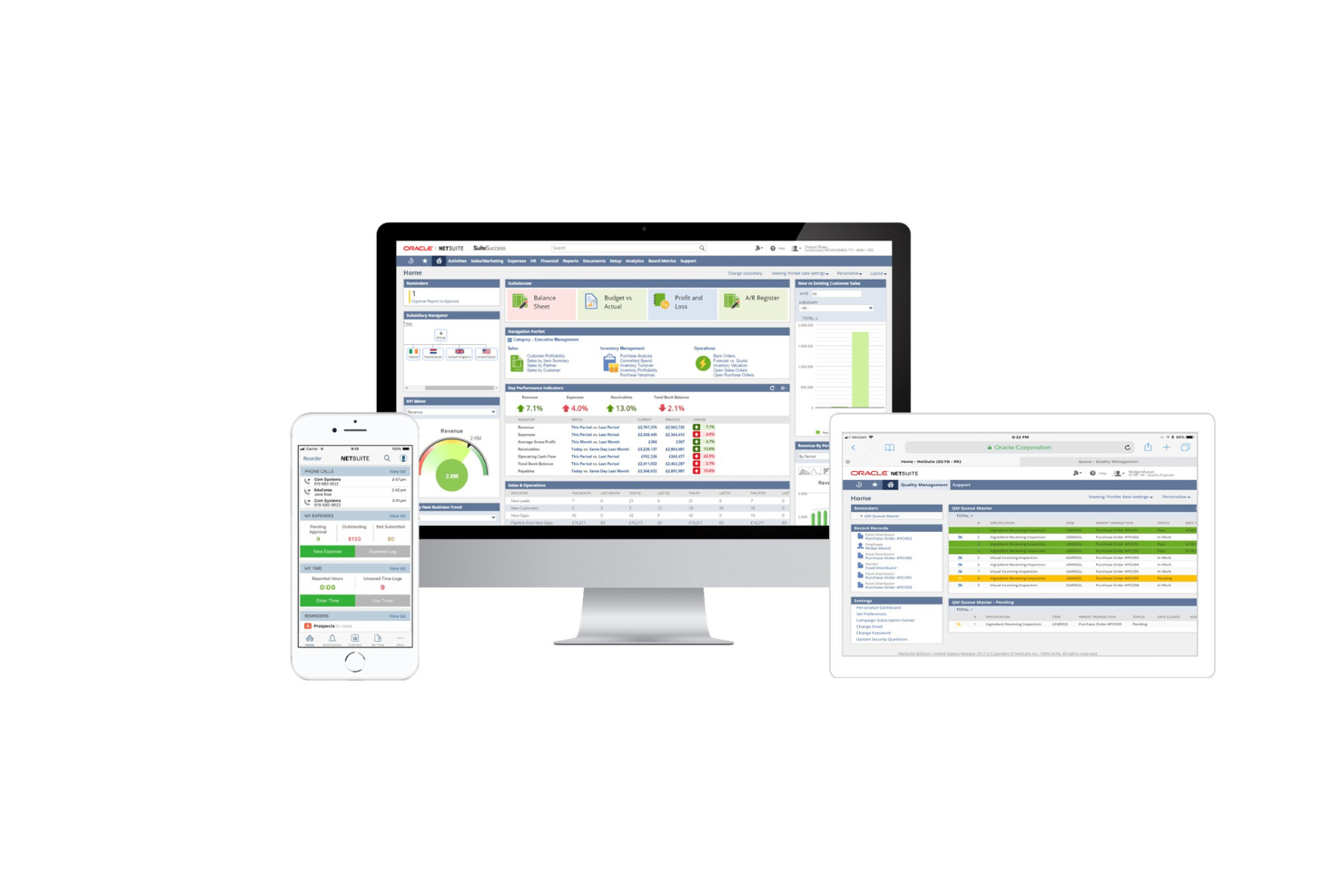
NetSuite è la mia raccomandazione per le organizzazioni enterprise che necessitano di una gestione approfondita delle spese all'interno dei flussi di lavoro di progetto su iPad. Quello che apprezzo è come NetSuite consenta di applicare controlli sulle politiche di spesa, automatizzare le approvazioni e collegare strettamente le spese di progetto alla contabilità in tempo reale. I team che devono gestire tracciamenti complessi dei costi o audit in mobilità trarranno il massimo beneficio da questa soluzione.
NetSuite è ideale per
- Enterprise che hanno bisogno di controlli sulle spese a livello di progetto su iPad
- Organizzazioni con esigenze complesse di tracciamento dei costi e audit
NetSuite non è adatto per
- Piccoli team con esigenze basilari di gestione progetto
- Utenti che desiderano un'implementazione rapida e onboarding minimo
Cosa distingue NetSuite
NetSuite si aspetta che tu gestisca la contabilità dei progetti, la gestione delle risorse e il monitoraggio delle spese all'interno dello stesso ambiente integrato. Ho notato che le organizzazioni lo scelgono quando i team finanziari e di progetto necessitano di controlli rigorosi e dati unificati, rispetto a strumenti più leggeri come monday.com che puntano maggiormente su flessibilità e configurazione rapida.
Se monday.com presuppone un bisogno di flessibilità, NetSuite si concentra su struttura, applicazione delle politiche e tracciabilità per le esigenze di conformità.
Compromessi con NetSuite
NetSuite privilegia il controllo e l'integrazione, ma si rinuncia a semplicità e rapidità di avvio. Per i team che desiderano partire rapidamente o che hanno requisiti progettuali minimi, può risultare impegnativo.
Pros and Cons
Pros:
- Altamente scalabile per le aziende
- Gestione finanziaria completa
- Moduli personalizzabili
Cons:
- Processo di implementazione complesso
- Non adatto ai piccoli team

Notion merita un posto in questa lista perché è la prima app che vedo utilizzare dai team per la gestione dei progetti quando note, attività e documentazione devono convivere. La sua app per iPad rende semplice catturare note delle riunioni, creare dashboard di progetto flessibili e consultare pagine di conoscenza—soprattutto utilizzando il trascinamento della selezione e la rapida creazione di pagine.
Apprezzo molto quanto sia personalizzabile ogni aspetto, così puoi strutturare progetti, tempistiche e documenti in base a come lavora davvero il tuo team.
Ideale per
- Team che combinano appunti, documentazione e monitoraggio dei progetti
- Manager che personalizzano pagine di progetto e flussi di lavoro su iPad
Meno indicato per
- Grandi organizzazioni che necessitano di automazioni avanzate o permessi granulari
- Team che gestiscono grafici Gantt complessi o una pianificazione dettagliata delle risorse
Cosa distingue Notion
Notion affronta la gestione dei progetti da una prospettiva incentrata sulla documentazione, unendo note, attività e wiki in un unico spazio di lavoro. Lo vedo funzionare al meglio quando si desidera che informazioni di progetto, requisiti e decisioni convivano insieme alle liste di attività di tutti i giorni.
A differenza di strumenti come Asana o Trello che si concentrano sulle bacheche di attività, Notion si aspetta che tu strutturi lo spazio di lavoro secondo le tue esigenze—mischiando contenuti e azioni nel formato che preferisci.
Compromessi con Notion
Notion è ottimizzato per l'organizzazione flessibile e la personalizzazione, il che significa che rinunci a una struttura predefinita per dipendenze e report. Con la crescita dei progetti, si dedica molto più tempo alla costruzione e manutenzione dei propri sistemi.
Pros and Cons
Pros:
- Pagine altamente personalizzabili
- Opzioni di organizzazione flessibili
- Supporta diversi tipi di contenuto
Cons:
- Non ideale per progetti complessi
- Può risultare inizialmente impegnativo

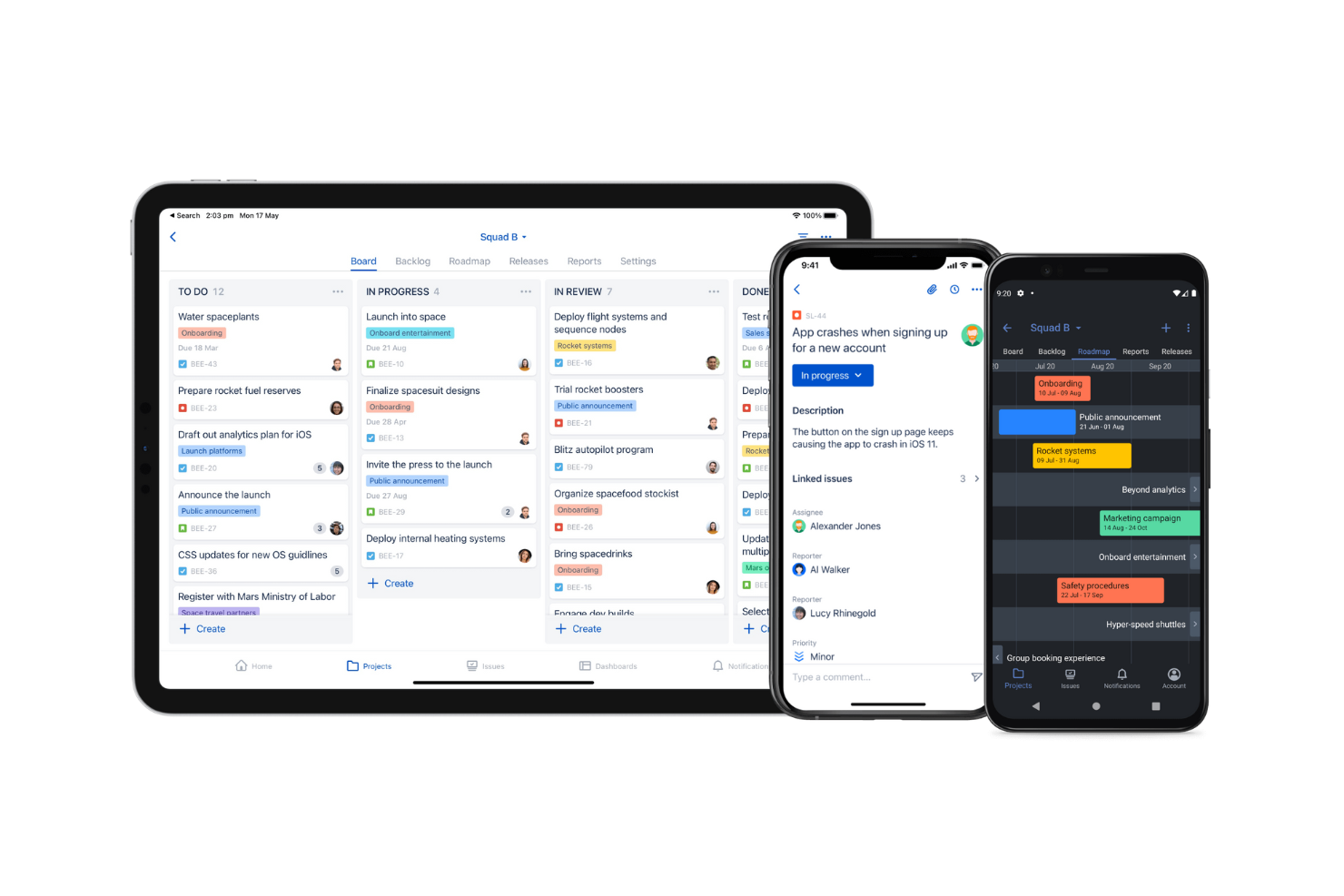
Jira si guadagna un posto qui perché è insuperabile quando i project manager vogliono gestire lo sviluppo software complesso da un iPad. Quando collaboro con i team di ingegneri, vedo che le bacheche agili e la prioritizzazione del backlog rendono semplice far avanzare il lavoro, anche in mobilità.
Ciò che apprezzo è come i flussi di lavoro personalizzati e i tipi di ticket consentano di rispecchiare i veri processi software e di monitorare a fondo lo sprint, cosa che poche app mobile permettono. Qui Jira sembra pensato apposta per il tracciamento tecnico dei progetti, la revisione e l’iterazione rapida direttamente da iPad.
Ideale per
- Team di sviluppo software che gestiscono flussi di lavoro agili su iPad
- Project manager che necessitano di tipi di ticket personalizzati e sprint
Non adatto per
- Team alla ricerca di un semplice strumento leggero di gestione progetti
- Progetti creativi non focalizzati sulla consegna tecnica
Cosa distingue Jira
Jira è progettato partendo dal presupposto che i progetti abbiano bisogno di struttura, tracciabilità e iterazione continua, specialmente per il lavoro tecnico. Si aspetta che tu definisca flussi di lavoro dettagliati, standardizzi come i task progrediscono negli sprint e renda visibili i blocchi esattamente dove lavorano gli ingegneri. Diversamente da monday.com o Trello, Jira è creato per i team che devono collegare strettamente il lavoro a codice, release e pratiche agili.
Funziona al meglio quando ti interessa tracciare problemi e modifiche in modo dettagliato, non solo spostare schede sulle bacheche.
Compromessi di Jira
Jira ottimizza il controllo granulare sui progetti software, ma questa complessità può risultare impegnativa per lavori non tecnici o per team che cercano solo una gestione semplice delle attività.
Pros and Cons
Pros:
- Supporto avanzato alle metodologie agili
- Capacità di reporting dettagliato
- Flussi di lavoro personalizzabili
Cons:
- Richiede competenze tecniche
- Processo di configurazione complesso


Morningmate merita il suo posto qui perché si concentra sull'essenziale, il che aiuta davvero i piccoli team che cercano chiarezza e rapidità. L'ho scelto per iPad perché ogni funzione principale si adatta perfettamente al mobile—inclusa la creazione di bacheche, chat di gruppo e commenti alle attività che restano sempre ben organizzati.
Mi piace come puoi vedere tutto ciò di cui hai bisogno su un solo schermo. I team che preferiscono flussi di lavoro visivi semplici tendono ad apprezzare quanto l'esperienza sia leggera senza perdere opzioni di collaborazione importanti.
Morningmate è l'ideale per
- Piccoli team che hanno bisogno di una gestione progetti chiara e semplice
- Gruppi che gestiscono attività e messaggi su iPad
Morningmate non è adatto per
- Team che hanno bisogno di report avanzati o automazioni
- Organizzazioni con flussi di lavoro complessi e su più livelli
Cosa rende Morningmate diverso
Morningmate mantiene tutto il più semplice possibile, concentrandosi su un lavoro guidato dalla conversazione invece che su processi pesanti o modelli predefiniti. A differenza di strumenti come Asana o ClickUp che ti spingono verso una pianificazione dettagliata, Morningmate si aspetta che tu gestisca i progetti perlopiù tramite bacheche condivise e thread di chat. Questo funziona al meglio per i gruppi che danno valore al confronto e allo spostamento delle attività secondo necessità, soprattutto da iPad.
Compromessi con Morningmate
Morningmate punta tutto su semplicità e collaborazione rapida, ma ciò significa rinunciare a report avanzati e automazioni strutturate di cui i team più grandi hanno bisogno.
Pros and Cons
Pros:
- Interfaccia intuitiva
- Supporto personalizzato
- Ampia capacità di archiviazione
Cons:
- Set di funzionalità limitato rispetto ad altri
- Non ideale per team molto grandi

Productive
Ideale per la gestione di agenzie

Productive si distingue come la mia scelta principale per la gestione delle agenzie su iPad, principalmente per il modo in cui collega il monitoraggio dei progetti, la gestione del tempo e la pianificazione delle risorse, il tutto in un'unica esperienza mobile. Ciò che mi piace di più è che i team delle agenzie possono gestire budget dei clienti, redditività e pipeline senza dover passare da un'app all'altra. È lo strumento che vedo utilizzare dalle agenzie che desiderano un vero e proprio centro di comando dal proprio tablet.
Per cosa Productive è migliore
- Agenzie che gestiscono progetti, budget e tempo da iPad
- Team che necessitano di una visione unificata del lavoro per i clienti e della redditività
Per cosa Productive non è adatto
- Lavoratori freelance singoli che gestiscono semplici liste di attività
- Team di prodotto che necessitano di strumenti dettagliati per backlog e sprint
Cosa distingue Productive
Productive è pensato per le agenzie che vogliono mantenere la consegna dei progetti, il monitoraggio del tempo e l'allocazione delle risorse strettamente collegati alla gestione dei clienti. Invece di trattare i progetti e la gestione delle risorse come flussi di lavoro separati, come fanno Asana o ClickUp, Productive affronta tutto attraverso la prospettiva del lavoro per i clienti e della redditività. In pratica, funziona al meglio quando i team di agenzia desiderano collegare dati finanziari, vendite ed esecuzione su un iPad.
Compromessi con Productive
Productive è progettato per mantenere tutto focalizzato sul cliente, quindi i team perdono una gestione più avanzata del backlog e della pianificazione dei rilasci rispetto alle piattaforme dedicate a prodotto o ingegneria.
Pros and Cons
Pros:
- Monitoraggio del tempo efficace
- Strumenti dettagliati per la pianificazione del budget
- Supporta l'analisi della redditività
Cons:
- Curva di apprendimento per i nuovi utenti
- Configurazione complessa per team numerosi
New Product Updates from Productive
Productive Adds Voice Dictation, Slack Connector, Proposals, and Overtime
Productive adds voice dictation, a Slack Connector, proposal controls, and overtime tracking. These updates support faster AI interactions, client proposals, and time management. For more information, visit Productive’s official site.
Altri software di gestione dei progetti per iPad
Ecco alcune altre ottime app di gestione dei progetti per iPad che non sono entrate nella mia selezione, ma che vale comunque la pena considerare:


Come valuto il software di gestione progetti per iPad
Considero due aspetti nella valutazione di questi strumenti: le funzionalità di base di cui un project manager operante sul campo ha effettivamente bisogno su un iPad e i fattori di differenziazione che rendono le migliori opzioni superiori.
Funzionalità principali (Requisiti minimi per questa lista)
Quando seleziono gli strumenti per la mia lista, assegno a ciascuno un punteggio da 0 (non offre la funzionalità) a 5 (eccelle in quest'area) per ogni funzionalità principale elencata qui sotto. Successivamente, calcolo il punteggio totale dello strumento in percentuale. Ogni strumento deve raggiungere un punteggio totale minimo del 65% per essere preso in considerazione.
- App nativa per iPadOS: Verifico se l'app è davvero creata per iPad—con controlli ottimizzati per il touch, Split View e multitasking—o semplicemente una versione ingrandita dell'app per iPhone.
- Gestione di attività e progetti: Ogni strumento dovrebbe permettere di creare attività con assegnatari, date di scadenza, dipendenze e priorità così che un responsabile di cantiere possa pianificare sprint o fasi al volo.
- Visualizzazioni di progetto: Cerco diverse visualizzazioni come Kanban, Gantt, calendario e elenco che siano completamente fruibili su schermo iPad—e non layout desktop tagliati che richiedono di pizzicare o scorrere.
- Modalità offline e sincronizzazione: Le squadre sul campo spesso lavorano in ambienti dove la connessione è instabile, quindi valuto se sia possibile visualizzare e modificare i dati di progetto offline con una sincronizzazione affidabile in background.
- Strumenti di collaborazione per il team: Commenti, @menzioni, allegati e notifiche in tempo reale devono essere tutti accessibili dall’app iPad durante sopralluoghi con il cliente o riunioni operative.
- Continuità tra dispositivi: Gli aggiornamenti effettuati su iPad durante una riunione devono comparire immediatamente anche su desktop e web, quindi valuto l’affidabilità della sincronizzazione e la coerenza delle funzionalità sulle varie piattaforme.
Dopo aver selezionato gli strumenti che soddisfano questi criteri, considero ciò che distingue ciascuna piattaforma.
Fattori di differenziazione (Cosa distingue i fornitori)
Ecco come confronto e metto a confronto i vari fornitori:
Caratteristiche distintive
Il supporto per Apple Pencil è importante quando il team revisiona progetti o fa annotazioni in cantiere—cerco strumenti che permettano di annotare documenti direttamente nelle attività. La registrazione del tempo integrata è un altro elemento distintivo, soprattutto per chi lavora in agenzia e deve tracciare le ore fatturabili tra una riunione e l’altra. Valuto anche la presenza di costruttori di automazioni senza codice, perché impostare assegnazioni automatiche o trigger di stato da iPad fa davvero risparmiare tempo quando si gestiscono più progetti lontano dalla scrivania.
Oltre alle funzionalità
La struttura dei prezzi è rilevante qui—verifico se le funzionalità iPad e mobile siano incluse nei piani base o accessibili solo in fasce superiori. Anche l’integrazione con l’ecosistema è importante; gli strumenti che si collegano nativamente a File di Apple, iCloud e Siri Shortcuts risultano molto più naturali su iPad rispetto a quelli aggiunti come semplice accessorio su iOS. Per i team aziendali, valuto inoltre la compatibilità con MDM e il supporto SSO, visto che i reparti IT che gestiscono flotte di iPad aziendali hanno bisogno che questi elementi siano integrati.
Come scegliere un software di gestione dei progetti per iPad
È facile perdersi in lunghi elenchi di funzionalità e strutture tariffarie complesse. Per aiutarti a concentrarti durante il processo di selezione del software, ecco una lista di fattori da tenere a mente:
| Fattore | Cosa considerare |
|---|---|
| Scalabilità | Valuta se il software può crescere insieme al tuo team. Sarà in grado di gestire più progetti o utenti senza costi aggiuntivi? Pensa alle esigenze future e all'espansione. |
| Integrazioni | Verifica se il software si collega agli strumenti che già utilizzi. Si sincronizza con la tua email, il calendario o il CRM? Evita gli strumenti che richiedono il trasferimento manuale dei dati. |
| Personalizzazione | Determina se puoi adattare il software ai tuoi flussi di lavoro. Puoi modificare le impostazioni o creare modelli personalizzati? Assicurati che si adatti ai tuoi processi, e non il contrario. |
| Facilità d'uso | Valuta se il software è intuitivo. I nuovi utenti possono comprenderlo rapidamente senza una formazione approfondita? Cerca un'interfaccia semplice che faciliti le attività invece di complicarle. |
| Implementazione e avviamento | Valuta quanto sia facile iniziare. Sono disponibili risorse come tutorial o team di supporto per aiutare il tuo team a iniziare? Evita gli strumenti con una configurazione complessa che ritarda la produttività. |
| Costo | Esamina il costo totale, comprese le tariffe nascoste. Il prezzo rientra nel tuo budget? Valuta se le funzionalità giustificano la spesa e confronta il software con quello dei concorrenti. |
| Misure di sicurezza | Assicurati che il software protegga i tuoi dati. Offre crittografia, backup regolari e conformità agli standard del settore? Evita gli strumenti con misure di sicurezza deboli. |
| Disponibilità dell'assistenza | Controlla il livello di assistenza offerto. È disponibile un supporto 24 ore su 24, 7 giorni su 7, quando ne hai bisogno? Cerca canali di assistenza reattivi, come chat o telefono, ed evita gli strumenti con un'assistenza limitata che potrebbe lasciarti senza supporto. |
Che cos'è un software di gestione dei progetti per iPad?
I software di gestione dei progetti per iPad sono strumenti digitali che ti aiutano a organizzare e gestire i progetti tramite il tuo iPad. In genere sono disponibili anche su altri prodotti Apple che utilizzano iOS, come Mac e iPhone. Professionisti come responsabili di progetto, responsabili di team e liberi professionisti utilizzano questi strumenti per aumentare la produttività e mantenere l'organizzazione.
Le funzionalità di gestione delle attività, collaborazione e monitoraggio del tempo aiutano a coordinare le attività, facilitare la comunicazione e monitorare i progressi, così puoi migliorare l'efficienza e mantenere i progetti in carreggiata.
Funzionalità del software di gestione dei progetti per iPad
Presta attenzione alle seguenti funzionalità principali del software di gestione dei progetti per iPad.
- Gestione delle attività: organizza attività e scadenze per mantenere i team in carreggiata e assicurarsi che nessun dettaglio venga trascurato.
- Strumenti di collaborazione: facilitano la comunicazione tra i membri del team, rendendo più semplice condividere aggiornamenti e feedback.
- Monitoraggio del tempo: monitora il tempo dedicato alle attività per migliorare la produttività e mantenere una fatturazione accurata.
- Dashboard personalizzabili: consentono agli utenti di adattare il proprio spazio di lavoro alle proprie esigenze e forniscono un accesso rapido alle informazioni importanti.
- Diagrammi di Gantt: visualizzano le tempistiche dei progetti e aiutano gli utenti a pianificare e monitorare i progressi.
- Strumenti di budgeting: gestiscono le risorse finanziarie per mantenere i progetti entro il budget e preservare la redditività.
- Dashboard dei KPI: mostrano gli indicatori chiave di prestazione per aiutare i team a prendere decisioni consapevoli basate sui dati.
- Pianificazione delle risorse: ottimizza l'utilizzo del team affinché le risorse siano assegnate in modo efficiente per la realizzazione del progetto.
- Misure di sicurezza: proteggono i dati sensibili tramite la crittografia e la conformità agli standard del settore.
- Funzionalità di integrazione: si collegano ad altri strumenti e piattaforme per creare un flusso di lavoro uniforme tra diverse applicazioni.
Vantaggi del software di gestione dei progetti per iPad
L'implementazione di un software di gestione dei progetti per iPad offre diversi vantaggi al tuo team:
- Maggiore mobilità: accedi ai progetti e agli elenchi delle attività mentre sei in movimento, così il tuo team può lavorare ovunque con il proprio iPad.
- Migliore collaborazione: gli strumenti di comunicazione aiutano i membri del team a rimanere connessi e a condividere aggiornamenti, migliorando il lavoro di squadra e i risultati dei progetti.
- Migliore gestione del tempo: le funzionalità di monitoraggio del tempo aiutano ad assicurarsi che le attività siano completate in modo efficiente e che le scadenze vengano rispettate.
- Organizzazione migliorata: la gestione delle attività e le dashboard personalizzabili mantengono i progetti organizzati, facilitando la definizione delle priorità del lavoro.
- Controllo efficace del budget: gli strumenti di budgeting aiutano a monitorare le spese e a mantenere i progetti entro i limiti finanziari.
- Decisioni basate sui dati: le dashboard dei KPI forniscono informazioni sulle prestazioni e aiutano i team a prendere decisioni consapevoli basate su dati reali.
- Allocazione efficiente delle risorse: la pianificazione delle risorse aiuta a utilizzare il team in modo efficace e a ottimizzare la produttività e la realizzazione dei progetti.
Costi e prezzi del software di gestione dei progetti per iPad
I costi del software di gestione dei progetti per iPad variano in base alle funzionalità, alle dimensioni del team, ai componenti aggiuntivi e ad altri fattori. La tabella seguente riassume i piani comuni, i prezzi medi e le funzionalità tipicamente incluse nelle piattaforme di gestione dei progetti per iPad:
Tabella comparativa dei piani per il software di gestione dei progetti per iPad
| Tipo di piano | Prezzo medio | Funzionalità comuni |
|---|---|---|
| Piano gratuito | $0 | Gestione di base delle attività, spazio di archiviazione limitato e strumenti di collaborazione di base. |
| Piano personale | $5-$15/utente/mese | Gestione delle attività, integrazioni di base e opzioni di personalizzazione limitate. |
| Piano aziendale | $15-$30/utente/mese | Gestione avanzata delle attività, monitoraggio del tempo, gestione del budget e ulteriori funzionalità di collaborazione. |
| Piano per grandi aziende | $30-$60/utente/mese | Dashboard personalizzabili, funzionalità di sicurezza avanzate, supporto dedicato e integrazioni complete. |
Domande frequenti sul software di gestione dei progetti per iPad
Ecco alcune risposte alle domande comuni sul software di gestione dei progetti per iPad:
Posso usare il software di gestione dei progetti per iPad offline?
Sì, molte app di gestione dei progetti offrono l’accesso offline, così puoi continuare a lavorare senza una connessione Internet. Una volta tornato online, i tuoi dati dovrebbero sincronizzarsi automaticamente. Verifica che l’app specifica che stai valutando supporti questa funzionalità, poiché le funzionalità offline possono variare.
Ci sono problemi di sicurezza nell'utilizzo delle app di gestione dei progetti su iPad?
La sicurezza dovrebbe essere una priorità nella scelta di un’app. Assicurati che il software offra la crittografia, aggiornamenti regolari e la conformità agli standard del settore. Verifica se l’app offre l’autenticazione degli utenti e i controlli di accesso per proteggere i tuoi dati e leggi sempre le recensioni per vedere come gli altri utenti valutano la sicurezza dell’app.
Che tipo di assistenza posso aspettarmi dai fornitori di software di gestione dei progetti?
La maggior parte dei fornitori offre canali di assistenza come supporto via email, chat e telefono. Alcuni forniscono anche centri assistenza con domande frequenti e tutorial. Prima di scegliere uno strumento, verifica che gli orari dell’assistenza siano compatibili con le tue esigenze e se sia disponibile un responsabile dell’account dedicato per i team più grandi.
Posso integrare altri strumenti con la mia app di gestione dei progetti su iPad?
Sì, sono disponibili integrazioni con altri strumenti come sistemi di posta elettronica, calendari e CRM. Controlla le opzioni dell’app per assicurarti che supporti gli strumenti che già utilizzi, così potrai mantenere il tuo flusso di lavoro.
Quanto sono personalizzabili le app di gestione dei progetti per iPad?
La possibilità di personalizzazione può variare da un’app all’altra. Cerca la possibilità di adattare i pannelli di controllo, i flussi di lavoro e le notifiche alle esigenze del tuo team. Anche la possibilità di creare campi e modelli personalizzati può migliorare l’adattabilità dell’app ai tuoi processi specifici.