

I 10 migliori generatori di diagrammi di flusso con IA recensiti nel 2026

Selezione dei migliori strumenti per generare diagrammi di flusso con l'IA


I generatori di diagrammi di flusso con l'IA sono strumenti intuitivi e facili da usare, in grado di creare diagrammi di flusso e diagrammi dei processi per te. Possono fornire una rappresentazione visiva chiara dei tuoi processi, contribuendo a migliorare i flussi di lavoro, aumentare la chiarezza per il team e rendere più gestibili le attività complesse.
In questo articolo condividerò le mie scelte migliori tra i generatori di diagrammi di flusso con l'IA, che possono aiutarti a organizzare i tuoi pensieri, pianificare i progetti e comunicare in modo efficace con il tuo team. Ti offrirò una recensione imparziale e metterò in evidenza caratteristiche e vantaggi principali, così potrai trovare la soluzione giusta e aiutare il tuo team a lavorare in modo più intelligente, non più difficile.
Perché fidarsi dei nostri consigli sui software
Il nostro team testa e recensisce software dal 2012. In quanto project manager noi stessi, sappiamo quanto sia difficile — e importante — scegliere il software giusto.
Per questa guida, abbiamo valutato gli strumenti attraverso test pratici e ricerche indipendenti, assegnando un punteggio agli strumenti in base ai nostri criteri di selezione. Ci basiamo inoltre sulle competenze di leader di pensiero del settore e di professionisti attivi nella gestione dei progetti.
Le nostre recensioni riflettono il nostro giudizio editoriale umano, non un discorso di vendita.
Revisori esperti:
Tabella comparativa degli strumenti per generare diagrammi di flusso con l'IA
Questa tabella comparativa riassume i dettagli sui prezzi dei miei principali strumenti selezionati per generare diagrammi di flusso con l’IA:
| Tool | Best For | Trial Info | Price | ||
|---|---|---|---|---|---|
| 1 | Ideale per un utilizzo adatto ai principianti | Piano gratuito disponibile | Da $12/mese (fatturato annualmente) | Website | |
| 2 | Ideale per la collaborazione in team | Piano gratuito disponibile | Da $4/utente/mese (fatturato annualmente) | Website | |
| 3 | Ideale per team creativi | Piano gratuito disponibile | Da $10/editor/mese (fatturazione annuale) | Website | |
| 4 | Ideale per diagrammi in stile infografica | Piano gratuito disponibile | Da $10/mese (fatturato annualmente) | Website | |
| 5 | Ideale per l'uso multipiattaforma | Piano gratuito disponibile | A partire da $41.99/utente/mese (fatturato annualmente) | Website | |
| 6 | Ideale per integrazione automatica delle note | Piano gratuito disponibile | Da $9/mese (addebitato annualmente) | Website | |
| 7 | Ideale per l'automazione dei processi aziendali | Prova gratuita di 14 giorni + demo gratuita disponibile | Prezzo su richiesta | Website | |
| 8 | Ideale per modifiche rapide ai diagrammi | Piano gratuito disponibile | Da $10/utente/mese (fatturazione annuale) | Website | |
| 9 | Ideale per passare rapidamente da un tipo di mappa all'altro | Prova gratuita disponibile | Da $0/mese | Website | |
| 10 | Ideale per suggerimenti guidati dall’IA | Piano gratuito disponibile | Da $7.90/utente/mese (fatturato annualmente) | Website |
Recensioni dei migliori software per generare diagrammi di flusso con l'IA
Di seguito trovi le mie descrizioni dettagliate di ciascuno dei migliori generatori di diagrammi di flusso con l'IA. Esamino caratteristiche principali, pro e contro, integrazioni e casi d'uso ideali, così potrai trovare lo strumento più adatto a te.
Canva
Ideale per un utilizzo adatto ai principianti

Canva entra in questa lista per chi desidera un modo senza complicazioni per creare e modificare diagrammi di flusso con il supporto dell'IA. Ho visto team principianti e non addetti al design utilizzare la funzione Magic Design potenziata dall'intelligenza artificiale e i modelli personalizzabili per generare diagrammi in pochi clic.
Ciò che apprezzo di più è la facilità con cui è possibile trasformare un'idea o una richiesta testuale in un diagramma completo, per poi modificare layout o branding con l'editor drag-and-drop di Canva. Funziona al meglio quando serve passare rapidamente dal concetto alla visualizzazione, senza dover imparare un software specifico per la creazione di diagrammi.
Canva è ideale per
- Chi non è designer e vuole creare diagrammi di flusso partendo da modelli o suggerimenti AI
- Piccoli team che necessitano di diagrammi di flusso semplici e veloci
Canva non è l'ideale per
- Team tecnici che hanno bisogno di logiche di diagramma avanzate o automazione
- Organizzazioni con requisiti aziendali o di conformità rigidi
Cosa distingue Canva
Canva rende la creazione di diagrammi di flusso accessibile a tutti, non solo ai designer, offrendo uno strumento veloce e visivo. Mi piace il modo in cui gli strumenti assistiti dall'IA consentono di generare bozze di diagrammi di flusso da testo o idee in pochi secondi. A differenza di Lucidchart o SmartDraw, Canva ti spinge a lavorare in modo visuale, sperimentando layout e stili prima di preoccuparti dei dettagli tecnici.
Funziona bene quando vuoi condividere una bozza o fare brainstorming visivo in riunione, invece di fissare subito un diagramma rigido.
Compromessi con Canva
Canva è ottimizzato per la velocità e l’impatto visivo, ma questo limita i controlli di logica e l’automazione. Quando servono processi dettagliati o strutture tecniche, noterai che mancano strumenti avanzati per la precisione.
Pros and Cons
Pros:
- Ampia libreria di modelli
- Interfaccia drag-and-drop semplice
- Supporta una vasta gamma di progetti
Cons:
- Strumenti avanzati limitati
- Opzioni di esportazione limitate

Taskade
Ideale per la collaborazione in team
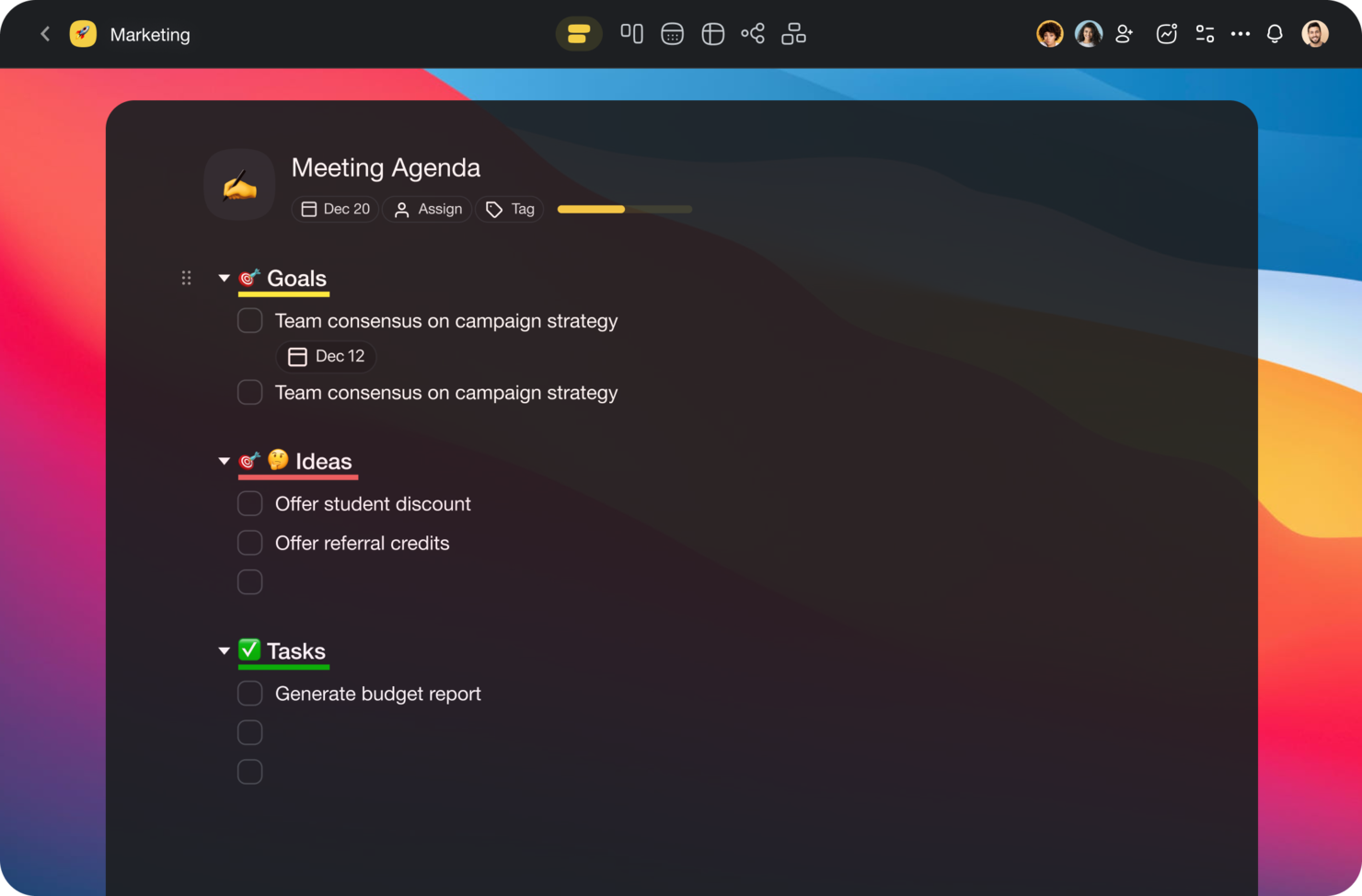
Taskade si distingue perché pochi strumenti gestiscono brainstorming di gruppo e diagrammazione nello stesso posto con la stessa efficacia. Lo consiglio quando i team desiderano una generazione collaborativa e supportata dall’IA di diagrammi di flusso direttamente nello spazio di lavoro condiviso.
Mi piace il fatto che si possano mappare processi visivamente, creare diagrammi di flusso con l’IA e passare senza soluzione di continuità tra mappe mentali, elenchi e kanban—tutto in tempo reale con il team. Questo rende molto più facile mantenere tutti allineati durante sessioni strategiche o la pianificazione di progetti.
Ideale per Taskade
- Team creativi e di prodotto che necessitano di collaborazione visiva e in tempo reale
- Team che desiderano strumenti di mind mapping e diagrammi di flusso assistiti dall’IA
Taskade non è l’ideale per
- Utenti che necessitano di controlli avanzati per diagrammi di flusso o modellazione dettagliata di processi
- Team focalizzati su standard tecnici o di ingegneria per la diagrammazione
Cosa rende unico Taskade
Taskade si concentra sulla diagrammazione come esperienza di collaborazione dal vivo, unendo la creazione di diagrammi di flusso via IA con il lavoro di squadra in tempo reale su uno spazio condiviso. Invece del design rigoroso e formale di Lucidchart o della complessità di Jira, Taskade favorisce conversazioni fluide, presa di appunti e brainstorming direttamente sulla tela. Questo approccio funziona meglio quando i team desiderano pianificare e visualizzare le idee insieme, invece di documentare flussi di lavoro prescrittivi.
Compromessi di Taskade
Taskade è ottimizzato per una co-creazione rapida e flessibile, ma ciò comporta limitazioni su controlli avanzati o su una modellazione rigorosa dei processi. Se hai bisogno di standard dettagliati per i diagrammi o di flussi basati su regole, potrebbe non essere sufficiente.
Pros and Cons
Pros:
- Template di workflow personalizzabili
- Supporta la gestione di team remoti
- Funzionalità di mind mapping
Cons:
- Richiede una connessione Internet veloce
- Funzionalità avanzate limitate

Ideale per team creativi

Whimsical è la mia scelta preferita quando vedo team creativi che mappano idee o flussi di collaborazione che devono restare visivi ma flessibili. Ho utilizzato il suo generatore di diagrammi di flusso con AI e mi piace la rapidità con cui puoi creare diagrammi usando linguaggio naturale, per poi rifinirli con oggetti raggruppati e post-it.
Quello che apprezzo è come combina diagrammi strutturati creati dall’AI con mappe mentali e wireframe, rendendo il lavoro fluido mentre le idee cambiano direzione.
A chi è più adatto Whimsical
- Team creativi che mappano flussi, idee e wireframe
- Brainstorming rapido con diagrammi generati dall’AI e mappe mentali
Quando Whimsical non è l’ideale
- Team di ingegneri che necessitano simboli o regole di processo specifiche
- Documentazione formale o diagrammi richiesti per la conformità
Cosa distingue Whimsical
Whimsical si distingue perché mantiene il brainstorming fluido, senza costringerti a forme rigide o sintassi fisse come Lucidchart o Microsoft Visio. Vedo team che passano da diagrammi di flusso a mappe mentali e wireframe senza cambiare strumenti o flussi di lavoro. Invece di trattare i diagrammi come asset statici, si aspetta che tu continui a modificarli e stratificare idee man mano che i progetti si evolvono.
Compromessi di Whimsical
Whimsical punta alla massima fluidità nell’ideazione, ma perdi il controllo sui dettagli dei diagrammi e l’accesso a librerie specifiche per i processi che i team di ingegneria si aspettano. Questo significa che il lavoro può sembrare meno strutturato e privo della precisione richiesta dalla documentazione formale.
Pros and Cons
Pros:
- Libreria di icone integrata
- Ottimo per team remoti
- Collaborazione in tempo reale
Cons:
- Poche funzionalità di design avanzate
- Meno adatto a progetti di grandi dimensioni

Venngage
Ideale per diagrammi in stile infografica

Venngage entra nella mia lista perché conferisce un livello di raffinatezza da infografica a flowchart e visualizzazioni di processi. Quando vedo team che hanno bisogno di immagini per proposte ai clienti, presentazioni o marketing che attirino davvero l'attenzione, questa è la soluzione più adatta.
Hai a disposizione modelli eleganti e un assistente AI per i diagrammi che suggerisce layout e icone per i tuoi contenuti. Apprezzo come posso trasformare flussi tecnici monotoni in qualcosa che coinvolge davvero gli stakeholder non tecnici.
Venngage: Ideale per
- Team di marketing e comunicazione che creano diagrammi di processo visivi
- Creazione di flowchart per presentazioni a stakeholder o report per i clienti
Venngage: Non adatto per
- Team di ingegneria o sviluppo che necessitano di standard tecnici per i diagrammi
- Chiunque abbia bisogno di sincronizzazione automatica dei diagrammi con dati in tempo reale
Cosa distingue Venngage
Venngage si distingue perché tratta i flowchart come strumenti di comunicazione visiva e non semplici diagrammi tecnici. Hai un'interfaccia pensata per creare presentazioni e report con un forte impatto visivo. A differenza di strumenti come Lucidchart, che puntano su diagrammi strutturati, Venngage dà il meglio nei progetti rivolti ai clienti dove lo stile conta tanto quanto la chiarezza.
Puoi prendere un processo o un flusso di lavoro e trasformarlo in qualcosa che coinvolge gli stakeholder che non ragionano in termini di rettangoli e frecce.
Compromessi con Venngage
Venngage è ottimizzato per presentazioni e design, quindi perdi alcune funzionalità tecniche dei diagrammi e controlli logici dettagliati che sono importanti per ingegneri o team IT.
Pros and Cons
Pros:
- Ampia libreria di template
- Personalizzazione semplice di colori e font
- Accessibile anche a chi non è designer
Cons:
- Funzionalità gratuite limitate
- Curva di apprendimento per le funzionalità avanzate

EdrawMax
Ideale per l'uso multipiattaforma

EdrawMax si guadagna un posto qui perché funziona senza problemi su diverse piattaforme, inclusi Windows, Mac, Linux e browser web, cosa che considero rara per gli strumenti di creazione di diagrammi di flusso. Quando i team sono divisi tra sistemi operativi diversi o hanno bisogno di condividere facilmente i diagrammi, questa flessibilità fa davvero la differenza.
Mi piace come EdrawMax utilizza l'IA per generare diagrammi di flusso da prompt testuali o dati, permettendoti di concentrarti sulla struttura invece che sulle forme. Penso che otterrai il massimo valore da questo strumento quando hai bisogno di collaborare senza preoccuparti della compatibilità o delle installazioni del software.
Ideale per
- Team che lavorano su ambienti Windows, Mac e Linux
- Utenti che desiderano diagrammi di flusso generati dall'IA partendo da input testuali
Non ideale per
- Team che necessitano di un controllo versione avanzato o di monitoraggio delle modifiche
- Utenti che cercano funzionalità specializzate per diagrammi ingegneristici
Cosa distingue EdrawMax
EdrawMax si distingue perché è progettato per funzionare allo stesso modo su Windows, Mac, Linux e web. Non devi preoccuparti del dispositivo o del sistema operativo che utilizzi, tutto appare e funziona nello stesso modo. A differenza di Visio, che ti vincola a Windows, o di Lucidchart, che privilegia il web, EdrawMax offre un client completo ovunque ti trovi.
Funziona bene per team distribuiti o per chiunque passi da una piattaforma all'altra.
Compromessi con EdrawMax
EdrawMax punta sull'accesso multipiattaforma, ma questo avviene a scapito dei controlli avanzati sui diagrammi e di una gestione approfondita delle modifiche. Se hai bisogno di una gestione delle versioni di alto livello o caratteristiche ingegneristiche avanzate, potresti sentirti limitato.
Pros and Cons
Pros:
- Ampia libreria di modelli
- Elementi del diagramma personalizzabili
- Supporta diversi formati di file
Cons:
- Curva di apprendimento più ripida
- Rallentamenti occasionali con file di grandi dimensioni


NoteGPT si guadagna un posto qui grazie alla sua capacità di trasformare conversazioni e riunioni in diagrammi strutturati e note visive generate dall'IA. Lo consiglio quando si desidera la creazione automatica di diagrammi di flusso come parte del processo di presa di appunti piuttosto che gestire due strumenti separati.
Quello che apprezzo di NoteGPT è il modo in cui acquisisce il contesto da audio o testo e costruisce diagrammi in tempo reale. Questo fa risparmiare ai team lo sforzo di duplicare il lavoro solo per documentare un processo o una discussione.
Ideale per
- Team che desiderano note e diagrammi di flusso generati automaticamente dalle riunioni
- Utenti che documentano processi direttamente da audio o trascrizioni
Non consigliato per
- Designer che necessitano di strumenti avanzati per la personalizzazione dei diagrammi di flusso
- Chi desidera un software per diagrammi di flusso puro senza integrazione con le note
Cosa distingue NoteGPT
NoteGPT si basa sull'idea che note di riunione e diagrammi di flusso non debbano essere flussi di lavoro separati. A differenza di Miro, che mantiene la creazione di diagrammi completamente manuale, NoteGPT prevede che si usino trascrizioni e discussioni come input dal vivo per produrre risultati strutturati. In pratica, questo significa ottenere diagrammi che riflettono ciò che viene effettivamente discusso, invece di ciò che qualcuno si ricorda di disegnare dopo la riunione.
Compromessi con NoteGPT
NoteGPT punta sull'automazione e la velocità, ma questo va a scapito della personalizzazione. Se desideri personalizzare i diagrammi di flusso oltre quanto interpretato dal sistema, incontrerai dei limiti rapidamente.
Pros and Cons
Pros:
- Generazione automatica delle note
- Supporta diversi tipi di diagrammi
- Sconti per nuovi utenti
Cons:
- Accesso gratuito limitato
- Opzioni di personalizzazione limitate


GBTEC si distingue per la sua copertura dell'automazione dei processi a livello aziendale e la mappatura guidata dall'IA. Quando ho bisogno di progettare diagrammi di flusso che si collegano direttamente ai processi operativi reali, questa piattaforma si fa notare. Mi piace come i suoi strumenti di intelligenza artificiale generano flussi di processo visivi basati su una logica aziendale e workflow complessi. I team che gestiscono operazioni su larga scala e soggette a normative ottengono molto scegliendo GBTEC, soprattutto per la traduzione della documentazione esistente dei processi in diagrammi chiari e aggiornati in tempo reale.
GBTEC è ideale per
- Grandi aziende con esigenze di conformità e automazione dei processi
- Team che automatizzano workflow aziendali complessi e regolamentati
GBTEC non è indicato per
- Soggetti individuali o startup agli inizi che cercano semplicità
- Team che desiderano strumenti base e leggeri per la creazione di diagrammi
Cosa distingue GBTEC
GBTEC è progettato per mappare, automatizzare e auditare i processi aziendali su una scala che strumenti come Lucidchart o Miro non riescono a offrire. Secondo la mia esperienza, ti porta ad approcciare i diagrammi di flusso come processi aziendali vivi, non solo immagini statiche. Questo approccio è ideale quando hai bisogno di governance o tracciabilità perché i workflow reali vengono eseguiti e aggiornati direttamente nello strumento.
Compromessi con GBTEC
GBTEC è ottimizzato per l'automazione dei processi end-to-end, quindi si rinuncia alla creazione rapida e occasionale di diagrammi. Se vuoi fare brainstorming al volo, la configurazione e il setup possono rallentarti.
Pros and Cons
Pros:
- Simula i flussi prima della pubblicazione
- Evidenzia i rischi associati a ogni fase
- Collega regole e moduli ai diagrammi
Cons:
- Richiede tempo per padroneggiare la logica dei processi
- Difficile apportare modifiche visive rapide

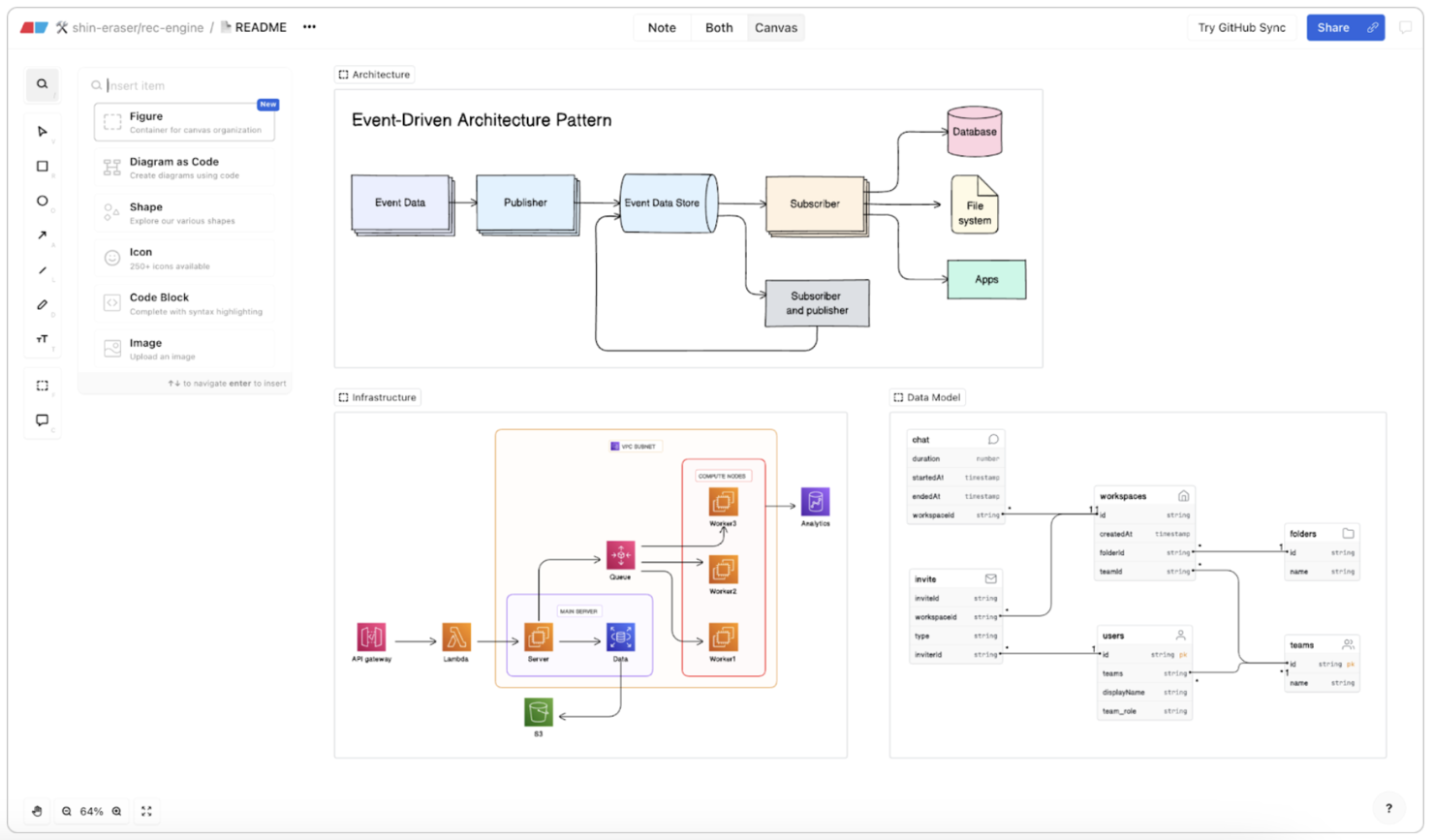
Eraser si guadagna il suo posto per i team che devono creare o aggiornare diagrammi rapidamente, specialmente quando le modifiche arrivano all'ultimo momento o sono frequenti. Quando ho testato le funzionalità di intelligenza artificiale, ho scoperto che generare flowchart da prompt testuali o da schizzi veloci è abbastanza rapido da poter essere fatto durante le riunioni in tempo reale.
Quello che mi piace è che i team possono iniziare in modalità libera, aggiungere commenti e passare istantaneamente a un diagramma ordinato senza perdere la sensazione di collaborazione o dover rifare tutto da capo.
Ideale per
- Team che hanno bisogno di modifiche rapide ai diagrammi generate dall'IA
- Whiteboarding e annotazioni durante sessioni di collaborazione dal vivo
Non adatto per
- Creazione di mappe di processo su larga scala e altamente dettagliate
- Team che necessitano di controllo avanzato delle versioni o tracciabilità delle revisioni
Cosa distingue Eraser
Eraser è progettato per la velocità e la flessibilità, permettendoti di abbozzare idee, inserire elementi visivi generati dall'IA e modificare i diagrammi direttamente durante la discussione. Invece di concentrarsi su una struttura rigida come Lucidchart o Visio, Eraser parte dal presupposto che tu voglia una sessione di brainstorming senza vincoli e iterazioni rapide. In pratica, questo si distingue quando stai raccogliendo input da un gruppo e i diagrammi devono cambiare in tempo reale.
Compromessi con Eraser
Eraser ottimizza per modifiche rapide e diagrammi informali, ma si rinuncia al controllo avanzato delle versioni e alla modellazione dettagliata dei processi. Per documentazione estremamente dettagliata o regolamentata, probabilmente incontrerai dei limiti.
Pros and Cons
Pros:
- Capacità di modificare rapidamente
- Interfaccia intuitiva drag-and-drop
- Vasta gamma di modelli
Cons:
- Funzionalità offline limitate
- Può risultare complesso per i principianti

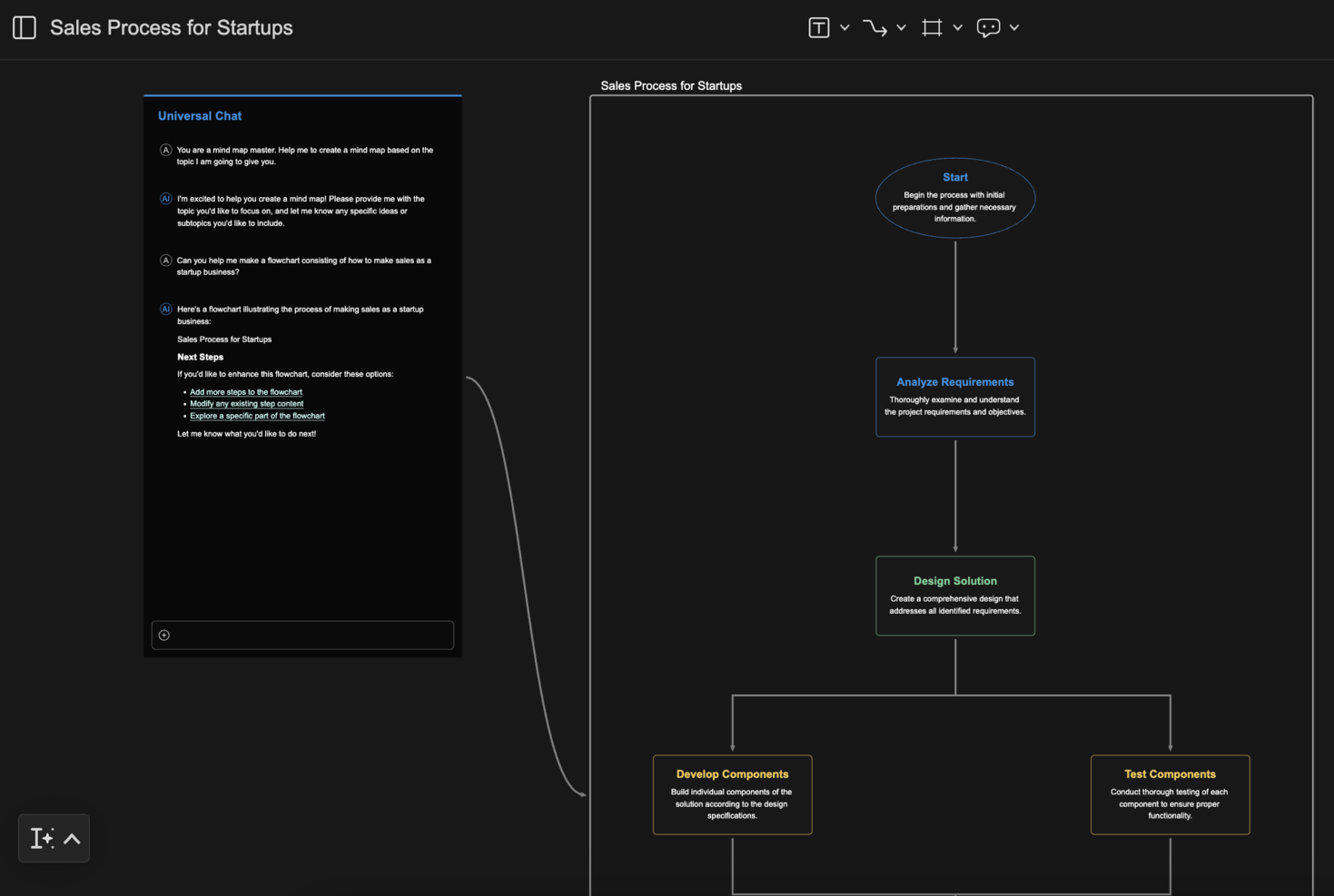
MyMap.AI si distingue perché consente di creare, cambiare e confrontare molteplici stili di diagrammi di flusso e mappe all'interno di una singola vista progetto. Vedo i team utilizzare questa funzione per visualizzare rapidamente gli stessi dati come mappa mentale, diagramma di flusso o mappa concettuale senza esportare o ridisegnare nulla.
Mi piace quanto sia semplice alternare i layout e trovare quello migliore per ogni parte di un processo—specialmente quando i flussi di lavoro non sono lineari.
MyMap.AI è ideale per
- Team che confrontano più layout di diagrammi di flusso o mappe
- Utenti che mappano processi non lineari o in rapido cambiamento
MyMap.AI non è adatto per
- Persone che necessitano di automazione avanzata dei diagrammi
- Team che desiderano soltanto un formato di diagramma statico
Cosa rende unico MyMap.AI
MyMap.AI è sviluppato partendo dall'idea che i flussi di lavoro e le mappe mentali debbano spesso cambiare forma. Non si è vincolati a visualizzare un processo come diagramma di flusso o mappa mentale. Invece, si può rapidamente alternare tra gli stili, una cosa che non ho visto negli strumenti di diagrammi più comuni come Lucidchart o Miro. In pratica, ciò lo rende adatto ai team che cambiano stile di mappatura man mano che chiariscono le idee.
Compromessi con MyMap.AI
MyMap.AI punta sulla flessibilità dei layout, ma offre poche funzioni di automazione avanzata o controlli di diagrammazione specifici. Ciò significa che potrebbe essere necessario un altro strumento se si richiedono logiche automatizzate o validazione dei diagrammi.
Pros and Cons
Pros:
- Creazione di diagrammi guidata dall'IA
- Capacità di ricerca web in tempo reale
- Modello di presentazione dinamico
Cons:
- Funzionalità offline limitate
- Opzioni di personalizzazione limitate

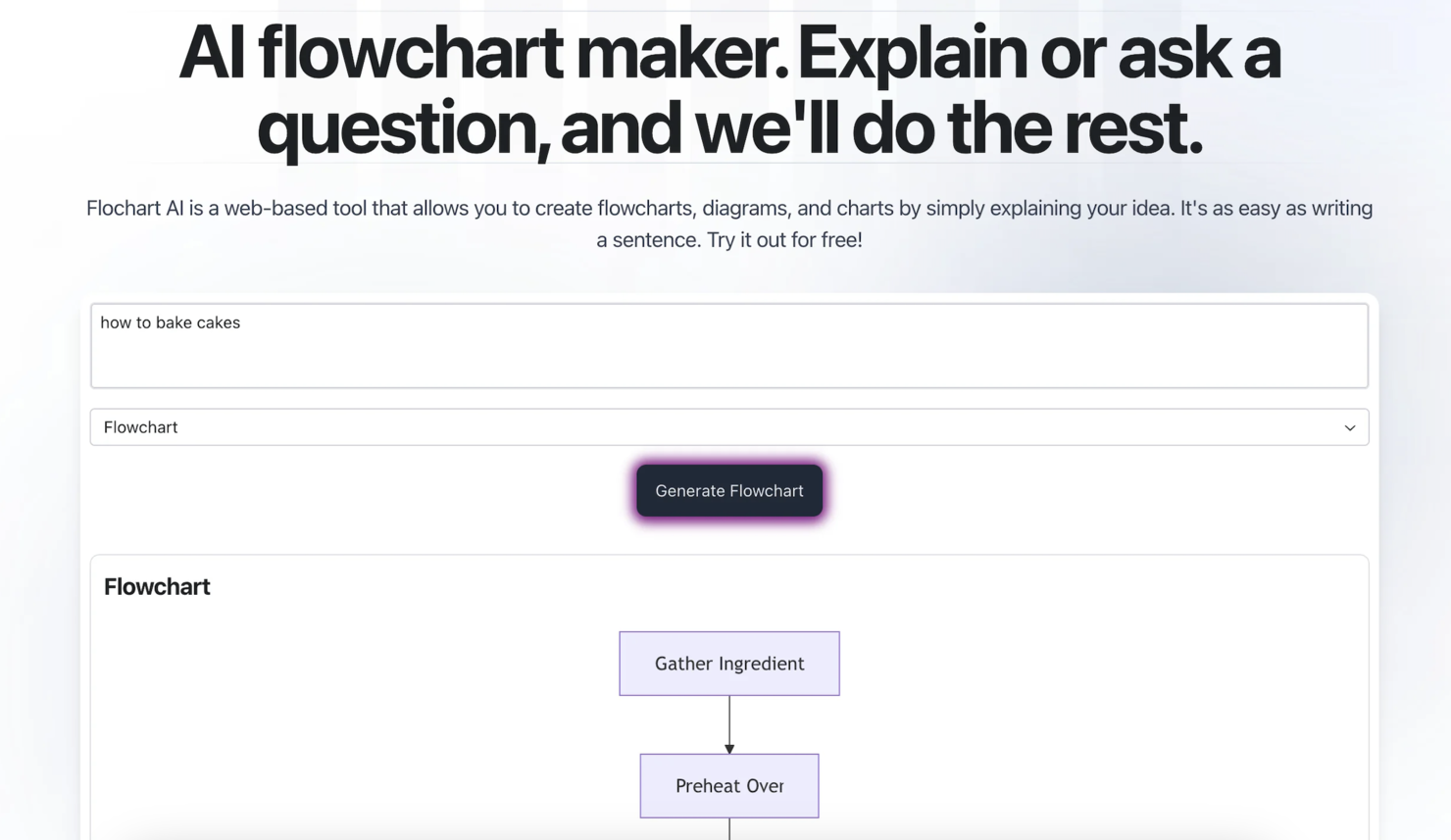
FloChartAI è entrato nella mia lista dopo aver visto come le sue proposte guidate dall’IA eliminano gran parte del lavoro manuale nella mappatura dei processi. Durante il test, ho notato che i suggerimenti automatici dei nodi sono realmente in linea con la logica dei flussi di lavoro, non solo con generici passaggi successivi. Se cerchi uno strumento che suggerisca attivamente la direzione del flusso mentre costruisci, questo risponde perfettamente a quell’esigenza.
Apprezzo molto la funzione che permette di generare interi rami con un singolo prompt, specialmente quando i progetti partono in modo confuso e senza una struttura precisa.
FloChartAI è ideale per
- Chi mappa processi e desidera che l’IA suggerisca i prossimi passaggi
- Team che creano flussi complessi partendo da requisiti non strutturati
FloChartAI non è adatto per
- Team che necessitano del controllo manuale su ogni nodo e ramo
- Organizzazioni che richiedono stili visivi o opzioni di brand rigorose
Cosa distingue FloChartAI
FloChartAI segue un approccio incentrato sull’intelligenza artificiale, permettendoti di costruire i flussi dei processi tramite prompt al sistema invece di trascinare singole forme manualmente. In pratica, la sensazione è più simile all’utilizzo di ChatGPT o di un’interfaccia a comandi testuali piuttosto che a Visio o Lucidchart. Così puoi abbozzare rapidamente processi ampi e confusi e lo strumento suggerisce attivamente la struttura mentre procedi.
È ottimo quando occorre una mappatura flessibile e iterativa, a differenza dei classici strumenti di diagrammi che si aspettano di partire da un disegno già chiaro.
Compromessi di FloChartAI
FloChartAI punta su velocità e mappatura generata dall’IA, ma perdi controllo dettagliato sul layout e sulla personalizzazione estetica. Se operi in settori dove formato rigoroso e branding personalizzato sono fondamentali, questo approccio può risultare limitante.
Pros and Cons
Pros:
- Suggerimenti diagrammi tramite IA
- Funzionalità di previsione personalizzabili
- Modifiche e revisioni rapide
Cons:
- Richiede una curva di apprendimento
- Suggerimenti dell’IA talvolta imprecisi
Altri software per generare diagrammi di flusso con l'IA
Ecco alcune opzioni aggiuntive per creare diagrammi di flusso con l’IA che non sono entrate nella mia selezione, ma che vale comunque la pena valutare:
- Miro
Ideale per il lavoro collaborativo in tempo reale su lavagna
- Jotform Workflows
Ideale per integrazioni estese con gateway di pagamento
- Lucidchart
Ideale per la creazione di organigrammi su larga scala


Come Valuto i Generator di Diagrammi di Flusso AI
Ogni strumento qui deve offrire più che etichettarsi come AI su una semplice tela di diagrammazione — cerco generatori che trasformano un prompt testuale o un brief di progetto in un diagramma di flusso utilizzabile e logicamente coerente. Suddivido la mia valutazione in funzionalità di base che ogni tool deve soddisfare per essere incluso e fattori differenzianti che separano le opzioni valide da quelle eccellenti.
Funzionalità di Base (Requisiti Minimi per Questa Lista)
Quando seleziono gli strumenti per la mia lista, classifico ciascuno su una scala da 0 (non offre la funzionalità) a 5 (eccelle in quest'area) per ciascuna delle funzionalità di base elencate sotto. Poi calcolo il punteggio totale dello strumento e lo converto in percentuale. Ogni strumento deve ottenere un punteggio minimo totale del 65% per essere considerato per l'inclusione.
- Generazione di Diagrammi di Flusso Alimentata da AI: Verifico se lo strumento può prendere un prompt in linguaggio naturale — come "mappa il nostro processo di revisione sprint" — e produrre un diagramma di flusso strutturato senza posizionamento manuale delle forme.
- Template Orientati al Progetto: La libreria di modelli dovrebbe includere formati rilevanti per il project management come diagrammi swimlane, flussi di approvazione e alberi decisionali, non solo forme generiche.
- Canvas Visivo Modificabile: Cerco la possibilità di editing drag-and-drop completa sugli output generati dall'AI in modo che i PM possano ristrutturare i nodi, ristilizzare i connettori e regolare i layout dopo la generazione.
- Collaborazione in Tempo Reale: I team hanno bisogno di modifica condivisa, commenti e cronologia delle versioni — valuto se più utenti possono lavorare contemporaneamente sullo stesso diagramma.
- Supporto all'Export e Integrazione: Controllo la possibilità di esportare in formati standard (PNG, SVG, PDF) e le integrazioni con strumenti di PM come Jira, Asana o Confluence dove i diagrammi vengono effettivamente utilizzati.
- Intelligenza nella Logica dei Diagrammi: L'AI deve comprendere rami condizionali e passaggi sequenziali, producendo flussi logicamente corretti invece di semplici box disposti visivamente.
Dopo aver individuato gli strumenti che soddisfano questi criteri, considero ciò che distingue le diverse piattaforme.
Fattori Differenzianti (Cosa Distingue i Vendor)
Ecco come confronto e analizzo i diversi vendor:
Caratteristiche Distintive
La raffinazione iterativa del prompt è un grande elemento distintivo — cerco strumenti che permettono di modificare un diagramma AI generato attraverso prompt successivi come "aggiungi una fase di approvazione prima del deploy" invece di ricostruire tutto da capo. Anche la capacità di elaborare input provenienti da più fonti è importante quando i PM devono trasformare un verbale di riunione o un brief di progetto in un flusso visivo. Presto molta attenzione alla conversione dal diagramma al workflow, dove un diagramma finale può creare direttamente task in strumenti come Jira o Asana.
Oltre le Funzionalità
La sicurezza è fondamentale, perché i tuoi diagrammi spesso mappano processi interni, dipendenze e strutture di team. Valuto se i vendor offrono Single Sign-On, accesso basato su ruoli e politiche chiare su come i modelli AI trattano i tuoi dati. Anche la trasparenza sui prezzi conta — alcuni strumenti limitano la generazione AI dietro soglie d'uso o piani premium, quindi verifico se la licenza è adatta a un team PM in crescita. Considero anche la velocità di onboarding, in particolare se lo strumento offre librerie di prompt pensate per il PM e template di partenza che aiutano a ridurre i tempi di avvio.
Come scegliere un generatore di diagrammi di flusso con l'IA
È facile perdersi in lunghi elenchi di caratteristiche e strutture tariffarie complesse. Per aiutarti a rimanere concentrato mentre affronti il tuo esclusivo processo di selezione del software, ecco una lista di fattori da tenere a mente:
| Fattore | Cosa considerare |
|---|---|
| Scalabilità | Assicurati che lo strumento possa crescere insieme al tuo team. Valuta se supporta un numero maggiore di utenti o diagrammi più complessi man mano che i tuoi progetti si ampliano. |
| Integrazioni | Cerca la compatibilità con gli strumenti che già utilizzi, come Google Workspace o Slack, per assicurarti che lo strumento si integri nei flussi di lavoro esistenti. |
| Personalizzazione | Verifica se puoi adattare o personalizzare i modelli e gli elementi di design in base alle esigenze del tuo marchio o del tuo progetto. |
| Facilità d'uso | Un'interfaccia intuitiva con una curva di apprendimento minima è essenziale. Assicurati che il tuo team possa iniziare a utilizzarlo rapidamente senza una formazione approfondita. |
| Budget | Determina se lo strumento rientra nei tuoi limiti finanziari. Considera il costo totale di utilizzo, comprese eventuali tariffe nascoste o componenti aggiuntivi necessari. |
| Misure di sicurezza | Verifica che lo strumento offra funzionalità di protezione dei dati, come la crittografia e controlli di accesso sicuri, per mantenere al sicuro le tue informazioni. |
| Collaborazione | Assicurati che lo strumento offra funzionalità di collaborazione in tempo reale, così il tuo team può lavorare insieme in modo efficace, anche da luoghi diversi. |
| Supporto | Valuta la disponibilità e la qualità dell'assistenza clienti. Considera se è disponibile un supporto 24 ore su 24, 7 giorni su 7 e con quale rapidità vengono risolti i problemi. |
Che cos'è un generatore di diagrammi di flusso basato sull'IA?
I generatori di diagrammi di flusso basati sull'IA sono strumenti digitali che utilizzano l'intelligenza artificiale per aiutarti a creare diagrammi di flusso e diagrammi in modo più efficiente. Professionisti come project manager, educatori e analisti aziendali utilizzano questi strumenti per visualizzare chiaramente processi e idee.
Le funzionalità di automazione, collaborazione in tempo reale e personalizzazione dei modelli aiutano a semplificare le attività complesse, migliorare la comunicazione e risparmiare tempo. Possono inoltre migliorare la produttività e la chiarezza nella pianificazione e nell'esecuzione dei progetti.
Funzionalità dei generatori di diagrammi di flusso basati sull'IA
Quando scegli un generatore di diagrammi di flusso basato sull'IA, presta attenzione alle seguenti funzionalità chiave:
- Automazione: Aiuta nel processo di creazione dei diagrammi di flusso prevedendo i passaggi successivi, consentendo di risparmiare tempo e ridurre il lavoro manuale.
- Collaborazione in tempo reale: Consente ai membri del team di lavorare contemporaneamente allo stesso progetto, migliorando la comunicazione e il lavoro di squadra.
- Libreria di modelli: Offre una varietà di modelli predefiniti per aiutare gli utenti a iniziare rapidamente e mantenere la coerenza.
- Opzioni di personalizzazione: Permette agli utenti di modificare modelli ed elementi in base a esigenze specifiche.
- Integrazione dei dati: Collega i diagrammi ai dati in tempo reale provenienti da altri strumenti per mantenere le informazioni aggiornate e pertinenti.
- Interfaccia intuitiva: Permette di navigare facilmente nello strumento e riduce la curva di apprendimento per i nuovi utenti.
- Misure di sicurezza: Protegge i dati sensibili con la crittografia e controlli di accesso sicuri.
- Compatibilità multipiattaforma: Offre accesso allo strumento da diversi dispositivi e sistemi operativi, garantendo flessibilità e praticità.
- Scalabilità: Supporta team e progetti in crescita, così lo strumento rimane funzionale all'aumentare delle esigenze.
- Elementi interattivi: Coinvolge gli utenti con funzionalità come note adesive e votazioni per facilitare il feedback e il processo decisionale.
Vantaggi dei generatori di diagrammi di flusso basati sull'IA
L'implementazione di un generatore di diagrammi di flusso basato sull'IA offre numerosi vantaggi al tuo team e alla tua azienda. Ecco alcuni dei vantaggi che puoi aspettarti:
- Maggiore efficienza: Le funzionalità di automazione e collaborazione in tempo reale aiutano il tuo team a completare i progetti più velocemente e a ridurre il lavoro manuale e gli errori.
- Migliore comunicazione: Strumenti visivi come diagrammi e diagrammi di flusso facilitano la comunicazione di idee complesse e aiutano tutti a essere sempre allineati.
- Flessibilità: Le opzioni di personalizzazione e la compatibilità multipiattaforma consentono di adattare lo strumento alle tue esigenze specifiche e al tuo ambiente di lavoro.
- Migliore processo decisionale: Elementi interattivi come votazioni e note adesive facilitano il feedback e aiutano il tuo team a prendere decisioni consapevoli.
- Convenienza economica: La scalabilità consente allo strumento di crescere insieme alla tua azienda e di offrire valore senza la necessità di aggiornamenti costanti.
- Maggiore sicurezza: Le funzionalità di protezione dei dati salvaguardano le tue informazioni sensibili, garantendoti maggiore tranquillità.
Costi e prezzi dei generatori di diagrammi di flusso basati sull'IA
La scelta di un generatore di diagrammi di flusso basato sull'IA richiede la comprensione dei vari modelli e piani tariffari disponibili. I costi variano in base alle funzionalità, alle dimensioni del team, ai componenti aggiuntivi e ad altri fattori. La tabella seguente riassume i piani più comuni, i relativi prezzi medi e le funzionalità tipicamente incluse nelle soluzioni di generazione di diagrammi di flusso basate sull'IA:
Tabella comparativa dei piani per i generatori di diagrammi di flusso basati sull'IA
| Tipo di piano | Prezzo medio | Funzionalità comuni |
|---|---|---|
| Piano gratuito | $0 | Creazione di diagrammi di base, modelli limitati e accesso per un singolo utente. |
| Piano personale | $5-$15/utente/mese | Più modelli, collaborazione di base e opzioni di personalizzazione limitate. |
| Piano aziendale | $20-$50/utente/mese | Collaborazione avanzata, modifica in tempo reale e maggiore capacità di archiviazione. |
| Piano per grandi aziende | $60-$100/utente/mese | Sicurezza completa, personalizzazione totale e assistenza clienti prioritaria. |
Domande frequenti sugli strumenti per la generazione di diagrammi di flusso basati sull'IA
Ecco alcune risposte alle domande comuni sui generatori di diagrammi di flusso basati sull’IA:
In che modo i generatori di diagrammi di flusso basati sull'IA migliorano la collaborazione del team?
I generatori di diagrammi di flusso basati sull’IA migliorano la collaborazione consentendo a più utenti di modificare e visualizzare i diagrammi in tempo reale. Puoi lavorare contemporaneamente con il tuo team, riducendo la necessità di aggiornamenti e comunicazioni via e-mail costanti. In questo modo tutti rimangono aggiornati e il flusso di lavoro accelera.
I generatori di diagrammi di flusso basati sull'IA possono integrarsi con altri strumenti?
Sì, molti generatori di diagrammi di flusso basati sull’IA offrono integrazioni con strumenti popolari come Google Workspace, Slack e Microsoft Office. Queste integrazioni ti aiutano a importare ed esportare facilmente i dati, così i tuoi diagrammi sono sempre aggiornati con le informazioni più recenti provenienti da altre piattaforme.
Quali sono le funzionalità di sicurezza dei generatori di diagrammi di flusso basati sull'IA?
Le funzionalità di sicurezza includono spesso la crittografia dei dati, controlli di accesso sicuri e la conformità alle normative sulla protezione dei dati. Queste misure di sicurezza proteggono le informazioni sensibili e garantiscono che solo gli utenti autorizzati possano accedere ai tuoi diagrammi e modificarli.
I generatori di diagrammi di flusso basati sull'IA offrono opzioni di personalizzazione?
I generatori di diagrammi di flusso basati sull’IA offrono in genere diverse opzioni di personalizzazione, tra cui modelli, colori e forme. Puoi adattare i diagrammi al tuo marchio e alle esigenze specifiche del progetto.
Come funzionano i suggerimenti basati sull'IA nei generatori di diagrammi di flusso?
I suggerimenti basati sull’IA prevedono i passaggi successivi del diagramma in base al flusso attuale e ai dati inseriti. In questo modo si risparmia tempo automatizzando parti del processo e si possono creare diagrammi accurati con un input minimo. È particolarmente utile per i flussi di lavoro complessi.
Cosa devo considerare quando scelgo un generatore di diagrammi di flusso basato sull'IA?
Considera fattori come scalabilità, facilità d’uso, opzioni di personalizzazione e capacità di integrazione. Assicurati che lo strumento soddisfi le esigenze e il budget del tuo team e verifica che offra un’interfaccia intuitiva in grado di supportare flussi di lavoro e collaborazione efficienti.