


Revue du logiciel de gestion de tâches Microsoft To Do pour 2026



Microsoft To Do is a task management software for individuals and small teams who need a simple way to manage tasks, to-do lists, and daily priorities. I'd consider it over Todoist if your team already runs on Microsoft 365, as the native connections to Outlook, Teams, and Planner give you an integrated workflow that Todoist and other task management tools can't replicate without workarounds.
Microsoft To Do Evaluation Summary
- Free to use
- Free-forever plan available
Pourquoi faire confiance à nos recommandations de logiciels
Notre équipe teste et évalue des logiciels depuis 2012. En tant que chefs de projet nous-mêmes, nous savons à quel point il est difficile — et important — de choisir le bon logiciel.
Pour ce guide, nous avons évalué les outils grâce à des tests pratiques et une recherche indépendante, en notant les outils selon nos critères de sélection. Nous nous appuyons également sur les enseignements de leaders d’opinion du secteur et de professionnels de la gestion de projet en activité.
Nos avis reflètent notre jugement éditorial humain, et non un argumentaire de vente.
Réviseurs experts:
Microsoft To Do Overview
In my opinion, Microsoft To Do is a task management tool that works especially well for teams already using Microsoft 365. Its strength lies in its simplicity and smooth integration with other Microsoft apps—such as Outlook, Teams, and Planner—that offers a unified experience across tools.
That said, the platform may not meet the needs of users seeking advanced project management features like Gantt charts, Kanban boards, or complex automations. It’s best suited for small to mid-sized teams looking for a simple, cost-effective option that fits into the Microsoft ecosystem.

pros
-
Intuitive interface for easy task organization
-
Seamless Microsoft 365 integration
-
Cross-device synchronization
cons
-
Limited advanced project management features
-
Basic customization options
-
Not ideal for large teams or detailed tracking
-

Smartsheet
Visit WebsiteThis rating combines scores from multiple user review sites to reflect overall customer sentiment about the product.4.5 -
Celoxis
Visit WebsiteThis rating combines scores from multiple user review sites to reflect overall customer sentiment about the product.4.5 -
Accelo
Visit WebsiteThis rating combines scores from multiple user review sites to reflect overall customer sentiment about the product.4.4




Notre méthodologie d'évaluation
Comment nous testons et notons les outils
Nous avons passé des années à construire, affiner et améliorer notre système de test et de notation de logiciels. Notre grille d’évaluation est conçue pour capturer les subtilités de la sélection de logiciels et ce qui rend un outil efficace, en mettant l’accent sur les aspects critiques de la prise de décision. Ci-dessous, vous pouvez voir exactement comment notre processus de test et de notation fonctionne sur sept critères. Cela nous permet de fournir une évaluation impartiale des logiciels selon leur fonctionnalité principale, leurs fonctionnalités remarquables, leur facilité d’utilisation, l’onboarding, le support client, les intégrations, les avis clients et le rapport qualité/prix.
Fonctionnalités principales (25 % du score final)
Le point de départ de notre évaluation est toujours la fonctionnalité principale de l’outil. Dispose-t-il des fonctionnalités et caractéristiques de base attendues par l’utilisateur ? Certaines de ces fonctionnalités de base sont-elles réservées aux formules tarifaires supérieures ? Nous nous attendons à ce qu’un outil soit à la hauteur des capacités de base de ses concurrents.
Fonctionnalités remarquables (25 % du score final)
Ensuite, nous évaluons les fonctionnalités remarquables et peu communes qui vont au-delà de la fonctionnalité de base habituellement retrouvée dans ce type d’outils. Un score élevé reflète des fonctionnalités spécialisées ou uniques qui rendent le produit plus rapide, plus efficace, ou offrent une valeur supplémentaire à l’utilisateur. Nous évaluons également la facilité d’intégration avec d’autres outils couramment présents dans l’environnement technique pour étendre la puissance et l’utilité du logiciel. Les outils offrant de nombreuses intégrations natives, des connexions tierces et un accès API pour créer des intégrations personnalisées obtiennent la meilleure note.
Facilité d’utilisation (10 % du score final)
Nous considérons la rapidité et la facilité d’exécution des tâches principales à l’aide de l’outil. Un logiciel bien noté est conçu intelligemment, intuitif à utiliser, propose des applications mobiles, fournit des modèles et simplifie les tâches relativement complexes.
Onboarding (10 % du score final)
Nous savons à quel point l’adoption rapide par l’équipe est cruciale lors de la mise en place d’une nouvelle plateforme. Nous évaluons donc la facilité avec laquelle un utilisateur peut apprendre et utiliser le logiciel avec un minimum de formation. Nous vérifions la rapidité avec laquelle un membre peut s’installer et démarrer sans expérience préalable. Les solutions ayant une note élevée nécessitent peu ou pas de support.
Support client (10 % du score final)
Nous examinons la rapidité et la facilité d’obtention d’une aide par téléphone, chat en direct ou base de connaissances. Les outils et sociétés proposant un support en temps réel obtiennent la meilleure note, tandis que les chatbots sont les moins bien notés.
Avis clients (10 % du score final)
Au-delà de nos propres tests et évaluations, nous tenons compte du net promoter score des clients actuels et passés. Nous étudions la probabilité, pour eux, de choisir à nouveau l’outil pour ses fonctionnalités principales. Un logiciel ayant une note élevée reflète un score NPS élevé de la part des utilisateurs actuels ou passés.
Rapport qualité/prix (10 % du score final)
Enfin, en tenant compte de tous les autres critères, nous comparons le prix moyen des forfaits d’entrée de gamme aux fonctionnalités principales et considérons la valeur des autres critères d’évaluation. Un logiciel qui en offre davantage pour moins cher sera mieux noté.
Core Features
Task lists: You can create tasks, break them into smaller subtasks (called “steps”) and arrange them into organized to-do lists, making it easy to categorize, prioritize, and track various aspects of your professional or personal tasks.
Due dates: Set deadlines for each task to ensure timely completion. Due dates appear across your devices and sync with Outlook, which can help you manage schedules and meet project timelines consistently.
Reminders: You can set time-based reminders for tasks, so you never miss an important deadline. These notifications are designed to keep your team on-track and avoid last-minute rushes.
Recurring tasks: Schedule tasks to repeat at customizable intervals (daily, weekly, monthly, etc.). This is perfect for repetitive work like weekly reports, follow-ups, or administrative tasks.
Custom themes: You can personalize your task lists by applying different background themes and colors, making your workspace more visually appealing and easier to organize.
Priority levels: Assign priority tags (Important or Normal) to tasks. The “Important” tag adds the task to the "Important" smart list, helping you focus on high-priority work and better manage your workload.
Ease of Use
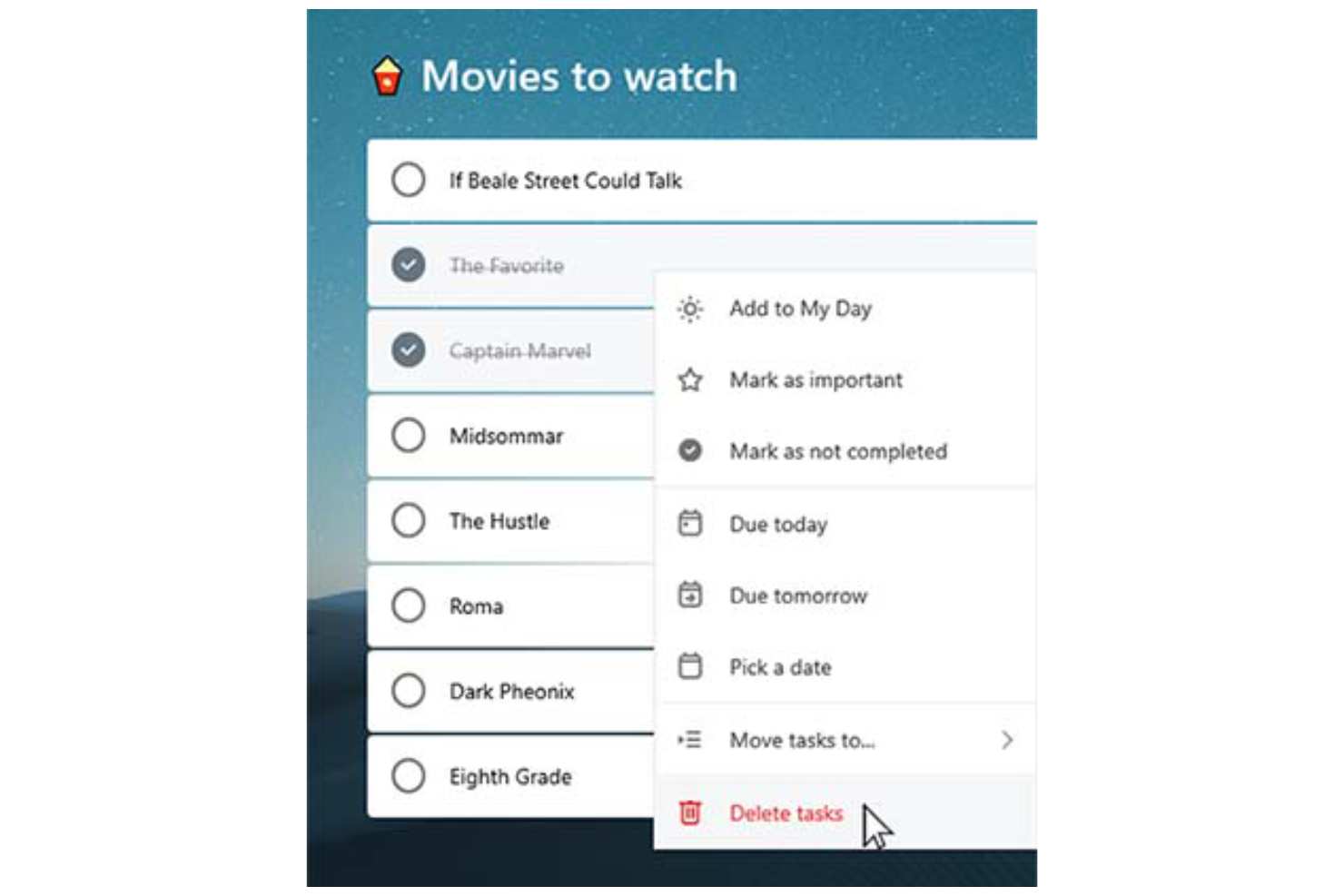
Microsoft To Do stands out with its clean, user-friendly interface that simplifies task management for you and your team. Features like drag-and-drop organization make it easy to rearrange tasks and update priorities on the fly.
The system’s integration with Microsoft 365 also enhances accessibility, allowing you to manage tasks across desktop (Mac or Windows), web, and mobile devices (including Android, iPhone, iPad, and Apple Watch). The mobile to-do list app, available on iOS and Android, ensures you can stay organized and productive wherever you are.
For simple and efficient task management, Microsoft To Do is a reliable choice.

Microsoft To Do Specs
- API
- Batch Permissions & Access
- Budgeting
- Calendar Management
- Collaboration Support
- Contact Management
- Contact Sharing
- Customer Management
- Dashboard
- Dashboards
- Data Export
- Data Import
- Data Visualization
- Dependency Tracking
- Document Sharing
- Expense Tracking
- External Integrations
- File Sharing
- Gantt Charts
- Kanban Boards
- Multi-User
- Notifications
- Project Management
- Resource Management
- Scheduling
- Task Scheduling/Tracking
- Third-Party Plugins/Add-Ons
- Time Management
- Travel Management
- Workflow Management
Alternatives to Microsoft To Do



Questions fréquentes sur Microsoft To Do
Comment Microsoft To Do gère-t-il la sécurité des données ?
Microsoft To Do est basé sur l’infrastructure de sécurité de Microsoft 365, ce qui lui permet de bénéficier de protections de niveau entreprise. Vos données sont sécurisées à l’aide de protocoles de chiffrement conformes aux standards de l’industrie, y compris le chiffrement au repos et lors des transferts. Les tâches et autres informations utilisateur sont hébergées dans les centres de données mondiaux de Microsoft, certifiés selon des normes de conformité internationales telles que ISO/IEC 27001, SOC 1, 2 et 3, et le RGPD.
En outre, Microsoft To Do prend en charge l’authentification multifacteur (MFA) et le contrôle d’accès basé sur les rôles, dans le cadre de la gestion globale de votre compte Microsoft.
Puis-je utiliser Microsoft To Do hors ligne ?
Vous pouvez consulter et modifier vos tâches dans Microsoft To Do même hors ligne. Toute modification effectuée sera automatiquement synchronisée sur vos appareils dès que vous serez à nouveau connecté, assurant ainsi une mise à jour permanente.
Microsoft To Do prend-il en charge la collaboration en équipe ?
Microsoft To Do permet une collaboration en équipe basique grâce aux listes de tâches partagées. Vous pouvez inviter d’autres personnes à rejoindre une liste, permettant ainsi aux membres de consulter, ajouter, terminer ou modifier des tâches. Cela en fait un outil pratique pour coordonner des équipes réduites ou des départements autour de tâches partagées ou de listes de vérification.
Néanmoins, Microsoft To Do n’inclut pas de fonctionnalités avancées de collaboration comme les commentaires sur les tâches, le suivi d’activité, la coédition en temps réel ou la gestion des droits d’accès par rôle. Pour une collaboration projet plus poussée—telle que la planification de sprint, le partage de documents ou la discussion d’équipe—il sera plus pertinent d’opter pour des outils intégrés tels que Microsoft Planner, Trello ou Asana.
Comment Microsoft To Do s’intègre-t-il avec les autres applications Microsoft ?
Microsoft To Do s’intègre avec d’autres applications Microsoft comme Outlook et Teams. Vous pouvez synchroniser les tâches à partir des e-mails Outlook et des événements du calendrier, afin de tout centraliser et d’optimiser votre productivité générale.
Puis-je personnaliser les vues des tâches dans Microsoft To Do ?
Microsoft To Do propose des possibilités limitées de personnalisation pour les vues de tâches. Vous pouvez trier les tâches par date d’échéance, par importance ou par date d’ajout, mais les options au-delà restent minimales. L’objectif est de garder l’outil simple afin que la gestion des tâches reste efficace.
Existe-t-il une application mobile pour Microsoft To Do ?
Oui, Microsoft To Do propose une application mobile pour les appareils iOS et Android. L’application se synchronise automatiquement avec les versions web et bureau grâce à votre compte Microsoft, ce qui vous permet de retrouver aussitôt vos listes et mises à jour sur tous vos appareils en temps réel.
Grâce à l’application mobile, vous pouvez créer, modifier et organiser de nouvelles tâches, définir des rappels et marquer les éléments comme terminés, où que vous soyez, pour rester organisé et productif en toutes circonstances.
Puis-je importer des tâches d’autres applications dans Microsoft To Do ?
Oui, il est possible d’importer des tâches dans Microsoft To Do, notamment depuis Outlook et les autres outils de l’écosystème Microsoft. Les tâches d’Outlook Tasks se synchronisent automatiquement avec Microsoft To Do si vous utilisez le même compte Microsoft. Importer des tâches depuis des applications tierces comme Todoist ou TickTick nécessite généralement une saisie manuelle ou l’emploi d’outils externes tels que Zapier ou Microsoft Power Automate pour automatiser la migration.
Si vous basculez depuis une application disposant d’une fonction d’export, vous pouvez parfois exporter vos tâches au format CSV puis les saisir ou les importer via script dans To Do, mais il n’existe pas de fonctionnalité native d’import en masse (CSV ou JSON).
Présentation et historique de Microsoft To Do
Microsoft To Do est une application de gestion des tâches basée sur le cloud, développée par Microsoft et basée à Redmond, Washington. L’application a été officiellement lancée en avril 2017 en tant que successeur de Wunderlist, que Microsoft a acquis en juin 2015 auprès de la startup berlinoise 6Wunderkinder.
Intégrée à la suite Microsoft 365, elle s’associe à des services comme Outlook pour soutenir la productivité. L’application permet aux utilisateurs de gérer leurs tâches sur différents appareils, offrant ainsi une expérience cohérente et connectée.
Principales étapes de Microsoft To Do
- 2015 : Microsoft rachète Wunderlist.
- 2017 : Lancement de Microsoft To Do en tant que successeur de Wunderlist.
- 2019 : Une refonte majeure rapproche Microsoft To Do de l’interface de Wunderlist.
- 2020 : Microsoft met officiellement fin à Wunderlist pour se concentrer sur Microsoft To Do.
Et ensuite ?
Envie d’échanger avec d’autres chefs de projet digital pour partager des ressources et des bonnes pratiques ? Rejoignez notre communauté et accédez à plus de 100 modèles, échantillons et exemples, et connectez-vous à des centaines d’autres chefs de projet digital sur Slack.