

10 mejores alternativas a Google Docs para la colaboración en 2026

Lista de las mejores alternativas a Google Docs


Una buena alternativa a Google Docs ofrece edición de documentos en línea, colaboración en tiempo real y una compatibilidad fiable con los archivos, sin obligarte a formar parte del ecosistema de Google. Si estás buscando alternativas a Google Docs, probablemente quieras herramientas que se adapten al flujo de trabajo de tu equipo, respondan a tus necesidades de privacidad o cumplimiento normativo, u ofrezcan funciones que Google Docs no tiene.
Con tantas opciones disponibles, es difícil saber qué plataformas cumplen realmente con sus promesas de colaboración, integración y flexibilidad. Esta lista te ayudará a comparar las principales alternativas a Google Docs para 2026, para que encuentres la suite ofimática en línea adecuada para tus proyectos y equipos.
¿Qué es Google Docs?
Google Docs es una suite ofimática basada en la nube que funciona como una plataforma moderna de procesamiento de textos y permite a los usuarios crear, editar y compartir documentos en línea. Como procesador de textos basado en el navegador, admite la colaboración en tiempo real, el historial de versiones y el acceso desde cualquier dispositivo con conexión a Internet. Los equipos utilizan Google Docs para colaborar en documentos de texto, realizar un seguimiento de los cambios, dejar comentarios y gestionar contenido compartido sin instalar software de escritorio.
Su integración con otras aplicaciones de Google Workspace lo convierte en una de las herramientas de colaboración todo en uno más utilizadas por los equipos distribuidos. Para muchas organizaciones, Google Docs ayuda a agilizar los flujos de trabajo de creación y revisión de documentos entre departamentos, especialmente cuando se combina con herramientas como Sheets y Slides.
Tabla comparativa de alternativas a Google Docs
Esta tabla comparativa resume los detalles de precios de mis principales alternativas a Google Docs:
| Tool | Best For | Trial Info | Price | ||
|---|---|---|---|---|---|
| 1 | Ideal para combinar notas y bases de datos | Plan gratuito disponible | Desde $10/usuario/mes (facturado anualmente) | Website | |
| 2 | Ideal para alojar documentos en una nube privada | Prueba gratuita + demostración gratuita disponibles | Precios bajo consulta | Website | |
| 3 | Ideal para la compatibilidad con formatos de archivo de Microsoft | Plan gratuito disponible | Desde $2.49/user/month (facturado anualmente) | Website | |
| 4 | Lo mejor para la colaboración de equipos en tiempo real | Prueba gratuita de 30 días + plan gratuito disponible | Desde $6/usuario/mes (facturado anualmente) | Website | |
| 5 | Ideal para acceder a documentos desde dispositivos móviles | Prueba gratuita de 7 días + plan gratuito disponible | Desde $4.19/mes (facturado anualmente) | Website | |
| 6 | Ideal para la edición de documentos de código abierto | Hay un plan gratuito disponible | Precio previa solicitud | Website | |
| 7 | Mejor con herramientas integradas de gestión de proyectos | Plan gratuito + prueba gratuita de 30 días disponible | Desde $20/administrador/mes | Website | |
| 8 | Ideal para crear documentos sin conexión | Plan gratuito disponible | Gratis y de código abierto | Website | |
| 9 | Ideal para sincronizar archivos entre dispositivos | Hay un plan gratuito disponible | Desde $3.33 al mes (facturado anualmente) | Website | |
| 10 | Ideal para documentar flujos de trabajo visuales | Demostración gratuita + prueba gratuita de 30 días disponible | Desde $6/mes | Website |
Por qué confiar en nuestras recomendaciones de software
Nuestro equipo lleva probando y evaluando software desde 2012. Como gestores de proyectos, sabemos lo difícil —y lo importante— que es elegir el software adecuado.
Para esta guía, evaluamos las herramientas mediante pruebas prácticas e investigación independiente, puntuando las herramientas según nuestros criterios de selección. También nos basamos en la experiencia de líderes de opinión del sector y de profesionales en activo de la gestión de proyectos.
Nuestras reseñas reflejan nuestro criterio editorial humano, no un discurso de ventas.
Análisis de las mejores alternativas a Google Docs
A continuación, encontrarás mis resúmenes detallados de las alternativas a Google Docs que llegaron a mi lista. Mis análisis ofrecen una visión detallada de las funciones, los casos de uso más adecuados y las integraciones de cada plataforma para ayudarte a encontrar la mejor opción para ti.
Notion
Ideal para combinar notas y bases de datos
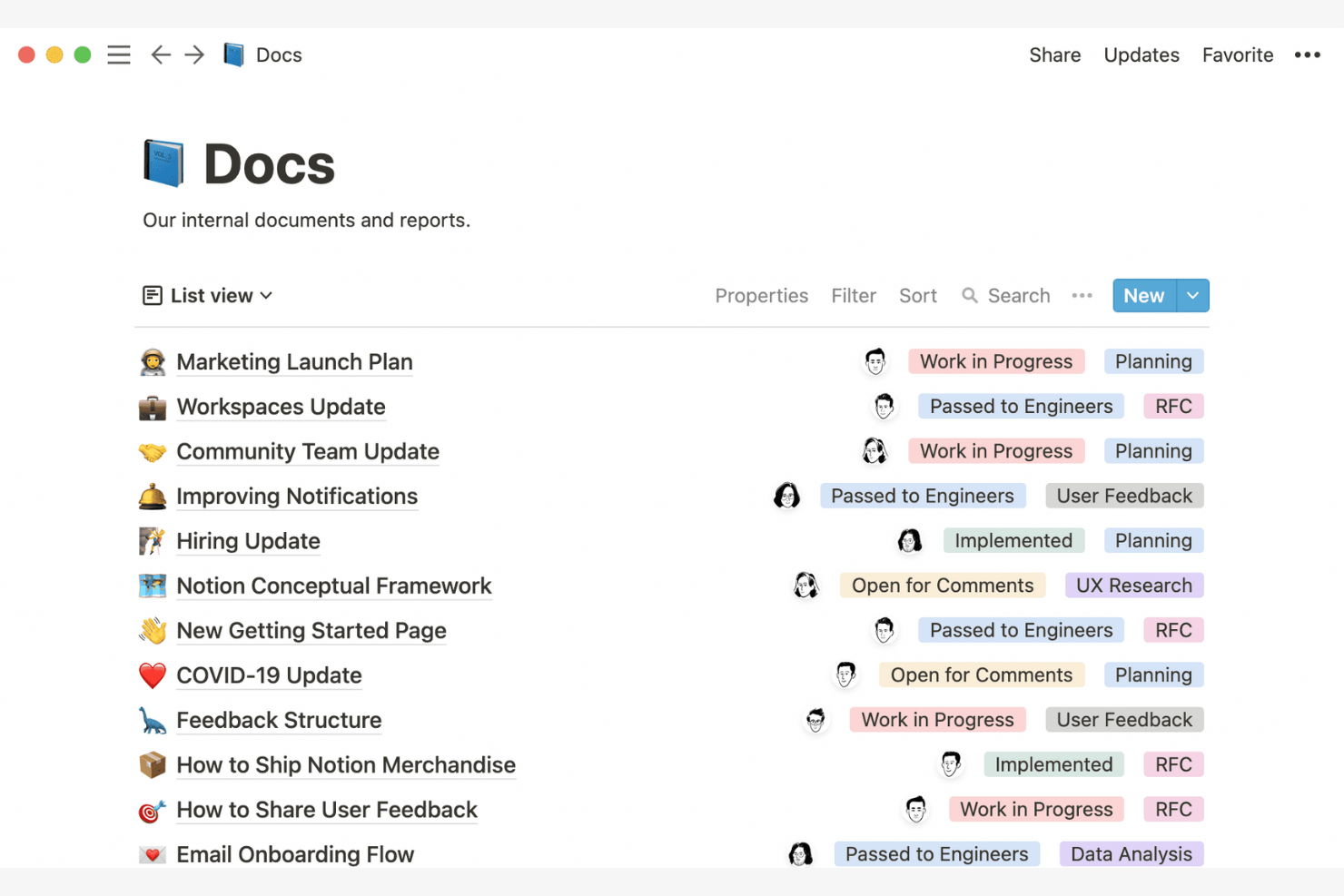
Notion ofrece a los equipos una forma de combinar la toma de notas, la documentación y las bases de datos en un solo espacio de trabajo. Es especialmente útil para gerentes de producto, responsables de operaciones y cualquier persona que necesite organizar información estructurada y no estructurada una al lado de la otra. A diferencia de Google Docs, Notion permite crear tablas personalizadas, vincular notas con gestores de proyectos y crear paneles que reúnen todo tu trabajo.
Por qué Notion es una buena alternativa a Google Docs
Si necesitas gestionar notas y datos estructurados en un solo lugar, Notion ofrece un enfoque único que va más allá de los editores de documentos tradicionales. Elegí Notion porque puedes crear bases de datos, vincularlas con tus notas y crear vistas personalizadas para hacer seguimiento de proyectos o recursos. Esta flexibilidad permite a tu equipo organizar desde notas de reuniones hasta hojas de ruta de productos sin tener que alternar entre herramientas. Para quienes quieren combinar la documentación con tablas y listas dinámicas, Notion destaca como una sólida alternativa a Google Docs.
Características principales de Notion
Otras características de Notion ayudan a los equipos a gestionar y colaborar en el contenido con mayor flexibilidad:
- Organización de páginas mediante arrastrar y soltar: Mueve páginas y secciones para reestructurar rápidamente tu espacio de trabajo.
- Edición colaborativa en tiempo real: Varios usuarios pueden editar la misma página al mismo tiempo y ver los cambios en directo.
- Inserción de contenido multimedia enriquecido: Añade imágenes, vídeos, fragmentos de código y archivos directamente en cualquier página.
- Plantillas personalizables: Comienza nuevos proyectos o documentos con plantillas prediseñadas para wikis, notas de reuniones y mucho más.
Integraciones de Notion
Las integraciones incluyen Slack, Jira, GitHub, Asana, Google Drive, Figma, Trello, GitLab, Webex y Typeform.
Pros and Cons
Pros:
- Combina documentos con bases de datos para gestionar conocimientos estructurados
- Organización flexible con plantillas y páginas vinculadas
- Ideal para wikis de equipo, notas de reuniones y documentos de proyectos sencillos
Cons:
- El formato avanzado de documentos es limitado
- La exportación a PDF o Word puede alterar los diseños y la jerarquía

Ideal para alojar documentos en una nube privada
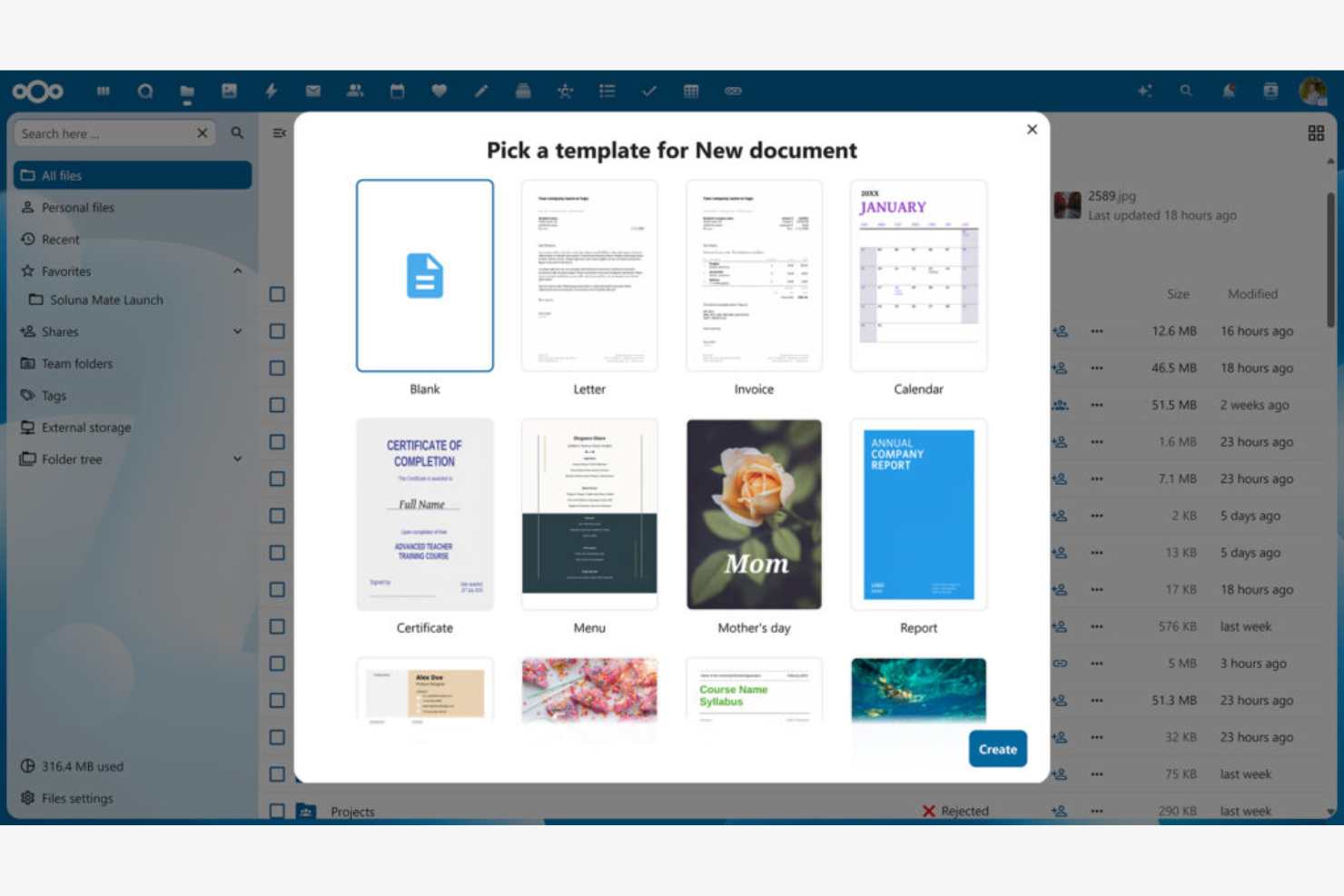
Si tu equipo necesita un control total sobre el almacenamiento y la privacidad de los documentos, Nextcloud ofrece una plataforma de nube privada que puedes alojar tú mismo. Es una opción especialmente adecuada para organizaciones con estrictos requisitos de seguridad de datos o que operan en sectores regulados. Nextcloud destaca porque te permite gestionar documentos, la colaboración y el uso compartido completamente en tu propia infraestructura, a diferencia de la mayoría de las suites ofimáticas basadas en la nube.
Por qué Nextcloud es una buena alternativa a Google Docs
A diferencia de la mayoría de las suites ofimáticas en la nube, Nextcloud te ofrece la opción de alojar tu propio entorno privado de documentos. Elegí Nextcloud porque te permite controlar dónde se almacenan tus datos y quién puede acceder a ellos, algo esencial para los equipos con estrictas necesidades de privacidad o cumplimiento normativo. La plataforma admite la edición colaborativa, el uso compartido de archivos y la gestión de usuarios, todo ello en una infraestructura que administras tú mismo. Esto convierte a Nextcloud en una opción excelente para las organizaciones que no pueden confiar en servicios de nube pública para almacenar documentos confidenciales.
Características principales de Nextcloud
Otras características de Nextcloud lo convierten en una plataforma flexible para la colaboración en documentos:
- Calendario y contactos integrados: Gestiona eventos y libretas de direcciones junto con tus archivos y documentos.
- Cifrado de extremo a extremo: Protege los archivos confidenciales con un cifrado al que solo tú y tus colaboradores podéis acceder.
- Control de versiones: Realiza un seguimiento de los cambios y restaura versiones anteriores de los documentos cuando sea necesario.
- Mercado de aplicaciones de colaboración: Amplía las funcionalidades con complementos para chat, videollamadas y automatización de flujos de trabajo.
Integraciones de Nextcloud
Las integraciones incluyen OnlyOffice, Nextcloud Office, Nextcloud Assistant, Giphy, draw.io, Discord, Edusign, XtalaDraw, Sentry, Slack, YouTube, OneDrive, servicios de Google, GitLab, Dropbox, Jira, Reddit, GitHub y mucho más.
Pros and Cons
Pros:
- Te permite alojar documentos en tu propio servidor de nube privada
- Ofrece cifrado de extremo a extremo para el almacenamiento de documentos confidenciales
- Admite la edición colaborativa con OnlyOffice o Collabora Online
- Integra el uso compartido de archivos, el calendario y los contactos en una sola plataforma
- Proporciona amplios controles de acceso de usuarios y grupos para los administradores
Cons:
- Requiere configuración técnica y mantenimiento continuo del servidor
- La calidad de la colaboración depende del conjunto de herramientas de edición con el que lo combines

Ideal para la compatibilidad con formatos de archivo de Microsoft
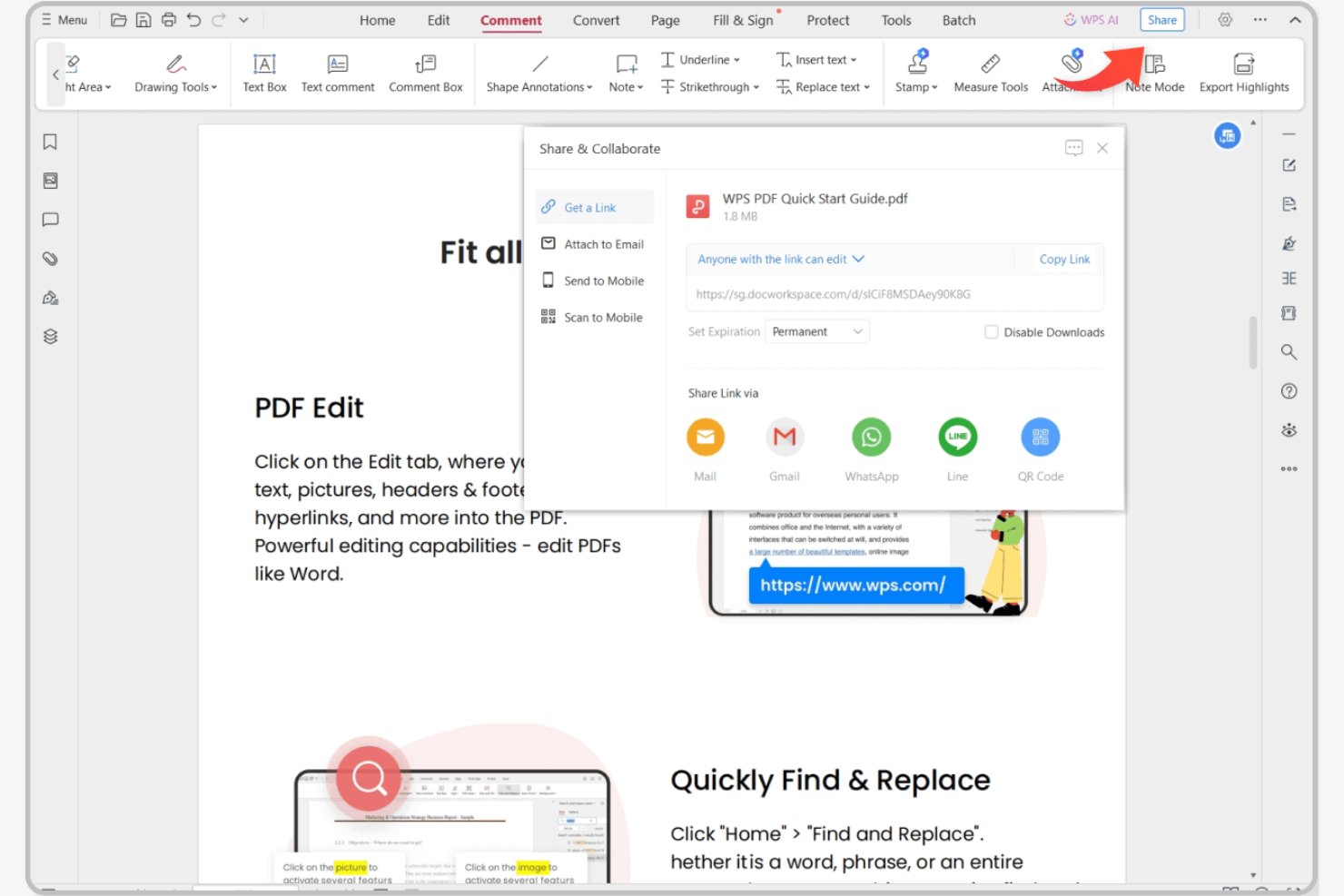
Si buscas una suite ofimática en línea que gestione los formatos de archivo de Microsoft sin inconvenientes, vale la pena considerar WPS Office. Está diseñada para profesionales y equipos que intercambian habitualmente archivos de Word, Excel y PowerPoint con clientes o colegas que utilizan Microsoft Office. A diferencia de Google Docs, WPS Office conserva el formato avanzado y las funciones de los archivos de Microsoft, lo que reduce los problemas de compatibilidad durante la colaboración.
Por qué WPS Office es una buena alternativa a Google Docs
Cuando necesitas una compatibilidad impecable con los formatos de archivo de Microsoft, WPS Office destaca frente a otras suites ofimáticas en línea. Elegí WPS Office porque abre, edita y guarda archivos DOCX, XLSX y PPTX conservando el formato avanzado, las macros y los objetos incrustados. La suite también incluye un editor de PDF integrado, lo que resulta útil para los equipos que trabajan con distintos tipos de documentos. Si tu flujo de trabajo depende del intercambio de archivos con usuarios de Microsoft Office, WPS Office te ayuda a evitar los problemas de formato que suelen surgir con Google Docs.
Funciones principales de WPS Office
Otras funciones de WPS Office ayudan a los equipos a gestionar documentos y flujos de trabajo de forma más eficiente:
- Interfaz de documentos con pestañas: Abre y cambia entre varios documentos en una sola ventana.
- Integración con almacenamiento en la nube: Conéctate a servicios como Dropbox, Google Drive y OneDrive para acceder directamente a los archivos.
- Biblioteca de plantillas de documentos: Accede a una amplia variedad de plantillas prediseñadas para informes, currículos y presentaciones.
- Compatibilidad multiplataforma: Utiliza WPS Office en dispositivos con Windows, macOS, Linux, Android e iOS.
Integraciones de WPS Office
Actualmente, WPS Office no enumera integraciones nativas.
Pros and Cons
Pros:
- Gran compatibilidad con los formatos de Microsoft Word, Excel y PowerPoint
- Editor de PDF integrado y una amplia biblioteca de plantillas
- Funciona en muchos sistemas operativos y ofrece compatibilidad sin conexión
Cons:
- La colaboración en tiempo real es más limitada que en Google Docs
- La versión gratuita incluye anuncios que pueden distraer durante la edición

Lo mejor para la colaboración de equipos en tiempo real

Microsoft 365 ofrece un conjunto de herramientas de oficina en línea diseñadas para equipos que necesitan colaboración avanzada y gestión de documentos. Es una opción excelente para empresas que dependen de la coautoría en tiempo real, la integración profunda con Microsoft Teams y la compatibilidad con formatos de archivo complejos. Si tus proyectos requieren un control estricto de las versiones y un flujo de trabajo simplificado en Word, Excel y PowerPoint, Microsoft 365 destaca frente a Google Docs.
Por qué Microsoft es una buena alternativa a Google Docs
Para los equipos que necesitan colaboración en tiempo real, Microsoft 365 ofrece coautoría en Word, Excel y PowerPoint con actualizaciones instantáneas en todos los dispositivos. Elegí Microsoft porque sus herramientas de edición de documentos permiten que varios usuarios trabajen juntos en el mismo archivo mientras realizan un seguimiento detallado de los cambios y comentarios. La integración con Microsoft Teams permite chatear, reunirse y compartir archivos sin salir del espacio de trabajo. Estas funciones lo convierten en una opción sólida para las organizaciones que priorizan el trabajo en equipo en directo y la precisión de los documentos.
Funciones principales de Microsoft
Otras funciones de Microsoft 365 lo convierten en una opción flexible para los equipos que gestionan documentos en línea:
- Controles avanzados de permisos: Establece niveles de acceso detallados para archivos y carpetas a fin de gestionar quién puede ver, editar o compartir documentos.
- Historial de versiones automatizado: Restaura versiones anteriores de los documentos y realiza un seguimiento de los cambios a lo largo del tiempo sin copias de seguridad manuales.
- Herramientas de accesibilidad integradas: Utiliza funciones como el Lector inmersivo y el dictado por voz para adaptarte a diversos estilos y necesidades de trabajo.
- Modo de edición sin conexión: Trabaja en documentos sin conexión a Internet y sincroniza los cambios automáticamente cuando vuelvas a estar conectado.
Integraciones de Microsoft
Las integraciones incluyen Microsoft Teams, OneDrive, SharePoint, Outlook, Power BI, Dynamics 365, Yammer, Planner, Forms y Power Automate.
Pros and Cons
Pros:
- La coautoría en tiempo real funciona en archivos de Word, Excel y PowerPoint
- La integración profunda con Microsoft Teams permite chatear y reunirse dentro de los documentos
- La configuración avanzada de permisos permite un control detallado del acceso a los documentos
Cons:
- Se requiere una cuenta y una suscripción de Microsoft para disfrutar de todas las funciones
- Algunas funciones avanzadas solo están disponibles en planes de nivel superior
Ideal para acceder a documentos desde dispositivos móviles

Si tu equipo necesita trabajar con documentos mientras está fuera de la oficina, MobiSystems ofrece una suite ofimática diseñada para smartphones y tabletas, con un enfoque prioritario en dispositivos móviles. Es una opción adecuada para equipos de campo, trabajadores remotos y cualquier persona que dependa de dispositivos móviles para editar y acceder a documentos. A diferencia de Google Docs, MobiSystems ofrece una sólida funcionalidad sin conexión y aplicaciones móviles nativas compatibles con funciones avanzadas de edición en Android e iOS.
Por qué MobiSystems es una buena alternativa a Google Docs
A diferencia de la mayoría de las suites ofimáticas, que se centran en la edición desde equipos de escritorio o navegadores, MobiSystems está diseñado específicamente para acceder a documentos desde dispositivos móviles. Lo elegí porque su aplicación OfficeSuite ofrece funciones completas para editar documentos, hojas de cálculo y presentaciones directamente en dispositivos Android e iOS. La plataforma también permite editar sin conexión, por lo que puedes trabajar con archivos incluso cuando no tienes conexión a internet. Esto convierte a MobiSystems en una opción sólida para equipos que necesitan acceder y editar documentos de forma fiable mientras están lejos de un escritorio.
Características principales de MobiSystems
Otras funciones de MobiSystems ayudan a los equipos a gestionar documentos y colaborar entre dispositivos:
- Herramientas de edición de PDF: Edita, añade anotaciones y convierte archivos PDF directamente dentro de la aplicación.
- Integración con almacenamiento en la nube: Conéctate a Google Drive, Dropbox, OneDrive y MobiDrive para acceder a los archivos y realizar copias de seguridad.
- Cifrado de documentos: Protege los archivos confidenciales con opciones de contraseña y cifrado.
- Compatibilidad multiplataforma: Accede a documentos y edítalos en dispositivos Windows, Android e iOS.
Integraciones de MobiSystems
MobiSystems no incluye actualmente una lista de integraciones nativas.
Pros and Cons
Pros:
- Edición prioritaria en dispositivos móviles con un sólido acceso sin conexión
- Herramientas de PDF integradas para editar, añadir anotaciones y convertir archivos
- Funciona en Android, iOS y Windows para equipos que trabajan desde cualquier lugar
Cons:
- Colaboración en tiempo real limitada en comparación con Google Docs
- Ecosistema de integraciones más reducido para flujos de trabajo empresariales
Ideal para la edición de documentos de código abierto

Si buscas una alternativa completamente de código abierto a Google Docs, LibreOffice destaca. Es una opción ideal para organizaciones y profesionales que necesitan tener un control total sobre sus documentos y datos, sin depender de plataformas basadas en la nube. LibreOffice resulta atractivo para los equipos que valoran la privacidad, el acceso sin conexión y la compatibilidad con una amplia variedad de formatos de archivo.
Por qué LibreOffice es una buena alternativa a Google Docs
A diferencia de la mayoría de las suites ofimáticas en línea, LibreOffice te brinda acceso completo a su código fuente y control total sobre tus documentos. Elegí LibreOffice porque permite editar y almacenar archivos localmente, lo que resulta ideal para equipos con estrictos requisitos de privacidad o residencia de datos. Su compatibilidad con una amplia variedad de formatos de archivo, incluidos los de Microsoft Office y los tipos de documentos antiguos, facilita el trabajo con contenido diverso. Estas funciones de código abierto diferencian a LibreOffice para los usuarios que buscan transparencia y flexibilidad en sus herramientas de edición de documentos.
Principales funciones de LibreOffice
Algunas otras funciones de LibreOffice lo convierten en una opción versátil para la edición de documentos:
- Exportación de PDF integrada: Crea archivos PDF directamente desde cualquier documento sin necesidad de software adicional.
- Barras de herramientas y menús personalizables: Ajusta la interfaz para adaptarla a tu flujo de trabajo y preferencias.
- Amplia biblioteca de plantillas: Accede a una gran variedad de plantillas prediseñadas para documentos, hojas de cálculo y presentaciones.
- Grabación de macros y creación de scripts: Automatiza tareas repetitivas mediante las herramientas de macros integradas y lenguajes de creación de scripts.
Integraciones de LibreOffice
Las integraciones incluyen Kasm Workspaces, Intrexx, Ultima Linux, NemoVote, TimeSpreader, BuildViewVU, Sprint Boards, File Manager Pro, Scribens, Twake, Devart ODBC Drivers, CSVpad, Agent S, FileRun, Zotero, LibreOffice Draw y más.
Pros and Cons
Pros:
- Suite gratuita y de código abierto sin tarifas de licencia
- Edición sin conexión eficaz y control de archivos locales para proteger la privacidad
- Amplia compatibilidad de formatos, además de exportación a PDF y creación de scripts para macros
Cons:
- No ofrece coedición nativa en tiempo real como Google Docs
- El formato puede cambiar al trabajar con archivos complejos de Microsoft

Mejor con herramientas integradas de gestión de proyectos

Los equipos que quieren editar documentos y gestionar proyectos en un solo lugar suelen recurrir a ONLYOFFICE. Esta plataforma está diseñada para empresas y equipos orientados a proyectos que necesitan gestionar documentos, tareas y colaboración desde un único panel. ONLYOFFICE destaca por combinar herramientas conocidas de suite ofimática con funciones integradas de seguimiento de proyectos y comunicación entre equipos.
Por qué ONLYOFFICE es una buena alternativa a Google Docs
Para los equipos que quieren algo más que editar documentos, ONLYOFFICE incorpora herramientas de gestión de proyectos directamente en su suite ofimática en línea. Elegí ONLYOFFICE porque permite crear, asignar y realizar un seguimiento de las tareas junto con los documentos, de modo que puedes gestionar proyectos y contenido en un solo lugar. La plataforma incluye funciones como diagramas de Gantt y seguimiento de hitos, que ayudan a los equipos a coordinar el trabajo sin tener que alternar entre aplicaciones independientes. Este enfoque integrado convierte a ONLYOFFICE en una opción sólida para las empresas que necesitan tanto colaboración como supervisión de proyectos.
Funciones principales de ONLYOFFICE
Otras funciones de ONLYOFFICE lo convierten en una opción flexible para los equipos:
- Edición colaborativa de documentos: Varios usuarios pueden editar documentos al mismo tiempo con actualizaciones en tiempo real.
- Chat y comentarios integrados: Comunícate y deja comentarios directamente dentro de los documentos y proyectos.
- Permisos de acceso personalizables: Establece roles y permisos de usuario detallados para documentos y carpetas.
- Módulos de correo y calendario: Gestiona el correo electrónico y programa eventos sin salir de la plataforma.
Integraciones de ONLYOFFICE
Las integraciones incluyen Trello, Odoo, Moodle, Monday, Pipedrive, Alfresco, Box, Confluence, Dropbox, DZZ Office, Jira, Nextcloud, SharePoint, SuiteCRM, Trello, WordPress, Zapier, Zoom y muchas más.
Pros and Cons
Pros:
- Combina la edición de documentos con módulos integrados de gestión de proyectos
- Admite la edición colaborativa en tiempo real con permisos de acceso basados en roles
- Opción de implementación local para políticas de datos estrictas
Cons:
- El ecosistema de integraciones de terceros es más pequeño que el de Google Workspace
- Las aplicaciones móviles tienen menos funciones que las de escritorio y web
Ideal para crear documentos sin conexión
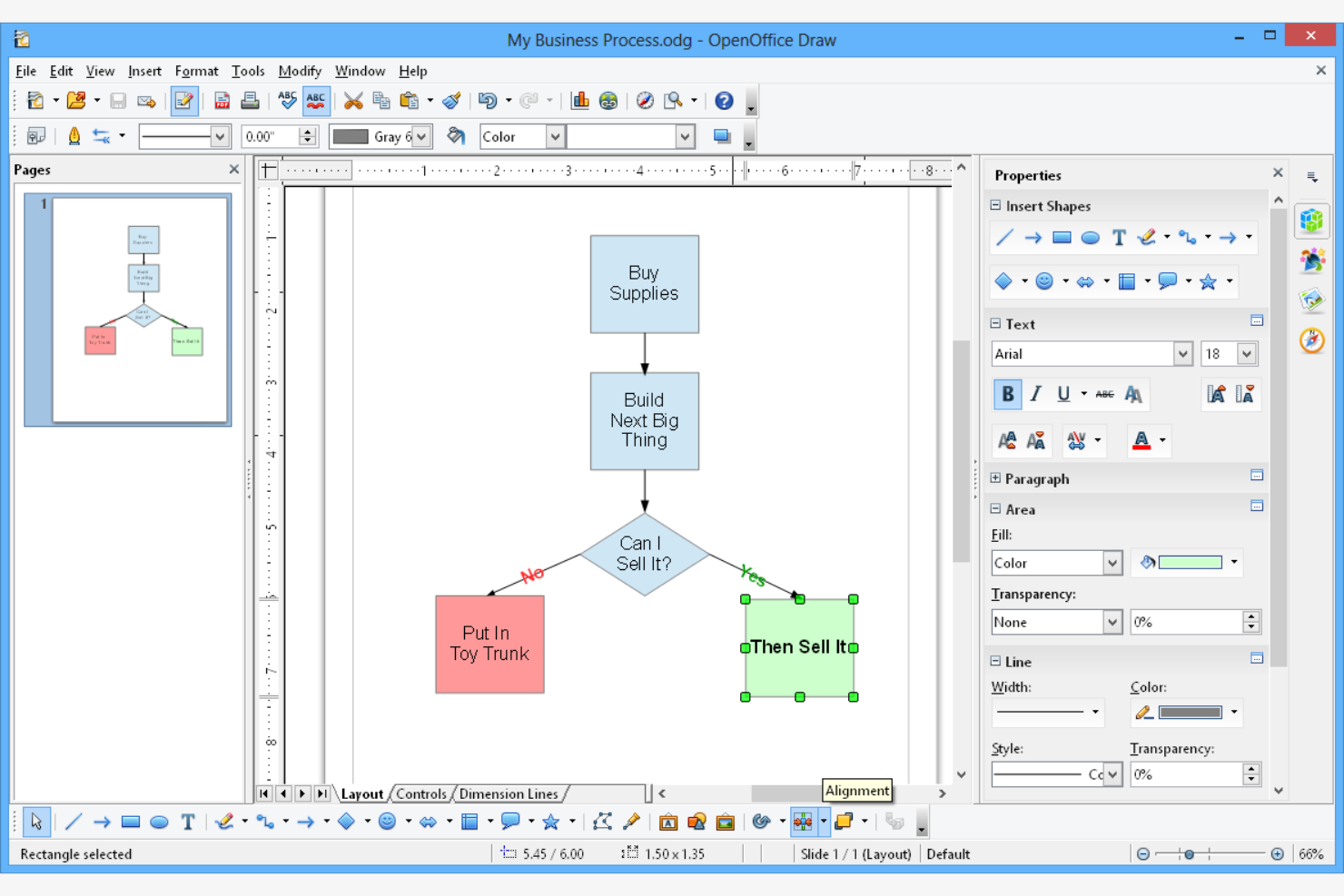
Para los equipos que necesitan una suite ofimática completamente sin conexión, Apache OpenOffice ofrece una solución descargable que no requiere internet. Es una opción adecuada para organizaciones con políticas estrictas de privacidad de datos o que trabajan en entornos con conectividad limitada. A diferencia de Google Docs, OpenOffice permite crear, editar y almacenar documentos completamente en los dispositivos locales.
Por qué Apache OpenOffice es una buena alternativa a Google Docs
Si necesitas trabajar sin conexión a internet, Apache OpenOffice destaca como una opción fiable. Lo elegí porque permite crear y editar documentos, hojas de cálculo y presentaciones completamente sin conexión, algo que Google Docs no puede hacer de forma nativa. OpenOffice también permite guardar archivos directamente en la unidad local, por lo que mantienes el control total sobre tus datos. Esto lo convierte en una opción adecuada para equipos con estrictos requisitos de privacidad o que se encuentran en ubicaciones remotas.
Características principales de Apache OpenOffice
Otras características de Apache OpenOffice hacen que sea una suite ofimática versátil:
- Módulo de dibujo: Crea diagramas, diagramas de flujo y gráficos vectoriales directamente en la suite.
- Editor de fórmulas matemáticas: Crea y edita ecuaciones matemáticas complejas para documentos técnicos.
- Exportación a PDF: Guarda cualquier documento, hoja de cálculo o presentación como archivo PDF sin complementos adicionales.
- Compatibilidad con múltiples formatos: Abre y guarda archivos en formatos de Microsoft Office, OpenDocument y otros formatos habituales.
Integraciones de Apache OpenOffice
Actualmente, Apache OpenOffice no incluye integraciones nativas.
Pros and Cons
Pros:
- Creación de documentos con prioridad sin conexión y sin depender de la nube
- Suite gratuita y de código abierto con exportación a PDF incluida
- Incluye herramientas de dibujo y matemáticas para diagramas y fórmulas
Cons:
- No ofrece colaboración en tiempo real ni sincronización integrada
- La compatibilidad con formatos modernos y las actualizaciones de funciones están por detrás de las de sus competidores
Ideal para sincronizar archivos entre dispositivos

Polaris Office destaca para equipos y particulares que necesitan trabajar en varios dispositivos sin perder de vista sus archivos. Es una opción muy adecuada para trabajadores remotos, equipos de campo o cualquiera que cambie entre el ordenador, el móvil y la tableta a lo largo del día. A diferencia de Google Docs, Polaris Office ofrece sincronización integrada para una amplia variedad de tipos de archivo, lo que facilita mantener actualizados los documentos, las hojas de cálculo y las presentaciones en todos los lugares donde trabajas.
Por qué Polaris Office es una buena alternativa a Google Docs
Para quienes necesitan mantener los documentos sincronizados en varios dispositivos, Polaris Office ofrece una clara ventaja frente a las suites ofimáticas en línea tradicionales. Elegí Polaris Office porque sincroniza automáticamente los archivos entre el ordenador, el móvil y la tableta, por lo que siempre tienes a mano la versión más reciente. La plataforma permite editar y visualizar una amplia variedad de formatos de archivo, incluidos los archivos de Microsoft Office y PDF, sin necesidad de convertirlos. Si tu flujo de trabajo depende de cambiar de dispositivo a lo largo del día, Polaris Office facilita mucho mantener tu trabajo coherente y accesible.
Funciones principales de Polaris Office
Algunas otras funciones de Polaris Office ayudan a los equipos a trabajar con documentos de forma más flexible:
- Edición de PDF integrada: Edita, anota y convierte archivos PDF directamente dentro de la plataforma.
- Cifrado de documentos: Protege los archivos confidenciales mediante cifrado basado en contraseña y controles de acceso.
- Compatibilidad con la escritura a mano: Añade notas manuscritas o dibujos utilizando un lápiz óptico o un dispositivo con pantalla táctil.
- Integración con almacenamiento en la nube: Conecta servicios como Google Drive, Dropbox y OneDrive para acceder a archivos de varias fuentes y gestionarlos.
Integraciones de Polaris Office
Las integraciones incluyen Google Drive, OneDrive, Dropbox, Box, Jira, Okta y DocHub
Pros and Cons
Pros:
- Sincronización entre dispositivos de escritorio, móviles y tabletas
- Edita formatos de Microsoft y archivos PDF sin complicaciones de conversión
- La edición sin conexión es compatible con sincronización al volver a conectarse
Cons:
- La colaboración es más limitada que en Google Docs para la coedición en tiempo real
- La experiencia del plan gratuito puede resultar desordenada debido a los anuncios y avisos

Ideal para documentar flujos de trabajo visuales

Cuando tu equipo necesita trazar visualmente flujos de trabajo complejos, Visual Paradigm ofrece una plataforma especializada para la creación de diagramas y la documentación de procesos. Es especialmente útil para gerentes de proyectos, analistas empresariales y equipos de TI que necesitan algo más que documentos basados únicamente en texto. A diferencia de Google Docs, Visual Paradigm admite herramientas avanzadas de modelado para diagramas de flujo, diagramas UML y mapeo de procesos empresariales.
Por qué Visual Paradigm es una buena alternativa a Google Docs
Para los equipos que necesitan documentar y comunicar flujos de trabajo visualmente, Visual Paradigm ofrece capacidades que van mucho más allá de lo que proporciona Google Docs. Lo elegí porque admite una amplia variedad de tipos de diagramas, incluidos diagramas de flujo, BPMN y UML, que son esenciales para trazar procesos y sistemas. El editor de arrastrar y soltar facilita la creación de diagramas complejos, mientras que las plantillas integradas ayudan a comenzar rápidamente. Este enfoque centrado en la documentación visual de flujos de trabajo convierte a Visual Paradigm en una opción sólida para gerentes de proyectos y equipos técnicos.
Características principales de Visual Paradigm
Otras características de Visual Paradigm ayudan a los equipos a gestionar la documentación y la colaboración:
- Espacio de trabajo para la colaboración en equipo: Varios usuarios pueden trabajar juntos en diagramas y documentos en tiempo real.
- Herramientas de generación de documentos: Crea automáticamente documentación del proyecto a partir de tus diagramas y modelos.
- Historial de revisiones: Realiza un seguimiento de los cambios y restaura versiones anteriores de diagramas y documentos.
- Integración con almacenamiento en la nube: Guarda y accede a tus proyectos directamente desde plataformas en la nube como Google Drive y Dropbox.
Integraciones de Visual Paradigm
Visual Paradigm puede integrarse con herramientas como Git, IntelliJ IDEA, Jira, Eclipse y NetBeans IDE. También ofrece una API de complementos que permite a los desarrolladores crear integraciones personalizadas para ampliar la funcionalidad y conectarse con otros sistemas. Algunas versiones también permiten publicar diagramas en Atlassian Confluence mediante un token de API.
Pros and Cons
Pros:
- Documentación de flujos de trabajo líder en su categoría con UML, BPMN y modelado de procesos
- Genera automáticamente documentación a partir de diagramas para elaborar informes estandarizados
- Admite la colaboración en equipo y el historial de revisiones de los modelos
Cons:
- Es excesivo para equipos que principalmente necesitan documentos de texto
- La curva de aprendizaje es más pronunciada que la de los editores de documentos tradicionales
Otras alternativas a Google Docs
Estas son algunas alternativas adicionales a Google Docs que no llegaron a mi lista, pero que también merece la pena conocer:
- Zoho
La mejor opción para integraciones integradas con aplicaciones empresariales
- ClickUp
Ideal para vincular tareas y documentos
- FreeOffice
Ideal para requisitos del sistema ligeros


Cómo evalúo las alternativas a Google Docs
Divido mi evaluación en criterios básicos—como la coedición en tiempo real, la integración de tareas y el historial de versiones—y diferenciadores que separan una herramienta de documentos de un auténtico centro de documentación de proyectos.
Funcionalidad central (Requisitos imprescindibles para esta lista)
Cuando selecciono herramientas para mi lista, califico cada una en una escala del 0 (no ofrece la funcionalidad) al 5 (destaca en esta área) para cada funcionalidad clave mencionada a continuación. Luego, calculo la puntuación total de la herramienta en porcentaje. Cada herramienta debe alcanzar una puntuación mínima total del 65% para ser considerada para su inclusión.
- Edición colaborativa en tiempo real: Verifico que varios miembros del equipo puedan coautorizar, simultáneamente, un informe de estado o el resumen de un proyecto, con cursores en vivo, comentarios en línea y sugerencias.
- Creación de documentos enriquecidos: El editor debe soportar encabezados formateados, tablas, medios incrustados y bloques de contenido para documentos estructurados como acuerdos de trabajo (SOW) y planes de sprints.
- Integración de tareas y proyectos: Busco conexiones nativas entre documentos y tareas, tableros o cronogramas, de modo que una carta de proyecto se vincule directamente con sus entregables.
- Historial de versiones y permisos: Cada revisión de documento debe ser rastreable y recuperable, con uso compartido basado en roles que te permita controlar el acceso tanto para equipos internos como para clientes externos.
- Almacenamiento en la nube y sincronización: Evalúo si los documentos se guardan automáticamente, se sincronizan entre dispositivos y ofrecen acceso sin conexión para equipos distribuidos en diferentes zonas horarias.
- Compatibilidad de exportación y formato: Las herramientas deben importar y exportar formatos estándar como DOCX, PDF y Markdown para que los documentos de proyecto sigan siendo compatibles con los flujos de trabajo de los interesados.
Una vez tengo una lista de herramientas que cumplen con estos criterios, considero qué es lo que diferencia a cada plataforma.
Factores diferenciadores (Lo que distingue a los proveedores)
Así es como comparo y contrasto los diferentes proveedores:
Características destacadas
Busco funciones integradas de wiki y base de conocimientos que permitan anidar documentos de proyecto, enlazar páginas y construir un centro de búsqueda que tu equipo realmente consulte. Las herramientas de escritura con IA también destacan: generar automáticamente un resumen de retrospectiva de sprint o redactar una actualización de estado a partir de datos de tareas ahorra tiempo real. Las plantillas específicas para proyectos—como SOW, logs RAID y agendas de arranque—también importan, especialmente cuando se combinan con automatizaciones que rellenan documentos recurrentes en los distintos flujos de trabajo.
Más allá de las características
La profundidad de integración es importante: verifico si la herramienta se conecta de manera nativa con plataformas de gestión de proyectos como Jira, Asana o monday.com, porque una herramienta de documentos que quede fuera de tu stack de entrega genera fricción. Las estructuras de precios también varían mucho. Evalúo si los asientos para invitados y el acceso de colaboradores externos están incluidos o tienen un coste adicional, ya que la mayoría de los equipos de proyectos involucran regularmente a clientes y proveedores. El soporte de migración desde Google Docs o Confluence es otro factor que considero, porque una transición difícil puede obstaculizar la adopción en todo el equipo.
¿Por qué buscar una alternativa a Google Docs?
Aunque Google Docs es una buena solución de procesamiento de textos en línea, hay varios motivos por los que algunos usuarios buscan plataformas alternativas. Es posible que busques una alternativa a Google Docs porque…
- Necesitas una mejor compatibilidad con los formatos de archivo de Microsoft Office
- Tu equipo necesita herramientas avanzadas para editar y anotar archivos PDF
- Trabajas en regiones donde los servicios de Google están restringidos
- Necesitas editar sin conexión sin depender de extensiones del navegador
- Tu organización tiene requisitos estrictos de privacidad de datos o de uso local
- Quieres tener más control sobre el formato de los documentos, el diseño o la compatibilidad con Markdown
- Te preocupa la curva de aprendizaje para los usuarios sin conocimientos técnicos
- Prefieres una interfaz o un estilo de flujo de trabajo diferente y fácil de usar
Si alguno de estos puntos te resulta familiar, estás en el lugar adecuado. Las opciones de esta lista incluyen plataformas de procesamiento de textos y colaboración en línea diseñadas para equipos que necesitan más flexibilidad, un mayor control del formato o un enfoque diferente para la gestión de documentos.
Funciones principales de Google Docs
Estas son algunas de las funciones clave de Google Docs que te ayudarán a compararlo con otras herramientas de colaboración todo en uno y plataformas de procesamiento de textos:
- Edición colaborativa en tiempo real con varios usuarios
- Guardado automático en la nube en Google Drive
- Historial de versiones y seguimiento de revisiones de documentos
- Herramientas integradas para comentarios y sugerencias
- Integración con aplicaciones de Google Workspace como Sheets y Slides
- Modo de edición sin conexión para trabajar sin acceso a internet
- Amplios controles para compartir y gestionar permisos
- Escritura por voz y funciones de accesibilidad