

10 softwares de acompanhamento de problemas e projetos para 2026

Lista restrita de software de acompanhamento de problemas e projetos


O software de acompanhamento de problemas e projetos funciona como uma ferramenta robusta de gestão de projetos que ajuda a sua equipa a registar, organizar e gerir tarefas, erros e o progresso dos projetos num só lugar. Se procura as melhores ferramentas de acompanhamento de problemas para manter os projetos no caminho certo, gerir requisitos em constante mudança e melhorar a responsabilização da equipa, sabe o que está em jogo — prazos falhados, responsabilidades pouco claras e atualizações dispersas podem fazer descarrilar até as melhores equipas. Esta lista vai ajudá-lo a comparar as principais soluções SaaS, compreender o que distingue cada uma e escolher a plataforma certa para apoiar o fluxo de trabalho e os objetivos de entrega da sua equipa.
Why Trust Our Software Recommendations
Our team has been testing and reviewing software since 2012. As project managers ourselves, we know how difficult—and important—it is to choose the right software.
For this guide, we evaluated tools using hands-on testing and independent research, scoring tools using our selection criteria. We also draw on insights from industry thought leaders and practicing project management experts.
Our reviews reflect our human editorial judgment, not a sales pitch.
Expert reviewers:
Tabela comparativa de software de acompanhamento de problemas e projetos
Esta tabela comparativa resume os detalhes de preços das minhas principais seleções de software de acompanhamento de problemas e projetos:
| Tool | Best For | Trial Info | Price | ||
|---|---|---|---|---|---|
| 1 | Best for visual timeline management | Free plan + trial + demo available | From $10.99/user/month (billed annually) | Website | |
| 2 | Best for fast-paced product teams | Free plan available | From $10/user/month (billed annually) | Website | |
| 3 | Best for agile software development teams | Free plan + 7-day free trial available | From $8.48/user/month | Website | |
| 4 | Best for advanced issue customization | Free plan available | From $4.50/user/month (billed annually) | Website | |
| 5 | Best for simple kanban board organization | Free plan + Free trial available | From $5/user/month (billed annually) | Website | |
| 6 | Best for all-in-one workspace consolidation | Free plan + trial + demo available | From $12/user/month | Website | |
| 7 | Best for combining docs and task tracking | Free plan + trial available | From $10/user/month | Website | |
| 8 | Best for detailed bug tracking workflows | Free plan available | Pricing upon request | Website | |
| 9 | Best for open-source project environments | Free plan available | From $7.25/user/month (good for 25 users) | Website | |
| 10 | Best for spreadsheet-style project planning | 30-day free trial + demo available | From $9/user/month (billed annually) | Website |

Avaliações de software de acompanhamento de problemas e projetos
Seguem-se os meus resumos detalhados do melhor software de acompanhamento de problemas e projetos que entrou na minha lista restrita. As minhas avaliações apresentam uma análise detalhada das funcionalidades, dos melhores casos de utilização e das integrações de cada plataforma, para o ajudar a encontrar a opção mais adequada para si.
Asana
Best for visual timeline management
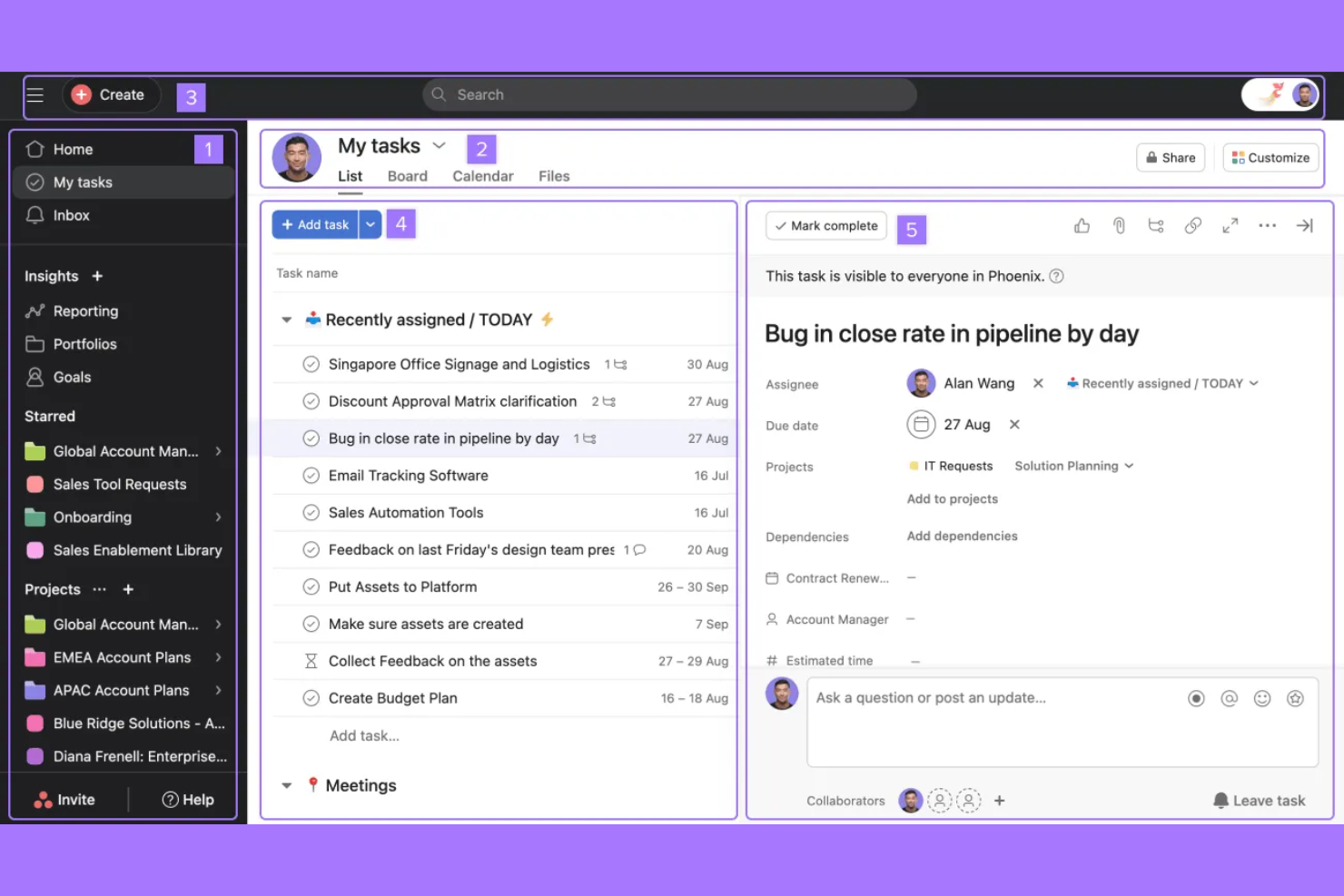
If your team needs a clear, visual way to manage project timelines, Asana offers a flexible solution. It’s especially useful for project managers and cross-functional teams who want to map dependencies and track progress with Gantt-style views. Asana helps teams coordinate complex projects, spot bottlenecks, and keep everyone aligned on deadlines.
Why I Picked Asana
For teams that need to visualize project schedules and dependencies, Asana’s timeline view offers a clear advantage. I picked Asana because its drag-and-drop Gantt-style timelines make it easy to map out tasks, adjust deadlines, and see how work connects across a project. The ability to set dependencies directly on the timeline helps teams anticipate blockers and keep projects on track. If you’re managing complex initiatives with shifting priorities, Asana’s visual timeline management stands out for keeping everyone aligned.
Asana Key Features
In addition to its timeline capabilities, Asana offers several other features that support project tracking:
- Custom Fields: Add specific data points to tasks to capture details unique to your workflow.
- Workload Management: Visualize team capacity and balance assignments to avoid overloading anyone.
- Rules Automation: Set up triggers and actions to automate routine task updates and handoffs.
- Forms: Collect and organize work requests directly into projects using customizable intake forms.
Asana Integrations
Integrations include Slack, Microsoft Teams, Google Drive, Dropbox, Zoom, Salesforce, GitHub, Trello, Zapier, and Adobe Creative Cloud.
Pros and Cons
Pros:
- Easy to track dependencies
- Strong workload management
- Clear project ownership
Cons:
- Clunky subtask navigation
- Custom fields cost extra

Linear
Best for fast-paced product teams
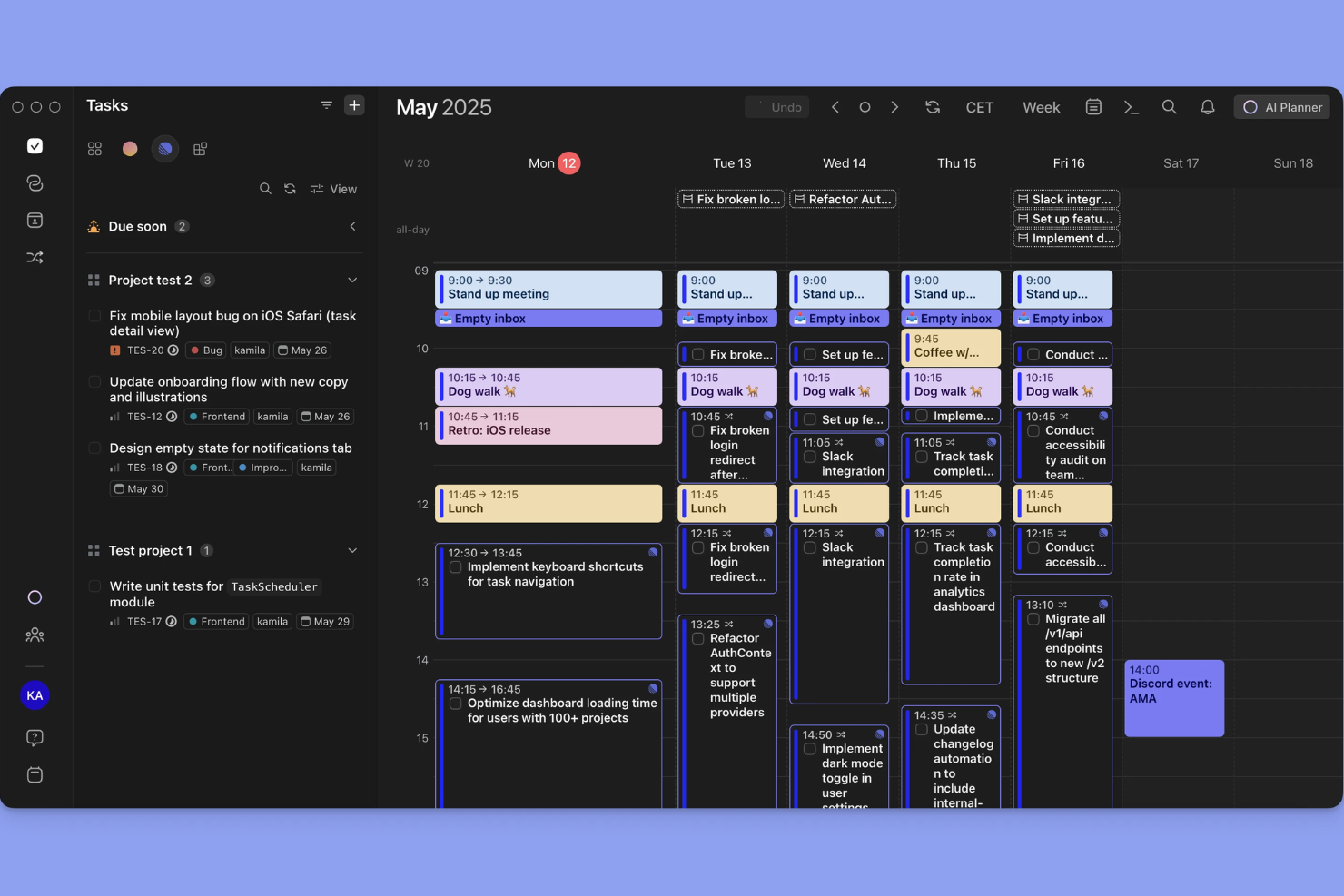
Linear is designed for product teams that need to move quickly and keep work organized without friction. It appeals to startups and tech companies that want lightning-fast issue tracking, keyboard-driven workflows, and real-time collaboration. With its focus on speed and a clean interface, Linear helps teams manage sprints, triage bugs, and ship features without getting bogged down by process.
Why I Picked Linear
When speed and responsiveness are non-negotiable, Linear stands out for fast-paced product teams that need to keep momentum high. I picked Linear because its keyboard-driven commands and instant issue updates let teams capture, assign, and resolve tasks without breaking their workflow. The tool’s real-time sync and lightning-fast search help teams stay aligned and react quickly to shifting priorities. For teams that value velocity and minimal friction in their project tracking, Linear delivers a focused, high-performance experience.
Linear Key Features
Some other features that make Linear useful for project tracking include:
- Custom Workflows: Set up unique states and transitions for issues to match your team’s process.
- Cycle Management: Organize work into cycles to help teams plan and deliver in short, focused bursts.
- Issue Templates: Create reusable templates for common tasks or bug reports to standardize submissions.
- GitHub Integration: Link pull requests and commits directly to issues for better traceability.
Linear Integrations
Integrations include GitHub, Slack, Vercel, Figma, Sentry, Intercom, GitLab, Bitbucket, Zapier, and Discord.
Pros and Cons
Pros:
- Streamlined issue triage
- Perfect for dev teams
- Keyboard shortcut focused
Cons:
- Narrow integration ecosystem
- Basic Gantt chart features

Jira
Best for agile software development teams
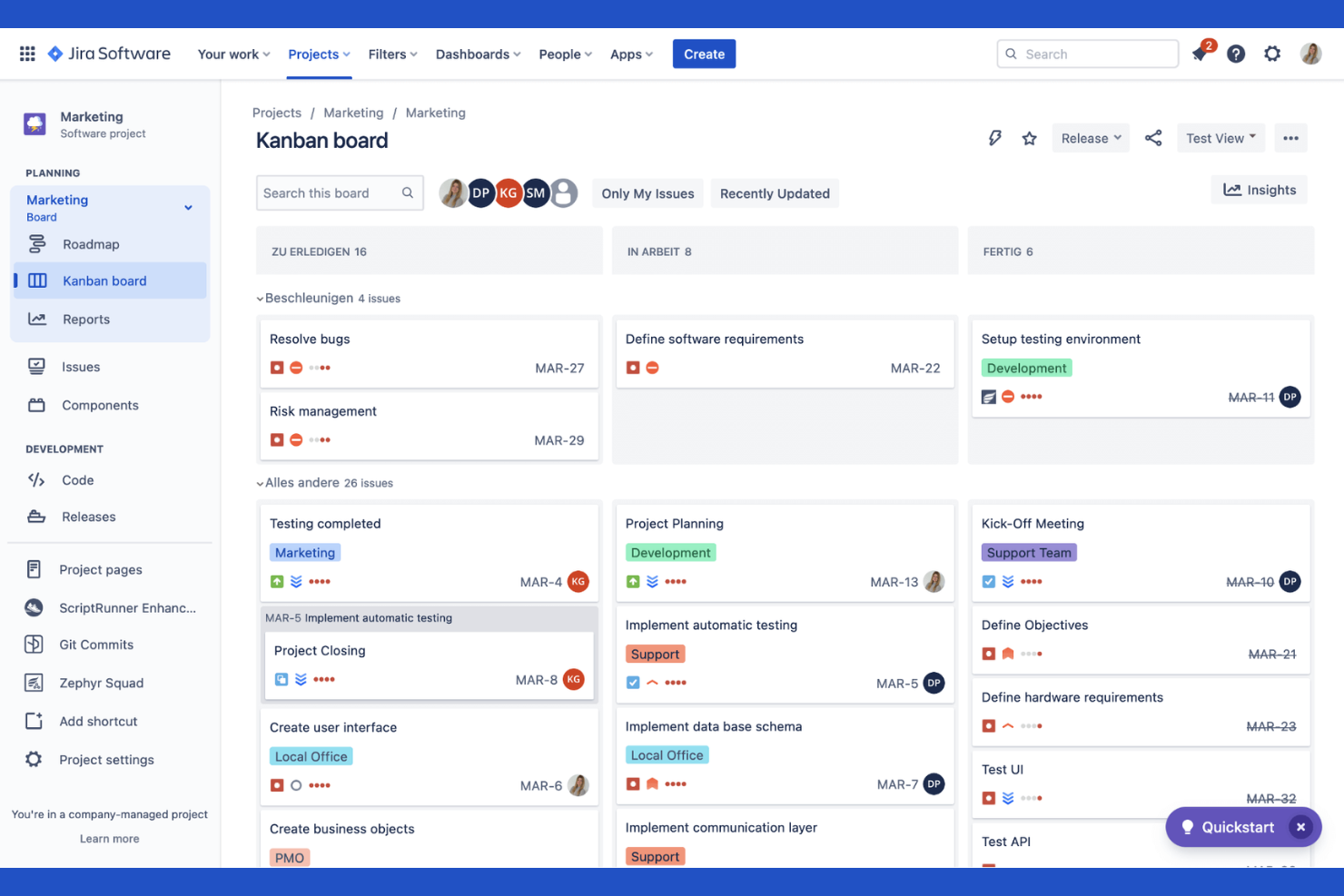
Jira is purpose-built for software development teams that need to manage agile projects and track issues at scale. It’s especially useful for product managers, scrum masters, and engineering leads who want to customize workflows, automate repetitive tasks, and visualize progress with agile boards. Jira’s deep support for sprints, epics, and backlog management makes it a go-to choice for teams practicing Scrum or Kanban.
Why I Picked Jira
For agile software development teams, Jira offers a level of workflow customization and agile board support that’s hard to match. I picked Jira because it lets you create and manage sprints, epics, and user stories with detailed tracking and reporting. The tool’s backlog management and sprint planning features help teams prioritize work and adapt quickly to changing requirements. If you need granular control over agile processes and issue tracking, Jira provides the structure and flexibility to support complex software projects.
Jira Key Features
Some other features that make Jira valuable for project and issue tracking include:
- Custom Issue Types: Create and configure unique issue types to match your team’s workflow.
- Automation Rules: Set up automated actions for repetitive tasks and notifications.
- Advanced Permissions: Control user access and project visibility with detailed permission settings.
- Roadmap Planning: Build and share visual roadmaps to align teams on project timelines.
Jira Integrations
Integrations include Slack, GitHub, Bitbucket, Confluence, Microsoft Teams, Google Drive, Dropbox, Trello, Salesforce, and Zapier.
Pros and Cons
Pros:
- Advanced developer tool sync
- Vast marketplace plugins
- Powerful sprint planning
Cons:
- Requires dedicated admins
- Interface is slow and heavy
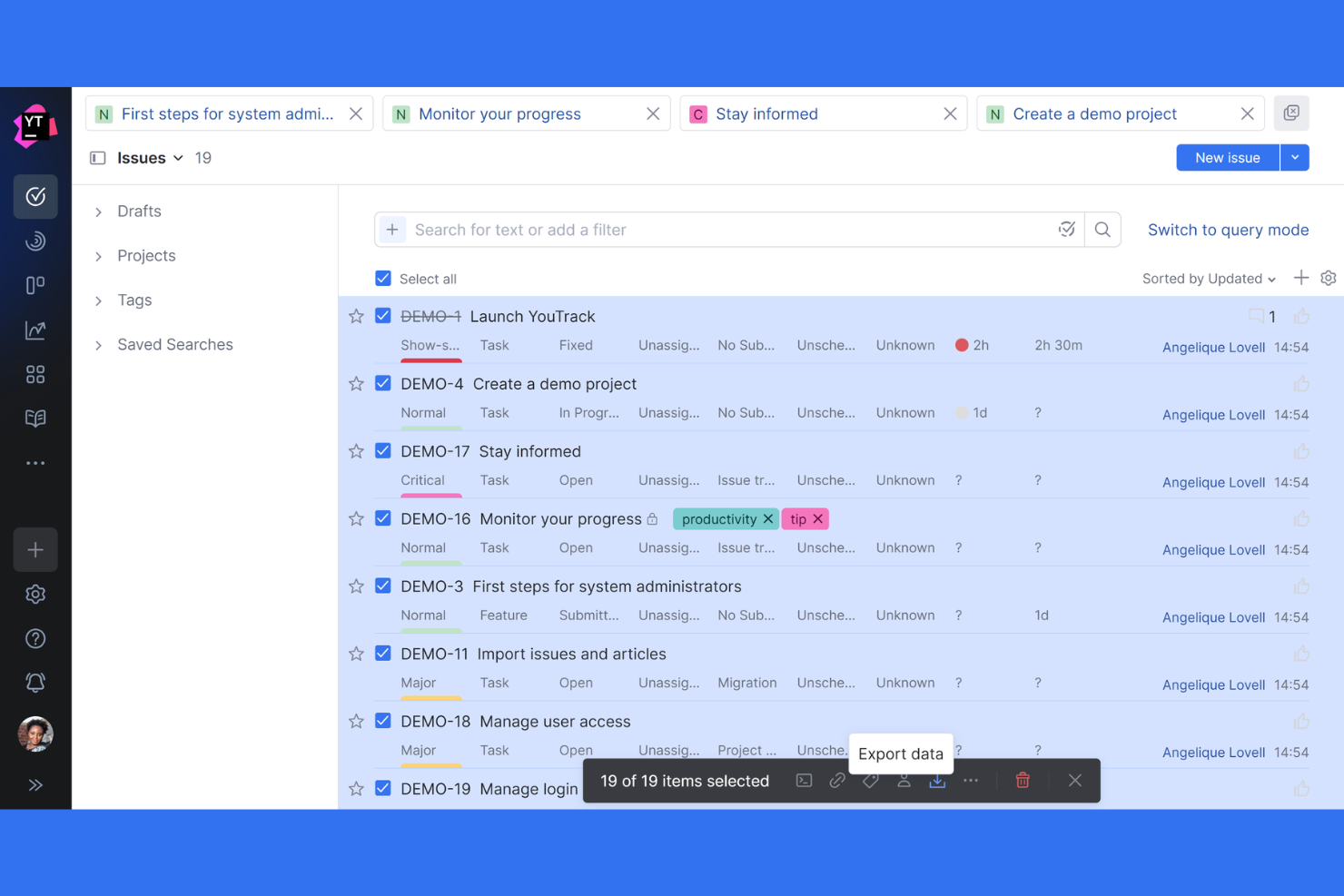
Teams that need deep control over how issues are tracked and managed often turn to YouTrack. This tool is built for software development teams and technical organizations that want to tailor workflows, fields, and automation to fit their exact processes. YouTrack helps you create custom issue types, automate repetitive actions, and adapt tracking to even the most complex project requirements.
Why I Picked YouTrack
What sets YouTrack apart is its ability to let you customize nearly every aspect of issue tracking. I picked YouTrack because it allows teams to define custom fields, workflows, and issue types that match their unique processes. The workflow editor supports advanced automation, so you can create rules and triggers tailored to your team’s needs. If you’re looking for a tool that adapts to your project structure instead of forcing you into a rigid template, YouTrack’s advanced issue customization stands out.
YouTrack Key Features
In addition to its customization options, YouTrack offers several other features that support project and issue tracking:
- Agile Boards: Visualize tasks and progress using Scrum or Kanban boards.
- Time Tracking: Log work hours directly on issues and generate time reports.
- Knowledge Base: Create and organize internal documentation alongside your projects.
- Live Updates: See real-time changes and notifications as issues are updated.
YouTrack Integrations
Integrations include GitHub, GitLab, Bitbucket, Slack, Microsoft Teams, Google Drive, Zapier, Zendesk, HubSpot, and Confluence.
Pros and Cons
Pros:
- Deep JetBrains integration
- Generous free tier for teams
- Excellent search query language
Cons:
- Geared mainly towards devs
- Hard to set up custom workflows
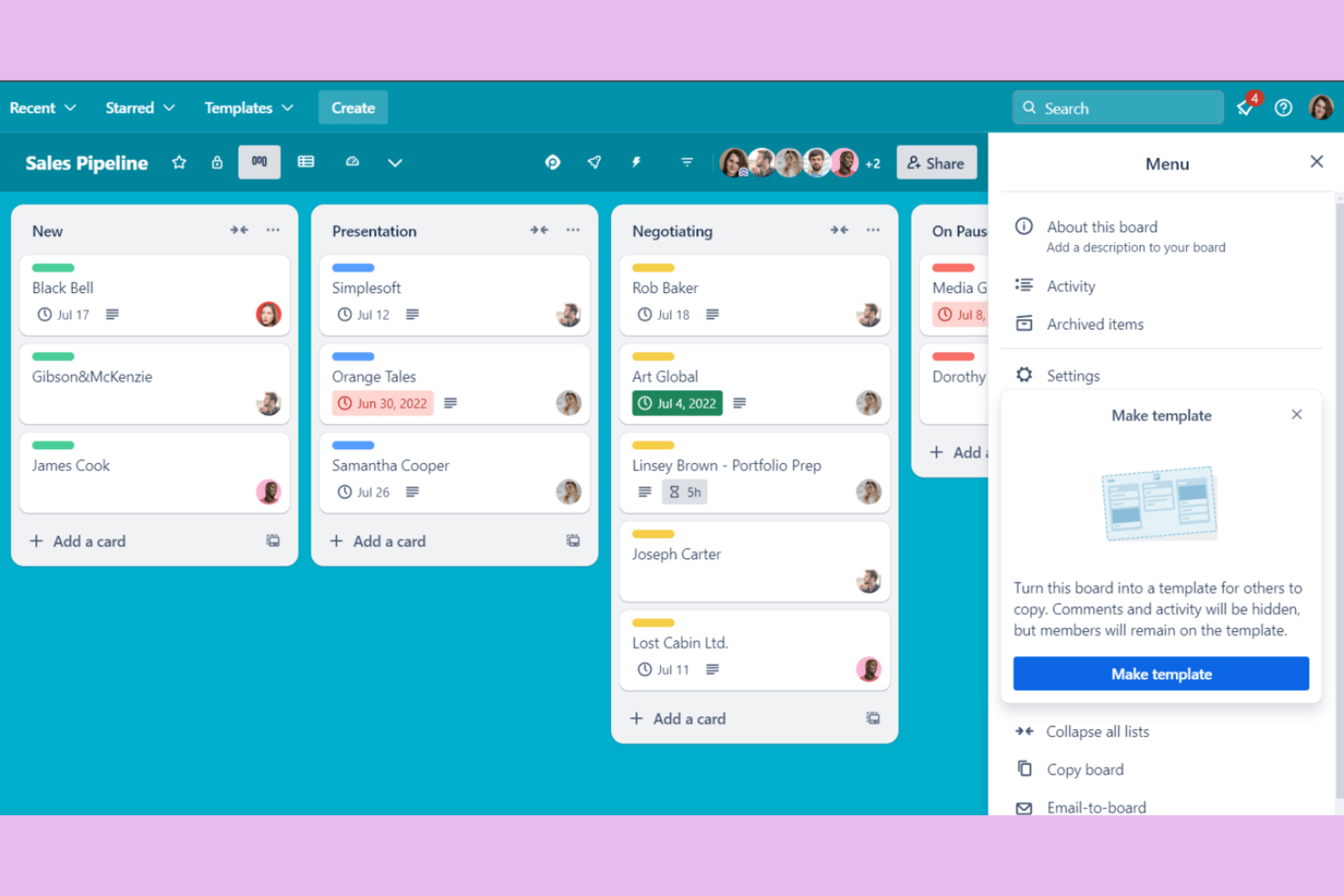
If you want a visual, drag-and-drop approach to tracking work, Trello is a top choice. Trello appeals to teams and individuals who need a straightforward way to organize tasks and projects using kanban boards. Its card-based system makes it easy to map out workflows, prioritize issues, and keep everyone on the same page without extra complexity.
Why I Picked Trello
Trello stands out for teams that want a simple, visual way to organize and track issues. I picked Trello because its kanban board layout lets you create lists for each stage of your workflow and move cards as work progresses. You can add checklists, attachments, and labels to each card, making it easy to track details without clutter. For anyone who needs a straightforward, flexible board to manage project tasks and issues, Trello’s approach keeps things clear and accessible.
Trello Key Features
Some other features that make Trello useful for issue and project tracking include:
- Power-Ups: Add extra functionality like calendar views, voting, or integrations with other tools.
- Butler Automation: Automate repetitive actions on boards with custom rules and triggers.
- Card Templates: Create reusable templates for common tasks or issue types.
- Activity Feed: Track all changes and updates on boards in a single timeline.
Trello Integrations
Integrations include Slack, Google Drive, Dropbox, Microsoft Teams, Jira, GitHub, Evernote, Salesforce, Zapier, and Confluence.
Pros and Cons
Pros:
- Free tier is very capable
- Fast drag and drop sorting
- Great power up ecosystem
Cons:
- No native issue hierarchy
- Weak reporting features

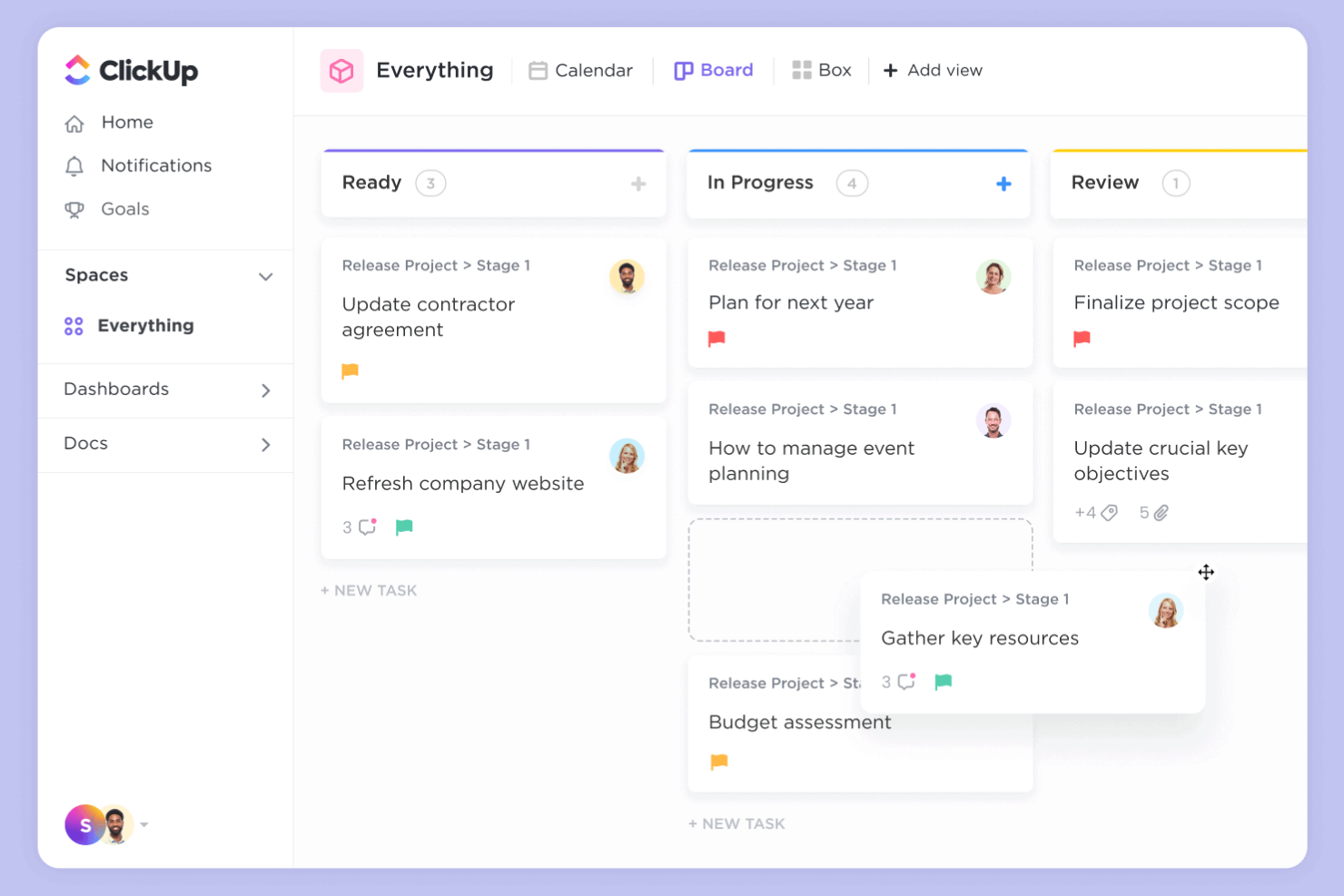
ClickUp brings together tasks, docs, goals, and chat in one unified workspace, making it a strong choice for teams tired of juggling multiple tools. It’s especially useful for tech companies, agencies, and distributed teams that want to centralize project tracking, issue management, and collaboration. ClickUp helps you manage everything from bug tracking to sprint planning without switching platforms.
Why I Picked ClickUp
What sets ClickUp apart is its ability to bring all your project and issue tracking needs into a single, consolidated workspace. I picked ClickUp because it lets you manage tasks, documents, wikis, and even chat without leaving the platform. Its customizable views—like lists, boards, and timelines—help teams track issues and projects in the way that fits their workflow best. For teams looking to reduce tool sprawl and keep everything in one place, ClickUp offers a unified approach that’s hard to match.
ClickUp Key Features
Some other features that make ClickUp valuable for project and issue tracking include:
- Custom Statuses: Create and manage unique status labels for tasks and issues to match your team’s workflow.
- Automations: Set up rule-based automations to handle repetitive actions like assigning tasks or updating statuses.
- Native Time Tracking: Track time spent on tasks directly within the platform for better visibility and reporting.
- Goal Tracking: Set, monitor, and update progress on project goals alongside your tasks and issues.
Clickup Integrations
Integrations include Slack, Google Workspace, GitHub, GitLab, Zoom, HubSpot, Zendesk, and Salesforce.
Pros and Cons
Pros:
- Good native time tracking
- Excellent free tier limits
- Multiple project view options
Cons:
- Complex permissions setup
- Occasional slow load times

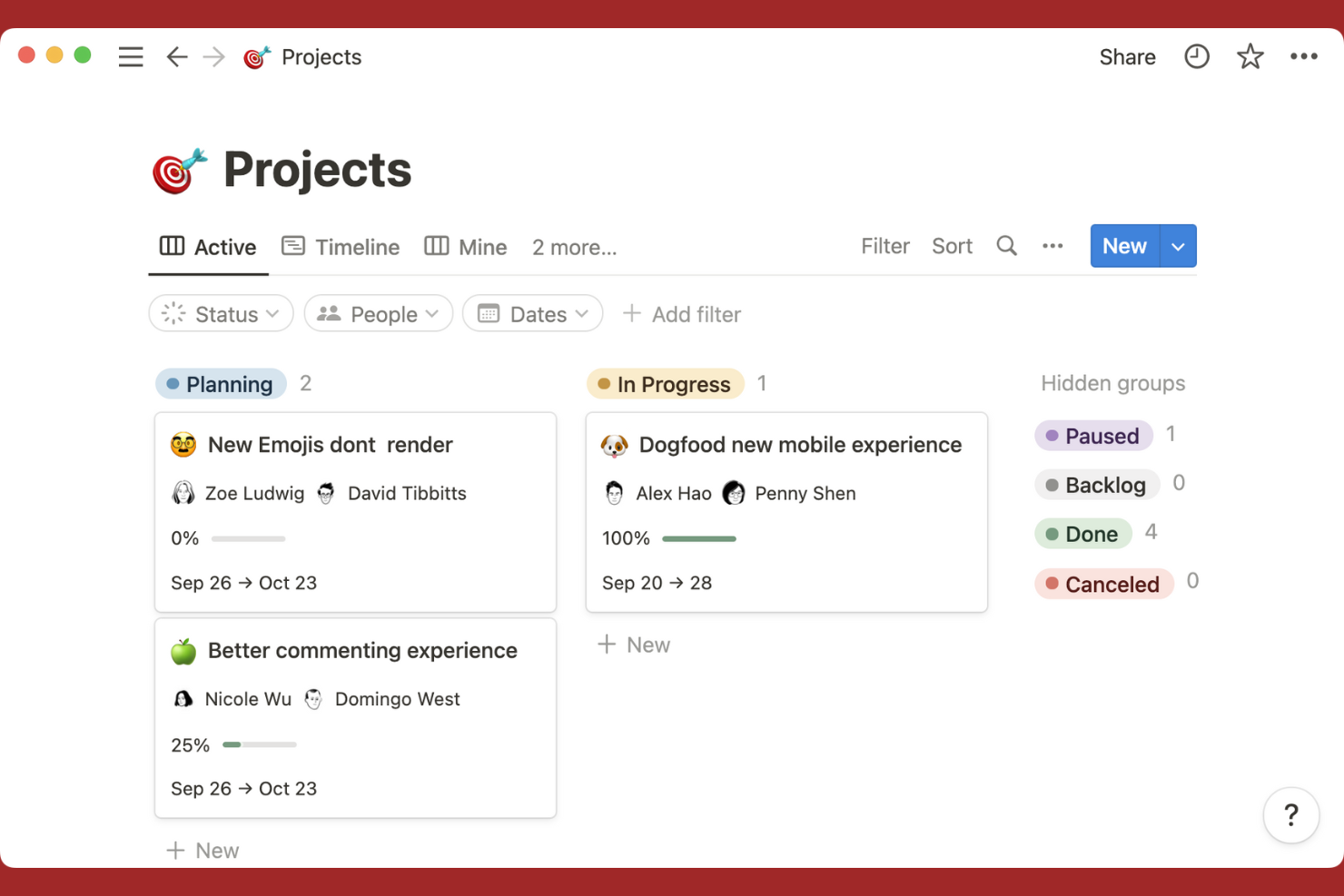
If you’re looking for a tool that merges documentation and task tracking in one place, Notion is worth considering. It’s especially useful for teams that want to link project plans, meeting notes, and issue lists without switching between apps. Notion’s flexible workspace lets you build custom workflows that connect docs, tasks, and databases for a unified project view.
Why I Picked Notion
Notion brings together documentation and task tracking in a way that’s hard to find elsewhere. I picked Notion because it lets you create linked databases, so you can connect tasks, issues, and project docs in a single workspace. The ability to embed checklists, tables, and kanban boards directly within project pages means you can manage issues and reference related documentation side by side. For teams that want to keep all project context, notes, and action items in one place, Notion’s flexible structure is a strong fit.
Notion Key Features
Some other features that make Notion useful for project and issue tracking include:
- Template Gallery: Access a library of pre-built templates for project management, meeting notes, and issue tracking.
- Permissions and Sharing Controls: Set granular access levels for pages, databases, and workspaces.
- Version History: Review and restore previous versions of any page or database.
- Calendar View: Visualize tasks, deadlines, and project milestones on a drag-and-drop calendar.
Notion Integration
Integrations include Slack, Google Drive, Trello, Asana, GitHub, Figma, InVision, Typeform, Jira, and Microsoft Teams.
Pros and Cons
Pros:
- Strong custom template library
- Great for agile note taking
- Clean minimalist interface
Cons:
- Offline mode is unreliable
- Clunky for large issue backlogs

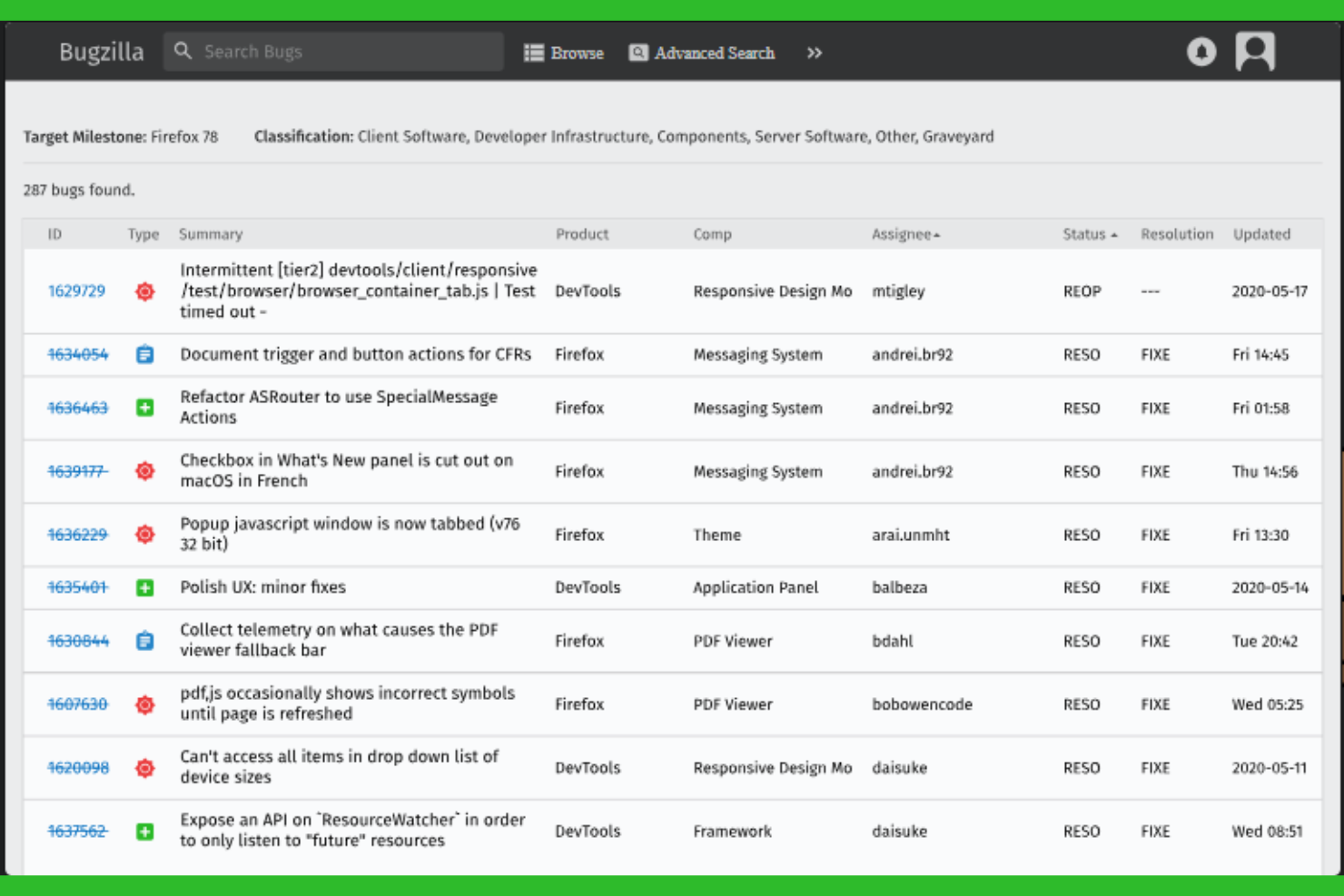
Bugzilla is purpose-built for teams that need granular control over bug tracking and resolution. It’s especially useful for software development groups that manage complex products with layered workflows and detailed reporting needs. If your team requires advanced issue categorization, custom fields, and powerful search capabilities, Bugzilla is designed to support those demands.
Why I Picked Bugzilla
What sets Bugzilla apart is its focus on supporting detailed bug tracking workflows for technical teams. I picked Bugzilla because it lets you define custom fields, statuses, and workflows, so you can mirror even the most complex QA processes. Its advanced search and filtering tools help teams quickly pinpoint, assign, and prioritize issues across large codebases. If your projects demand rigorous bug lifecycle management and traceability, Bugzilla is built to handle those requirements.
Bugzilla Key Features
Some other features that make Bugzilla a strong choice for issue and project tracking include:
- Email Notifications: Automatically send updates to users when bugs are created, updated, or resolved.
- Attachment Handling: Upload and manage files, screenshots, and logs directly within bug reports.
- User Group Management: Control access and permissions by organizing users into groups.
- Dependency Tracking: Link bugs to show relationships and manage resolution order.
Bugzilla Integrations
Integrations include GitHub, Jira, CVS, Subversion, Perforce, Eclipse, Testopia, LDAP, XML-RPC, and WebServices.
Pros and Cons
Pros:
- Deep custom field support
- Very lightweight on servers
- Completely free to use
Cons:
- Complex installation process
- No native mobile application

Open Project gives teams full control over their project tracking with an open-source platform. It’s a strong fit for organizations that need on-premises deployment, strict data privacy, or the ability to customize workflows and features. If you’re looking for a solution that supports agile, classic, or hybrid project management in a transparent and flexible way, Open Project stands out.
Why I Picked Open Project
For teams that prioritize transparency and control, Open Project offers a unique open-source approach to issue and project tracking. I picked Open Project because it lets you host your own instance, giving you full ownership of your data and the flexibility to adapt the platform to your organization’s needs. Its modular design supports agile boards, Gantt charts, and detailed work package tracking, which are especially valuable for teams with complex or evolving workflows. If you need a solution that can be deeply customized and self-managed, Open Project is a strong fit.
Open Project Key Features
Some other features that make Open Project valuable for project and issue tracking include:
- Time Tracking: Log hours directly on tasks and issues for accurate project accounting.
- Wiki Pages: Create and maintain project documentation within the platform.
- Role-Based Permissions: Assign granular access levels to users and groups.
- Custom Fields: Add organization-specific data points to issues and tasks.
Open Project Integrations
Integrations include GitHub, GitLab, Bitbucket, Slack, Jenkins, Redmine, Excel, CSV, LDAP, and REST API.
Pros and Cons
Pros:
- Built in agile boards
- Strong traditional PM tools
- Great self hosting option
Cons:
- Support is community based
- Mobile experience is poor

Smartsheet
Best for spreadsheet-style project planning
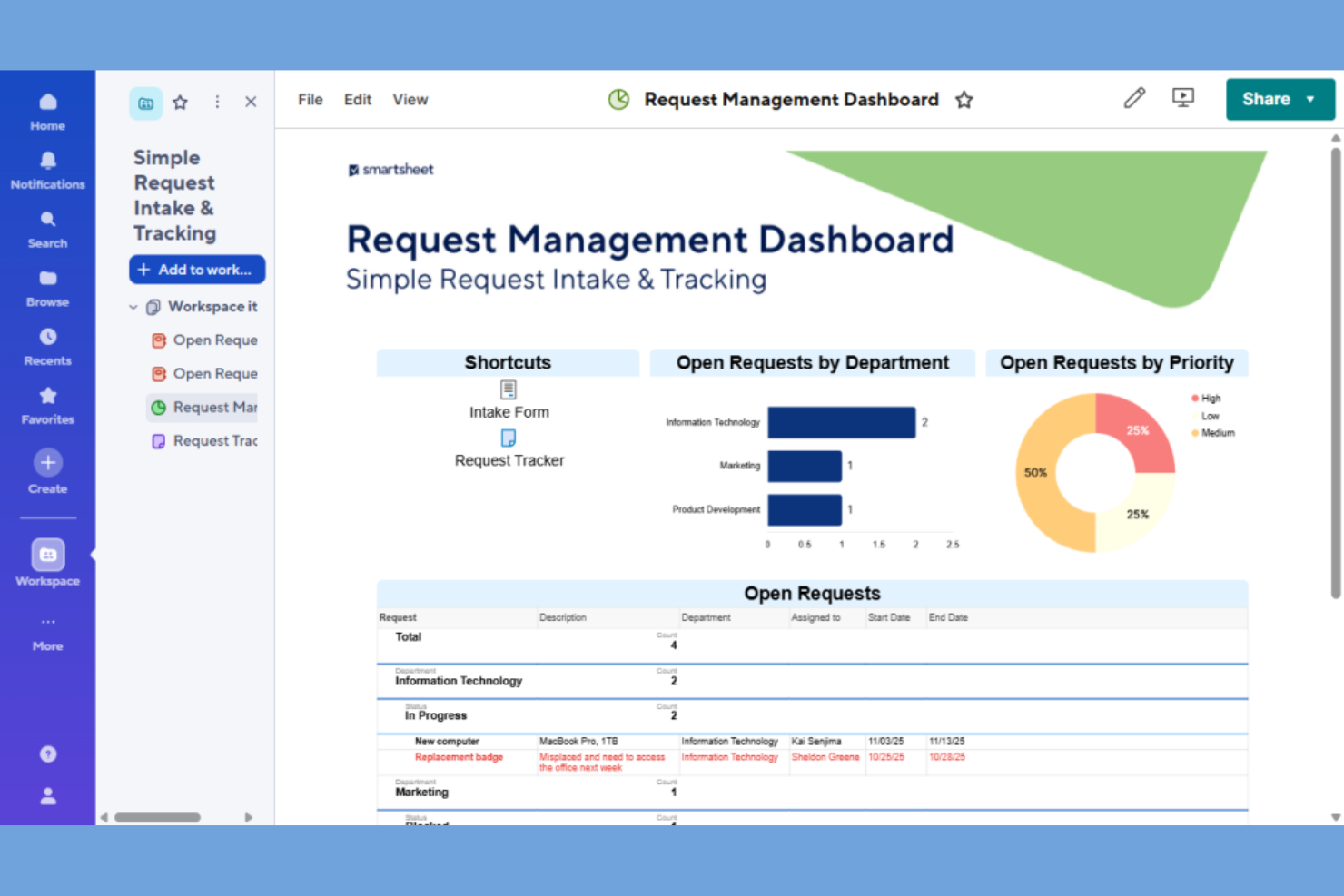
For teams that prefer a familiar spreadsheet interface, Smartsheet offers a project tracking solution that feels instantly accessible. It’s a strong fit for project managers who want to organize issues, tasks, and dependencies in a grid format while layering on automation and reporting. Smartsheet stands out for its ability to blend spreadsheet flexibility with project management structure, making it easy to manage complex workflows and timelines.
Why I Picked Smartsheet
Smartsheet stands out for teams that want the familiarity of spreadsheets combined with project management capabilities. I picked Smartsheet because it lets you track issues, assign tasks, and manage dependencies directly within a grid layout that mirrors traditional spreadsheets. Features like conditional formatting and automated workflows help you highlight priorities and automate repetitive project tasks. For project managers who need to visualize and update project data in a spreadsheet-style view, Smartsheet offers a flexible and structured approach.
Smartsheet Key Features
Some other features that make Smartsheet useful for project and issue tracking include:
- Gantt Chart View: Visualize project timelines and dependencies with interactive Gantt charts.
- Resource Management: Allocate team members and track workload across multiple projects.
- Request Forms: Collect project requests or issue submissions through customizable forms.
- Activity Log: Monitor changes and user actions with a detailed activity history.
Smartsheet Integrations
Integrations include Microsoft Teams, Slack, Google Drive, Dropbox, Salesforce, Jira, DocuSign, Box, Tableau, and Zapier.
Pros and Cons
Pros:
- Deep enterprise security
- Excellent automated alerts
- Strong resource allocation
Cons:
- Expensive add-ons required
- Real time collab can lag
New Product Updates from Smartsheet

Smartsheet Adds Non-Plan User Management in Admin Center
Smartsheet adds a Non plan users tab to the Seat types and true-up page in Admin Center. This lets system admins review non-plan users and add them to the plan or remove them from the organization in one place. For more information, visit Smartsheet’s official site.
Outro software de acompanhamento de problemas e projetos
Estas são algumas opções adicionais de software de acompanhamento de problemas e projetos que não entraram na minha lista restrita, mas que vale a pena conhecer:
- Wrike
For cross-departmental collaboration
- monday.com
For customizable workflow automation
- Lark
For built-in team chat and collaboration
- Azure DevOps
For integrated CI/CD pipelines


How I Evaluate Issue and Project Tracking Software
I split my evaluation into two layers: the baseline every tool must clear—like tracking bugs through resolution and managing sprint backlogs—and the differentiators that make one tool the right fit.
Core Functionality (Table Stakes For This List)
When I'm selecting tools for my list, I rank each one on a scale from 0 (does not offer the functionality) to 5 (excels in this area) for each core functionality listed below. Then, I calculate the tool's total score into a percentage. Each tool needs to achieve a minimum total score of 75% to be considered for inclusion.
- Issue Tracking & Management: I look at how each tool handles creating, assigning, and moving issues through statuses—things like linking duplicate bug reports, setting severity levels, and tracking resolution history.
- Project & Task Management: Each tool should let you organize work into projects with tasks, subtasks, dependencies, and milestones so you can map out a sprint or plan a full release cycle.
- Workflow Customization: I evaluate whether you can tailor statuses, fields, and issue types per project—for example, a QA team's bug workflow looking very different from a marketing request queue.
- Multiple Project Views: Teams work differently, so I check for Kanban boards, backlogs, Gantt charts, calendars, and list views that let a Scrum team and a waterfall team coexist in the same tool.
- Collaboration & Commenting: I look for threaded comments, @mentions, file attachments, and activity feeds tied directly to issues so context stays where the work happens, not buried in Slack threads.
- Reporting & Dashboards: The tool should surface sprint burndowns, cycle time trends, issue volume by type, and workload distribution through dashboards your team and stakeholders actually use.
Once I have a list of tools that meet this criteria, I consider what sets each platform apart.
Differentiating Factors (What Sets Vendors Apart)
Here's how I compare and contrast different vendors:
Standout Features
Native dev tool integrations matter when your engineering team lives in GitHub or GitLab—I check whether commits and pull requests link back to issues automatically. A solid automation engine also makes a real difference; tools like Jira and Linear let you auto-assign issues or transition statuses based on triggers, saving hours of manual triage each sprint. I also evaluate roadmapping and portfolio views, since leadership often needs a rolled-up view of progress across multiple teams without digging into individual tickets.
Beyond Features
Integration ecosystems vary widely—I evaluate whether each tool connects natively with your existing stack, from Slack and Confluence to Figma and CI/CD pipelines, plus whether open APIs exist for custom builds. Security and compliance also carry real weight; teams handling sensitive data should look for SOC 2 certification, SSO support, and granular role-based permissions. I also consider how well a tool scales, since a platform that works for a 10-person startup can buckle under an enterprise with hundreds of projects and thousands of issues in flight.
Como escolher software de acompanhamento de problemas e projetos
É fácil perder-se em longas listas de funcionalidades e estruturas de preços complexas. Para o ajudar a manter-se concentrado enquanto avalia o seu processo específico de seleção de software, apresentamos uma lista de verificação dos fatores a ter em conta:
| Fator | O que considerar |
|---|---|
| Escalabilidade | O software conseguirá acompanhar o crescimento da sua equipa, um maior número de projetos ou um volume superior de pedidos ao longo do tempo? Verifique os limites de utilizadores, os limites de projetos e o desempenho em grande escala. |
| Integrações | Estabelece ligação nativa às ferramentas que já utiliza (como GitHub, Slack ou Jira)? Considere de que forma as falhas de integração podem afetar os seus fluxos de trabalho ou exigir soluções alternativas. |
| Personalização | Pode adaptar os fluxos de trabalho, os campos e as permissões aos processos da sua equipa? Os sistemas rígidos podem obrigá-lo a adaptar os seus métodos ou a criar soluções manuais alternativas. |
| Facilidade de utilização | A sua equipa irá adotá-lo rapidamente ou a interface irá atrasar o trabalho? Teste a clareza da navegação, a organização lógica dos elementos e a necessidade mínima de formação. |
| Implementação e integração inicial | Quanto tempo será necessário para começar a trabalhar? Procure ferramentas de migração, apoio à integração inicial e recursos adequados ao nível de conforto técnico da sua equipa. |
| Custo | Os níveis de preços estão alinhados com as suas necessidades e o seu orçamento? Tenha atenção a taxas ocultas, suplementos obrigatórios ou números mínimos de utilizadores que possam aumentar os custos à medida que cresce. |
| Medidas de segurança | A ferramenta disponibiliza acesso baseado em funções, registos de auditoria e encriptação de dados? Certifique-se de que cumpre as normas de segurança e conformidade da sua organização. |
| Disponibilidade do apoio | Que canais de apoio são disponibilizados e durante que horas? Considere se irá precisar de ajuda 24/7, gestão dedicada da conta ou recursos de autosserviço. |
O que é o software de acompanhamento de problemas e projetos?
O software de acompanhamento de problemas e projetos é uma ferramenta digital que ajuda as equipas a registar, organizar e monitorizar tarefas, erros ou pedidos ao longo do ciclo de vida de um projeto. Estas plataformas centralizam atualizações, atribuições e alterações de estado, facilitando a coordenação do trabalho em equipa, a definição de prioridades para os problemas e a responsabilização. Os gestores de projeto, programadores e equipas multifuncionais utilizam estes sistemas (como os da Atlassian) para uma gestão simplificada de tarefas, garantindo que nada fica esquecido e que os projetos continuam a avançar.
Funcionalidades
Ao selecionar software de acompanhamento de problemas e projetos, procure as seguintes funcionalidades essenciais:
- Criação e atribuição de problemas: Crie novos problemas ou bilhetes e atribua-os a membros específicos da equipa, garantindo uma responsabilidade clara por cada tarefa ou erro.
- Fluxos de trabalho personalizáveis: Adapte as etapas e os estados dos problemas para corresponderem aos processos exclusivos da sua equipa, permitindo acompanhar o progresso de uma forma adequada às necessidades do seu projeto.
- Definições de prioridade e gravidade: Assinale os problemas de acordo com a urgência ou o impacto, ajudando as equipas a concentrarem-se nas tarefas mais críticas e a afetarem os recursos de forma eficaz.
- Comentários e colaboração: Permita que os membros da equipa discutam os problemas diretamente na plataforma, mantendo toda a comunicação e o contexto num único local.
- Suporte para anexos: Carregue ficheiros, capturas de ecrã ou registos nos problemas, facilitando a apresentação de provas, a reprodução de erros ou a partilha de documentação relevante.
- Pesquisa e filtragem: Localize rapidamente problemas ou bilhetes específicos através de ferramentas de pesquisa avançada e filtros, para poder gerir grandes listas de pendências sem perder o controlo.
- Relatórios e análise: Gere relatórios sobre o estado dos problemas, os tempos de resolução e o desempenho da equipa, apoiando a tomada de decisões baseada em dados e a melhoria contínua.
- Permissões baseadas em funções: Controle quem pode consultar, editar ou fechar problemas, definindo funções e permissões de utilizador, protegendo informações sensíveis e mantendo a integridade dos processos.
- Registos de auditoria: Acompanhe todas as alterações efetuadas aos problemas, incluindo edições, atualizações de estado e comentários, para manter a transparência e apoiar as necessidades de conformidade.
Vantagens
A implementação de software de acompanhamento de problemas e projetos proporciona várias vantagens à sua equipa e à sua empresa. Eis algumas das que pode esperar:
- Visibilidade centralizada: Mantenha todos os problemas, atualizações e detalhes do projeto num único local, facilitando a partilha de informação e o alinhamento de todos.
- Maior responsabilização: Atribua tarefas e acompanhe as responsabilidades, para que os membros da equipa saibam exatamente pelo que são responsáveis e qual é o prazo.
- Resolução mais rápida de problemas: Utilize funcionalidades como definições de prioridade, comentários e anexos para identificar, discutir e resolver rapidamente os problemas à medida que surgem.
- Tomada de decisões baseada em dados: Tire partido das ferramentas de relatórios e análise para monitorizar o progresso, identificar estrangulamentos e efetuar ajustes informados ao seu fluxo de trabalho.
- Processos personalizáveis: Adapte fluxos de trabalho, campos e permissões para responder às necessidades exclusivas da sua equipa, suportando uma vasta gama de tipos e metodologias de projeto.
- Maior conformidade e transparência: Mantenha registos de auditoria e permissões baseadas em funções para garantir a integridade dos processos e cumprir requisitos regulamentares ou organizacionais.
- Colaboração simplificada: Permita a comunicação em tempo real e a partilha de ficheiros no âmbito dos problemas, reduzindo a necessidade de e-mails dispersos ou conversas externas.
Custos & Preços
A seleção de software de acompanhamento de problemas e projetos exige uma compreensão dos vários modelos de preços e planos disponíveis. Os custos variam consoante as funcionalidades, o tamanho da equipa, os complementos, entre outros fatores. A tabela abaixo resume os planos comuns, os respetivos preços médios e as funcionalidades normalmente incluídas nas soluções de software de acompanhamento de problemas e projetos:
Tabela de comparação de planos para software de acompanhamento de problemas e projetos
| Tipo de plano | Preço médio | Funcionalidades comuns |
|---|---|---|
| Plano gratuito | $0 | Acompanhamento básico de problemas, utilizadores limitados, gestão central de fluxos de trabalho e apoio da comunidade. |
| Plano pessoal | $5–$12/utilizador/mês | Acesso de um único utilizador, relatórios básicos, anexos de ficheiros e notificações por e-mail. |
| Plano empresarial | $10–$30/utilizador/mês | Suporte para vários utilizadores, fluxos de trabalho avançados, integrações, relatórios e análise, e permissões baseadas em funções. |
| Plano empresarial avançado | $20–$50/utilizador/mês | Fluxos de trabalho personalizados, segurança reforçada, registos de auditoria, suporte dedicado e funcionalidades de conformidade. |
Perguntas frequentes sobre software de acompanhamento de problemas e projetos
Eis algumas respostas a perguntas comuns sobre software de acompanhamento de problemas e projetos:
Como sei se a minha equipa precisa de software de acompanhamento de problemas e projetos?
Se a sua equipa tem dificuldade em acompanhar tarefas, erros ou pedidos através de correio eletrónico, folhas de cálculo ou conversas, é provável que precise de software de acompanhamento de problemas e projetos. Estas ferramentas ajudam a centralizar o trabalho, clarificar responsabilidades e reduzir a confusão à medida que os projetos se tornam mais complexos.
O software de acompanhamento de problemas e projetos pode integrar-se com as minhas ferramentas existentes?
Sim, a maioria dos softwares de acompanhamento de problemas e projetos oferece integrações com ferramentas como o Slack, o GitHub e plataformas de gestão de projetos. Consulte a lista de integrações de cada fornecedor para garantir a compatibilidade com os seus fluxos de trabalho atuais e evitar a introdução manual de dados.
Qual é a diferença entre o acompanhamento de problemas e o acompanhamento de projetos?
O acompanhamento de problemas centra-se no registo e na resolução de erros ou pedidos específicos, enquanto o acompanhamento de projetos abrange o planeamento geral, o progresso e a gestão de recursos. Muitas plataformas combinam ambos, permitindo-lhe gerir tarefas e problemas no contexto de projetos maiores.
Quão seguros estão os meus dados no software de acompanhamento de problemas e projetos?
A maioria dos fornecedores conceituados disponibiliza funcionalidades de segurança, como encriptação de dados, acesso baseado em funções e registos de auditoria. Consulte sempre a documentação de segurança de uma ferramenta e confirme se esta cumpre os requisitos de conformidade e privacidade da sua organização antes da adoção.
É difícil migrar de folhas de cálculo ou de outra ferramenta?
Não, a maioria das plataformas modernas oferece ferramentas de importação, modelos ou apoio à integração para ajudar a migrar dados de folhas de cálculo ou sistemas antigos. Reserve algum tempo para configurar o sistema, associar os campos e testar os seus novos fluxos de trabalho antes de entrar em produção.