

10 beste rimelige systemer for dokumenthåndtering i 2026

Rimelig programvare for dokumenthåndtering – kortliste


Rimelig programvare for dokumenthåndtering viser til digitale verktøy som hjelper teamet ditt med å organisere, lagre og kontrollere tilgangen til dokumenter uten å overskride budsjettet. Hvis du leter etter måter å håndtere økende filvolumer, ivareta samsvar og holde arbeidsflytene i gang på – uten de høye kostnadene ved plattformer for store virksomheter – har du kommet til rett sted.
Denne listen hjelper deg med å sammenligne ledende alternativer for 2026, slik at du kan finne en løsning som passer teamets behov, støtter samarbeid og holder informasjonen din sikker.
Hvorfor du kan stole på våre programvareanbefalinger
Teamet vårt har testet og anmeldt programvare siden 2012. Vi er selv prosjektledere, så vi vet hvor vanskelig og hvor viktig det er å velge riktig programvare.
I denne guiden har vi vurdert verktøyene gjennom praktisk testing og uavhengig research og gitt dem poeng ut fra våre utvelgelseskriterier. Vi bygger også på innsikt fra ledende eksperter i bransjen og erfarne prosjektledere.
Anmeldelsene våre bygger på vår egen redaksjonelle vurdering. De er ikke et salgsargument.
Ekspertanmeldere:
Sammenligningstabell for rimelig programvare for dokumenthåndtering
Denne sammenligningstabellen oppsummerer prisdetaljene for mine beste utvalg av rimelig programvare for dokumenthåndtering.
| Tool | Best For | Trial Info | Price | ||
|---|---|---|---|---|---|
| 1 | Best for field teams managing mobile documents | 14-day free trial + free demo available | From $20/user/month | Website | |
| 2 | Best for multi-language document support | Free demo available | Pricing upon request | Website | |
| 3 | Best for advanced access permissions | 14-day free trial | From CAD$21/user/month (billed annually) | Website | |
| 4 | Best for metadata-driven document organization | Free demo available | From $65/user/month | Website | |
| 5 | Best for collaborative file management | Free plan available | From CAD $3/user/month (billed annually) | Website | |
| 6 | Best for small teams needing approval workflows | Free plan available | From $52/month | Website | |
| 7 | Best for built-in team communication tools | 15-day free trial + free demo available | From $49/month (billed annually) | Website | |
| 8 | Best for open-source customization options | Free demo available | Pricing upon request | Website | |
| 9 | Best for integration with enterprise systems | Free to use | Free to use | Website | |
| 10 | Best for compliance-focused document control | 60-day free trial + free demo available | From $3,309.20/5users/month | Website |
Anmeldelser av rimelig programvare for dokumenthåndtering
Nedenfor finner du mine detaljerte sammendrag av rimelig programvare for dokumenthåndtering som kom med på kortlisten. Anmeldelsene mine gir en detaljert gjennomgang av funksjonene, de beste bruksområdene og prisene for hver programvare, slik at du kan finne den beste løsningen for teamet ditt.

Fluix
Best for field teams managing mobile documents
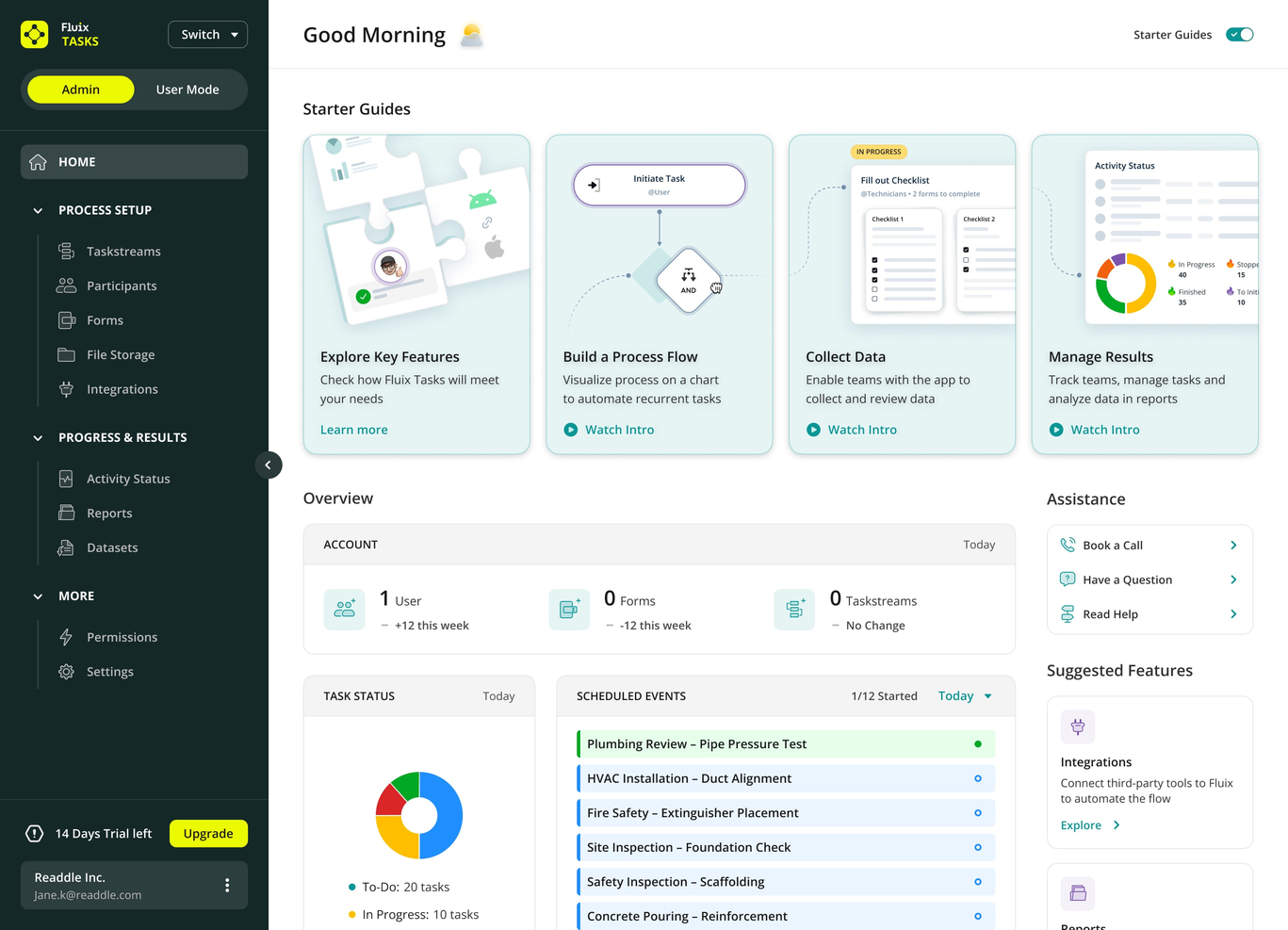
Fluix is designed for teams that need to manage documents and workflows while working in the field or on mobile devices. Construction firms, utilities, and service providers use Fluix to collect data, fill out forms, and route documents without returning to the office. If your team needs to handle paperwork and approvals on-site, Fluix offers a mobile-first approach that keeps work moving wherever your crew is.
Why I Picked Fluix
For teams that spend most of their time away from a desk, Fluix stands out by focusing on mobile document management and workflow automation. I picked Fluix because it lets field workers fill out forms, collect signatures, and submit reports directly from their mobile devices, even when offline.
The platform’s task routing and document distribution features help ensure that paperwork moves smoothly between field and office staff. If your business relies on accurate, timely data from remote locations, Fluix is built to keep your document processes running wherever your team is working.
Fluix Key Features
I also found several other features that help Fluix stand out for document management:
- PDF Annotation Tools: Lets users highlight, comment, and mark up PDF documents directly within the app.
- Automated Data Export: Exports collected data to Excel, CSV, or connected systems for further analysis.
- Role-Based Access Controls: Assign permissions based on user roles to protect sensitive information.
- Template Library: Provides reusable document templates for common forms and reports.
Fluix Integrations
Integrations include Airtable, Procore, HubSpot, Salesforce, Power BI, Zapier, and more.
Pros and Cons
Pros:
- Data export options include Excel and CSV
- Built-in PDF markup tools for annotations
- Offline document access supports remote fieldwork
Cons:
- Limited document storage compared to competitors
- No desktop editing for Windows or Mac

Best for multi-language document support
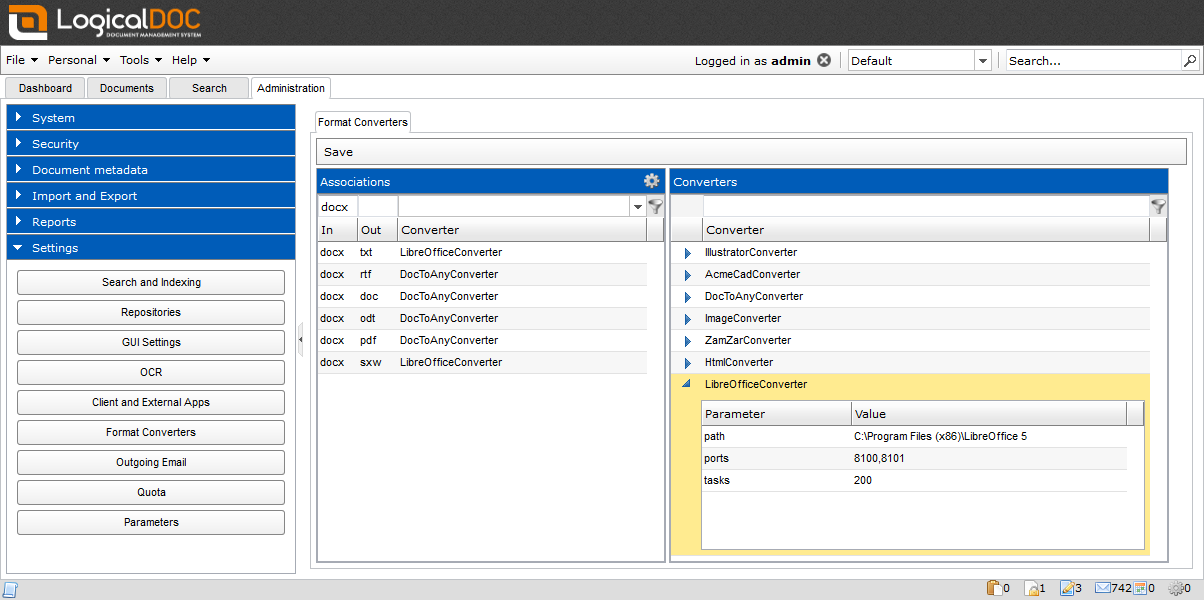
If your team works across multiple languages or serves international clients, LogicalDOC offers document management with built-in multi-language support. This platform is a strong fit for global businesses, distributed teams, and organizations with multilingual documentation needs. LogicalDOC helps you organize, search, and collaborate on documents in several languages without extra plugins or manual workarounds.
Why I Picked LogicalDOC
For teams that need to manage documents in several languages, LogicalDOC stands out with its native multi-language interface and metadata support. I picked LogicalDOC because it allows users to store, search, and tag documents in multiple languages without needing extra add-ons. The platform also supports multilingual document indexing, making it easier to retrieve content regardless of the language used.
This makes LogicalDOC a practical choice for organizations with global operations or diverse language requirements.
LogicalDOC Key Features
Some other features that make LogicalDOC appealing for document management include:
- Workflow Automation: Lets you design and automate document approval and review processes.
- Version Control: Tracks document changes and maintains a full revision history.
- Role-Based Access Control: Assigns permissions based on user roles to protect sensitive information.
- Document Check-In/Check-Out: Prevents editing conflicts by allowing users to lock documents while making changes.
LogicalDOC Integrations
Native integrations are not currently listed.
Pros and Cons
Pros:
- Version control tracks all document changes
- Built-in workflow automation for document processes
- Multi-language interface supports global teams
Cons:
- Limited built-in reporting and analytics tools
- Advanced search sometimes returns irrelevant results

Box
Best for advanced access permissions
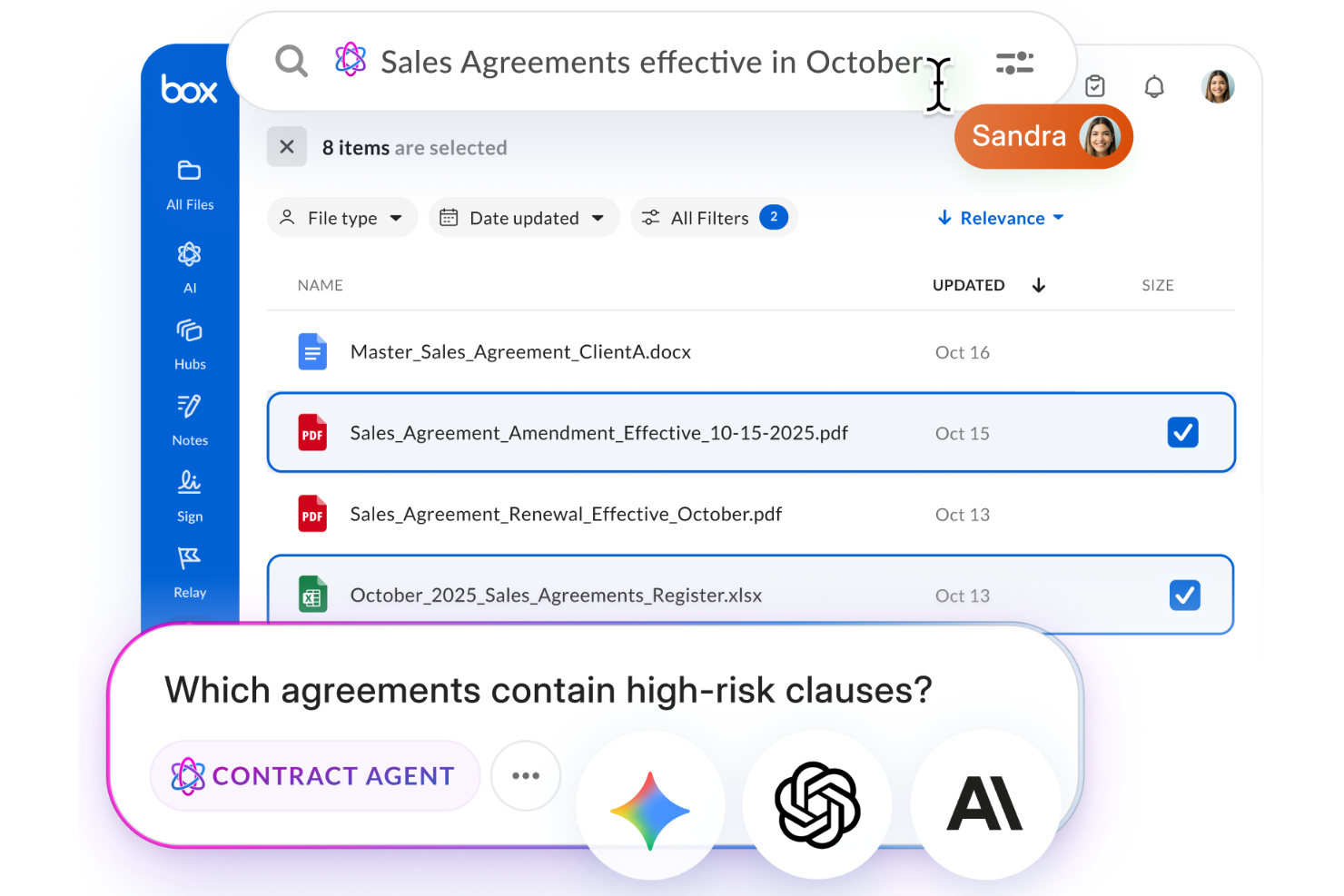
Box is a strong choice for organizations that need precise control over who can access, edit, or share sensitive documents. It’s especially useful for teams in regulated industries or those handling confidential information across departments or external partners. Box stands out for its advanced access permissions, which help businesses manage complex document security requirements without sacrificing collaboration.
Why I Picked Box
For teams that need to manage sensitive files and control document access at a granular level, Box offers advanced permission settings that go beyond basic sharing. You can assign custom roles, set folder-level access, and restrict downloads or editing for specific users or groups.
I picked Box because it gives organizations the flexibility to tailor document access for internal and external collaborators, which is essential for compliance and data protection. These features make Box a strong fit for businesses that can’t compromise on document security but still need to collaborate.
Box Key Features
Some other features that make Box useful for document management include:
- Automated Workflow Builder: Create custom workflows to automate document routing and approvals.
- Full-Text Search: Search within documents and file metadata to quickly locate content.
- Document Version History: Access and restore previous versions of files as needed.
- eSignature Integration: Collect legally binding electronic signatures directly within Box.
Box Integrations
Integrations include Microsoft 365, Google Workspace, Salesforce, IBM, ServiceNow, Slack, Adobe, Apple iWork, Okta, and more.
Pros and Cons
Pros:
- Full-text search across all stored files
- Automated workflow builder for document processes
- Advanced permission controls for document sharing
Cons:
- Offline file access requires a separate desktop app
- External collaborator access setup can be complex

M-Files
Best for metadata-driven document organization
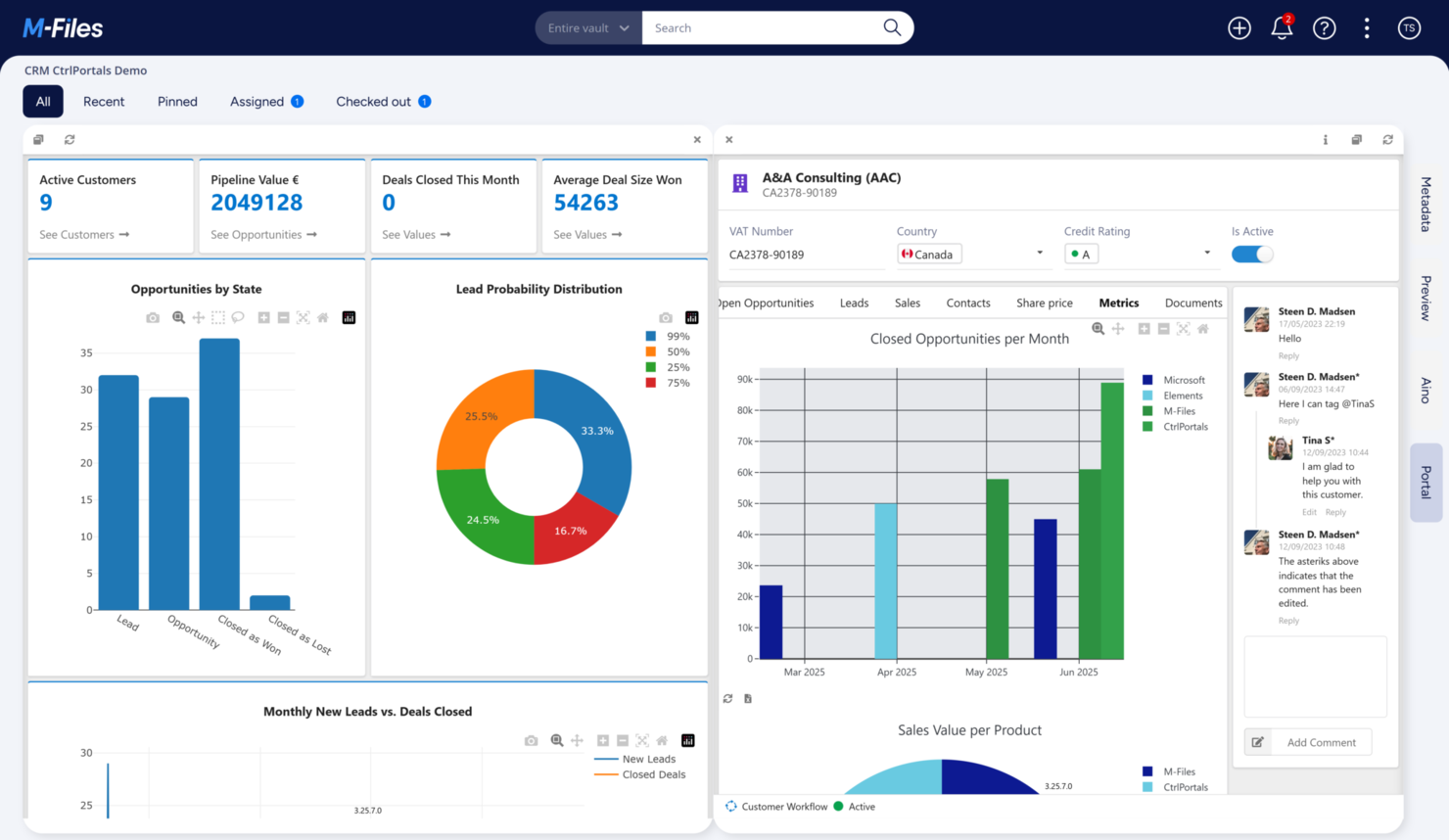
M-Files takes a unique approach to document management by organizing files based on metadata instead of traditional folder structures. This system is especially useful for teams in regulated industries or organizations with complex document search and compliance needs. If you want to find, track, and control documents by what they are rather than where they’re stored, M-Files offers a flexible solution.
Why I Picked M-Files
What sets M-Files apart is its metadata-driven approach to organizing documents, which goes beyond the limitations of traditional folder-based systems. I picked M-Files because it lets you tag documents with custom metadata, making it much easier to search, filter, and enforce compliance rules across large volumes of files.
The platform’s version control and audit trail features also help teams track document changes and meet regulatory requirements. For organizations that need to manage complex document lifecycles and ensure information is always findable, M-Files offers a structure that adapts to your business, not the other way around.
M-Files Key Features
Some other features make M-Files a versatile choice for document management:
- Automated Workflow Engine: Lets you design and automate document approval and review processes.
- Mobile Access: Provides dedicated mobile apps for accessing and managing documents on the go.
- Microsoft 365 Integration: Connects directly with Microsoft Teams, SharePoint, and Outlook for document collaboration.
- Electronic Signature Support: Allows you to collect legally binding signatures within the platform.
M-Files Integrations
Integrations include Microsoft Teams, Microsoft SharePoint, Microsoft Outlook, Microsoft Word, Microsoft Excel, Microsoft PowerPoint, and more.
Pros and Cons
Pros:
- Automated workflows support multi-step approvals
- Version history tracks every document change
- Metadata search finds documents across repositories
Cons:
- User permissions can be complex to configure
- Offline access is restricted to certain devices

Best for collaborative file management
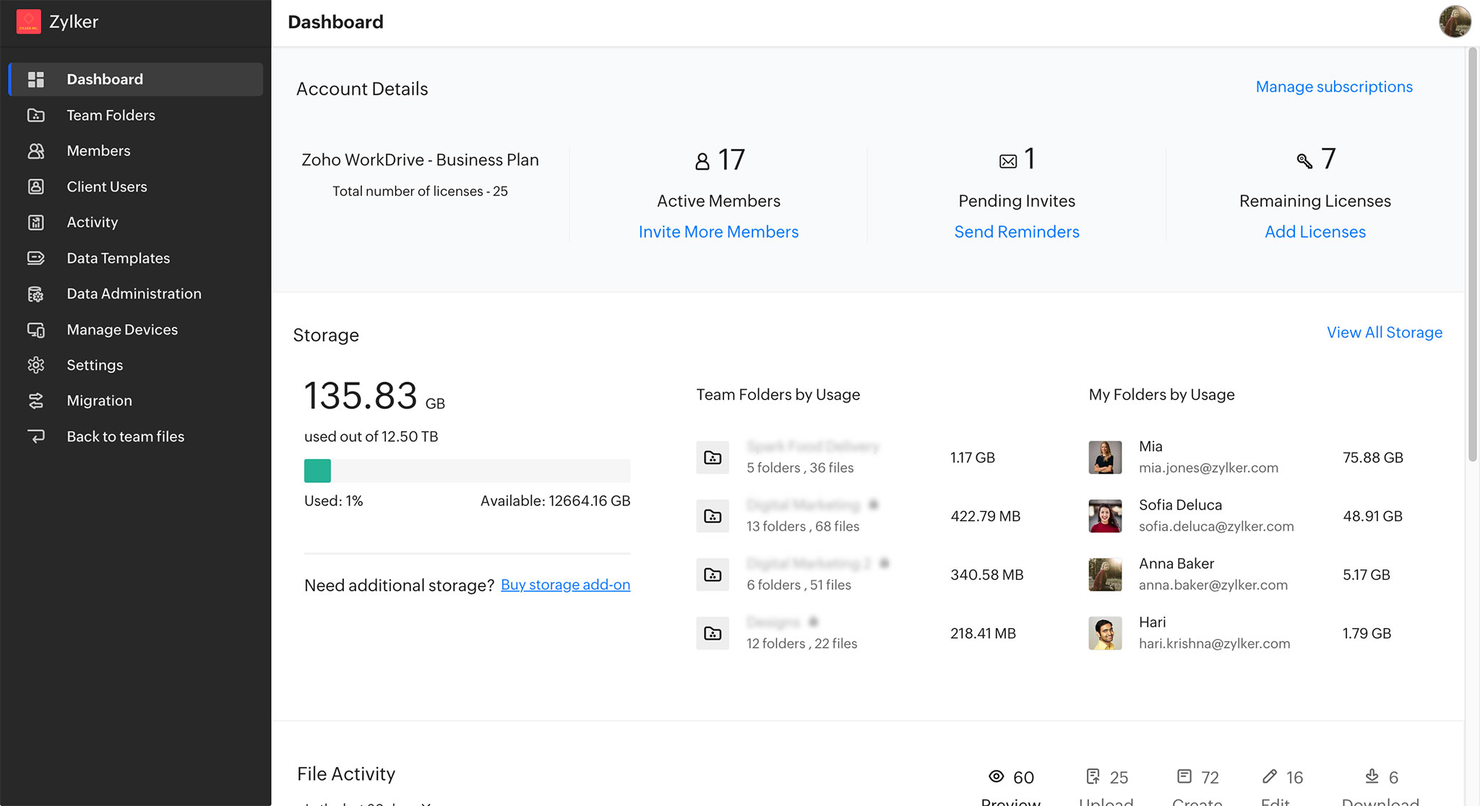
Zoho WorkDrive is designed for teams that need to organize, share, and collaborate on files in real time. It’s especially useful for distributed businesses, creative agencies, and project-based teams that rely on shared folders and document versioning. With built-in team workspaces and granular access controls, Zoho WorkDrive helps groups manage documents together without losing track of changes or ownership.
Why I Picked Zoho WorkDrive
Collaboration is at the core of Zoho WorkDrive, which is why I picked it for teams that need to manage files together. The platform offers shared Team Folders, so groups can organize documents by project or department and control who can view or edit each file.
I also appreciate the built-in document versioning, which lets users track changes and restore previous versions without confusion. For anyone searching for affordable document management software that supports real-time teamwork, Zoho WorkDrive’s collaborative features make it a strong fit.
Zoho WorkDrive Key Features
Some other features that make Zoho WorkDrive stand out for document management include:
- Granular Access Permissions: Set detailed user and group permissions for files and folders.
- Built-In File Preview: View documents, images, and videos directly in the browser without downloading.
- Activity Timeline: Track file and folder activity with a detailed audit trail.
- Desktop Sync App: Sync files between your desktop and the cloud for offline access.
Zoho WorkDrive Integrations
Integrations include Zoho Projects, Zoho Bigin, Zoho Cliq, Microsoft Office, Microsoft Outlook, Gmail, and more.
Pros and Cons
Pros:
- Activity timeline tracks all document actions
- Built-in file versioning prevents accidental overwrites
- Team Folders support structured group collaboration
Cons:
- No built-in e-signature functionality
- External sharing options require extra configuration

Folderit
Best for small teams needing approval workflows
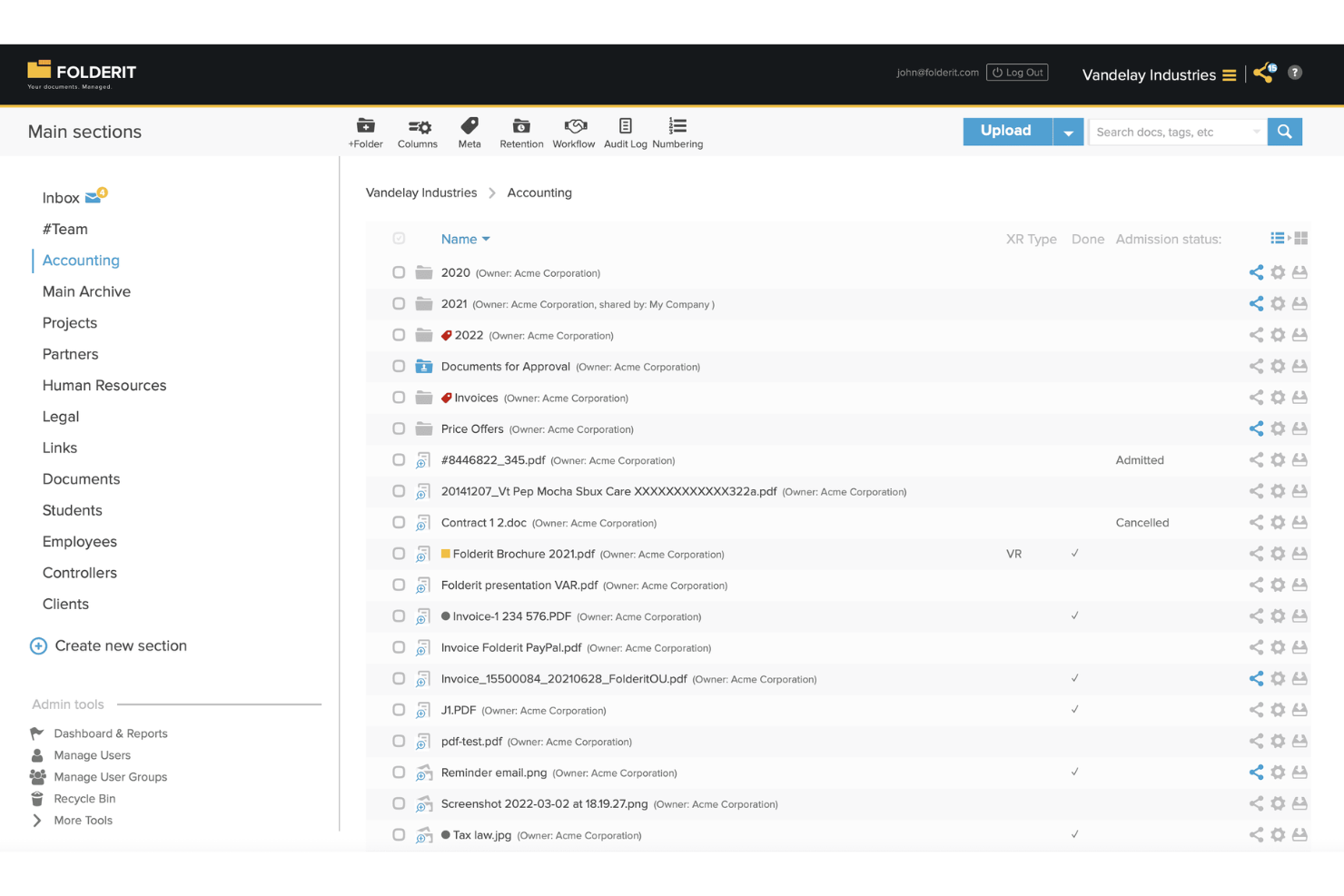
Folderit is designed for small teams that need straightforward document approval workflows without a steep learning curve. It’s a good fit for organizations looking to manage access, versioning, and document retention in a simple, cloud-based system. If your team needs an affordable way to keep files organized and approvals on track, Folderit offers a focused solution.
Why I Picked Folderit
For teams that need affordable document management with built-in approval workflows, Folderit stands out for its simplicity and focus. I picked Folderit because it lets you set up multi-step approval processes directly within the platform, so documents move smoothly from draft to sign-off.
You can assign permissions at the folder or document level, ensuring only the right people can review or approve files. Folderit also tracks every approval action, giving your team a clear audit trail for compliance and accountability.
Folderit Key Features
Some other Folderit features make it a practical choice for teams managing documents on a budget:
- Document Versioning: Keeps a full history of changes, so you can access or restore previous versions of any file.
- Automated Retention Scheduling: Lets you set rules for how long documents are kept before they’re archived or deleted.
- Custom Metadata Fields: Allows you to tag documents with custom data for easier searching and categorization.
- Email-In Functionality: Enables users to send documents directly to Folderit via email, making it easy to capture files from anywhere.
Folderit Integrations
Integrations include Microsoft Office 365, Outlook, DocuSign, Salesforce, HubSpot, SAP, Microsoft Dynamics, and more.
Pros and Cons
Pros:
- Automated document retention and archiving
- Custom metadata fields for advanced search
- Approval workflows are built into every plan
Cons:
- Limited reporting and analytics options
- No built-in document editing tools

Bitrix24
Best for built-in team communication tools
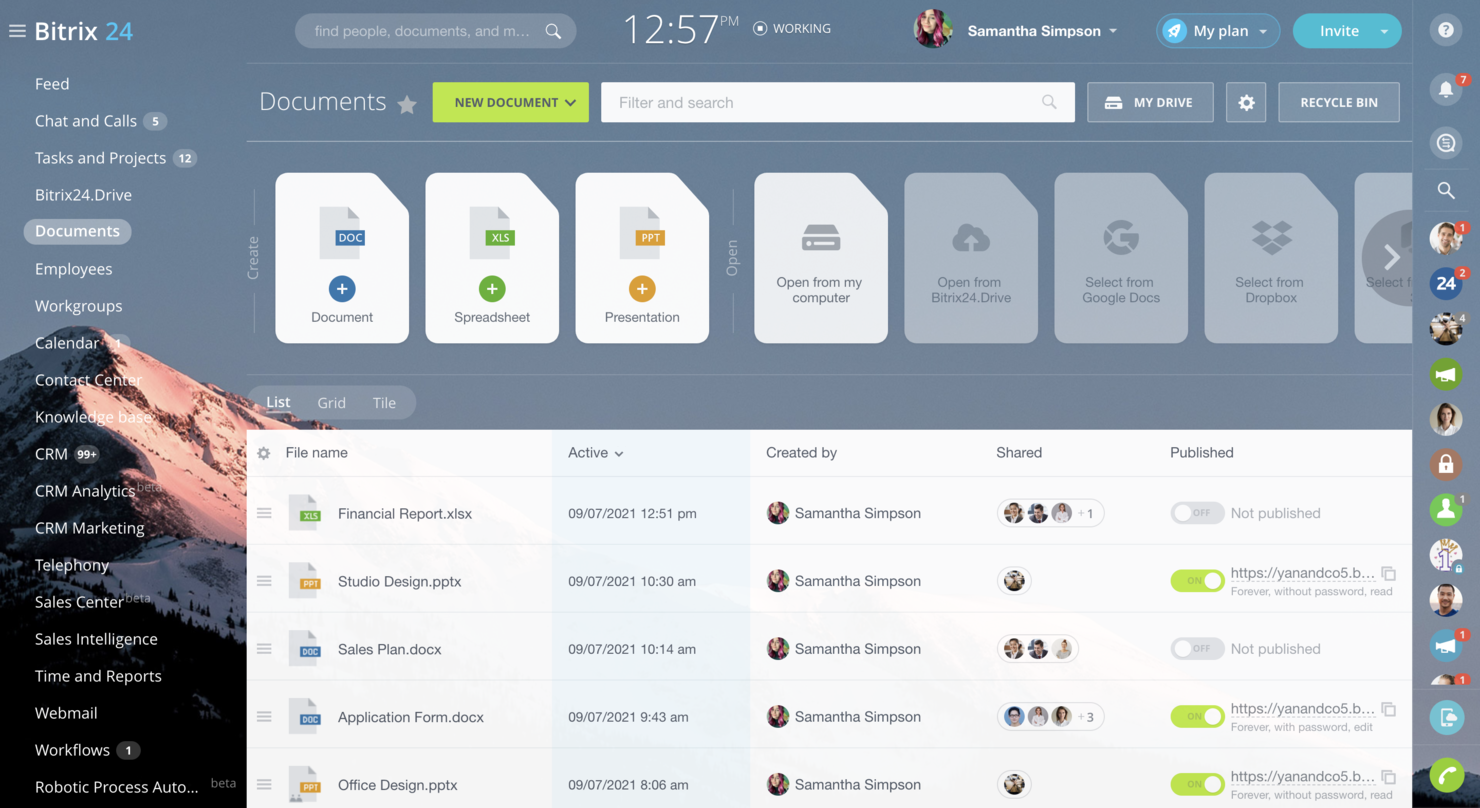
If your team needs document management tightly connected with chat, video, and task tools, Bitrix24 brings these together in one platform. It’s a strong fit for small businesses and distributed teams that want to keep conversations, files, and project updates in a single workspace. Bitrix24 stands out for its built-in communication features that help teams collaborate on documents without switching between multiple apps.
Why I Picked Bitrix24
What sets Bitrix24 apart is its combination of document management with built-in team communication tools. You can chat, start video calls, and comment on files directly within the platform, which keeps collaboration focused and reduces the need to switch between apps. I picked Bitrix24 because it lets teams manage documents and conversations in the same workspace, making it easier to track feedback and decisions.
For anyone looking for affordable document management software that prioritizes real-time team interaction, Bitrix24’s communication features are a clear advantage.
Bitrix24 Key Features
Some other features that make Bitrix24 useful for document management include:
- Document Approval Workflows: Set up automated approval processes for files and folders.
- Granular Access Controls: Assign specific permissions to users or groups for each document.
- Version History: Track and restore previous versions of documents as needed.
- Cloud and On-Premise Deployment: Choose between cloud-based or self-hosted options for storing your documents.
Bitrix24 Integrations
Integrations include Google Drive, Dropbox, OneDrive, Microsoft Office 365, Gmail, Outlook, Twilio, and more.
Pros and Cons
Pros:
- On-premise deployment option for data control
- Document approval workflows for structured reviews
- Built-in chat and video calls for teams
Cons:
- Occasional sync delays with cloud storage
- File upload size limits on lower plans

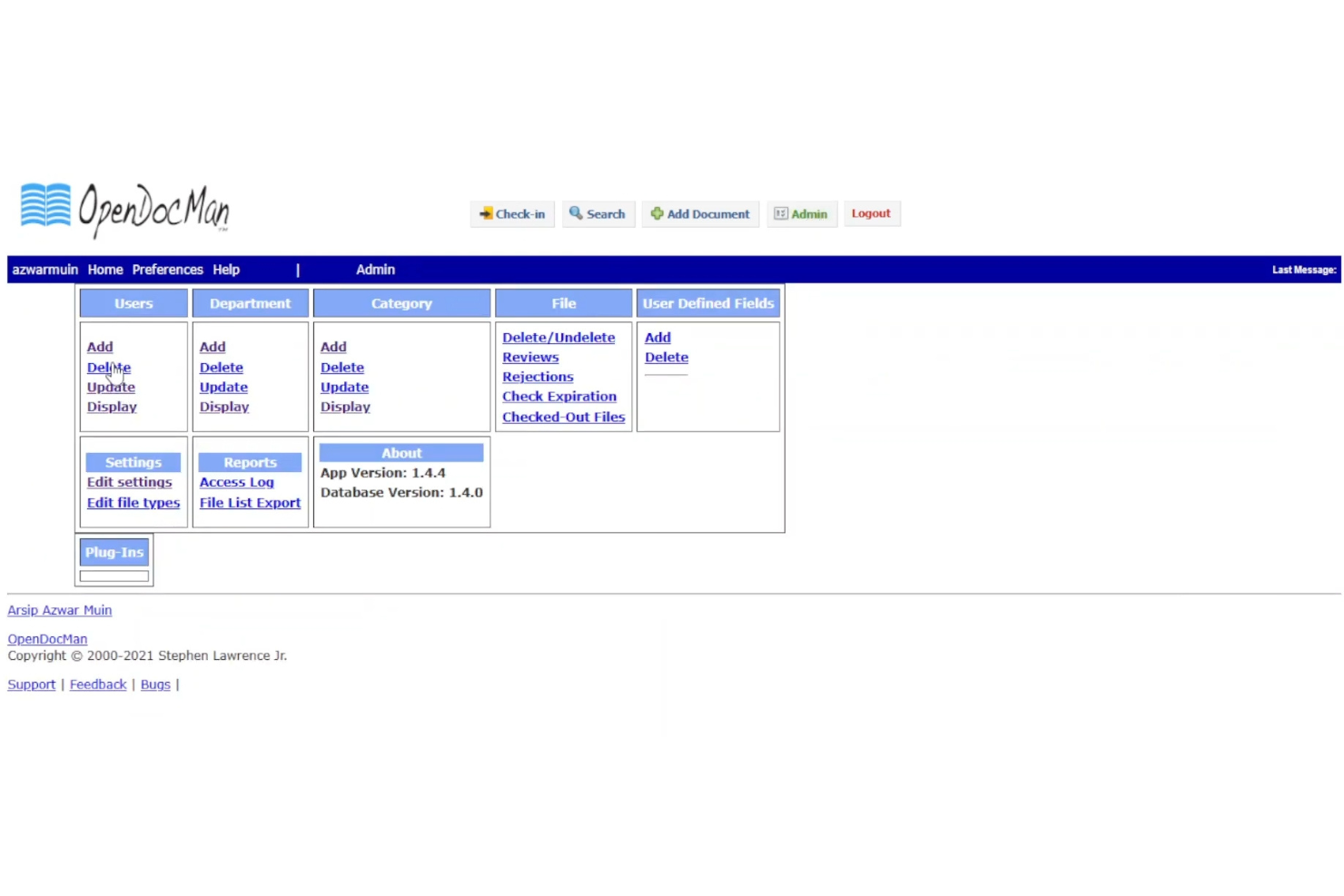
If you’re looking for an open-source document management system that you can fully customize, OpenDocMan is worth considering. It’s a strong fit for IT teams, developers, or organizations with unique compliance or workflow needs that off-the-shelf tools can’t address. OpenDocMan gives you control over features, integrations, and deployment, making it ideal for those who want to tailor their document management environment.
Why I Picked OpenDocMan
OpenDocMan stands out for teams that want to build a document management system tailored to their exact needs. I picked OpenDocMan because it’s open-source, so you can modify the codebase, add custom modules, or adapt workflows to fit your organization’s requirements.
The platform supports custom metadata fields and user-defined document categories, which gives you flexibility in how you organize and retrieve files. For teams with unique compliance, security, or process needs, OpenDocMan offers a level of control that’s hard to find in closed-source alternatives.
OpenDocMan Key Features
Some other features make OpenDocMan a flexible option for document management teams:
- Automated Document Review Process: Assigns documents to reviewers and tracks approval status within the system.
- Role-Based Access Control: Lets you set permissions for users and groups to control who can view, edit, or approve documents.
- File Expiry and Retention Management: Allows you to set expiration dates for documents and automate retention policies.
- Plugin Support: Enables you to extend functionality with plugins for notifications, integrations, or custom workflows.
OpenDocMan Integrations
Native integrations are not currently listed.
Pros and Cons
Pros:
- Supports automated document review workflows
- Plugin system allows for feature extensions
- Source code is fully available for modification
Cons:
- No built-in cloud hosting or SaaS option
- Bulk upload requires manual configuration steps

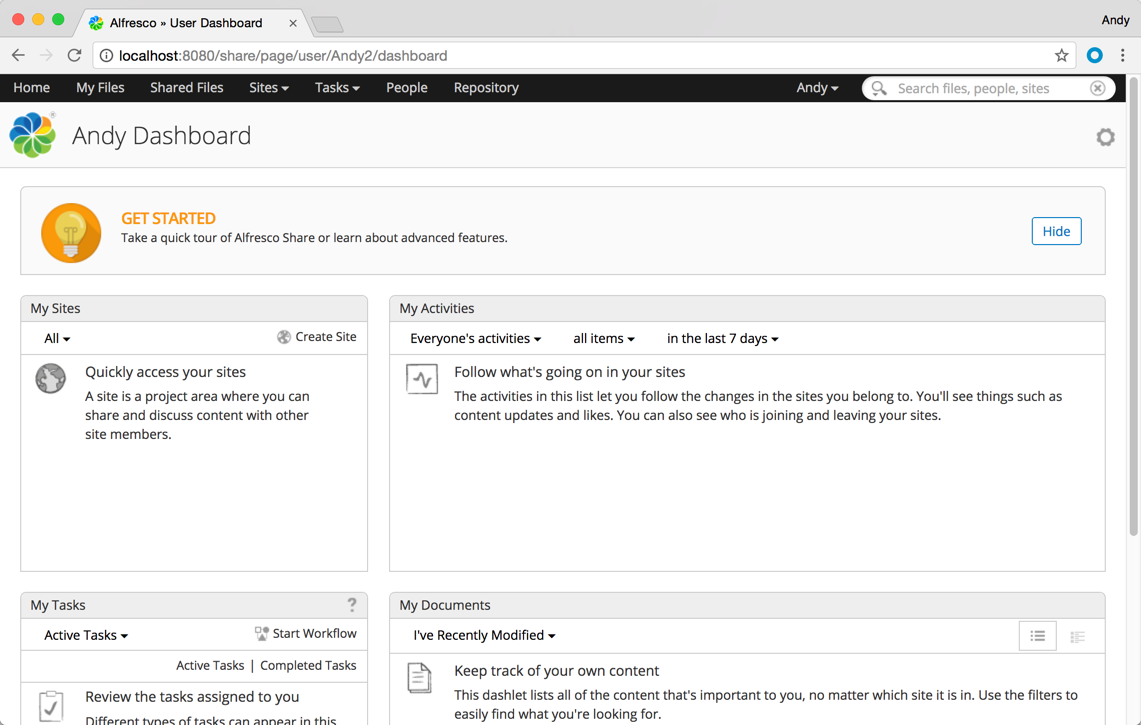
If your organization relies on connecting document management with other enterprise systems, Hyland Alfresco is designed for deep integration. This platform is well-suited for IT teams, large businesses, and regulated industries that need to link content with ERP, CRM, or HR platforms. Hyland Alfresco helps centralize documents while supporting complex workflows and compliance requirements across your existing tech stack.
Why I Picked Hyland Alfresco
What sets Hyland Alfresco apart is its strong focus on connecting document management with enterprise systems. I picked this platform because it offers built-in connectors for ERP, CRM, and HR platforms, making it easier to unify content across business applications. Hyland Alfresco also supports advanced workflow automation, so you can route documents and approvals directly within your existing processes. This approach helps organizations maintain compliance and consistency while reducing manual work between systems.
Hyland Alfresco Key Features
Some other features that make Hyland Alfresco a strong option for document management include:
- Document Versioning: Maintains a complete history of document changes and allows users to revert to previous versions.
- Granular Permission Controls: Lets administrators set detailed access rights for users and groups.
- Full-Text Search: Enables users to search the entire content of documents, not just metadata.
- Mobile Access: Provides dedicated mobile apps for accessing and managing documents on the go.
Hyland Alfresco Integrations
Integrations include Google Workspace, Salesforce, SAP, DocuSign, Oracle, IBM FileNet, Box, Dropbox, Adobe Sign, and more.
Pros and Cons
Pros:
- Scalable for large document repositories
- Strong compliance and audit trail features
- Supports complex workflow and process automation
Cons:
- Limited built-in templates for document types
- Upgrade process can disrupt existing workflows

isoTracker
Best for compliance-focused document control
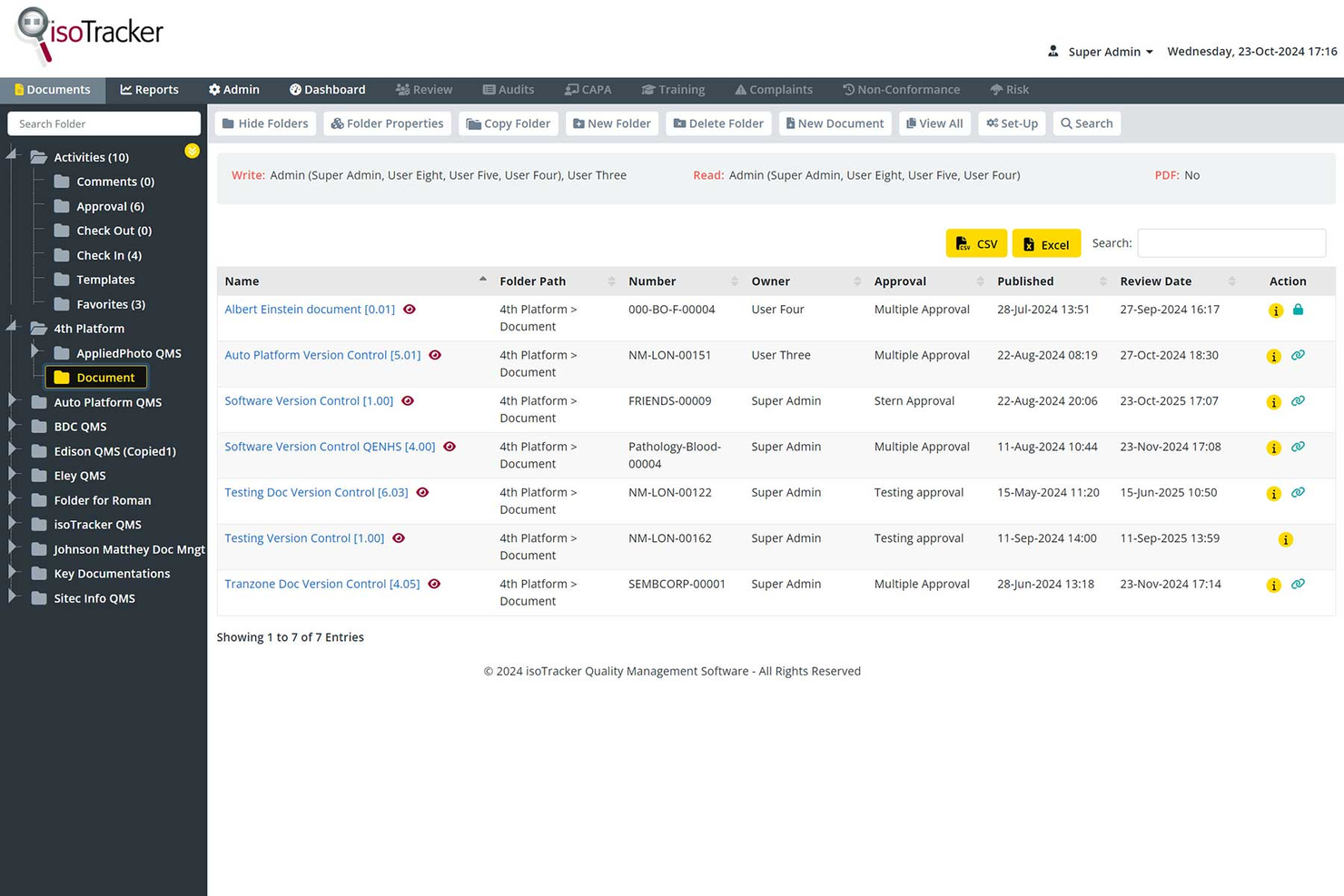
isoTracker is built for organizations that need to maintain strict compliance and audit trails across their document workflows. It’s especially useful for quality managers and regulated industries that require version control, approval processes, and document retention policies. If your team faces regular audits or must meet ISO standards, isoTracker helps centralize and automate compliance-focused document control.
Why I Picked isoTracker
When compliance and document control are top priorities, isoTracker offers a focused solution for regulated teams. I picked isoTracker because it provides built-in version control, automated approval workflows, and detailed audit trails that help organizations meet ISO and other regulatory standards.
The platform’s document retention scheduling and change history tracking make it easier to demonstrate compliance during audits. For teams that need to prove document integrity and follow strict review processes, isoTracker delivers the structure and transparency required.
isoTracker Key Features
Some other features that make isoTracker a strong option for document management include:
- Automated Document Review Reminders: Sends scheduled notifications to prompt timely document reviews.
- Customizable User Permissions: Allows administrators to set granular access controls for different user roles.
- Linked Document Management: Connects related documents for easier cross-referencing and traceability.
- Document Expiry Tracking: Monitors and flags documents approaching their expiration dates.
isoTracker Integrations
Native integrations are not currently listed.
Pros and Cons
Pros:
- Linked document management aids cross-referencing
- Document expiry tracking prevents outdated file use
- Detailed audit trails support regulatory inspections
Cons:
- Limited collaboration features for document editing
- Interface design feels dated compared to peers
Annen rimelig programvare for dokumenthåndtering
Her er noen flere rimelige alternativer for programvare for dokumenthåndtering som ikke kom med på kortlisten, men som fortsatt er verdt å ta en titt på:
- SimpleIndex
For automated document indexing
- EisenVault
For multilingual document storage
- Egnyte
For hybrid cloud file access
- Revver
For automated document retention policies
- DocuWare
For secure digital document archiving
- Microsoft SharePoint
For customizable team sites
- SuiteFiles
For Microsoft 365 workflow integration
- ONLYOFFICE Workspace
For integrated document editing tools


How I Evaluate Affordable Document Management Software
I split my evaluation into two layers: the baseline criteria every tool must clear—like version control and access permissions—and the differentiators that reveal which tool fits your project team.
Core Functionality (Table Stakes For This List)
When I'm selecting tools for my list, I rank each one on a scale from 0 (does not offer the functionality) to 5 (excels in this area) for each core functionality listed below. Then, I calculate the tool's total score into a percentage. Each tool needs to achieve a minimum total score of 65% to be considered for inclusion.
- Centralized Document Storage: I check whether the platform offers a cloud-based repository with folder structures and enough storage to house project plans, SOWs, and deliverables at scale.
- Version Control: Every project has a doc that five people edit in one week. I evaluate how the tool tracks revisions, attributes changes to users, and supports rollback.
- Permissions & Access Control: I look for role-based permissions at the folder and file level so you can, for example, share a client folder with contractors without exposing internal budgets.
- Full-Text Search & Metadata: Finding a buried change order across hundreds of project files matters. I evaluate whether search covers file contents, supports tags, and filters by custom metadata.
- Secure Sharing & Collaboration: I look at how each tool handles external sharing with clients and vendors, including link permissions, commenting, and real-time co-editing on project docs.
- Affordable Pricing Tier: Pricing transparency and a genuinely accessible entry plan are what I evaluate here, including whether free tiers or low-cost plans carry limits that would block real project use.
Once I have a list of tools that meet the criteria, I consider what sets each platform apart.
Differentiating Factors (What Sets Vendors Apart)
Here's how I compare and contrast different vendors:
Standout Features
Automated document workflows are a key differentiator. I look for tools that can route a deliverable through a review-and-approval chain without manual follow-ups at each stage. Client and guest portals also matter. When contractors or clients can upload and review files without needing a paid seat, your per-user costs stay low. I also evaluate how tightly a platform connects to PM tools like Jira or Asana, since linking docs directly to tasks saves time hunting for the right file.
Beyond Features
Pricing model matters as much as the sticker price. I evaluate how costs scale as your team grows, especially whether guest users and storage overages trigger surprise fees. Security and compliance certifications like SOC 2 and GDPR readiness are worth checking too, particularly if your projects involve regulated industries or sensitive client data. I also consider how quickly a small team can get set up without dedicated IT support, including migration tools and ready-made folder templates for common project structures.
Slik velger du rimelig programvare for dokumenthåndtering
Det er lett å gå seg vill i lange funksjonslister og komplekse prismodeller. For å hjelpe deg med å holde fokus mens du arbeider deg gjennom den unike prosessen med å velge programvare, får du her en sjekkliste over faktorer du bør ha i tankene:
| Faktor | Hva du bør vurdere |
|---|---|
| Skalerbarhet | Vil programvaren håndtere dokumentvolumet ditt etter hvert som teamet eller virksomheten vokser? Sjekk lagringsgrenser, brukerbegrensninger og muligheter for oppgradering. |
| Integrasjoner | Kan den kobles direkte til de eksisterende verktøyene dine (e-post, CRM, prosjektstyring)? Unngå løsninger som krever manuelle omveier. |
| Tilpasningsmuligheter | Kan du tilpasse mappestrukturer, tillatelser og arbeidsflyter slik at de samsvarer med teamets prosesser? Vær oppmerksom på rigide systemer som tvinger deg til å tilpasse deg. |
| Brukervennlighet | Vil teamet ditt ta det raskt i bruk? Se etter tydelig navigasjon, minimalt behov for opplæring og et enkelt grensesnitt. Test med ikke-tekniske brukere hvis mulig. |
| Implementering og oppstart | Hvor lang tid vil det ta å flytte dokumenter og lære opp brukere? Spør om støtte ved migrering, ressurser for oppstart og vanlig tidslinje for utrulling. |
| Kostnad | Er prisnivåene transparente og forutsigbare? Vær oppmerksom på skjulte gebyrer, overskridelse av lagringskvoter eller nødvendige tillegg som kan blåse opp budsjettet. |
| Sikkerhetstiltak | Tilbyr plattformen kryptering, tilgangskontroller og revisjonsspor? Bekreft at den overholder bransjens standarder for databeskyttelse. |
| Tilgjengelig kundestøtte | Hvilke kanaler for kundestøtte tilbys (chat, telefon, e-post), og i hvilket tidsrom? Vurder om du vil trenge hjelp utenom vanlig arbeidstid. |
Hva er rimelig programvare for dokumenthåndtering?
Rimelig dokumenthåndteringsprogramvare viser til en dokumenthåndteringsløsning eller et DMS som hjelper organisasjoner med å lagre, organisere og kontrollere tilgangen til forretningsdokumenter uten høye kostnader. Disse dokumenthåndteringsverktøyene støtter fildeling, håndterer ulike filtyper og legger til rette for samarbeid mellom teammedlemmer.
Mange plattformer inkluderer AI-drevne funksjoner som optisk tegngjenkjenning, samtidig som de støtter samsvarsbehov som HIPAA. Med fokus på papirløse arbeidsflyter kombinerer disse løsningene dokumenthåndtering med samarbeidsverktøy i et brukervennlig system.
De regnes ofte blant de beste alternativene for dokumenthåndteringsprogramvare for små og mellomstore team som ønsker å balansere viktige funksjoner med budsjettvennlige priser.
Funksjoner
Når du velger rimelig dokumenthåndteringsprogramvare, bør du se etter følgende viktige funksjoner:
- Dokumentlagring: Sentraliserer digitale filer i et sikkert og organisert arkiv, slik at det blir enkelt å laste opp, kategorisere og hente frem dokumenter etter behov.
- Versjonskontroll: Sporer endringer i dokumenter over tid, slik at brukere kan vise, gjenopprette eller sammenligne tidligere versjoner og forhindre utilsiktet datatap.
- Tilgangstillatelser: Lar administratorer angi brukerroller og kontrollere hvem som kan vise, redigere eller slette bestemte dokumenter, noe som støtter personvern- og samsvarsbehov.
- Søkefunksjonalitet: Gjør det mulig for brukere å finne filer raskt ved hjelp av nøkkelord, filtre eller metadata, slik at tiden som brukes på å lete etter informasjon, reduseres.
- Revisjonsspor: Registrerer all dokumentaktivitet, som redigeringer, nedlastinger og delinger, og gir åpenhet samtidig som det støtter regelverksetterlevelse.
- Massiv opplasting og nedlasting: Gjør det mulig for brukere å flytte flere filer eller mapper samtidig, noe som effektiviserer omfattende migreringer eller sikkerhetskopieringer.
- Dokumentdeling: Legger til rette for sikker deling av filer med interne eller eksterne samarbeidspartnere, ofte med tilpassbare tilgangslenker eller utløpsdatoer.
- Automatiserte oppbevaringsregler: Støtter angivelse av regler for hvor lenge dokumenter skal oppbevares, og når de skal slettes, slik at organisasjoner kan håndtere lagring og samsvar.
- Mobiltilgang: Tilbyr apper eller responsive nettgrensesnitt slik at brukere kan få tilgang til, laste opp eller gjennomgå dokumenter fra smarttelefoner og nettbrett.
- Støtte for integrasjoner: Kobler seg til andre forretningsverktøy, som e-post- eller prosjektstyringsplattformer, slik at dokumentarbeidsflytene forblir sammenkoblede og effektive.
Fordeler
Implementering av rimelig dokumenthåndteringsprogramvare gir flere fordeler for teamet og virksomheten din. Her er noen av fordelene du kan se frem til:
- Lavere driftskostnader: Reduser utgiftene ved å erstatte papirbaserte prosesser og minimere behovet for kostbare eldre systemer.
- Forbedret dokumentsikkerhet: Beskytt sensitiv informasjon med tilgangskontroller, revisjonsspor og sikre lagringsfunksjoner.
- Raskere informasjonsinnhenting: Finn filer raskt ved hjelp av avansert søk og organisert lagring, slik at du sparer tid i hele teamet.
- Forenklet samsvarshåndtering: Oppfyll regulatoriske krav med automatiserte oppbevaringsregler og detaljerte aktivitetslogger.
- Bedre samarbeid: Del dokumenter sikkert med kolleger eller eksterne partnere, noe som støtter distribuerte og hybride arbeidsmiljøer.
- Skalerbarhet for team i vekst: Legg til brukere og øk lagringsplassen etter hvert som organisasjonen utvides, uten store forstyrrelser eller kostnadshopp.
- Forenklet introduksjon og bruk: Få nye brukere raskt i gang med intuitive grensesnitt, opplæringsressurser og enkle migreringsverktøy.
Kostnader og priser
Å velge rimelig dokumenthåndteringsprogramvare krever en forståelse av de ulike prismodellene og planene som er tilgjengelige. Kostnadene varierer basert på funksjoner, teamstørrelse, tillegg og mer. Tabellen nedenfor oppsummerer vanlige planer, gjennomsnittsprisene deres og typiske funksjoner som er inkludert i rimelige løsninger for dokumenthåndteringsprogramvare:
Sammenligningstabell for planer for rimelig dokumenthåndteringsprogramvare
| Plantype | Gjennomsnittspris | Vanlige funksjoner |
|---|---|---|
| Gratisplan | $0 | Grunnleggende dokumentlagring, begrenset antall brukere, enkelt søk og enkel deling. |
| Personlig plan | $5–$15/bruker/måned | Individuell lagring, versjonskontroll, mobiltilgang og grunnleggende tillatelser. |
| Bedriftsplan | $10–$25/bruker/måned | Samarbeid i team, avanserte tillatelser, revisjonsspor, integrasjoner og arbeidsflytautomatisering. |
| Virksomhetsplan | $20–$40/bruker/måned | Ubegrenset lagring, tilpasset merkevarebygging, avansert sikkerhet, verktøy for overholdelse av regelverk og prioritert brukerstøtte. |
Vanlige spørsmål om rimelig programvare for dokumenthåndtering
Her er noen svar på vanlige spørsmål om rimelig programvare for dokumenthåndtering:
Hvordan vet jeg om programvare for dokumenthåndtering faktisk er rimelig?
Se forbi grunnprisen og vurder de totale kostnadene, inkludert lagringsgrenser, brukeravgifter, tillegg og kostnader for brukerstøtte. Sammenlign disse med teamets behov og budsjett. Rimelige alternativer bør tilby gjennomsiktige priser og viktige funksjoner uten å kreve dyre oppgraderinger.
Kan rimelig programvare for dokumenthåndtering håndtere krav til overholdelse av regelverk?
Ja, mange rimelige løsninger inkluderer funksjoner som revisjonsspor, oppbevaringsregler og tilgangskontroller for å bidra til å oppfylle vanlige krav til overholdelse av regelverk. Kontroller alltid at plattformen støtter de spesifikke bransjereglene dine før du bestemmer deg.
Hvilke begrensninger har rimelig programvare for dokumenthåndtering?
Rimeligere verktøy kan ha begrensninger på lagring, integrasjoner eller avanserte funksjoner som arbeidsflytautomatisering. Gå nøye gjennom plandetaljene for å sikre at programvaren dekker dagens og fremtidige behov uten skjulte kompromisser.
Er det mulig å flytte dokumenter fra det gamle systemet mitt til en ny, rimelig plattform?
Ja, de fleste programmer for dokumenthåndtering tilbyr verktøy for masseopplasting eller støtte for migrering. Sjekk om leverandøren tilbyr veiledninger, maler eller direkte hjelp for å gjøre overgangen enklere for teamet ditt.
Hvor sikre er rimelige løsninger for dokumenthåndtering?
Rimelige plattformer tilbyr vanligvis standard sikkerhetsfunksjoner som kryptering, tilgangstillatelser og aktivitetslogger. Bekreft likevel alltid leverandørens sikkerhetssertifiseringer og praksis for databeskyttelse for å sikre at de er i tråd med organisasjonens krav.