

10 beste alternativer til LibreOffice å vurdere i 2026

Kortliste over LibreOffice-alternativer


Et godt LibreOffice-alternativ tilbyr pålitelig dokumentredigering, kompatibilitet med vanlige filformater og fleksible samarbeidsmuligheter – uten å låse deg til én leverandør. Hvis du ser etter gode alternativer til LibreOffice, vurderer du sannsynligvis verdier knyttet til åpen kildekode, personvern og behovet for funksjoner som passer teamets arbeidsflyt. Med så mange kontorpakker tilgjengelig er det vanskelig å vite hvilke som tilbyr redigeringsverktøyene, integrasjonene og distribusjonsmodellene du faktisk trenger. Denne listen hjelper deg med å sammenligne de beste LibreOffice-alternativene for 2026 raskt, slik at du kan finne det som passer best for prosjektene og organisasjonen din.
Hva er LibreOffice?
LibreOffice er en gratis kontorpakke med åpen kildekode som inneholder verktøy for tekstbehandling, regneark, presentasjoner og mer – og brukes ofte i stedet for Microsoft Word, Excel og PowerPoint. Den støtter et bredt utvalg filformater, inkludert MS Office-dokumenter, noe som gjør den til et populært valg for enkeltpersoner og organisasjoner som ønsker leverandøruavhengighet. LibreOffice vedlikeholdes av The Document Foundation og er tilgjengelig for Windows, macOS og Linux, med regelmessige oppdateringer og en sterk utviklingsmodell drevet av fellesskapet.
Sammenligningstabell for LibreOffice-alternativer
Denne sammenligningstabellen oppsummerer prisdetaljer for mine beste utvalgte LibreOffice-alternativer:
| Tool | Best For | Trial Info | Price | ||
|---|---|---|---|---|---|
| 1 | Best for open-source PDF and doc co-editing | Free plan available | Pricing upon request | Website | |
| 2 | Best for team knowledge base and doc collaboration | Free plan + 7-day trial available | From $5.78/user/month | Website | |
| 3 | Best for AI-assisted document editing on a budget | Free plan available | Pricing upon request | Website | |
| 4 | Best for open-source self-hosted collaboration | Free demo available | Pricing upon request | Website | |
| 5 | Best for self-hosted document collaboration | Free 1-hour demo available | From €68.94/user/year (billed annually) | Website | |
| 6 | Best for AI-assisted document creation | Free plan available | Pricing upon request | Website | |
| 7 | Best for built-in PDF editing without add-ons | Free plan available | From $2.49/user/month (billed annually) | Website | |
| 8 | Best for cloud-native team document collaboration | 14-day free trial available | From $7/user/month | Website | |
| 9 | Best for small business email and doc collaboration | Free plan available; 15-day free trial | From $1/user/month (billed annually) | Website | |
| 10 | Best for students switching to an affordable suite | 7-day free trial | From $6.99/month | Website |
Hvorfor du kan stole på våre programvareanbefalinger
Teamet vårt har testet og anmeldt programvare siden 2012. Vi er selv prosjektledere, så vi vet hvor vanskelig og hvor viktig det er å velge riktig programvare.
I denne guiden har vi vurdert verktøyene gjennom praktisk testing og uavhengig research og gitt dem poeng ut fra våre utvelgelseskriterier. Vi bygger også på innsikt fra ledende eksperter i bransjen og erfarne prosjektledere.
Anmeldelsene våre bygger på vår egen redaksjonelle vurdering. De er ikke et salgsargument.
Ekspertanmeldere:
Anmeldelser av LibreOffice-alternativer
Nedenfor finner du mine detaljerte sammendrag av LibreOffice-alternativene som kom med på kortlisten. Anmeldelsene mine gir en detaljert oversikt over funksjonene, de beste bruksområdene og integrasjonene til hver kontorpakke, slik at du kan finne den som passer best for deg.

Best for open-source PDF and doc co-editing
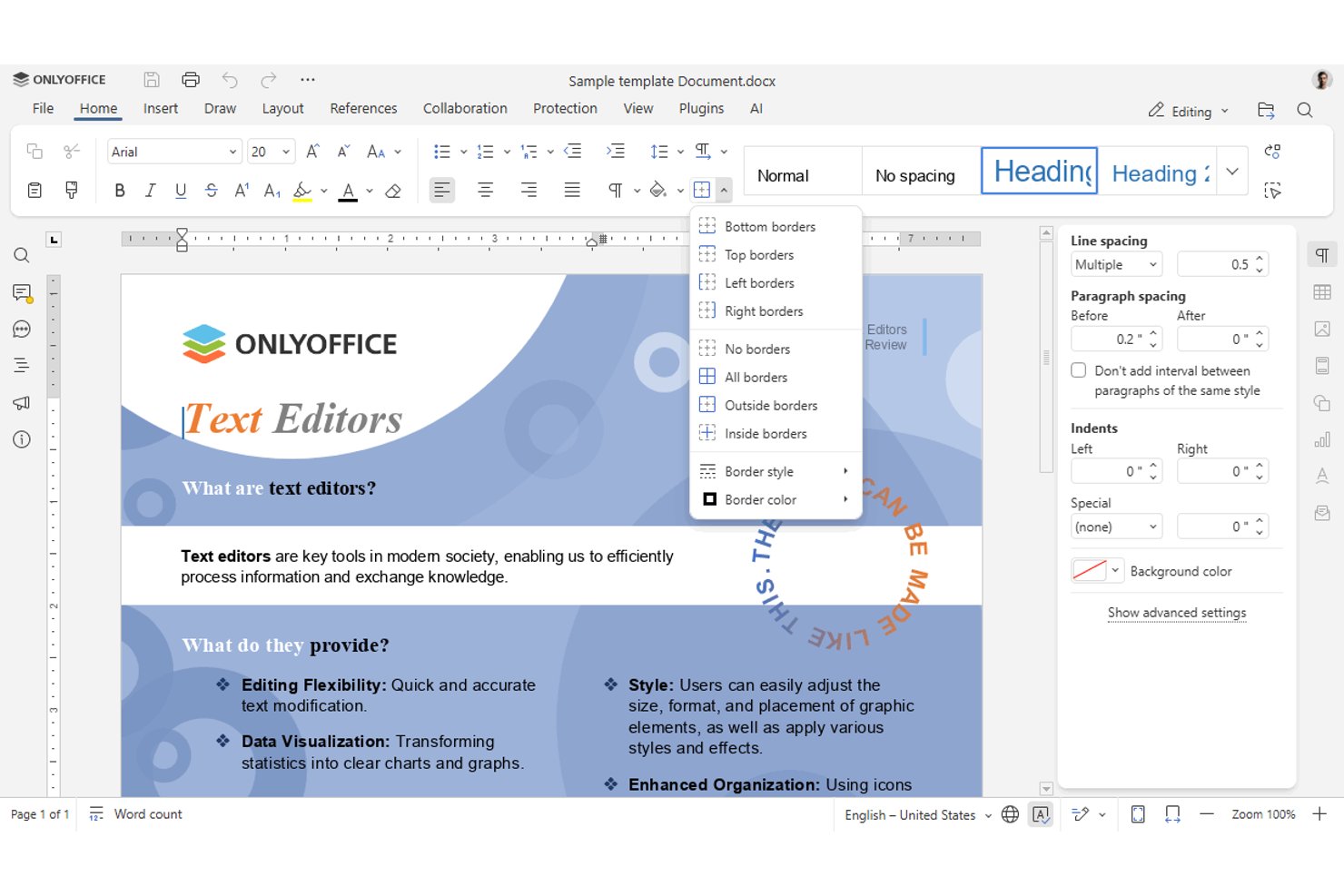
ONLYOFFICE Docs gives project teams a browser-based office suite for editing documents, spreadsheets, and presentations together, helping distributed product and engineering groups keep shared files aligned without relying on LibreOffice desktop workflows.
Who Is ONLYOFFICE Docs Best For?
ONLYOFFICE Docs suits product and engineering teams that need open-source, browser-based co-editing for documents and PDFs.
Why I Picked ONLYOFFICE Docs
I picked ONLYOFFICE Docs because it’s best for open-source PDF and doc co-editing, making it a practical LibreOffice alternative for teams that need shared browser-based editing. I use it to keep product specs and PDF reviews in one collaborative workspace.
ONLYOFFICE Docs Key Features
- Mail merge: Create personalized documents from a template and data source.
- Pivot tables: Summarize and analyze spreadsheet data by selected fields.
- Formulas and functions: Calculate values with a broad range of built-in spreadsheet tools.
- Slide transitions: Add visual effects between presentation slides.
ONLYOFFICE Docs Integrations
ONLYOFFICE Docs offers 50+ ready-to-use connectors, including Nextcloud, ownCloud, SharePoint, Dropbox, Box, Confluence, and Jira, plus an API for custom integrations.
Pros and Cons
Pros:
- Built-in PDF editing and form creation
- Real-time co-editing with comments and version history
- Strong DOCX, XLSX, and PPTX compatibility
Cons:
- Large files can slow under collaboration load
- ODF conversions can lose document formatting

Best for team knowledge base and doc collaboration
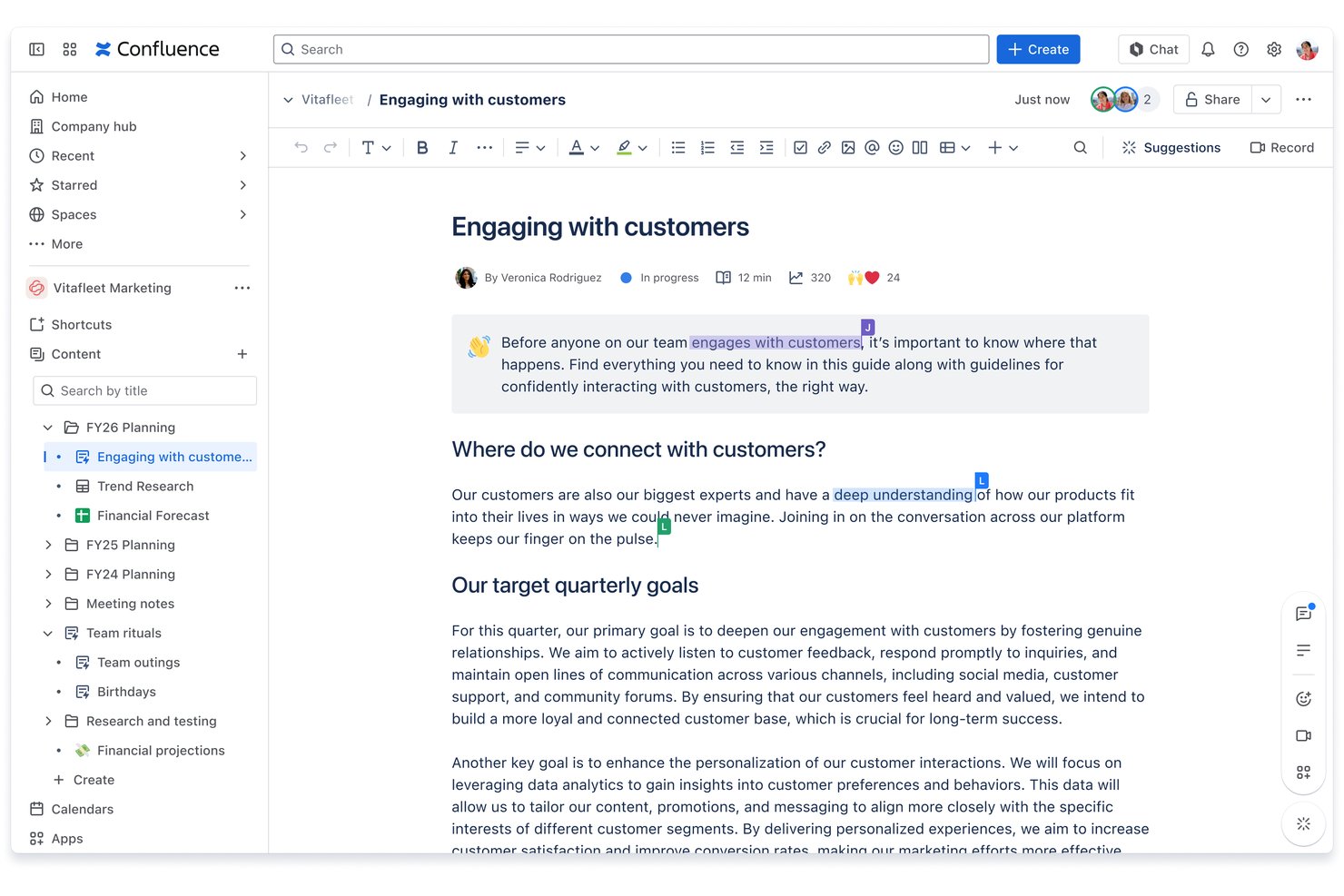
For product and engineering teams seeking a LibreOffice alternative, Confluence offers a shared workspace to create and organize project documents, keeping decisions and working context accessible across teams.
Who Is Confluence Best For?
Confluence suits project managers and technical teams that need to maintain shared project documentation, decisions, and team knowledge in one workspace.
Why I Picked Confluence
I picked Confluence as a LibreOffice alternative because it fits the shortlist’s “Best for team knowledge base and doc collaboration” description. I use spaces to group product specs and project decisions, while shared pages let product and engineering edit plans together and comment on open questions. Page history helps me trace changes when requirements shift.
Confluence Key Features
- Page templates: Start pages with reusable layouts for meeting notes, project plans, and requirements.
- Whiteboards: Map ideas and workflows on a visual canvas.
- Databases: Organize structured information in customizable tables and views.
- Smart Links: Embed links to connected tools with previews and useful details.
Confluence Integrations
Confluence has native integrations with Jira, Slack, and Microsoft Teams, plus support for embedding or syncing content from Google Drive, SharePoint, and OneDrive. Atlassian Marketplace offers thousands of apps, and Confluence provides a REST API for custom integrations.
Pros and Cons
Pros:
- Templates speed up specs and meeting notes
- Page history tracks changing requirements
- Centralizes project decisions and team documentation
Cons:
- Search can miss relevant or current pages
- Doesn’t replace desktop spreadsheet workflows

Best for AI-assisted document editing on a budget
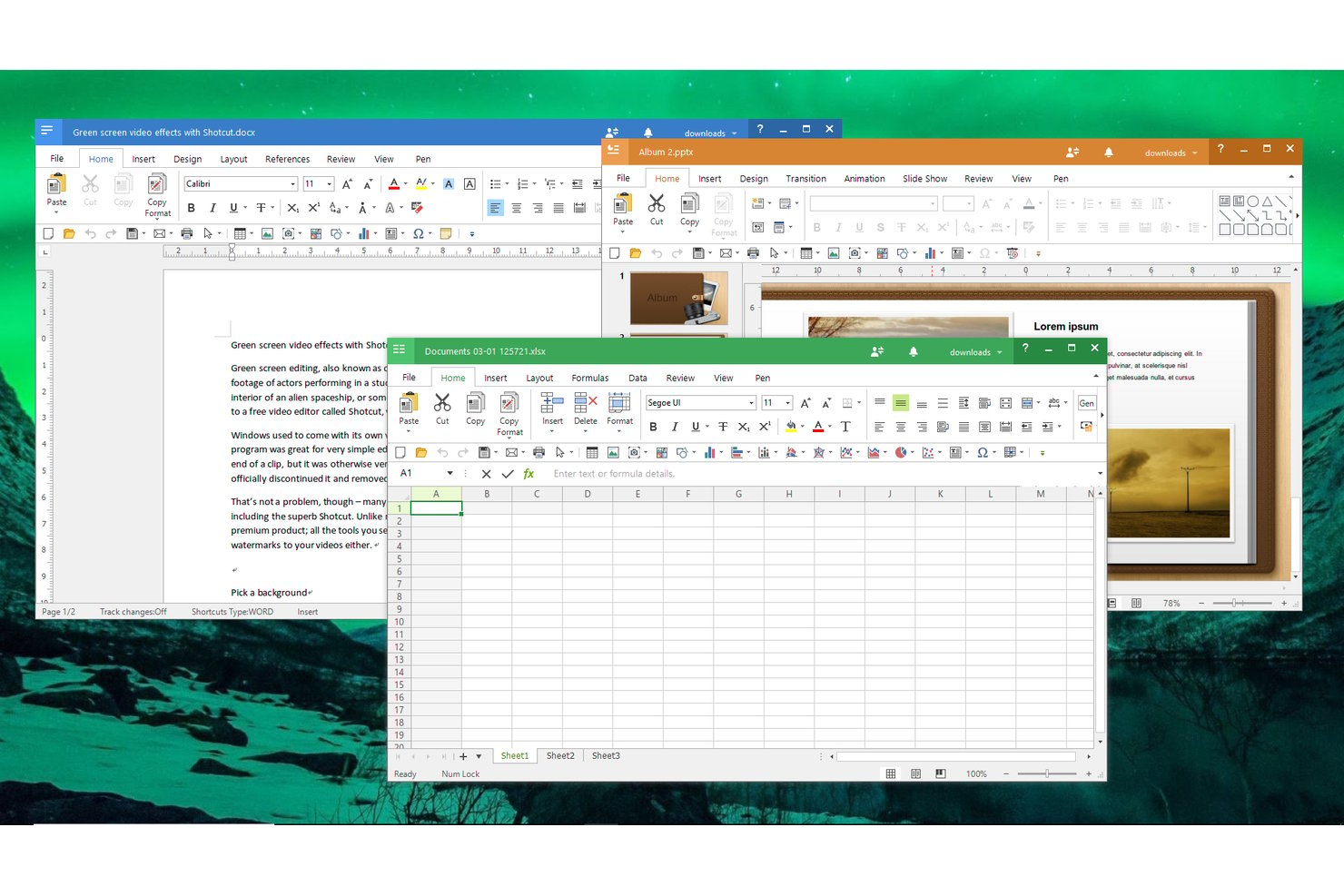
Polaris Office is a cross-platform office suite for small businesses and distributed teams that need to create and edit documents, spreadsheets, and presentations across devices as an alternative to LibreOffice.
Who Is Polaris Office Best For?
Polaris Office suits budget-conscious team leads who want AI-assisted help editing office files without paying for a premium suite.
Why I Picked Polaris Office
I picked Polaris Office as a LibreOffice alternative because it earns the label “Best for AI-assisted document editing on a budget.” Its AI agent NOVA can analyze, draft, and edit documents, then summarize meetings so I can turn raw notes into working files.
Polaris Office Key Features
- File format support: Opens and edits DOCX, XLSX, PPTX, PDF, HWP, and other formats.
- Office editors: Create and edit documents, spreadsheets, presentations, and PDFs.
- Polaris Drive sync: Sync files through Polaris Drive across supported devices.
- Real-time collaboration: Share files by link and co-edit with others in real time.
Polaris Office Integrations
Polaris Office connects to cloud storage services, including Google Drive, Dropbox, OneDrive, and Box, and supports WebDAV cloud storage. Native integrations with other third-party tools aren’t clearly documented.
Pros and Cons
Pros:
- Mobile apps support stylus markup
- Handles HWP alongside Office formats
- NOVA assists with drafting and edits
Cons:
- Password-protected files can’t be edited
- Free version displays frequent ads

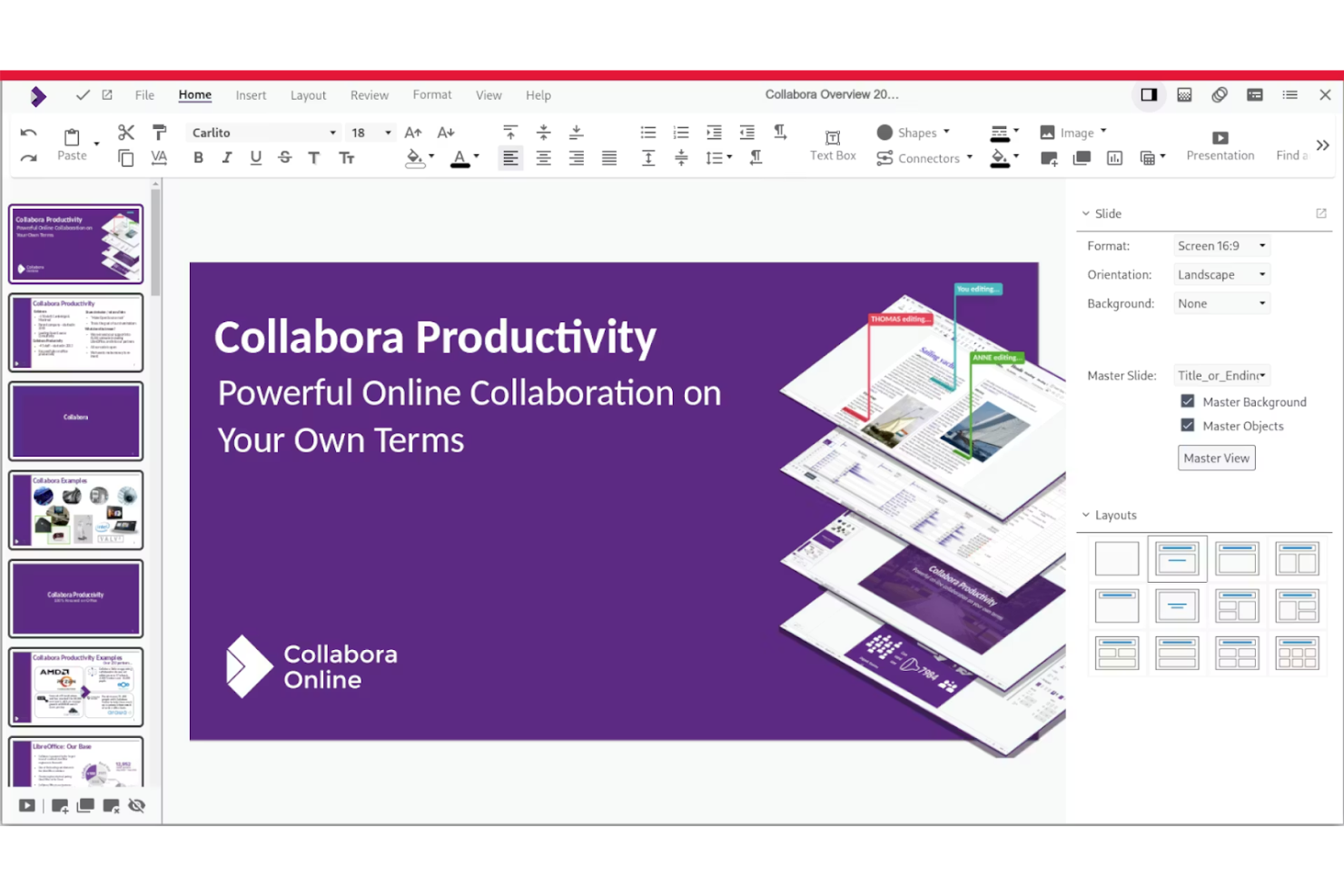
Collabora Online is a browser-based office suite built on LibreOffice that lets distributed teams edit documents, spreadsheets, and presentations together without relying on desktop-only workflows.
Who Is Collabora Online Best For?
Collabora Online suits project and IT teams that need browser-based document collaboration hosted on their own infrastructure.
Why I Picked Collabora Online
I picked Collabora Online as a LibreOffice alternative for “Best for open-source self-hosted collaboration”: it brings document, spreadsheet, and presentation editing into a browser your organization can host on its own infrastructure. I like that distributed project teams can edit shared files together without moving working documents to a third-party office suite.
Collabora Online Key Features
- Track changes : Record, review, and manage document edits.
- Pivot tables : Summarize and analyze spreadsheet data.
- PDF export options : Export selected pages and adjust image compression, DPI, and watermarks.
- Comment threads : Leave comments on document sections and reply within threads.
Collabora Online Integrations
Collabora Online integrates with Nextcloud, ownCloud, Seafile, and Pydio through WOPI-based connections. To connect it with a custom application, the host application must support WOPI.
Pros and Cons
Pros:
- Supports DOCX, XLSX, and PPTX
- Real-time co-editing for distributed teams
- Self-hosted control over document data
Cons:
- Large files can strain server resources
- Internet outages interrupt document work
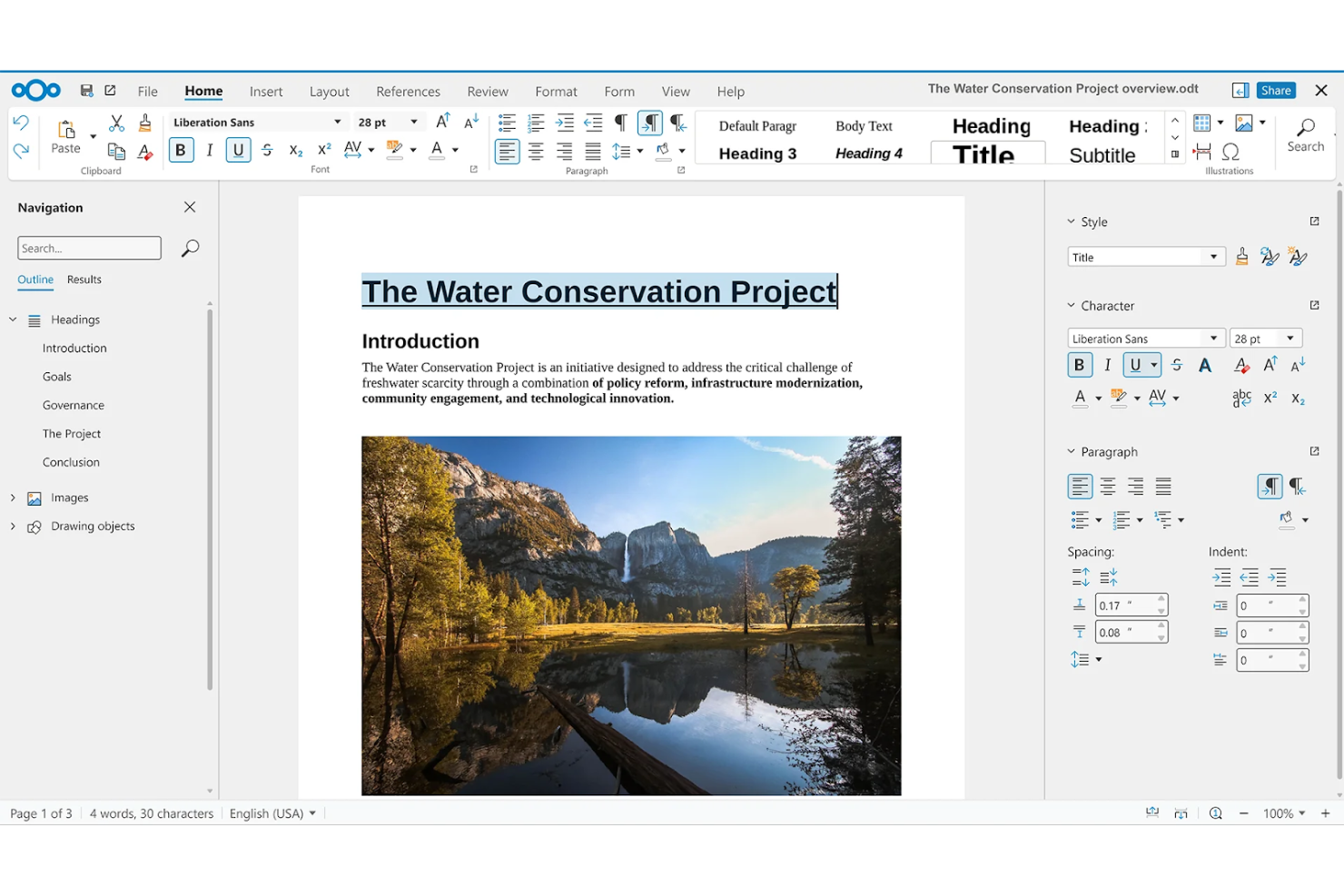
Nextcloud Office is a browser-based office suite for teams that want to co-edit documents, spreadsheets, and presentations within their Nextcloud workspace.
Who Is Nextcloud Office Best For?
Nextcloud Office suits IT-led organizations that want to host document collaboration on their own infrastructure and keep it within their Nextcloud environment.
Why I Picked Nextcloud Office
I picked Nextcloud Office as a LibreOffice alternative for self-hosted document collaboration. Teams can co-edit documents, spreadsheets, and presentations in the browser, keeping a project brief or status report inside their Nextcloud workspace.
Nextcloud Office Key Features
- Microsoft Office format compatibility : Opens DOCX, XLSX, and PPTX files with high-fidelity rendering.
- Spreadsheet formulas and filters : Use functions, sorting, and filters to analyze worksheet data.
- Presenter view : View speaker notes while presenting slides.
- PDF editing : Annotate, redact, and fill PDF forms.
Nextcloud Office Integrations
Nextcloud Office integrates with Nextcloud Assistant and links to Nextcloud content, including calendar events, chat messages, and kanban cards. It also supports document conversion through Nextcloud’s file conversion API.
Pros and Cons
Pros:
- Handles DOCX, XLSX, and PPTX
- Enables browser-based real-time co-editing
- Keeps documents on infrastructure you control
Cons:
- Large files can strain server resources
- Collaborative editing depends on connectivity

Best for AI-assisted document creation
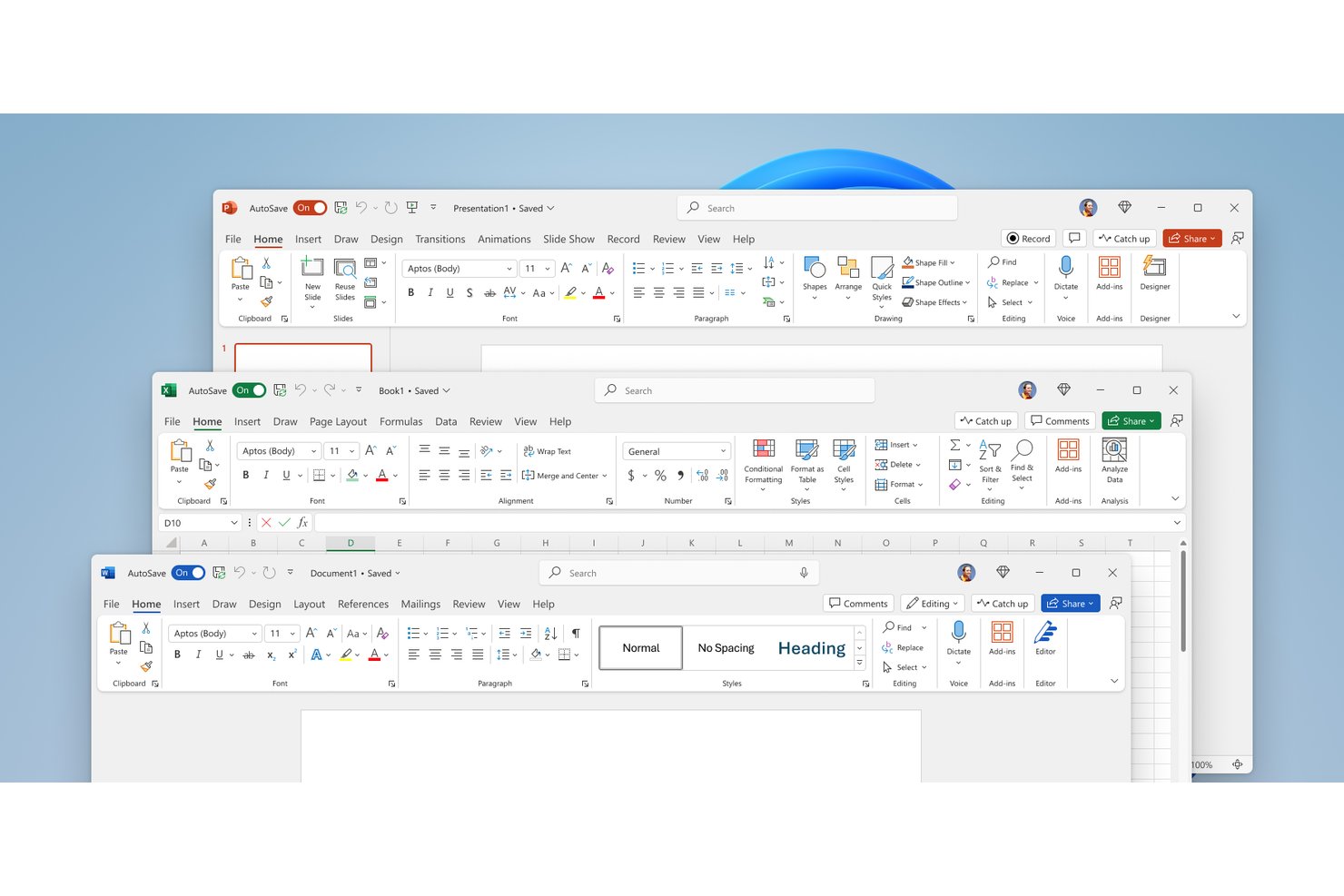
Microsoft 365 brings Word, Excel, PowerPoint, and cloud collaboration together for project teams that need familiar office apps to create, share, and update files across devices.
Who Is Microsoft 365 Best For?
Microsoft 365 suits project managers and cross-functional teams that want AI assistance drafting and refining project documents in Word, Excel, and PowerPoint.
Why I Picked Microsoft 365
I picked Microsoft 365 as a LibreOffice alternative for AI-assisted document creation. Copilot in Word can draft and revise project briefs from prompts, while Copilot in PowerPoint can create a presentation from a Word document. I use these workflows to turn changing plans into stakeholder updates without rebuilding each file from scratch.
Microsoft 365 Key Features
- Real-time coauthoring: Multiple people can edit Word, Excel, and PowerPoint files together.
- OneDrive version history: Review and restore earlier versions of files stored in OneDrive.
- Excel pivot tables: Summarize and explore project data by category or value.
- Outlook shared calendars: View team availability and schedule project meetings.
Microsoft 365 Integrations
Microsoft 365 has built-in connections across its ecosystem, including Word, Excel, OneDrive, Outlook, SharePoint, Teams, and Planner. Microsoft Graph provides an API for custom integrations, Microsoft 365 Copilot connectors can bring in data from Box, Google Drive, Jira, and Salesforce, and Microsoft 365 connects with Zapier.
Pros and Cons
Pros:
- Mature desktop apps support offline editing
- Real-time coauthoring reduces conflicting document versions
- Copilot drafts briefs directly in Word
Cons:
- Frequent updates can disrupt established workflows
- Copilot support varies across Microsoft 365 apps

Best for built-in PDF editing without add-ons
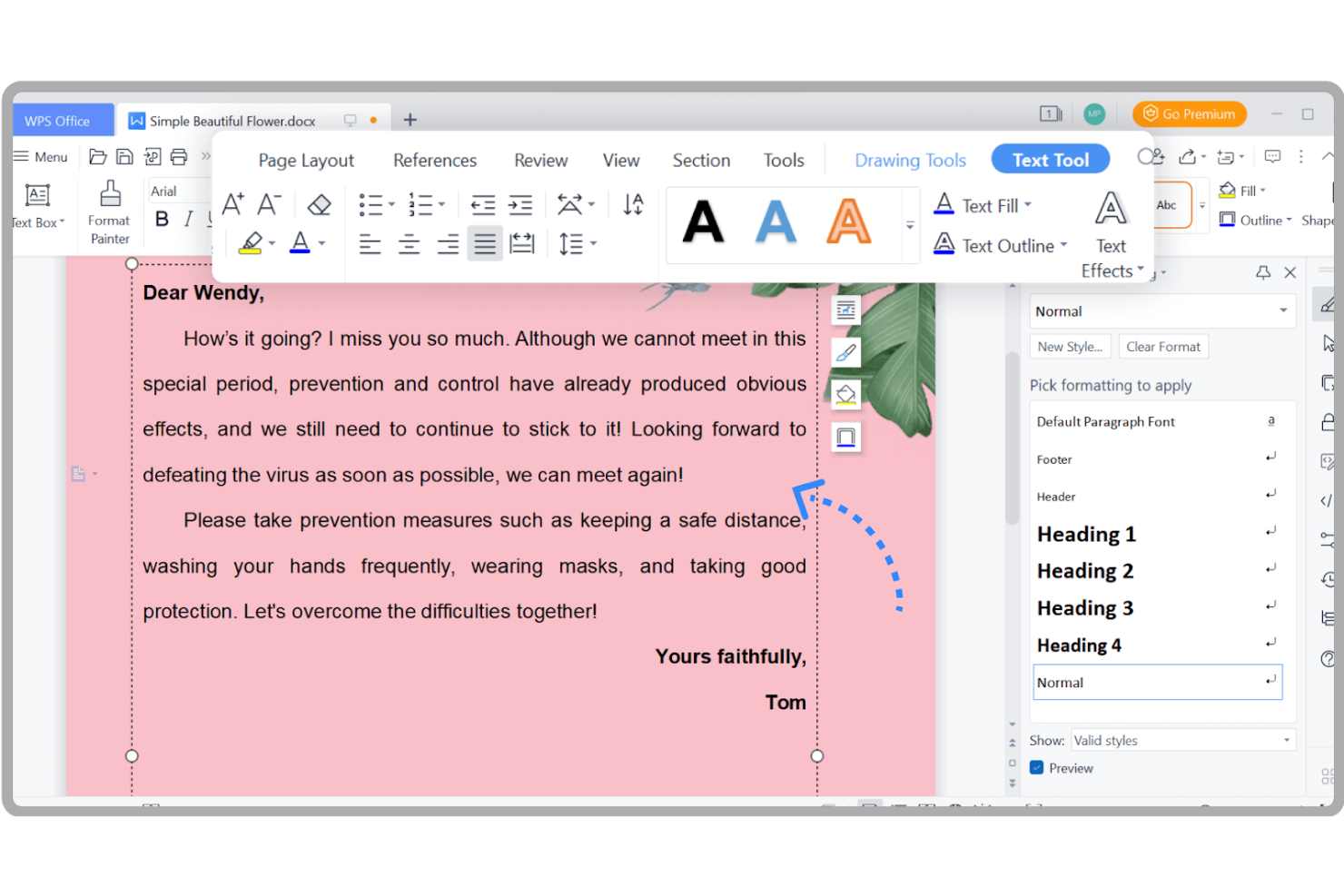
WPS Office gives small businesses and project teams an alternative to LibreOffice, combining word processing, spreadsheets, and presentations for everyday document work across desktop and mobile.
Who Is WPS Office Best For?
WPS Office suits teams that need everyday office apps and built-in PDF editing without installing separate add-ons.
Why I Picked WPS Office
I picked WPS Office as a LibreOffice alternative for “Best for built-in PDF editing without add-ons.” I can modify PDF text, highlight content, and fill forms in the same suite, so I don’t need a separate editor when a project document arrives as a PDF.
WPS Office Key Features
- Writer formatting: Apply styles, page layouts, and text formatting to documents.
- Spreadsheet formulas: Use formulas, tables, and charts to work with project data.
- Presentation tools: Build slide decks with layouts, transitions, and animations.
- Cloud sync: Save files to WPS Cloud and access them across supported devices.
WPS Office Integrations
WPS Office has built-in cloud storage integrations with Google Drive, OneDrive, Dropbox, and Box, letting you open and save files in those services.
Pros and Cons
Pros:
- Combines documents, spreadsheets, and presentations
- Preserves formatting in Microsoft Office files
- Edits PDFs within the office suite
Cons:
- Complex Excel files can misrender formulas
- Free version interrupts work with ads

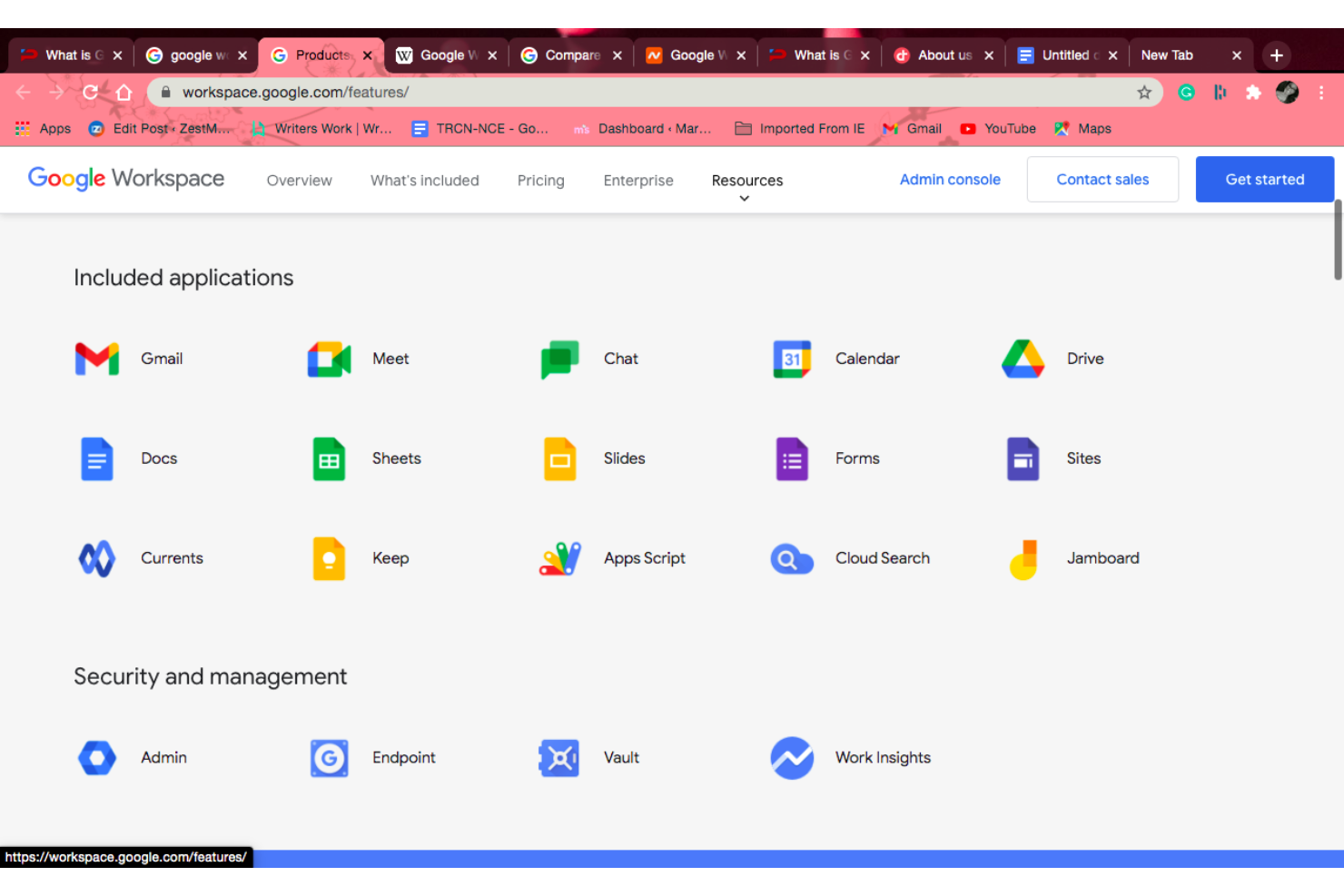
Google Workspace is a cloud-based office suite for project and product teams that need to create documents, spreadsheets, and presentations together and keep shared files accessible across devices.
Who Is Google Workspace Best For?
Google Workspace suits cross-functional teams that need browser-based documents, spreadsheets, and presentations to coordinate work across locations.
Why I Picked Google Workspace
I picked Google Workspace as Best for cloud-native team document collaboration when replacing LibreOffice’s desktop-first workflow. In Docs, teammates edit the same project brief in real time, while comments and suggestion mode keep review decisions attached to the text. Shared Drive files keep the current version accessible across devices.
Google Workspace Key Features
- Gmail filters: Create rules to label, archive, or forward incoming email.
- Shared calendars: Give teammates access to calendars and manage their permissions.
- Sheets pivot tables: Summarize spreadsheet data by categories without changing source rows.
- Slides speaker notes: Add private presentation notes visible to the presenter.
Google Workspace Integrations
Google Workspace has native integrations across its apps, including Gmail, Drive, Docs, Sheets, Calendar, and Meet. Its Marketplace offers 5,000+ third-party apps, including Salesforce, DocuSign, and Slack, and Google provides APIs for custom integrations.
Pros and Cons
Pros:
- Browser access keeps files available across devices
- Comments keep review decisions beside the text
- Real-time coediting keeps project documents in sync
Cons:
- Offline access can be limited or unreliable
- Limited layout control for complex document formatting

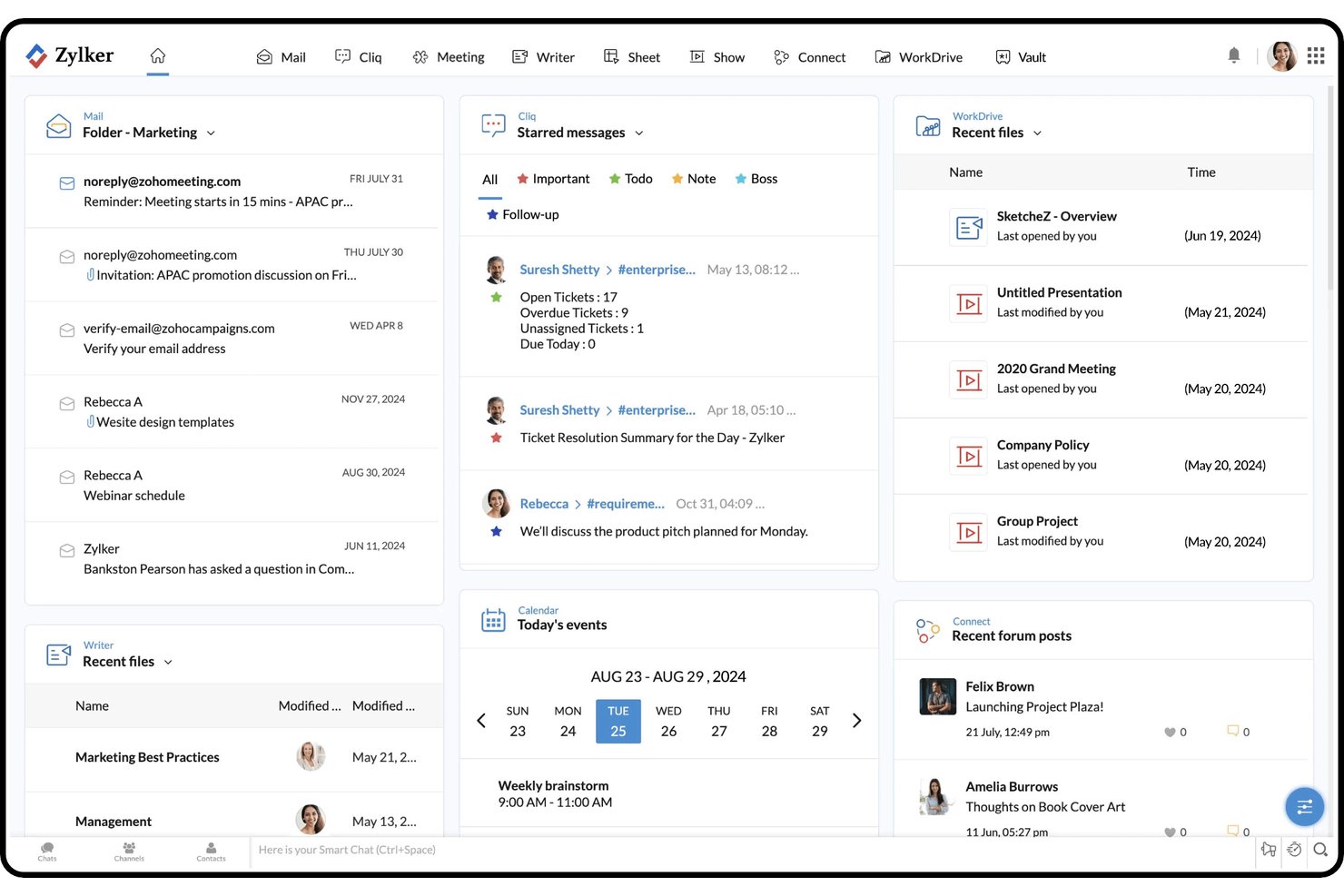
For small businesses replacing LibreOffice with a connected office suite, Zoho Workplace combines email, document editing, spreadsheets, and team collaboration to keep communication and shared files together.
Who Is Zoho Workplace Best For?
Zoho Workplace suits small-business teams that want staff to coordinate email and shared work files in one workspace.
Why I Picked Zoho Workplace
I picked Zoho Workplace as a LibreOffice alternative because its focus is “Best for small business email and doc collaboration.” Zoho Mail keeps team conversations in the same suite as Writer and Sheet, while WorkDrive lets staff share and review working files. That combination helps my team keep document collaboration close to everyday email.
Zoho Workplace Key Features
- Meeting scheduling: Set an agenda, invite participants, request RSVPs, and send reminders.
- Screen sharing: Share a window or your entire screen during video conferences.
- Meeting recording: Record sessions and save chat history and notes.
- Meeting controls: Lock meetings, assign co-presenters, and mute or remove participants.
Zoho Workplace Integrations
Zoho Workplace has native integrations across Zoho apps and connects with Microsoft Office, Google Drive, Dropbox, OneDrive, Box, Asana, Trello, DocuSign, Adobe Sign, and Zapier. It also offers additional extensions through Zoho Marketplace and APIs for custom integrations.
Pros and Cons
Pros:
- Sheet handles complex data well
- Writer includes distraction-free drafting mode
- Live coauthoring supports document review
Cons:
- Offline editing depends on reliable internet
- Pasting can strip original formatting

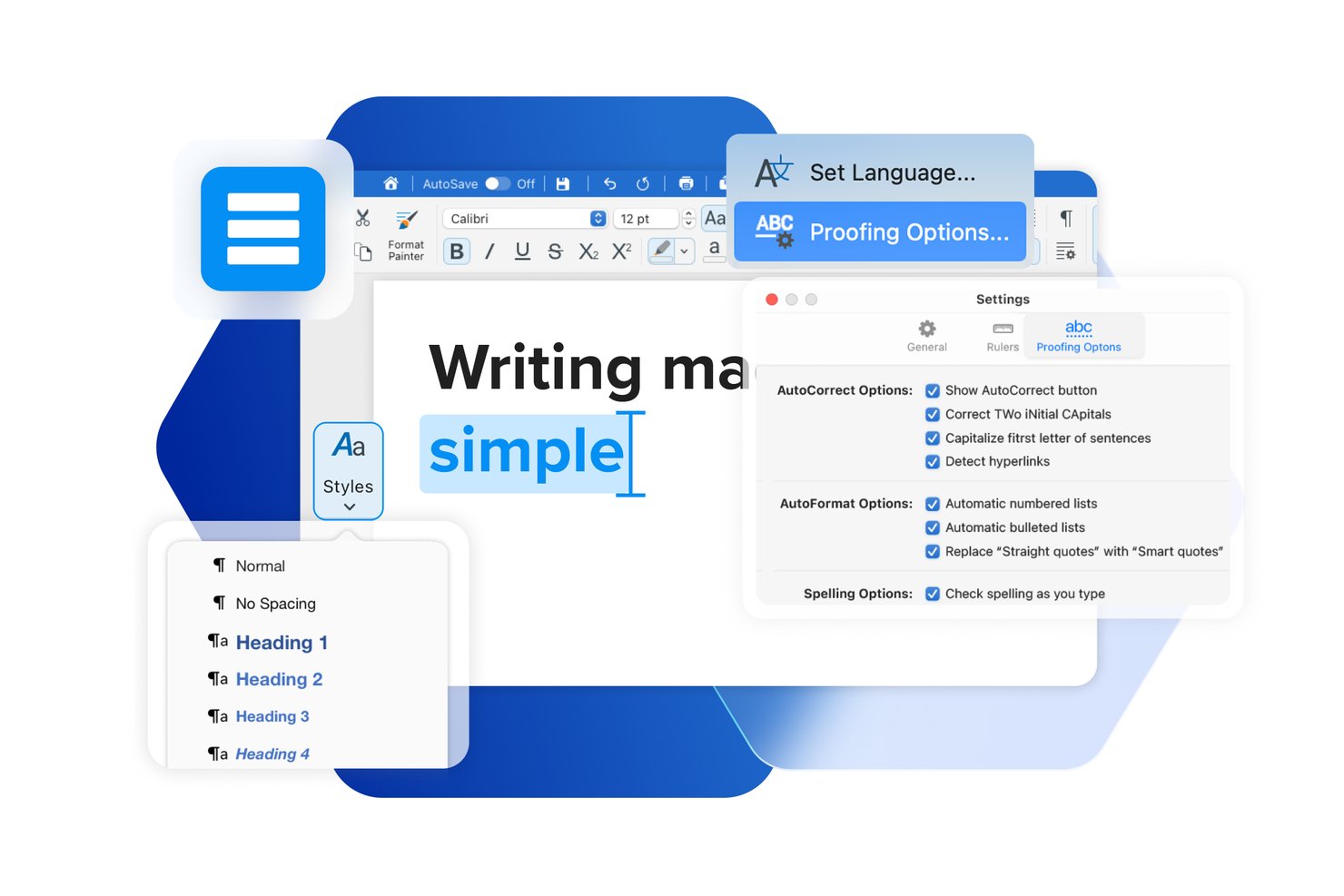
MobiOffice combines word processing, spreadsheets, presentations, and PDF tools in one suite, giving students and individual users a practical alternative to LibreOffice for coursework and everyday documents.
Who Is MobiOffice Best For?
MobiOffice is a good fit for students who want familiar office tools without paying for a premium productivity suite.
Why I Picked MobiOffice
I picked MobiOffice as “Best for students switching to an affordable suite” because it brings word processing, spreadsheets, presentations, and PDF tools together. I like that students can draft essays, organize assignment data, prepare class presentations, and work with course PDFs in one suite.
MobiOffice Key Features
- Track changes and comments: Review edits and add feedback in MobiDocs.
- Pivot tables: Summarize and analyze data in MobiSheets.
- Slide animations: Add animations and transitions to presentations.
- AI writing assistant: Fix grammar, summarize, expand, or rephrase text.
MobiOffice Integrations
MobiOffice supports opening and saving files in Google Drive, OneDrive, and Dropbox. These cloud storage connections let you work with files stored outside MobiOffice.
Pros and Cons
Pros:
- Includes pivot tables and slide animations
- Combines documents, spreadsheets, slides, and PDFs
- Opens Microsoft Office and LibreOffice formats
Cons:
- Ads and upgrade prompts interrupt editing
- Free mobile version restricts saving
Andre LibreOffice-alternativer
Her er noen flere alternativer til LibreOffice som ikke kom med på kortlisten, men som likevel er verdt å undersøke:
- iWork
For Apple users switching from open-source
- ClickUp
For project docs tied to task workflows
- Notion
For connected docs and team wikis
- Dropbox Paper
For doc collaboration within Dropbox
- Apache OpenOffice
For zero-cost full suite with no subscription
- Superhuman
For AI-built docs and team workflows
- CryptPad
For end-to-end encrypted team documents
- ThinkFree
For embedding document editing in apps
- Polaris Office Web
For browser-based editing without installing apps
- Truly Office
For one-time license buyers avoiding subscriptions


How I Evaluate LibreOffice Alternatives
I split my evaluation into three parts. First, core functionality—the most important part: can the tool create documents, spreadsheets, and presentations, and does it open .docx and .xlsx files without mangling the layout? Second, I look for standout features like built-in PDF editing or macro scripting. Third, I consider pricing transparency and migration ease.
Core Functionality (Table Stakes For This List)
When I'm selecting tools for my list, I score each one on a scale from 0 (does not offer the functionality) to 5 (excels in this area) for each core functionality listed below. I then convert the total into a percentage to help assess each tool's overall fit, with extra weight on any functionalities I’ve deemed essential.
- Document Suite (Essential): I look for tools to create and format documents, spreadsheets, and presentations, from project plans and meeting notes to stakeholder updates.
- File Compatibility (Essential): I assess how well tools open, edit, and save .docx, .xlsx, and .pptx files while preserving layouts, charts, and formatting.
- Offline Editing: I consider whether you can edit all three file types without internet access and sync your changes reliably when you reconnect.
- Cloud Sync: I look for cloud storage that keeps project files synced across devices, with version history to help recover earlier drafts.
- Real-Time Collaboration: I assess whether colleagues can co-edit with visible changes, comments, and review tools for shared briefs and reports.
- Cross-Platform Access: I check whether teams can work across desktop operating systems and in a browser, so contributors can access files on their preferred devices.
Once I have a list of tools that meet the criteria, I consider what sets each platform apart.
Differentiating Factors (What Sets Vendors Apart)
Here's how I compare and contrast different vendors:
Standout Features
I look for built-in PDF editing so teams can annotate contracts or mark up deliverables without switching to a separate tool. Macro and scripting support matters too—I check whether a suite lets you automate recurring status reports or consolidate data across spreadsheets using Basic, Python, or JavaScript. Beyond documents, I evaluate whether a platform bundles companion apps like kanban boards or note-taking modules, which keep project context in one workspace instead of scattered across tabs.
Beyond Features
I evaluate how each suite connects to PM platforms like Jira, Asana, or Slack, since native integrations cut context-switching when coordinators move between project docs and task boards. Migration ease matters too—I check for import tools and ODF backward compatibility so teams don't lose historical project files mid-transition. I also consider whether a vendor offers self-hosted deployment, which is a requirement for regulated or government-adjacent projects handling sensitive contracts and budgets.
Hvorfor se etter et LibreOffice-alternativ?
Selv om LibreOffice er et godt valg av kontorpakke med åpen kildekode, finnes det flere grunner til at noen brukere ser etter alternative løsninger. Det kan hende du ser etter et LibreOffice-alternativ fordi …
- Du trenger sanntidssamarbeid om dokumenter
- Du ønsker et mer moderne eller kjent grensesnitt
- Du trenger bedre kompatibilitet med Microsoft Office-filer
- Du trenger innebygd skylagring og synkronisering
- Du ønsker mer avanserte verktøy for PDF-redigering
- Du trenger bedre støtte for mobil- eller nettapper
Hvis noe av dette høres kjent ut, har du kommet til rett sted. Listen min inneholder flere kontorpakker med åpen kildekode som er bedre egnet for team som møter disse utfordringene med LibreOffice og ser etter alternative løsninger.
Viktige funksjoner i LibreOffice
Her er noen av de viktigste funksjonene i LibreOffice, slik at du kan sammenligne hva alternative løsninger tilbyr:
- Fullverdig tekstbehandler (Writer)
- Avansert regnearkredigeringsverktøy (Calc)
- Presentasjonsprogram med støtte for multimedia (Impress)
- Verktøy for vektortegning og diagramoppretting (Draw)
- Databasehåndteringssystem (Base)
- Formelredigerer for vitenskapelige og matematiske ligninger (Math)
- Omfattende støtte for Microsoft Office-filformater
- Bibliotek med tilpassbare utvidelser og maler
- Frakoblet tilgang via skrivebordet til alle moduler
- Åpen kildekode-lisensiering og aktiv støtte fra fellesskapet