

I 10 migliori software di confronto documenti recensiti nel 2026

Elenco dei migliori software per il confronto dei documenti


Il software per il confronto dei documenti è il modo più semplice per tenere traccia delle modifiche a contratti, proposte o documenti tecnici; mantenere accuratezza e coerenza tra i file; ridurre il rischio di errori; e diminuire il tempo dedicato alla revisione manuale delle modifiche.
Ho testato e recensito diversi strumenti per fornire una panoramica chiara e imparziale delle migliori soluzioni disponibili, così puoi scegliere quella giusta per i tuoi progetti e il tuo team. Grazie alla mia esperienza con questo tipo di strumento come responsabile di progetto, analizzerò le caratteristiche e i vantaggi principali di ciascuno.
Perché fidarsi dei nostri consigli sui software
Il nostro team testa e recensisce software dal 2012. In quanto project manager noi stessi, sappiamo quanto sia difficile — e importante — scegliere il software giusto.
Per questa guida, abbiamo valutato gli strumenti attraverso test pratici e ricerche indipendenti, assegnando un punteggio agli strumenti in base ai nostri criteri di selezione. Ci basiamo inoltre sulle competenze di leader di pensiero del settore e di professionisti attivi nella gestione dei progetti.
Le nostre recensioni riflettono il nostro giudizio editoriale umano, non un discorso di vendita.
Revisori esperti:
Tabella comparativa dei software per il confronto dei documenti
Questa tabella comparativa riassume i dettagli dei prezzi delle mie migliori selezioni di software per il confronto dei documenti:
| Tool | Best For | Trial Info | Price | ||
|---|---|---|---|---|---|
| 1 | Ideale per team creativi | Prova gratuita di 30 giorni + piano gratuito + demo gratuita disponibile | Da $199/mese | Website | |
| 2 | Ideale per insight avanzati sui documenti grazie all’IA | Piano gratuito disponibile | Da $14.99/mese (fatturazione annuale) | Website | |
| 3 | Ideale per il confronto di documenti PDF | Prova gratuita disponibile | Da $7/mese (fatturazione annuale) | Website | |
| 4 | Ideale per il confronto di file di codice | Prova gratuita di 30 giorni | Da $7.50/utente/mese (fatturato annualmente) | Website | |
| 5 | Ideale per l'integrazione nella gestione progetti | Prova gratuita disponibile | A partire da $7user//mese (fatturazione annuale) | Website | |
| 6 | Ideale per l'accuratezza dei documenti Word | Demo gratuita disponibile | Prezzo su richiesta | Website | |
| 7 | Ideale per uso cross-platform | Prova gratuita disponibile | Da $35/utente (costo una tantum) | Website | |
| 8 | Ideale per la gestione dei contratti | Demo gratuita disponibile | Prezzo su richiesta | Website | |
| 9 | Ideale per i professionisti legali | Prova gratuita di 30 giorni | Da $129/mese (pagamento una tantum), poi $29 (fatturati annualmente) | Website | |
| 10 | Ideale per velocità di elaborazione rapida Prezzo su richiesta | Prova gratuita disponibile | Prezzo su richiesta | Website |
Recensione dei migliori software per il confronto dei documenti
Ecco i miei riepiloghi dettagliati dei migliori software per il confronto dei documenti. Ho illustrato le caratteristiche principali, i pro e i contro, le integrazioni e gli scenari di utilizzo ideali per ciascuno strumento.

Ideale per team creativi

Filestage si guadagna un posto in questa lista grazie alla specificità del suo processo di revisione e approvazione per team creativi che lavorano con documenti, immagini e video. Quando hai più stakeholder che lasciano feedback su materiali visivi, il confronto affiancato delle versioni, i commenti e le modifiche tracciate rendono le approvazioni semplici e lineari.
Ciò che apprezzo è che puoi vedere chi ha suggerito cosa nel contesto, con elementi visivi e annotazioni, il che fa risparmiare molto tempo nella fase di finalizzazione dei progetti creativi.
Filestage è ideale per
- Team creativi che gestiscono revisioni di marketing, video, design o documenti
- Agenzie che devono affrontare processi di approvazione di asset visivi con più stakeholder
Filestage non è adatto per
- Team che confrontano prevalentemente documenti legali o tecnici basati su testo
- Organizzazioni che necessitano di strumenti granulari e automatizzati di merging o comparazione di documenti
Cosa distingue Filestage
Filestage è progettato per mantenere il feedback visivo e le revisioni di documenti strutturate e semplici, senza essere dispersi tra e-mail o chat. A differenza di Google Workspace o Slack, presuppone che tu abbia bisogno di un unico luogo dove annotare video, immagini e documenti con colleghi e clienti. In pratica, questo funziona bene quando stai gestendo deliverable creativi e hai bisogno del feedback di tutti in un unico posto, chiaramente tracciato.
Compromessi con Filestage
Filestage è ottimizzato per la revisione centralizzata e visiva, ma sacrifica il confronto avanzato di documenti. Se ti serve un diff testuale dettagliato o funzionalità di merging, risulta carente.
Pros and Cons
Pros:
- Annotazione facile sui file di design
- Supporta il controllo delle versioni
- Commenti ai video con data e ora
Cons:
- Richiede internet per tutte le funzionalità
- La configurazione iniziale può essere complessa

Ideale per insight avanzati sui documenti grazie all’IA

Adobe Acrobat si distingue per me grazie al suo strumento AI, Acrobat AI Assistant, che analizza, riassume e individua informazioni direttamente nei tuoi PDF. Vedo team legali, finanziari e dei contratti affidarsi alle sue visualizzazioni di confronto precise quando la precisione è essenziale. Ciò che apprezzo di più è la possibilità di porre domande su interi documenti e ottenere subito risposte, non solo revisioni o modifiche.
Adobe Acrobat è ideale per
- Team legali, dei contratti e finanziari che devono verificare le modifiche ai documenti
- Organizzazioni che necessitano di approfondimenti e confronti guidati dall’IA
Adobe Acrobat non è adatto per
- Team che cercano strumenti di confronto rapidi e leggeri
- Gruppi che non hanno bisogno di analisi avanzata dei documenti o dell’IA
Cosa distingue Adobe Acrobat
Adobe Acrobat si distingue perché unisce il confronto dei documenti con l’analisi avanzata dell’IA, permettendoti di ricavare insight direttamente dai file su cui lavori. Diversamente dagli strumenti di comparazione più semplici o da Google Docs, Acrobat presuppone che tu abbia bisogno di più delle sole revisioni: infatti ti consente di porre domande, riassumere e interagire con i tuoi documenti. In pratica, si utilizza Acrobat quando la precisione e un’analisi più approfondita dei contenuti contano più della velocità.
Compromessi con Adobe Acrobat
Acrobat è progettato per fornire approfondimenti e precisione nei documenti, quindi comporta alcune fasi aggiuntive e un maggiore utilizzo di risorse rispetto agli strumenti focalizzati esclusivamente sul confronto affiancato.
Pros and Cons
Pros:
- Si integra con Microsoft 365 e Google Workspace
- Offre confronto batch per più file
- Include strumenti avanzati di redazione e sicurezza
Cons:
- Gli approfondimenti basati sull’IA richiedono un abbonamento enterprise
- Può essere pesante su dispositivi più datati

Soda PDF
Ideale per il confronto di documenti PDF

Soda PDF è nella mia lista dei preferiti perché il suo strumento di confronto dei documenti è insolitamente preciso nella gestione di revisioni complesse di PDF. Utilizzo Soda PDF quando si tratta di contratti, documenti legali o specifiche tecniche dove anche un piccolo cambiamento può fare la differenza. Ciò che mi colpisce è il modo in cui evidenzia inserimenti, eliminazioni e modifiche di testo affiancate in un report visivo. Mi piace la rapidità con cui puoi scorrere le differenze, il che riduce di molto i passaggi necessari per team che lavorano con molti documenti.
Migliori utilizzi di Soda PDF
- Team legali che confrontano contratti o PDF normativi
- Team che revisionano documenti tecnici con formattazione complessa
Quando Soda PDF non è l’ideale
- Confrontare tipi di file diversi dai PDF
- Flussi di lavoro collaborativi con più editor di documenti
Cosa rende unico Soda PDF
Soda PDF è pensato per revisionare, annotare e confrontare documenti finiti e formattati—soprattutto quando la precisione è fondamentale. Diversamente da Google Docs, che dà il meglio con bozze testuali e collaborazione in corso, Soda PDF punta a file PDF pubblicati dove layout e elementi grafici possono variare. Lo vedo funzionare bene quando la forma finale del documento conta quanto il suo contenuto.
Compromessi di Soda PDF
Ottimizzando per l’accuratezza PDF e la presentazione, Soda PDF limita gli strumenti di collaborazione e modifica, per cui sarà necessario un altro sistema per la stesura o modifiche collaborative ai documenti.
Pros and Cons
Pros:
- Funziona offline e online
- Include strumenti IA per la traduzione
- Supporta conversioni in batch
Cons:
- Strumenti di modifica avanzati limitati
- Può richiedere un po' di apprendimento per i nuovi utenti

Ideale per il confronto di file di codice

UltraEdit si guadagna il suo posto perché confronta file a un livello che pochi editor raggiungono. Quando devo esaminare le differenze in vaste basi di codice, la sua vista di confronto affiancata e consapevole della sintassi mi fa risparmiare ore nel comprendere i cambiamenti. Ciò che apprezzo è la rapidità con cui posso analizzare le differenze in file enormi senza perdere in prestazioni. Otterrai il massimo valore quando i file sorgente del progetto cambiano rapidamente e i conflitti di merge sono una vera preoccupazione.
UltraEdit è ideale per
- Sviluppatori che confrontano file di codice grandi o complessi
- Team che necessitano di un confronto file rapido e consapevole della sintassi
UltraEdit non è ideale per
- Utenti non tecnici che revisionano versioni standard di documenti
- Confrontare documenti formattati come file Word o PDF
Cosa distingue UltraEdit
UltraEdit affronta il confronto del codice dal punto di vista di un editor di testo esperto, invece che di uno strumento di diff dedicato come Beyond Compare o Meld. Lavori direttamente nei tuoi file, con evidenziazione della sintassi che aiuta a individuare le modifiche nel vero codice, non solo nel testo dei documenti. Questo è molto utile quando gestisci grandi basi di codice e hai bisogno di individuare rapidamente piccole modifiche, inserimenti o cancellazioni all'interno di file di grandi dimensioni.
Compromessi di UltraEdit
UltraEdit è ottimizzato per utenti tecnici che lavorano con testo grezzo, quindi revisionare PDF o formati di testo arricchito risulta macchinoso. Per la revisione affiancata di documenti che non siano codice o testo semplice, si perde precisione e contesto di formattazione.
Pros and Cons
Pros:
- Supporta molti linguaggi di programmazione
- Gestisce file di grandi dimensioni in modo efficiente
- Offre la modalità di modifica a colonne
Cons:
- Può disorientare i nuovi utenti
- Funzionalità di collaborazione limitate

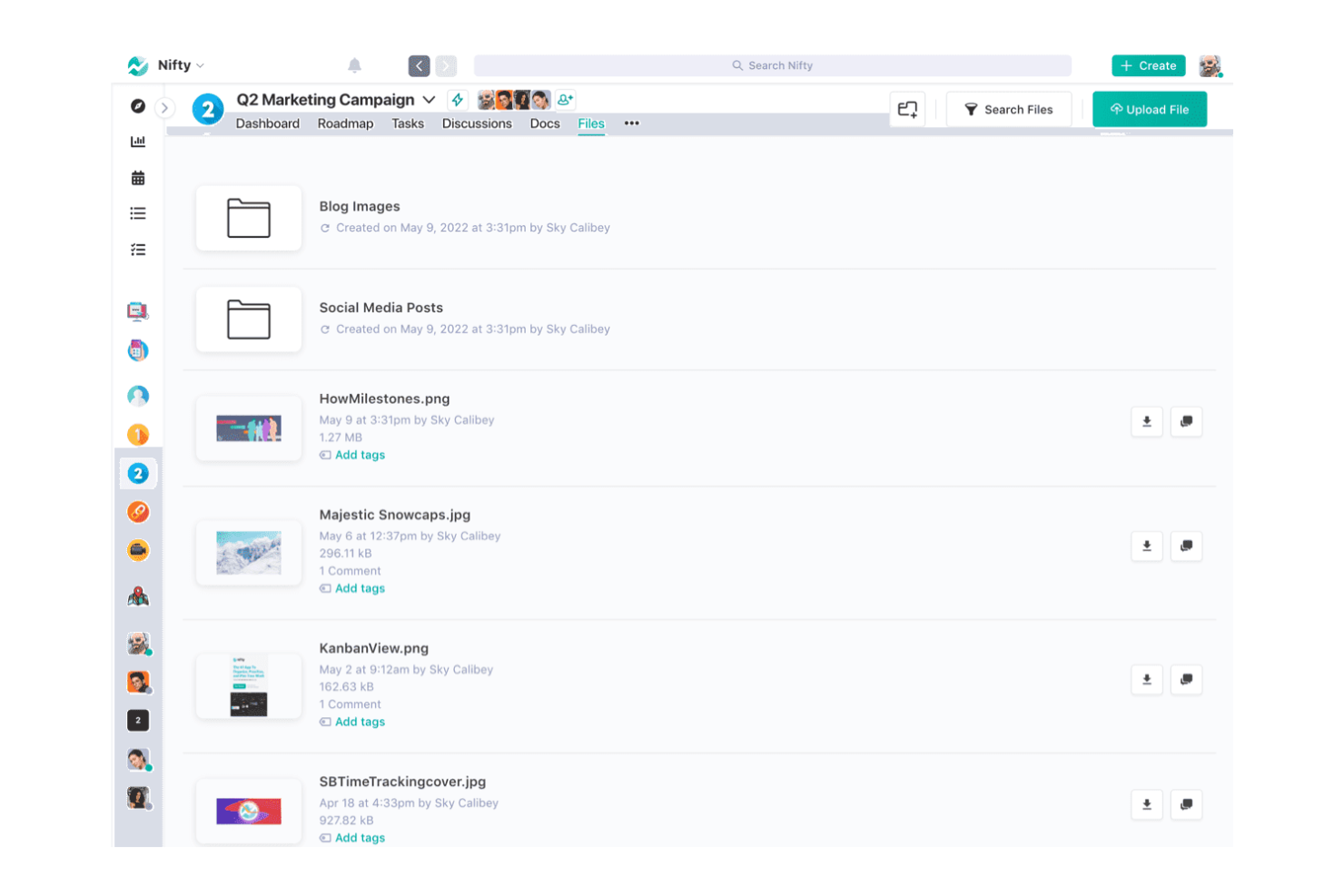
Nifty PM merita un posto qui perché unisce la gestione dei progetti e i flussi di lavoro dei documenti in un modo che non vedo nella maggior parte dei concorrenti. Quando lavoro con team che vivono nei loro dashboard di progetto, avere il versionamento dei documenti integrato e la collaborazione in tempo reale rende facile confrontare i file, tracciare gli aggiornamenti e mantenere tutto pronto per le verifiche.
Mi piace il fatto che non devi uscire da Nifty per individuare le modifiche ai documenti o gestire le revisioni, il che aiuta molto quando si devono gestire progetti in rapida evoluzione o revisioni trasversali tra diversi reparti.
Migliori utilizzi di Nifty PM
- Team di progetto che vogliono avere documenti e task in un unico hub
- Organizzazioni che necessitano del confronto documentale all'interno della gestione progetti
Nifty PM non è ideale per
- Team legali o di compliance che necessitano redline dettagliati
- Team che desiderano funzionalità di confronto documenti specifiche del settore
Cosa distingue Nifty PM
Nifty PM posiziona la collaborazione sui documenti accanto ai tuoi progetti, task e scadenze. A differenza di Google Workspace, dove file e lavoro di progetto spesso vivono in posti diversi, Nifty presume che tu voglia tutto collegato insieme. In pratica, questo funziona bene per i team che già gestiscono grandi volumi di documenti legati a progetti e vogliono vedere i cambiamenti ai file nel contesto dell'attività di progetto.
Compromessi con Nifty PM
Nifty PM ottimizza per l'unificazione di progetti e documenti, ma si rinuncia a strumenti di confronto avanzati—come il confronto dettagliato tra versioni o la marcatura focalizzata sulla compliance—che sono offerti da software più specializzati.
Pros and Cons
Pros:
- Chat integrata per la comunicazione del team
- Collaborazione documentale semplice
- Si integra con vari strumenti di progetto
Cons:
- Funzionalità offline limitate
- Curva di apprendimento per i nuovi utenti

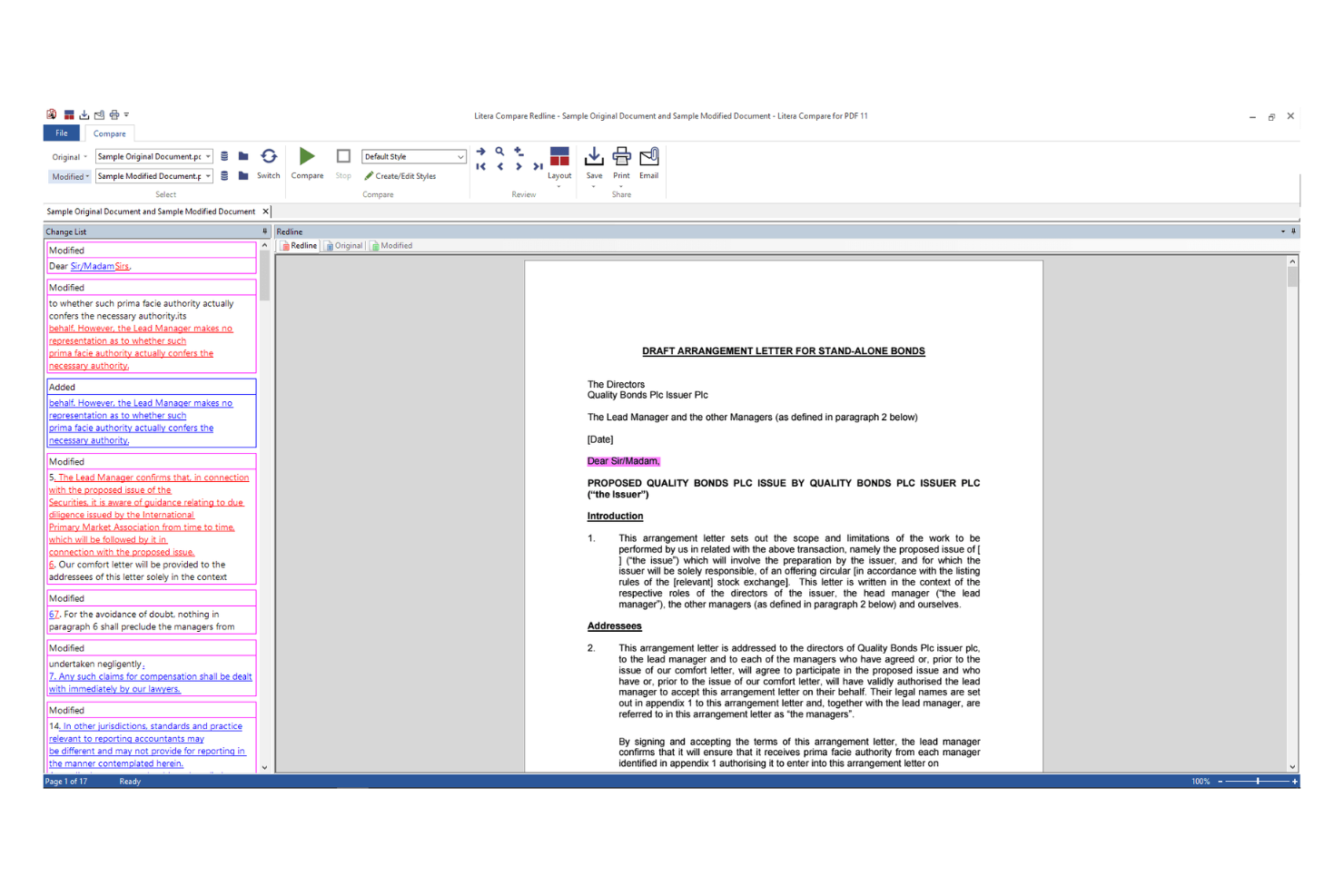
Litera Compare entra nella mia selezione dei migliori strumenti di confronto documenti grazie all'incomparabile precisione nel rilevare le modifiche all'interno dei documenti Word. Quando vedo team legali o studi che gestiscono accordi di grande importanza, Litera Compare è lo strumento su cui faccio affidamento per cogliere anche le più piccole modifiche e revisioni. Quello che apprezzo di più è il modo in cui evidenzia inserimenti, eliminazioni e differenze di formattazione senza creare confusione. È un punto fermo quando la precisione nei documenti è imprescindibile.
Litera Compare è ideale per
- Team legali che necessitano di un confronto preciso dei documenti Word
- Professionisti che revisionano contratti o accordi normativi
Litera Compare non è adatto a
- Utenti che confrontano formati diversi da Word o PDF
- Team che cercano un monitoraggio semplice o informale delle modifiche ai documenti
Cosa distingue Litera Compare
Litera Compare è progettato per chiunque abbia bisogno di un monitoraggio preciso e dettagliato delle modifiche nei documenti Microsoft Word. In pratica, si concentra su chiarezza e accuratezza, evidenziando anche le più piccole modifiche di formattazione o di testo. A differenza di Adobe Acrobat o Google Docs, questo strumento richiede di lavorare nativamente con il formato .docx e considera il confronto come una fase di revisione, non come parte di un flusso di lavoro collaborativo.
Compromessi di Litera Compare
Litera Compare è ottimizzato per una revisione approfondita dei file Word, ma si perde flessibilità con altri formati di file, quindi i team che si affidano a modifiche in diversi formati o in tempo reale potrebbero trovarlo limitante.
Pros and Cons
Pros:
- Confronto accurato di tabelle complesse
- Offre visualizzazioni con revisioni e traccia modifiche
- Supporta il confronto in batch
Cons:
- I dettagli sui prezzi non sono trasparenti
- Opzioni di personalizzazione limitate

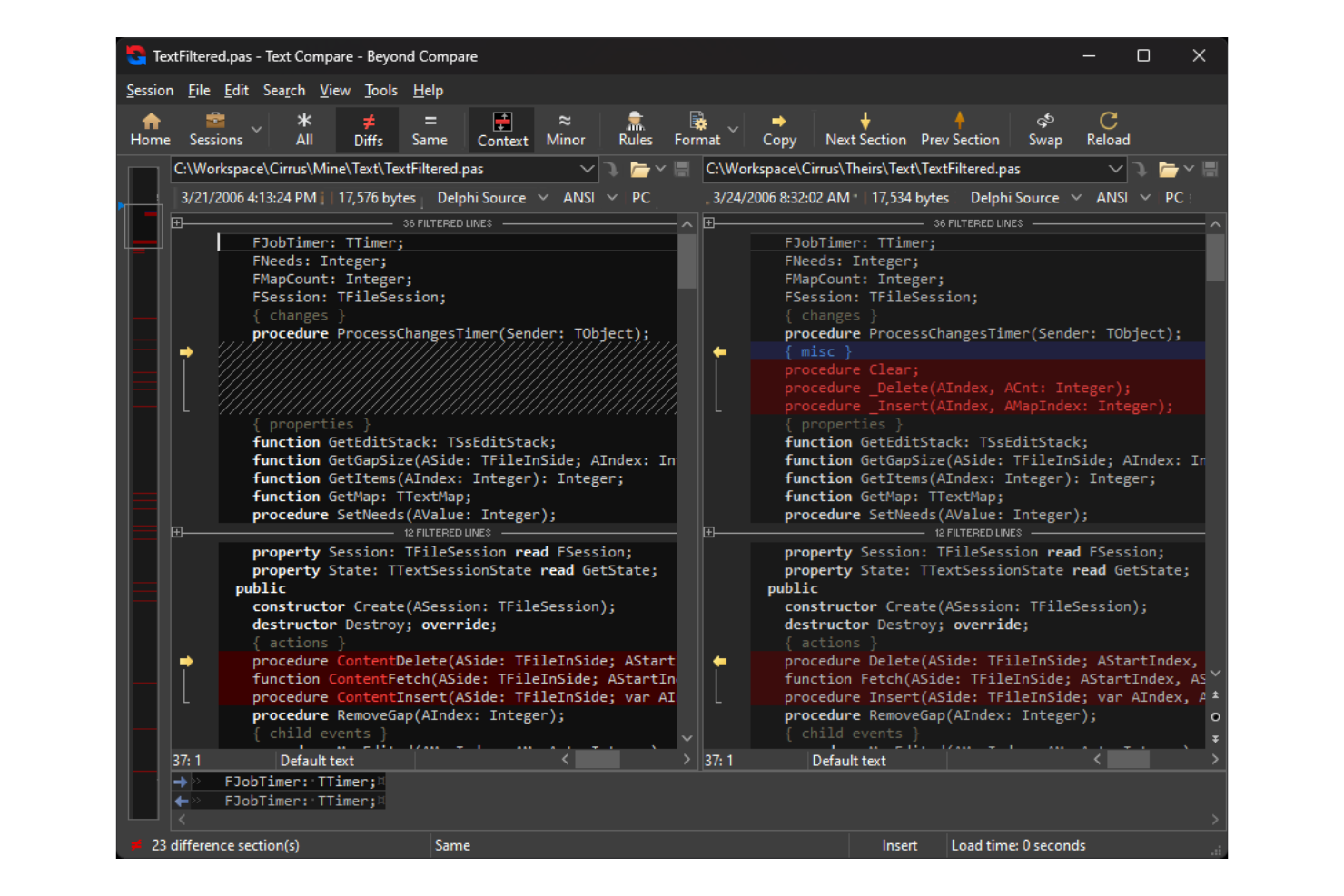
Beyond Compare merita una menzione per i team che necessitano di confrontare file e cartelle tra diversi sistemi operativi. L'ho scelto perché offre le stesse funzionalità e interfaccia sia su Windows, macOS che Linux, ed è raro trovare strumenti di confronto documenti con un tale livello di coerenza cross-platform.
Apprezzo molto il robusto confronto testo affiancato e la capacità di unire le modifiche riga per riga, soprattutto quando si collabora in team con ambienti misti.
Ideale per
- Team che lavorano tra Windows, macOS e Linux
- Sviluppatori o editor che confrontano e fondono file di testo
Non indicato per
- Utenti non tecnici che necessitano di un confronto guidato solo su documenti
- Chi ha bisogno di funzionalità avanzate di confronto legale o PDF
Cosa distingue Beyond Compare
Beyond Compare si distingue offrendo il confronto nativo su Windows, macOS e Linux, trattando ogni ambiente come di prima classe. A differenza di strumenti focalizzati solo sul testo come WinMerge, prevede che l’utente utilizzi confronti affiancati non solo per il codice, ma per intere directory e persino immagini o file di dati. Questo risulta comodo quando il team usa più sistemi operativi e si desidera un unico flusso di lavoro per fondere e sincronizzare i file.
Compromessi con Beyond Compare
Poiché è ottimizzato per confronti multi-formato e cross-platform, si perdono alcune funzioni specializzate per la revisione legale o di PDF, che si trovano invece in soluzioni centrate sul documento.
Pros and Cons
Pros:
- Gestione delle sessioni
- Supporto FTP integrato
- Layout affiancato intuitivo
Cons:
- Può essere impegnativo per le risorse
- Non supporta dispositivi mobili


Conga entra nella mia lista per la gestione dei contratti perché gestisce la versionatura dei documenti, la redazione e il monitoraggio automatico delle clausole in un unico flusso di lavoro. Apprezzo il fatto che sia possibile confrontare complessi documenti legali fianco a fianco, tracciare ogni modifica e generare report pronti per l'audit. I team che gestiscono grandi volumi di contratti beneficiano degli strumenti di confronto puntuali, soprattutto quando la conformità è fondamentale.
Conga è ideale per
- Team legali e di approvvigionamento che gestiscono grandi volumi di contratti
- Organizzazioni che necessitano di tracciare dettagliatamente tutte le modifiche ai documenti
Conga non è l’ideale per
- Team che hanno bisogno di confrontare documenti brevi e semplici
- Piccole imprese con scarsa complessità contrattuale
Cosa distingue Conga
Conga è strutturato per gestire grandi volumi di contratti complessi e sensibili. A differenza delle funzionalità di confronto di base presenti in Google Workspace o Word, Conga si aspetta che tu tenga traccia precisa di ogni versione, approvazione e modifica. Ho notato che si concentra nel soddisfare stringenti requisiti di audit e conformità. Funziona bene per i team legali o di approvvigionamento che devono monitorare responsabilità e stato in un'unica piattaforma.
Compromessi con Conga
Conga è ottimizzato per il controllo e la responsabilità, ma la curva di apprendimento e la configurazione amministrativa possono diventare un ostacolo se le esigenze di revisione sono semplici.
Pros and Cons
Pros:
- Automatizza i flussi di lavoro contrattuali
- Fornisce monitoraggio delle modifiche in tempo reale
- Offre tracciamento dettagliato degli audit
Cons:
- Richiede formazione per i nuovi utenti
- Potrebbe essere necessario il supporto tecnico per l'integrazione


Araxis Merge si distingue per i professionisti legali perché gestisce confronti di file di testo e binari in un formato visivo affiancato. Apprezzo il fatto che le tracce di controllo e i dettagliati report dei cambiamenti supportano i cicli di revisione e le esigenze di documentazione. Ciò che lo rende il migliore, secondo me, è la facilità con cui si possono confrontare contratti o documenti di divulgazione ed esportare un output pulito e annotato per la conformità o la revisione delle trattative.
Araxis Merge è ideale per
- Professionisti legali che confrontano contratti o documenti normativi
- Chiunque abbia bisogno di un confronto e rendicontazione dettagliata, fianco a fianco, dei file
Araxis Merge non è adatto per
- Team che desiderano collaborazione multiutente in tempo reale
- Utenti occasionali che necessitano di semplici verifiche delle differenze nei documenti
Cosa distingue Araxis Merge
Araxis Merge è progettato per scenari in cui la precisione e la tracciabilità sono più importanti della collaborazione o della rapidità. A differenza delle funzioni di confronto di Google Docs o Microsoft Word, Merge si concentra sulle differenze minime e offre una visualizzazione dettagliata e affiancata. Tendo a consigliarlo quando per la conformità, la revisione legale o le presentazioni normative è richiesta una documentazione dettagliata delle modifiche. Funziona meglio quando si ha un processo di revisione formale e le poste in gioco sono elevate.
Compromessi con Araxis Merge
Merge si ottimizza per un confronto accurato e dettagliato, ma si perde la modifica collaborativa e i commenti in tempo reale. Se i team lavorano insieme su bozze o necessitano di input istantanei, questo approccio può rallentare i tempi.
Pros and Cons
Pros:
- Supporta il confronto di tre file
- Offre evidenziazione delle differenze mediante codice colore
- Permette l'automazione da riga di comando
Cons:
- Può richiedere conoscenze tecniche per l'uso
- L'interfaccia può sembrare datata

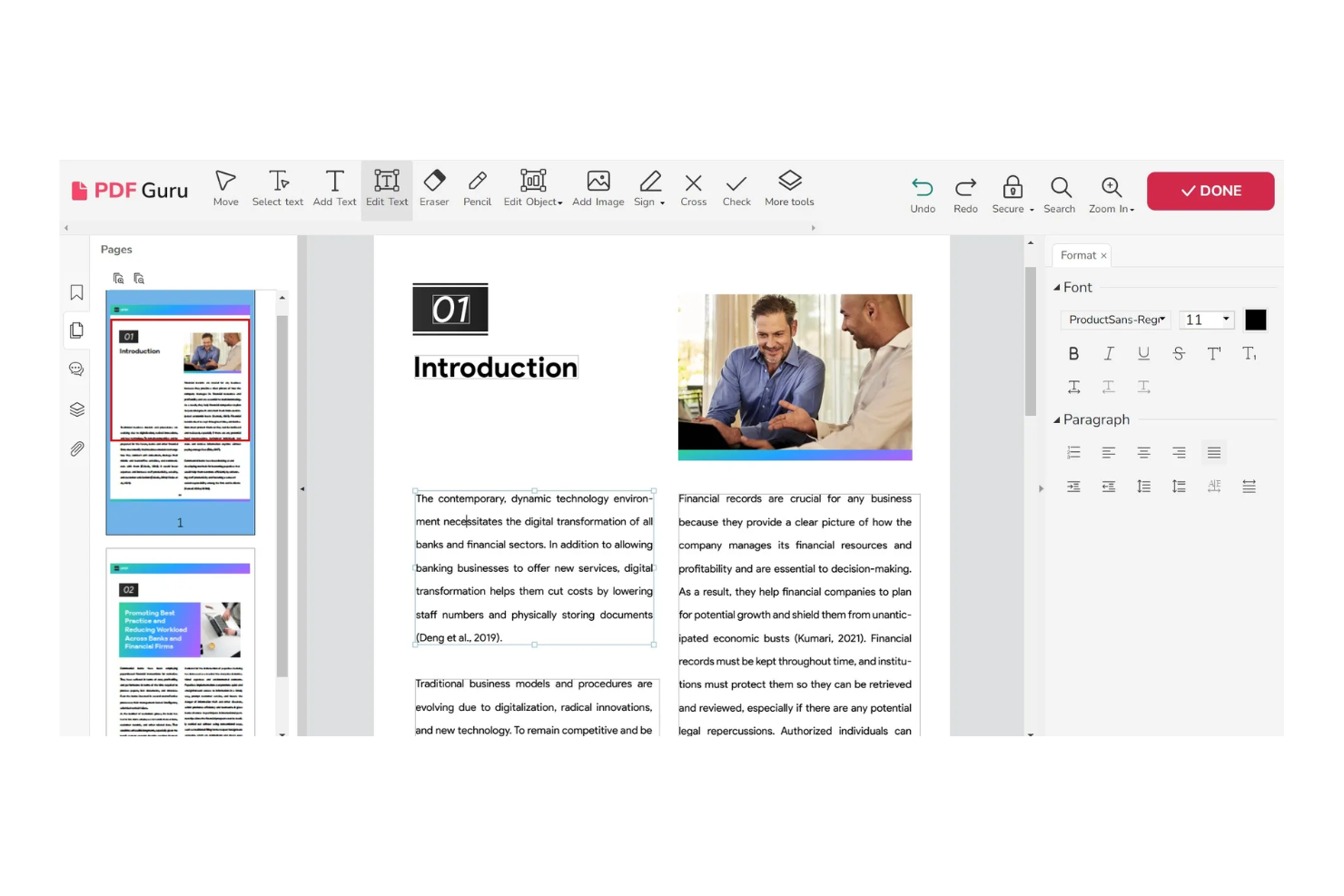
PDF Guru si distingue per la sua velocità, soprattutto quando si tratta di confrontare documenti di grandi dimensioni o ad alto volume. Mi piace perché può elaborare i file quasi istantaneamente, anche con formattazioni o layout complessi. Per i team che lavorano con scadenze strette o che hanno bisogno di risultati rapidi, questo è lo strumento che scelgo quando altri software ti fanno aspettare o vanno in timeout.
Ideale per PDF Guru
- Confronto di documenti in grandi volumi o in batch con tempi di risposta rapidi
- Team legali o editori che lavorano con scadenze serrate
PDF Guru non è l'ideale per
- Utenti che necessitano di funzionalità dettagliate di visualizzazione delle modifiche
- Team che desiderano integrazioni con piattaforme di gestione documentale
Cosa distingue PDF Guru
PDF Guru è progettato per chi ha bisogno di confrontare documenti rapidamente, anche quando si gestiscono dozzine o centinaia di file alla volta. A differenza di ABBYY FineReader, non punta tanto sugli strumenti di annotazione o markup, quanto sull’ottenere risultati veloci per revisioni di massa. In pratica, è perfetto quando si ha una scadenza imminente e bisogna individuare rapidamente le differenze.
Compromessi con PDF Guru
PDF Guru è ottimizzato per la velocità di elaborazione, ma si rinuncia a una visualizzazione dettagliata delle differenze. Non si ottengono rapporti di confronto approfonditi come le piattaforme specializzate per la revisione.
Pros and Cons
Pros:
- Elaborazione e conversione rapide
- Funzionalità complete per diverse esigenze PDF
- Facile da usare con un’interfaccia semplice
Cons:
- Nessuno strumento avanzato specifico per professionisti
- Manca la possibilità di lavorare offline
Altri software per il confronto dei documenti
Ecco alcune ulteriori opzioni di software per il confronto dei documenti che non sono entrate nel mio elenco, ma che vale la pena prendere in considerazione se non hai trovato ciò che cercavi sopra:
- Draftable
Ideale per il confronto affiancato
- Verify
Ideale per la conformità normativa
- Document360
Ideale per documentazione in evoluzione
- MediaValet
Ideale per la revisione di asset digitali
- altaFlow
Ideale per l'accuratezza dei documenti basata sui dati


Come Valuto il Software di Comparazione di Documenti
Quando un PM riconcilia le revisioni dell'ambito o verifica le modifiche ai contratti, suddivido la mia valutazione in requisiti di base che ogni strumento deve soddisfare e fattori distintivi che separano le migliori opzioni.
Funzionalità Essenziali (Requisiti Minimi per Questa Lista)
Quando seleziono gli strumenti per la mia lista, valuto ciascuno su una scala da 0 (non offre la funzionalità) a 5 (eccelle in quest'area) per ogni funzionalità di base elencata di seguito. Poi, calcolo il punteggio totale dello strumento come percentuale. Ogni strumento deve raggiungere un punteggio totale minimo del 65% per essere considerato per l'inclusione.
- Comparazione Affiancata dei Documenti: Verifico se due versioni dello stesso documento possono essere visualizzate in parallelo con lo scorrimento sincronizzato, fondamentale quando si rivede una dichiarazione di lavoro aggiornata rispetto all'originale.
- Rilevamento e Evidenziazione delle Modifiche: Ogni strumento che valuto deve mostrare automaticamente inserimenti, eliminazioni e modifiche con chiari indicatori visivi affinché i PM possano individuare rapidamente i cambiamenti di ambito.
- Supporto Multi-Formato: Cerco copertura almeno per Word, PDF, Excel e PowerPoint, poiché la documentazione di progetto raramente risiede in un unico formato.
- Esportazione Redline e Marcature: La possibilità di generare e condividere un report "redline" è fondamentale — soprattutto quando si inoltrano revisioni contrattuali a legale, approvvigionamenti o fornitori esterni per l'approvazione.
- Cronologia delle Versioni e Tracciamento Audit: Valuto se lo strumento registra i confronti passati con data/ora e utente, utile durante retrospettive o audit di conformità.
- Collaborazione e Condivisione: La condivisione dei risultati del confronto con gli stakeholder che devono esprimere un parere è importante, quindi cerco thread di commenti, accesso basato sui ruoli e link di revisione condivisibili.
Una volta che ho una lista di strumenti che soddisfano questi criteri, considero cosa distingue ciascuna piattaforma.
Fattori Differenzianti (Cosa Distingue i Fornitori)
Ecco come confronto e metto a confronto i diversi fornitori:
Caratteristiche Distintive
Le funzionalità di sintesi basate su AI rappresentano un notevole elemento di distinzione. Gli strumenti che segnalano modifiche sostanziali dell'ambito o modifiche ad alto rischio risparmiano ai PM la fatica di leggere manualmente ogni "redline". Valuto anche le capacità OCR, poiché i team spesso gestiscono planimetrie scansionate o PDF firmati che vanno confrontati con versioni digitali originali. Il confronto in batch è importante quando si valutano più proposte di fornitori rispetto ad un RFP principale in contemporanea. La sincronizzazione nativa con cloud storage come SharePoint o Google Drive elimina completamente la necessità di upload manuale.
Oltre le Caratteristiche
L'integrazione con il tuo stack di PM esistente è una priorità assoluta. Uno strumento che si collega con Jira, Smartsheet o Microsoft 365 si inserisce nei flussi di lavoro reali invece di creare un altro silo. Anche la sicurezza ha un peso rilevante — controllo la presenza di SOC 2 e standard di crittografia, specialmente quando i team confrontano contratti sensibili o accordi con fornitori. Anche la flessibilità di implementazione è un aspetto importante; alcune PMO aziendali richiedono un hosting on-premise, mentre i team distribuiti traggono vantaggio da un accesso nativo in cloud.
Come scegliere il software per il confronto dei documenti
È facile perdersi in lunghi elenchi di funzionalità e strutture tariffarie complesse. Per aiutarti a rimanere concentrato mentre affronti il tuo processo di selezione del software, ecco una lista di fattori da tenere presenti:
| Fattore | Cosa considerare |
|---|---|
| Scalabilità | Assicurati che il software possa crescere insieme al tuo team e gestire più documenti e utenti con l'espansione della tua attività, senza compromettere le prestazioni. |
| Integrazioni | Cerca la compatibilità con gli strumenti che il tuo team utilizza già, come i sistemi di gestione dei progetti o le soluzioni di archiviazione cloud, per semplificare il flusso di lavoro |
| Personalizzazione | Verifica se lo strumento consente di adattare impostazioni e funzionalità alle esigenze specifiche del tuo team. |
| Facilità d'uso | Scegli uno strumento con un'interfaccia intuitiva che richieda una formazione minima, così il tuo team potrà iniziare a utilizzarlo efficacemente fin da subito. |
| Budget | Considera il costo totale, comprese eventuali commissioni nascoste. Cerca piani tariffari flessibili in linea con i tuoi vincoli finanziari |
| Misure di sicurezza | Verifica che il software disponga di solide misure di sicurezza, come la crittografia e la conformità alle normative sulla protezione dei dati, per proteggere le informazioni sensibili. |
| Servizi di assistenza | Valuta la disponibilità e la qualità dell'assistenza clienti, inclusi chat dal vivo, supporto via e-mail e telefonico, per assicurarti di ricevere aiuto quando necessario. |
| Prestazioni | Valuta la rapidità con cui il software elabora i confronti e gestisce file di grandi dimensioni, poiché prestazioni lente possono ostacolare la produttività. |
Che cos'è il software per il confronto dei documenti?
Il software per il confronto dei documenti è uno strumento che identifica le differenze tra le versioni di un documento ed evidenzia le modifiche per facilitare la modifica e la revisione. Questi strumenti sono comunemente utilizzati da professionisti legali, editor e project manager che devono mantenere l'accuratezza e la coerenza dei documenti.
Funzionalità come l'analisi basata sull'intelligenza artificiale, la collaborazione basata sul cloud e gli strumenti di confronto visivo aiutano a rilevare modifiche impercettibili, supportare la collaborazione del team e mantenere l'accuratezza. Questi strumenti fanno risparmiare tempo e riducono gli errori fornendo una visione chiara delle modifiche ai documenti.
Funzionalità del software per il confronto dei documenti
Quando scegli il software per il confronto dei documenti, presta attenzione alle seguenti funzionalità principali:
- Modalità di confronto: consente di visualizzare due versioni di un documento affiancate, facilitando l'identificazione delle differenze.
- Controllo delle versioni: offre la possibilità di gestire e monitorare le modifiche tra più versioni di un documento per evitare confusione.
- Funzionalità di integrazione: supporta l'integrazione con altri software e strumenti per semplificare i flussi di lavoro e migliorare la produttività.
- Evidenziazione delle differenze: evidenzia automaticamente le modifiche tra i documenti per risparmiare tempo e ridurre il lavoro manuale.
- Strumenti di collaborazione: consente a più utenti di lavorare e revisionare i documenti contemporaneamente, facilitando la collaborazione del team.
- Funzionalità di sicurezza: protegge le informazioni sensibili tramite la crittografia e i meccanismi di controllo degli accessi.
- Impostazioni personalizzabili: offre la flessibilità di modificare le impostazioni in base a esigenze specifiche per migliorare l'esperienza dell'utente.
- Interfaccia intuitiva: offre un'interfaccia intuitiva e facile da navigare, riducendo la curva di apprendimento per i nuovi utenti.
- Gestione dei documenti: include funzionalità per organizzare, archiviare e recuperare i documenti in modo efficiente, nonché strumenti per sincronizzare i file.
- Report e analisi: offre informazioni sulle modifiche e sull'utilizzo dei documenti tramite report dettagliati e analisi.
Vantaggi del software per il confronto dei documenti
L'implementazione di un software per il confronto dei documenti offre diversi vantaggi al tuo team e alla tua azienda. Eccone alcuni di cui potrai beneficiare:
- Maggiore accuratezza: l'analisi basata sull'intelligenza artificiale consente di rilevare anche le modifiche più piccole e riduce il rischio di errori.
- Collaborazione migliorata: le funzionalità basate sul cloud consentono ai membri del team di lavorare insieme sui documenti in tempo reale, migliorando il lavoro di squadra e la produttività.
- Risparmio di tempo: i report automatizzati e gli strumenti di ricerca avanzata aiutano a identificare e gestire rapidamente le modifiche ai documenti, consentendo di risparmiare tempo prezioso.
- Conformità normativa: le funzionalità di monitoraggio della conformità aiutano a garantire che i documenti soddisfino gli standard del settore e riducono al minimo il rischio di problemi legali.
- Gestione dei documenti migliorata: il monitoraggio della cronologia delle versioni conserva un registro dettagliato delle modifiche e facilita la gestione e la revisione delle revisioni dei documenti.
- Chiarezza visiva: gli strumenti di confronto visivo aiutano a garantire l'accuratezza di immagini e grafiche all'interno dei documenti, un aspetto fondamentale per i settori creativi.
Costi e prezzi del software per il confronto dei documenti
La scelta di un software per il confronto dei documenti richiede la comprensione dei vari modelli e piani tariffari disponibili. I costi variano in base alle funzionalità, alle dimensioni del team, agli extra e ad altri fattori. La tabella seguente riassume i piani comuni, i relativi prezzi medi e le funzionalità generalmente incluse nelle soluzioni software per il confronto dei documenti:
| Tipo di piano | Prezzo medio | Funzionalità comuni |
|---|---|---|
| Piano gratuito | $0 | Confronto di testo di base, formati di file limitati e aggiornamenti manuali |
| Piano personale | $5 - $25/utente/ mese | Confronto di testo e immagini, report di base e spazio di archiviazione cloud limitato |
| Piano aziendale | $30 - $75/utente/mese | Strumenti di confronto avanzati, funzionalità di collaborazione e aggiornamenti in tempo reale |
| Piano aziendale avanzato | $80 - $150/utente/mese | Modelli personalizzabili, monitoraggio della conformità, assistenza dedicata e funzionalità di sicurezza avanzate |
FAQ sul software di confronto dei documenti
Ecco alcune risposte alle domande più comuni sul software di confronto dei documenti:
Qual è il modo più rapido per confrontare due documenti e individuarne le differenze?
Per confrontare rapidamente due documenti, usa uno strumento di confronto dei documenti che consenta di caricare entrambi i file e analizzarli affiancati. Questo metodo evidenzia le differenze, così puoi individuare facilmente le modifiche. Molti strumenti offrono un’analisi in tempo reale, quindi puoi vedere i risultati quasi istantaneamente.
Qual è lo scopo del confronto delle caratteristiche dei documenti?
Il confronto delle caratteristiche dei documenti aiuta a identificare le modifiche apportate tra versioni diverse, così puoi mantenere coerenza e accuratezza. Questo è fondamentale se devi tenere traccia delle modifiche, come fanno i team legali e i redattori. Il confronto dei documenti consente di individuare le modifiche di formattazione e grammaticali.
Esiste un software per confrontare due documenti?
Sì, sono disponibili diverse opzioni software per confrontare due documenti. Questi strumenti possono evidenziare le modifiche nel testo, nelle immagini e nella formattazione. Sono progettati per rendere semplice l’identificazione delle differenze e farti risparmiare tempo e fatica nei confronti manuali.
Come scelgo il software di confronto dei documenti più adatto?
Scegli un software di confronto dei documenti in base alle tue esigenze specifiche, come i tipi di documenti con cui lavori e il livello di dettaglio richiesto. Considera fattori come la facilità d’uso, le funzionalità di integrazione e i servizi di assistenza. Prova alcune opzioni per trovare quella più adatta.
Il software di confronto dei documenti può gestire immagini e grafici?
Sì, molti strumenti di confronto dei documenti possono gestire immagini e grafici. Evidenziano le modifiche non solo nel testo, ma anche negli elementi visivi. Questa funzionalità è particolarmente utile per i team che lavorano con documenti complessi contenenti dati grafici.