

10 migliori alternative a Whimsical per le mappe mentali nel 2026

Elenco ristretto delle alternative a Whimsical


Una valida alternativa a Whimsical offre al tuo team una visualizzazione flessibile dei dati, collaborazione in tempo reale e creazione semplice di diagrammi, senza limitare la creatività o il flusso di lavoro. Se stai cercando alternative a Whimsical, probabilmente hai bisogno di strumenti che supportino il brainstorming, la mappatura e la prototipazione tra team distribuiti, senza sacrificare l’usabilità o l’integrazione con il tuo stack esistente. Questo elenco ti aiuterà a confrontare le migliori opzioni per il 2026, così potrai trovare quella più adatta allo stile di collaborazione, alle esigenze tecniche e agli obiettivi del tuo team.
Che cos’è Whimsical?
Whimsical è uno strumento di spazio di lavoro visivo collaborativo progettato per creare diagrammi di flusso, wireframe, mappe mentali e note adesive in tempo reale. I team usano Whimsical per fare brainstorming, mappare i processi e prototipare idee insieme, sia che si trovino nella stessa stanza sia che siano distribuiti in sedi diverse. La sua interfaccia semplice e intuitiva, la facilità d’uso e i modelli integrati aiutano gli utenti a trasformare rapidamente i concetti della pianificazione dei progetti in elementi visivi condivisibili, rendendolo popolare tra i team di prodotto, design e ingegneria.
Tabella di confronto delle alternative a Whimsical
Questa tabella di confronto riassume i dettagli sui prezzi delle mie migliori alternative a Whimsical.
| Tool | Best For | Trial Info | Price | ||
|---|---|---|---|---|---|
| 1 | Ideale per la prototipazione di interfacce utente in tempo reale | Piano gratuito disponibile | A partire da $16/utente/mese (fatturati annualmente) | Website | |
| 2 | Ideale per mappe di brainstorming collaborativo | Piano gratuito + demo gratuita disponibile | A partire da $6.50/utente/mese | Website | |
| 3 | Ideale per la compatibilità con Microsoft 365 | Prova gratuita di 30 giorni disponibile | A partire da $5/utente/mese (fatturato annualmente) | Website | |
| 4 | Ideale per la documentazione visiva dei progetti | Piano gratuito disponibile | A partire da $5/utente/mese (con fatturazione annuale) | Website | |
| 5 | Ideale con la gestione integrata delle attività | Piano gratuito disponibile | Da $7/utente/mese (con fatturazione annuale) | Website | |
| 6 | Ideale per workshop di design thinking da remoto | Piano gratuito + demo gratuita disponibile | A partire da $9.99/utente/mese (con fatturazione annuale) | Website | |
| 7 | Ideale per la creazione libera di diagrammi | Utilizzabile gratuitamente | Utilizzabile gratuitamente | Website | |
| 8 | Ideale per la mappatura mentale strutturata | Piano gratuito disponibile | Da $4.92/mese | Website | |
| 9 | Ideale per sessioni di ideazione tra squadre | Piano gratuito disponibile | A partire da $8/membro/mese (con fatturazione annuale) | Website | |
| 10 | Ideale per l'automazione avanzata dei diagrammi | Prova gratuita + piano gratuito disponibili | A partire da $9/mese | Website |

Perché fidarsi dei nostri consigli sui software
Il nostro team testa e recensisce software dal 2012. In quanto project manager noi stessi, sappiamo quanto sia difficile — e importante — scegliere il software giusto.
Per questa guida, abbiamo valutato gli strumenti attraverso test pratici e ricerche indipendenti, assegnando un punteggio agli strumenti in base ai nostri criteri di selezione. Ci basiamo inoltre sulle competenze di leader di pensiero del settore e di professionisti attivi nella gestione dei progetti.
Le nostre recensioni riflettono il nostro giudizio editoriale umano, non un discorso di vendita.
Revisori esperti:
Recensioni delle alternative a Whimsical
Di seguito trovi i miei riepiloghi dettagliati delle alternative a Whimsical incluse nel mio elenco ristretto. Le mie recensioni offrono un’analisi approfondita delle funzionalità, dei migliori casi d’uso e delle integrazioni di ciascuna piattaforma, per aiutarti a trovare quella più adatta al tuo team.

Figma
Ideale per la prototipazione di interfacce utente in tempo reale
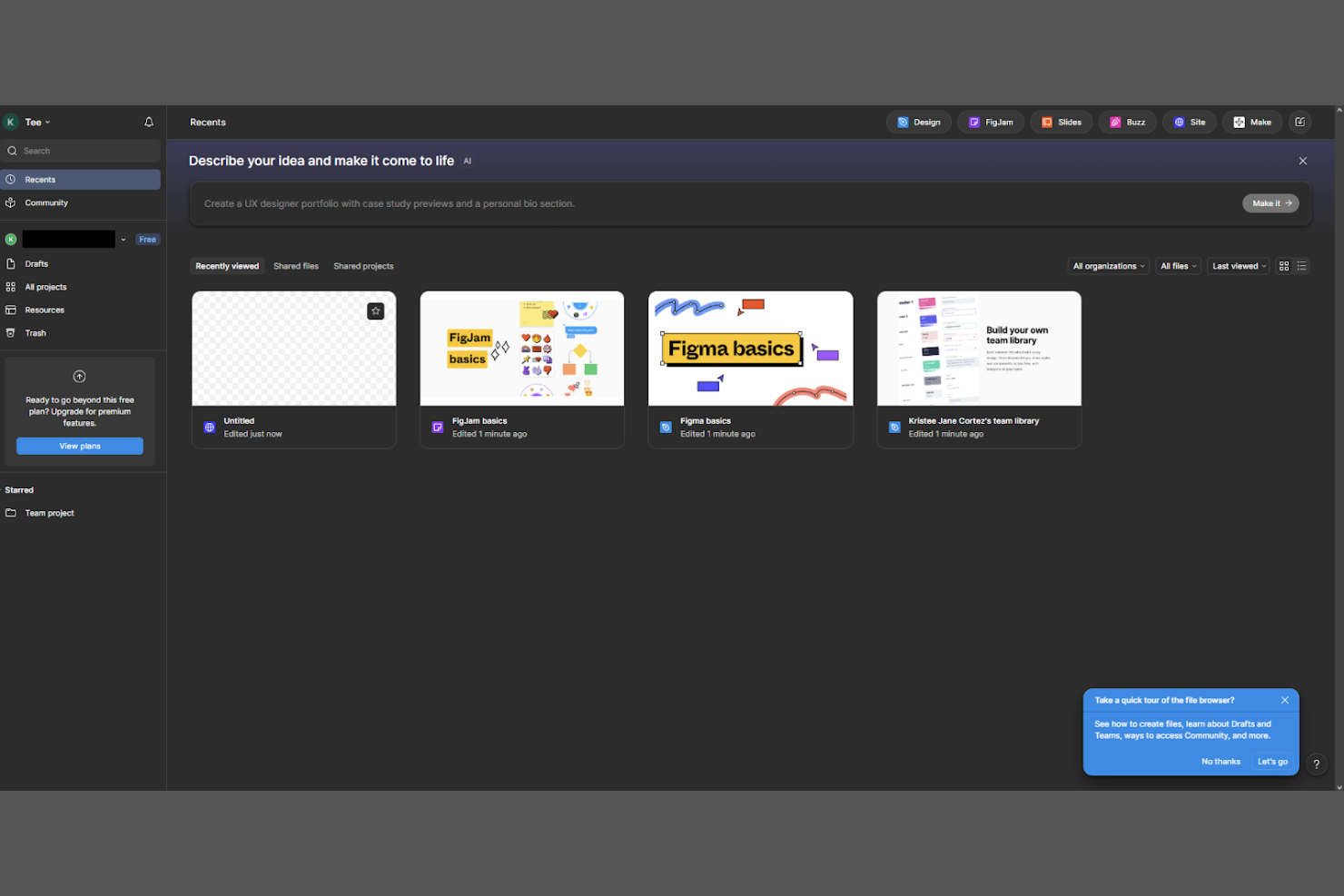
I team di design e di prodotto che cercano una collaborazione in tempo reale su interfacce utente e prototipazione si rivolgono spesso a Figma. La piattaforma è particolarmente utile per i team distribuiti che devono co-progettare, revisionare e iterare insieme sulle interfacce nello stesso spazio di lavoro. Figma si distingue da Whimsical offrendo strumenti di progettazione precisi al pixel, prototipazione interattiva e funzionalità per il passaggio di consegne agli sviluppatori, tutto in un unico ambiente basato su browser.
Perché Figma è una buona alternativa a Whimsical
Per i team che devono prototipare insieme le interfacce utente in tempo reale, Figma offre un livello di collaborazione difficile da eguagliare. Ho scelto Figma perché consente a più utenti di modificare insieme i progetti, lasciare commenti e testare prototipi interattivi, tutto nella stessa finestra del browser.
Le funzionalità di modifica vettoriale e prototipazione dello strumento sono progettate per il lavoro su UI e UX, rendendo facile passare dalle strutture a bassa fedeltà ai modelli ad alta fedeltà senza cambiare piattaforma. Se il flusso di lavoro del tuo team è incentrato sulla progettazione rapida e collaborativa delle interfacce, Figma è una valida alternativa a Whimsical.
Funzionalità principali di Figma
Altre funzionalità di Figma aiutano i team a gestire e ampliare il loro lavoro di progettazione:
- Supporto ai sistemi di progettazione: Crea, gestisci e condividi componenti e stili riutilizzabili tra i progetti.
- Cronologia delle versioni: Accedi alle versioni precedenti dei file e ripristinale per monitorare le modifiche nel tempo.
- Ecosistema di plugin: Estendi le funzionalità con un'ampia gamma di plugin della comunità e ufficiali.
- Modalità presentazione: Condividi i progetti in modalità di sola visualizzazione per le revisioni e i riscontri delle parti interessate.
Integrazioni di Figma
Le integrazioni includono Slack, Jira, Trello, GitHub, Zeplin, Asana, Microsoft Teams, Notion, Airtable e Google Drive.
Pros and Cons
Pros:
- La modifica simultanea in tempo reale supporta team di progettazione numerosi e distribuiti
- Gli strumenti di prototipazione interattiva consentono di creare flussi cliccabili senza software aggiuntivo
- Le librerie dei sistemi di progettazione aiutano a mantenere uniformi i componenti dell'interfaccia tra i progetti
Cons:
- Gli strumenti per diagrammi sono meno specializzati rispetto alle app dedicate alle mappe mentali
- L'accesso offline è limitato rispetto ad alcune alternative basate su applicazioni desktop

Ideale per mappe di brainstorming collaborativo
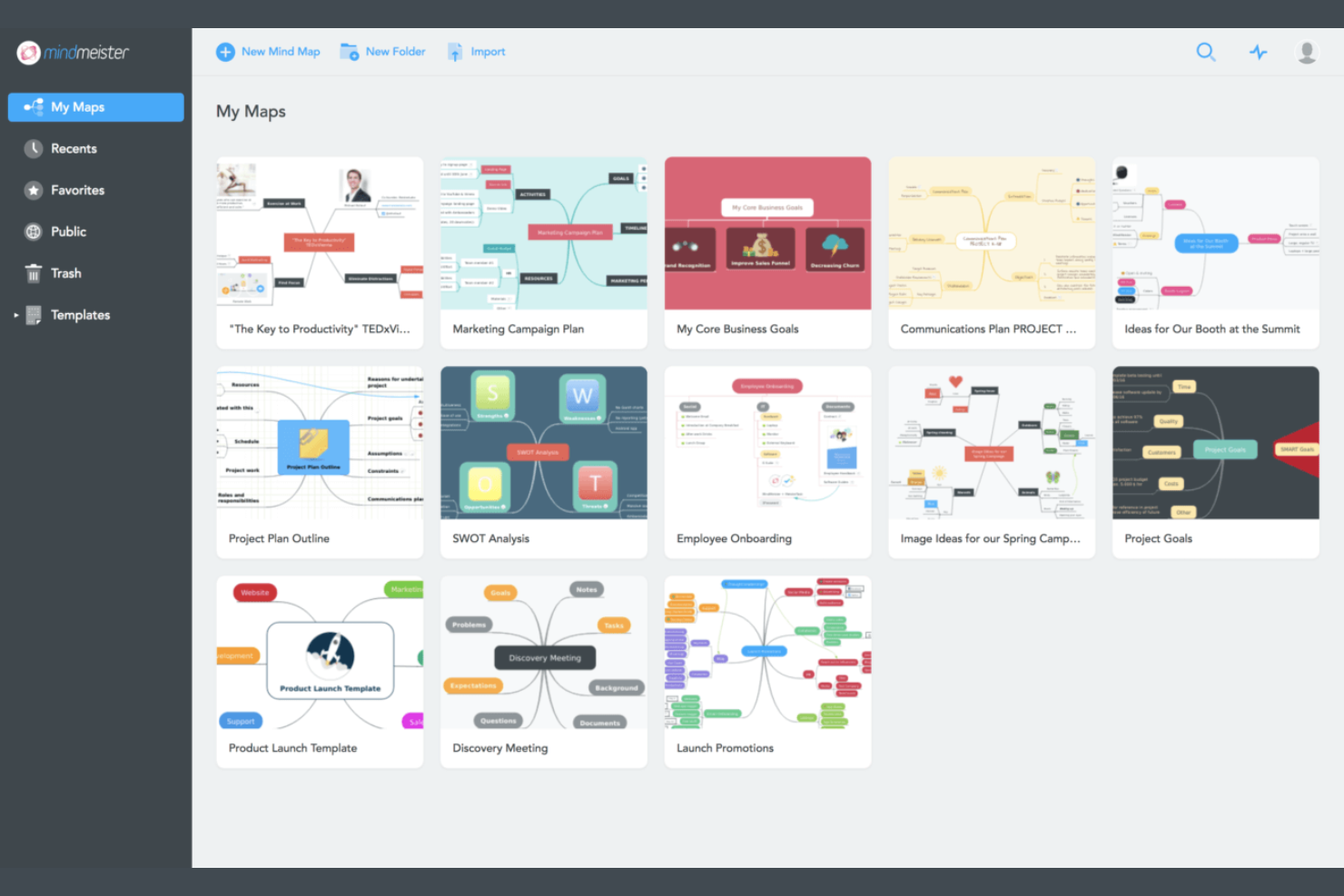
Quando il tuo team deve fare brainstorming di idee insieme in tempo reale, MindMeister offre una piattaforma dedicata alla creazione collaborativa di mappe mentali. È particolarmente utile per team di prodotto, agenzie e docenti che desiderano acquisire, organizzare e perfezionare visivamente le idee con il contributo di più partecipanti. A differenza di Whimsical, MindMeister organizza il proprio spazio di lavoro attorno alla co-modifica in tempo reale, ai commenti integrati e alla facile condivisione, per mantenere le sessioni di brainstorming di gruppo interattive e organizzate.
Perché MindMeister è una buona alternativa a Whimsical
Per i team che vogliono fare brainstorming insieme in tempo reale, MindMeister è progettato specificamente per la creazione collaborativa di mappe mentali. Ho scelto MindMeister perché consente a più utenti di modificare contemporaneamente le mappe, facilitando l'acquisizione e il perfezionamento delle idee in gruppo.
Lo strumento include anche funzioni integrate per commenti e votazioni, così tutti possono fornire feedback e stabilire la priorità delle idee direttamente sulla mappa. Se il tuo team dà valore a sessioni di brainstorming interattive con contributi in tempo reale, MindMeister offre un'esperienza mirata che Whimsical non riesce a eguagliare.
Funzionalità principali di MindMeister
Altre funzionalità di MindMeister aiutano i team a organizzare e presentare le proprie idee in modo più efficace:
- Modalità presentazione: Trasforma le mappe mentali in presentazioni interattive direttamente all'interno della piattaforma.
- Temi e stili personalizzati: Applica colori, caratteri e layout diversi per personalizzare le mappe.
- Integrazione per la gestione delle attività: Assegna attività, imposta scadenze e monitora i progressi direttamente dalla mappa mentale.
- Cronologia delle revisioni: Visualizza e ripristina le versioni precedenti delle mappe mentali in qualsiasi momento.
Integrazioni di MindMeister
Le integrazioni includono MeisterTask, Google Drive, Dropbox, Evernote, Microsoft Teams, Slack, Confluence, Zendesk e Trello.
Pros and Cons
Pros:
- La co-modifica in tempo reale supporta sessioni di brainstorming di gruppo dal vivo
- La modalità presentazione integrata trasforma istantaneamente le mappe in presentazioni a diapositive
- La cronologia delle revisioni consente di ripristinare o rivedere le versioni precedenti delle mappe
Cons:
- Non sono disponibili strumenti integrati per lavagne o diagrammi come quelli di Whimsical
- Le funzionalità avanzate di personalizzazione dello stile delle mappe richiedono un abbonamento a pagamento
Visio
Ideale per la compatibilità con Microsoft 365
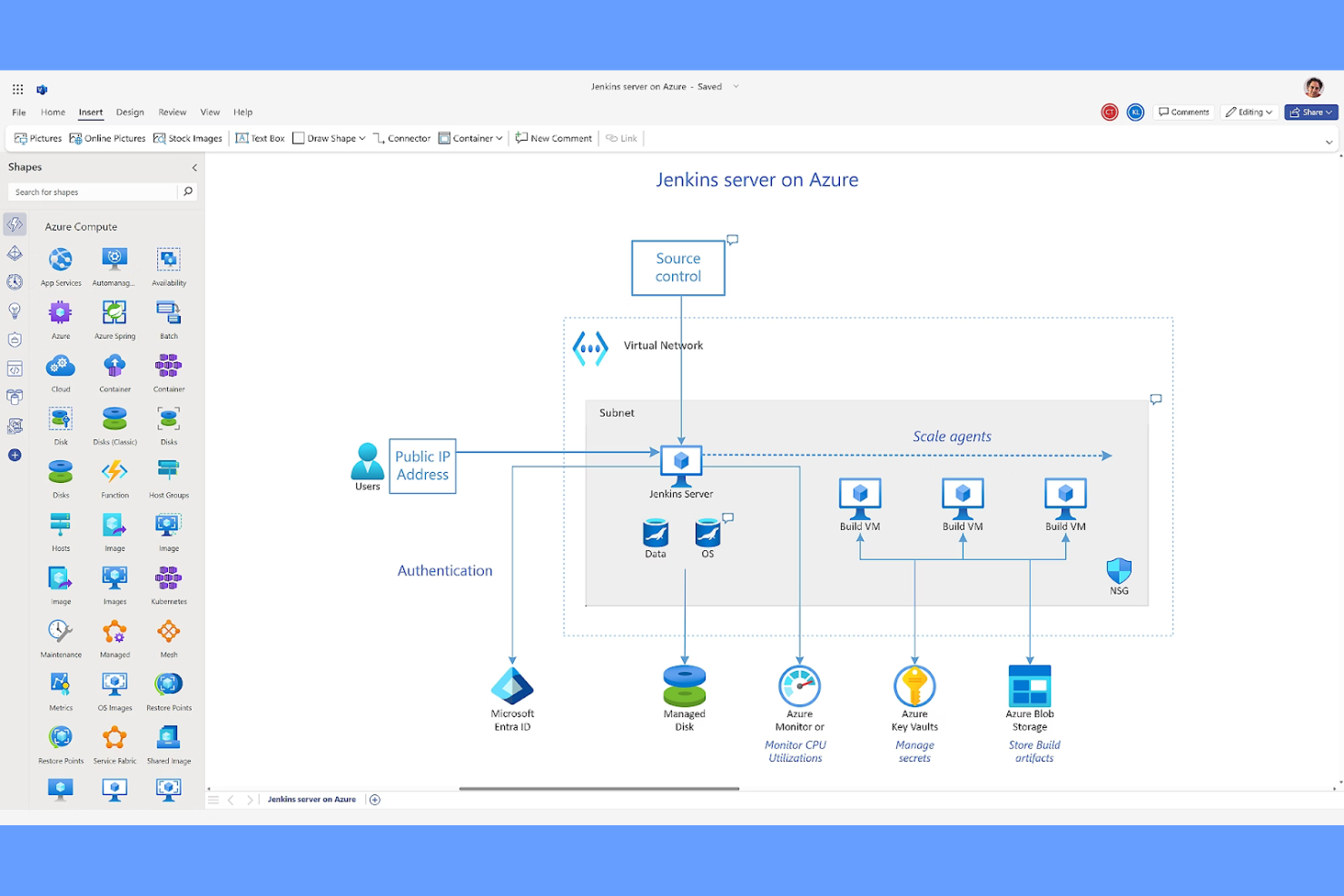
Per i team che utilizzano già Microsoft 365, Visio offre un modo familiare per creare diagrammi e diagrammi di flusso all'interno del flusso di lavoro esistente. Lo strumento è particolarmente utile per i team IT, di ingegneria e delle operazioni aziendali che necessitano di funzionalità avanzate per la creazione di diagrammi con una profonda integrazione con Microsoft. Visio si distingue da Whimsical perché supporta la mappatura di processi complessi e offre una connettività perfetta con app Microsoft come Teams, Excel e SharePoint.
Perché Visio è una buona alternativa a Whimsical
Se il tuo team si affida a Microsoft 365, Visio è una scelta naturale per la creazione collaborativa di diagrammi e la mappatura dei processi. Ho scelto Visio perché consente di incorporare i diagrammi direttamente in Microsoft Teams, SharePoint ed Excel, rendendo semplice mantenere gli spazi di lavoro visivi collegati agli strumenti utilizzati quotidianamente.
Lo strumento supporta inoltre tipi di diagrammi avanzati, inclusi diagrammi di rete e organigrammi, utili per i team tecnici e aziendali. Per chiunque abbia bisogno di una compatibilità approfondita con Microsoft in uno spazio di lavoro visivo, Visio è una valida alternativa a Whimsical.
Funzionalità principali di Visio
Altre funzionalità di Visio aiutano i team a creare e gestire diagrammi complessi in modo collaborativo:
- Collegamento dei dati: Collega i diagrammi a fonti di dati aggiornate in tempo reale, come Excel, per ottenere aggiornamenti in tempo reale.
- Libreria di forme: Accedi a un'ampia gamma di forme predefinite per diagrammi di flusso, diagrammi di rete e altro ancora.
- Allineamento e spaziatura automatici: Organizza automaticamente forme e connettori per ottenere layout più ordinati.
- Supporto dei livelli: Utilizza i livelli per gestire e separare diversi elementi all'interno di un singolo diagramma.
Integrazioni di Visio
Le integrazioni includono Microsoft 365, SharePoint, OneDrive, Teams, Excel, Power BI, Outlook, Azure Active Directory e Dynamics 365.
Pros and Cons
Pros:
- La profonda integrazione con le app di Microsoft 365 semplifica la condivisione dei diagrammi
- La creazione avanzata di diagrammi supporta diagrammi di rete, ingegneristici e di processo
- Il collegamento dei dati consente aggiornamenti in tempo reale dai fogli di calcolo Excel
Cons:
- La modifica in tempo reale da parte di più utenti è meno fluida rispetto ad alcuni concorrenti
- La versione Web non dispone di alcune funzionalità presenti nell'app desktop

Creately
Ideale per la documentazione visiva dei progetti
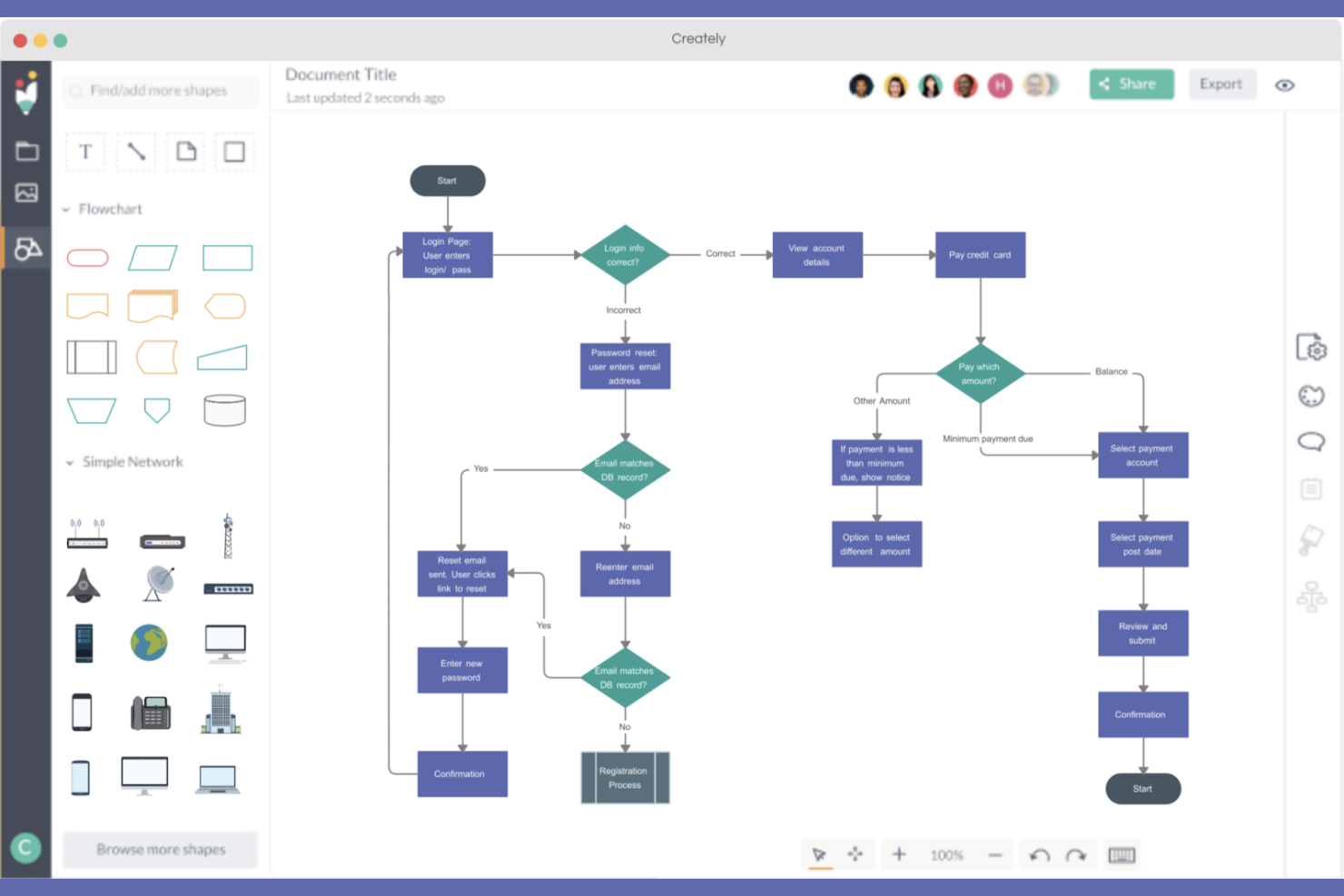
Se il tuo team ha bisogno di uno spazio di lavoro che combini diagrammi, note e dati in un unico luogo, Creately è progettato per la documentazione visiva dei progetti. È particolarmente adatto a responsabili di progetto, analisti aziendali e team di prodotto che desiderano mappare i processi, collegare documenti e monitorare visivamente le risorse dei progetti. A differenza di Whimsical, Creately consente di collegare direttamente i diagrammi ai dati del progetto, facilitando la sincronizzazione della documentazione e dei flussi di lavoro.
Perché Creately è una valida alternativa a Whimsical
Ciò che distingue Creately per la documentazione visiva dei progetti è la sua capacità di combinare diagrammi, note e dati in un unico spazio di lavoro. Ho scelto Creately perché consente di collegare direttamente i diagrammi alle risorse dei progetti, ai documenti e persino ai database, contribuendo a mantenere tutto connesso e aggiornato.
Lo strumento supporta inoltre canvas multilivello, così puoi organizzare progetti complessi con flussi di lavoro e documentazione nidificati. Se il tuo team ha bisogno di qualcosa di più di una semplice lavagna digitale, come visualizzare e gestire la documentazione dei progetti, Creately offre una profondità che Whimsical non ha.
Funzionalità principali di Creately
Altre funzionalità di Creately aiutano i team a lavorare visivamente e a rimanere organizzati:
- Collaborazione in tempo reale: Più utenti possono modificare, commentare e fare brainstorming insieme sulla stessa tela.
- Libreria di modelli: Accedi a un'ampia gamma di modelli per diagrammi di flusso, organigrammi, mappe mentali e molto altro.
- Interfaccia con trascinamento: Aggiungi, sposta e collega facilmente gli elementi nel tuo spazio di lavoro con semplici gesti.
- Autorizzazioni basate sui ruoli: Controlla chi può visualizzare, modificare o commentare documenti e diagrammi specifici.
Integrazioni di Creately
Le integrazioni includono Google Drive, Slack, Microsoft Teams, Confluence, Jira, Trello, Dropbox, GitHub e OneDrive.
Pros and Cons
Pros:
- Il collegamento visivo consente di connettere direttamente i diagrammi ai dati del progetto
- Le canvas multilivello consentono di organizzare strutture di documentazione complesse
- La collaborazione in tempo reale include commenti e funzionalità di conversazione all'interno della tela
Cons:
- Le opzioni di esportazione dei diagrammi sono limitate ai piani di livello superiore
- Le funzionalità di modifica su dispositivi mobili sono meno avanzate rispetto a quelle desktop

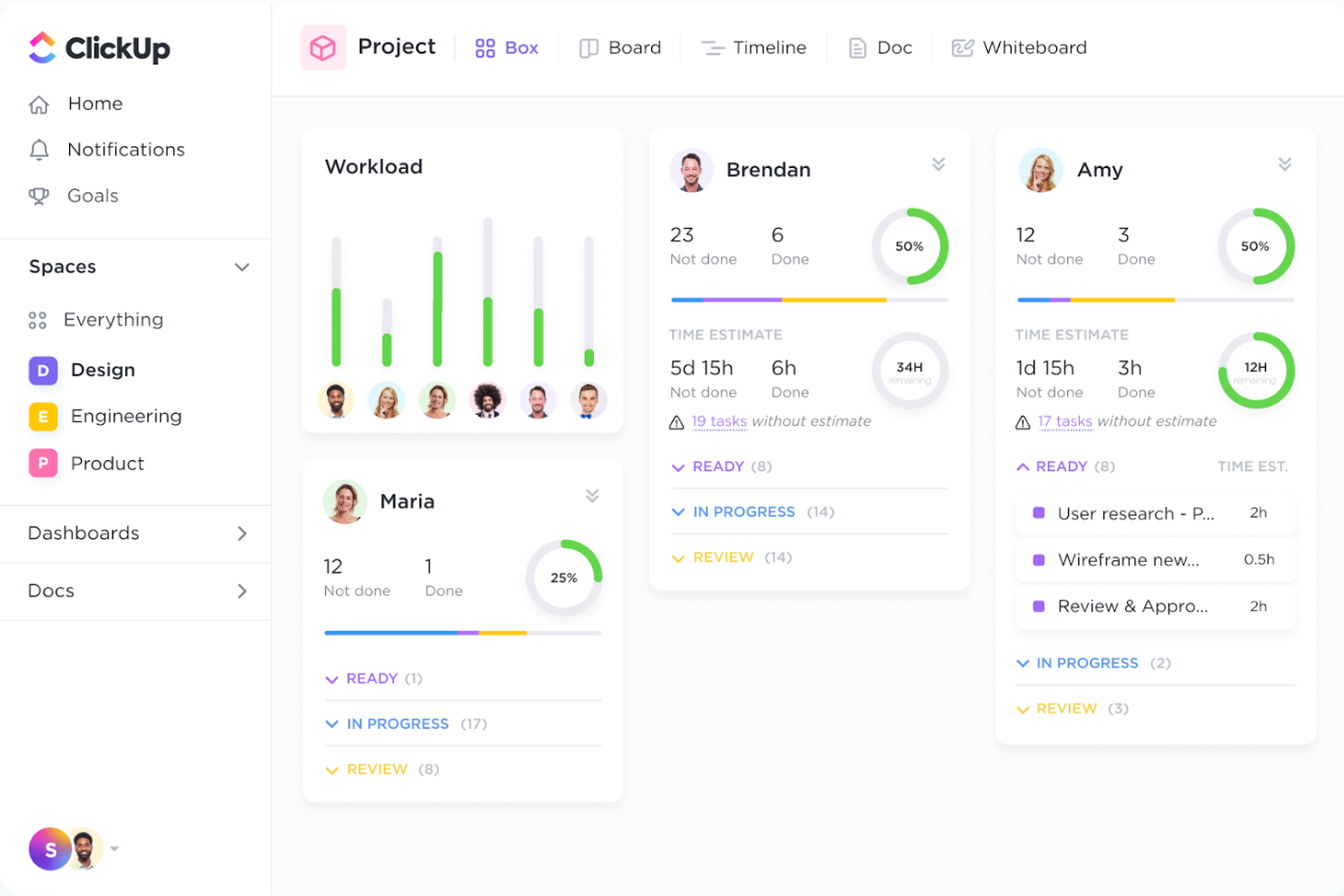
ClickUp riunisce la collaborazione visiva e la gestione delle attività in un'unica piattaforma, risultando particolarmente adatto ai team di prodotto, ingegneria e ai team interfunzionali. Se hai bisogno di collegare brainstorming, lavagne bianche e monitoraggio dei progetti senza cambiare strumento, lo spazio di lavoro integrato di ClickUp si distingue. La sua capacità di collegare direttamente il lavoro visivo alle attività operative lo differenzia da Whimsical e da altre soluzioni per spazi di lavoro visivi.
Perché ClickUp è una buona alternativa a Whimsical
A differenza della maggior parte degli strumenti per spazi di lavoro visivi, ClickUp combina lavagne bianche, mappe mentali e bacheche Kanban con la gestione integrata delle attività. Ho scelto ClickUp perché è possibile trasformare direttamente idee e diagrammi in attività operative senza uscire dalla piattaforma.
Le sue funzionalità di collaborazione visiva si collegano perfettamente al monitoraggio dei progetti, consentendo ai team di passare dal brainstorming all'esecuzione in un unico luogo. Per chiunque voglia colmare il divario tra pianificazione e realizzazione, l'approccio integrato di ClickUp offre un chiaro vantaggio rispetto a Whimsical.
Funzionalità principali di ClickUp
Alcune altre funzionalità di ClickUp aiutano i team a organizzarsi e collaborare visivamente nei vari progetti:
- Dashboard personalizzate: Crea dashboard con widget per monitorare obiettivi, carichi di lavoro e stato dei progetti.
- Documenti e wiki: Crea, condividi e collabora su documenti e basi di conoscenza all'interno della piattaforma.
- Monitoraggio del tempo: Registra il tempo dedicato alle attività direttamente in ClickUp per una migliore visibilità sui progetti.
- Automazioni: Configura automazioni basate su regole per gestire azioni e notifiche ripetitive.
Integrazioni di ClickUp
Le integrazioni includono Slack, Google Drive, Zoom, Microsoft Teams, GitHub, Google Calendar, Outlook, Dropbox e Salesforce.
Pros and Cons
Pros:
- La funzione lavagna bianca consente di trasformare i diagrammi in attività operative
- Le mappe mentali e le bacheche Kanban sono integrate nello stesso spazio di lavoro
- La modifica in tempo reale favorisce la collaborazione tra team distribuiti
Cons:
- Gli strumenti per gli spazi di lavoro visivi sono meno avanzati rispetto alle app dedicate alla creazione di diagrammi
- Gli spazi di lavoro di grandi dimensioni possono diventare disordinati senza un'organizzazione rigorosa

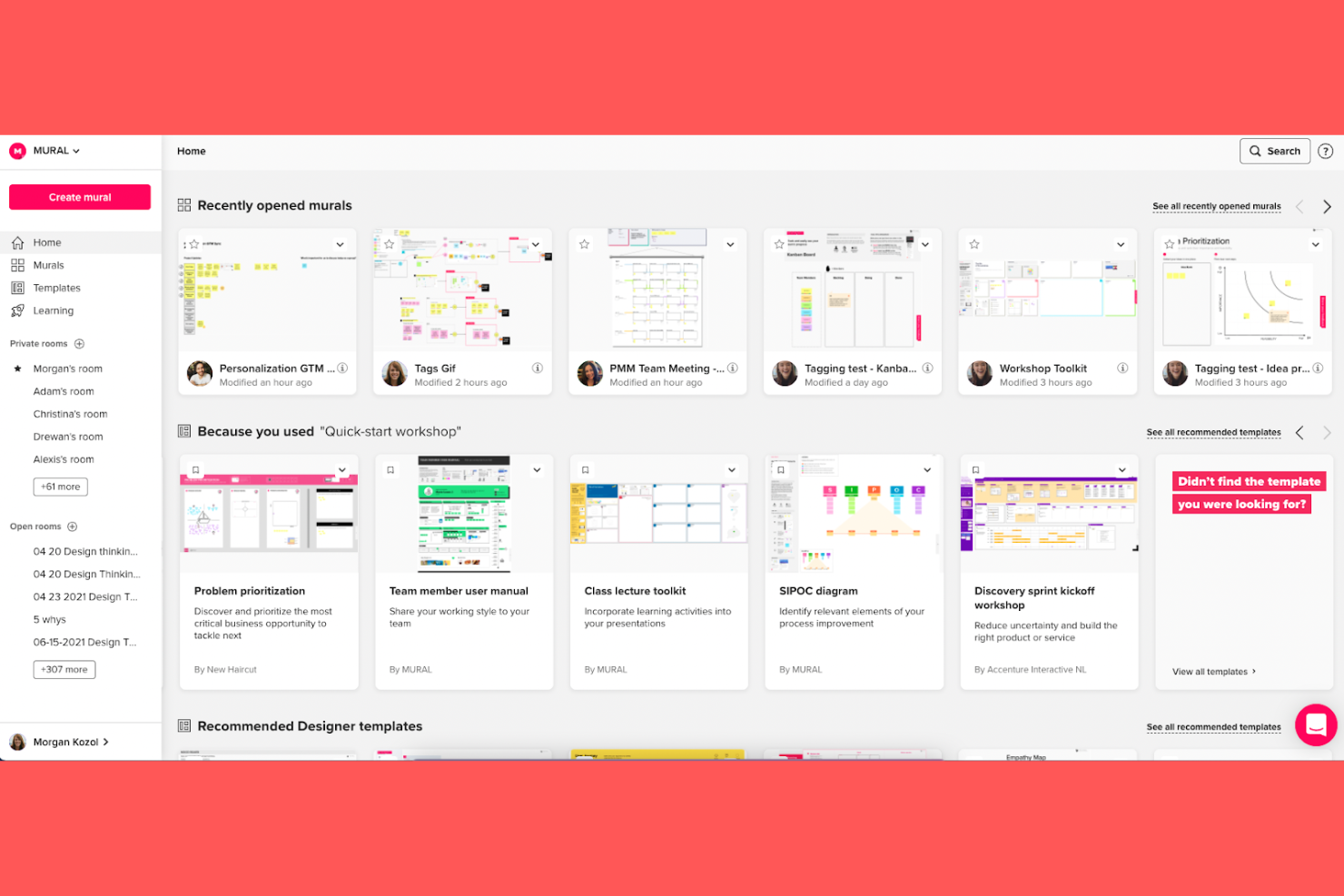
Se gestisci workshop di design thinking da remoto o devi facilitare sessioni creative tra team distribuiti, Mural è stato progettato proprio per te. La piattaforma offre un'ampia gamma di modelli e strumenti di facilitazione che aiutano a strutturare brainstorming, mappe e ideazione in tempo reale. Mural si distingue da Whimsical concentrandosi in modo approfondito sulla collaborazione guidata e sulla facilitazione di workshop per i team di design, prodotto e innovazione.
Perché Mural è una buona alternativa a Whimsical
Per i team che devono organizzare workshop di design thinking da remoto, Mural offre funzionalità specializzate che vanno oltre la collaborazione visiva di base. Ho scelto Mural perché i suoi strumenti di facilitazione, come timer, votazioni e modalità privata, aiutano a strutturare le attività di gruppo e a mantenere i workshop focalizzati.
La piattaforma offre inoltre un'ampia libreria di modelli progettati per sprint di design, mappe del percorso del cliente e sessioni di ideazione. Se cerchi uno spazio di lavoro che supporti workshop guidati e interattivi, Mural è una valida alternativa a Whimsical.
Funzionalità principali di Mural
Altre funzionalità di Mural aiutano i team a collaborare visivamente e a organizzare le idee tra diversi progetti:
- Tela infinita: Lavora in uno spazio di lavoro digitale illimitato che supporta diagrammi e mappe grandi e complessi.
- Note adesive e forme: Aggiungi, sposta e raggruppa note adesive e forme per un brainstorming e un'organizzazione flessibili.
- Commenti: Lascia feedback e tagga direttamente i membri del team sulla tela per discussioni contestuali.
- Opzioni di esportazione: Scarica i mural come immagini o PDF per condividere i risultati al di fuori della piattaforma.
Integrazioni di Mural
Le integrazioni includono Microsoft Teams, Slack, Google Drive, Jira, Confluence, Trello, Zoom, Asana, Dropbox e Microsoft OneDrive.
Pros and Cons
Pros:
- Gli strumenti di facilitazione integrati supportano workshop e sprint da remoto strutturati
- L'ampia libreria di modelli copre il design thinking e i processi agili
- La tela infinita consente sessioni di mappatura e brainstorming complessi
Cons:
- Le bacheche esportate a volte perdono la formattazione o l'interattività
- La navigazione può risultare complicata su tele molto grandi


Se il tuo team ha bisogno di un modo flessibile per creare diagrammi senza restrizioni software, vale la pena prendere in considerazione draw.io. È particolarmente utile per i team tecnici, gli educatori e gli analisti aziendali che desiderano rappresentare processi, sistemi o idee con il pieno controllo della disposizione e della struttura. A differenza di Whimsical, draw.io si distingue per la sua area di lavoro a forma libera, l'accesso offline e la possibilità di salvare i diagrammi direttamente su piattaforme di archiviazione nel cloud come Google Drive o OneDrive.
Perché draw.io è una buona alternativa a Whimsical
Quando hai bisogno di uno strumento per la creazione di diagrammi che non limiti la tua creatività, draw.io ti offre uno spazio di lavoro davvero libero. Ho scelto draw.io perché consente di iniziare con un'area di lavoro vuota e creare qualsiasi tipo di diagramma, dai diagrammi di flusso alle mappe di rete, senza essere vincolati a modelli o strutture rigide.
L'interfaccia con funzionalità di trascinamento supporta forme, connettori e livelli illimitati, permettendoti di rappresentare visivamente sistemi complessi o sviluppare idee. Per i team che desiderano il pieno controllo sulla disposizione e sulla struttura dei diagrammi, draw.io è una valida alternativa a Whimsical.
Funzionalità principali di draw.io
Altre funzionalità di draw.io aiutano i team a collaborare e gestire i diagrammi in modo più efficiente:
- Integrazione con l'archiviazione nel cloud: Salva e accedi ai diagrammi direttamente da Google Drive, OneDrive o Dropbox.
- Cronologia delle revisioni: Tieni traccia delle modifiche e ripristina le versioni precedenti dei diagrammi quando necessario.
- Libreria di modelli: Inizia rapidamente con un'ampia gamma di modelli di diagrammi predefiniti.
- Opzioni di esportazione: Esporta i diagrammi in diversi formati, tra cui PNG, SVG, PDF e XML.
Integrazioni di draw.io
Le integrazioni includono Confluence, Jira, Google Drive, Microsoft OneDrive, Dropbox, GitHub, GitLab, Nextcloud, Trello e Asana.
Pros and Cons
Pros:
- Accesso gratuito senza limitazioni delle funzionalità per i singoli utenti
- Integrazione diretta con Google Drive, OneDrive e Dropbox per l'archiviazione
- Consente di esportare i diagrammi in diversi formati, tra cui SVG e PDF.
Cons:
- Le funzionalità di collaborazione in tempo reale sono meno avanzate rispetto a Whimsical
- Nessuna chat o funzionalità di commento integrata per il feedback del team all'interno dei diagrammi

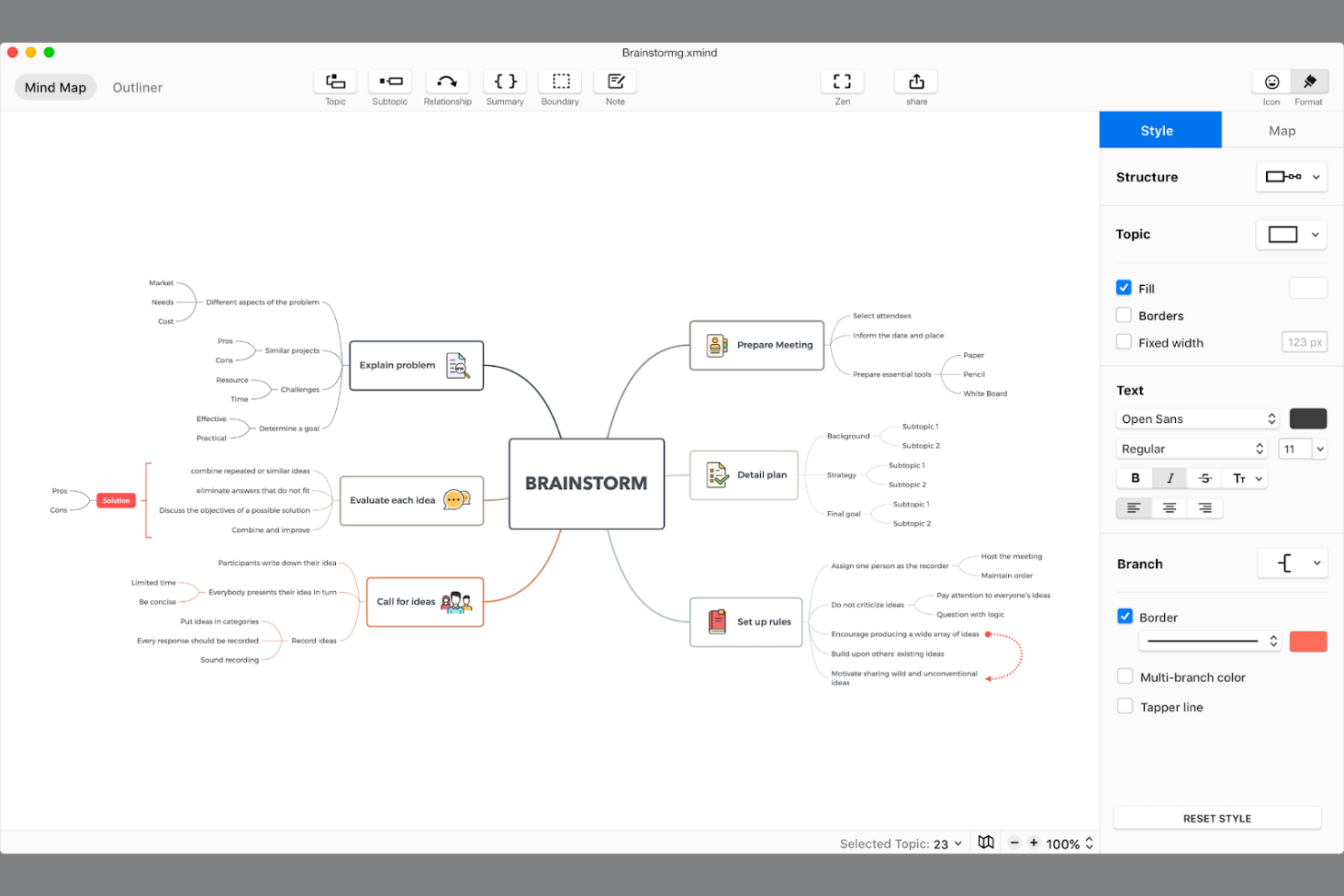
Per i team che devono organizzare idee complesse in strutture chiare e logiche, Xmind offre un approccio mirato alla mappatura mentale. È particolarmente adatto a product manager, consulenti e docenti che desiderano suddividere progetti, strategie o ricerche in gerarchie visive. Xmind si distingue da Whimsical ponendo l'accento su layout strutturati, stili avanzati per le mappe e opzioni di esportazione pensate per presentare e condividere idee organizzate.
Perché Xmind è una buona alternativa a Whimsical
Se cerchi uno strumento eccellente per la mappatura mentale strutturata, Xmind è un'ottima scelta. Ho scelto Xmind perché offre layout avanzati per le mappe, come diagrammi logici, diagrammi ad albero e diagrammi a lisca di pesce, che aiutano i team a organizzare le informazioni in modo altamente strutturato.
Lo strumento supporta anche funzionalità come la compressione degli argomenti e gli indicatori di confine, rendendo semplice gestire mappe ampie e complesse senza perdere chiarezza. Per chiunque abbia bisogno di suddividere progetti o idee in gerarchie visive organizzate, Xmind offre un livello di struttura su cui Whimsical non si concentra.
Funzionalità principali di Xmind
Altre funzionalità di Xmind aiutano i team a creare, condividere e presentare le mappe mentali in modo più flessibile:
- Modalità Zen: Concentrati sulla mappa senza distrazioni nascondendo tutte le barre degli strumenti e i menu.
- Visualizzazione del diagramma di Gantt: Visualizza le tempistiche del progetto e le dipendenze tra le attività direttamente dalla mappa mentale.
- Esportazione in più formati: Esporta le mappe come file PNG, PDF, Word, Excel e Markdown.
- App per dispositivi mobili e computer: Accedi alle mappe mentali e modificale su Windows, macOS, iOS, Android e Linux.
Integrazioni di Xmind
Le integrazioni includono Dropbox, Google Drive, Evernote, OneDrive, Box, iCloud, Trello, Slack, Microsoft Teams e Jira.
Pros and Cons
Pros:
- Offre strutture avanzate per le mappe mentali, come diagrammi a lisca di pesce e diagrammi logici
- Esporta le mappe in più formati, inclusi PDF, Word e Markdown
- La modalità Zen offre uno spazio di lavoro privo di distrazioni per concentrarsi sulla mappatura
Cons:
- Non offre la collaborazione in tempo reale tra più utenti disponibile in Whimsical
- Varietà di modelli limitata rispetto ad altri strumenti per spazi di lavoro visivi

Miro
Ideale per sessioni di ideazione tra squadre
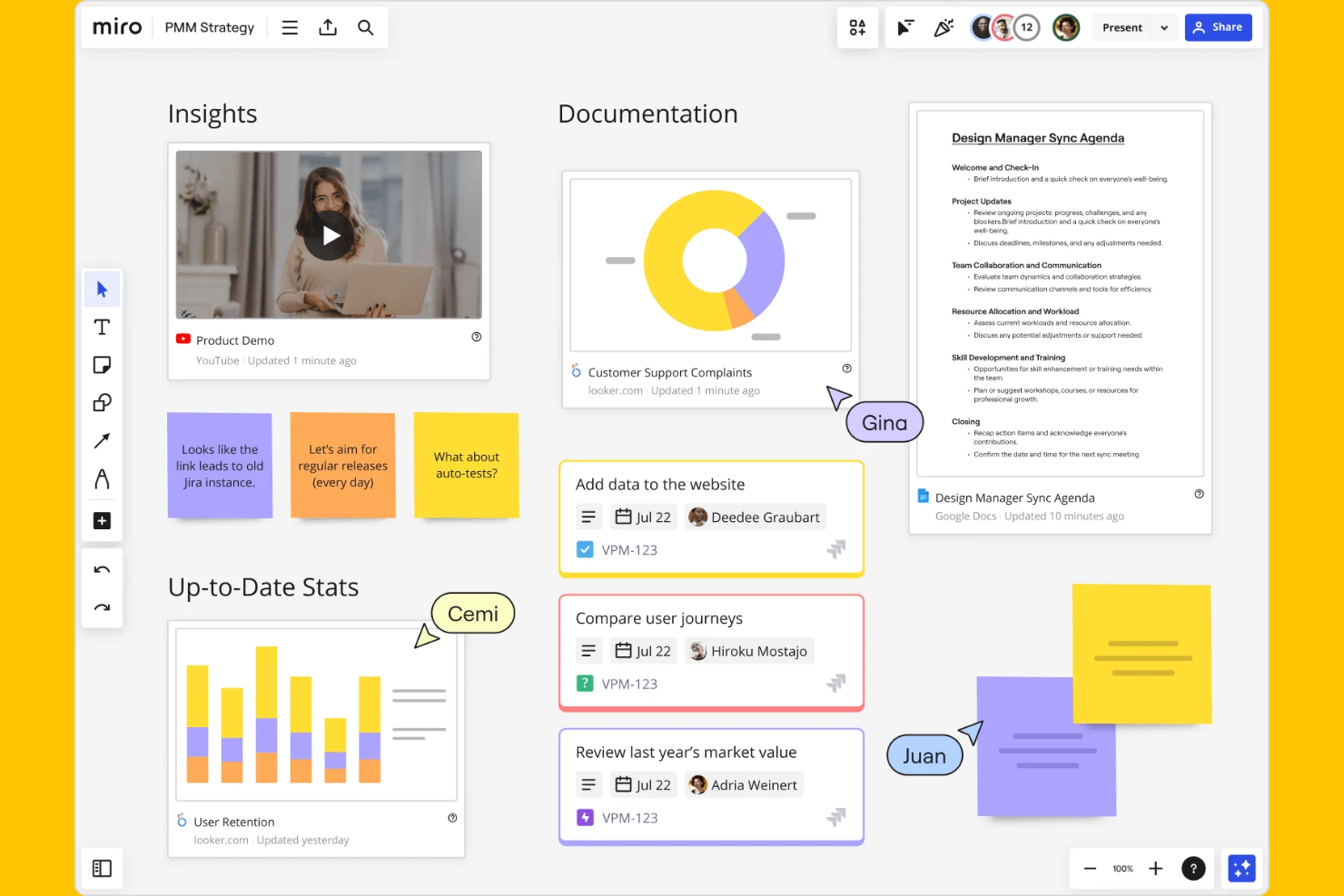
Miro offre alle squadre distribuite una lavagna online condivisa per l'ideazione in tempo reale e la collaborazione visiva. Se gestisci progetti interfunzionali o devi allineare le squadre di prodotto, progettazione e ingegneria, la tela flessibile di Miro e le sue ampie opzioni di integrazione aiutano a mappare idee, flussi di lavoro e riscontri in un unico posto. La sua attenzione ai laboratori interattivi e alla co-creazione dal vivo la distingue da strumenti di diagrammazione più statici come Whimsical.
Perché Miro è una buona alternativa a Whimsical
Quando la tua squadra deve generare idee tra reparti o sedi diverse, la lavagna collaborativa di Miro si distingue. Ho scelto Miro per la sua capacità di supportare sessioni dal vivo e interattive, in cui tutti possono contribuire con idee, creare collegamenti e votare le priorità in tempo reale. I suoi modelli integrati per mappe mentali, retrospettive e laboratori facilitano l'avvio di sessioni strutturate senza dover partire da zero. Gli strumenti visivi di Miro aiutano le squadre a passare dall'ideazione all'azione, rendendolo una scelta eccellente per la collaborazione tra squadre.
Funzionalità principali di Miro
Altre funzionalità di Miro ne fanno una scelta flessibile per diverse esigenze di collaborazione visiva:
- Tela infinita: Espandi il tuo spazio di lavoro quanto vuoi, così non rimarrai mai senza spazio per idee o diagrammi.
- Note adesive: Aggiungi note adesive con codice colore in qualsiasi punto della lavagna per raccogliere pensieri rapidi, riscontri o attività da svolgere.
- Modalità presentazione: Trasforma la tua lavagna in una presentazione guidata, accompagnando le parti interessate attraverso i tuoi elementi visivi passo dopo passo.
- Commenti e tag: Lascia commenti e menziona direttamente i membri della squadra su elementi specifici per mantenere le discussioni organizzate e orientate all'azione.
Integrazioni di Miro
Le integrazioni includono Slack, Microsoft Teams, Google Drive, Jira, Confluence, Dropbox, Asana, Trello, Zoom e GitHub.
Pros and Cons
Pros:
- La collaborazione in tempo reale supporta grandi squadre distribuite nei progetti
- La tela infinita consente sessioni di ideazione complesse e multilivello
- Ampia gamma di modelli per flussi di lavoro di prodotto, progettazione e metodologie agili
Cons:
- Le prestazioni della lavagna possono rallentare con progetti molto grandi o complessi
- Le funzionalità avanzate, come la diagrammazione, richiedono piani di livello superiore
New Product Updates from Miro
Miro Adds Japan Data Residency for Enterprise Customers
Miro has introduced Japan data residency for enterprise customers, offering in-region storage for production data, backups, and metadata, plus in-region compute infrastructure. For more information, visit Miro's official site.

Lucidchart
Ideale per l'automazione avanzata dei diagrammi
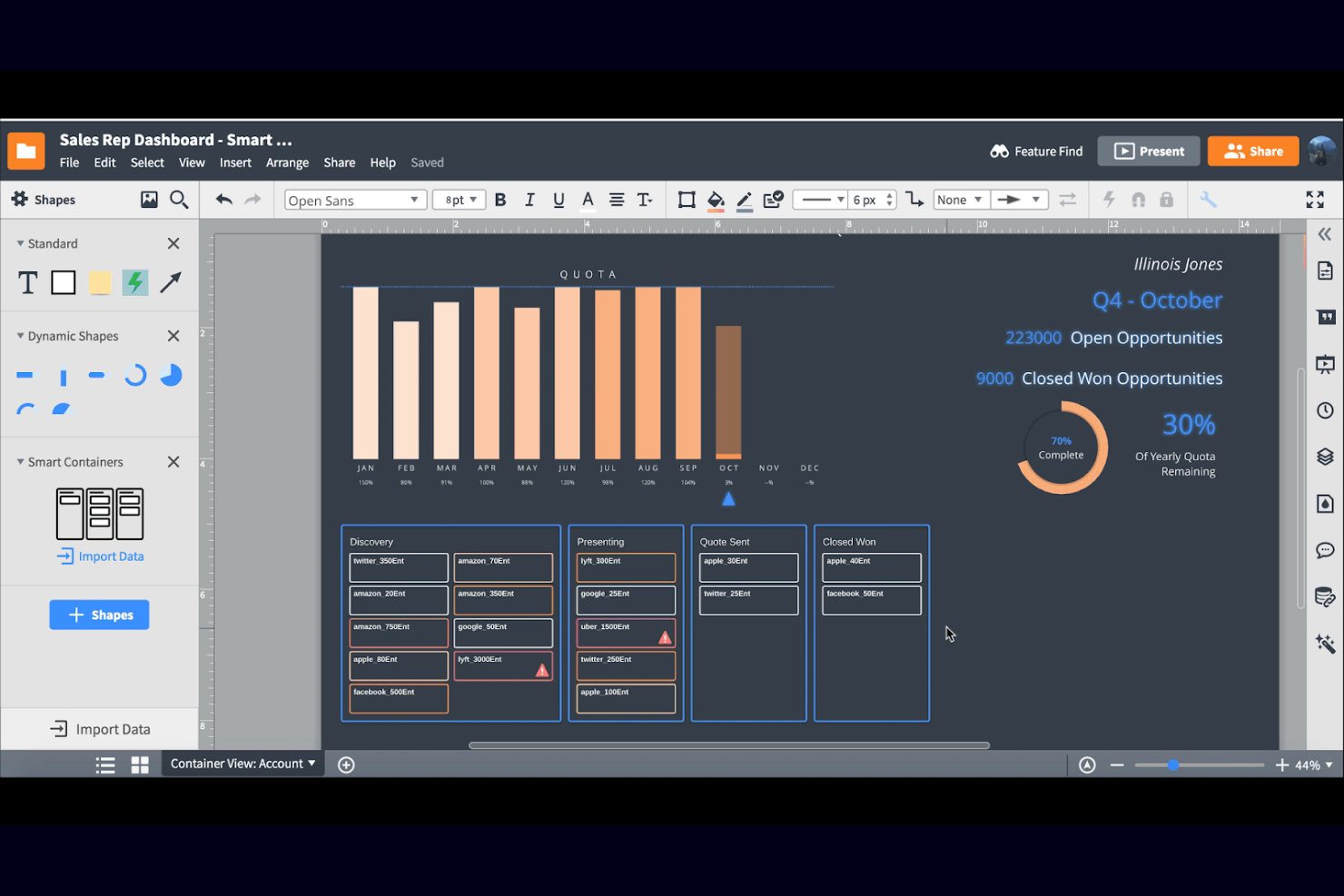
Lucidchart si distingue per i team che devono automatizzare diagrammi complessi e visualizzare processi basati sui dati. Se lavori nell'IT, nell'ingegneria o nelle operazioni, le avanzate funzionalità di automazione e collegamento dei dati di Lucidchart ti aiutano a mantenere i diagrammi accurati e aggiornati. La possibilità di collegare dati in tempo reale e automatizzare gli aggiornamenti dei diagrammi lo distingue da Whimsical e da altri strumenti per spazi di lavoro visivi.
Perché Lucidchart è una buona alternativa a Whimsical
Per i team che hanno bisogno di qualcosa di più dei semplici diagrammi statici, le funzionalità di automazione di Lucidchart lo rendono una valida alternativa a Whimsical. Ho scelto Lucidchart perché consente di collegare i diagrammi a origini dati in tempo reale, così i tuoi elementi visivi si aggiornano automaticamente quando cambiano le informazioni.
La formattazione condizionale e le forme basate sui dati aiutano a evidenziare le metriche chiave e le modifiche ai processi senza interventi manuali. Se gestisci sistemi o flussi di lavoro complessi, queste funzionalità di automazione possono farti risparmiare tempo e ridurre gli errori rispetto a strumenti per spazi di lavoro visivi più basilari.
Funzionalità principali di Lucidchart
Altre funzionalità di Lucidchart aiutano i team a collaborare e a organizzare visivamente informazioni complesse:
- Cronologia delle revisioni: Tieni traccia delle modifiche e ripristina le versioni precedenti dei diagrammi in qualsiasi momento.
- Librerie di forme: Accedi a un'ampia gamma di forme specifiche per settore per diagrammi di rete, organigrammi e altro ancora.
- Commenti per la collaborazione: Aggiungi commenti direttamente sui diagrammi per discutere i riscontri o richiedere modifiche.
- Modalità presentazione: Trasforma i diagrammi in presentazioni dettagliate per riunioni o revisioni con le parti interessate.
Integrazioni di Lucidchart
Le integrazioni includono Google Drive, Microsoft Teams, Slack, Atlassian Jira, Confluence, Microsoft Office, Salesforce, GitHub, Dropbox e Box.
Pros and Cons
Pros:
- Il collegamento dei dati mantiene i diagrammi aggiornati con le origini delle informazioni in tempo reale
- La formattazione condizionale evidenzia visivamente le modifiche ai processi e le metriche chiave
- La cronologia delle revisioni consente ai team di monitorare e ripristinare le versioni dei diagrammi
Cons:
- Le funzionalità di automazione avanzata sono disponibili solo nei piani di livello superiore
- Le opzioni di esportazione sono limitate nei piani base o gratuiti
Altre alternative a Whimsical
Ecco alcune alternative aggiuntive a Whimsical che non sono state incluse nel mio elenco ristretto, ma che vale comunque la pena valutare:


Come valuto le alternative a Whimsical
Esamino due livelli: la tela di base, la diagrammazione e la realizzazione di wireframe che ogni strumento deve offrire, e gli elementi distintivi, come la generazione tramite IA o la sincronizzazione con Jira, che rendono una soluzione più adatta delle altre.
Funzionalità fondamentali (requisiti essenziali per questo elenco)
Quando seleziono gli strumenti per il mio elenco, assegno a ciascuno un punteggio su una scala da 0 (non offre la funzionalità) a 5 (eccelle in questo ambito) per ogni funzionalità fondamentale indicata di seguito. Quindi, calcolo il punteggio totale dello strumento sotto forma di percentuale. Ogni strumento deve raggiungere un punteggio totale minimo del 65% per essere preso in considerazione.
- Tela per la collaborazione visiva: verifico se più persone possono lavorare contemporaneamente sulla stessa lavagna, ad esempio durante la pianificazione degli sprint, con un team remoto che modifica forme e schede in tempo reale.
- Diagrammi e diagrammi di flusso: i connettori intelligenti, la disposizione automatica e il supporto per diagrammi strutturati come le corsie sono importanti quando si mappano flussi di onboarding o flussi di lavoro per le approvazioni.
- Funzionalità per la realizzazione di wireframe: cerco componenti nativi dell'interfaccia utente, come pulsanti, menu a discesa e finestre modali, così che i responsabili di prodotto possano abbozzare il concept di una funzionalità senza dover passare a Figma o Sketch.
- Mappe mentali e note adesive: il brainstorming e le retrospettive fanno affidamento su questi formati, quindi valuto se uno strumento supporta entrambi e include funzioni di base come il raggruppamento o la codifica a colori.
- Libreria di modelli: una buona libreria include scenari comuni per la gestione del prodotto e la progettazione, come mappe delle user story, bacheche per gli sprint e mappe del percorso, riducendo il tempo di configurazione per le attività ricorrenti.
- Integrazioni e incorporamento: valuto se le lavagne possono essere incorporate in strumenti come Notion o Confluence e sincronizzate con sistemi di tracciamento come Jira o Linear, dove il lavoro viene effettivamente assegnato.
Dopo aver stilato un elenco di strumenti che soddisfano questi criteri, considero ciò che distingue ogni piattaforma.
Fattori distintivi (ciò che differenzia i fornitori)
Ecco come confronto i diversi fornitori:
Funzionalità di spicco
La generazione basata sull'IA è un importante elemento distintivo: strumenti come Miro e FigJam consentono di trasformare un prompt testuale in un diagramma di flusso o in una mappa mentale, riducendo il tempo di configurazione durante la fase di analisi. Cerco anche funzionalità per la facilitazione dei workshop, come votazioni, timer e modalità privata, poiché trasformano una tela in un vero strumento per le sessioni di retrospettiva o gli sprint di progettazione. Anche il passaggio di consegne agli sviluppatori è importante. Verifico se le lavagne possono collegarsi direttamente alle attività di Jira o Linear, così che i diagrammi rimangano connessi al lavoro effettivo.
Oltre le funzionalità
Valuto sempre le prestazioni con lavagne di grandi dimensioni. Una tela che rallenta quando contiene centinaia di note adesive provenienti da una sessione di pianificazione PI diventa un ostacolo. Anche i modelli di prezzo variano notevolmente: alcuni strumenti fanno pagare ogni editor, mentre altri consentono a un numero illimitato di visualizzatori di collaborare gratuitamente; questo è importante quando si condividono le lavagne tra i team di prodotto, ingegneria e dirigenza. Considero inoltre la rapidità con cui una persona non esperta di design, come un responsabile di prodotto o un responsabile dell'ingegneria, può creare il primo artefatto utile senza una formazione formale.
Perché cercare un’alternativa a Whimsical?
Sebbene Whimsical sia una valida scelta per uno strumento di spazio di lavoro visivo collaborativo, ci sono diversi motivi per cui alcuni utenti cercano soluzioni alternative. Potresti cercare un’alternativa a Whimsical perché…
- Hai bisogno di funzionalità più avanzate per la creazione di diagrammi o il collegamento dei dati
- Il tuo team richiede funzionalità più complete per la documentazione dei progetti
- Desideri integrazioni native con strumenti aziendali specifici
- Hai bisogno di un supporto migliore per progetti grandi o complessi
- La tua organizzazione ha esigenze rigorose di controllo degli accessi o di conformità
Se ti riconosci in una di queste situazioni, sei nel posto giusto. Il mio elenco contiene diverse opzioni di strumenti di spazio di lavoro visivo collaborativo più adatte ai team che affrontano queste difficoltà con Whimsical e cercano soluzioni alternative.
Caratteristiche principali di Whimsical
Ecco alcune delle caratteristiche principali di Whimsical, per aiutarti a mettere a confronto ciò che offrono le soluzioni alternative:
- Lavagne collaborative e diagrammi in tempo reale
- Modelli integrati per diagrammi di flusso, strutture schematiche e mappe mentali
- Note adesive e commenti per il feedback del team
- Lavagne di progetto visive per organizzare le attività
- Interfaccia intuitiva con trascinamento per creare contenuti visivi
- Cronologia delle versioni e monitoraggio delle modifiche
- Condivisione rapida tramite link pubblici o privati
- Supporto per Markdown per la formattazione del testo
- Modifica multiutente con cursori in tempo reale
- Organizzazione semplice degli spazi di lavoro e delle cartelle