

10 meilleures alternatives à Google Docs pour collaborer en 2026

Liste des meilleures alternatives à Google Docs


Une bonne alternative à Google Docs propose la modification de documents en ligne, la collaboration en temps réel et une compatibilité fiable des fichiers, sans vous enfermer dans l’écosystème de Google. Si vous recherchez des alternatives à Google Docs, vous cherchez probablement des outils adaptés au fonctionnement de votre équipe, répondant à vos exigences en matière de confidentialité ou de conformité, ou offrant des fonctionnalités absentes de Google Docs.
Avec autant d’options disponibles, il est difficile de savoir quelles plateformes tiennent réellement leurs promesses en matière de collaboration, d’intégration et de flexibilité. Cette liste vous aidera à comparer les meilleures alternatives à Google Docs pour 2026, afin que vous puissiez trouver la suite bureautique en ligne adaptée à vos projets et à vos équipes.
Qu’est-ce que Google Docs ?
Google Docs est une suite bureautique cloud qui fonctionne comme une plateforme moderne de traitement de texte, permettant aux utilisateurs de créer, modifier et partager des documents en ligne. En tant que traitement de texte accessible depuis un navigateur, il prend en charge la collaboration en temps réel, l’historique des versions et l’accès depuis tout appareil connecté à Internet. Les équipes utilisent Google Docs pour collaborer sur des documents texte, suivre les modifications, laisser des commentaires et gérer du contenu partagé sans installer de logiciel de bureau.
Son intégration avec les autres applications Google Workspace en fait l’un des outils de collaboration tout-en-un les plus utilisés par les équipes distribuées. Pour de nombreuses organisations, Google Docs contribue à simplifier les processus de création de documents et de collecte des retours entre les services, notamment lorsqu’il est associé à des outils comme Sheets et Slides.
Tableau comparatif des alternatives à Google Docs
Ce tableau comparatif récapitule les informations tarifaires de ma sélection des meilleures alternatives à Google Docs :
| Tool | Best For | Trial Info | Price | ||
|---|---|---|---|---|---|
| 1 | Idéal pour l’édition collaborative assistée par l’IA en temps réel | Forfait gratuit disponible | À partir de $8/mois | Website | |
| 2 | Idéal pour combiner les notes et les bases de données | Forfait gratuit disponible | À partir de $10/user/month (facturé annuellement) | Website | |
| 3 | Idéal pour relier les tâches et les documents | Forfait gratuit disponible | À partir de $7/utilisateur/mois (facturé annuellement) | Website | |
| 4 | Idéal pour l'hébergement privé de documents dans le cloud | Essai gratuit + démonstration gratuite disponibles | Tarification sur demande | Website | |
| 5 | Idéal pour la compatibilité avec les formats de fichiers Microsoft | Formule gratuite disponible | À partir de $2.49/utilisateur/mois (facturé annuellement) | Website | |
| 6 | Idéal pour la collaboration d’équipe en temps réel | Essai gratuit de 30 jours + formule gratuite disponible | À partir de $6/utilisateur/mois (facturé annuellement) | Website | |
| 7 | Idéal pour accéder aux documents sur les appareils mobiles | Essai gratuit de 7 jours + formule gratuite disponible | À partir de 4,19 $/mois (facturé annuellement) | Website | |
| 8 | Idéal pour la modification de documents open source | Forfait gratuit disponible | Tarification sur demande | Website | |
| 9 | Idéal avec des outils intégrés de gestion de projets | Formule gratuite + essai gratuit de 30 jours disponible | À partir de $20/administrateur/mois | Website | |
| 10 | Idéal pour créer des documents hors ligne | Formule gratuite disponible | Gratuit et à code source ouvert | Website |

Pourquoi faire confiance à nos recommandations de logiciels
Notre équipe teste et évalue des logiciels depuis 2012. En tant que chefs de projet nous-mêmes, nous savons à quel point il est difficile — et important — de choisir le bon logiciel.
Pour ce guide, nous avons évalué les outils grâce à des tests pratiques et une recherche indépendante, en notant les outils selon nos critères de sélection. Nous nous appuyons également sur les enseignements de leaders d’opinion du secteur et de professionnels de la gestion de projet en activité.
Nos avis reflètent notre jugement éditorial humain, et non un argumentaire de vente.
Réviseurs experts:
Avis sur les meilleures alternatives à Google Docs
Vous trouverez ci-dessous mes résumés détaillés des alternatives à Google Docs qui ont intégré ma sélection. Mes avis examinent en détail les fonctionnalités, les cas d’utilisation privilégiés et les intégrations de chaque plateforme afin de vous aider à trouver celle qui vous convient le mieux.

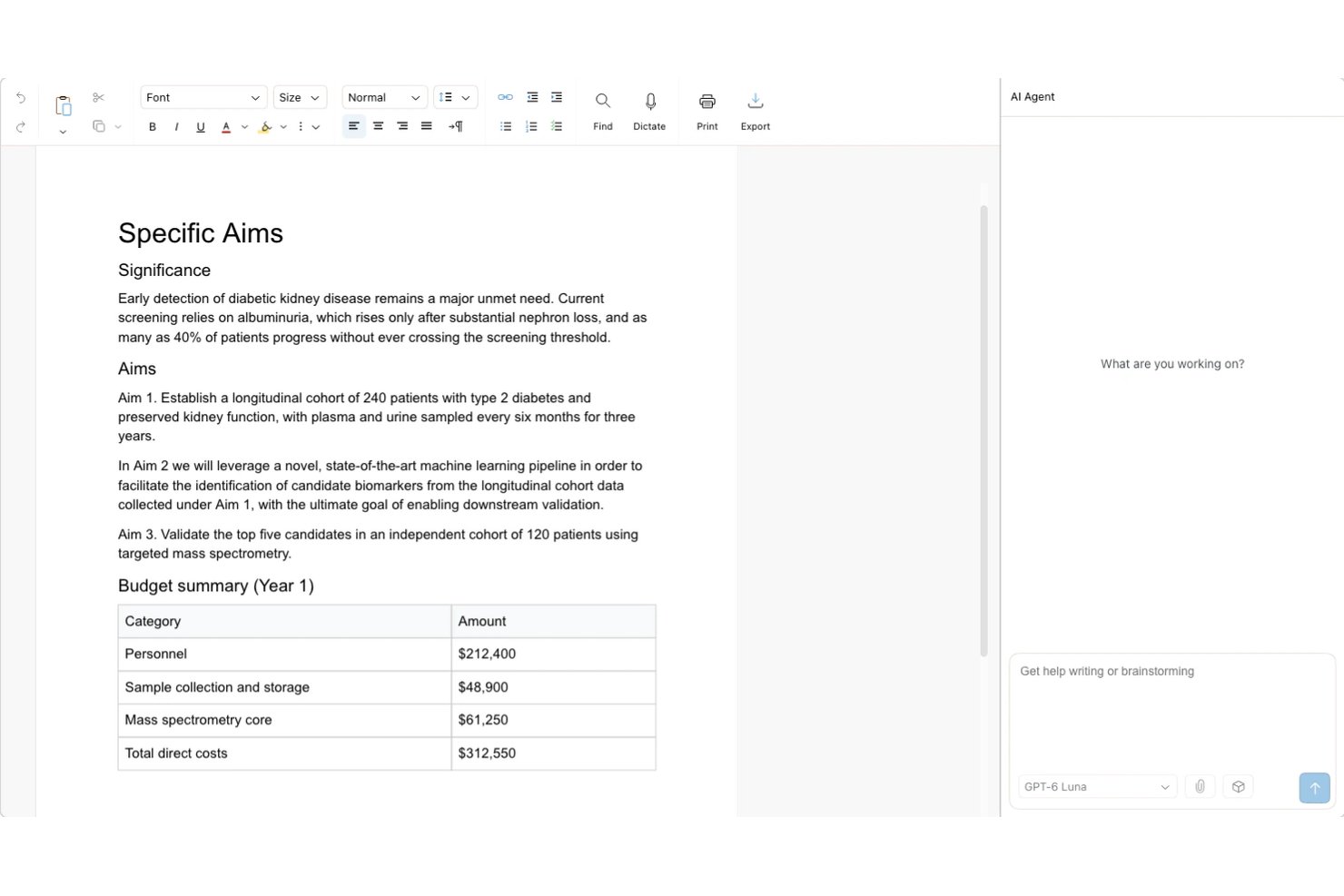
Revise est un traitement de texte accessible depuis un navigateur qui associe l’édition assistée par l’IA et la collaboration en temps réel pour les équipes souhaitant bénéficier de modifications par IA suivies et vérifiables, ainsi que de la coédition en direct, d’un formatage enrichi et de flux de travail DOCX haute fidélité.
À qui Revise convient-il le mieux ?
Revise convient particulièrement aux équipes distribuées qui doivent examiner et affiner les modifications générées par l’IA sans perdre le contrôle du document final.
Pourquoi Revise est une bonne alternative à Google Docs
J’ai choisi Revise parmi les meilleurs outils, car il résout un véritable problème : les modifications par IA qui écrasent votre travail avant que vous ne les ayez approuvées. Chaque modification proposée par l’agent IA apparaît comme une modification suivie, en vert pour les ajouts et en rouge pour les suppressions, afin que mon équipe puisse accepter ou refuser chacune d’entre elles individuellement. J’apprécie également que le sélecteur de modèles intégré nous permette de basculer entre les modèles d’OpenAI, d’Anthropic, de Google, de xAI et de Meta en cours de projet, sans quitter l’éditeur.
Principales fonctionnalités de Revise
- Présence en direct : Les curseurs colorés, les sélections et les avatars des collaborateurs indiquent qui se trouve dans le document.
- Rôles de partage : Définissez l’accès sur Éditeur, Suggéreur ou Lecteur, y compris pour les personnes disposant d’un lien public.
- Historique des révisions : Rejouez les versions enregistrées et comparez les points sélectionnés dans la chronologie.
- Formatage des documents : Ajoutez des tableaux, des images, des en-têtes, des pieds de page, des colonnes, des notes de bas de page et des numéros de page.
Intégrations de Revise
Revise prend en charge les connexions MCP avec Claude, ChatGPT, Codex, Hermes, OpenClaw et d’autres clients MCP. L’accès MCP est gratuit avec tous les forfaits Revise, nécessite un compte Revise et utilise l’abonnement de l’application d’IA ; des limites de débit horaires s’appliquent.
Pros and Cons
Pros:
- Les modifications par IA apparaissent comme des modifications suivies vérifiables
- Basculez entre plusieurs modèles d’IA en cours de projet
- Aucun compte nécessaire pour collaborer via un lien public
Cons:
- Pas de restauration en un clic depuis l’historique des versions
- Accès hors ligne limité aux documents précédemment ouverts
Notion
Idéal pour combiner les notes et les bases de données
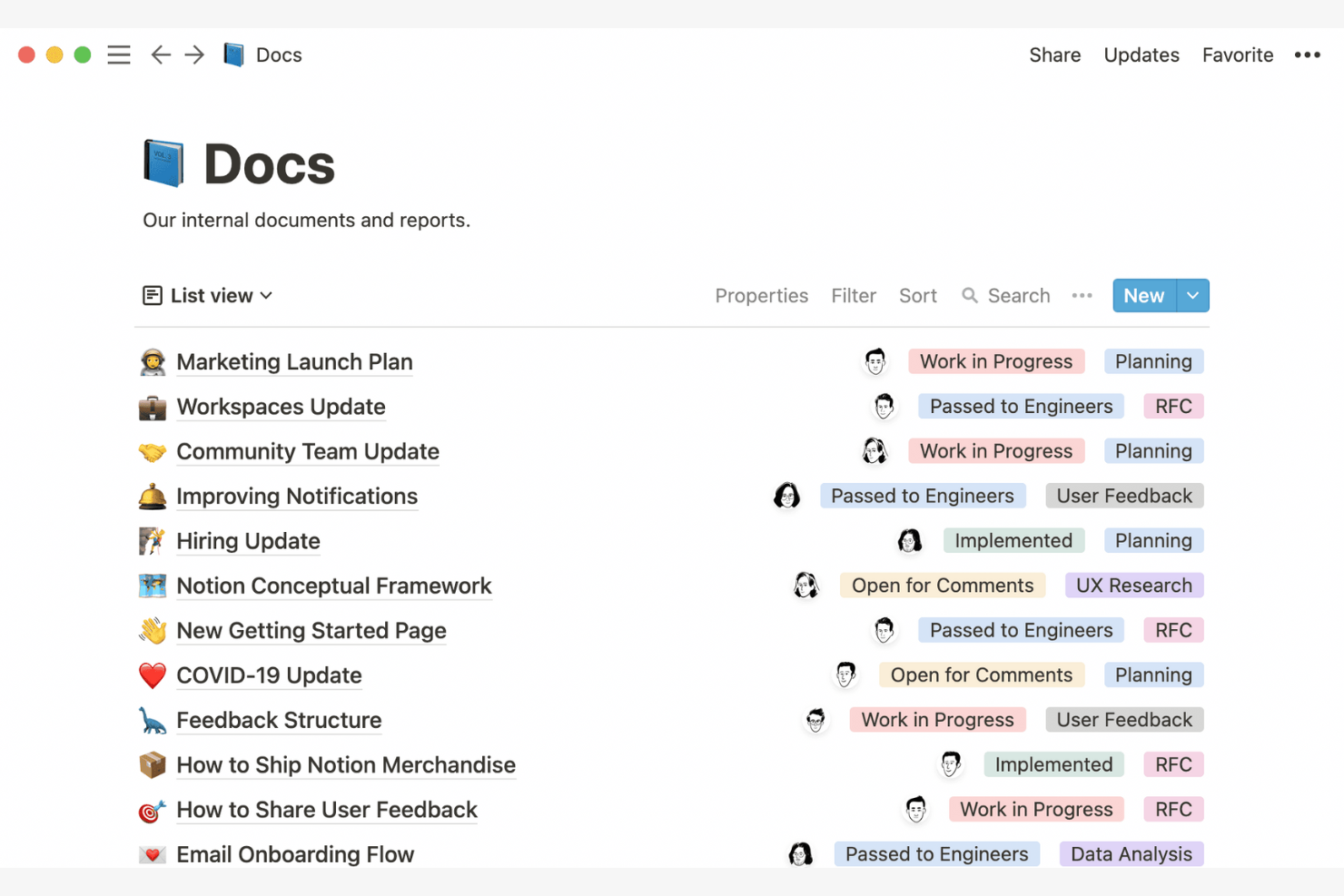
Notion offre aux équipes un moyen de combiner la prise de notes, la documentation et les bases de données dans un espace de travail unique. C’est particulièrement utile pour les chefs de produit, les responsables des opérations et toute personne qui doit organiser des informations structurées et non structurées côte à côte. Contrairement à Google Docs, Notion vous permet de créer des tableaux personnalisés, de relier des notes à des outils de suivi de projets et de créer des tableaux de bord qui rassemblent tout votre travail.
Pourquoi Notion est une bonne alternative à Google Docs
Si vous devez gérer à la fois des notes et des données structurées au même endroit, Notion propose une approche unique qui va au-delà des éditeurs de documents traditionnels. J’ai choisi Notion parce que vous pouvez créer des bases de données, les relier à vos notes et concevoir des vues personnalisées pour suivre des projets ou des ressources. Cette flexibilité permet à votre équipe d’organiser aussi bien des comptes rendus de réunion que des feuilles de route produit, sans passer d’un outil à l’autre. Pour quiconque souhaite combiner la documentation avec des tableaux et des listes dynamiques, Notion s’impose comme une excellente alternative à Google Docs.
Principales fonctionnalités de Notion
Certaines autres fonctionnalités de Notion aident les équipes à gérer et à collaborer sur le contenu avec davantage de flexibilité :
- Organisation des pages par glisser-déposer : Déplacez les pages et les sections pour restructurer rapidement votre espace de travail.
- Modification collaborative en temps réel : Plusieurs utilisateurs peuvent modifier la même page simultanément et voir les changements en direct.
- Intégration de contenus multimédias : Ajoutez directement des images, des vidéos, des extraits de code et des fichiers à n’importe quelle page.
- Modèles personnalisables : Commencez de nouveaux projets ou documents avec des modèles prédéfinis pour les wikis, les comptes rendus de réunion et bien plus encore.
Intégrations de Notion
Les intégrations comprennent Slack, Jira, GitHub, Asana, Google Drive, Figma, Trello, GitLab, Webex et Typeform.
Pros and Cons
Pros:
- Combine les documents et les bases de données pour une gestion structurée des connaissances
- Organisation flexible grâce aux modèles et aux pages liées
- Idéal pour les wikis d’équipe, les comptes rendus de réunion et les documents de projet légers
Cons:
- Les options avancées de mise en forme des documents sont limitées
- L’exportation au format PDF ou Word peut perturber la mise en page et la hiérarchie

ClickUp
Idéal pour relier les tâches et les documents
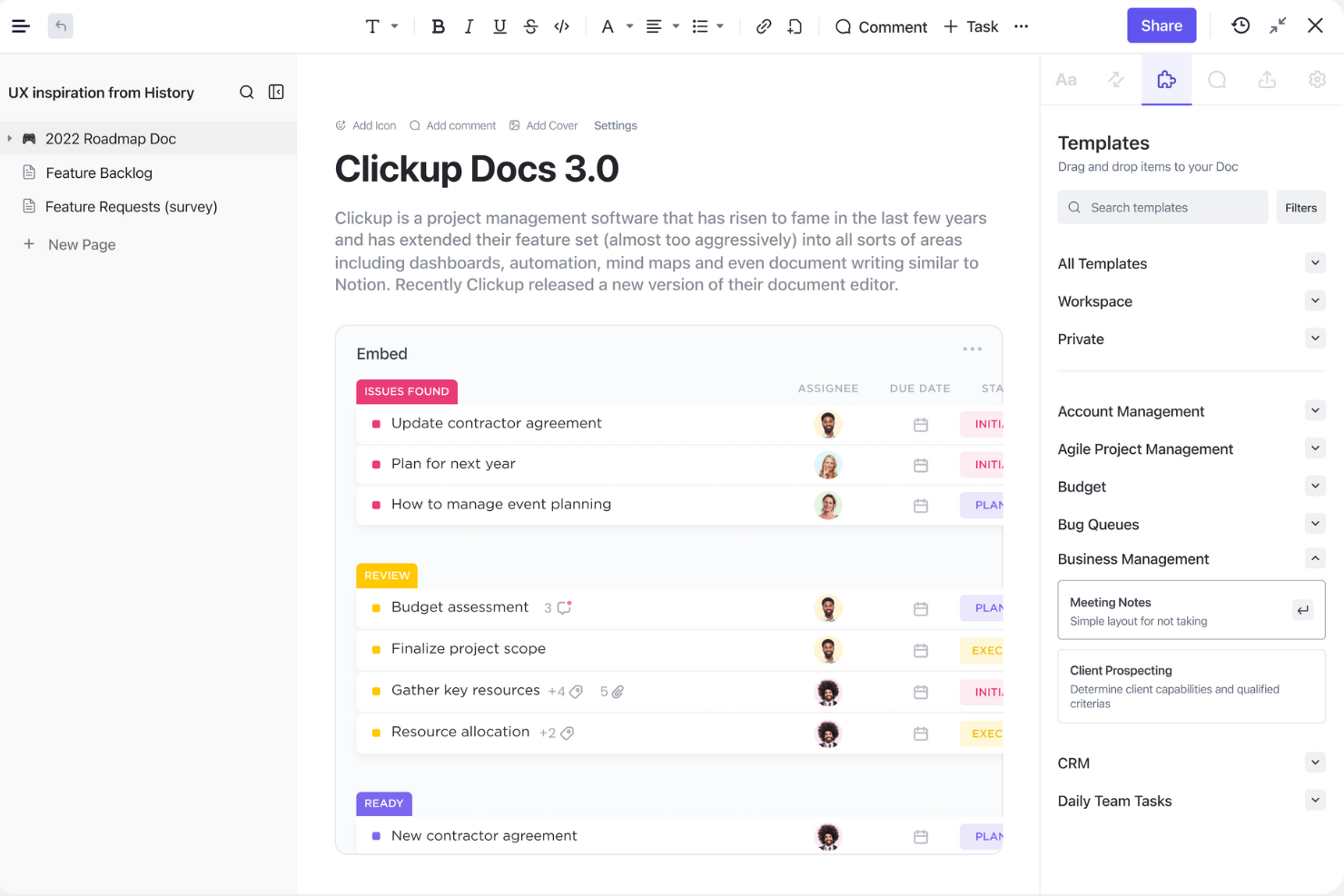
Si votre équipe a besoin de relier directement des documents à des tâches et à des flux de travail, ClickUp propose un espace de travail unifié qui rassemble la documentation et la gestion de projets. C’est une solution particulièrement adaptée aux équipes produit, d’ingénierie et interfonctionnelles qui souhaitent conserver un lien étroit entre le contexte des projets et la documentation. Contrairement à Google Docs, ClickUp vous permet d’intégrer des tâches, de suivre l’avancement et de référencer des éléments de travail directement dans vos documents.
Pourquoi ClickUp est une bonne alternative à Google Docs
ClickUp se distingue auprès des équipes qui souhaitent garder les documents et les tâches étroitement liés dans un même espace de travail. J’ai choisi ClickUp parce que vous pouvez relier directement les documents aux tâches, intégrer des listes de tâches actualisées en temps réel dans les documents et référencer des éléments de projet sans changer d’outil. Cette configuration aide votre équipe à maintenir la documentation, les mises à jour des projets et les éléments d’action synchronisés au fur et à mesure de l’avancement du travail. Pour toute personne ayant besoin de plus que de simples documents autonomes, l’approche de ClickUp en matière de liaison entre tâches et documents offre un avantage évident par rapport à Google Docs.
Fonctionnalités clés de ClickUp
Certaines autres fonctionnalités de ClickUp aident les équipes à gérer plus efficacement leurs documents et leurs projets :
- Édition de texte enrichi : Mettez en forme vos documents avec des titres, des tableaux, des listes de contrôle et des blocs de code.
- Commentaires et annotations : Ajoutez des commentaires et identifiez directement vos coéquipiers dans n’importe quel document.
- Contrôles de partage des documents : Définissez les autorisations pour consulter, modifier ou commenter les documents.
- Modèles de documents : Utilisez et personnalisez des modèles pour les comptes rendus de réunions, les plans de projet et bien plus encore.
Intégrations de ClickUp
ClickUp propose plus de 1 000 intégrations natives avec des outils populaires tels que Slack, GitHub, Google Drive et Zoom.
Pros and Cons
Pros:
- Relie directement les documents aux tâches et aux flux de travail pour préserver le contexte du projet
- Collaboration efficace avec commentaires, mentions et autorisations
- Les documents sont intégrés à un espace de travail tout-en-un pour les équipes qui utilisent déjà ClickUp
Cons:
- Les contrôles de mise en forme et de disposition sont moins avancés que ceux de Google Docs
- Les exports peuvent perdre leur structure, en particulier pour les documents longs ou complexes
New Product Updates from ClickUp
ClickUp Adds Meetings Hub, Super Agent Templates, and ZoomInfo Integration
ClickUp adds a searchable Meetings Hub, new ways to clone and template Super Agents, and a ZoomInfo integration through the App Center. These updates improve meeting retrieval, agent reuse, and access to sales intelligence. For more information, visit ClickUp’s official site.

Idéal pour l'hébergement privé de documents dans le cloud

Si votre équipe a besoin d'un contrôle total sur le stockage et la confidentialité des documents, Nextcloud propose une plateforme de cloud privé que vous pouvez héberger vous-même. C'est une solution particulièrement adaptée aux organisations ayant des exigences strictes en matière de sécurité des données ou évoluant dans des secteurs réglementés. Nextcloud se distingue en vous permettant de gérer les documents, la collaboration et le partage entièrement sur votre propre infrastructure, contrairement à la plupart des suites bureautiques basées sur le cloud.
Pourquoi Nextcloud est une bonne alternative à Google Docs
Contrairement à la plupart des suites bureautiques cloud, Nextcloud vous offre la possibilité d'héberger votre propre environnement documentaire privé. J'ai choisi Nextcloud parce qu'il vous permet de contrôler l'emplacement de vos données et les personnes qui peuvent y accéder, ce qui est essentiel pour les équipes ayant des exigences strictes en matière de confidentialité ou de conformité. La plateforme prend en charge l'édition collaborative, le partage de fichiers et la gestion des utilisateurs, le tout sur une infrastructure que vous gérez vous-même. Nextcloud constitue ainsi un excellent choix pour les organisations qui ne peuvent pas s'appuyer sur des services cloud publics pour leurs documents sensibles.
Fonctionnalités clés de Nextcloud
Voici quelques autres fonctionnalités qui font de Nextcloud une plateforme flexible pour la collaboration documentaire :
- Calendrier et contacts intégrés : Gérez les événements et les carnets d'adresses aux côtés de vos fichiers et documents.
- Chiffrement de bout en bout : Protégez les fichiers sensibles grâce à un chiffrement auquel seuls vous et vos collaborateurs pouvez accéder.
- Contrôle des versions : Suivez les modifications et restaurez les versions précédentes des documents si nécessaire.
- Marketplace d'applications de collaboration : Étendez les fonctionnalités grâce à des modules complémentaires pour le chat, les appels vidéo et l'automatisation des flux de travail.
Intégrations de Nextcloud
Les intégrations incluent OnlyOffice, Nextcloud Office, Nextcloud Assistant, Giphy, draw.io, Discord, Edusign, XtalaDraw, Sentry, Slack, YouTube, OneDrive, les services Google, GitLab, Dropbox, Jira, Reddit, GitHub, et bien plus encore.
Pros and Cons
Pros:
- Vous permet d'héberger des documents sur votre propre serveur cloud privé
- Propose un chiffrement de bout en bout pour le stockage de documents sensibles
- Prend en charge l'édition collaborative avec OnlyOffice ou Collabora Online
- Intègre le partage de fichiers, le calendrier et les contacts au sein d'une seule plateforme
- Fournit aux administrateurs des contrôles étendus sur les accès des utilisateurs et des groupes
Cons:
- Nécessite une configuration technique et une maintenance continue du serveur
- La qualité de la collaboration dépend de la suite d'édition associée

Idéal pour la compatibilité avec les formats de fichiers Microsoft
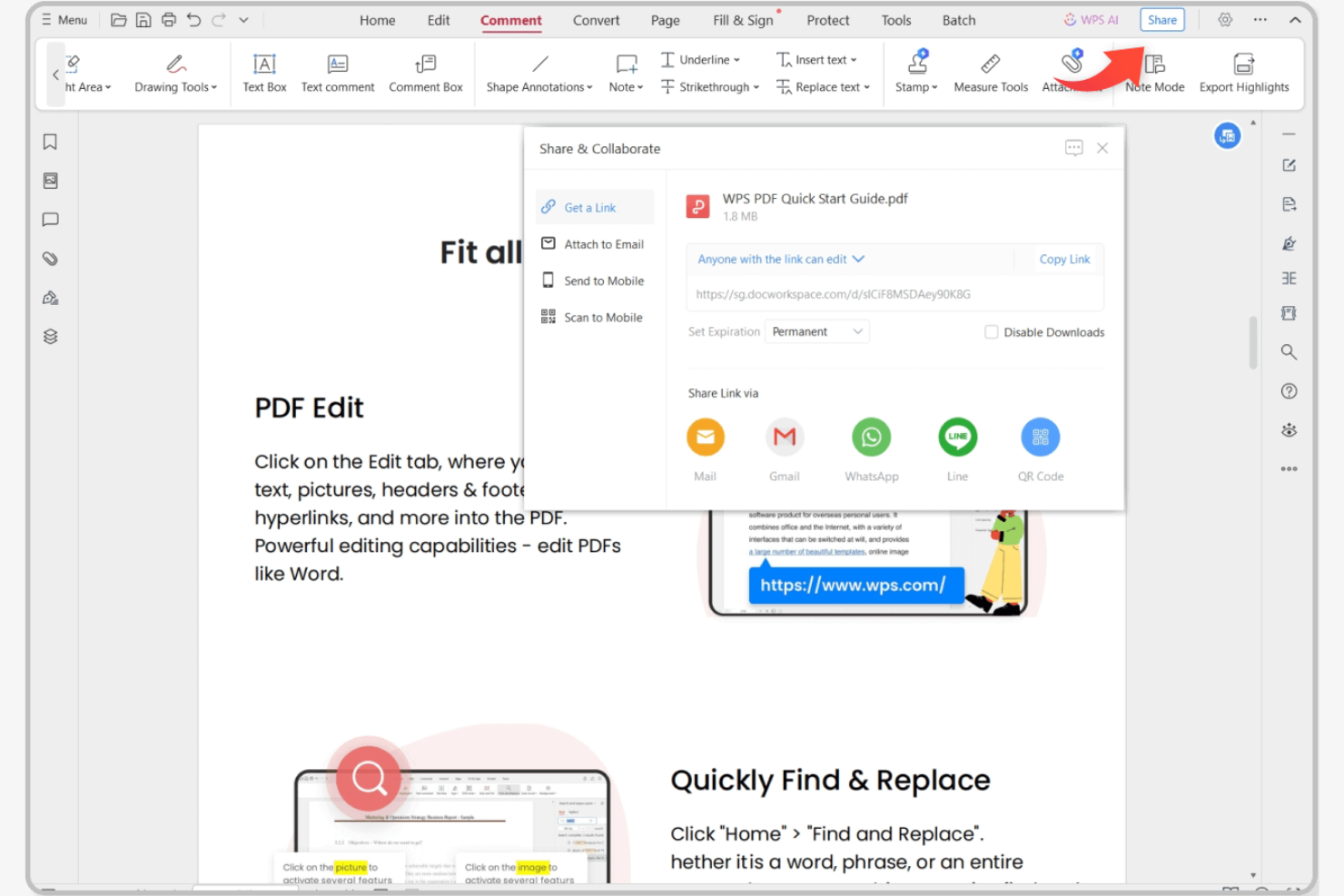
Si vous recherchez une suite bureautique en ligne qui gère les formats de fichiers Microsoft sans difficulté, WPS Office mérite toute votre attention. Elle est conçue pour les professionnels et les équipes qui échangent régulièrement des fichiers Word, Excel et PowerPoint avec des clients ou des collègues utilisant Microsoft Office. Contrairement à Google Docs, WPS Office préserve la mise en forme avancée et les fonctionnalités des fichiers Microsoft, ce qui réduit les problèmes de compatibilité lors de la collaboration.
Pourquoi WPS Office est une bonne alternative à Google Docs
Lorsque vous avez besoin d’une compatibilité irréprochable avec les formats de fichiers Microsoft, WPS Office se démarque des autres suites bureautiques en ligne. J’ai choisi WPS Office parce qu’il ouvre, modifie et enregistre les fichiers DOCX, XLSX et PPTX tout en préservant la mise en forme avancée, les macros et les objets incorporés. La suite comprend également un éditeur PDF intégré, ce qui est utile pour les équipes qui travaillent avec différents types de documents. Si votre flux de travail dépend de l’échange de fichiers avec des utilisateurs de Microsoft Office, WPS Office vous aide à éviter les problèmes de mise en forme qui surviennent souvent avec Google Docs.
Fonctionnalités principales de WPS Office
Certaines autres fonctionnalités de WPS Office aident les équipes à gérer plus efficacement les documents et les flux de travail :
- Interface de documents à onglets : ouvrez plusieurs documents et passez de l’un à l’autre dans une seule fenêtre.
- Intégration du stockage en nuage : connectez-vous à des services tels que Dropbox, Google Drive et OneDrive pour accéder directement aux fichiers.
- Bibliothèque de modèles de documents : accédez à un large éventail de modèles prédéfinis pour les rapports, les CV et les présentations.
- Prise en charge multiplateforme : utilisez WPS Office sur les appareils Windows, macOS, Linux, Android et iOS.
Intégrations de WPS Office
Les intégrations natives ne sont actuellement pas répertoriées par WPS Office.
Pros and Cons
Pros:
- Forte compatibilité avec les formats de Microsoft Word, Excel et PowerPoint
- Éditeur PDF intégré et vaste bibliothèque de modèles
- Fonctionne sur de nombreux systèmes d’exploitation avec prise en charge hors connexion
Cons:
- La collaboration en temps réel est plus limitée que dans Google Docs
- La version gratuite inclut des publicités qui peuvent distraire pendant la modification

Idéal pour la collaboration d’équipe en temps réel
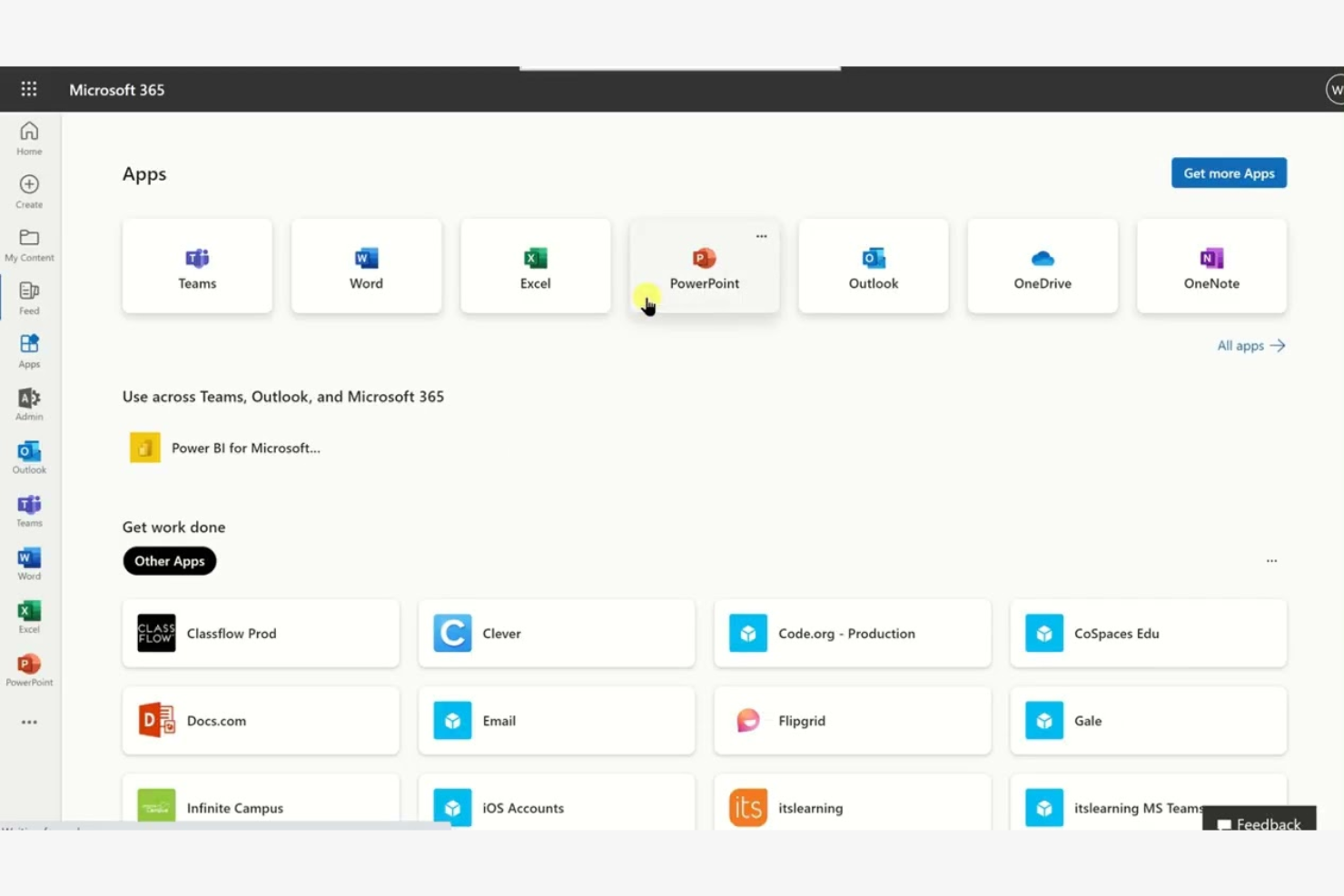
Microsoft 365 propose une suite d’outils bureautiques en ligne conçus pour les équipes qui ont besoin de fonctionnalités avancées de collaboration et de gestion des documents. Il convient particulièrement aux entreprises qui s’appuient sur la coédition en temps réel, l’intégration étroite avec Microsoft Teams et la compatibilité avec des formats de fichiers complexes. Si vos projets exigent un contrôle strict des versions et une simplification des flux de travail dans Word, Excel et PowerPoint, Microsoft 365 se distingue de Google Docs.
Pourquoi Microsoft est une bonne alternative à Google Docs
Pour les équipes qui ont besoin de collaborer en temps réel, Microsoft 365 propose la coédition dans Word, Excel et PowerPoint, avec des mises à jour instantanées sur tous les appareils. J’ai choisi Microsoft parce que ses outils de modification de documents permettent à plusieurs utilisateurs de travailler ensemble sur le même fichier tout en assurant un suivi détaillé des modifications et des commentaires. L’intégration avec Microsoft Teams permet de discuter, de participer à des réunions et de partager des fichiers sans quitter votre espace de travail. Ces fonctionnalités en font un choix judicieux pour les organisations qui accordent la priorité au travail d’équipe en direct et à l’exactitude des documents.
Fonctionnalités clés de Microsoft
Certaines autres fonctionnalités de Microsoft 365 en font un choix flexible pour les équipes qui gèrent des documents en ligne :
- Contrôles avancés des autorisations : Définissez des niveaux d’accès précis pour les fichiers et les dossiers afin de gérer les personnes autorisées à consulter, modifier ou partager les documents.
- Historique automatisé des versions : Restaurez les versions précédentes des documents et suivez les modifications au fil du temps sans effectuer de sauvegardes manuelles.
- Outils d’accessibilité intégrés : Utilisez des fonctionnalités telles que le Lecteur immersif et la dictée vocale pour répondre à différents styles et besoins de travail.
- Mode de modification hors connexion : Travaillez sur des documents sans connexion Internet et synchronisez automatiquement les modifications lorsque vous vous reconnectez.
Intégrations de Microsoft
Les intégrations incluent Microsoft Teams, OneDrive, SharePoint, Outlook, Power BI, Dynamics 365, Yammer, Planner, Forms et Power Automate.
Pros and Cons
Pros:
- La coédition en temps réel fonctionne avec les fichiers Word, Excel et PowerPoint
- L’intégration étroite avec Microsoft Teams prend en charge les discussions et les réunions dans les documents
- Les paramètres avancés d’autorisation permettent un contrôle précis de l’accès aux documents
Cons:
- Un compte Microsoft et un abonnement sont nécessaires pour bénéficier de toutes les fonctionnalités
- Certaines fonctionnalités avancées sont uniquement disponibles dans les forfaits de niveau supérieur
Idéal pour accéder aux documents sur les appareils mobiles
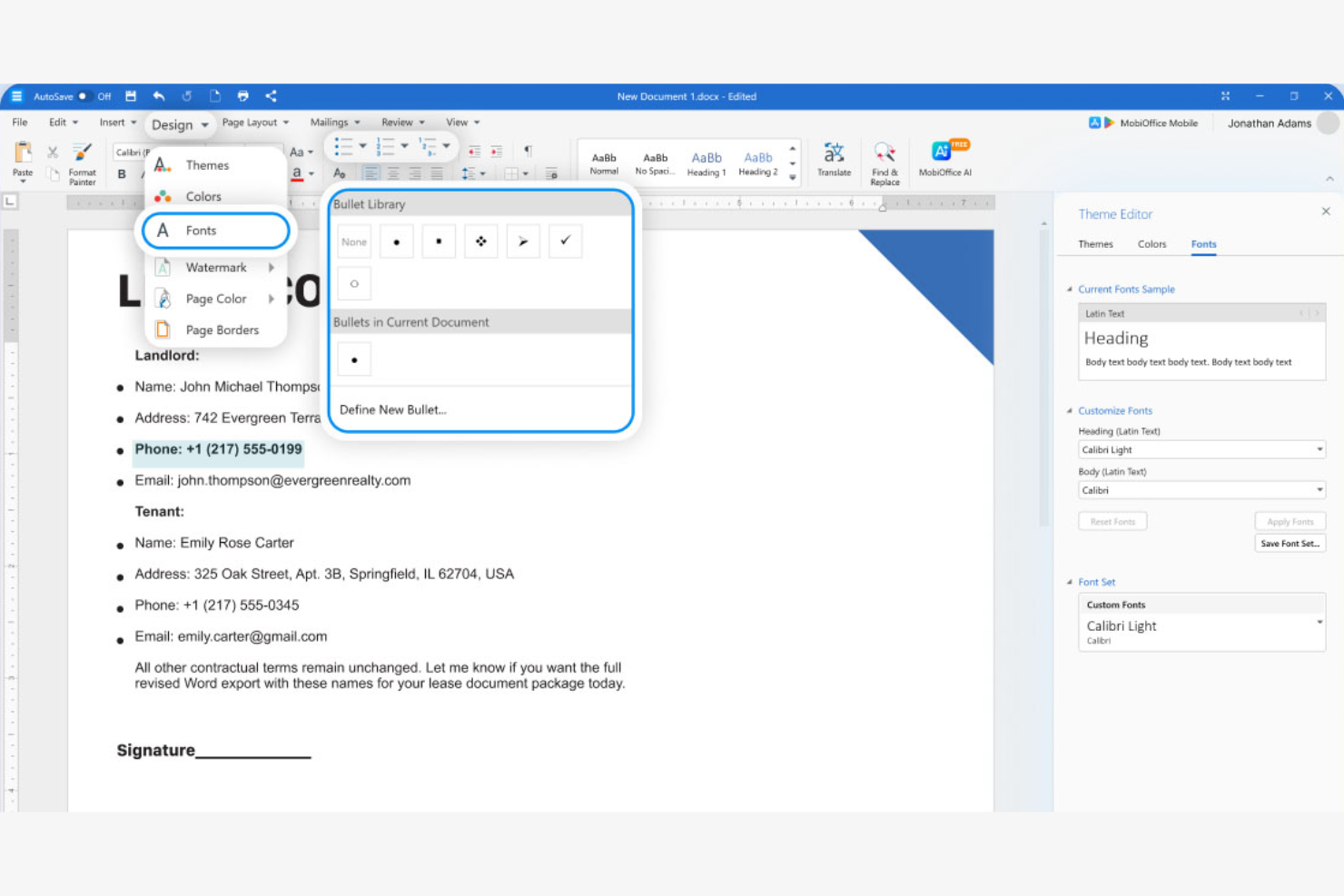
Si votre équipe doit travailler avec des documents en déplacement, MobiSystems propose une suite bureautique pensée d’abord pour les appareils mobiles, conçue pour les smartphones et les tablettes. Elle convient particulièrement aux équipes sur le terrain, aux travailleurs à distance et à toute personne qui utilise des appareils mobiles pour modifier et consulter des documents. Contrairement à Google Docs, MobiSystems offre de solides fonctionnalités hors ligne ainsi que des applications mobiles natives prenant en charge des fonctions de modification avancées sur Android et iOS.
Pourquoi MobiSystems est une bonne alternative à Google Docs
Contrairement à la plupart des suites bureautiques qui privilégient la modification sur ordinateur ou dans un navigateur, MobiSystems est spécialement conçue pour l’accès aux documents sur les appareils mobiles. Je l’ai choisie parce que son application OfficeSuite propose des fonctions complètes de modification de documents, de feuilles de calcul et de présentations directement sur les appareils Android et iOS. La plateforme prend également en charge la modification hors ligne, ce qui vous permet de travailler sur vos fichiers même sans connexion Internet. MobiSystems constitue donc un choix pertinent pour les équipes qui ont besoin d’accéder à leurs documents et de les modifier de manière fiable lorsqu’elles ne sont pas à leur bureau.
Principales fonctionnalités de MobiSystems
Voici quelques autres fonctionnalités de MobiSystems qui aident les équipes à gérer leurs documents et à collaborer sur plusieurs appareils :
- Outils de modification des PDF : modifiez, annotez et convertissez des fichiers PDF directement dans l’application.
- Intégration du stockage cloud : connectez-vous à Google Drive, Dropbox, OneDrive et MobiDrive pour accéder aux fichiers et les sauvegarder.
- Chiffrement des documents : protégez les fichiers sensibles grâce à des options de mot de passe et de chiffrement.
- Compatibilité multiplateforme : consultez et modifiez des documents sur les appareils Windows, Android et iOS.
Intégrations de MobiSystems
MobiSystems ne répertorie actuellement aucune intégration native.
Pros and Cons
Pros:
- Modification pensée d’abord pour les appareils mobiles avec un accès hors ligne performant
- Outils PDF intégrés pour la modification, l’annotation et la conversion
- Fonctionne sur Android, iOS et Windows pour les équipes mobiles
Cons:
- Collaboration en temps réel limitée par rapport à Google Docs
- Écosystème d’intégrations plus limité pour les flux de travail professionnels
Idéal pour la modification de documents open source
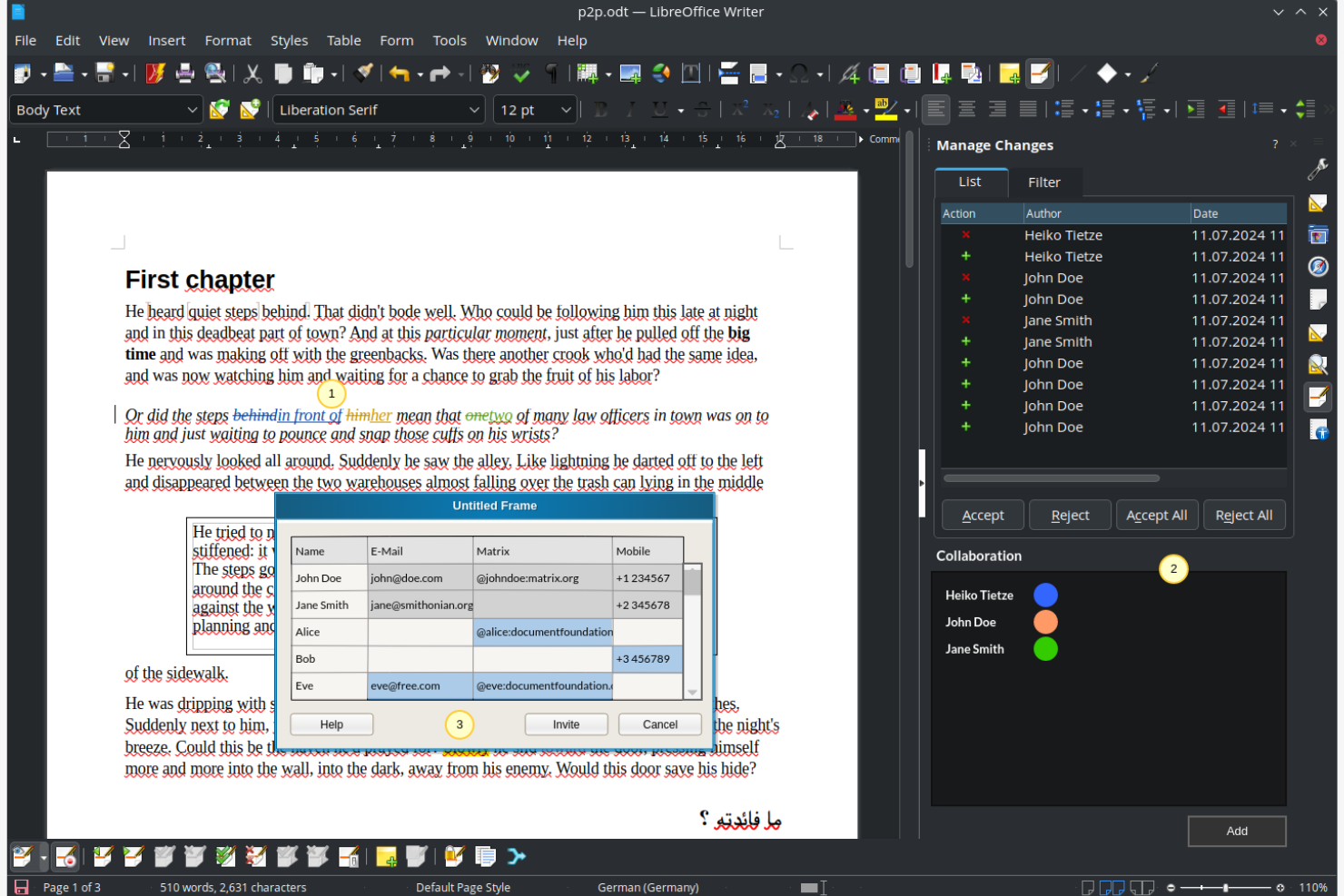
Si vous recherchez une alternative entièrement open source à Google Docs, LibreOffice se distingue. C’est une solution particulièrement adaptée aux organisations et aux professionnels qui ont besoin d’un contrôle total sur leurs documents et leurs données, sans dépendre de plateformes basées sur le cloud. LibreOffice séduit les équipes qui accordent de l’importance à la confidentialité, à l’accès hors ligne et à la compatibilité avec un large éventail de formats de fichiers.
Pourquoi LibreOffice est une bonne alternative à Google Docs
Contrairement à la plupart des suites bureautiques en ligne, LibreOffice vous donne un accès complet à son code source et un contrôle total sur vos documents. J’ai choisi LibreOffice parce qu’il permet de modifier et de stocker les fichiers localement, ce qui est idéal pour les équipes soumises à des exigences strictes en matière de confidentialité ou de localisation des données. Sa prise en charge d’un large éventail de formats de fichiers, notamment ceux de Microsoft Office et les anciens formats de documents, facilite le travail avec des contenus variés. Ces fonctionnalités open source distinguent LibreOffice pour les utilisateurs qui recherchent transparence et flexibilité dans leurs outils de modification de documents.
Fonctionnalités clés de LibreOffice
Certaines autres fonctionnalités de LibreOffice en font un choix polyvalent pour la modification de documents :
- Exportation PDF intégrée : Créez des fichiers PDF directement à partir de n’importe quel document sans avoir besoin de logiciels supplémentaires.
- Barres d’outils et menus personnalisables : Adaptez l’interface à votre flux de travail et à vos préférences.
- Bibliothèque complète de modèles : Accédez à un large éventail de modèles prédéfinis pour les documents, les feuilles de calcul et les présentations.
- Enregistrement de macros et scripts : Automatisez les tâches répétitives à l’aide des outils de macro intégrés et de langages de script.
Intégrations de LibreOffice
Les intégrations comprennent Kasm Workspaces, Intrexx, Ultima Linux, NemoVote, TimeSpreader, BuildViewVU, Sprint Boards, File Manager Pro, Scribens, Twake, Devart ODBC Drivers, CSVpad, Agent S, FileRun, Zotero, LibreOffice Draw, et bien plus encore.
Pros and Cons
Pros:
- Suite open source gratuite, sans frais de licence
- Modification hors ligne performante et contrôle local des fichiers pour préserver la confidentialité
- Prise en charge étendue des formats, avec exportation PDF et scripts de macros
Cons:
- Pas de coédition native en temps réel comme dans Google Docs
- La mise en forme peut être modifiée lors du travail avec des fichiers Microsoft complexes

Idéal avec des outils intégrés de gestion de projets
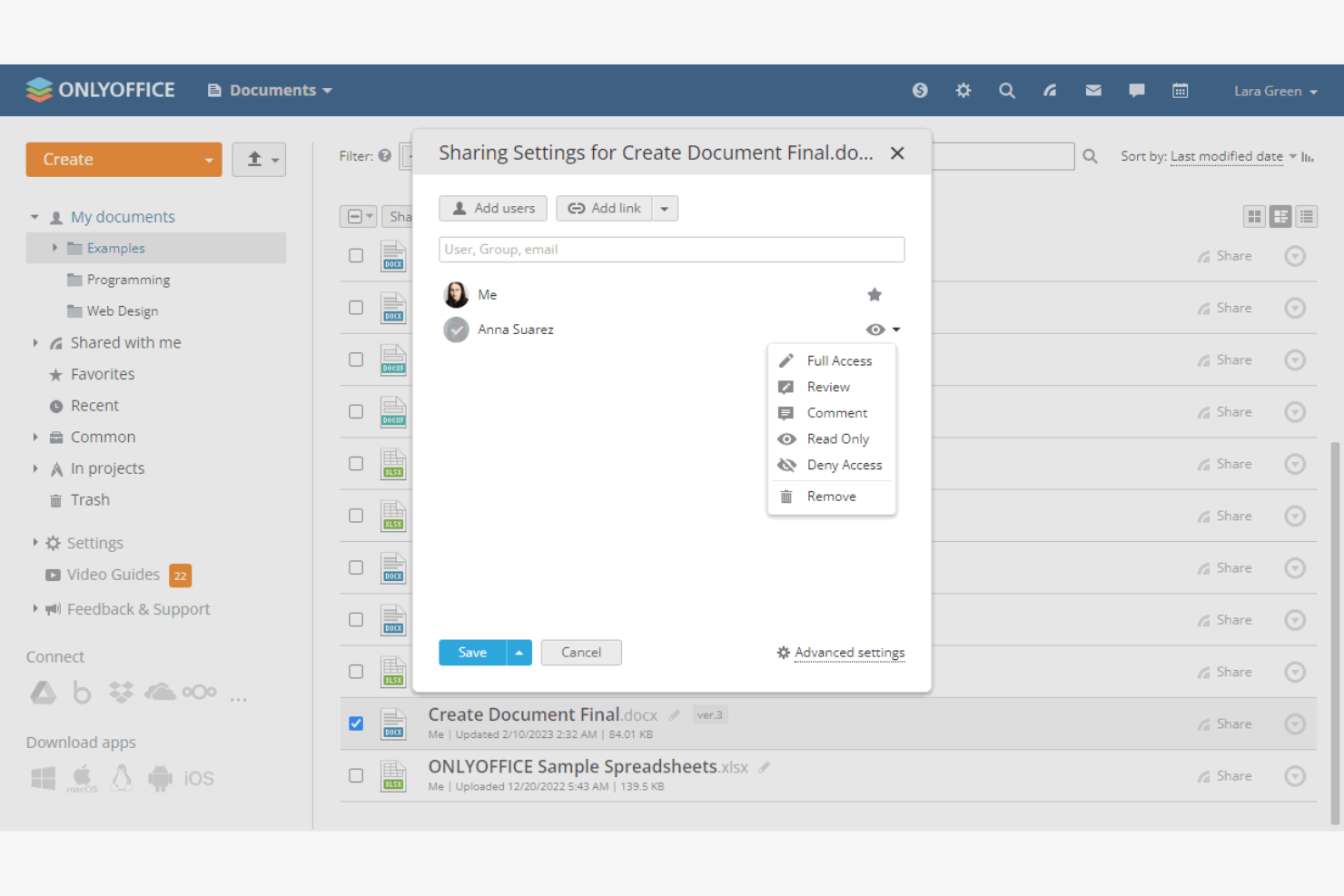
Les équipes qui souhaitent réunir la modification de documents et la gestion de projets au même endroit se tournent souvent vers ONLYOFFICE. Cette plateforme est conçue pour les entreprises et les équipes axées sur les projets qui doivent gérer des documents, des tâches et la collaboration depuis un tableau de bord unique. ONLYOFFICE se distingue en combinant les outils familiers d’une suite bureautique avec des fonctionnalités intégrées de suivi des projets et de communication d’équipe.
Pourquoi ONLYOFFICE est une bonne alternative à Google Docs
Pour les équipes qui souhaitent plus que la simple modification de documents, ONLYOFFICE intègre directement des outils de gestion de projets à sa suite bureautique en ligne. J’ai choisi ONLYOFFICE parce qu’il permet de créer, d’attribuer et de suivre des tâches parallèlement à vos documents, afin de gérer les projets et le contenu au même endroit. La plateforme comprend des fonctionnalités telles que les diagrammes de Gantt et le suivi des étapes clés, qui aident les équipes à coordonner leur travail sans passer d’une application à l’autre. Cette approche intégrée fait d’ONLYOFFICE un choix pertinent pour les entreprises qui ont besoin à la fois de collaboration et d’une vue d’ensemble sur leurs projets.
Principales fonctionnalités d’ONLYOFFICE
Voici quelques autres fonctionnalités qui font d’ONLYOFFICE un choix flexible pour les équipes :
- Modification collaborative de documents : Plusieurs utilisateurs peuvent modifier des documents simultanément grâce aux mises à jour en temps réel.
- Chat et commentaires intégrés : Communiquez et laissez des commentaires directement dans les documents et les projets.
- Autorisations d’accès personnalisables : Définissez des rôles et des autorisations détaillés pour les utilisateurs, les documents et les dossiers.
- Modules de messagerie et de calendrier : Gérez vos e-mails et planifiez des événements sans quitter la plateforme.
Intégrations d’ONLYOFFICE
Les intégrations comprennent Trello, Odoo, Moodle, Monday, Pipedrive, Alfresco, Box, Confluence, Dropbox, DZZ Office, Jira, Nextcloud, SharePoint, SuiteCRM, Trello, WordPress, Zapier, Zoom et bien d’autres.
Pros and Cons
Pros:
- Associe la modification de documents à des modules intégrés de gestion de projets
- Prend en charge la modification collaborative en temps réel avec des autorisations d’accès basées sur les rôles
- Option de déploiement sur site pour les politiques de données strictes
Cons:
- L’écosystème d’intégrations tierces est plus limité que celui de Google Workspace
- Les applications mobiles offrent moins de fonctionnalités que les versions de bureau et web
Idéal pour créer des documents hors ligne
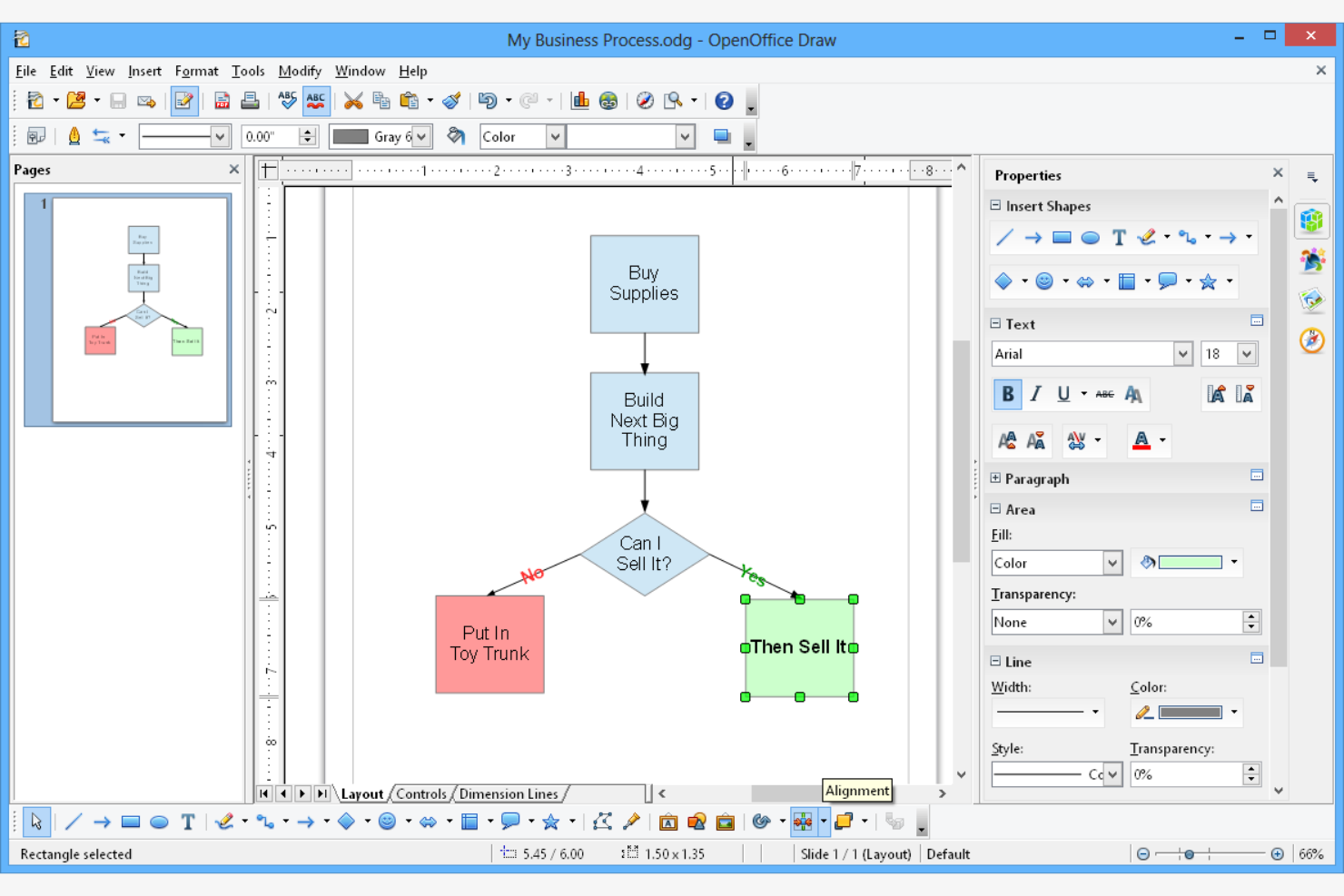
Pour les équipes qui ont besoin d'une suite bureautique entièrement hors ligne, Apache OpenOffice propose une solution téléchargeable ne nécessitant aucune connexion Internet. C'est un choix particulièrement adapté aux organisations appliquant des politiques strictes de confidentialité des données ou travaillant dans des environnements où la connectivité est limitée. Contrairement à Google Docs, OpenOffice vous permet de créer, modifier et stocker des documents entièrement sur vos appareils locaux.
Pourquoi Apache OpenOffice est une bonne alternative à Google Docs
Si vous devez travailler sans connexion Internet, Apache OpenOffice se distingue comme un choix fiable. Je l'ai retenu parce qu'il vous permet de créer et de modifier des documents, des feuilles de calcul et des présentations entièrement hors ligne, ce que Google Docs ne peut pas faire nativement. OpenOffice permet également d'enregistrer les fichiers directement sur votre disque local, afin que vous gardiez le contrôle total de vos données. Cela en fait un choix particulièrement adapté aux équipes soumises à des exigences strictes en matière de confidentialité ou situées dans des régions isolées.
Fonctionnalités principales d'Apache OpenOffice
Certaines autres fonctionnalités d'Apache OpenOffice en font une suite bureautique polyvalente :
- Module Draw : créez des diagrammes, des organigrammes et des graphiques vectoriels directement dans la suite.
- Éditeur de formules mathématiques : créez et modifiez des équations mathématiques complexes pour les documents techniques.
- Exportation au format PDF : enregistrez n'importe quel document, feuille de calcul ou présentation au format PDF sans extensions supplémentaires.
- Compatibilité multiformat : ouvrez et enregistrez des fichiers aux formats Microsoft Office, OpenDocument et dans d'autres formats courants.
Intégrations d'Apache OpenOffice
Aucune intégration native n'est actuellement répertoriée par Apache OpenOffice.
Pros and Cons
Pros:
- Création de documents privilégiant le mode hors ligne, sans dépendance aux services en nuage
- Suite gratuite à code source ouvert avec exportation PDF incluse
- Inclut les outils Draw et Math pour les diagrammes et les formules
Cons:
- Aucune collaboration en temps réel ni synchronisation intégrée
- La compatibilité avec les formats modernes et les mises à jour des fonctionnalités accusent un retard sur celles des concurrents
Autres alternatives à Google Docs
Voici quelques alternatives supplémentaires à Google Docs qui n’ont pas intégré ma sélection, mais qui méritent tout de même votre attention :
- Polaris Office
Idéal pour la synchronisation des fichiers entre appareils
- Visual Paradigm
Idéal pour la documentation visuelle des flux de travail
- Zoho
Idéal pour les intégrations intégrées avec les applications professionnelles
- FreeOffice
Idéal pour des exigences système légères


Comment j'évalue les alternatives à Google Docs
Je divise mon évaluation en critères de base — comme la coédition en temps réel, l’intégration des tâches et l’historique des versions — et en éléments différenciateurs qui distinguent un simple outil documentaire d’une véritable plateforme centrale de documentation de projet.
Fonctionnalités de base (Critères indispensables de cette liste)
Lorsque je sélectionne des outils pour ma liste, j’attribue à chacun une note de 0 (ne propose pas la fonctionnalité) à 5 (excelle dans ce domaine) pour chaque fonctionnalité clé listée ci-dessous. Ensuite, je convertis le score total de chaque outil en pourcentage. Chaque outil doit obtenir un score total minimum de 65 % pour être considéré.
- Édition collaborative en temps réel : Je vérifie si plusieurs membres de l’équipe peuvent co-rédiger un brief projet ou un rapport d’avancement simultanément, avec des curseurs visibles, des commentaires intégrés et des suggestions.
- Création de documents enrichis : L’éditeur doit permettre les titres formatés, tableaux, médias intégrés et blocs de contenu pour des documents structurés comme les cahiers des charges et les plannings de sprint.
- Intégration des tâches et projets : Je recherche des connexions natives entre documents, tâches, tableaux ou chronologies, afin qu’une charte projet soit directement reliée à ses livrables.
- Historique des versions & permissions : Chaque modification du document doit être traçable et restaurable, avec un partage basé sur les rôles permettant de gérer l’accès pour les équipes internes et les clients externes.
- Stockage cloud & synchronisation : J’évalue si les documents sont enregistrés automatiquement, synchronisés entre appareils et accessibles hors ligne pour les équipes réparties sur plusieurs fuseaux horaires.
- Compatibilité d'exportation & de format : Les outils doivent importer et exporter les formats standards comme DOCX, PDF et Markdown afin que les documents de projet restent compatibles avec les processus des parties prenantes.
Une fois que j’ai identifié les outils répondant à ces critères, j’examine ce qui rend chaque plateforme unique.
Facteurs de différenciation (Ce qui distingue les éditeurs)
Voici comment je compare différents éditeurs :
Fonctionnalités remarquables
Je cherche des fonctions intégrées de wiki et de base de connaissances permettant d’imbriquer les documents projet, de relier des pages entre elles et de bâtir un centre de ressources consultable que votre équipe utilise réellement. Les outils de rédaction IA retiennent aussi l’attention : générer automatiquement un bilan de sprint ou rédiger une mise à jour d’état à partir des données de tâches fait vraiment gagner du temps. Les modèles spécifiques au projet (pour les cahiers des charges, les logs RAID ou les agendas de lancement) sont aussi importants, surtout s’ils sont associés à des automatisations créant des documents récurrents dans divers flux de travail.
Au-delà des fonctionnalités
La profondeur d'intégration compte : je vérifie si l’outil se connecte nativement à des plateformes de gestion de projet comme Jira, Asana ou monday.com, car un outil documentaire hors de votre écosystème rend la collaboration plus laborieuse. Les modèles de tarification varient aussi beaucoup. J’évalue si les accès invités et collaborateurs externes sont inclus ou facturés séparément, car la plupart des équipes projet intègrent régulièrement clients et fournisseurs. Le support à la migration depuis Google Docs ou Confluence est également un critère, car une transition difficile peut freiner l’adoption au sein de l’équipe.
Pourquoi rechercher une alternative à Google Docs ?
Bien que Google Docs soit une solution performante de traitement de texte en ligne, plusieurs raisons peuvent pousser certains utilisateurs à se tourner vers d’autres plateformes. Vous recherchez peut-être une alternative à Google Docs parce que…
- Vous avez besoin d’une meilleure compatibilité avec les formats de fichiers Microsoft Office
- Votre équipe a besoin d’outils avancés de modification et d’annotation des PDF
- Vous travaillez dans des régions où les services Google sont restreints
- Vous avez besoin de modifier des documents hors ligne sans dépendre d’extensions de navigateur
- Votre organisation est soumise à des exigences strictes en matière de confidentialité des données ou d’installation sur site
- Vous souhaitez mieux contrôler la mise en forme, la mise en page des documents ou la prise en charge du Markdown
- Vous êtes préoccupé par la courbe d’apprentissage pour les utilisateurs non techniques
- Vous préférez une interface conviviale ou un style de flux de travail différent
Si l’un de ces points vous semble familier, vous êtes au bon endroit. Les options présentées dans cette liste comprennent des plateformes de traitement de texte et de collaboration en ligne conçues pour les équipes qui ont besoin de davantage de flexibilité, d’un meilleur contrôle de la mise en forme ou d’une approche différente de la gestion des documents.
Principales fonctionnalités de Google Docs
Voici quelques-unes des principales fonctionnalités de Google Docs pour vous aider à le comparer à d’autres outils de collaboration tout-en-un et plateformes de traitement de texte :
- Édition collaborative en temps réel avec plusieurs utilisateurs
- Enregistrement automatique dans le cloud sur Google Drive
- Historique des versions et suivi des révisions du document
- Outils intégrés de commentaire et de suggestion
- Intégration avec les applications Google Workspace telles que Sheets et Slides
- Mode d’édition hors connexion pour travailler sans accès à Internet
- Nombreuses options de partage et contrôles des autorisations
- Saisie vocale et fonctionnalités d’accessibilité