


Reseña del Software de Gestión de Tareas Microsoft To Do para 2026



Microsoft To Do is a task management software for individuals and small teams who need a simple way to manage tasks, to-do lists, and daily priorities. I'd consider it over Todoist if your team already runs on Microsoft 365, as the native connections to Outlook, Teams, and Planner give you an integrated workflow that Todoist and other task management tools can't replicate without workarounds.
Microsoft To Do Evaluation Summary
- Free to use
- Free-forever plan available
Por qué confiar en nuestras recomendaciones de software
Nuestro equipo lleva probando y evaluando software desde 2012. Como gestores de proyectos, sabemos lo difícil —y lo importante— que es elegir el software adecuado.
Para esta guía, evaluamos las herramientas mediante pruebas prácticas e investigación independiente, puntuando las herramientas según nuestros criterios de selección. También nos basamos en la experiencia de líderes de opinión del sector y de profesionales en activo de la gestión de proyectos.
Nuestras reseñas reflejan nuestro criterio editorial humano, no un discurso de ventas.
Revisores expertos:
Microsoft To Do Overview
In my opinion, Microsoft To Do is a task management tool that works especially well for teams already using Microsoft 365. Its strength lies in its simplicity and smooth integration with other Microsoft apps—such as Outlook, Teams, and Planner—that offers a unified experience across tools.
That said, the platform may not meet the needs of users seeking advanced project management features like Gantt charts, Kanban boards, or complex automations. It’s best suited for small to mid-sized teams looking for a simple, cost-effective option that fits into the Microsoft ecosystem.

pros
-
Intuitive interface for easy task organization
-
Seamless Microsoft 365 integration
-
Cross-device synchronization
cons
-
Limited advanced project management features
-
Basic customization options
-
Not ideal for large teams or detailed tracking
-

Smartsheet
Visit WebsiteThis rating combines scores from multiple user review sites to reflect overall customer sentiment about the product.4.5 -
Celoxis
Visit WebsiteThis rating combines scores from multiple user review sites to reflect overall customer sentiment about the product.4.5 -
Accelo
Visit WebsiteThis rating combines scores from multiple user review sites to reflect overall customer sentiment about the product.4.4




Nuestra Metodología de Revisión
Cómo probamos y puntuamos las herramientas
Llevamos años construyendo, refinando y mejorando nuestro sistema de prueba y puntuación de software. La rúbrica está diseñada para capturar los matices de la selección de software y los factores que hacen efectivo a un sistema, centrándose en los aspectos críticos del proceso de toma de decisiones.
A continuación, puedes ver exactamente cómo funciona nuestro proceso de prueba y puntuación en base a siete criterios. Esto nos permite proporcionar una evaluación imparcial del software basada en la funcionalidad principal, características destacadas, facilidad de uso, incorporación, soporte al cliente, integraciones, opiniones de clientes y valor por el dinero.
Funcionalidad principal (25% de la puntuación final)
El punto de partida de nuestra evaluación es siempre la funcionalidad principal de la herramienta. ¿Cuenta con las funciones y características básicas que un usuario esperaría ver? ¿Alguna de estas funciones principales está limitada a planes de precios superiores? Esperamos que la herramienta se mantenga a la par de las capacidades básicas de sus competidores.
Características destacadas (25% de la puntuación final)
A continuación, evaluamos las características destacadas poco comunes que van más allá de la funcionalidad principal normalmente encontrada en este tipo de herramientas. Una puntuación alta refleja funciones únicas o especializadas que hacen que el producto sea más rápido, eficiente, o aporte valor extra al usuario.
También evaluamos la facilidad de integración con otras herramientas habitualmente presentes en el ecosistema tecnológico para ampliar la funcionalidad y utilidad del software. Las herramientas que ofrecen muchas integraciones nativas, conexiones de terceros y acceso por API para integrar soluciones personalizadas obtienen la mejor puntuación.
Facilidad de uso (10% de la puntuación final)
Consideramos cuán rápido y fácil es ejecutar las tareas fundamentales usando la herramienta. El software con alta puntuación está bien diseñado, es intuitivo, ofrece aplicaciones móviles, proporciona plantillas y hace que tareas relativamente complejas parezcan sencillas.
Incorporación (10% de la puntuación final)
Sabemos lo importante que es una adopción rápida para un nuevo sistema, así que evaluamos cuán sencillo es aprender a usar la herramienta con una capacitación mínima. Analizamos cuán rápido un miembro del equipo puede configurarse y comenzar a usar la herramienta sin experiencia previa. Las soluciones mejor puntuadas indican que se requiere poco o ningún soporte.
Soporte al cliente (10% de la puntuación final)
Revisamos la rapidez y facilidad para obtener ayuda por teléfono, chat en vivo o base de conocimientos. Las empresas que ofrecen soporte en tiempo real obtienen las mejores puntuaciones, mientras que los chatbots obtienen las peores.
Opiniones de clientes (10% de la puntuación final)
Además de nuestras propias pruebas y valoraciones, consideramos la puntuación neta del promotor de clientes actuales y anteriores. Revisamos la probabilidad de que, ante la opción, quisieran elegir la herramienta de nuevo por su funcionalidad central. Un software con una puntuación alta refleja una gran satisfacción de sus usuarios actuales o pasados.
Valor por el dinero (10% de la puntuación final)
Por último, tomando en cuenta todos los criterios mencionados, comparamos el precio promedio de los planes básicos respecto a las funciones principales y el valor aportado por los otros criterios. El software que entrega más por menos recibirá una puntuación superior.
Core Features
Task lists: You can create tasks, break them into smaller subtasks (called “steps”) and arrange them into organized to-do lists, making it easy to categorize, prioritize, and track various aspects of your professional or personal tasks.
Due dates: Set deadlines for each task to ensure timely completion. Due dates appear across your devices and sync with Outlook, which can help you manage schedules and meet project timelines consistently.
Reminders: You can set time-based reminders for tasks, so you never miss an important deadline. These notifications are designed to keep your team on-track and avoid last-minute rushes.
Recurring tasks: Schedule tasks to repeat at customizable intervals (daily, weekly, monthly, etc.). This is perfect for repetitive work like weekly reports, follow-ups, or administrative tasks.
Custom themes: You can personalize your task lists by applying different background themes and colors, making your workspace more visually appealing and easier to organize.
Priority levels: Assign priority tags (Important or Normal) to tasks. The “Important” tag adds the task to the "Important" smart list, helping you focus on high-priority work and better manage your workload.
Ease of Use
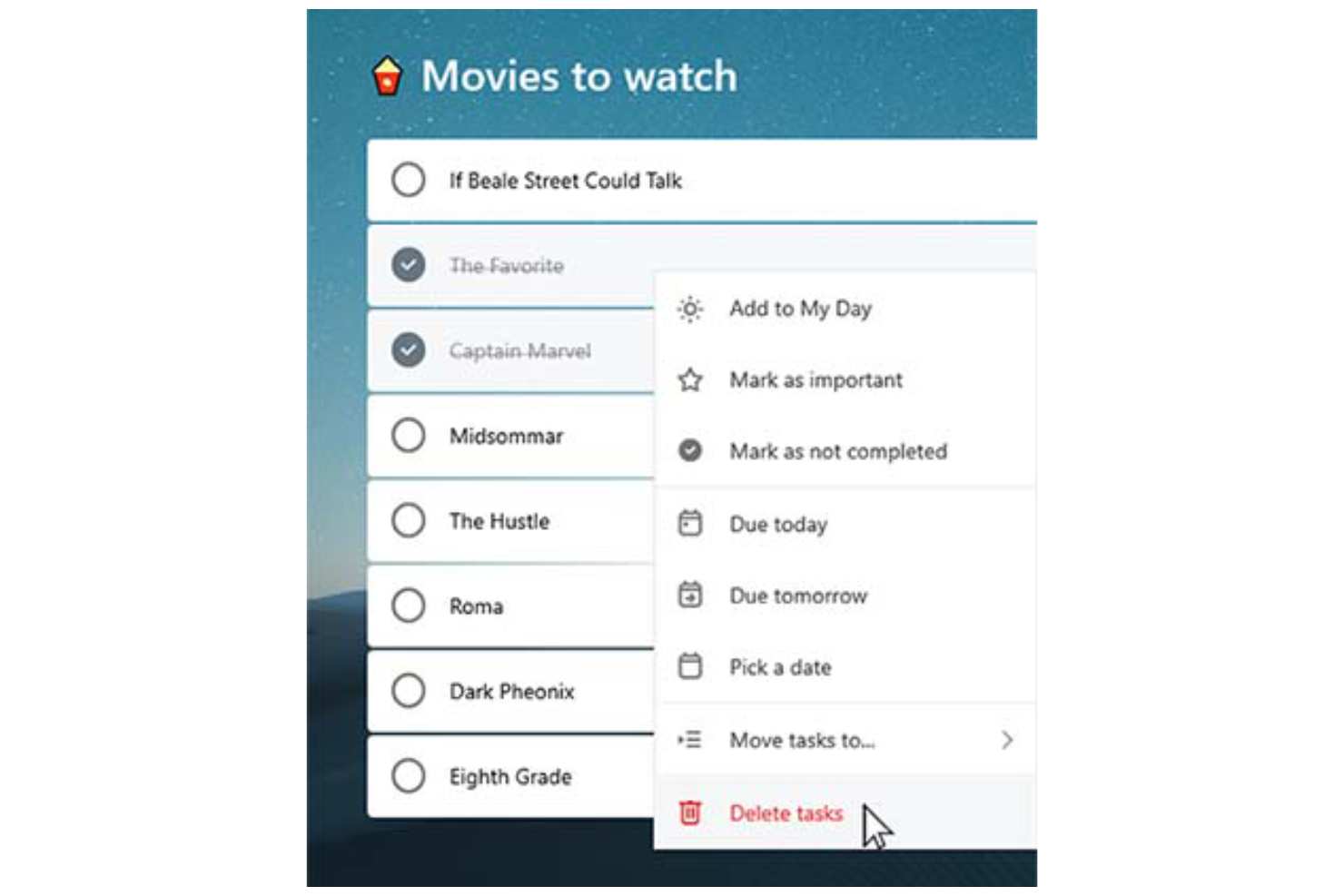
Microsoft To Do stands out with its clean, user-friendly interface that simplifies task management for you and your team. Features like drag-and-drop organization make it easy to rearrange tasks and update priorities on the fly.
The system’s integration with Microsoft 365 also enhances accessibility, allowing you to manage tasks across desktop (Mac or Windows), web, and mobile devices (including Android, iPhone, iPad, and Apple Watch). The mobile to-do list app, available on iOS and Android, ensures you can stay organized and productive wherever you are.
For simple and efficient task management, Microsoft To Do is a reliable choice.

Microsoft To Do Specs
- API
- Batch Permissions & Access
- Budgeting
- Calendar Management
- Collaboration Support
- Contact Management
- Contact Sharing
- Customer Management
- Dashboard
- Dashboards
- Data Export
- Data Import
- Data Visualization
- Dependency Tracking
- Document Sharing
- Expense Tracking
- External Integrations
- File Sharing
- Gantt Charts
- Kanban Boards
- Multi-User
- Notifications
- Project Management
- Resource Management
- Scheduling
- Task Scheduling/Tracking
- Third-Party Plugins/Add-Ons
- Time Management
- Travel Management
- Workflow Management
Alternatives to Microsoft To Do


Preguntas frecuentes sobre Microsoft To Do
¿Cómo gestiona Microsoft To Do la seguridad de los datos?
Microsoft To Do está construido sobre la infraestructura de seguridad de Microsoft 365, lo que significa que se beneficia de protecciones de nivel empresarial. Tus datos están asegurados utilizando protocolos de cifrado estándar de la industria, incluidos el cifrado en reposo y en tránsito. Las tareas y otra información de usuario se almacenan en los centros de datos globales de Microsoft, los cuales cuentan con certificaciones que cumplen con estándares internacionales como ISO/IEC 27001, SOC 1, 2 y 3, y el RGPD.
Además, Microsoft To Do ofrece autenticación multifactor (MFA) y control de acceso basado en roles como parte del entorno más amplio de la cuenta de Microsoft.
¿Puedo usar Microsoft To Do sin conexión?
Puedes utilizar Microsoft To Do sin conexión para ver y editar tus tareas. Cualquier cambio que realices se sincronizará automáticamente en todos tus dispositivos una vez te conectes de nuevo, manteniendo todo actualizado.
¿Microsoft To Do admite la colaboración en equipo?
Microsoft To Do permite la colaboración básica en equipo a través de listas de tareas compartidas. Puedes invitar a otros a unirse a una lista, permitiendo que los miembros del equipo vean, agreguen, completen y editen tareas. Esto lo convierte en una herramienta útil para la coordinación sencilla de equipos pequeños o de departamentos para hacer seguimiento de responsabilidades compartidas o planificar listas de verificación.
Sin embargo, Microsoft To Do no incluye funciones avanzadas de colaboración como comentarios en tareas, seguimiento de actividad, coedición en tiempo real o permisos según roles. Para una colaboración de proyectos más sólida—como planificación de sprints, compartición de documentos o chat de equipo—los equipos pueden preferir herramientas de productividad integradas como Microsoft Planner, Trello o Asana.
¿Cómo se integra Microsoft To Do con otras aplicaciones de Microsoft?
Microsoft To Do se integra con otros programas de Microsoft, como Outlook y Teams. Puedes sincronizar tareas de correos electrónicos de Outlook y eventos del calendario, ayudándote a mantener todo organizado en un solo lugar y mejorando la productividad general.
¿Puedo personalizar las vistas de tareas en Microsoft To Do?
Microsoft To Do ofrece una personalización limitada en las vistas de tareas. Puedes ordenar las tareas por fecha de vencimiento, importancia o fecha de creación, pero más allá de eso, las opciones de personalización son mínimas. Está diseñado para mantener la simplicidad y ayudarte a gestionar las tareas eficientemente.
¿Existe una aplicación móvil para Microsoft To Do?
Sí, Microsoft To Do cuenta con una aplicación móvil tanto para dispositivos iOS como Android. La aplicación se sincroniza automáticamente con las versiones web y de escritorio a través de tu cuenta Microsoft, asegurando que tus listas y actualizaciones estén accesibles en todas las plataformas en tiempo real.
Con la app móvil puedes crear, editar y organizar nuevas tareas, establecer recordatorios y marcar elementos como completados mientras te desplazas, ayudándote a estar organizado y productivo estés donde estés.
¿Puedo importar tareas de otras aplicaciones a Microsoft To Do?
Sí, puedes importar tareas a Microsoft To Do, especialmente desde Outlook y otras herramientas del ecosistema de Microsoft. Las tareas en Outlook Tasks se sincronizan automáticamente con Microsoft To Do si utilizas la misma cuenta Microsoft. Importar tareas desde aplicaciones de terceros, como Todoist o TickTick, normalmente requiere una entrada manual o el uso de herramientas externas como Zapier o Microsoft Power Automate para automatizar el proceso de migración.
Si estás cambiando desde una aplicación con funcionalidad de exportación, puedes exportar tus tareas a un archivo CSV y volver a ingresarlas manualmente o mediante un script en To Do, pero no existe una función nativa para importar archivos CSV o JSON de forma masiva.
Descripción general e historia de Microsoft To Do
Microsoft To Do es una aplicación de gestión de tareas basada en la nube desarrollada por Microsoft, con sede en Redmond, Washington. La aplicación se lanzó oficialmente en abril de 2017 como sucesora de Wunderlist, que Microsoft adquirió en junio de 2015 de la startup berlinesa 6Wunderkinder.
Como parte del conjunto Microsoft 365, se integra con servicios como Outlook para potenciar la productividad. La aplicación permite a los usuarios gestionar tareas en diferentes dispositivos, ofreciendo una experiencia conectada y coherente.
Principales hitos de Microsoft To Do
- 2015: Microsoft adquiere Wunderlist.
- 2017: Se lanza Microsoft To Do como sucesora de Wunderlist.
- 2019: Una importante renovación alinea la interfaz de Microsoft To Do con la de Wunderlist.
- 2020: Microsoft descontinúa oficialmente Wunderlist para centrarse en Microsoft To Do.
¿Qué sigue?
¿Quieres conectar con otros gestores de proyectos digitales para compartir recursos y buenas prácticas? Únete a nuestra comunidad de miembros y obtén acceso a más de 100 plantillas, muestras y ejemplos y conecta con cientos de otros gestores de proyectos digitales en Slack.