

Os 10 melhores softwares económicos de gestão documental para 2026

Lista de software acessível de gestão documental


O software acessível de gestão documental refere-se a ferramentas digitais que ajudam a sua equipa a organizar, armazenar e controlar o acesso aos documentos sem exceder o seu orçamento. Se procura formas de gerir volumes crescentes de ficheiros, manter a conformidade e garantir a continuidade dos seus fluxos de trabalho — sem os custos elevados das plataformas empresariais — está no lugar certo.
Esta lista ajudá-lo-á a comparar as principais opções para 2026, para que possa encontrar uma solução adequada às necessidades da sua equipa, que apoie a colaboração e mantenha as suas informações seguras.
Why Trust Our Software Recommendations
Our team has been testing and reviewing software since 2012. As project managers ourselves, we know how difficult—and important—it is to choose the right software.
For this guide, we evaluated tools using hands-on testing and independent research, scoring tools using our selection criteria. We also draw on insights from industry thought leaders and practicing project management experts.
Our reviews reflect our human editorial judgment, not a sales pitch.
Expert reviewers:
Tabela comparativa de software acessível de gestão documental
Esta tabela comparativa resume os detalhes de preços das minhas principais escolhas de software acessível de gestão documental.
| Tool | Best For | Trial Info | Price | ||
|---|---|---|---|---|---|
| 1 | Best for field teams managing mobile documents | 14-day free trial + free demo available | From $20/user/month | Website | |
| 2 | Best for multi-language document support | Free demo available | Pricing upon request | Website | |
| 3 | Best for advanced access permissions | 14-day free trial | From CAD$21/user/month (billed annually) | Website | |
| 4 | Best for metadata-driven document organization | Free demo available | From $65/user/month | Website | |
| 5 | Best for collaborative file management | Free plan available | From CAD $3/user/month (billed annually) | Website | |
| 6 | Best for small teams needing approval workflows | Free plan available | From $52/month | Website | |
| 7 | Best for built-in team communication tools | Free plan + 15-day trial + demo available | From €69/month | Website | |
| 8 | Best for open-source customization options | Free demo available | Pricing upon request | Website | |
| 9 | Best for integration with enterprise systems | Free to use | Free to use | Website | |
| 10 | Best for compliance-focused document control | 60-day free trial + free demo available | From $3,309.20/5users/month | Website |
Avaliações de software acessível de gestão documental
Apresento abaixo os meus resumos detalhados do software acessível de gestão documental que entrou na minha lista. As minhas avaliações oferecem uma análise detalhada das funcionalidades, dos melhores casos de utilização e dos preços de cada software, para o ajudar a encontrar a melhor opção para a sua equipa.

Fluix
Best for field teams managing mobile documents
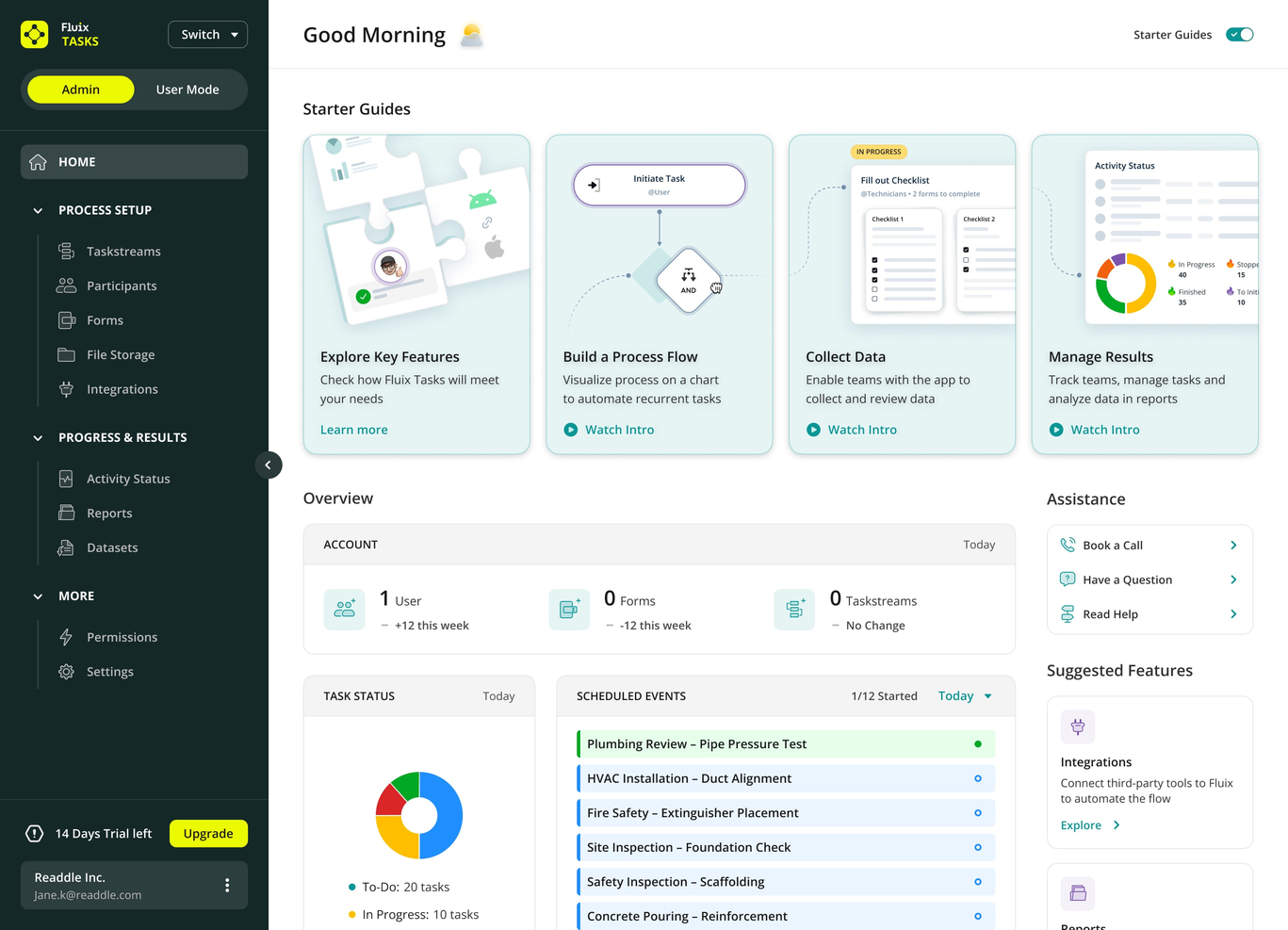
Fluix is designed for teams that need to manage documents and workflows while working in the field or on mobile devices. Construction firms, utilities, and service providers use Fluix to collect data, fill out forms, and route documents without returning to the office. If your team needs to handle paperwork and approvals on-site, Fluix offers a mobile-first approach that keeps work moving wherever your crew is.
Why I Picked Fluix
For teams that spend most of their time away from a desk, Fluix stands out by focusing on mobile document management and workflow automation. I picked Fluix because it lets field workers fill out forms, collect signatures, and submit reports directly from their mobile devices, even when offline.
The platform’s task routing and document distribution features help ensure that paperwork moves smoothly between field and office staff. If your business relies on accurate, timely data from remote locations, Fluix is built to keep your document processes running wherever your team is working.
Fluix Key Features
I also found several other features that help Fluix stand out for document management:
- PDF Annotation Tools: Lets users highlight, comment, and mark up PDF documents directly within the app.
- Automated Data Export: Exports collected data to Excel, CSV, or connected systems for further analysis.
- Role-Based Access Controls: Assign permissions based on user roles to protect sensitive information.
- Template Library: Provides reusable document templates for common forms and reports.
Fluix Integrations
Integrations include Airtable, Procore, HubSpot, Salesforce, Power BI, Zapier, and more.
Pros and Cons
Pros:
- Data export options include Excel and CSV
- Built-in PDF markup tools for annotations
- Offline document access supports remote fieldwork
Cons:
- Limited document storage compared to competitors
- No desktop editing for Windows or Mac

Best for multi-language document support
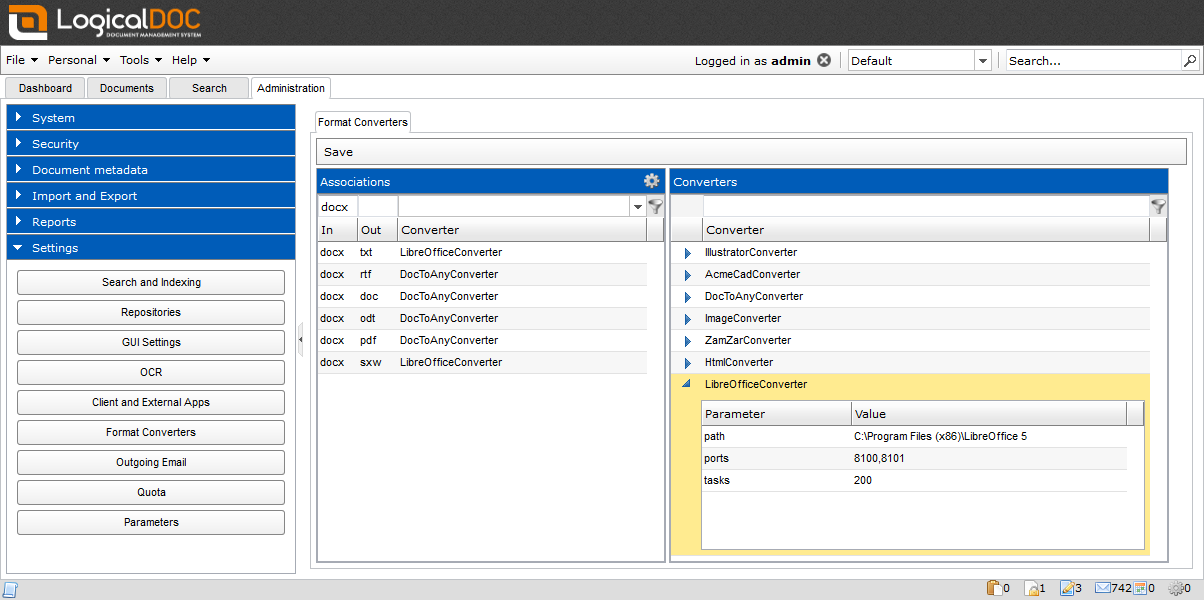
If your team works across multiple languages or serves international clients, LogicalDOC offers document management with built-in multi-language support. This platform is a strong fit for global businesses, distributed teams, and organizations with multilingual documentation needs. LogicalDOC helps you organize, search, and collaborate on documents in several languages without extra plugins or manual workarounds.
Why I Picked LogicalDOC
For teams that need to manage documents in several languages, LogicalDOC stands out with its native multi-language interface and metadata support. I picked LogicalDOC because it allows users to store, search, and tag documents in multiple languages without needing extra add-ons. The platform also supports multilingual document indexing, making it easier to retrieve content regardless of the language used.
This makes LogicalDOC a practical choice for organizations with global operations or diverse language requirements.
LogicalDOC Key Features
Some other features that make LogicalDOC appealing for document management include:
- Workflow Automation: Lets you design and automate document approval and review processes.
- Version Control: Tracks document changes and maintains a full revision history.
- Role-Based Access Control: Assigns permissions based on user roles to protect sensitive information.
- Document Check-In/Check-Out: Prevents editing conflicts by allowing users to lock documents while making changes.
LogicalDOC Integrations
Native integrations are not currently listed.
Pros and Cons
Pros:
- Version control tracks all document changes
- Built-in workflow automation for document processes
- Multi-language interface supports global teams
Cons:
- Limited built-in reporting and analytics tools
- Advanced search sometimes returns irrelevant results

Box
Best for advanced access permissions
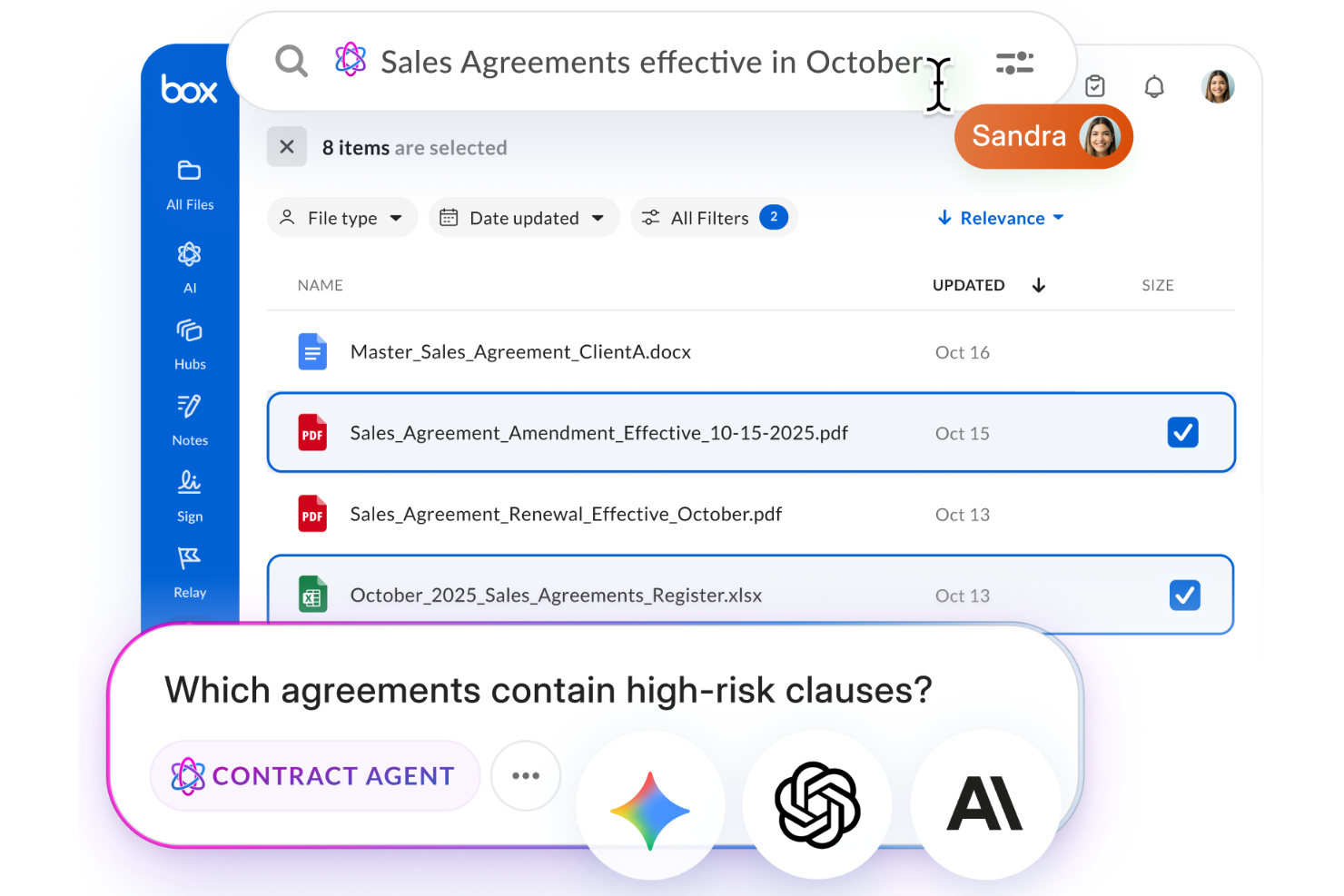
Box is a strong choice for organizations that need precise control over who can access, edit, or share sensitive documents. It’s especially useful for teams in regulated industries or those handling confidential information across departments or external partners. Box stands out for its advanced access permissions, which help businesses manage complex document security requirements without sacrificing collaboration.
Why I Picked Box
For teams that need to manage sensitive files and control document access at a granular level, Box offers advanced permission settings that go beyond basic sharing. You can assign custom roles, set folder-level access, and restrict downloads or editing for specific users or groups.
I picked Box because it gives organizations the flexibility to tailor document access for internal and external collaborators, which is essential for compliance and data protection. These features make Box a strong fit for businesses that can’t compromise on document security but still need to collaborate.
Box Key Features
Some other features that make Box useful for document management include:
- Automated Workflow Builder: Create custom workflows to automate document routing and approvals.
- Full-Text Search: Search within documents and file metadata to quickly locate content.
- Document Version History: Access and restore previous versions of files as needed.
- eSignature Integration: Collect legally binding electronic signatures directly within Box.
Box Integrations
Integrations include Microsoft 365, Google Workspace, Salesforce, IBM, ServiceNow, Slack, Adobe, Apple iWork, Okta, and more.
Pros and Cons
Pros:
- Full-text search across all stored files
- Automated workflow builder for document processes
- Advanced permission controls for document sharing
Cons:
- Offline file access requires a separate desktop app
- External collaborator access setup can be complex

M-Files
Best for metadata-driven document organization
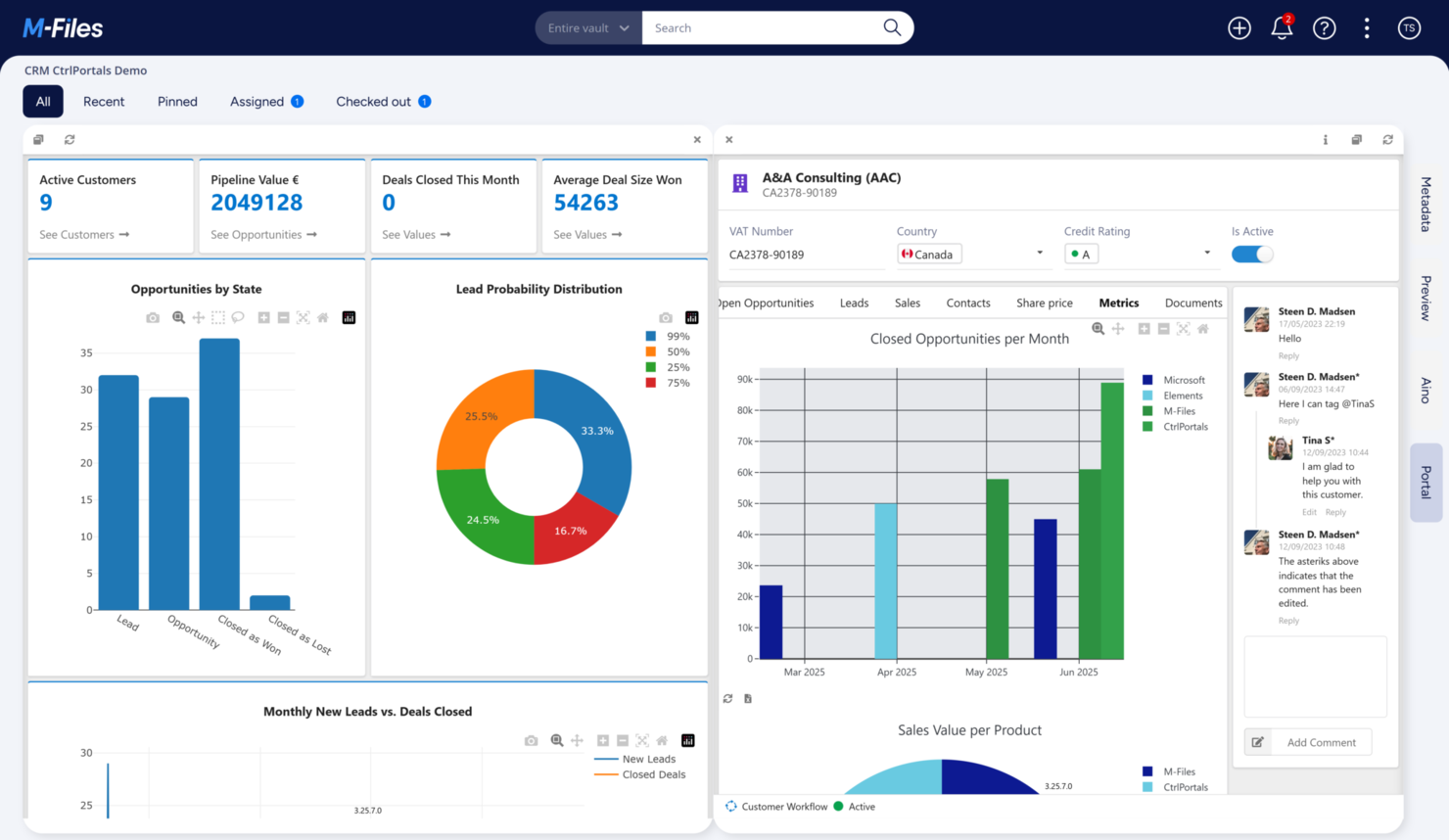
M-Files takes a unique approach to document management by organizing files based on metadata instead of traditional folder structures. This system is especially useful for teams in regulated industries or organizations with complex document search and compliance needs. If you want to find, track, and control documents by what they are rather than where they’re stored, M-Files offers a flexible solution.
Why I Picked M-Files
What sets M-Files apart is its metadata-driven approach to organizing documents, which goes beyond the limitations of traditional folder-based systems. I picked M-Files because it lets you tag documents with custom metadata, making it much easier to search, filter, and enforce compliance rules across large volumes of files.
The platform’s version control and audit trail features also help teams track document changes and meet regulatory requirements. For organizations that need to manage complex document lifecycles and ensure information is always findable, M-Files offers a structure that adapts to your business, not the other way around.
M-Files Key Features
Some other features make M-Files a versatile choice for document management:
- Automated Workflow Engine: Lets you design and automate document approval and review processes.
- Mobile Access: Provides dedicated mobile apps for accessing and managing documents on the go.
- Microsoft 365 Integration: Connects directly with Microsoft Teams, SharePoint, and Outlook for document collaboration.
- Electronic Signature Support: Allows you to collect legally binding signatures within the platform.
M-Files Integrations
Integrations include Microsoft Teams, Microsoft SharePoint, Microsoft Outlook, Microsoft Word, Microsoft Excel, Microsoft PowerPoint, and more.
Pros and Cons
Pros:
- Automated workflows support multi-step approvals
- Version history tracks every document change
- Metadata search finds documents across repositories
Cons:
- User permissions can be complex to configure
- Offline access is restricted to certain devices

Best for collaborative file management
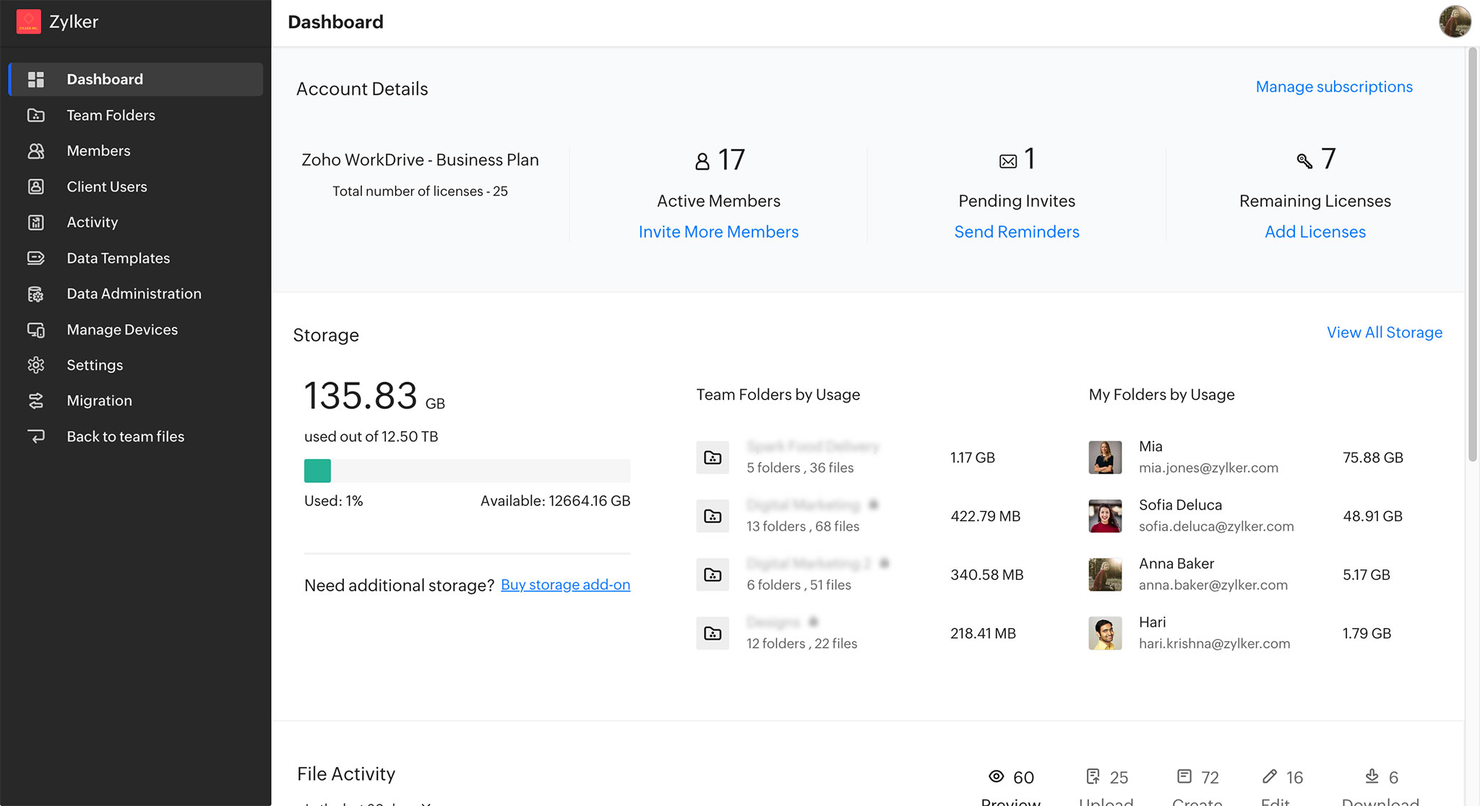
Zoho WorkDrive is designed for teams that need to organize, share, and collaborate on files in real time. It’s especially useful for distributed businesses, creative agencies, and project-based teams that rely on shared folders and document versioning. With built-in team workspaces and granular access controls, Zoho WorkDrive helps groups manage documents together without losing track of changes or ownership.
Why I Picked Zoho WorkDrive
Collaboration is at the core of Zoho WorkDrive, which is why I picked it for teams that need to manage files together. The platform offers shared Team Folders, so groups can organize documents by project or department and control who can view or edit each file.
I also appreciate the built-in document versioning, which lets users track changes and restore previous versions without confusion. For anyone searching for affordable document management software that supports real-time teamwork, Zoho WorkDrive’s collaborative features make it a strong fit.
Zoho WorkDrive Key Features
Some other features that make Zoho WorkDrive stand out for document management include:
- Granular Access Permissions: Set detailed user and group permissions for files and folders.
- Built-In File Preview: View documents, images, and videos directly in the browser without downloading.
- Activity Timeline: Track file and folder activity with a detailed audit trail.
- Desktop Sync App: Sync files between your desktop and the cloud for offline access.
Zoho WorkDrive Integrations
Integrations include Zoho Projects, Zoho Bigin, Zoho Cliq, Microsoft Office, Microsoft Outlook, Gmail, and more.
Pros and Cons
Pros:
- Activity timeline tracks all document actions
- Built-in file versioning prevents accidental overwrites
- Team Folders support structured group collaboration
Cons:
- No built-in e-signature functionality
- External sharing options require extra configuration

Folderit
Best for small teams needing approval workflows
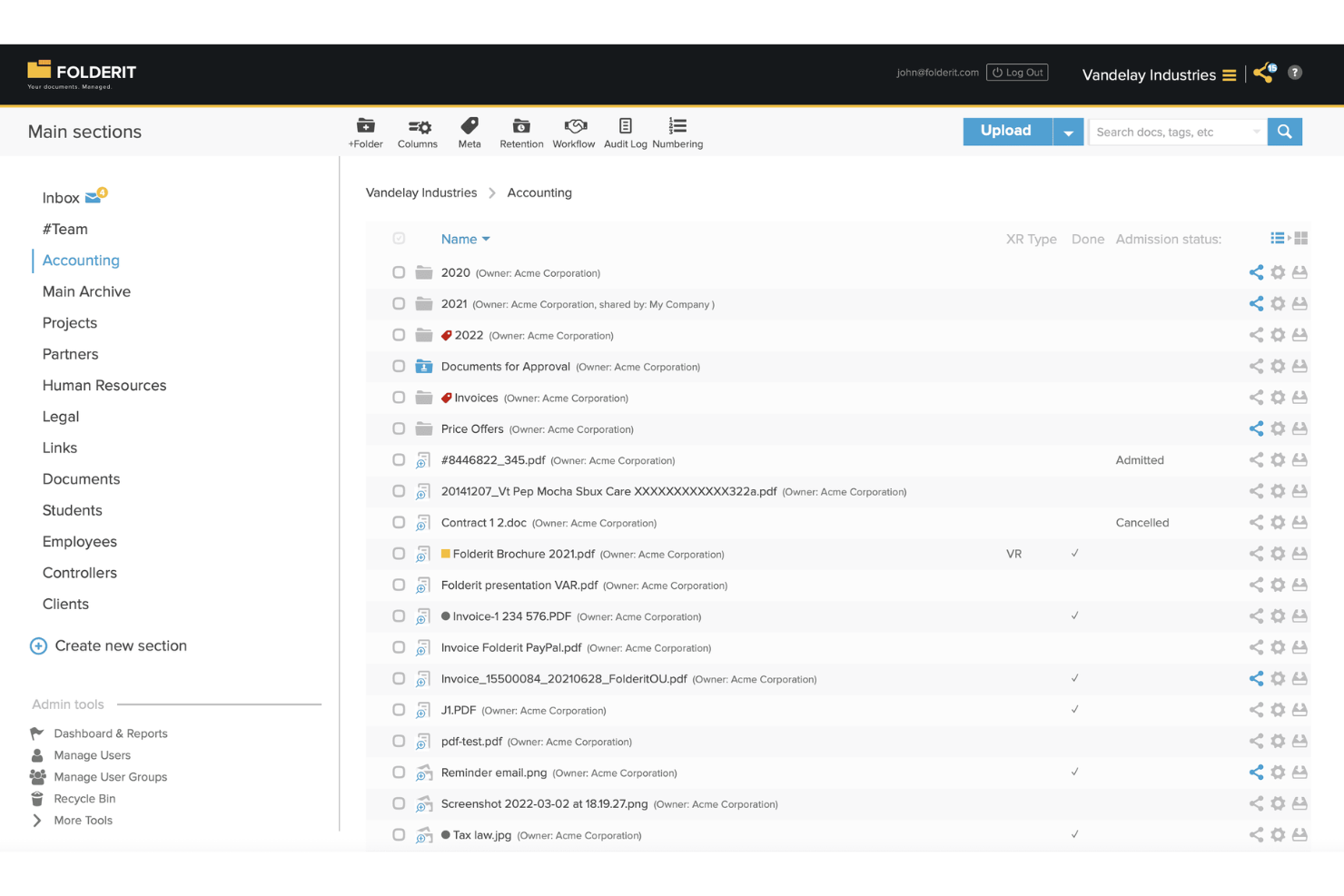
Folderit is designed for small teams that need straightforward document approval workflows without a steep learning curve. It’s a good fit for organizations looking to manage access, versioning, and document retention in a simple, cloud-based system. If your team needs an affordable way to keep files organized and approvals on track, Folderit offers a focused solution.
Why I Picked Folderit
For teams that need affordable document management with built-in approval workflows, Folderit stands out for its simplicity and focus. I picked Folderit because it lets you set up multi-step approval processes directly within the platform, so documents move smoothly from draft to sign-off.
You can assign permissions at the folder or document level, ensuring only the right people can review or approve files. Folderit also tracks every approval action, giving your team a clear audit trail for compliance and accountability.
Folderit Key Features
Some other Folderit features make it a practical choice for teams managing documents on a budget:
- Document Versioning: Keeps a full history of changes, so you can access or restore previous versions of any file.
- Automated Retention Scheduling: Lets you set rules for how long documents are kept before they’re archived or deleted.
- Custom Metadata Fields: Allows you to tag documents with custom data for easier searching and categorization.
- Email-In Functionality: Enables users to send documents directly to Folderit via email, making it easy to capture files from anywhere.
Folderit Integrations
Integrations include Microsoft Office 365, Outlook, DocuSign, Salesforce, HubSpot, SAP, Microsoft Dynamics, and more.
Pros and Cons
Pros:
- Automated document retention and archiving
- Custom metadata fields for advanced search
- Approval workflows are built into every plan
Cons:
- Limited reporting and analytics options
- No built-in document editing tools

Bitrix24
Best for built-in team communication tools
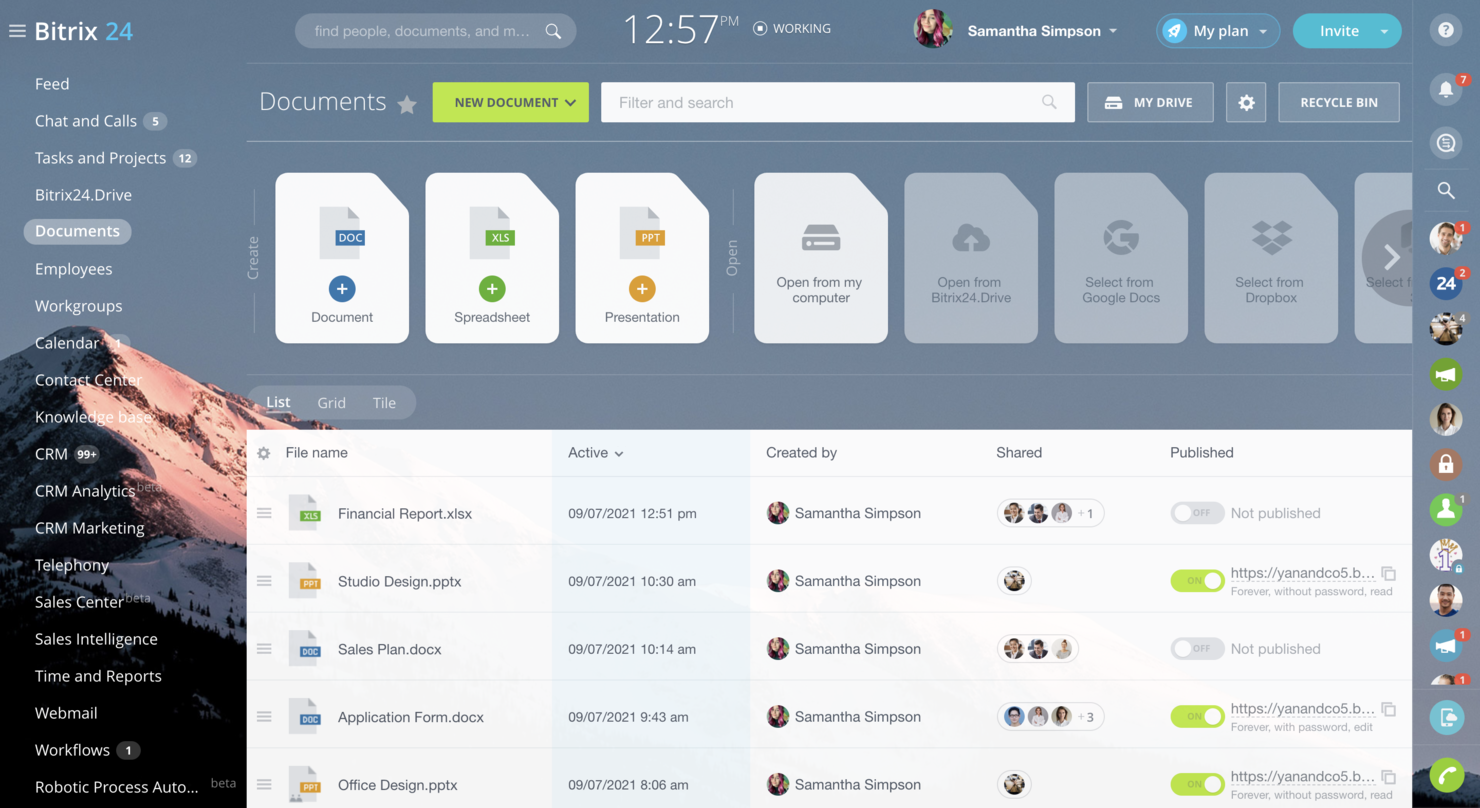
If your team needs document management tightly connected with chat, video, and task tools, Bitrix24 brings these together in one platform. It’s a strong fit for small businesses and distributed teams that want to keep conversations, files, and project updates in a single workspace. Bitrix24 stands out for its built-in communication features that help teams collaborate on documents without switching between multiple apps.
Why I Picked Bitrix24
What sets Bitrix24 apart is its combination of document management with built-in team communication tools. You can chat, start video calls, and comment on files directly within the platform, which keeps collaboration focused and reduces the need to switch between apps. I picked Bitrix24 because it lets teams manage documents and conversations in the same workspace, making it easier to track feedback and decisions.
For anyone looking for affordable document management software that prioritizes real-time team interaction, Bitrix24’s communication features are a clear advantage.
Bitrix24 Key Features
Some other features that make Bitrix24 useful for document management include:
- Document Approval Workflows: Set up automated approval processes for files and folders.
- Granular Access Controls: Assign specific permissions to users or groups for each document.
- Version History: Track and restore previous versions of documents as needed.
- Cloud and On-Premise Deployment: Choose between cloud-based or self-hosted options for storing your documents.
Bitrix24 Integrations
Integrations include Google Drive, Dropbox, OneDrive, Microsoft Office 365, Gmail, Outlook, Twilio, and more.
Pros and Cons
Pros:
- On-premise deployment option for data control
- Document approval workflows for structured reviews
- Built-in chat and video calls for teams
Cons:
- Occasional sync delays with cloud storage
- File upload size limits on lower plans

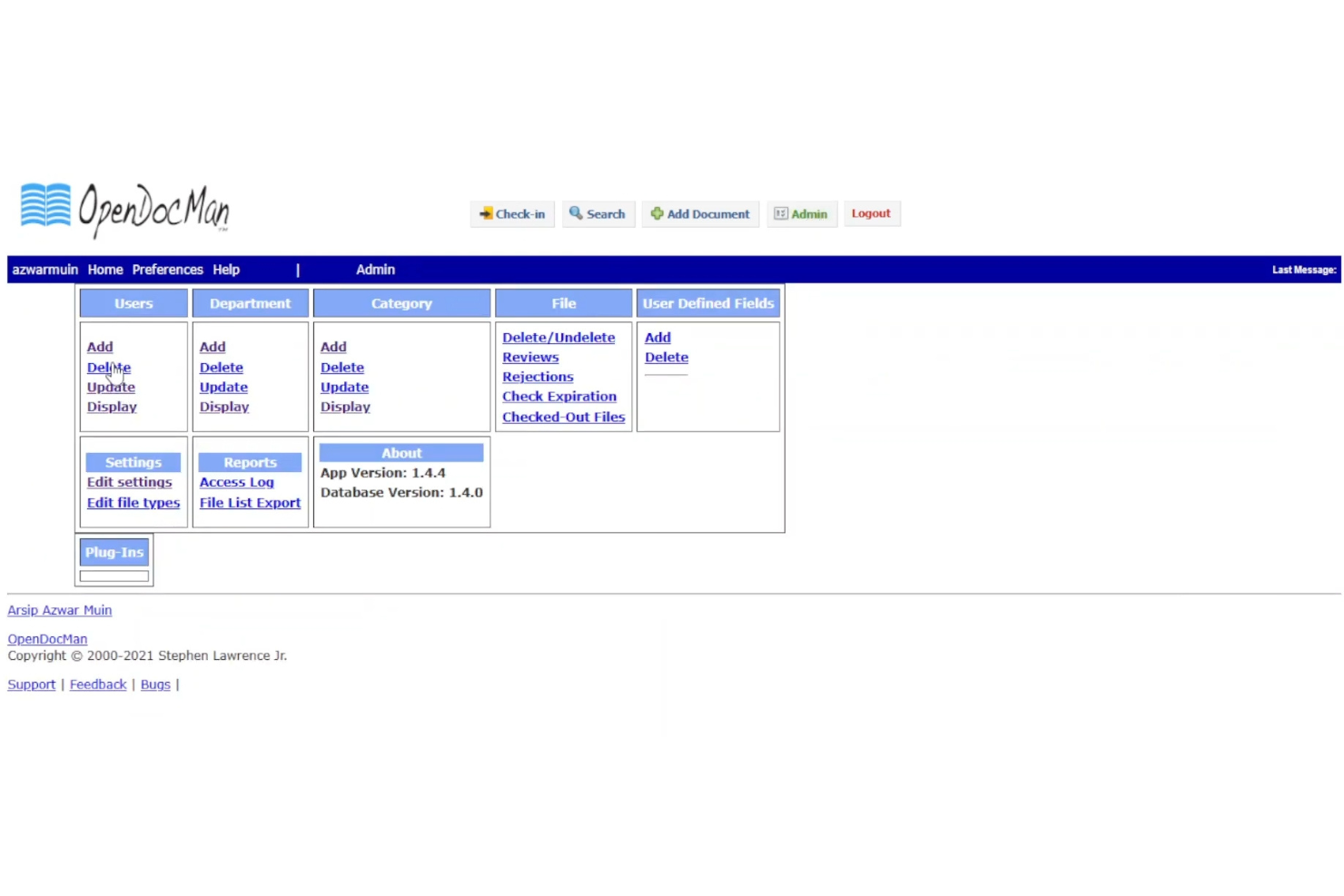
If you’re looking for an open-source document management system that you can fully customize, OpenDocMan is worth considering. It’s a strong fit for IT teams, developers, or organizations with unique compliance or workflow needs that off-the-shelf tools can’t address. OpenDocMan gives you control over features, integrations, and deployment, making it ideal for those who want to tailor their document management environment.
Why I Picked OpenDocMan
OpenDocMan stands out for teams that want to build a document management system tailored to their exact needs. I picked OpenDocMan because it’s open-source, so you can modify the codebase, add custom modules, or adapt workflows to fit your organization’s requirements.
The platform supports custom metadata fields and user-defined document categories, which gives you flexibility in how you organize and retrieve files. For teams with unique compliance, security, or process needs, OpenDocMan offers a level of control that’s hard to find in closed-source alternatives.
OpenDocMan Key Features
Some other features make OpenDocMan a flexible option for document management teams:
- Automated Document Review Process: Assigns documents to reviewers and tracks approval status within the system.
- Role-Based Access Control: Lets you set permissions for users and groups to control who can view, edit, or approve documents.
- File Expiry and Retention Management: Allows you to set expiration dates for documents and automate retention policies.
- Plugin Support: Enables you to extend functionality with plugins for notifications, integrations, or custom workflows.
OpenDocMan Integrations
Native integrations are not currently listed.
Pros and Cons
Pros:
- Supports automated document review workflows
- Plugin system allows for feature extensions
- Source code is fully available for modification
Cons:
- No built-in cloud hosting or SaaS option
- Bulk upload requires manual configuration steps

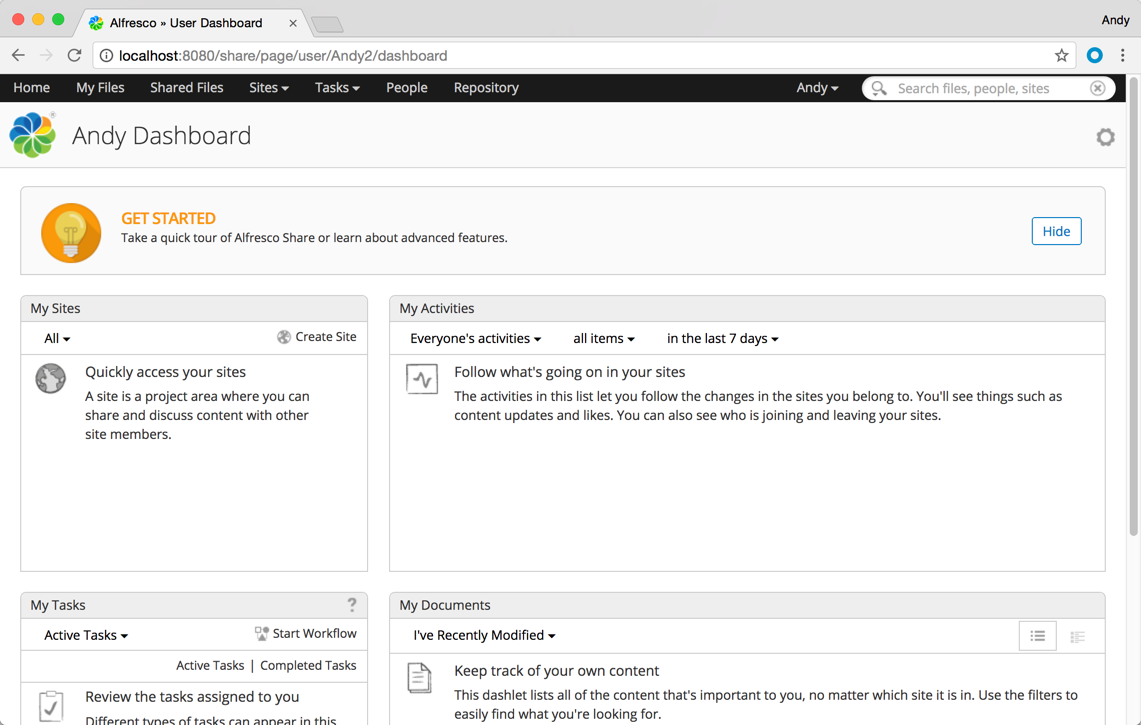
If your organization relies on connecting document management with other enterprise systems, Hyland Alfresco is designed for deep integration. This platform is well-suited for IT teams, large businesses, and regulated industries that need to link content with ERP, CRM, or HR platforms. Hyland Alfresco helps centralize documents while supporting complex workflows and compliance requirements across your existing tech stack.
Why I Picked Hyland Alfresco
What sets Hyland Alfresco apart is its strong focus on connecting document management with enterprise systems. I picked this platform because it offers built-in connectors for ERP, CRM, and HR platforms, making it easier to unify content across business applications. Hyland Alfresco also supports advanced workflow automation, so you can route documents and approvals directly within your existing processes. This approach helps organizations maintain compliance and consistency while reducing manual work between systems.
Hyland Alfresco Key Features
Some other features that make Hyland Alfresco a strong option for document management include:
- Document Versioning: Maintains a complete history of document changes and allows users to revert to previous versions.
- Granular Permission Controls: Lets administrators set detailed access rights for users and groups.
- Full-Text Search: Enables users to search the entire content of documents, not just metadata.
- Mobile Access: Provides dedicated mobile apps for accessing and managing documents on the go.
Hyland Alfresco Integrations
Integrations include Google Workspace, Salesforce, SAP, DocuSign, Oracle, IBM FileNet, Box, Dropbox, Adobe Sign, and more.
Pros and Cons
Pros:
- Scalable for large document repositories
- Strong compliance and audit trail features
- Supports complex workflow and process automation
Cons:
- Limited built-in templates for document types
- Upgrade process can disrupt existing workflows

isoTracker
Best for compliance-focused document control
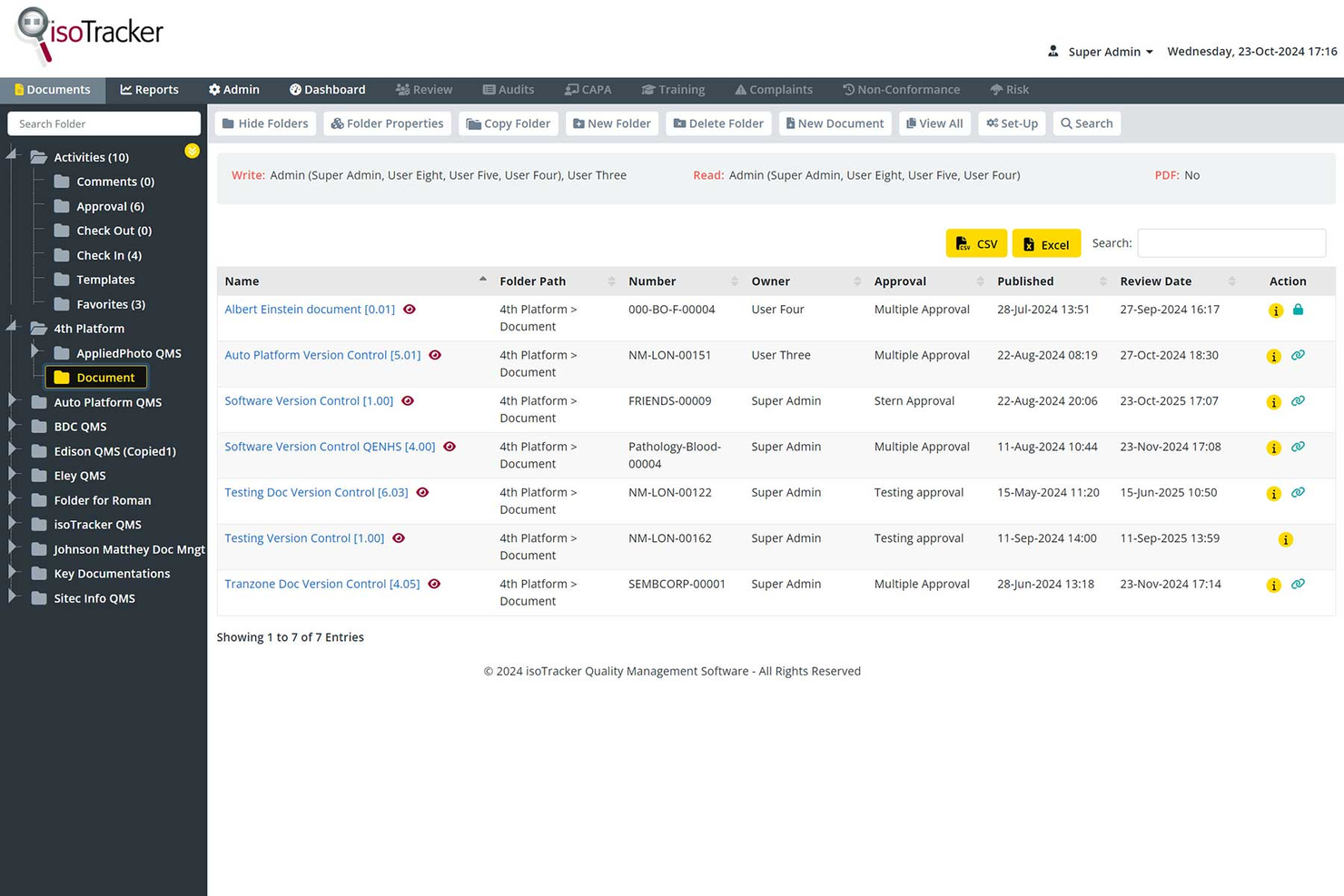
isoTracker is built for organizations that need to maintain strict compliance and audit trails across their document workflows. It’s especially useful for quality managers and regulated industries that require version control, approval processes, and document retention policies. If your team faces regular audits or must meet ISO standards, isoTracker helps centralize and automate compliance-focused document control.
Why I Picked isoTracker
When compliance and document control are top priorities, isoTracker offers a focused solution for regulated teams. I picked isoTracker because it provides built-in version control, automated approval workflows, and detailed audit trails that help organizations meet ISO and other regulatory standards.
The platform’s document retention scheduling and change history tracking make it easier to demonstrate compliance during audits. For teams that need to prove document integrity and follow strict review processes, isoTracker delivers the structure and transparency required.
isoTracker Key Features
Some other features that make isoTracker a strong option for document management include:
- Automated Document Review Reminders: Sends scheduled notifications to prompt timely document reviews.
- Customizable User Permissions: Allows administrators to set granular access controls for different user roles.
- Linked Document Management: Connects related documents for easier cross-referencing and traceability.
- Document Expiry Tracking: Monitors and flags documents approaching their expiration dates.
isoTracker Integrations
Native integrations are not currently listed.
Pros and Cons
Pros:
- Linked document management aids cross-referencing
- Document expiry tracking prevents outdated file use
- Detailed audit trails support regulatory inspections
Cons:
- Limited collaboration features for document editing
- Interface design feels dated compared to peers
Outro software acessível de gestão documental
Eis algumas opções adicionais de software acessível de gestão documental que não entraram na minha lista, mas que continuam a merecer atenção:
- SimpleIndex
For automated document indexing
- EisenVault
For multilingual document storage
- Egnyte
For hybrid cloud file access
- Revver
For automated document retention policies
- DocuWare
For secure digital document archiving
- Microsoft SharePoint
For customizable team sites
- SuiteFiles
For Microsoft 365 workflow integration
- ONLYOFFICE Workspace
For integrated document editing tools


How I Evaluate Affordable Document Management Software
I split my evaluation into two layers: the baseline criteria every tool must clear—like version control and access permissions—and the differentiators that reveal which tool fits your project team.
Core Functionality (Table Stakes For This List)
When I'm selecting tools for my list, I rank each one on a scale from 0 (does not offer the functionality) to 5 (excels in this area) for each core functionality listed below. Then, I calculate the tool's total score into a percentage. Each tool needs to achieve a minimum total score of 65% to be considered for inclusion.
- Centralized Document Storage: I check whether the platform offers a cloud-based repository with folder structures and enough storage to house project plans, SOWs, and deliverables at scale.
- Version Control: Every project has a doc that five people edit in one week. I evaluate how the tool tracks revisions, attributes changes to users, and supports rollback.
- Permissions & Access Control: I look for role-based permissions at the folder and file level so you can, for example, share a client folder with contractors without exposing internal budgets.
- Full-Text Search & Metadata: Finding a buried change order across hundreds of project files matters. I evaluate whether search covers file contents, supports tags, and filters by custom metadata.
- Secure Sharing & Collaboration: I look at how each tool handles external sharing with clients and vendors, including link permissions, commenting, and real-time co-editing on project docs.
- Affordable Pricing Tier: Pricing transparency and a genuinely accessible entry plan are what I evaluate here, including whether free tiers or low-cost plans carry limits that would block real project use.
Once I have a list of tools that meet the criteria, I consider what sets each platform apart.
Differentiating Factors (What Sets Vendors Apart)
Here's how I compare and contrast different vendors:
Standout Features
Automated document workflows are a key differentiator. I look for tools that can route a deliverable through a review-and-approval chain without manual follow-ups at each stage. Client and guest portals also matter. When contractors or clients can upload and review files without needing a paid seat, your per-user costs stay low. I also evaluate how tightly a platform connects to PM tools like Jira or Asana, since linking docs directly to tasks saves time hunting for the right file.
Beyond Features
Pricing model matters as much as the sticker price. I evaluate how costs scale as your team grows, especially whether guest users and storage overages trigger surprise fees. Security and compliance certifications like SOC 2 and GDPR readiness are worth checking too, particularly if your projects involve regulated industries or sensitive client data. I also consider how quickly a small team can get set up without dedicated IT support, including migration tools and ready-made folder templates for common project structures.
Como escolher software acessível de gestão documental
É fácil ficar preso a longas listas de funcionalidades e estruturas de preços complexas. Para o ajudar a manter o foco enquanto avalia o seu processo específico de seleção de software, eis uma lista de fatores a ter em conta:
| Fator | O que considerar |
|---|---|
| Escalabilidade | O software conseguirá gerir o volume de documentos à medida que a sua equipa ou empresa cresce? Verifique os limites de armazenamento, o número máximo de utilizadores e as opções de atualização. |
| Integrações | Está ligado nativamente às ferramentas que já utiliza (e-mail, CRM, gestão de projetos)? Evite soluções que exijam processos manuais alternativos. |
| Personalização | Pode adaptar as estruturas de pastas, as permissões e os fluxos de trabalho aos processos da sua equipa? Tenha cuidado com sistemas rígidos que o obriguem a adaptar-se. |
| Facilidade de utilização | A sua equipa adotá-lo-á rapidamente? Procure uma navegação clara, necessidades mínimas de formação e uma interface simples. Se possível, teste-o com utilizadores sem conhecimentos técnicos. |
| Implementação e integração inicial | Quanto tempo demorará a migrar os documentos e a formar os utilizadores? Informe-se sobre o apoio à migração, os recursos de integração inicial e os prazos habituais de implementação. |
| Custo | Os níveis de preços são transparentes e previsíveis? Esteja atento a taxas ocultas, custos adicionais de armazenamento ou suplementos obrigatórios que possam aumentar o seu orçamento. |
| Medidas de segurança | A plataforma disponibiliza encriptação, controlos de acesso e registos de auditoria? Confirme a conformidade com as normas de proteção de dados do seu setor. |
| Disponibilidade do apoio | Que canais de apoio são disponibilizados (conversação, telefone, e-mail) e durante que horário? Considere se precisará de ajuda fora do horário normal de funcionamento. |
O que é software acessível de gestão documental?
O software de gestão documental acessível refere-se a uma solução de gestão documental ou DMS que ajuda as organizações a armazenar, organizar e controlar o acesso a documentos empresariais sem custos elevados. Estas ferramentas de gestão documental permitem partilhar ficheiros, gerir diferentes tipos de ficheiros e colaborar entre membros da equipa.
Muitas plataformas incluem funcionalidades baseadas em IA, como o reconhecimento ótico de caracteres, ao mesmo tempo que respondem a necessidades de conformidade, como a HIPAA. Com foco em fluxos de trabalho sem papel, estas soluções combinam a gestão de documentos com ferramentas de colaboração num sistema fácil de utilizar.
São frequentemente consideradas entre as melhores opções de software de gestão documental para equipas pequenas e médias que procuram equilibrar funcionalidades essenciais com preços acessíveis.
Funcionalidades
Ao selecionar software de gestão documental acessível, esteja atento às seguintes funcionalidades essenciais:
- Armazenamento de documentos: Centraliza os ficheiros digitais num repositório seguro e organizado, facilitando o carregamento, a categorização e a recuperação dos documentos conforme necessário.
- Controlo de versões: Regista as alterações efetuadas aos documentos ao longo do tempo, permitindo aos utilizadores consultar, restaurar ou comparar versões anteriores e evitar a perda acidental de dados.
- Permissões de acesso: Permite aos administradores definir funções de utilizador e controlar quem pode consultar, editar ou eliminar documentos específicos, apoiando as necessidades de privacidade e conformidade.
- Funcionalidade de pesquisa: Permite aos utilizadores localizar rapidamente ficheiros através de palavras-chave, filtros ou metadados, reduzindo o tempo despendido à procura de informações.
- Registos de auditoria: Regista toda a atividade relacionada com os documentos, como edições, transferências e partilhas, proporcionando transparência e apoiando a conformidade regulamentar.
- Carregamento e transferência em massa: Permite aos utilizadores mover vários ficheiros ou pastas de uma só vez, simplificando migrações ou cópias de segurança em grande escala.
- Partilha de documentos: Facilita a partilha segura de ficheiros com colaboradores internos ou externos, muitas vezes através de ligações de acesso personalizáveis ou com datas de expiração.
- Políticas automatizadas de retenção: Permite definir regras sobre o período durante o qual os documentos são mantidos e quando são eliminados, ajudando as organizações a gerir o armazenamento e a conformidade.
- Acesso móvel: Disponibiliza aplicações ou interfaces Web responsivas para que os utilizadores possam consultar, carregar ou rever documentos a partir de smartphones e tablets.
- Suporte de integrações: Liga-se a outras ferramentas empresariais, como plataformas de correio eletrónico ou de gestão de projetos, para manter os fluxos de trabalho documentais interligados e eficientes.
Benefícios
A implementação de software de gestão documental acessível proporciona vários benefícios à sua equipa e à sua empresa. Eis alguns dos que pode esperar:
- Custos operacionais mais baixos: Reduza as despesas substituindo processos baseados em papel e minimizando a necessidade de sistemas antigos dispendiosos.
- Maior segurança documental: Proteja informações sensíveis com controlos de acesso, registos de auditoria e funcionalidades de armazenamento seguro.
- Recuperação mais rápida de informações: Localize ficheiros rapidamente através de pesquisas avançadas e de um armazenamento organizado, poupando tempo a toda a equipa.
- Gestão da conformidade simplificada: Cumpra os requisitos regulamentares com políticas automatizadas de retenção e registos detalhados de atividade.
- Melhor colaboração: Partilhe documentos de forma segura com colegas ou parceiros externos, apoiando ambientes de trabalho distribuídos e híbridos.
- Escalabilidade para equipas em crescimento: Adicione utilizadores e aumente o armazenamento à medida que a sua organização cresce, sem grandes interrupções ou aumentos significativos de custos.
- Integração e adoção simplificadas: Permita que os novos utilizadores se familiarizem rapidamente com interfaces intuitivas, recursos de formação e ferramentas de migração fáceis de utilizar.
Custos e preços
A seleção de software de gestão documental acessível exige uma compreensão dos vários modelos de preços e planos disponíveis. Os custos variam consoante as funcionalidades, a dimensão da equipa, os complementos, entre outros fatores. A tabela abaixo resume os planos comuns, os respetivos preços médios e as funcionalidades normalmente incluídas nas soluções de software de gestão documental acessíveis:
Tabela de comparação de planos de software de gestão documental acessível
| Tipo de plano | Preço médio | Funcionalidades comuns |
|---|---|---|
| Plano gratuito | $0 | Armazenamento básico de documentos, utilizadores limitados, pesquisa simples e partilha básica. |
| Plano pessoal | $5–$15/utilizador/mês | Armazenamento individual, controlo de versões, acesso móvel e permissões básicas. |
| Plano empresarial | $10–$25/utilizador/mês | Colaboração em equipa, permissões avançadas, registos de auditoria, integrações e automatização de fluxos de trabalho. |
| Plano empresarial avançado | $20–$40/utilizador/mês | Armazenamento ilimitado, personalização da marca, segurança avançada, ferramentas de conformidade e suporte prioritário. |
Perguntas frequentes sobre software acessível de gestão documental
Eis algumas respostas a perguntas comuns sobre software acessível de gestão documental:
Como sei se um software de gestão documental é realmente acessível?
Analise mais do que o preço base e considere os custos totais, incluindo limites de armazenamento, taxas por utilizador, suplementos e custos de suporte. Compare estes custos com as necessidades e o orçamento da sua equipa. As opções acessíveis devem apresentar preços transparentes e funcionalidades essenciais sem exigir atualizações dispendiosas.
Um software acessível de gestão documental consegue cumprir requisitos de conformidade?
Sim, muitas soluções acessíveis incluem funcionalidades como registos de auditoria, políticas de retenção e controlos de acesso para ajudar a cumprir normas de conformidade comuns. Confirme sempre se a plataforma suporta os regulamentos específicos do seu setor antes de avançar.
Quais são as limitações dos softwares de gestão documental de baixo custo?
As ferramentas de menor custo podem ter restrições ao nível do armazenamento, das integrações ou de funcionalidades avançadas, como a automatização de fluxos de trabalho. Analise cuidadosamente os detalhes do plano para garantir que o software responde às suas necessidades atuais e futuras sem compromissos ocultos.
É possível migrar documentos do meu sistema antigo para uma nova plataforma acessível?
Sim, a maioria dos softwares de gestão documental disponibiliza ferramentas de carregamento em massa ou suporte à migração. Verifique se o fornecedor disponibiliza guias, modelos ou assistência direta para tornar a transição mais simples para a sua equipa.
Quão seguras são as soluções acessíveis de gestão documental?
As plataformas acessíveis disponibilizam normalmente funcionalidades de segurança padrão, como encriptação, permissões de acesso e registos de atividade. No entanto, confirme sempre as certificações de segurança e as práticas de proteção de dados do fornecedor, para garantir que estão alinhadas com os requisitos da sua organização.