

14 programvarer for dokumenthåndtering med OCR for 2026

Kortliste over programvare for dokumenthåndtering med OCR


Programvare for dokumenthåndtering med OCR kombinerer optisk tegngjenkjenning med et dokumenthåndteringssystem, slik at du kan gjøre skannede bilder og fysiske dokumenter om til søkbare, redigerbare digitale filer. Hvis du ser etter måter å automatisere dokumentskanning på, trekke ut tekst med AI-baserte OCR-verktøy og håndtere samsvarskrav, kan den riktige plattformen hjelpe teamet ditt med å holde seg organisert og raskt kunne reagere. Mange løsninger tilbyr også sømløs integrasjon med eksisterende systemer for å optimalisere arbeidsflyter og støtte raskere beslutningstaking.
I denne listen finner du alternativer for ulike forretningsbehov – fra plattformer med åpen kildekode til løsninger i bedriftsklassen – slik at du kan sammenligne funksjoner og velge det som passer best til arbeidsflyten din.
Hvorfor du kan stole på våre programvareanbefalinger
Teamet vårt har testet og anmeldt programvare siden 2012. Vi er selv prosjektledere, så vi vet hvor vanskelig og hvor viktig det er å velge riktig programvare.
I denne guiden har vi vurdert verktøyene gjennom praktisk testing og uavhengig research og gitt dem poeng ut fra våre utvelgelseskriterier. Vi bygger også på innsikt fra ledende eksperter i bransjen og erfarne prosjektledere.
Anmeldelsene våre bygger på vår egen redaksjonelle vurdering. De er ikke et salgsargument.
Ekspertanmeldere:
Sammenligningstabell for programvare for dokumenthåndtering med OCR
Denne sammenligningstabellen oppsummerer prisdetaljene for mine beste utvalg av programvare for dokumenthåndtering med OCR:
| Tool | Best For | Trial Info | Price | ||
|---|---|---|---|---|---|
| 1 | Best for regulated industries | Free demo available | Pricing upon request | Website | |
| 2 | Best for enterprise-level integration options | Free demo available | From $73/user/month (billed annually) | Website | |
| 3 | Best for cloud-based document archiving | Free demo available | Pricing upon request | Website | |
| 4 | Best for small team collaboration features | Free plan available | From $52/month | Website | |
| 5 | Best for advanced data capture accuracy | Free demo available | Pricing upon request | Website | |
| 6 | Best for compliance-driven document control | Free demo available | Pricing upon request | Website | |
| 7 | Best for automated image-to-text workflows | 7-day free trial available | From $20/month | Website | |
| 8 | Best for integrating OCR into web forms | Free plan available | Pricing upon request | Website | |
| 9 | Best for open-source customization needs | Free and open-source | Free and open-source | Website | |
| 10 | Best for end-to-end process automation | Free demo available | Pricing upon request | Website |
Anmeldelser av programvare for dokumenthåndtering med OCR
Nedenfor finner du mine detaljerte oppsummeringer av den beste programvaren for dokumenthåndtering med OCR som kom med på kortlisten min. Anmeldelsene mine gir en detaljert oversikt over funksjonene, de beste bruksområdene og integrasjonene for hver programvare, slik at du kan finne den beste løsningen for deg.
Doxis
Best for regulated industries
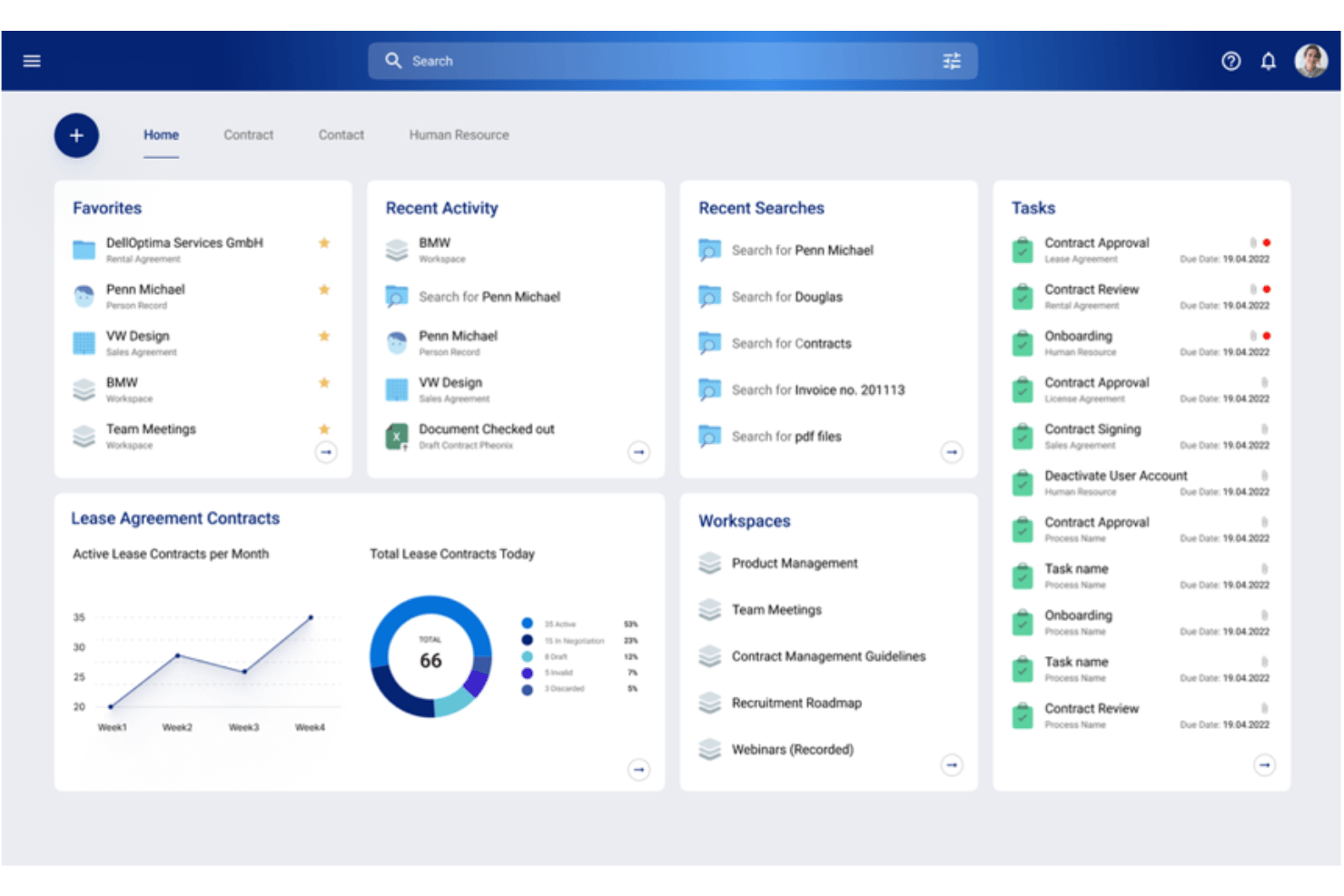
Doxis is an enterprise document management software offering advanced OCR, AI-driven data extraction, automated classification, and full-text search for complex project documentation and compliance archives.
Who Is Doxis Best For?
Doxis is ideal for mid-sized to large organizations in highly regulated industries that require advanced compliance, audit trails, and secure project documentation management.
Why I Picked Doxis
I picked Doxis as one of the best because its AI-driven OCR reliably extracts text and critical data from highly regulated project documents, and its audit trail features directly support compliance in industries with intense oversight.
Doxis Key Features
- Full-text search engine: Search OCR-processed documents and metadata fields across large repositories instantly.
- Role-based access control: Assign specific permissions to users and groups for secure document management.
- Automated workflow routing: Route project files through multi-step review and approval processes.
- Version management: Track, compare, and restore previous versions of every document in your archive.
Doxis Integrations
Doxis offers native integrations with SAP, Salesforce, and Microsoft 365, and provides an API for custom integrations.
Pros and Cons
Pros:
- Scalable document repository for large organizations
- Secure audit trails for compliance needs
- Advanced AI-powered OCR for handwriting
Cons:
- Limited suitability for non-regulated industries
- Require significant onboarding resources

Best for enterprise-level integration options
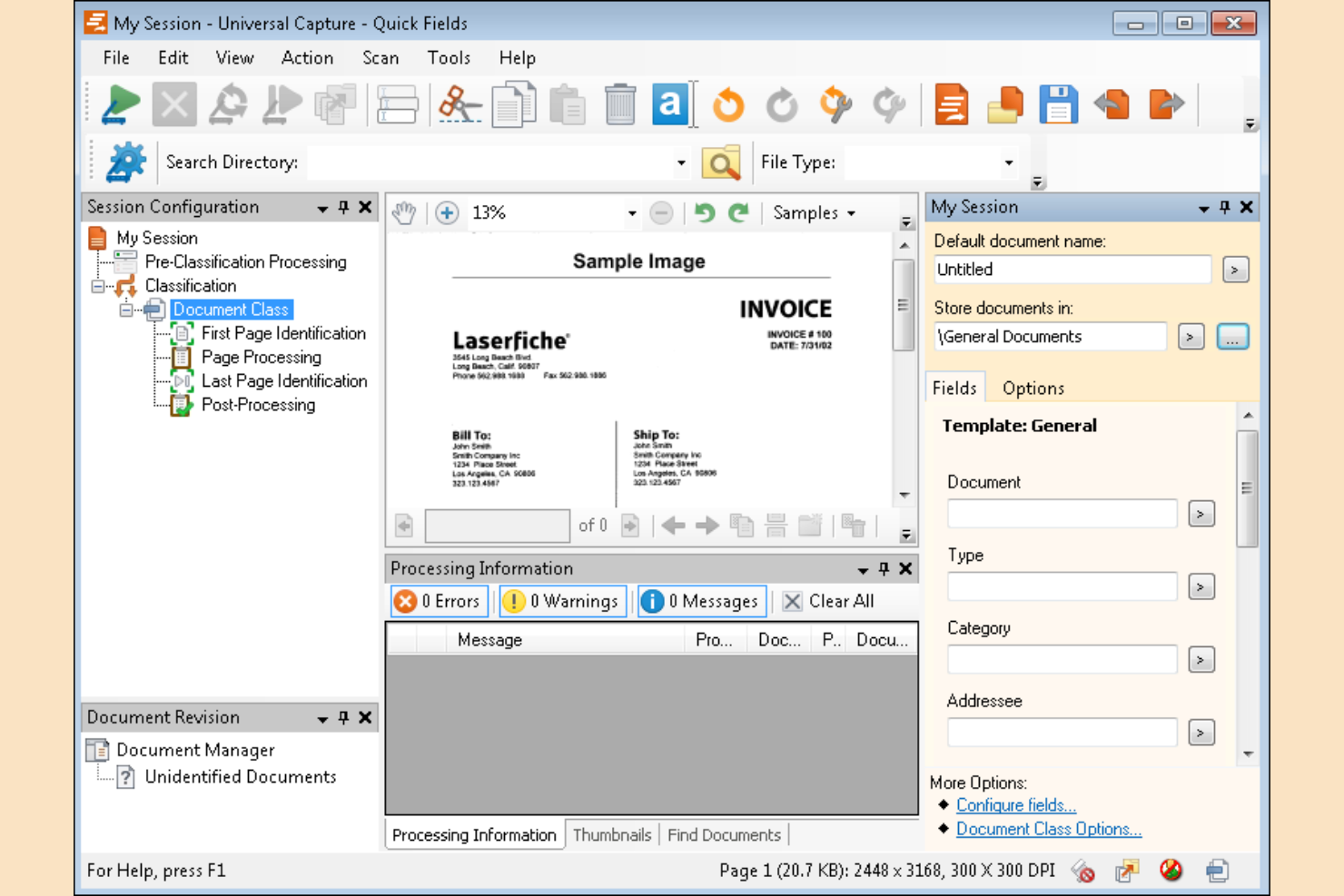
For organizations that need to connect document management with a wide range of enterprise systems, Laserfiche offers a flexible solution. Its platform is designed for IT teams and operations leaders who want to automate document capture, processing, and routing while integrating with existing business applications. Laserfiche stands out for its deep integration capabilities, making it a strong choice for enterprises with complex workflows and multiple software environments.
Why I Picked Laserfiche
What drew me to Laserfiche is its focus on enterprise-level integration options, which is especially important for organizations managing documents across multiple business systems. Laserfiche offers advanced workflow automation tools that let you design and execute complex document processes, including automated data capture and routing. I appreciate how the platform supports granular access controls and audit trails, which help IT teams maintain compliance and security in large environments. For enterprises that need to connect OCR document management with ERP, CRM, or industry-specific platforms, Laserfiche’s integration depth is a key advantage.
Laserfiche Key Features
Some other features that make Laserfiche a strong option for document management include:
- Electronic forms builder: Create custom forms to capture and standardize data entry across your organization.
- Records management tools: Apply retention schedules and automate compliance with regulatory requirements.
- Mobile app access: Capture, search, and manage documents from mobile devices.
- Document version control: Track changes and maintain a full history of document edits and updates.
Laserfiche Integrations
Integrations include SAP, DocuSign, Salesforce, Microsoft 365, and more.
Pros and Cons
Pros:
- Records management automates compliance tasks
- Electronic forms builder captures custom data
- Workflow automation supports complex document routing
Cons:
- Integrations focus on selected enterprise systems
- OCR struggles with low-quality or handwritten scans

DocuWare
Best for cloud-based document archiving
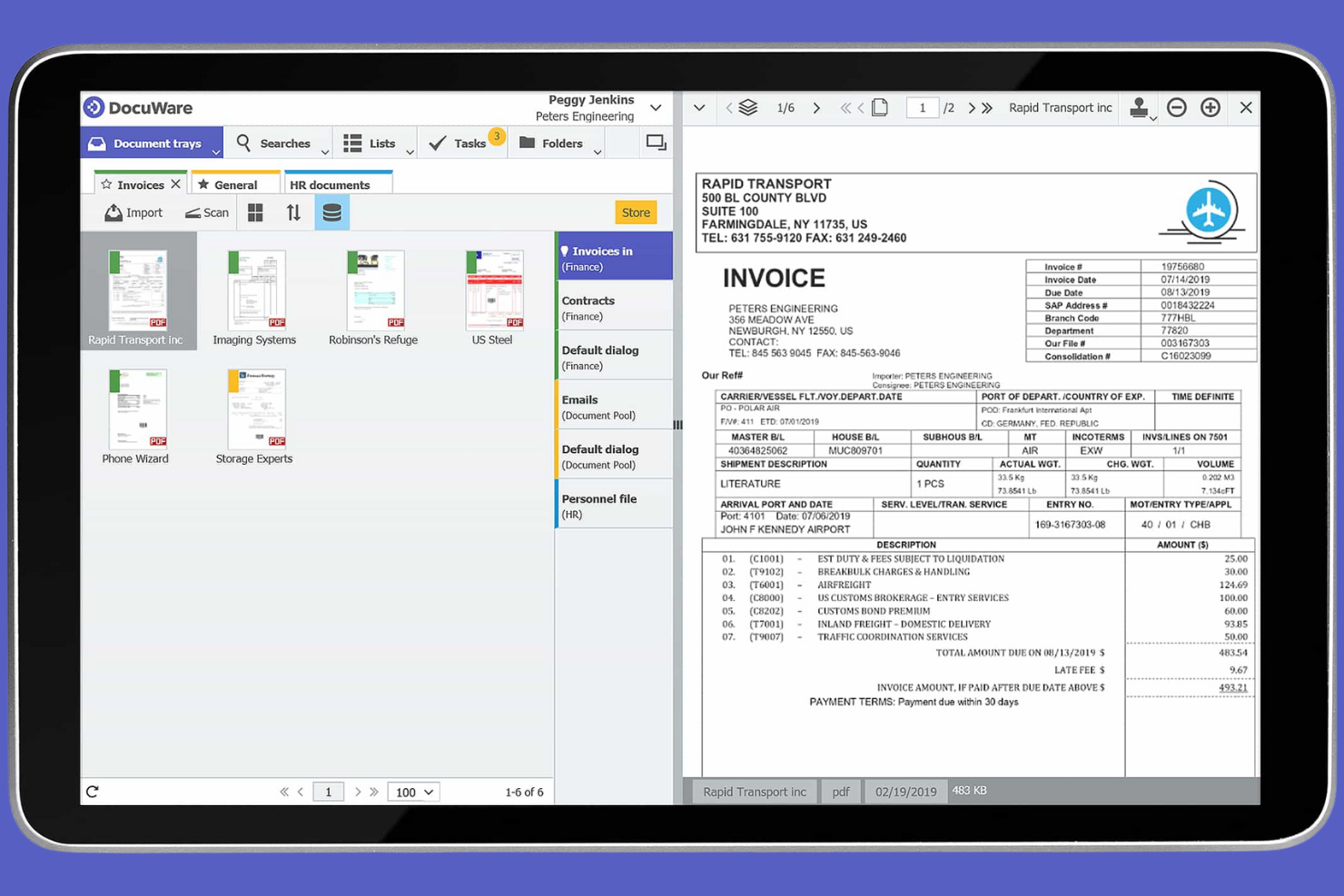
DocuWare is designed for organizations that need secure, cloud-based document archiving with built-in OCR capabilities. It’s a strong fit for teams in finance, HR, and compliance who manage large volumes of sensitive documents and require reliable search and retrieval. DocuWare helps you centralize, digitize, and automate document storage while making scanned files fully searchable.
Why I Picked DocuWare
For teams that need reliable, cloud-based document archiving, DocuWare stands out with its secure storage and advanced OCR capabilities. I picked DocuWare because it automatically indexes scanned documents, making them fully searchable and easy to retrieve from anywhere. The platform also supports automated document retention policies, which help organizations stay compliant with industry regulations. If you’re looking for a solution that centralizes and protects your digital records while enabling fast search through OCR, DocuWare is a strong choice.
DocuWare Key Features
Some other features that make DocuWare useful for document management include:
- Electronic signature support: Collect legally binding signatures directly within stored documents.
- Role-based permissions: Control access to documents based on user roles and responsibilities.
- Automated workflow routing: Set up document approval and review processes with customizable workflows.
- Version control: Track changes and maintain a full history of document revisions.
DocuWare Integrations
Native integrations are not currently listed. However, DocuWare offers an API for custom integrations.
Pros and Cons
Pros:
- Role-based permissions control document access
- OCR indexes scanned documents for search
- Cloud storage enables secure remote access
Cons:
- Template customization may require technical expertise
- Bulk imports can be slow for large archives

Folderit
Best for small team collaboration features
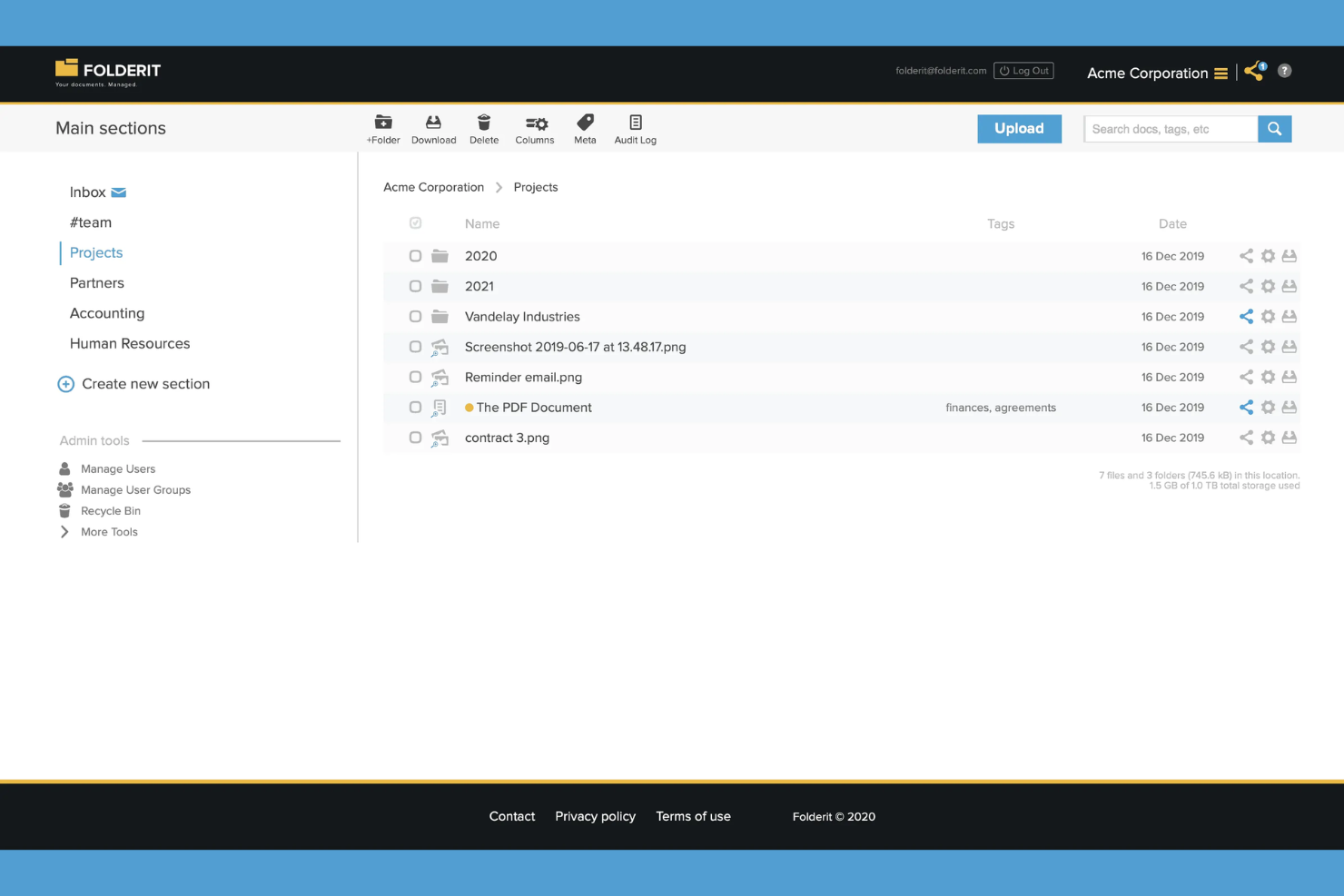
Folderit is designed for small teams that need to collaborate on document management without a complex setup. It’s especially useful for businesses that want to share, approve, and track documents with built-in OCR and granular permissions. If your team values features like document approval workflows and audit trails, Folderit offers a focused solution for secure, collaborative file handling.
Why I Picked Folderit
For teams that need to collaborate closely on document management, Folderit stands out for its built-in sharing and approval features. I picked Folderit because it lets users assign documents for approval, set reminders, and track every action with detailed audit trails. The OCR functionality ensures that all uploaded documents are searchable, making it easier for teams to find and work on files together. These collaboration-focused tools make Folderit a strong choice for small businesses that need both document control and transparency.
Folderit Key Features
Some other features that make Folderit useful for document management include:
- Metadata fields: Add custom metadata to documents for more detailed organization and search.
- Document linking: Link related documents together to keep supporting files connected.
- Automated retention policies: Set rules for document retention and automatic deletion based on your compliance needs.
- Version control: Maintain and access previous versions of documents as changes are made.
Folderit Integrations
Integrations include DocuSign, Microsoft 365, Outlook, and more.
Pros and Cons
Pros:
- Custom metadata improves document organization
- Approval workflows support multi-step collaboration
- OCR makes scanned documents fully searchable
Cons:
- Advanced workflow automation is not available
- Bulk upload features are limited for large archives

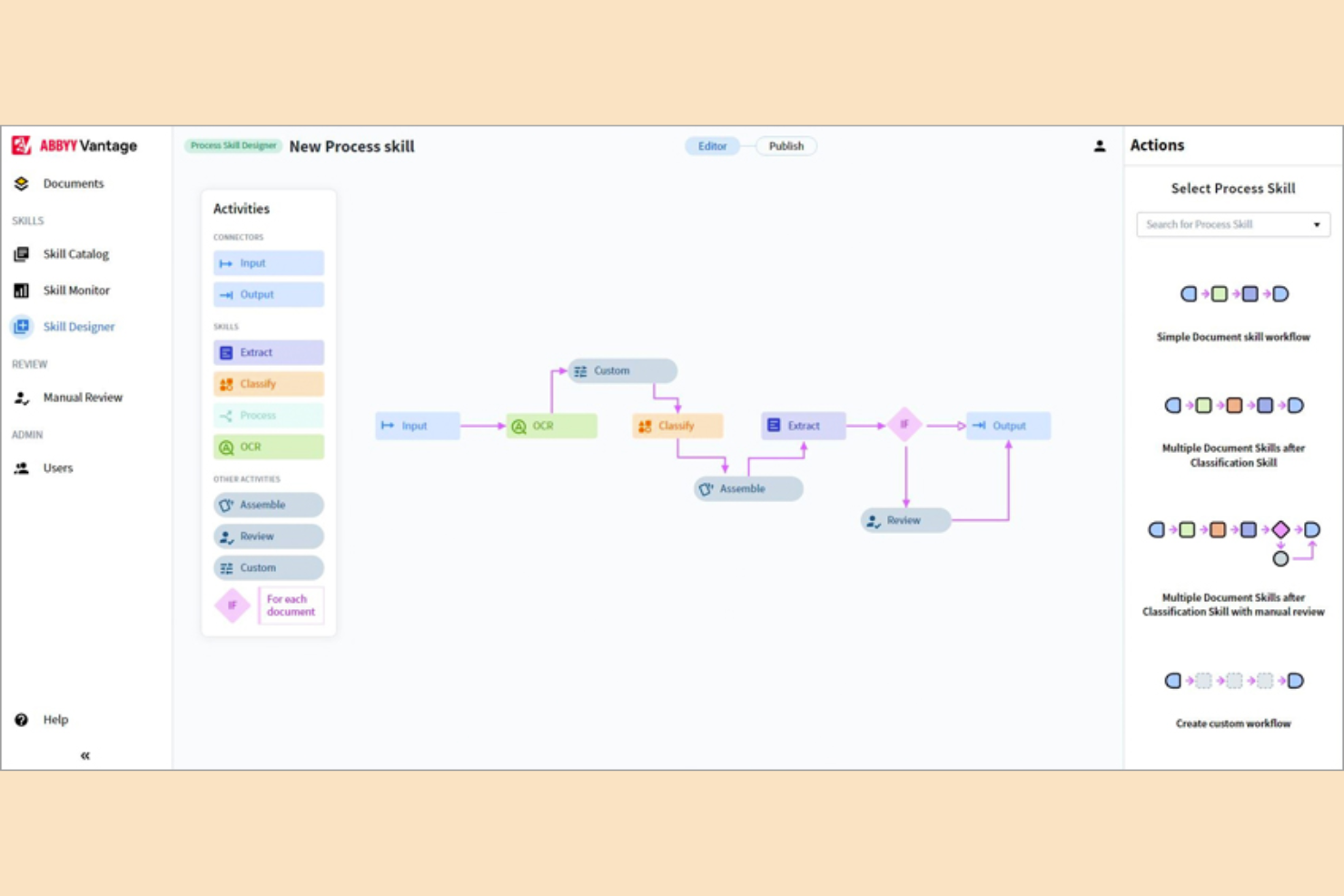
If your team needs highly accurate data extraction from complex documents, ABBYY is worth a close look. This platform specializes in advanced OCR and intelligent data capture, making it a strong fit for finance, legal, and operations teams handling high volumes of structured and unstructured documents. ABBYY stands out for its ability to recognize diverse document layouts and extract precise data, even from challenging formats.
Why I Picked ABBYY
What sets ABBYY apart for me is its focus on advanced data capture accuracy, which is essential for teams dealing with complex or high-stakes documents. ABBYY’s intelligent OCR engine uses machine learning to recognize and extract data from a wide range of document types, including invoices, contracts, and forms with variable layouts. I appreciate how its data validation tools help ensure extracted information is accurate before it enters downstream workflows. For organizations that can’t afford errors in document processing, ABBYY’s precision and adaptability make it a strong choice.
ABBYY Key Features
Some other features that make ABBYY a strong option for document management include:
- Multi-language recognition: Process documents in over 200 languages for global operations.
- Batch processing: Handle large volumes of documents simultaneously to speed up workflows.
- Document classification: Automatically sort and categorize documents based on content and layout.
- Cloud and on-premises deployment: Choose between cloud-based or on-premises installation to fit your IT requirements.
ABBYY Integrations
Integrations include SharePoint, Alteryx, Bizagi, M-Files, Laserfiche, and more.
Pros and Cons
Pros:
- Cloud and on-premises deployment options
- Document classification automates sorting
- Batch processing manages large document volumes
Cons:
- Support response times vary by region
- Large files can be processed slowly
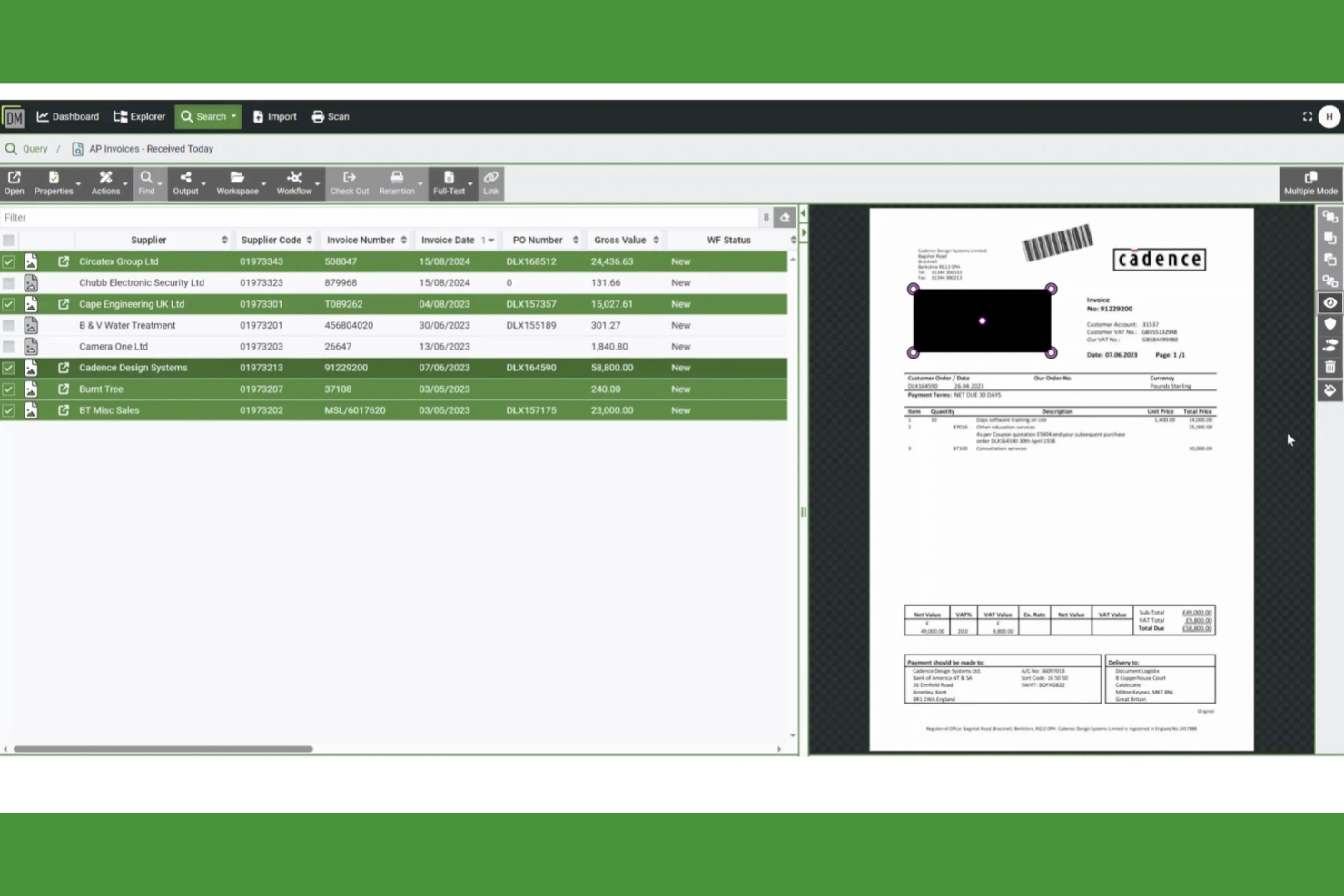
For organizations where regulatory compliance and document control are top priorities, Document Logistix offers a specialized approach. This platform is built for industries like healthcare, finance, and government that need strict audit trails and granular access controls. Document Logistix stands out for its ability to automate compliance workflows and maintain detailed records for every document action.
Why I Picked Document Logistix
What drew me to Document Logistix is its clear focus on compliance-driven document control, which is essential for teams handling sensitive or regulated information. The platform offers detailed audit trails that log every document action, helping organizations meet strict regulatory requirements. I also appreciate its granular permission settings, which let you control who can view, edit, or share specific documents. These features make Document Logistix a strong fit for businesses that need to automate OCR processes while maintaining full control over compliance and security.
Document Logistix Key Features
Some other features that make Document Logistix useful for document management teams include:
- Automated document capture: Import and classify documents from scanners, email, or network folders without manual intervention.
- Version control: Track and manage multiple versions of documents to ensure accuracy and compliance.
- Custom workflow designer: Build and modify document approval and review workflows to match your organization’s processes.
- Full-text search: Locate documents quickly using OCR-powered keyword and phrase searches across your entire repository.
Document Logistix Integrations
Native integrations are not currently listed.
Pros and Cons
Pros:
- Full-text OCR enables fast document search
- Automated capture reduces manual entry
- Audit trails support regulatory compliance
Cons:
- Advanced OCR configuration docs are limited
- Interface may feel dated vs newer platforms
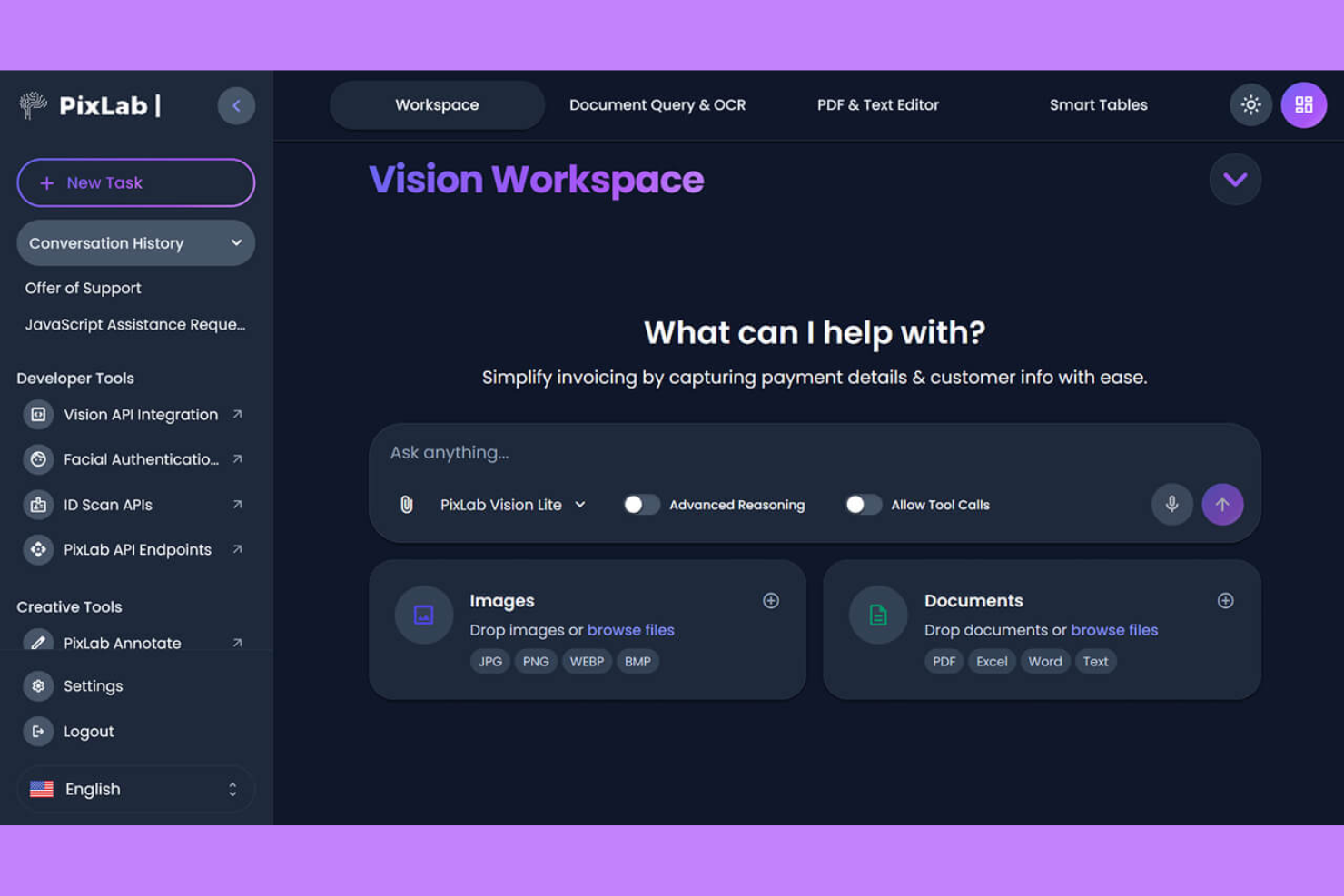
If your team needs to automate image-to-text conversion across large volumes of files, PixLab offers a focused solution. This platform is designed for developers and businesses that want to integrate OCR into custom workflows or applications. PixLab stands out for its API-driven approach, making it a strong fit for organizations handling complex or high-frequency document processing tasks.
Why I Picked PixLab
PixLab caught my attention because of its strong focus on automated image-to-text workflows, which is a key need for many teams handling document digitization. The platform’s API-first design lets you process images and extract text in bulk, making it easy to build custom automation into your document management pipeline. I also like that PixLab supports a wide range of file formats and offers advanced image preprocessing, which helps improve OCR accuracy for challenging documents. These capabilities make it a practical choice for businesses that need reliable, high-volume OCR as part of their document management strategy.
PixLab Key Features
Some other features in PixLab that are useful for document management teams include:
- Face and object detection: Identify faces and objects within images to support advanced document categorization or redaction workflows.
- Barcode and QR code reading: Extract data from barcodes and QR codes embedded in scanned documents or images.
- Content moderation tools: Automatically flag or filter inappropriate or sensitive content in uploaded files.
- Video frame extraction: Pull still frames from video files for OCR processing or further analysis.
PixLab Integrations
Native integrations are not currently listed. However, PixLab offers an API for custom integrations.
Pros and Cons
Pros:
- Built-in moderation and face detection tools
- Image preprocessing improves OCR accuracy
- Handles many image and video file formats
Cons:
- Documentation can be technical and sparse
- No user-friendly dashboard for non-developers

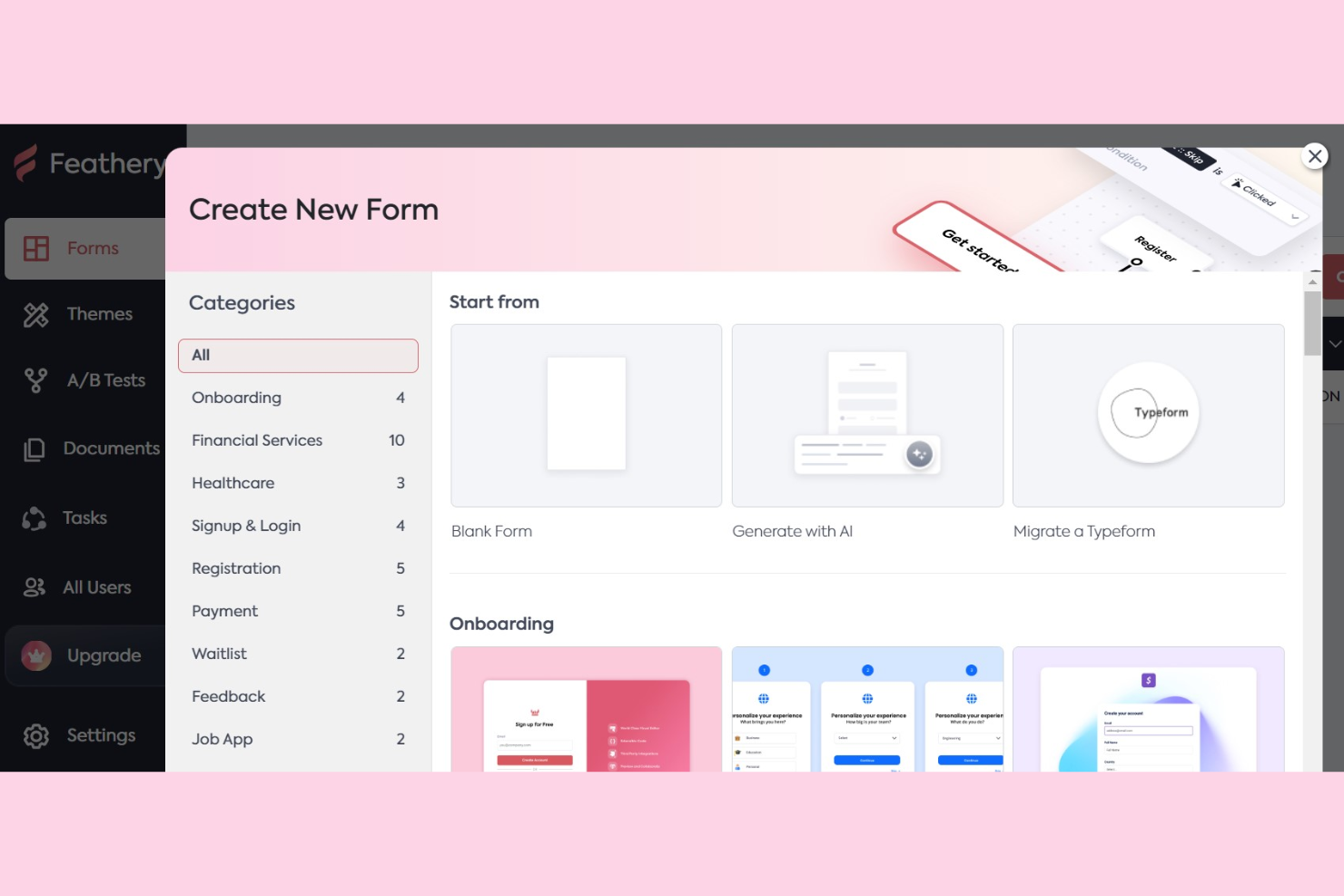
If you need to capture and process documents directly through web forms, Feathery offers a unique approach to OCR document management. It’s built for teams that want to automate data extraction from uploaded files and images as part of their digital workflows. Feathery is especially useful for businesses that rely on custom forms for onboarding, applications, or compliance, and need OCR to turn uploads into structured, actionable data.
Why I Picked Feathery
What sets Feathery apart is its ability to embed OCR directly into custom web forms, making document capture and data extraction part of your workflow from the start. I picked Feathery because it lets you build forms that accept file uploads and automatically extract text and data from images or PDFs using OCR. This approach is especially useful for teams that need to collect structured information from documents as part of onboarding, applications, or compliance processes. By integrating OCR at the point of data entry, Feathery helps you automate document management and reduce manual data handling.
Feathery Key Features
Some other features that make Feathery useful for document management include:
- Conditional logic: Build forms that show or hide fields based on user input.
- Custom validation rules: Set specific requirements for uploaded files and form fields.
- Workflow automation: Trigger actions or notifications when documents are submitted or processed.
- Role-based access controls: Manage who can view, edit, or approve documents within your forms.
Feathery Integrations
Integrations include Stripe, Salesforce, HubSpot, Plaid, Zapier, Calendly, Webhooks, Mixpanel, RudderStack, Amplitude, and more.
Pros and Cons
Pros:
- Validation rules enforce document quality
- Conditional logic enables dynamic intake forms
- Supports uploads for images, PDFs, and scans
Cons:
- Audit trails and compliance features are less detailed
- Advanced document search and filtering are limited
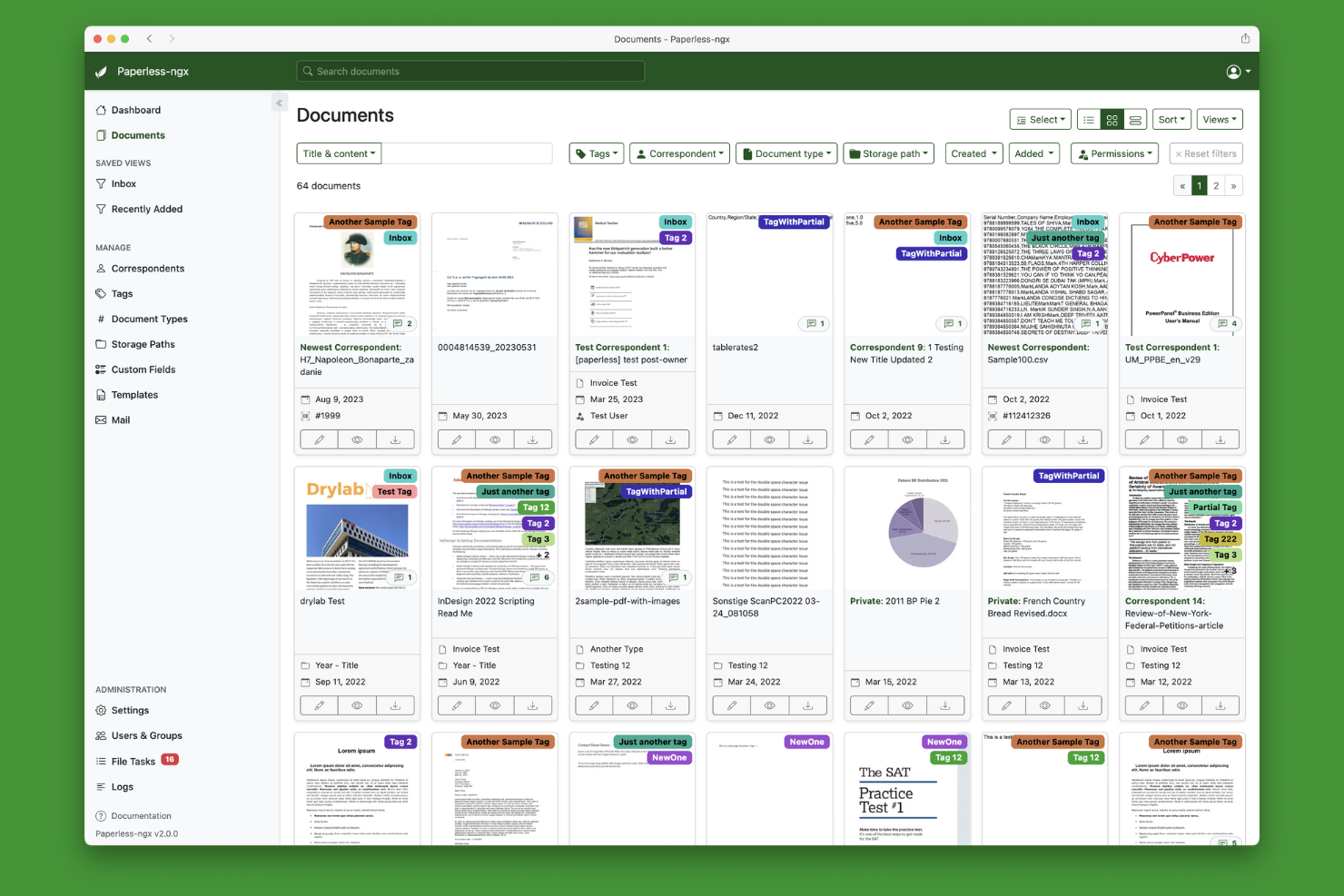
If you’re looking for a fully open-source OCR document management solution, Paperless-ngx stands out for its flexibility and transparency. This platform is ideal for IT teams, developers, and privacy-focused organizations that want to self-host and customize every aspect of their document workflows. Paperless-ngx is especially useful for those who need to automate document capture and processing without vendor lock-in or licensing fees.
Why I Picked Paperless-ngx
What makes Paperless-ngx a strong choice is its open-source foundation, which gives you full control over customization and deployment. For teams that want to tailor their OCR document management workflows, Paperless-ngx lets you modify document tagging, metadata extraction, and automation scripts to fit unique requirements. I like that you can self-host the platform, ensuring data privacy and compliance with internal policies. This level of flexibility is hard to find in proprietary solutions, making Paperless-ngx especially appealing for organizations with specialized or evolving needs.
Paperless-ngx Key Features
Some other features that make Paperless-ngx appealing for document management include:
- Bulk document import: Upload and process large batches of documents at once to speed up onboarding.
- Role-based access control: Assign user permissions to manage who can view, edit, or delete documents.
- Automated document retention policies: Set rules for archiving or deleting documents based on custom timeframes.
- Multi-language OCR support: Extract text from documents in a variety of languages for global teams.
Paperless-ngx Integrations
Native integrations are not currently listed. However, it offers an API for custom integrations.
Pros and Cons
Pros:
- Bulk import speeds large document digitization
- Multi-language OCR processes diverse scripts
- Self-hosting supports strict data privacy
Cons:
- Advanced automation may need manual scripting
- Installation and maintenance require technical skills


onPhase offers a unified platform for organizations that want to automate document capture, data extraction, and business processes from end to end. It’s especially well-suited for operations, finance, and HR teams that need to manage high volumes of documents and complex approval workflows. With built-in OCR and process automation, onPhase helps teams reduce manual data entry and keep work moving across multiple departments.
Why I Picked onPhase
What sets onPhase apart is its ability to automate entire document-driven processes, not just OCR and storage. For teams that need more than simple document capture, onPhase combines OCR with workflow automation, allowing you to route documents, trigger approvals, and manage exceptions all in one system. I picked onPhase because it supports complex, multi-step processes that often slow down operations in finance, HR, and other departments. This end-to-end automation focus makes it a strong fit for organizations looking to digitize and orchestrate every stage of their document lifecycle.
onPhase Key Features
In addition to its process automation capabilities, I also found these features valuable for document management:
- Document version control: Track changes and maintain a full history of document edits and updates.
- Custom form builder: Design and deploy digital forms to capture structured data alongside documents.
- Advanced search and filtering: Locate documents quickly using metadata, keywords, and custom filters.
- Audit trails: Monitor document access and activity for compliance and security purposes.
onPhase Integrations
Native integrations are not currently listed.
Pros and Cons
Pros:
- Custom forms capture structured document data
- Workflow automation routes files for approvals
- Built-in OCR extracts data from scanned documents
Cons:
- User support is primarily through vendor channels
- Setup may require vendor assistance
Annen programvare for dokumenthåndtering med OCR
Her er noen flere alternativer for programvare for dokumenthåndtering med OCR som ikke kom med på kortlisten min, men som likevel er verdt å se nærmere på:
- SimpleIndex
For quick text extraction from scans
- Papermerge DMS
For folder-based document organization
- DocStar
For workflow automation in mid-sized businesses
- Google Cloud AI Platform
With multilingual text recognition
- Hyperscience
For automating high-volume document intake


How I Evaluate OCR Document Management Software
I evaluate tools in two layers—baseline capabilities like accurate OCR on scanned contracts and full-text indexing, and differentiating factors that matter for project teams.
Core Functionality (Table Stakes For This List)
When I'm selecting tools for my list, I rank each one on a scale from 0 (does not offer the functionality) to 5 (excels in this area) for each core functionality listed below. Then, I calculate the tool's total score into a percentage. Each tool needs to achieve a minimum total score of 65% to be considered for inclusion.
- OCR Text Recognition: I check how accurately each tool converts scanned project documents—like stamped drawings, signed change orders, and handwritten field notes—into searchable, editable text.
- Document Storage & Repository: A centralized repository with folder structures, tagging, and metadata matters here, especially for teams managing thousands of files across concurrent projects.
- Full-Text Search & Indexing: I evaluate whether you can search the actual content of OCR-processed files, not just filenames, to quickly locate a specific clause buried in a 200-page contract.
- Data Extraction & Automation: I look for tools that pull structured fields like invoice numbers, dates, and vendor names from scanned documents and feed them into downstream workflows.
- Version Control & Audit Trail: Project documentation goes through constant revisions, so I check for revision history, rollback options, and detailed activity logs that track who changed what and when.
- Access Control & Collaboration: Role-based permissions, document-level sharing, and collaborative features like annotations and approval workflows are what I evaluate for multi-stakeholder project teams.
Once I have a list of tools that meet this criteria, I consider what sets each platform apart.
Differentiating Factors (What Sets Vendors Apart)
Here's how I compare and contrast different vendors:
Standout Features
Mobile capture is a big one—field teams need to scan receipts, permits, or punch lists on-site and push them straight into the project repository. I also look for workflow automation builders that let you route documents through approval chains tied to project stages without writing code. AI-powered classification adds another layer, automatically tagging incoming files as invoices, contracts, or RFIs so nothing gets misfiled across a busy portfolio.
Beyond Features
Integrations matter a lot here. I check whether each tool connects to project management platforms like Jira, Asana, or Procore, plus accounting systems where extracted invoice data actually needs to land. Compliance and security certifications are another factor I evaluate, especially for teams handling contracts or regulated documentation that requires audit-ready logs. I also look closely at pricing models—some vendors charge per OCR page, others per user—so understanding total cost of ownership before you scale is essential.
Slik velger du programvare for dokumenthåndtering med OCR
Det er lett å gå seg vill i lange funksjonslister og kompliserte prisstrukturer. For å hjelpe deg med å holde fokus mens du går gjennom den unike prosessen din for valg av programvare, får du her en sjekkliste over faktorer du bør ha i tankene:
| Faktor | Hva du bør vurdere |
|---|---|
| Skalerbarhet | Vil programvaren håndtere dokumentvolumet ditt etter hvert som virksomheten vokser? Spør om sidebegrensninger, brukergrenser og muligheter for oppgradering. |
| Integrasjoner | Kan verktøyet kobles direkte til kjernesystemene dine (ERP, CRM, skylagring)? Se etter ferdigbygde integrasjoner, ikke bare API-tilgang. |
| Tilpasningsmuligheter | Kan du tilpasse arbeidsflyter, dokumenttyper og metadatafelt til prosessene dine? Unngå rigide systemer som tvinger deg til å tilpasse arbeidet ditt. |
| Brukervennlighet | Vil teamet ditt ta i bruk verktøyet raskt? Se etter tydelig navigasjon, minimale opplæringskrav og en logisk organisering av dokumenter. |
| Implementering og innføring | Hvor lang tid vil det ta å komme i gang? Vurder støtte ved migrering, opplæringsressurser og om du trenger bistand fra IT-avdelingen. |
| Kostnad | Er prisnivåene transparente og forutsigbare? Vær oppmerksom på ekstra kostnader for OCR-volum, lagring eller integrasjoner som kan gjøre løsningen dyrere. |
| Sikkerhetstiltak | Tilbyr programvaren kryptering, tilgangskontroller og revisjonslogger? Sørg for at den oppfyller organisasjonens standarder for databeskyttelse. |
| Etterlevelseskrav | Vil verktøyet hjelpe deg med å oppfylle bransjereguleringer (som HIPAA, GDPR eller SOX)? Bekreft støtte for retningslinjer for oppbevaring og revisjonsspor. |
Hva er programvare for OCR-dokumenthåndtering?
Programvare for OCR-dokumenthåndtering er et digitalt verktøy som bruker optisk tegngjenkjenning (OCR) til å skanne, hente ut og organisere tekst fra papirdokumenter, bilder eller PDF-filer. Disse systemene hjelper team med å digitalisere fysiske arkiver, automatisere dataregistrering og gjøre dokumenter søkbare og tilgjengelige. De brukes ofte til å forenkle dokumentarbeidsflyter, forbedre nøyaktigheten og støtte overholdelse av krav til arkivering.
Funksjoner i programvare for OCR-dokumenthåndtering
Når du velger programvare for OCR-dokumenthåndtering, bør du se etter følgende viktige funksjoner:
- Optisk tegngjenkjenning (OCR): Konverterer skannede bilder, PDF-filer eller bilder av dokumenter til maskinlesbar og søkbar tekst, slik at det blir mulig å hente ut og bruke data fra fysiske arkiver.
- Dokumentindeksering: Tildeler metadata, tagger eller kategorier til dokumenter, slik at brukere kan organisere, filtrere og raskt finne filer basert på bestemte kriterier.
- Fulltekstsøk: Gjør det mulig for brukere å søke etter nøkkelord eller fraser i innholdet i digitaliserte dokumenter, noe som forbedrer hastigheten og nøyaktigheten ved gjenfinning.
- Versjonskontroll: Sporer endringer og opprettholder en historikk over dokumentredigeringer, slik at brukere kan vise, gjenopprette eller sammenligne tidligere versjoner etter behov.
- Tilgangskontroller: Lar administratorer angi tillatelser for hvem som kan vise, redigere eller slette dokumenter, og støtter krav til datasikkerhet og samsvar.
- Batchbehandling: Gjør det mulig for brukere å skanne, importere og behandle flere dokumenter samtidig, noe som sparer tid ved håndtering av store mengder papirarbeid.
- Automatisk dokumentdirigering: Sender dokumenter til riktige personer eller avdelinger basert på forhåndsdefinerte regler, støtter automatisering av arbeidsflyter og reduserer manuell håndtering.
- Håndtering av arkivbevaring: Bruker retningslinjer for hvor lenge dokumenter skal lagres, og når de skal arkiveres eller slettes, slik at organisasjoner kan oppfylle regulatoriske krav og samsvarsstandarder.
- Revisjonsspor: Logger alle brukerhandlinger og dokumentendringer, og gir en åpen oversikt for sikkerhetsgjennomganger og samsvarsrevisjoner.
Fordeler med programvare for OCR-dokumenthåndtering
Implementering av programvare for OCR-dokumenthåndtering gir flere fordeler for teamet og virksomheten din. Her er noen av fordelene du kan se frem til:
- Raskere gjenfinning av dokumenter: Funksjoner for fulltekstsøk og indeksering gjør det enkelt å finne dokumenter etter nøkkelord eller metadata på få sekunder.
- Mindre manuell dataregistrering: OCR-teknologi henter automatisk ut tekst og data fra skannede dokumenter, noe som minimerer gjentakende manuelt arbeid.
- Bedre samsvar: Håndtering av arkivbevaring og revisjonsspor hjelper organisasjonen med å oppfylle regulatoriske krav og opprettholde nøyaktige arkiver.
- Bedre dokumentsikkerhet: Tilgangskontroller og brukertillatelser beskytter sensitiv informasjon og sikrer at bare autoriserte brukere kan vise eller redigere dokumenter.
- Forenklede arbeidsflyter: Automatisk dokumentdirigering og batchbehandling flytter filer effektivt gjennom forretningsprosessene, noe som reduserer flaskehalser.
- Bedre samarbeid: Versjonskontroll og sentralisert lagring gjør det mulig for team å arbeide med det samme dokumentgrunnlaget og spore endringer over tid.
- Lavere lagringskostnader: Digitalisering av papirarkiver reduserer behovet for fysisk lagringsplass og gjør arkivering mer effektiv.
Kostnader og priser for programvare for OCR-dokumenthåndtering
Valg av programvare for OCR-dokumenthåndtering krever en forståelse av de ulike prismodellene og abonnementene som er tilgjengelige. Kostnadene varierer basert på funksjoner, teamstørrelse, tillegg og mer. Tabellen nedenfor oppsummerer vanlige abonnementer, gjennomsnittsprisene deres og typiske funksjoner som er inkludert i løsninger for OCR-dokumenthåndtering:
Sammenligningstabell for abonnementer på programvare for OCR-dokumenthåndtering
| Abonnementstype | Gjennomsnittspris | Vanlige funksjoner |
|---|---|---|
| Gratisabonnement | $0 | Grunnleggende OCR-skanning, begrenset dokumentlagring og enkel søkefunksjonalitet. |
| Personlig abonnement | $5-$20/bruker/måned | OCR-skanning, dokumentindeksering, grunnleggende søk og begrensede eksportalternativer. |
| Forretningsabonnement | $20-$50/bruker/måned | Avansert OCR, batchbehandling, automatisering av arbeidsflyter, tilgangskontroller og integrasjon med skylagring. |
| Virksomhetsabonnement | $50-$150/bruker/måned | Tilpassede arbeidsflyter, avansert sikkerhet, samsvarsverktøy, API-tilgang, prioritert brukerstøtte og revisjonsspor. |
Vanlige spørsmål om programvare for OCR-dokumenthåndtering
Her er noen svar på vanlige spørsmål om programvare for OCR-dokumenthåndtering:
Hvor nøyaktig er OCR i programvare for dokumenthåndtering?
OCR-nøyaktigheten avhenger av kvaliteten på originaldokumentet, hvor tydelig teksten er, og programvarens gjenkjenningsmotor. Rene, maskinskrevne dokumenter gir vanligvis høy nøyaktighet, mens håndskrevne dokumenter eller skanninger med lav oppløsning kan kreve manuell gjennomgang og korrigering.
Kan programvare for OCR-dokumenthåndtering håndtere håndskrevne dokumenter?
Ja, enkelte løsninger støtter gjenkjenning av håndskrevet tekst, men resultatene kan variere. Håndskrift med blokkbokstaver blir oftere gjenkjent nøyaktig enn løkkeskrift eller stilisert skrift. Test alltid med de typiske dokumentene dine før du bestemmer deg.
Hvilke filformater kan behandles og eksporteres?
De fleste programmer for OCR-dokumenthåndtering kan behandle PDF-er, JPEG-er, TIFF-er og PNG-er, og eksportere til formater som søkbar PDF, Word, Excel eller ren tekst. Se dokumentasjonen for hvert verktøy for informasjon om støttede inn- og utdataformater.
Er det mulig å automatisere dokumentarbeidsflyter med disse verktøyene?
Ja, mange plattformer tilbyr funksjoner for automatisering av arbeidsflyter. Du kan konfigurere regler for å rute dokumenter, utløse varsler eller tildele oppgaver basert på dokumenttype eller innhold, noe som reduserer manuell håndtering og setter fart på prosessene.
Hvordan bidrar disse systemene til å sikre samsvar med regelverket?
Programvare for OCR-dokumenthåndtering støtter samsvar med regelverket ved å tilby revisjonsspor, retningslinjer for oppbevaring av dokumenter og tilgangskontroller. Disse funksjonene hjelper organisasjoner med å oppfylle lovpålagte krav til datasikkerhet og dokumenthåndtering.