

I 10 migliori software economici per la gestione dei documenti nel 2026

Selezione di software economici per la gestione dei documenti


Il software economico per la gestione dei documenti si riferisce agli strumenti digitali che aiutano il tuo team a organizzare, archiviare e controllare l'accesso ai documenti senza superare il budget. Se stai cercando modi per gestire volumi crescenti di file, mantenere la conformità e garantire la continuità dei flussi di lavoro, senza i costi elevati delle piattaforme aziendali, sei nel posto giusto.
Questo elenco ti aiuterà a confrontare le principali opzioni per il 2026, così potrai trovare una soluzione adatta alle esigenze del tuo team, che favorisca la collaborazione e mantenga al sicuro le tue informazioni.
Perché fidarsi dei nostri consigli sui software
Il nostro team testa e recensisce software dal 2012. In quanto project manager noi stessi, sappiamo quanto sia difficile — e importante — scegliere il software giusto.
Per questa guida, abbiamo valutato gli strumenti attraverso test pratici e ricerche indipendenti, assegnando un punteggio agli strumenti in base ai nostri criteri di selezione. Ci basiamo inoltre sulle competenze di leader di pensiero del settore e di professionisti attivi nella gestione dei progetti.
Le nostre recensioni riflettono il nostro giudizio editoriale umano, non un discorso di vendita.
Revisori esperti:
Tabella comparativa dei software economici per la gestione dei documenti
Questa tabella comparativa riassume i dettagli sui prezzi delle mie migliori selezioni di software economici per la gestione dei documenti.
| Tool | Best For | Trial Info | Price | ||
|---|---|---|---|---|---|
| 1 | Ideale per i team sul campo che gestiscono documenti da mobile | Prova gratuita di 14 giorni + demo gratuita disponibile | Da $20/utente/mese | Website | |
| 2 | Ideale per la gestione documentale multilingue | Demo gratuita disponibile | Prezzi su richiesta | Website | |
| 3 | Ideale per autorizzazioni avanzate di accesso | Prova gratuita di 14 giorni + piano gratuito + demo gratuita disponibile | A partire da $5/utente/mese (fatturazione annuale) | Website | |
| 4 | Ideale per l’organizzazione dei documenti basata sui metadati | Prova gratuita di 30 giorni + demo gratuita disponibile | Da $65/utente/mese | Website | |
| 5 | Ideale per la gestione collaborativa dei file | Prova gratuita di 15 giorni + demo gratuita disponibile | Da $2.50/utente/mese (fatturato annualmente) | Website | |
| 6 | Ideale per piccoli team che necessitano di flussi di lavoro di approvazione | Piano gratuito disponibile | Da $52/mese | Website | |
| 7 | Ideale per strumenti di comunicazione di team integrati | Prova gratuita di 15 giorni + piano gratuito + demo gratuita disponibile | Da $49/organizzazione/mese (fatturazione annuale) | Website | |
| 8 | Ideale per opzioni di personalizzazione open-source | Demo gratuita + piano gratuito disponibile | Prezzo su richiesta | Website | |
| 9 | Ideale per l'integrazione con sistemi aziendali | Gratis da usare | Gratis da usare | Website | |
| 10 | Ideale per il controllo documentale orientato alla conformità | Prova gratuita di 60 giorni + demo gratuita disponibile | Da $3,309.20/5utenti/mese | Website |
Recensioni di software economici per la gestione dei documenti
Di seguito trovi i miei riepiloghi dettagliati dei software economici per la gestione dei documenti che sono entrati nella mia selezione. Le mie recensioni offrono una panoramica dettagliata delle funzionalità, dei casi d’uso migliori e dei prezzi di ciascun software, per aiutarti a trovare quello più adatto al tuo team.

Fluix
Ideale per i team sul campo che gestiscono documenti da mobile

Fluix è progettato per i team che devono gestire documenti e flussi di lavoro mentre lavorano sul campo o su dispositivi mobili. Aziende edili, aziende di servizi pubblici e fornitori di servizi utilizzano Fluix per raccogliere dati, compilare moduli e instradare documenti senza dover tornare in ufficio. Se il tuo team ha bisogno di gestire la documentazione e le approvazioni direttamente sul posto, Fluix offre un approccio mobile-first che mantiene il lavoro in movimento ovunque si trovi la tua squadra.
Perché ho scelto Fluix
Per i team che trascorrono la maggior parte del tempo lontano dalla scrivania, Fluix si distingue concentrandosi sulla gestione documentale e l'automazione dei flussi di lavoro da mobile. Ho scelto Fluix perché permette agli operatori sul campo di compilare moduli, raccogliere firme e inviare report direttamente dai loro dispositivi mobili, anche quando sono offline.
Le funzionalità di instradamento delle attività e distribuzione dei documenti della piattaforma aiutano a garantire che la documentazione si sposti senza intoppi tra il personale sul campo e quello d’ufficio. Se la tua azienda si affida a dati accurati e tempestivi raccolti da postazioni remote, Fluix è progettato per mantenere i tuoi processi documentali operativi ovunque lavori la tua squadra.
Caratteristiche principali di Fluix
Ho inoltre trovato diverse altre funzionalità che fanno risaltare Fluix per la gestione documentale:
- Strumenti di annotazione PDF: Consentono agli utenti di evidenziare, commentare e segnare i documenti PDF direttamente all’interno dell’app.
- Esportazione dati automatizzata: Esporta i dati raccolti verso Excel, CSV o sistemi collegati per ulteriori analisi.
- Controlli di accesso basati sui ruoli: Assegna permessi in base ai ruoli degli utenti per proteggere le informazioni sensibili.
- Libreria di modelli: Fornisce modelli di documenti riutilizzabili per moduli e report più comuni.
Integrazioni di Fluix
Le integrazioni includono Airtable, Procore, HubSpot, Salesforce, Power BI, Zapier e altre ancora.
Pros and Cons
Pros:
- Accesso ai documenti offline per supportare il lavoro remoto sul campo
- Strumenti PDF integrati per annotazioni
- Le opzioni di esportazione dei dati includono Excel e CSV
Cons:
- Nessuna modifica desktop su Windows o Mac
- Spazio di archiviazione dei documenti limitato rispetto ai concorrenti

Ideale per la gestione documentale multilingue

Se il tuo team lavora in più lingue o serve clienti internazionali, LogicalDOC offre una gestione documentale con supporto multilingue integrato. Questa piattaforma è ideale per aziende globali, team distribuiti e organizzazioni con esigenze di documentazione multilingue. LogicalDOC ti aiuta a organizzare, cercare e collaborare su documenti in molte lingue senza plugin aggiuntivi o soluzioni manuali.
Perché ho scelto LogicalDOC
Per i team che devono gestire documenti in più lingue, LogicalDOC si distingue per l’interfaccia nativamente multilingue e il supporto ai metadati in varie lingue. Ho scelto LogicalDOC perché permette agli utenti di archiviare, cercare e taggare documenti in più lingue senza bisogno di componenti aggiuntivi. La piattaforma consente anche l’indicizzazione multilingue dei documenti, rendendo più facile il recupero dei contenuti indipendentemente dalla lingua utilizzata.
Questo rende LogicalDOC una scelta pratica per organizzazioni con attività globali o requisiti linguistici diversificati.
Funzionalità chiave di LogicalDOC
Altre caratteristiche che rendono LogicalDOC interessante per la gestione dei documenti includono:
- Automazione dei flussi di lavoro: Ti permette di progettare e automatizzare i processi di revisione e approvazione dei documenti.
- Controllo delle versioni: Tieni traccia delle modifiche ai documenti e mantieni uno storico completo delle revisioni.
- Controllo degli accessi basato sui ruoli: Assegna i permessi in base ai ruoli degli utenti per proteggere le informazioni sensibili.
- Check-In/Check-Out dei documenti: Previene conflitti di modifica consentendo agli utenti di bloccare i documenti durante le modifiche.
Integrazioni di LogicalDOC
Le integrazioni native non sono attualmente elencate.
Pros and Cons
Pros:
- L'interfaccia multilingue supporta team globali
- Automazione integrata dei flussi di lavoro per i processi documentali
- Il controllo delle versioni traccia tutte le modifiche ai documenti
Cons:
- La ricerca avanzata a volte restituisce risultati irrilevanti
- Strumenti di reportistica e analisi integrati limitati

Box
Ideale per autorizzazioni avanzate di accesso
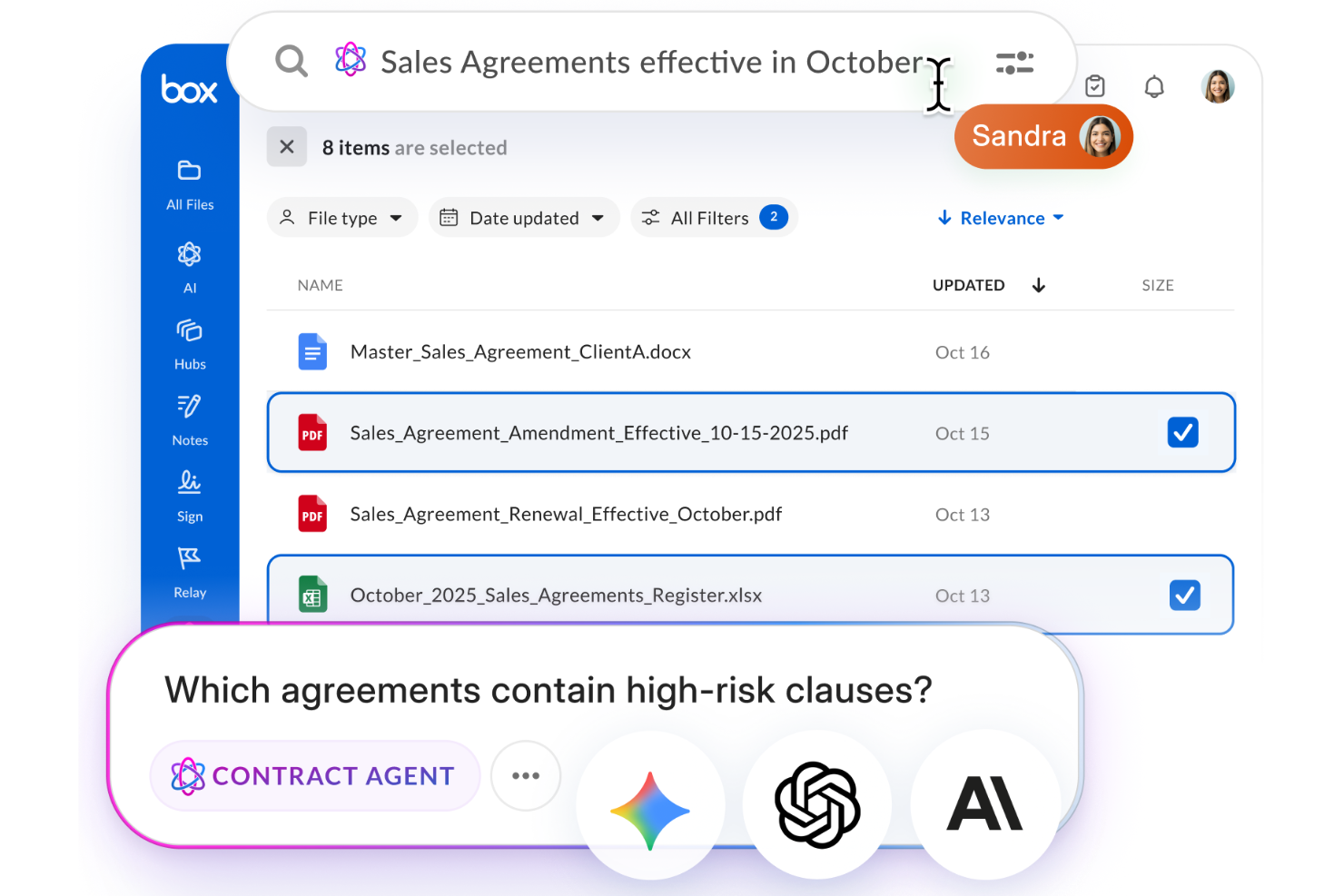
Box è una scelta solida per le organizzazioni che necessitano di un controllo preciso su chi può accedere, modificare o condividere documenti sensibili. È particolarmente utile per i team che operano in settori regolamentati o che gestiscono informazioni riservate tra dipartimenti o partner esterni. Box si distingue per le sue avanzate autorizzazioni di accesso, che aiutano le aziende a gestire requisiti complessi di sicurezza dei documenti senza sacrificare la collaborazione.
Perché ho scelto Box
Per i team che devono gestire file sensibili e controllare l'accesso ai documenti a livello dettagliato, Box offre impostazioni di autorizzazione avanzate che vanno oltre la semplice condivisione. È possibile assegnare ruoli personalizzati, impostare l'accesso a livello di cartella e limitare il download o la modifica per utenti o gruppi specifici.
Ho scelto Box perché offre alle organizzazioni la flessibilità di personalizzare l'accesso ai documenti per collaboratori interni ed esterni, un aspetto fondamentale per la conformità e la protezione dei dati. Queste funzionalità rendono Box particolarmente adatto alle aziende che non possono scendere a compromessi sulla sicurezza dei documenti ma che necessitano comunque di collaborare.
Funzionalità principali di Box
Altre funzionalità che rendono Box utile per la gestione dei documenti includono:
- Generatore di workflow automatizzati: crea flussi di lavoro personalizzati per automatizzare la distribuzione e l'approvazione dei documenti.
- Ricerca full-text: ricerca all'interno dei documenti e dei metadati dei file per trovare rapidamente i contenuti.
- Cronologia delle versioni dei documenti: accedi e ripristina versioni precedenti dei file secondo necessità.
- Integrazione con firma elettronica: raccogli firme elettroniche legalmente vincolanti direttamente in Box.
Integrazioni di Box
Le integrazioni includono Microsoft 365, Google Workspace, Salesforce, IBM, ServiceNow, Slack, Adobe, Apple iWork, Okta e molte altre.
Pros and Cons
Pros:
- Controlli avanzati delle autorizzazioni per la condivisione dei documenti
- Generatore di workflow automatizzati per i processi documentali
- Ricerca full-text su tutti i file archiviati
Cons:
- La configurazione dell'accesso per collaboratori esterni può essere complessa
- L'accesso offline ai file richiede un'app desktop separata

M-Files
Ideale per l’organizzazione dei documenti basata sui metadati

M-Files adotta un approccio unico alla gestione dei documenti organizzando i file in base ai metadati invece che alle tradizionali strutture di cartelle. Questo sistema è particolarmente utile per i team che operano in settori regolamentati o per le organizzazioni con esigenze complesse di ricerca dei documenti e conformità. Se desideri trovare, tracciare e controllare i documenti in base a ciò che sono piuttosto che al loro luogo di archiviazione, M-Files offre una soluzione flessibile.
Perché ho scelto M-Files
Ciò che distingue M-Files è il suo approccio basato sui metadati per l’organizzazione dei documenti, che supera i limiti dei sistemi tradizionali basati su cartelle. Ho scelto M-Files perché permette di etichettare i documenti con metadati personalizzati, rendendo molto più semplice la ricerca, il filtraggio e l’applicazione delle regole di conformità su grandi volumi di file.
Le funzionalità di controllo delle versioni e di audit trail della piattaforma aiutano anche i team a tracciare le modifiche ai documenti e a soddisfare i requisiti normativi. Per le organizzazioni che devono gestire cicli di vita documentali complessi e garantire che le informazioni siano sempre reperibili, M-Files offre una struttura che si adatta alla tua azienda, e non il contrario.
Caratteristiche principali di M-Files
Altre caratteristiche che rendono M-Files una scelta versatile per la gestione documentale:
- Motore di workflow automatizzati: Permette di progettare e automatizzare i processi di approvazione e revisione dei documenti.
- Accesso mobile: Offre app dedicate per dispositivi mobili per accedere e gestire i documenti ovunque tu sia.
- Integrazione con Microsoft 365: Si collega direttamente con Microsoft Teams, SharePoint e Outlook per la collaborazione sui documenti.
- Supporto per firma elettronica: Consente di raccogliere firme legalmente valide all’interno della piattaforma.
Integrazioni di M-Files
Le integrazioni includono Microsoft Teams, Microsoft SharePoint, Microsoft Outlook, Microsoft Word, Microsoft Excel, Microsoft PowerPoint e altri.
Pros and Cons
Pros:
- La ricerca tramite metadati trova documenti in tutti i repository
- La cronologia delle versioni traccia ogni modifica ai documenti
- I workflow automatizzati supportano approvazioni a più fasi
Cons:
- L’accesso offline è limitato a determinati dispositivi
- Le autorizzazioni utente possono essere complesse da configurare

Ideale per la gestione collaborativa dei file

Zoho WorkDrive è pensato per i team che hanno bisogno di organizzare, condividere e collaborare su file in tempo reale. È particolarmente utile per aziende distribuite, agenzie creative e team basati su progetti che fanno affidamento su cartelle condivise e versionamento dei documenti. Con spazi di lavoro integrati per i team e controlli di accesso dettagliati, Zoho WorkDrive aiuta i gruppi a gestire i documenti insieme senza perdere traccia delle modifiche o della proprietà.
Perché ho scelto Zoho WorkDrive
La collaborazione è al centro di Zoho WorkDrive, ed è per questo che l'ho scelto per i team che devono gestire i file insieme. La piattaforma offre Cartelle di Team condivise, in modo che i gruppi possano organizzare i documenti per progetto o dipartimento e controllare chi può visualizzare o modificare ogni file.
Apprezzo anche la funzione di versionamento integrato dei documenti, che permette agli utenti di tenere traccia delle modifiche e ripristinare versioni precedenti senza confusione. Per chi cerca un software di gestione documentale economico che supporti il lavoro di squadra in tempo reale, le funzionalità collaborative di Zoho WorkDrive lo rendono una scelta vincente.
Funzionalità principali di Zoho WorkDrive
Altre funzionalità che distinguono Zoho WorkDrive nella gestione documentale includono:
- Permessi di accesso dettagliati: Imposta permessi dettagliati per utenti e gruppi su file e cartelle.
- Anteprima file integrata: Visualizza documenti, immagini e video direttamente nel browser senza scaricarli.
- Timeline delle attività: Tieni traccia delle attività su file e cartelle con un registro dettagliato.
- App di sincronizzazione desktop: Sincronizza i file tra desktop e cloud per l'accesso offline.
Integrazioni di Zoho WorkDrive
Le integrazioni includono Zoho Projects, Zoho Bigin, Zoho Cliq, Microsoft Office, Microsoft Outlook, Gmail e altre.
Pros and Cons
Pros:
- Le cartelle di team supportano la collaborazione di gruppo strutturata
- Il versionamento integrato dei file evita sovrascritture accidentali
- La timeline delle attività traccia tutte le azioni sui documenti
Cons:
- Le opzioni di condivisione esterna richiedono configurazioni aggiuntive
- Nessuna funzionalità di firma elettronica integrata

Folderit
Ideale per piccoli team che necessitano di flussi di lavoro di approvazione
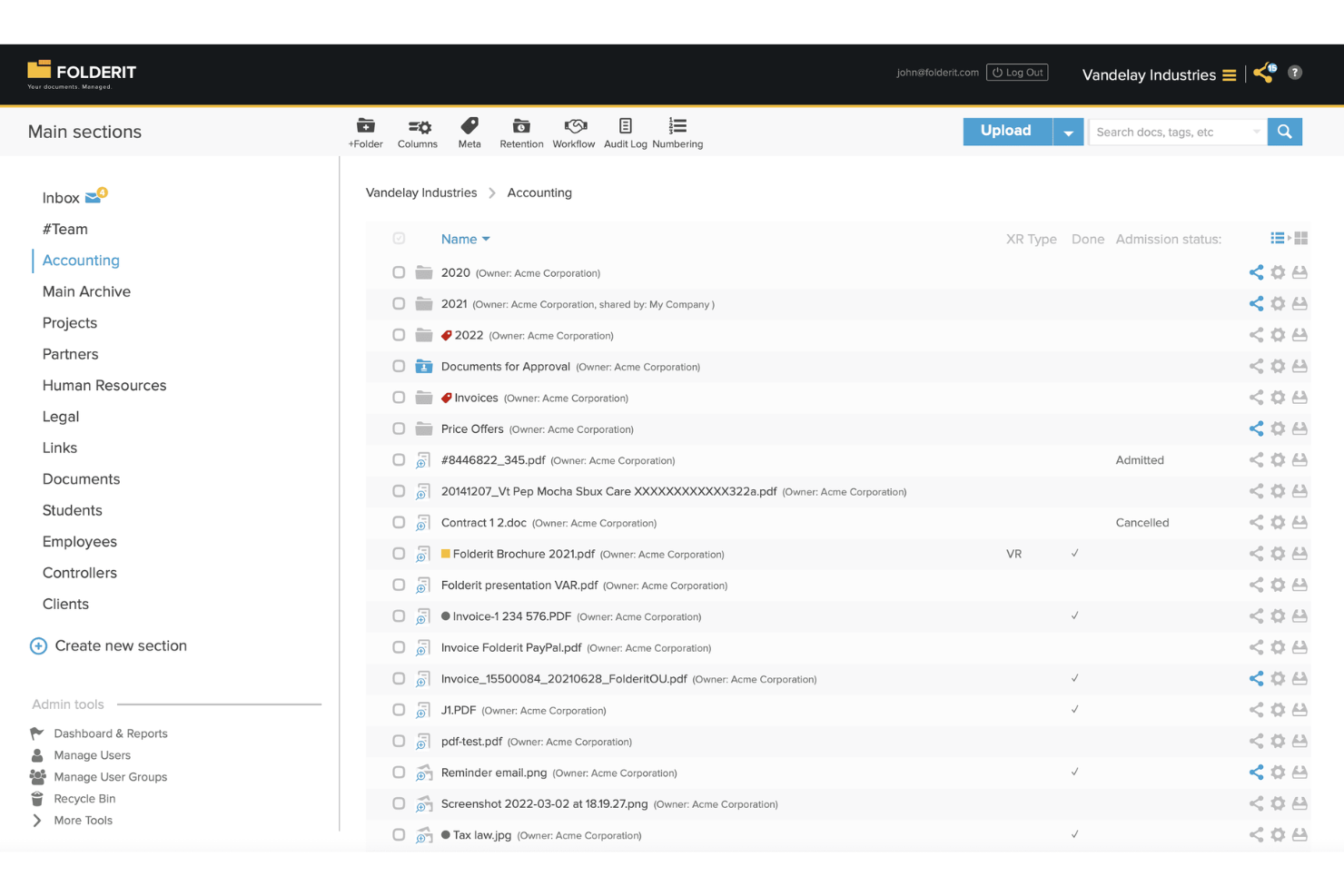
Folderit è progettato per piccoli team che necessitano di flussi di lavoro di approvazione documentale semplici, senza una curva di apprendimento ripida. È una soluzione adatta alle organizzazioni che vogliono gestire accessi, versioni e conservazione dei documenti in un sistema cloud intuitivo. Se il tuo team ha bisogno di un modo economico per mantenere i file organizzati e monitorare le approvazioni, Folderit offre una soluzione mirata.
Perché ho scelto Folderit
Per i team che cercano una gestione documentale accessibile con flussi di lavoro di approvazione integrati, Folderit si distingue per semplicità e chiarezza d'obiettivo. Ho scelto Folderit perché consente di configurare processi di approvazione a più fasi direttamente nella piattaforma, così i documenti passano senza intoppi da bozza ad approvazione definitiva.
Puoi assegnare permessi a livello di cartella o documento, assicurandoti che solo le persone autorizzate possano revisionare o approvare i file. Folderit inoltre traccia ogni azione di approvazione, fornendo al tuo team un chiaro registro delle attività per garantire conformità e responsabilità.
Funzionalità chiave di Folderit
Altre funzionalità di Folderit lo rendono una scelta pratica per i team che gestiscono i documenti con un budget limitato:
- Versionamento dei documenti: Mantiene una cronologia completa delle modifiche, così puoi accedere o ripristinare versioni precedenti di qualsiasi file.
- Programmazione automatica della conservazione: Permette di impostare regole sulla durata di mantenimento dei documenti prima dell’archiviazione o eliminazione.
- Campi di metadati personalizzati: Consente di assegnare tag ai documenti con dati personalizzati per facilitarne la ricerca e la categorizzazione.
- Funzionalità Email-In: Permette agli utenti di inviare documenti direttamente a Folderit tramite email, facilitando la raccolta dei file ovunque si trovino.
Integrazioni di Folderit
Le integrazioni includono Microsoft Office 365, Outlook, DocuSign, Salesforce, HubSpot, SAP, Microsoft Dynamics e altro ancora.
Pros and Cons
Pros:
- I flussi di lavoro di approvazione sono inclusi in ogni piano
- Campi metadati personalizzati per ricerche avanzate
- Conservazione e archiviazione automatica dei documenti
Cons:
- Nessun strumento di modifica documenti integrato
- Opzioni limitate di reportistica e analisi

Bitrix24
Ideale per strumenti di comunicazione di team integrati
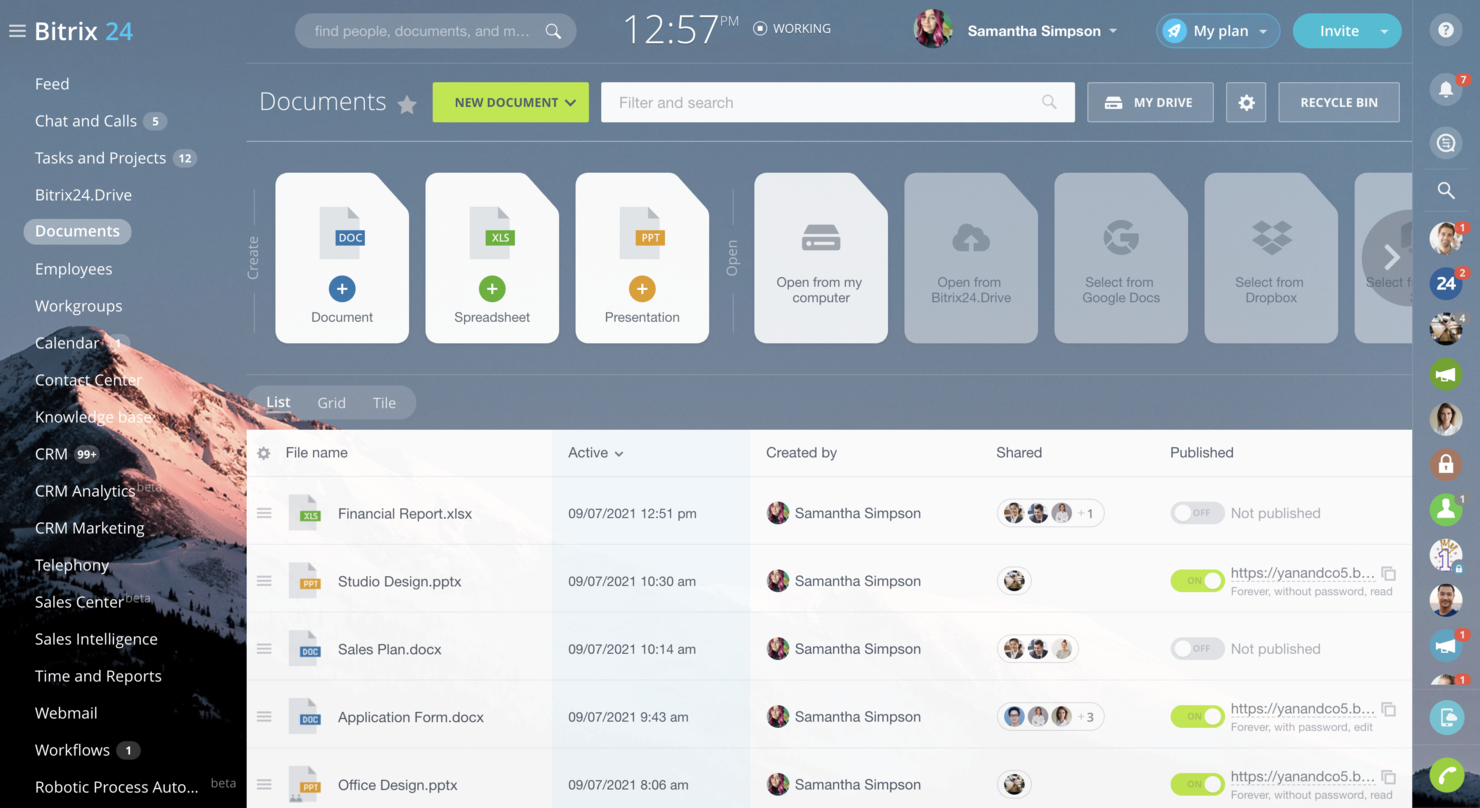
Se il tuo team ha bisogno di una gestione documentale strettamente collegata a chat, video e strumenti per le attività, Bitrix24 unisce tutto questo in un'unica piattaforma. È particolarmente indicato per piccole imprese e team distribuiti che desiderano mantenere conversazioni, file e aggiornamenti di progetto in un unico spazio di lavoro. Bitrix24 si distingue per le sue funzionalità di comunicazione integrate che aiutano i team a collaborare sui documenti senza dover passare da un'app all'altra.
Perché ho scelto Bitrix24
Ciò che distingue Bitrix24 è la combinazione della gestione documentale con strumenti di comunicazione integrati per il team. Puoi chattare, avviare videochiamate e commentare i file direttamente all'interno della piattaforma, mantenendo così la collaborazione concentrata e riducendo la necessità di cambiare applicazione. Ho scelto Bitrix24 perché consente ai team di gestire documenti e conversazioni nello stesso spazio di lavoro, facilitando il monitoraggio di feedback e decisioni.
Per chi cerca un software di gestione documentale conveniente che dia priorità all'interazione in tempo reale tra i membri del team, le funzionalità di comunicazione di Bitrix24 sono un vantaggio evidente.
Funzionalità Principali di Bitrix24
Altre funzionalità che rendono Bitrix24 utile per la gestione dei documenti includono:
- Flussi di approvazione dei documenti: Imposta processi di approvazione automatizzati per file e cartelle.
- Controlli di accesso dettagliati: Assegna permessi specifici a utenti o gruppi per ogni documento.
- Cronologia delle versioni: Traccia e ripristina versioni precedenti dei documenti quando necessario.
- Distribuzione cloud e on-premise: Scegli tra opzioni cloud o auto-ospitate per l'archiviazione dei tuoi documenti.
Integrazioni di Bitrix24
Le integrazioni includono Google Drive, Dropbox, OneDrive, Microsoft Office 365, Gmail, Outlook, Twilio e altre.
Pros and Cons
Pros:
- Chat e videochiamate integrate per i team
- Flussi di approvazione documentale per revisioni strutturate
- Opzione di distribuzione on-premise per il controllo dei dati
Cons:
- Limiti di dimensione dei file nei piani base
- Occasionali ritardi nella sincronizzazione con l'archiviazione cloud

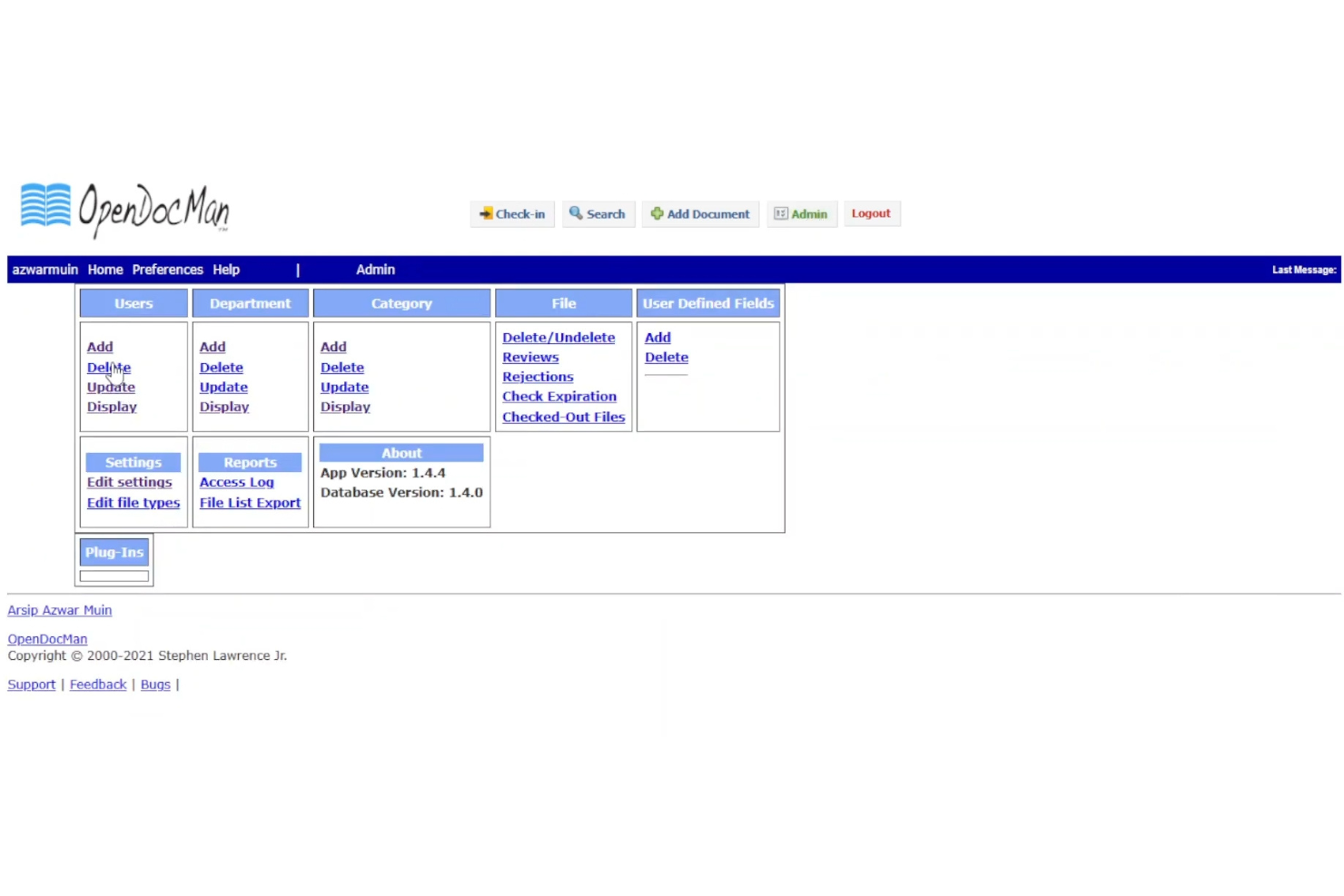
Se cerchi un sistema di gestione documentale open-source completamente personalizzabile, OpenDocMan è da prendere in considerazione. È particolarmente adatto a team IT, sviluppatori, o organizzazioni con esigenze specifiche di conformità o di flusso di lavoro che gli strumenti pronti all’uso non possono soddisfare. OpenDocMan ti offre il controllo su funzionalità, integrazioni e modalità di distribuzione, rendendolo ideale per chi desidera adattare l’ambiente di gestione documentale alle proprie necessità.
Perché ho scelto OpenDocMan
OpenDocMan si distingue per i team che vogliono costruire un sistema di gestione dei documenti su misura. L’ho scelto perché è open-source, quindi puoi modificare la base di codice, aggiungere moduli personalizzati o adattare i flussi di lavoro alle esigenze della tua organizzazione.
La piattaforma supporta campi di metadati personalizzati e categorie di documenti definite dall’utente, offrendoti flessibilità nell’organizzazione e nel recupero dei file. Per i team con esigenze particolari di conformità, sicurezza o processo, OpenDocMan offre un livello di controllo difficile da trovare nelle alternative closed-source.
Funzionalità principali di OpenDocMan
Altre funzionalità rendono OpenDocMan una scelta flessibile per i team di gestione documentale:
- Processo di revisione documentale automatizzato: assegna i documenti ai revisori e traccia lo stato di approvazione all’interno del sistema.
- Controllo degli accessi basato sui ruoli: ti consente di impostare permessi per utenti e gruppi per controllare chi può visualizzare, modificare o approvare i documenti.
- Gestione scadenza e conservazione dei file: ti permette di impostare date di scadenza per i documenti e di automatizzare le politiche di conservazione.
- Supporto ai plugin: consente di estendere le funzionalità con plugin per notifiche, integrazioni o flussi di lavoro personalizzati.
Integrazioni OpenDocMan
Le integrazioni native non sono attualmente elencate.
Pros and Cons
Pros:
- Il codice sorgente è completamente modificabile
- Il sistema di plugin permette l'estensione delle funzionalità
- Supporta flussi di lavoro di revisione documentale automatizzati
Cons:
- Il caricamento massivo richiede passaggi di configurazione manuali
- Nessuna opzione cloud o SaaS integrata


Se la tua organizzazione si basa sull'integrazione della gestione documentale con altri sistemi aziendali, Hyland Alfresco è progettato per un'integrazione profonda. Questa piattaforma è particolarmente indicata per i team IT, le grandi aziende e i settori regolamentati che hanno necessità di collegare i contenuti con piattaforme ERP, CRM o HR. Hyland Alfresco aiuta a centralizzare i documenti supportando al contempo flussi di lavoro complessi e requisiti di conformità su tutto il tuo stack tecnologico esistente.
Perché ho scelto Hyland Alfresco
Ciò che distingue Hyland Alfresco è il suo forte orientamento al collegamento tra la gestione documentale e i sistemi aziendali. Ho scelto questa piattaforma perché offre connettori integrati per ERP, CRM e piattaforme HR, facilitando così l'unificazione dei contenuti tra le applicazioni di business. Hyland Alfresco supporta anche l'automazione avanzata dei flussi di lavoro, consentendo di instradare documenti e approvazioni direttamente all'interno dei processi esistenti. Questo approccio aiuta le organizzazioni a mantenere la conformità e la coerenza, riducendo il lavoro manuale tra i sistemi.
Funzionalità principali di Hyland Alfresco
Altre funzionalità che rendono Hyland Alfresco una soluzione solida per la gestione documentale includono:
- Versionamento dei documenti: Mantiene una cronologia completa delle modifiche ai documenti e consente agli utenti di tornare alle versioni precedenti.
- Controlli granulari sui permessi: Permette agli amministratori di impostare diritti di accesso dettagliati per utenti e gruppi.
- Ricerca full-text: Permette agli utenti di cercare l'intero contenuto dei documenti, non solo i metadati.
- Accesso da mobile: Fornisce app dedicate per dispositivi mobili per accedere e gestire i documenti ovunque.
Integrazioni di Hyland Alfresco
Le integrazioni includono Google Workspace, Salesforce, SAP, DocuSign, Oracle, IBM FileNet, Box, Dropbox, Adobe Sign e altro ancora.
Pros and Cons
Pros:
- Supporta automazione di flussi di lavoro e processi complessi
- Solide funzionalità di conformità e audit trail
- Scalabile per grandi archivi documentali
Cons:
- Il processo di aggiornamento può interrompere i flussi di lavoro esistenti
- Template integrati limitati per le tipologie di documenti

isoTracker
Ideale per il controllo documentale orientato alla conformità

isoTracker è progettato per le organizzazioni che devono mantenere una rigorosa conformità e traccia degli audit attraverso i flussi di lavoro dei documenti. È particolarmente utile per i responsabili della qualità e le industrie regolamentate che richiedono controllo delle versioni, processi di approvazione e politiche di conservazione dei documenti. Se il tuo team affronta regolarmente audit o deve rispettare gli standard ISO, isoTracker aiuta a centralizzare e automatizzare il controllo documentale orientato alla conformità.
Perché ho scelto isoTracker
Quando la conformità e il controllo dei documenti sono una priorità, isoTracker offre una soluzione mirata per i team regolamentati. Ho scelto isoTracker perché fornisce controllo delle versioni integrato, flussi di lavoro di approvazione automatizzati e tracciabilità dettagliata delle revisioni che aiutano le organizzazioni a rispettare gli standard ISO e altri requisiti normativi.
La programmazione della conservazione dei documenti e la cronologia delle modifiche della piattaforma rendono più facile dimostrare la conformità durante gli audit. Per i team che devono dimostrare l'integrità dei documenti e seguire processi di revisione rigorosi, isoTracker offre la struttura e la trasparenza richieste.
Funzionalità principali di isoTracker
Altre funzionalità che rendono isoTracker una scelta valida per la gestione documentale includono:
- Promemoria automatici per la revisione dei documenti: Invia notifiche programmate per sollecitare revisioni tempestive dei documenti.
- Permessi utente personalizzabili: Consente agli amministratori di impostare controlli di accesso dettagliati per diversi ruoli utente.
- Gestione dei documenti collegati: Collega documenti correlati per facilitare il cross-referencing e la tracciabilità.
- Monitoraggio della scadenza dei documenti: Controlla e segnala i documenti che si avvicinano alla data di scadenza.
Integrazioni di isoTracker
Le integrazioni native non sono attualmente elencate.
Pros and Cons
Pros:
- Le tracce di audit dettagliate supportano le ispezioni regolatorie
- Il monitoraggio della scadenza dei documenti previene l'uso di file non aggiornati
- La gestione dei documenti collegati facilita il cross-referencing
Cons:
- Il design dell'interfaccia appare datato rispetto ai concorrenti
- Funzionalità di collaborazione limitate per la modifica dei documenti
Altri software economici per la gestione dei documenti
Ecco alcune opzioni aggiuntive di software economici per la gestione dei documenti che non sono entrate nella mia selezione, ma che vale comunque la pena prendere in considerazione:
- SimpleIndex
Ideale per l'indicizzazione automatica dei documenti
- EisenVault
Ideale per l’archiviazione documentale multilingue
- ONLYOFFICE Workspace
Ideale per strumenti di modifica dei documenti integrati


Come Valuto i Software di Gestione Documentale Economici
Divido la mia valutazione in due livelli: i criteri di base che ogni strumento deve soddisfare—come il controllo delle versioni e i permessi di accesso—e i fattori differenzianti che rivelano quale strumento è più adatto al tuo team di progetto.
Funzionalità Principali (Requisiti di Base per Questa Lista)
Quando seleziono gli strumenti per la mia lista, li valuto ciascuno su una scala da 0 (non offre la funzionalità) a 5 (eccelle in quest'area) per ogni funzionalità principale elencata di seguito. Successivamente, calcolo il punteggio totale dello strumento in percentuale. Ogni software deve raggiungere un punteggio totale minimo del 65% per essere considerato nell'elenco.
- Archiviazione Centralizzata dei Documenti: Verifico se la piattaforma offre un archivio in cloud con strutture di cartelle e spazio sufficiente per ospitare piani di progetto, SOW e deliverable su larga scala.
- Controllo delle Versioni: Ogni progetto ha un documento che cinque persone modificano in una settimana. Valuto come lo strumento traccia le revisioni, attribuisce le modifiche agli utenti e supporta il ripristino delle versioni precedenti.
- Permessi e Controllo degli Accessi: Cerco autorizzazioni basate sui ruoli sia a livello di cartella che di file così, per esempio, puoi condividere una cartella cliente con i collaboratori esterni senza esporre i budget interni.
- Ricerca Full-Text e Metadati: Trovare una variante sepolta tra centinaia di file di progetto conta. Valuto se la ricerca copre i contenuti dei file, supporta tag e filtri con metadati personalizzati.
- Condivisione Sicura e Collaborazione: Esamino come ogni strumento gestisce la condivisione esterna con clienti e fornitori, inclusi permessi sui link, commenti e co-editing in tempo reale sui documenti di progetto.
- Piano Tariffario Accessibile: Qui valuto trasparenza sui costi e l'effettiva accessibilità delle soluzioni di ingresso, verificando se i piani gratuiti o economici impongono limiti che ne impedirebbero l'uso per progetti reali.
Una volta ottenuta una lista di strumenti che soddisfano i criteri, considero ciò che distingue ogni piattaforma.
Fattori Differenzianti (Cosa Distingue i Fornitori)
Ecco come confronto i diversi fornitori:
Funzionalità Distintive
I flussi di lavoro documentali automatizzati rappresentano un differenziale chiave. Cerco strumenti in grado di far avanzare un deliverable attraverso una catena di revisione e approvazione senza dover seguire manualmente ogni fase. Sono importanti anche i portali per clienti e ospiti. Quando collaboratori o clienti possono caricare e visualizzare file senza bisogno di una licenza a pagamento, il costo per utente rimane basso. Valuto anche quanto una piattaforma si integra con strumenti di gestione progetti come Jira o Asana, poiché collegare direttamente i documenti alle attività permette di risparmiare tempo nella ricerca del file giusto.
Oltre le Funzionalità
Il modello tariffario conta quanto il prezzo d'ingresso. Valuto come i costi crescono con l'espandersi del team, soprattutto se utenti ospiti e sforamenti di spazio generano costi aggiuntivi imprevisti. È fondamentale anche verificare le certificazioni di sicurezza e conformità come SOC 2 e la preparazione al GDPR, particolarmente se i tuoi progetti coinvolgono settori regolamentati o dati sensibili dei clienti. Considero inoltre quanto rapidamente un piccolo team possa essere operativo senza il supporto IT dedicato, inclusi strumenti di migrazione e template di cartelle già pronti per le strutture progettuali più comuni.
Come scegliere un software economico per la gestione dei documenti
È facile perdersi in lunghi elenchi di funzionalità e strutture tariffarie complesse. Per aiutarti a rimanere concentrato mentre affronti il tuo specifico processo di selezione del software, ecco un elenco di fattori da tenere a mente:
| Fattore | Cosa valutare |
|---|---|
| Scalabilità | Il software sarà in grado di gestire il volume dei tuoi documenti mentre il tuo team o la tua azienda crescono? Controlla i limiti di archiviazione, il numero massimo di utenti e le possibilità di aggiornamento. |
| Integrazioni | Si collega nativamente agli strumenti che già utilizzi (e-mail, CRM, gestione dei progetti)? Evita le soluzioni che richiedono procedure manuali alternative. |
| Personalizzazione | Puoi adattare le strutture delle cartelle, le autorizzazioni e i flussi di lavoro ai processi del tuo team? Fai attenzione ai sistemi rigidi che ti costringono ad adeguarti. |
| Facilità d'uso | Il tuo team lo adotterà rapidamente? Cerca una navigazione chiara, esigenze di formazione minime e un'interfaccia intuitiva. Se possibile, esegui dei test con utenti non tecnici. |
| Implementazione e avviamento | Quanto tempo sarà necessario per migrare i documenti e formare gli utenti? Informati sul supporto alla migrazione, sulle risorse per l'avviamento e sui tempi tipici di implementazione. |
| Costo | I livelli tariffari sono trasparenti e prevedibili? Fai attenzione ai costi nascosti, agli extra per il superamento dello spazio di archiviazione o ai componenti aggiuntivi obbligatori che potrebbero far aumentare il budget. |
| Misure di sicurezza | La piattaforma offre crittografia, controlli degli accessi e registri di controllo? Verifica la conformità agli standard di protezione dei dati del tuo settore. |
| Disponibilità dell'assistenza | Quali canali di assistenza sono disponibili (chat, telefono, e-mail) e in quali orari? Valuta se avrai bisogno di aiuto al di fuori del normale orario lavorativo. |
Cos'è un software economico per la gestione dei documenti?
Il software conveniente per la gestione documentale si riferisce a una soluzione per la gestione dei documenti o DMS che aiuta le organizzazioni ad archiviare, organizzare e controllare l'accesso ai documenti aziendali senza costi elevati. Questi strumenti per la gestione documentale supportano la condivisione dei file, gestiscono diversi tipi di file e consentono la collaborazione tra i membri del gruppo.
Molte piattaforme includono funzionalità basate sull'intelligenza artificiale, come il riconoscimento ottico dei caratteri, e supportano al contempo esigenze di conformità come quelle previste dall'HIPAA. Concentrandosi sui flussi di lavoro senza carta, queste soluzioni combinano la gestione dei documenti con strumenti di collaborazione in un sistema intuitivo.
Sono spesso considerate tra le migliori opzioni di software per la gestione documentale per i gruppi piccoli e di medie dimensioni che desiderano trovare un equilibrio tra funzionalità essenziali e prezzi convenienti.
Funzionalità
Quando selezioni un software conveniente per la gestione documentale, presta attenzione alle seguenti funzionalità principali:
- Archiviazione dei documenti: centralizza i file digitali in un archivio sicuro e organizzato, facilitando il caricamento, la categorizzazione e il recupero dei documenti quando necessario.
- Controllo delle versioni: tiene traccia delle modifiche apportate ai documenti nel tempo, consentendo agli utenti di visualizzare, ripristinare o confrontare le versioni precedenti e di prevenire la perdita accidentale dei dati.
- Autorizzazioni di accesso: consente agli amministratori di impostare i ruoli degli utenti e controllare chi può visualizzare, modificare o eliminare documenti specifici, supportando le esigenze di privacy e conformità.
- Funzionalità di ricerca: consente agli utenti di individuare rapidamente i file utilizzando parole chiave, filtri o metadati, riducendo il tempo dedicato alla ricerca delle informazioni.
- Registri di controllo: registrano tutte le attività relative ai documenti, come modifiche, download e condivisioni, garantendo trasparenza e supportando la conformità normativa.
- Caricamento e download in blocco: consente agli utenti di spostare più file o cartelle contemporaneamente, semplificando le migrazioni o i backup su larga scala.
- Condivisione dei documenti: facilita la condivisione sicura dei file con collaboratori interni o esterni, spesso mediante collegamenti di accesso personalizzabili o con date di scadenza.
- Politiche di conservazione automatizzate: supporta l'impostazione di regole per stabilire per quanto tempo conservare i documenti e quando eliminarli, aiutando le organizzazioni a gestire l'archiviazione e la conformità.
- Accesso da dispositivi mobili: fornisce app o interfacce web adattive, così gli utenti possono accedere, caricare o esaminare i documenti da smartphone e tablet.
- Supporto per le integrazioni: si connette ad altri strumenti aziendali, come piattaforme di posta elettronica o di gestione dei progetti, per mantenere i flussi di lavoro documentali connessi ed efficienti.
Vantaggi
L'implementazione di un software conveniente per la gestione documentale offre numerosi vantaggi al tuo gruppo e alla tua azienda. Ecco alcuni dei benefici che puoi aspettarti:
- Costi operativi inferiori: riduci le spese sostituendo i processi basati sulla carta e minimizzando la necessità di sistemi obsoleti costosi.
- Maggiore sicurezza dei documenti: proteggi le informazioni sensibili con controlli degli accessi, registri di controllo e funzionalità di archiviazione sicura.
- Recupero più rapido delle informazioni: individua rapidamente i file utilizzando la ricerca avanzata e un'archiviazione organizzata, risparmiando tempo in tutto il gruppo.
- Gestione semplificata della conformità: soddisfa i requisiti normativi con politiche di conservazione automatizzate e registri dettagliati delle attività.
- Collaborazione migliorata: condividi i documenti in modo sicuro con colleghi o partner esterni, supportando gli ambienti di lavoro distribuiti e ibridi.
- Scalabilità per i gruppi in crescita: aggiungi utenti e aumenta lo spazio di archiviazione man mano che la tua organizzazione si espande, senza interruzioni significative o aumenti improvvisi dei costi.
- Inserimento e adozione semplificati: consenti ai nuovi utenti di diventare rapidamente operativi grazie a interfacce intuitive, risorse formative e strumenti di migrazione semplici.
Costi e prezzi
La scelta di un software conveniente per la gestione documentale richiede la comprensione dei vari modelli di prezzo e dei piani disponibili. I costi variano in base alle funzionalità, alle dimensioni del gruppo, agli extra e ad altri fattori. La tabella seguente riassume i piani più comuni, i relativi prezzi medi e le funzionalità tipicamente incluse nelle soluzioni convenienti per la gestione documentale:
Tabella di confronto dei piani per software conveniente per la gestione documentale
| Tipo di piano | Prezzo medio | Funzionalità comuni |
|---|---|---|
| Piano gratuito | $0 | Archiviazione di base dei documenti, utenti limitati, ricerca semplice e condivisione di base. |
| Piano personale | $5–$15/utente/mese | Archiviazione individuale, controllo delle versioni, accesso da dispositivi mobili e autorizzazioni di base. |
| Piano aziendale | $10–$25/utente/mese | Collaborazione del gruppo, autorizzazioni avanzate, registri di controllo, integrazioni e automazione dei flussi di lavoro. |
| Piano per grandi imprese | $20–$40/utente/mese | Archiviazione illimitata, identità del marchio personalizzata, sicurezza avanzata, strumenti per la conformità e assistenza prioritaria. |
Domande frequenti sul software conveniente per la gestione dei documenti
Ecco alcune risposte alle domande comuni sul software conveniente per la gestione dei documenti:
Come faccio a sapere se un software per la gestione dei documenti è davvero conveniente?
Vai oltre il prezzo di base e considera i costi totali, inclusi i limiti di archiviazione, le tariffe per gli utenti, i componenti aggiuntivi e i costi dell’assistenza. Confrontali con le esigenze e il budget del tuo gruppo. Le opzioni convenienti dovrebbero offrire prezzi trasparenti e funzionalità essenziali senza richiedere costosi passaggi a piani superiori.
Il software conveniente per la gestione dei documenti è in grado di gestire i requisiti di conformità?
Sì, molte soluzioni convenienti includono funzionalità come registri di controllo, criteri di conservazione e controlli degli accessi per contribuire a soddisfare gli standard di conformità comuni. Verifica sempre che la piattaforma supporti le normative specifiche del tuo settore prima di procedere.
Quali sono i limiti del software a basso costo per la gestione dei documenti?
Gli strumenti a basso costo possono presentare limitazioni relative all’archiviazione, alle integrazioni o alle funzionalità avanzate come l’automazione dei flussi di lavoro. Esamina attentamente i dettagli del piano per assicurarti che il software soddisfi le tue esigenze attuali e future senza compromessi nascosti.
È possibile migrare i documenti dal mio vecchio sistema a una nuova piattaforma conveniente?
Sì, la maggior parte dei software per la gestione dei documenti offre strumenti per il caricamento in blocco o supporto per la migrazione. Verifica se il fornitore mette a disposizione guide, modelli o assistenza diretta per rendere più agevole la transizione per il tuo gruppo.
Quanto sono sicure le soluzioni convenienti per la gestione dei documenti?
Le piattaforme convenienti offrono generalmente funzionalità di sicurezza standard come crittografia, autorizzazioni di accesso e registri delle attività. Tuttavia, verifica sempre le certificazioni di sicurezza e le pratiche di protezione dei dati del fornitore per assicurarti che siano in linea con i requisiti della tua organizzazione.