

I 10 migliori software di automazione dei documenti recensiti nel 2026

Migliori software di automazione dei documenti: selezione


Gestire un progetto significa destreggiarsi tra innumerevoli documenti e probabilmente sei stanco di dover gestire attività ripetitive e l'inserimento manuale dei dati. È qui che entra in gioco il software di automazione dei documenti.
Nella mia esperienza, questi strumenti ti fanno risparmiare tempo, riducono gli errori e aiutano il tuo team a concentrarsi su ciò che conta davvero. Ho testato e recensito diverse opzioni software per trovare quelle migliori per te.
In questo articolo condividerò le mie recensioni imparziali delle migliori soluzioni di automazione dei documenti. Scoprirai i loro punti di forza, i punti deboli e ciò che rende unica ciascuna di esse.
Perché fidarsi dei nostri consigli sui software
Il nostro team testa e recensisce software dal 2012. In quanto project manager noi stessi, sappiamo quanto sia difficile — e importante — scegliere il software giusto.
Per questa guida, abbiamo valutato gli strumenti attraverso test pratici e ricerche indipendenti, assegnando un punteggio agli strumenti in base ai nostri criteri di selezione. Ci basiamo inoltre sulle competenze di leader di pensiero del settore e di professionisti attivi nella gestione dei progetti.
Le nostre recensioni riflettono il nostro giudizio editoriale umano, non un discorso di vendita.
Revisori esperti:
Tabella comparativa dei software di automazione dei documenti
Questa tabella comparativa riassume i dettagli sui prezzi delle mie migliori selezioni di software di automazione dei documenti:
| Tool | Best For | Trial Info | Price | ||
|---|---|---|---|---|---|
| 1 | Ideale per automazione documentale end-to-end | Demo gratuita disponibile | Da $399/mese (fatturato annualmente) | Website | |
| 2 | Ideale per flussi di lavoro non complessi | Prova gratuita di 14 giorni + demo gratuita disponibile | Prezzo su richiesta | Website | |
| 3 | Ideale per flussi di lavoro documentali multilingue | Demo gratuita disponibile | Prezzo su richiesta | Website | |
| 4 | Ideale per funzionalità OCR | Prova gratuita disponibile + demo gratuita | Prezzo su richiesta | Website | |
| 5 | Ideale per le integrazioni tra app | Disponibile piano gratuito | A partire da $19.99/mese (fatturato annualmente) | Website | |
| 6 | Ideale per l'automazione delle piccole imprese | Prova gratuita di 14 giorni + demo gratis disponibile | Da $11/utente/mese (fatturazione annuale) | Website | |
| 7 | Ottimo per analisi documentali potenziate dall'IA | Piano gratuito disponibile | Da $14,99/mese (fatturato annualmente) | Website | |
| 8 | Ideale per la gestione della conformità | Prova gratuita di 30 giorni + demo gratuita disponibile | Da $65/utente/mese | Website | |
| 9 | Ideale per la gestione documentale aziendale | Demo gratuita disponibile | Prezzo su richiesta | Website | |
| 10 | Ideale per l'elaborazione delle fatture | Prova gratuita di 14 giorni + demo gratuita disponibile | Da $18,000/anno | Website |

Recensioni dei migliori software di automazione dei documenti
Di seguito trovi i miei riepiloghi dettagliati delle mie scelte per i migliori software di automazione dei documenti. Le mie recensioni offrono uno sguardo approfondito alle funzionalità principali, ai pro e ai contro, alle integrazioni e ai casi d’uso ideali di ogni strumento, per aiutarti a trovare quello più adatto a te.

altaFlow
Ideale per automazione documentale end-to-end

altaFlow entra nella mia lista dei preferiti grazie alla sua vera automazione end-to-end per i flussi di lavoro documentali. Quando vedo team che hanno bisogno di progettare, instradare, firmare elettronicamente e archiviare documenti all'interno di un unico sistema, questa piattaforma gestisce ogni fase senza strumenti aggiuntivi. Mi piace che si possano creare flussi di lavoro avanzati utilizzando bot drag-and-drop, permettendo di automatizzare approvazioni, acquisizione dati e notifiche in modo che la maggior parte delle piattaforme non riesce a eguagliare.
Quello che distingue altaFlow è il modo in cui combina creazione di documenti, logica dei flussi di lavoro e integrazione con firme elettroniche—tutto in un unico ambiente. Questo funziona particolarmente bene per le organizzazioni che gestiscono grandi volumi di processi documentali ripetibili, come l'onboarding del personale o l'approvazione di contratti con i clienti.
Ideale per
- Organizzazioni che automatizzano flussi di lavoro documentali end-to-end
- Team che necessitano di firme elettroniche integrate, approvazioni e raccolta dati
Meno adatto per
- Generazione semplice di documenti senza automazione dei flussi di lavoro
- Utenti che necessitano di analisi o funzionalità di reportistica avanzate
Cosa rende unica altaFlow
altaFlow affronta l'automazione dei documenti in modo diverso rispetto a opzioni come Google Workspace o DocuSign. È pensato per i team che vogliono automatizzare l'intero processo, dalla creazione alle approvazioni e firme, senza dover gestire strumenti multipli. In pratica, si disegnano i flussi di lavoro in modo visuale e si orchestra ogni fase, risultando ideale quando è necessario standardizzare e gestire grandi volumi di documenti.
Compromessi con altaFlow
altaFlow è ottimizzato per la dettagliata automazione dei processi, ma la configurazione richiede tempo e pianificazione iniziale. Di conseguenza, modifiche rapide dei documenti o cambiamenti estemporanei risultano più lenti e meno comodi rispetto agli editor di base.
Pros and Cons
Pros:
- Potenti strumenti di generazione documenti e gestione del ciclo di vita dei contratti
- Si integra con i principali CRM e app aziendali
- Builder no-code che supporta flussi di lavoro personalizzati
Cons:
- La configurazione iniziale può sembrare complessa
- Personalizzazione limitata rispetto alle piattaforme enterprise

Ideale per flussi di lavoro non complessi

Document360 è una delle mie scelte migliori per i team che gestiscono l'automazione documentale semplice. Quando vedo team che hanno bisogno di configurare o aggiornare basi di conoscenza, procedure operative standard (SOP) o FAQ senza flussi di lavoro ramificati e complessi, questo è lo strumento che consiglio.
Quello che apprezzo di più è la rapidità con cui si possono pubblicare documentazioni strutturate con gestione delle categorie e tracciamento delle versioni, il tutto senza gli abituali oneri di processo.
Ideale per Document360
- Costruire basi di conoscenza o FAQ non tecniche
- Team con esigenze documentali chiare e lineari
Document360 non adatto per
- Automatizzare flussi di lavoro documentali complessi e multi-step
- Organizzazioni che necessitano personalizzazione avanzata dei flussi di lavoro
Cosa distingue Document360
Document360 si basa su un modello di documentazione senza complicazioni in cui la pubblicazione e la manutenzione dei materiali di riferimento sono centrali. Diversamente da grandi piattaforme come Confluence, che prevedono molte integrazioni e livelli, Document360 punta a un'implementazione rapida e a una navigazione chiara. Ritengo che questo si adatti a team che danno valore a basi di conoscenza o librerie di SOP pronte all'uso piuttosto che a progetti di documentazione collaborativa.
Compromessi di Document360
Mantenendo tutto semplice, Document360 limita la possibilità di progettare o automatizzare flussi di lavoro documentali complessi. Se desideri approvazioni ramificate o creazione dinamica di documenti, dovrai orientarti verso piattaforme più specializzate.
Pros and Cons
Pros:
- Funzionalità intelligenti di gestione dei file
- Offre reportistica e analisi avanzate
- Fornisce un robusto controllo delle versioni con audit trail
Cons:
- Può risultare costoso per i team con budget limitato
- La maggior parte delle integrazioni è disponibile solo nei piani di livello superiore
New Product Updates from Document360

Document360 Adds Bulk Mirroring, Eddy AI Citations, and Unified SSO
Document360 adds bulk article mirroring, citations in Eddy AI chatbot responses, and a unified Enterprise SSO setup. These updates improve content reuse, answer verification, and access management. For more information, visit Document360’s official site.
 .
.
Doxis
Ideale per flussi di lavoro documentali multilingue

Doxis è una piattaforma aziendale di automazione documentale che utilizza l'AI per l'acquisizione, la classificazione, l'instradamento dei flussi di lavoro e l'archiviazione a prova di audit attraverso SAP, Microsoft 365 e altri sistemi aziendali connessi.
Per chi è più indicato Doxis?
Doxis è adatto a team aziendali in settori come finanza, manifatturiero e settore pubblico che necessitano di automatizzare processi ad alto volume di documenti su larga scala.
Perché ho scelto Doxis
Ho scelto Doxis come uno dei migliori per i flussi di lavoro documentali multilingue per come gestisce la collaborazione transfrontaliera a livello di piattaforma. Doxis iRoom consente di invitare utenti esterni e collaborare tra team in 13 lingue, aspetto fondamentale quando si coordinano processi documentali tra sedi regionali o fornitori internazionali. Inoltre, Doxis AI.dp utilizza il processamento del linguaggio naturale per estrarre e classificare i dati dei documenti in più lingue, così i flussi di lavoro automatizzati non si interrompono quando il contenuto arriva in lingue diverse.
Caratteristiche principali di Doxis
- Doxis Business Studio: Un costruttore di app senza codice per configurare flussi di lavoro documentali, processi di rilascio e regole di automazione senza supporto degli sviluppatori.
- Elaborazione automatica delle fatture: Acquisisce, estrae e instrada le fatture in entrata attraverso un flusso di lavoro purchase-to-pay configurabile, con escalation dell'approvazione.
- Archiviazione a prova di audit: Archivia i documenti con politiche di conservazione automatiche e registri a prova di manomissione per soddisfare i requisiti di conformità.
- Ricerca aziendale: Permette agli utenti di trovare informazioni tra contenuti documentali, metadati e sistemi collegati da un'unica interfaccia di ricerca.
Integrazioni Doxis
Doxis offre integrazioni native certificate con SAP, Salesforce e l'ecosistema Microsoft, inclusi Microsoft 365, SharePoint, Outlook e Teams. Si integra anche con ServiceNow e Workday. Un'API REST supporta integrazioni personalizzate, oltre a componenti aggiuntivi per Microsoft Office e il connettore Doxis SmartBridge per SAP e Salesforce. Il supporto a Zapier non è chiaramente documentato.
Pros and Cons
Pros:
- Gestisce l'intero ciclo di vita del documento all'interno di un'unica piattaforma
- Risponde alle esigenze specifiche di automazione dei diversi dipartimenti
- L'estrazione AI sfrutta modelli di machine learning personalizzati
Cons:
- Personalizzazioni complesse richiedono spesso il coordinamento con il supporto
- Alcune funzionalità risultano ancora carenti nonostante le promesse iniziali del reparto vendite

TrailHQ
Ideale per funzionalità OCR

Nanonets funziona particolarmente bene per le organizzazioni che necessitano di OCR affidabile ed estrazione dati da documenti scansionati, fatture o moduli. Quando ho testato il suo generatore di modelli OCR e ho visto quanto rapidamente si adatta a nuovi layout di documenti, mi sono reso conto di quanto tempo faccia risparmiare ai team con pratiche amministrative variabili. Apprezzo il fatto che sia possibile personalizzare la logica di estrazione e automatizzare flussi di lavoro documentali complessi senza dover pre-formattare troppo.
Nanonets è ideale per
- Team che gestiscono grandi volumi di fatture o moduli scansionati
- Organizzazioni che richiedono flussi di lavoro OCR personalizzabili per l'estrazione dati
Nanonets non è adatto per
- Aziende che lavorano principalmente con documenti digitali nativi
- Team che necessitano di funzionalità avanzate di modifica o collaborazione su documenti
Cosa distingue Nanonets
Nanonets è progettato intorno all'addestramento di modelli OCR personalizzati, così puoi automatizzare l'elaborazione dei documenti anche quando i formati cambiano. A differenza di soluzioni come ABBYY FlexiCapture che presuppongono modelli predefiniti, Nanonets prevede che tu insegni al modello cosa cercare mano a mano che compaiono nuovi tipi di documenti. In pratica, vedo che funziona molto bene per le aziende che gestiscono grandi quantità di documentazione che si modifica nel tempo, soprattutto quando gli strumenti OCR standard iniziano a fare cilecca.
Compromessi con Nanonets
Nanonets è ottimizzato per gestire tanti tipi diversi di documenti in continua evoluzione, ma si perde l'accesso a strumenti integrati di collaborazione ed editing documentale, quindi i team che puntano su annotazioni o revisioni collaborative devono valutare altre soluzioni.
Pros and Cons
Pros:
- Piattaforma no-code
- Assistenza clienti eccellente
- Tasso di precisione elevato
Cons:
- Curva di apprendimento per i nuovi utenti
- Opzioni di personalizzazione limitate

Zapier
Ideale per le integrazioni tra app

Zapier merita un posto nell'automazione dei documenti perché collega centinaia di piattaforme dove i documenti vengono archiviati, attivati e generati. Quando devo trasferire dati tra editor di documenti cloud, servizi di firma elettronica o sistemi di archiviazione, i flussi di lavoro di Zapier (“Zap”) fanno risparmiare moltissimo tempo.
Quello che apprezzo è la possibilità di automatizzare operazioni come la generazione di PDF da moduli compilati o l'invio diretto di PDF di contratti firmati dagli strumenti di firma ai drive del team, senza passaggi manuali. Funziona al meglio quando si hanno strumenti dispersi e si ha bisogno che i documenti fluiscano tra loro senza intoppi.
I punti di forza di Zapier
- Automatizzazione dei flussi documentali tra più piattaforme cloud scollegate
- Team che necessitano di automazione no-code per azioni sui documenti da diversi strumenti
Quando Zapier non è ideale
- Assemblaggio complesso di documenti con logiche avanzate di template
- Aziende che richiedono workflow di modifica o approvazione documenti direttamente sull'applicazione
Cosa distingue Zapier
Zapier adotta una strategia diversa rispetto a suite come Google Workspace, puntando a collegare tanti strumenti specializzati invece di concentrare il lavoro in un solo ecosistema. Si creano flussi di lavoro che spostano documenti, dati o file automaticamente tra app invece di gestire ogni passaggio manualmente. È una soluzione efficace per i team che si scontrano con i limiti delle integrazioni native o che hanno bisogno che i documenti si muovano automaticamente tra sistemi separati.
Compromessi con Zapier
Zapier punta sull’automazione tra molti strumenti, ma questo significa rinunciare al controllo preciso e alle personalizzazioni profonde che offrono i sistemi di gestione documentale dedicati. Se servono fasi di modifica dettagliata o approvazione all’interno del flusso, spesso si ha una sensazione di soluzione adattata.
Pros and Cons
Pros:
- Connette una vasta gamma di app
- Riduce l'inserimento manuale dei dati
- Facile da configurare
Cons:
- Richiede gestione continuativa
- Funzionalità limitate senza piano a pagamento

Cflow
Ideale per l'automazione delle piccole imprese

Cflow è una delle mie scelte perché è progettato per le piccole imprese che devono sostituire i processi manuali di gestione dei documenti con flussi di lavoro automatizzati. Quando vedo team che faticano con cicli di approvazione su carta e documenti sparsi, spesso li indirizzo proprio qui.
Apprezzo molto la possibilità di impostare instradamenti condizionali, modelli di documento e firme digitali senza bisogno del supporto IT. Gestisce attività che richiedono molti documenti, come l'onboarding e le richieste d'acquisto, con un design visivo e semplice dei flussi di lavoro.
Ideale per
- Piccole imprese che automatizzano approvazioni e instradamenti di documenti
- Team che necessitano di progettare flussi documentali senza codice
Non adatto a
- Grandi aziende con integrazioni documentali complesse e personalizzate
- Organizzazioni che necessitano di analisi avanzate o monitoraggio della conformità
Cosa distingue Cflow
Cflow costruisce l'automazione dei flussi di lavoro intorno a processi documentali passo-passo, pensando che tu voglia mappare e automatizzare visivamente ogni approvazione o passaggio. Qui vedo che le piccole aziende traggono valore perché offre una progettazione basata su modelli invece dell'approccio da 'foglio bianco' che trovi in strumenti come Google Workspace o monday.com. Cflow si aspetta che tu definisca chi gestisce ciascun documento e quando, rendendo molto chiara la responsabilità.
Compromessi di Cflow
Cflow punta su semplicità e automazione immediata, ma questo limita quanto puoi personalizzare logiche complesse o integrazioni di dati. Per report avanzati o esigenze di conformità molto specifiche, potrebbe non essere sufficiente.
Pros and Cons
Pros:
- Adatto a piccoli team
- Interfaccia intuitiva
- Procedura di configurazione rapida
Cons:
- Funzionalità avanzate limitate
- Non ideale per grandi aziende

Ottimo per analisi documentali potenziate dall'IA

Adobe Acrobat si distingue perché porta l'intelligenza artificiale nelle analisi dei documenti su larga scala. Vedo team utilizzarlo per estrarre rapidamente dati chiave, riassumere lunghi contratti e organizzare complesse librerie PDF grazie all'IA. Mi piace come la modalità Liquid integrata e i riepiloghi generativi rendano la gestione di documenti voluminosi o densi di termini legali molto meno faticosa.
Colpisce soprattutto il modo in cui Acrobat consente di automatizzare la classificazione, l'oscuramento e la ricerca in vasti archivi—particolarmente importante quando la conformità è fondamentale.
Ideale per
- Team legali, di conformità e finanza che necessitano di analisi documentali potenziate dall'IA
- Organizzazioni che automatizzano la gestione, la sintesi o l'oscuramento dei PDF su larga scala
Non adatto a
- Team che necessitano di generazione contratti o strumenti per flussi di lavoro di firma elettronica
- Piccoli gruppi che gestiscono solo modifiche PDF di base o saltuarie
Cosa distingue Adobe Acrobat
Acrobat affronta l'automazione documentale offrendo un controllo preciso sui PDF e analisi approfondite alimentate dall'intelligenza artificiale, invece che un'automazione dei flussi di lavoro a 360° come DocuSign o monday.com. Osservo che viene scelto quando occorre organizzare, classificare e manipolare grandi quantità di documenti, specialmente per esigenze di conformità e audit.
Qui l'obiettivo è estrarre significato e struttura da PDF complessi, non la gestione di flussi progetto più ampi.
Compromessi di Adobe Acrobat
Acrobat è ottimizzato per l'intelligenza sui documenti e il controllo sui PDF, ma è limitato se vuoi automatizzare l'intero ciclo di vita dei contratti o integrare workflow completi di firma elettronica. Finirai per affiancare un altro strumento se il tuo processo richiede creazione o collaborazione nativa sui documenti.
Pros and Cons
Pros:
- Gestisce OCR multilingua ed estrazione di testo
- Permette firme digitali sicure e tracciamento
- Offre controlli granulari sui permessi dei documenti
Cons:
- Gli strumenti di collaborazione non hanno modifica in tempo reale
- L'accesso API è limitato agli abbonamenti enterprise

M-Files
Ideale per la gestione della conformità

M-Files si guadagna un posto nella mia lista per l'integrazione stretta tra conformità e automazione documentale. Ho visto organizzazioni utilizzare la sua struttura basata sui metadati per applicare il controllo dei documenti in settori ad alto rischio come la finanza o la farmaceutica. Ciò che apprezzo maggiormente è il modo in cui M-Files permette di costruire flussi di lavoro automatizzati che collegano la gestione dei record, le tracce di audit e il versionamento direttamente ai requisiti di conformità—senza bisogno di soluzioni alternative o aggiunte esterne.
M-Files: Migliore per
- Organizzazioni con rigorosi requisiti normativi e di audit
- Team che automatizzano flussi documentali orientati alla conformità
M-Files: Non ideale per
- Piccoli team con necessità di gestione documentale semplici
- Team che cercano funzionalità di collaborazione documentale avanzate
Cosa distingue M-Files
M-Files affronta l'automazione documentale trattando ogni file come un oggetto gestito tramite metadati, non solo un nome file e una posizione in una cartella. A differenza di Google Drive, che si basa su percorsi di file e condivisione aperta, M-Files richiede di classificare i documenti per tipo, stato e necessità di conformità. In pratica, noto spesso come i settori regolamentati utilizzino M-Files per assicurare che ogni documento segua un processo definito e che l'accesso sia rigorosamente controllato.
Compromessi con M-Files
M-Files è ottimizzato per il controllo rigoroso, quindi la flessibilità nella condivisione ad hoc e nella modifica collaborativa è limitata. Se il tuo flusso di lavoro dipende da una condivisione rapida e informale o da modifiche simultanee, probabilmente incontrerai delle difficoltà.
Pros and Cons
Pros:
- Organizzazione basata su metadati
- Flussi di lavoro documentali automatizzati
- Fornisce tracce di audit dettagliate
Cons:
- Richiede formazione per i nuovi utenti
- Potrebbe richiedere aggiornamenti regolari

Square 9
Ideale per la gestione documentale aziendale
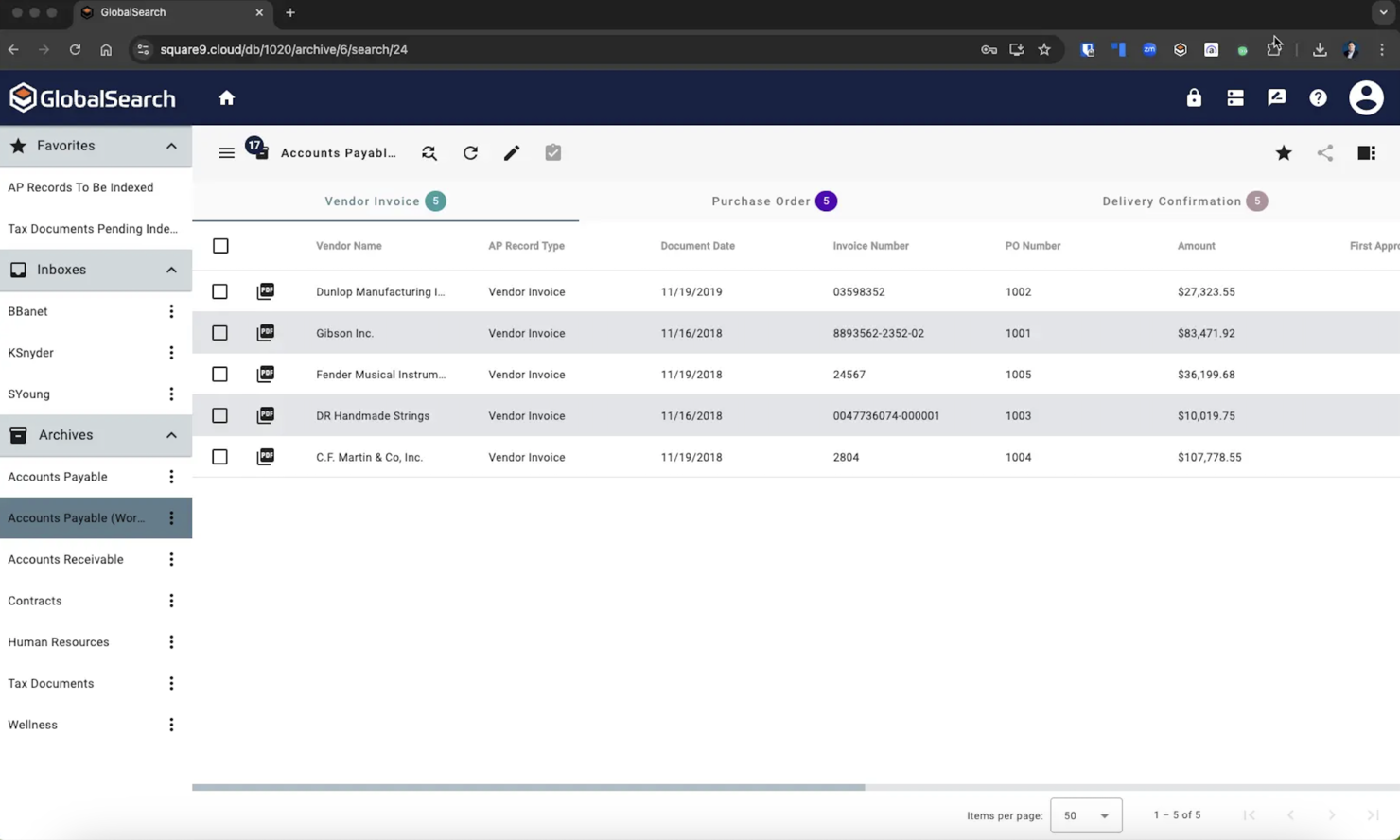
Square 9 si guadagna il posto come la mia soluzione preferita per la gestione documentale aziendale quando i team hanno bisogno di funzionalità di automazione configurabili e opzioni avanzate di conformità. Rimango sempre colpito dal suo designer di flussi di lavoro, che consente di creare instradamenti, approvazioni e generazione di documenti multi-step su misura per regole interne o controlli di audit.
Ciò che apprezzo di più è l'efficacia con cui Square 9 gestisce l'acquisizione e l'indicizzazione su larga scala, aspetto fondamentale per le organizzazioni che trattano archivi complessi e stringenti politiche di conservazione documentale.
Square 9 è l'ideale per
- Imprese con flussi di lavoro documentali complessi su più passaggi
- Organizzazioni con rigorosi requisiti di conformità o audit
Square 9 non è adatto per
- Piccole imprese che necessitano di automazione documentale di base
- Team che cercano modelli semplici e pronti all'uso
Cosa distingue Square 9
Square 9 concentra il suo design su flussi di lavoro configurabili e automazione orientata alla conformità, più di quanto facciano editor di documenti come Google Workspace. In pratica, ci si aspetta che tu definisca in dettaglio i passaggi di instradamento e approvazione prima di automatizzare. Questa modalità si rivela particolarmente efficace per organizzazioni in cui il controllo rigoroso delle versioni e la tracciabilità degli audit sono imprescindibili.
A differenza di strumenti cloud più semplici, è costruito per gestire scala e controllo del ciclo di vita documentale tra reparti e sedi diverse.
Compromessi con Square 9
Square 9 è ottimizzato per automazione personalizzata e conformità, ma questa complessità può rallentare i team che vogliono semplicemente automatizzare documenti di base. Si sacrifica una rapida configurazione per una maggiore profondità di personalizzazione e processi rigorosi.
Pros and Cons
Pros:
- Archiviazione sicura dei documenti
- Adatto a grandi organizzazioni
- Automatizza flussi di lavoro complessi
Cons:
- Potrebbe richiedere aggiornamenti regolari
- Opzioni di personalizzazione limitate

Rossum
Ideale per l'elaborazione delle fatture
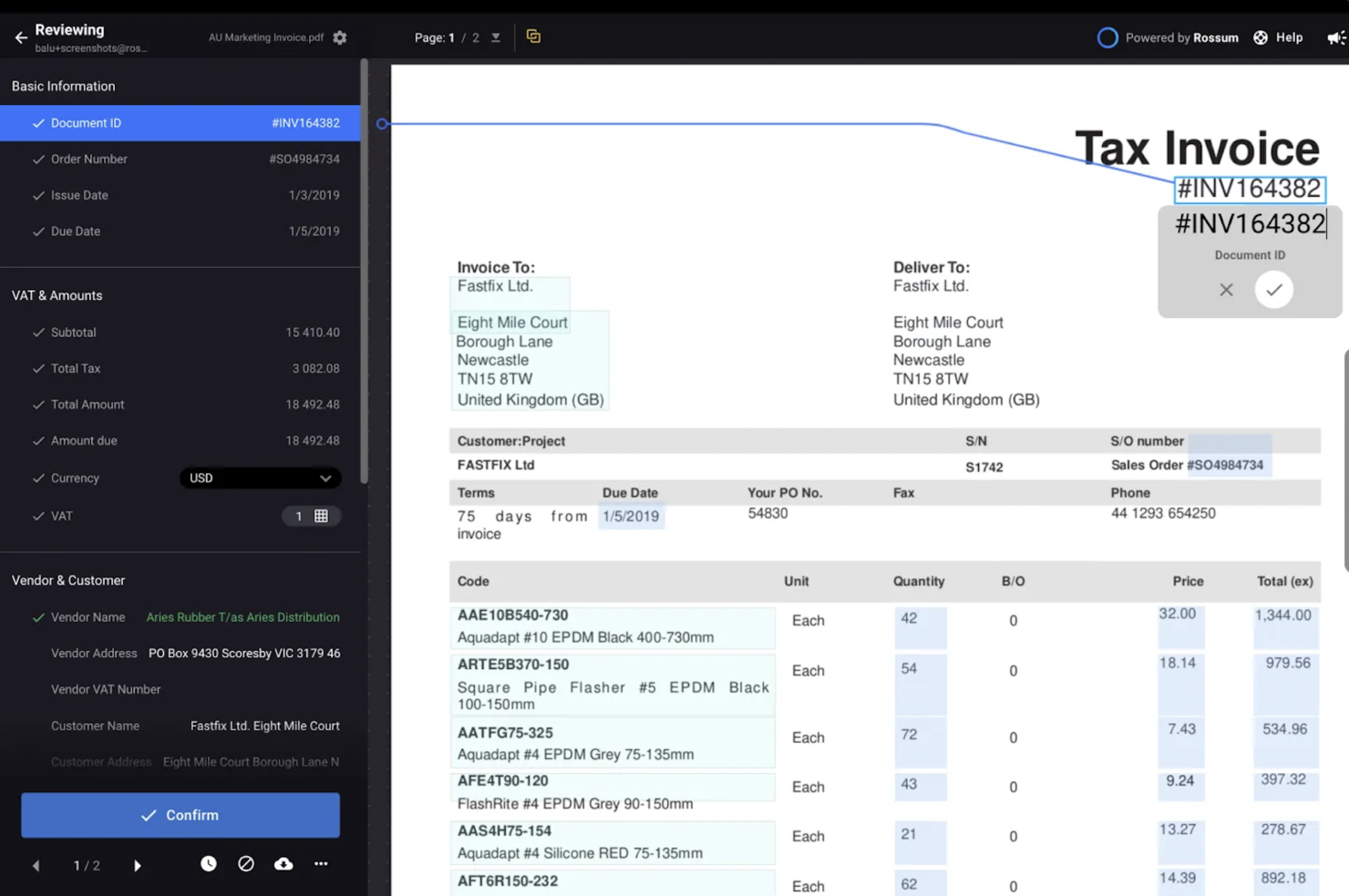
Rossum è nella mia lista perché automatizza l'elaborazione delle fatture senza configurazioni lunghe di template o creazione di regole. Lo consiglio quando i team trascorrono troppo tempo a correggere errori di estrazione o a sistemare layout complessi dei documenti. Quello che mi piace qui è la cattura intelligente tramite AI che continua ad apprendere dalle tue correzioni, oltre ai flussi di approvazione personalizzabili per il tuo processo di revisione.
Rossum è ideale per
- Aziende che gestiscono grandi volumi di fatture complesse
- Team che desiderano acquisizione e revisione dei dati documentali guidate da AI
Rossum non è adatto per
- Organizzazioni che necessitano della gestione completa del ciclo di vita dei documenti
- Team con esigenze documentali altamente specialistiche e non finanziarie
Cosa distingue Rossum
Rossum affronta l'automazione dei documenti basandosi su un'intelligenza artificiale che apprende dalle tue correzioni, così dedichi meno tempo alla gestione di template e regole fissi. A differenza di sistemi di gestione documentale come M-Files o anche qualcosa come DocuWare, presume che la tua principale difficoltà sia data dalla varietà di layout dei documenti, spesso mutevoli e complessi, soprattutto per le fatture. Questo approccio funziona particolarmente bene quando vuoi automatizzare la cattura e la revisione dei dati da formati documentali imprevedibili.
Compromessi con Rossum
Rossum è ottimizzato per attività ad alto volume di acquisizione dati, il che significa rinunciare alla gestione estesa del ciclo di vita dei documenti. Avrai bisogno di un'altra piattaforma se ti interessano archiviazione, conservazione o funzionalità avanzate di ricerca.
Pros and Cons
Pros:
- Gestisce grandi volumi di fatture
- Supporta documenti in più formati
- Riduce l'inserimento manuale dei dati
Cons:
- Può essere necessaria formazione per compiti complessi
- Costo elevato per le piccole imprese
Altri software di automazione dei documenti
Ecco alcune opzioni aggiuntive di software di automazione dei documenti che non sono entrate nella mia selezione, ma che vale comunque la pena prendere in considerazione:
- Formstack
Ideale per la generazione di moduli
- Mitratech Hotdocs
Ideale per ridurre gli errori nei documenti
- PandaDoc
Ideale per team di vendita
- Inkit
Ideale per l'automazione di stampa e spedizione
- Docupilot
Ideale per documenti basati su modelli
- DocuPipe
Ideale per la standardizzazione documentale alimentata dall'IA
- Doxis AI.dp.
Ideale per la gestione di diversi tipi di documenti
- HotDocs
Ideale per la creazione di documenti legali
- Trupeer
Il migliore per la documentazione basata su registrazioni dello schermo


Come Valuto i Software per l'Automazione dei Documenti
Divido la mia valutazione in criteri di base—come la logica dei modelli, la fusione dei dati e i flussi di lavoro di approvazione—e fattori differenzianti che distinguono i migliori strumenti dal resto.
Funzionalità Principali (Requisiti Fondamentali per questa Lista)
Quando seleziono gli strumenti per la mia lista, valuto ciascuno su una scala da 0 (non offre la funzionalità) a 5 (eccelle in quest'area) per ogni funzionalità principale elencata di seguito. Poi calcolo il punteggio totale dello strumento in percentuale. Ogni strumento deve raggiungere un punteggio totale minimo del 65% per essere preso in considerazione.
- Libreria e Builder di Modelli: Cerco piattaforme dove è possibile creare, organizzare e riutilizzare modelli con campi dinamici di unione—come un modello SOW che compila automaticamente nome del cliente, deliverable e tempistiche.
- Logica Condizionale e Regole: I migliori strumenti consentono di impostare regole if/then così che un singolo modello si adatti a seconda dello scenario, ad esempio includendo termini di pagamento diversi a seconda del tipo di progetto.
- Integrazione e Fusione dei Dati: Valuto quanto bene ogni strumento preleva dati in tempo reale da piattaforme PM, CRM o fogli di calcolo per compilare i documenti senza dover copiare-e-incollare manualmente tra vari sistemi.
- Automazione del Flusso di Lavoro e delle Approvazioni: Il routing multi-step è importante qui—verifico se sia possibile impostare approvazioni sequenziali o parallele, come una revisione da parte del responsabile di progetto prima che il cliente approvi.
- Firma Elettronica e Consegna: Sia in modo nativo che tramite integrazioni con strumenti come DocuSign o Adobe Sign, cerco la possibilità di acquisire firme, assegnare ruoli ai firmatari e tracciare la consegna in un unico flusso.
- Output del Documento e Controllo del Formato: I documenti esportati devono risultare curati e coerenti. Valuto le opzioni di formato (PDF, DOCX), i controlli per il branding e il tracciamento delle versioni tra le revisioni.
Una volta individuati gli strumenti che rispettano questi criteri, considero cosa distingue ogni piattaforma.
Fattori Differenzianti (Cosa Distingue i Fornitori)
Ecco come confronto e differenzio i diversi fornitori:
Caratteristiche Salienti
La redazione assistita da IA è un grande elemento distintivo—gli strumenti che generano una prima bozza di SOW o sintetizzano un ordine di modifica dalle note di progetto fanno davvero risparmiare tempo durante i periodi di punta delle consegne. Valuto anche la revisione collaborativa, perché spesso i team di progetto negoziano direttamente all'interno del documento con i clienti su ambito o termini. L'analitica completa il mio confronto: dashboard che tracciano i colli di bottiglia nelle approvazioni e i tempi di ciclo dei documenti aiutano i PMO a individuare i punti deboli del processo prima che ritardino una milestone.
Oltre le Funzionalità
La profondità dell'integrazione conta—verifico se uno strumento si connette nativamente a piattaforme PM come Jira, Asana o Smartsheet, non solo ai CRM. La sicurezza è un altro aspetto chiave, specialmente per i team che gestiscono contratti con i clienti; cerco conformità SOC 2, controlli di accesso basati sui ruoli e supporto SSO. Anche l'impegno richiesto per l'implementazione è un fattore. Un PMO che adotta l'automazione documentale su più team ha bisogno di onboarding guidato e supporto per la migrazione dei modelli, non solo di una knowledge base.
Come scegliere un software di automazione dei documenti
È facile perdersi in lunghi elenchi di funzionalità e strutture tariffarie complesse. Per aiutarti a rimanere concentrato mentre affronti il tuo processo di selezione del software, ecco un elenco di fattori da tenere a mente:
| Fattore | Cosa considerare |
|---|---|
| Scalabilità | Assicurati che il software possa crescere insieme alla tua azienda. Verifica se è in grado di gestire un aumento del volume di documenti e degli utenti senza compromettere le prestazioni. |
| Integrazioni | Cerca strumenti che si colleghino ai sistemi esistenti, come CRM, ERP o soluzioni di archiviazione cloud. Questo semplificherà i flussi di lavoro e ridurrà l'inserimento manuale dei dati per il tuo team. |
| Personalizzazione | Scegli un software che ti permetta di adattare modelli e flussi di lavoro alle esigenze specifiche della tua azienda. Questa flessibilità può far risparmiare tempo e migliorare l'efficienza. |
| Facilità d'uso | Scegli interfacce intuitive che richiedano una formazione minima. Assicurati che i membri del team possano adattarsi rapidamente al sistema per ridurre i tempi di inattività e massimizzare la produttività. |
| Budget | Valuta i costi totali, comprese le tariffe di abbonamento, i costi di configurazione e gli eventuali componenti aggiuntivi. Assicurati che la soluzione rientri nei tuoi vincoli finanziari e soddisfi al contempo le tue esigenze. |
| Misure di sicurezza | Dai priorità ai software che offrono solide funzionalità di sicurezza. Cerca la crittografia dei dati, i controlli degli accessi e la conformità a standard come il GDPR per proteggere le tue informazioni sensibili. |
| Assistenza | Considera il livello di assistenza clienti disponibile. Verifica la presenza di supporto 24 ore su 24, 7 giorni su 7, la disponibilità di materiali formativi e la rapidità di risposta del team di assistenza per aiutare il tuo team ad avere successo. |
Tendenze nei software di automazione dei documenti
Nella mia ricerca, ho raccolto innumerevoli aggiornamenti sui prodotti, comunicati stampa e registri delle versioni di diversi fornitori di software per l'automazione dei documenti. Ecco alcune delle tendenze emergenti che sto tenendo d'occhio:
- Approfondimenti basati sull'IA: I fornitori offrono funzionalità di IA in grado di analizzare i dati dei documenti e fornire approfondimenti utili. Questo aiuta a identificare schemi e ottimizzare i processi. Alcuni strumenti offrono anche analisi predittive per prevedere le tendenze e migliorare il processo decisionale.
- Integrazione della blockchain: Gli strumenti utilizzano la tecnologia blockchain per migliorare la sicurezza e l'autenticità dei documenti. Questa tendenza è particolarmente rilevante per settori come quello finanziario e legale, in cui l'integrità dei documenti è fondamentale.
- Riconoscimento vocale: La gestione dei documenti attivata dalla voce sta guadagnando terreno. Questa funzionalità consente di gestire e recuperare i documenti a mani libere, migliorando l'accessibilità e l'efficienza, soprattutto negli ambienti di lavoro più frenetici.
- Collaborazione: Un numero sempre maggiore di strumenti offre la modifica e la collaborazione in tempo reale sui documenti. Questa tendenza supporta il lavoro da remoto, consentendo al team di lavorare insieme indipendentemente dalla posizione.
- Funzionalità ecocompatibili: Si presta sempre più attenzione alla riduzione dell'uso della carta. I fornitori stanno introducendo funzionalità che promuovono le firme digitali e la documentazione elettronica, un aspetto vantaggioso se l'azienda desidera ridurre il proprio impatto ambientale.
Che cos'è il software per l'automazione dei documenti?
Il software per l'automazione dei documenti, a differenza del software per la generazione dei documenti, è uno strumento che semplifica l'intero processo di creazione, gestione ed elaborazione dei documenti utilizzando regole e flussi di lavoro predefiniti. Questi strumenti sono comunemente utilizzati dai professionisti dei settori legale, finanziario e aziendale per risparmiare tempo e ridurre gli errori.
Funzionalità come gli approfondimenti basati sull'IA, la collaborazione in tempo reale e le opzioni ecocompatibili contribuiscono all'efficienza, alla collaborazione e alla sostenibilità. Nel complesso, questi strumenti offrono un valore significativo migliorando la produttività e mantenendo l'accuratezza nella gestione dei documenti.
Funzionalità del software per l'automazione dei documenti
Quando scegli il software per l'automazione dei documenti, presta attenzione alle seguenti funzionalità chiave:
- Approfondimenti basati sull'IA: Questa funzionalità analizza i dati dei documenti per fornire approfondimenti utili, aiutarti a ottimizzare i processi e prendere decisioni informate.
- Collaborazione: Consente a più utenti di modificare e collaborare contemporaneamente sui documenti per migliorare il lavoro di squadra e la produttività.
- Flussi di lavoro automatizzati: Semplifica l'elaborazione dei documenti automatizzando le attività ripetitive e riducendo l'intervento manuale e gli errori.
- Modelli personalizzabili: Offre la possibilità di adattare i modelli di documento alle esigenze aziendali specifiche, risparmiando tempo e mantenendo la coerenza.
- Organizzazione basata sui metadati: Organizza i documenti in base ai metadati, consentendo un recupero più rapido e accurato.
- Registri di controllo: Tracciano la cronologia dei documenti per mantenere la responsabilità e la conformità, elementi essenziali per i settori regolamentati.
- Misure di sicurezza: Offrono funzionalità come la crittografia dei dati e i controlli di accesso per proteggere le informazioni sensibili e mantenere la conformità a standard come il GDPR.
Vantaggi del software per l'automazione dei documenti
L'implementazione di un software per l'automazione dei documenti offre diversi vantaggi al team e all'azienda. Ecco alcuni dei vantaggi che puoi aspettarti:
- Maggiore efficienza: L'automazione dei flussi di lavoro dei documenti riduce le attività manuali, fa risparmiare tempo e consente al team di concentrarsi su attività più importanti.
- Maggiore accuratezza: Funzionalità come gli approfondimenti basati sull'IA e l'estrazione automatizzata dei dati riducono al minimo gli errori, assicurando che i documenti siano accurati e affidabili.
- Migliore collaborazione: Gli strumenti di collaborazione in tempo reale consentono al team di lavorare insieme in modo efficace, indipendentemente dalla posizione.
- Risparmio sui costi: La riduzione dell'uso della carta e del lavoro manuale diminuisce le spese, rendendo le operazioni più convenienti.
- Maggiore sicurezza: Grazie a funzionalità come la blockchain e le misure di sicurezza, i documenti sono protetti dagli accessi non autorizzati e dalle violazioni dei dati.
- Impatto ambientale: Le opzioni ecocompatibili promuovono i processi digitali, consentendo di ridurre l'impronta di carbonio e sostenere gli obiettivi di sostenibilità.
- Migliore conformità: I registri di controllo e l'organizzazione basata sui metadati contribuiscono a mantenere la conformità alle normative e agli standard del settore e a ridurre i rischi legali.
Costi e prezzi del software per l'automazione dei documenti
La scelta di un software per l'automazione dei documenti richiede la comprensione dei diversi modelli di prezzo e dei piani disponibili. I costi variano in base alle funzionalità, alle dimensioni del team, ai componenti aggiuntivi e ad altri fattori. La tabella seguente riassume i piani più comuni, i relativi prezzi medi e le funzionalità tipicamente incluse nelle soluzioni software per l'automazione dei documenti:
Tabella comparativa dei piani per il software di automazione dei documenti
| Tipo di piano | Prezzo medio | Funzionalità comuni |
|---|---|---|
| Piano gratuito | $0 | Creazione di documenti di base, spazio di archiviazione limitato e supporto della comunità |
| Piano personale | $5-$25/user/month | Modelli di documenti, integrazioni di base e supporto via e-mail |
| Piano aziendale | $30-$60/user/month | Flussi di lavoro avanzati, funzionalità di sicurezza migliorate e supporto prioritario |
| Piano per grandi aziende | $70-$120/user/month | Soluzioni personalizzabili, gestione dedicata dell'account e strumenti completi per la conformità |
Domande frequenti sul software di automazione dei documenti
Ecco alcune risposte alle domande comuni sul software di automazione dei documenti:
Come posso automatizzare i processi di documentazione?
L’automazione del processo di documentazione prevede diversi passaggi. Inizia migliorando la qualità dei documenti con tecniche di pre-elaborazione come la riduzione del rumore. Utilizza la classificazione per separare le pagine e identificare i contenuti. Utilizza gli strumenti di estrazione per acquisire i dati in modo accurato, quindi convalida i dati utilizzando regole e l’intelligenza artificiale per assicurarti che siano corretti.
Quali dati vengono utilizzati nell'automazione dei documenti?
L’automazione dei documenti recupera dati da diverse fonti e li inserisce nei modelli di documenti. Questi modelli possono includere testo, tabelle, grafici e immagini. I dati utilizzati dipendono dallo scopo del documento e dalle informazioni necessarie per completarlo.
Di cosa si occupa uno specialista dell'automazione dei documenti?
Uno specialista dell’automazione dei documenti implementa e gestisce strumenti di automazione dei processi. Progetta, pianifica e implementa questi strumenti, fornisce formazione e gestisce la manutenzione e gli aggiornamenti. Il suo ruolo garantisce che i processi documentali siano efficienti e soddisfino le esigenze dell’organizzazione.
In che modo l'automazione dei documenti può migliorare la conformità?
L’automazione dei documenti migliora la conformità garantendo che i documenti rispettino gli standard normativi. I flussi di lavoro automatizzati riducono gli errori umani e le tracce di controllo forniscono una cronologia delle modifiche ai documenti. Questo aiuta il team a mantenere la responsabilità e a rispettare i requisiti legali.
In che modo l'automazione dei documenti influisce sulla produttività?
L’automazione dei documenti aumenta la produttività riducendo le attività manuali e gli errori. Consente al team di concentrarsi sulle attività a maggior valore aggiunto e di utilizzare tempo e risorse in modo più efficiente. I flussi di lavoro automatizzati velocizzano inoltre l’elaborazione e le approvazioni dei documenti.
Quali settori traggono maggiori vantaggi dall'automazione dei documenti?
Settori come quello finanziario, legale e sanitario traggono grandi vantaggi dall’automazione dei documenti. Questi settori gestiscono grandi volumi di documenti e richiedono elevati livelli di accuratezza e conformità. L’automazione aiuta a gestire queste esigenze in modo efficiente e sicuro.