

10 migliori alternative a Google Docs per la collaborazione nel 2026

Le migliori alternative a Google Docs: selezione


Una valida alternativa a Google Docs offre la modifica di documenti online, la collaborazione in tempo reale e una compatibilità affidabile dei file, senza vincolarti all'ecosistema di Google. Se stai cercando alternative a Google Docs, probabilmente cerchi strumenti che si adattino al flusso di lavoro del tuo team, che supportino esigenze di privacy o conformità, oppure che offrano funzionalità che Google Docs non possiede.
Con così tante opzioni disponibili, è difficile sapere quali piattaforme offrano davvero collaborazione, integrazione e flessibilità. Questo elenco ti aiuterà a confrontare le migliori alternative a Google Docs per il 2026, così potrai trovare la suite per ufficio online più adatta ai tuoi progetti e ai tuoi team.
Che cos'è Google Docs?
Google Docs è una suite per ufficio basata sul cloud che funziona come una moderna piattaforma di elaborazione testi, consentendo agli utenti di creare, modificare e condividere documenti online. Come elaboratore di testi basato sul browser, supporta la collaborazione in tempo reale, la cronologia delle versioni e l'accesso da qualsiasi dispositivo con una connessione a Internet. I team utilizzano Google Docs per collaborare sui documenti di testo, tenere traccia delle modifiche, lasciare commenti e gestire contenuti condivisi senza installare software desktop.
La sua integrazione con le altre app di Google Workspace lo rende uno degli strumenti di collaborazione tutto-in-uno più utilizzati dai team distribuiti. Per molte organizzazioni, Google Docs contribuisce a semplificare i flussi di lavoro per la creazione e la revisione dei documenti tra i vari reparti, soprattutto se abbinato a strumenti come Sheets e Slides.
Tabella di confronto delle alternative a Google Docs
Questa tabella di confronto riassume i dettagli sui prezzi delle mie migliori alternative a Google Docs:
| Tool | Best For | Trial Info | Price | ||
|---|---|---|---|---|---|
| 1 | Ideale per l'editing collaborativo assistito dall'IA in tempo reale | Piano gratuito disponibile | A partire da $8/mese | Website | |
| 2 | Ideale per combinare note e database | Piano gratuito disponibile | Da $10/utente/mese (con fatturazione annuale) | Website | |
| 3 | Ideale per collegare attività e documenti | Piano gratuito disponibile | A partire da $7/user/month (con fatturazione annuale) | Website | |
| 4 | Ideale per ospitare privatamente documenti nel cloud | Sono disponibili una prova gratuita e una dimostrazione gratuita | Prezzi su richiesta | Website | |
| 5 | Ideale per la compatibilità con i formati di file Microsoft | Piano gratuito disponibile | A partire da $2.49/utente/mese (con fatturazione annuale) | Website | |
| 6 | Ideale per la collaborazione in tempo reale dei team | Prova gratuita di 30 giorni + piano gratuito disponibile | A partire da $6/utente/mese (con fatturazione annuale) | Website | |
| 7 | Ideale per l'accesso ai documenti da dispositivi mobili | Prova gratuita di 7 giorni + piano gratuito disponibile | A partire da $4.19/mese (con fatturazione annuale) | Website | |
| 8 | Ideale per la modifica di documenti open source | Piano gratuito disponibile | Prezzi su richiesta | Website | |
| 9 | Ideale con strumenti integrati per la gestione dei progetti | Piano gratuito + prova gratuita di 30 giorni disponibile | A partire da $20/amministratore/mese | Website | |
| 10 | Ideale per la creazione di documenti offline | Piano gratuito disponibile | Gratuito e open source | Website |

Perché fidarsi dei nostri consigli sui software
Il nostro team testa e recensisce software dal 2012. In quanto project manager noi stessi, sappiamo quanto sia difficile — e importante — scegliere il software giusto.
Per questa guida, abbiamo valutato gli strumenti attraverso test pratici e ricerche indipendenti, assegnando un punteggio agli strumenti in base ai nostri criteri di selezione. Ci basiamo inoltre sulle competenze di leader di pensiero del settore e di professionisti attivi nella gestione dei progetti.
Le nostre recensioni riflettono il nostro giudizio editoriale umano, non un discorso di vendita.
Revisori esperti:
Recensioni delle migliori alternative a Google Docs
Di seguito sono riportati i miei riepiloghi dettagliati delle alternative a Google Docs che sono entrate nella mia selezione. Le mie recensioni offrono una panoramica dettagliata delle funzionalità, dei casi d’uso migliori e delle integrazioni di ciascuna piattaforma, per aiutarti a trovare quella più adatta a te.

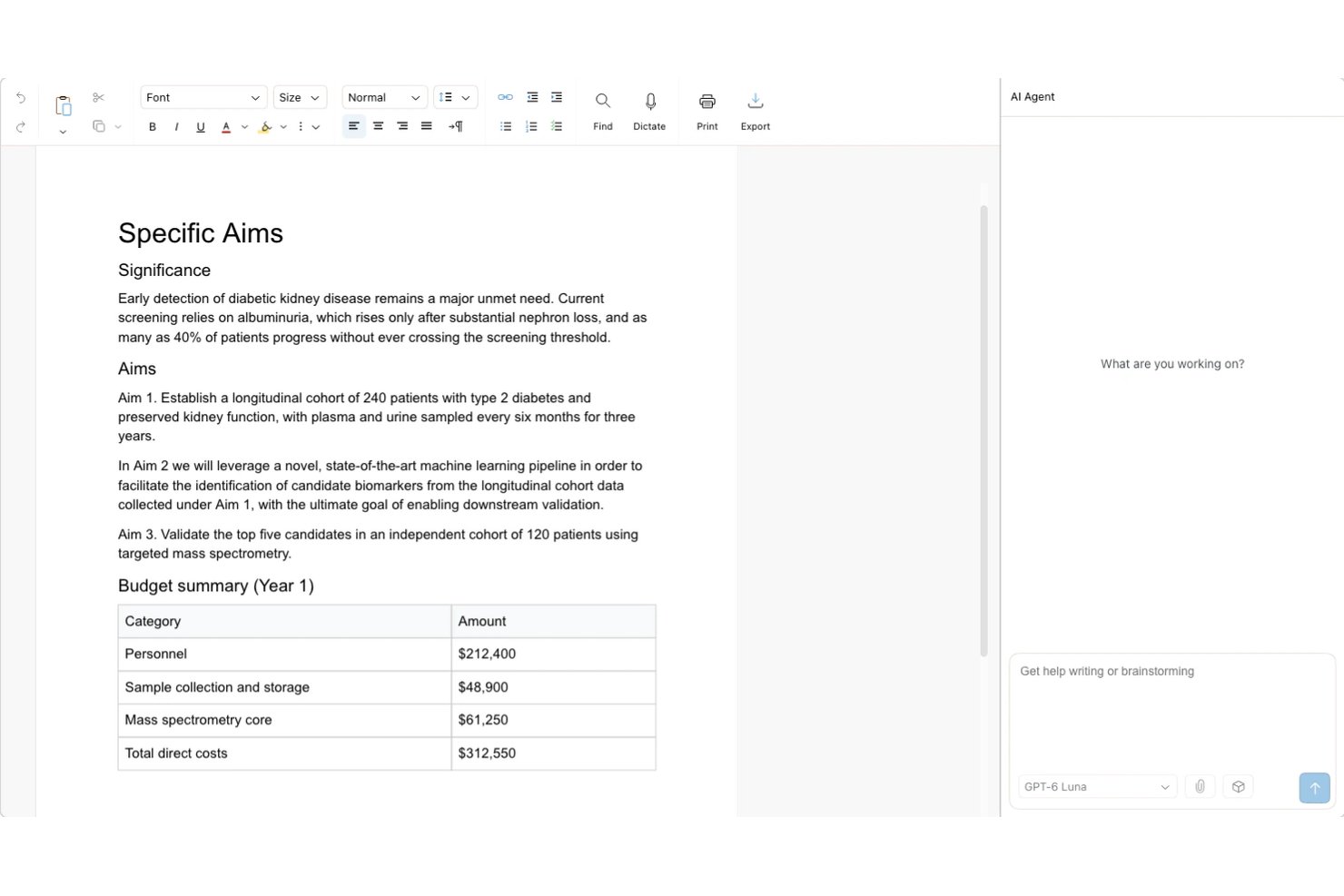
Revise è un elaboratore di testi basato sul browser che combina l'editing assistito dall'IA e la collaborazione in tempo reale per i team che desiderano modifiche dell'IA tracciate e verificabili insieme alla co-creazione dal vivo, alla formattazione avanzata e a flussi di lavoro DOCX ad alta fedeltà.
Per chi è più adatto Revise?
Revise è particolarmente adatto ai team distribuiti che devono esaminare e perfezionare le modifiche generate dall'IA senza perdere il controllo sul documento finale.
Perché Revise è una buona alternativa a Google Docs
Ho scelto Revise come uno dei migliori perché risolve un problema reale: le modifiche dell'IA che sovrascrivono il tuo lavoro prima che tu le abbia approvate. Ogni modifica proposta dall'agente IA appare come una modifica tracciata, in verde per le aggiunte e in rosso per le eliminazioni, così il mio team può accettarle o rifiutarle singolarmente. Apprezzo anche il fatto che il selettore di modelli integrato ci permetta di passare da modelli OpenAI, Anthropic, Google, xAI e Meta durante il progetto senza uscire dall'editor.
Funzionalità principali di Revise
- Presenza dal vivo: I cursori colorati, le selezioni e gli avatar dei collaboratori mostrano chi si trova nel documento.
- Ruoli di condivisione: Imposta l'accesso come Redattore, Suggeritore o Visualizzatore, anche per le persone in possesso di un link pubblico.
- Cronologia delle revisioni: Riproduci le versioni salvate e confronta punti selezionati nella cronologia.
- Formattazione dei documenti: Aggiungi tabelle, immagini, intestazioni, piè di pagina, colonne, note a piè di pagina e numeri di pagina.
Integrazioni di Revise
Revise supporta connessioni MCP con Claude, ChatGPT, Codex, Hermes, OpenClaw e altri client MCP. L'accesso MCP è gratuito in ogni piano Revise, richiede un account Revise e utilizza l'abbonamento dell'app IA; si applicano limiti orari.
Pros and Cons
Pros:
- Le modifiche dell'IA appaiono come modifiche tracciate verificabili
- Passaggio tra più modelli IA durante il progetto
- Non è necessario un account per collaborare tramite un link pubblico
Cons:
- Nessun ripristino con un clic dalla cronologia delle versioni
- L'accesso offline è limitato ai documenti aperti in precedenza
Notion
Ideale per combinare note e database
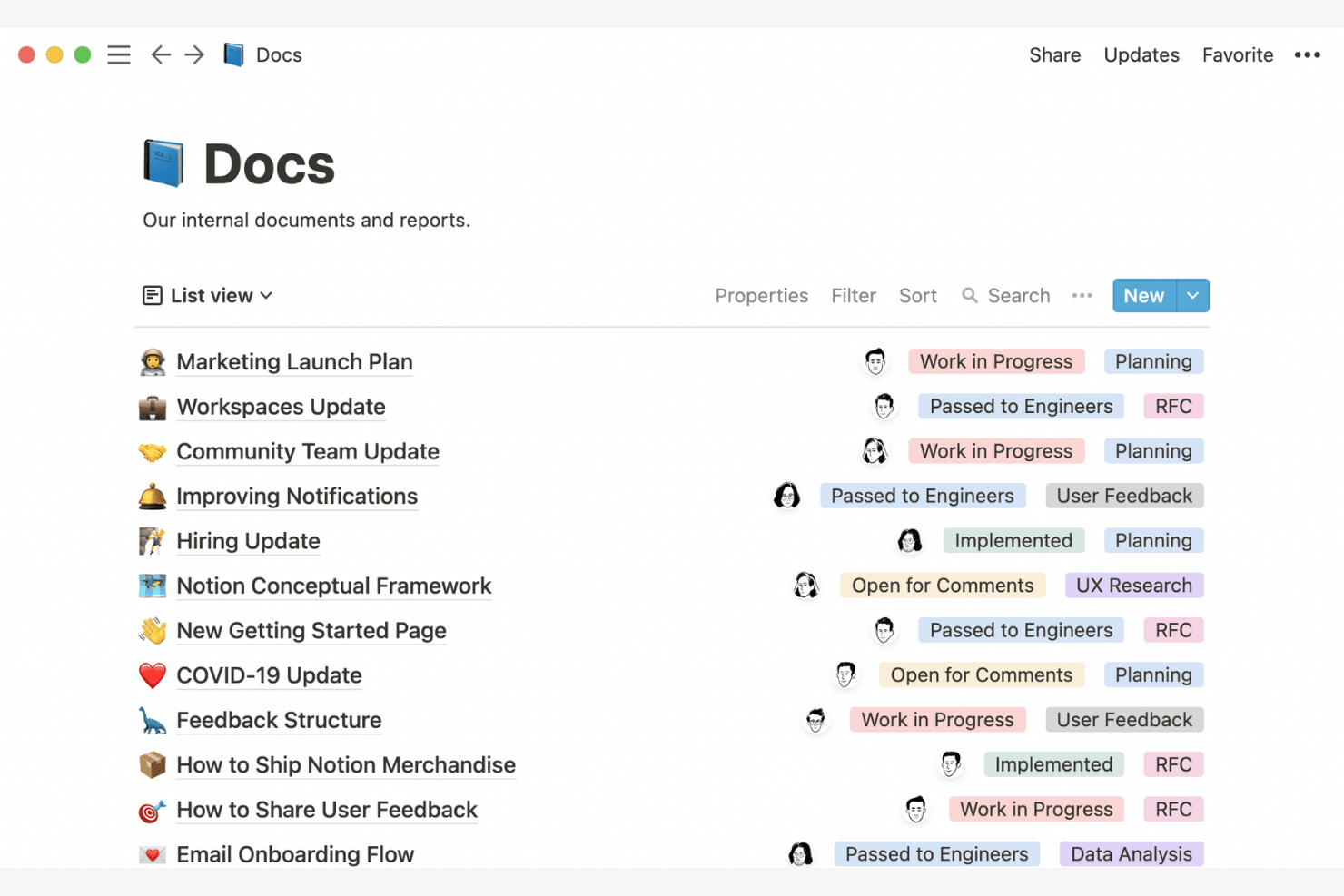
Notion offre ai team un modo per combinare presa di appunti, documentazione e database in un unico spazio di lavoro. È particolarmente utile per i product manager, i responsabili delle operazioni e chiunque debba organizzare informazioni strutturate e non strutturate fianco a fianco. A differenza di Google Docs, Notion consente di creare tabelle personalizzate, collegare le note agli strumenti di monitoraggio dei progetti e creare cruscotti che riuniscono tutto il lavoro.
Perché Notion è una buona alternativa a Google Docs
Se devi gestire note e dati strutturati in un unico posto, Notion offre un approccio esclusivo che va oltre i tradizionali editor di documenti. Ho scelto Notion perché consente di creare database, collegarli alle note e creare visualizzazioni personalizzate per monitorare progetti o risorse. Questa flessibilità permette al tuo team di organizzare qualsiasi cosa, dalle note delle riunioni alle roadmap dei prodotti, senza passare da uno strumento all'altro. Per chi desidera combinare la documentazione con tabelle ed elenchi dinamici, Notion si distingue come una valida alternativa a Google Docs.
Funzionalità principali di Notion
Altre funzionalità di Notion aiutano i team a gestire e collaborare sui contenuti in modo più flessibile:
- Organizzazione delle pagine tramite trascinamento: Sposta pagine e sezioni per ristrutturare rapidamente il tuo spazio di lavoro.
- Modifica collaborativa in tempo reale: Più utenti possono modificare contemporaneamente la stessa pagina e vedere le modifiche in tempo reale.
- Incorporamento di contenuti multimediali avanzati: Aggiungi immagini, video, frammenti di codice e file direttamente in qualsiasi pagina.
- Modelli personalizzabili: Avvia nuovi progetti o documenti con modelli predefiniti per wiki, note delle riunioni e altro.
Integrazioni di Notion
Le integrazioni includono Slack, Jira, GitHub, Asana, Google Drive, Figma, Trello, GitLab, Webex e Typeform.
Pros and Cons
Pros:
- Combina documenti e database per una gestione strutturata delle conoscenze
- Organizzazione flessibile con modelli e pagine collegate
- Ideale per wiki di team, note delle riunioni e documenti di progetto essenziali
Cons:
- La formattazione avanzata dei documenti è limitata
- L'esportazione in PDF o Word può alterare impaginazione e gerarchia

ClickUp
Ideale per collegare attività e documenti

Se il tuo team ha bisogno di collegare direttamente i documenti alle attività e ai flussi di lavoro, ClickUp offre uno spazio di lavoro unificato che riunisce documenti e gestione dei progetti. È particolarmente adatto ai team di prodotto, ingegneria e ai team interfunzionali che desiderano mantenere strettamente collegati il contesto del progetto e la documentazione. A differenza di Google Docs, ClickUp consente di incorporare attività, monitorare i progressi e fare riferimento agli elementi di lavoro direttamente all'interno dei documenti.
Perché ClickUp è una buona alternativa a Google Docs
ClickUp si distingue per i team che vogliono mantenere documenti e attività strettamente collegati in un unico spazio di lavoro. Ho scelto ClickUp perché consente di collegare i documenti direttamente alle attività, incorporare elenchi di attività aggiornati in tempo reale nei documenti e fare riferimento agli elementi del progetto senza dover cambiare strumento. Questa configurazione aiuta il tuo team a mantenere sincronizzati documentazione, aggiornamenti del progetto ed elementi d'azione man mano che il lavoro procede. Per chi ha bisogno di qualcosa di più dei semplici documenti indipendenti, l'approccio di ClickUp al collegamento tra attività e documenti offre un chiaro vantaggio rispetto a Google Docs.
Funzionalità principali di ClickUp
Alcune altre funzionalità di ClickUp aiutano i team a gestire documenti e progetti in modo più efficiente:
- Modifica avanzata del testo: Formatta i documenti con titoli, tabelle, elenchi di controllo e blocchi di codice.
- Commenti e annotazioni: Aggiungi commenti e tagga i membri del team direttamente in qualsiasi documento.
- Controlli di condivisione dei documenti: Imposta le autorizzazioni per visualizzare, modificare o commentare i documenti.
- Modelli di documenti: Usa e personalizza modelli per note delle riunioni, piani di progetto e altro.
Integrazioni di ClickUp
ClickUp offre oltre 1.000 integrazioni native con strumenti popolari come Slack, GitHub, Google Drive e Zoom.
Pros and Cons
Pros:
- Collega direttamente i documenti alle attività e ai flussi di lavoro per mantenere il contesto del progetto
- Collaborazione efficace con commenti, menzioni e autorizzazioni
- I documenti sono integrati in uno spazio di lavoro completo per i team che già utilizzano ClickUp
Cons:
- I controlli di formattazione e layout sono meno avanzati rispetto a Google Docs
- Le esportazioni possono perdere la struttura, soprattutto per documenti lunghi o complessi
New Product Updates from ClickUp
ClickUp Adds Meetings Hub, Super Agent Templates, and ZoomInfo Integration
ClickUp adds a searchable Meetings Hub, new ways to clone and template Super Agents, and a ZoomInfo integration through the App Center. These updates improve meeting retrieval, agent reuse, and access to sales intelligence. For more information, visit ClickUp’s official site.

Ideale per ospitare privatamente documenti nel cloud
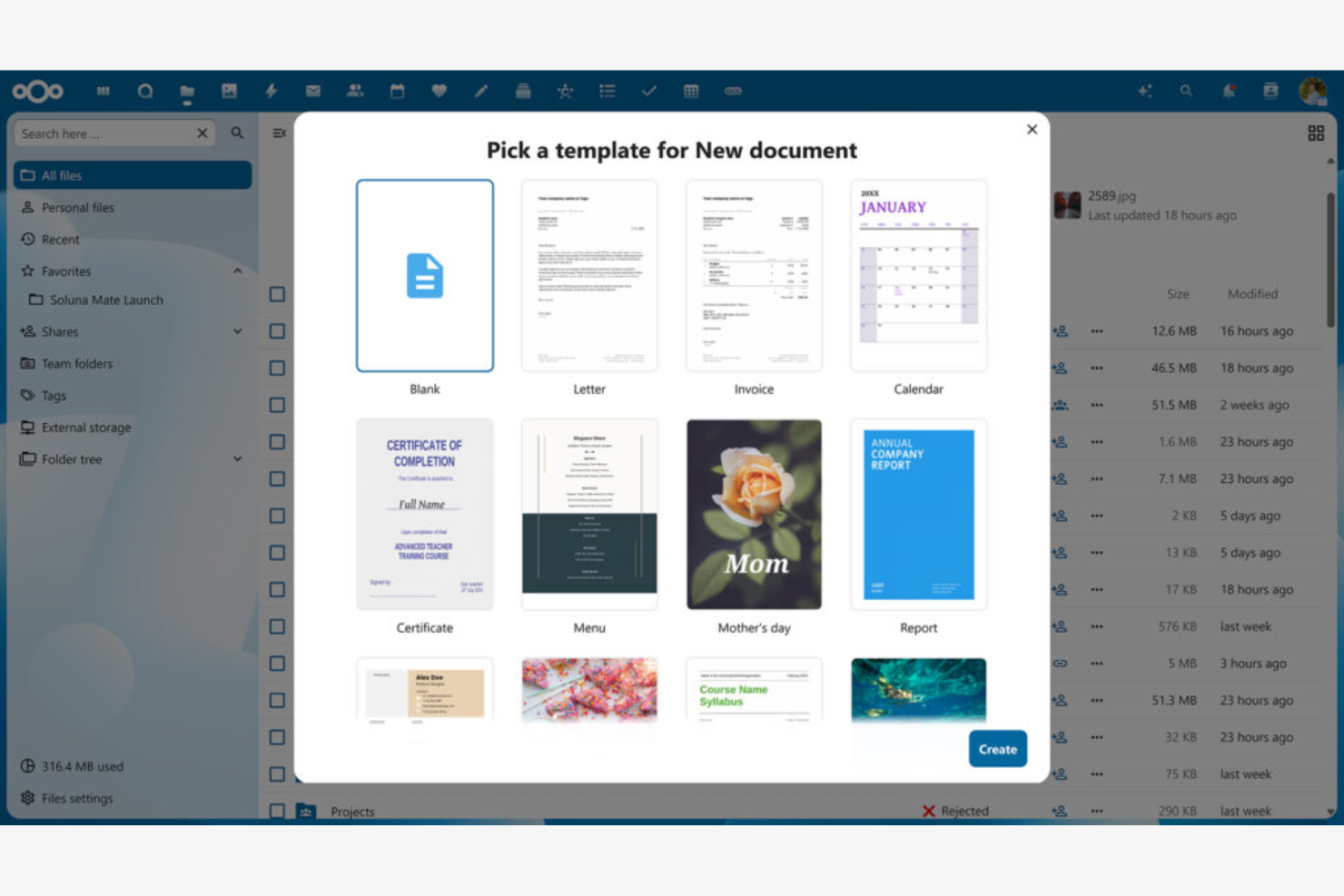
Se il tuo team ha bisogno di avere il pieno controllo sull'archiviazione e sulla privacy dei documenti, Nextcloud offre una piattaforma cloud privata che puoi ospitare autonomamente. È una soluzione particolarmente adatta alle organizzazioni con rigidi requisiti di sicurezza dei dati o che operano in settori regolamentati. Nextcloud si distingue perché ti consente di gestire documenti, collaborazione e condivisione interamente sulla tua infrastruttura, a differenza della maggior parte delle suite per ufficio basate sul cloud.
Perché Nextcloud è una buona alternativa a Google Docs
A differenza della maggior parte delle suite per ufficio cloud, Nextcloud ti offre la possibilità di ospitare il tuo ambiente privato per i documenti. Ho scelto Nextcloud perché ti consente di controllare dove risiedono i tuoi dati e chi può accedervi, un aspetto essenziale per i team con rigorose esigenze di privacy o conformità. La piattaforma supporta la modifica collaborativa, la condivisione dei file e la gestione degli utenti, tutto su un'infrastruttura che gestisci autonomamente. Questo rende Nextcloud una scelta valida per le organizzazioni che non possono affidarsi ai servizi cloud pubblici per i documenti sensibili.
Funzionalità principali di Nextcloud
Alcune altre funzionalità di Nextcloud lo rendono una piattaforma flessibile per la collaborazione sui documenti:
- Calendario e contatti integrati: Gestisci eventi e rubriche insieme ai tuoi file e documenti.
- Crittografia da un capo all'altro: Proteggi i file sensibili con una crittografia a cui solo tu e i tuoi collaboratori potete accedere.
- Controllo delle versioni: Tieni traccia delle modifiche e ripristina le versioni precedenti dei documenti quando necessario.
- Mercato delle app per la collaborazione: Estendi le funzionalità con componenti aggiuntivi per chat, videochiamate e automazione dei flussi di lavoro.
Integrazioni di Nextcloud
Le integrazioni includono OnlyOffice, Nextcloud Office, Nextcloud Assistant, Giphy, draw.io, Discord, Edusign, XtalaDraw, Sentry, Slack, YouTube, OneDrive, i servizi Google, GitLab, Dropbox, Jira, Reddit, GitHub e altro ancora.
Pros and Cons
Pros:
- Ti consente di ospitare i documenti sul tuo server privato
- Offre la crittografia da un capo all'altro per l'archiviazione di documenti sensibili
- Supporta la modifica collaborativa con OnlyOffice o Collabora Online
- Integra la condivisione dei file, il calendario e i contatti in un'unica piattaforma
- Offre agli amministratori controlli estesi sugli accessi di utenti e gruppi
Cons:
- Richiede una configurazione tecnica e una manutenzione continua del server
- La qualità della collaborazione dipende dalla suite di modifica che scegli di utilizzare

Ideale per la compatibilità con i formati di file Microsoft
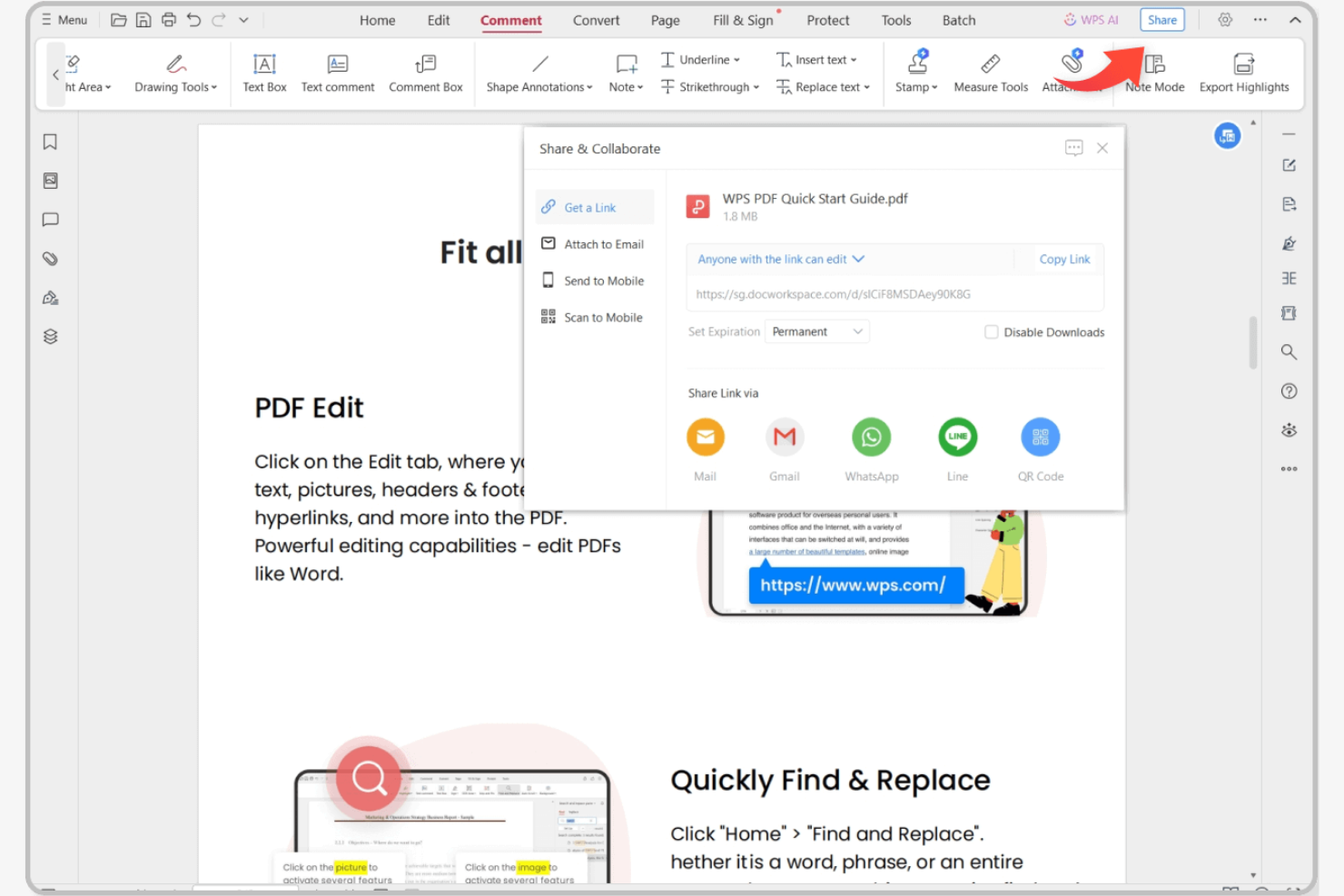
Se cerchi una suite per ufficio online in grado di gestire i formati di file Microsoft senza problemi, vale la pena prendere in seria considerazione WPS Office. È progettata per professionisti e team che scambiano regolarmente file Word, Excel e PowerPoint con clienti o colleghi che utilizzano Microsoft Office. A differenza di Google Docs, WPS Office preserva la formattazione avanzata e le funzionalità dei file Microsoft, riducendo i problemi di compatibilità durante la collaborazione.
Perché WPS Office è una buona alternativa a Google Docs
Quando hai bisogno di una compatibilità impeccabile con i formati di file Microsoft, WPS Office si distingue dalle altre suite per ufficio online. Ho scelto WPS Office perché apre, modifica e salva file DOCX, XLSX e PPTX preservando la formattazione avanzata, le macro e gli oggetti incorporati. La suite include anche un editor PDF integrato, utile per i team che lavorano con diversi tipi di documenti. Se il tuo flusso di lavoro dipende dallo scambio di file con utenti di Microsoft Office, WPS Office ti aiuta a evitare i problemi di formattazione che si verificano spesso con Google Docs.
Funzionalità principali di WPS Office
Alcune altre funzionalità di WPS Office aiutano i team a gestire documenti e flussi di lavoro in modo più efficiente:
- Interfaccia dei documenti a schede: Apri e passa da un documento all’altro in un’unica finestra.
- Integrazione con l’archiviazione cloud: Collegati a servizi come Dropbox, Google Drive e OneDrive per accedere direttamente ai file.
- Libreria di modelli per documenti: Accedi a un’ampia gamma di modelli predefiniti per report, curriculum e presentazioni.
- Supporto multipiattaforma: Utilizza WPS Office su dispositivi Windows, macOS, Linux, Android e iOS.
Integrazioni di WPS Office
WPS Office non elenca attualmente integrazioni native.
Pros and Cons
Pros:
- Elevata compatibilità con i formati di Microsoft Word, Excel e PowerPoint
- Editor PDF integrato e ampia libreria di modelli
- Funziona su molti sistemi operativi con supporto offline
Cons:
- La collaborazione in tempo reale è più limitata rispetto a Google Docs
- La versione gratuita include annunci pubblicitari che possono distrarre durante la modifica

Ideale per la collaborazione in tempo reale dei team
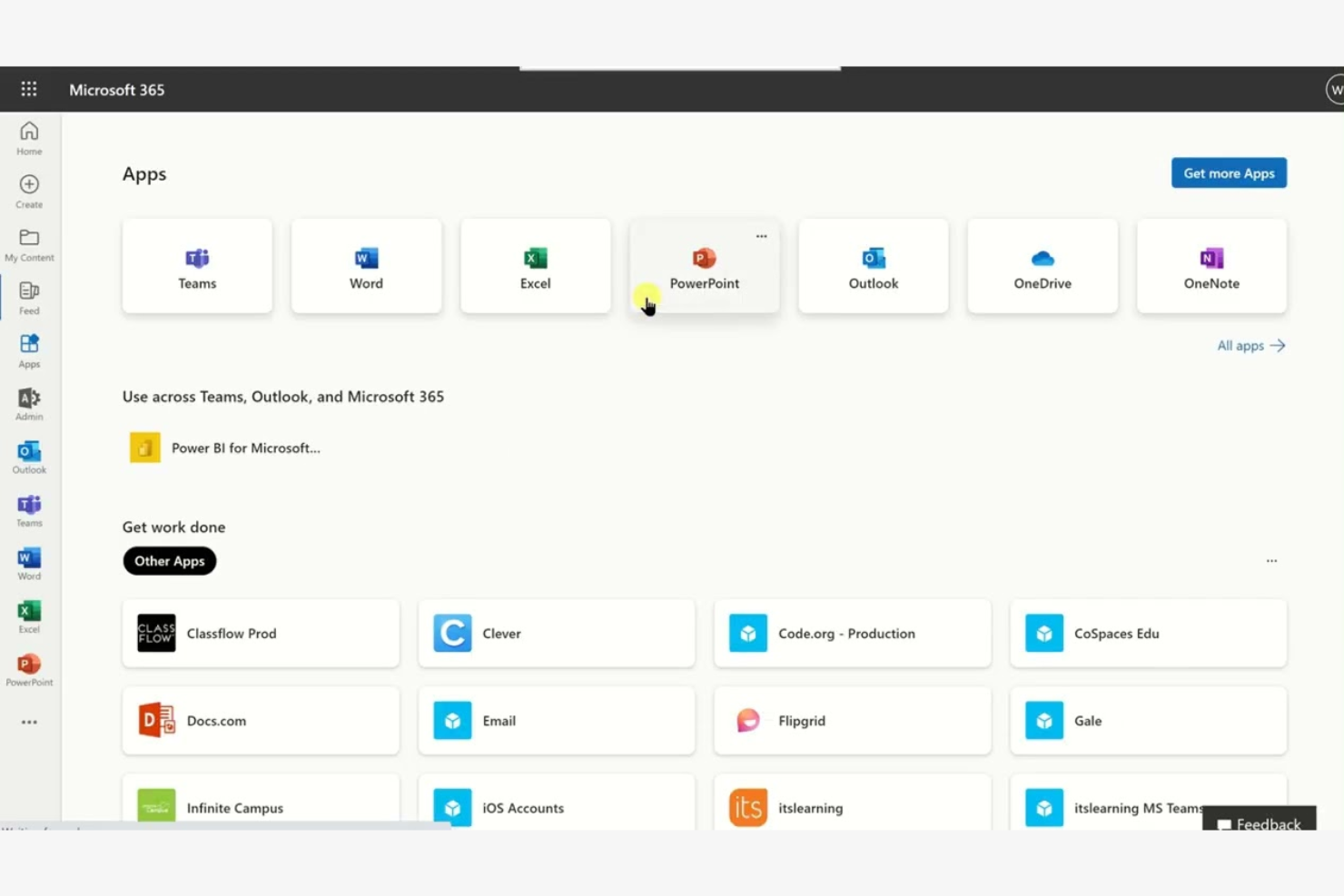
Microsoft 365 offre una suite di strumenti per ufficio online progettati per i team che necessitano di funzionalità avanzate di collaborazione e gestione dei documenti. È una soluzione adatta alle aziende che si affidano alla co-creazione in tempo reale, alla profonda integrazione con Microsoft Teams e alla compatibilità con formati di file complessi. Se i tuoi progetti richiedono uno stretto controllo delle versioni e un flusso di lavoro semplificato tra Word, Excel e PowerPoint, Microsoft 365 si distingue da Google Docs.
Perché Microsoft è una valida alternativa a Google Docs
Per i team che necessitano di collaborazione in tempo reale, Microsoft 365 offre la co-creazione in Word, Excel e PowerPoint, con aggiornamenti istantanei su tutti i dispositivi. Ho scelto Microsoft perché i suoi strumenti di modifica dei documenti consentono a più utenti di lavorare insieme sullo stesso file, monitorando in dettaglio modifiche e commenti. L'integrazione con Microsoft Teams consente di chattare, partecipare a riunioni e condividere file senza lasciare il proprio spazio di lavoro. Queste funzionalità lo rendono una scelta eccellente per le organizzazioni che danno priorità al lavoro di squadra in tempo reale e alla precisione dei documenti.
Principali funzionalità di Microsoft
Alcune altre funzionalità di Microsoft 365 lo rendono una soluzione flessibile per i team che gestiscono documenti online:
- Controlli avanzati delle autorizzazioni: Imposta livelli di accesso dettagliati per file e cartelle, così da gestire chi può visualizzare, modificare o condividere i documenti.
- Cronologia automatica delle versioni: Ripristina le versioni precedenti dei documenti e monitora le modifiche nel tempo senza dover eseguire backup manuali.
- Strumenti di accessibilità integrati: Utilizza funzionalità come Lettore immersivo e la dettatura vocale per supportare diversi stili ed esigenze di lavoro.
- Modalità di modifica offline: Lavora sui documenti senza una connessione Internet e sincronizza automaticamente le modifiche quando torni online.
Integrazioni di Microsoft
Le integrazioni includono Microsoft Teams, OneDrive, SharePoint, Outlook, Power BI, Dynamics 365, Yammer, Planner, Forms e Power Automate.
Pros and Cons
Pros:
- La co-creazione in tempo reale funziona con file Word, Excel e PowerPoint
- La profonda integrazione con Microsoft Teams supporta chat e riunioni all'interno dei documenti
- Le impostazioni avanzate delle autorizzazioni consentono un controllo dettagliato sull'accesso ai documenti
Cons:
- Per usufruire di tutte le funzionalità sono necessari un account Microsoft e un abbonamento
- Alcune funzionalità avanzate sono disponibili solo nei piani di livello superiore
Ideale per l'accesso ai documenti da dispositivi mobili
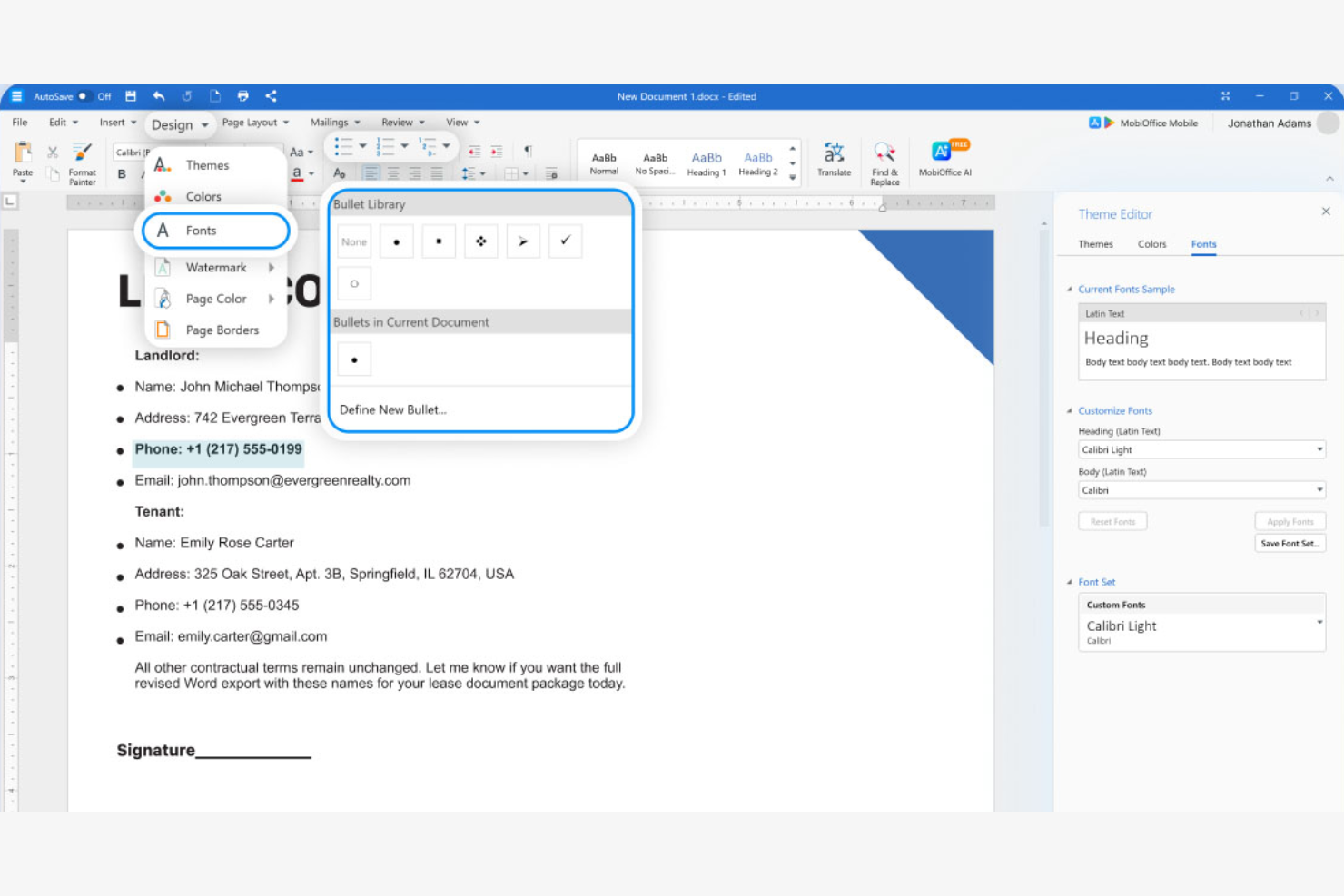
Se il tuo team deve lavorare con i documenti in mobilità, MobiSystems offre una suite per ufficio progettata innanzitutto per gli smartphone e i tablet. È una soluzione ideale per i team sul campo, i lavoratori da remoto e chiunque si affidi ai dispositivi mobili per modificare e consultare i documenti. A differenza di Google Docs, MobiSystems offre solide funzionalità offline e app mobili native che supportano funzioni di modifica avanzate su Android e iOS.
Perché MobiSystems è una buona alternativa a Google Docs
A differenza della maggior parte delle suite per ufficio, che si concentrano sulla modifica da desktop o tramite browser, MobiSystems è progettato specificamente per offrire un accesso ai documenti innanzitutto da dispositivi mobili. L'ho scelto perché la sua app OfficeSuite offre funzionalità complete per modificare documenti, fogli di calcolo e presentazioni direttamente sui dispositivi Android e iOS. La piattaforma supporta inoltre la modifica offline, consentendo di lavorare sui file anche quando non si dispone di una connessione Internet. Questo rende MobiSystems una scelta eccellente per i team che necessitano di un accesso affidabile ai documenti e della possibilità di modificarli lontano dalla scrivania.
Funzionalità principali di MobiSystems
Altre funzionalità di MobiSystems aiutano i team a gestire i documenti e a collaborare su più dispositivi:
- Strumenti di modifica PDF: modifica, annota e converti i file PDF direttamente nell'app.
- Integrazione con l'archiviazione cloud: connettiti a Google Drive, Dropbox, OneDrive e MobiDrive per accedere ai file e crearne copie di backup.
- Crittografia dei documenti: proteggi i file sensibili con opzioni di password e crittografia.
- Compatibilità multipiattaforma: accedi ai documenti e modificali su dispositivi Windows, Android e iOS.
Integrazioni di MobiSystems
MobiSystems non elenca attualmente integrazioni native.
Pros and Cons
Pros:
- Modifica progettata innanzitutto per dispositivi mobili con un solido accesso offline
- Strumenti PDF integrati per modifica, annotazione e conversione
- Funziona su Android, iOS e Windows per i team in mobilità
Cons:
- Collaborazione in tempo reale limitata rispetto a Google Docs
- Ecosistema di integrazioni più limitato per i flussi di lavoro aziendali
Ideale per la modifica di documenti open source
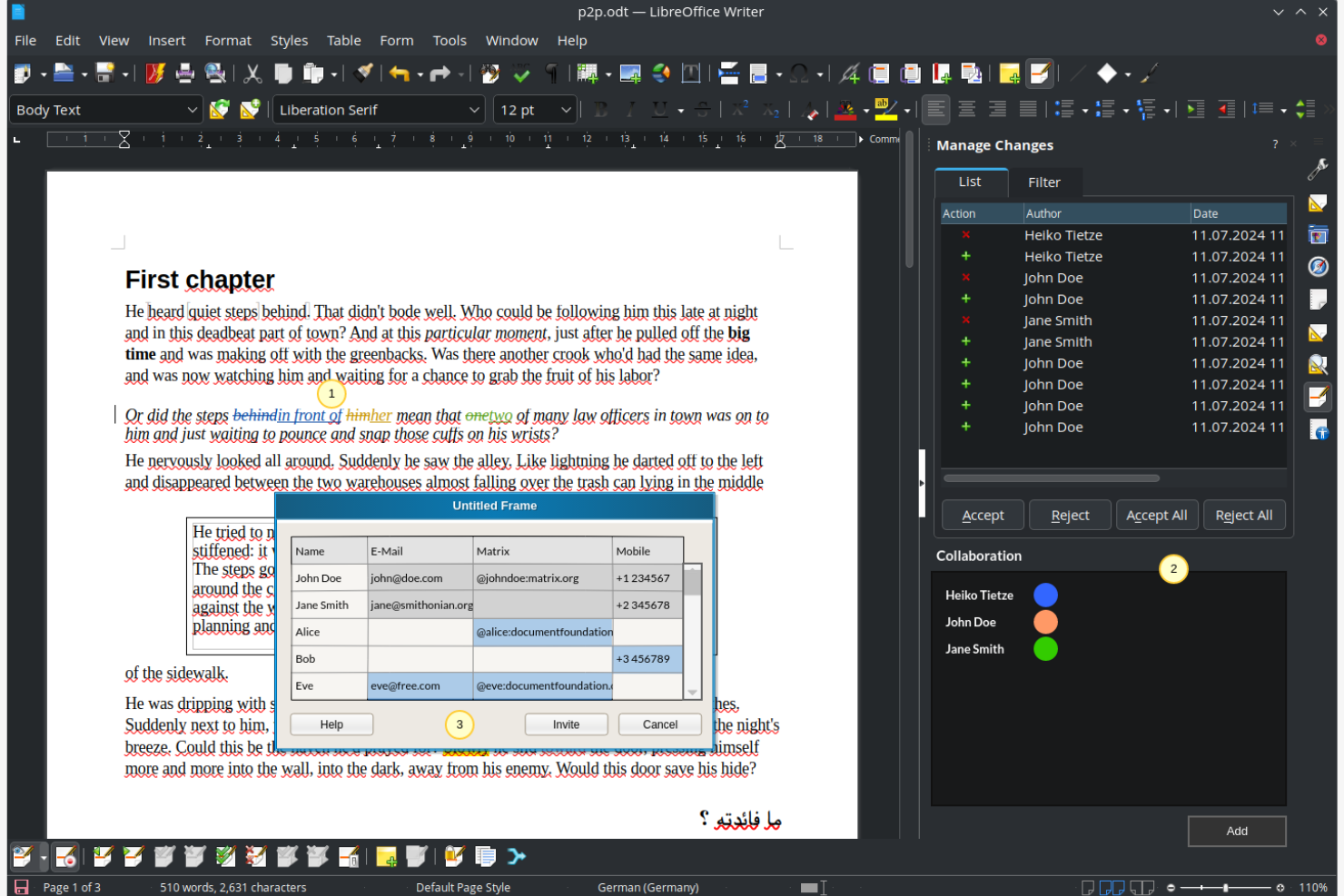
Se stai cercando un'alternativa completamente open source a Google Docs, LibreOffice si distingue. È una soluzione ideale per organizzazioni e professionisti che necessitano del pieno controllo sui propri documenti e dati, senza dipendere da piattaforme basate sul cloud. LibreOffice è adatto ai team che apprezzano la privacy, l'accesso offline e la compatibilità con un'ampia gamma di formati di file.
Perché LibreOffice è una buona alternativa a Google Docs
A differenza della maggior parte delle suite per ufficio online, LibreOffice offre pieno accesso al proprio codice sorgente e il controllo completo sui documenti. Ho scelto LibreOffice perché consente di modificare e archiviare i file localmente, una soluzione ideale per i team con rigorosi requisiti di privacy o di residenza dei dati. Il supporto per un'ampia gamma di formati di file, inclusi quelli di Microsoft Office e i formati di documenti meno recenti, facilita la gestione di contenuti diversi. Queste caratteristiche open source distinguono LibreOffice per gli utenti che desiderano trasparenza e flessibilità negli strumenti di modifica dei documenti.
Funzionalità principali di LibreOffice
Alcune altre funzionalità di LibreOffice lo rendono una scelta versatile per la modifica dei documenti:
- Esportazione PDF integrata: Crea file PDF direttamente da qualsiasi documento senza dover utilizzare software aggiuntivo.
- Barre degli strumenti e menu personalizzabili: Adatta l'interfaccia al tuo flusso di lavoro e alle tue preferenze.
- Ampia raccolta di modelli: Accedi a un'ampia gamma di modelli predefiniti per documenti, fogli di calcolo e presentazioni.
- Registrazione di macro e scripting: Automatizza le attività ripetitive utilizzando gli strumenti per le macro e i linguaggi di scripting integrati.
Integrazioni di LibreOffice
Le integrazioni includono Kasm Workspaces, Intrexx, Ultima Linux, NemoVote, TimeSpreader, BuildViewVU, Sprint Boards, File Manager Pro, Scribens, Twake, Devart ODBC Drivers, CSVpad, Agent S, FileRun, Zotero, LibreOffice Draw e altro ancora.
Pros and Cons
Pros:
- Suite open source gratuita senza costi di licenza
- Potente modifica offline e controllo locale dei file per la privacy
- Ampio supporto dei formati, oltre a esportazione PDF e scripting delle macro
Cons:
- Nessuna modifica collaborativa nativa in tempo reale come in Google Docs
- La formattazione può cambiare quando si lavora con file Microsoft complessi

Ideale con strumenti integrati per la gestione dei progetti
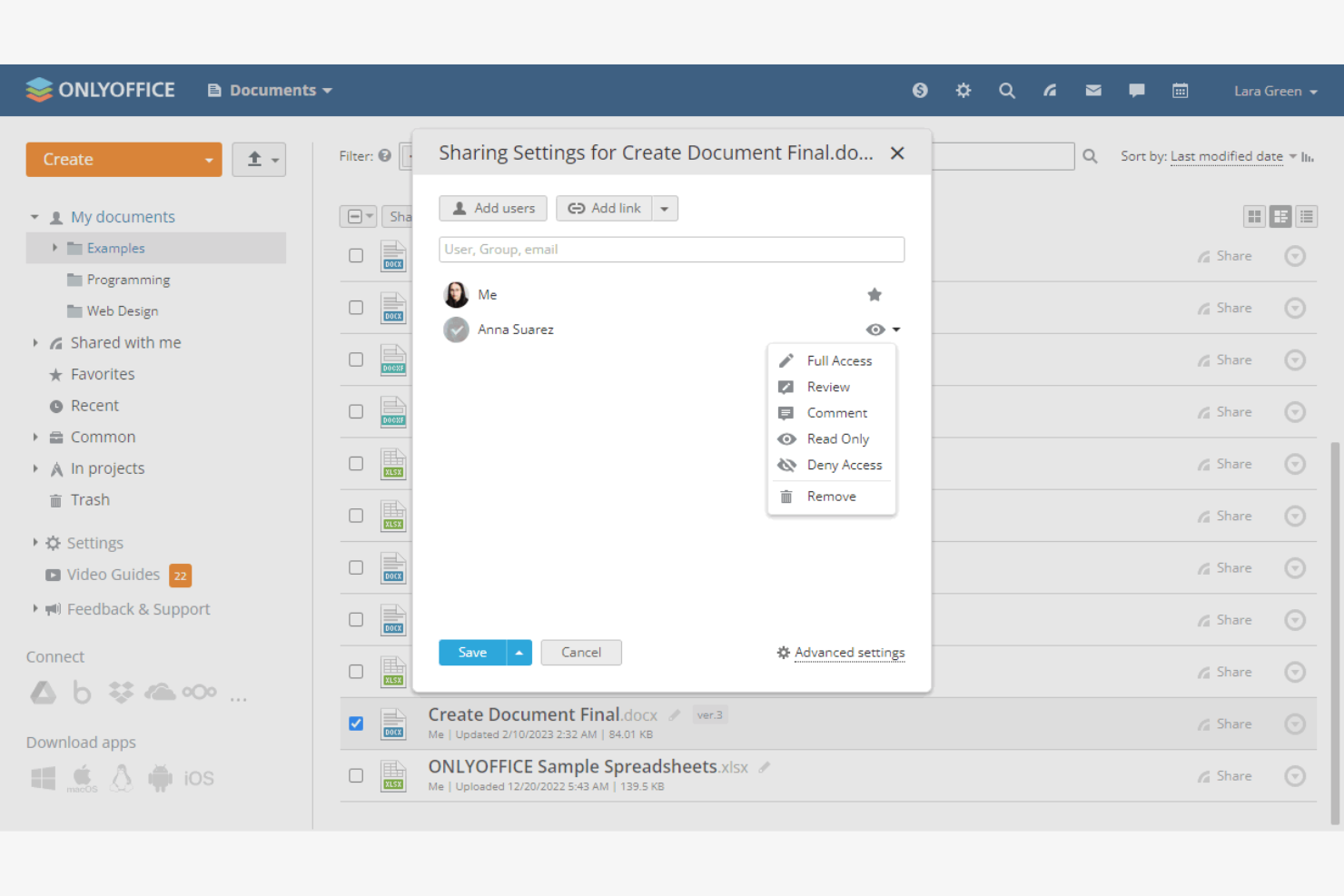
I team che desiderano modificare documenti e gestire progetti in un unico luogo scelgono spesso ONLYOFFICE. Questa piattaforma è progettata per aziende e team che lavorano per progetti e che devono gestire documenti, attività e collaborazione da un'unica dashboard. ONLYOFFICE si distingue perché combina gli strumenti familiari di una suite per ufficio con funzionalità integrate di monitoraggio dei progetti e comunicazione del team.
Perché ONLYOFFICE è una valida alternativa a Google Docs
Per i team che desiderano più della semplice modifica dei documenti, ONLYOFFICE integra strumenti di gestione dei progetti direttamente nella sua suite per ufficio online. Ho scelto ONLYOFFICE perché consente di creare, assegnare e monitorare le attività insieme ai documenti, così da poter gestire progetti e contenuti in un unico luogo. La piattaforma include funzionalità come i diagrammi di Gantt e il monitoraggio delle tappe fondamentali, che aiutano i team a coordinare il lavoro senza passare da un'app all'altra. Questo approccio integrato rende ONLYOFFICE una scelta efficace per le aziende che hanno bisogno sia di collaborazione sia di supervisione dei progetti.
Funzionalità principali di ONLYOFFICE
Alcune altre funzionalità di ONLYOFFICE ne fanno una scelta flessibile per i team:
- Modifica collaborativa dei documenti: Più utenti possono modificare contemporaneamente i documenti con aggiornamenti in tempo reale.
- Chat e commenti integrati: Comunica e lascia feedback direttamente all'interno di documenti e progetti.
- Autorizzazioni di accesso personalizzabili: Imposta ruoli e autorizzazioni utente dettagliati per documenti e cartelle.
- Moduli per posta e calendario: Gestisci le e-mail e programma gli eventi senza uscire dalla piattaforma.
Integrazioni di ONLYOFFICE
Le integrazioni includono Trello, Odoo, Moodle, Monday, Pipedrive, Alfresco, Box, Confluence, Dropbox, DZZ Office, Jira, Nextcloud, SharePoint, SuiteCRM, Trello, WordPress, Zapier, Zoom e altro.
Pros and Cons
Pros:
- Combina la modifica dei documenti con moduli integrati per la gestione dei progetti
- Supporta la modifica collaborativa in tempo reale con autorizzazioni di accesso basate sui ruoli
- Opzione di distribuzione on-premise per politiche rigorose sulla gestione dei dati
Cons:
- L'ecosistema delle integrazioni di terze parti è più ridotto rispetto a Google Workspace
- Le app mobili offrono meno funzionalità rispetto alle versioni desktop e web
Ideale per la creazione di documenti offline
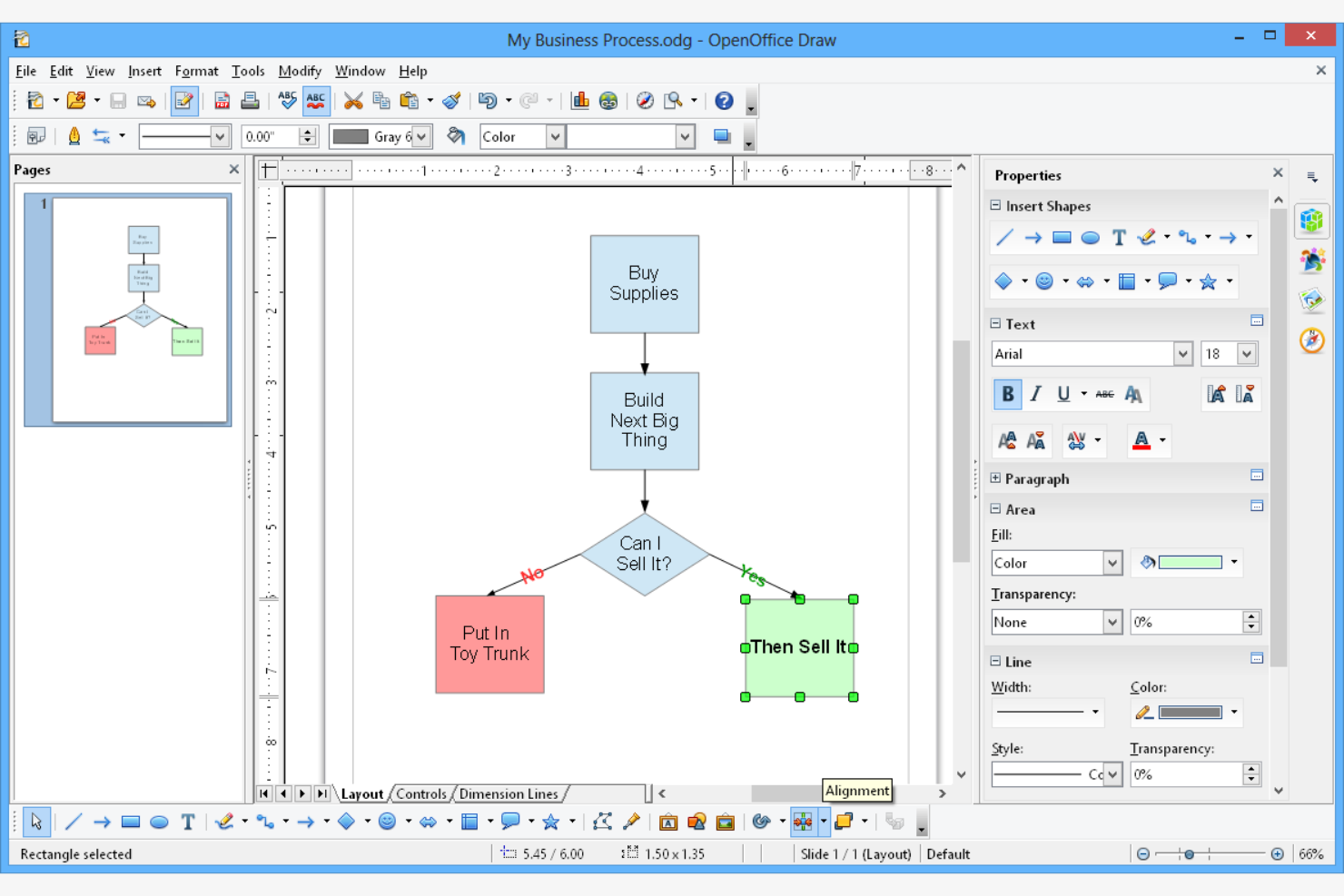
Per i team che necessitano di una suite per ufficio completamente offline, Apache OpenOffice offre una soluzione scaricabile che non richiede Internet. È una scelta ideale per le organizzazioni con rigide politiche sulla privacy dei dati o che operano in ambienti con connettività limitata. A differenza di Google Docs, OpenOffice consente di creare, modificare e archiviare i documenti interamente sui dispositivi locali.
Perché Apache OpenOffice è una buona alternativa a Google Docs
Se hai bisogno di lavorare senza una connessione Internet, Apache OpenOffice si distingue come una scelta affidabile. L'ho scelto perché consente di creare e modificare documenti, fogli di calcolo e presentazioni interamente offline, cosa che Google Docs non può fare nativamente. OpenOffice supporta inoltre il salvataggio dei file direttamente sull'unità locale, permettendoti di mantenere il pieno controllo sui tuoi dati. Questo lo rende particolarmente adatto ai team con rigidi requisiti di privacy o che operano in località remote.
Caratteristiche principali di Apache OpenOffice
Alcune altre caratteristiche di Apache OpenOffice lo rendono una suite per ufficio versatile:
- Modulo Draw: crea diagrammi, diagrammi di flusso e grafica vettoriale direttamente all'interno della suite.
- Editor di formule matematiche: crea e modifica equazioni matematiche complesse per documenti tecnici.
- Esportazione in PDF: salva qualsiasi documento, foglio di calcolo o presentazione come file PDF senza plugin aggiuntivi.
- Compatibilità con più formati: apre e salva file nei formati di Microsoft Office, OpenDocument e in altri formati comuni.
Integrazioni di Apache OpenOffice
Apache OpenOffice non elenca attualmente integrazioni native.
Pros and Cons
Pros:
- Creazione di documenti offline senza dipendenza dal cloud
- Suite open source gratuita con esportazione in PDF inclusa
- Include gli strumenti Draw e Math per diagrammi e formule
Cons:
- Nessuna collaborazione in tempo reale né sincronizzazione integrata
- La compatibilità con i formati moderni e gli aggiornamenti delle funzionalità sono inferiori a quelli dei concorrenti
Altre alternative a Google Docs
Ecco alcune ulteriori alternative a Google Docs che non sono entrate nella mia selezione, ma che vale comunque la pena prendere in considerazione:
- Polaris Office
Ideale per la sincronizzazione dei file tra dispositivi
- Visual Paradigm
Ideale per la documentazione visiva dei flussi di lavoro
- Zoho
Ideale per l'integrazione con le app aziendali
- FreeOffice
Ideale per requisiti di sistema leggeri


Come Valuto le Alternative a Google Docs
Divido la mia valutazione in criteri di base—come la co-modifica in tempo reale, l'integrazione di task e la cronologia delle versioni—e fattori differenzianti che distinguono uno strumento di documentazione da un vero hub di documentazione di progetto.
Funzionalità Principali (Requisiti Fondamentali per Questa Lista)
Quando seleziono gli strumenti per la mia lista, valuto ciascuno su una scala da 0 (la funzionalità non è offerta) a 5 (eccelle in questa area) per ogni funzionalità principale elencata di seguito. Successivamente, calcolo il punteggio totale dello strumento e ne ricavo una percentuale. Ogni strumento deve raggiungere un punteggio minimo totale del 65% per essere considerato per l'inclusione.
- Modifica Collaborativa in Tempo Reale: Verifico che più membri del team possano co-redigere un brief di progetto o un report sullo stato simultaneamente, con cursori in tempo reale, commenti in linea e suggerimenti.
- Creazione di Documenti Avanzati: L'editor deve supportare titoli formattati, tabelle, media incorporati e blocchi di contenuto per documenti strutturati come SOW e piani sprint.
- Integrazione Task e Progetti: Cerco connessioni native tra documenti e task, bacheche o timeline in modo che un project charter sia collegato direttamente alle sue deliverable.
- Cronologia Versioni e Permessi: Ogni revisione dei documenti deve essere tracciabile e ripristinabile, con condivisione basata sui ruoli che permette di controllare l'accesso per team interni e clienti esterni.
- Archiviazione su Cloud e Sincronizzazione: Valuto se i documenti vengono salvati automaticamente, sincronizzati tra dispositivi e offrono accesso offline per team distribuiti su più fusi orari.
- Compatibilità Export e Formati: Gli strumenti dovrebbero importare ed esportare formati standard come DOCX, PDF e Markdown affinché i documenti di progetto restino compatibili con i flussi di lavoro degli stakeholder.
Una volta ottenuta una lista di strumenti che soddisfano questi criteri, considero cosa distingue ciascuna piattaforma.
Fattori Differenzianti (Cosa Distingue i Fornitori)
Ecco come confronto i diversi fornitori:
Funzionalità Distintive
Cerco funzionalità wiki e base di conoscenza integrate che permettano di annidare documenti di progetto, collegare pagine e costruire un hub ricercabile che il team consulti realmente. Anche gli strumenti di scrittura AI si distinguono—la generazione automatica di un riepilogo retro della sprint o la redazione di un aggiornamento di stato partendo dai dati operativi fa risparmiare tempo reale. I template specifici di progetto per SOW, log RAID e agende kickoff sono importanti, specie se abbinati ad automazioni che popolano documenti ricorrenti su vari workstream.
Oltre le Funzionalità
La profondità delle integrazioni è rilevante—verifico se lo strumento si collega nativamente a piattaforme PM come Jira, Asana o monday.com, perché uno strumento di documentazione che resta fuori dal delivery stack crea attrito. Anche le strutture di prezzo variano molto. Valuto se sono inclusi posti per ospiti e accesso collaboratori esterni o se hanno un costo aggiuntivo, poiché la maggior parte dei team di progetto coinvolge regolarmente clienti e fornitori. Anche il supporto alla migrazione da Google Docs o Confluence è un altro fattore che considero, poiché una transizione complicata può rallentare l’adozione all’interno del team.
Perché cercare un'alternativa a Google Docs?
Sebbene Google Docs sia una valida soluzione online per l'elaborazione dei testi, esistono diversi motivi per cui alcuni utenti prendono in considerazione piattaforme alternative. Potresti cercare un'alternativa a Google Docs perché…
- Hai bisogno di una compatibilità migliore con i formati di file di Microsoft Office
- Il tuo team richiede strumenti avanzati per la modifica e l'annotazione dei PDF
- Lavori in regioni in cui i servizi di Google sono soggetti a restrizioni
- Hai bisogno di modificare i documenti offline senza affidarti alle estensioni del browser
- La tua organizzazione ha requisiti rigorosi in materia di privacy dei dati o di installazione on-premise
- Vuoi un maggiore controllo sulla formattazione dei documenti, sul layout o sul supporto per Markdown
- Ti preoccupa la curva di apprendimento per gli utenti non tecnici
- Preferisci un'interfaccia intuitiva o uno stile di flusso di lavoro diverso
Se una di queste situazioni ti è familiare, sei nel posto giusto. Le opzioni presenti in questo elenco includono piattaforme online per l'elaborazione dei testi e la collaborazione, progettate per i team che hanno bisogno di maggiore flessibilità, di un controllo più efficace della formattazione o di un approccio diverso alla gestione dei documenti.
Caratteristiche principali di Google Docs
Ecco alcune delle funzionalità principali di Google Docs che ti aiutano a confrontarlo con altri strumenti di collaborazione tutto-in-uno e piattaforme di elaborazione testi:
- Modifica collaborativa in tempo reale con più utenti
- Salvataggio automatico nel cloud su Google Drive
- Cronologia delle versioni e monitoraggio delle revisioni dei documenti
- Strumenti integrati per commenti e suggerimenti
- Integrazione con app di Google Workspace come Fogli e Presentazioni
- Modalità di modifica offline per lavorare senza accesso a Internet
- Controlli completi per la condivisione e le autorizzazioni
- Digitazione vocale e funzionalità di accessibilità