

De 10 beste skybaserte produktivitetsprogrammene valgt ut for 2026

Liste over programvare for skybasert produktivitet


Programvare for skybasert produktivitet viser til nettbaserte plattformer som hjelper teamet ditt med å samarbeide, administrere oppgaver og dele filer uansett hvor dere befinner dere. Hvis du leter etter den beste programvaren for skybasert produktivitet, ønsker du sannsynligvis å holde prosjekter på rett spor, få bedre oversikt på tvers av team og raskt kunne tilpasse deg når prioriteringene endres. Med så mange tilgjengelige alternativer kan valg av de riktige verktøyene utgjøre forskjellen mellom overskredne frister og smidig levering.
Denne listen hjelper deg med å sammenligne ledende løsninger, forstå hva som skiller dem fra hverandre og finne det alternativet som passer best til teamets arbeidsflyt.
Why Trust Our Software Recommendations
Our team has been testing and reviewing software since 2012. As project managers ourselves, we know how difficult—and important—it is to choose the right software.
For this guide, we evaluated tools using hands-on testing and independent research, scoring tools using our selection criteria. We also draw on insights from industry thought leaders and practicing project management experts.
Our reviews reflect our human editorial judgment, not a sales pitch.
Expert reviewers:
Sammenligningstabell for programvare for skybasert produktivitet
Denne sammenligningstabellen oppsummerer prisopplysningene for mine beste utvalg av programvare for skybasert produktivitet:
| Tool | Best For | Trial Info | Price | ||
|---|---|---|---|---|---|
| 1 | Best for secure file sharing and storage | Free trial + free plan available | From $9.99/user/month (billed annually) | Website | |
| 2 | Best for real-time document collaboration | 14-day free trial available | From $7/user/month (billed annually) | Website | |
| 3 | Best with integrated office productivity apps | 30-day free trial available | From $6/user/month (billed annually) | Website | |
| 4 | Best for structured project planning | Free plan available | From $10.99/user/month (billed annually) | Website | |
| 5 | Best for advanced content governance | 14-day free trial | From CAD$21/user/month (billed annually) | Website | |
| 6 | Best for collaborative knowledge documentation | Free plan available | From $5.78/user/month | Website | |
| 7 | Best for kanban-style task boards | Free plan available | From $5/user/month (billed annually) | Website | |
| 8 | Best for all-in-one task and goal tracking | Free plan available | From $7/user/month (billed annually) | Website | |
| 9 | Best for customizable workspace organization | Free plan + free demo available | From $10/user/month (billed annually) | Website | |
| 10 | Best with AI-powered project planning | Free plan available | From $9/user/month (billed annually) | Website |

Anmeldelser av programvare for skybasert produktivitet
Nedenfor finner du mine detaljerte sammendrag av programvaren for skybasert produktivitet som kom med på listen min. Anmeldelsene mine gir en detaljert gjennomgang av funksjonene, de beste bruksområdene og integrasjonene til hver plattform, slik at du kan finne den som passer best for deg.

Dropbox
Best for secure file sharing and storage
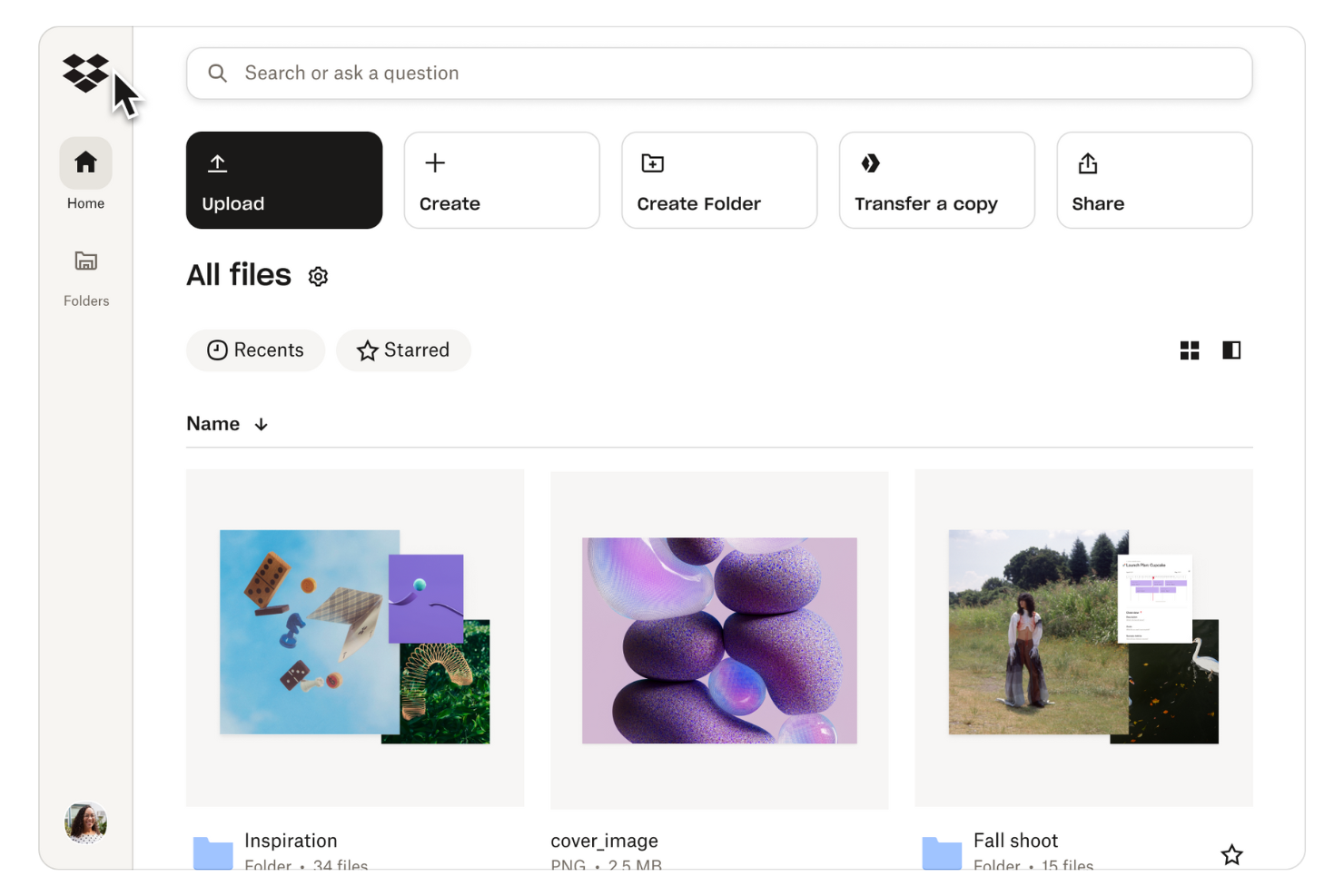
For teams that need secure, centralized file storage and sharing, Dropbox offers a cloud platform built for collaboration and control. It’s especially useful for creative agencies, legal teams, and distributed businesses that handle sensitive documents or large media files. Dropbox’s granular sharing permissions and file recovery features help organizations keep data protected while making it easy to work together from anywhere.
Why I Picked Dropbox
When secure file sharing and storage are top priorities, Dropbox stands out for its strong focus on data protection and access control. I picked Dropbox because it offers granular sharing permissions, allowing you to set view, edit, or download rights for each file or folder. The platform also provides file version history and recovery, so teams can restore previous versions or recover deleted files if needed. For organizations that need to safeguard sensitive information while enabling collaboration, Dropbox’s security features make it a reliable choice.
Dropbox Key Features
Some other Dropbox features that support cloud productivity include:
- Dropbox Paper: Create, edit, and collaborate on documents directly within Dropbox.
- Smart Sync: Access all files and folders from your desktop without taking up local storage space.
- File Requests: Collect files from anyone, even if they don’t have a Dropbox account.
- Team Activity Dashboard: Monitor file sharing, edits, and team activity in one place.
Dropbox Integrations
Integrations include Google Workspace, Microsoft, Adobe, HubSpot, Canva, AWS, Slack, Zoom, and more.
Pros and Cons
Pros:
- Dashboard tracks team activity and sharing
- Has in-app document collaboration
- Supports file version history
Cons:
- Shared links can be hard to track centrally
- No built-in project or task management

Best for real-time document collaboration
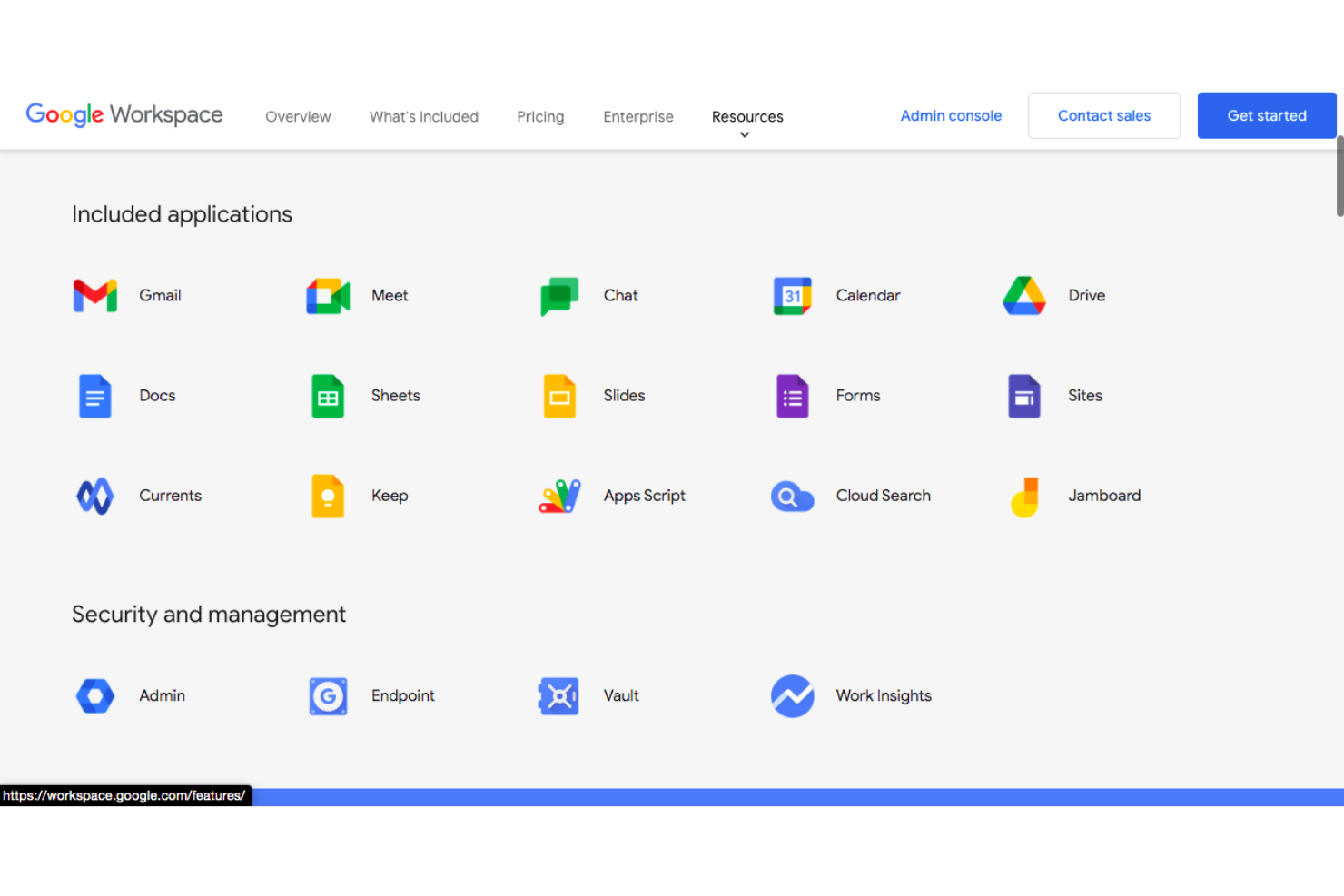
If your team needs to collaborate on documents, spreadsheets, and presentations in real time, Google Workspace is a strong choice. It’s especially useful for distributed teams and organizations that rely on fast, cloud-based editing and sharing. The platform helps reduce version control issues and keeps everyone on the same page, no matter where they’re working.
Why I Picked Google Workspace
I chose Google Workspace for this list because its real-time document collaboration platform stands out among cloud productivity platforms. The ability for multiple users to edit Docs, Sheets, and Slides at the same time makes it easy to keep projects moving without version conflicts. Built-in commenting and suggestion tools help teams communicate directly within files, reducing the need for endless email threads. For teams that need to work together on high-quality content from anywhere, these features make Google Workspace a top contender.
Google Workspace Key Features
Some other features that make Google Workspace a versatile platform for teams include:
- Shared Drives: Create team-specific drives where files are owned collectively and remain accessible even if members leave.
- Google Meet Integration: Schedule and join video meetings directly from your calendar or within documents.
- Calendar Sharing: Share Google calendars across your organization to coordinate meetings and deadlines with ease.
- Admin Console: Manage user access, security settings, and device policies from a centralized dashboard.
Google Workspace Integrations
Integrations include Salesforce, Docsign, Zoom, Asana, Slack, Trello, Smartsheet, Zendesk, Adobe Acrobat, and more.
Pros and Cons
Pros:
- Easy file sharing with granular permissions
- AI-powered features in Docs and Gmail
- Real-time editing across all core apps
Cons:
- Limited advanced spreadsheet functions
- Offline editing can be inconsistent

Best with integrated office productivity apps
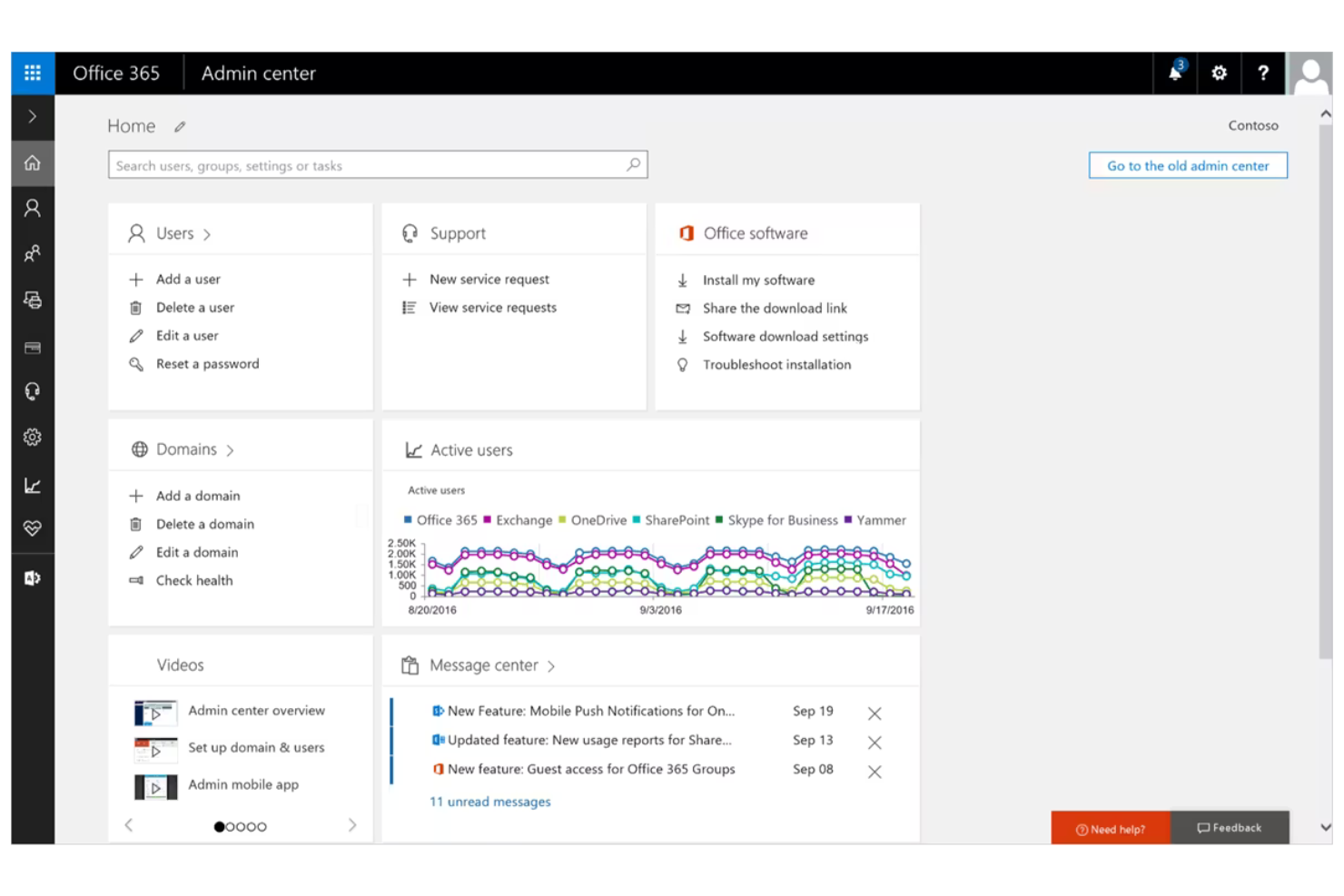
For teams that rely on familiar office apps and need tight integration across email, documents, and collaboration, Microsoft 365 brings everything together in one cloud-based suite. It’s a strong fit for organizations that want desktop and web access to Word, Excel, PowerPoint, and Outlook, along with secure file storage and sharing. The platform helps unify workflows for businesses that need both advanced document editing and communication tools.
Why I Picked Microsoft 365
What sets Microsoft 365 Copilot apart is how it combines all the core office productivity apps—Word, Excel, PowerPoint, and Outlook—into a single, integrated cloud platform. This approach means your team can move between document creation, data analysis, and communication without switching tools or losing context. I picked Microsoft 365 because its apps work together natively, so features like real-time co-authoring and shared calendars are built right in. For organizations that want a unified experience across desktop and cloud, this level of integration is hard to match.
Microsoft 365 Key Features
Some other features that make Microsoft 365 a strong choice for cloud productivity include:
- OneDrive Cloud Storage: Store, sync, and access files securely from any device.
- Microsoft Teams Integration: Chat, meet, and collaborate with your team in a unified workspace.
- Advanced Security Controls: Set up multi-factor authentication and manage data loss prevention policies.
- Planner and To Do Apps: Organize tasks, assign responsibilities, and track progress across projects.
Microsoft 365 Integrations
Integrations include Salesforce, Adobe Acrobat Sign, Zoom, Trello, Asana, ServiceNow, Workday, SAP, and more.
Pros and Cons
Pros:
- Enterprise-grade security features
- Advanced spreadsheet tools in Excel
- Desktop and web apps offer full parity
Cons:
- Occasional compatibility issues in Mac
- Collaboration requires Microsoft accounts
Asana
Best for structured project planning
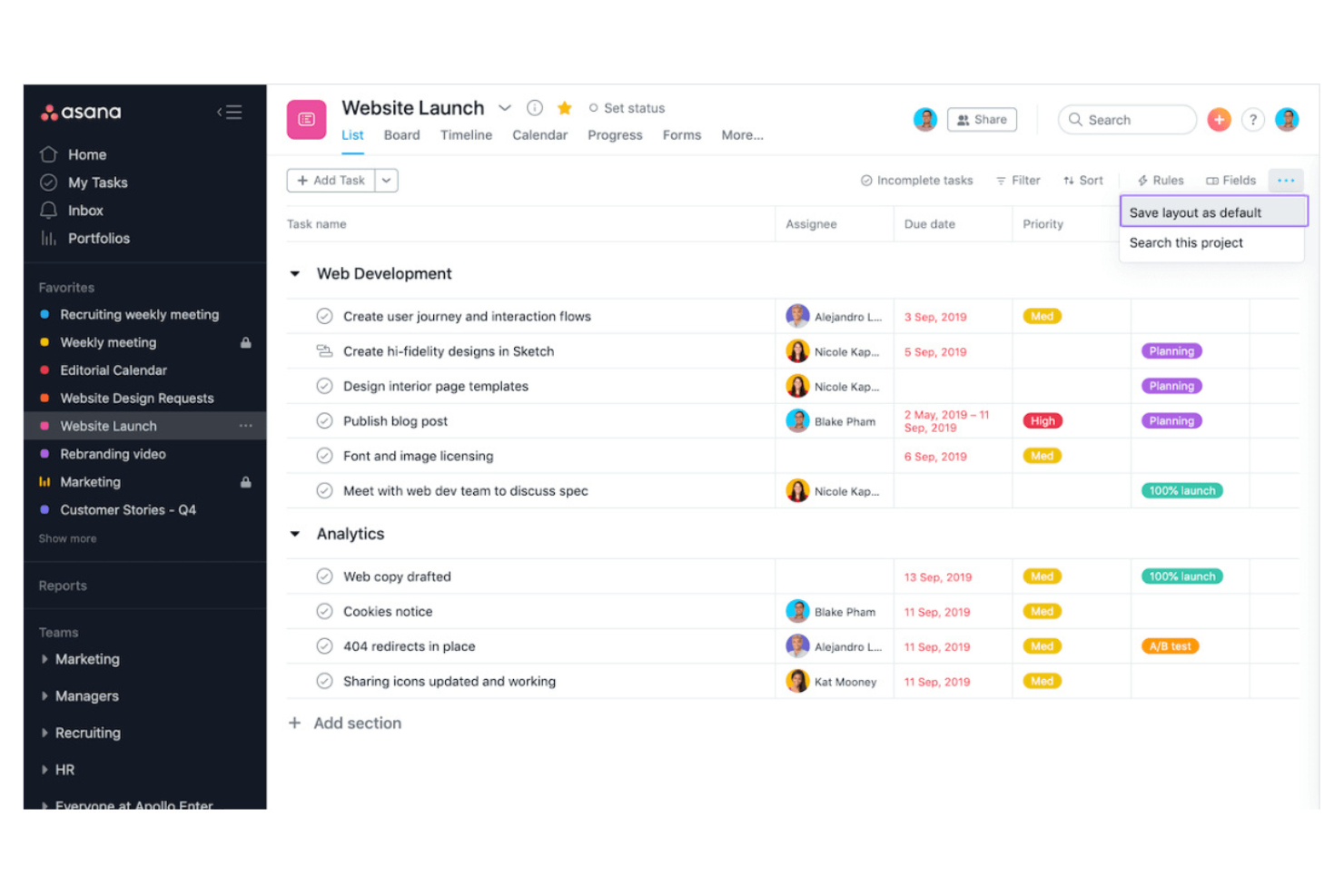
Teams that need a clear structure for managing projects often turn to Asana for its organized approach to planning and tracking work. It’s especially useful for project managers, marketing teams, and operations leads who want to break down goals into actionable tasks and timelines. Asana’s structured layouts and workflow tools help teams coordinate complex projects and keep everyone accountable.
Why I Picked Asana
Asana stands out for its ability to bring structure and clarity to project planning, which is essential for teams managing multiple priorities in the cloud. The platform’s task hierarchy lets you break down projects into sections, tasks, and subtasks, making it easy to organize complex work. I picked Asana because its timeline view and custom fields help teams map out dependencies and track progress with precision. For anyone who needs a reliable way to plan, assign, and monitor structured workflows, Asana offers a focused and organized solution.
Asana Key Features
Some other features that make Asana valuable for cloud productivity include:
- Rules Automation: Automate routine actions like task assignments, status updates, and notifications based on triggers you set.
- Workload Management: Visualize team capacity and balance assignments to avoid overloading anyone.
- Project Templates: Start new projects quickly with pre-built templates for common workflows and industries.
- Milestones Tracking: Mark key points in your project to track progress toward major goals.
Asana Integrations
Integrations include Slack, Google Drive, Microsoft Teams, Jira Cloud, Salesforce, Zoom, Dropbox, Gmail, Outlook, and more.
Pros and Cons
Pros:
- Comment keeps discussions attached to tasks
- Has advanced search filters
- Custom fields capture project-specific data points
Cons:
- Task templates can’t be edited after creation
- Limited reporting options on lower-tier plans

Box
Best for advanced content governance
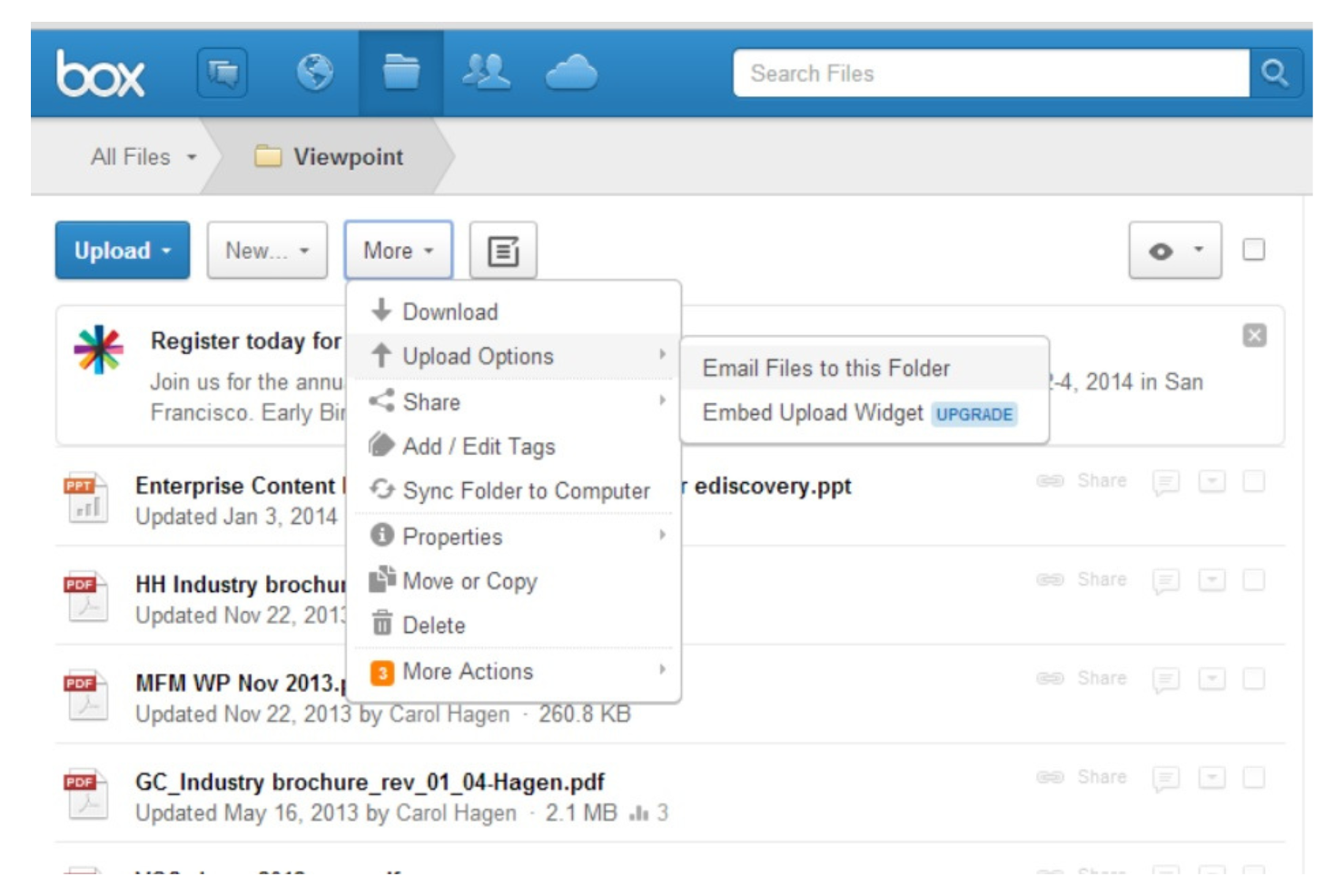
If your organization needs strict control over content access and compliance, Box offers advanced governance tools built for regulated industries and large enterprises. It’s a strong fit for legal, healthcare, and CRM teams that manage sensitive files and require detailed audit trails. Box’s automated retention policies and granular permissions help businesses meet regulatory requirements while keeping collaboration secure and organized.
Why I Picked Box
For teams that need to enforce strict content controls, Box delivers advanced content governance features that go beyond basic file storage. I picked Box because it offers automated retention policies and legal holds, which help organizations manage compliance and reduce risk. The platform’s granular permission settings let you control who can access, edit, or share specific files and folders. These capabilities make Box a strong choice for businesses that need to balance collaboration with regulatory and security requirements.
Box Key Features
Some other Box features that support cloud productivity include:
- Box Notes: Collaborate on documents and meeting notes in real time within the platform.
- Workflow Automation: Build and automate content-centric workflows using Box Relay.
- E-signature Integration: Collect legally binding electronic signatures directly within Box.
- Advanced Search: Locate files quickly with metadata tagging and full-text search capabilities.
Box Integrations
Integrations include Microsoft 365, Google Workspace, Salesforce, Slack, Adobe, Oracle NetSuite, Workday, Okta, and more.
Pros and Cons
Pros:
- Native e-signature integration
- Enables content workflow automation
- Supports complex compliance needs
Cons:
- Workflow automation limited to content
- Complex external collaboration setup
Best for collaborative knowledge documentation
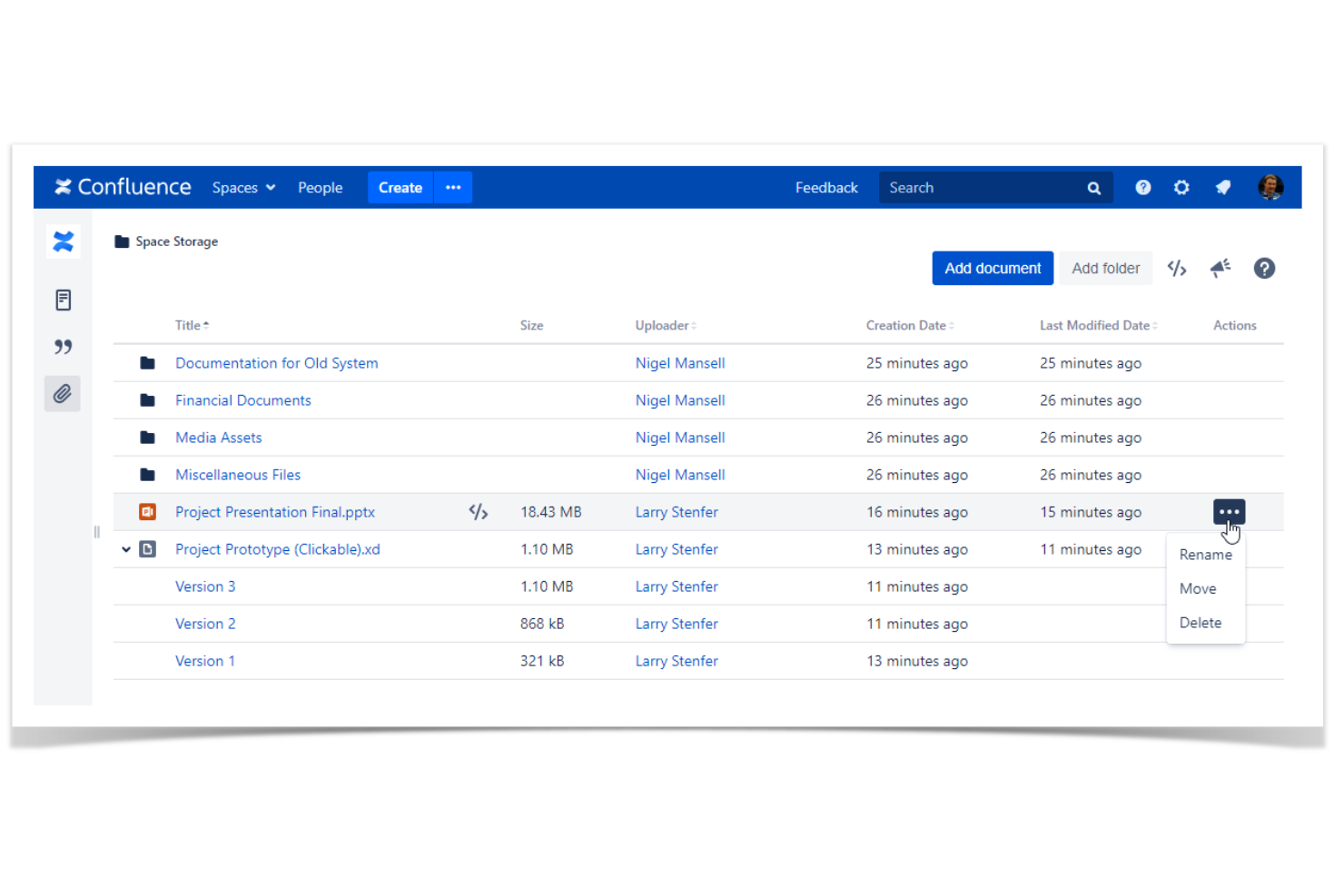
If your team needs a central place to capture, organize, and share knowledge, Confluence by Atlassian is built for collaborative documentation. It’s especially useful for product, engineering, and project teams that want to create living documents, meeting notes, and project plans everyone can update in real time. Confluence stands out for its flexible page structure and deep integration with Jira, making it easy to connect documentation with project work.
Why I Picked Confluence
For teams that need a single source of truth for documentation, Confluence offers a collaborative workspace designed for knowledge sharing. I picked Confluence because its page hierarchy and powerful search make it easy to organize and retrieve information across projects and teams. The inline commenting and collaborative editing features let multiple users contribute to documents at the same time, which is essential for keeping knowledge up to date. These capabilities make Confluence a strong fit for organizations that want to build and maintain living documentation in the cloud.
Confluence Key Features
Some other features that make Confluence valuable for cloud productivity teams include:
- Templates Library: Choose from a wide range of pre-built templates for meeting notes, project plans, and retrospectives.
- Page Permissions: Set granular access controls for spaces, pages, and even individual sections.
- Macros: Add dynamic content like task lists, calendars, and Jira issues directly into pages.
- Version History: Track changes and restore previous versions of any page at any time.
Confluence Integrations
Integrations include Jira, Trello, Microsoft Teams, Google Drive, Google Docs, Figma, Miro, GitHub, Zoom, and more.
Pros and Cons
Pros:
- Inline comments support real-time team feedback
- Permissions control access at page level
- Macros embed Jira issues and dynamic content
Cons:
- Bulk archiving pages requires manual steps
- Exporting to PDF can break page formatting

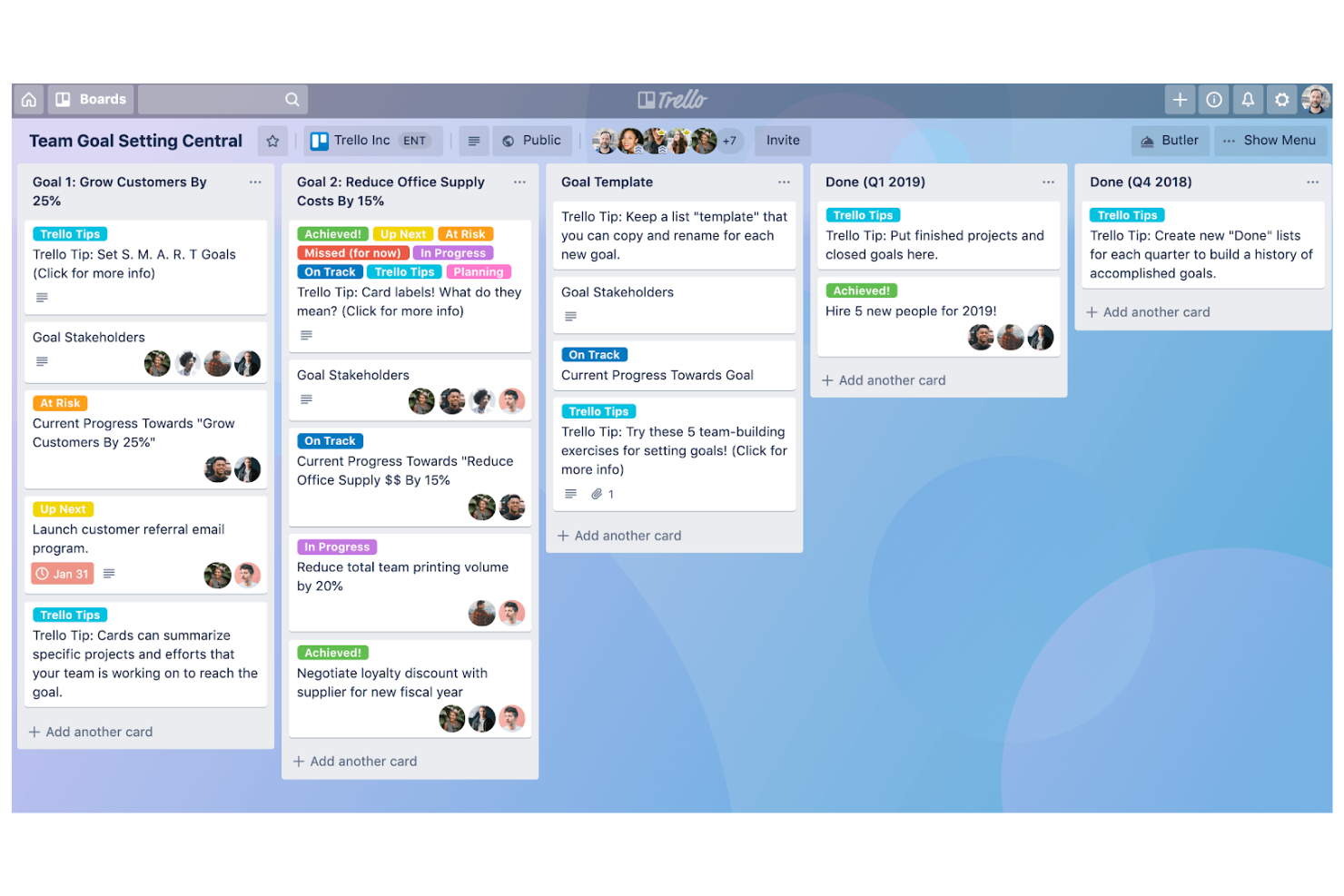
If your team prefers a visual approach to managing tasks, Trello offers a kanban-style board that makes tracking work simple and intuitive. It’s a strong fit for marketing teams, product managers, and small businesses that need to organize projects, campaigns, or workflows in a flexible, card-based format. Trello’s drag-and-drop boards and customizable lists help teams quickly adapt to changing priorities and keep everyone aligned.
Why I Picked Trello
When teams need a straightforward way to visualize and manage tasks, Trello’s kanban-style boards offer a clear advantage. The drag-and-drop cards let you move work through stages, making it easy to see progress at a glance. I picked Trello because its board and list structure support flexible workflows, whether you’re tracking sprints, content calendars, or onboarding checklists. For anyone looking for a visual, adaptable approach to cloud-based task management, Trello’s kanban boards are a practical choice.
Trello Key Features
Some other features that make Trello useful for cloud productivity include:
- Butler Automation: Automate repetitive actions on boards with rule-based triggers and custom buttons.
- Card Checklists: Break down tasks into smaller steps directly within each card.
- Power-Ups Marketplace: Add extra functionality like calendar views, voting, or integrations with other tools.
- Attachment Support: Upload files and documents directly to cards for easy reference.
Trello Integrations
Integrations include Slack, Jira Cloud, Miro, Google Drive, Dropbox, Microsoft Teams, Confluence, GitHub, Evernote, and more.
Pros and Cons
Pros:
- Has a drag-and-drop interface
- Card checklists organize subtasks within tasks
- Power-Ups add features like calendar and voting
Cons:
- Lacks native video conferencing tool
- No native Gantt or timeline view

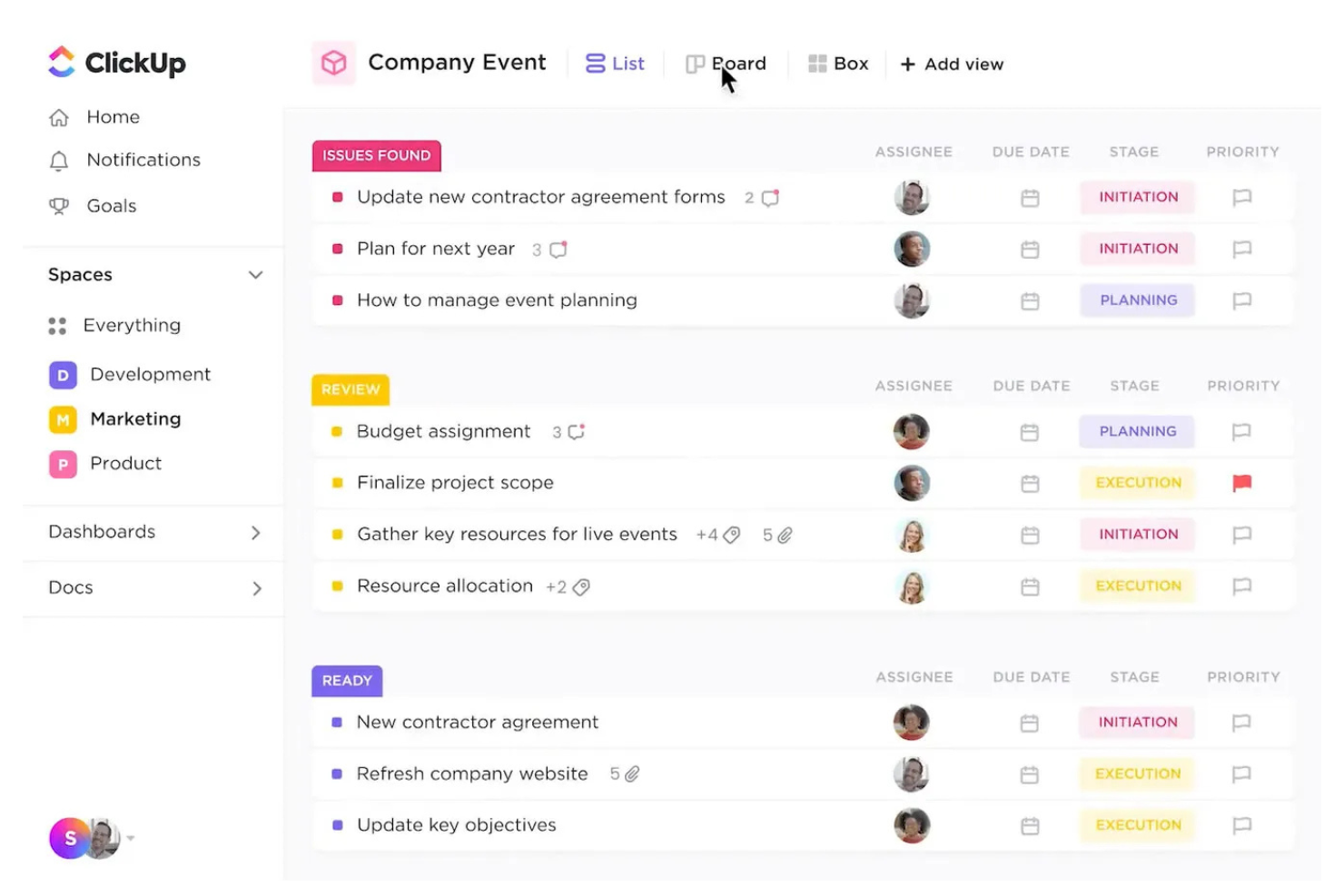
ClickUp brings together tasks, docs, goals, and dashboards in one platform, making it a strong choice for teams that want to manage everything in a single workspace. It’s especially useful for project managers and cross-functional teams who need to track progress, prioritize tasks, and align on goals without switching between multiple tools. ClickUp’s flexible structure helps teams organize work their way, whether they’re running agile sprints or managing ongoing projects.
Why I Picked ClickUp
ClickUp stands out for teams that want to manage tasks, goals, and project details all in one place. Its all-in-one approach means you can track tasks, set and monitor goals, and visualize progress with dashboards—without jumping between different apps. I picked ClickUp because it lets you connect tasks directly to goals, so you always see how daily work ties to bigger objectives. For teams looking for a unified workspace that covers both granular task management and high-level goal tracking, ClickUp offers a flexible solution.
ClickUp Key Features
Some other features that make ClickUp useful for cloud productivity include:
- Custom Views: Choose from list, board, calendar, and Gantt chart views to organize and visualize work.
- Built-In Docs: Create, edit, and share documents directly within your workspace.
- Automations: Set up automated workflows for recurring tasks, status changes, and notifications.
- Time Tracking: Log time spent on tasks with built-in timers and manual entry options.
ClickUp Integrations
Integrations include Slack, GitHub, GitLab, HubSpot, Everhour, Toggl, Harvest, Google Drive, Outlook, and more.
Pros and Cons
Pros:
- Multiple view options fit different workflows
- Goal tracking links objectives to daily work
- Hierarchical structure organizes tasks by priority
Cons:
- Guest permissions lack granular control options
- Mobile app performance lags behind desktop

Notion gives teams a flexible ecosystem to build their own workspace for notes, docs, databases, and project tracking. It’s a strong fit for organizations that want to design custom workflows or centralize knowledge without being locked into rigid templates. Notion helps teams connect tasks, documents, and wikis in one place, making it easier to adapt to changing project needs.
Why I Picked Notion
What sets Notion apart is how deeply you can customize your workspace to fit your team’s unique processes. You can build databases, link pages, and create custom dashboards that reflect exactly how your projects and documentation need to be organized. I picked Notion because it lets you design everything from simple to complex workflows, so you’re not limited by rigid structures. For teams that want to shape their own workspace and adapt as they grow, Notion offers a level of flexibility that’s hard to match in cloud productivity software.
Notion Key Features
Some other features that make Notion useful for cloud productivity include:
- AI-Powered Writing Assistant: Generate summaries, rewrite content, and automate note-taking with built-in AI tools.
- Real-Time Collaboration: Multiple users can edit pages and databases at the same time with live updates.
- Version History: Track changes and restore previous versions of any page or database.
- Template Gallery: Access a wide range of pre-built templates for project management, meeting notes, and documentation.
Notion Integrations
Integrations include Asana, Figma, GitHub, Google Drive, Jira, Miro, Slack, Trello, Typeform, and more.
Pros and Cons
Pros:
- Page linking connects related docs and projects
- AI assistant generates summaries and rewrites text
- Database views support kanban, calendar, and list
Cons:
- Permission settings can be confusing for teams
- Offline access is limited
Best with AI-powered project planning
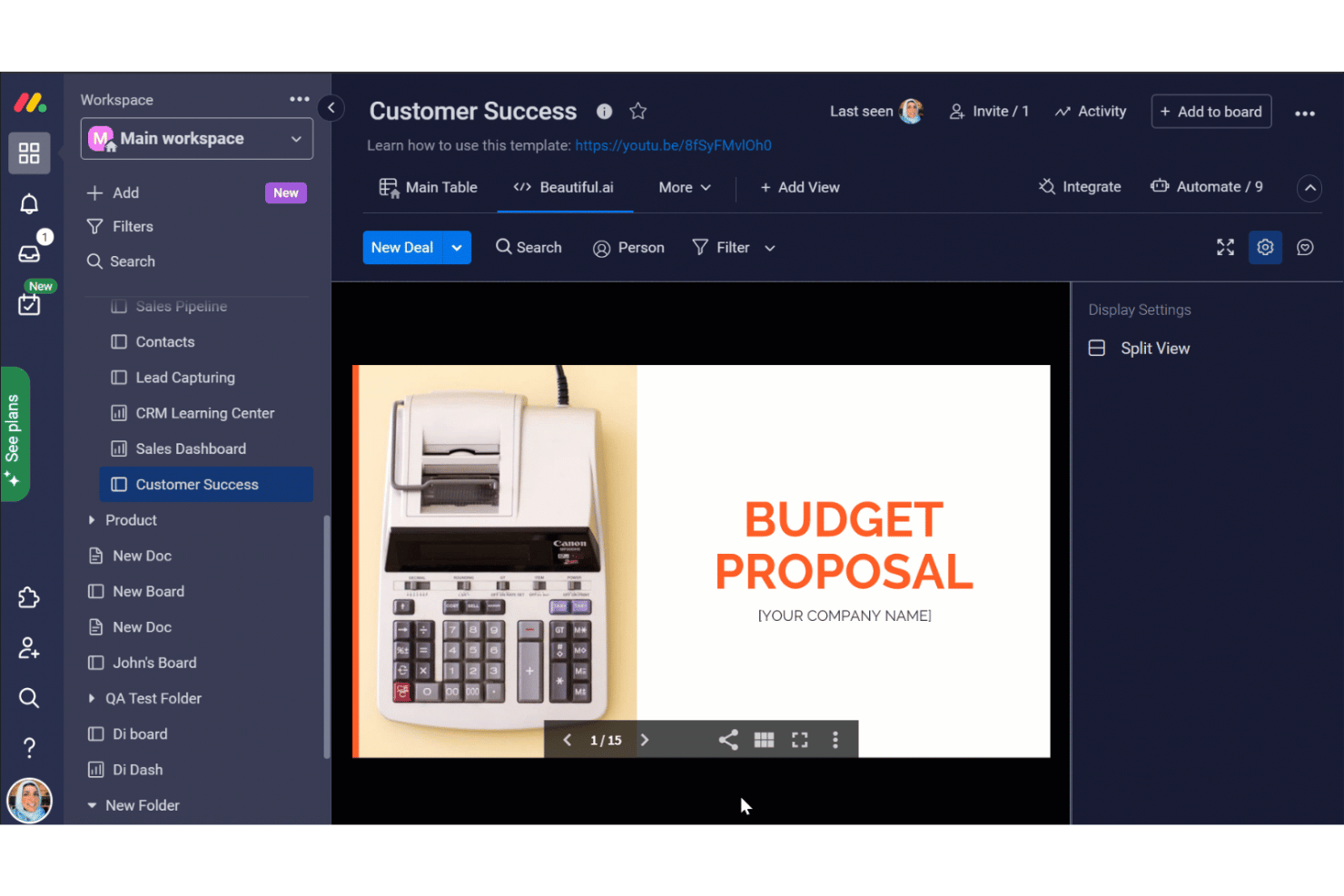
monday AI Workspace is a cloud work management platform that unifies task tracking, project planning, cross-team collaboration, and AI-powered workflow automation across work management, CRM, service, and dev on a single platform.
Who Is monday AI Workspace Best For?
It's a strong fit for mid-size to enterprise teams running cross-functional projects across multiple departments who need one platform to manage all their work.
Why I Picked monday AI Workspace
monday AI Workspace earns its spot on my shortlist because of how deeply AI is embedded into the actual planning process. I'm particularly impressed by the Sidekick AI assistant, which can draft project timelines, assign milestones, and flag risks based on board context. The AI Agent Workforce takes that further by executing tasks autonomously, not just suggesting them. In practice, that means my team can spin up a fully scoped project plan in minutes rather than hours.
monday AI Workspace Key Features
- Workload management: Visual dashboards let you track team capacity and balance assignments.
- OKR and goal tracking: Connect project tasks to company-wide goals or OKRs for better alignment.
- Native time tracking: Log billable hours and generate customizable reports directly from project boards.
- Proofing and approvals: Built-in tools allow markup, compare versions, and collect structured sign-offs on files and deliverables.
monday AI Workspace Integrations
monday AI Workspace offers hundreds of native integrations and marketplace apps, including Slack, Salesforce, HubSpot, Google Workspace, Microsoft 365, Zoom, GitHub, Dropbox, Asana, Zendesk, and connects with Zapier. An API is available for custom integrations.
Pros and Cons
Pros:
- Scales across departments without separate tools
- Multiple views including Gantt, Kanban, and timeline
- AI Sidekick drafts project plans automatically
Cons:
- Dashboards require setup time to configure
- Automations limited on lower-tier plans
New Product Updates from monday AI Workspace
monday AI Workspace Adds Human Approval Routing
monday AI Workspace adds a human-in-the-loop approval block to AI Workflows, sending approval requests and routing workflow paths based on responses. For more information, visit monday AI Workspace's official site.
Annen programvare for skybasert produktivitet
Her er noen flere alternativer for programvare for skybasert produktivitet som ikke kom med på listen min, men som fortsatt er verdt å undersøke:
- Slack
For centralized team communication
- Smartsheet
For managing complex workflows
- Wrike
For cross-team collaboration tracking
- Todoist
For personal task organization
- Axero
For creating internal knowledge hubs
- Zimbra
For open-source email and scheduling
- Coda
For building custom workspaces
- Reclaim
For automated calendar optimization
- LucidLink
For real-time remote file access


How I Evaluate Cloud Productivity Software
I evaluate cloud productivity tools in two layers: baseline requirements—cloud-native access, task management, live collaboration—and the differentiators that make one tool the right fit.
Core Functionality (Table Stakes For This List)
When I'm selecting tools for my list, I rank each one on a scale from 0 (does not offer the functionality) to 5 (excels in this area) for each core functionality listed below. Then, I calculate the tool's total score into a percentage. Each tool needs to achieve a minimum total score of 75% to be considered for inclusion.
- Cloud-Based Access & Availability: I check whether the platform runs natively in a browser with full-featured mobile apps, so a PM can reassign a task from a phone between meetings.
- Task & Project Management: Each tool should support task assignment, due dates, dependencies, and milestones—enough structure to run a multi-phase product launch.
- Real-Time Collaboration: I look for live co-editing, @mentions, and threaded comments that let a distributed team hash out a sprint plan without switching to email.
- File Sharing & Cloud Storage: Teams need to attach briefs, share specs, and retrieve past versions, so I evaluate storage depth, version history, and permission controls.
- Workflow & Productivity Views: I consider how many views a tool offers—Kanban, Gantt, calendar, timeline—and whether teams can toggle between them to match Agile or Waterfall needs.
- Third-Party Integrations: The tool should connect with the apps teams already rely on, like Slack, Google Workspace, or Jira, through native integrations or an open API.
Once I have a list of tools that meet this criteria, I consider what sets each platform apart.
Differentiating Factors (What Sets Vendors Apart)
Here's how I compare and contrast different vendors:
Standout Features
Resource and workload management is a big differentiator—I look for visual capacity planning that shows who's overloaded before a sprint starts, not after deadlines slip. AI-powered automation also carries weight, especially when a tool can auto-generate status summaries or suggest task assignments based on team availability. Goal and OKR alignment rounds things out by connecting daily tasks to strategic objectives, which gives program managers the portfolio-level visibility leadership actually asks for.
Beyond Features
Security is high on my list—I check for SOC 2 Type II certification, SSO support, and granular role-based permissions, since enterprise PMOs often need audit logs before procurement will sign off. Methodology flexibility is another factor I evaluate closely. A tool that forces pure Kanban won't serve a team running hybrid Waterfall-Agile delivery. I also consider pricing scalability, particularly whether a platform lets you add contractors or external stakeholders without jumping to a higher tier mid-project.
Slik velger du programvare for skybasert produktivitet
Det er lett å gå seg vill i lange funksjonslister og kompliserte prismodeller. For å hjelpe deg med å holde fokus når du går gjennom den unike prosessen med å velge programvare, har vi laget en sjekkliste over faktorer du bør ha i bakhodet:
| Faktor | Hva bør du vurdere? |
|---|---|
| Skalerbarhet | Vil programvaren støtte teamet ditt etter hvert som det vokser? Sjekk brukergrenser, lagringsbegrensninger og mulighetene for å oppgradere abonnementet. |
| Integrasjoner | Kan den kobles direkte til de eksisterende verktøyene dine (f.eks. Slack, Jira og Google Workspace)? Manglende integrasjoner kan føre til manuelt arbeid. |
| Tilpasningsmuligheter | Kan du tilpasse arbeidsflyter, tillatelser og maler slik at de passer til prosessene dine, eller er du bundet til rigide strukturer? |
| Brukervennlighet | Vil teamet ditt ta løsningen raskt i bruk? Se etter tydelig navigasjon, minimalt behov for opplæring og intuitive grensesnitt. |
| Implementering og opplæring | Hvor lang tid vil oppsettet ta, og hvilke ressurser kreves? Ta hensyn til datamigrering, opplæring og støtte under utrullingen. |
| Kostnad | Er prisnivåene transparente og forutsigbare etter hvert som bruken øker? Vær oppmerksom på skjulte gebyrer eller kostbare tillegg. |
| Sikkerhetstiltak | Tilbyr verktøyet kryptering, SSO og samsvar med standarder som SOC 2 eller GDPR? Vurder risikoen basert på hvor sensitive dataene dine er. |
| Tilgjengelig kundestøtte | Hvilke støttekanaler tilbys, og er de tilgjengelige i din region og tidssone? Rask og pålitelig hjelp kan være avgjørende når det oppstår problemer. |
Hva er programvare for skybasert produktivitet?
Programvare for skybasert produktivitet viser til digitale verktøy som hjelper team med å opprette, organisere, dele og administrere arbeid på nett, uansett hvor de befinner seg. Disse plattformene støtter vanligvis dokumentsamarbeid, fillagring, oppfølging av oppgaver og kommunikasjon i et sikkert, sentralisert miljø. Ved å fungere i skyen muliggjør de oppdateringer i sanntid og tilgang på tvers av enheter, noe som gjør det enklere for distribuerte team å holde seg samkjørte og produktive.
Funksjoner i skybasert produktivitetsprogramvare
Når du velger skybasert produktivitetsprogramvare, bør du se etter følgende viktige funksjoner:
- Dokumentsamarbeid: Flere brukere kan opprette, redigere og kommentere dokumenter i sanntid, noe som gjør det enklere å samle innspill og holde innholdet oppdatert.
- Fillagring i skyen: Lagre, organiser og få sikker tilgang til filer fra alle enheter, slik at teamet alltid har den nyeste versjonen av viktige dokumenter.
- Oppgave- og prosjektsporing: Tildel oppgaver, sett frister og følg fremdriften i delte arbeidsområder for å holde alle ansvarlige og samkjørte.
- Tilgangskontroller: Administrer hvem som kan vise, redigere eller dele bestemte filer og arbeidsområder, slik at sensitiv informasjon beskyttes og krav til samsvar støttes.
- Versjonshistorikk: Følg endringer i dokumenter og filer, slik at brukerne kan se gjennom redigeringer, gjenopprette tidligere versjoner og opprettholde et tydelig revisjonsspor.
- Kalenderintegrasjon: Synkroniser prosjektmilepæler, møter og frister med teamkalendere for bedre planlegging og oversikt.
- Søkefunksjon: Finn raskt dokumenter, oppgaver eller samtaler i hele arbeidsområdet ved hjelp av søkeverktøy basert på nøkkelord eller filtre.
- Varsler og meldinger: Motta oppdateringer om endringer, kommentarer eller kommende frister, slik at du holder deg informert og kan reagere raskt.
- Mobiltilgang: Bruk dedikerte mobilapper eller responsive nettgrensesnitt til å administrere arbeidet og samarbeide når du ikke sitter ved skrivebordet.
Fordeler med skybasert produktivitetsprogramvare
Implementering av skybasert produktivitetsprogramvare gir flere fordeler for teamet og virksomheten din. Her er noen av fordelene du kan se frem til:
- Samarbeid i sanntid: Team kan arbeide sammen på dokumenter og prosjekter samtidig, noe som reduserer forsinkelser og forvirring rundt versjoner.
- Sentralisert informasjon: Alle filer, oppgaver og all kommunikasjon lagres på ett tilgjengelig sted, noe som gjør det enklere å finne og administrere arbeidet.
- Tilgjengelighet for fjernarbeid: Teammedlemmer kan få tilgang til verktøy og data fra alle enheter og steder, noe som støtter distribuerte og hybride arbeidsmodeller.
- Bedre ansvarlighet: Oppgavesporing, tilgangskontroller og versjonshistorikk bidrar til å tydeliggjøre ansvarsområder og opprettholde en klar oversikt over endringer.
- Skalerbare arbeidsflyter: Skybaserte plattformer kan vokse sammen med teamet ditt, slik at du kan legge til brukere, lagringsplass eller funksjoner etter hvert som behovene dine utvikler seg.
- Forbedret sikkerhet: Innebygde tilgangsinnstillinger og samsvarsfunksjoner bidrar til å beskytte sensitiv informasjon og støtte regulatoriske krav.
- Sentralisert introduksjon: Ferdiglagde maler, opplæringsressurser og intuitive grensesnitt hjelper nye brukere med å komme raskt i gang.
Kostnader og priser for skybasert produktivitetsprogramvare
Valg av skybasert produktivitetsprogramvare krever en forståelse av de ulike prismodellene og abonnementene som er tilgjengelige. Kostnadene varierer basert på funksjoner, teamstørrelse, tillegg og mer. Tabellen nedenfor oppsummerer vanlige abonnementer, gjennomsnittsprisene deres og typiske funksjoner som er inkludert i løsninger for skybasert produktivitetsprogramvare:
Sammenligningstabell for abonnementer for skybasert produktivitetsprogramvare
| Abonnementstype | Gjennomsnittspris | Vanlige funksjoner |
|---|---|---|
| Gratisabonnement | $0 | Grunnleggende dokumentsamarbeid, begrenset lagringsplass, enkel oppgavesporing og grunnleggende brukerstøtte. |
| Personlig abonnement | $5–$10/user/month | Individuell fillagring, kalenderintegrasjon, mobiltilgang og personlig oppgavehåndtering. |
| Bedriftsabonnement | $12–$25/user/month | Teamarbeidsområder, avanserte tilgangskontroller, integrasjoner med andre verktøy og prioritert brukerstøtte. |
| Storbedriftsabonnement | $30–$50/user/month | Ubegrenset lagringsplass, avansert sikkerhet, samsvarsfunksjoner, tilpasset introduksjon og dedikert brukerstøtte. |
Vanlige spørsmål om skybasert produktivitetsprogramvare
Her er noen svar på vanlige spørsmål om skybasert produktivitetsprogramvare:
Hvor sikker er skybasert produktivitetsprogramvare?
De fleste skybaserte produktivitetsprogrammer bruker kryptering, tilgangskontroller og samsvarssertifiseringer som SOC 2 eller GDPR for å beskytte dataene dine. Gå alltid gjennom leverandørens sikkerhetsdokumentasjon, og spør om prosessen for håndtering av sikkerhetshendelser før du tar en beslutning.
Kan jeg flytte eksisterende filer og data til skybasert produktivitetsprogramvare?
Ja, de fleste plattformer tilbyr importverktøy eller støtte for migrering av filer, dokumenter og brukerdata. Kontroller at de er kompatible med formatene du bruker i dag, og spør om eventuelle begrensninger eller ekstra kostnader for omfattende migreringer.
Hva skjer hvis internettforbindelsen min blir brutt?
Mange skybaserte produktivitetsverktøy tilbyr tilgang uten nett for kjernefunksjoner som redigering eller visning av dokumenter. Endringer som gjøres uten nett, synkroniseres vanligvis automatisk når forbindelsen er gjenopprettet, men enkelte avanserte funksjoner kan være utilgjengelige til du er på nett igjen.
Hvordan administrerer jeg brukertilgang og tillatelser?
De fleste løsninger lar deg angi detaljerte tillatelser på dokument-, mappe- eller arbeidsområdenivå. Du kan kontrollere hvem som kan vise, redigere eller dele innhold, og ofte integrere med enkel pålogging (SSO) for sentralisert brukeradministrasjon.
Finnes det skjulte kostnader utover abonnementsavgiften?
Noen leverandører tar ekstra betalt for avanserte funksjoner, mer lagringsplass, prioritert kundestøtte eller integrasjoner. Gå nøye gjennom prissiden, og be om et detaljert pristilbud for å unngå overraskelser når bruken øker.