

10 beste programvarer for dokumentskanning, vurdert i 2026

Beste programvare for dokumentskanning – kortliste


Å administrere et prosjekt innebærer å holde styr på utallige dokumenter, og det er ingen liten oppgave å holde dem organisert. Du har sannsynligvis opplevd frustrasjonen ved å lete gjennom bunker med papir eller rotete digitale filer. Programvare for dokumentskanning kan være en stor hjelp og gjøre det enklere for deg og teamet ditt å organisere dokumentene effektivt.
Basert på min erfaring kan det å finne riktig verktøy endre måten du håndterer papirarbeid på, spare tid og redusere stress. Jeg testet og vurderte disse verktøyene uavhengig, med mål om å gi deg ærlig og grundig undersøkt informasjon.
Du får se de beste valgene innen programvare for dokumentskanning, hver med unike funksjoner tilpasset ulike behov. Enten du driver en liten bedrift eller en stor virksomhet, finnes det en løsning som passer.
Hvorfor du kan stole på våre programvareanbefalinger
Teamet vårt har testet og anmeldt programvare siden 2012. Vi er selv prosjektledere, så vi vet hvor vanskelig og hvor viktig det er å velge riktig programvare.
I denne guiden har vi vurdert verktøyene gjennom praktisk testing og uavhengig research og gitt dem poeng ut fra våre utvelgelseskriterier. Vi bygger også på innsikt fra ledende eksperter i bransjen og erfarne prosjektledere.
Anmeldelsene våre bygger på vår egen redaksjonelle vurdering. De er ikke et salgsargument.
Ekspertanmeldere:
Sammenligningstabell for programvare for dokumentskanning
\u003cspan style=\u0022font-weight: 400\u0022\u003eDenne sammenligningstabellen oppsummerer prisopplysningene for mine beste valg av programvare for dokumentskanning.\u003c/span\u003e
| Tool | Best For | Trial Info | Price | ||
|---|---|---|---|---|---|
| 1 | Best for accurate scans with quality detection | Free demo available | Pricing upon request | Website | |
| 2 | Best for AI-based data extraction | Free trial available + free demo | Pricing upon request | Website | |
| 3 | Best for mobile device scanning | Not available | Website | ||
| 4 | Best for OCR accuracy | Not available | Website | ||
| 5 | Best for small business use | Not available | Website | ||
| 6 | Best for secure document handling | Not available | Website | ||
| 7 | Best for open-source flexibility | Free plan available | Website | ||
| 8 | Best for multi-page scanning | Not available | Website | ||
| 9 | Best for quick cloud integration | Not available | Website | ||
| 10 | Best with custom extraction pipelines | Free plan available | From $79.20/month (billed annually) | Website |
Vurdering av den beste programvaren for dokumentskanning
\u003cspan style=\u0022font-weight: 400\u0022\u003eNedenfor finner du mine detaljerte sammendrag av den beste programvaren for dokumentskanning som kom med på kortlisten min. Vurderingene mine gir en detaljert gjennomgang av de viktigste funksjonene, fordelene og ulempene, integrasjonene og ideelle bruksområdene for hvert verktøy, slik at du kan finne det som passer best for deg.\u003c/span\u003e
Best for accurate scans with quality detection

Doxis AI.dp. is a document scanning software that uses AI to capture, analyze, and extract data from a wide range of document types.
Who Is Doxis AI.dp. Best For?
Doxis AI.dp. is a good fit for operations and finance teams that process large volumes of documents and need reliable, automated data capture.
Why I Picked Doxis AI.dp.
I picked Doxis AI.dp. as one of the best because of how seriously it takes scan quality as a prerequisite for accurate data extraction. The OCR SDK includes real-time user feedback during capture—alerting users if a document is too far away, poorly lit, or if the camera is unstable. This real-time guidance prevents my team from discovering bad scans later. Additionally, the image pre-processing module automatically enhances images before extraction, improving results for low-resolution uploads and imperfect physical documents. The human-in-the-loop feature adds another layer, letting skilled operators validate and correct AI-extracted data to push accuracy close to 100%.
Doxis AI.dp. Key Features
- Document classification: Automatically sorts and labels documents using AI algorithms, with support for custom classification rules and parameters.
- Data anonymization: Detects and redacts sensitive fields from documents to support GDPR and other data privacy compliance requirements.
- Document fraud detection: Uses EXIF analysis, duplicate detection, copy-move checks, and pixel-level analysis to flag manipulated or forged documents.
- Workflow builder: A drag-and-drop interface lets you design and deploy custom document processing workflows, from intake through data extraction and output.
Doxis AI.dp. Integrations
Native integrations are not clearly documented. The tool supports integrations via API for custom connections.
Pros and Cons
Pros:
- Supports conversion to JSON, XML, CSV, XLSX
- Image quality detection reduces unusable scans
- Mobile SDK captures documents in seconds
Cons:
- Some issues with rotated images affecting extraction quality
- Custom-model training may take initial effort
New Product Updates from Doxis AI.dp.
Doxis AI.dp Improves Dataset Validation and API Controls
Doxis AI.dp improves dataset editing with real-time type validation, better field controls, and save prevention on invalid values, plus new API capabilities. These updates help teams maintain cleaner dataset values and manage rows more reliably. For more information, visit Doxis AI.dp’s official site.
 .

TrailHQ
Best for AI-based data extraction

Nanonets is a document scanning and data extraction platform that uses AI to capture, classify, and process information from a wide range of document types.
Who Is Nanonets Best For?
Nanonets is a good fit for operations and finance teams that need to automate high-volume document processing across invoices, receipts, and forms.
Why I Picked Nanonets
Nanonets earns its spot on my shortlist because of how far its AI-based data extraction goes beyond basic OCR. I've used it to pull structured data from invoices, bills of lading, and bank statements—and it supports over 300 pre-trained document extractors, so my team isn't starting from scratch every time we onboard a new document type. The model learns from corrections over time, so extraction accuracy improves as you use it. I also like that the OCR API supports multiple programming languages, so engineering teams can embed document scanning directly into existing pipelines without a heavy lift.
Nanonets Key Features
- Document classification: Automatically sorts incoming documents into predefined categories based on their content and layout.
- Workflow automation: Build multi-step approval and processing workflows that trigger based on extracted data values.
- Human-in-the-loop review: Flag low-confidence extractions for manual review before data moves downstream.
- Audit trail: Logs every action taken on a document, including edits, approvals, and exports, for compliance tracking.
Nanonets Integrations
Nanonets offers native integrations with Google Drive, Dropbox, Salesforce, QuickBooks, and Zapier. An API is available for custom integrations.
Pros and Cons
Pros:
- Real-time data processing
- Custom workflow creation
- AI improves accuracy over time
Cons:
- Learning curve for custom models
- Limited offline capabilities
- High starting price


Adobe Scan is a document scanning app that lets you capture, convert, and organize physical documents into digital files using your mobile device, with built-in OCR and PDF export capabilities.
Who Is Adobe Scan Best For?
Adobe Scan is a good fit for individuals and teams who need to scan and digitize documents on the go using a smartphone or tablet.
Why I Picked Adobe Scan
Adobe Scan is one of my top picks because I love how it turns a smartphone camera into a fully capable document scanner without needing any additional hardware. Its AI-powered image correction automatically detects document edges, removes shadows and glare, and sharpens text, so scans come out clean even in imperfect lighting. I also rely on the built-in OCR, which makes scanned documents searchable and editable. Scans sync directly to Adobe Document Cloud, so I can open them in Acrobat on desktop or web without any manual file transfers.
Adobe Scan Key Features
- Capture modes: Switch between document, whiteboard, business card, and form capture modes to match what you're scanning.
- Markup tools: Add drawings, shapes, and annotations directly within the app before saving or sharing a scan.
- PDF compression: Reduce file size with adjustable compression levels (high or low) to make scans easier to share.
- Custom folder organization: Save scans with recommended filenames and dates, and sort them into custom folders within the app.
Adobe Scan Integrations
Adobe Scan offers native integration with Adobe Document Cloud, allowing you to access and manage scanned files across Adobe Acrobat and other Adobe apps. Native integrations with third-party tools are not clearly documented.
Pros and Cons
Pros:
- Organize with recommended filenames
- AI-enhanced text clarity
- Easy mobile scanning
Cons:
- Basic editing tools
- Subscription needed for extra features
- Requires Adobe account


ABBYY FineReader is a document scanning and OCR software that lets you digitize, convert, and edit scanned documents and PDFs in multiple formats.
Who Is ABBYY FineReader Best For?
ABBYY FineReader is a good fit for legal, finance, and administrative teams that regularly process large volumes of scanned documents and need accurate text extraction.
Why I Picked ABBYY FineReader
ABBYY FineReader earns its spot on my shortlist because its OCR accuracy is genuinely hard to beat—up to 99.8% recognition accuracy across 198 languages. I've used it to process scanned contracts and multi-language documents where other tools introduced errors that required manual correction. FineReader's AI-guided image preprocessing automatically corrects skewed pages, pixelated text, and distorted characters before recognition begins, improving results on lower-quality scans. The Compare Documents feature is another one I rely on—it uses OCR to detect text-level differences between a scanned PDF and a Word file, which saves my team from tedious line-by-line reviews.
ABBYY FineReader Key Features
- Batch processing: Convert or recognize multiple documents simultaneously using automated workflows without manual file-by-file handling.
- PDF editing: Modify text, images, and pages directly within scanned or native PDFs without converting to another format first.
- Document conversion: Export scanned files to editable formats including Word, Excel, PowerPoint, and searchable PDF.
- Hot folder automation: Set up watched folders that automatically process incoming scanned documents based on predefined rules.
ABBYY FineReader Integrations
ABBYY FineReader offers native integrations with Microsoft 365, SharePoint, and Dropbox, and an API for custom integrations.
Pros and Cons
Pros:
- Document comparison feature
- Direct PDF editing
- High OCR accuracy
Cons:
- High learning curve
- Requires desktop installation
- Limited mobile support


CamScanner is a document scanning software that lets you scan, digitize, organize, and share documents using your mobile device, with features like OCR and multi-format export.
Who Is CamScanner Best For?
CamScanner is a good fit for small business teams that need a lightweight, mobile-first way to scan, digitize, and manage documents on the go.
Why I Picked CamScanner
I picked CamScanner as one of the best because it covers the full document scanning workflow that small business teams encounter daily. When my team scans contracts, receipts, or invoices on the go, the AI-enhanced image processing automatically crops edges, removes backgrounds, and applies filters to produce clean, professional-looking PDFs without any manual cleanup. I also rely heavily on the OCR feature, which pulls editable text from scanned images in 41 languages, making it easy to search, copy, or repurpose content from physical documents. The ability to export directly to Word, Excel, or PPT from a phone scan is something I rarely see in mobile-first tools.
CamScanner Key Features
- PDF editing tools: Merge, split, reorder, compress, add watermarks, and password-protect PDF files directly within the app.
- E-signature support: Add electronic signatures to scanned documents without leaving the app or exporting to a separate tool.
- Smart translation: Translate text extracted from scanned documents across multiple languages using built-in AI translation.
- Multi-device sync: Access and manage your scanned files across phones, tablets, and desktop computers through cloud backup.
CamScanner Integrations
Native integrations are not clearly documented. CamScanner offers cloud storage connections with Google Drive, Dropbox, and OneDrive, and provides an API for custom integrations.
Pros and Cons
Pros:
- Secure sharing options
- Document enhancement features
- Easy mobile scanning
Cons:
- Limited desktop functionality
- Ads in free version
- Limited free features


MyQ is a document scanning and print management platform that lets you capture, digitize, and route documents securely from multifunction devices and desktop environments.
Who Is MyQ Best For?
MyQ is a good fit for IT administrators and document managers in mid-size to enterprise organizations that need centralized control over print and scan environments.
Why I Picked MyQ
MyQ earns its spot on my shortlist because of how seriously it treats document security at every stage of the scanning process. I particularly like the zonal redaction feature, which automatically strips personal data from documents during scanning—useful when my team handles contracts or HR files. Scanned PDFs can be encrypted, password-protected, and stamped with a digital signature and timestamp, creating a clear chain of custody if a document's integrity is questioned. The automatic document classification also means sensitive files like invoices or contracts get routed to the right destination without manual intervention.
MyQ Key Features
- Easy Scan: Launches a full scan-to-destination workflow in one click, sending documents directly to a network folder, email, or cloud storage.
- OCR conversion: Converts scanned documents into searchable, editable PDFs using optical character recognition.
- Barcode and QR code reading: Reads barcodes and QR codes embedded in documents to identify, split, and route multi-document batches automatically.
- Document indexing: Lets you attach metadata—like invoice numbers, due dates, and totals—to scanned documents during the scanning process.
MyQ Integrations
MyQ offers native integrations with Microsoft 365, Google Workspace, Dropbox, Box, and OneDrive, and provides an API for custom integrations.
Pros and Cons
Pros:
- Customizable interfaces
- Detailed audit trails
- User authentication options
Cons:
- Limited mobile functionality
- Requires IT support
- Complex setup process


NAPS2 is an open-source document scanning software that lets you scan, organize, and convert documents using a wide range of scanners and file formats.
Who Is NAPS2 Best For?
NAPS2 is a good fit for developers, IT professionals, and technically inclined individuals who want a free, customizable scanning tool they can adapt to their own workflows.
Why I Picked NAPS2
NAPS2 earns its spot on my shortlist because of how much control it gives you over the scanning process without locking you into a paid ecosystem. What I find particularly compelling is the CLI—you can script entire scanning workflows, set output paths with auto-numbered placeholders, trigger OCR in specific languages, and pipe results directly into other tools. I've used it to automate batch scanning jobs that would otherwise require manual intervention at every step. The MSI installer and GPO deployment support also make it genuinely practical for IT teams rolling it out across multiple machines.
NAPS2 Key Features
- PDF and image output formats: Export scans directly to PDF, TIFF, JPEG, PNG, and other common file formats from within the app.
- OCR text recognition: Convert scanned pages into searchable or editable text using built-in OCR powered by Tesseract.
- Multi-page document editing: Reorder, rotate, crop, and delete individual pages before finalizing your scan output.
- TWAIN and WIA scanner support: Connect to a wide range of physical scanners using standard TWAIN and WIA drivers.
NAPS2 Integrations
Native integrations are not clearly listed.
Pros and Cons
Pros:
- Batch scanning available
- Simple user interface
- Supports many file formats
Cons:
- Not cloud-based
- No native integrations
- Limited advanced features


PaperScan is a document scanning software for digitizing, processing, and organizing paper documents, offering batch scanning, image correction, and support for a wide range of scanner devices and file formats.
Who Is PaperScan Best For?
PaperScan is a good fit for individuals and small teams who need a desktop-based tool for high-volume document scanning and image processing.
Why I Picked PaperScan
PaperScan earns its spot on my shortlist because of how well it handles multi-page document workflows. I particularly like the separator sheet scanning feature, which lets me batch-scan large stacks of mixed documents and automatically split them into separate files—something that saves a lot of manual sorting. PaperScan also handles blank page detection and removal automatically, so multi-page scans don't end up bloated with empty pages I'd otherwise have to clean up by hand. Duplex scanning support means I can capture both sides of a page in a single pass.
PaperScan Key Features
- Image enhancement tools: Apply filters like deskew, despeckling, and brightness adjustment to improve scan quality before saving.
- OCR support: Convert scanned pages into searchable or editable text using built-in optical character recognition.
- Annotation tools: Add stamps, highlights, and notes directly onto scanned documents within the application.
- Multiple export formats: Save scanned documents as PDF, TIFF, JPEG, PNG, and other common file formats.
PaperScan Integrations
Native integrations are not clearly listed.
Pros and Cons
Pros:
- Wide file format support
- Automatic blank page removal
- Easy multi-page scanning
Cons:
- Requires desktop installation
- Limited mobile support
- No cloud integration


Swift Scan is a document scanning software that lets you capture, digitize, and organize documents with features like high-resolution scanning, automatic edge detection, and direct uploads to cloud storage platforms.
Who Is Swift Scan Best For?
Swift Scan is a good fit for individuals and small teams who need to digitize physical documents and sync them directly to cloud storage without a complex setup.
Why I Picked Swift Scan
Swift Scan earns its spot on my shortlist because it moves scanned documents into the cloud with minimal delay. I like that it connects directly to Google Drive, Dropbox, and OneDrive, so my team can scan a document and have it uploaded and organized in seconds. The automatic edge detection and perspective correction mean we're not spending time cleaning up scans before sharing them. Batch scanning also lets us process multi-page documents into a single PDF without interrupting the upload flow.
Swift Scan Key Features
- OCR text recognition: Converts scanned documents into searchable, selectable text you can copy or index.
- Annotation tools: Add notes, highlights, or signatures directly onto scanned documents before saving or sharing.
- Custom folder organization: Create and manage folder structures within the app to keep scanned files sorted by project or category.
- QR and barcode scanning: Scan QR codes and barcodes alongside documents to capture linked data in a single workflow.
Swift Scan Integrations
Swift Scan offers native integrations with Google Drive, Dropbox, OneDrive, Evernote, and Box for direct document uploads. An API is not clearly documented for custom integrations.
Pros and Cons
Pros:
- Multi-page PDF creation
- Automatic edge detection
- Quick cloud integration
Cons:
- No desktop version
- Subscription needed for full features
- Limited to mobile devices
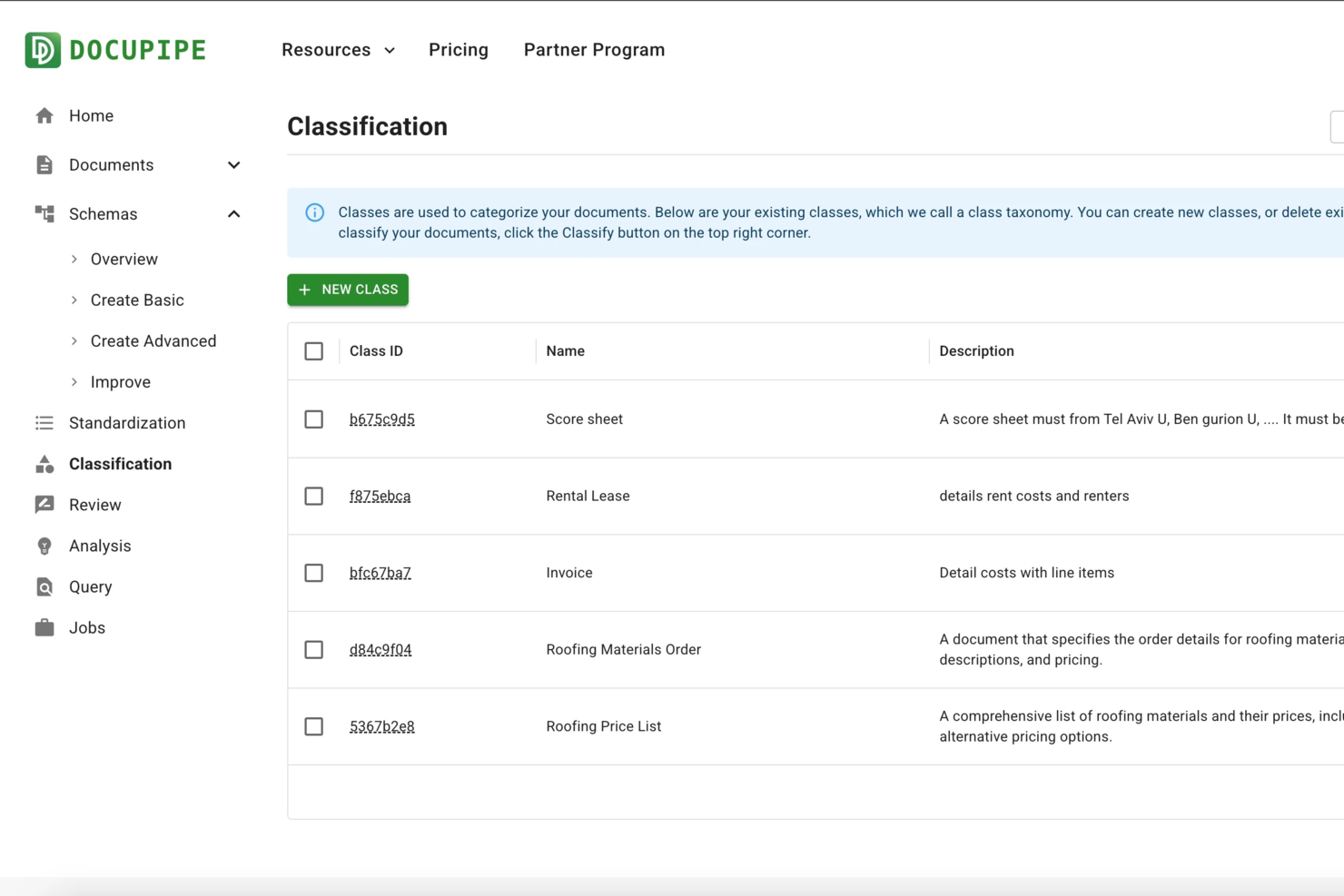
DocuPipe is a document scanning and processing platform that lets you build custom extraction pipelines, automate data capture, and handle complex document types with advanced OCR and workflow tools.
Who Is DocuPipe Best For?
DocuPipe suits operations teams and solution architects who need to automate document processing across diverse formats and workflows.
Why I Picked DocuPipe
I picked DocuPipe as one of the best because its custom extraction pipeline builder lets me design document workflows tailored to unique business rules and data structures. I like that I can set up multi-step extraction logic for invoices, contracts, or forms—my team is able to automate complex data capture scenarios without coding. The visual pipeline editor makes it easy to adapt processes as requirements change.
DocuPipe Key Features
- Handwritten text recognition: Accurately extracts data from scanned handwritten documents and forms.
- Multi-language OCR: Processes documents in over 60 languages for global document handling.
- Automated data validation: Flags inconsistencies and errors in extracted data before export.
- API access: Integrates document processing workflows directly into your existing systems.
DocuPipe Integrations
Native integrations are not clearly documented. DocuPipe provides an API for custom integrations.
Pros and Cons
Pros:
- Automatic field detection adapts to layouts
- Offers custom extraction pipeline builder
- Handles handwritten and mixed-content documents
Cons:
- Lacks built-in export to cloud storage
- Credit-based usage limits on free plan
New Product Updates from DocuPipe
DocuPipe Adds Source View and Auto-Refresh Jobs Page
DocuPipe adds Source view comparisons, auto-refreshing jobs, and real-time progress bars to improve document review and processing visibility. The updates help teams monitor extraction and standardization workflows more efficiently. For more information, visit DocuPipe’s official site.
 .
Annen programvare for dokumentskanning
\u003cspan style=\u0022font-weight: 400\u0022\u003eHer er noen flere alternativer for programvare for dokumentskanning som ikke kom med på kortlisten min, men som likevel er verdt å ta en titt på:\u003c/span\u003e
- Scan2x
For automated workflows
- Genius Scan
For quick batch scanning
- Scan.Plus
For high-resolution scanning
- Tiny Scanner
For lightweight mobile use


How I Evaluate Document Scanning Software
I evaluate document scanning tools in two layers: the core OCR, capture, and output capabilities to qualify, then the differentiators that matter for AP clerks, records teams, and legal ops.
Core Functionality (Table Stakes for This List)
These core capabilities serve as the acceptance criteria for inclusion on my list of document scanning software:
- Multi-Source Document Capture: I check whether a tool supports scanner, MFP, mobile camera, and file import inputs—field teams need camera capture while mailrooms rely on ADF-fed scanners.
- OCR & Text Recognition: Accuracy across languages and document types matters, so I evaluate how well each tool handles degraded originals like faxes, carbon copies, and older contracts.
- Image Processing & Enhancement: Auto-deskew, despeckle, and blank page removal should happen without manual tweaking—especially for high-volume AP teams scanning inconsistent invoice stacks.
- File Format & Export Options: I look for searchable PDF, TIFF, Word, and Excel output with direct export paths to cloud storage, network folders, or connected business systems.
- Data Extraction & Indexing: Barcode separation, zonal OCR, and metadata tagging are what turn a raw scan into a retrievable record—I evaluate how each tool handles structured forms vs. freeform documents.
- Document Redaction Controls: Automated and manual redaction capabilities, granular access controls, encryption, and audit trails are essential for organizations handling sensitive information.
I rank each vendor on a scale from 0 (does not offer the functionality) to 5 (excels in this area) for each criterion.
Vendors need to achieve a minimum average score to be considered for inclusion on my list. From there, I consider what sets each platform apart.
Differentiating Factors (What Sets Vendors Apart)
Once I've curated my list, here's how I contrast and compare different vendors in the document scanning software space:
Standout Features
I look for intelligent document processing powered by AI/ML, since automated classification and entity extraction can dramatically reduce time spent on manual data entry. Tools that offer native mobile capture apps with edge detection and offline sync are valuable for remote teams or field workers who need to digitize paperwork on the go. Batch processing capabilities also matter for environments handling thousands of pages a day—barcode separation and queue management streamline high-volume workflows.
Beyond Features
Scanner hardware compatibility is one of the first things I evaluate—teams using production scanners need confirmed TWAIN and ISIS driver support. Deployment model matters too, since healthcare and legal teams often require on-premise installs to meet data residency policies. I also check for documented compliance certifications like HIPAA, SOC 2 Type II, or GDPR readiness, especially when a tool will handle PHI or attorney-client privileged records.
Slik velger du programvare for dokumentskanning
Det er lett å gå seg vill i lange funksjonslister og kompliserte prisstrukturer. For å hjelpe deg med å holde fokus mens du går gjennom den unike prosessen med å velge programvare, finner du her en sjekkliste over faktorer du bør ha i mente:
| Faktor | Hva du bør vurdere |
|---|---|
| Skalerbarhet | Kan programvaren håndtere den økende dokumentmengden din? Vurder fremtidige behov og om verktøyet kan skaleres i takt med virksomheten uten at det kreves en fullstendig systemomlegging. |
| Integrasjoner | Kan den kobles til de eksisterende verktøyene dine? Sjekk kompatibiliteten med de nåværende systemene dine, for eksempel CRM, skylagring eller regnskapsprogramvare, for å unngå avbrudd i arbeidsflyten. |
| Tilpasningsmuligheter | Kan du tilpasse programvaren til prosessene dine? Se etter alternativer som lar deg justere arbeidsflyter, brukertillatelser og innstillinger slik at de samsvarer med virksomhetens behov. |
| Brukervennlighet | Er grensesnittet intuitivt for teamet ditt? Velg programvare som ikke krever omfattende opplæring, slik at teamet kan ta den i bruk effektivt med en gang. |
| Implementering og oppstart | Hvor enkelt er det å komme i gang? Vurder hvor mye tid og hvilke ressurser som kreves for oppsettet, og om leverandøren tilbyr støtte som opplæringsvideoer eller produktvisninger. |
| Kostnad | Samsvarer prisene med budsjettet ditt? Ta med alle kostnader i vurderingen, inkludert oppsettsgebyrer, abonnementsplaner og eventuelle skjulte kostnader, for å sikre at løsningen passer inn i den økonomiske planen din. |
| Sikkerhetstiltak | Er dokumentene dine beskyttet? Sørg for at programvaren tilbyr kryptering, tilgangskontroller og regelmessige sikkerhetsoppdateringer for å holde sensitiv informasjon sikker. |
| Tilgjengelig kundestøtte | Er det hjelp tilgjengelig når du trenger det? Sjekk om leverandøren tilbyr støtte døgnet rundt, flere kontaktalternativer og raske svartider for å løse eventuelle problemer raskt. |
Hva er programvare for dokumentskanning?
Programvare for dokumentskanning er et verktøy som konverterer fysiske dokumenter til digitale formater som PDF-filer eller bilder. Fagpersoner som kontorledere, regnskapsførere og juridiske assistenter bruker disse verktøyene til å håndtere og organisere papirarbeid på en effektiv måte. Automatisk tekstgjenkjenning, skanning av flere sider og sikker deling bidrar til å forenkle dokumenthåndteringen og øke produktiviteten. Alt i alt sparer disse verktøyene tid og reduserer bryderiet med å håndtere papirdokumenter.
Funksjoner i programvare for dokumentskanning
Når du velger programvare for dokumentskanning, bør du se etter følgende viktige funksjoner:
- Optisk tegngjenkjenning (OCR): Konverterer skannet tekst til redigerbare og søkbare data, noe som gjør det enklere å arbeide med digitale dokumenter.
- Skanning av flere sider: Gjør det mulig å skanne flere sider til ett enkelt dokument, noe som sparer tid og opprettholder organiseringen.
- Sikker dokumentdeling: Tilbyr alternativer for trygg deling av filer med kryptering og tillatelser, slik at sensitiv informasjon forblir beskyttet.
- Batchbehandling: Gjør det mulig å skanne store mengder dokumenter samtidig, noe som øker effektiviteten på travle kontorer.
- Skyintegrasjon: Kobler seg til skylagringstjenester for automatisk lagring og tilgang til dokumenter fra hvor som helst.
- Tilpassbare arbeidsflyter: Gir mulighet til å tilpasse dokumentprosesser etter spesifikke forretningsbehov og forbedre produktiviteten.
- Automatisk dokumentklassifisering: Identifiserer og kategoriserer dokumenter automatisk, noe som reduserer manuell sortering og feil.
- Brukervennlig grensesnitt: Sikrer enkel bruk med intuitiv navigasjon, slik at team raskt kan begynne å bruke programvaren.
- Verktøy for merknader og redigering: Tilbyr funksjoner for å legge til notater, uthevinger eller redigeringer direkte i skannede dokumenter for bedre samarbeid.
- Støtte for opplæring og introduksjon: Inkluderer ressurser som videoer og veiledninger for å hjelpe brukerne i gang og få mest mulig ut av programvaren.
Fordeler med programvare for dokumentskanning
Implementering av programvare for dokumentskanning gir flere fordeler for teamet og virksomheten din, blant annet effektiviserte arbeidsflyter som kompletterer gratis løsninger for e-signaturer. Her er noen av fordelene du kan se frem til:
- Tidsbesparelser: Automatiserer prosessen med å konvertere papirdokumenter til digitale dokumenter, slik at du og teamet ditt sparer utallige timer.
- Bedre organisering: Hjelper med å holde dokumentene i orden med funksjoner som skanning av flere sider og automatisk klassifisering, noe som reduserer rot og forvirring.
- Bedre tilgjengelighet: Gjør dokumenter lett tilgjengelige fra hvor som helst gjennom skyintegrasjon, noe som støtter fjernarbeid og samarbeid.
- Økt sikkerhet: Beskytter sensitiv informasjon med sikker deling og kryptering, slik at du kan føle deg trygg.
- Reduksjon av feil: Minimerer feil ved manuell dataregistrering med OCR, slik at de digitale dokumentene dine blir nøyaktige.
- Kostnadseffektivitet: Reduserer behovet for fysisk lagringsplass og papir, noe som senker driftskostnadene.
- Bedre samarbeid: Gjør det mulig for teammedlemmer å legge til merknader i og redigere dokumenter sammen, noe som fremmer teamarbeid og kommunikasjon.
Kostnader og priser for programvare for dokumentskanning
Valg av programvare for dokumentskanning krever en forståelse av de ulike prismodellene og abonnementene som er tilgjengelige. Kostnadene varierer basert på funksjoner, teamstørrelse, tillegg og mer. Tabellen nedenfor oppsummerer vanlige abonnementer, gjennomsnittsprisene deres og typiske funksjoner som er inkludert i løsninger for programvare for dokumentskanning:
Sammenligningstabell for abonnementer på programvare for dokumentskanning
| Abonnementstype | Gjennomsnittspris | Vanlige funksjoner |
|---|---|---|
| Gratisabonnement | $0 | Grunnleggende skanning, begrenset lagringsplass og vannmerke på dokumenter. |
| Personlig abonnement | $5-$15/bruker/måned | OCR-funksjoner, integrasjon med skylagring og grunnleggende redigeringsverktøy. |
| Bedriftsabonnement | $20-$50/bruker/måned | Avanserte sikkerhetsfunksjoner, skanning av flere sider og tilpassbare arbeidsflyter. |
| Virksomhetsabonnement | $60-$100/bruker/måned | Datakryptering på høyt nivå, dedikert kundestøtte og omfattende integrasjonsalternativer. |
Vanlige spørsmål om programvare for dokumentskanning
Her er noen svar på vanlige spørsmål om programvare for dokumentskanning:
Hvor sikre er skannede dokumenter?
Skannede dokumenter kan være svært sikre hvis du bruker programvare som tilbyr kryptering og tilgangskontroller. Se etter funksjoner som lar deg angi tillatelser, slik at bare autoriserte brukere kan se eller redigere dokumenter. Sørg alltid for at leverandøren overholder personvernregler og andre regler for databeskyttelse.
Hvilke filformater bør jeg bruke for skannede dokumenter?
Vanlige formater inkluderer PDF og TIFF, som har bred støtte og bevarer kvaliteten. PDF-filer passer best for tekstrike dokumenter, mens TIFF-filer er godt egnet for bilder. Ta hensyn til behovene dine for redigering og deling når du velger format.
Hvor lang tid tar det å skanne dokumenter?
Tiden varierer avhengig av omfang og kompleksitet. Små prosjekter kan ta noen dager, mens større prosjekter kan ta flere uker. Ved å planlegge på forhånd og bruke funksjoner for satsvis behandling kan du gjøre prosessen raskere.
Kan jeg gjøre skannede dokumenter søkbare?
Ja, ved å bruke teknologien for optisk tegngjenkjenning (OCR). OCR konverterer skannet tekst til redigerbare data, slik at teksten blir søkbar. Dette er nyttig for raskt å finne informasjon i dokumentene dine.
Hva skjer med originaldokumentene etter skanning?
Du kan velge å oppbevare, makulere eller returnere dem. Mange velger å makulere dokumenter for å spare plass og ivareta sikkerheten. Hvis originalene imidlertid er nødvendige av juridiske årsaker, er det viktig å oppbevare dem på riktig måte.
Hvordan får jeg ekstern tilgang til de skannede dokumentene mine?
Integrasjon med skylagring lar deg få tilgang til dokumenter hvor som helst med en internettforbindelse. Sørg for at programvaren støtter denne funksjonen og tilbyr sikker tilgang for fjernarbeid.
Relaterte omtaler
Hvis du fortsatt ikke har funnet det du leter etter her, kan du se nærmere på disse andre verktøyene som vi har testet og evaluert: