

I 10 migliori software di gestione dei documenti personali per il 2026

Elenco dei software per la gestione dei documenti personali


Un sistema di gestione documentale personale (DMS) ti aiuta a organizzare, archiviare e recuperare i tuoi file e documenti personali in un'unica soluzione di archiviazione digitale sicura. Se stai cercando un modo per tenere traccia di tutto, dai contratti e dalle ricevute agli appunti personali e ai documenti importanti in diversi formati di file, sai quanto velocemente i file possano andare persi o diventare disorganizzati, soprattutto quando utilizzi più dispositivi o gestisci processi personali e aziendali combinati. Questo elenco ti aiuterà a confrontare i migliori strumenti per la gestione documentale senza carta del 2026, così potrai trovare la soluzione più adatta al tuo flusso di lavoro, alle tue esigenze di sicurezza e al tuo stile di collaborazione.
Perché fidarsi dei nostri consigli sui software
Il nostro team testa e recensisce software dal 2012. In quanto project manager noi stessi, sappiamo quanto sia difficile — e importante — scegliere il software giusto.
Per questa guida, abbiamo valutato gli strumenti attraverso test pratici e ricerche indipendenti, assegnando un punteggio agli strumenti in base ai nostri criteri di selezione. Ci basiamo inoltre sulle competenze di leader di pensiero del settore e di professionisti attivi nella gestione dei progetti.
Le nostre recensioni riflettono il nostro giudizio editoriale umano, non un discorso di vendita.
Revisori esperti:
Tabella comparativa dei software per la gestione dei documenti personali
Questa tabella comparativa riassume i dettagli sui prezzi delle mie migliori selezioni di software per la gestione dei documenti personali.
| Tool | Best For | Trial Info | Price | ||
|---|---|---|---|---|---|
| 1 | Ideale per la collaborazione in tempo reale tra team | Prova gratuita di 14 giorni e piano gratuito disponibile | A partire da $6,30/mese (fatturato annualmente) | Website | |
| 2 | Ideale per il tracciamento della cronologia delle versioni dei file | Prova gratuita + piano gratuito disponibili | Da $9.99/utente/mese (fatturazione annuale) | Website | |
| 3 | Ideale per l'integrazione con Microsoft 365 | Piano gratuito disponibile | A partire da £1,99/utente/mese | Website | |
| 4 | Ideale per l’indicizzazione multilingue dei documenti | Demo gratuita disponibile | Prezzi su richiesta | Website | |
| 5 | Ideale per strumenti avanzati di modifica PDF | Piano gratuito disponibile | Da $14.99/mese (fatturato annualmente) | Website | |
| 6 | Ideale per la condivisione sicura di file esterni | Prova gratuita di 14 giorni + piano gratuito + demo gratuita disponibile | Da $5/utente/mese (fatturazione annuale) | Website | |
| 7 | Ideale per le funzionalità di automazione dei workflow | Prova gratuita di 14 giorni + demo gratuita disponibile | Da $25/utente/mese | Website | |
| 8 | Ideale per permessi di accesso granulari | Piano gratuito disponibile | Da $52/mese | Website | |
| 9 | Ideale per opzioni di personalizzazione open-source | Demo gratuita + piano gratuito disponibile | Prezzi su richiesta | Website | |
| 10 | Ideale per il supporto nella gestione della conformità | Versione gratuita + demo gratuita disponibili | Prezzo su richiesta | Website |
Recensioni dei software per la gestione dei documenti personali
Di seguito trovi i miei riepiloghi dettagliati dei software per la gestione dei documenti personali inclusi nel mio elenco. Le mie recensioni offrono un’analisi approfondita delle funzionalità, dei casi d’uso migliori e delle integrazioni di ciascun software, per aiutarti a trovare quello più adatto a te.

Ideale per la collaborazione in tempo reale tra team

Per chiunque abbia bisogno di collaborare su documenti in tempo reale, Google Drive offre una soluzione cloud che mantiene i team connessi e organizzati. È particolarmente utile per team distribuiti, liberi professionisti o chiunque debba condividere, modificare e commentare file senza confusione tra diverse versioni. Le funzionalità di modifica e condivisione dal vivo di Google Drive aiutano a tenere i progetti in movimento, anche quando tutti lavorano da posizioni differenti.
Perché ho scelto Google Drive
Quando si tratta di gestire documenti con collaborazione in tempo reale tra team, Google Drive si distingue per le sue capacità di modifica e commento live. Puoi lavorare sullo stesso documento insieme ad altri contemporaneamente, vedere le modifiche mentre avvengono e lasciare feedback direttamente nel file. Mi piace che Google Drive salvi automaticamente ogni modifica, così non devi mai preoccuparti di perdere i progressi o di avere versioni in conflitto. Per chiunque debba far avanzare i progetti con il contributo di più persone, queste funzionalità collaborative rendono Google Drive una scelta solida.
Funzionalità principali di Google Drive
Altre funzionalità che rendono Google Drive utile per la gestione personale dei documenti includono:
- Cronologia delle versioni dei file: Accedi e ripristina versioni precedenti di qualsiasi file archiviato in Drive.
- Filtri di ricerca avanzata: Trova rapidamente documenti utilizzando filtri per tipo di file, proprietario e parole chiave.
- Accesso offline: Visualizza e modifica i file anche senza connessione internet.
- Drive condivisi: Organizza file e cartelle per team o progetti in spazi condivisi dedicati.
Integrazioni con Google Drive
Le integrazioni includono Gmail, Google Docs, Google Sheets, Google Slides, Google Forms, Google Calendar, Google Meet, Google Chat, Google Keep e AppSheet.
Pros and Cons
Pros:
- Facile condividere foto
- Strumenti integrati gratuiti
- Scansioni dall'app mobile
Cons:
- Sincronizzazione file confusa
- Quota di archiviazione condivisa

Dropbox
Ideale per il tracciamento della cronologia delle versioni dei file
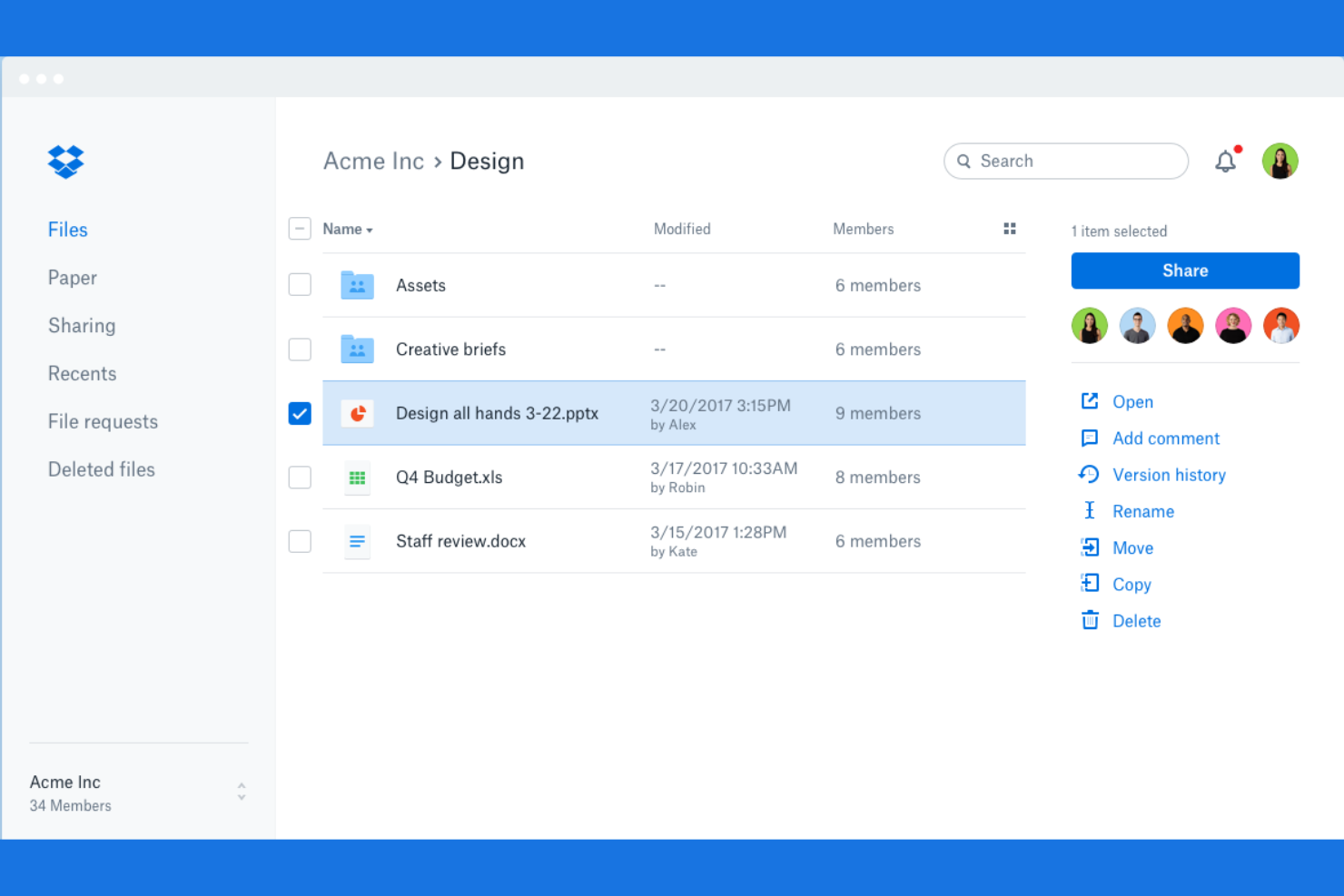
Se hai bisogno di tenere traccia di ogni modifica apportata ai tuoi file, Dropbox è progettato con la cronologia delle versioni come elemento centrale. È una scelta solida per i professionisti che gestiscono documenti in evoluzione, risorse creative o progetti collaborativi in cui è essenziale tornare a versioni precedenti. L'approccio di Dropbox al recupero dei file e al tracciamento dettagliato delle modifiche ti aiuta a evitare perdite accidentali e a mantenere il controllo sulla cronologia dei tuoi documenti.
Perché ho scelto Dropbox
Per chiunque abbia bisogno di una cronologia affidabile delle versioni dei file, Dropbox offre opzioni di tracciamento e recupero dettagliate che lo distinguono. Puoi visualizzare, ripristinare o scaricare le versioni precedenti dei file, il che è particolarmente utile se gestisci documenti che cambiano spesso o se devi recuperare modifiche accidentali. Apprezzo il fatto che Dropbox conservi un registro chiaro delle modifiche, rendendo semplice verificare gli aggiornamenti dei documenti o tornare a bozze precedenti. Questa attenzione al controllo delle versioni rende Dropbox una scelta eccellente per la gestione personale dei documenti, quando la tracciabilità della cronologia dei file è una priorità.
Funzionalità principali di Dropbox
Altre funzionalità di Dropbox che supportano la gestione personale dei documenti includono:
- Sincronizzazione selettiva: Scegli quali cartelle sincronizzare sul tuo dispositivo per risparmiare spazio di archiviazione locale.
- Richiesta di file: Raccogli file da altri direttamente nel tuo Dropbox, anche se non hanno un account.
- Scansione di documenti: Scansiona documenti cartacei utilizzando l'app mobile e salvali come PDF.
- Link condivisi con permessi: Imposta controlli di visualizzazione, modifica o scadenza sui link ai file condivisi.
Integrazioni di Dropbox
Le integrazioni includono Zoom, Slack, Microsoft 365, Trello e Salesforce.
Pros and Cons
Pros:
- Ottimo recupero file
- Funziona su tutti i dispositivi
- Interfaccia home semplice
Cons:
- Interfaccia web confusa
- Debole posizione sulla privacy

OneDrive
Ideale per l'integrazione con Microsoft 365

Se ti affidi alle app di Microsoft 365 per il tuo lavoro quotidiano, OneDrive offre un modo strettamente integrato per gestire e accedere ai tuoi documenti. È particolarmente utile per i professionisti che vogliono mantenere i file sincronizzati tra più dispositivi e collaborare direttamente all'interno degli strumenti Microsoft familiari. La connessione fluida di OneDrive con Word, Excel e Teams lo rende la scelta naturale per chi già utilizza l’ecosistema Microsoft.
Perché ho scelto OneDrive
OneDrive si distingue per chi lavora principalmente nell’ambiente Microsoft 365 e desidera che la gestione dei documenti sia una naturale estensione di questi strumenti. Puoi aprire, modificare e collaborare su file Word, Excel e PowerPoint direttamente da OneDrive, senza dover scaricare o ricaricare i documenti. Mi piace che la condivisione dei file e le autorizzazioni siano gestite con gli stessi controlli del resto di Microsoft 365, mantenendo tutto coerente e sicuro. Per chi desidera una gestione dei documenti profondamente integrata nei flussi di lavoro Microsoft già esistenti, OneDrive è una scelta logica.
Caratteristiche principali di OneDrive
Altre funzionalità che rendono OneDrive utile per la gestione personale dei documenti includono:
- Vault personale: Conserva i file sensibili in un’area protetta da misure di sicurezza aggiuntive.
- Backup automatico di foto e video: Esegui il backup di foto e video dal tuo dispositivo mobile direttamente su OneDrive.
- Accesso offline: Accedi a file e cartelle selezionati anche quando non sei connesso a Internet.
- Ripristino dei file: Ripristina l’intero OneDrive a un punto precedente nel tempo in caso di eliminazione accidentale o ransomware.
Integrazioni di OneDrive
Le integrazioni includono Word, Excel, PowerPoint, Outlook, OneNote, Microsoft Teams, Microsoft Copilot e Microsoft Forms.
Pros and Cons
Pros:
- Buon backup delle foto
- Vault personale sicuro
- Facile da usare offline
Cons:
- Pop-up invasivi
- Velocità di caricamento lenta

Ideale per l’indicizzazione multilingue dei documenti
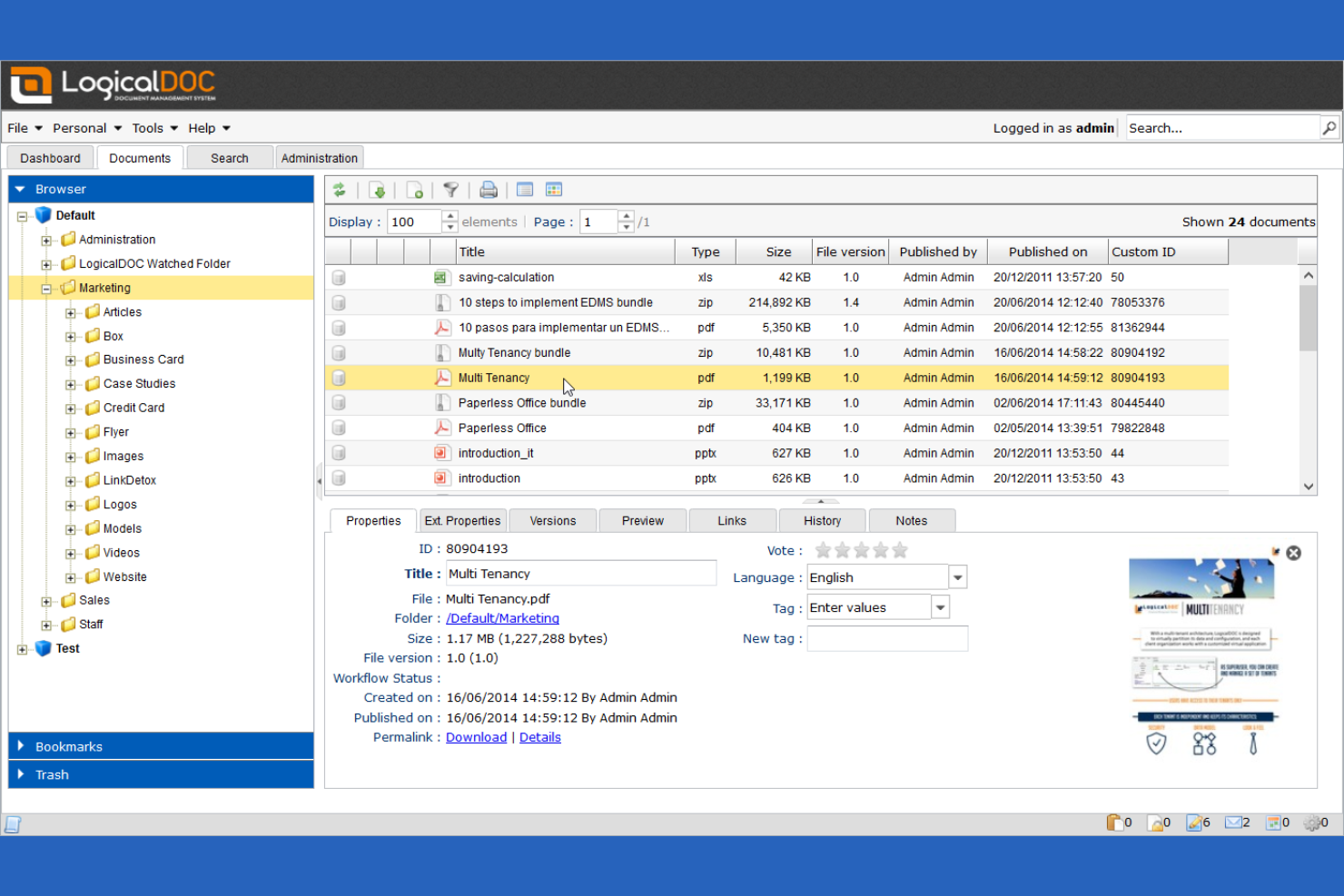
Se hai bisogno di gestire documenti in più lingue, LogicalDOC offre funzionalità avanzate di indicizzazione e ricerca multilingue. Questo strumento è particolarmente adatto a professionisti o team che lavorano su mercati internazionali o gestiscono documenti in diverse lingue. LogicalDOC ti aiuta a organizzare, etichettare e recuperare file indipendentemente dalla lingua, rendendo più semplice mantenere il contenuto globale accessibile e ricercabile.
Perché ho scelto LogicalDOC
Per chiunque abbia la necessità di gestire documenti in più lingue, l’indicizzazione multilingue di LogicalDOC è un chiaro vantaggio. Ho scelto LogicalDOC perché riconosce e indica automaticamente i documenti in decine di lingue, rendendo facile la ricerca e il recupero dei file indipendentemente dalla lingua in cui sono scritti. La piattaforma supporta anche metadati ed etichettatura multilingue, così puoi organizzare i tuoi file usando termini adatti al tuo flusso di lavoro. Se lavori in un contesto globale o gestisci regolarmente documenti in più lingue, queste funzionalità rendono LogicalDOC una soluzione ideale.
Funzionalità principali di LogicalDOC
Altre funzionalità che rendono LogicalDOC utile per la gestione personale dei documenti includono:
- Automazione dei flussi di lavoro: Crea flussi di lavoro personalizzati per automatizzare i processi di revisione e approvazione dei documenti.
- Gestione delle versioni dei documenti: Tieni traccia delle modifiche e mantieni una cronologia completa delle revisioni dei documenti.
- Controllo accessi basato sui ruoli: Assegna permessi in base ai ruoli utente per gestire la sicurezza dei documenti.
- Ricerca full-text: Esegui ricerche su tutto il contenuto dei documenti, non solo su nomi dei file o metadati.
Integrazioni LogicalDOC
Le integrazioni includono Microsoft 365, Salesforce, Google Drive, DocuSign e Acumatica.
Pros and Cons
Pros:
- Traccia le modifiche ai documenti
- Altamente personalizzabile
- Accesso multipiattaforma
Cons:
- Richiede hardware server
- Troppo complesso per uso domestico

Ideale per strumenti avanzati di modifica PDF
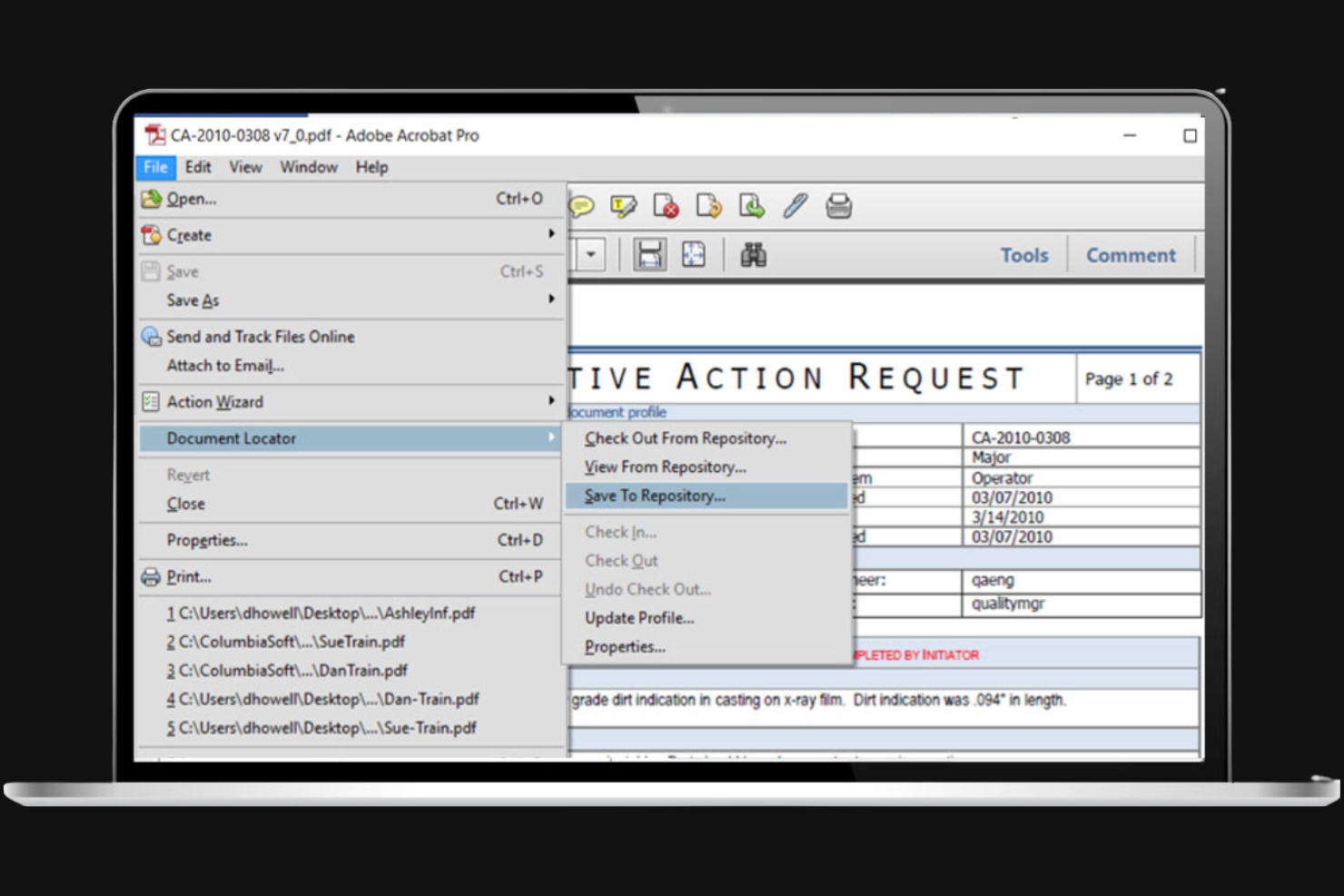
Se hai bisogno di un controllo avanzato sui PDF, Adobe Acrobat è una delle scelte migliori per modificare, organizzare e proteggere i documenti. È particolarmente utile per i professionisti che lavorano regolarmente con contratti, moduli o relazioni che richiedono formattazione e annotazione precise. Gli strumenti di modifica di Adobe Acrobat permettono di modificare testo, immagini e layout direttamente nei PDF, rendendolo molto più di un semplice visualizzatore.
Perché ho scelto Adobe Acrobat
Ciò che distingue Adobe Acrobat nella gestione personale dei documenti è il suo avanzato kit di strumenti per l'editing dei PDF. È possibile modificare testo e immagini direttamente in un PDF, fondamentale per chi deve aggiornare contratti, moduli o relazioni senza convertire continuamente i file. Apprezzo anche che Acrobat supporti funzioni come la redazione e la firma digitale, rendendolo una scelta solida per la gestione di documenti sensibili o ufficiali. Se ti serve più di una semplice visualizzazione dei PDF e desideri il pieno controllo di modifica, Acrobat è pensato per questo tipo di lavoro.
Funzionalità principali di Adobe Acrobat
Altre funzionalità che rendono Adobe Acrobat utile per la gestione personale dei documenti includono:
- OCR (Riconoscimento Ottico dei Caratteri): Trasforma documenti e immagini scannerizzati in PDF ricercabili e modificabili.
- Unione e suddivisione dei file PDF: Unisci più file in un unico PDF o dividi un PDF in documenti separati.
- Integrazione con archiviazione cloud: Accedi e gestisci i tuoi PDF da Adobe Document Cloud e altri servizi di archiviazione collegati.
- Strumenti per commenti e annotazioni: Aggiungi note, evidenziazioni e contrassegna direttamente i file PDF.
Integrazioni di Adobe Acrobat
Le integrazioni includono Microsoft 365, Google Drive, Dropbox, Box, OneDrive, SharePoint, Salesforce, Workday, ServiceNow e Microsoft Teams.
Pros and Cons
Pros:
- Scansiona la carta in PDF
- Funziona affidabilmente offline
- Unisce documenti di famiglia
Cons:
- Aggiornamenti costanti dell'app
- Popup di upsell fastidiosi

Box
Ideale per la condivisione sicura di file esterni

Se hai bisogno di condividere file sensibili al di fuori della tua organizzazione, Box offre controlli di sicurezza avanzati per la collaborazione esterna. È una scelta ideale per professionisti e team che scambiano regolarmente documenti riservati con clienti, fornitori o partner. Box combina permessi di condivisione dettagliati con registri di controllo per aiutarti a gestire e tracciare ogni file inviato.
Perché ho scelto Box
Quando la sicurezza nella condivisione esterna dei file è una priorità, Box offre funzionalità che vanno oltre l'archiviazione base dei documenti. Ho scelto Box perché permette di impostare permessi di condivisione dettagliati, così puoi controllare esattamente chi può visualizzare, modificare o scaricare ogni file. La piattaforma fornisce inoltre link sicuri con date di scadenza e protezione tramite password, particolarmente utili per l'invio di documenti sensibili all'esterno della tua organizzazione. Per chi deve monitorare l’accesso ai documenti e mantenere la conformità, i log di controllo e il tracciamento delle attività di Box offrono un livello di sicurezza aggiuntivo.
Funzionalità principali di Box
Altre funzionalità che rendono Box utile per la gestione personale dei documenti includono:
- Scannerizzazione dei documenti: Acquisisci e carica documenti cartacei direttamente dal tuo dispositivo mobile.
- Integrazione di firma elettronica: Firma i documenti elettronicamente senza uscire dalla piattaforma.
- Flussi di lavoro automatizzati: Imposta regole per automatizzare l'instradamento e l'approvazione dei documenti.
- Storico delle versioni dei file: Accedi e ripristina le versioni precedenti di ogni file archiviato in Box.
Integrazioni Box
Le integrazioni includono Microsoft 365, Google Workspace, Adobe, Salesforce, Slack, Oracle NetSuite, Okta, Broadcom, Splunk e Palo Alto Networks.
Pros and Cons
Pros:
- Impostazione cartelle semplice
- Buon accesso da mobile
- Ricerca veloce
Cons:
- Il prezzo è molto alto
- Mancano strumenti per le foto
Revver
Ideale per le funzionalità di automazione dei workflow
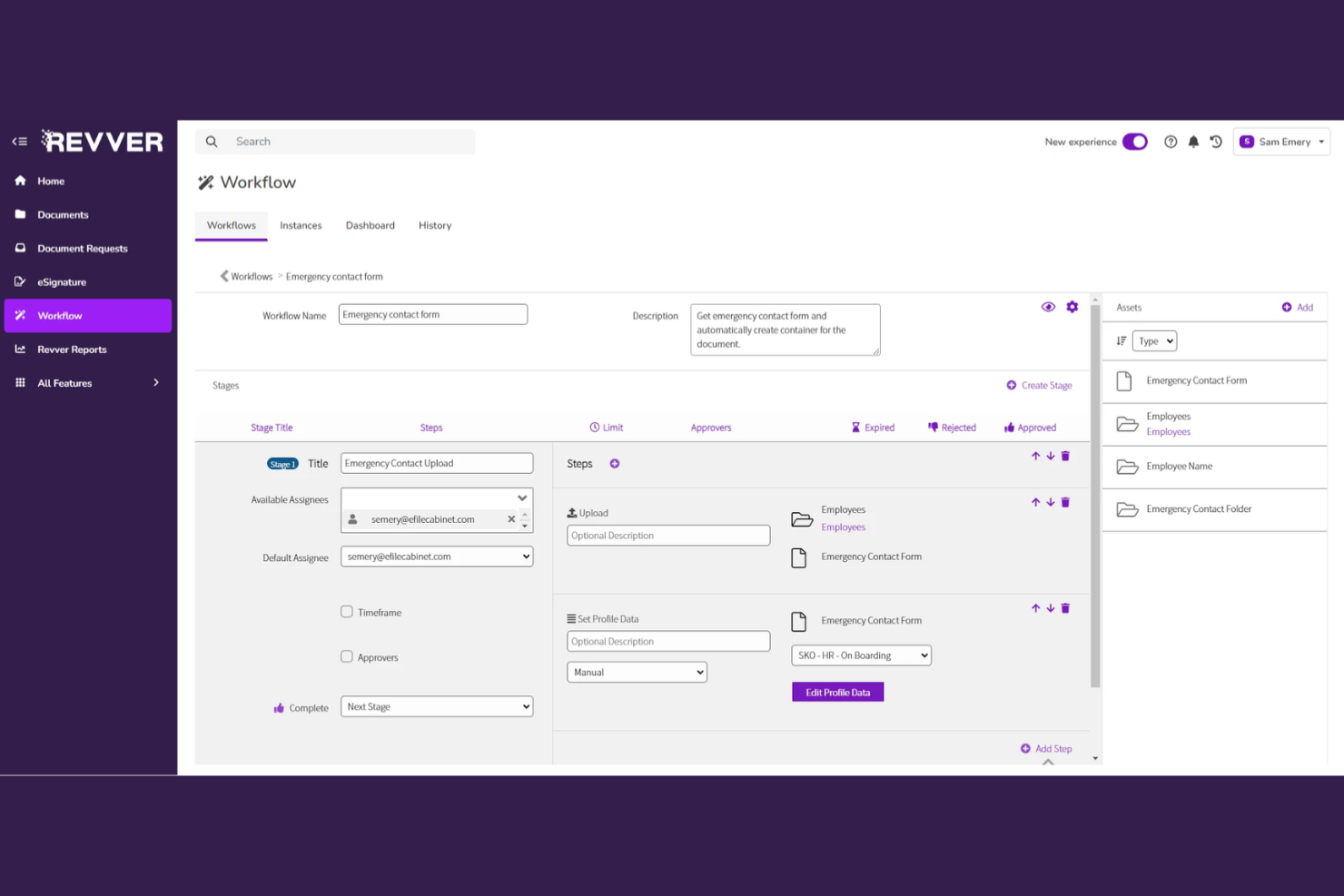
Revver si distingue per chiunque voglia automatizzare flussi di lavoro ricchi di documenti senza dover creare soluzioni personalizzate da zero. Questa piattaforma è particolarmente adatta a professionisti e piccoli team che hanno bisogno di indirizzare, revisionare e approvare documenti con il minimo sforzo manuale. Le funzionalità di automazione di Revver aiutano a ridurre le attività ripetitive e a mantenere i processi documentali sempre fluidi.
Perché ho scelto Revver
Quando ho cercato uno strumento che desse davvero priorità all'automazione dei flussi di lavoro, Revver ha subito attirato la mia attenzione. Il suo motore di instradamento dei documenti permette di impostare catene di approvazione automatizzate e notifiche, così non dovrai più inseguire manualmente le approvazioni o gli aggiornamenti di stato. Puoi anche costruire flussi di lavoro personalizzati che attivano azioni in base allo stato del documento o ai metadati, il che è particolarmente utile per gestire processi documentali personali o di team. Per chiunque desideri automatizzare attività ripetitive sui documenti e mantenere tutto in movimento senza supervisione costante, Revver offre un ventaglio mirato di funzionalità automatiche.
Funzionalità principali di Revver
Oltre alle sue capacità di automazione dei flussi di lavoro, Revver offre diverse altre funzionalità degne di nota:
- Controllo delle versioni dei documenti: Traccia, confronta e ripristina le versioni precedenti dei documenti.
- Impostazioni di autorizzazione granulari: Assegna permessi specifici a utenti e gruppi per accesso e azioni sui documenti.
- Ricerca testuale integrale: Cerca tra tutti i documenti usando parole chiave o frasi.
- Registro di controllo (audit logging): Monitora e registra tutta l'attività sui documenti per garantire conformità e trasparenza.
Integrazioni di Revver
Le integrazioni includono Microsoft 365, Google Drive, Salesforce, NetSuite e QuickBooks.
Pros and Cons
Pros:
- Strumenti di ricerca veloci
- Storico file sempre tracciato
- Interfaccia utente pulita
Cons:
- Piani tariffari non trasparenti
- Si rivolge alle aziende

Folderit
Ideale per permessi di accesso granulari

Folderit è pensato per privati e piccoli team che necessitano di un controllo preciso sull'accesso e sulla condivisione dei documenti. Se gestisci file sensibili o collabori con diversi stakeholder, le impostazioni di autorizzazione granulari di Folderit ti permettono di decidere esattamente chi può visualizzare, modificare o approvare ciascun documento. Questo lo rende particolarmente utile per consulenti, professionisti legali o chiunque gestisca informazioni riservate.
Perché ho scelto Folderit
Quando hai la necessità di controllare precisamente chi può accedere ai tuoi documenti, il sistema di permessi granulari di Folderit si distingue. Ho scelto Folderit perché permette di assegnare diritti di visualizzazione, modifica e approvazione a livello di cartella o addirittura di singolo file. Puoi anche impostare flussi di lavoro di approvazione multilivello, particolarmente utili se gestisci documenti che richiedono la firma di persone diverse. Per chi deve mantenere al sicuro file sensibili ma desidera comunque collaborare, questi controlli sui permessi fanno di Folderit una soluzione ideale.
Funzionalità principali di Folderit
Oltre ai dettagliati controlli di autorizzazione, Folderit offre diverse altre funzionalità per la gestione dei documenti:
- Archiviazione automatica dei documenti: Imposta regole per archiviare o eliminare automaticamente i file dopo un determinato periodo.
- Controllo delle versioni: Tieni traccia di ogni modifica a un documento e ripristina versioni precedenti se necessario.
- Tagging dei metadati: Aggiungi tag personalizzati e campi di metadati per organizzare e cercare i documenti in modo più efficiente.
- Tracciabilità e audit trail: Monitora tutta l'attività degli utenti e le azioni sui documenti con un registro di audit dettagliato.
Integrazioni Folderit
Le integrazioni includono Microsoft 365, DocuSign, Okta, Microsoft Entra ID (Azure AD) e Google Workspace.
Pros and Cons
Pros:
- Accesso cloud ovunque
- Struttura di cartelle semplice
- Ideale per archiviazione familiare
Cons:
- Pensato per aziende
- Gestione permessi eccessiva


Se desideri un controllo totale sulla gestione dei tuoi documenti, OpenDocMan è una piattaforma open-source progettata per la personalizzazione. Questo strumento è particolarmente adatto a persone con competenze tecniche o piccoli team che vogliono adattare flussi di lavoro, permessi e archiviazione secondo le proprie esigenze. OpenDocMan ti aiuta a creare un sistema di gestione documentale che si adatta alle tue necessità specifiche senza essere vincolato ai limiti imposti dai fornitori.
Perché ho scelto OpenDocMan
Ciò che distingue OpenDocMan è la sua base open-source, che offre la libertà di personalizzare quasi ogni aspetto del sistema di gestione documentale. Ho scelto OpenDocMan perché puoi modificare il codice sorgente, creare plugin personalizzati e adattare i flussi di lavoro alle tue necessità. La piattaforma permette inoltre di definire controlli di accesso dettagliati e personalizzare i processi di approvazione dei documenti, risultando ideale per chi cerca una soluzione che cresca e si adatti ai propri requisiti. Se ti senti a tuo agio con un po’ di configurazione tecnica, OpenDocMan offre una flessibilità difficile da eguagliare nei software di gestione documentale personale.
Funzionalità principali di OpenDocMan
Altre funzionalità che rendono OpenDocMan utile per la gestione documentale personale includono:
- Scadenza automatica dei documenti: Imposta date di scadenza per gestire le politiche di conservazione.
- Check-in/Check-out dei file: Blocca i documenti durante la modifica per evitare conflitti di versione.
- Campi di metadati personalizzati: Aggiungi e configura campi di metadati per organizzare e cercare i documenti.
- Tracciabilità delle modifiche: Traccia tutte le azioni degli utenti e le modifiche ai documenti per garantire la responsabilità.
Integrazioni di OpenDocMan
Le integrazioni includono MySQL, Apache, LDAP, Active Directory e SMTP.
Pros and Cons
Pros:
- Buona gestione della scadenza dei file
- Altamente personalizzabile
- Funziona su qualsiasi browser
Cons:
- Interfaccia obsoleta
- Nessun supporto ufficiale


OpenKM è progettato per utenti che necessitano di rigorosi controlli di conformità e audit nella gestione dei documenti. È particolarmente adatto a professionisti di settori regolamentati che desiderano tracciare accessi, modifiche e approvazioni dei documenti. Grazie alle funzionalità di applicazione delle policy e reportistica dettagliata, OpenKM ti aiuta a mantenere il controllo e soddisfare i requisiti di conformità.
Perché ho scelto OpenKM
Quando la gestione della conformità è una priorità, OpenKM offre funzionalità che vanno oltre il semplice archivio documentale. La piattaforma include audit trail che registra ogni azione sui documenti, così puoi sempre vedere chi ha avuto accesso o ha modificato un file. Apprezzo i suoi strumenti di gestione delle policy, che permettono di applicare regole di conservazione dei documenti e flussi di approvazione per rispettare gli standard normativi. Per chiunque debba dimostrare la conformità e mantenere un controllo rigoroso sui processi documentali, OpenKM è una scelta solida.
Funzionalità principali di OpenKM
Altre funzionalità che rendono OpenKM utile per la gestione personale dei documenti includono:
- Controllo delle versioni dei documenti: Traccia e gestisci più versioni di un documento nel tempo.
- Riconoscimento ottico dei caratteri (OCR): Converte documenti scansionati e immagini in testo ricercabile.
- Integrazione email: Archivia e gestisci le email direttamente all'interno del sistema di gestione documentale.
- Campi metadati personalizzati: Aggiungi e organizza documenti utilizzando metadati definiti dall'utente per un recupero più facile.
Integrazioni OpenKM
Le integrazioni includono Kofax, Abby Flexicapture, Cognitive Forms, Flexibar, Canon IW DS, Active Directory, LDAP, Microsoft Office, SSO e CAS.
Pros and Cons
Pros:
- Tieni traccia della cronologia delle versioni
- Buon tagging dei file
- Legge il testo nelle immagini
Cons:
- Interfaccia grafica molto datata
- Difficile configurazione personale
Altri software per la gestione dei documenti personali
Ecco alcune ulteriori opzioni di software per la gestione dei documenti personali che non sono state incluse nel mio elenco, ma che vale comunque la pena prendere in considerazione:
- Mayan EDMS
Ideale per la flessibilità di un'implementazione self-hosted
- FileCenter
Ideale per flussi di lavoro automatizzati di scansione documentale
- Sortifyd
Ideale per organizzare documenti domestici


Come Valuto i Software di Gestione Documentale Personale
Quando valuto strumenti per l'archiviazione personale di documenti e il tracciamento delle versioni, suddivido la mia recensione in criteri di accettazione di base e in quei fattori di differenziazione che distinguono le migliori opzioni.
Funzionalità di Base (Requisiti Indispensabili per Questa Lista)
Quando seleziono gli strumenti per la mia lista, valuto ciascuno su una scala da 0 (non offre la funzionalità) a 5 (eccelle in questa area) per ognuna delle funzionalità di base elencate qui sotto. Poi, calcolo il punteggio totale dello strumento come una percentuale. Ogni strumento deve raggiungere un punteggio totale minimo del 65% per essere preso in considerazione per l'inclusione.
- Archiviazione Centralizzata dei Documenti: Controllo se è possibile caricare e archiviare tutti i tipi più comuni di file di progetto—PDF, fogli di calcolo, presentazioni, immagini—in un unico repository personale.
- Organizzazione dei File & Tag: Un buon strumento consente di creare gerarchie di cartelle e applicare tag personalizzati, così da poter ordinare i file per cliente, fase di progetto o tipo di deliverable.
- Ricerca Full-Text & Recupero: Valuto se la ricerca va oltre i nomi dei file e analizza il contenuto dei documenti, così da poter trovare una clausola specifica nascosta in un contratto di 40 pagine.
- Controllo versione & Storico: Ogni strumento dovrebbe tracciare le revisioni dei documenti con timestamp, rendendo facile ripristinare una bozza precedente di uno SOW o confrontare le modifiche tra le versioni.
- Accesso Sicuro & Permessi: Cerco cifratura, autenticazione a due fattori e controlli di condivisione dettagliati—soprattutto per chi gestisce NDA o dati sensibili dei clienti.
- Sincronizzazione & Accesso Multi-dispositivo: Che tu stia rivedendo una project charter sul laptop o consultando delle specifiche dal telefono presso un cliente, lo strumento deve sincronizzarsi in modo affidabile tra dispositivi.
Una volta ottenuta la lista degli strumenti che soddisfano i criteri, considero cosa distingue ciascuna piattaforma.
Fattori di Differenziazione (Cosa Distingue i Fornitori)
Ecco come metto a confronto i vari fornitori:
Funzionalità Distintive
La presenza di capacità di riconoscimento ottico dei caratteri (OCR) è importante quando si lavora con contratti scannerizzati o foto di lavagne—cerco strumenti che convertano questi elementi in testo ricercabile. Gli strumenti di annotazione e markup sono altrettanto utili, permettendo di evidenziare sezioni chiave di un deliverable o lasciare commenti su un PDF senza cambiare app. Valuto anche se una piattaforma offre riepiloghi tramite intelligenza artificiale, utili quando si devono estrarre rapidamente i punti d'azione da un verbale o un brief di progetto lunghi.
Oltre le Funzionalità
Verifico se uno strumento si integra nativamente con piattaforme come Jira, Asana o Monday.com, così da poter collegare i documenti direttamente alle attività. Il prezzo è un altro fattore chiave, specialmente per freelance o PM indipendenti che necessitano di un piano personale anziché di licenze solo enterprise. Valuto anche i controlli di condivisione esterna, dato che spesso i consulenti devono inviare deliverable ai clienti tramite link sicuri con data di scadenza o restrizioni di download.
Come scegliere un software per la gestione dei documenti personali
È facile perdersi in lunghi elenchi di funzionalità e strutture tariffarie complesse. Per aiutarti a rimanere concentrato mentre affronti il tuo particolare processo di selezione del software, ecco una checklist dei fattori da tenere a mente:
| Fattore | Cosa considerare |
|---|---|
| Scalabilità | Il software sarà in grado di gestire nel tempo il volume crescente dei tuoi documenti e la tua base utenti senza costi aggiuntivi o rallentamenti? |
| Integrazioni | Lo strumento si collega in modo nativo alle applicazioni che già utilizzi, come e-mail, archiviazione cloud o piattaforme per la firma elettronica? |
| Personalizzazione | Puoi adattare le strutture delle cartelle, i controlli degli accessi e i flussi di lavoro alle tue preferenze personali o a quelle del tuo team? |
| Facilità d'uso | L'interfaccia è intuitiva per tutti gli utenti o dovrai investire tempo nella formazione e nella risoluzione dei problemi? |
| Implementazione e avvio | Quanto tempo servirà per migrare i tuoi documenti e consentire a tutti di iniziare a lavorare? Sono disponibili strumenti o supporto per farlo? |
| Costo | I livelli di prezzo sono chiari e prevedibili? Fai attenzione ai limiti di archiviazione, ai limiti sul numero di utenti o ai costi aggiuntivi per le funzionalità avanzate. |
| Misure di sicurezza | La piattaforma offre crittografia, autorizzazioni granulari e registri di controllo per proteggere i file sensibili? |
| Requisiti di conformità | Il software ti aiuterà a rispettare gli standard legali o specifici del settore, come il GDPR o l'HIPAA, pertinenti ai tuoi documenti? |
Funzionalità dei software per la gestione dei documenti personali
Quando scegli un software per la gestione dei documenti personali, presta attenzione alle seguenti funzionalità principali:
- Archiviazione dei documenti: salva e organizza in modo sicuro i file digitali in una posizione centralizzata, rendendo facile accedere ai documenti da qualsiasi dispositivo.
- Organizzazione delle cartelle: crea, assegna un nome e organizza cartelle o categorie per mantenere i documenti ordinati e facili da trovare.
- Ricerca avanzata: individua rapidamente i file utilizzando parole chiave, tipi di file, date o contenuti all'interno dei documenti.
- Controllo delle versioni: monitora le modifiche apportate ai documenti nel tempo, ripristina le versioni precedenti ed evita la confusione causata da file duplicati o obsoleti.
- Condivisione dei file: invia documenti ad altri con autorizzazioni personalizzabili, come l'accesso in sola visualizzazione o l'accesso alla modifica.
- Controlli degli accessi: imposta autorizzazioni specifiche per gli utenti per limitare chi può visualizzare, modificare o condividere determinati file o cartelle.
- Registri di controllo: monitora l'attività sui documenti, inclusi gli utenti che hanno effettuato l'accesso, modificato o condiviso i file, per una maggiore trasparenza e sicurezza.
- Accesso da dispositivi mobili: utilizza app mobili dedicate o interfacce web adattive per gestire e visualizzare i documenti su smartphone e tablet.
- Scansione dei documenti: digitalizza i documenti cartacei direttamente nel sistema utilizzando un dispositivo mobile o uno scanner, rendendoli ricercabili e facili da archiviare.
Costi e prezzi dei software personali per la gestione dei documenti
La scelta di un software personale per la gestione dei documenti richiede la comprensione dei diversi modelli e piani tariffari disponibili. I costi variano in base alle funzionalità, alle dimensioni del team, ai componenti aggiuntivi e ad altri fattori. La tabella seguente riassume i piani più comuni, i relativi prezzi medi e le funzionalità tipicamente incluse nelle soluzioni software personali per la gestione dei documenti:
Tabella comparativa dei piani per i software personali per la gestione dei documenti
| Tipo di piano | Prezzo medio | Funzionalità comuni |
|---|---|---|
| Piano gratuito | $0 | Archiviazione di base dei documenti, condivisione limitata, semplice organizzazione delle cartelle e ricerca di base. |
| Piano personale | $7-$20/user/month | Maggiore spazio di archiviazione, ricerca avanzata, accesso da dispositivi mobili, controllo delle versioni e assistenza di base. |
| Piano aziendale | $18-$35/user/month | Collaborazione tra team, sicurezza avanzata, registri di controllo, opzioni di integrazione e assistenza prioritaria. |
| Piano per grandi imprese | $45-$95/user/month | Conformità avanzata, flussi di lavoro personalizzati, autorizzazioni granulari, inserimento dedicato e controlli amministrativi. |
Domande frequenti sui software personali per la gestione dei documenti
Ecco alcune risposte alle domande comuni sui software personali per la gestione dei documenti:
Posso utilizzare un software personale per la gestione dei documenti sia per i file di lavoro sia per quelli personali?
Sì, la maggior parte dei software personali per la gestione dei documenti consente di organizzare, separare e proteggere sia i file di lavoro sia quelli personali. Cerca strumenti che supportino più cartelle, profili utente o tag per mantenere i documenti organizzati e accessibili.
Quanto è sicuro un software personale per la gestione dei documenti?
La sicurezza varia a seconda del fornitore, ma la maggior parte delle soluzioni offre crittografia, controlli degli accessi e registri di controllo. Esamina sempre le certificazioni e le impostazioni di sicurezza della piattaforma per assicurarti che i documenti sensibili siano protetti in base alle tue esigenze.
Cosa succede se supero il limite di archiviazione?
Se superi il limite di archiviazione, potresti non riuscire a caricare nuovi file finché non elimini quelli esistenti o non passi a un piano superiore. Alcune piattaforme offrono avvisi o periodi di tolleranza temporanei, ma è importante monitorare l’utilizzo per evitare interruzioni.
Posso accedere ai miei documenti offline?
Alcuni software personali per la gestione dei documenti consentono l’accesso offline sincronizzando file selezionati con il dispositivo. Verifica se la piattaforma supporta la modalità offline e come attivarla, soprattutto se devi lavorare senza una connessione Internet costante.
È facile migrare i documenti esistenti in un nuovo sistema?
La maggior parte delle piattaforme offre strumenti di importazione, caricamenti tramite trascinamento o assistenza alla migrazione per aiutarti a trasferire i file. Prima di cambiare sistema, esamina le opzioni di migrazione disponibili e valuta la possibilità di contattare l’assistenza per ricevere indicazioni sulle raccolte di documenti di grandi dimensioni o complesse.