

I 10 migliori software di gestione dei documenti per piccole imprese nel 2026

10 Elenco dei migliori software di gestione documentale per piccole imprese


Il software di gestione documentale per piccole imprese aiuta i team a organizzare, archiviare e consultare i file importanti in un unico luogo, eliminando il caos delle cartelle sparse, degli allegati e-mail infiniti e delle versioni non uniformi. Con lo strumento giusto, puoi semplificare i flussi di lavoro, garantire la conformità e risparmiare tempo nella ricerca dei documenti che ti servono.
Ho testato e recensito diversi strumenti di gestione documentale pensando ai piccoli team, concentrandomi su convenienza, facilità d'uso e funzionalità essenziali come autorizzazioni, accesso al cloud e possibilità di ricerca. Che tu sia agli inizi o stia crescendo rapidamente, questo elenco ti aiuterà a trovare una soluzione adatta al tuo budget e alle tue esigenze.
Perché fidarsi dei nostri consigli sui software
Il nostro team testa e recensisce software dal 2012. In quanto project manager noi stessi, sappiamo quanto sia difficile — e importante — scegliere il software giusto.
Per questa guida, abbiamo valutato gli strumenti attraverso test pratici e ricerche indipendenti, assegnando un punteggio agli strumenti in base ai nostri criteri di selezione. Ci basiamo inoltre sulle competenze di leader di pensiero del settore e di professionisti attivi nella gestione dei progetti.
Le nostre recensioni riflettono il nostro giudizio editoriale umano, non un discorso di vendita.
Revisori esperti:
Riepilogo dei migliori software di gestione documentale per piccole imprese
Questa tabella comparativa riassume i dettagli sui prezzi delle mie migliori selezioni di software di gestione documentale per piccole imprese, per aiutarti a trovare quello più adatto al tuo budget e alle esigenze della tua attività.
| Tool | Best For | Trial Info | Price | ||
|---|---|---|---|---|---|
| 1 | Ideale per una collaborazione facile | Prova gratuita di 14 giorni e versione gratuita disponibile | Da $6,30/mese (fatturazione annuale) | Website | |
| 2 | Ideale per la flessibilità open source | Dimostrazione gratuita disponibile | Prezzo su richiesta | Website | |
| 3 | Ideale per flussi di lavoro documentali | Demo gratuita disponibile | Prezzo su richiesta | Website | |
| 4 | Ideale per la sicurezza aziendale | Prova gratuita di 14 giorni + piano gratuito + demo gratuita disponibile | Da $5/utente/mese (fatturato annualmente) | Website | |
| 5 | Ideale per la gestione dei metadati | Prova gratuita di 30 giorni + demo gratuita disponibile | Da $65/utente/mese | Website | |
| 6 | Ideale per la collaborazione di team | Prova gratuita di 15 giorni + demo gratuita disponibile | A partire da $2.50/utente/mese (fatturazione annuale) | Website | |
| 7 | Ideale per piccoli team | Piano gratuito disponibile | Da $52/mese | Website | |
| 8 | Ideale per l'automazione dei documenti | Prova gratuita di 14 giorni + demo gratuita disponibile | Da $19/postazione/mese (fatturazione annuale) | Website | |
| 9 | Ideale per la condivisione semplice | Prova gratuita di 30 giorni disponibile | Da $12.99/persona/mese (fatturato annualmente) | Website | |
| 10 | Il migliore per l'integrazione in ufficio | Prova gratuita di 1 mese | Da $6.00/utente/mese (fatturato annualmente) | Website |
Recensioni dei migliori software di gestione documentale per piccole imprese
Di seguito trovi i miei riepiloghi dettagliati dei migliori software di gestione documentale per piccole imprese inclusi nel mio elenco. Le mie recensioni offrono un’analisi dettagliata delle funzionalità principali, dei pro e dei contro, delle integrazioni e dei casi d’uso ideali di ogni strumento, per aiutarti a trovare quello più adatto a te.

Ideale per una collaborazione facile
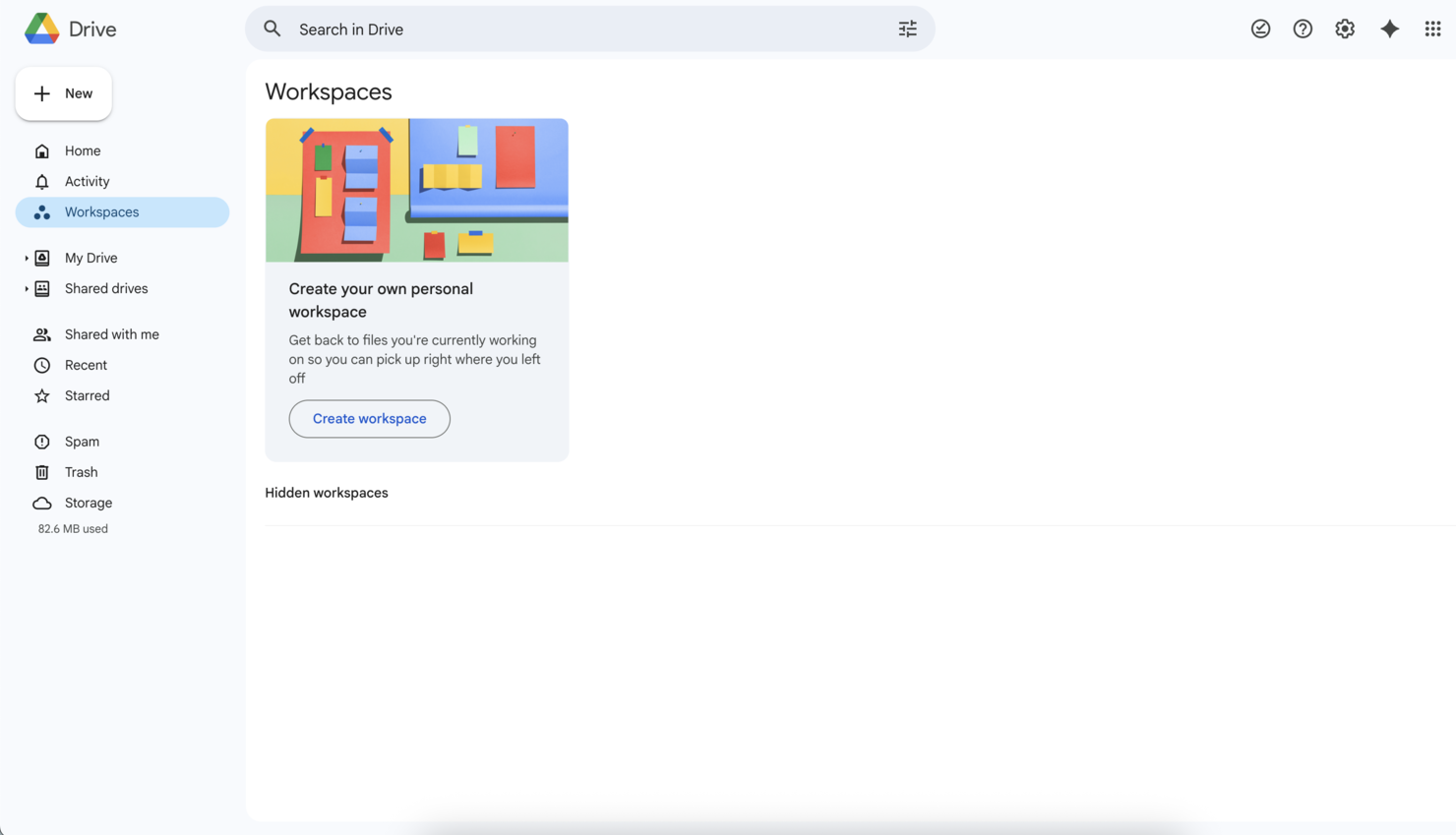
Google Drive merita il suo posto perché i team di solito hanno bisogno di condividere e modificare documenti insieme senza ritardi. Quando lavoro con piccole imprese, i controlli di autorizzazione semplici e la possibilità di commentare in tempo reale fanno una grande differenza. Mi piace poter avviare un documento durante una riunione, coinvolgere le persone e ricevere feedback all'istante—tutto nel tuo browser.
Se vuoi file, fogli di calcolo e presentazioni organizzati e accessibili a tutti, questo è il primo posto dove ti manderei.
Quando Google Drive è la scelta migliore
- Piccoli team che hanno bisogno di una condivisione file rapida e basata sul cloud
- Aziende focalizzate sulla modifica collaborativa e sui feedback
Quando Google Drive non è ideale
- Organizzazioni che necessitano di rigide politiche di conservazione dei documenti
- Aziende con esigenze di conformità normativa molto elevate
Cosa distingue Google Drive
Google Drive è pensato per permetterti di iniziare a lavorare velocemente e coinvolgere subito gli altri. A differenza di Dropbox, che dà priorità all'archiviazione e al backup dei documenti, Google Drive prevede che tu rediga, modifichi e revisioni in uno spazio condiviso, con commenti in tempo reale e link ai file facili da condividere. In pratica, funziona meglio per i gruppi che danno più valore a velocità e collaborazione che a gerarchia o controllo rigido dei file.
Compromessi con Google Drive
Google Drive è ottimizzato per accesso rapido e modifica condivisa, ma si perdono controlli avanzati sui documenti, quindi il lavoro può diventare caotico se servono supervisione e ordine rigorosi.
Pros and Cons
Pros:
- Collaborazione in tempo reale facile
- Integrazione fluida con le app Google
- Permessi di accesso personalizzabili
- Ricerca potenziata dall'AI
- Strumenti di annotazione PDF
Cons:
- Opzioni di archiviazione limitate
- Problemi di sincronizzazione occasionali
- Richiede connessione Internet
- Capacità offline limitate
- Nessuna funzione di gestione delle attività

Ideale per la flessibilità open source
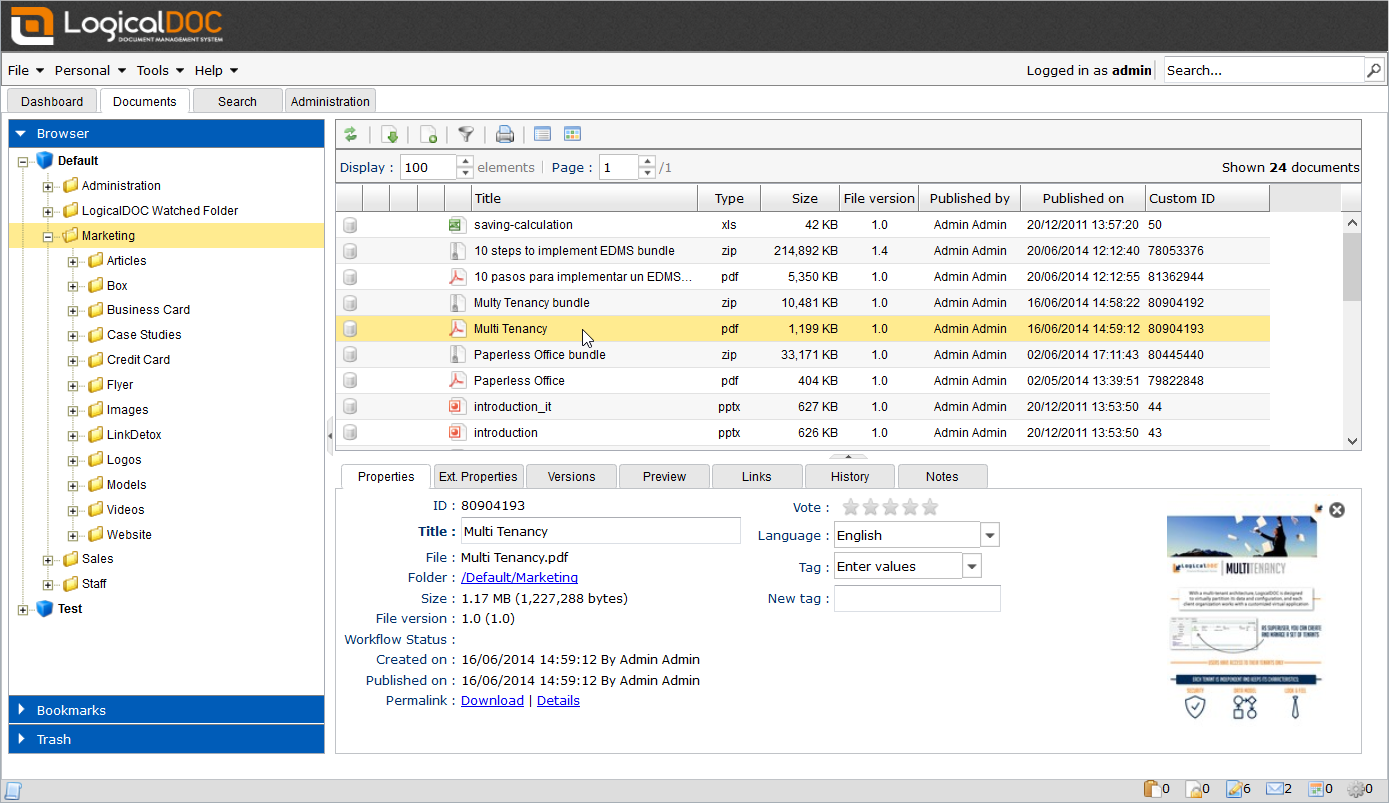
LogicalDOC entra nella mia lista dei preferiti perché offre una vera flessibilità open source per la gestione documentale. Lo consiglio quando desideri un controllo granulare sulla distribuzione o sulla personalizzazione, soprattutto se il tuo team ha esigenze specifiche in termini di automazione dei flussi di lavoro o di hosting on-premise.
Apprezzo il fatto che LogicalDOC supporti script personalizzati per l'automazione e permessi dettagliati, qualcosa che la maggior parte dei DMS per piccole imprese non offre.
A chi è consigliato LogicalDOC
- Amministratori IT o team tecnici che necessitano di personalizzazione open source
- Organizzazioni con requisiti specifici per workflow o integrazione
A chi LogicalDOC non è consigliato
- Utenti non tecnici che cercano strumenti semplici e pronti all'uso
- Team che hanno bisogno di app mobili avanzate o aggiornamenti frequenti dell'interfaccia
Ciò che distingue LogicalDOC
LogicalDOC è progettato tenendo conto dell'accesso aperto e della modularità, il che lo rende una buona scelta quando vuoi avere il pieno controllo della tua implementazione e personalizzare le configurazioni. A differenza di Google Workspace o Dropbox, è stato pensato per offrire controllo a livello di file system e di processo. In pratica, funziona al meglio se dai priorità alla personalizzazione o alla conformità e hai risorse per la gestione continua del sistema.
Compromessi con LogicalDOC
LogicalDOC privilegia flessibilità e controllo, ma questo spesso comporta tempi di configurazione più lunghi e una maggiore manutenzione per il tuo team IT interno.
Pros and Cons
Pros:
- Altamente personalizzabile
- Flessibilità open-source
- Opzioni di ricerca avanzate
- Workflow automatizzati
- Funzionalità di controllo versione
Cons:
- Richiede competenze tecniche
- Configurazione iniziale complessa
- Supporto utente limitato
- Curva di apprendimento ripida
- Richiede molte risorse

DocuWare
Ideale per flussi di lavoro documentali
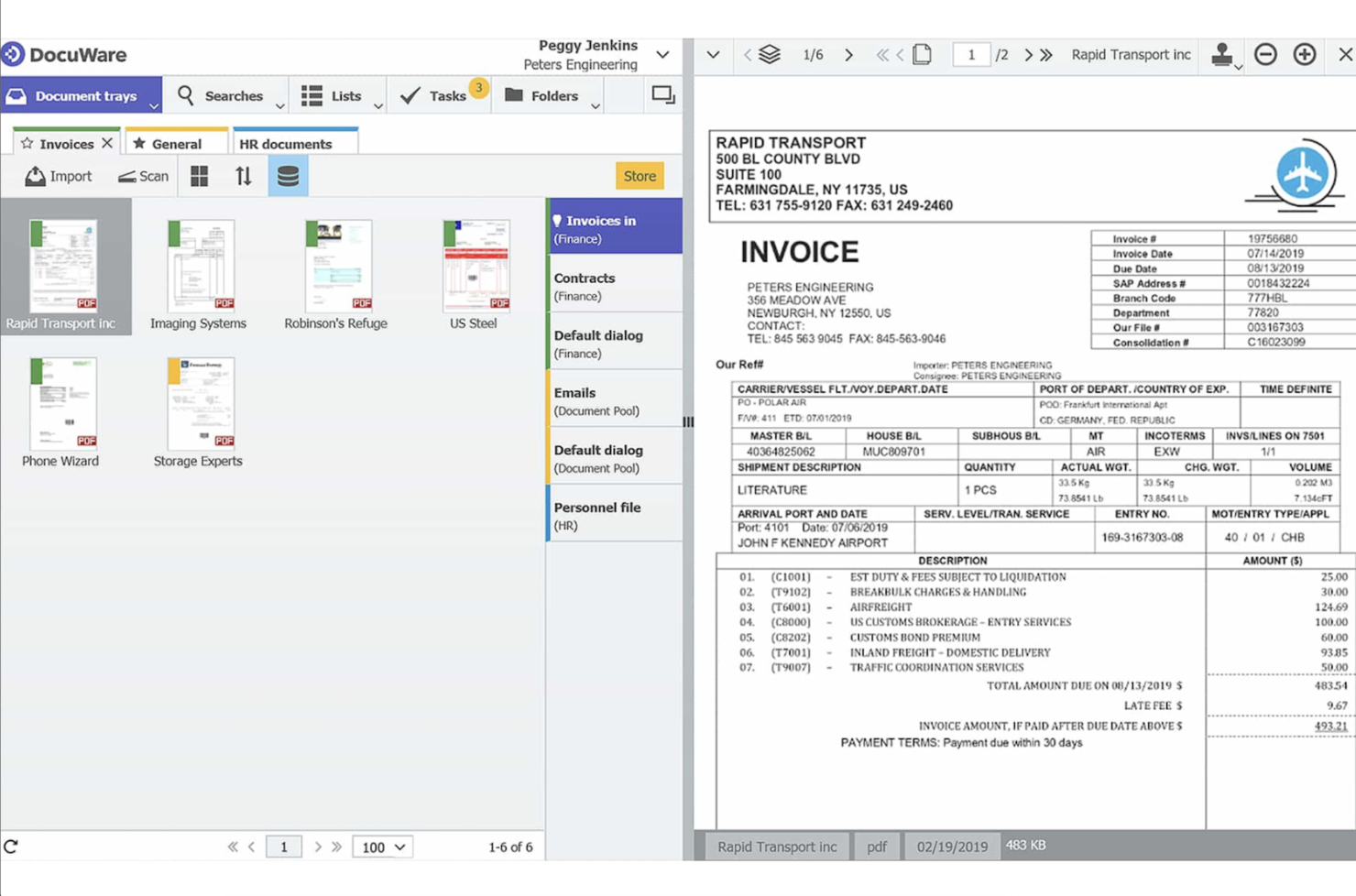
DocuWare è nella mia lista ristretta perché la sua automazione del flusso di lavoro documentale spicca negli ambienti delle piccole imprese. Vedo i team utilizzare DocuWare per instradare, revisionare e approvare documenti senza continui solleciti manuali. Il generatore di workflow configurabile consente di mappare passaggi come approvazioni di fatture o onboarding dei dipendenti esattamente secondo le modalità operative dell’azienda. Mi piace poter impostare trigger e notifiche personalizzate—DocuWare solleva davvero dall’onere dei compiti ripetitivi.
Ideale per
- Aziende che vogliono automatizzare i flussi di lavoro di fatture, contratti o documenti HR
- Team che hanno bisogno di processi di revisione e approvazione affidabili e basati su regole
Non ideale per
- Team che necessitano solo di un semplice archivio documentale
- Aziende con esigenze avanzate di conservazione documentale o archiviazione legale
Cosa distingue DocuWare
DocuWare è progettato per mappare cicli di vita documentali coerenti e guidati da regole. A differenza di Google Workspace, che si concentra principalmente su archiviazione e condivisione dei file, DocuWare si aspetta che tu progetti i workflow per ogni fase: invio, revisione, approvazione e archiviazione. Questo si adatta al meglio quando i documenti devono seguire sempre gli stessi controlli e approvazioni senza affidarsi ad abitudini improvvisate del team.
Compromessi con DocuWare
DocuWare è ottimizzato per l’instradamento strutturato e automatizzato, ma si perde una parte della rapidità e flessibilità che offrono gli strumenti di archiviazione più liberi. Per caricamenti estemporanei e collaborazione informale sui documenti, la progettazione dei workflow può risultare un onere superfluo.
Pros and Cons
Pros:
- Template di flusso di lavoro personalizzabili
- Indicizzazione intelligente dei documenti
- App mobile per la gestione documentale
- Supporta le firme elettroniche
- Processi documentali automatizzati
Cons:
- Curva di apprendimento ripida
- Richiede configurazione tecnica
- Funzionalità offline limitate
- Alto costo iniziale di implementazione
- Opzioni di personalizzazione complesse

Box
Ideale per la sicurezza aziendale
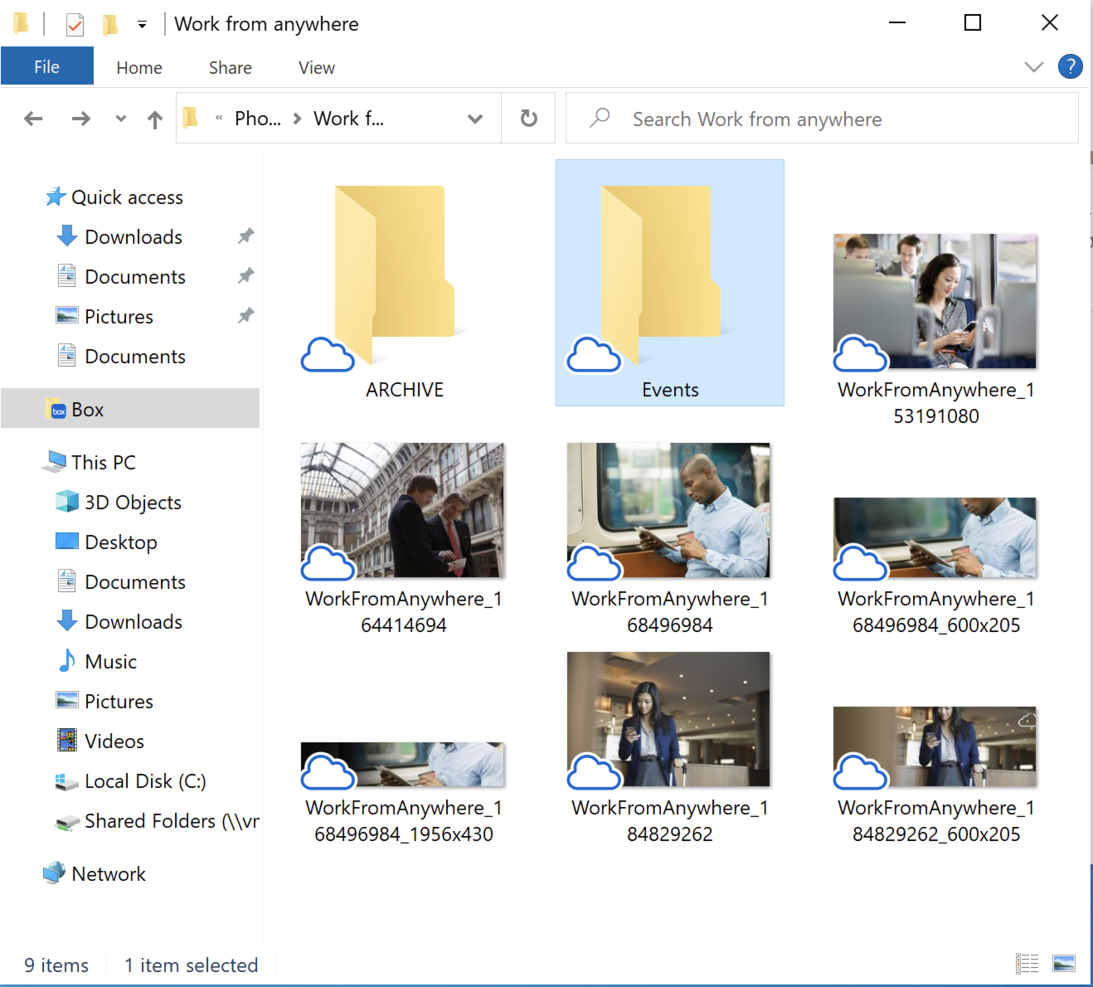
Box è incluso in questo elenco perché il suo approccio alla sicurezza di livello aziendale lo distingue dalle tipiche piattaforme di gestione documentale. Quando vedo team che gestiscono documenti sensibili o hanno esigenze di conformità, i permessi granulati e i registri di controllo di Box rispondono a questa esigenza. Mi piace il modo in cui Box automatizza la classificazione della sicurezza e si integra con i vincoli legali, soprattutto per i settori regolamentati.
Hai il pieno controllo sull'accesso ai file e registri dettagliati delle attività, così non resti mai all'oscuro su eventuali esposizioni di dati.
Box è ideale per
- Team con rigorose esigenze di sicurezza o conformità dei dati
- Aziende che gestiscono documenti sensibili di clienti o legali
Box non è ideale per
- Piccoli team che non necessitano di funzionalità di sicurezza avanzate
- Aziende che desiderano molta automazione dei flussi di lavoro o personalizzazione
Cosa distingue Box
Box è costruito attorno alla protezione e al controllo di ogni file e azione, anziché limitarsi a memorizzare e condividere documenti come fa Google Drive. Lo vedo adattarsi bene ai team che devono limitare rigidamente l'accesso, impostare regole precise su chi può visualizzare o modificare i file, e sapere esattamente chi ha toccato cosa e quando. A differenza di Dropbox o Google Workspace, gestisce configurazioni di conformità e sicurezza fin dall'inizio, adattandosi ad ambienti dove i registri di controllo sono più importanti della collaborazione rapida.
Compromessi di Box
Box pone la sicurezza aziendale al primo posto, ma si rinuncia a un approccio più flessibile per l’automazione dei flussi di lavoro e la collaborazione leggera. Questo significa che i team che hanno bisogno di personalizzare i propri processi o automatizzare lavori basati sui documenti possono sentirsi limitati.
Pros and Cons
Pros:
- Forti funzionalità di crittografia
- Impostazioni personalizzate dei permessi
- Monitoraggio dettagliato delle attività
- Opzioni di flusso di lavoro automatizzate
- Richieste di file esterni
Cons:
- Interfaccia utente complessa
- Richiede formazione per i nuovi utenti
- Accesso offline limitato
- Occasionali problemi di prestazioni
- Nessuna gestione delle attività integrata

M-Files
Ideale per la gestione dei metadati
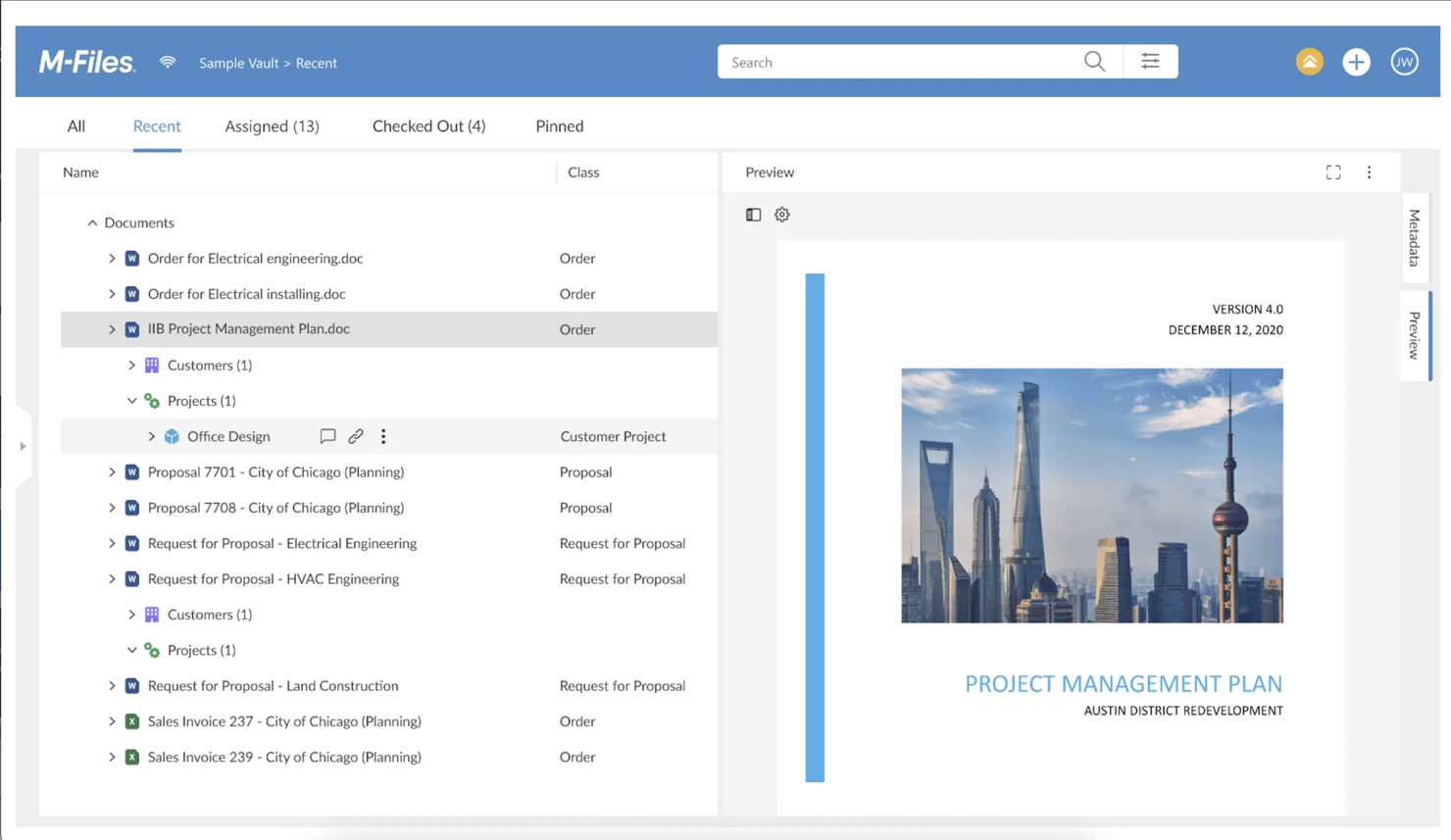
M-Files è nella mia lista perché il suo approccio basato sui metadati cambia il modo in cui gestisci e trovi i documenti. Lo consiglio quando sei stanco di navigare in strutture di cartelle disordinate e hai bisogno di etichettare, organizzare e recuperare i file in base al contenuto, non solo ai nomi dei file. Ciò che apprezzo è il fatto che puoi cercare per progetto, cliente o tipo di documento, velocizzando davvero le verifiche o le richieste di informazioni. È particolarmente utile per le piccole imprese che gestiscono molti tipi di documenti e requisiti di conformità diversi.
M-Files è ideale per
- Aziende che devono organizzare i documenti tramite tag di metadati
- Studi con esigenze complesse di documentazione per la conformità o gli audit
M-Files non è indicato per
- Team che desiderano un archivio documentale semplice basato su cartelle
- Aziende con bassa complessità nella ricerca o nel recupero dei documenti
Cosa distingue M-Files dagli altri
M-Files organizza i documenti in base a ciò che sono, non a dove sono archiviati. Invece di navigare tra cartelle annidate come in Google Drive o Dropbox, usi i metadati per etichettare e trovare i file in base al contesto—progetto, cliente, tipo di documento. Questo approccio è adatto a chi spesso riutilizza o riprende gli stessi contenuti per usi diversi e ha bisogno di recuperare velocemente il file corretto.
Compromessi con M-Files
M-Files ottimizza l'organizzazione tramite metadati, ma perdi la semplicità e la familiarità della navigazione per cartelle. Per i team abituati alle strutture di file tradizionali, adattare i processi di lavoro e formare il personale diventa un ostacolo necessario.
Pros and Cons
Pros:
- Campi di metadati personalizzati
- Recupero preciso dei documenti
- Workflow automatizzati sui metadati
- Funzionalità di ricerca avanzata
- Solido controllo delle versioni
Cons:
- Processo di configurazione complesso
- Richiede formazione per gli utenti
- Curva di apprendimento iniziale elevata
- Accesso offline limitato
- La gestione dei metadati può risultare impegnativa

Ideale per la collaborazione di team
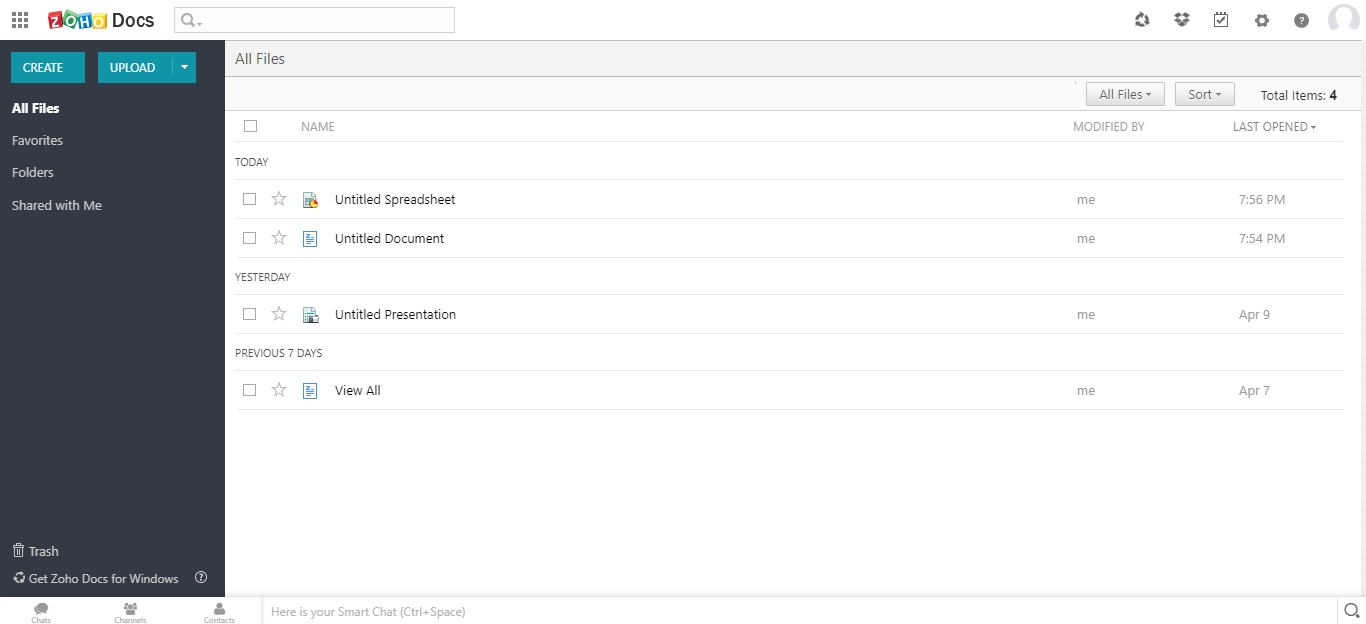
Zoho WorkDrive è nella mia shortlist perché è pensato per una vera gestione documentale incentrata sul lavoro di squadra. Vedo piccoli team usare le Cartelle di Gruppo per organizzare, co-redigere e aggiornare file in tempo reale, il che aiuta a prevenire confusione sulle versioni durante i progetti.
Quello che mi piace di WorkDrive sono i permessi dettagliati integrati e il monitoraggio unificato delle attività sui file. Hai sempre visibilità su chi sta facendo cosa, facilitando il proseguimento dei lavori senza colli di bottiglia.
Zoho WorkDrive è ideale per
- Piccoli team che necessitano di archiviazione condivisa e co-redazione di file
- Aziende che richiedono controllo dettagliato degli accessi e tracciamento delle attività
Zoho WorkDrive non è adatto per
- Aziende che necessitano di automazione avanzata dei flussi di lavoro
- Team focalizzati sulla conformità documentale specifica di settore
Cosa distingue Zoho WorkDrive
Zoho WorkDrive struttura la collaborazione attorno a cartelle di gruppo condivise con permessi dettagliati, invece che su uno spazio personale o una condivisione poco strutturata come Google Drive. In pratica, questa gestione dei file sembra molto più intenzionale, specialmente per team che gestiscono molti documenti di clienti o progetti specifici.
A differenza di Dropbox, orientato spesso alla sincronizzazione e alla condivisione rapide, WorkDrive incoraggia i team a centralizzare tutto e a collegare gli accessi a ruoli e responsabilità. Lo si vede funzionare meglio quando le aziende desiderano mantenere il controllo senza grande sforzo amministrativo.
Pro e contro di Zoho WorkDrive
WorkDrive è ottimizzato per la collaborazione organizzata, ma limita la possibilità di automatizzare flussi di lavoro documentali complessi con più passaggi. Se il tuo lavoro dipende da automazioni avanzate o trigger legati ai documenti, probabilmente avrai bisogno di uno strumento esterno.
Pros and Cons
Pros:
- Spazi di lavoro condivisi per progetti
- Dashboard dettagliate delle attività
- Accesso offline disponibile
- Cronologia delle versioni completa
- Impostazioni dei permessi flessibili
Cons:
- Integrazione limitata con strumenti di terze parti
- Occasionali problemi di sincronizzazione
- È richiesta una connessione internet per tutte le funzionalità
- Funzionalità base di gestione attività
- Curva di apprendimento per i nuovi utenti

Folderit
Ideale per piccoli team
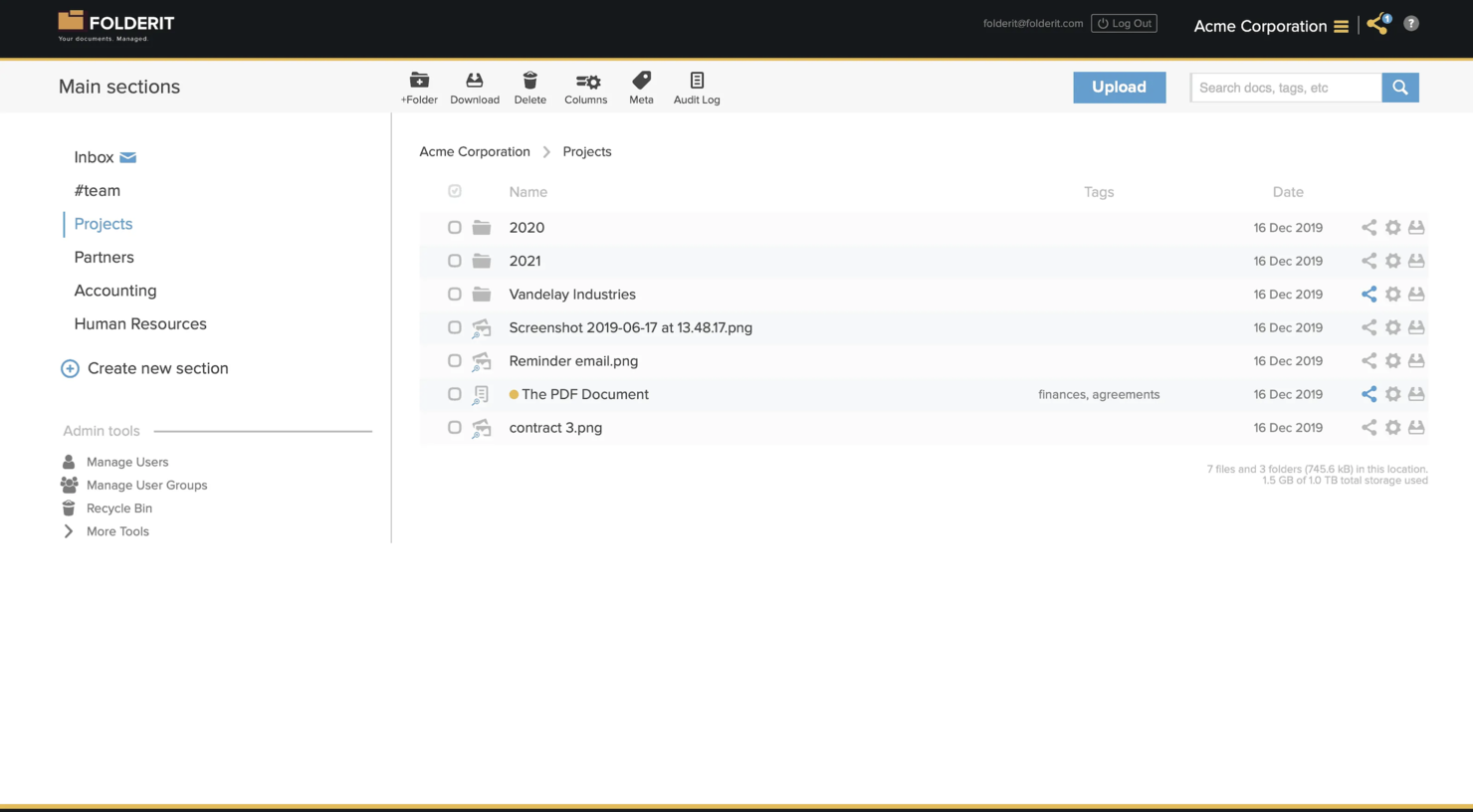
Ho inserito Folderit nella mia lista perché è pensato per piccoli team che hanno bisogno di una condivisione sicura e di un controllo dei documenti organizzato, senza complessità aggiuntive. Ho impostato flussi di approvazione automatici e permessi a più livelli per squadre con esigenze di conformità di base, il che mantiene tutto semplice ma tracciabile.
Quello che apprezzo di più è come Folderit permette di automatizzare le regole di conservazione dei documenti e assegnare accessi unici per cartella o gruppo, rendendo molto più facile per le piccole imprese gestire chi vede e modifica cosa.
Folderit è l’ideale per
- Piccole imprese che necessitano di un controllo documentale semplice e sicuro
- Team che gestiscono flussi di approvazione e conformità di base
Folderit non è adatto per
- Organizzazioni complesse con esigenze avanzate di automazione
- Aziende che richiedono un’integrazione profonda con sistemi esterni
Cosa distingue Folderit
Folderit è incentrato su una gestione documentale semplice e basata su permessi, accessibile anche a team senza competenze IT. Invece della complessità di piattaforme come Google Workspace o SharePoint, Folderit utilizza una gerarchia di cartelle diretta e flussi di approvazione facili da impostare. A mio avviso, funziona al meglio per imprese con ruoli chiari e basso bisogno di personalizzare i processi.
Compromessi con Folderit
Folderit punta su semplicità e immediatezza, ma le squadre rinunciano a funzioni di automazione avanzate o a opzioni di integrazione approfondite. Questo limita la possibilità di espandersi man mano che i requisiti—o le connessioni di sistema—diventano più complessi.
Pros and Cons
Pros:
- Facile da configurare
- Opzioni di metadati personalizzati
- Tracciabilità dettagliata
- Flussi di approvazione semplici
- Progettato per piccoli team
Cons:
- Scalabilità limitata
- Funzionalità di base
- Nessuna app mobile
- Personalizzazione minima
- Richiede connessione internet
PandaDoc
Ideale per l'automazione dei documenti
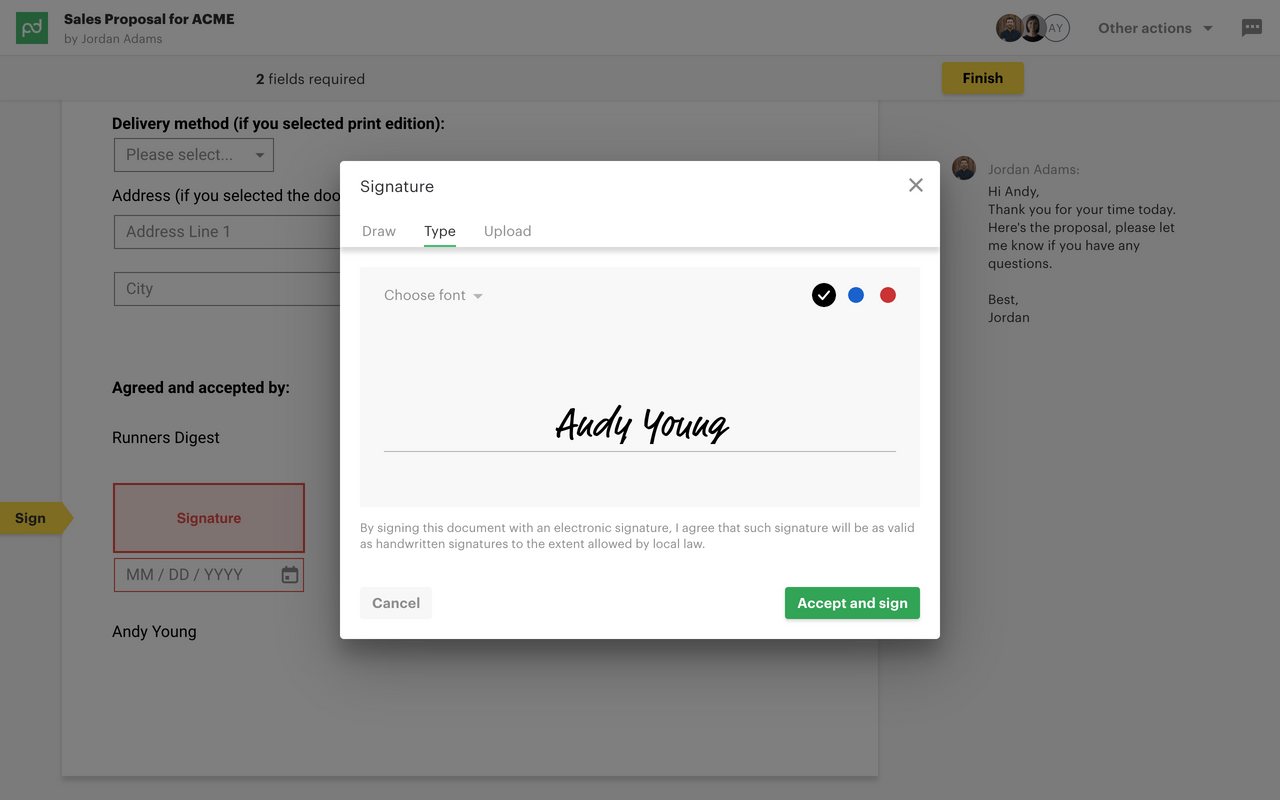
PandaDoc è pensato per i team che lavorano molto con i documenti e che hanno bisogno di più della semplice archiviazione. Mi piace la possibilità di automatizzare contratti, proposte e approvazioni grazie a modelli personalizzabili e firma elettronica integrata. Questo è il vero punto di forza di PandaDoc: l'automazione dei flussi di lavoro rende la gestione dei documenti su larga scala accessibile anche alle piccole imprese.
Quello che mi colpisce è la facilità con cui puoi costruire flussi documentali end-to-end, per collaborazioni rapide e ripetibili nei team di vendita o delle risorse umane.
Ideale per
- Team che gestiscono molti contratti, proposte o preventivi
- Piccole imprese che necessitano di flussi documentali automatizzati
Non adatto a
- Team che cercano principalmente funzionalità avanzate di archiviazione o ricerca documentale
- Aziende con esigenze di conformità documentale molto stringenti
Cosa distingue PandaDoc
PandaDoc adotta un approccio orientato ai processi, con tutto costruito attorno alla creazione, approvazione e tracciamento dei documenti in flussi ripetibili. A differenza dei tradizionali strumenti di archiviazione cloud o di gestione file come Google Workspace, PandaDoc rende al meglio con gruppi che hanno bisogno di inviare, firmare e far avanzare i documenti tra più fasi. In pratica, sono i team commerciali e operativi a trarre il massimo vantaggio da questo formato.
Compromessi di PandaDoc
PandaDoc è ottimizzato per l’automazione dei documenti, ma ciò significa che archiviazione file, etichettatura e le opzioni di ricerca avanzata possono risultare limitate se lo si utilizza come un archivio documentale tradizionale.
Pros and Cons
Pros:
- Automazione documentale efficiente
- Modelli personalizzabili
- Tracciamento dei documenti in tempo reale
- Firme elettroniche integrate
- Dashboard di analisi dettagliata
Cons:
- Funzionalità offline limitate
- Curva di apprendimento per le funzionalità avanzate
- Richiede internet per un utilizzo completo
- Opzioni di personalizzazione basilari
- Saltuari rallentamenti delle prestazioni

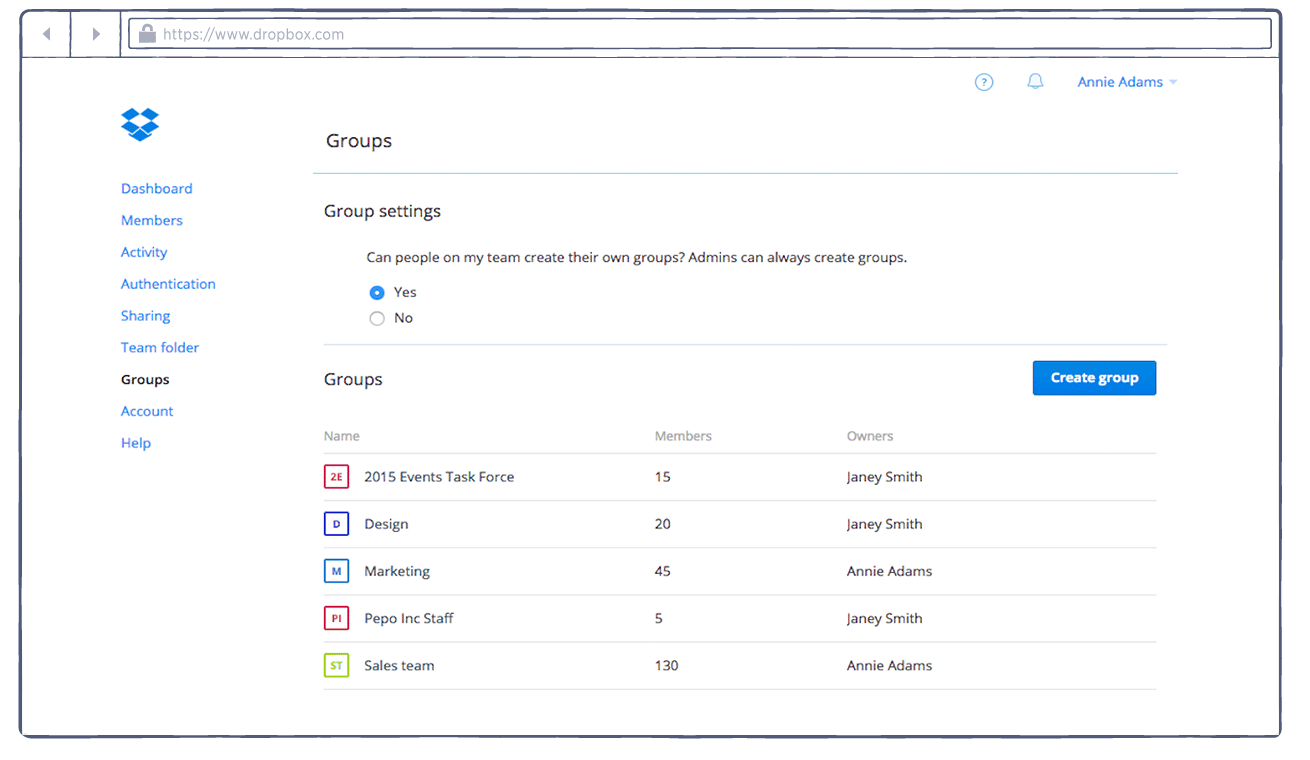
Dropbox Business entra nella mia lista dei preferiti perché elimina gli ostacoli nella condivisione di file e cartelle, soprattutto per i piccoli team che devono agire rapidamente. Vedo molte organizzazioni adottare Dropbox quando si rendono conto che gli allegati email e le unità di rete rallentano la collaborazione.
Ciò che spicca per me è la condivisione di file tramite link e i controlli di autorizzazione granulari. Mi piace poter inviare una grande cartella a un cliente o collaboratore semplicemente condividendo un link, senza preoccuparsi dei limiti delle email o dei software in uso.
Dropbox Business è ideale per
- Piccole imprese che danno priorità a una condivisione di file rapida e sicura
- Team che collaborano con partner esterni o agenzie
Dropbox Business non è adatto per
- Aziende che necessitano di flussi di lavoro complessi per l'approvazione dei documenti
- Imprese con esigenze stringenti di conservazione o conformità dei dati
Cosa distingue Dropbox Business
Dropbox Business è concepito per rendere la condivisione di file e la collaborazione di base il più dirette possibile, senza sovraccaricare con requisiti di workflow. A differenza di Google Workspace, che integra documenti, chat e modifica in un'unica interfaccia, Dropbox parte dall'idea che file e cartelle siano l'unità centrale del lavoro. In pratica, questo approccio mantiene le cose semplici per i piccoli team che spostano molti documenti ma non hanno bisogno di integrazioni approfondite con altri strumenti aziendali.
Compromessi con Dropbox Business
Dropbox punta su una condivisione rapida e pochi processi, ma rinuncia alla gestione integrata del ciclo di vita dei documenti. Se il tuo team necessita di elementi come approvazioni formali o politiche di conservazione, li troverà mancanti o solo di base.
Pros and Cons
Pros:
- Condivisione file facile
- Smart Sync per risparmio spazio
- Autorizzazioni file sicure
- Opzioni di recupero file
- Raccolta di file anche da non utenti
Cons:
- Opzioni di personalizzazione limitate
- Possibili ritardi nella sincronizzazione
- Richiede connessione internet
- Nessuna funzione di gestione attività
- Solo strumenti di collaborazione di base

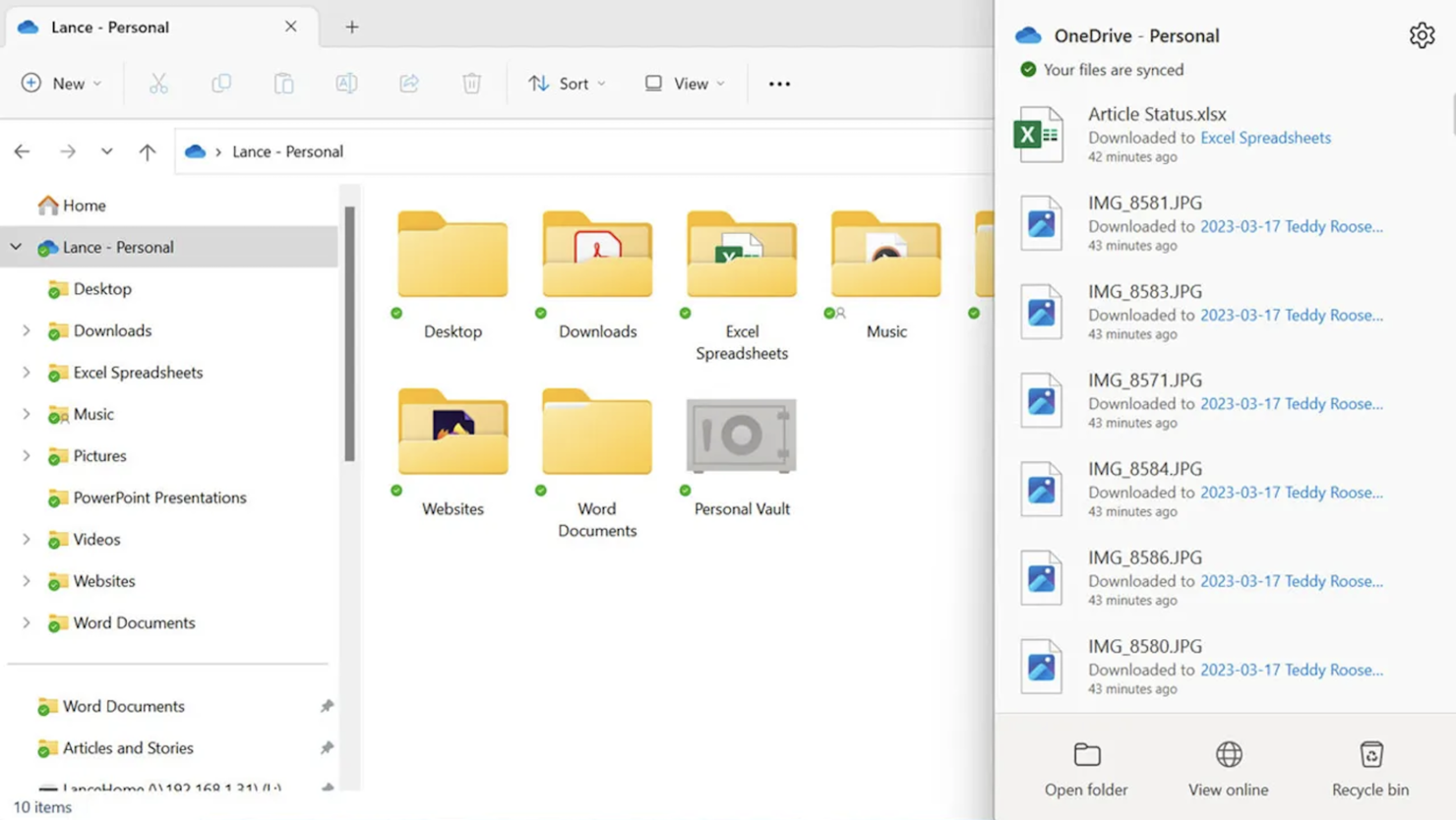
Ho scelto Microsoft OneDrive perché è il modo più semplice e integrato per gestire i documenti se già utilizzi Word, Excel e il resto di Microsoft 365. Ho notato che le piccole imprese traggono il massimo beneficio dalla sincronizzazione immediata delle modifiche tra team e dispositivi, così i file riflettono sempre le ultime modifiche. Quello che apprezzo è la condivisione dei file, la cronologia delle versioni e i permessi dettagliati direttamente nelle cartelle, tutto senza mai uscire dagli strumenti che utilizzi già.
OneDrive è ideale per
- Piccole imprese che usano Microsoft 365 per il lavoro quotidiano
- Team che necessitano di co-modifica dei documenti in tempo reale
OneDrive non è adatto per
- Aziende che evitano prodotti Microsoft
- Flussi di lavoro documentali che richiedono firma elettronica integrata o automazione avanzata
Cosa distingue OneDrive
OneDrive punta a rendere la gestione dei documenti una naturale estensione delle app di Microsoft 365, non un sistema separato. A differenza di Google Drive, che si basa sulla collaborazione tramite browser, OneDrive integra file e cartelle direttamente nell’esplora file del desktop e nelle app di Office. In pratica, questo funziona meglio quando il tuo flusso di lavoro ruota attorno a Word, Excel e ai drive condivisi.
Compromessi con OneDrive
OneDrive è ottimizzato per una stretta integrazione con Microsoft 365, ma si perdono le funzioni avanzate di automazione dei processi documentali offerte dagli strumenti DMS specializzati, quindi la costruzione di flussi di lavoro complessi può essere più difficile.
Pros and Cons
Pros:
- Forte integrazione suite Office
- Impostazioni avanzate dei permessi
- Controllo delle versioni completo
- Supporto al lavoro a distanza
- Librerie documenti personalizzabili
Cons:
- Processo di configurazione complesso
- Curva di apprendimento ripida
- Ritardi occasionali nella sincronizzazione
- Richiede ecosistema Microsoft
- Accesso offline limitato
Altri software di gestione documentale per piccole imprese
Ecco alcune altre opzioni di software di gestione documentale per piccole imprese che non sono state incluse nel mio elenco, ma che vale comunque la pena valutare:
- ONLYOFFICE
Ideale per integrazione suite da ufficio
- Evernote Teams
Ideale per la presa di appunti di squadra
- Rubex by eFileCabinet
Ideale per la gestione della conformità
- Citrix ShareFile
Ideale per la condivisione sicura di file


Come Valuto i Software di Gestione Documentale per Piccole Imprese
Analizzo questi strumenti su due livelli: se gestiscono le basi come file di progetto con versionamento e condivisione basata su permessi, e poi cosa distingue le migliori scelte per i piccoli team.
Funzionalità di Base (Requisiti Fondamentali per Questa Lista)
Quando seleziono gli strumenti per la mia lista, valuto ciascuno su una scala da 0 (non offre la funzionalità) a 5 (eccelle in quest'area) per ogni funzionalità di base elencata di seguito. Successivamente, calcolo il punteggio totale dello strumento come percentuale. Ogni strumento deve raggiungere un punteggio totale minimo del 65% per essere preso in considerazione.
- Archivio Documentale Centralizzato: Controllo se lo strumento organizza i file in spazi di lavoro strutturati o librerie legate ai progetti, non semplicemente un archivio piatto dove SOW e appunti di riunione vengono confusi assieme.
- Controllo delle Versioni & Cronologia: Ogni strumento che valuto dovrebbe tracciare automaticamente le revisioni dei documenti, così il team può ripristinare una proposta o un contratto a una versione precedente senza caos nei nomi dei file.
- Permessi di Accesso Granulari: Cerco controlli a livello di ruolo o utente che permettano di limitare un subappaltatore a una sola cartella di progetto mentre il responsabile di progetto ha pieni diritti di modifica su tutto lo spazio di lavoro.
- Ricerca Documenti & Metadata: Una buona ricerca va oltre i nomi dei file. Valuto se uno strumento supporta la ricerca nel testo completo, tagging e filtri su metadati, così puoi trovare un ordine di modifica specifico tra centinaia di file di progetto.
- Collaborazione & Condivisione: Lo strumento dovrebbe sostenere commenti interni, link di condivisione esterni e workflow di revisione o approvazione. Verifico se gli stakeholder esterni possono visionare i deliverable senza dover acquistare una licenza.
- Tracciabilità Audit & Integrazioni: I registri attività che mostrano chi ha aperto o modificato un file sono fondamentali per la responsabilità. Analizzo anche le integrazioni native con strumenti come Google Workspace, Microsoft 365, Slack e popolari piattaforme di project management.
Una volta che ho una lista di strumenti che soddisfano questi criteri, considero ciò che distingue ogni piattaforma.
Fattori Differenzianti (Cosa Distingue i Fornitori)
Ecco come confronto e metto in evidenza le differenze tra i vari fornitori:
Funzionalità Distintive
I portali per i clienti sono un grande fattore differenziante. Quando i clienti possono revisionare e approvare i deliverable tramite un portale personalizzato senza aver bisogno di una licenza propria, si elimina l'attrito che rallenta le approvazioni di progetto. Cerco anche il supporto integrato per la firma elettronica; inviare una SOW da firmare direttamente nella piattaforma dove è archiviata evita il passaggio a uno strumento separato. Per i team con personale in campo, la scansione mobile dei documenti è essenziale: poter scansionare un modulo firmato o una foto di cantiere direttamente nella cartella di progetto corretta impedisce ai file di restare nella galleria di qualcuno.
Oltre le Funzionalità
La struttura di prezzo è importante per i piccoli team, quindi valuto se uno strumento offre un piano gratuito o economico realmente utilizzabile e che non limiti funzionalità fondamentali come il controllo versioni a livelli aziendali. La velocità di implementazione è un'altra priorità: verifico il supporto alla migrazione che permette di importare facilmente file esistenti da Google Drive o Dropbox, dato che un team di cinque persone raramente ha risorse per un rollout di più settimane. Anche la capacità di ogni piattaforma di integrarsi con gli strumenti di project management già usati dal team, che si tratti di Asana, Trello o Monday.com, influenza quanto valore concreto si ottiene quotidianamente.
Come scegliere un software di gestione documentale per piccole imprese
È facile perdersi in lunghi elenchi di funzionalità e strutture tariffarie complesse. Per aiutarti a rimanere concentrato mentre affronti il tuo specifico processo di selezione del software, ecco un elenco di fattori da tenere presenti:
| Fattore | Cosa considerare |
|---|---|
| Scalabilità | Il software può crescere insieme alla tua attività? Verifica se lo strumento offre piani a livelli che consentono di aggiungere utenti e spazio di archiviazione secondo necessità, senza dover rinnovare completamente il sistema. |
| Integrazioni | Si collega agli strumenti che già utilizzi? Verifica se supporta integrazioni con il tuo CRM, la posta elettronica e altri software essenziali, così da evitare silos di dati. |
| Personalizzazione | Puoi adattarlo ai tuoi flussi di lavoro? Cerca opzioni per personalizzare dashboard, campi e modelli di documenti in base ai tuoi processi specifici. |
| Facilità d'uso | È intuitivo per il tuo team? Evita gli strumenti con una curva di apprendimento ripida. Scegli interfacce intuitive che riducano al minimo il tempo di formazione e semplifichino le operazioni quotidiane. |
| Implementazione e onboarding | Quanto è agevole la transizione? Valuta la disponibilità di risorse formative, come tutorial e webinar, per garantire una configurazione rapida e semplice per il tuo team. |
| Costo | Rientra nel tuo budget? Confronta i piani tariffari, comprese eventuali commissioni nascoste o sconti annuali, per assicurarti che siano compatibili con i tuoi vincoli finanziari. |
| Misure di sicurezza | I tuoi documenti sono protetti? Verifica se lo strumento include crittografia, controlli degli accessi e aggiornamenti regolari della sicurezza per proteggere le informazioni sensibili. |
| Requisiti di conformità | Rispetta gli standard del settore? Assicurati che il software sia conforme alle normative pertinenti per il tuo settore, come il GDPR o l'HIPAA, per evitare problemi legali. |
Che cos'è il software di gestione dei documenti per piccole imprese?
Il software di gestione dei documenti per piccole imprese è uno strumento che aiuta le aziende a organizzare, archiviare e condividere i documenti in formato digitale. Viene generalmente utilizzato da professionisti come responsabili d'ufficio, personale amministrativo e team di progetto per aumentare l'efficienza e ridurre l'ingombro della carta. Funzionalità come il controllo delle versioni, le autorizzazioni di accesso e le capacità di ricerca aiutano a organizzare i file e a garantire la sicurezza dei dati. Nel complesso, questi strumenti fanno risparmiare tempo e migliorano la collaborazione, rendendo più semplice la gestione dei documenti.
Funzionalità del software di gestione dei documenti per piccole imprese
Quando selezioni un software di gestione dei documenti per piccole imprese, presta attenzione alle seguenti funzionalità chiave:
- Archiviazione dei documenti: Archivia in modo sicuro i documenti digitali in una posizione centralizzata, rendendoli facili da consultare e gestire.
- Condivisione dei file: Consente agli utenti di condividere i documenti con i membri del team e i partner esterni, migliorando la collaborazione.
- Controllo delle versioni: Tiene traccia delle modifiche ai documenti e conserva la cronologia delle revisioni, assicurando che tutti lavorino con la versione più recente.
- Autorizzazioni di accesso: Consente agli amministratori di controllare chi può visualizzare, modificare o condividere i documenti, fornendo un ulteriore livello di sicurezza.
- Funzionalità di ricerca: Offre funzioni di ricerca avanzate per individuare rapidamente i documenti in base a parole chiave o metadati, facendo risparmiare tempo.
- Automazione dei flussi di lavoro: Automatizza attività ripetitive come approvazioni e notifiche, aumentando l'efficienza e riducendo il lavoro manuale.
- Firme elettroniche: Facilita l'approvazione rapida e sicura dei documenti senza la necessità di firme autografe.
- Campi di metadati personalizzati: Consente agli utenti di classificare e contrassegnare i documenti con attributi specifici, migliorando l'organizzazione e il recupero.
- Accesso da dispositivi mobili: Fornisce l'accesso ai documenti dai dispositivi mobili, consentendo di lavorare ovunque.
- Tracce di controllo: Conserva un registro di tutte le interazioni con i documenti per garantire la responsabilità e la conformità.
Vantaggi del software di gestione dei documenti per piccole imprese
L'implementazione di un software di gestione dei documenti per piccole imprese offre numerosi vantaggi al tuo team e alla tua azienda. Ecco alcuni dei benefici che puoi aspettarti:
- Maggiore efficienza: Automatizza attività di routine come l'approvazione dei documenti e le notifiche, liberando tempo per attività più importanti.
- Migliore collaborazione: Facilita la condivisione e la modifica simultanea dei documenti, consentendo ai membri del team di lavorare insieme in modo più efficace.
- Maggiore sicurezza: Fornisce autorizzazioni di accesso e tracce di controllo per proteggere le informazioni sensibili e monitorare le interazioni con i documenti.
- Organizzazione migliore: Utilizza campi di metadati personalizzati e funzionalità di ricerca per mantenere i documenti organizzati e facili da trovare.
- Risparmio sui costi: Riduce la necessità di spazio di archiviazione fisico e di carta, abbassando i costi operativi della tua azienda.
- Flessibilità: Offre l'accesso ai documenti da dispositivi mobili, consentendo al tuo team di lavorare ovunque e rimanere produttivo.
- Supporto alla conformità: Aiuta a rispettare le normative del settore con funzionalità come il controllo delle versioni e registri di controllo dettagliati, riducendo il rischio di non conformità.
Costi e prezzi del software di gestione dei documenti per piccole imprese
La scelta di un software di gestione dei documenti per piccole imprese richiede la comprensione dei vari modelli di prezzo e dei piani disponibili. I costi variano in base alle funzionalità, alle dimensioni del team, ai componenti aggiuntivi e ad altri fattori. La tabella seguente riassume i piani più comuni, i relativi prezzi medi e le funzionalità tipicamente incluse nelle soluzioni software di gestione dei documenti per piccole imprese:
Tabella di confronto dei piani per il software di gestione dei documenti per piccole imprese
| Tipo di piano | Prezzo medio | Funzionalità comuni |
| Piano gratuito | $0 | Archiviazione di base, condivisione semplice e integrazioni limitate. |
| Piano personale | $5-$15/user/month | Maggiore spazio di archiviazione, strumenti di collaborazione di base e autorizzazioni di accesso. |
| Piano aziendale | $15-$30/user/month | Collaborazione avanzata, automazione dei flussi di lavoro e misure di sicurezza avanzate. |
| Piano per grandi aziende | $30-$60/user/month | Integrazioni personalizzate, analisi complete e assistenza clienti prioritaria. |
Domande frequenti sul software di gestione dei documenti per piccole imprese
Ecco alcune risposte alle domande comuni sul software di gestione dei documenti per piccole imprese:
In che modo il software di gestione documentale migliora la sicurezza?
Il software di gestione documentale migliora la sicurezza fornendo controlli di accesso che consentono di decidere chi può visualizzare o modificare i documenti. Include anche la crittografia per proteggere i dati durante la trasmissione e l'archiviazione. I registri di controllo tracciano tutte le attività, permettendo di monitorare l'accesso ai documenti e le modifiche ai fini della conformità.
Cosa dovrei considerare quando integro il software con i sistemi esistenti?
Quando integri il software di gestione documentale con i sistemi esistenti, verifica se supporta gli strumenti che utilizzi attualmente, come le piattaforme CRM o di posta elettronica. Considera la facilità di integrazione e se sono necessari sviluppi personalizzati. Assicurati che non interrompa i flussi di lavoro attuali e non richieda modifiche estese.
Il software di gestione documentale può supportare il lavoro da remoto?
Sì, il software di gestione documentale supporta il lavoro da remoto fornendo l'accesso ai documenti nel cloud da qualsiasi luogo. Consente al tuo team di collaborare in tempo reale e condividere i file in modo sicuro. Cerca funzionalità come l'accesso da dispositivi mobili e le funzionalità offline per migliorare la flessibilità del lavoro da remoto.
Come posso garantire la conformità alle normative del settore?
Garantisci la conformità scegliendo un software che supporti standard come GDPR o HIPAA. Verifica la presenza di funzionalità come i registri di controllo e l'archiviazione sicura dei dati. Anche gli aggiornamenti regolari e le certificazioni possono indicare un impegno a mantenere la conformità alle normative in continua evoluzione.
Quali tipi di documenti posso gestire con questo software?
Puoi gestire vari tipi di documenti, inclusi PDF, file Word, fogli di calcolo e immagini. Alcuni software supportano anche file specializzati come i disegni CAD. Verifica se il software fornisce modelli o strumenti per gestire formati di documenti specifici rilevanti per la tua attività.
Come valuto la scalabilità del software di gestione documentale?
Valuta la scalabilità considerando se il software offre piani a più livelli che crescono insieme alla tua attività. Verifica se supporta l'aggiunta di utenti e spazio di archiviazione senza interruzioni rilevanti. Cerca soluzioni basate sul cloud che offrano flessibilità e risorse per soddisfare le tue esigenze in espansione.
Qual è il prossimo passo:
Se stai cercando un software di gestione documentale per piccole imprese, contatta gratuitamente un consulente SoftwareSelect per ricevere consigli personalizzati.
Compili un modulo e fai una breve conversazione durante la quale il consulente approfondirà le tue esigenze specifiche. Dopodiché riceverai una selezione ristretta di software da valutare. Ti assisterà persino durante l'intero processo di acquisto, comprese le negoziazioni sui prezzi.