

10 melhores geradores de fluxogramas com IA analisados em 2026

Seleção dos melhores geradores de fluxogramas com IA


Os geradores de fluxogramas com IA são ferramentas fáceis de utilizar e intuitivas que podem criar fluxogramas e diagramas de fluxo de trabalho por si. Podem fornecer uma representação visual clara dos seus processos para ajudar a melhorar os fluxos de trabalho, aumentar a clareza para a equipa e tornar as tarefas complexas mais fáceis de gerir.
Neste artigo, partilho as minhas principais escolhas de geradores de fluxogramas com IA que podem ajudar a organizar as suas ideias, planear projetos e comunicar eficazmente com a sua equipa. Apresentarei uma análise imparcial e destacarei as principais funcionalidades e benefícios, para que possa encontrar a solução certa e ajudar a sua equipa a trabalhar de forma mais inteligente, e não mais arduamente.
Why Trust Our Software Recommendations
Our team has been testing and reviewing software since 2012. As project managers ourselves, we know how difficult—and important—it is to choose the right software.
For this guide, we evaluated tools using hands-on testing and independent research, scoring tools using our selection criteria. We also draw on insights from industry thought leaders and practicing project management experts.
Our reviews reflect our human editorial judgment, not a sales pitch.
Expert reviewers:
Tabela comparativa de ferramentas geradoras de fluxogramas com IA
Esta tabela comparativa resume os detalhes de preços das minhas principais escolhas de ferramentas geradoras de fluxogramas com IA:
| Tool | Best For | Trial Info | Price | ||
|---|---|---|---|---|---|
| 1 | Best for beginner-friendly use | Free trial + free plan available | From $144/user/year (billed annually) | Website | |
| 2 | Best for team collaboration | Free plan available | From $20/month | Website | |
| 3 | Best for creative teams | Free plan available | From $10/user/month (billed annually) | Website | |
| 4 | Best for infographic-style diagrams | Free plan available | From $10/month (billed annually) | Website | |
| 5 | Best for cross-platform use | 7-day free trial available | From $119/year (billed annually) | Website | |
| 6 | Best for automatic note integration | Free plan available | From $9/month (billed annually) | Website | |
| 7 | Best for enterprise process automation | 14-day free trial + free demo available | Pricing upon request | Website | |
| 8 | Best for quick diagram edits | Free plan available | From $10/user/month (billed annually) | Website | |
| 9 | Best for switching between map types | Free trial available | From $0/month | Website | |
| 10 | Best for AI-driven suggestions | Free plan available | From $7.90/user/month (billed annually) | Website |
Análises do melhor software gerador de fluxogramas com IA
Seguem-se os meus resumos detalhados de cada um dos melhores geradores de fluxogramas com IA. Abordo as principais funcionalidades, vantagens e desvantagens, integrações e casos de utilização ideais, para que possa encontrar a melhor ferramenta para si.
Canva
Best for beginner-friendly use
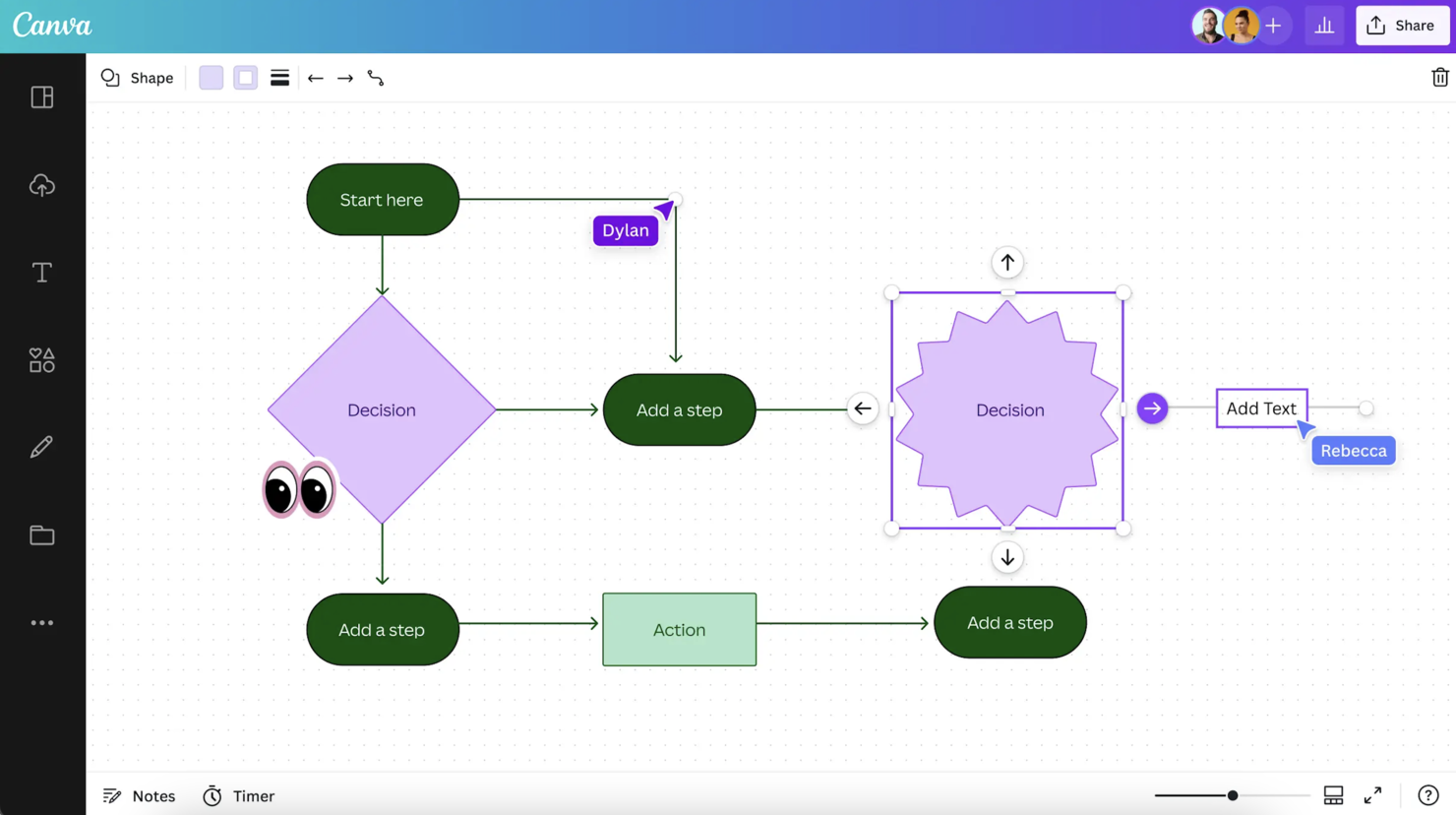
Canva makes this list for anyone who wants a hassle-free way to create and edit flowcharts with AI support. I've watched entry-level and non-design teams use its AI-powered Magic Design and customizable templates to generate diagrams in a few clicks.
What I appreciate most is how straightforward it is to transform an idea or text prompt into a full diagram, then tweak layouts or branding with Canva's drag-and-drop editor. This works best when you want to go from concept to visual fast, without learning dedicated diagramming software.
Canva’s Best For
- Non-designers making flowcharts from templates or AI suggestions
- Small teams needing fast, simple workflow diagrams
Canva’s Not Great For
- Technical teams needing advanced diagram logic or automation
- Organizations with strict enterprise or compliance requirements
What sets Canva apart
Canva takes flowchart creation out of the hands of designers and gives it to anyone who needs a fast, visual diagram. I like how its AI-assisted tools let you generate draft flowcharts from text or ideas in seconds. Unlike Lucidchart or SmartDraw, Canva expects you to work visually, experimenting with layouts and styles before worrying about technical details.
This works well when you want to share a draft or brainstorm visually in a meeting, rather than lock down a rigid diagram.
Tradeoffs with Canva
Canva optimizes for speed and visual appeal, but this limits logic controls and automation. When you need detailed processes or technical frameworks, you’ll find it lacks advanced tools for precision.
Pros and Cons
Pros:
- Supports a wide range of projects
- Easy drag-and-drop interface
- Extensive template library
Cons:
- Limited export options
- Limited advanced tools

Taskade
Best for team collaboration
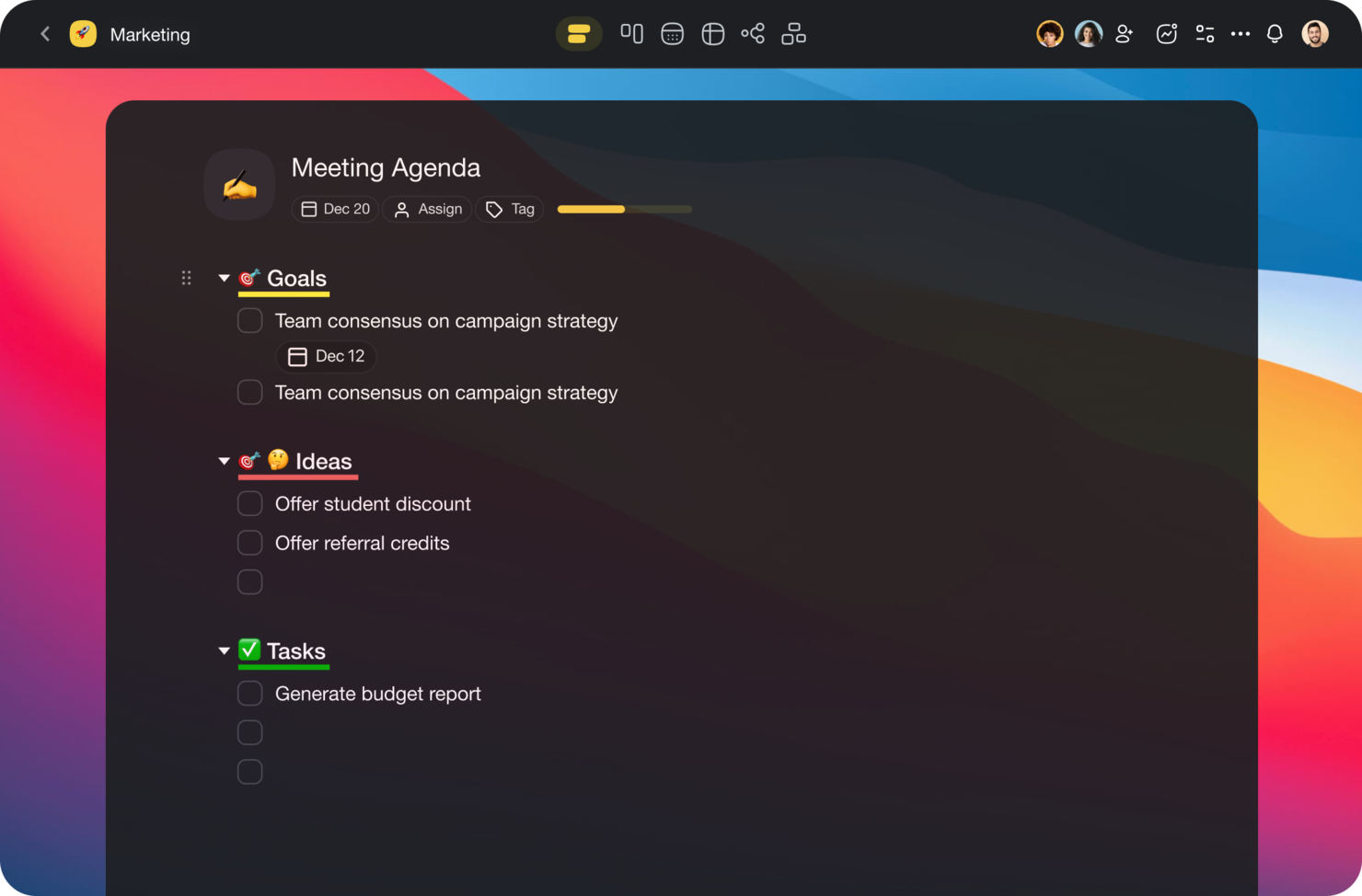
Taskade makes this list because few tools handle team brainstorming and diagramming in one place as well as it does. I recommend it when teams want collaborative, AI-supported flowchart generation right inside their shared workspace.
I like how you can map out processes visually, build flowcharts with AI, and switch smoothly between mind maps, lists, and kanban—all in real time with your team. This makes it much easier to keep everyone on the same page during strategy sessions or project planning.
Taskade’s Best For
- Creative and product teams that need live, visual collaboration
- Teams who want AI-assisted flowchart and mind mapping tools
Taskade’s Not Great For
- Users needing advanced flowchart controls or detailed process modeling
- Teams focused on engineering or technical diagram standards
What sets Taskade apart
Taskade approaches diagramming as a live collaboration experience, blending AI flowchart creation with real-time teamwork in a shared workspace. Instead of the strict, formal design you see in Lucidchart or the complexity of Jira, Taskade encourages fluid conversation, note-taking, and brainstorming right on the canvas. This tends to work best when teams want to plan and visualize thinking together, not document prescriptive workflows.
Tradeoffs with Taskade
Taskade optimizes for quick, flexible co-creation, but that means advanced controls or rigorous process modeling are limited. If you need detailed diagram standards or rules-based flows, you’ll find it falls short.
Pros and Cons
Pros:
- Mind mapping capabilities
- Supports remote team management
- Customizable workflow templates
Cons:
- Limited advanced features
- Requires fast internet connection

Best for creative teams
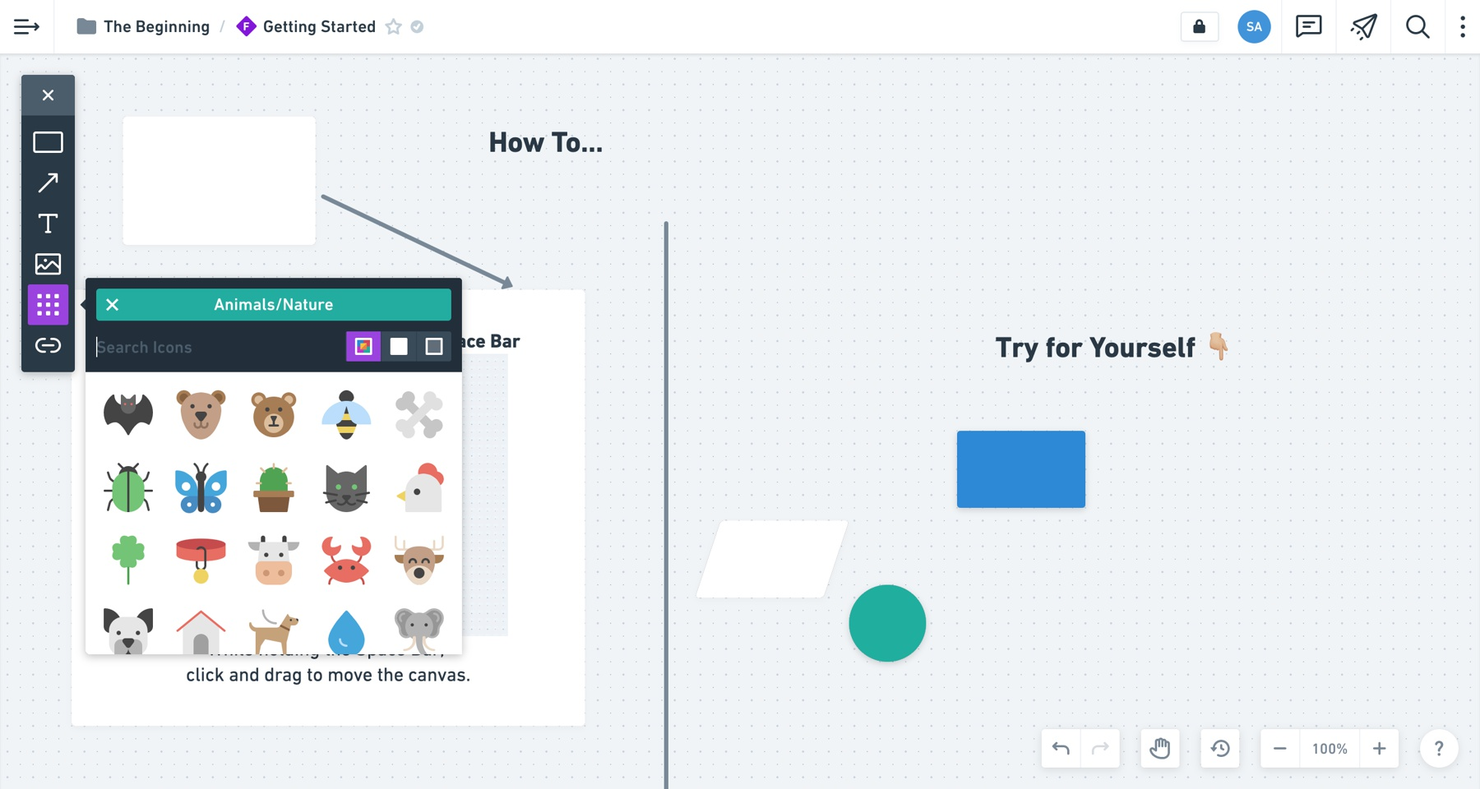
Whimsical is my go-to when I see creative teams mapping out ideas or collaboration flows that need to stay visual but flexible. I’ve used its AI-driven flowchart generator and like how quickly you can shape diagrams with natural language, then refine them with grouped objects and sticky notes.
What I appreciate is how it combines structured AI diagrams with mind maps and wireframes, so work feels fluid as ideas change direction.
Whimsical’s Best For
- Creative teams mapping flows, ideas, and wireframes
- Fast brainstorming with AI-generated diagrams and mind maps
Whimsical’s Not Great For
- Engineering teams needing process-specific symbols or rules
- Formal documentation or compliance-driven diagramming
What sets Whimsical apart
Whimsical feels different because it keeps brainstorming fluid, not forcing you into strict shapes or syntax like Lucidchart or Microsoft Visio. I see teams shifting between flowcharts, mind maps, and wireframes without switching tools or workflows. Instead of treating diagrams as static assets, it expects you to keep tweaking and layering ideas as projects evolve.
Tradeoffs with Whimsical
Whimsical optimizes for fluid ideation, but you lose access to diagram controls and process-specific libraries engineering teams expect. This means work can feel unstructured and lacks the rigor needed for formal documentation.
Pros and Cons
Pros:
- Real-time collaboration
- Great for remote teams
- Built-in icon library
Cons:
- Less suitable for large projects
- Few advanced design tools

Venngage
Best for infographic-style diagrams

Venngage makes my list because it brings infographic-level polish to flowcharts and process visuals. When I see teams needing visuals for client proposals, pitches, or marketing that actually catch attention, this is the one that fits best.
You get slick templates and an AI diagram wizard that suggests layouts and iconography for your content. I appreciate how I can transform dry technical flows into something that gets traction with non-technical stakeholders.
Venngage’s Best For
- Marketers and comms teams making visual process diagrams
- Creating flowcharts for stakeholder presentations or client reports
Venngage’s Not Great For
- Engineering or dev teams needing technical diagram standards
- Anyone needing automated diagram syncing with live data sources
What sets Venngage apart
Venngage stands out because it treats flowcharts as visual communication pieces instead of technical diagrams. You get an interface built for creating presentations and reports with strong visual appeal. Unlike tools like Lucidchart, which focus on structured diagramming, Venngage works best for client-facing deliverables where style matters just as much as clarity.
You can take a process or workflow and turn it into something that engages stakeholders who don’t think in boxes and arrows.
Tradeoffs with Venngage
Venngage optimizes for presentation and design, so you lose out on technical diagram features and granular logic controls that matter to engineers or IT teams.
Pros and Cons
Pros:
- Accessible for non-designers
- Easy color and font customization
- Extensive template library
Cons:
- Learning curve for advanced features
- Limited free features

EdrawMax
Best for cross-platform use
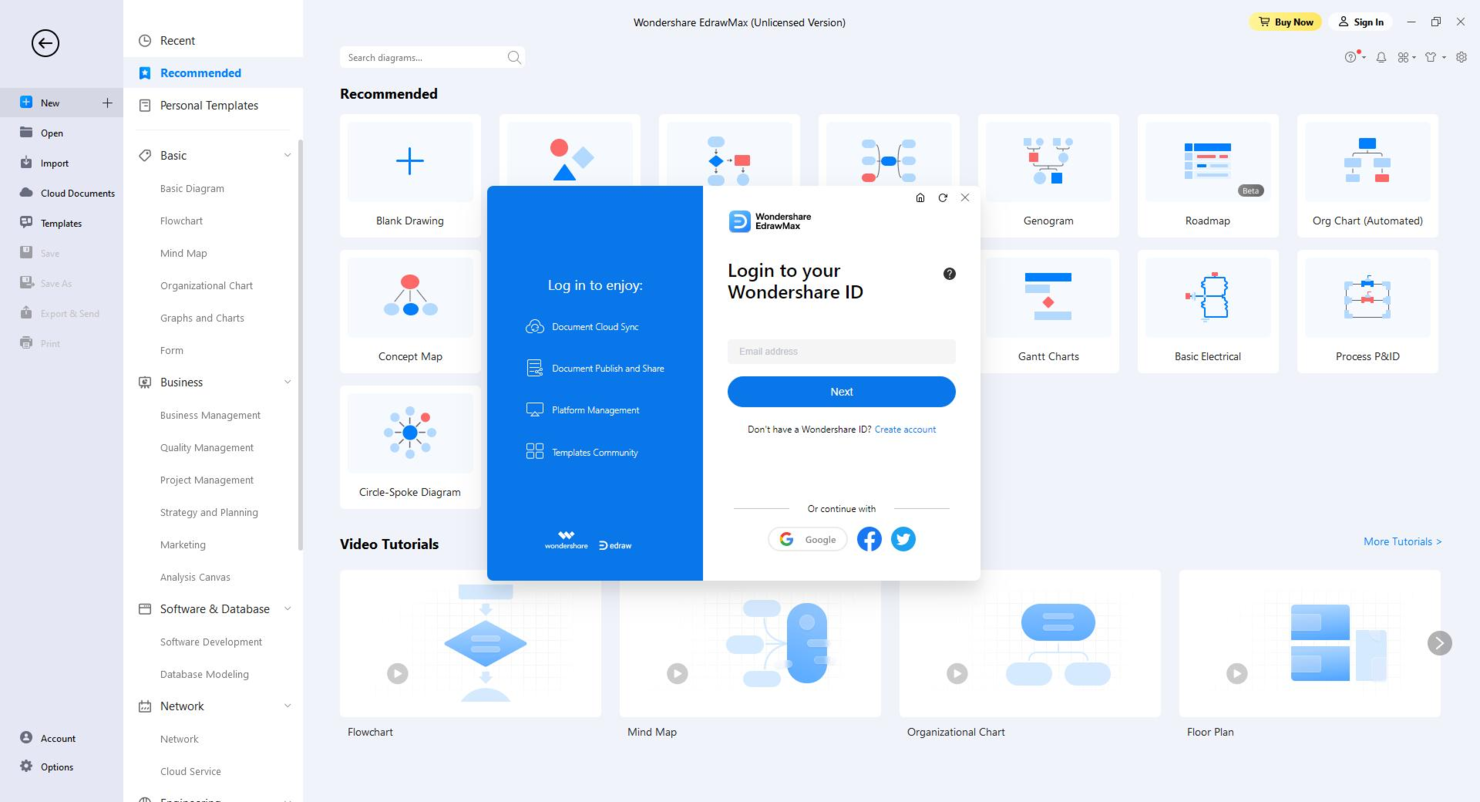
EdrawMax earns its place here because it runs smoothly across different platforms, including Windows, Mac, Linux, and web browsers, which I find rare for flowchart tools. When teams are split across operating systems or need to share diagrams easily, this flexibility makes a difference.
I like how EdrawMax uses AI to generate flowcharts from text prompts or data, letting you focus on structure rather than shapes. I think you'll get the most value from it when you need to collaborate without worrying about compatibility or software installs.
EdrawMax’s Best For
- Teams working across Windows, Mac, and Linux environments
- Users who want AI-generated flowcharts from text input
EdrawMax’s Not Great For
- Teams that need deep version control or change tracking
- Users looking for specialized engineering diagram features
What sets EdrawMax apart
EdrawMax stands out because it’s built to work the same way across Windows, Mac, Linux, and the web. You don’t have to worry about which device or operating system you use, everything looks and acts the same. Unlike Visio, which locks you to Windows, or Lucidchart, which is web-first, EdrawMax gives you a full client wherever you are.
This works well for dispersed teams or anyone who moves between platforms.
Tradeoffs with EdrawMax
EdrawMax focuses on cross-platform access, but that comes at the cost of advanced diagram controls and deep change management. If you need high-level versioning or engineering diagram features, you might feel boxed in.
Pros and Cons
Pros:
- Supports multiple file formats
- Customizable diagram elements
- Extensive template library
Cons:
- Occasional lag with large files
- Steeper learning curve

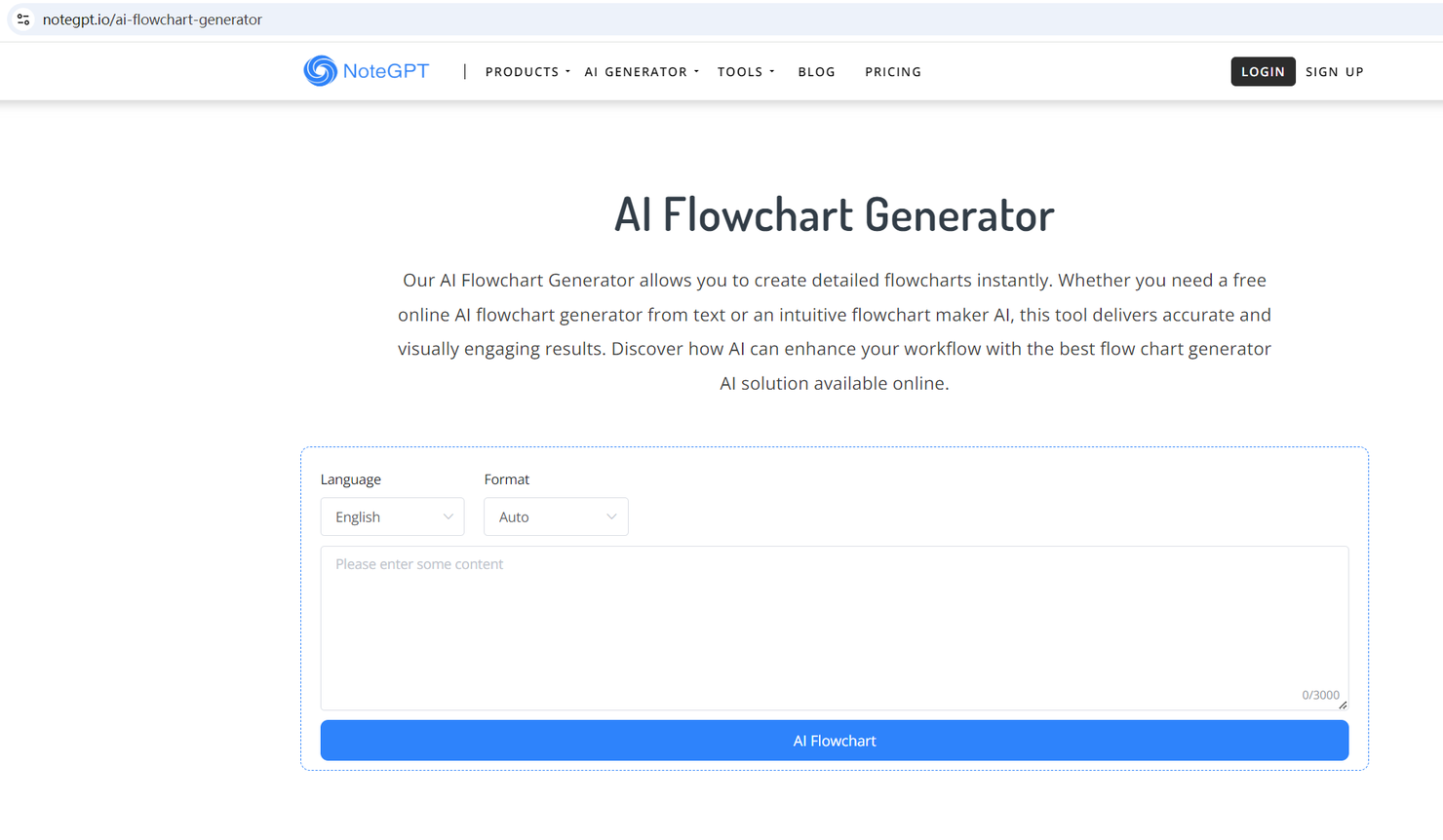
NoteGPT earns its spot here thanks to how well it turns conversations and meetings into structured, AI-generated diagrams and visual notes. I recommend it when you want automatic flowchart creation as part of your broader note-taking process rather than managing two separate tools.
What I appreciate about NoteGPT is how it pulls in context from audio or text and builds diagrams on the fly. That saves teams from duplicating efforts just to document a process or discussion.
NoteGPT’s Best For
- Teams wanting notes and flowcharts auto-generated from meetings
- Users who document processes directly from audio or transcripts
NoteGPT’s Not Great For
- Designers needing advanced flowchart customization tools
- Anyone wanting pure flowchart software without note integration
What sets NoteGPT apart
NoteGPT is designed around the idea that meeting notes and flowcharts shouldn’t be separate workflows. Unlike Miro, which keeps diagramming fully manual, NoteGPT expects you to use transcripts and discussions as live inputs for structured outputs. In practice, this means you get diagrams that reflect what’s actually discussed, rather than what someone remembers to draw up after the meeting.
Tradeoffs with NoteGPT
NoteGPT optimizes for automation and speed, but that comes at the cost of customization. If you want to tailor flowcharts beyond what the system interprets, you will hit limits fast.
Pros and Cons
Pros:
- Discounts for new users
- Supports multiple diagram types
- Automatic note generation
Cons:
- Limited customization options
- Limited free access


GBTEC earns its place here for how it covers enterprise-level process automation and AI-driven mapping. When I need to design flowcharts that connect directly to real operational processes, this platform stands out. I like how its AI tools generate visual process flows based on complex business logic and workflows. Teams handling large-scale, regulated operations tend to get a lot from using GBTEC, especially for translating existing process documentation into clear, living diagrams.
GBTEC’s Best For
- Large enterprises with process compliance and automation needs
- Teams automating complex, regulated business workflows
GBTEC’s Not Great For
- Individuals or early-stage startups needing simplicity
- Teams wanting basic, lightweight diagramming tools
What sets GBTEC apart
GBTEC is built around mapping out, automating, and auditing business processes at a scale you won’t get from diagramming tools like Lucidchart or Miro. I find it expects you to approach flowcharts as living business processes, not just static visuals. This tends to work best when you need governance or traceability because real workflows are being executed and updated in the tool.
Tradeoffs with GBTEC
GBTEC optimizes for end-to-end process automation, so you give up quick, ad hoc diagramming. If you want to brainstorm ideas fast, the setup and configuration can slow you down.
Pros and Cons
Pros:
- Connects rules and forms to diagrams
- Highlights risks linked to each step
- Simulates flows before publishing
Cons:
- Hard to make quick visual edits
- Takes time to master process logic

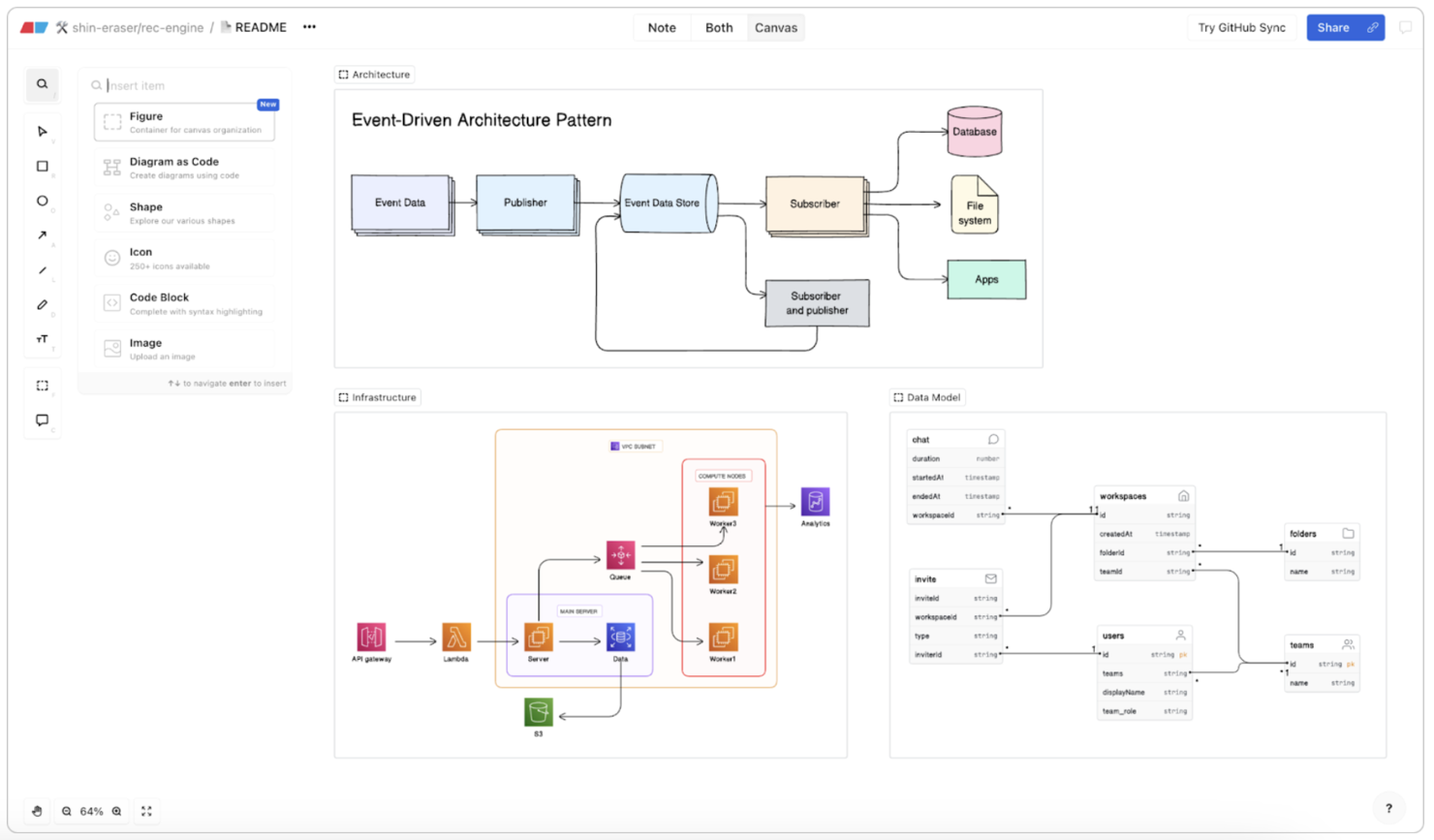
Eraser earns its spot for teams who need to whip up or update diagrams fast, especially when changes come in late or frequently. When I tested the AI features, I found generating flowcharts from text prompts or quick sketches is actually fast enough for live meetings.
What I like is how teams can start in freeform mode, drop in comments, and instantly switch to a tidy diagram without losing the collaborative feel or having to rework from scratch.
Eraser’s Best For
- Teams who need fast AI-generated diagram edits
- Whiteboarding and annotating during live collaboration sessions
Eraser’s Not Great For
- Building large-scale, highly detailed process maps
- Teams needing advanced version control or audit trails
What Sets Eraser Apart
Eraser is built for speed and flexibility, letting you sketch ideas, drop in AI-generated visuals, and edit diagrams right in the middle of a discussion. Instead of focusing on strict structure like Lucidchart or Visio, Eraser assumes you want open-ended brainstorming and quick iteration. In practice, this shines when you’re gathering input from a group and diagrams need to change on the fly.
Tradeoffs with Eraser
Eraser optimizes for fast edits and informal diagrams, but you give up advanced version control and in-depth process modeling. For highly detailed or regulated documentation, you’ll probably run into limits.
Pros and Cons
Pros:
- Wide range of templates
- Intuitive drag-and-drop interface
- Quick editing capabilities
Cons:
- Can be complex for beginners
- Limited offline functionality


MyMap.AI stands out because it lets you build, switch, and compare multiple flowchart and map styles within a single project view. I see teams using this to quickly visualize the same data as a mind map, flowchart, or concept map without exporting or redrawing anything.
I like how easy it is to toggle layouts and find the best one for each part of a process—especially when workflows aren’t linear.
MyMap.AI's Best For
- Teams that compare multiple flowchart or map layouts
- Users mapping non-linear or rapidly changing processes
MyMap.AI's Not Great For
- People needing advanced diagram automation
- Teams who only want one static chart format
What sets MyMap.AI apart
MyMap.AI is built around the idea that workflows and mind maps often need to shift form. You aren’t locked into viewing a process as a flowchart or mind map. Instead, you can quickly toggle between styles, which is something I haven’t seen in mainstream diagramming tools like Lucidchart or Miro. In practice, this makes it a good fit for teams who change mapping styles as they clarify ideas.
Tradeoffs with MyMap.AI
MyMap.AI optimizes for layout flexibility, but it’s light on deep automation or niche diagramming controls. That means you may need another tool if you require automated logic or diagram validation.
Pros and Cons
Pros:
- Dynamic presentation model
- Real-time web search capabilities
- AI-driven diagram creation
Cons:
- Limited customization options
- Limited offline features


FloChartAI landed on my list after seeing how its AI-driven suggestions take a lot of busywork out of mapping processes. When I tested it, the automatic node recommendations felt tuned to real workflow logic, not just generic next-steps. If you want a tool that actively proposes flow direction as you build, this hits that need well.
I appreciate how it can draft entire branches with a single prompt, especially when projects start messy and unstructured.
FloChartAI’s Best For
- Process mappers who want AI to suggest next steps
- Teams building complex flows from loose requirements
FloChartAI’s Not Great For
- Teams needing manual control over every node and branch
- Organizations requiring strict visual style or branding options
What sets FloChartAI apart
FloChartAI takes an AI-first approach, letting you build process flows by prompting the system instead of dragging every shape yourself. In practice, it feels closer to using ChatGPT or a text command interface than working in Visio or Lucidchart. That means you can sketch out large, messy processes fast and the tool actively suggests structure as you go.
It’s good when you need loose, iterative mapping—unlike classic diagram tools that expect you to come in with a clear design.
Tradeoffs with FloChartAI
FloChartAI optimizes for speed and AI-generated mapping, but you lose granular control over layout and fine-tuned styling. If you work in industries where strict format and custom branding matter, this approach can be limiting.
Pros and Cons
Pros:
- Quick adjustments and revisions
- Customizable prediction features
- AI-driven diagram suggestions
Cons:
- Occasional AI suggestion errors
- Requires a learning curve
Outro software gerador de fluxogramas com IA
\u003cspan style=\u0022font-weight: 400\u0022\u003eEis algumas opções adicionais de ferramentas para criar fluxogramas com IA que não foram incluídas na minha seleção, mas que vale a pena conhecer:\u003c/span\u003e
- Miro
For live team whiteboarding
- Jotform Workflows
For extensive payment gateway integrations
- Lucidchart
For large org diagramming
- Visily
For UI/UX design teams
- GitMind
For mind mapping collaboration
- draw.io
For open-source projects
- Chat Diagram
For chatbot integration
- AI Flowchart
For automated process mapping


How I Evaluate AI Flowchart Generators
Every tool here needs to do more than slap an AI label on a basic diagramming canvas—I look for generators that turn a text prompt or project brief into a usable, logically sound flowchart. I split my evaluation into core functionality every tool must meet to make the list and differentiating factors that separate good options from great ones.
Core Functionality (Table Stakes For This List)
When I'm selecting tools for my list, I rank each one on a scale from 0 (does not offer the functionality) to 5 (excels in this area) for each core functionality listed below. Then, I calculate the tool's total score into a percentage. Each tool needs to achieve a minimum total score of 65% to be considered for inclusion.
- AI-Powered Flowchart Generation: I check whether the tool can take a plain-text prompt—like "map our sprint review process"—and produce a structured flowchart without manual shape placement.
- Project-Oriented Templates: The template library should include PM-relevant formats like swimlane diagrams, approval workflows, and decision trees, not just generic shapes.
- Editable Visual Canvas: I look for full drag-and-drop editing on AI-generated outputs so PMs can restructure nodes, restyle connectors, and adjust layouts after generation.
- Real-Time Collaboration: Teams need shared editing, commenting, and version history—I evaluate whether multiple users can work on the same diagram simultaneously.
- Export and Integration Support: I check for exports to standard formats (PNG, SVG, PDF) and connections to PM tools like Jira, Asana, or Confluence where diagrams actually get used.
- Diagram Logic Intelligence: The AI should understand conditional branches and sequential steps, producing logically accurate flows rather than just visually arranged boxes.
Once I have a list of tools that meet this criteria, I consider what sets each platform apart.
Differentiating Factors (What Sets Vendors Apart)
Here's how I compare and contrast different vendors:
Standout Features
Iterative prompt refinement is a big differentiator—I look for tools that let you tweak an AI-generated flowchart through follow-up prompts like "add an approval gate before deployment" instead of rebuilding from scratch. Multi-source input ingestion also matters when PMs need to turn a meeting transcript or project brief into a visual workflow. I pay close attention to diagram-to-workflow conversion, where a finished flowchart can push tasks directly into tools like Jira or Asana.
Beyond Features
Security matters here because your flowcharts often map internal processes, dependencies, and team structures. I evaluate whether vendors offer SSO, role-based access, and clear policies on how AI models handle your data. Pricing transparency is another factor I weigh—some tools gate AI generation behind usage caps or premium tiers, so I check whether the licensing model fits a growing PM team. I also consider onboarding speed, especially whether the tool ships with PM-focused prompt libraries and starter templates that shorten ramp-up time.
Como escolher um gerador de fluxogramas com IA
É fácil perder-se em longas listas de funcionalidades e estruturas de preços complexas. Para o ajudar a manter o foco enquanto percorre o seu processo único de seleção de software, eis uma lista de verificação dos fatores a ter em conta:
| Fator | O que considerar |
|---|---|
| Escalabilidade | Certifique-se de que a ferramenta consegue acompanhar o crescimento da sua equipa. Considere se suporta um aumento do número de utilizadores ou diagramas mais complexos à medida que os seus projetos se expandem. |
| Integrações | Procure compatibilidade com ferramentas que já utiliza, como o Google Workspace ou o Slack, para garantir que a própria ferramenta se integra nos seus fluxos de trabalho existentes. |
| Personalização | Verifique se pode adaptar ou personalizar modelos e elementos de design de acordo com as necessidades da sua marca ou do seu projeto. |
| Facilidade de utilização | Uma interface intuitiva, com uma curva de aprendizagem reduzida, é essencial. Certifique-se de que a sua equipa consegue começar a utilizá-la rapidamente, sem formação extensa. |
| Orçamento | Determine se a ferramenta se enquadra nas suas limitações financeiras. Considere o custo total de propriedade, incluindo eventuais taxas ocultas ou complementos necessários. |
| Medidas de segurança | Verifique se a ferramenta disponibiliza funcionalidades de proteção de dados, como encriptação e controlos de acesso seguros, para manter as suas informações protegidas. |
| Colaboração | Certifique-se de que a ferramenta oferece funcionalidades de colaboração em tempo real para que a sua equipa possa trabalhar em conjunto de forma eficaz, mesmo a partir de locais diferentes. |
| Suporte | Avalie a disponibilidade e a qualidade do apoio ao cliente. Considere se existe assistência 24 horas por dia, 7 dias por semana, e a rapidez com que os problemas são resolvidos. |
O que é um gerador de fluxogramas com IA?
Os geradores de fluxogramas com IA são ferramentas digitais que utilizam inteligência artificial para ajudar a criar fluxogramas e diagramas de forma mais eficiente. Profissionais como gestores de projetos, educadores e analistas de negócio utilizam estas ferramentas para visualizar processos e ideias com clareza.
As funcionalidades de automatização, colaboração em tempo real e personalização de modelos ajudam a simplificar tarefas complexas, melhorar a comunicação e poupar tempo. Também podem aumentar a produtividade e a clareza no planeamento e na execução de projetos.
Funcionalidades dos geradores de fluxogramas com IA
Ao selecionar um gerador de fluxogramas com IA, tenha em atenção as seguintes funcionalidades principais:
- Automatização: Ajuda no processo de criação de fluxogramas ao prever os passos seguintes, o que permite poupar tempo e reduzir o esforço manual.
- Colaboração em tempo real: Permite que os membros da equipa trabalhem simultaneamente num projeto, melhorando a comunicação e o trabalho em equipa.
- Biblioteca de modelos: Disponibiliza uma variedade de modelos pré-concebidos para ajudar os utilizadores a começar rapidamente e a manter a consistência.
- Opções de personalização: Permite aos utilizadores modificar modelos e elementos de acordo com necessidades específicas.
- Integração de dados: Liga os diagramas a dados em tempo real provenientes de outras ferramentas, de modo a manter as informações atualizadas e relevantes.
- Interface intuitiva: Permite navegar facilmente pela ferramenta e reduz a curva de aprendizagem para os novos utilizadores.
- Medidas de segurança: Protege dados sensíveis através de encriptação e controlos de acesso seguros.
- Compatibilidade entre plataformas: Permite aceder à ferramenta a partir de vários dispositivos e sistemas operativos, proporcionando flexibilidade e comodidade.
- Escalabilidade: Suporta equipas e projetos em crescimento, para que a ferramenta continue funcional à medida que as exigências aumentam.
- Elementos interativos: Envolve os utilizadores através de funcionalidades como notas autocolantes e votação, facilitando o feedback e a tomada de decisões.
Benefícios dos geradores de fluxogramas com IA
A implementação de um gerador de fluxogramas com IA proporciona vários benefícios à sua equipa e à sua empresa. Eis alguns dos que pode esperar:
- Maior eficiência: As funcionalidades de automatização e colaboração em tempo real ajudam a sua equipa a concluir projetos mais rapidamente e a reduzir o trabalho manual e os erros.
- Melhor comunicação: As ferramentas visuais, como diagramas e fluxogramas, facilitam a transmissão de ideias complexas e ajudam a manter todos alinhados.
- Flexibilidade: As opções de personalização e a compatibilidade entre plataformas permitem adaptar a ferramenta às suas necessidades específicas e ao seu ambiente de trabalho.
- Melhor tomada de decisões: Os elementos interativos, como a votação e as notas autocolantes, facilitam o feedback e ajudam a sua equipa a tomar decisões informadas.
- Boa relação custo-benefício: A escalabilidade significa que a ferramenta pode acompanhar o crescimento da sua empresa e proporcionar valor sem necessidade de atualizações constantes.
- Maior segurança: As funcionalidades de proteção de dados salvaguardam as suas informações sensíveis, proporcionando maior tranquilidade.
Custos e preços dos geradores de fluxogramas com IA
Selecionar um gerador de fluxogramas com IA requer compreender os vários modelos de preços e planos disponíveis. Os custos variam consoante as funcionalidades, o tamanho da equipa, os complementos, entre outros fatores. A tabela abaixo resume os planos comuns, os respetivos preços médios e as funcionalidades normalmente incluídas nas soluções de geradores de fluxogramas com IA:
Tabela de comparação de planos para geradores de fluxogramas com IA
| Tipo de plano | Preço médio | Funcionalidades comuns |
|---|---|---|
| Plano gratuito | $0 | Criação básica de diagramas, modelos limitados e acesso para um único utilizador. |
| Plano pessoal | $5-$15/por utilizador/mês | Mais modelos, colaboração básica e opções de personalização limitadas. |
| Plano empresarial | $20-$50/por utilizador/mês | Colaboração avançada, edição em tempo real e maior capacidade de armazenamento. |
| Plano empresarial de grande escala | $60-$100/por utilizador/mês | Segurança abrangente, personalização completa e apoio prioritário ao cliente. |
Perguntas frequentes sobre ferramentas de geração de fluxogramas com IA
Eis algumas respostas a perguntas comuns sobre geradores de fluxogramas com IA:
Como é que os geradores de fluxogramas com IA melhoram a colaboração entre equipas?
Os geradores de fluxogramas com IA melhoram a colaboração ao permitirem que vários utilizadores editem e visualizem diagramas em tempo real. Pode trabalhar simultaneamente com a sua equipa, o que reduz a necessidade de atualizações e mensagens de correio eletrónico constantes. Isto mantém todos alinhados e acelera o fluxo de trabalho.
Os geradores de fluxogramas com IA podem integrar-se com outras ferramentas?
Sim, muitos geradores de fluxogramas com IA disponibilizam integrações com ferramentas populares, como o Google Workspace, o Slack e o Microsoft Office. Estas integrações ajudam a importar e exportar dados facilmente, para que os seus diagramas estejam sempre atualizados com as informações mais recentes de outras plataformas.
Quais são as funcionalidades de segurança dos geradores de fluxogramas com IA?
As funcionalidades de segurança incluem frequentemente encriptação de dados, controlos de acesso seguros e conformidade com os regulamentos de proteção de dados. Estas salvaguardas protegem as suas informações sensíveis e garantem que apenas os utilizadores autorizados podem aceder e editar os seus diagramas.
Os geradores de fluxogramas com IA disponibilizam opções de personalização?
Os geradores de fluxogramas com IA disponibilizam normalmente várias opções de personalização, incluindo modelos, cores e formas. Pode adaptar os diagramas à sua marca e às necessidades específicas do projeto.
Como funcionam as sugestões baseadas em IA nos geradores de fluxogramas?
As sugestões baseadas em IA preveem os passos seguintes do seu diagrama com base no fluxo atual e nos dados introduzidos. Isto poupa tempo ao automatizar partes do processo e ajuda a criar diagramas precisos com um mínimo de intervenção. É particularmente útil para fluxos de trabalho complexos.
O que devo ter em conta ao escolher um gerador de fluxogramas com IA?
Tenha em conta fatores como a escalabilidade, a facilidade de utilização, as opções de personalização e as capacidades de integração. Certifique-se de que a ferramenta corresponde às necessidades e ao orçamento da sua equipa e verifique se disponibiliza uma interface intuitiva que permita fluxos de trabalho e colaboração eficientes.