

10 najlepszych darmowych tablic kanbanowych w 2026 roku

Lista najlepszych bezpłatnych tablic Kanban


Bezpłatna tablica Kanban to cyfrowe narzędzie do wizualizowania pracy na kartach i w kolumnach, dostępne bez opłat w ramach bezpłatnego planu lub okresu próbnego. Jeśli szukasz najlepszych bezpłatnych narzędzi Kanban, prawdopodobnie potrzebujesz elastycznego sposobu zarządzania zadaniami, śledzenia postępów projektu i pomagania zespołowi w utrzymaniu synchronizacji — bez przekraczania budżetu.
W tym przewodniku dowiesz się, które bezpłatne narzędzia w formie tablic Kanban rzeczywiście oferują niezawodne funkcje optymalizujące przepływ pracy, przejrzysty interfejs użytkownika i współpracę zaprojektowaną z myślą o rzeczywistych zespołach projektowych. Zobaczysz również, jak każdy z wybranych produktów sprawdza się w różnych przepływach pracy, dzięki czemu z łatwością dopasujesz narzędzie do potrzeb swojego projektu.
Why Trust Our Software Recommendations
Our team has been testing and reviewing software since 2012. As project managers ourselves, we know how difficult—and important—it is to choose the right software.
For this guide, we evaluated tools using hands-on testing and independent research, scoring tools using our selection criteria. We also draw on insights from industry thought leaders and practicing project management experts.
Our reviews reflect our human editorial judgment, not a sales pitch.
Expert reviewers:
Tabela porównawcza bezpłatnych tablic Kanban
Ta tabela porównawcza przedstawia szczegóły cenowe moich najlepszych bezpłatnych tablic Kanban:
| Tool | Best For | Trial Info | Price | ||
|---|---|---|---|---|---|
| 1 | Best for real-time collaboration | Free plan + 14-day trial available | From €6/user/month | Website | |
| 2 | Best for open-source customization | Free plan available | From €50/year (billed annually) | Website | |
| 3 | Best for agile teams needing backlog support | Free plan available | From 5€/month | Website | |
| 4 | Best for all-in-one CRM and task boards | 15-day free trial + free demo available | From $49/month (billed annually) | Website | |
| 5 | Best for self-hosted visual task management | Free plan available | Free forever plan | Website | |
| 6 | Best with built-in AI task recommendations | Free plan + 14-day trial available | From $9/user/month (billed annually) | Website | |
| 7 | Best for customizable workflows and layouts | Free plan + free trial + free demo available | From $12/user/month | Website | |
| 8 | Best timeline view for task planning | Free plan + trial + demo available | From $10.99/user/month (billed annually) | Website | |
| 9 | Best for multi-view boards on a free plan | 14-day free trial | Pricing upon request | Website | |
| 10 | Best for advanced agile project tracking | Free plan available | From $8.48/user/month | Website |


Recenzje bezpłatnych tablic Kanban
Poniżej znajdują się moje szczegółowe podsumowania bezpłatnych tablic Kanban, które trafiły na moją listę. W recenzjach szczegółowo omawiam funkcje, najlepsze zastosowania i integracje każdego narzędzia, aby pomóc Ci znaleźć najlepsze rozwiązanie dla siebie.

Best for real-time collaboration
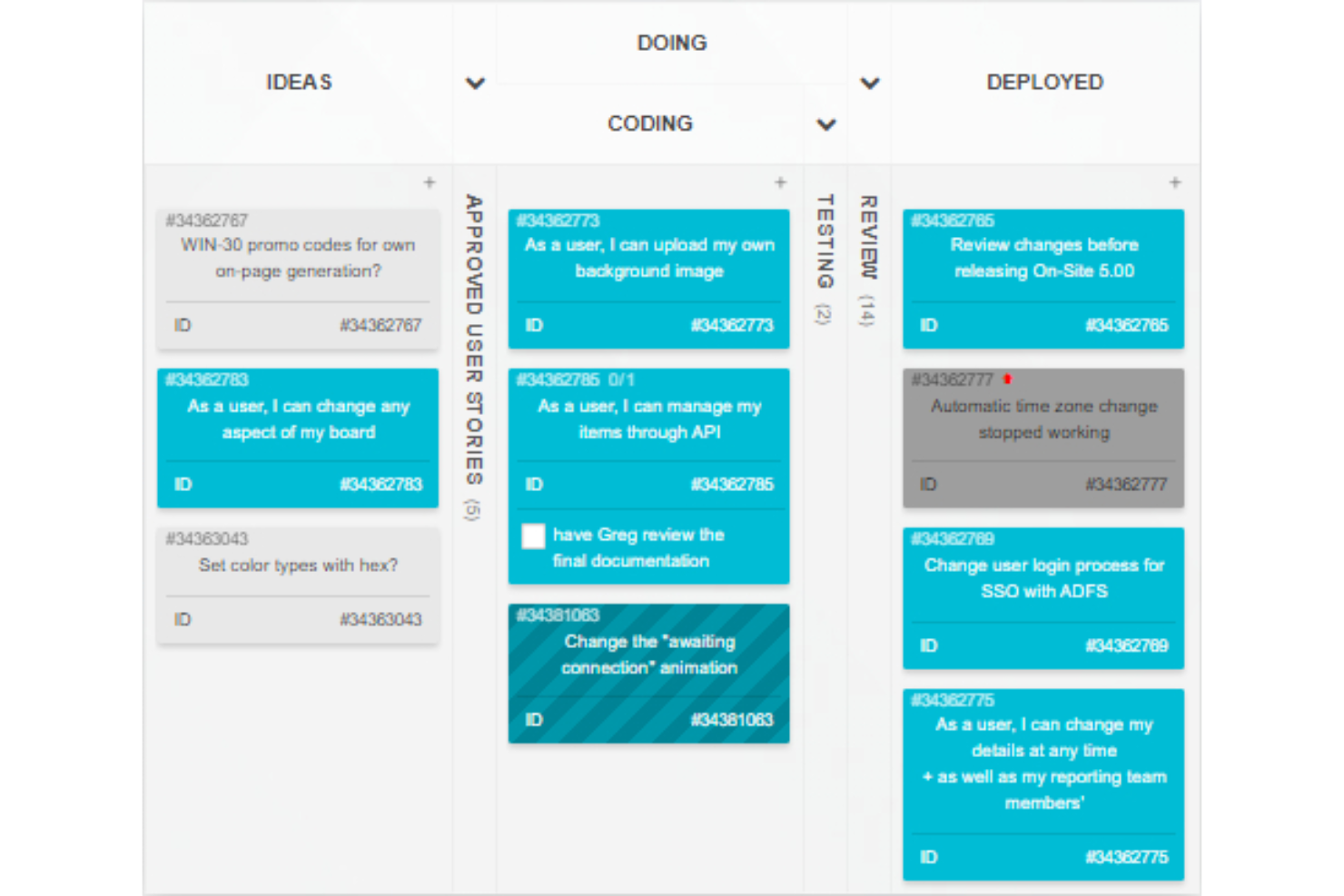
Kanban Tool is an online kanban board platform designed for task visualization, card-based workflows, time tracking, and team activity management in real time.
Who Is Kanban Tool Best For?
Kanban Tool suits distributed teams or small businesses needing visual project management and real-time task updates.
Why I Picked Kanban Tool
I picked Kanban Tool as one of the best because real-time card updates, collaborative commenting, and visual activity indicators keep everyone on the same page during fast-paced project work. I use the swimlanes and card color-coding for progress tracking.
Kanban Tool Key Features
- Time tracking: Track time spent on tasks with built-in timers.
- File attachments: Attach files and documents directly to cards.
- Checklists: Add multiple checklists to each card for detailed task steps.
- Analytics and reporting: View cumulative flow diagrams and other visual project metrics.
Kanban Tool Integrations
Kanban Tool offers native integrations with Zapier, Dropbox, Google Drive, and Box, and provides an API for custom integrations.
What's Free?
Kanban Tool offers a 14-day free trial of all features. There is no mention of a free-forever plan, and all users must select a paid plan after the trial period ends.
Pros and Cons
Pros:
- Swimlanes for managing parallel workflows
- Built-in time tracking per task
- Real-time board and card updates
Cons:
- No mobile app for iOS or Android
- Free plan limits to two boards

WeKan
Best for open-source customization
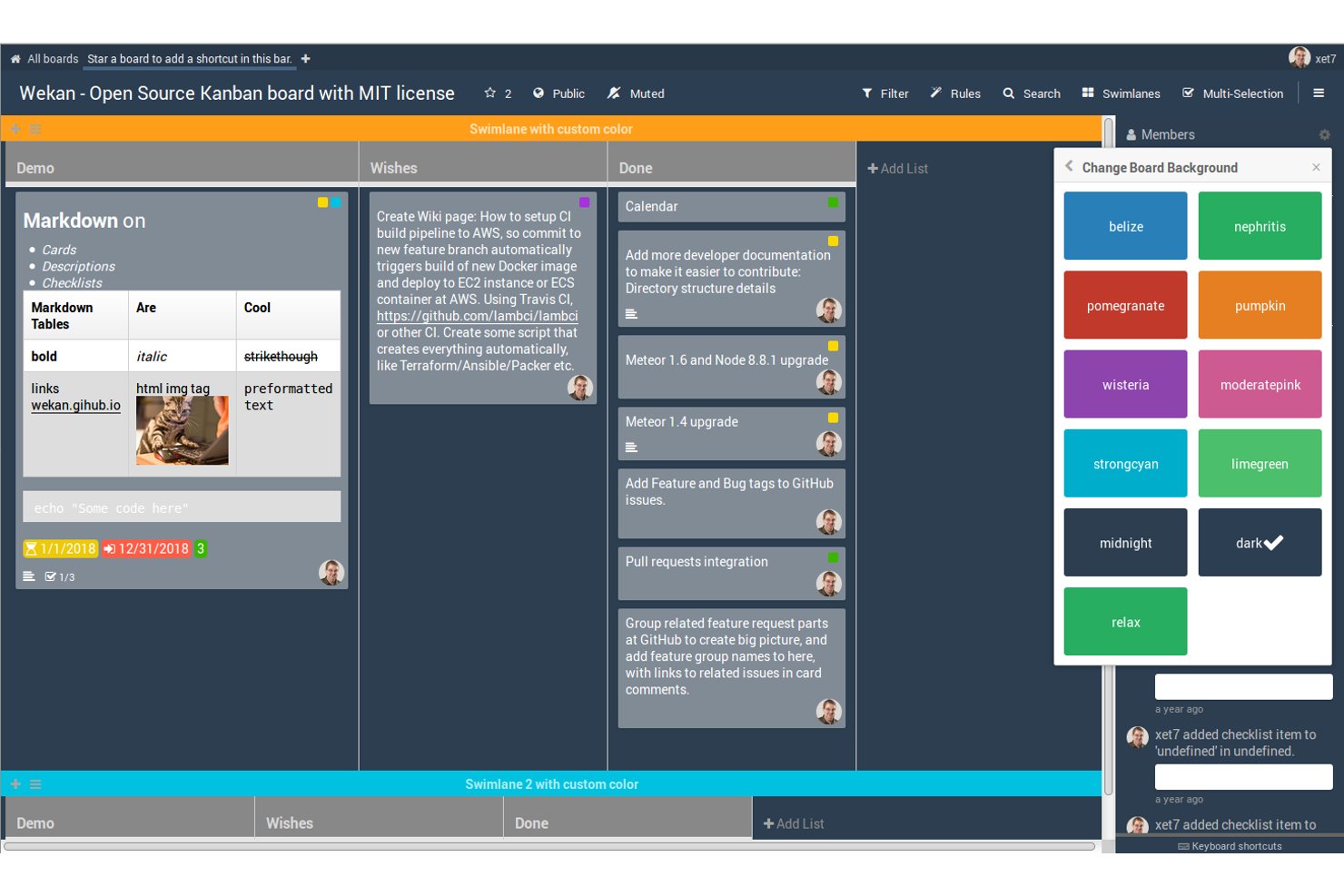
Wekan is an open-source kanban board platform that gives users tools to create, organize, and manage cards and lists for projects or workflows.
Who Is Wekan Best For?
Wekan is a fit for teams and developers seeking a self-hosted kanban solution with control over customization and deployment.
Why I Picked Wekan
I picked Wekan as one of the best because I can fully control and customize my kanban boards using its open-source codebase. I like that I can modify the UI, add custom features, and deploy it on my own infrastructure. This flexibility fits unique project needs.
Wekan Key Features
- Card checklists: Add detailed checklists to cards for subtasks.
- Swimlane support: Visually separate workflows using horizontal swimlanes.
- Card due dates: Assign and track deadlines for individual cards.
- Board member permissions: Set user roles with view, edit, or admin access.
Wekan Integrations
Native integrations are not clearly documented. The tool supports integrations via its REST API for custom workflows.
What's Free?
Wekan is completely free and open-source for unlimited users if you self-host. There are no feature, user, or time restrictions on the open-source version.
Pros and Cons
Pros:
- Custom fields and advanced swimlane options
- Active open-source community for development support
- Self-hosted deployment for full data control
Cons:
- Interface updates are less frequent than competitors
- Fewer features than leading SaaS kanban tools

Taiga
Best for agile teams needing backlog support
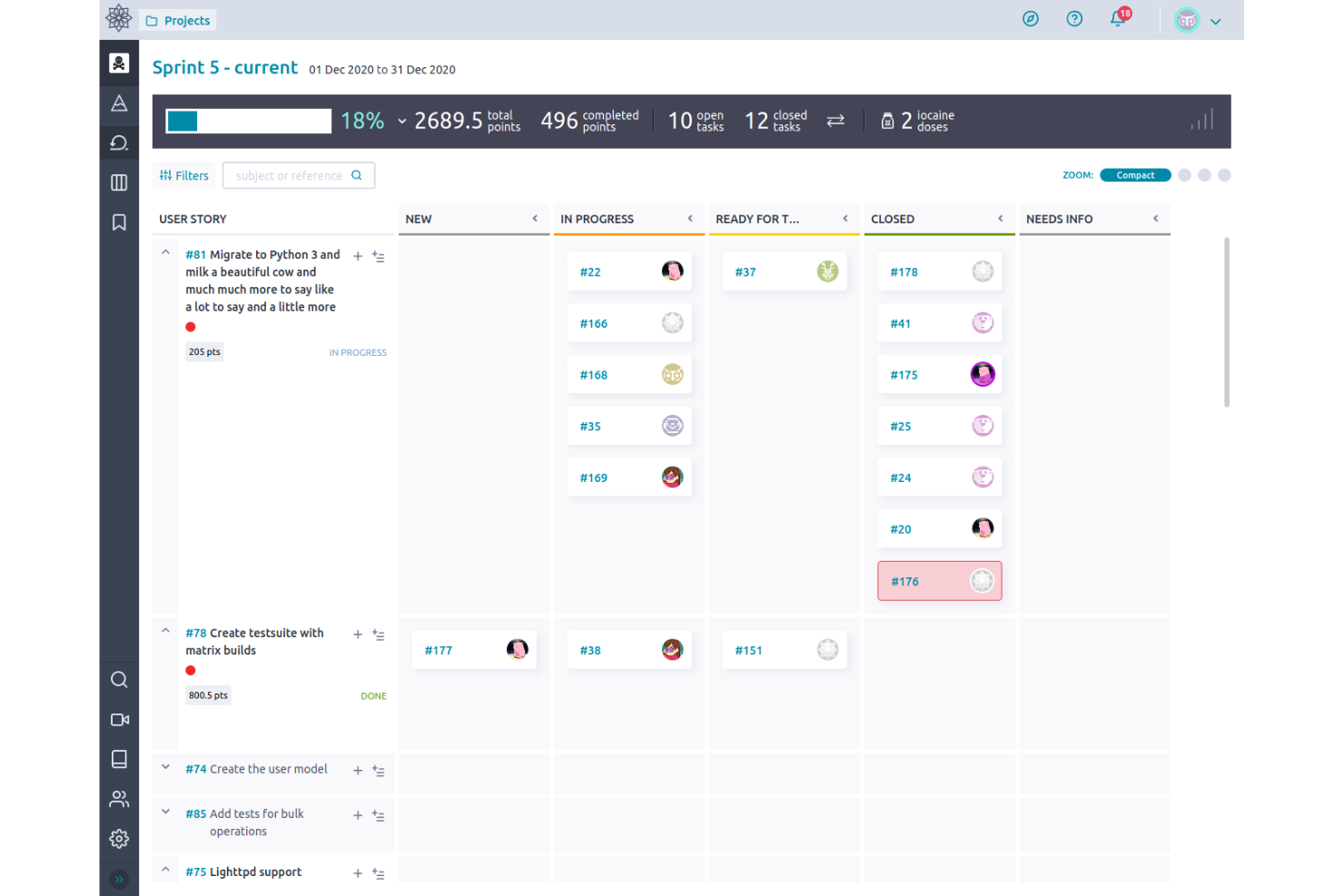
Taiga is an open-source project management tool for agile teams that combines kanban boards, powerful backlog management, sprint planning, and issue tracking in a single workspace.
Who Is Taiga Best For?
Agile product managers and scrum masters at startups or small technology teams looking for flexible kanban workflows and backlog organization.
Why I Picked Taiga
I picked Taiga because I need a kanban tool with strong backlog management. I use user stories, epics, and backlog refinement features to keep priorities clear for agile teams. Taiga’s boards and sprints make managing evolving product backlogs smooth.
Taiga Key Features
- Kanban swimlanes: Organize tasks into multiple horizontal lanes for added structure on your boards.
- Custom workflows: Define and automate unique status progressions for different task types.
- Markdown support: Add markdown formatting to task descriptions, comments, and wiki pages.
- Embedded wiki: Document project knowledge and share resources directly alongside your board.
Taiga Integrations
Taiga offers native integrations with GitHub, GitLab, Bitbucket, and Slack. An API is available for custom integrations.
What's Free?
Taiga offers a free-forever plan that includes unlimited public and private projects, but usage is limited to teams of up to 15 members. Some advanced features may require a paid upgrade.
Pros and Cons
Pros:
- Detailed permissions for project roles
- Built-in wiki and markdown support
- Open-source with kanban and scrum boards
Cons:
- No built-in calendar view
- Reporting options are limited

Bitrix24
Best for all-in-one CRM and task boards
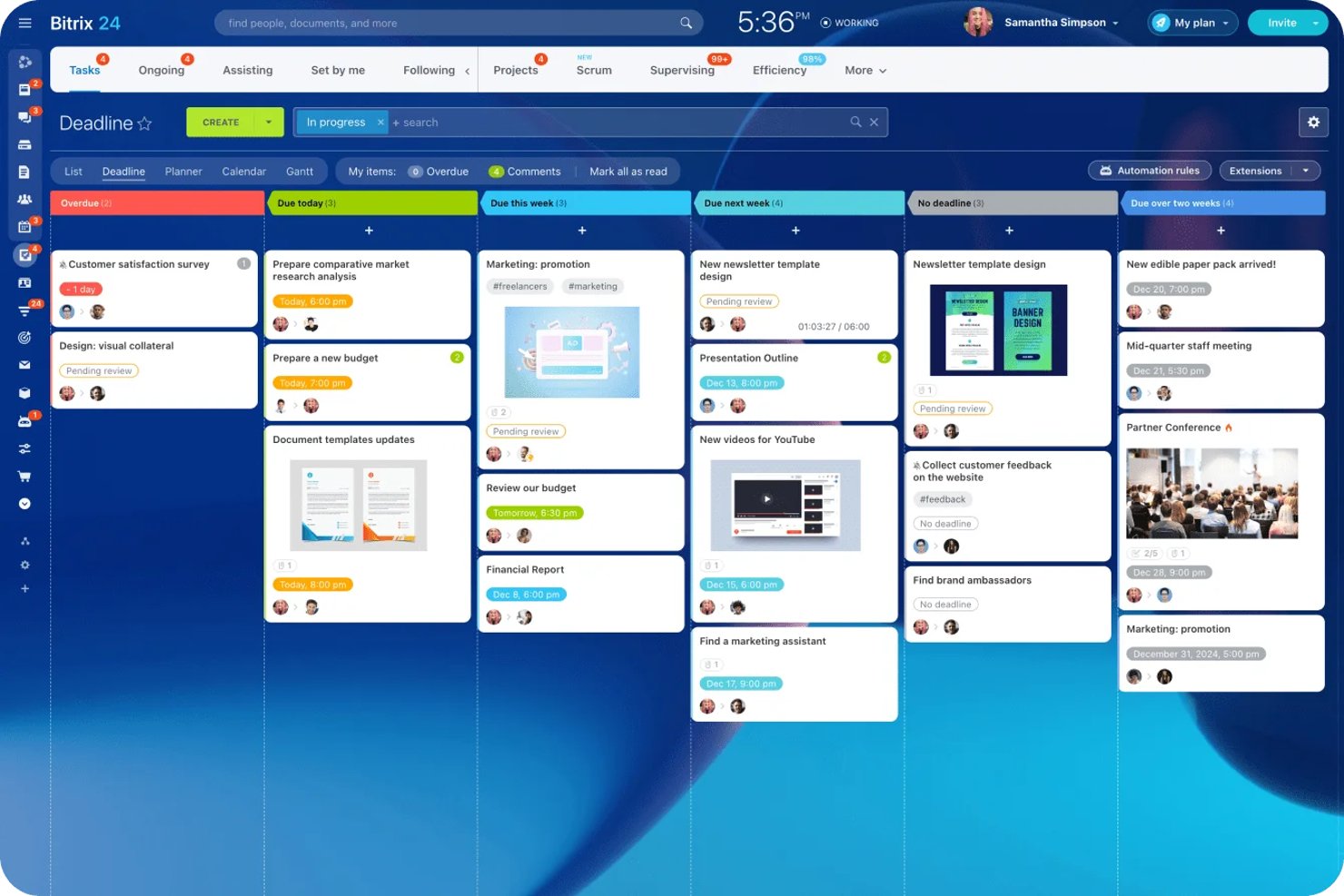
Bitrix24 is a free kanban board solution that unifies task and project management, CRM, chat, video calls, file sharing, automation, and multiple board views within one platform.
Who Is Bitrix24 Best For?
Bitrix24 is a strong choice for small businesses and teams that want to manage tasks, projects, and client relationships on a single, all-in-one platform.
Why I Picked Bitrix24
I picked Bitrix24 as one of the best because it lets my team manage projects, tasks, sales, and client interactions in one place. I like how we can switch between kanban, Gantt, and scrum boards depending on our workflow. Built-in chat, video, and file sharing make collaboration easy as we move tasks or deals through custom kanban stages.
Bitrix24 Key Features
- AI CoPilot integration: Use AI to generate task descriptions, create checklists, and summarize updates directly within cards.
- Project and task templates: Save and reuse templates for common task structures and workflows across boards.
- External collaborator access: Invite clients or freelancers to secure coworking spaces with custom permissions for specific projects.
- Multiple board views: Switch between kanban, Gantt, list, planner, scrum, and calendar views without leaving the platform.
Bitrix24 Integrations
Bitrix24 offers native integrations with WhatsApp, Instagram, Facebook, Telegram, Viber, Google Docs, Microsoft Office, Slack, Skype, QuickBooks, and Xero. It supports marketplace integrations via Bitrix24 Market, connects with Zapier, and provides an open API for custom integrations.
What's Free?
Bitrix24 offers a free-forever plan that supports unlimited users, but has limited storage space and feature access compared to paid plans. The free plan includes core task and project management features, kanban boards, and CRM, but advanced tools, automation, and some integrations are restricted.
Pros and Cons
Pros:
- Team chat and video calls built in
- Built-in AI generates task content and summaries
- Includes kanban, gantt, scrum, calendar views
Cons:
- User limit on free plan is unclear
- Interface is cluttered and overwhelming

Kanboard
Best for self-hosted visual task management
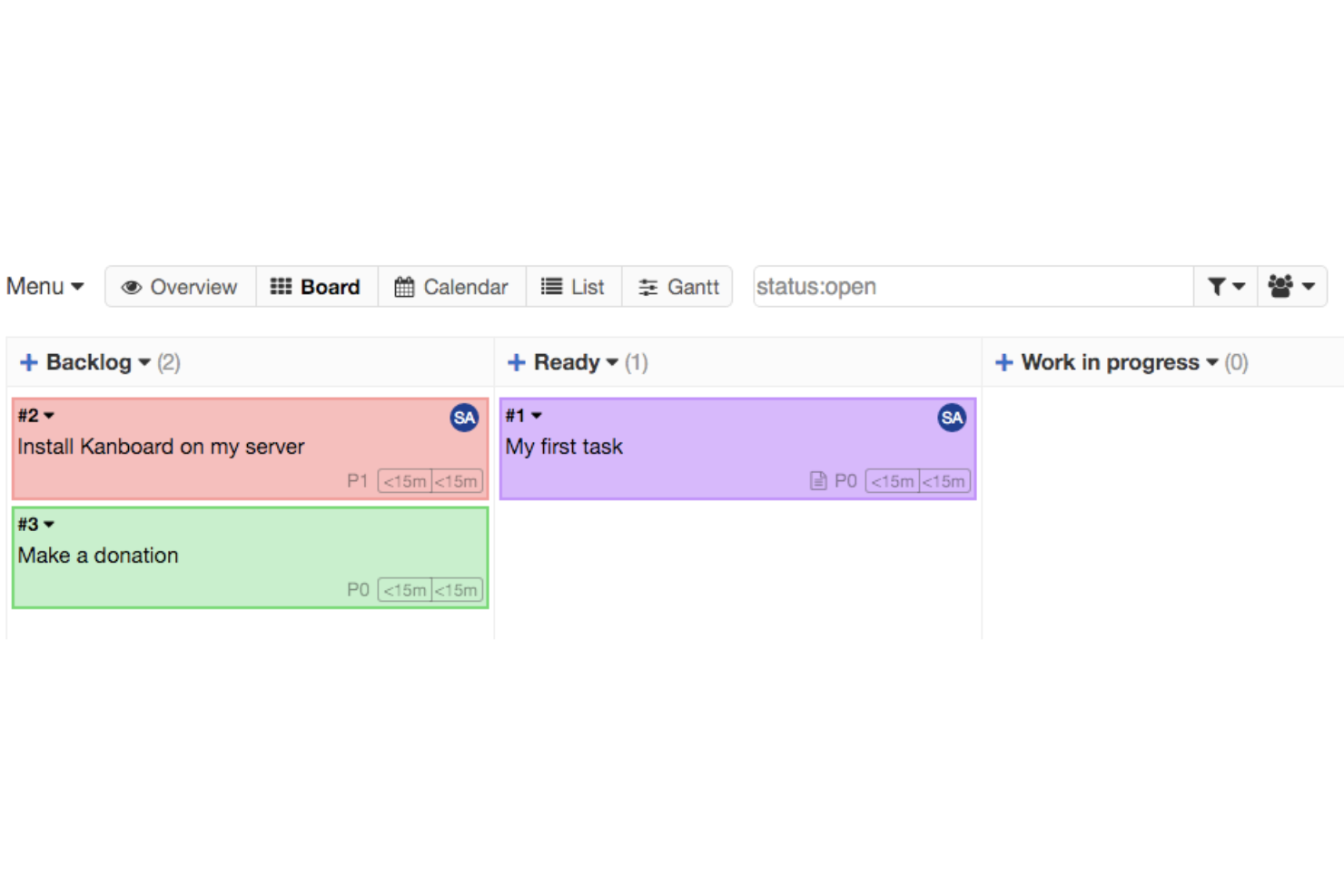
Kanboard is an open-source kanban board solution focused on visual task management, allowing you to create boards, customize workflows, automate processes with integrations, and manage projects entirely on your own infrastructure.
Who Is Kanboard Best For?
Kanboard is a strong fit for IT teams and technical project managers at organizations that want full control over self-hosted, open-source kanban boards.
Why I Picked Kanboard
I picked Kanboard as one of the best because I appreciate how it lets me fully deploy and manage kanban boards on our own infrastructure. I like the deep workflow customization, built-in automations, and ability to add open-source plugins for niche requirements.
Kanboard Key Features
- Subtask management: Break cards into smaller tasks for tracking.
- Swimlane organization: Separate boards into different workstreams or priorities.
- Gantt chart view: Visualize tasks and dependencies on a timeline.
- Markdown support: Format card descriptions and comments using markdown syntax.
Kanboard Integrations
Kanboard offers native integrations with LDAP, RSS feeds, and has an API for custom integrations.
What's Free?
Kanboard is completely free and open-source with no user limits. All core features are available without restrictions for self-hosted use.
Pros and Cons
Pros:
- Extensive workflow automation options
- Self-hosted with complete data control
- Fully open-source with no vendor lock-in
Cons:
- Interface feels dated compared to competitors
- Minimal native integrations with external tools

Best with built-in AI task recommendations
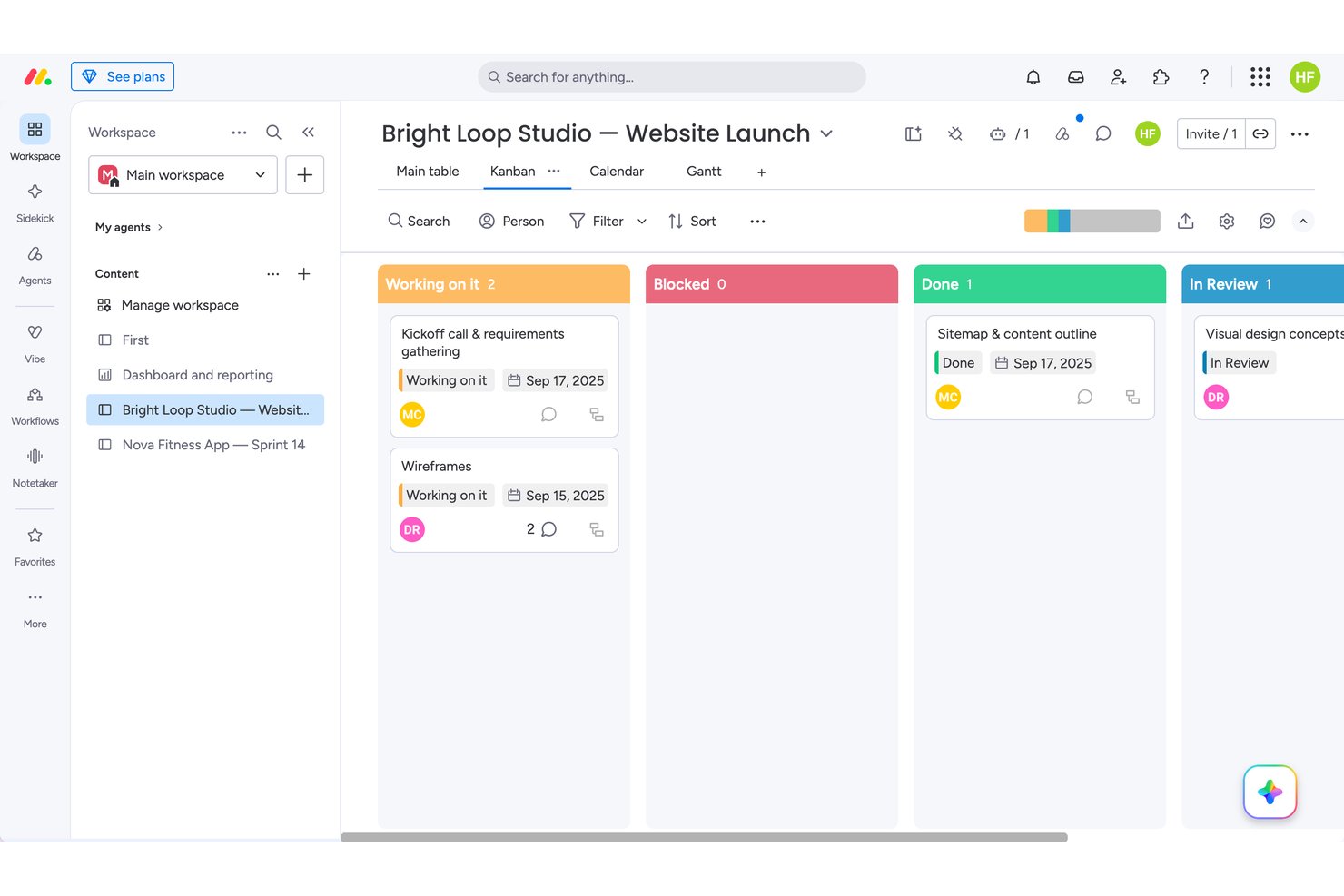
monday.com fits solo users or two-person teams who want visual flexibility over deep collaboration. In testing, I found dependency chains and drag-and-drop synced instantly across Kanban, Calendar, and Gantt views, though WIP limits didn't actually block overflow. That makes it stronger for individual planners than for larger teams, who'll hit the 2-seat cap that rivals like Trello handle more generously on their free tiers.
Why I Picked monday
I picked monday because its automation builder suggests next-step actions and notifications right inside the workflow, closer to true AI-assisted task guidance than most free kanban tools attempt. When I built out a dependency chain across four relationship types, the Gantt view auto-rendered arrows connecting every linked task, something I didn't see elsewhere. Drag-and-drop between Kanban, Calendar, and Table synced instantly with zero refresh lag. WIP limits are configurable, though I noticed they don't actually block overflow when exceeded.
monday Key Features
- Dependency mapping: I linked tasks with four relationship types, including finish-to-start and start-to-start, for real project logic.
- Item activity log: Every field change I made was tracked with a one-click undo option, making mistakes easy to reverse.
- Automation recipes: I built a status-based notification rule from a browsable catalog, though unfilled fields failed silently without an error.
- Custom column editor: I renamed, recolored, and reordered status labels without restructuring any underlying board data.
monday.com Integrations
monday.com offers 850+ marketplace integrations and apps, including Slack, Microsoft Teams, Google Calendar, Google Drive, GitHub, and GitLab. Its open API and SDK support custom integrations, while integration actions require a paid plan.
What's Free?
monday.com offers a free-forever plan with no credit card required, capped at 2 users and 3 boards. I tested real-time drag-and-drop, Kanban, and activity features—everything synced instantly and worked for basic planning, but team collaboration is limited and automation is not available until paid tiers.
Pros and Cons
Pros:
- Activity log offers one-click undo on changes
- Drag-and-drop synced across boards with zero lag
- Dependency chains rendered instantly across Gantt view
Cons:
- Card details spread across separate tabs
- WIP limits don't block or flag overflow
New Product Updates from monday AI Workspace
monday AI Workspace Adds Human Approval Routing
monday AI Workspace adds a human-in-the-loop approval block to AI Workflows, sending approval requests and routing workflow paths based on responses. For more information, visit monday AI Workspace's official site.

ClickUp
Best for customizable workflows and layouts
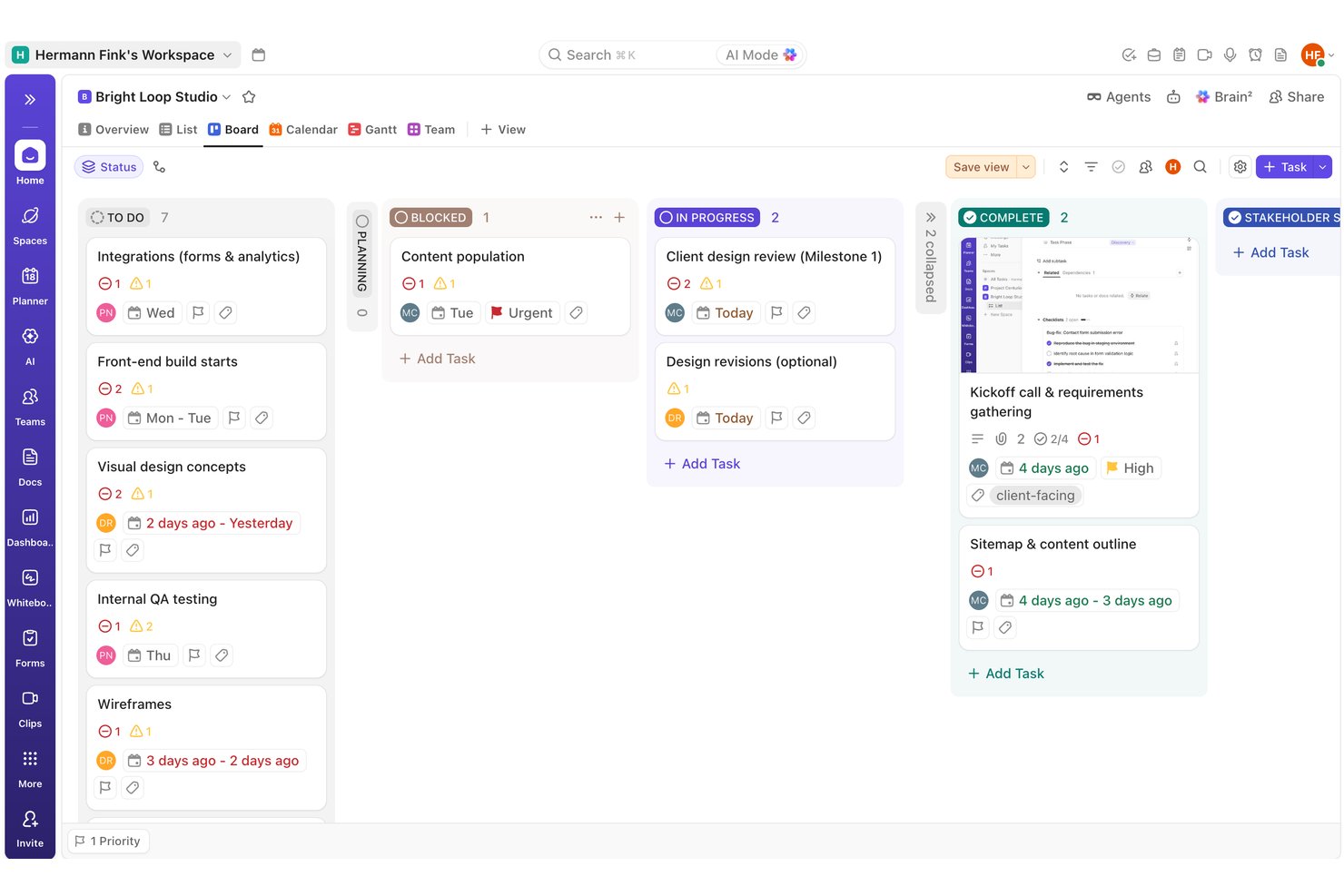
I'd point ClickUp toward teams juggling multiple workflows who want to reshape boards by status, assignee, or priority rather than sticking to one rigid layout. In testing, I built out a full task and dependency structure and found the automation builder fired correctly on the first try, something Trello's free tier can't match.
Why I Picked ClickUp
I picked ClickUp because it lets you rebuild a board around whatever structure your work actually needs. During testing, I set up a dependency chain with multiple blockers per task and watched the warning icons update correctly across both List and Board views without a refresh. I also built an automation rule that shifted priority to Urgent when a status changed to Blocked, and it fired correctly on the first real trigger. That combination of flexible column logic and reliable rule-based automation is hard to find on other free plans.
ClickUp Key Features
- Task dependencies: I linked multiple blockers to a single task and watched warning icons update correctly across List and Board views.
- Quick-add task creation: I built out a dozen tasks in seconds using the type-and-Enter quick-add row, with no extra clicks needed.
- Milestone task type: I flagged key dates using the native diamond-icon milestone type, which stayed visually distinct across every view.
- Comment reactions and mentions: I tested @mentions, file attachments, and emoji reactions on comments, and all worked correctly on the first try.
ClickUp Integrations
ClickUp has native integrations with Slack, Microsoft Teams, GitHub, GitLab, Bitbucket, Google Drive, Dropbox, Google Calendar, Figma, and HubSpot. It also provides a public API and Zapier.
What's Free?
ClickUp offers a free-forever plan with unlimited team members, guests, tasks, and boards—no credit card required. In my own testing, I built out a full board with dependencies, statuses, milestones, and automations, all without hitting user or project limits. The biggest constraints are low storage (just 60MB total for file attachments) and a 60-use cap on custom fields, which I found can restrict richer board setups over time. Most collaboration and workflow features, however, worked as expected with no paywall interruptions for basic use.
Pros and Cons
Pros:
- Automation rule fired correctly on first trigger
- Dependency chains show clear blocker warning icons
- Bulk task creation with type-and-enter quick add
Cons:
- Couldn't locate native WIP limit controls anywhere
- Custom field values didn't render visibly in list view
New Product Updates from ClickUp
ClickUp Adds Meetings Hub, Super Agent Templates, and ZoomInfo Integration
ClickUp adds a searchable Meetings Hub, new ways to clone and template Super Agents, and a ZoomInfo integration through the App Center. These updates improve meeting retrieval, agent reuse, and access to sales intelligence. For more information, visit ClickUp’s official site.
Asana
Best timeline view for task planning
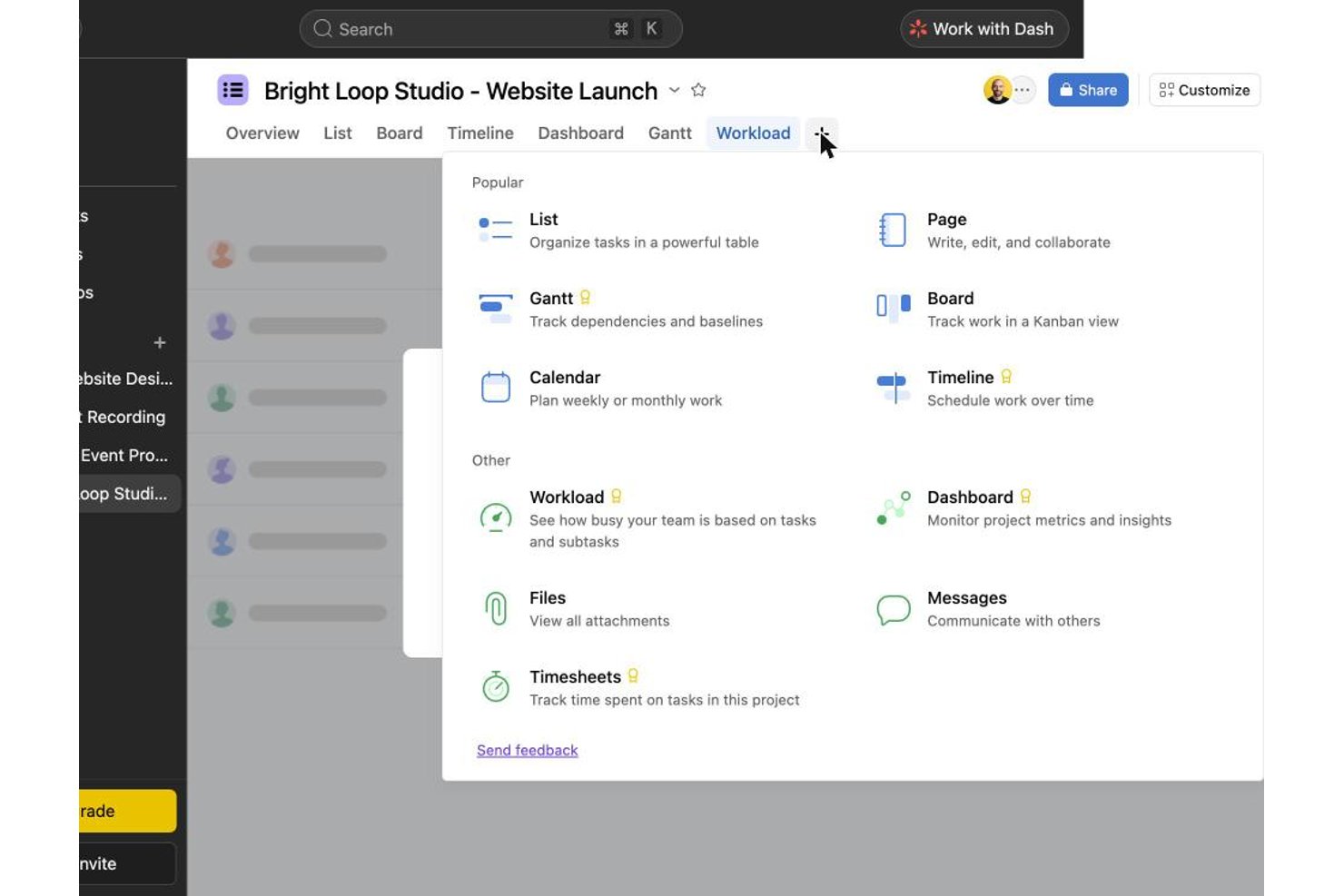
Asana works well for solo users or two-person teams who want a polished task-card experience without juggling multiple tools. In testing, bulk task creation, checklists, and tags felt smoother than in Trello or ClickUp, though drag-and-drop between columns failed on roughly a third of my attempts. It's a stronger fit for individuals than growing teams, since collaboration beyond two free seats requires upgrading.
Why I Picked Asana
I chose Asana because its Timeline view actually delivers on scheduling, even though native start dates and dependencies sit behind a paywall on the free plan. When I tried to map an 11-link dependency chain and two milestones, I had to write date ranges and dependency notes into task descriptions since those fields weren't unlockable. That workaround still produced a usable, readable project plan, which tells me the underlying structure for timeline planning is solid once you upgrade. Switching between Board and List while keeping that same data intact, instantly, is what earns Asana its spot here.
Asana Key Features
- Subtask checklists: Breaking tasks into subtasks gave me a progress counter and a small celebration animation when I checked off the last item.
- Activity log: Every field change I made was timestamped and attributed, making it easy to trace who edited what.
- Board column customization: I added, renamed, and reordered columns to match a workflow, though one reorder attempt didn't register on the first try.
- Comment reactions and @mentions: Tagging teammates and reacting to comments worked smoothly, though attaching files directly inside a comment never visibly completed.
Asana Integrations
Asana offers 200+ integrations, including Slack, Google Drive, Zoom, Microsoft Teams, Jira Cloud, Dropbox, Box, HubSpot, Salesforce, and Power BI. It also provides an open REST API for custom integrations.
What's Free?
Asana offers a free-forever Personal plan with unlimited boards, tasks, and storage, but you’re limited to two users and can’t access Timeline, custom fields, or automations. While I could set up boards, bulk-create tasks, switch between Board, List, and Calendar views, and manage details like checklists and tags without trouble, the paywall blocked start dates, dependencies, and most advanced features—so I relied on workarounds for anything beyond basic kanban.
Pros and Cons
Pros:
- List, board, and calendar views sync instantly
- Activity log timestamps every field change precisely
- Checklist subtasks show satisfying progress animations
Cons:
- Free plan caps collaboration at two users
- Drag-and-drop failed on roughly a third of attempts
Wrike
Best for multi-view boards on a free plan
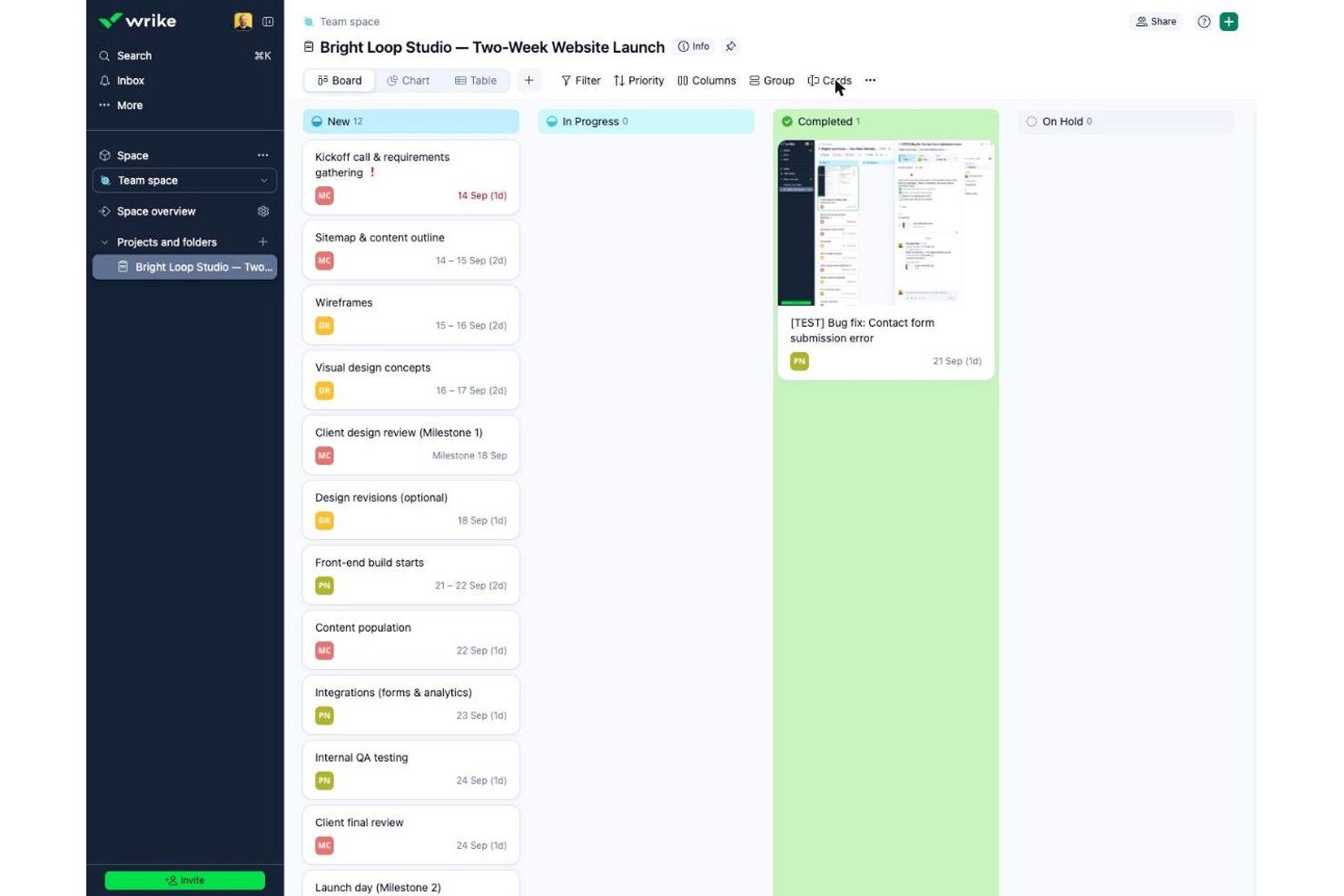
Wrike suits small teams needing unlimited free seats for task-heavy coordination, unlike Asana or monday.com, which cap free users. In testing, bulk task creation and card-level collaboration felt fast and polished, though I couldn't find WIP limits or column customization anywhere in the free interface.
Why I Picked Wrike
Wrike earns its spot for how it handles multiple views on one free plan, letting you flip between Board and Table without losing data. Toggling boards to show projects instead of tasks gave me a portfolio-level read that most free kanban tools reserve for paid tiers. Bulk task creation in Table view felt faster than typing into columns directly, and converting a task to a milestone took one click. I did hit walls trying to add or rename columns, and I never found a native dependency field despite float fields existing behind the scenes.
Wrike Key Features
- Bulk table entry: I created a dozen tasks in minutes by typing names directly into Table view and pressing Enter.
- One-click milestones: Converting a task to a milestone relabeled its date field instantly, with no extra setup.
- Checklist subitems: Adding checklist items to a card gave instant checkbox feedback for tracking small deliverables.
- Mention-aware comments: Commenting on cards prompted a nudge when I forgot to @mention a teammate, keeping updates visible.
Wrike Integrations
Wrike lists about 60 integrations, including Google Workspace, Microsoft 365, Slack, Jira, GitHub, Miro, and Google Sheets. The Free plan includes an Open RESTful API and selected productivity integrations for custom connectivity.
What's Free?
Wrike gives you a free-forever plan with unlimited seats, letting anyone join your workspace at no cost. You get Board and Table views, assignees, file attachments, subtasks, and folder hierarchy, but I couldn’t add or customize columns or set up workflow rules without hitting a paywall. The plan caps storage at 2 GB per account and doesn’t include automation, custom fields, or dashboards. I found task entry and basic collaboration smooth, but key Kanban features like WIP limits and workflow customization aren’t included.
Pros and Cons
Pros:
- Comment nudges keep teammate mentions from slipping through
- Converting tasks into milestones took one click
- Bulk task entry in Table view was very fast
Cons:
- Escape key silently discarded assignee selections
- No visible way to link task dependencies
New Product Updates from Wrike

Wrike Redesigns AI Agent Builder
Wrike redesigns its AI Agent Builder with a side-by-side setup, Scopes, sentence-style triggers and actions, and clearer filters. These changes make it easier to configure, test, and manage agent behavior. For more information, visit Wrike’s official site.

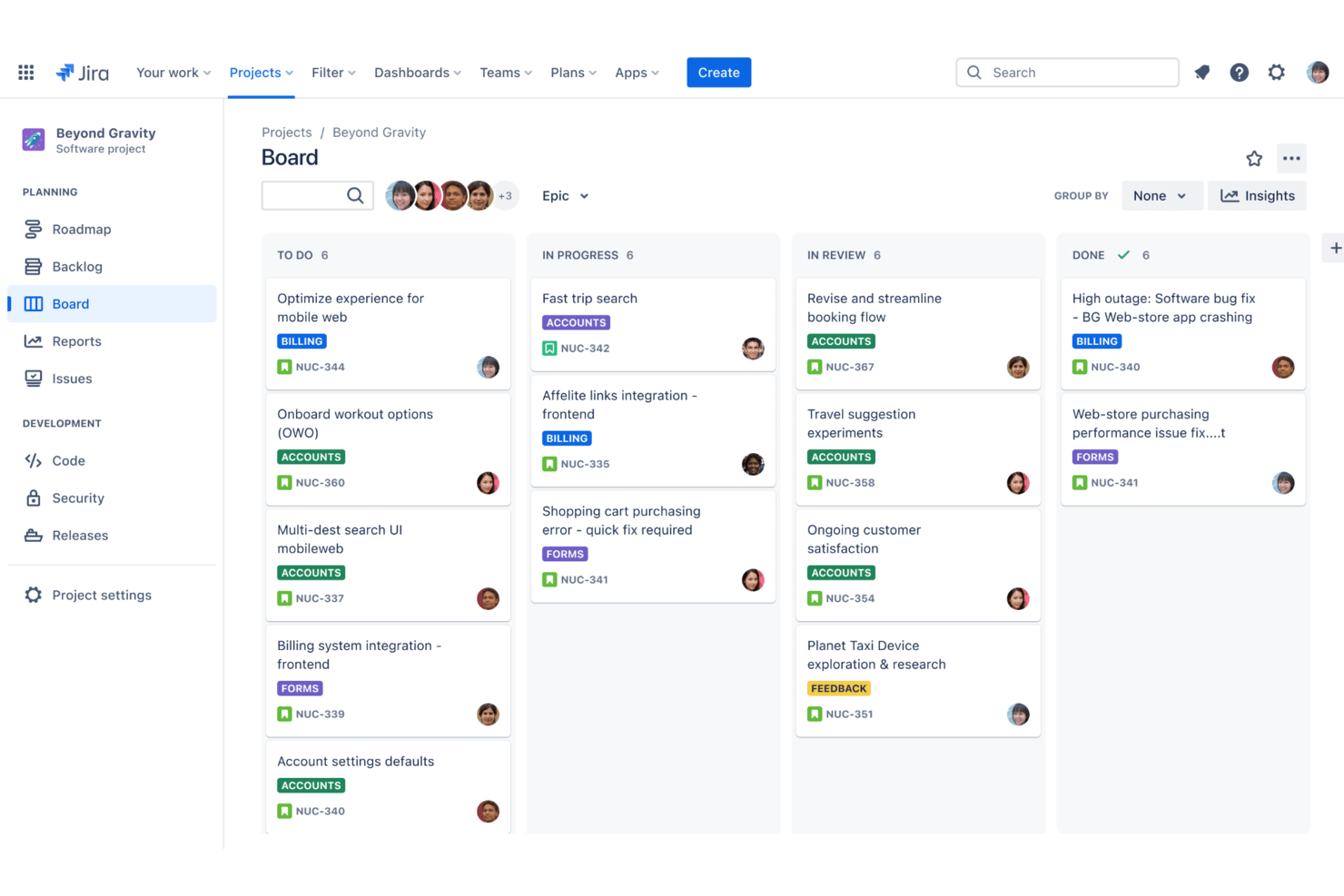
Jira is a project and issue tracking platform for teams that need detailed kanban boards, advanced agile workflows, custom fields, granular permissions, and sprint planning tools.
Who Is Jira Best For?
Jira is a strong fit for software development teams at startups and enterprises who need structured project tracking with agile methodologies.
Why I Picked Jira
I picked Jira as one of the best because I can create highly detailed kanban boards and combine them with advanced agile tools like custom workflows, epics, and sprint automation. Tracking stories and deliverables at multiple levels is seamless for my team.
Jira Key Features
- Backlog management: Prioritize, organize, and plan tasks in a dedicated backlog view.
- Swimlane support: Group cards by assignee, story, or other custom fields.
- Bulk issue editing: Update many tasks at once from the board or backlog.
- Advanced permission controls: Set detailed access and action rights by team, role, or project.
Jira Integrations
Jira offers native integrations with Confluence, Bitbucket, Trello, Slack, GitHub, GitLab, Microsoft Teams, Dropbox, Google Drive, and Salesforce. An API is available for custom integrations.
What's Free?
Jira offers a free-forever plan for up to 10 users. Some advanced features, permissions, and support options are only available on paid plans.
Pros and Cons
Pros:
- Detailed permission settings for boards
- Advanced issue automation and triggers
- Fully configurable kanban workflows
Cons:
- Limited reporting in free plan
- Must enable kanban templates manually
Inne bezpłatne tablice Kanban
Oto kilka dodatkowych bezpłatnych tablic Kanban, które nie trafiły na moją listę, ale nadal warto się z nimi zapoznać:
- Miro
For Kanban on an infinite visual canvas
- Teamhood
For timeline and dependency views
- Freedcamp
For unlimited-user boards on a free plan
- MeisterTask
For intuitive drag-and-drop interface
- Trello
Workflow templates for faster setup
- Pipefy
For workflow process automation
- Nifty
For managing sprints across unlimited members
- Notion
For combining notes and task boards
- Plaky
For unlimited free users on a kanban board
- KanbanFlow
Built-in Pomodoro time tracking


How I Evaluate Free Kanban Boards
First, I define what counts as free. A kanban board must offer a free-forever plan—not a trial—since these tools support ongoing workflows, not one-off projects. From there, I evaluate each tool across two layers: the core functionality it must deliver to make this list, and the differentiators that separate a great option from a merely adequate one.
Core Functionality (Table Stakes For This List)
In addition to my free offer requirements, I also use a scoring system to select tools for my list. Here's how it works:
When I'm selecting tools for my list, I rank each one on a scale from 0 (does not offer the functionality) to 5 (excels in this area) for each core functionality listed below. I then calculate the tool's total score into a percentage, using 75% as a benchmark to help assess its overall fit for the list.
- Kanban Board View: I look at whether the board supports customizable columns and multiple boards, since a fixed To Do/In Progress/Done setup rarely reflects how real teams work.
- Task Cards: I check how much detail you can pack into a card on the free plan—due dates, assignees, and descriptions are the baseline I expect to see without paying.
- Drag-and-Drop: Reliable, real-time card movement matters more than it sounds. I evaluate whether dragging a card across columns actually reflects the update for every team member instantly.
- Team Collaboration: I look at how many users the free plan supports and whether teammates can assign tasks, leave comments, and get notified—core needs for any shared board.
- WIP Limits & Customization: I evaluate whether you can set work-in-progress limits per column, since that's a fundamental part of kanban methodology that many free plans quietly skip.
- Labels, Filters & Search: With boards that grow quickly, I look for multi-criteria filtering and search that helps you find the right card without scrolling through dozens of tasks.
Once I have a list of tools that meet the criteria, I consider what sets each platform apart.
Differentiating Factors (What Sets Vendors Apart)
Here's how I compare and contrast different vendors:
Standout Features
I pay close attention to native automation rules—specifically whether free plans include them at all, since auto-moving cards or auto-assigning on column changes saves real time for teams running recurring workflows. I also evaluate mobile app parity, checking whether the iOS and Android experience actually mirrors the desktop. For distributed teams updating boards between meetings, a stripped-down mobile app is a meaningful limitation. Finally, I look at the templates library to see if it covers practical use cases like sprint planning or bug tracking out of the box.
Beyond Features
Free plan transparency matters more than most people expect. I check whether limits on boards, cards, and storage are disclosed upfront—not buried in fine print after you've built out your workflow. I also look at the upgrade path. If the jump to a paid tier is steep or restructures how your free-plan workflows behave, that's a real risk for growing teams. Finally, data portability is worth evaluating early: knowing you can export your boards as CSV or JSON means you're never fully locked in if your needs change.
Jak wybrać bezpłatną tablicę Kanban
Łatwo zagubić się w długich listach funkcji i złożonych strukturach cenowych. Aby pomóc Ci zachować koncentrację podczas wyboru oprogramowania dopasowanego do Twoich potrzeb, przygotowaliśmy listę czynników, które warto wziąć pod uwagę:
| Czynnik | Co należy wziąć pod uwagę |
|---|---|
| Skalowalność | Czy wraz z rozwojem projektów Twój zespół może dodawać kolejnych użytkowników i tablice, czy też bezpłatny plan ma limity, które szybko osiągniesz? |
| Integracje | Czy bezpłatna tablica Kanban łączy się z niezbędnymi narzędziami, takimi jak Slack, Google Workspace lub przechowywanie plików, czy też integracje są dostępne dopiero po opłaceniu planu? |
| Możliwość dostosowania | Czy możesz zmieniać kolumny, przepływy pracy lub etykiety, aby dopasować je do procesów swojego zespołu, bez konieczności przechodzenia na wyższy plan? |
| Łatwość obsługi | Czy Twój zespół z łatwością wdroży platformę, czy też poświęcisz zbyt dużo czasu na wyjaśnianie podstawowych działań i ustawień? |
| Wdrożenie i rozpoczęcie pracy | Czy dostępne są przewodniki wdrożeniowe, szablony lub narzędzia do importowania danych, które pomogą zespołowi szybko rozpocząć pracę? |
| Koszt | Czy istnieją ukryte ograniczenia płatności blokujące kluczowe działania albo limity miejsca na dane lub użytkowników, które szybko przekroczysz bez opłacenia planu? |
| Zabezpieczenia | Czy platforma zapewnia uwierzytelnianie dwuskładnikowe, regularne kopie zapasowe i przejrzyste mechanizmy kontroli uprawnień użytkowników, nawet w bezpłatnych planach? |
| Dostępność pomocy | Jeśli napotkasz problemy, czy bezpłatny plan obejmuje jakąś formę pomocy, taką jak czat, dokumentacja lub fora społeczności? |
Czym jest bezpłatna tablica Kanban?
Bezpłatne tablice Kanban to cyfrowe narzędzia, które pozwalają organizować zadania na przesuwanych kartach umieszczonych w kolumnach, ułatwiając śledzenie pracy i wizualizowanie postępów bez ponoszenia kosztów. Platformy te oferują podstawowe funkcje zarządzania projektami, takie jak przydzielanie zadań, przepływ pracy metodą przeciągania i upuszczania oraz prosta współpraca, dzięki czemu zespoły mogą zachować porządek, zarządzać priorytetami i wspierać przejrzystość — bez opłat licencyjnych.
Funkcje bezpłatnej tablicy Kanban
Przyjrzyjmy się funkcjom powszechnie dostępnym w tablicy kanbanowej oraz tym, które zwykle są uwzględniane w planach bezpłatnych i płatnych.
Typowe bezpłatne funkcje tablicy kanbanowej
- Karty zadań przeciągane i upuszczane: Przenoś karty między kolumnami, aby aktualizować status, kolejność lub osobę odpowiedzialną za zadanie, pomagając zespołom szybko wizualizować postępy.
- Podstawowe tworzenie tablic: Konfiguruj tablice dla różnych projektów, klientów lub przepływów pracy, aby w razie potrzeby organizować i rozdzielać obszary robocze.
- Niestandardowe kolumny: Określaj etapy procesu, takie jak Do zrobienia, W toku i Ukończone, aby dopasować je do przepływu pracy zespołu i zapewnić wszystkim wspólne zrozumienie.
- Szczegóły zadań: Dodawaj do poszczególnych kart opisy, listy kontrolne, daty rozpoczęcia i terminy oraz podstawowe komentarze, aby przechowywać najważniejsze informacje o zadaniu w jednym miejscu.
- Przypisywanie użytkowników: Przypisuj karty konkretnym osobom, aby zapewnić odpowiedzialność i widoczność tego, kto pracuje nad każdym zadaniem.
- Prosta współpraca: Wspominaj członków zespołu w komentarzach, oznaczaj zadania i udostępniaj tablice, ułatwiając wspólną pracę oraz omawianie zadań w odpowiednim kontekście.
- Śledzenie aktywności: Wyświetlaj oś czasu zmian, przeniesień i aktualizacji na każdej karcie, aby wiedzieć, co się wydarzyło i kiedy.
- Podstawowe załączniki plików: Przesyłaj dokumenty, obrazy lub odnośniki do kart zadań w celach informacyjnych, aby członkowie zespołu mieli potrzebne materiały pod ręką.
- Uprawnienia na poziomie tablicy: Przyznawaj dostęp do wyświetlania lub edytowania tablic, aby zespoły mogły zapraszać współpracowników, jednocześnie ograniczając możliwość wprowadzania zmian.
Typowe płatne funkcje tablicy kanbanowej
- Zaawansowane reguły automatyzacji: Używaj wyzwalaczy i działań do automatyzowania powtarzalnych przepływów pracy, na przykład przenoszenia kart w terminie lub przypisywania zadań po zmianie kolumn.
- Widoki wykresu Gantta lub osi czasu: Wizualizuj zadania na osiach czasu, aby lepiej planować, przydzielać zasoby i zarządzać zależnościami, wykraczając poza standardową tablicę kanbanową.
- Śledzenie czasu i raportowanie: Rejestruj godziny, generuj karty czasu pracy lub raporty produktywności oraz analizuj wydajność zespołu, aby uzyskiwać informacje o projekcie i rozliczeniach.
- Nieograniczona liczba tablic i przestrzeń dyskowa: Usuń limity dotyczące liczby tablic, użytkowników lub przesyłanych plików, wspierając większe i bardziej złożone projekty.
- Pola niestandardowe i szablony kart: Dodawaj uporządkowane pola danych lub wielokrotnego użytku szablony zadań, dostosowując tablice do konkretnych potrzeb projektu lub firmy.
- Uprawnienia oparte na rolach: Ustawiaj szczegółowy dostęp i działania według roli użytkownika, chroniąc poufne informacje o projekcie oraz kontrolując, kto może edytować ustawienia lub nimi zarządzać.
- Integracja z aplikacjami innych firm: Łącz tablice z narzędziami takimi jak Slack, Dysk Google lub systemy CRM, aby usprawnić przepływ pracy między platformami i powiadomienia.
- Priorytetowa pomoc: Uzyskaj dostęp do szybszych, bardziej spersonalizowanych kanałów pomocy, takich jak telefon, czat na żywo lub dedykowani opiekunowie klienta.
- Formatowanie warunkowe lub filtry: Wyróżniaj lub filtruj karty na podstawie określonych kryteriów (np. przeterminowanych zadań, przypisanych użytkowników), poprawiając ustalanie priorytetów i koncentrację.
- Zaawansowane analizy i pulpity nawigacyjne: Uzyskuj bardziej szczegółowe informacje i wizualizacje dotyczące wąskich gardeł w przepływie pracy, czasu realizacji oraz trendów produktywności.
Korzyści z bezpłatnej tablicy kanbanowej
Wdrożenie bezpłatnej tablicy kanbanowej przynosi wiele korzyści Twojemu zespołowi i firmie. Oto kilka z nich:
- Brak kosztów oprogramowania: Wyeliminuj opłaty licencyjne, aby zespoły dowolnej wielkości mogły organizować i śledzić pracę bez obaw o budżet.
- Przejrzystość wizualnego przepływu pracy: Pomóż wszystkim zobaczyć status zadań i postęp projektu dzięki konfigurowalnym kolumnom oraz tablicom z funkcją przeciągania i upuszczania.
- Łatwa współpraca: Umożliw zespołom przypisywanie zadań, komentowanie i udostępnianie tablic, aby wszyscy byli na bieżąco.
- Szybsze wdrażanie: Szybko rozpocznij pracę nowych użytkowników dzięki szablonom, prezentacjom produktu i prostej konfiguracji tablicy bez dodatkowych kosztów.
- Dostępność z dowolnego miejsca: Korzystaj z platform w chmurze, aby aktualizować tablice i zadania z dowolnego miejsca, ułatwiając koordynację pracy zdalnych i hybrydowych zespołów.
- Elastyczne skalowanie: Dodawaj projekty i nowych użytkowników w ramach limitów bezpłatnego planu wraz ze wzrostem potrzeb, bez skomplikowanych zmian planu ani umów.
- Większa odpowiedzialność: Przypisuj zadania i śledź historię aktywności, aby zawsze wiedzieć, kto jest odpowiedzialny i co się zmieniło.
Koszty i ceny tablicy kanbanowej
Rozumiem, że trafiłeś do tego artykułu w poszukiwaniu najlepszych bezpłatnych tablic kanbanowych. Ponieważ jednak bezpłatne plany oferują tylko ograniczony zakres funkcji, istnieje duże prawdopodobieństwo, że w przyszłości trzeba będzie przejść na wyższy plan.
Poniższa tabela podsumowuje popularne plany, ich średnie ceny oraz typowe funkcje zawarte w tablicy kanbanowej:
Tabela porównawcza planów dla tablicy kanbanowej
| Typ planu | Średnia cena | Typowe funkcje |
|---|---|---|
| Darmowy plan | $0 | Podstawowe tworzenie tablic, karty zadań, przypisywanie użytkowników, podstawowe załączniki plików, podstawowe narzędzia współpracy i ograniczona przestrzeń dyskowa. |
| Plan osobisty | $5-$10/użytkownik/miesiąc | Nieograniczona liczba tablic, podstawowa automatyzacja, większa przestrzeń dyskowa, priorytetowa pomoc techniczna i niestandardowe tła. |
| Plan biznesowy | $10-$25/użytkownik/miesiąc | Zaawansowana automatyzacja, integracja z aplikacjami innych firm, uprawnienia zespołowe, raportowanie i rozszerzona pomoc techniczna. |
| Plan korporacyjny | $25-$40/użytkownik/miesiąc | Zabezpieczenia SSO/SAML, uprawnienia oparte na rolach, dzienniki audytu, zaawansowana analityka i pomoc techniczna na poziomie przedsiębiorstwa. |
Najczęściej zadawane pytania dotyczące darmowych tablic kanbanowych
Oto odpowiedzi na najczęstsze pytania dotyczące darmowych tablic kanbanowych:
Czy darmowe tablice kanbanowe są bezpieczne do przechowywania danych firmowych?
Tak, większość darmowych tablic kanbanowych korzysta z szyfrowania i podstawowych protokołów bezpieczeństwa, ale funkcje takie jak SSO lub zaawansowane uprawnienia mogą być ograniczone do płatnych planów. Przed udostępnieniem poufnych informacji zawsze zapoznaj się z zasadami obowiązującymi w danym narzędziu.
Czy mogę przejść z darmowego planu tablicy kanbanowej na płatny, jeśli moje potrzeby wzrosną?
Tak, większość dostawców oferuje płatne plany, które zapewniają dostęp do większej liczby użytkowników, integracji i zaawansowanych funkcji. Uaktualnienie jest zazwyczaj proste i pozwala zachować istniejące tablice oraz dane.
Czy darmowe tablice kanbanowe mają limity użytkowników lub przestrzeni dyskowej?
Tak, darmowe plany często obejmują ograniczenia dotyczące liczby użytkowników, tablic, załączników plików lub dostępnej przestrzeni dyskowej. Po osiągnięciu tych limitów zazwyczaj trzeba przejść na płatny plan.
Jakie integracje są zazwyczaj dostępne w darmowych tablicach kanbanowych?
Większość darmowych tablic kanbanowych zapewnia podstawowe integracje z popularnymi narzędziami, takimi jak poczta e-mail, kalendarz lub aplikacje do czatu. Bardziej zaawansowane integracje z systemami CRM lub narzędziami do automatyzacji są zazwyczaj dostępne wyłącznie w płatnych planach.
Czy mogę zaprosić zewnętrznych współpracowników lub klientów do darmowej tablicy kanbanowej?
Tak, wiele darmowych tablic kanbanowych umożliwia wysyłanie ograniczonej liczby zaproszeń dla gości lub użytkowników zewnętrznych, ale uprawnienia dostępu mogą być podstawowe. Przed udostępnieniem poufnych informacji lub danych klientów sprawdź ustawienia kontroli dostępu.