

14 software di gestione documentale OCR per il 2026

Selezione di software di gestione documentale OCR


Il software di gestione documentale OCR combina il riconoscimento ottico dei caratteri con un sistema di gestione documentale, consentendo di trasformare immagini scansionate e documenti cartacei in file digitali ricercabili e modificabili. Se stai cercando modi per automatizzare la scansione dei documenti, estrarre il testo con strumenti OCR basati sull'intelligenza artificiale e gestire la conformità, la piattaforma giusta può aiutare il tuo team a rimanere organizzato e reattivo. Molte soluzioni offrono inoltre un'integrazione fluida con i sistemi esistenti per ottimizzare i flussi di lavoro e supportare decisioni più rapide.
In questo elenco troverai opzioni per diverse esigenze aziendali, dalle piattaforme a codice aperto alle soluzioni di livello aziendale, così potrai confrontare le funzionalità e scegliere quella più adatta al tuo flusso di lavoro.
Perché fidarsi dei nostri consigli sui software
Il nostro team testa e recensisce software dal 2012. In quanto project manager noi stessi, sappiamo quanto sia difficile — e importante — scegliere il software giusto.
Per questa guida, abbiamo valutato gli strumenti attraverso test pratici e ricerche indipendenti, assegnando un punteggio agli strumenti in base ai nostri criteri di selezione. Ci basiamo inoltre sulle competenze di leader di pensiero del settore e di professionisti attivi nella gestione dei progetti.
Le nostre recensioni riflettono il nostro giudizio editoriale umano, non un discorso di vendita.
Revisori esperti:
Tabella comparativa dei software di gestione documentale OCR
Questa tabella comparativa riassume i dettagli sui prezzi delle mie migliori selezioni di software di gestione documentale OCR:
| Tool | Best For | Trial Info | Price | ||
|---|---|---|---|---|---|
| 1 | Ideale per i settori regolamentati | Demo gratuita disponibile | Prezzi su richiesta | Website | |
| 2 | Ideale per opzioni di integrazione a livello aziendale | Demo gratuita disponibile | Da $73/utente/mese (con fatturazione annuale) | Website | |
| 3 | Ideale per l'archiviazione dei documenti basata sul cloud | Demo gratuita disponibile | Prezzi su richiesta | Website | |
| 4 | Ideale per funzionalità di collaborazione in piccoli team | Piano gratuito disponibile | Da $52/mese | Website | |
| 5 | Ideale per l'accuratezza avanzata nell'acquisizione dati | Demo gratuita disponibile | Prezzi su richiesta | Website | |
| 6 | Ideale per il controllo dei documenti orientato alla conformità | Demo gratuita disponibile | Prezzo su richiesta | Website | |
| 7 | Ideale per flussi di lavoro automatizzati da immagine a testo | Prova gratuita di 7 giorni disponibile | Da $20/mese | Website | |
| 8 | Ideale per integrare l'OCR nei moduli web | Piano gratuito disponibile | Prezzi personalizzati | Website | |
| 9 | Ideale per esigenze di personalizzazione open-source | Demo gratuita disponibile | Prezzo su richiesta | Website | |
| 10 | Ideale per l'automazione dei processi end-to-end | Demo gratuita disponibile | Prezzi su richiesta | Website |
Recensioni dei software di gestione documentale OCR
Di seguito sono riportati i miei riepiloghi dettagliati dei migliori software di gestione documentale OCR inclusi nella mia selezione. Le mie recensioni offrono uno sguardo approfondito sulle funzionalità, sui migliori casi d’uso e sulle integrazioni di ciascun software, per aiutarti a trovare quello più adatto alle tue esigenze.
Doxis
Ideale per i settori regolamentati
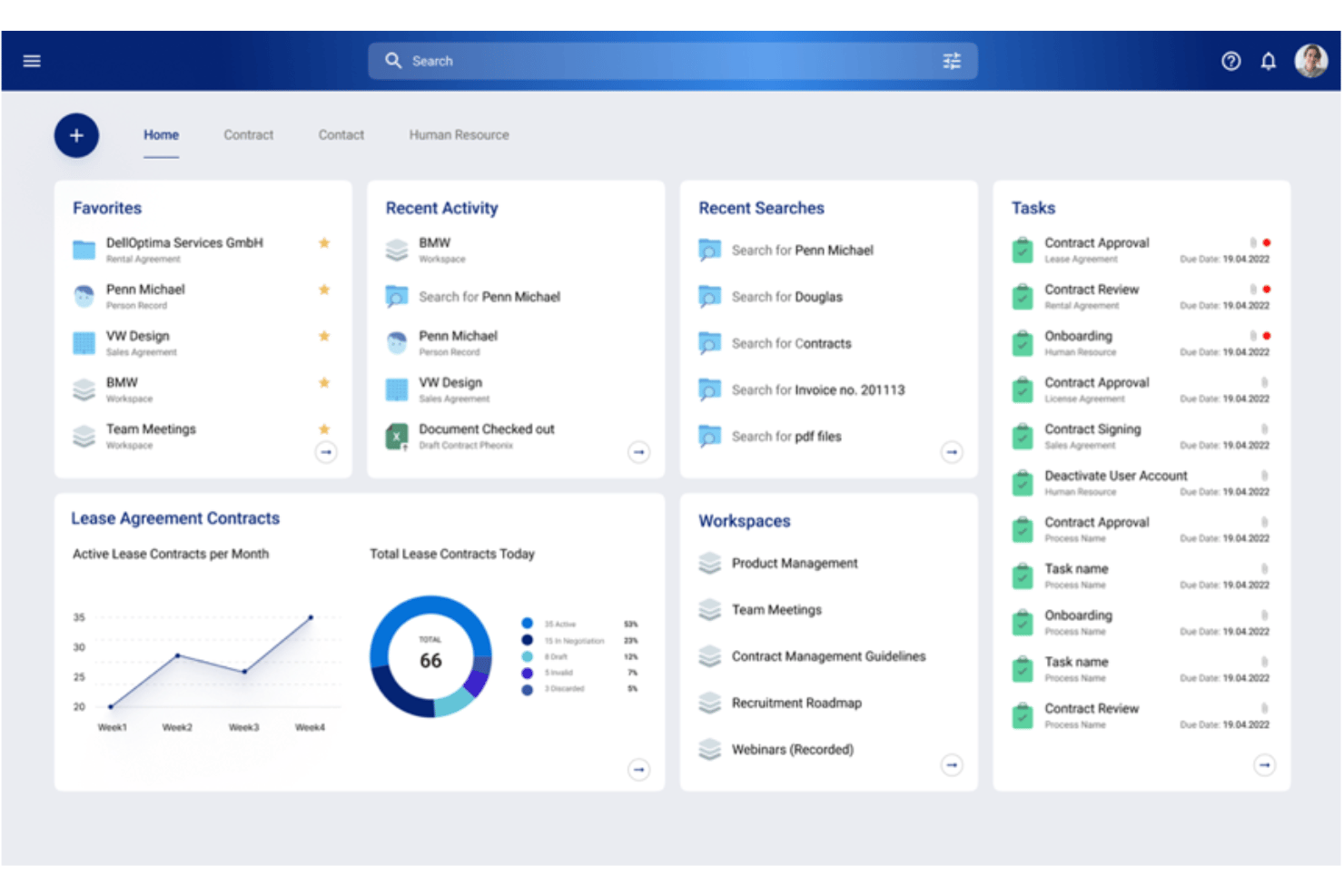
Doxis è un software aziendale per la gestione dei documenti che offre OCR avanzato, estrazione dei dati basata sull'intelligenza artificiale, classificazione automatizzata e ricerca a testo completo per la documentazione di progetti complessi e gli archivi di conformità.
Per chi è più adatto Doxis?
Doxis è ideale per organizzazioni di medie e grandi dimensioni operanti in settori altamente regolamentati, che necessitano di funzionalità avanzate di conformità, tracce di audit e gestione sicura della documentazione dei progetti.
Perché ho scelto Doxis
Ho scelto Doxis come una delle soluzioni migliori perché il suo OCR basato sull'intelligenza artificiale estrae in modo affidabile testo e dati critici dai documenti di progetto altamente regolamentati, mentre le sue funzionalità di tracciamento degli audit supportano direttamente la conformità nei settori sottoposti a una supervisione rigorosa.
Funzionalità principali di Doxis
- Motore di ricerca a testo completo: Cerca istantaneamente documenti elaborati tramite OCR e campi dei metadati all'interno di grandi archivi.
- Controllo degli accessi basato sui ruoli: Assegna autorizzazioni specifiche a utenti e gruppi per una gestione sicura dei documenti.
- Instradamento automatizzato dei flussi di lavoro: Instrada i file di progetto attraverso processi di revisione e approvazione articolati in più fasi.
- Gestione delle versioni: Tieni traccia, confronta e ripristina le versioni precedenti di ogni documento nel tuo archivio.
Integrazioni di Doxis
Doxis offre integrazioni native con SAP, Salesforce e Microsoft 365 e fornisce un'API per integrazioni personalizzate.
Pros and Cons
Pros:
- OCR avanzato basato sull'intelligenza artificiale per la scrittura a mano
- Tracce di audit sicure per le esigenze di conformità
- Archivio documentale scalabile per grandi organizzazioni
Cons:
- Richiede notevoli risorse per l'implementazione iniziale
- Idoneità limitata per i settori non regolamentati

Ideale per opzioni di integrazione a livello aziendale

Per le organizzazioni che devono collegare la gestione dei documenti a un'ampia gamma di sistemi aziendali, Laserfiche offre una soluzione flessibile. La sua piattaforma è progettata per i team IT e i responsabili operativi che desiderano automatizzare l'acquisizione, l'elaborazione e l'instradamento dei documenti, integrandosi al contempo con le applicazioni aziendali esistenti. Laserfiche si distingue per le sue avanzate capacità di integrazione, risultando una scelta eccellente per le aziende con flussi di lavoro complessi e molteplici ambienti software.
Perché ho scelto Laserfiche
Ciò che mi ha colpito di Laserfiche è l'attenzione alle opzioni di integrazione a livello aziendale, particolarmente importante per le organizzazioni che gestiscono documenti tra più sistemi aziendali. Laserfiche offre strumenti avanzati di automazione dei flussi di lavoro che consentono di progettare ed eseguire processi documentali complessi, inclusi l'acquisizione e l'instradamento automatizzati dei dati. Apprezzo il modo in cui la piattaforma supporta controlli di accesso granulari e registri di controllo, che aiutano i team IT a mantenere la conformità e la sicurezza in ambienti di grandi dimensioni. Per le aziende che devono collegare la gestione dei documenti OCR a piattaforme ERP, CRM o specifiche del settore, la profondità delle integrazioni di Laserfiche rappresenta un vantaggio fondamentale.
Funzionalità principali di Laserfiche
Alcune altre funzionalità che rendono Laserfiche un'opzione valida per la gestione dei documenti includono:
- Generatore di moduli elettronici: Crea moduli personalizzati per acquisire e standardizzare l'inserimento dei dati in tutta l'organizzazione.
- Strumenti per la gestione dei record: Applica piani di conservazione e automatizza la conformità ai requisiti normativi.
- Accesso tramite app mobile: Acquisisci, cerca e gestisci documenti dai dispositivi mobili.
- Controllo delle versioni dei documenti: Tieni traccia delle modifiche e conserva una cronologia completa delle revisioni e degli aggiornamenti dei documenti.
Integrazioni di Laserfiche
Le integrazioni includono SAP, DocuSign, Salesforce, Microsoft 365 e altro.
Pros and Cons
Pros:
- L'automazione dei flussi di lavoro supporta l'instradamento complesso dei documenti
- Il generatore di moduli elettronici acquisisce dati personalizzati
- La gestione dei record automatizza le attività di conformità
Cons:
- L'OCR ha difficoltà con scansioni di bassa qualità o scritte a mano
- Le integrazioni si concentrano su sistemi aziendali selezionati

DocuWare
Ideale per l'archiviazione dei documenti basata sul cloud

DocuWare è progettato per le organizzazioni che necessitano di un'archiviazione sicura dei documenti basata sul cloud, con funzionalità OCR integrate. È particolarmente adatto ai team finanziari, delle risorse umane e della conformità che gestiscono grandi volumi di documenti sensibili e richiedono una ricerca e un recupero affidabili. DocuWare aiuta a centralizzare, digitalizzare e automatizzare l'archiviazione dei documenti, rendendo al contempo completamente ricercabili i file scansionati.
Perché ho scelto DocuWare
Per i team che necessitano di un'archiviazione dei documenti affidabile e basata sul cloud, DocuWare si distingue per la sua archiviazione sicura e le funzionalità OCR avanzate. Ho scelto DocuWare perché indicizza automaticamente i documenti scansionati, rendendoli completamente ricercabili e facili da recuperare da qualsiasi luogo. La piattaforma supporta inoltre politiche automatizzate di conservazione dei documenti, che aiutano le organizzazioni a rimanere conformi alle normative del settore. Se cerchi una soluzione che centralizzi e protegga i tuoi archivi digitali, consentendo al contempo una ricerca rapida tramite OCR, DocuWare è un'ottima scelta.
Funzionalità principali di DocuWare
Alcune altre funzionalità che rendono DocuWare utile per la gestione dei documenti includono:
- Supporto per le firme elettroniche: Raccogli firme legalmente vincolanti direttamente all'interno dei documenti archiviati.
- Autorizzazioni basate sui ruoli: Controlla l'accesso ai documenti in base ai ruoli e alle responsabilità degli utenti.
- Instradamento automatizzato dei flussi di lavoro: Configura processi di approvazione e revisione dei documenti con flussi di lavoro personalizzabili.
- Controllo delle versioni: Tieni traccia delle modifiche e conserva una cronologia completa delle revisioni dei documenti.
Integrazioni di DocuWare
Al momento non sono elencate integrazioni native. Tuttavia, DocuWare offre un'API per le integrazioni personalizzate.
Pros and Cons
Pros:
- L'archiviazione cloud consente un accesso remoto sicuro
- L'OCR indicizza i documenti scansionati per la ricerca
- Le autorizzazioni basate sui ruoli controllano l'accesso ai documenti
Cons:
- Le importazioni in blocco possono essere lente per archivi di grandi dimensioni
- La personalizzazione dei modelli può richiedere competenze tecniche

Folderit
Ideale per funzionalità di collaborazione in piccoli team
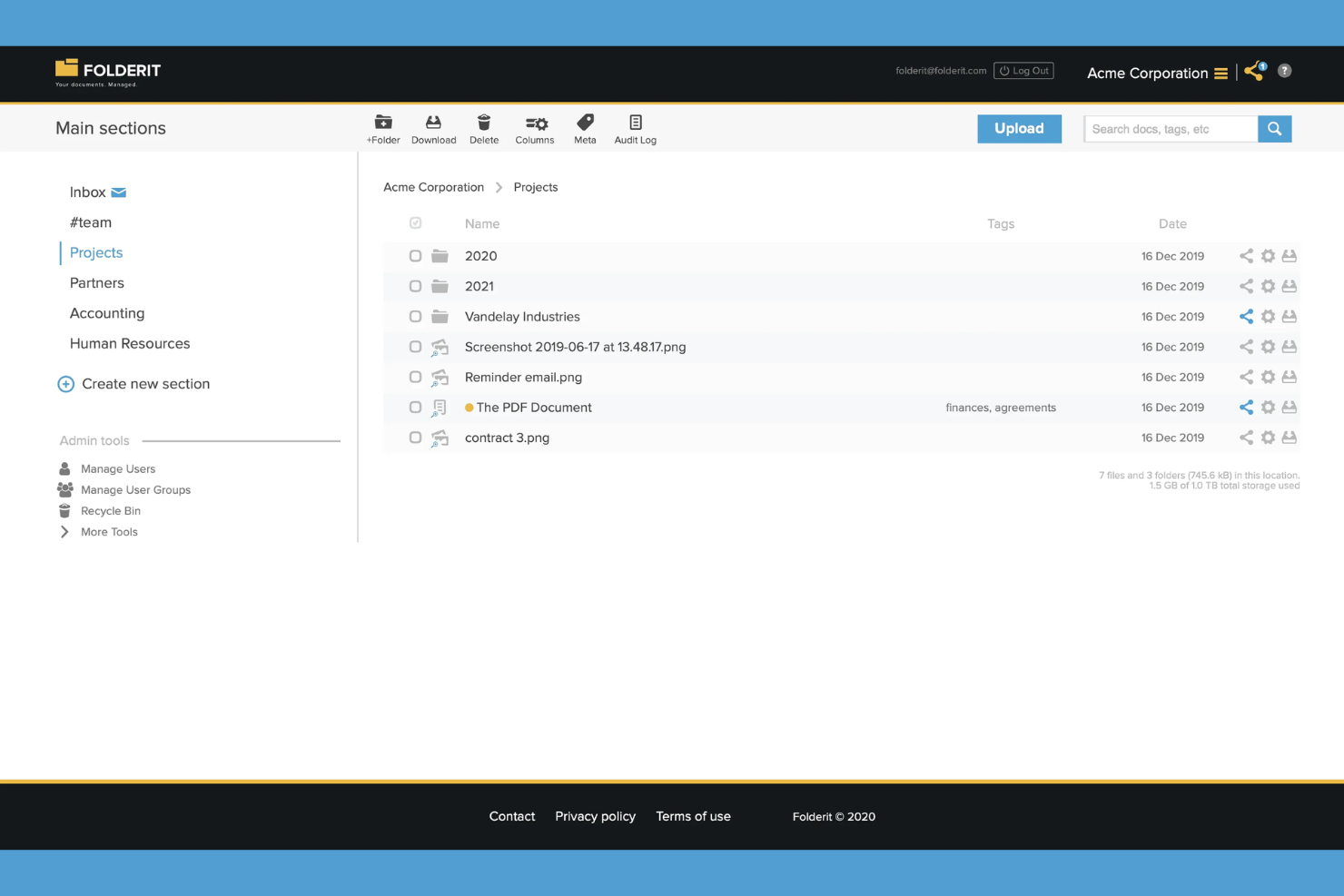
Folderit è progettato per piccoli team che necessitano di collaborare sulla gestione dei documenti senza una configurazione complessa. È particolarmente utile per le aziende che vogliono condividere, approvare e monitorare i documenti con OCR integrato e permessi granulari. Se il tuo team dà valore a funzionalità come i flussi di approvazione dei documenti e le tracce di audit, Folderit offre una soluzione mirata per una gestione sicura e collaborativa dei file.
Perché ho scelto Folderit
Per i team che devono collaborare strettamente sulla gestione dei documenti, Folderit si distingue per le sue funzionalità integrate di condivisione e approvazione. Ho scelto Folderit perché permette agli utenti di assegnare documenti per l'approvazione, impostare promemoria e tracciare ogni azione con dettagliate tracce di audit. La funzionalità OCR garantisce che tutti i documenti caricati siano ricercabili, facilitando il lavoro di squadra nella ricerca e gestione dei file. Questi strumenti orientati alla collaborazione rendono Folderit una scelta solida per le piccole imprese che necessitano sia di controllo sui documenti che di trasparenza.
Caratteristiche principali di Folderit
Altre caratteristiche che rendono Folderit utile per la gestione documentale includono:
- Campi di metadati: Aggiungi metadati personalizzati ai documenti per un'organizzazione e una ricerca più dettagliate.
- Collegamento documenti: Collega insieme documenti correlati per mantenere i file di supporto connessi.
- Politiche di conservazione automatizzate: Imposta regole per la conservazione e l'eliminazione automatica dei documenti in base alle tue esigenze di conformità.
- Controllo delle versioni: Mantieni e accedi alle versioni precedenti dei documenti man mano che vengono apportate modifiche.
Integrazioni di Folderit
Le integrazioni includono DocuSign, Microsoft 365, Outlook e altre.
Pros and Cons
Pros:
- L'OCR rende completamente ricercabili i documenti scansionati
- I flussi di approvazione supportano la collaborazione a più livelli
- Metadati personalizzati migliorano l'organizzazione dei documenti
Cons:
- Le funzionalità di caricamento massivo sono limitate per grandi archivi
- L'automazione avanzata dei flussi di lavoro non è disponibile

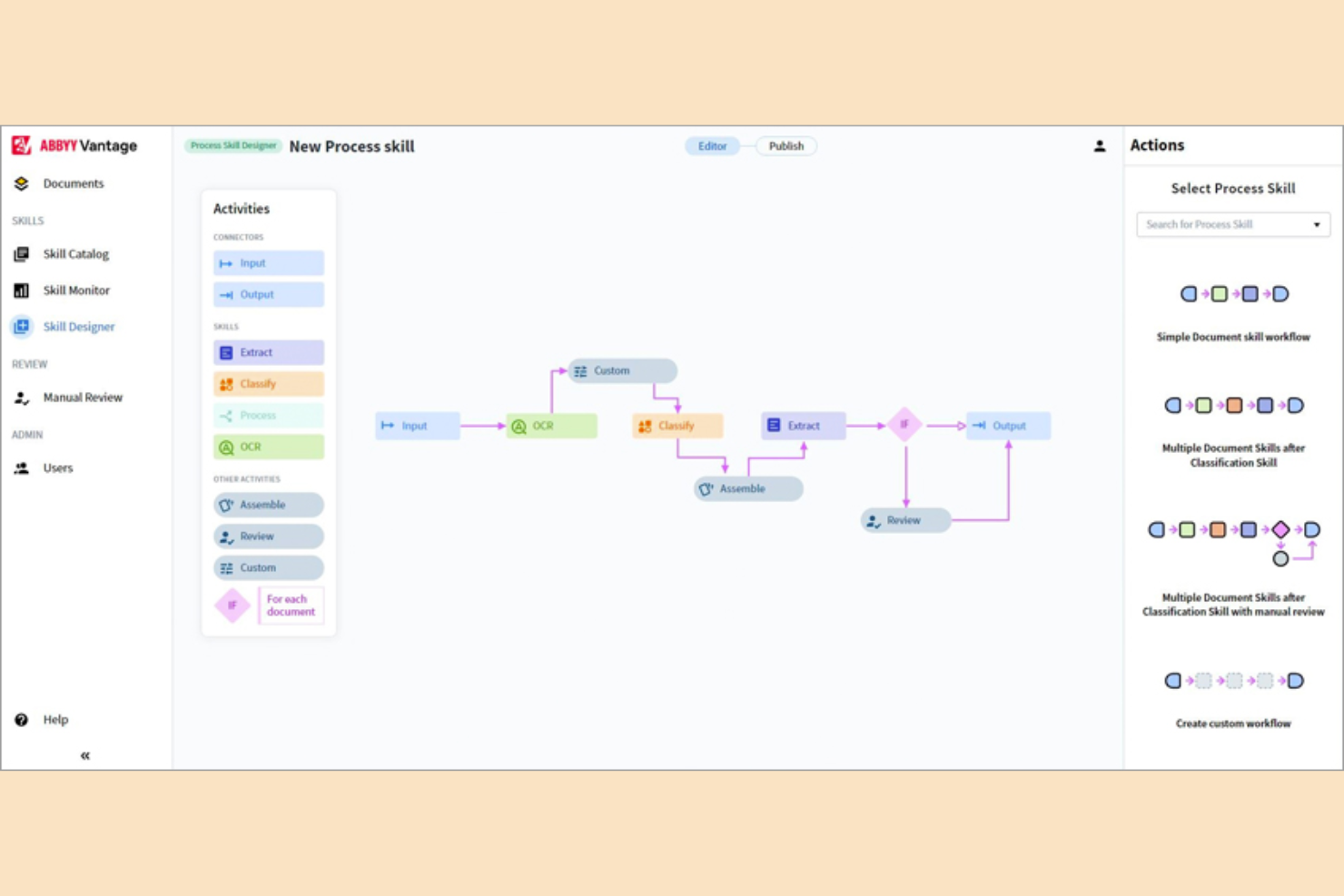
Se il tuo team necessita di un'estrazione dati estremamente accurata da documenti complessi, ABBYY merita sicuramente attenzione. Questa piattaforma è specializzata in OCR avanzato e acquisizione intelligente dei dati, risultando ideale per i team di finanza, legale e operations che gestiscono grandi volumi di documenti strutturati e non strutturati. ABBYY si distingue per la sua capacità di riconoscere diversi layout di documenti ed estrarre dati precisi, anche da formati complessi.
Perché ho scelto ABBYY
Ciò che differenzia ABBYY, secondo me, è la sua attenzione all'accuratezza nell'acquisizione dei dati avanzata, fondamentale per i team che lavorano con documenti complessi o di grande importanza. Il motore OCR intelligente di ABBYY utilizza il machine learning per riconoscere ed estrarre dati da un'ampia gamma di tipologie documentali, incluse fatture, contratti e moduli con layout variabili. Apprezzo come i suoi strumenti di validazione dei dati aiutino a garantire che le informazioni estratte siano corrette prima di essere inserite nei workflow successivi. Per le organizzazioni che non possono permettersi errori nel processamento documentale, la precisione e l'adattabilità di ABBYY lo rendono una scelta solida.
Caratteristiche principali di ABBYY
Altre caratteristiche che rendono ABBYY una valida opzione per la gestione dei documenti includono:
- Riconoscimento multilingue: Elabora documenti in oltre 200 lingue per operazioni globali.
- Elaborazione in batch: Gestisci grandi volumi di documenti contemporaneamente per velocizzare i flussi di lavoro.
- Classificazione dei documenti: Ordina e classifica automaticamente i documenti in base a contenuto e layout.
- Implementazione cloud e on-premises: Scegli tra installazione cloud o locale per adattarti alle esigenze IT.
Integrazioni ABBYY
Le integrazioni includono SharePoint, Alteryx, Bizagi, M-Files, Laserfiche e altre ancora.
Pros and Cons
Pros:
- L'elaborazione in batch gestisce grandi volumi di documenti
- La classificazione dei documenti automatizza la suddivisione
- Opzioni di implementazione cloud e on-premises
Cons:
- I file di grandi dimensioni possono essere elaborati lentamente
- I tempi di risposta dell'assistenza variano a seconda della regione


Per le organizzazioni in cui la conformità normativa e il controllo dei documenti sono priorità assolute, Document Logistix offre un approccio specializzato. Questa piattaforma è progettata per settori come quello sanitario, finanziario e governativo che richiedono rigorose piste di controllo e controlli di accesso granulari. Document Logistix si distingue per la sua capacità di automatizzare i flussi di lavoro di conformità e mantenere registri dettagliati di ogni azione eseguita sui documenti.
Perché ho scelto Document Logistix
Ciò che mi ha attratto di Document Logistix è il suo chiaro focus sul controllo dei documenti orientato alla conformità, fondamentale per i team che gestiscono informazioni sensibili o regolamentate. La piattaforma offre piste di controllo dettagliate che registrano ogni azione sui documenti, aiutando le organizzazioni a soddisfare requisiti normativi stringenti. Apprezzo anche le sue impostazioni di autorizzazione granulari, che consentono di controllare chi può visualizzare, modificare o condividere documenti specifici. Queste funzionalità rendono Document Logistix una scelta ideale per le aziende che devono automatizzare i processi di OCR mantenendo il pieno controllo su conformità e sicurezza.
Funzionalità principali di Document Logistix
Altre funzionalità che rendono Document Logistix utile per i team di gestione documentale includono:
- Acquisizione automatica dei documenti: Importa e classifica i documenti da scanner, email o cartelle di rete senza intervento manuale.
- Gestione delle versioni: Traccia e gestisci più versioni dei documenti per garantire precisione e conformità.
- Designer di workflow personalizzati: Costruisci e modifica i flussi di lavoro di approvazione e revisione dei documenti per adattarli ai processi della tua organizzazione.
- Ricerca full-text: Trova rapidamente i documenti utilizzando ricerche per parole chiave e frasi basate su OCR in tutto il tuo archivio.
Integrazioni di Document Logistix
Le integrazioni native attualmente non sono elencate.
Pros and Cons
Pros:
- Le piste di controllo supportano la conformità normativa
- L'acquisizione automatica riduce l'inserimento manuale
- L'OCR full-text consente una ricerca rapida dei documenti
Cons:
- L'interfaccia può sembrare datata rispetto a piattaforme più recenti
- La documentazione per la configurazione OCR avanzata è limitata
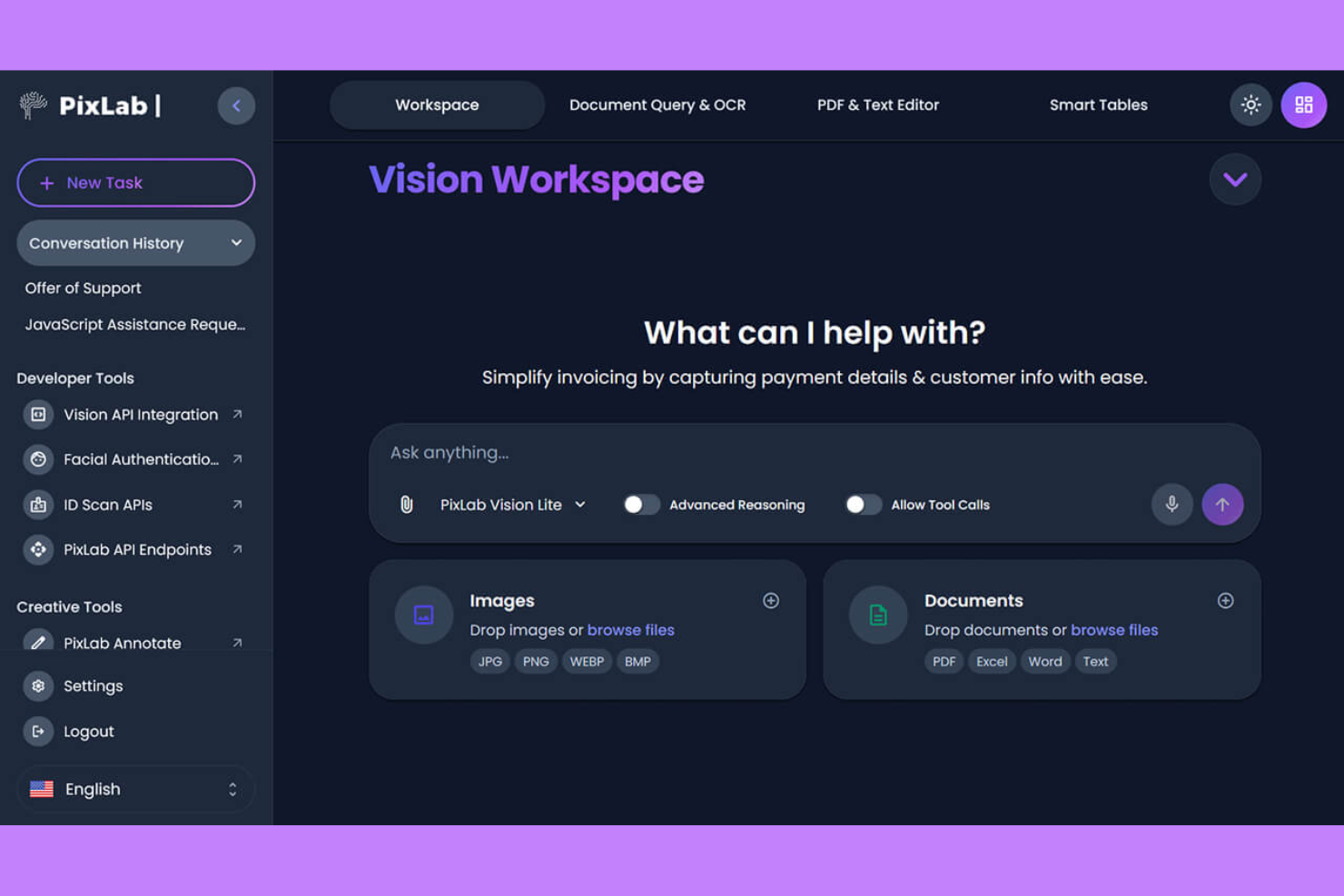
Se il tuo team ha bisogno di automatizzare la conversione da immagine a testo su grandi volumi di file, PixLab offre una soluzione mirata. Questa piattaforma è pensata per sviluppatori e aziende che desiderano integrare l'OCR nei propri flussi di lavoro o applicazioni personalizzate. PixLab si distingue per il suo approccio guidato dalle API, rendendolo una scelta ideale per le organizzazioni che gestiscono attività complesse o ad alta frequenza di elaborazione documentale.
Perché ho scelto PixLab
PixLab ha attirato la mia attenzione per la sua forte attenzione ai flussi di lavoro automatizzati da immagine a testo, una necessità chiave per molti team impegnati nella digitalizzazione dei documenti. Il design API-first della piattaforma consente di elaborare immagini ed estrarre testo in blocco, facilitando l'automazione personalizzata all'interno della pipeline di gestione documentale. Apprezzo anche il supporto a una vasta gamma di formati di file e le avanzate funzionalità di pre-elaborazione delle immagini di PixLab, che contribuiscono a migliorare la precisione dell'OCR per i documenti più complessi. Queste capacità lo rendono una scelta pratica per le aziende che necessitano di un OCR affidabile e ad alto volume come parte della loro strategia di gestione documentale.
Funzionalità principali di PixLab
Altre funzionalità utili di PixLab per i team di gestione documentale includono:
- Rilevamento di volti e oggetti: Identifica volti e oggetti all'interno delle immagini per supportare la categorizzazione avanzata dei documenti o i flussi di lavoro di oscuramento.
- Lettura di codici a barre e QR: Estrai dati da codici a barre e codici QR incorporati in documenti scannerizzati o immagini.
- Strumenti di moderazione dei contenuti: Segnala o filtra automaticamente contenuti inappropriati o sensibili nei file caricati.
- Estrazione di fotogrammi da video: Estrai fotogrammi da file video per l'elaborazione OCR o ulteriori analisi.
Integrazioni PixLab
Le integrazioni native non sono attualmente elencate. Tuttavia, PixLab offre un'API per integrazioni personalizzate.
Pros and Cons
Pros:
- Gestisce numerosi formati di immagini e video
- La pre-elaborazione delle immagini migliora la precisione dell'OCR
- Strumenti integrati di moderazione e rilevamento volti
Cons:
- Nessuna dashboard intuitiva per utenti non sviluppatori
- La documentazione può essere tecnica e poco dettagliata

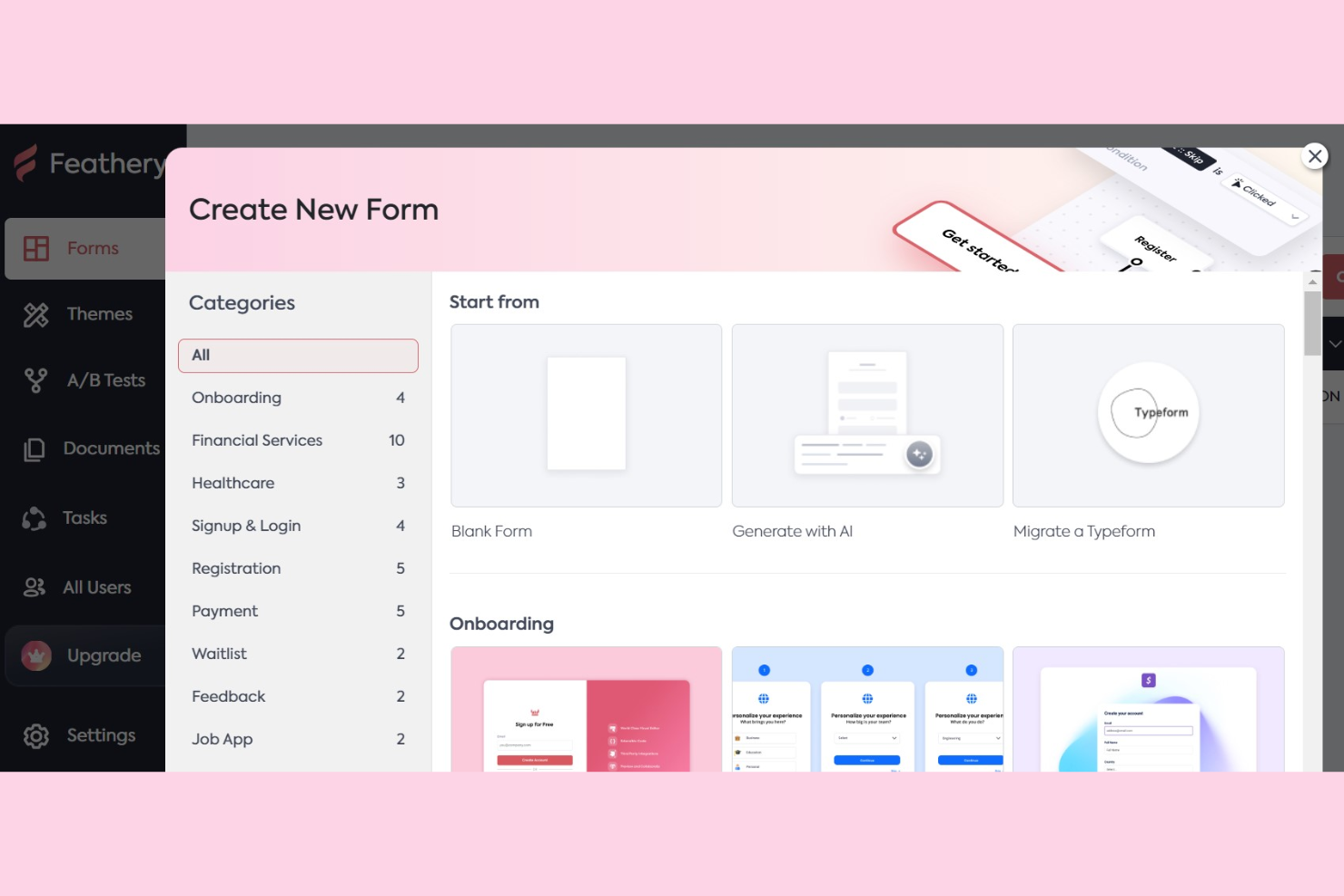
Se hai bisogno di acquisire e processare documenti direttamente tramite moduli web, Feathery offre un approccio unico alla gestione OCR dei documenti. È pensato per i team che vogliono automatizzare l'estrazione dei dati dai file e dalle immagini caricate all'interno dei loro flussi di lavoro digitali. Feathery è particolarmente utile per le aziende che si affidano a moduli personalizzati per onboarding, richieste o conformità e necessitano dell'OCR per trasformare i caricamenti in dati strutturati e utilizzabili.
Perché ho scelto Feathery
Quello che distingue Feathery è la sua capacità di incorporare l'OCR direttamente nei moduli web personalizzati, rendendo la cattura dei documenti e l'estrazione dei dati parte del processo sin dall'inizio. Ho scelto Feathery perché permette di creare moduli che accettano caricamenti di file ed estraggono automaticamente testo e dati da immagini o PDF tramite OCR. Questo approccio è particolarmente vantaggioso per i team che devono raccogliere informazioni strutturate dai documenti come parte di onboarding, richieste o processi di conformità. Integrando l'OCR al punto di inserimento dei dati, Feathery aiuta ad automatizzare la gestione documentale e ridurre la manipolazione manuale dei dati.
Funzionalità principali di Feathery
Altre funzionalità che rendono Feathery utile per la gestione dei documenti includono:
- Logica condizionale: Crea moduli che mostrano o nascondono campi in base alle risposte dell'utente.
- Regole di validazione personalizzate: Imposta requisiti specifici per i file caricati e i campi del modulo.
- Automazione dei flussi di lavoro: Attiva azioni o notifiche quando i documenti vengono inviati o elaborati.
- Controlli di accesso basati sui ruoli: Gestisci chi può visualizzare, modificare o approvare i documenti all'interno dei tuoi moduli.
Integrazioni di Feathery
Le integrazioni includono Stripe, Salesforce, HubSpot, Plaid, Zapier, Calendly, Webhooks, Mixpanel, RudderStack, Amplitude e altre ancora.
Pros and Cons
Pros:
- Supporta il caricamento di immagini, PDF e scansioni
- La logica condizionale abilita moduli di acquisizione dinamici
- Le regole di validazione garantiscono la qualità dei documenti
Cons:
- Ricerca e filtro avanzati dei documenti sono limitati
- Le funzionalità di audit trail e conformità sono meno dettagliate
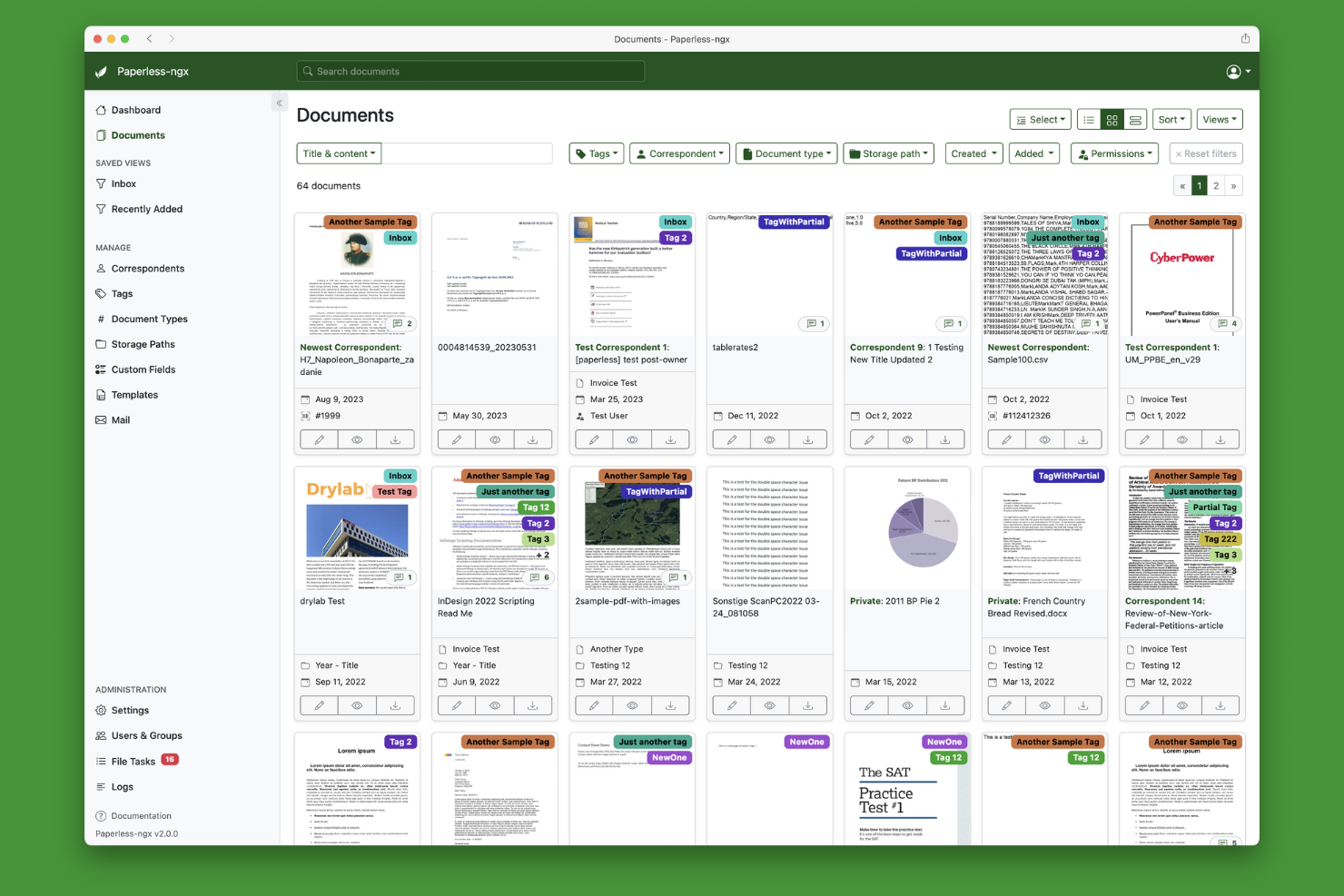
Se cerchi una soluzione di gestione documentale OCR completamente open-source, Paperless-ngx si distingue per flessibilità e trasparenza. Questa piattaforma è ideale per team IT, sviluppatori e organizzazioni attente alla privacy che desiderano ospitare internamente e personalizzare ogni aspetto dei loro flussi documentali. Paperless-ngx è particolarmente utile per chi ha bisogno di automatizzare la cattura e l'elaborazione dei documenti senza vincoli del fornitore o costi di licenza.
Perché ho scelto Paperless-ngx
Ciò che rende Paperless-ngx una scelta valida è la sua base open-source, che ti offre pieno controllo su personalizzazione e distribuzione. Per i team che vogliono adattare i processi di gestione documentale OCR alle proprie esigenze, Paperless-ngx permette di modificare la classificazione dei documenti, l'estrazione dei metadati e gli script di automazione secondo necessità specifiche. Mi piace che la piattaforma possa essere auto-ospitata, garantendo la privacy dei dati e la conformità alle policy interne. Questo livello di flessibilità è raro nelle soluzioni proprietarie, rendendo Paperless-ngx particolarmente interessante per organizzazioni con bisogni speciali o in evoluzione.
Funzionalità principali di Paperless-ngx
Altre funzionalità che rendono Paperless-ngx interessante per la gestione documentale includono:
- Importazione massiva di documenti: Carica ed elabora grandi quantità di documenti contemporaneamente per velocizzare l'inserimento iniziale.
- Controllo degli accessi basato sui ruoli: Assegna permessi agli utenti per gestire chi può visualizzare, modificare o eliminare i documenti.
- Politiche di conservazione documentale automatizzate: Imposta regole per archiviare o eliminare documenti in base a intervalli di tempo personalizzati.
- Supporto OCR multilingua: Estrai testo da documenti in diverse lingue per team internazionali.
Integrazioni di Paperless-ngx
Le integrazioni native non sono attualmente disponibili. Tuttavia, è presente un'API per integrazioni personalizzate.
Pros and Cons
Pros:
- L'auto-ospitazione garantisce un'elevata privacy dei dati
- L'OCR multilingua gestisce numerosi alfabeti diversi
- L'importazione massiva velocizza la digitalizzazione di grandi volumi di documenti
Cons:
- Installazione e manutenzione richiedono competenze tecniche
- L'automazione avanzata può richiedere script manuali


onPhase offre una piattaforma unificata per le organizzazioni che desiderano automatizzare la raccolta dei documenti, l'estrazione dei dati e i processi aziendali dall'inizio alla fine. È particolarmente adatta per i team delle operations, della finanza e delle risorse umane che devono gestire grandi volumi di documenti e flussi di approvazione complessi. Grazie all'OCR integrato e all'automazione dei processi, onPhase aiuta i team a ridurre l'inserimento manuale dei dati e a mantenere il lavoro fluido tra i diversi reparti.
Perché ho scelto onPhase
Ciò che distingue onPhase è la sua capacità di automatizzare interi processi basati sui documenti, non solo la funzione di OCR e l'archiviazione. Per i team che necessitano di più della semplice acquisizione di documenti, onPhase combina l'OCR con l'automazione dei flussi di lavoro, consentendo di indirizzare i documenti, attivare le approvazioni e gestire le eccezioni in un unico sistema. Ho scelto onPhase perché supporta processi complessi e a più fasi che spesso rallentano le attività in finanza, risorse umane e altri dipartimenti. Questo focus sull'automazione end-to-end lo rende una soluzione ideale per le organizzazioni che vogliono digitalizzare e orchestrare ogni fase del ciclo di vita dei loro documenti.
Funzionalità chiave di onPhase
Oltre alle sue capacità di automazione dei processi, ho riscontrato che le seguenti funzionalità sono particolarmente utili per la gestione dei documenti:
- Controllo delle versioni dei documenti: Tieni traccia delle modifiche e mantieni una cronologia completa delle versioni e degli aggiornamenti dei documenti.
- Builder di moduli personalizzati: Progetta e distribuisci moduli digitali per raccogliere dati strutturati insieme ai documenti.
- Ricerca e filtraggio avanzati: Trova rapidamente i documenti utilizzando metadati, parole chiave e filtri personalizzati.
- Tracciabilità delle attività: Monitora accessi e attività sui documenti per scopi di conformità e sicurezza.
Integrazioni di onPhase
Le integrazioni native attualmente non sono elencate.
Pros and Cons
Pros:
- OCR integrato estrae dati dai documenti scansionati
- L'automazione dei flussi di lavoro instrada i file per le approvazioni
- Moduli personalizzati per acquisire dati strutturati dei documenti
Cons:
- La configurazione può richiedere l'assistenza del fornitore
- Il supporto all'utente avviene principalmente tramite i canali del fornitore
Altri software di gestione documentale OCR
Ecco alcune opzioni aggiuntive di software di gestione documentale OCR che non sono entrate nella mia selezione, ma che vale comunque la pena prendere in considerazione:
- SimpleIndex
Ideale per un’estrazione rapida del testo da scansioni
- Papermerge DMS
Ideale per l'organizzazione documentale basata su cartelle
- DocStar
Ideale per l'automazione dei flussi di lavoro nelle medie imprese
- Hyperscience
Ideale per l'automazione dell'acquisizione di documenti ad alto volume


Come valuto il software di gestione documentale OCR
Valuto gli strumenti su due livelli: le funzionalità di base come l'OCR accurato su contratti scansionati e l'indicizzazione del testo integrale, e i fattori distintivi che contano per i team di progetto.
Funzionalità principali (Requisiti minimi per questa lista)
Quando seleziono gli strumenti per la mia lista, valuto ognuno su una scala da 0 (non offre la funzionalità) a 5 (eccelle in quest'area) per ciascuna delle funzionalità principali elencate di seguito. Successivamente, calcolo il punteggio totale dello strumento in percentuale. Ogni strumento deve raggiungere un punteggio totale minimo del 65% per essere preso in considerazione per l'inclusione.
- Riconoscimento testo OCR: Verifico con quanta precisione ogni strumento converte i documenti di progetto scansionati—come disegni timbrati, ordini di variazione firmati e note scritte a mano— in testo ricercabile e modificabile.
- Archiviazione e repository documentale: Conto molto su un repository centralizzato con strutture di cartelle, etichettatura e metadati, soprattutto per i team che gestiscono migliaia di file su progetti simultanei.
- Ricerca e indicizzazione del testo completo: Valuto se è possibile cercare il contenuto effettivo dei file elaborati tramite OCR, non solo i nomi dei file, per individuare rapidamente una clausola specifica nascosta in un contratto di 200 pagine.
- Estrazione dati e automazione: Cerco strumenti che estraggano campi strutturati come numeri di fattura, date e nomi dei fornitori dai documenti scansionati e li inseriscano in flussi di lavoro a valle.
- Controllo versione e traccia audit: La documentazione di progetto subisce continue revisioni, quindi verifico la presenza di cronologia delle revisioni, opzioni di ripristino e registri dettagliati delle attività che tracciano chi ha modificato cosa e quando.
- Controllo accessi e collaborazione: Permessi basati sui ruoli, condivisione a livello di documento e caratteristiche collaborative come annotazioni e flussi di approvazione sono ciò che valuto per team di progetto con più parti coinvolte.
Una volta che ho un elenco di strumenti che soddisfano questi criteri, considero ciò che distingue ciascuna piattaforma.
Fattori distintivi (Cosa distingue i fornitori)
Ecco come confronto e metto a paragone i diversi fornitori:
Funzionalità di spicco
La cattura da mobile è un fattore chiave—i team sul campo devono poter scansionare ricevute, permessi o liste di controllo in loco e caricarli direttamente nel repository del progetto. Cerco anche costruttori di automazione del flusso di lavoro che consentano di instradare i documenti attraverso catene di approvazione legate alle fasi di progetto senza dover scrivere codice. La classificazione tramite intelligenza artificiale aggiunge un ulteriore livello, etichettando automaticamente i file in arrivo come fatture, contratti o richieste di informazioni, così nulla viene archiviato erroneamente in un portfolio impegnativo.
Oltre le funzionalità
Le integrazioni sono molto importanti qui. Verifico se ogni strumento si collega a piattaforme di gestione progetto come Jira, Asana o Procore, oltre ai sistemi contabili dove effettivamente devono confluire i dati delle fatture estratte. Certificazioni di conformità e sicurezza sono un altro fattore che valuto, specialmente per i team che gestiscono contratti o documentazione regolamentata che richiede log pronti per audit. Inoltre, analizzo attentamente i modelli di prezzo: alcuni fornitori fanno pagare per pagina OCR, altri per utente—quindi capire il costo totale di proprietà prima di scalare è essenziale.
Come scegliere un software di gestione documentale OCR
È facile perdersi in lunghi elenchi di funzionalità e strutture tariffarie complesse. Per aiutarti a rimanere concentrato mentre affronti il tuo particolare processo di selezione del software, ecco una lista di fattori da tenere presenti:
| Fattore | Cosa considerare |
|---|---|
| Scalabilità | Il software sarà in grado di gestire il volume dei tuoi documenti man mano che la tua azienda cresce? Informati sui limiti di pagine, sui limiti degli utenti e sui percorsi di aggiornamento. |
| Integrazioni | Lo strumento si connette nativamente ai tuoi sistemi principali (ERP, CRM, archiviazione cloud)? Verifica la presenza di integrazioni predefinite, non solo dell'accesso tramite API. |
| Personalizzazione | Puoi adattare i flussi di lavoro, i tipi di documento e i campi dei metadati ai tuoi processi? Evita i sistemi rigidi che ti costringono ad adattare il tuo lavoro. |
| Facilità d'uso | Il tuo team adotterà rapidamente lo strumento? Cerca una navigazione chiara, requisiti di formazione minimi e un'organizzazione logica dei documenti. |
| Implementazione e avvio | Quanto tempo sarà necessario per diventare operativi? Considera il supporto alla migrazione, le risorse formative e l'eventuale necessità di coinvolgere il reparto IT. |
| Costo | I livelli tariffari sono trasparenti e prevedibili? Fai attenzione ai costi aggiuntivi per il volume OCR, l'archiviazione o le integrazioni, che possono far aumentare le spese. |
| Misure di sicurezza | Il software offre crittografia, controlli degli accessi e registri di audit? Assicurati che soddisfi gli standard di protezione dei dati della tua organizzazione. |
| Requisiti di conformità | Lo strumento ti aiuterà a rispettare le normative del settore (come HIPAA, GDPR o SOX)? Verifica il supporto per le politiche di conservazione e le tracce di audit. |
Che cos'è il software di gestione dei documenti OCR?
Il software di gestione dei documenti OCR è un tipo di strumento digitale che utilizza la tecnologia di riconoscimento ottico dei caratteri (OCR) per scansionare, estrarre e organizzare il testo da documenti cartacei, immagini o PDF. Questi sistemi aiutano i team a digitalizzare i documenti fisici, automatizzare l'inserimento dei dati e rendere i documenti ricercabili e recuperabili. Sono comunemente utilizzati per semplificare i flussi di lavoro dei documenti, migliorare la precisione e supportare la conformità ai requisiti di conservazione dei documenti.
Funzionalità del software di gestione dei documenti OCR
Quando selezioni un software di gestione dei documenti OCR, presta attenzione alle seguenti funzionalità chiave:
- Riconoscimento ottico dei caratteri (OCR): Converte immagini scansionate, PDF o foto di documenti in testo leggibile e ricercabile dal computer, consentendo di estrarre e utilizzare i dati dai documenti fisici.
- Indicizzazione dei documenti: Assegna metadati, tag o categorie ai documenti, permettendo agli utenti di organizzare, filtrare e individuare rapidamente i file in base a criteri specifici.
- Ricerca a testo completo: Consente agli utenti di cercare parole chiave o frasi all'interno del contenuto dei documenti digitalizzati, migliorando la velocità e la precisione del recupero.
- Controllo delle versioni: Tiene traccia delle modifiche e conserva una cronologia delle revisioni dei documenti, consentendo agli utenti di visualizzare, ripristinare o confrontare le versioni precedenti secondo necessità.
- Controlli degli accessi: Consente agli amministratori di impostare le autorizzazioni per stabilire chi può visualizzare, modificare o eliminare i documenti, supportando i requisiti di sicurezza dei dati e di conformità.
- Elaborazione in batch: Consente agli utenti di scansionare, importare ed elaborare più documenti contemporaneamente, risparmiando tempo nella gestione di grandi volumi di documenti cartacei.
- Instradamento automatizzato dei documenti: Indirizza i documenti alle persone o ai reparti corretti in base a regole predefinite, supportando l'automazione dei flussi di lavoro e riducendo la gestione manuale.
- Gestione della conservazione dei documenti: Applica criteri per stabilire per quanto tempo i documenti devono essere conservati e quando devono essere archiviati o eliminati, aiutando le organizzazioni a soddisfare gli standard normativi e di conformità.
- Tracce di controllo: Registra tutte le azioni degli utenti e le modifiche ai documenti, fornendo una registrazione trasparente per le revisioni di sicurezza e gli audit di conformità.
Vantaggi del software di gestione dei documenti OCR
L'implementazione di un software di gestione dei documenti OCR offre diversi vantaggi al tuo team e alla tua azienda. Ecco alcuni dei vantaggi che puoi aspettarti:
- Recupero più rapido dei documenti: Le funzionalità di ricerca a testo completo e indicizzazione facilitano l'individuazione dei documenti tramite parola chiave o metadati in pochi secondi.
- Riduzione dell'inserimento manuale dei dati: La tecnologia OCR estrae automaticamente testo e dati dai documenti scansionati, riducendo al minimo il lavoro manuale ripetitivo.
- Maggiore conformità: La gestione della conservazione dei documenti e le tracce di controllo aiutano la tua organizzazione a soddisfare i requisiti normativi e a mantenere registrazioni accurate.
- Maggiore sicurezza dei documenti: I controlli degli accessi e le autorizzazioni degli utenti proteggono le informazioni sensibili e garantiscono che solo gli utenti autorizzati possano visualizzare o modificare i documenti.
- Flussi di lavoro semplificati: L'instradamento automatizzato dei documenti e l'elaborazione in batch fanno avanzare i file in modo efficiente nei processi aziendali, riducendo i colli di bottiglia.
- Collaborazione migliore: Il controllo delle versioni e l'archiviazione centralizzata consentono ai team di lavorare sullo stesso insieme di documenti e di tenere traccia delle modifiche nel tempo.
- Minori costi di archiviazione: La digitalizzazione dei documenti cartacei riduce la necessità di spazio per l'archiviazione fisica e rende l'archiviazione più efficiente.
Costi e prezzi del software di gestione dei documenti OCR
La selezione di un software di gestione dei documenti OCR richiede la comprensione dei vari modelli e piani tariffari disponibili. I costi variano in base alle funzionalità, alle dimensioni del team, ai componenti aggiuntivi e ad altri fattori. La tabella seguente riassume i piani più comuni, i relativi prezzi medi e le funzionalità tipicamente incluse nelle soluzioni software di gestione dei documenti OCR:
Tabella comparativa dei piani per il software di gestione dei documenti OCR
| Tipo di piano | Prezzo medio | Funzionalità comuni |
|---|---|---|
| Piano gratuito | $0 | Scansione OCR di base, spazio di archiviazione dei documenti limitato e funzionalità di ricerca semplici. |
| Piano personale | $5-$20/user/month | Scansione OCR, indicizzazione dei documenti, ricerca di base e opzioni di esportazione limitate. |
| Piano aziendale | $20-$50/user/month | OCR avanzato, elaborazione in batch, automazione dei flussi di lavoro, controlli degli accessi e integrazione con l'archiviazione cloud. |
| Piano aziendale avanzato | $50-$150/user/month | Flussi di lavoro personalizzati, sicurezza avanzata, strumenti di conformità, accesso API, assistenza prioritaria e tracce di controllo. |
Software di gestione documentale OCR: domande frequenti
Ecco alcune risposte alle domande comuni sul software di gestione documentale OCR:
Quanto è accurato l’OCR nei software di gestione documentale?
L’accuratezza dell’OCR dipende dalla qualità del documento originale, dalla chiarezza del testo e dal motore di riconoscimento del software. I documenti puliti e stampati generalmente garantiscono un’elevata accuratezza, mentre le scansioni manoscritte o a bassa risoluzione possono richiedere una revisione e una correzione manuali.
Il software di gestione documentale OCR è in grado di gestire documenti manoscritti?
Sì, alcune soluzioni supportano il riconoscimento del testo manoscritto, ma i risultati possono variare. È più probabile che la scrittura a mano in stampatello venga riconosciuta accuratamente rispetto alla scrittura corsiva o stilizzata. Eseguite sempre dei test con i vostri documenti abituali prima di prendere una decisione.
Quali formati di file possono essere elaborati ed esportati?
La maggior parte dei software di gestione documentale OCR è in grado di elaborare file PDF, JPEG, TIFF e PNG ed esportare in formati come PDF ricercabile, Word, Excel o testo normale. Consultate la documentazione di ciascuno strumento per verificare i formati di input e output supportati.
È possibile automatizzare i flussi di lavoro documentali con questi strumenti?
Sì, molte piattaforme offrono funzionalità di automazione dei flussi di lavoro. È possibile configurare regole per instradare i documenti, attivare notifiche o assegnare attività in base al tipo o al contenuto del documento, riducendo la gestione manuale e velocizzando i processi.
In che modo questi sistemi aiutano a garantire la conformità?
Il software di gestione documentale OCR supporta la conformità fornendo registri di audit, criteri di conservazione dei documenti e controlli degli accessi. Queste funzionalità aiutano le organizzazioni a soddisfare i requisiti normativi in materia di sicurezza dei dati e gestione documentale.