

I 10 migliori software per la scansione dei documenti recensiti nel 2026

Elenco dei migliori software per la scansione dei documenti


Gestire un progetto significa destreggiarsi tra innumerevoli documenti e tenerli organizzati non è un’impresa da poco. Probabilmente hai già provato la frustrazione di dover esaminare pile di carta o file digitali disordinati. Il software per la scansione dei documenti può essere una vera salvezza, aiutando te e il tuo team a organizzare i documenti in modo efficiente.
In base alla mia esperienza, trovare lo strumento giusto può trasformare il modo in cui gestisci le pratiche burocratiche, facendoti risparmiare tempo e riducendo lo stress. Ho testato e recensito questi strumenti in modo indipendente, con l’obiettivo di offrirti informazioni oneste e approfondite.
Scoprirai le migliori soluzioni software per la scansione dei documenti, ciascuna con funzionalità uniche pensate per esigenze diverse. Che tu gestisca una piccola impresa o una grande azienda, troverai una soluzione adatta.
Perché fidarsi dei nostri consigli sui software
Il nostro team testa e recensisce software dal 2012. In quanto project manager noi stessi, sappiamo quanto sia difficile — e importante — scegliere il software giusto.
Per questa guida, abbiamo valutato gli strumenti attraverso test pratici e ricerche indipendenti, assegnando un punteggio agli strumenti in base ai nostri criteri di selezione. Ci basiamo inoltre sulle competenze di leader di pensiero del settore e di professionisti attivi nella gestione dei progetti.
Le nostre recensioni riflettono il nostro giudizio editoriale umano, non un discorso di vendita.
Perché fidarsi delle nostre recensioni dei software
Testiamo e recensiamo software per la gestione dei progetti dal 2012. In quanto project manager, sappiamo quanto sia importante e difficile prendere la decisione giusta quando si sceglie un software. Investiamo in ricerche approfondite per aiutare il nostro pubblico a prendere decisioni migliori sull’acquisto dei software.
Abbiamo testato più di 2.000 strumenti per diversi casi d’uso nella gestione dei progetti e scritto oltre 1.000 recensioni complete di software. Scopri come manteniamo la trasparenza & consulta la nostra metodologia di recensione dei software.
Riepilogo dei migliori software per la scansione dei documenti
Questa tabella comparativa riassume i dettagli sui prezzi delle mie migliori selezioni di software per la scansione dei documenti, per aiutarti a trovare quello più adatto al tuo budget e alle esigenze della tua azienda.
| Tool | Best For | Trial Info | Price | ||
|---|---|---|---|---|---|
| 1 | Ideale per scansioni accurate con rilevamento di qualità | Demo gratuita disponibile | Prezzo su richiesta | Website | |
| 2 | Ideale per l'estrazione dati basata su IA | Prova gratuita disponibile + demo gratuita | Prezzo su richiesta | Website | |
| 3 | Ideale per la scansione tramite dispositivi mobili | Not available | Website | ||
| 4 | Ideale per precisione dell'OCR | Not available | Website | ||
| 5 | Ideale per l'uso nelle piccole imprese | Not available | Website | ||
| 6 | Ideale per la gestione sicura dei documenti | Not available | Website | ||
| 7 | Ideale per la flessibilità open-source | Piano gratuito disponibile | Website | ||
| 8 | Ideale per la scansione multipagina | Not available | Website | ||
| 9 | Ideale per una rapida integrazione con il cloud | Not available | Website | ||
| 10 | Il migliore per pipeline di estrazione personalizzate | Piano gratuito disponibile | Da $79,20/mese (fatturato annualmente) | Website |
Recensione dei migliori software per la scansione dei documenti
Di seguito trovi i miei riepiloghi dettagliati dei migliori software per la scansione dei documenti inclusi nel mio elenco ristretto. Le mie recensioni offrono un’analisi approfondita delle funzionalità principali, dei pro e dei contro, delle integrazioni e dei casi d’uso ideali di ogni strumento, per aiutarti a trovare quello più adatto a te.
Ideale per scansioni accurate con rilevamento di qualità
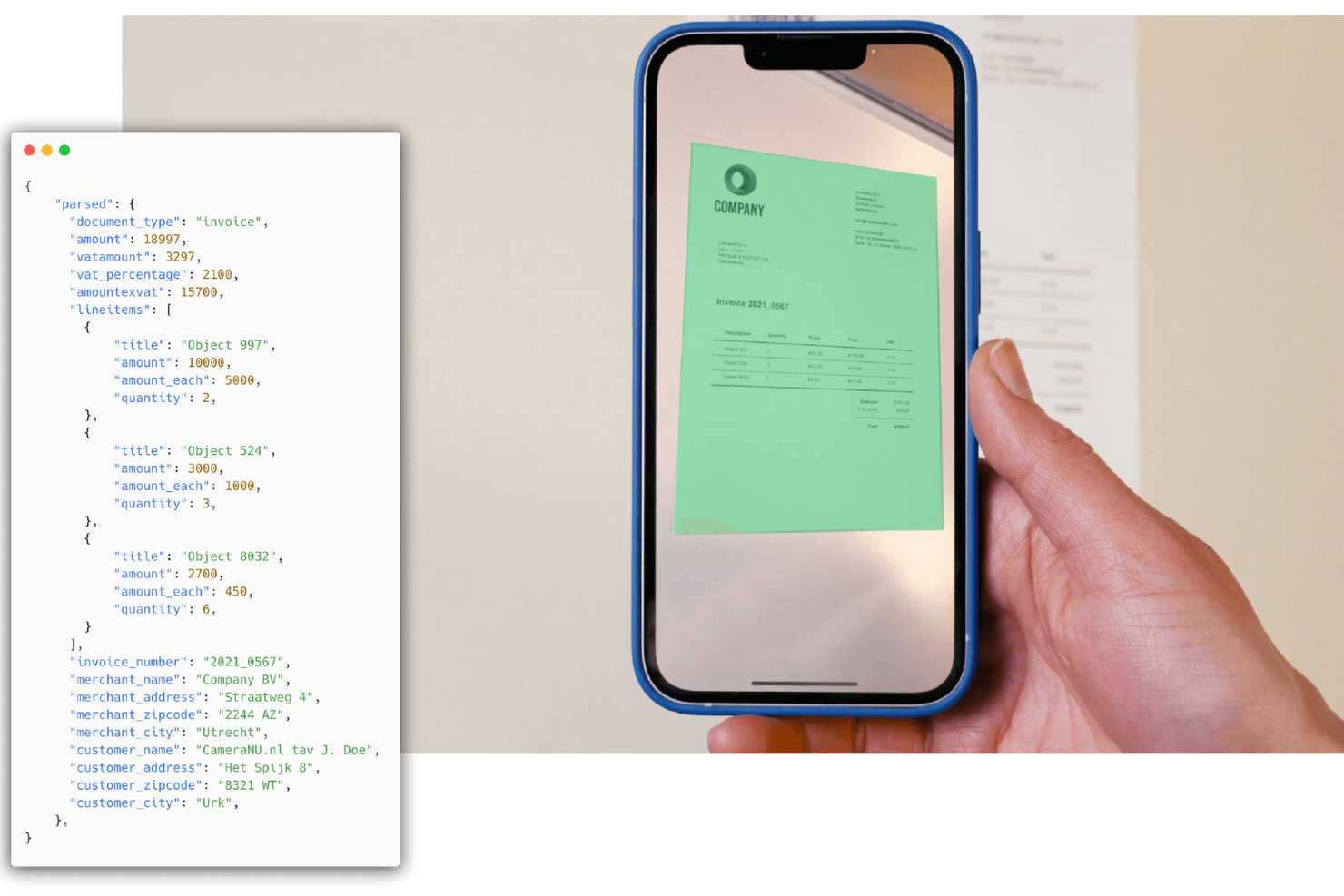
Doxis AI.dp. è un software di scansione documentale che utilizza l'IA per acquisire, analizzare ed estrarre dati da un'ampia gamma di tipologie di documenti.
Per chi è indicato Doxis AI.dp.?
Doxis AI.dp. è adatto per i team operativi e finanziari che gestiscono grandi volumi di documenti e necessitano di un'acquisizione dati affidabile e automatizzata.
Perché ho scelto Doxis AI.dp.
Ho scelto Doxis AI.dp. come uno dei migliori per l'importanza che attribuisce alla qualità della scansione, essenziale per un'estrazione dati accurata. L'SDK OCR include un feedback in tempo reale durante l'acquisizione—avvisa l'utente se un documento è troppo lontano, poco illuminato o se la fotocamera è instabile. Questa guida in tempo reale previene la scoperta tardiva di scansioni scadenti da parte del mio team. Inoltre, il modulo di pre-elaborazione delle immagini migliora automaticamente le immagini prima dell'estrazione, ottimizzando i risultati anche per caricamenti a bassa risoluzione e documenti fisici imperfetti. La funzione human-in-the-loop aggiunge un ulteriore livello, permettendo agli operatori esperti di validare e correggere i dati estratti dall'IA, raggiungendo un'accuratezza prossima al 100%.
Funzionalità principali di Doxis AI.dp.
- Classificazione documentale: Ordina e etichetta automaticamente i documenti tramite algoritmi di IA, con supporto a regole e parametri di classificazione personalizzati.
- Anonimizzazione dei dati: Rileva e oscura i campi sensibili nei documenti per supportare la conformità al GDPR e ad altri requisiti di privacy dei dati.
- Rilevamento di frodi documentali: Utilizza analisi EXIF, rilevamento duplicati, controlli di copia-spostamento e analisi a livello di pixel per segnalare documenti manipolati o contraffatti.
- Builder di workflow: Un'interfaccia drag-and-drop permette di progettare e distribuire flussi di lavoro personalizzati per l'elaborazione documentale, dalla ricezione fino all'estrazione e all'output dei dati.
Integrazioni Doxis AI.dp.
Le integrazioni native non sono chiaramente documentate. Lo strumento supporta integrazioni tramite API per connessioni personalizzate.
Pros and Cons
Pros:
- SDK mobile acquisisce i documenti in pochi secondi
- Il rilevamento della qualità dell'immagine riduce le scansioni inutilizzabili
- Supporta la conversione in JSON, XML, CSV, XLSX
Cons:
- L'addestramento di modelli personalizzati può richiedere uno sforzo iniziale
- Alcuni problemi con immagini ruotate che influiscono sulla qualità dell'estrazione
New Product Updates from Doxis AI.dp.
Doxis AI.dp. Improves Financial Document Processing and Matching
Doxis AI.dp. adds stricter e-invoice validation, more financial extraction fields, and improved ERP recipient matching. This helps teams process invoices and financial documents more accurately. For more information, visit Doxis AI.dp.’s official site.
 .
.
Nanonets
Ideale per l'estrazione dati basata su IA

Nanonets è una piattaforma di scansione dei documenti ed estrazione dei dati che utilizza l'IA per acquisire, classificare e processare informazioni da una vasta gamma di tipologie di documenti.
Per chi è ideale Nanonets?
Nanonets è adatto per i team operativi e finanziari che hanno bisogno di automatizzare l'elaborazione di grandi volumi di documenti come fatture, scontrini e moduli.
Perché ho scelto Nanonets
Nanonets si è guadagnato il suo posto nella mia shortlist grazie alla capacità di estrazione dati basata su IA che va ben oltre il semplice OCR. L'ho utilizzata per estrarre dati strutturati da fatture, bolle di accompagnamento e estratti conto bancari — e supporta oltre 300 estrattori di documenti pre-addestrati, così il mio team non deve partire da zero ogni volta che si inserisce un nuovo tipo di documento. Il modello apprende dalle correzioni nel tempo, quindi la precisione dell'estrazione migliora con l’uso. Apprezzo anche il fatto che l’API OCR supporti diversi linguaggi di programmazione, così i team di ingegneria possono integrare la scansione dei documenti direttamente nei pipeline esistenti senza un grande sforzo.
Funzionalità principali di Nanonets
- Classificazione dei documenti: Ordina automaticamente i documenti in arrivo in categorie predefinite in base a contenuto e layout.
- Automazione dei workflow: Crea processi di approvazione ed elaborazione multi-step che si attivano in base ai valori estratti.
- Revisione umana: Segnala estrazioni a bassa affidabilità per la revisione manuale prima che i dati vengano inoltrati.
- Audit trail: Registra ogni azione effettuata su un documento, incluse modifiche, approvazioni ed esportazioni, per il tracciamento della conformità.
Integrazioni di Nanonets
Nanonets offre integrazioni native con Google Drive, Dropbox, Salesforce, QuickBooks e Zapier. È disponibile un’API per integrazioni personalizzate.
Pros and Cons
Pros:
- L’IA migliora la precisione nel tempo
- Creazione di workflow personalizzati
- Elaborazione dati in tempo reale
Cons:
- Prezzo iniziale elevato
- Capacità offline limitate
- Curva di apprendimento per i modelli personalizzati


Adobe Scan è un'applicazione per la scansione di documenti che consente di acquisire, convertire e organizzare documenti cartacei in file digitali tramite il dispositivo mobile, includendo funzionalità integrate di OCR ed esportazione in PDF.
Per chi è più adatto Adobe Scan?
Adobe Scan è perfetto per persone e team che hanno necessità di scansionare e digitalizzare documenti in movimento utilizzando uno smartphone o un tablet.
Perché ho scelto Adobe Scan
Adobe Scan è tra le mie applicazioni preferite perché adoro come trasforma la fotocamera di uno smartphone in uno scanner di documenti completo senza la necessità di hardware aggiuntivo. La correzione automatica delle immagini basata sull'intelligenza artificiale rileva i bordi del documento, elimina ombre e riflessi, e rende il testo più nitido, in modo che le scansioni risultino pulite anche in condizioni di luce sfavorevoli. Mi affido anche all'OCR integrato, che rende i documenti scansionati ricercabili e modificabili. Le scansioni si sincronizzano direttamente con Adobe Document Cloud, così posso aprirle in Acrobat su desktop o web senza trasferire manualmente i file.
Funzionalità principali di Adobe Scan
- Modalità di acquisizione: Passa tra modalità di acquisizione per documenti, lavagne, biglietti da visita e moduli per adattarsi a ciò che vuoi scansionare.
- Strumenti di markup: Aggiungi disegni, forme e annotazioni direttamente nell'app prima di salvare o condividere una scansione.
- Compressione PDF: Riduci la dimensione dei file con livelli di compressione regolabili (alto o basso) per facilitare la condivisione delle scansioni.
- Organizzazione in cartelle personalizzate: Salva le scansioni con nomi di file e date suggeriti e ordinale in cartelle personalizzate all'interno dell'app.
Integrazioni di Adobe Scan
Adobe Scan offre un'integrazione nativa con Adobe Document Cloud, che permette di accedere e gestire i file acquisiti tramite Adobe Acrobat e altre applicazioni Adobe. Le integrazioni native con strumenti di terze parti non sono chiaramente documentate.
Pros and Cons
Pros:
- Scansione mobile semplice
- Nitidezza del testo migliorata tramite AI
- Organizza con nomi file consigliati
Cons:
- Richiede un account Adobe
- Abbonamento necessario per funzioni extra
- Strumenti di modifica di base

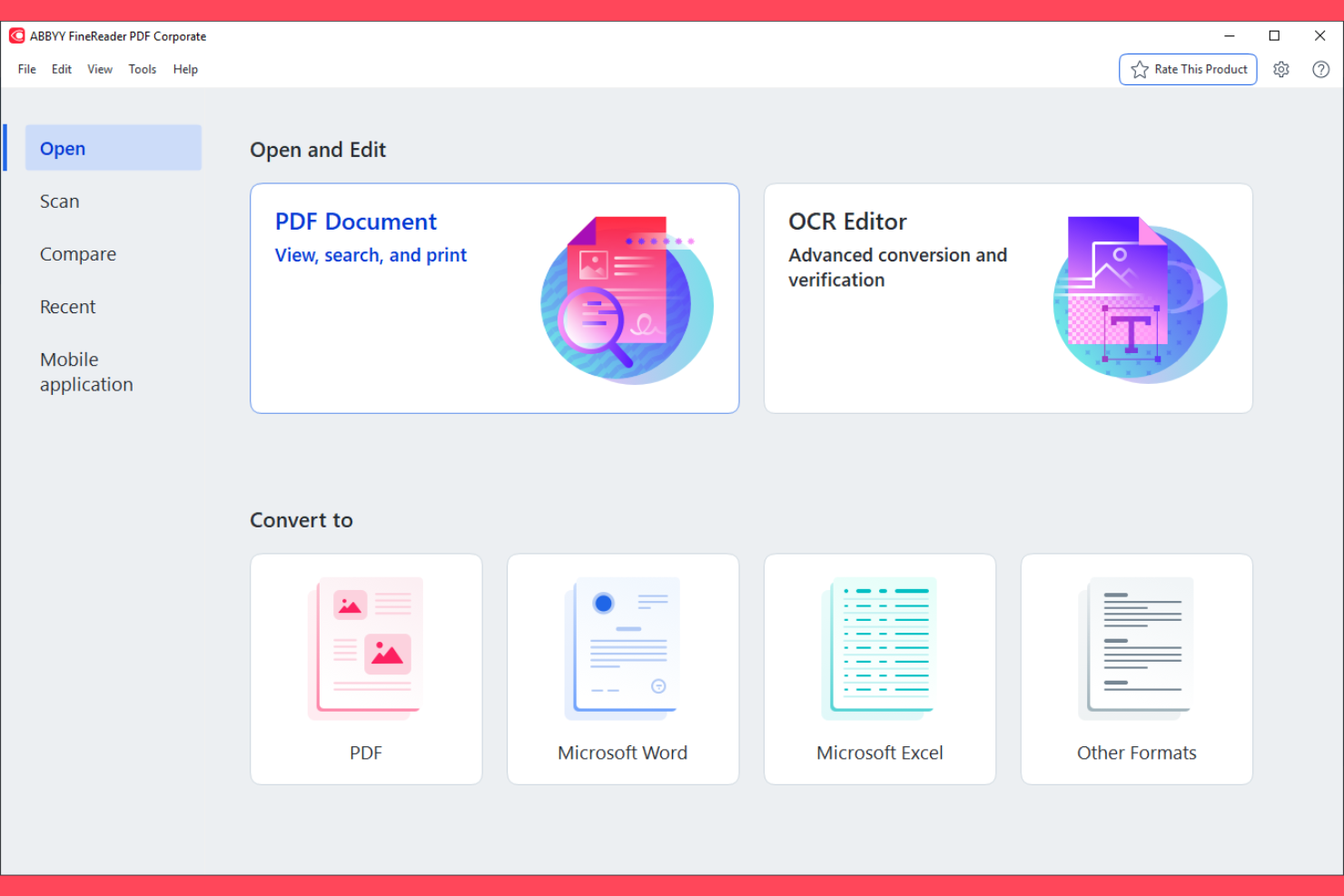
ABBYY FineReader è un software per la scansione di documenti e OCR che consente di digitalizzare, convertire e modificare documenti scansionati e PDF in diversi formati.
Per chi è ABBYY FineReader?
ABBYY FineReader è adatto a team legali, finanziari e amministrativi che elaborano regolarmente grandi volumi di documenti scansionati e necessitano di un'estrazione accurata del testo.
Perché ho scelto ABBYY FineReader
ABBYY FineReader si guadagna un posto nella mia shortlist perché l'accuratezza del suo OCR è davvero difficile da superare: fino al 99,8% di riconoscimento in 198 lingue. L'ho utilizzato per elaborare contratti scansionati e documenti multilingue, dove altri strumenti introducevano errori che poi dovevano essere corretti manualmente. Il pre-processamento delle immagini guidato dall’IA di FineReader corregge automaticamente pagine storte, testo pixelato e caratteri distorti prima dell’avvio del riconoscimento, migliorando i risultati anche su scansioni di qualità inferiore. Un’altra funzione su cui faccio affidamento è Confronta Documenti: utilizza l’OCR per rilevare differenze a livello di testo tra un PDF scansionato e un file Word, risparmiando al mio team la revisione riga per riga.
Funzionalità principali di ABBYY FineReader
- Elaborazione batch: Converti o riconosci più documenti contemporaneamente tramite flussi di lavoro automatizzati senza gestire i file uno a uno manualmente.
- Modifica PDF: Modifica direttamente testo, immagini e pagine all’interno di PDF scansionati o nativi senza prima convertirli in un altro formato.
- Conversione documenti: Esporta i file scansionati in formati modificabili tra cui Word, Excel, PowerPoint e PDF ricercabile.
- Automazione con cartella hot: Imposta cartelle monitorate che elaborano automaticamente i documenti scansionati in ingresso in base a regole predefinite.
Integrazioni di ABBYY FineReader
ABBYY FineReader offre integrazioni native con Microsoft 365, SharePoint e Dropbox, oltre a un'API per integrazioni personalizzate.
Pros and Cons
Pros:
- Elevata accuratezza OCR
- Modifica PDF diretta
- Funzione di confronto documenti
Cons:
- Supporto mobile limitato
- Richiede installazione desktop
- Curva di apprendimento elevata

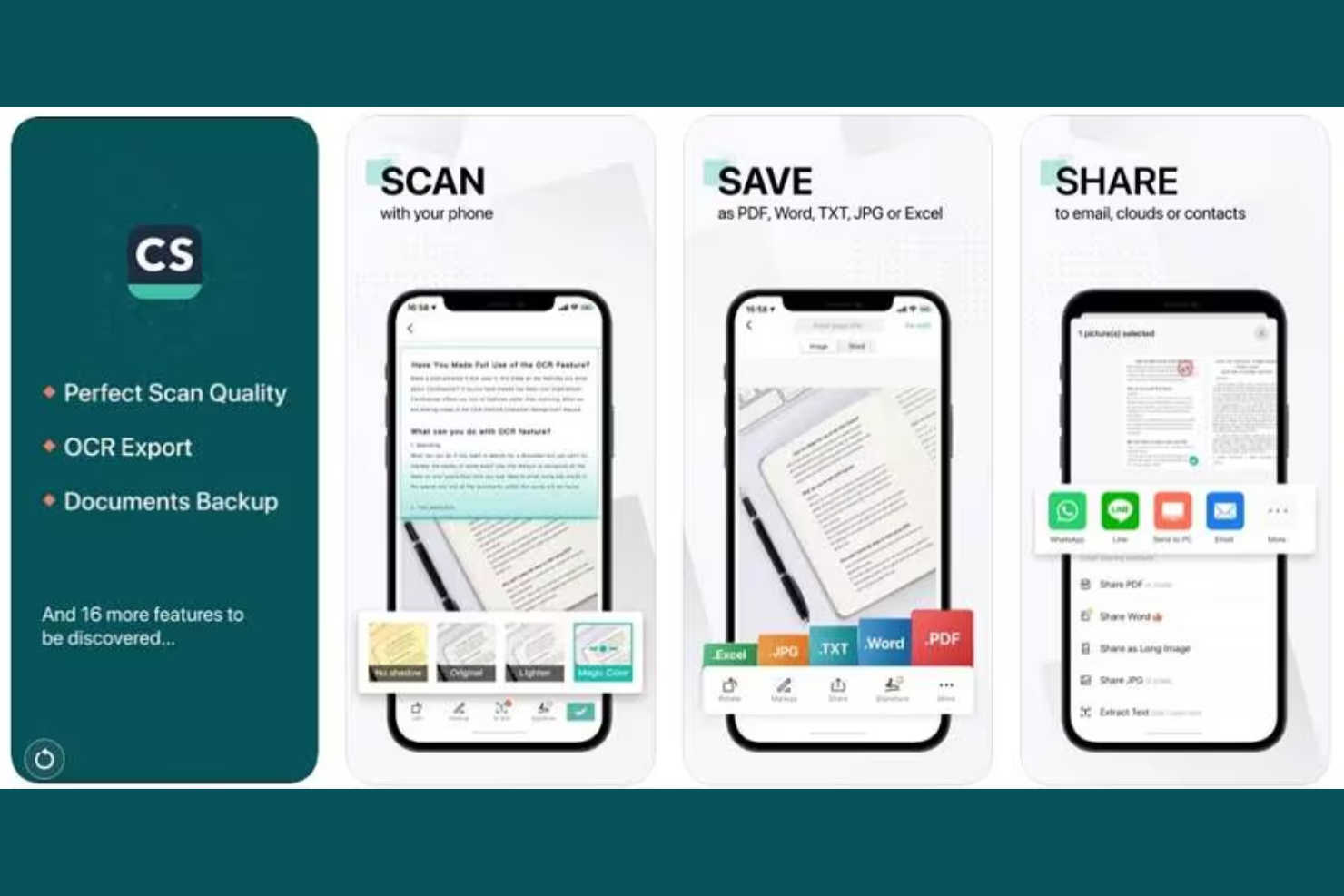
CamScanner è un software per la scansione dei documenti che consente di scansionare, digitalizzare, organizzare e condividere documenti utilizzando il proprio dispositivo mobile, con funzionalità come OCR ed esportazione in più formati.
Per chi è più adatto CamScanner?
CamScanner è una soluzione adatta ai team delle piccole imprese che hanno bisogno di un modo leggero e pensato prima di tutto per i dispositivi mobili per scansionare, digitalizzare e gestire i documenti ovunque si trovino.
Perché ho scelto CamScanner
Ho scelto CamScanner come una delle soluzioni migliori perché copre l'intero flusso di lavoro per la scansione dei documenti che i team delle piccole imprese affrontano quotidianamente. Quando il mio team scansiona contratti, ricevute o fatture mentre è in movimento, l'elaborazione delle immagini potenziata dall'AI ritaglia automaticamente i bordi, rimuove gli sfondi e applica filtri per produrre PDF puliti e dall'aspetto professionale senza alcuna pulizia manuale. Mi affido molto anche alla funzionalità OCR, che estrae testo modificabile dalle immagini scansionate in 41 lingue, rendendo semplice cercare, copiare o riutilizzare i contenuti dei documenti cartacei. La possibilità di esportare direttamente in Word, Excel o PPT da una scansione effettuata con il telefono è qualcosa che vedo raramente negli strumenti pensati prima di tutto per i dispositivi mobili.
Funzionalità principali di CamScanner
- Strumenti di modifica dei PDF: Unisci, dividi, riordina, comprimi, aggiungi filigrane e proteggi con password i file PDF direttamente nell'app.
- Supporto per la firma elettronica: Aggiungi firme elettroniche ai documenti scansionati senza uscire dall'app o esportare i file in uno strumento separato.
- Traduzione intelligente: Traduci il testo estratto dai documenti scansionati in più lingue utilizzando la traduzione integrata basata sull'AI.
- Sincronizzazione tra più dispositivi: Accedi ai file scansionati e gestiscili su telefoni, tablet e computer desktop tramite il backup sul cloud.
Integrazioni di CamScanner
Le integrazioni native non sono documentate chiaramente. CamScanner offre collegamenti con i servizi di archiviazione cloud Google Drive, Dropbox e OneDrive, oltre a fornire un'API per le integrazioni personalizzate.
Pros and Cons
Pros:
- Scansione mobile semplice
- Funzionalità di miglioramento dei documenti
- Opzioni di condivisione sicura
Cons:
- Funzionalità gratuite limitate
- Pubblicità nella versione gratuita
- Funzionalità desktop limitate

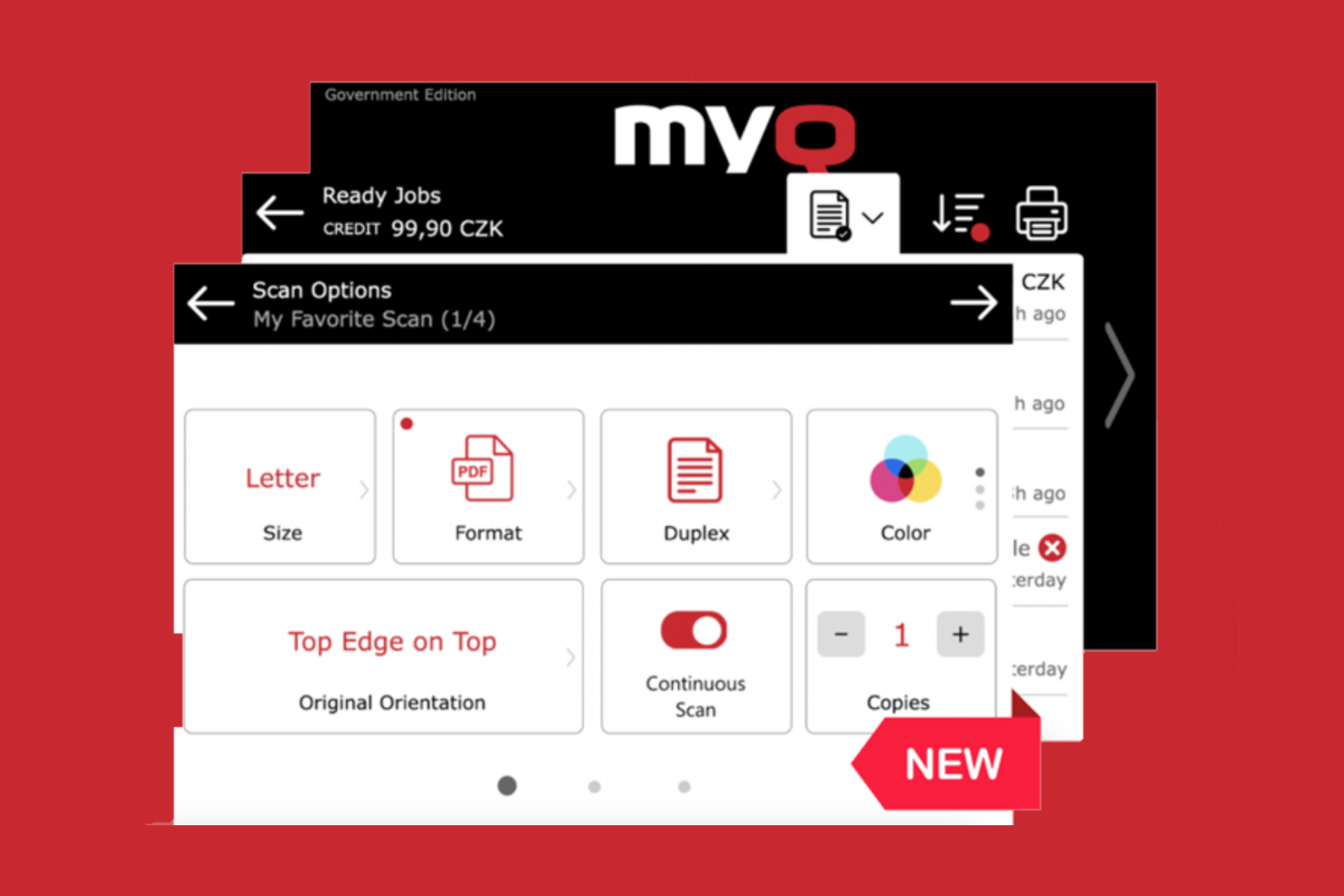
MyQ è una piattaforma di gestione della stampa e scansione documenti che consente di acquisire, digitalizzare e indirizzare i documenti in modo sicuro da dispositivi multifunzione e ambienti desktop.
Per Chi È Ideale MyQ?
MyQ è particolarmente adatto agli amministratori IT e ai responsabili della gestione documentale in organizzazioni di medie e grandi dimensioni che necessitano di un controllo centralizzato sugli ambienti di stampa e scansione.
Perché Ho Scelto MyQ
MyQ si è guadagnato un posto nella mia shortlist per l'attenzione con cui gestisce la sicurezza dei documenti in ogni fase del processo di scansione. Apprezzo in particolare la funzione di redazione zonale, che elimina automaticamente i dati personali dai documenti durante la scansione—una funzione molto utile quando il mio team gestisce contratti o documenti HR. I PDF scansionati possono essere crittografati, protetti da password e marcati con una firma digitale e un timestamp, creando una chiara catena di custodia qualora venga messa in dubbio l'integrità del documento. Anche la classificazione automatica dei documenti è vantaggiosa perché consente di indirizzare file sensibili come fatture e contratti nella destinazione corretta senza intervento manuale.
Funzionalità Chiave di MyQ
- Easy Scan: Permette di lanciare un flusso completo di scansione verso la destinazione con un solo click, inviando i documenti direttamente a una cartella di rete, e-mail o storage cloud.
- Conversione OCR: Trasforma i documenti scansionati in PDF ricercabili e modificabili tramite riconoscimento ottico dei caratteri.
- Lettura di codici a barre e QR: Legge i codici a barre e QR presenti nei documenti per identificare, suddividere e smistare automaticamente lotti di documenti multipli.
- Indicizzazione dei documenti: Permette di associare metadati—come numero di fattura, data di scadenza e importi—ai documenti durante la scansione.
Integrazioni di MyQ
MyQ offre integrazioni native con Microsoft 365, Google Workspace, Dropbox, Box e OneDrive, e mette a disposizione una API per integrazioni personalizzate.
Pros and Cons
Pros:
- Opzioni di autenticazione utente
- Audit trail dettagliati
- Interfacce personalizzabili
Cons:
- Processo di configurazione complesso
- Richiede supporto IT
- Funzionalità mobile limitate


NAPS2 è un software open-source per la scansione di documenti che consente di scansionare, organizzare e convertire documenti utilizzando un'ampia gamma di scanner e formati di file.
Per chi è NAPS2?
NAPS2 è adatto a sviluppatori, professionisti IT e persone con conoscenze tecniche che desiderano uno strumento di scansione gratuito e personalizzabile da adattare ai propri flussi di lavoro.
Perché ho scelto NAPS2
NAPS2 si guadagna un posto nella mia lista per il controllo che offre sul processo di scansione senza vincolarti a un ecosistema a pagamento. Quello che trovo particolarmente interessante è la CLI: puoi creare script per interi flussi di lavoro di scansione, impostare percorsi di output con segnaposto auto-numerati, attivare l'OCR in lingue specifiche e inviare i risultati direttamente ad altri strumenti. L'ho utilizzato per automatizzare lavori di scansione batch che altrimenti richiederebbero interventi manuali a ogni fase. L'installer MSI e il supporto al deployment tramite GPO lo rendono davvero pratico per i team IT che devono distribuirlo su più macchine.
Funzionalità principali di NAPS2
- Formati di output PDF e immagini: Esporta le scansioni direttamente in PDF, TIFF, JPEG, PNG e altri formati di file comuni dall'applicazione.
- Riconoscimento del testo tramite OCR: Trasforma le pagine scansionate in testo ricercabile o modificabile grazie all'OCR integrato basato su Tesseract.
- Modifica documenti multipagina: Riordina, ruota, ritaglia ed elimina singole pagine prima di finalizzare il tuo output di scansione.
- Supporto scanner TWAIN e WIA: Collegati a un'ampia varietà di scanner fisici utilizzando driver standard TWAIN e WIA.
Integrazioni di NAPS2
Le integrazioni native non sono chiaramente elencate.
Pros and Cons
Pros:
- Supporta molti formati di file
- Interfaccia utente semplice
- Scansione batch disponibile
Cons:
- Funzionalità avanzate limitate
- Nessuna integrazione nativa
- Non basato su cloud


PaperScan è un software per la scansione di documenti volto alla digitalizzazione, elaborazione e organizzazione di documenti cartacei, offrendo funzionalità di scansione in batch, correzione delle immagini e supporto per una vasta gamma di dispositivi scanner e formati di file.
Per chi è PaperScan?
PaperScan è adatto a individui e piccoli team che necessitano di uno strumento desktop per la scansione di grandi volumi di documenti e l'elaborazione delle immagini.
Perché ho scelto PaperScan
PaperScan si guadagna un posto nella mia shortlist grazie alle sue eccellenti capacità di gestione dei flussi di lavoro per documenti multipagina. Apprezzo particolarmente la funzione di scansione con fogli separatori, che consente di acquisire in batch ampie pile di documenti misti e suddividerle automaticamente in file separati—una funzione che risparmia molto lavoro manuale di ordinamento. PaperScan rileva e rimuove automaticamente le pagine vuote, così le scansioni multipagina non risultano appesantite da pagine inutili che dovrei altrimenti eliminare manualmente. Il supporto alla scansione fronte-retro permette di acquisire entrambi i lati di una pagina in un’unica passata.
Caratteristiche principali di PaperScan
- Strumenti di miglioramento delle immagini: Applica filtri come deskew, rimozione delle macchie e regolazione della luminosità per migliorare la qualità della scansione prima del salvataggio.
- Supporto OCR: Converte le pagine scansionate in testo ricercabile o modificabile tramite il riconoscimento ottico dei caratteri integrato.
- Strumenti di annotazione: Aggiungi timbri, evidenziazioni e note direttamente sui documenti scansionati all’interno dell’applicazione.
- Molteplici formati di esportazione: Salva i documenti scansionati in PDF, TIFF, JPEG, PNG e altri formati di file comuni.
Integrazioni di PaperScan
Le integrazioni native non sono indicate chiaramente.
Pros and Cons
Pros:
- Scansione multipagina facile
- Rimozione automatica delle pagine vuote
- Supporto a molti formati di file
Cons:
- Nessuna integrazione cloud
- Supporto mobile limitato
- Richiede installazione su desktop

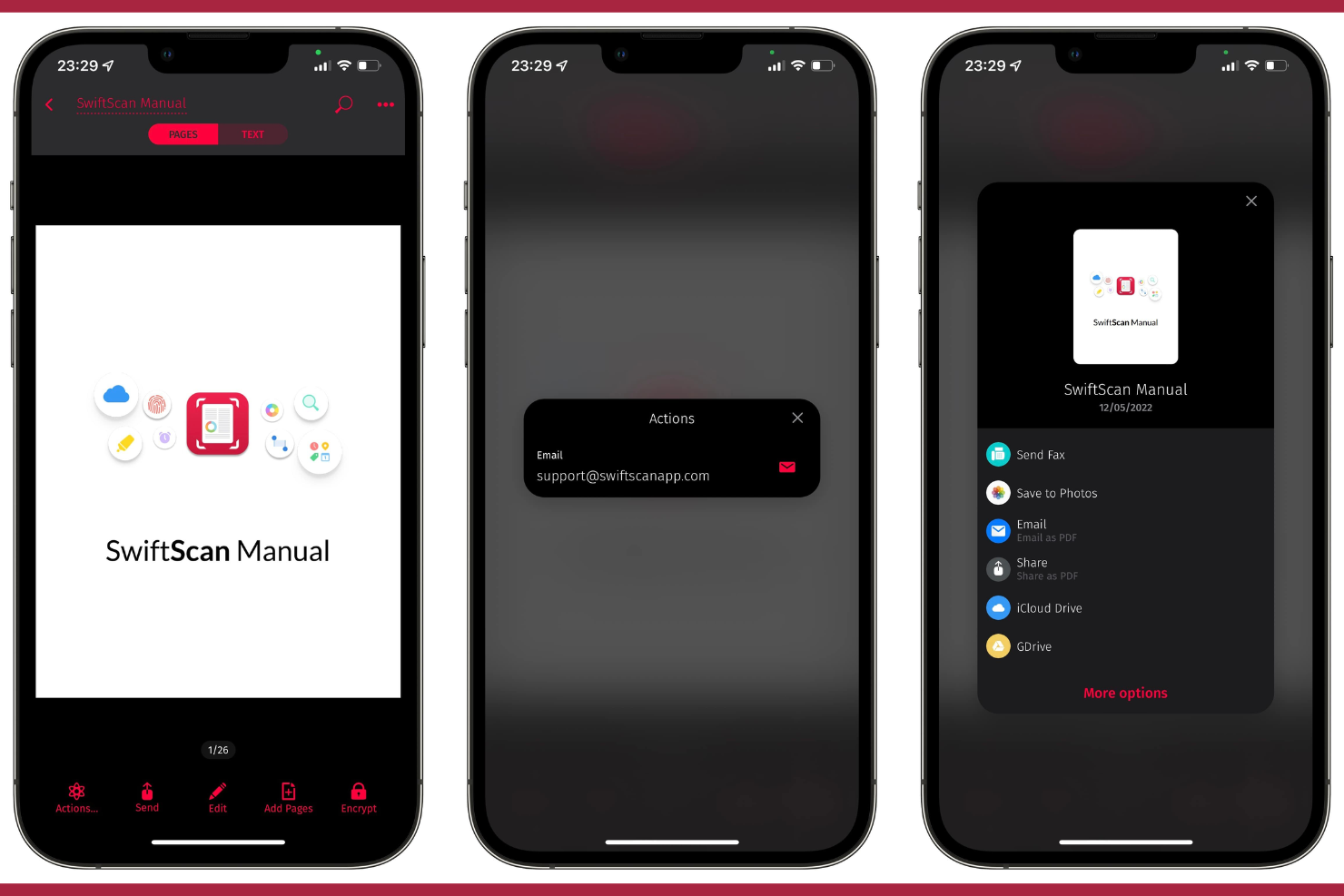
Swift Scan è un software di scansione documentale che consente di acquisire, digitalizzare e organizzare documenti con funzionalità come scansione ad alta risoluzione, rilevamento automatico dei bordi e caricamento diretto su piattaforme di archiviazione cloud.
Per chi è più indicato Swift Scan?
Swift Scan è ideale per singoli utenti e piccoli team che hanno bisogno di digitalizzare documenti cartacei e sincronizzarli direttamente nel cloud senza configurazioni complesse.
Perché ho scelto Swift Scan
Swift Scan si guadagna un posto nella mia lista perché trasferisce i documenti scansionati nel cloud con un ritardo minimo. Mi piace che si colleghi direttamente a Google Drive, Dropbox e OneDrive, così il mio team può scansionare un documento e averlo caricato e organizzato in pochi secondi. Il rilevamento automatico dei bordi e la correzione della prospettiva permettono di risparmiare tempo nella fase di ritocco delle scansioni prima della condivisione. La scansione in batch consente inoltre di elaborare documenti multipagina in un unico PDF senza interrompere il flusso di caricamento.
Funzionalità principali di Swift Scan
- Riconoscimento OCR del testo: Converte i documenti scansionati in testo ricercabile e selezionabile che puoi copiare o indicizzare.
- Strumenti di annotazione: Aggiungi note, evidenziature o firme direttamente sui documenti scansionati prima di salvarli o condividerli.
- Organizzazione personalizzata delle cartelle: Crea e gestisci strutture di cartelle all'interno dell'app per tenere i file scansionati ordinati per progetto o categoria.
- Scansione di QR code e codici a barre: Scansiona codici QR e codici a barre insieme ai documenti per acquisire dati collegati in un unico flusso di lavoro.
Integrazioni di Swift Scan
Swift Scan offre integrazioni native con Google Drive, Dropbox, OneDrive, Evernote e Box per il caricamento diretto dei documenti. Un'API per integrazioni personalizzate non è chiaramente documentata.
Pros and Cons
Pros:
- Integrazione rapida con il cloud
- Rilevamento automatico dei bordi
- Creazione di PDF multipagina
Cons:
- Limitato ai dispositivi mobili
- Abbonamento necessario per tutte le funzionalità
- Nessuna versione desktop

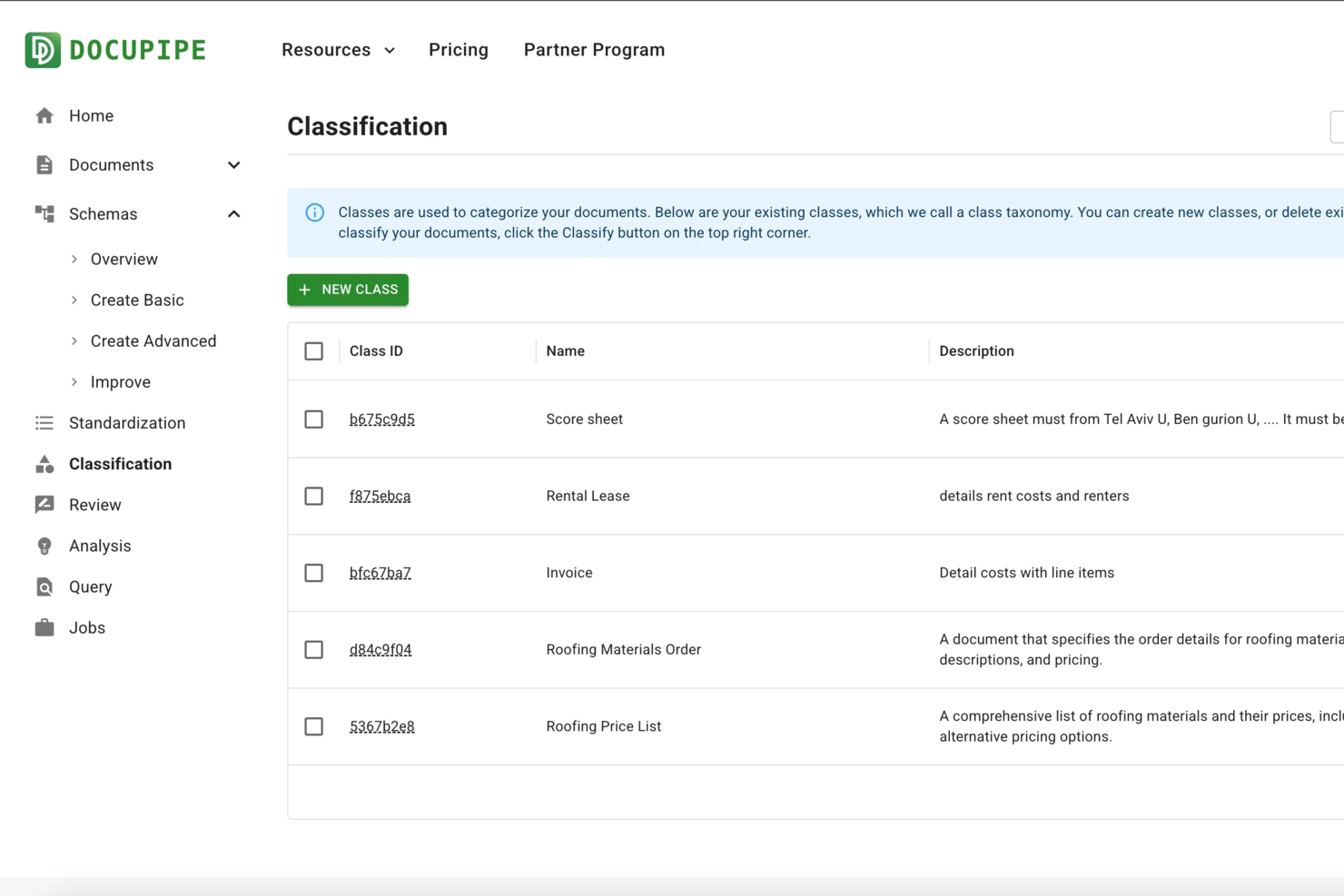
DocuPipe è una piattaforma per la scansione e l'elaborazione di documenti che consente di creare pipeline di estrazione personalizzate, automatizzare la cattura dei dati e gestire tipi di documenti complessi con strumenti avanzati di OCR e workflow.
Per chi è DocuPipe?
DocuPipe è adatto a team operativi e solution architect che devono automatizzare l'elaborazione di documenti in diversi formati e flussi di lavoro.
Perché ho scelto DocuPipe
Ho scelto DocuPipe tra i migliori perché il suo builder per pipeline di estrazione personalizzate mi permette di progettare flussi di lavoro documentali su misura per regole aziendali e strutture dati specifiche. Apprezzo la possibilità di configurare logiche di estrazione a più fasi per fatture, contratti o moduli—il mio team può automatizzare scenari complessi di cattura dati senza scrivere codice. L'editor visuale delle pipeline rende facile adattare i processi quando cambiano i requisiti.
Funzionalità principali di DocuPipe
- Riconoscimento di testo manoscritto: Estrae accuratamente dati da documenti e moduli scannerizzati e compilati a mano.
- OCR multilingue: Elabora documenti in oltre 60 lingue per una gestione globale.
- Validazione automatica dei dati: Segnala incongruenze ed errori nei dati estratti prima dell'esportazione.
- Accesso API: Integra i flussi di elaborazione documentale direttamente nei sistemi già esistenti.
Integrazioni di DocuPipe
Le integrazioni native non sono chiaramente documentate. DocuPipe fornisce un'API per integrazioni personalizzate.
Pros and Cons
Pros:
- Gestisce documenti manoscritti e a contenuto misto
- Offre un builder per pipeline di estrazione personalizzate
- Rilevamento automatico dei campi che si adatta ai layout
Cons:
- Limiti di utilizzo a crediti sul piano gratuito
- Non supporta l'esportazione diretta su cloud storage
New Product Updates from DocuPipe
DocuPipe Adds Source View and Auto-Refresh Jobs Page
DocuPipe adds Source view comparisons, auto-refreshing jobs, and real-time progress bars to improve document review and processing visibility. The updates help teams monitor extraction and standardization workflows more efficiently. For more information, visit DocuPipe’s official site.
 .
.Altri software per la scansione dei documenti
Ecco alcune opzioni aggiuntive di software per la scansione dei documenti che non sono entrate nel mio elenco ristretto, ma che vale comunque la pena prendere in considerazione:
- Scan2x
Ideale per flussi di lavoro automatizzati
- Genius Scan
Ideale per la scansione rapida in batch


Come Valuto i Software di Scansione Documenti
Valuto gli strumenti di scansione documenti su due livelli: le funzionalità principali di OCR, acquisizione e output per qualificare, poi i fattori differenzianti rilevanti per gli addetti dell’AP, i team archivio e le operazioni legali.
Funzionalità Core (Requisiti Minimi per Questo Elenco)
Queste funzionalità rappresentano i criteri di accettazione per l’inclusione nella mia lista di software per la scansione documentale:
- Acquisizione da Più Fonti: Verifico se uno strumento supporta input da scanner, MFP, fotocamera mobile e importazione file—i team sul campo necessitano acquisizione da fotocamera mentre le sale posta si affidano a scanner con ADF.
- OCR & Riconoscimento Testo: L’accuratezza su diverse lingue e tipi di documento è essenziale, quindi valuto come ogni strumento gestisce originali deteriorati come fax, copie carbone e contratti datati.
- Elaborazione ed Ottimizzazione Immagini: Correzione inclinazione, rimozione macchie e pagine bianche devono avvenire senza intervento manuale—fondamentale per i team AP che gestiscono grandi volumi con pile di fatture eterogenee.
- Formati di File & Opzioni di Esportazione: Cerco output PDF ricercabile, TIFF, Word ed Excel con percorsi di esportazione diretta verso cloud, cartelle di rete o sistemi aziendali connessi.
- Estrazione Dati & Indicizzazione: Separazione tramite barcode, OCR zonale e tagging dei metadati trasformano una scansione grezza in un record recuperabile—valuto come ogni strumento gestisce moduli strutturati rispetto a documenti liberi.
- Controlli di Redazione Documenti: Funzionalità automatiche e manuali di redazione, controlli di accesso granulari, crittografia e audit trail sono essenziali per le organizzazioni che gestiscono informazioni sensibili.
Attribuisco a ciascun fornitore un punteggio da 0 (funzionalità assente) a 5 (eccelle nell’area) per ogni criterio.
I fornitori devono raggiungere una media minima per venire considerati nell’elenco. Da lì, valuto cosa distingue ogni piattaforma.
Fattori Differenzianti (Cosa Distingue i Fornitori)
Dopo aver selezionato l’elenco, confronto così i diversi fornitori nel settore dei software di scansione documentale:
Funzionalità Distintive
Cerco elaborazione intelligente dei documenti basata su AI/ML, poiché classificazione automatica ed estrazione di entità possono ridurre drasticamente il tempo speso per l’inserimento manuale dei dati. Gli strumenti che offrono app native di acquisizione mobile con rilevamento bordi e sincronizzazione offline sono preziosi per team remoti o operatori sul campo che devono digitalizzare la carta ovunque si trovino. L’elaborazione in batch è rilevante negli ambienti che gestiscono migliaia di pagine al giorno—separazione tramite barcode e gestione delle code velocizzano i flussi di lavoro ad alto volume.
Oltre le Funzionalità
La compatibilità con l’hardware degli scanner è tra le prime cose che valuto—i team che usano scanner di produzione necessitano conferma del supporto driver TWAIN e ISIS. Anche il modello di distribuzione è importante, poiché il settore sanitario e legale richiede spesso installazioni on-premise per soddisfare le policy di residenza dati. Mi accerto inoltre della presenza di certificazioni di conformità documentate come HIPAA, SOC 2 Type II o preparazione GDPR, soprattutto quando uno strumento gestisce PHI o dati protetti da segreto professionale tra avvocato e cliente.
Come scegliere il software per la scansione dei documenti
È facile perdersi in lunghi elenchi di funzionalità e strutture tariffarie complesse. Per aiutarti a rimanere concentrato mentre affronti il tuo processo di selezione del software, ecco un elenco di fattori da tenere a mente:
| Fattore | Cosa considerare |
|---|---|
| Scalabilità | Il software è in grado di gestire il volume crescente dei tuoi documenti? Considera le esigenze future e se lo strumento può crescere insieme alla tua attività senza richiedere una revisione completa del sistema. |
| Integrazioni | Si connette agli strumenti che già utilizzi? Verifica la compatibilità con i sistemi attuali, come CRM, archiviazione cloud o software di contabilità, per evitare interruzioni del flusso di lavoro. |
| Personalizzazione | Puoi adattare il software ai tuoi processi? Cerca opzioni che consentano di modificare i flussi di lavoro, le autorizzazioni degli utenti e le impostazioni in base alle esigenze della tua attività. |
| Semplicità d'uso | L'interfaccia è intuitiva per il tuo team? Scegli un software che non richieda una formazione approfondita, così il tuo team potrà iniziare a utilizzarlo efficacemente fin da subito. |
| Implementazione e configurazione iniziale | Quanto è semplice iniziare? Valuta il tempo e le risorse necessari per la configurazione e verifica se il fornitore offre supporto, come video di formazione o tour del prodotto. |
| Costo | Il prezzo rientra nel tuo budget? Considera tutti i costi, incluse le commissioni di configurazione, i piani di abbonamento e gli eventuali costi nascosti, per assicurarti che sia compatibile con il tuo piano finanziario. |
| Misure di sicurezza | I tuoi documenti sono protetti? Assicurati che il software offra crittografia, controlli degli accessi e aggiornamenti di sicurezza regolari per mantenere al sicuro le informazioni sensibili. |
| Disponibilità dell'assistenza | L'aiuto è disponibile quando ne hai bisogno? Verifica se il fornitore offre assistenza 24 ore su 24, 7 giorni su 7, diverse opzioni di contatto e tempi di risposta rapidi per risolvere tempestivamente eventuali problemi. |
Che cos'è il software di scansione dei documenti?
Il software di scansione dei documenti è uno strumento che converte i documenti fisici in formati digitali come PDF o immagini. Professionisti come responsabili d'ufficio, commercialisti e assistenti legali utilizzano questi strumenti per gestire e organizzare efficacemente i documenti. Il riconoscimento automatico del testo, la scansione multipagina e la condivisione sicura aiutano a semplificare la gestione dei documenti e ad aumentare la produttività. Nel complesso, questi strumenti fanno risparmiare tempo e riducono la difficoltà di gestire i documenti cartacei.
Funzionalità del software di scansione dei documenti
Quando scegli un software di scansione dei documenti, presta attenzione alle seguenti funzionalità principali:
- Riconoscimento ottico dei caratteri (OCR): Converte il testo scansionato in dati modificabili e ricercabili, facilitando il lavoro con i documenti digitali.
- Scansione multipagina: Consente agli utenti di scansionare più pagine in un unico documento, risparmiando tempo e mantenendo l'organizzazione.
- Condivisione sicura dei documenti: Offre opzioni per condividere i file in modo sicuro tramite crittografia e autorizzazioni, garantendo la protezione delle informazioni sensibili.
- Elaborazione in batch: Consente di scansionare grandi quantità di documenti contemporaneamente, aumentando l'efficienza negli uffici più impegnati.
- Integrazione con il cloud: Si connette ai servizi di archiviazione cloud per salvare e accedere automaticamente ai documenti da qualsiasi luogo.
- Flussi di lavoro personalizzabili: Offre la possibilità di adattare i processi documentali alle specifiche esigenze aziendali e di migliorare la produttività.
- Classificazione automatica dei documenti: Identifica e categorizza automaticamente i documenti, riducendo la selezione manuale e gli errori.
- Interfaccia intuitiva: Garantisce facilità d'uso grazie a una navigazione intuitiva, consentendo ai team di iniziare rapidamente a utilizzare il software.
- Strumenti di annotazione e modifica: Offre funzionalità per aggiungere note, evidenziazioni o modifiche direttamente ai documenti scansionati, favorendo una migliore collaborazione.
- Supporto per la formazione e la configurazione iniziale: Include risorse come video e tutorial per aiutare gli utenti a iniziare e a sfruttare al meglio il software.
Vantaggi del software di scansione dei documenti
L'implementazione di un software di scansione dei documenti offre diversi vantaggi al tuo team e alla tua attività, inclusi flussi di lavoro semplificati che completano le soluzioni gratuite di firma elettronica. Ecco alcuni dei vantaggi che puoi aspettarti:
- Risparmio di tempo: automatizza il processo di conversione dei documenti cartacei in formato digitale, facendo risparmiare a te e al tuo team innumerevoli ore.
- Organizzazione migliorata: aiuta a mantenere i documenti in ordine con funzionalità come la scansione multipagina e la classificazione automatica, riducendo il disordine e la confusione.
- Accessibilità avanzata: rende i documenti facilmente accessibili da qualsiasi luogo tramite l'integrazione con il cloud, supportando il lavoro da remoto e la collaborazione.
- Sicurezza aumentata: protegge le informazioni sensibili con la condivisione sicura e la crittografia, offrendoti tranquillità.
- Riduzione degli errori: riduce al minimo gli errori di inserimento manuale dei dati grazie all'OCR, garantendo l'accuratezza dei documenti digitali.
- Efficienza dei costi: riduce la necessità di spazio di archiviazione fisico e di carta, abbassando i costi operativi.
- Collaborazione migliorata: consente ai membri del team di annotare e modificare insieme i documenti, promuovendo il lavoro di squadra e la comunicazione.
Costi e prezzi dei software di scansione dei documenti
La scelta di un software di scansione dei documenti richiede la comprensione dei diversi modelli e piani tariffari disponibili. I costi variano in base alle funzionalità, alle dimensioni del team, ai componenti aggiuntivi e ad altri fattori. La tabella seguente riassume i piani più comuni, i relativi prezzi medi e le funzionalità tipicamente incluse nelle soluzioni software di scansione dei documenti:
Tabella comparativa dei piani per i software di scansione dei documenti
| Tipo di piano | Prezzo medio | Funzionalità comuni |
|---|---|---|
| Piano gratuito | $0 | Scansione di base, spazio di archiviazione limitato e filigrana sui documenti. |
| Piano personale | $5-$15/utente/mese | Funzionalità OCR, integrazione con l'archiviazione cloud e strumenti di modifica di base. |
| Piano aziendale | $20-$50/utente/mese | Funzionalità di sicurezza avanzate, scansione multipagina e flussi di lavoro personalizzabili. |
| Piano aziendale avanzato | $60-$100/utente/mese | Crittografia dei dati di alto livello, supporto dedicato e opzioni complete di integrazione. |
Domande frequenti sul software di scansione dei documenti
Ecco alcune risposte alle domande comuni sul software di scansione dei documenti:
Quanto sono sicuri i documenti scansionati?
I documenti scansionati possono essere molto sicuri se si utilizza un software che offre crittografia e controlli degli accessi. Cerca funzionalità che consentano di impostare le autorizzazioni, in modo che solo gli utenti autorizzati possano visualizzare o modificare i documenti. Assicurati sempre che il tuo fornitore sia conforme alle normative sulla protezione dei dati.
Quali formati di file dovrei utilizzare per i documenti scansionati?
I formati comuni includono PDF e TIFF, ampiamente supportati e in grado di mantenere la qualità. I PDF sono ideali per i documenti ricchi di testo, mentre i TIFF sono ottimi per le immagini. Quando scegli un formato, considera le tue esigenze di modifica e condivisione.
Quanto tempo occorre per scansionare i documenti?
Il tempo varia in base al volume e alla complessità. I progetti di piccole dimensioni possono richiedere alcuni giorni, mentre quelli più grandi possono richiedere settimane. Pianificare in anticipo e utilizzare le funzionalità di elaborazione in batch può contribuire ad accelerare il processo.
È possibile rendere ricercabili i documenti scansionati?
Sì, utilizzando la tecnologia di riconoscimento ottico dei caratteri (OCR). L’OCR converte il testo scansionato in dati modificabili, rendendolo ricercabile. Questa funzione è utile per trovare rapidamente le informazioni all’interno dei documenti.
Cosa succede ai documenti originali dopo la scansione?
Puoi scegliere di conservarli, distruggerli o restituirli. Molti scelgono di distruggere i documenti per risparmiare spazio e garantire la sicurezza. Tuttavia, se gli originali sono necessari per motivi legali, è essenziale conservarli adeguatamente.
Come posso accedere da remoto ai miei documenti scansionati?
L’integrazione con il cloud consente di accedere ai documenti da qualsiasi luogo con una connessione Internet. Assicurati che il software supporti questa funzionalità e offra un accesso sicuro per il lavoro da remoto.
Recensioni correlate
Se non hai ancora trovato quello che cerchi, dai un'occhiata a questi altri strumenti che abbiamo testato e valutato:
Cosa succede ora:
Se stai valutando un software di scansione dei documenti, contatta gratuitamente un consulente SoftwareSelect per ricevere consigli.
Compili un modulo e fai una breve conversazione durante la quale vengono analizzate nel dettaglio le tue esigenze. Poi riceverai una selezione ristretta di software da esaminare. Ti supporteranno anche durante l'intero processo di acquisto, comprese le negoziazioni sul prezzo.